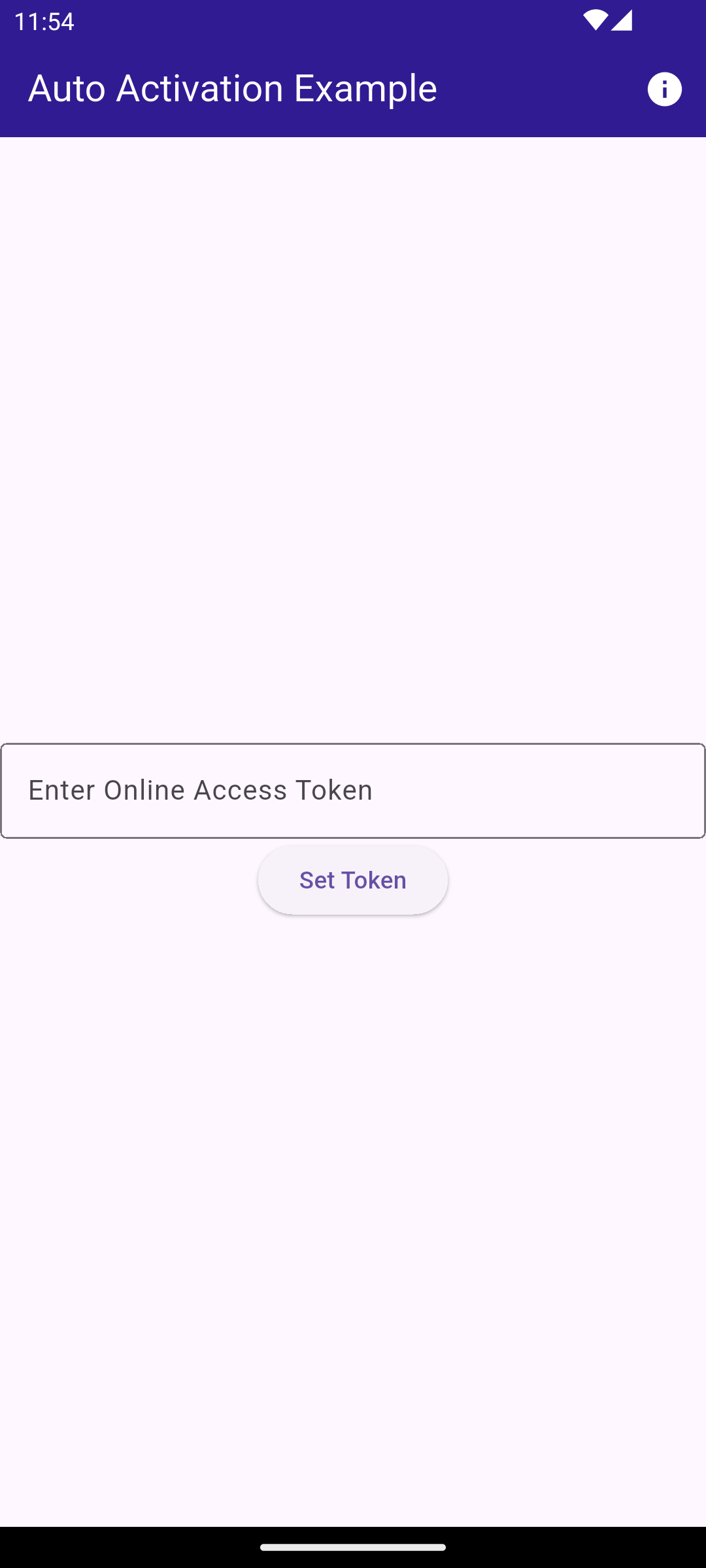
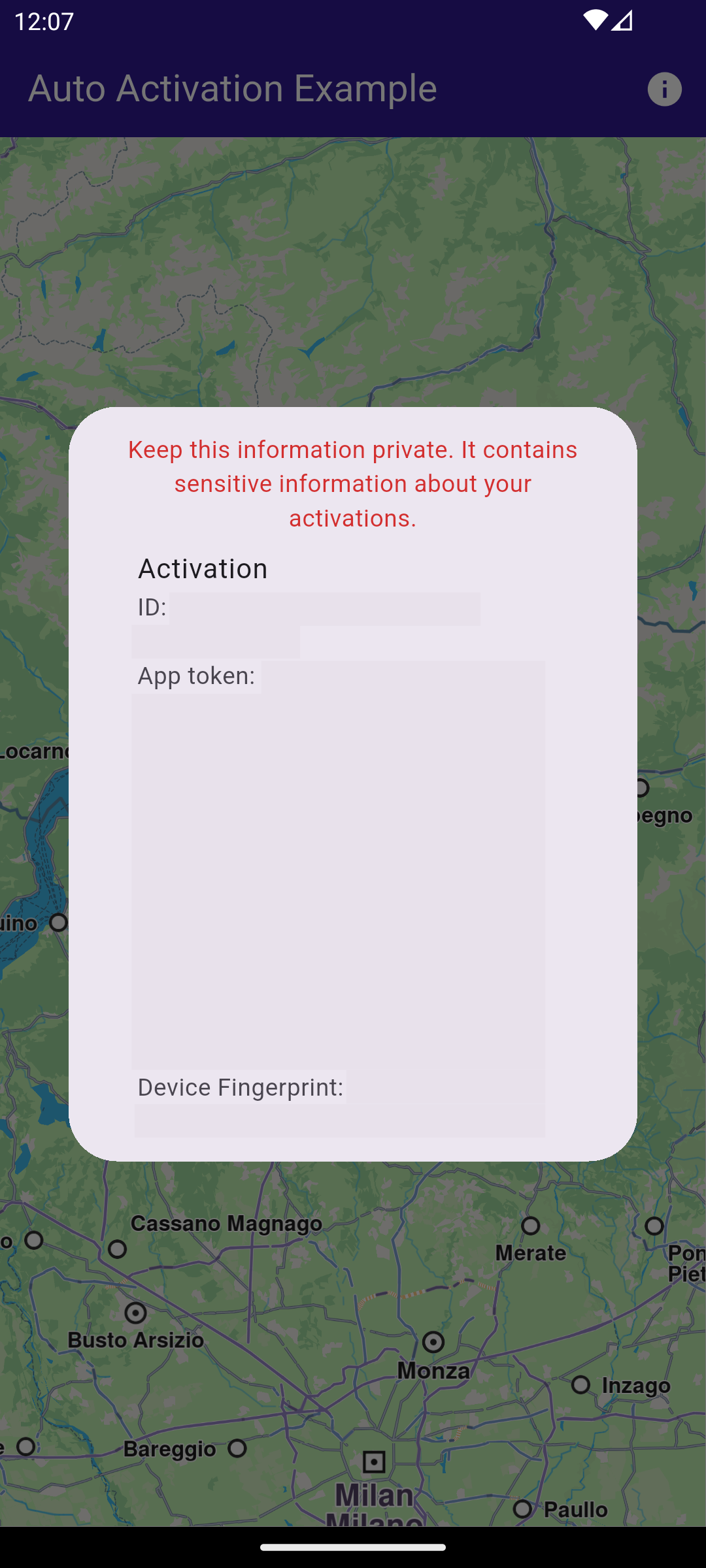
class MyHomePage extends StatefulWidget {
  const MyHomePage({super.key});

  @override
  State<MyHomePage> createState() => _MyHomePageState();
}

class _MyHomePageState extends State<MyHomePage> {
  @override
  void initState() {
    super.initState();
    _loadStoredToken();
  }

  Future<void> _loadStoredToken() async {
    final prefs = await SharedPreferences.getInstance();
    final token = prefs.getString('activation_token');
    if (token != null) {
      await GemKit.initialize(appAuthorization: token);
      setState(() {
        _isActivated = true;
        _isLoadingPreferences = false;
      });
    } else {
      setState(() {
        _isLoadingPreferences = false;
      });
    }
  }

  @override
  void dispose() {
    GemKit.release();
    super.dispose();
  }

  bool _isLoadingPreferences = true;
  bool _isActivated = false;

  @override
  Widget build(BuildContext context) {
    return Scaffold(
      appBar: AppBar(
        backgroundColor: Colors.deepPurple[900],
        title: const Text('Auto Activation Example', style: TextStyle(color: Colors.white)),
        actions: [
          IconButton(
            icon: const Icon(Icons.info, color: Colors.white),
            onPressed: () async {
              if (!_isActivated) {
                showDialog<void>(
                  context: context,
                  builder: (context) => const AlertDialog(content: Text('No activations found.')),
                );
              } else {
                final activations = ActivationService.getActivationsForProduct(ProductID.core);
                showDialog<void>(
                  context: context,
                  builder: (context) => AlertDialog(
                    content: SizedBox(
                      width: 600,
                      height: 400,
                      child: Builder(
                        builder: (context) {
                          if (activations.isEmpty) {
                            return const Text('No activations found.');
                          }
                          return ListView(
                            shrinkWrap: true,
                            children: [
                              Text(
                                "Keep this information private. It contains sensitive information about your activations.",
                                style: TextStyle(color: Colors.red[700]),
                                textAlign: TextAlign.center,
                              ),
                              ...activations.map((activation) {
                                return ListTile(
                                  title: const Text('Activation'),
                                  subtitle: Column(
                                    mainAxisSize: MainAxisSize.min,
                                    crossAxisAlignment: CrossAxisAlignment.start,
                                    children: [
                                      SelectableText('ID: ${activation.id}'),
                                      SelectableText('App token: ${activation.appToken}'),
                                      SelectableText('Device Fingerprint: ${activation.deviceFingerprint}'),
                                      SelectableText('Status: ${activation.status.name}'),
                                      SelectableText('Expires: ${activation.expiry}'),
                                      SelectableText('License Key: ${activation.licenseKey}'),
                                    ],
                                  ),
                                );
                              }),
                              const Divider(),
                              Padding(
                                padding: const EdgeInsets.all(16.0),
                                child: SelectableText("Token set in SdkSettings: ${SdkSettings.appAuthorization}"),
                              ),
                            ],
                          );
                        },
                      ),
                    ),
                  ),
                );
              }
            },
          ),
        ],
      ),
      body: Builder(
        builder: (context) {
          if (_isActivated) return const GemMap();
          if (_isLoadingPreferences) return const LoadingPreferencesWidget();

          return ActivationRequiredScreen(
            onSilentActivation: (token) async {
              final prefs = await SharedPreferences.getInstance();
              await prefs.setString('activation_token', token);

              await GemKit.initialize(appAuthorization: token);
              if (!mounted) return;
              setState(() {
                _isActivated = true;
              });
            },
          );
        },
      ),
    );
  }
}