Recorder
This example demonstrates how to build a Flutter app using the Maps SDK to record and display the user's track.
How it works
The example app highlights the following features:
- Initializing a map.
- Configuring the map to use live data from the device's GPS.
- Starting and stopping a recording while displaying the track on the map.
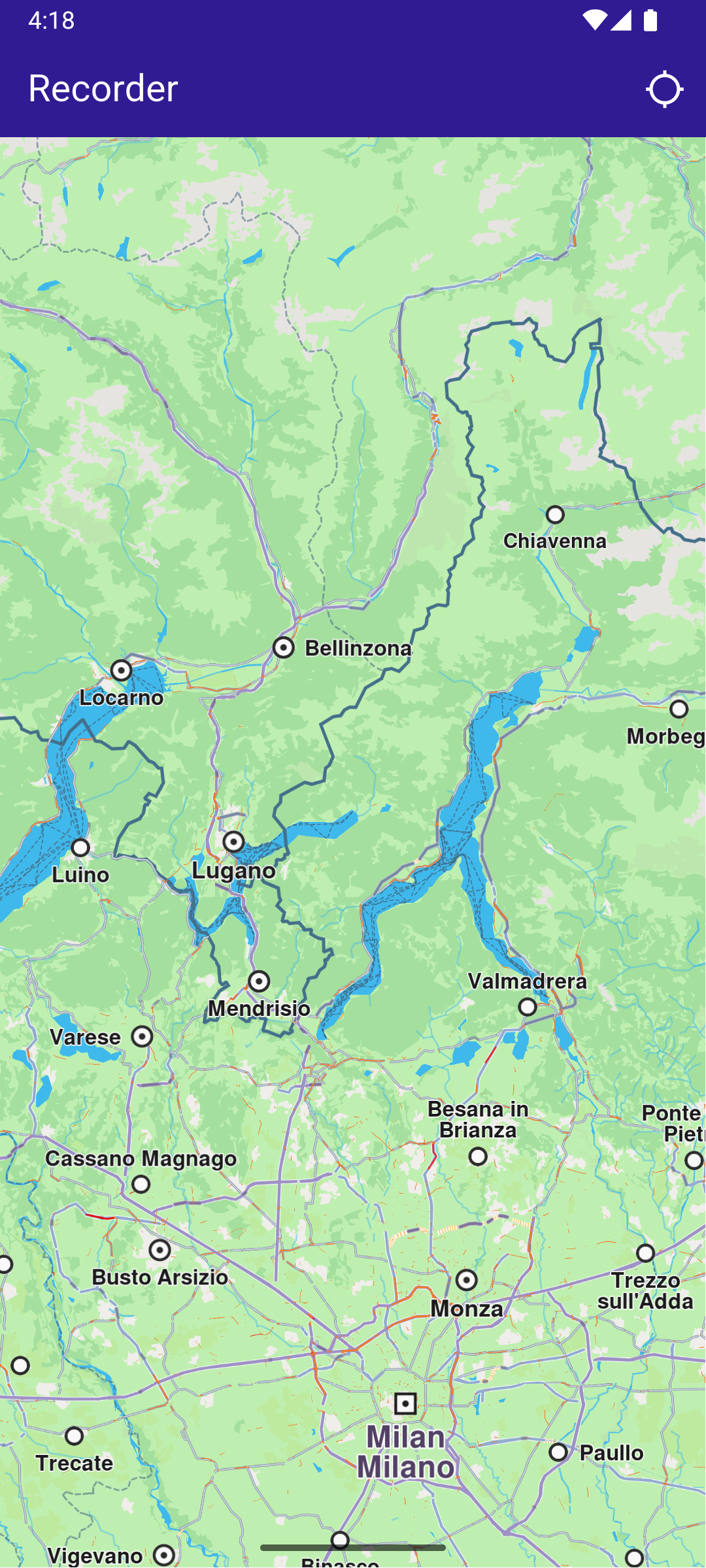
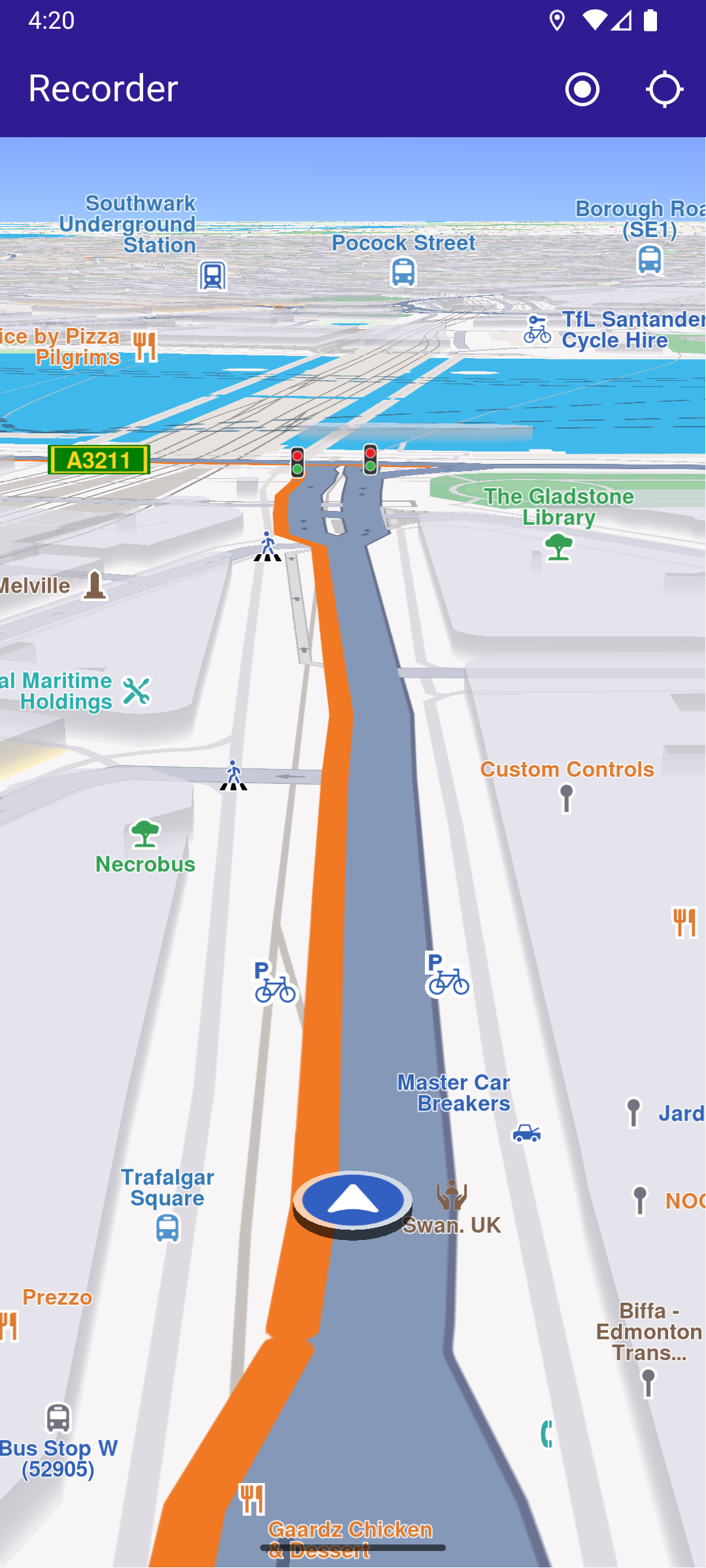
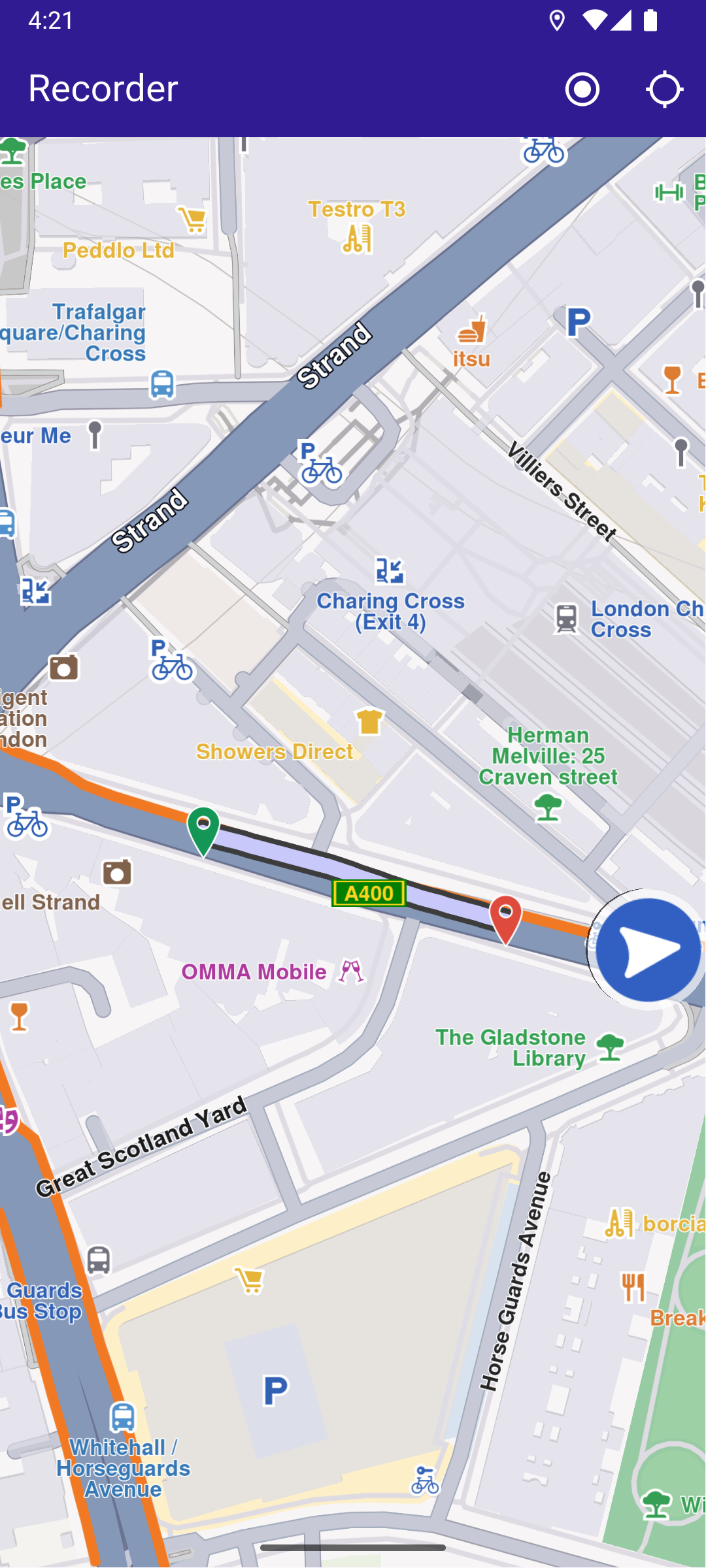
UI and Map Integration
The following code builds the UI with a GemMap widget and an app bar that includes buttons for starting/stopping recording and following the user's position.
class MyApp extends StatelessWidget {
const MyApp({super.key});
Widget build(BuildContext context) {
return const MaterialApp(
debugShowCheckedModeBanner: false,
title: 'Recorder',
home: MyHomePage(),
);
}
}
class MyHomePage extends StatefulWidget {
const MyHomePage({super.key});
State<MyHomePage> createState() => _MyHomePageState();
}
class _MyHomePageState extends State<MyHomePage> {
late GemMapController _mapController;
late Recorder _recorder;
PermissionStatus _locationPermissionStatus = PermissionStatus.denied;
bool _hasLiveDataSource = false;
bool _isRecording = false;
void dispose() {
GemKit.release();
super.dispose();
}
Widget build(BuildContext context) {
return Scaffold(
appBar: AppBar(
backgroundColor: Colors.deepPurple[900],
title: const Text('Recorder', style: TextStyle(color: Colors.white)),
actions: [
if (_hasLiveDataSource && _isRecording == false)
IconButton(
onPressed: _onRecordButtonPressed,
icon: Icon(Icons.radio_button_on, color: Colors.white),
),
if (_isRecording)
IconButton(
onPressed: _onStopRecordingButtonPressed,
icon: Icon(Icons.stop_circle, color: Colors.white),
),
IconButton(
onPressed: _onFollowPositionButtonPressed,
icon: const Icon(
Icons.location_searching_sharp,
color: Colors.white,
),
),
],
),
body: Stack(
children: [
GemMap(
key: ValueKey("GemMap"),
onMapCreated: (controller) => _onMapCreated(controller),
appAuthorization: projectApiToken,
),
],
),
);
}
Requesting Location Permission
The following code centers the camera on the user's current position if location permission is granted. Otherwise, it requests the necessary permission.
  Future<void> _onFollowPositionButtonPressed() async {
    if (kIsWeb) {
      final locationPermssionWeb =
          await PositionService.requestLocationPermission();
      _locationPermissionStatus = locationPermssionWeb == true
          ? PermissionStatus.granted
          : PermissionStatus.denied;
    } else {
      // Request WhenInUse permission first
      final whenInUseStatus = await Permission.locationWhenInUse.request();

      if (whenInUseStatus == PermissionStatus.granted) {
        // Then request Always permission
        _locationPermissionStatus = await Permission.locationAlways.request();
      } else {
        _locationPermissionStatus = whenInUseStatus; // denied or restricted
      }
    }

    if (_locationPermissionStatus == PermissionStatus.granted) {
      if (!_hasLiveDataSource) {
        PositionService.setLiveDataSource();
        _hasLiveDataSource = true;
      }

      final animation = GemAnimation(type: AnimationType.linear);
      _mapController.startFollowingPosition(animation: animation);

      setState(() {});
    }
  }
Starting and Stopping Recording
  Future<void> _onRecordButtonPressed() async {
    // Helper function that returns path to the Tracks directory
    final logsDir = await getDirectoryPath("Tracks");

    final dataSource = DataSource.createLiveDataSource()!;
    final config = dataSource.getConfiguration(DataType.position);
    config.allowsBackgroundLocationUpdates = true;

    dataSource.setConfiguration(type: DataType.position, config: config);

    final recorder = Recorder.create(
      RecorderConfiguration(
        dataSource: dataSource,
        logsDir: logsDir,
        recordedTypes: [DataType.position],
        minDurationSeconds: 0,
      ),
    );

    setState(() {
      _isRecording = true;
      _recorder = recorder;
    });

    await _recorder.startRecording();

    // Clear displayed paths
    _mapController.preferences.paths.clear();
    _mapController.deactivateAllHighlights();
  }

  Future<void> _onStopRecordingButtonPressed() async {
    final endErr = await _recorder.stopRecording();

    if (endErr == GemError.success) {
      await _presentRecordedRoute();
    } else {
      if (mounted) {
        ScaffoldMessenger.of(context).showSnackBar(
          SnackBar(
            content: Text('Recording failed: $endErr'),
            duration: Duration(seconds: 5),
          ),
        );
      }
    }

    setState(() {
      _isRecording = false;
    });
  }
Presenting the Recorded Track on the Map
This code loads the last recorded track from device memory, retrieves the coordinates, builds a Path entity, and adds it to the MapViewPathCollection.
  Future<void> _presentRecordedRoute() async {
    final logsDir = await getDirectoryPath("Tracks");

    // It loads all .gm and .mp4 files at logsDir
    final bookmarks = RecorderBookmarks.create(logsDir);

    // Get all recordings path
    final logList = bookmarks?.getLogsList();

    // Get the LogMetadata to obtain details about recorded session
    LogMetadata? meta = bookmarks!.getLogMetadata(logList!.last);
    if (meta == null) {
      // Handle the case where metadata is not found
      return;
    }
    final recorderCoordinates = meta.preciseRoute;
    final duration = convertDurationMillis(meta.durationMillis);

    if (recorderCoordinates.isEmpty) {
      // ignore: use_build_context_synchronously
      ScaffoldMessenger.of(context).showSnackBar(
        SnackBar(
          content: Text('No recorded coordinates.'),
          duration: Duration(seconds: 5),
        ),
      );
    }

    // Create a path entity from coordinates
    final path = Path.fromCoordinates(recorderCoordinates);

    Landmark beginLandmark = Landmark.withCoordinates(
      recorderCoordinates.first,
    );
    Landmark endLandmark = Landmark.withCoordinates(recorderCoordinates.last);

    beginLandmark.setImageFromIcon(GemIcon.waypointStart);
    endLandmark.setImageFromIcon(GemIcon.waypointFinish);

    HighlightRenderSettings renderSettings = HighlightRenderSettings(
      options: {HighlightOptions.showLandmark},
    );

    _mapController.activateHighlight(
      [beginLandmark, endLandmark],
      renderSettings: renderSettings,
      highlightId: 1,
    );

    // Show the path immediately after stopping recording
    _mapController.preferences.paths.add(path);

    // Center on recorder path
    _mapController.centerOnAreaRect(
      path.area,
      viewRc: Rectangle<int>(
        _mapController.viewport.width ~/ 3,
        _mapController.viewport.height ~/ 3,
        _mapController.viewport.width ~/ 3,
        _mapController.viewport.height ~/ 3,
      ),
    );

    if (mounted) {
      ScaffoldMessenger.of(context).showSnackBar(
        SnackBar(
          content: Text('Duration: $duration'),
          duration: Duration(seconds: 5),
        ),
      );
    }
  }
Utility Functions
The getDirectoryPath function retrieves the root directory path for the app and returns the desired directory path inside the "Data" folder.
import 'package:path_provider/path_provider.dart' as path_provider;
import 'package:path/path.dart' as path;

import 'dart:io';

Future<String> getDirectoryPath(String dirName) async {
  final docDirectory = Platform.isAndroid
      ? await path_provider.getExternalStorageDirectory()
      : await path_provider.getApplicationDocumentsDirectory();

  String absPath = docDirectory!.path;

  final expectedPath = path.joinAll([absPath, "Data", dirName]);
  return expectedPath;
}

// Utility function to convert the milliseconds duration into a suitable format
String convertDurationMillis(int milliseconds) {
  if (milliseconds < 1000) return '$milliseconds ms';

  int totalSeconds = milliseconds ~/ 1000;
  int hours = totalSeconds ~/ 3600;
  int minutes = (totalSeconds % 3600) ~/ 60;
  int remainingSeconds = totalSeconds % 60;

  String hoursText = (hours > 0) ? '$hours h ' : '';
  String minutesText = (minutes > 0) ? '$minutes min ' : '';
  String secondsText = '$remainingSeconds sec';

  return (hoursText + minutesText + secondsText).trim();
}
- Android
- iOS
Add the following code to the android/app/src/main/AndroidManifest.xml file, within the <manifest> block:
<uses-permission android:name="android.permission.ACCESS_FINE_LOCATION" />
<uses-permission android:name="android.permission.ACCESS_COARSE_LOCATION" />
<uses-permission android:name="android.permission.ACCESS_BACKGROUND_LOCATION" />
This example uses the Permission Handler package. Be sure to follow the setup guide.
Add the following to ios/Runner/Info.plist inside the <dict>:
<key>NSLocationWhenInUseUsageDescription</key>
<string>Location is needed for map localization and navigation</string>
<key>NSLocationAlwaysAndWhenInUseUsageDescription</key>
<string>Location is needed for map localization and navigation</string>
<key>UIBackgroundModes</key>
<array>
<string>location</string>
</array>
This example uses the Permission Handler package. Follow the official setup instructions. Add this to your ios/Podfile:
post_install do |installer|
  installer.pods_project.targets.each do |target|
    flutter_additional_ios_build_settings(target)

    target.build_configurations.each do |config|
      config.build_settings['GCC_PREPROCESSOR_DEFINITIONS'] ||= [
        '$(inherited)',
        'PERMISSION_LOCATION=1',
      ]
    end
  end
end