Video Recorder

Last updated: July 15, 2026 | 7 minutes read

This example demonstrates how to build a Flutter app using the Maps SDK to record video (in chunks) with audio and display the user's track on the map.

How it works

The example app highlights the following features:

  • Initializing a map.
  • Requesting and handling camera, microphone, and location permissions.
  • Starting and stopping video recording (with configurable chunk duration).
  • Pausing and resuming audio recording during the session.
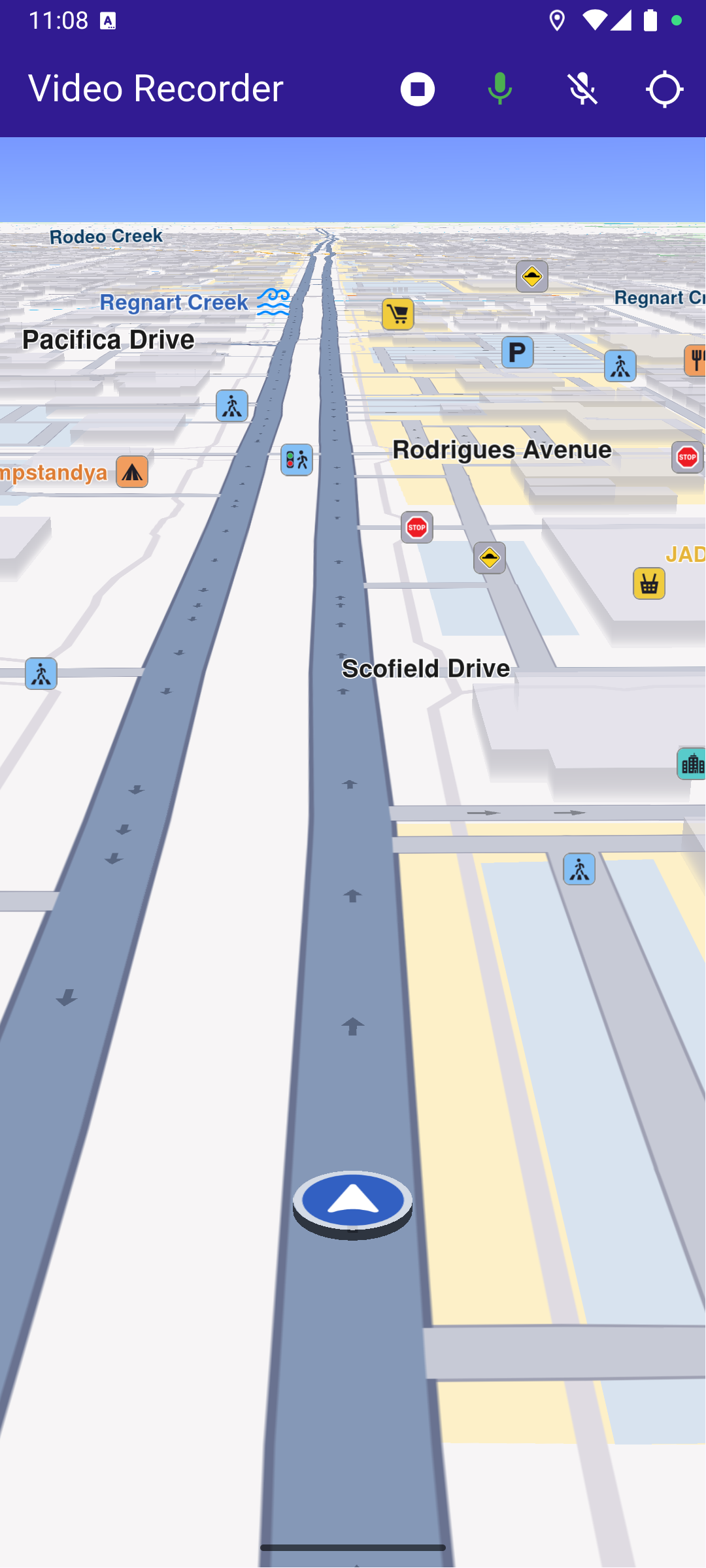
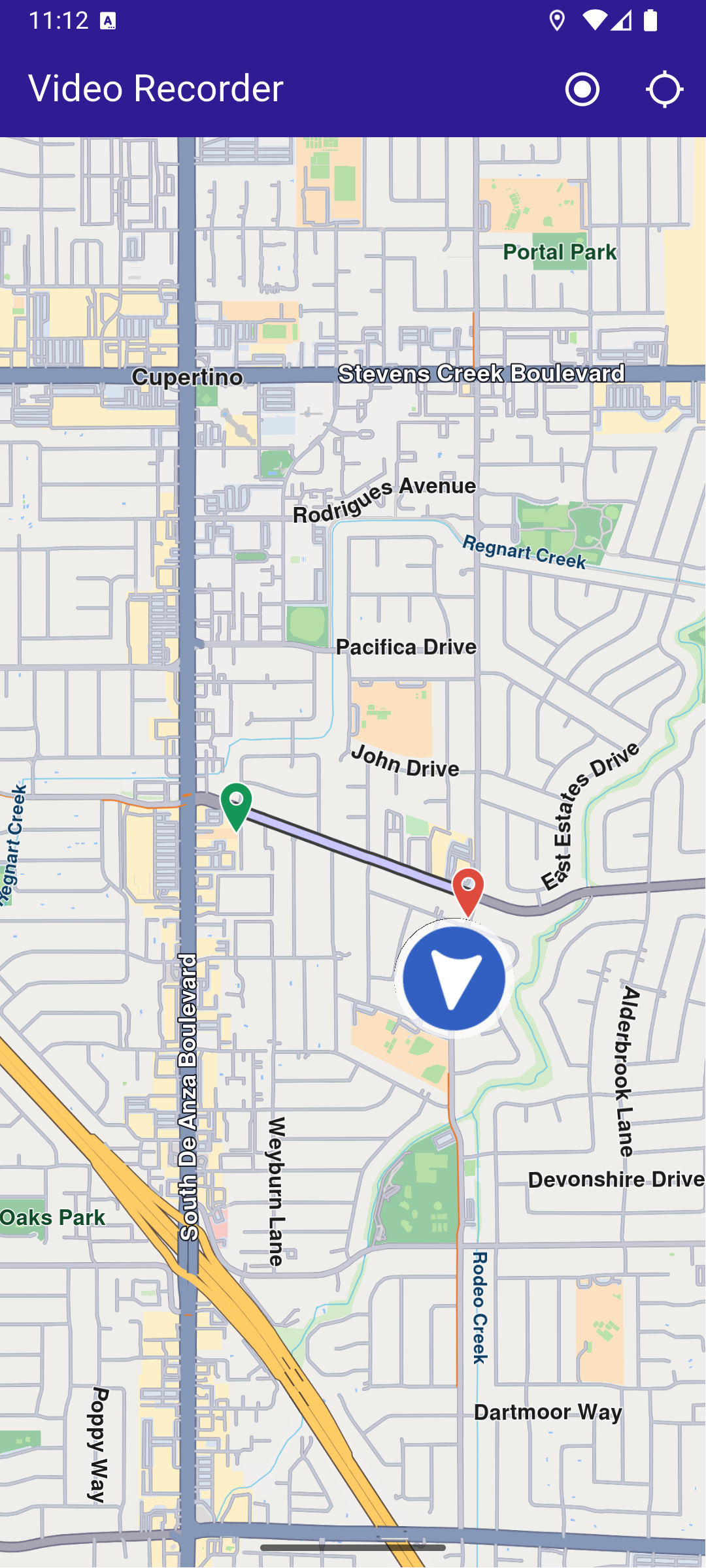
  • Displaying the recorded path on the map once recording stops.
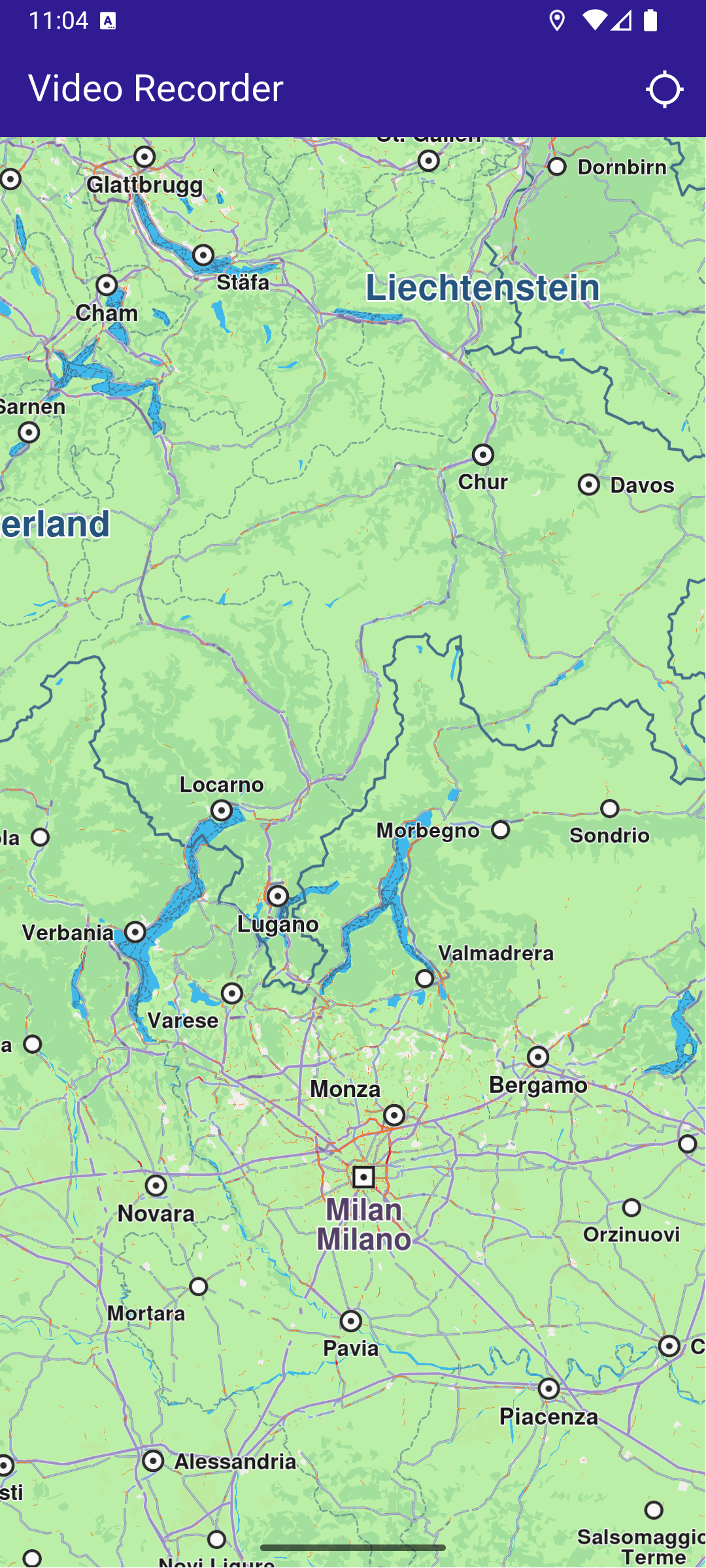
Initial map
Recording video + audio
Stopped recording

UI and Map Integration

The following code builds the UI with a GemMap widget and an app bar that includes buttons for starting/stopping video recording, controlling audio recording, and following the user's position.

class MyApp extends StatelessWidget {
const MyApp({super.key});


Widget build(BuildContext context) {
return const MaterialApp(
debugShowCheckedModeBanner: false,
title: 'Video Recorder',
home: MyHomePage(),
);
}
}

class MyHomePage extends StatefulWidget {
const MyHomePage({super.key});


State<MyHomePage> createState() => _MyHomePageState();
}

class _MyHomePageState extends State<MyHomePage> {
late GemMapController _mapController;
late Recorder _recorder;

PermissionStatus _locationPermissionStatus = PermissionStatus.denied;
bool _hasLiveDataSource = false;
bool _isRecording = false;
bool _isAudioRecording = false;


void dispose() {
GemKit.release();
super.dispose();
}


Widget build(BuildContext context) {
return Scaffold(
appBar: AppBar(
backgroundColor: Colors.deepPurple[900],
title: const Text(
'Video Recorder',
style: TextStyle(color: Colors.white),
),
actions: [
if (_hasLiveDataSource && _isRecording == false)
IconButton(
onPressed: _onRecordButtonPressed,
icon: Icon(Icons.radio_button_on, color: Colors.white),
),
if (_isRecording)
IconButton(
onPressed: _onStopRecordingButtonPressed,
icon: Icon(Icons.stop_circle, color: Colors.white),
),
if (_isRecording)
IconButton(
onPressed: _startAudioRecording,
icon: Icon(
Icons.mic,
color: _isAudioRecording ? Colors.green : Colors.white,
),
),
if (_isRecording)
IconButton(
onPressed: _stopAudioRecording,
icon: Icon(
Icons.mic_off,
color: _isAudioRecording ? Colors.white : Colors.grey,
),
),
IconButton(
onPressed: _onFollowPositionButtonPressed,
icon: const Icon(
Icons.location_searching_sharp,
color: Colors.white,
),
),
],
),
body: Stack(
children: [
GemMap(
key: ValueKey("GemMap"),
onMapCreated: (controller) => _onMapCreated(controller),
appAuthorization: projectApiToken,
),
],
),
);
}

// The callback for when map is ready to use.
void _onMapCreated(GemMapController controller) async {
// Save controller for further usage.
_mapController = controller;
}

Future<void> _onFollowPositionButtonPressed() async {
if (kIsWeb) {
// On web platform permission are handled differently than other platforms.
// The SDK handles the request of permission for location.
final locationPermssionWeb =
await PositionService.requestLocationPermission();
if (locationPermssionWeb == true) {
_locationPermissionStatus = PermissionStatus.granted;
} else {
_locationPermissionStatus = PermissionStatus.denied;
}
} else {
// For Android & iOS platforms, permission_handler package is used to ask for permissions.
_locationPermissionStatus = await Permission.locationWhenInUse.request();
}

if (_locationPermissionStatus == PermissionStatus.granted) {
// After the permission was granted, we can set the live data source (in most cases the GPS).
// The data source should be set only once, otherwise we'll get -5 error.
if (!_hasLiveDataSource) {
PositionService.setLiveDataSource();
_hasLiveDataSource = true;
}

// Optionally, we can set an animation
final animation = GemAnimation(type: AnimationType.linear);

// Calling the start following position SDK method.
_mapController.startFollowingPosition(animation: animation);

setState(() {});
}
}

Requesting Permissions

The following code requests location permission (and storage permission on web) and then camera & microphone permissions before starting a recording.

Future<void> _onFollowPositionButtonPressed() async {
if (kIsWeb) {
// On web platform permission are handled differently than other platforms.
// The SDK handles the request of permission for location.
final locationPermssionWeb =
await PositionService.requestLocationPermission();
if (locationPermssionWeb == true) {
_locationPermissionStatus = PermissionStatus.granted;
} else {
_locationPermissionStatus = PermissionStatus.denied;
}
} else {
// For Android & iOS platforms, permission_handler package is used to ask for permissions.
_locationPermissionStatus = await Permission.locationWhenInUse.request();
}

if (_locationPermissionStatus == PermissionStatus.granted) {
// After the permission was granted, we can set the live data source (in most cases the GPS).
// The data source should be set only once, otherwise we'll get -5 error.
if (!_hasLiveDataSource) {
PositionService.setLiveDataSource();
_hasLiveDataSource = true;
}

// Optionally, we can set an animation
final animation = GemAnimation(type: AnimationType.linear);

// Calling the start following position SDK method.
_mapController.startFollowingPosition(animation: animation);

setState(() {});
}
}

Starting and Stopping Recording

Future<void> _onRecordButtonPressed() async {
final hasCamMicPermission = await requestCameraAndMicPermissions();
if (!hasCamMicPermission) {
if (mounted) {
ScaffoldMessenger.of(context).showSnackBar(
SnackBar(
content: Text('Camera or microphone permission not granted.'),
duration: Duration(seconds: 3),
),
);
}
return;
}

//Helper function that returns path to the Tracks directory
final logsDir = await getDirectoryPath("Tracks");

final recorder = Recorder.create(
RecorderConfiguration(
dataSource: DataSource.createLiveDataSource()!,
logsDir: logsDir,
recordedTypes: [
DataType.position, // GPS position data
DataType.camera, // Video data from the camera sensor
],
enableAudio:
true, // Enable audio recording (requires microphone permission)
minDurationSeconds: 5,
videoQuality: Resolution
.hd720p, // Define the video resolution/quality (requires camera sensor)
chunkDurationSeconds:
180, // Length of each recorded video chunk in seconds
),
);

setState(() {
_isRecording = true;
_recorder = recorder;
});

final error = await _recorder.startRecording();

if (error != GemError.success) {
if (mounted) {
ScaffoldMessenger.of(context).showSnackBar(
SnackBar(
content: Text('Recording failed: $error'),
duration: Duration(seconds: 5),
),
);
}
setState(() {
_isRecording = false;
});
return;
}

// Clear displayed paths
_mapController.preferences.paths.clear();
_mapController.deactivateAllHighlights();
}

Future<void> _onStopRecordingButtonPressed() async {
final endErr = await _recorder.stopRecording();

if (endErr == GemError.success) {
await _presentRecordedRoute();
} else {
if (mounted) {
ScaffoldMessenger.of(context).showSnackBar(
SnackBar(
content: Text('Recording failed: $endErr'),
duration: Duration(seconds: 5),
),
);
}
}

setState(() {
_isRecording = false;
});
}
note

The resulting video recordings are saved as .mp4 files in the Data/Tracks directory specified in the recorder configuration.

Starting and Stopping Audio Recording

void _startAudioRecording() {
// Start audio recording using the recorder instance
_recorder.startAudioRecording();

setState(() {
_isAudioRecording = true;
});
}

void _stopAudioRecording() {
// Stop audio recording using the recorder instance
_recorder.stopAudioRecording();

setState(() {
_isAudioRecording = false;
});
}

Presenting the Recorded Track on the Map

This code loads the last recorded track from device memory, retrieves the coordinates, builds a Path entity, and adds it to the MapViewPathCollection.

Future<void> _presentRecordedRoute() async {
final logsDir = await getDirectoryPath("Tracks");

// It loads all .gm and .mp4 files at logsDir
final bookmarks = RecorderBookmarks.create(logsDir);

// Get all recordings path
final logList = bookmarks?.getLogsList();

// Get the LogMetadata to obtain details about recorded session
LogMetadata? meta = bookmarks!.getLogMetadata(logList!.last);
final recorderCoordinates = meta!.preciseRoute;
final duration = convertDurationMillis(meta.durationMillis);

// Create a path entity from coordinates
final path = Path.fromCoordinates(recorderCoordinates);

Landmark beginLandmark = Landmark.withCoordinates(
recorderCoordinates.first,
);
Landmark endLandmark = Landmark.withCoordinates(recorderCoordinates.last);

beginLandmark.setImageFromIcon(GemIcon.waypointStart);
endLandmark.setImageFromIcon(GemIcon.waypointFinish);

HighlightRenderSettings renderSettings = HighlightRenderSettings(
options: {HighlightOptions.showLandmark},
);

_mapController.activateHighlight(
[beginLandmark, endLandmark],
renderSettings: renderSettings,
highlightId: 1,
);

// Show the path immediately after stopping recording
_mapController.preferences.paths.add(path);

// Center on recorder path
_mapController.centerOnAreaRect(
path.area,
viewRc: Rectangle<int>(
_mapController.viewport.width ~/ 3,
_mapController.viewport.height ~/ 3,
_mapController.viewport.width ~/ 3,
_mapController.viewport.height ~/ 3,
),
);

if (mounted) {
ScaffoldMessenger.of(context).showSnackBar(
SnackBar(
content: Text('Duration: $duration'),
duration: Duration(seconds: 5),
),
);
}
}

Utility Functions

The getDirectoryPath function retrieves the root directory path for the app and returns the desired directory path inside the "Data" folder.

utils.dartView on Github
import 'package:path_provider/path_provider.dart' as path_provider;
import 'package:path/path.dart' as path;

import 'dart:io';

Future<String> getDirectoryPath(String dirName) async {
final docDirectory = Platform.isAndroid
? await path_provider.getExternalStorageDirectory()
: await path_provider.getApplicationDocumentsDirectory();

String absPath = docDirectory!.path;

final expectedPath = path.joinAll([absPath, "Data", dirName]);
return expectedPath;
}

// Utility function to convert the milliseconds duration into a suitable format
String convertDurationMillis(int milliseconds) {
if (milliseconds < 1000) return '$milliseconds ms';

int totalSeconds = milliseconds ~/ 1000;
int hours = totalSeconds ~/ 3600;
int minutes = (totalSeconds % 3600) ~/ 60;
int remainingSeconds = totalSeconds % 60;

String hoursText = (hours > 0) ? '$hours h ' : '';
String minutesText = (minutes > 0) ? '$minutes min ' : '';
String secondsText = '$remainingSeconds sec';

return (hoursText + minutesText + secondsText).trim();
}

Required Permissions
To ensure this example functions correctly, the necessary permissions must be added to the project's Android and iOS configuration files:

Add the following code to the android/app/src/main/AndroidManifest.xml file, within the <manifest> block:

<uses-permission android:name="android.permission.ACCESS_FINE_LOCATION" />
<uses-permission android:name="android.permission.ACCESS_COARSE_LOCATION" />
<uses-permission android:name="android.permission.CAMERA" />
<uses-permission android:name="android.permission.RECORD_AUDIO" />
<uses-permission android:name="android.permission.READ_EXTERNAL_STORAGE" />
<uses-permission android:name="android.permission.WRITE_EXTERNAL_STORAGE" />
<uses-permission android:name="android.permission.READ_MEDIA_IMAGES" />
<uses-permission android:name="android.permission.READ_MEDIA_VIDEO" />

This example uses the Permission Handler package. Be sure to follow the setup guide.