Adjust the map view
The Maps SDK for Flutter provides multiple ways to modify the map view, center on coordinates or areas, and explore different perspectives. Control map features like zoom, tilt, rotation, and centering through the GemMapController provided by GemMap.
Get the map viewport
The map viewport is the visible area displayed by the GemMap widget. The viewport getter returns a Rectangle object containing xy coordinates (left and top) and dimensions (width and height).
The top-left coordinate is [0, 0] and bottom-right is [viewport.width, viewport.height].
final currentViewport = mapController.viewport
The width and height are measured in physical pixels. To convert them to Flutter logical pixels, use the GemMapController.devicePixelSize getter. See Flutter documentation for more details.
Convert physical pixels to logical pixels:
final currentViewport = mapController.viewport;
final flutterHeightPixels = currentViewport.height / mapController.devicePixelSize;
final flutterWidthPixels = currentViewport.width / mapController.devicePixelSize;
Center the map
Center the map using methods like centerOnCoordinates, centerOnArea, centerOnAreaRect, centerOnRoute, centerOnRoutePart, centerOnRouteInstruction, and centerOnRouteTrafficEvent.
Center on coordinates
Center WGS coordinates on the viewport using the centerOnCoordinates method:
mapController.centerOnCoordinates(Coordinates(latitude: 45, longitude: 25));
Add a linear animation while centering:
controller.centerOnCoordinates(
    Coordinates(latitude: 52.14569, longitude: 1.0615),
    animation: GemAnimation(type: AnimationType.linear, duration: 2000));
Call skipAnimation() to bypass the animation. Use isAnimationInProgress to check if an animation is running, or isCameraMoving to check if the camera is moving.
Do not confuse zoomLevel with slippyZoomLevel. The slippyZoomLevel is linked to the tile system.
Convert between screen and WGS coordinates
Convert a screen position to WGS coordinates using transformScreenToWgs():
Coordinates coordsToCenter = mapController.transformScreenToWgs(Point(pos.x, pos.y));

mapController.centerOnCoordinates(coordsToCenter, zoomLevel: 70);
If the applied style includes elevation and terrain data is loaded, transformScreenToWgs returns Coordinates objects with altitude. Check for terrain support using the hasTerrainTopography getter.
Convert WGS coordinates to screen coordinates using transformWgsToScreen():
Coordinates wgsCoordinates = Coordinates(latitude: 8, longitude: 25);

Point<int> screenPosition = mapController.transformWgsToScreen(wgsCoordinates);
Use transformWgsListToScreen to convert multiple WGS coordinates to screen coordinates. Use transformScreenToWgsRect to convert a Rectangle<int> to a RectangleGeographicArea.
Center on coordinates at a screen position
Center on a different viewport area by providing a screenPosition parameter as a Point<int>. The x coordinate should be in [0, viewport.width] and y in [0, viewport.height].
The screenPosition parameter uses physical pixels, not logical pixels.
Center the map at one-third of its height:
final physicalHeightPixels = mapController.viewport.height;
final physicalWidthPixels = mapController.viewport.width;

mapController.centerOnCoordinates(
    Coordinates(latitude: 52.48209, longitude: -2.48888),
    zoomLevel: 40,
    screenPosition: Point(physicalWidthPixels ~/ 2, physicalHeightPixels ~/ 3),
);
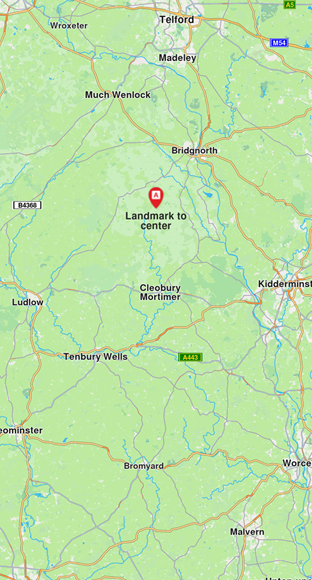
Pass additional parameters like animation, mapAngle, viewAngle, and zoomLevel for more control.
Center on an area
Center on a specific GeographicArea such as a RectangleGeographicArea defined by top-left and bottom-right coordinates:
final topLeftCoords = Coordinates(latitude: 44.93343, longitude: 25.09946);
final bottomRightCoords = Coordinates(latitude: 44.93324, longitude: 25.09987);
final area = RectangleGeographicArea(topLeft: topLeftCoords, bottomRight: bottomRightCoords);

mapController.centerOnArea(area);
This centers the view on the geographic area, ensuring the GeographicArea covers most of the viewport. To center the area at a specific viewport coordinate, provide a screenPosition parameter as a Point<int>.
Alternatively, use centerOnAreaRect to center on a specific viewport region. Pass a viewRc parameter as a Rectangle<int> to define the target screen region. The Rectangle determines the positioning relative to the top-left coordinates, with the top-right corner at left + Rectangle's width.
As the Rectangle width and height decrease, the view becomes more zoomed out. For a zoomed-in view, use larger values within [1, viewport.width - x] and [1, viewport.height - y].
Use getOptimalRoutesCenterViewport and getOptimalHighlightCenterViewport to compute the optimal viewport region for routes and highlights.
Center on an area with padding
Center on an area with padding by adjusting screen coordinates (in physical pixels) with the padding value. Create a new RectangleGeographicArea using the padded screen coordinates transformed to WGS coordinates via transformScreenToWgs(point).
// Getting the RectangleGeographicArea in which the route belongs
final routeArea = route.geographicArea;
const paddingPixels = 200;

// Getting the top left point screen coordinates in physical pixels
final routeAreaTopLeftPoint = mapController.transformWgsToScreen(routeArea.topLeft);

// Adding padding by shifting point in the top left
final topLeftPadded = Point<int>(
    routeAreaTopLeftPoint.x - paddingPixels,
    routeAreaTopLeftPoint.y - paddingPixels,
);

final routeAreaBottomRightPoint = mapController.transformWgsToScreen(routeArea.bottomRight);

// Adding padding by shifting point downwards three times the padding
final bottomRightPadded = Point<int>(
    routeAreaBottomRightPoint.x + paddingPixels,
    routeAreaBottomRightPoint.y + 3 * paddingPixels,
);

// Converting points with padding to wgs coordinates
final paddedTopLeftCoordinate = mapController.transformScreenToWgs(topLeftPadded);
final paddedBottomRightCoordinate = mapController.transformScreenToWgs(bottomRightPadded);

mapController.centerOnArea(RectangleGeographicArea(
    topLeft: paddedTopLeftCoordinate,
    bottomRight: paddedBottomRightCoordinate,
));
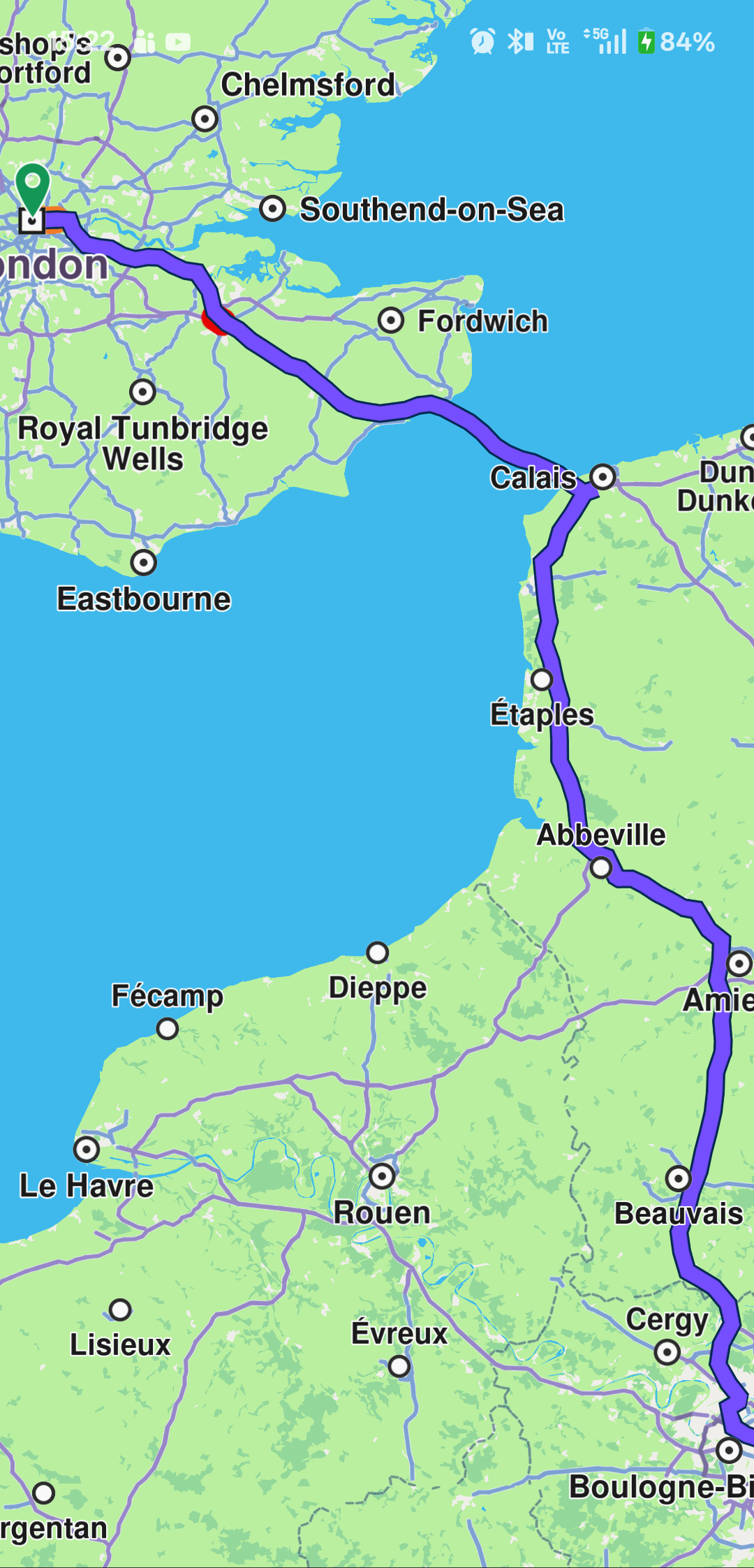
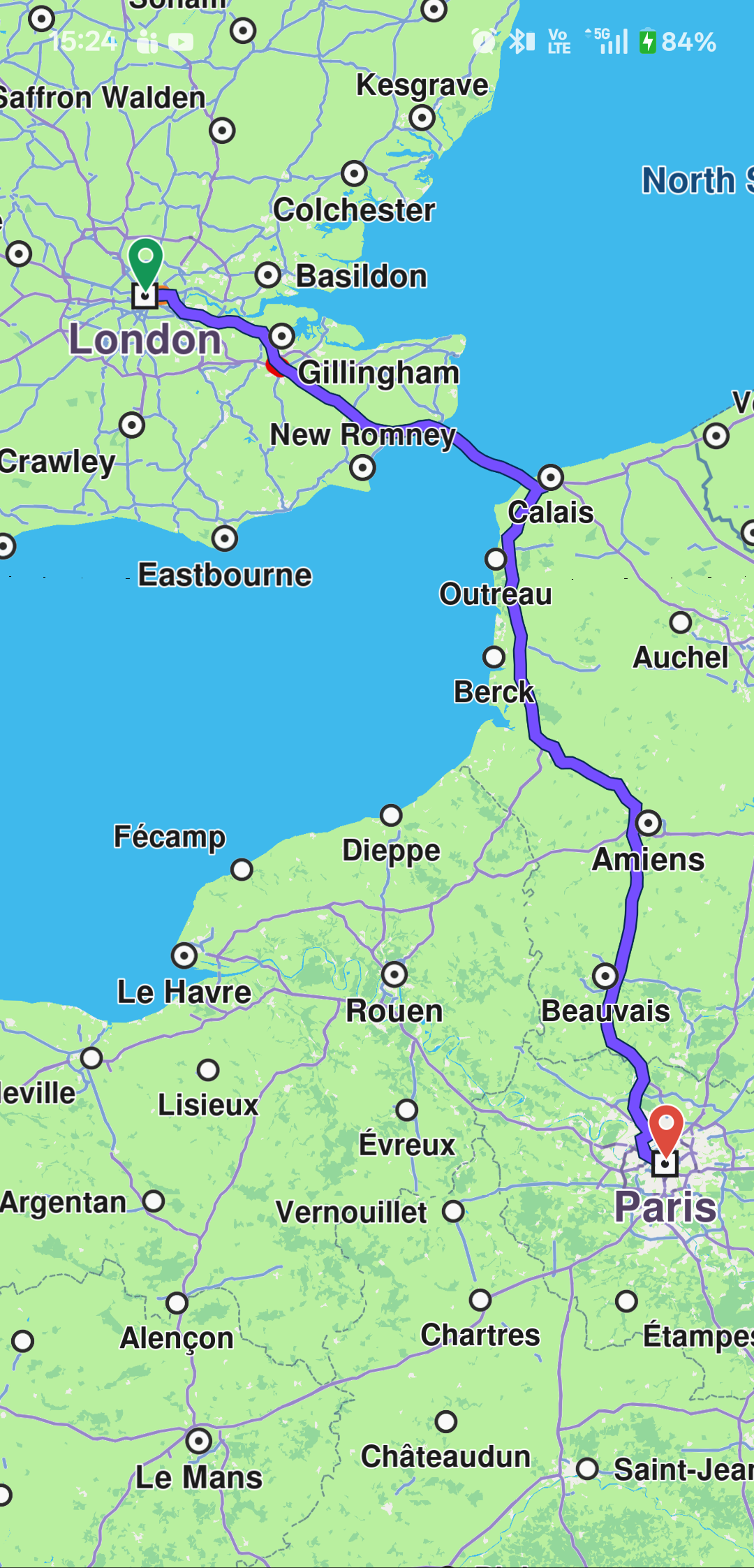
When applying padding using Flutter panel heights, note that heights are measured in logical pixels, not physical pixels. A conversion is required, as detailed in Get the map viewport.
Adjust the zoom level
Get the current zoom level using the zoomLevel getter. Higher values bring the camera closer to the terrain. Change the zoom level using setZoomLevel:
final int zoomLevel = mapController.zoomLevel;
mapController.setZoomLevel(50);
Access maximum and minimum zoom levels via maxZoomLevel and minZoomLevel getters. The GemMapController class also provides setters for these limits. Use canZoom to check if a specific zoom level can be applied.
Adjust the rotation angle
Get the current rotation angle using the mapAngle getter from MapViewPreferences. Change the rotation angle using the mapAngle setter:
final double rotationAngle = mapController.preferences.mapAngle;
mapController.preferences.mapAngle = 45;
The value must be between 0 and 360. By default, the camera has a rotation angle of 0 degrees (north-up alignment). The rotation axis is always perpendicular to the ground and passes through the camera.
You can also use the mapAngle setter from the GemMapController class.
Adjust the view angle
The camera can transform the flat 2D map into a 3D perspective, allowing you to view features like distant roads appearing on the horizon. By default, the camera has a top-down perspective (viewAngle = 90°).
In addition to adjusting the camera's view angle, you can modify its tilt angle. The tiltAngle is defined as the complement of the viewAngle, calculated as tiltAngle = 90-viewAngle
In order to change the view angle of camera you need to access the preferences field of GemMapController like so:
final double viewAngle = mapController.preferences.viewAngle;
mapController.preferences.setViewAngle(45);
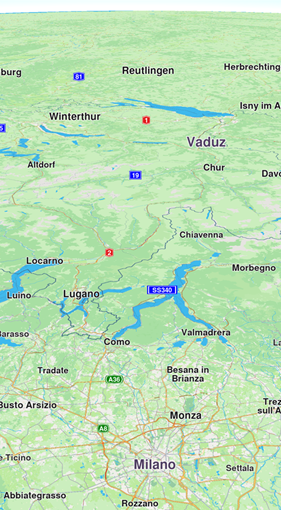
To adjust the camera's perspective dynamically, you can utilize both the tiltAngle and viewAngle properties.
The difference between the different types of angles is shown below:
This operation can also be done using the viewAngle setter available in the GemMapController class.
Adjusting the rotation value produces different outcomes depending on the camera's tilt. When tilted, changing rotation shifts the target location. With no tilt, the target location remains fixed.
Set the map perspective
Set the map perspective to two-dimensional or three-dimensional using setMapViewPerspective:
final MapViewPerspective perspective = mapController.preferences.mapViewPerspective;
mapController.preferences.setMapViewPerspective(MapViewPerspective.threeDimensional);
The default perspective is three-dimensional.
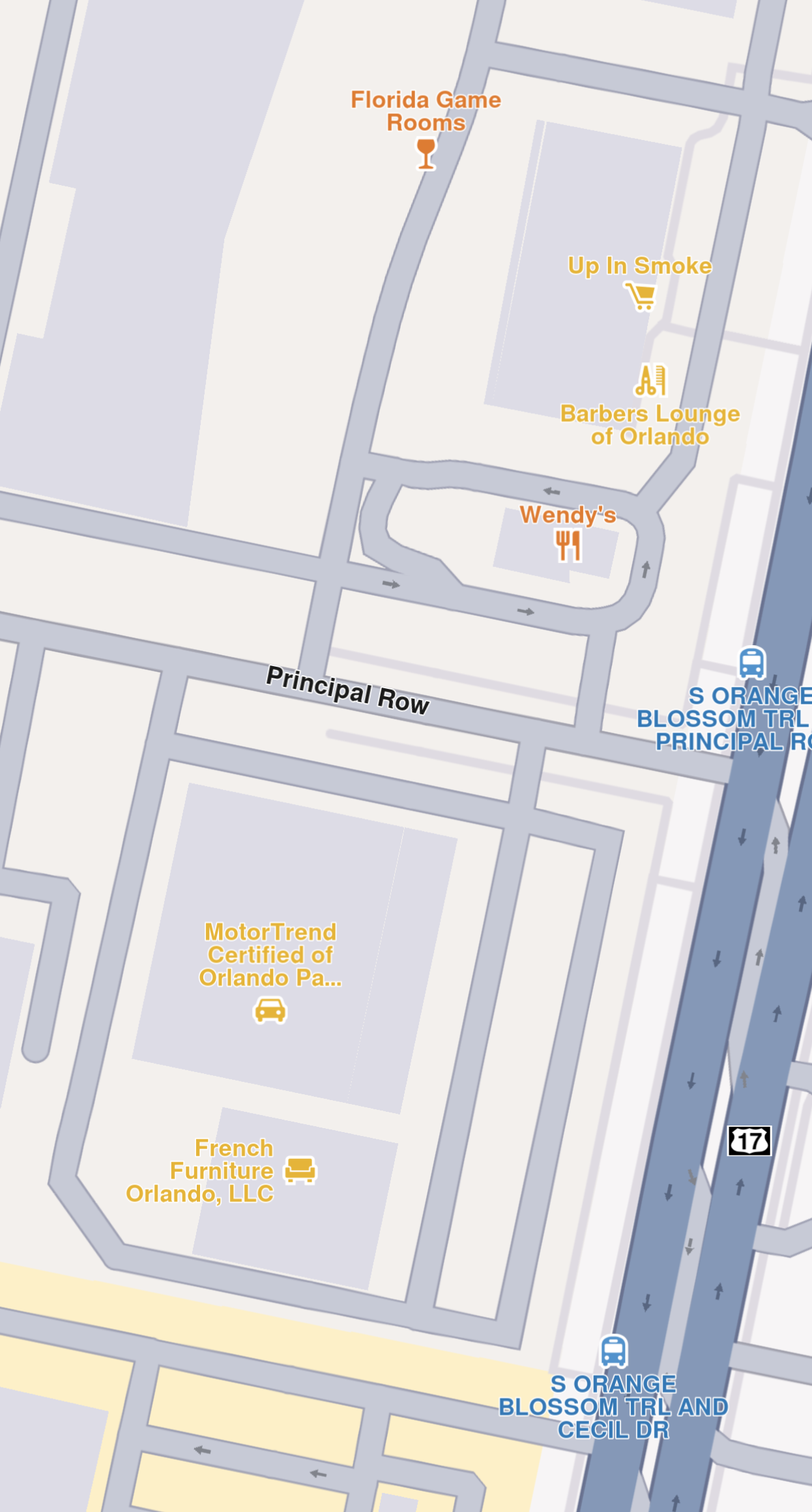
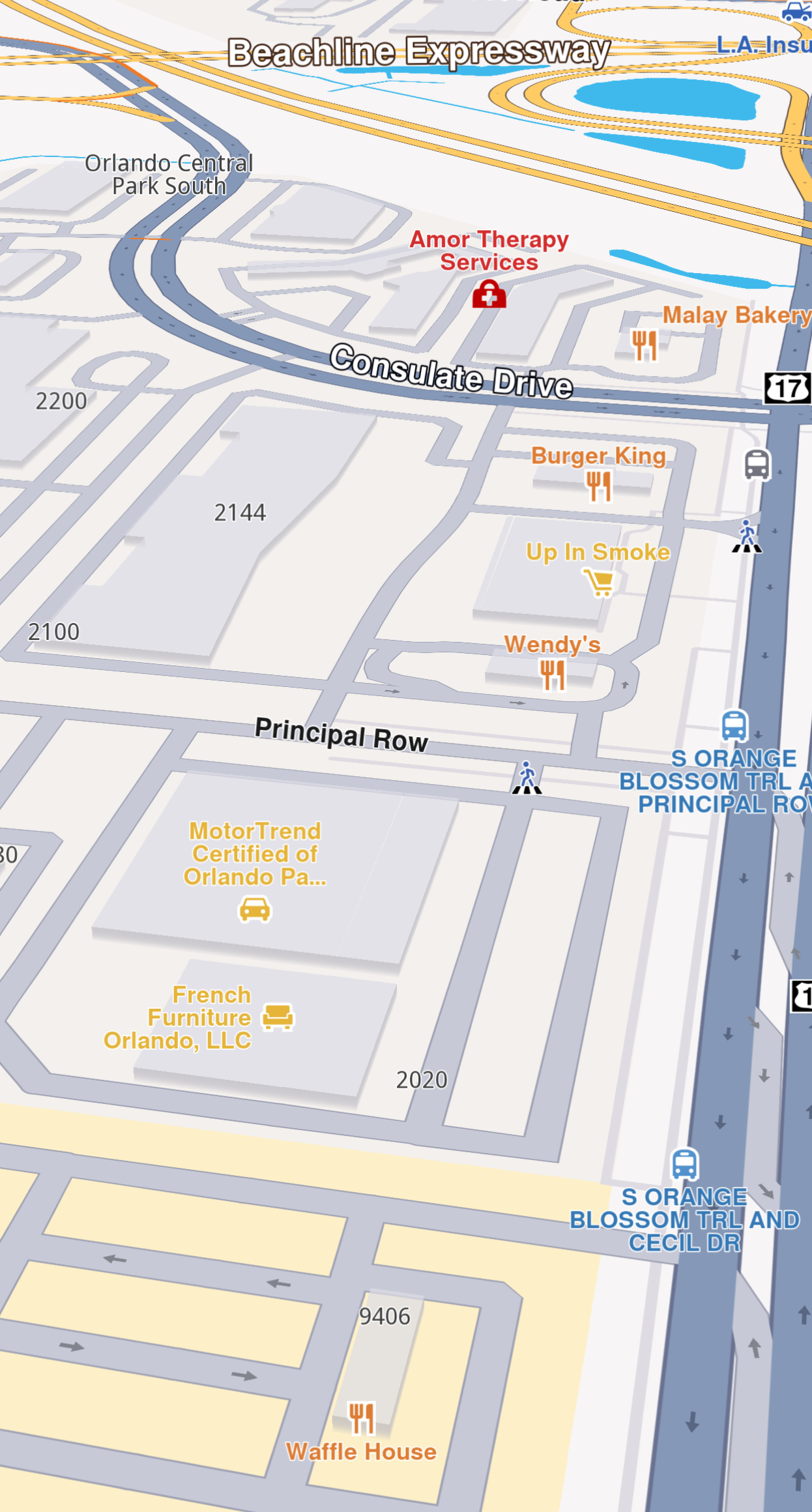
A three-dimensional perspective gives buildings a realistic 3D appearance, while a two-dimensional perspective displays them as flat shapes.
For three-dimensional buildings to be visible, the camera angle must not be perpendicular to the map. The view angle must be less than 90 degrees.
You can achieve the same effect more precisely using the tiltAngle or viewAngle fields.
Control building visibility
Control building visibility using the buildingsVisibility getter/setter from MapViewPreferences:
defaultVisibility- Uses the default visibility from the map stylehide- Hides all buildingstwoDimensional- Displays buildings as flat 2D polygons without heightthreeDimensional- Displays buildings as 3D polygons with height
final BuildingsVisibility visibility = mapController.preferences.buildingsVisibility;
mapController.preferences.buildingsVisibility = BuildingsVisibility.twoDimensional;
Buildings become visible when the camera is zoomed in close to the ground. The 3D effect is most noticeable from a tilted angle. Note that 3D buildings do not reflect realistic or accurate heights.
Store and restore a view
The map camera object provides getters and setters for position and orientation, giving you full control over the map view.
Store a view using the cameraState getter. This returns a Uint8List object that can be stored in a variable or serialized to a file:
final state = mapController.camera.cameraState;
Restore a saved view using the cameraState setter:
mapController.camera.cameraState = state;
Alternatively, store and restore position and orientation separately using the provided getters and setters.
The cameraState does not contain information about the current style.
Download map tiles
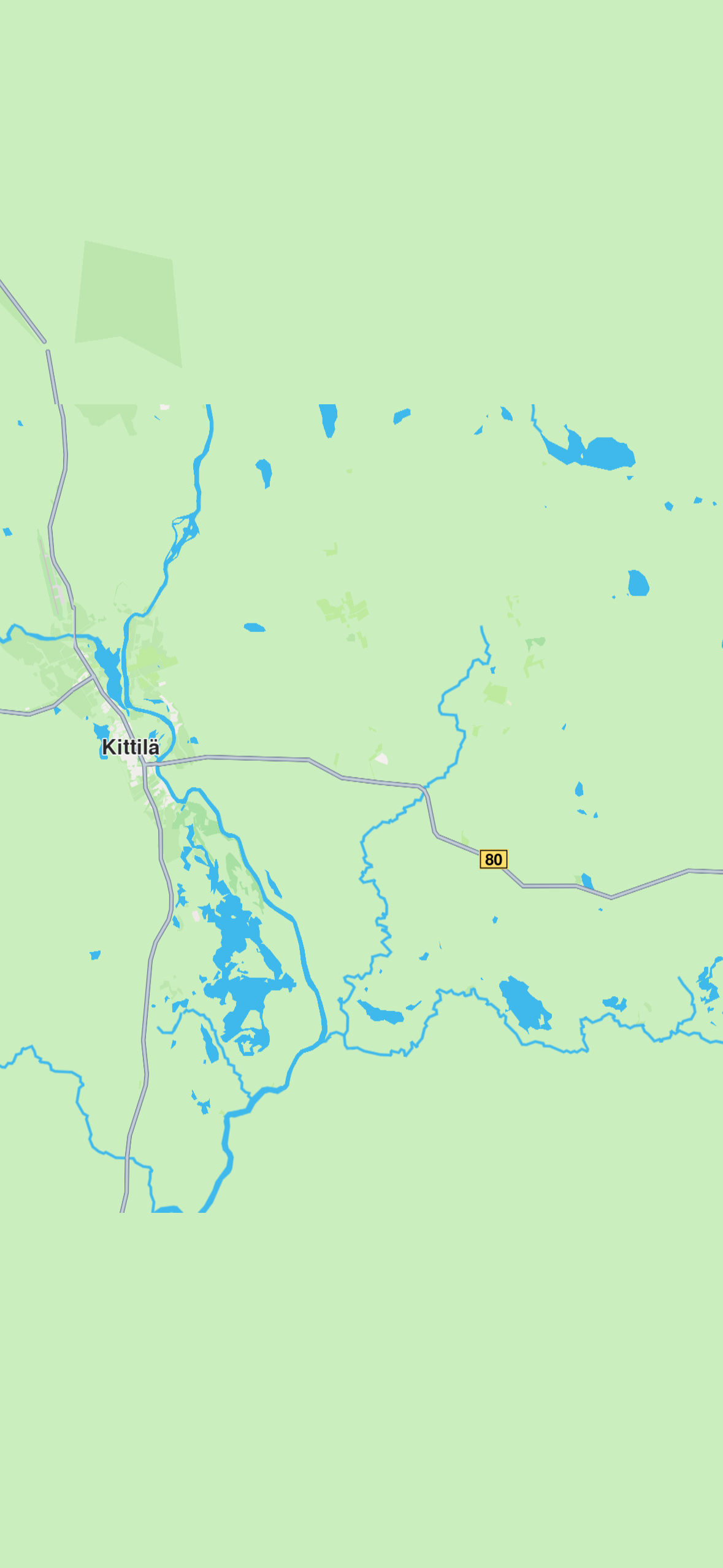
A map tile is a small, rectangular image or data chunk that represents a specific geographic area at a particular zoom level on a GemMap widget. Tiles are usually downloaded when panning or zooming in on a map, and they are used to render the map's visual content. However, you can also download tiles that are not currently visible on the screen, using the MapDownloaderService class.
Configuring the MapDownloaderService
The service can be configured by setting specific maximum area size in square kilometers to download by using the setMaxSquareKm setter:
final service = MapDownloaderService();

// Set a new value
service.maxSquareKm = 100;

// Verify the new value
final int updatedMaxSquareKm = service.maxSquareKm;
The larger the area, the more tiles can be downloaded, which can lead to increased memory usage. The default value is 1000 square kilometers.
If the RectangleGeographicArea surface exceeds MaxSquareKm, MapDownloaderService returns GemError.outOfRange.
Download tiles by calling the startDownload method:
final service = MapDownloaderService();
final completer = Completer<GemError>();

service.maxSquareKm = 300;

service.startDownload([
  // Area in which the tiles will be downloaded that is under 300 square kilometers
  RectangleGeographicArea(
      topLeft: Coordinates(latitude: 67.69866, longitude: 24.81115),
      bottomRight: Coordinates(latitude: 67.58326, longitude: 25.36093))
  ], (err) {
      completer.complete(err);
});

final res = await completer.future;
When tiles are downloaded, the onComplete callback is invoked with a GemError parameter indicating the success or failure of the operation. If the download is successful, the error will be GemError.success. Downloaded tiles are stored in the cache and can be used later for features such as viewing map content, searchAlongRoute, searchAroundPosition, searchInArea without requiring an internet connection.
The SearchService.search method returns GemError.invalidInput when searching in downloaded tile areas, as it requires indexing, which is not available for downloaded tiles.
Cancel downloads by calling cancelDownload. The onComplete callback will be invoked with GemError.cancelled.
Downloading previously downloaded tiles will not return GemError.upToDate. Downloaded tiles are stored in the Data/Temporary/Tiles folder as .dat1 files.
Access detailed download statistics using the transferStatistics getter.
Downloaded map tiles via MapDownloaderService do not support free-text search, routing, or turn-by-turn navigation offline. They are intended for caching map data for visual display only.
For full offline functionality, including search and navigation, see the Manage Offline Content Guide to download roadmap data for offline use.
Change settings while following position
The FollowPositionPreferences class provides customization while the camera is in follow position mode. Retrieve an instance:
FollowPositionPreferences preferences = mapController.preferences.followPositionPreferences;
See customize follow position settings for more details.
Do not call methods on disposed GemMapController instances, as this may cause exceptions. If the GemMap widget is removed from the widget tree, avoid invoking methods on its associated GemMapController or related entities:
MapViewPreferencesMapViewRoutesCollectionMapViewPathCollectionLandmarkStoreCollectionFollowPositionPreferencesMapViewExtensionsMapViewMarkerCollections