Display routes
Learn how to display routes on the map, customize their appearance, and manage route labels.
Add routes to the map
Display routes on the map using MapViewPreferences.routes.add(route, isMainRoute). Multiple routes can be displayed simultaneously, but only one can be the main route, with others treated as secondary. Specify the main route by passing true to the bMainRoute parameter when calling MapViewRoutesCollection.add, or use the MapViewRoutesCollection.mainRoute setter.
mapController.preferences.routes.add(route, true);
mapController.centerOnRoute(route);
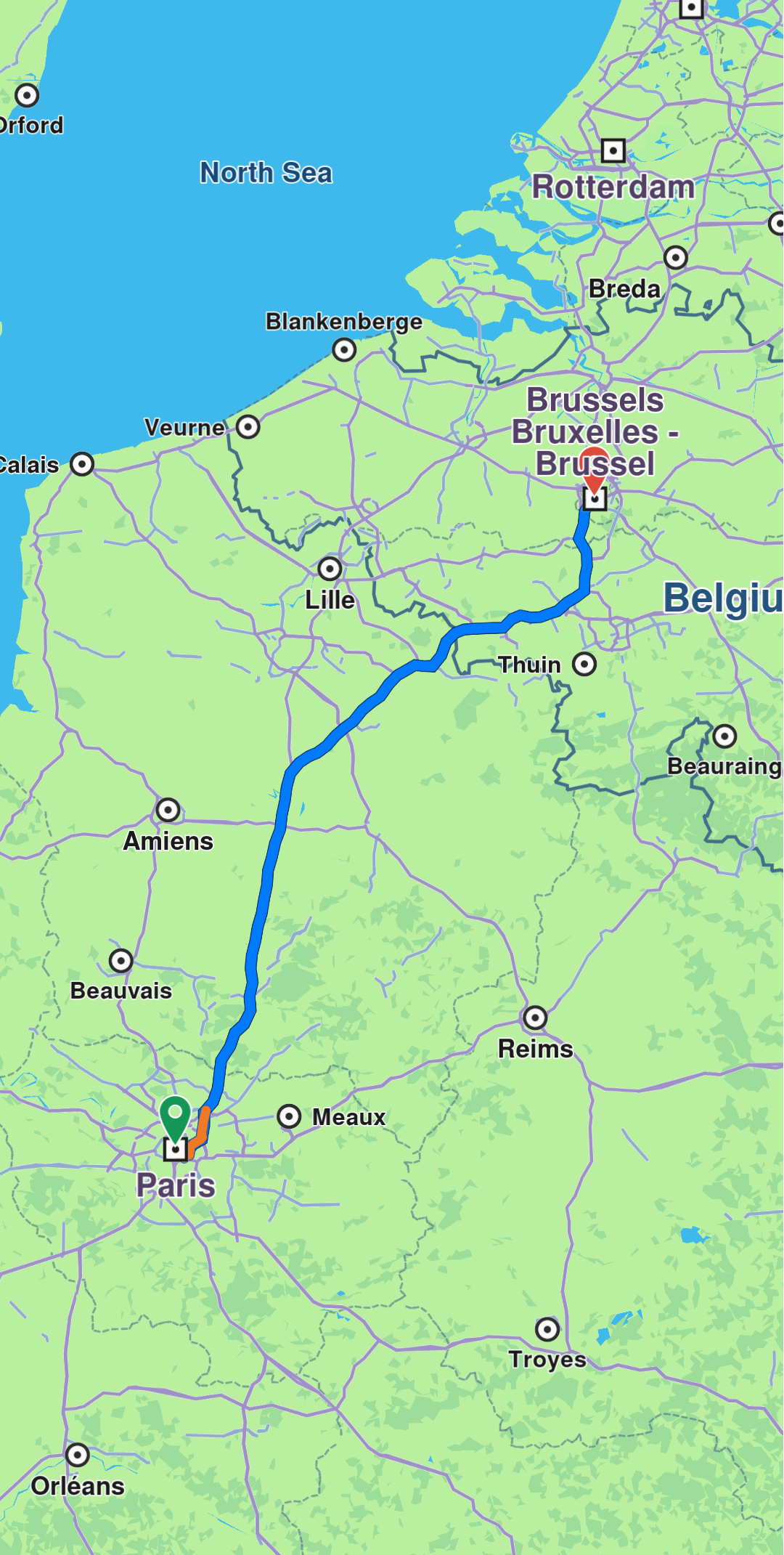
To center on a route with padding, refer to the Adjust Map View guide. Utilize the screenRect parameter in the centerOnRoute method to define the specific region of the viewport that should be centered.
mapController.preferences.routes.add(route1, true);
mapController.preferences.routes.add(route2, false);
mapController.preferences.routes.add(route3, false);
mapController.centerOnMapRoutes();
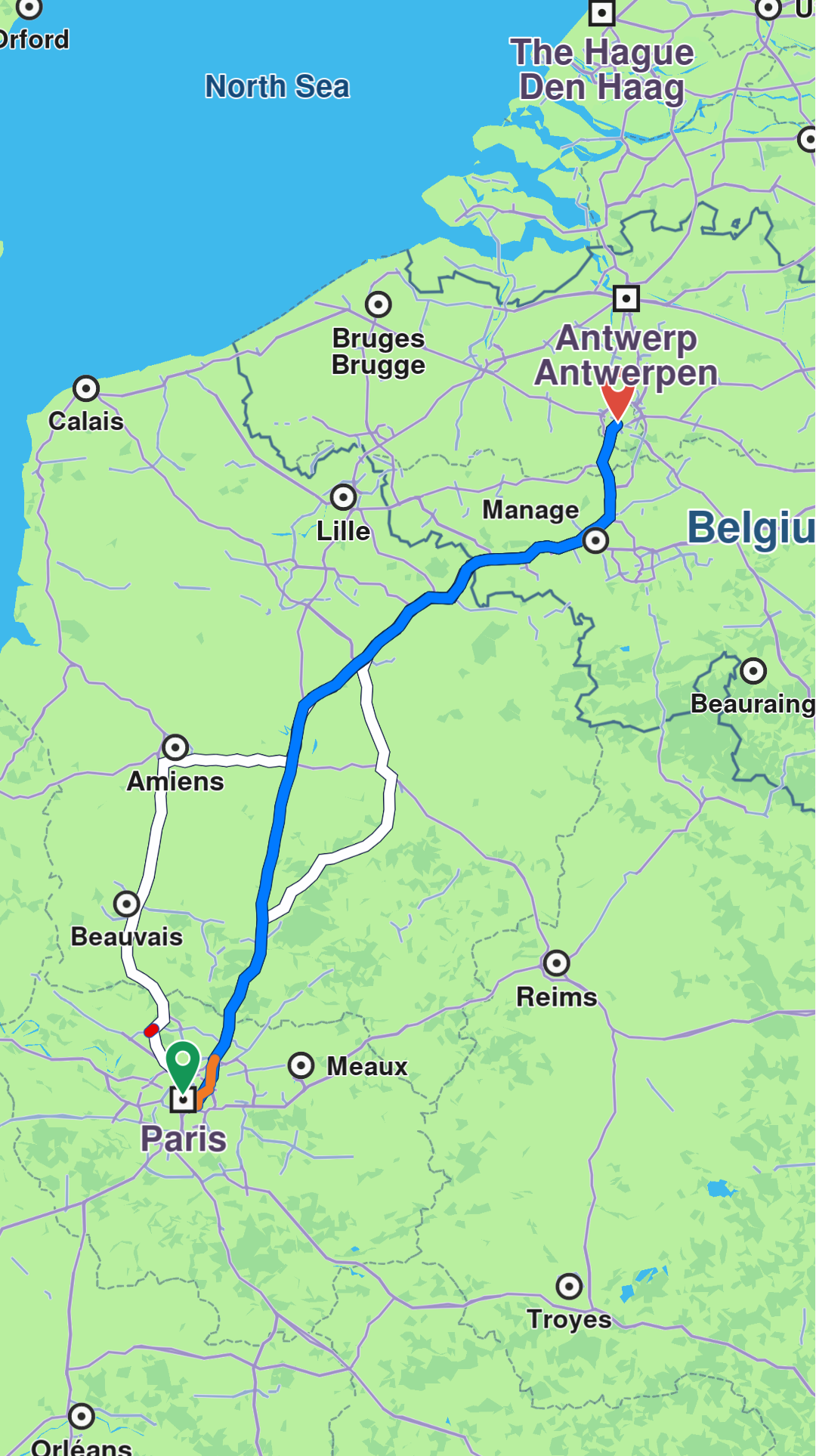
Customize route appearance
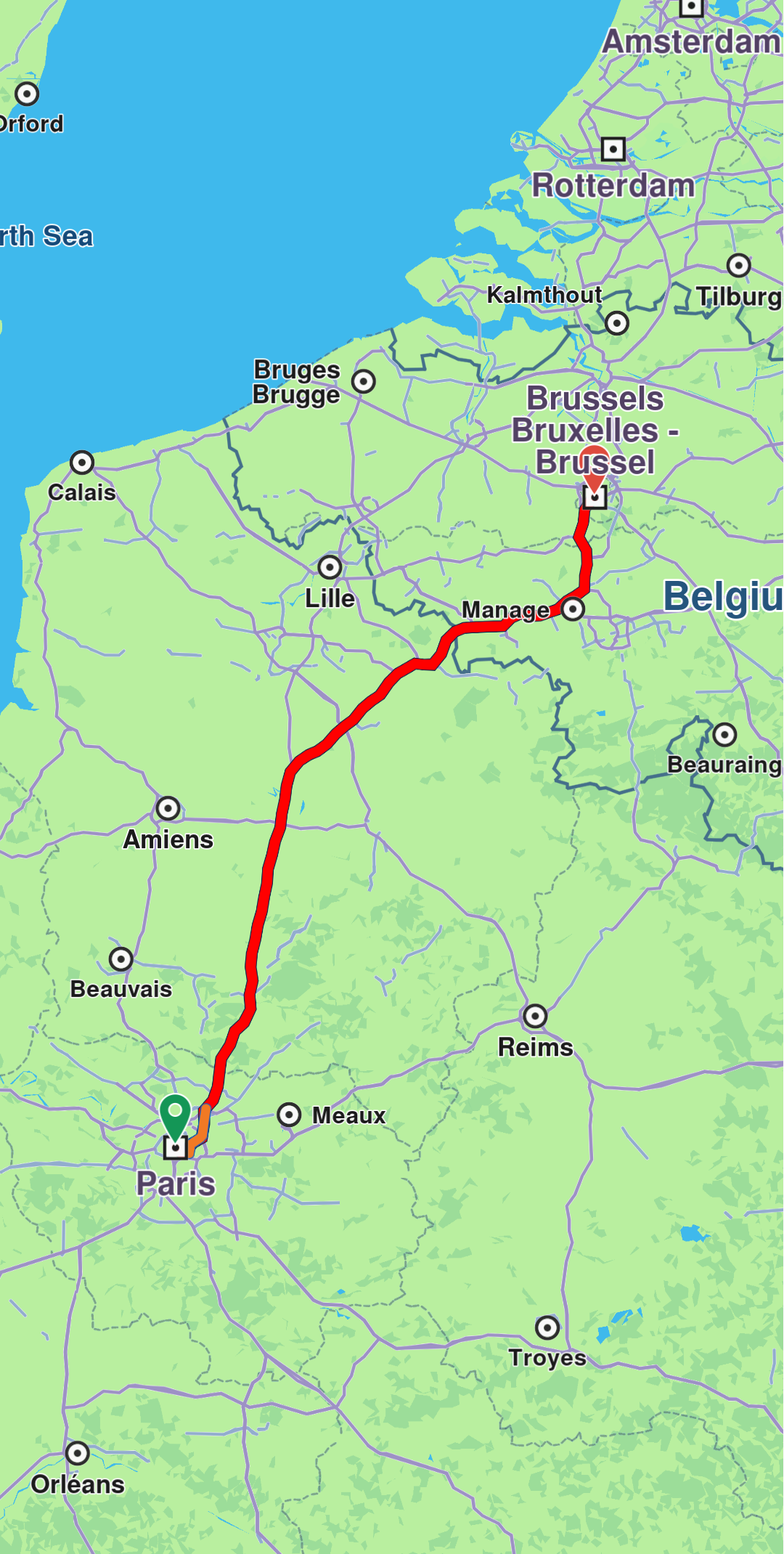
Customize route appearance using RouteRenderSettings when adding the route via the routeRenderSettings optional parameter, or later using the MapViewRoute.renderSettings setter.
final renderSettings = RouteRenderSettings(innerColor: Color.fromARGB(255, 255, 0, 0));
mapController.preferences.routes.add(route, true, routeRenderSettings: renderSettings)
final mapViewRoute = mapController.preferences.routes.getMapViewRoute(0);

mapViewRoute?.renderSettings = RouteRenderSettings(innerColor: Colors.red);
All dimensional sizes within the RouteRenderSettings are measured in millimeters.
Waypoint bridges
A waypoint bridge is an arc drawn between a waypoint's map position and its position on the route, shown when the two are far enough apart to be worth connecting. Bridges are enabled by default through the RouteRenderOptions.showWaypointBridges option, and are customized with these RouteRenderSettings properties:
| Property | Type | Description |
|---|---|---|
waypointBridgeInnerColor | Color | Inner color of the bridges. Left transparent (the default), the bridges take the route's own innerColor, or an SDK default if that is unset. |
waypointBridgeOuterColor | Color | Outer color of the bridges. Left transparent (the default), the bridges take the route's own outerColor, or an SDK default if that is unset. |
waypointBridgeInnerSz | double | Inner size in millimeters. 0 (the default), or any non-positive value, uses the SDK default. |
waypointBridgeOuterSz | double | Outer size in millimeters. 0 (the default), or any non-positive value, uses the SDK default. |
waypointBridgeLineType | LineType | Line style of the bridges. Defaults to LineType.styleDefault, which the SDK resolves to dashed for bridges. |
Passing a custom options set replaces the defaults entirely, so any option not listed is disabled.
Remove routes
Remove all displayed routes using MapViewRoutesCollection.clear(). To remove only secondary routes while keeping the main route, use mapController.preferences.routes.clearAllButMainRoute().
Add route labels
Routes can include labels that display information such as ETA, distance, toll prices, and more. Attach a label to a route using the label optional parameter of the MapViewRoutesCollection.add method:
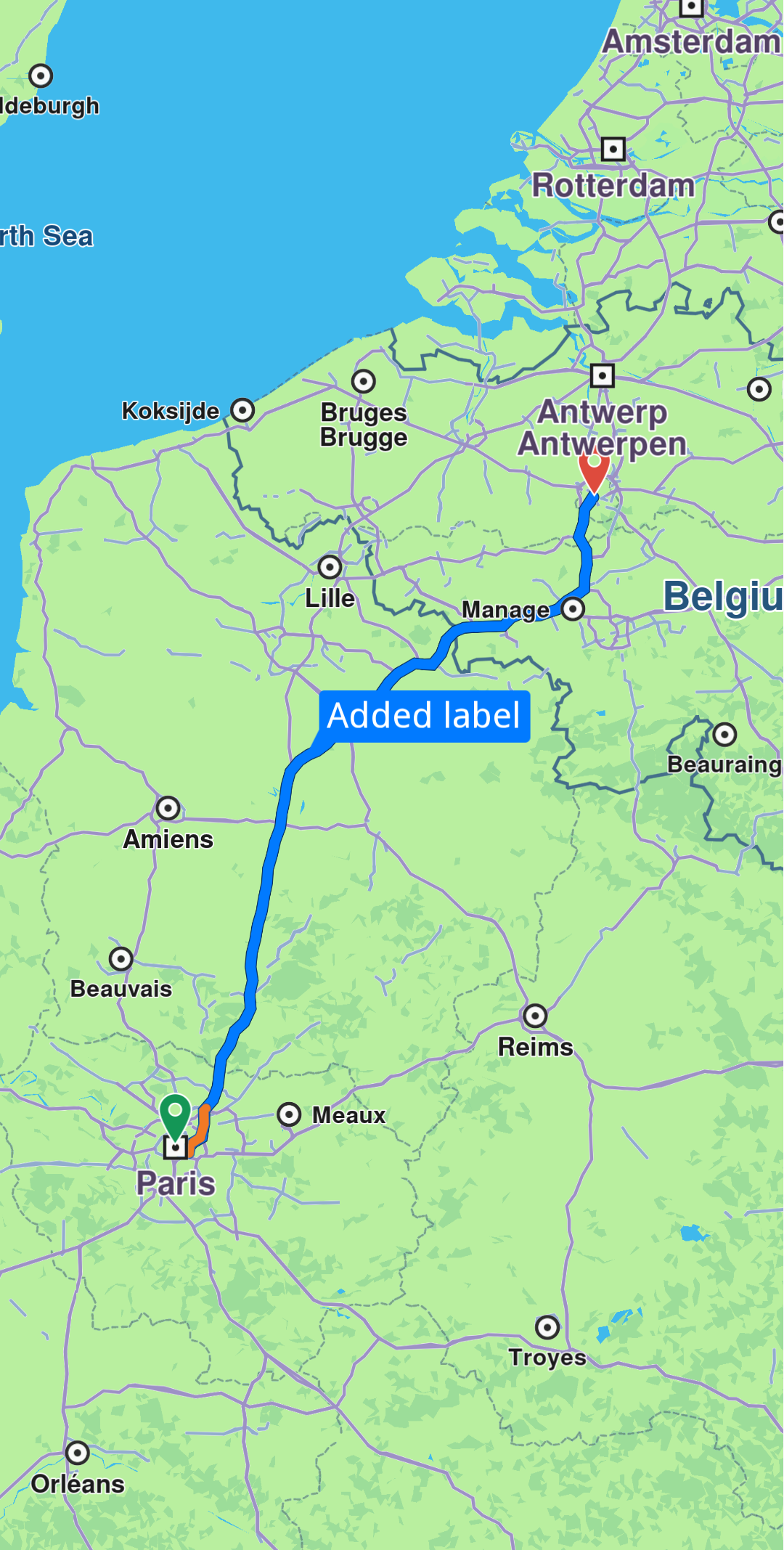
Add icons to labels
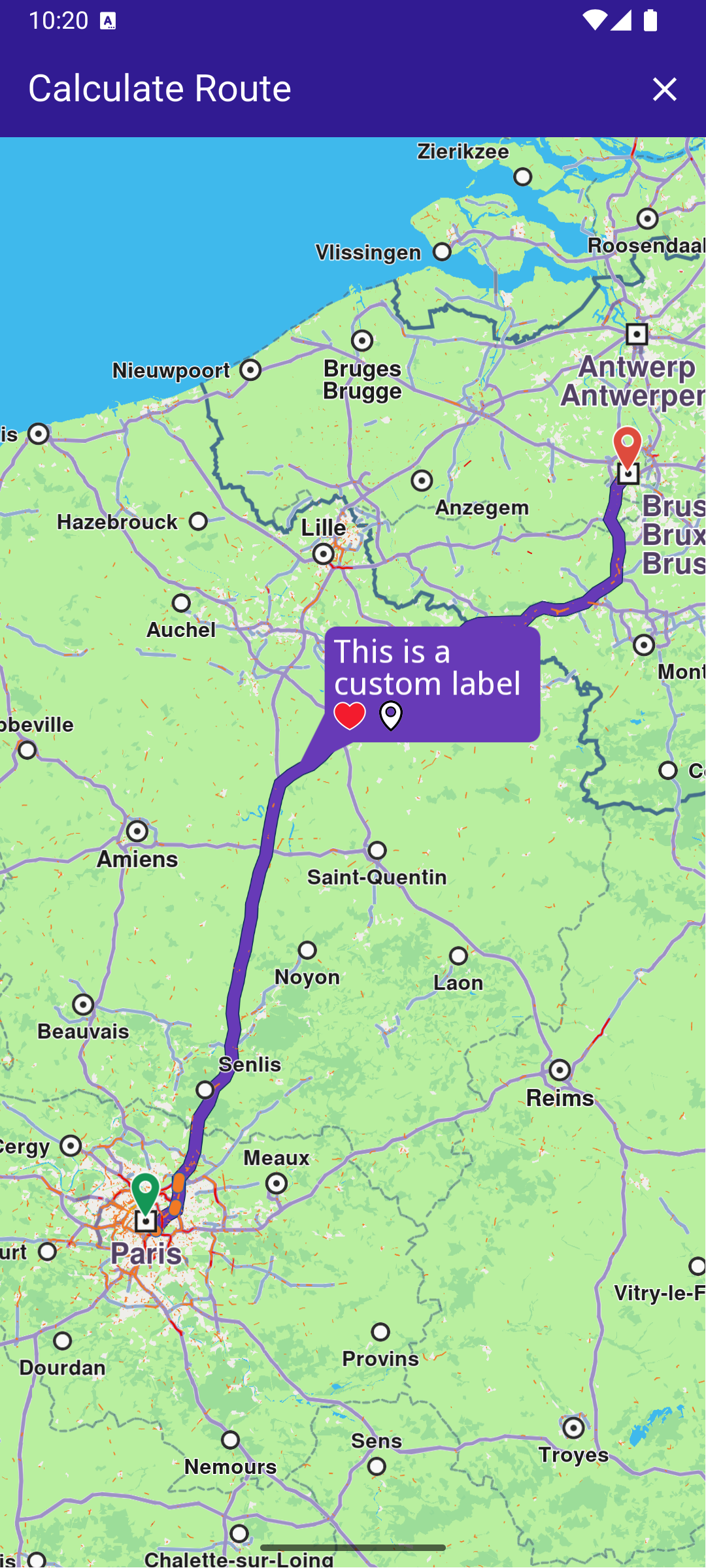
Enhance labels by adding up to two icons using the optional labelIcons parameter, which accepts a List<Img>. Access available icons through the GemIcon enum.
    controller.preferences.routes.add(routes.first, true,
        label: "This is a custom label",
        labelIcons: [
    SdkSettings.getImgById(GemIcon.favoriteHeart.id)!,
    SdkSettings.getImgById(GemIcon.waypointFinish.id)!,
]);
Auto-generate labels
Auto-generate labels using the autoGenerateLabel parameter:
mapController.preferences.routes.add(route, true, autoGenerateLabel: true);
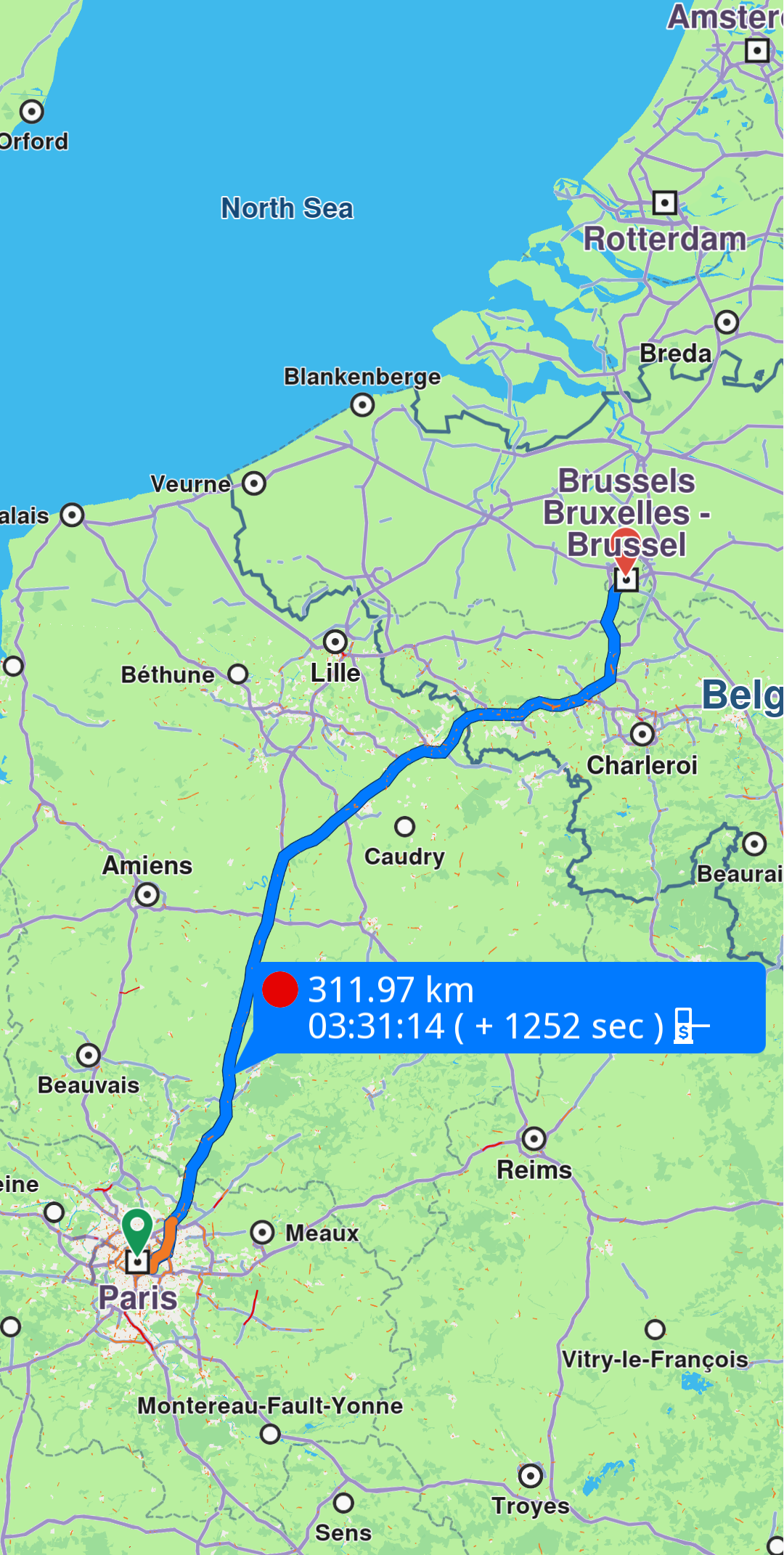
Enabling autoGenerateLabel will override any customizations made with the label and labelIcons parameters.
Hide labels
Hide a route label by calling MapViewRoutesCollection.hideLabel(route). You can also manage labels through a MapViewRoute object using the labelText setter to assign a label or the hideLabel method to hide it.
Check visible route portion
Retrieve the visible portion of a route - defined by its start and end distances in meters - using the getVisibleRouteInterval method from the GemMapController:
final (startRouteVisibleIntervalMeters, endRouteVisibleIntervalMeters) = controller.getVisibleRouteInterval(route);
You can provide a custom screen region to the getVisibleRouteInterval method instead of using the entire viewport. The method returns (0,0) if the route is not visible on the provided viewport or region.