Styling
Learn how to customize map appearance using predefined styles or custom styles created in Magic Lane Map Studio.
Apply predefined styles
Predefined map styles must be downloaded before use, as they are not loaded into memory by default. Use the ContentStore class to retrieve and download available styles.
Get available styles
Retrieve a list of all available map styles as a List<ContentStoreItem>:
void getStyles() {
  ContentStore.asyncGetStoreContentList(ContentType.viewStyleLowRes,
      (err, items, isCached) {
    if (err == GemError.success && items.isNotEmpty) {
      for (final item in items) {
        _stylesList.add(item);
      }
      ScaffoldMessenger.of(context).clearSnackBars();
    }
  });
}
The asyncGetStoreContentList method can be used to obtain other content such as car models, road maps, TTS voices, and more.
Two types of preview styles are available:
ContentType.viewStyleHighRes- optimized for high-resolution displays (mobile devices)ContentType.viewStyleLowRes- optimized for low-resolution displays (desktop monitors)
The onComplete parameter of the asyncGetStoreContentList method provides:
GemError- indicates whether any errors occurred during the operationList<ContentStoreItem>- contains the retrieved items (empty if error is notGemError.success)boolean- specifies whether the item is already cached or needs downloading
ContentStoreItem attributes
A ContentStoreItem has the following attributes and methods:
| Attribute/Methods | Explanation |
|---|---|
| name | Gets the name of the associated product. |
| id | Get the unique id of the item in the content store. |
| chapterName | Gets the product chapter name translated to interface language. |
| countryCodes | Gets the country code (ISO 3166-1 alpha-3) list of the product as text. |
| language | Gets the full language code for the product. |
| type | Gets the type of the product as a [ContentType] value. |
| fileName | Gets the full path to the content data file when available. |
| clientVersion | Gets the client version of the content. |
| totalSize | Get the size of the content in bytes. |
| availableSize | Gets the available size of the content in bytes. |
| isCompleted | Checks if the item is completed downloaded. |
| status | Gets current item status. |
| pauseDownload | Pause a previous download operation. |
| cancelDownload | Cancel a previous download operation. |
| downloadProgress | Get current download progress. |
| canDeleteContent | Check if associated content can be deleted. |
| deleteContent | Delete the associated content |
| isImagePreviewAvailable | Check if there is an image preview available on the client. |
| imgPreview | Get the preview. The user is responsible to check if the image is valid. |
| contentParameters | Get additional parameters for the content. |
| updateItem | Get corresponding update item. |
| isUpdatable | Check if item is updatable, i.e. it has a newer version available. |
| updateSize | Get update size (if an update is available for this item). |
| updateVersion | Get update version (if an update is available for this item). |
| asyncDownload | Asynchronous start/resume the download of the content store product content. |
Certain attributes may not apply to specific types of ContentStoreItem. For example, countryCodes will not provide meaningful data for ContentType.viewStyleLowRes, as styles are not associated with any country.
Download a style
Download a map style by calling ContentStoreItem.asyncDownload():
style.asyncDownload(
  (err) {
    if (err != GemError.success) {
      showSnackbar("Download failed with error $err");
    } else {
      showSnackbar("Download succeeded");
    }
  },
  onProgress: (progress) {
    print('Download progress: $progress');
  },
  allowChargedNetworks: true
);
You can control whether to allow downloads over metered networks by setting the allowChargedNetworks parameter. The onProgress callback provides the download progress as a percentage (0-100).
Apply the downloaded style
Apply the downloaded style using GemMapController.MapViewPreferences.setMapStyleByPath(path) with the filename:
final String filename = currentStyle.fileName;
mapController.preferences.setMapStyleByPath(filename);
Alternative methods to set styles
You can also set map styles using:
MapViewPreferences.setMapStyle()- takes aContentStoreItemof typeContentType.viewStyleHighResorContentType.viewStyleLowResMapViewPreferences.setMapStyleById()- takes the unique id obtained fromContentStoreItem.id
mapController.preferences.setMapStyle(currentStyle);
mapController.preferences.setMapStyleById(currentStyle.id);
Apply custom styles
Create a custom map style in Magic Lane Map Studio. The process generates a .style file that you can load into your application.
Add style file to assets
Create an assets directory in the root of your project and place the .style file there. Add the following lines to your pubspec.yaml file under the flutter: section:
flutter:
  uses-material-design: true

  assets:
    - assets/
This allows the flutter/services.dart package to access the assets directory.
Load style into memory
Load the style into memory with the following code:
// Method to load style and return it as bytes
Future<Uint8List> _loadStyle() async {
  // Load style into memory
  final data = await rootBundle.load('assets/Basic_1_Oldtime-1_21_656.style');

  // Convert it to Uint8List
  final bytes = data.buffer.asUint8List();

  return bytes;
}
Import 'package:flutter/services.dart' for rootBundle.load() to work.
Apply the custom style
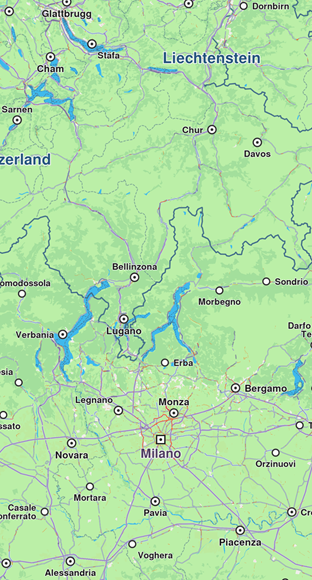
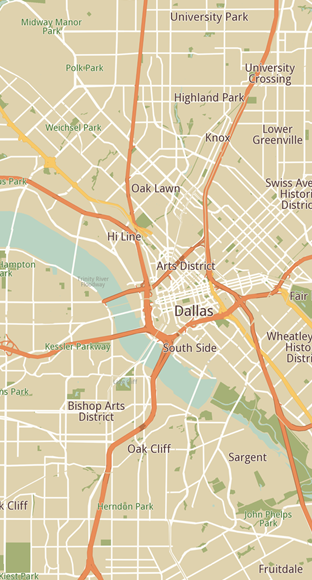
Once the map style bytes are obtained, set the style using MapViewPreferences.setMapStyleByBuffer(styleData):
final styleData = await _loadStyle();

mapController.preferences
    .setMapStyleByBuffer(styleData, smoothTransition: true);
Enable smooth transition by passing true to the smoothTransition parameter.
Set initial map style
Apply a map style when creating a GemMap by providing a relative path to the .style file using the initialMapStyleAsset parameter:
GemMap(
  appAuthorization: projectApiToken,
  initialMapStyleAsset: "assets/map-styles/my_map_style.style",
),
When using initialMapStyleAsset, the path is relative to the project root and only works on Android and iOS.
Use a custom map font
Use MapViewPreferences.setMapFont to draw the map labels with your own .ttf or .otf files instead of the built-in font and of the font defined by the map style. The paths are file system paths, so a font bundled as a Flutter asset must first be written to a file:
// The font must be a file on disk: write the bundled asset to a file first
final ByteData data =
    await rootBundle.load('fonts/MaterialIcons-Regular.otf');
final Directory dir = await getApplicationDocumentsDirectory();
final File fontFile = File('${dir.path}/MaterialIcons-Regular.otf');
await fontFile.writeAsBytes(
    data.buffer.asUint8List(data.offsetInBytes, data.lengthInBytes));

// Each path replaces one face; a face without a path keeps the built-in one
final GemError error = mapController.preferences.setMapFont(
  fontFile.path,
  boldPath: fontFile.path,
);
if (error != GemError.success) {
  showSnackbar("Could not load the font: $error");
  return;
}

showSnackbar("Map font: ${mapController.preferences.mapFontPath}");

// Pass an empty path to restore the style / built-in font
// mapController.preferences.setMapFont('');
Each path replaces one face (regular, bold, italic). A face without a path keeps the built-in one, and characters missing from a custom face are drawn with the built-in font. All the given files are read before anything changes, so on error the current font is kept. The method returns GemError.notFound when a file is missing or empty and GemError.io when the font cannot be loaded.
Pass an empty regular path with no bold or italic path to restore the style or built-in font. The mapFontPath getter returns the path of the custom regular face, or the bold or italic one when only those are set, and an empty string when no custom font is set.
Inspect the style layers at a position
Use getStyleLayerInfo on the GemMapController to find out which layers of the applied map style have content at a given coordinate, for example to tell whether the user tapped a label or an area:
final Coordinates coordinates = Coordinates(
  latitude: 48.8566,
  longitude: 2.3522,
);
mapController.centerOnCoordinates(coordinates, zoomLevel: 80);

// Layers of the applied style with content at the position, topmost first
final List<StyleLayerInfo> layers =
    mapController.getStyleLayerInfo(coordinates);

if (layers.isEmpty) {
  showSnackbar("No style layer at the position (view not ready?)");
} else {
  showSnackbar(layers
      .map((StyleLayerInfo layer) => '${layer.id}: ${layer.name}')
      .join(', '));
}
The layers are returned topmost first. Each StyleLayerInfo carries the layer id and its name, which is the layer type, for example symbol for a label layer or polygon for an area layer. Only the layers currently visible in the view are considered, and the list is empty when no visible layer has content at the position or when the view is not ready yet.
Get notified about style changes
The user can be notified when the style changes by providing a callback using the registerOnSetMapStyle method from the GemMapController:
controller.registerOnSetMapStyle((id, stylepath, viaApi){
  print('The style with id $id and path $stylepath has been set. viaApi: $viaApi');
});
The callback provides:
id- the style idstylepath- the path to the.stylefileviaApi- indicates if the style was set via API