This example demonstrates how to visualize road obstacles and blockages on the map. #### Live Demo[](#live-demo "Direct link to Live Demo") [Draw Roadblock Demo](/docs/typescript/demos/draw_roadblock/index.html) #### Overview[](#overview "Direct link to Overview") The example highlights the following features: * Drawing roadblock indicators on the map * Marking road closures * Visualizing construction zones * Displaying traffic obstacles #### Key Features[](#key-features "Direct link to Key Features") * **Visual Indicators**: Clear markers for road blockages * **Custom Styling**: Different icons for various obstacle types * **Interactive Display**: Tap to view obstruction details * **Route Impact**: See how obstacles affect navigation #### Next Steps[](#next-steps "Direct link to Next Steps") * [Draw Shapes](/docs/typescript/examples/maps-3dscene/draw-shapes.md) - Draw custom shapes * [Center Traffic](/docs/typescript/examples/maps-3dscene/center-traffic.md) - View traffic conditions --- ### Draw Shapes |
This example demonstrates how to draw various geometric shapes on the map, including polygons, circles, and custom areas. #### Live Demo[](#live-demo "Direct link to Live Demo") [Draw Shapes Demo](/docs/typescript/demos/draw_shapes/index.html) #### Overview[](#overview "Direct link to Overview") The example highlights the following features: * Drawing polygons on the map * Creating circle areas * Defining custom geographic shapes * Styling shapes with colors and borders #### Key Features[](#key-features "Direct link to Key Features") * **Polygon Drawing**: Create multi-point polygon shapes * **Circle Areas**: Define circular geographic regions * **Custom Styling**: Apply colors, borders, and transparency * **Interactive Display**: Shapes are rendered on the map in real-time #### Next Steps[](#next-steps "Direct link to Next Steps") * [Draw Roadblock](/docs/typescript/examples/maps-3dscene/draw-roadblock.md) - Visualize road obstacles * [Map Selection](/docs/typescript/examples/maps-3dscene/map-selection.md) - Select map objects --- ### External Markers |
This example demonstrates how to render custom markers using external rendering with the Maps SDK for TypeScript. It fetches data from the OpenChargeMap API and displays charging stations as interactive HTML markers. #### Live Demo[](#live-demo "Direct link to Live Demo") [External Markers Demo](/docs/typescript/demos/external_markers/index.html) #### Overview[](#overview "Direct link to Overview") The example demonstrates the following features: * Creating custom HTML markers using `ExternalRendererMarkers` * Fetching GeoJSON data from an external API * Adding marker collections to the map * Managing marker visibility and position updates * Custom pin rendering with DOM elements #### Code Implementation[](#code-implementation "Direct link to Code Implementation") ##### Initialize `GemKit` and Setup[](#initialize-gemkit-and-setup "Direct link to initialize-gemkit-and-setup") index.ts[](external_markers/src/index.ts?ref_type=heads#L1) ```typescript import type * as GeoJSON from 'geojson'; import { GemKit, GemMap, Coordinates, PositionService, ExternalRendererMarkers, MarkerCollectionRenderSettings } from '@magiclane/maps-sdk'; import { GEMKIT_TOKEN } from './token'; import { PinManager } from './pinmanager'; // UI icon(s) const ICONS = { addLocation: `` }; let map: GemMap | null = null; let externalRender: ExternalRendererMarkers | null = null; const pinManager = new PinManager('map-container'); // App bootstrap window.addEventListener('DOMContentLoaded', async () => { const gemKit = await GemKit.initialize(GEMKIT_TOKEN); await PositionService.instance; const container = document.getElementById('map-container'); if (!container) throw new Error('Map container not found'); const viewId = 1; const wrapper = gemKit.createView(viewId, (gemMap: GemMap) => { map = gemMap; externalRender = new ExternalRendererMarkers(); }); if (wrapper) container.appendChild(wrapper); // Add Markers button const addMarkersBtn = document.createElement('button'); addMarkersBtn.innerHTML = `${ICONS.addLocation} Add Markers`; styleButton(addMarkersBtn, '#007bff', '#0056b3'); addMarkersBtn.onclick = () => addMarkers(); document.body.appendChild(addMarkersBtn); }); ``` ##### Fetch and Convert Data to GeoJSON (API Helper)[](#fetch-and-convert-data-to-geojson-api-helper "Direct link to Fetch and Convert Data to GeoJSON (API Helper)") index.ts[](external_markers/src/index.ts?ref_type=heads#L23) ```typescript type OpenChargeMapEntry = { ID: number; AddressInfo: { Latitude: number; Longitude: number; Title?: string; AddressLine1?: string; Town?: string; }; }; async function fetchAndConvertToGeoJSON(): Promise
This example demonstrates how to track and follow the user's real-time location on the map with smooth camera animations. #### Live Demo[](#live-demo "Direct link to Live Demo") [Follow Position Demo](/docs/typescript/demos/follow_position/index.html) #### Overview[](#overview "Direct link to Overview") The example highlights the following features: * Requesting location permissions * Setting up live position tracking * Following user's position with camera * Smooth camera animations #### Code Implementation[](#code-implementation "Direct link to Code Implementation") ##### Initialize Map[](#initialize-map "Direct link to Initialize Map") index.ts[](follow_position/src/index.ts?ref_type=heads#L6) ```typescript import { GemKit, GemMap, PositionService, GemAnimation, AnimationType } from '@magiclane/maps-sdk'; import { GEMKIT_TOKEN } from './token'; let map: GemMap | null = null; let hasLiveDataSource = false; // UI Elements let followPositionBtn: HTMLButtonElement; async function onMapCreated(gemMap: GemMap) { map = gemMap; } window.addEventListener('DOMContentLoaded', async () => { const gemKit = await GemKit.initialize(GEMKIT_TOKEN); await PositionService.instance; const container = document.getElementById('map-container'); if (!container) throw new Error('Map container not found'); const viewId = 2; const wrapper = gemKit.createView(viewId, onMapCreated); if (wrapper) container.appendChild(wrapper); }); ``` ##### Follow Position Function[](#follow-position-function "Direct link to Follow Position Function") index.ts[](follow_position/src/index.ts?ref_type=heads#L121) ```typescript async function onFollowPositionButtonPressed() { // On web, the SDK handles location permission const permission = await PositionService.requestLocationPermission(); if (!permission) { showMessage('Location permission denied.'); return; } // Set live data source only once if (!hasLiveDataSource) { PositionService.instance.setLiveDataSource(); hasLiveDataSource = true; } // Optionally, set an animation const animation = new GemAnimation({ type: AnimationType.linear }); // Start following position map?.startFollowingPosition({ animation }); showMessage('Following position...'); } ``` ##### Create Follow Button[](#create-follow-button "Direct link to Create Follow Button") index.ts[](follow_position/src/index.ts?ref_type=heads#L154) ```typescript // Follow Position button followPositionBtn = document.createElement('button'); followPositionBtn.textContent = 'Follow Position'; followPositionBtn.style.cssText = ` position: fixed; top: 20px; right: 20px; padding: 12px 20px; background: #673ab7; color: #fff; border: none; border-radius: 8px; font-size: 1em; font-weight: 500; cursor: pointer; z-index: 2000; display: flex; align-items: center; gap: 8px; `; followPositionBtn.innerHTML = ` 📡 Follow Position `; followPositionBtn.onclick = () => onFollowPositionButtonPressed(); document.body.appendChild(followPositionBtn); ``` ##### Utility Function[](#utility-function "Direct link to Utility Function") index.ts[](follow_position/src/index.ts?ref_type=heads#L26) ```typescript // Utility: show a temporary message function showMessage(message: string, duration = 3000) { let msgDiv = document.getElementById('status-msg'); if (!msgDiv) { msgDiv = document.createElement('div'); msgDiv.id = 'status-msg'; msgDiv.style.cssText = ` position: fixed; top: 20px; left: 50%; transform: translateX(-50%); background: #333; color: #fff; padding: 12px 20px; border-radius: 8px; z-index: 2000; font-size: 1em; `; document.body.appendChild(msgDiv); } if (message === '') { msgDiv.style.display = 'none'; msgDiv.textContent = ''; } else { msgDiv.textContent = message; msgDiv.style.display = 'block'; setTimeout(() => { msgDiv.style.display = 'none'; msgDiv.textContent = ''; }, duration); } } ``` #### Key Features[](#key-features "Direct link to Key Features") * **Location Permission**: Automatically requests browser location permission * **Live Data Source**: Sets up continuous position updates from device GPS * **Camera Animation**: Smooth transitions when following position * **Single Initialization**: Live data source is set only once for efficiency #### Browser Permissions[](#browser-permissions "Direct link to Browser Permissions") The browser will prompt for location permission when you click "Follow Position": * **Allow**: Map will track and follow your real-time location * **Deny**: Feature will not work (message displayed) HTTPS Required Most browsers require HTTPS to access location services. Make sure your app is served over HTTPS in production. #### Animation Types[](#animation-types "Direct link to Animation Types") The SDK supports the following animation types: * `AnimationType.none`: No animation (instant movement) * `AnimationType.linear`: Smooth linear movement You can also set a custom duration in milliseconds when creating the animation: ```typescript const animation = new GemAnimation({ type: AnimationType.linear, duration: 2000 // 2 seconds }); ``` #### Next Steps[](#next-steps "Direct link to Next Steps") * [Center Coordinates](/docs/typescript/examples/maps-3dscene/center-coordinates.md) - Manually center the map * [Map Perspective](/docs/typescript/examples/maps-3dscene/map-perspective.md) - Control camera angle --- ### Hello Map |
This example demonstrates how to create a basic interactive map using the Maps SDK for TypeScript. #### Overview[](#overview "Direct link to Overview") The example demonstrates the following features: * Initializing the Maps SDK for TypeScript * Creating and displaying an interactive map * Basic map container setup #### Code Implementation[](#code-implementation "Direct link to Code Implementation") ##### Initialize `GemKit` and create a map[](#initialize-gemkit-and-create-a-map "Direct link to initialize-gemkit-and-create-a-map") index.ts[](hello_world/src/index.ts?ref_type=heads#L1) ```typescript import { GemKit, GemMap } from '@magiclane/maps-sdk'; import { GEMKIT_TOKEN } from './token'; let map: GemMap | null = null; // Initialize GemKit const gemKit = await GemKit.initialize(GEMKIT_TOKEN); const viewId = 1; // Create a view with the specified ID const wrapper = gemKit.createView(viewId, (gemMap: GemMap) => { map = gemMap; }); ``` #### Live Demo[](#live-demo "Direct link to Live Demo") [Hello Map Demo](/docs/typescript/demos/hello_world/index.html) ##### HTML Structure[](#html-structure "Direct link to HTML Structure") Add a container element for the map in your HTML: index.html[](hello_world/index.html?ref_type=heads#L1) ```html
This example demonstrates how to render a compass icon that displays the heading rotation of an interactive map. The compass indicates the direction where 0 degrees is north, 90 degrees is east, 180 degrees is south, and 270 degrees is west. You will also learn how to rotate the map back to its default north-up orientation. #### Live Demo[](#live-demo "Direct link to Live Demo") [Map Compass Demo](/docs/typescript/demos/map_compass/index.html) #### Code Implementation[](#code-implementation "Direct link to Code Implementation") ##### SDK Initialization, Compass Image, and Rotation Logic[](#sdk-initialization-compass-image-and-rotation-logic "Direct link to SDK Initialization, Compass Image, and Rotation Logic") index.ts[](map_compass/src/index.ts?ref_type=heads#L6) ```typescript import { GemKit, GemMap, SdkSettings, PositionService, EngineMisc } from '@magiclane/maps-sdk'; import { GEMKIT_TOKEN } from './token'; let map: GemMap | null = null; let compassAngle = 0; let compassImg: HTMLImageElement | null = null; // Helper to get compass image from SDK function getCompassImage(): string | null { // SdkSettings.getImageById returns a base64 string or URL const imgData = SdkSettings.getImageById({ id: EngineMisc.compassEnableSensorON, size: { width: 100, height: 100 } }); if (!imgData) return null; // If imgData is a Buffer or Uint8Array, convert to base64 data URL if (typeof imgData === 'string') { // If already a string, assume it's a valid src return imgData; } // If it's a buffer, convert to base64 let binary = ''; const bytes = new Uint8Array(imgData); for (let i = 0; i < bytes.byteLength; i++) { binary += String.fromCharCode(bytes[i]); } const base64 = btoa(binary); return `data:image/png;base64,${base64}`; } // Create compass UI function createCompass() { if (compassImg) compassImg.remove(); compassImg = document.createElement('img'); compassImg.style.cssText = ` position: fixed; right: 12px; top: 12px; width: 40px; height: 40px; background: #fff; border-radius: 50%; padding: 3px; z-index: 2000; cursor: pointer; box-shadow: 0 2px 8px rgba(0,0,0,0.15); transition: transform 0.2s; `; const imgSrc = getCompassImage(); if (imgSrc) compassImg.src = imgSrc; compassImg.onclick = () => { if (map) map.alignNorthUp(); }; document.body.appendChild(compassImg); updateCompassRotation(); } // Update compass rotation function updateCompassRotation() { if (compassImg) { compassImg.style.transform = `rotate(${-compassAngle}deg)`; } } // Map angle update callback function onMapAngleUpdate(angle: number) { compassAngle = angle; updateCompassRotation(); } // Map created callback async function onMapCreated(gemMap: GemMap) { map = gemMap; map.registerMapAngleUpdateCallback(onMapAngleUpdate); createCompass(); } // Main entry window.addEventListener('DOMContentLoaded', async () => { // Initialize GemKit with your API token const gemKit = await GemKit.initialize(GEMKIT_TOKEN); const container = document.getElementById('map-container'); if (!container) throw new Error('Map container not found'); const viewId = 0; // Create a view with the specified ID and callback const wrapper = gemKit.createView(viewId, (gemMap: GemMap) => { onMapCreated(gemMap); }); if (wrapper) container.appendChild(wrapper); }); ``` #### Key Features[](#key-features "Direct link to Key Features") ##### Map Angle Synchronization[](#map-angle-synchronization "Direct link to Map Angle Synchronization") The example registers a callback to track the map's rotation angle: * **Angle Tracking**: The `registerMapAngleUpdateCallback` monitors the map's heading * **Real-time Updates**: Compass rotates smoothly as the map orientation changes * **Visual Feedback**: The compass icon reflects the current map rotation ##### Compass Interaction[](#compass-interaction "Direct link to Compass Interaction") Clicking the compass icon resets the map orientation: * **North Alignment**: Tapping the compass calls `alignNorthUp()` to reset the map * **Interactive Control**: Provides an intuitive way to return to default orientation * **Visual Indicator**: The compass always shows which direction is north #### How It Works[](#how-it-works "Direct link to How It Works") 1. **Initialize Map**: Create the map view and register the angle update callback 2. **Get Compass Image**: Retrieve the compass icon from SDK settings using `EngineMisc.compassEnableSensorON` 3. **Create Compass UI**: Position the compass in the top-right corner with proper styling 4. **Track Rotation**: Update the compass rotation whenever the map angle changes 5. **Reset Orientation**: Allow users to reset to north-up by clicking the compass #### Implementation Details[](#implementation-details "Direct link to Implementation Details") ##### Compass Image[](#compass-image "Direct link to Compass Image") The compass image is obtained from the SDK's built-in resources: * Uses `SdkSettings.getImageById()` to get the compass icon * Converts image data to base64 if needed for browser display * Supports both string URLs and binary image data ##### Rotation Calculation[](#rotation-calculation "Direct link to Rotation Calculation") The compass rotation is calculated using: * Map angle in degrees (0° = North, 90° = East, 180° = South, 270° = West) * Negative rotation applied to compass to show north direction * Smooth CSS transitions for visual appeal ##### User Interaction[](#user-interaction "Direct link to User Interaction") The compass provides interactive functionality: * Click handler attached to compass element * Calls `map.alignNorthUp()` to reset map orientation * Visual feedback with cursor pointer and hover effects #### Next Steps[](#next-steps "Direct link to Next Steps") * [Map Perspective](/docs/typescript/examples/maps-3dscene/map-perspective.md) - Control the camera viewing angle * [Follow Position](/docs/typescript/examples/maps-3dscene/follow-position.md) - Track user position * [Map Gestures](/docs/typescript/examples/maps-3dscene/map-gestures.md) - Handle touch and mouse interactions --- ### Map Gestures |
This example demonstrates how to detect and handle various touch gestures on the map, including pan, pinch, rotate, swipe, and more. #### Live Demo[](#live-demo "Direct link to Live Demo") [Map Gestures Demo](/docs/typescript/demos/map_gestures/index.html) #### Overview[](#overview "Direct link to Overview") The example highlights the following gesture detection: * Touch and double touch * Pan and move * Pinch to zoom * Rotation * Long press * Swipe * Shove (tilt) * Complex multi-touch gestures #### Code Implementation[](#code-implementation "Direct link to Code Implementation") ##### Register Gesture Callbacks[](#register-gesture-callbacks "Direct link to Register Gesture Callbacks") index.ts[](map_gestures/src/index.ts?ref_type=heads#L6) ```typescript import { GemKit, GemMap, PositionService, } from '@magiclane/maps-sdk'; import { GEMKIT_TOKEN } from './token'; // Icons (Material Design SVGs) const ICONS = { touch: ``, rotate: ``, pan: ``, longPress: ``, pinch: ``, swipe: ``, shove: ``, double: `` }; let map: GemMap | null = null; let gesturePanel: HTMLDivElement | null = null; let hideTimeout: ReturnType
${icon}
${gesture}
`;
// Animate in
requestAnimationFrame(() => {
if (gesturePanel) {
gesturePanel.style.transform = 'translateX(-50%) translateY(0)';
gesturePanel.style.opacity = '1';
}
});
// Auto-hide after 2 seconds
hideTimeout = setTimeout(() => {
if (gesturePanel) {
gesturePanel.style.transform = 'translateX(-50%) translateY(100px)';
gesturePanel.style.opacity = '0';
}
}, 2000);
}
// Map created callback
function onMapCreated(gemMap: GemMap) {
map = gemMap;
// Register gesture callbacks with descriptive labels
map.registerMapAngleUpdateCallback((angle: number) => {
showGesturePanel('Rotate Map');
console.log('Gesture: onMapAngleUpdate', angle);
});
map.registerTouchCallback((point: any) => {
showGesturePanel('Touch');
console.log('Gesture: onTouch', point);
});
map.registerMoveCallback((point1: any, point2: any) => {
showGesturePanel('Pan Map');
console.log(`Gesture: onMove from (${point1.x} ${point1.y}) to (${point2.x} ${point2.y})`);
});
map.registerLongPressCallback((point: any) => {
showGesturePanel('Long Press');
console.log('Gesture: onLongPress', point);
});
map.registerDoubleTouchCallback((point: any) => {
showGesturePanel('Double Touch');
console.log('Gesture: onDoubleTouch', point);
});
map.registerPinchCallback((p1: any, p2: any, p3: any, p4: any, p5: any) => {
showGesturePanel('Pinch to Zoom');
console.log(`Gesture: onPinch from (${p1.x} ${p1.y}) to (${p2.x} ${p2.y})`);
});
map.registerShoveCallback((degrees: number, p1: any, p2: any, p3: any) => {
showGesturePanel('Shove (Tilt)');
console.log(`Gesture: onShove with ${degrees} angle from (${p1.x} ${p1.y}) to (${p2.x} ${p2.y})`);
});
map.registerSwipeCallback((distX: number, distY: number, speedMMPerSec: number) => {
showGesturePanel('Swipe');
console.log(`Gesture: onSwipe with ${distX} distance in X and ${distY} distance in Y at ${speedMMPerSec} mm/s`);
});
map.registerPinchSwipeCallback((point: any, zoomSpeed: number, rotateSpeed: number) => {
showGesturePanel('Pinch & Rotate');
console.log(`Gesture: onPinchSwipe with zoom speed ${zoomSpeed} and rotate speed ${rotateSpeed}`);
});
map.registerTwoTouchesCallback((point: any) => {
showGesturePanel('Two Touches');
console.log('Gesture: onTwoTouches', point);
});
map.registerTouchPinchCallback((p1: any, p2: any, p3: any, p4: any) => {
showGesturePanel('Touch Pinch');
console.log(`Gesture: onTouchPinch from (${p1.x} ${p1.y}) to (${p2.x} ${p2.y})`);
});
}
```
##### SDK Initialization and Map Creation[](#sdk-initialization-and-map-creation "Direct link to SDK Initialization and Map Creation")
index.ts[](map_gestures/src/index.ts?ref_type=heads#L6)
```typescript
import {
GemKit,
GemMap,
PositionService,
} from '@magiclane/maps-sdk';
import { GEMKIT_TOKEN } from './token';
// Main entry
window.addEventListener('DOMContentLoaded', async () => {
const gemKit = await GemKit.initialize(GEMKIT_TOKEN);
await PositionService.instance;
const container = document.getElementById('map-container');
if (!container) throw new Error('Map container not found');
const viewId = 4;
const wrapper = gemKit.createView(viewId, (gemMap: GemMap) => {
onMapCreated(gemMap);
});
if (wrapper) container.appendChild(wrapper);
});
```
#### Supported Gestures[](#supported-gestures "Direct link to Supported Gestures")
* **Touch**: Single tap on the map
* **Double Touch**: Quick double tap
* **Long Press**: Tap and hold
* **Pan/Move**: Drag to move the map
* **Pinch**: Two-finger pinch to zoom
* **Rotate**: Two-finger rotation
* **Swipe**: Quick swipe gesture
* **Shove**: Two-finger vertical drag to tilt
* **Pinch Swipe**: Combined zoom and rotate
* **Two Touches**: Two-finger touch detection
#### Key Features[](#key-features "Direct link to Key Features")
* **Real-time Detection**: All gestures are detected in real-time
* **Console Logging**: Gesture events are logged with details
* **Visual Feedback**: Bottom panel shows the current gesture
* **Multi-touch Support**: Complex gestures with multiple touch points
#### Next Steps[](#next-steps "Direct link to Next Steps")
* [Map Compass](/docs/typescript/examples/maps-3dscene/map-compass.md) - Add compass control
* [Map Perspective](/docs/typescript/examples/maps-3dscene/map-perspective.md) - Control camera perspective
* [Map Selection](/docs/typescript/examples/maps-3dscene/map-selection.md) - Select objects with gestures
---
### Map Perspective
|
This example demonstrates how to toggle the map view angle between 2D (vertical look-down at the map) and 3D (perspective, tilted map, looking toward the horizon). #### Live Demo[](#live-demo "Direct link to Live Demo") [Map Perspective Demo](/docs/typescript/demos/map_perspective/index.html) #### Code Implementation[](#code-implementation "Direct link to Code Implementation") index.ts[](map_perspective/src/index.ts?ref_type=heads#L6) ```typescript import { GemKit, GemMap, PositionService, BuildingsVisibility, } from '@magiclane/maps-sdk'; let map: GemMap | null = null; let mapPreferences: any = null; let isInPerspectiveView = false; const VIEW_3D_ANGLE = 30; const VIEW_2D_ANGLE = 90; // Toggle perspective view function onChangePerspectiveButtonPressed() { isInPerspectiveView = !isInPerspectiveView; if (!mapPreferences) return; if (isInPerspectiveView) { mapPreferences.buildingsVisibility = BuildingsVisibility.threeDimensional; mapPreferences.tiltAngle = VIEW_3D_ANGLE; } else { mapPreferences.buildingsVisibility = BuildingsVisibility.twoDimensional; mapPreferences.tiltAngle = VIEW_2D_ANGLE; } } // Map created callback function onMapCreated(gemMap: GemMap) { map = gemMap; mapPreferences = map.preferences; } // Main entry window.addEventListener('DOMContentLoaded', async () => { const gemKit = await GemKit.initialize(GEMKIT_TOKEN); await PositionService.instance; const viewId = 5; gemKit.createView(viewId, (gemMap: GemMap) => { onMapCreated(gemMap); }); }); ``` #### Key Features[](#key-features "Direct link to Key Features") ##### View Angle Control[](#view-angle-control "Direct link to View Angle Control") Toggle between different map viewing perspectives: * **2D View (90°)**: Vertical look-down view, map appears flat from directly above * **3D View (30°)**: Tilted perspective view, looking toward the horizon * **Dynamic Switching**: Smooth transition between view modes ##### Building Visibility[](#building-visibility "Direct link to Building Visibility") The example controls building rendering based on the perspective: * **2D Mode**: Buildings rendered in two-dimensional style * **3D Mode**: Buildings displayed with three-dimensional depth and detail * **Synchronized Settings**: Building visibility automatically matches the view angle #### How It Works[](#how-it-works "Direct link to How It Works") 1. **Initialize Map**: Create the map view and get access to map preferences 2. **Create UI Button**: Add a toggle button in the top-right corner 3. **Handle Toggle**: Switch between 2D and 3D perspectives on button click 4. **Update Settings**: Adjust tilt angle and building visibility simultaneously 5. **Visual Feedback**: Update button icon to reflect current mode #### Implementation Details[](#implementation-details "Direct link to Implementation Details") ##### Tilt Angle Configuration[](#tilt-angle-configuration "Direct link to Tilt Angle Configuration") The map perspective is controlled through the `tiltAngle` property: * **90 degrees**: Orthogonal/vertical view (looking straight down) * **30 degrees**: Perspective view (tilted toward horizon) * **Range**: Valid angles are between 0° and 90° ##### Buildings Visibility Modes[](#buildings-visibility-modes "Direct link to Buildings Visibility Modes") The SDK provides two building rendering modes: * `BuildingsVisibility.twoDimensional`: Flat building representation * `BuildingsVisibility.threeDimensional`: 3D building models with depth ##### Map Preferences[](#map-preferences "Direct link to Map Preferences") Map preferences are accessed through `map.preferences`: * Control tilt angle with `mapPreferences.tiltAngle` * Control building rendering with `mapPreferences.buildingsVisibility` * Changes take effect immediately #### UI Components[](#ui-components "Direct link to UI Components") ##### Perspective Toggle Button[](#perspective-toggle-button "Direct link to Perspective Toggle Button") The button provides visual feedback and interaction: * **Position**: Fixed in top-right corner * **Icons**: 🗻 for 2D mode, 🗺️ for 3D mode * **Styling**: Purple background matching the app theme * **Interaction**: Click to toggle between perspectives #### Use Cases[](#use-cases "Direct link to Use Cases") * **Navigation**: 3D perspective helps users orient themselves while navigating * **Exploration**: 2D view provides better overview for route planning * **Urban Areas**: 3D buildings provide better context in cities * **Comparison**: Switch between views to understand terrain and features #### Next Steps[](#next-steps "Direct link to Next Steps") * [Follow Position](/docs/typescript/examples/maps-3dscene/follow-position.md) - Track user location with perspective * [Map Compass](/docs/typescript/examples/maps-3dscene/map-compass.md) - Display orientation indicator * [Center Coordinates](/docs/typescript/examples/maps-3dscene/center-coordinates.md) - Position camera on specific locations --- ### Map Selection |
This example demonstrates how to select and interact with map objects such as markers, routes, and other features. #### Live Demo[](#live-demo "Direct link to Live Demo") [Map Selection Demo](/docs/typescript/demos/map_selection/index.html) #### Overview[](#overview "Direct link to Overview") The example highlights the following features: * Selecting map objects with touch/click * Highlighting selected items * Getting information about selected objects * Managing selection state #### Key Features[](#key-features "Direct link to Key Features") * **Object Selection**: Click/tap to select map features * **Visual Feedback**: Highlight selected objects * **Object Information**: Retrieve details about selections * **Multi-select Support**: Select multiple objects #### Next Steps[](#next-steps "Direct link to Next Steps") * [Map Gestures](/docs/typescript/examples/maps-3dscene/map-gestures.md) - Handle touch interactions * [Draw Shapes](/docs/typescript/examples/maps-3dscene/draw-shapes.md) - Draw selectable shapes --- ### Multiview Map |
In this guide, you will learn how to display multiple interactive maps in one viewport. #### Live Demo[](#live-demo "Direct link to Live Demo") [Multiview Map Demo](/docs/typescript/demos/multiview_map/index.html) #### Overview[](#overview "Direct link to Overview") This example demonstrates the following features: * Display multiple map views in a grid layout * Each map view is independently interactive (panning, zooming) * Dynamic add/remove map views with buttons * Maximum of 4 map views in a 2x2 grid #### Code Implementation[](#code-implementation "Direct link to Code Implementation") ##### Setup UI and Grid[](#setup-ui-and-grid "Direct link to Setup UI and Grid") index.ts[](multiview_map/src/index.ts?ref_type=heads#L6) ```typescript import { GemKit, GemMap, PositionService, } from '@magiclane/maps-sdk'; import { GEMKIT_TOKEN } from './token'; const MAX_VIEWS = 4; let mapViewsCount = 0; type MapViewEntry = { container: HTMLElement, gemMap: GemMap | null }; const mapViews: MapViewEntry[] = []; let gemKit: any = null; // UI setup function setupUI() { // App bar const appBar = document.createElement('div'); appBar.style.cssText = ` width: 100% !important; height: 56px !important; background: #4527a0; color: #fff; display: flex; align-items: center; justify-content: space-between; padding: 0 16px; font-size: 1.2em; font-weight: 500; position: fixed; top: 0; left: 0; z-index: 2000; box-shadow: 0 2px 8px rgba(0,0,0,0.10); `; appBar.innerHTML = ` Multiview Map `; document.body.appendChild(appBar); // Button handlers (document.getElementById('addViewBtn') as HTMLButtonElement).onclick = addViewButtonPressed; (document.getElementById('removeViewBtn') as HTMLButtonElement).onclick = removeViewButtonPressed; // Grid container const grid = document.createElement('div'); grid.id = 'map-grid'; grid.style.cssText = ` position: absolute; top: 56px; left: 0; width: 100vw; height: calc(100vh - 56px); display: grid; grid-template-columns: 1fr 1fr; grid-auto-rows: 1fr; gap: 10px; padding: 10px; background: #f5f5f5; `; document.body.appendChild(grid); } ``` ##### Add and Remove Map Views[](#add-and-remove-map-views "Direct link to Add and Remove Map Views") index.ts[](multiview_map/src/index.ts?ref_type=heads#L52) ```typescript // Add a new map view function addViewButtonPressed() { if (mapViewsCount >= MAX_VIEWS) return; mapViewsCount += 1; renderMapViews(); } // Remove the last map view function removeViewButtonPressed() { if (mapViewsCount <= 0) return; mapViewsCount -= 1; renderMapViews(); } ``` ##### Render Map Views[](#render-map-views "Direct link to Render Map Views") index.ts[](multiview_map/src/index.ts?ref_type=heads#L66) ```typescript // Render the map views in the grid function renderMapViews() { const grid = document.getElementById('map-grid'); if (!grid) return; // Add new map views if needed while (mapViews.length < mapViewsCount) { const i = mapViews.length; const mapContainer = document.createElement('div'); mapContainer.style.cssText = ` border: 1px solid #222; border-radius: 10px; background: #fff; min-width: 0; min-height: 0; box-shadow: 0 2px 8px rgba(0,0,0,0.08); overflow: hidden; display: flex; align-items: stretch; justify-content: stretch; `; mapContainer.id = `map-view-${i}`; let entry: MapViewEntry = { container: mapContainer, gemMap: null }; // Create a new map view only once const wrapper = gemKit.createView(i, (gemMap: GemMap) => { entry.gemMap = gemMap; }); if (wrapper) mapContainer.appendChild(wrapper); grid.appendChild(mapContainer); mapViews.push(entry); } // Remove extra map views if needed while (mapViews.length > mapViewsCount) { const entry = mapViews.pop(); if (entry) { // Some GemKit SDKs do not declare release() in GemMap typings, but it exists at runtime if (entry.gemMap && typeof (entry.gemMap as any).release === 'function') { (entry.gemMap as any).release(); } if (entry.container && entry.container.parentNode) { entry.container.parentNode.removeChild(entry.container); } } } } ``` ##### Initialize Application[](#initialize-application "Direct link to Initialize Application") index.ts[](multiview_map/src/index.ts?ref_type=heads#L106) ```typescript // Main entry window.addEventListener('DOMContentLoaded', async () => { setupUI(); gemKit = await GemKit.initialize(GEMKIT_TOKEN); await PositionService.instance; // Start with 0 views (or set to 1 if you want a default) mapViewsCount = 0; renderMapViews(); }); ``` #### Key Features[](#key-features "Direct link to Key Features") ##### Grid Layout[](#grid-layout "Direct link to Grid Layout") The example uses CSS Grid for responsive layout: * **2 columns**: Maps displayed in a 2x2 grid * **Auto rows**: Each row takes equal height * **Gap and padding**: 10px spacing between map views * **Responsive**: Adjusts to viewport size ##### Dynamic View Management[](#dynamic-view-management "Direct link to Dynamic View Management") Map views are managed dynamically: * **Add views**: Click ➕ to add a new map (up to 4) * **Remove views**: Click ➖ to remove the last map * **Independent maps**: Each map is a separate instance * **Proper cleanup**: Map resources are released when removed ##### View Creation[](#view-creation "Direct link to View Creation") Each map view is created with: * Unique view ID (0, 1, 2, 3) * Individual container element * Separate GemMap instance * Independent interaction (pan, zoom) #### Implementation Details[](#implementation-details "Direct link to Implementation Details") ##### Map View Entry Type[](#map-view-entry-type "Direct link to Map View Entry Type") ```typescript type MapViewEntry = { container: HTMLElement, gemMap: GemMap | null }; ``` This tracks both the DOM container and the GemMap instance for each view. ##### Resource Management[](#resource-management "Direct link to Resource Management") When removing a map view: 1. Pop the entry from the array 2. Release the GemMap instance (if available) 3. Remove the container from the DOM 4. Clean up resources properly ##### View Limits[](#view-limits "Direct link to View Limits") The maximum number of views is set to 4: * Prevents performance issues * Maintains usable view size * Fits in 2x2 grid layout #### Use Cases[](#use-cases "Direct link to Use Cases") * **Comparison**: Compare different map locations side by side * **Multi-region monitoring**: View multiple areas simultaneously * **Before/after**: Compare different map styles or time periods * **Analysis**: Analyze different map layers or data sets #### Next Steps[](#next-steps "Direct link to Next Steps") * [Overlapped Maps](/docs/typescript/examples/maps-3dscene/overlapped-maps.md) - Layer maps on top of each other * [Map Selection](/docs/typescript/examples/maps-3dscene/map-selection.md) - Select and interact with map objects --- ### Overlapped Maps |
This example demonstrates how to layer multiple map views on top of each other, creating overlay effects. #### Live Demo[](#live-demo "Direct link to Live Demo") [Overlapped Maps Demo](/docs/typescript/demos/overlapped_maps/index.html) #### Code Implementation[](#code-implementation "Direct link to Code Implementation") ##### Setup UI and Container[](#setup-ui-and-container "Direct link to Setup UI and Container") First, create the app bar and main container to hold both maps: index.ts[](overlapped_maps/src/index.ts?ref_type=heads#L15) ```typescript function setupUI() { // App bar const appBar = document.createElement('div'); appBar.style.cssText = ` width: 100vw; height: 56px; background: #4527a0; color: #fff; display: flex; align-items: center; justify-content: flex-start; padding: 0 16px; font-size: 1.2em; font-weight: 500; position: fixed; top: 0; left: 0; z-index: 2000; box-shadow: 0 2px 8px rgba(0,0,0,0.10); `; appBar.innerHTML = `Overlapped Maps`; document.body.appendChild(appBar); // Main container for maps const main = document.createElement('div'); main.id = 'overlap-map-container'; main.style.cssText = ` position: absolute; top: 56px; left: 0; width: 100vw; height: calc(100vh - 56px); background: #f5f5f5; overflow: hidden; `; document.body.appendChild(main); } ``` ##### Create Overlapped Maps[](#create-overlapped-maps "Direct link to Create Overlapped Maps") Create two map instances with different sizes and positions: index.ts[](overlapped_maps/src/index.ts?ref_type=heads#L39) ```typescript window.addEventListener('DOMContentLoaded', async () => { setupUI(); gemKit = await GemKit.initialize(GEMKIT_TOKEN); await PositionService.instance; const main = document.getElementById('overlap-map-container'); if (!main) throw new Error('Main container not found'); // Large background map const mapBgContainer = document.createElement('div'); mapBgContainer.style.cssText = ` position: absolute; top: 0; left: 0; width: 100%; height: 100%; z-index: 1; border-radius: 0; overflow: hidden; `; const wrapperBg = gemKit.createView(0, (gemMap: GemMap) => {}); if (wrapperBg) mapBgContainer.appendChild(wrapperBg); main.appendChild(mapBgContainer); // Smaller overlapped map const mapSmallContainer = document.createElement('div'); mapSmallContainer.style.cssText = ` position: absolute; top: 20px; left: 20px; width: 40vw; height: 40vh; z-index: 2; border: 2px solid #222; border-radius: 10px; overflow: hidden; box-shadow: 0 2px 8px rgba(0,0,0,0.18); background: #fff; `; const wrapperSmall = gemKit.createView(1, (gemMap: GemMap) => {}); if (wrapperSmall) mapSmallContainer.appendChild(wrapperSmall); main.appendChild(mapSmallContainer); }); ``` #### Key Features[](#key-features "Direct link to Key Features") ##### Map Layering[](#map-layering "Direct link to Map Layering") Two independent `GemMap` instances are created using different view IDs: * **Background Map** (view ID: 0): Full-screen map covering entire viewport * **Overlay Map** (view ID: 1): Smaller map positioned in top-left corner (40% viewport width/height) ##### CSS Positioning[](#css-positioning "Direct link to CSS Positioning") Maps are layered using CSS absolute positioning and z-index: * **Background**: `z-index: 1`, positioned at `top: 0, left: 0` with `100%` width/height * **Overlay**: `z-index: 2`, positioned at `top: 20px, left: 20px` with `40vw x 40vh` size ##### Independent Map Instances[](#independent-map-instances "Direct link to Independent Map Instances") Each map is completely independent: * Separate GemMap instance with unique view ID * Can have different center coordinates * Can have different zoom levels * Can display different map styles * Can respond to gestures independently ##### Styling Details[](#styling-details "Direct link to Styling Details") The smaller overlay map includes visual enhancements: * **Border**: 2px solid border (#222) for clear separation * **Border Radius**: 10px rounded corners for modern appearance * **Box Shadow**: Subtle shadow for depth effect * **Background**: White background for clean overlay look #### How It Works[](#how-it-works "Direct link to How It Works") 1. **Initialize GemKit**: Set up the SDK with API token 2. **Create Container**: Main container positioned below app bar 3. **Create Background Map**: Full-screen map using `gemKit.createView(0)` 4. **Create Overlay Map**: Smaller map using `gemKit.createView(1)` with different styling 5. **Layer Maps**: Use CSS z-index to control stacking order #### Implementation Details[](#implementation-details "Direct link to Implementation Details") * **View IDs**: Each map requires a unique view ID (0 for background, 1 for overlay) * **Container Management**: Each map has its own container div with specific styling * **Z-Index Hierarchy**: Background map (z-index: 1) sits below overlay map (z-index: 2) * **Responsive Sizing**: Overlay uses viewport units (40vw x 40vh) for responsive behavior * **Overflow Hidden**: Prevents map content from extending beyond rounded corners #### Use Cases[](#use-cases "Direct link to Use Cases") * **Comparison Views**: Compare two different map styles or time periods * **Picture-in-Picture**: Show detailed view alongside overview map * **Split Context**: Display different map data simultaneously * **Navigation Aid**: Keep overview map visible while exploring details * **Multi-Region Monitoring**: Monitor different geographic areas at once #### Next Steps[](#next-steps "Direct link to Next Steps") * [Multiview Map](/docs/typescript/examples/maps-3dscene/multiview-map.md) - Display multiple maps in grid layout * [Map Selection](/docs/typescript/examples/maps-3dscene/map-selection.md) - Interact with layered maps --- ### Projections |
This example demonstrates how to work with different coordinate projection systems and convert between them. #### Live Demo[](#live-demo "Direct link to Live Demo") [Projections Demo](/docs/typescript/demos/projections/index.html) #### Overview[](#overview "Direct link to Overview") The example highlights the following features: * Converting between WGS84 and projected coordinates * Understanding coordinate systems * Screen to geographic coordinate conversion * Geographic to screen coordinate conversion #### Key Features[](#key-features "Direct link to Key Features") * **Coordinate Systems**: Support for multiple projection types * **Bi-directional Conversion**: Convert between coordinate systems * **Screen Mapping**: Map screen pixels to geographic coordinates * **Precision**: Accurate coordinate transformations #### Next Steps[](#next-steps "Direct link to Next Steps") * [Center Coordinates](/docs/typescript/examples/maps-3dscene/center-coordinates.md) - Work with WGS84 coordinates * [Draw Shapes](/docs/typescript/examples/maps-3dscene/draw-shapes.md) - Define shapes with coordinates --- ### Public Transport |
This example demonstrates how to calculate and display public transit routes including walking segments, bus segments, and fare information. #### Overview[](#overview "Direct link to Overview") The example demonstrates the following features: * Public transit route calculation * Walking and bus segments in a route * Route fare and time/distance display * Route selection and alternative routes ##### Process and Display Public Transit Segments[](#process-and-display-public-transit-segments "Direct link to Process and Display Public Transit Segments") index.ts[](public_transit/src/index.ts?ref_type=heads#L185) ```typescript function updateSegmentPanel() { if (!ptSegments || ptSegments.length === 0) return; ptSegments.forEach((segment, index) => { if (segment.transitType === TransitType.walk) { // Walking segment: access time/distance const walkDuration = segment.timeDistance.totalDistanceM; } else { // Bus segment: access shortName and wheelchair support const busName = segment.shortName || 'Bus'; const hasWheelchair = segment.hasWheelchairSupport; } // ...process segment for display or further logic... }); } ``` ##### SDK Initialization and Map Creation[](#sdk-initialization-and-map-creation "Direct link to SDK Initialization and Map Creation") index.ts[](public_transit/src/index.ts?ref_type=heads#L6) ```typescript import { GemKit, GemMap, PositionService, Landmark, RoutePreferences, RoutingService, GemError, Route, PTRoute, PTRouteSegment, TransitType, RouteTransportMode, } from '@magiclane/maps-sdk'; let map: GemMap | null = null; window.addEventListener('DOMContentLoaded', async () => { const gemKit = await GemKit.initialize(/* GEMKIT_TOKEN */); await PositionService.instance; const viewId = 0; gemKit.createView(viewId, (gemMap: GemMap) => { map = gemMap; // Register route tap callback for selecting alternative routes map.registerTouchCallback(async (pos: any) => { await map.setCursorScreenPosition(pos); const selectedRoutes = map.cursorSelectionRoutes(); if (selectedRoutes.length > 0) { map.preferences.routes.mainRoute = selectedRoutes[0]; } }); }); }); ``` ##### Calculate and Display Public Transit Route[](#calculate-and-display-public-transit-route "Direct link to Calculate and Display Public Transit Route") index.ts[](public_transit/src/index.ts?ref_type=heads#L277) ```typescript function onBuildRouteButtonPressed() { const departureLandmark = Landmark.withLatLng({ latitude: 51.505929, longitude: -0.097579 }); const destinationLandmark = Landmark.withLatLng({ latitude: 51.507616, longitude: -0.105036 }); const routePreferences = new RoutePreferences({ transportMode: RouteTransportMode.public }); RoutingService.calculateRoute( [departureLandmark, destinationLandmark], routePreferences, (err: GemError, routes: Route[]) => { if (err === GemError.success && routes.length > 0) { const ptRoute: PTRoute | null = routes[0].toPTRoute ? routes[0].toPTRoute() : null; if (ptRoute) { const segments: PTRouteSegment[] = ptRoute.segments .map((seg: any) => seg.toPTRouteSegment && seg.toPTRouteSegment()) .filter((seg: any) => !!seg); // Use segments for UI or further processing } } } ); } ``` #### Live Demo[](#live-demo "Direct link to Live Demo") [Public Transport Demo](/docs/typescript/demos/public_transit/index.html) #### Key Features[](#key-features "Direct link to Key Features") * **Public Transit Routing**: Calculates routes using public transport, including walking and bus segments. * **Segment Extraction**: Converts routes to public transit segments for detailed display. * **Route Selection**: Allows users to select alternative routes by tapping on the map. * **Fare and Time Display**: Shows fare, time, and distance for each route. #### Explanation of Key Components[](#explanation-of-key-components "Direct link to Explanation of Key Components") * **GemKit.initialize**: Initializes the SDK and prepares the map for routing. * **RoutingService.calculateRoute**: Calculates routes between landmarks using public transport mode. * **PTRoute & PTRouteSegment**: Represent public transit routes and their individual segments (walking, bus, etc.). * **registerTouchCallback**: Enables route selection by tapping on the map. #### Next Steps[](#next-steps "Direct link to Next Steps") * [Route Profile](/docs/typescript/examples/routing-navigation/route-profile.md) - Customize route preferences and profiles --- ### Places & Search These resources cover diverse features and methods for location-based intelligence and search operations. [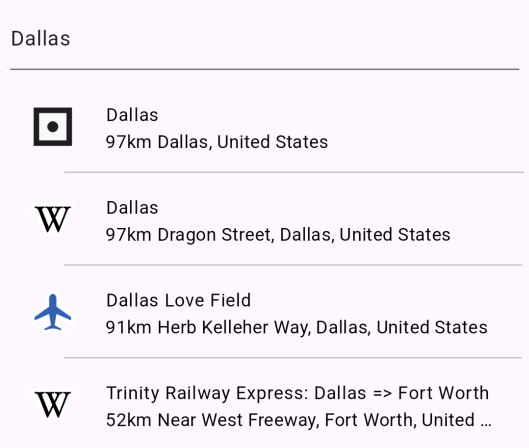](/docs/typescript/examples/places-search/text-search.md) ##### [Text Search](/docs/typescript/examples/places-search/text-search.md) [Search locations by text and select a result.](/docs/typescript/examples/places-search/text-search.md) [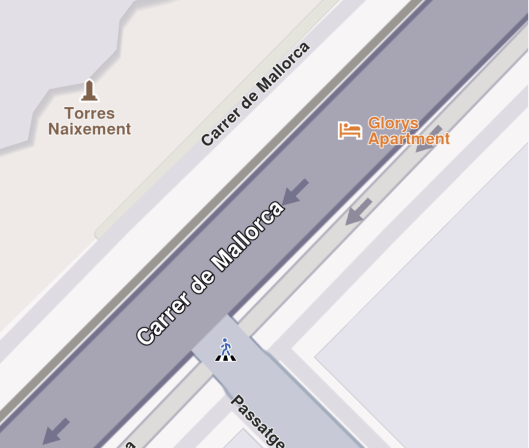](/docs/typescript/examples/places-search/address-search.md) ##### [Address Search](/docs/typescript/examples/places-search/address-search.md) [Perform search by address and display the results.](/docs/typescript/examples/places-search/address-search.md) [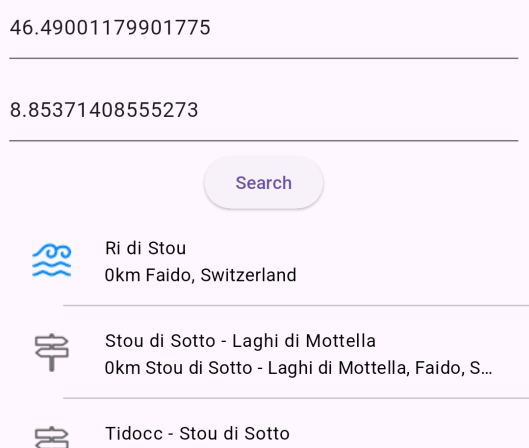](/docs/typescript/examples/places-search/search-location.md) ##### [Search Location](/docs/typescript/examples/places-search/search-location.md) [Search locations by WGS coordinates.](/docs/typescript/examples/places-search/search-location.md) [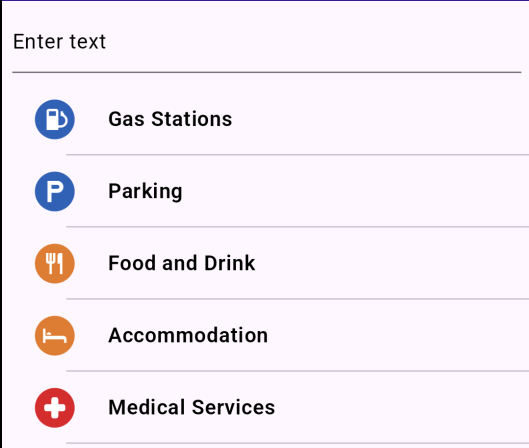](/docs/typescript/examples/places-search/search-category.md) ##### [Search Category](/docs/typescript/examples/places-search/search-category.md) [Search POIs by their category.](/docs/typescript/examples/places-search/search-category.md) [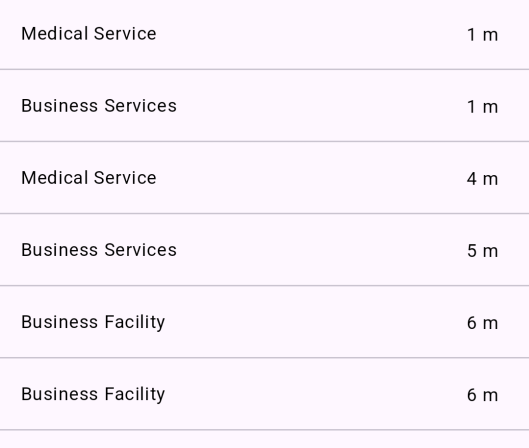](/docs/typescript/examples/places-search/what-is-nearby.md) ##### [What is Nearby](/docs/typescript/examples/places-search/what-is-nearby.md) [Show nearby landmarks based on current position.](/docs/typescript/examples/places-search/what-is-nearby.md) [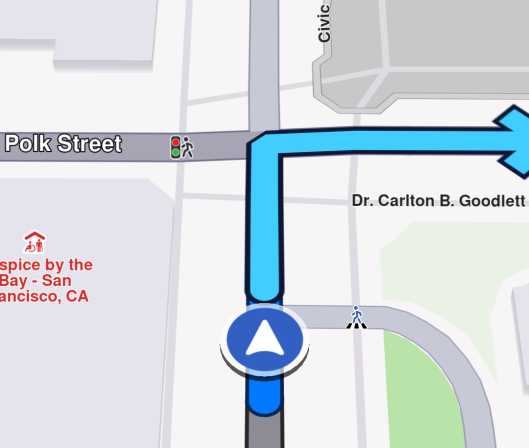](/docs/typescript/examples/places-search/search-along-route.md) ##### [Search Along Route](/docs/typescript/examples/places-search/search-along-route.md) [Search for landmarks along the route while navigating.](/docs/typescript/examples/places-search/search-along-route.md) [](/docs/typescript/examples/places-search/location-wikipedia.md) ##### [Location Wikipedia](/docs/typescript/examples/places-search/location-wikipedia.md) [Display Wikipedia information about a certain location.](/docs/typescript/examples/places-search/location-wikipedia.md) [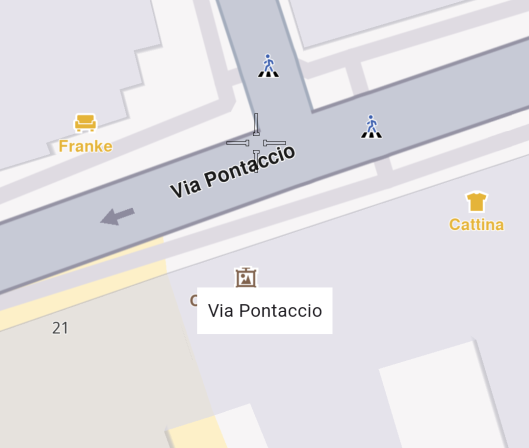](/docs/typescript/examples/places-search/display-cursor-street-name.md) ##### [Display Cursor Street Name](/docs/typescript/examples/places-search/display-cursor-street-name.md) [Display the name of the street under cursor position.](/docs/typescript/examples/places-search/display-cursor-street-name.md) --- ### Address Search |
This example demonstrates how to perform guided address searches and display the results on an interactive map. #### Live Demo[](#live-demo "Direct link to Live Demo") [Address Search Demo](/docs/typescript/demos/address_search/index.html) #### Overview[](#overview "Direct link to Overview") This example shows how to: * Search for addresses hierarchically (country → city → street → house number) * Use the `GuidedAddressSearchService` for structured address lookup * Highlight and center the map on the found address * Display search progress messages #### Code Implementation[](#code-implementation "Direct link to Code Implementation") ##### Imports[](#imports "Direct link to Imports") First, import the required modules from the SDK: ```typescript import { GemKit, GemMap, Landmark, AddressDetailLevel, GemError, AnimationType, GuidedAddressSearchService, GemAnimation } from '@magiclane/maps-sdk'; ``` ##### Setup UI and Map[](#setup-ui-and-map "Direct link to Setup UI and Map") Initialize the map and add a search button: index.ts[](address_search/src/index.ts?ref_type=heads#L102) ```typescript window.addEventListener('DOMContentLoaded', async () => { const gemKit = await GemKit.initialize(GEMKIT_TOKEN); await PositionService.instance; const container = document.getElementById('map-container'); if (!container) throw new Error('Map container not found'); const viewId = 1; const wrapper = gemKit.createView(viewId, (gemMap: GemMap) => { map = gemMap; }); if (wrapper) container.appendChild(wrapper); // Add search button const searchBtn = document.createElement('button'); searchBtn.onclick = onSearchButtonPressed; document.body.appendChild(searchBtn); }); ``` ##### Address Search Helper[](#address-search-helper "Direct link to Address Search Helper") Create a reusable function to search for address components: index.ts[](address_search/src/index.ts) ```typescript function searchAddress({ landmark, detailLevel, text }: { landmark: Landmark; detailLevel: AddressDetailLevel; text: string; }): Promise
This example demonstrates how to display the name of the street at the cursor position when users tap on the map. #### Live Demo[](#live-demo "Direct link to Live Demo") [Display Cursor Street Name Demo](/docs/typescript/demos/display_cursor_street_name/index.html) #### Overview[](#overview "Direct link to Overview") This example shows how to: * Enable cursor rendering on the map * Register touch callbacks to detect tap positions * Set cursor position based on screen coordinates * Retrieve street information at the cursor location * Display street names in a UI overlay #### Code Implementation[](#code-implementation "Direct link to Code Implementation") ##### Imports[](#imports "Direct link to Imports") First, import the required modules from the SDK: ```typescript import { GemKit, GemMap, Coordinates, PositionService } from '@magiclane/maps-sdk'; ``` ##### Setup State Variables[](#setup-state-variables "Direct link to Setup State Variables") Initialize global variables for map and UI elements: ```typescript let map: GemMap | null = null; let currentStreetName = ""; // UI Elements let streetNameDiv: HTMLDivElement; ``` ##### Initialize Map with Cursor[](#initialize-map-with-cursor "Direct link to Initialize Map with Cursor") Setup the map centered on Milan, Italy with cursor enabled: index.ts[](display_cursor_street_name/src/index.ts?ref_type=heads#L94) ```typescript async function onMapCreated(gemMap: GemMap) { map = gemMap; // Center on Milan, Italy map.centerOnCoordinates(new Coordinates({ latitude: 45.472358, longitude: 9.184945 }), { zoomLevel: 80 }); // Enable cursor rendering map.preferences.enableCursor = true; map.preferences.enableCursorRender = true; // Register touch callback to set cursor and display street name map.registerTouchCallback(async (point: any) => { await map!.setCursorScreenPosition(point); const streets = map!.cursorSelectionStreets(); currentStreetName = (streets && streets.length > 0) ? (streets[0].name || "Unnamed street") : "Unnamed street"; updateStreetNameUI(currentStreetName); }); } ``` ##### Initialize GemKit and Map View[](#initialize-gemkit-and-map-view "Direct link to Initialize GemKit and Map View") Setup the map container and initialize the SDK: index.ts[](display_cursor_street_name/src/index.ts?ref_type=heads#L116) ```typescript window.addEventListener('DOMContentLoaded', async () => { const gemKit = await GemKit.initialize(projectApiToken); await PositionService.instance; const container = document.getElementById('map-container'); if (!container) throw new Error('Map container not found'); const viewId = 2; const wrapper = gemKit.createView(viewId, onMapCreated); if (wrapper) container.appendChild(wrapper); // Create the street name display (hidden by default) updateStreetNameUI(""); }); ``` ##### Display Street Name UI[](#display-street-name-ui "Direct link to Display Street Name UI") Create and update the street name overlay: index.ts[](display_cursor_street_name/src/index.ts?ref_type=heads#L76) ```typescript function updateStreetNameUI(name: string) { if (!streetNameDiv) { streetNameDiv = document.createElement('div'); streetNameDiv.style.cssText = ` position: fixed; bottom: 25px; left: 50%; transform: translateX(-50%); background: #fff; color: #222; border-radius: 8px; padding: 8px 16px; font-size: 1.1em; box-shadow: 0 2px 10px rgba(0,0,0,0.15); z-index: 2000; min-width: 120px; text-align: center; `; document.body.appendChild(streetNameDiv); } streetNameDiv.textContent = name; streetNameDiv.style.display = name ? 'block' : 'none'; } ``` ##### Utility Functions[](#utility-functions "Direct link to Utility Functions") Display temporary status messages: index.ts[](display_cursor_street_name/src/index.ts?ref_type=heads#L26) ```typescript function showMessage(message: string, duration = 3000) { let msgDiv = document.getElementById('status-msg'); if (!msgDiv) { msgDiv = document.createElement('div'); msgDiv.id = 'status-msg'; msgDiv.style.cssText = ` position: fixed; top: 20px; left: 50%; transform: translateX(-50%); background: #333; color: #fff; padding: 12px 20px; border-radius: 8px; z-index: 2000; font-size: 1em; `; document.body.appendChild(msgDiv); } msgDiv.textContent = message; setTimeout(() => { msgDiv.textContent = ''; }, duration); } ``` #### Key Features[](#key-features "Direct link to Key Features") ##### Enable Cursor[](#enable-cursor "Direct link to Enable Cursor") Configure map preferences to enable cursor functionality: ```typescript map.preferences.enableCursor = true; map.preferences.enableCursorRender = true; ``` **Properties:** * `enableCursor` - Enable cursor detection and selection * `enableCursorRender` - Render cursor visually on map ##### Touch Callback Registration[](#touch-callback-registration "Direct link to Touch Callback Registration") Register a callback to handle tap events: ```typescript map.registerTouchCallback(async (point: any) => { // Handle touch event }); ``` **Callback Parameter:** * `point` - Screen coordinates `{x, y}` where user tapped ##### Set Cursor Position[](#set-cursor-position "Direct link to Set Cursor Position") Update cursor to tapped screen position: ```typescript await map.setCursorScreenPosition(point); ``` This method: * Sets the cursor to the specified screen coordinates * Triggers internal selection logic * Enables retrieval of street information ##### Retrieve Street Information[](#retrieve-street-information "Direct link to Retrieve Street Information") Get streets at cursor position: ```typescript const streets = map.cursorSelectionStreets(); ``` **Return Value:** * Array of street objects at cursor location * Each street has a `name` property * Empty array if no streets found ##### Handle Unnamed Streets[](#handle-unnamed-streets "Direct link to Handle Unnamed Streets") Provide fallback for streets without names: ```typescript currentStreetName = (streets && streets.length > 0) ? (streets[0].name || "Unnamed street") : "Unnamed street"; ``` This ensures the UI always displays meaningful text. ##### Dynamic UI Display[](#dynamic-ui-display "Direct link to Dynamic UI Display") Show/hide street name based on availability: ```typescript streetNameDiv.style.display = name ? 'block' : 'none'; ``` The overlay only appears when a street name is available. ##### Bottom-Centered Overlay[](#bottom-centered-overlay "Direct link to Bottom-Centered Overlay") Position the street name at the bottom center: ```css position: fixed; bottom: 25px; left: 50%; transform: translateX(-50%); ``` This creates a clear, non-intrusive display area. #### Implementation Details[](#implementation-details "Direct link to Implementation Details") * **Lazy Initialization**: Street name div created on first use * **Async Operations**: `setCursorScreenPosition` is awaited before retrieving streets * **Null Checking**: Verify `streets` array exists and has elements * **Fallback Text**: Display "Unnamed street" for unnamed or missing streets * **Visual Design**: White background with shadow for readability * **Z-index**: 2000 ensures overlay appears above map * **Centering**: Transform translate for perfect horizontal centering #### Use Cases[](#use-cases "Direct link to Use Cases") * **Navigation Apps**: Show current street name during navigation * **Real Estate Apps**: Display property street information * **Delivery Apps**: Confirm delivery address street * **City Exploration**: Learn street names while browsing the map * **Address Selection**: Help users confirm selected location * **Educational Apps**: Teach geography and street layouts * **Tourist Apps**: Identify street names in foreign cities #### Advanced Features[](#advanced-features "Direct link to Advanced Features") ##### Multiple Streets[](#multiple-streets "Direct link to Multiple Streets") Handle intersections with multiple streets: ```typescript if (streets && streets.length > 1) { const streetNames = streets.map(s => s.name).join(" / "); updateStreetNameUI(streetNames); } ``` ##### Street Details[](#street-details "Direct link to Street Details") Access additional street properties: ```typescript streets.forEach(street => { console.log('Street:', street.name); console.log('Type:', street.type); // Additional properties may be available }); ``` ##### Custom Styling[](#custom-styling "Direct link to Custom Styling") Customize the overlay appearance: ```typescript streetNameDiv.style.cssText = ` background: linear-gradient(135deg, #667eea 0%, #764ba2 100%); color: #fff; font-weight: bold; border: 2px solid #fff; `; ``` #### Next Steps[](#next-steps "Direct link to Next Steps") * [Text Search](/docs/typescript/examples/places-search/text-search.md) - Search for landmarks by text * [Location Wikipedia](/docs/typescript/examples/places-search/location-wikipedia.md) - Get Wikipedia info for locations * [Search Location](/docs/typescript/examples/places-search/search-location.md) - Search around coordinates --- ### Location Wikipedia |
This example demonstrates how to retrieve and display Wikipedia information for landmarks using the Maps SDK. #### Live Demo[](#live-demo "Direct link to Live Demo") [Location Wikipedia Demo](/docs/typescript/demos/location_wikipedia/index.html) #### Overview[](#overview "Direct link to Overview") This example shows how to: * Search for a specific landmark by name and coordinates * Check if Wikipedia information is available for a landmark * Request Wikipedia content including title, description, and images * Display Wikipedia data in a modal interface #### Code Implementation[](#code-implementation "Direct link to Code Implementation") ##### Imports[](#imports "Direct link to Imports") First, import the required modules from the SDK: ```typescript import { GemKit, GemMap, Coordinates, SearchService, ExternalInfoService, ExternalInfo, Landmark, PositionService, GemError } from '@magiclane/maps-sdk'; ``` ##### Setup State Variables[](#setup-state-variables "Direct link to Setup State Variables") Initialize global variables for UI elements: ```typescript let map: GemMap | null = null; let wikiBtn: HTMLButtonElement; let wikiModal: HTMLDivElement | null = null; ``` ##### Initialize Map and UI[](#initialize-map-and-ui "Direct link to Initialize Map and UI") Setup the map view and Wikipedia button: index.ts[](location_wikipedia/src/index.ts?ref_type=heads#L238) ```typescript window.addEventListener('DOMContentLoaded', async () => { const gemKit = await GemKit.initialize(GEMKIT_TOKEN); await PositionService.instance; const container = document.getElementById('map-container'); if (!container) throw new Error('Map container not found'); const viewId = 2; const wrapper = gemKit.createView(viewId, onMapCreated); if (wrapper) container.appendChild(wrapper); // Wikipedia button wikiBtn = document.createElement('button'); wikiBtn.innerHTML = `${ICONS.search} Wikipedia`; styleButton(wikiBtn, '#673ab7', '#7e57c2'); // Purple wikiBtn.onclick = onLocationWikipediaTap; document.body.appendChild(wikiBtn); }); ``` ##### Search for Landmark[](#search-for-landmark "Direct link to Search for Landmark") Search for the Statue of Liberty using text and coordinates: index.ts[](location_wikipedia/src/index.ts?ref_type=heads#L200) ```typescript async function onLocationWikipediaTap() { showMessage('Searching Wikipedia info...'); const searchResult = await new Promise
This example demonstrates how to calculate a route, simulate navigation, and search for landmarks along the route path. #### Live Demo[](#live-demo "Direct link to Live Demo") [Search Along Route Demo](/docs/typescript/demos/search_along_route/index.html) #### Overview[](#overview "Direct link to Overview") This example shows how to: * Calculate a route between two landmarks and display it on the map * Start and stop simulated navigation along the route * Search for landmarks located along the route path * Manage route visualization and alternative routes #### Code Implementation[](#code-implementation "Direct link to Code Implementation") ##### Imports[](#imports "Direct link to Imports") First, import the required modules from the SDK: ```typescript import { GemKit, GemMap, Coordinates, PositionService, Landmark, RoutePreferences, RoutingService, GemError, Route, NavigationService, SearchService, HighlightRenderSettings, HighlightOptions, TaskHandler, GemIcon, AddressField } from '@magiclane/maps-sdk'; ``` ##### Setup State Variables[](#setup-state-variables "Direct link to Setup State Variables") Initialize global variables for route and navigation management: ```typescript let map: GemMap | null = null; let routingHandler: TaskHandler | null = null; let navigationHandler: TaskHandler | null = null; let routes: Route[] | null = null; let isSimulationActive = false; let areRoutesBuilt = false; // UI Elements let controlsDiv: HTMLDivElement; let buildRouteBtn: HTMLButtonElement; let cancelRouteBtn: HTMLButtonElement; let clearRoutesBtn: HTMLButtonElement; let searchBtn: HTMLButtonElement; let startSimBtn: HTMLButtonElement; let stopSimBtn: HTMLButtonElement; let searchResultsPanel: HTMLDivElement; ``` ##### Initialize Map and UI Buttons[](#initialize-map-and-ui-buttons "Direct link to Initialize Map and UI Buttons") Setup the map and create control buttons: index.ts[](search_along_route/src/index.ts?ref_type=heads#L169) ```typescript window.addEventListener('DOMContentLoaded', async () => { const gemKit = await GemKit.initialize(GEMKIT_TOKEN); await PositionService.instance; const container = document.getElementById('map-container'); if (!container) throw new Error('Map container not found'); const viewId = 2; const wrapper = gemKit.createView(viewId, (gemMap: GemMap) => { map = gemMap; }); if (wrapper) container.appendChild(wrapper); // --- Controls Container (Fixed Header) --- controlsDiv = document.createElement('div'); controlsDiv.style.cssText = ` position: fixed; top: 30px; left: 50%; transform: translateX(-50%); display: flex; gap: 12px; z-index: 2000; align-items: center; justify-content: center; `; document.body.appendChild(controlsDiv); // Build Route button buildRouteBtn = document.createElement('button'); buildRouteBtn.innerHTML = `${ICONS.route} Build Route`; styleButton(buildRouteBtn, '#673ab7', '#7e57c2'); buildRouteBtn.onclick = () => onBuildRouteButtonPressed(); controlsDiv.appendChild(buildRouteBtn); // Cancel Route button cancelRouteBtn = document.createElement('button'); cancelRouteBtn.innerHTML = `${ICONS.close} Cancel`; styleButton(cancelRouteBtn, '#f44336', '#ef5350'); cancelRouteBtn.onclick = () => onCancelRouteButtonPressed(); controlsDiv.appendChild(cancelRouteBtn); // Search Along Route button searchBtn = document.createElement('button'); searchBtn.innerHTML = `${ICONS.search} Search`; styleButton(searchBtn, '#2196f3', '#42a5f5'); searchBtn.onclick = () => searchAlongRoute(); controlsDiv.appendChild(searchBtn); // Start Simulation button startSimBtn = document.createElement('button'); startSimBtn.innerHTML = `${ICONS.play} Simulate`; styleButton(startSimBtn, '#4caf50', '#66bb6a'); startSimBtn.onclick = () => startSimulation(); controlsDiv.appendChild(startSimBtn); // Stop Simulation button stopSimBtn = document.createElement('button'); stopSimBtn.innerHTML = `${ICONS.stop} Stop`; styleButton(stopSimBtn, '#f44336', '#ef5350'); stopSimBtn.onclick = () => stopSimulation(); controlsDiv.appendChild(stopSimBtn); // Clear Routes button (Placed last) clearRoutesBtn = document.createElement('button'); clearRoutesBtn.innerHTML = `${ICONS.trash} Clear`; styleButton(clearRoutesBtn, '#ff9800', '#ffb74d'); clearRoutesBtn.onclick = () => onClearRoutesButtonPressed(); controlsDiv.appendChild(clearRoutesBtn); // Initialize Search Results Sidebar searchResultsPanel = document.createElement('div'); searchResultsPanel.style.cssText = ` position: fixed; top: 0; left: 0; bottom: 0; width: 320px; background: #fff; z-index: 1500; box-shadow: 4px 0 20px rgba(0,0,0,0.1); transform: translateX(-105%); transition: transform 0.3s cubic-bezier(0.4, 0.0, 0.2, 1); display: flex; flex-direction: column; font-family: -apple-system, BlinkMacSystemFont, "Segoe UI", Roboto, Helvetica, Arial, sans-serif; `; document.body.appendChild(searchResultsPanel); updateUI(); }); ``` ##### Calculate Route[](#calculate-route "Direct link to Calculate Route") Build a route between San Francisco and San Jose: index.ts[](search_along_route/src/index.ts?ref_type=heads#L255) ```typescript function onBuildRouteButtonPressed() { const departureLandmark = Landmark.withCoordinates(Coordinates.fromLatLong(37.77903, -122.41991)); const destinationLandmark = Landmark.withCoordinates(Coordinates.fromLatLong(37.33619, -121.89058)); const routePreferences = new RoutePreferences({}); showMessage('Calculating route...'); routingHandler = RoutingService.calculateRoute( [departureLandmark, destinationLandmark], routePreferences, (err: GemError, calculatedRoutes: Route[]) => { routingHandler = null; if (err === GemError.success && calculatedRoutes.length > 0) { const routesMap = map?.preferences.routes; calculatedRoutes.forEach((route, index) => { routesMap?.add(route, index === 0, { label: getRouteLabel(route) }); }); map?.centerOnRoutes({ routes: calculatedRoutes }); showMessage('Route calculated successfully!'); routes = calculatedRoutes; areRoutesBuilt = true; } else { showMessage('Route calculation failed.'); } updateUI(); } ); updateUI(); } ``` ##### Manage Routes[](#manage-routes "Direct link to Manage Routes") Cancel or clear routes from the map: index.ts[](search_along_route/src/index.ts?ref_type=heads#L284) ```typescript function onClearRoutesButtonPressed() { map?.preferences.routes.clear(); map?.deactivateHighlight(); // Clear highlights routes = null; areRoutesBuilt = false; isSimulationActive = false; closeSearchResults(); // Close sidebar updateUI(); } function onCancelRouteButtonPressed() { if (routingHandler) { RoutingService.cancelRoute(routingHandler); routingHandler = null; showMessage('Route calculation cancelled.'); } updateUI(); } ``` ##### Start Navigation Simulation[](#start-navigation-simulation "Direct link to Start Navigation Simulation") Simulate navigation along the calculated route: index.ts[](search_along_route/src/index.ts?ref_type=heads#L303) ```typescript function startSimulation() { if (isSimulationActive || !areRoutesBuilt || !routes || !map) return; map.preferences.routes.clearAllButMainRoute?.(); const routesMap = map.preferences.routes; if (!routesMap.mainRoute) { showMessage('No main route available'); return; } navigationHandler = NavigationService.startSimulation( routesMap.mainRoute, undefined, { onNavigationInstruction: () => { if (!isSimulationActive) { isSimulationActive = true; updateUI(); } }, onError: (error: GemError) => { isSimulationActive = false; onClearRoutesButtonPressed(); if (error !== GemError.cancel) { stopSimulation(); } updateUI(); } } ); map.startFollowingPosition?.(); isSimulationActive = true; updateUI(); showMessage("Simulation started."); } ``` ##### Stop Navigation Simulation[](#stop-navigation-simulation "Direct link to Stop Navigation Simulation") Cancel the navigation and clear routes: index.ts[](search_along_route/src/index.ts?ref_type=heads#L338) ```typescript function stopSimulation() { if (navigationHandler) { NavigationService.cancelNavigation(navigationHandler); navigationHandler = null; } onClearRoutesButtonPressed(); isSimulationActive = false; areRoutesBuilt = false; updateUI(); showMessage("Simulation stopped."); } ``` ##### Search Along Route[](#search-along-route-1 "Direct link to Search Along Route") Search for landmarks located along the route path: index.ts[](search_along_route/src/index.ts?ref_type=heads#L350) ```typescript function searchAlongRoute() { if (!areRoutesBuilt || !map) return; const routesMap = map.preferences.routes; if (!routesMap.mainRoute) { showMessage('No main route available'); return; } SearchService.searchAlongRoute({ route: routesMap.mainRoute, onCompleteCallback: (err: GemError, results: Landmark[]) => { if (err !== GemError.success) { showMessage('SearchAlongRoute - no results found'); return; } showMessage(`SearchAlongRoute - ${results.length} results found.`); results.forEach((landmark) => { console.log('SearchAlongRoute:', landmark.name); }); } }); } ``` ##### Update UI State[](#update-ui-state "Direct link to Update UI State") Manage button visibility based on application state: index.ts[](search_along_route/src/index.ts?ref_type=heads#L141) ```typescript function updateUI() { buildRouteBtn.style.display = (!routingHandler && !areRoutesBuilt) ? 'block' : 'none'; cancelRouteBtn.style.display = (routingHandler && !areRoutesBuilt) ? 'block' : 'none'; clearRoutesBtn.style.display = (areRoutesBuilt && !routingHandler) ? 'block' : 'none'; searchBtn.style.display = (areRoutesBuilt && !routingHandler) ? 'block' : 'none'; startSimBtn.style.display = (!isSimulationActive && areRoutesBuilt) ? 'block' : 'none'; stopSimBtn.style.display = isSimulationActive ? 'block' : 'none'; } ``` ##### Utility Functions[](#utility-functions "Direct link to Utility Functions") Format route labels and display messages: index.ts[](search_along_route/src/index.ts?ref_type=heads#L464) ```typescript function getRouteLabel(route: Route): string { const timeDistance = route.getTimeDistance(); const totalDistance = timeDistance.unrestrictedDistanceM + timeDistance.restrictedDistanceM; const totalDuration = timeDistance.unrestrictedTimeS + timeDistance.restrictedTimeS; return `${convertDistance(totalDistance)}\n${convertDuration(totalDuration)}`; } function convertDistance(meters: number): string { if (meters >= 1000) { const kilometers = meters / 1000; return `${kilometers.toFixed(1)} km`; } else { return `${meters.toString()} m`; } } function convertDuration(seconds: number): string { const hours = Math.floor(seconds / 3600); const minutes = Math.floor((seconds % 3600) / 60); const hoursText = hours > 0 ? `${hours} h ` : ''; const minutesText = `${minutes} min`; return hoursText + minutesText; } function showMessage(message: string, duration = 3000) { let msgDiv = document.getElementById('status-msg'); if (!msgDiv) { msgDiv = document.createElement('div'); msgDiv.id = 'status-msg'; msgDiv.style.cssText = ` position: fixed; top: 20px; left: 50%; transform: translateX(-50%); background: #333; color: #fff; padding: 12px 20px; border-radius: 8px; z-index: 2000; font-size: 1em; `; document.body.appendChild(msgDiv); } msgDiv.textContent = message; setTimeout(() => { msgDiv.textContent = ''; }, duration); } ``` #### Key Features[](#key-features "Direct link to Key Features") ##### Route Calculation[](#route-calculation "Direct link to Route Calculation") Calculate routes using `RoutingService`: **Parameters:** * `waypoints`: Array of `Landmark` objects (departure and destination) * `preferences`: `RoutePreferences` object for route customization * `callback`: Receives error code and calculated routes **Route Display:** ```typescript calculatedRoutes.forEach((route, index) => { routesMap?.add(route, index === 0, { label: getRouteLabel(route) }); }); ``` The first route is set as the main route (`index === 0`). ##### Navigation Simulation[](#navigation-simulation "Direct link to Navigation Simulation") Start simulated navigation using `NavigationService`: **Parameters:** * `route`: The main route to navigate * `undefined`: Optional start position (uses route start if undefined) * `callbacks`: Object with `onNavigationInstruction` and `onError` handlers **Following Position:** ```typescript map.startFollowingPosition?.(); ``` The map camera follows the simulated position along the route. ##### Search Along Route[](#search-along-route-2 "Direct link to Search Along Route") Find landmarks along the route path: **Method:** ```typescript SearchService.searchAlongRoute({ route: routesMap.mainRoute, onCompleteCallback: (err, results) => { /* ... */ } }); ``` **Results:** * Returns all landmarks located along the route * Results are logged to console for inspection * Useful for finding POIs, rest stops, gas stations, etc. ##### Route Management[](#route-management "Direct link to Route Management") **Clear All Routes:** ```typescript map?.preferences.routes.clear(); ``` **Keep Only Main Route:** ```typescript map?.preferences.routes.clearAllButMainRoute?.(); ``` **Cancel Calculation:** ```typescript RoutingService.cancelRoute(routingHandler); ``` ##### Route Labels[](#route-labels "Direct link to Route Labels") Display distance and duration on route: ```typescript const timeDistance = route.getTimeDistance(); const totalDistance = timeDistance.unrestrictedDistanceM + timeDistance.restrictedDistanceM; const totalDuration = timeDistance.unrestrictedTimeS + timeDistance.restrictedTimeS; ``` Labels show formatted distance (km) and duration (hours/minutes). ##### State Management[](#state-management "Direct link to State Management") The UI updates based on application state: **States:** * **Idle**: Show "Build Route" button * **Calculating**: Show "Cancel Route" button * **Route Built**: Show "Clear Routes", "Search", and "Start Simulation" * **Simulating**: Show "Stop Simulation" button only #### Implementation Details[](#implementation-details "Direct link to Implementation Details") * **Handler Management**: Store routing and navigation handlers for cancellation * **Route Storage**: Keep calculated routes in state for later use * **Dynamic UI**: Buttons appear/disappear based on current state * **Error Handling**: Handle route calculation and navigation errors gracefully * **Console Logging**: Search results are logged to browser console * **Route Centering**: Automatically center map on calculated routes #### Use Cases[](#use-cases "Direct link to Use Cases") * **Trip Planning**: Calculate routes and find nearby POIs * **Gas Station Search**: Find fuel stops along long routes * **Rest Area Discovery**: Locate rest stops during navigation * **Restaurant Finder**: Search for dining options along the way * **Testing Navigation**: Simulate navigation without GPS movement * **Route Comparison**: View alternative routes with different landmarks #### Next Steps[](#next-steps "Direct link to Next Steps") * [Text Search](/docs/typescript/examples/places-search/text-search.md) - Free-text search for landmarks * [Search Category](/docs/typescript/examples/places-search/search-category.md) - Filter search by categories * [What is Nearby](/docs/typescript/examples/places-search/what-is-nearby.md) - Find all POIs around current location --- ### Search Category |
This example demonstrates how to search for landmarks filtered by specific categories (e.g., restaurants, hotels, gas stations). #### Live Demo[](#live-demo "Direct link to Live Demo") [Search Category Demo](/docs/typescript/demos/search_category/index.html) #### Overview[](#overview "Direct link to Overview") This example shows how to: * Search for landmarks based on specific categories * Display a multi-select category filter UI * Combine text search with category filtering * Highlight and navigate to selected search results #### Code Implementation[](#code-implementation "Direct link to Code Implementation") ##### Imports[](#imports "Direct link to Imports") First, import the required modules from the SDK: ```typescript import { GemKit, GemMap, Coordinates, PositionService, Landmark, LandmarkCategory, SearchPreferences, SearchService, GemError, HighlightRenderSettings, HighlightOptions, AddressField, GemIcon, } from '@magiclane/maps-sdk'; ``` ##### SDK Initialization[](#sdk-initialization "Direct link to SDK Initialization") Initialize the SDK and create a map view (UI omitted): index.ts[](search_category/src/index.ts?ref_type=heads#L31) ```typescript let map: GemMap | null = null; let selectedCategories: LandmarkCategory[] = []; let searchResults: Landmark[] = []; let categories: LandmarkCategory[] = []; window.addEventListener('DOMContentLoaded', async () => { const gemKit = await GemKit.initialize(GEMKIT_TOKEN); await PositionService.instance; const viewId = 2; const wrapper = gemKit.createView(viewId, (gemMap: GemMap) => { map = gemMap; }); // Fetch categories from SDK try { categories = (window as any).GenericCategories?.categories || []; } catch (error) { categories = []; } }); ``` ##### Create Category Selection Modal[](#create-category-selection-modal "Direct link to Create Category Selection Modal") Build a modal with category checkboxes and text input: index.ts[](search_category/src/index.ts) ```typescript function openSearchModal() { if (searchModal) { searchModal.remove(); searchModal = null; } searchModal = document.createElement('div'); searchModal.style.cssText = ` position: fixed; top: 0; left: 0; right: 0; bottom: 0; background: rgba(0,0,0,0.25); z-index: 3000; display: flex; align-items: center; justify-content: center; `; const modalContent = document.createElement('div'); modalContent.style.cssText = ` background: #fff; border-radius: 12px; box-shadow: 0 4px 24px rgba(0,0,0,0.2); padding: 32px 24px; min-width: 400px; max-width: 90vw; max-height: 90vh; overflow-y: auto; `; // Title const title = document.createElement('h2'); title.textContent = 'Search Category'; title.style.cssText = 'margin-top: 0; color: #673ab7;'; modalContent.appendChild(title); // Text input const textInput = document.createElement('input'); textInput.type = 'text'; textInput.placeholder = 'Enter text'; textInput.style.cssText = ` width: 100%; padding: 8px; font-size: 1em; margin-bottom: 16px; border: 1px solid #ddd; border-radius: 6px; `; modalContent.appendChild(textInput); // Category list const categoryList = document.createElement('div'); categoryList.style.cssText = 'margin-bottom: 16px;'; categories.forEach((cat) => { const item = document.createElement('div'); item.textContent = cat.name; const isSelected = selectedCategories.includes(cat); item.style.cssText = ` padding: 8px 12px; margin-bottom: 4px; border-radius: 6px; cursor: pointer; background: ${isSelected ? '#e0e0e0' : '#fafafa'}; font-weight: 500; color: #333; border: 1px solid #ddd; transition: background-color 0.2s; `; item.onclick = () => { if (selectedCategories.includes(cat)) { selectedCategories = selectedCategories.filter(c => c !== cat); } else { selectedCategories.push(cat); } openSearchModal(); }; categoryList.appendChild(item); }); modalContent.appendChild(categoryList); // Search button const searchBtn = document.createElement('button'); searchBtn.textContent = 'Search'; searchBtn.style.cssText = ` padding: 10px 24px; background: #673ab7; color: #fff; border: none; border-radius: 8px; font-size: 1em; font-weight: 500; cursor: pointer; `; searchBtn.onclick = () => { performSearch(textInput.value); }; modalContent.appendChild(searchBtn); // Results list (if available) if (searchResults.length > 0) { const resultsList = document.createElement('div'); resultsList.style.cssText = 'margin-top: 24px; max-height: 300px; overflow-y: auto;'; searchResults.forEach((lmk) => { const resultItem = document.createElement('div'); resultItem.style.cssText = ` padding: 12px; border-bottom: 1px solid #eee; cursor: pointer; transition: background-color 0.2s; `; resultItem.innerHTML = ` ${lmk.name}
${getFormattedDistance(lmk)} ${getAddress(lmk)} `; resultItem.onclick = () => { selectSearchResult(lmk); }; resultItem.addEventListener('mouseover', () => { resultItem.style.backgroundColor = '#f5f5f5'; }); resultItem.addEventListener('mouseout', () => { resultItem.style.backgroundColor = 'transparent'; }); resultsList.appendChild(resultItem); }); modalContent.appendChild(resultsList); } // Close button const closeBtn = document.createElement('button'); closeBtn.textContent = 'Close'; closeBtn.style.cssText = ` margin-top: 24px; padding: 8px 20px; background: #eee; color: #333; border: none; border-radius: 8px; font-size: 1em; font-weight: 500; cursor: pointer; `; closeBtn.onclick = () => { searchModal?.remove(); searchModal = null; searchResults = []; }; modalContent.appendChild(closeBtn); searchModal.appendChild(modalContent); document.body.appendChild(searchModal); } ``` ##### Perform Category-filtered Search (SDK-only)[](#perform-category-filtered-search-sdk-only "Direct link to Perform Category-filtered Search (SDK-only)") Execute search using selected categories and preferences (UI omitted): index.ts[](search_category/src/index.ts?ref_type=heads#L306) ```typescript function performSearch(text: string) { if (!map) return; // Set up search preferences const preferences = SearchPreferences.create({ maxMatches: 40, allowFuzzyResults: true, searchMapPOIs: true, searchAddresses: false, }); // Add selected categories to preferences selectedCategories.forEach(cat => { preferences.landmarks?.addStoreCategoryId(cat.landmarkStoreId, cat.id); }); // Execute SDK search around current view center (coordinate acquisition omitted) SearchService.searchAroundPosition({ position: /* center coordinates */ undefined as any, preferences, textFilter: text, onCompleteCallback: (err: GemError, results: Landmark[]) => { if (err !== GemError.success) { searchResults = []; return; } searchResults = results; } }); } ``` ##### Display Search Results[](#display-search-results "Direct link to Display Search Results") Format distance and address information: index.ts[](search_category/src/index.ts?ref_type=heads#L364) ```typescript function getFormattedDistance(landmark: Landmark): string { try { const dist = landmark.extraInfo?.getByKey?.('gmSearchResultDistance') || 0; const km = (dist / 1000).toFixed(1); return `${km} km`; } catch { return ''; } } function getAddress(landmark: Landmark): string { try { const addressInfo = landmark.address || {}; const street = addressInfo.getField?.(AddressField.streetName) || ''; const city = addressInfo.getField?.(AddressField.city) || ''; if (!street && !city) return ''; return [street, city].filter(Boolean).join(', '); } catch { return ''; } } ``` ##### Select and Highlight Result[](#select-and-highlight-result "Direct link to Select and Highlight Result") Handle result selection and map navigation: index.ts[](search_category/src/index.ts?ref_type=heads#L387) ```typescript function selectSearchResult(landmark: Landmark) { if (!map) return; // Highlight the landmark try { const renderSettings = new HighlightRenderSettings({ options: new Set([HighlightOptions.showLandmark]) }); // Ensure icon try { landmark.setImageFromIcon(GemIcon.searchResultsPin); } catch(e){} map.activateHighlight([landmark], { renderSettings }); } catch { map.activateHighlight([landmark]); } // Center map on landmark if (landmark.coordinates) { map.centerOnCoordinates(landmark.coordinates, { zoomLevel: 70 }); } showMessage(`Selected: ${landmark.name}`); // On mobile-ish layouts, maybe close sidebar. For desktop, keep it open. if (window.innerWidth < 600) toggleSidebar(false); } ``` ##### Utility Functions[](#utility-functions "Direct link to Utility Functions") Display temporary messages: index.ts[](search_category/src/index.ts?ref_type=heads#L43) ```typescript function showMessage(message: string, duration = 3000) { let msgDiv = document.getElementById('status-msg'); if (!msgDiv) { msgDiv = document.createElement('div'); msgDiv.id = 'status-msg'; msgDiv.style.cssText = ` position: fixed; top: 20px; left: 50%; transform: translateX(-50%); background: #333; color: #fff; padding: 12px 20px; border-radius: 8px; z-index: 2000; font-size: 1em; `; document.body.appendChild(msgDiv); } msgDiv.textContent = message; setTimeout(() => { msgDiv.textContent = ''; }, duration); } ``` #### Key Features[](#key-features "Direct link to Key Features") ##### Category Filtering[](#category-filtering "Direct link to Category Filtering") The example uses `LandmarkCategory` objects to filter search results: **Category Selection:** * Display all available categories from `GenericCategories.categories` * Allow multiple category selection * Visual feedback for selected categories **Adding Categories to Search:** ```typescript selectedCategories.forEach(cat => { preferences.landmarks.addStoreCategoryId(cat.landmarkStoreId, cat.id); }); ``` ##### Search Preferences[](#search-preferences "Direct link to Search Preferences") Configure search behavior: **Parameters:** * `maxMatches: 40` - Limit results to 40 landmarks * `allowFuzzyResults: false` - Exact matching only * `searchMapPOIs: true` - Search points of interest * `searchAddresses: false` - Exclude address results ##### Text Filter[](#text-filter "Direct link to Text Filter") Combine category filtering with text search: ```typescript SearchService.searchAroundPosition({ position: coords, preferences: preferences, textFilter: text, onCompleteCallback: callback }); ``` The `textFilter` parameter allows searching within the selected categories. ##### Map Center Coordinates[](#map-center-coordinates "Direct link to Map Center Coordinates") Get the center point of the current map view: ```typescript const x = container.offsetWidth / 2; const y = container.offsetHeight / 2; const coords = map.transformScreenToWgs({ x: Math.floor(x), y: Math.floor(y) }); ``` This ensures search results are relevant to the visible area. ##### Multi-select UI[](#multi-select-ui "Direct link to Multi-select UI") The category list supports multiple selections: * Click to toggle category selection * Visual indicator (gray background) for selected items * State persists when modal reopens with results #### Implementation Details[](#implementation-details "Direct link to Implementation Details") * **Category State**: Maintain `selectedCategories` array across modal reopens * **Dynamic UI**: Rebuild modal after each search to show results * **Error Handling**: Show "No results found" message on search failure * **Result Display**: Show distance and address for each landmark * **Map Integration**: Highlight and center map on selected result #### Use Cases[](#use-cases "Direct link to Use Cases") * **Restaurant Search**: Filter by "Restaurants" category * **Hotel Booking**: Search hotels in a specific area * **Gas Stations**: Find nearby fuel stations * **POI Discovery**: Browse landmarks by type (museums, parks, etc.) * **Trip Planning**: Combine categories (hotels + restaurants) #### Next Steps[](#next-steps "Direct link to Next Steps") * [What is Nearby](/docs/typescript/examples/places-search/what-is-nearby.md) - Find all POIs around current location * [Search Location](/docs/typescript/examples/places-search/search-location.md) - Search by coordinates * [Text Search](/docs/typescript/examples/places-search/text-search.md) - Free-text search for landmarks --- ### Search Location |
This example demonstrates how to search for landmarks around a specific geographic location using coordinates. #### Live Demo[](#live-demo "Direct link to Live Demo") [Search Location Demo](/docs/typescript/demos/search_location/index.html) #### Overview[](#overview "Direct link to Overview") This example shows how to: * Search for landmarks around specific latitude/longitude coordinates * Display search results with distance and address information * Highlight and center the map on selected results * Use `SearchService.searchAroundPosition()` for proximity-based search #### Code Implementation[](#code-implementation "Direct link to Code Implementation") ##### Imports[](#imports "Direct link to Imports") First, import the required modules from the SDK: ```typescript import { GemKit, GemMap, Coordinates, Landmark, SearchPreferences, SearchService, GemError, HighlightRenderSettings, HighlightOptions, AddressField, } from '@magiclane/maps-sdk'; ``` ##### Setup UI and Map[](#setup-ui-and-map "Direct link to Setup UI and Map") Initialize the map and add a search button: index.ts[](search_location/src/index.ts?ref_type=heads#L125) ```typescript window.addEventListener('DOMContentLoaded', async () => { const gemKit = await GemKit.initialize(GEMKIT_TOKEN); await PositionService.instance; const container = document.getElementById('map-container'); if (!container) throw new Error('Map container not found'); const viewId = 2; const wrapper = gemKit.createView(viewId, (gemMap: GemMap) => { map = gemMap; }); if (wrapper) container.appendChild(wrapper); // Initialize UI createSidebar(); // Search Location button searchBtn = document.createElement('button'); searchBtn.innerHTML = `${ICONS.search} Search Location`; styleMainButton(searchBtn); searchBtn.onclick = () => toggleSidebar(true); document.body.appendChild(searchBtn); }); ``` ##### Create Search Sidebar[](#create-search-sidebar "Direct link to Create Search Sidebar") Build a sidebar with latitude/longitude inputs: index.ts[](search_location/src/index.ts?ref_type=heads#L149) ```typescript function createSidebar() { sidebarPanel = document.createElement('div'); sidebarPanel.style.cssText = ` position: fixed; top: 0; left: 0; bottom: 0; width: 360px; background: #fff; z-index: 2500; box-shadow: 4px 0 20px rgba(0,0,0,0.1); transform: translateX(-105%); transition: transform 0.3s cubic-bezier(0.4, 0.0, 0.2, 1); display: flex; flex-direction: column; font-family: -apple-system, BlinkMacSystemFont, "Segoe UI", Roboto, Helvetica, Arial, sans-serif; `; // --- Header --- const header = document.createElement('div'); header.style.cssText = ` padding: 20px; border-bottom: 1px solid #eee; display: flex; justify-content: space-between; align-items: center; `; header.innerHTML = `
Search Area
`; const closeBtn = document.createElement('button'); closeBtn.innerHTML = ICONS.close; closeBtn.style.cssText = `background:none; border:none; cursor:pointer; color:#666; padding:5px;`; closeBtn.onclick = () => toggleSidebar(false); header.appendChild(closeBtn); sidebarPanel.appendChild(header); // --- Input Area --- const inputContainer = document.createElement('div'); inputContainer.style.cssText = `padding: 20px; background: #f9f9f9; border-bottom: 1px solid #eee; display:flex; flex-direction:column; gap:12px;`; // Latitude latInput = document.createElement('input'); latInput.type = 'text'; latInput.placeholder = 'Latitude (e.g. 48.85)'; latInput.style.cssText = `width: 100%; padding: 12px 16px; border: 1px solid #ddd; border-radius: 8px; font-size: 16px; outline: none; box-sizing: border-box;`; // Longitude lngInput = document.createElement('input'); lngInput.type = 'text'; lngInput.placeholder = 'Longitude (e.g. 2.35)'; lngInput.style.cssText = `width: 100%; padding: 12px 16px; border: 1px solid #ddd; border-radius: 8px; font-size: 16px; outline: none; box-sizing: border-box;`; const searchActionBtn = document.createElement('button'); searchActionBtn.textContent = 'Search'; searchActionBtn.style.cssText = ` width: 100%; padding: 12px; background: #673ab7; color: white; border: none; border-radius: 8px; font-weight: 600; cursor: pointer; display: flex; align-items: center; justify-content: center; gap: 8px; `; searchActionBtn.onclick = () => performSearch(latInput.value, lngInput.value); inputContainer.appendChild(latInput); inputContainer.appendChild(lngInput); inputContainer.appendChild(searchActionBtn); sidebarPanel.appendChild(inputContainer); // --- Results Label --- const resultsLabel = document.createElement('div'); resultsLabel.innerHTML = `Results`; resultsLabel.style.cssText = `padding: 15px 20px 5px 20px;`; sidebarPanel.appendChild(resultsLabel); // --- Results List --- resultsContainer = document.createElement('div'); resultsContainer.style.cssText = ` flex: 1; overflow-y: auto; padding: 10px 20px; background: #fff; `; sidebarPanel.appendChild(resultsContainer); document.body.appendChild(sidebarPanel); } ``` ##### Perform Search Around Position[](#perform-search-around-position "Direct link to Perform Search Around Position") Execute the search using coordinates: index.ts[](search_location/src/index.ts?ref_type=heads#L258) ```typescript function performSearch(lat: string, lng: string) { if (!map) return; const latitude = parseFloat(lat); const longitude = parseFloat(lng); if (isNaN(latitude) || isNaN(longitude)) { showMessage('Invalid latitude or longitude'); return; } showMessage('Searching...'); const coords = Coordinates.fromLatLong(latitude, longitude); const preferences = SearchPreferences.create({ maxMatches: 40, allowFuzzyResults: true, }); SearchService.searchAroundPosition({ position: coords, preferences, onCompleteCallback: (err: GemError, results: Landmark[]) => { if (err !== GemError.success) { showMessage('No results found'); searchResults = []; renderResults(); return; } searchResults = results; renderResults(); } }); } ``` ##### Display Search Results[](#display-search-results "Direct link to Display Search Results") Show results with distance and address: index.ts[](search_location/src/index.ts?ref_type=heads#L292) ```typescript function getFormattedDistance(landmark: Landmark): string { try { const dist = landmark.extraInfo?.getByKey?.('gmSearchResultDistance') || 0; const km = (dist / 1000).toFixed(1); return `${km} km`; } catch { return ''; } } function getAddress(landmark: Landmark): string { try { const addressInfo = landmark.address || {}; const street = addressInfo.getField(AddressField.streetName) || ''; const city = addressInfo.getField(AddressField.city) || ''; if (!street && !city) return 'Address not available'; return [street, city].filter(Boolean).join(', '); } catch { return ''; } } ``` ##### Select and Highlight Result[](#select-and-highlight-result "Direct link to Select and Highlight Result") Handle result selection: index.ts[](search_location/src/index.ts?ref_type=heads#L315) ```typescript function selectSearchResult(landmark: Landmark) { if (!map) return; // Highlight the landmark try { const renderSettings = new HighlightRenderSettings({ options: new Set([HighlightOptions.showLandmark]) }); // Ensure icon try { landmark.setImageFromIcon(GemIcon.searchResultsPin); } catch(e){} map.activateHighlight([landmark], { renderSettings }); } catch { map.activateHighlight([landmark]); } // Center map on landmark if (landmark.coordinates) { map.centerOnCoordinates(landmark.coordinates, { zoomLevel: 70 }); } // Show message showMessage(`Selected: ${landmark.name}`); // Close sidebar on mobile if (window.innerWidth < 600) toggleSidebar(false); } ``` ##### Utility Functions[](#utility-functions "Direct link to Utility Functions") Display temporary messages: index.ts[](search_location/src/index.ts?ref_type=heads#L41) ```typescript function showMessage(message: string, duration = 3000) { let msgDiv = document.getElementById('status-msg'); if (!msgDiv) { msgDiv = document.createElement('div'); msgDiv.id = 'status-msg'; msgDiv.style.cssText = ` position: fixed; top: 20px; left: 50%; transform: translateX(-50%); background: #333; color: #fff; padding: 12px 20px; border-radius: 8px; z-index: 2000; font-size: 1em; `; document.body.appendChild(msgDiv); } msgDiv.textContent = message; setTimeout(() => { msgDiv.textContent = ''; }, duration); } ``` #### Key Features[](#key-features "Direct link to Key Features") ##### Search Around Position[](#search-around-position "Direct link to Search Around Position") The `SearchService.searchAroundPosition()` method searches for landmarks within proximity of given coordinates: **Parameters:** * `position`: `Coordinates` object with latitude/longitude * `preferences`: `SearchPreferences` with max results and fuzzy search options * `onCompleteCallback`: Callback receiving error code and results array **Search Preferences:** * `maxMatches`: Limit to 40 results * `allowFuzzyResults`: Enable approximate matching ##### Coordinate Input[](#coordinate-input "Direct link to Coordinate Input") The modal accepts: * **Latitude**: Decimal degrees (-90 to 90) * **Longitude**: Decimal degrees (-180 to 180) * **Validation**: Parse and check for valid numeric values ##### Distance Calculation[](#distance-calculation "Direct link to Distance Calculation") Extract distance from landmark extra info: ```typescript const dist = landmark.extraInfo?.getByKey?.('gmSearchResultDistance') || 0; const km = Math.round(dist / 1000); ``` The distance is in meters, converted to kilometers for display. ##### Address Extraction[](#address-extraction "Direct link to Address Extraction") Use `AddressField` enum to get structured address components: * `AddressField.streetName` - Street name * `AddressField.city` - City name * `AddressField.country` - Country name ##### Result Highlighting[](#result-highlighting "Direct link to Result Highlighting") Configure highlight options: ```typescript const renderSettings = new HighlightRenderSettings({ options: new Set([HighlightOptions.showLandmark]) }); ``` This ensures the landmark is visible on the map. #### Implementation Details[](#implementation-details "Direct link to Implementation Details") * **Modal State**: Single modal instance, recreated when results change * **Error Handling**: Validate input coordinates before search * **Search Feedback**: Show "No results found" or result count * **Auto-refresh**: Reopen modal with results after successful search * **Cleanup**: Clear results when modal is closed #### Use Cases[](#use-cases "Direct link to Use Cases") * **Proximity Search**: Find nearby POIs from any location * **Coordinate-based Discovery**: Explore areas by coordinates * **Travel Planning**: Preview landmarks before visiting * **Remote Location Search**: Search areas without current position #### Next Steps[](#next-steps "Direct link to Next Steps") * [Category Search](/docs/typescript/examples/places-search/search-category.md) - Filter by POI categories * [Text Search](/docs/typescript/examples/places-search/text-search.md) - Free-text search for landmarks * [Address Search](/docs/typescript/examples/places-search/address-search.md) - Search by structured address --- ### Text Search |This example demonstrates how to perform text-based searches for landmarks and display results on an interactive map. #### Live Demo[](#live-demo "Direct link to Live Demo") [Text Search Demo](/docs/typescript/demos/text_search/index.html) #### Overview[](#overview "Direct link to Overview") This example shows how to: * Search for landmarks using text input * Display search results with icons and details * Highlight selected landmarks on the map * Center the map on selected search results #### Code Implementation[](#code-implementation "Direct link to Code Implementation") ##### Imports[](#imports "Direct link to Imports") First, import the required modules from the SDK: ```typescript import { GemKit, GemMap, Coordinates, Landmark, HighlightRenderSettings, SearchService, SearchPreferences, GemError, AddressField, ImageFileFormat, } from '@magiclane/maps-sdk'; ``` ##### Setup UI and Search Modal[](#setup-ui-and-search-modal "Direct link to Setup UI and Search Modal") Create the app bar with a search button and initialize the map: index.ts[](text_search/src/index.ts?ref_type=heads#L149) ```typescript window.addEventListener('DOMContentLoaded', async () => { const gemKit = await GemKit.initialize(GEMKIT_TOKEN); const container = document.getElementById('map-container'); if (!container) throw new Error('Map container not found'); const viewId = 1; const wrapper = gemKit.createView(viewId, (gemMap: GemMap) => { map = gemMap; }); if (wrapper) container.appendChild(wrapper); // Initialize UI createSidebar(); // Search Button searchBtn = document.createElement('button'); searchBtn.innerHTML = `${ICONS.search} Search`; styleMainButton(searchBtn); searchBtn.onclick = () => toggleSidebar(true); document.body.appendChild(searchBtn); }); ``` ##### Open Search Modal[](#open-search-modal "Direct link to Open Search Modal") Get the map center coordinates and open the search modal: index.ts[](text_search/src/index.ts?ref_type=heads#L172) ```typescript function createSidebar() { sidebarPanel = document.createElement('div'); sidebarPanel.style.cssText = ` position: fixed; top: 0; left: 0; bottom: 0; width: 360px; background: #fff; z-index: 2500; box-shadow: 4px 0 20px rgba(0,0,0,0.1); transform: translateX(-105%); transition: transform 0.3s cubic-bezier(0.4, 0.0, 0.2, 1); display: flex; flex-direction: column; font-family: -apple-system, BlinkMacSystemFont, "Segoe UI", Roboto, Helvetica, Arial, sans-serif; `; // --- Header --- const header = document.createElement('div'); header.style.cssText = ` padding: 20px; border-bottom: 1px solid #eee; display: flex; justify-content: space-between; align-items: center; `; header.innerHTML = `
Text Search
`; const closeBtn = document.createElement('button'); closeBtn.innerHTML = ICONS.close; closeBtn.style.cssText = `background:none; border:none; cursor:pointer; color:#666; padding:5px;`; closeBtn.onclick = () => toggleSidebar(false); header.appendChild(closeBtn); sidebarPanel.appendChild(header); // --- Input Area --- const inputContainer = document.createElement('div'); inputContainer.style.cssText = `padding: 20px; background: #f9f9f9; border-bottom: 1px solid #eee;`; searchInput = document.createElement('input'); searchInput.type = 'text'; searchInput.placeholder = 'Search places...'; searchInput.style.cssText = ` width: 100%; padding: 12px 16px; border: 1px solid #ddd; border-radius: 8px; font-size: 16px; outline: none; box-sizing: border-box; transition: border-color 0.2s; `; searchInput.onfocus = () => searchInput.style.borderColor = '#673ab7'; searchInput.onblur = () => searchInput.style.borderColor = '#ddd'; searchInput.onkeydown = (e) => { if (e.key === 'Enter') performSearch(searchInput.value); }; const searchActionBtn = document.createElement('button'); searchActionBtn.textContent = 'Go'; searchActionBtn.style.cssText = ` width: 100%; margin-top: 12px; padding: 10px; background: #673ab7; color: white; border: none; border-radius: 8px; font-weight: 600; cursor: pointer; `; searchActionBtn.onclick = () => performSearch(searchInput.value); inputContainer.appendChild(searchInput); inputContainer.appendChild(searchActionBtn); sidebarPanel.appendChild(inputContainer); // --- Results List --- const resultsLabel = document.createElement('div'); resultsLabel.innerHTML = `Results`; resultsLabel.style.cssText = `padding: 15px 20px 5px 20px;`; sidebarPanel.appendChild(resultsLabel); resultsContainer = document.createElement('div'); resultsContainer.style.cssText = ` flex: 1; overflow-y: auto; padding: 10px 20px; background: #fff; `; sidebarPanel.appendChild(resultsContainer); document.body.appendChild(sidebarPanel); } ``` ##### Perform Search[](#perform-search "Direct link to Perform Search") Execute the search using SearchService with preferences: index.ts[](text_search/src/index.ts?ref_type=heads#L249) ```typescript async function performSearch(text: string) { if (!text.trim() || !map) return; // Calculate center of current view const container = document.getElementById('map-container'); const x = container ? container.offsetWidth / 2 : window.innerWidth / 2; const y = container ? container.offsetHeight / 2 : window.innerHeight / 2; let coordinates; try { coordinates = map.transformScreenToWgs({ x: Math.floor(x), y: Math.floor(y) }); } catch(e) {} if (!coordinates) { showMessage('Map not ready.'); return; } resultsContainer.innerHTML = 'Searching...
';
const preferences = SearchPreferences.create({
maxMatches: 40,
searchAddresses: true,
searchMapPOIs: true
});
return new PromiseNo results found
';
searchResults = [];
resolve();
return;
}
searchResults = results;
renderSearchResults(resultsContainer);
resolve();
}
});
});
}
```
##### Display Search Results[](#display-search-results "Direct link to Display Search Results")
Render the search results with icons and details:
index.ts[](text_search/src/index.ts?ref_type=heads#L296)
```typescript
function renderSearchResults(container: HTMLElement) {
container.innerHTML = '';
if (searchResults.length === 0) {
container.innerHTML = 'No results found
';
return;
}
searchResults.forEach((landmark) => {
const resultItem = createSearchResultItem(landmark);
container.appendChild(resultItem);
});
}
function createSearchResultItem(landmark: Landmark): HTMLElement {
const item = document.createElement('div');
item.style.cssText = `
padding: 12px; border: 1px solid #eee; border-radius: 8px; cursor: pointer;
display: flex; align-items: center; gap: 12px; transition: background-color 0.2s;
margin-bottom: 8px;
`;
item.addEventListener('mouseenter', () => item.style.backgroundColor = '#f5f5f5');
item.addEventListener('mouseleave', () => item.style.backgroundColor = 'transparent');
// Icon container
const iconContainer = document.createElement('div');
iconContainer.style.cssText = `
width: 40px; height: 40px; flex-shrink: 0; display: flex;
align-items: center; justify-content: center; background: #f3e5f5; border-radius: 8px; color: #673ab7;
`;
// Try to get actual image, fallback to SVG
let hasImage = false;
try {
const imageData = landmark.getImage({ width: 40, height: 40 }, ImageFileFormat.png);
if (imageData && imageData.byteLength > 0) {
const img = document.createElement('img');
const blob = new Blob([new Uint8Array(imageData.buffer as ArrayBuffer)], { type: 'image/png' });
img.src = URL.createObjectURL(blob);
img.style.cssText = 'width: 100%; height: 100%; object-fit: contain; border-radius: 6px;';
iconContainer.innerHTML = '';
iconContainer.style.background = 'transparent';
iconContainer.appendChild(img);
hasImage = true;
}
} catch (error) {
// Ignore error, use default
}
if (!hasImage) {
iconContainer.innerHTML = ICONS.place;
}
// Text content
const textContainer = document.createElement('div');
textContainer.style.cssText = 'flex-grow: 1; overflow: hidden;';
const name = document.createElement('div');
name.textContent = landmark.name || 'Unnamed location';
name.style.cssText = `
font-weight: 600; color: #333; white-space: nowrap; font-size: 14px;
overflow: hidden; text-overflow: ellipsis; margin-bottom: 2px;
`;
const details = document.createElement('div');
details.innerHTML = `${getFormattedDistance(landmark)} • ${getAddress(landmark)}`;
details.style.cssText = `
font-size: 12px; color: #666; white-space: nowrap;
overflow: hidden; text-overflow: ellipsis;
`;
textContainer.appendChild(name);
textContainer.appendChild(details);
item.appendChild(iconContainer);
item.appendChild(textContainer);
item.onclick = () => selectSearchResult(landmark);
return item;
}
```
##### Select Search Result[](#select-search-result "Direct link to Select Search Result")
Handle result selection by highlighting and centering on the map:
index.ts[](text_search/src/index.ts?ref_type=heads#L378)
```typescript
async function selectSearchResult(landmark: Landmark) {
if (!map) return;
// Activating the highlight
try {
const renderSettings = new HighlightRenderSettings({
options: new Set([HighlightOptions.showLandmark])
});
// Try to ensure icon is set for the map pin if it wasn't fetched earlier
try { landmark.setImageFromIcon(GemIcon.searchResultsPin); } catch(e){}
map.activateHighlight([landmark], { renderSettings });
} catch {
map.activateHighlight([landmark]);
}
// Centering the map on the desired coordinates
if (landmark.coordinates) {
map.centerOnCoordinates(landmark.coordinates, { zoomLevel: 70 });
}
showMessage(`Selected: ${landmark.name}`);
// Always close sidebar on selection
toggleSidebar(false);
}
```
##### Helper Functions[](#helper-functions "Direct link to Helper Functions")
Extract address and distance information from landmarks:
index.ts[](text_search/src/index.ts?ref_type=heads#L126)
```typescript
function getAddress(landmark: Landmark): string {
try {
const addressInfo = landmark.address;
const street = addressInfo.getField(AddressField.streetName) || '';
const city = addressInfo.getField(AddressField.city) || '';
const country = addressInfo.getField(AddressField.country) || '';
return [street, city, country].filter(Boolean).join(', ');
} catch {
return '';
}
}
function getFormattedDistance(landmark: Landmark): string {
try {
const distance = landmark.extraInfo?.getByKey?.('gmSearchResultDistance') || 0;
const km = (distance / 1000);
return `${km.toFixed(1)} km`;
} catch {
return '';
}
}
```
#### Key Features[](#key-features "Direct link to Key Features")
##### Search Service Integration[](#search-service-integration "Direct link to Search Service Integration")
The example uses `SearchService.search()` with:
* **Text Filter**: User-entered search query
* **Reference Coordinates**: Map center coordinates for distance calculation
* **Search Preferences**: Configure max results (40), enable address and POI search
* **Callback Handler**: Process results or errors asynchronously
##### Search Preferences[](#search-preferences "Direct link to Search Preferences")
Configure search behavior with `SearchPreferences.create()`:
* **maxMatches**: Limit to 40 results
* **searchAddresses**: Include address results
* **searchMapPOIs**: Include Points of Interest
##### Result Display[](#result-display "Direct link to Result Display")
Each search result shows:
* **Icon**: Landmark image (40x40px) or fallback emoji (📍)
* **Name**: Landmark name with ellipsis overflow
* **Details**: Distance in kilometers + full address (street, city, country)
* **Hover Effect**: Background color change on mouse over
##### Map Interaction[](#map-interaction "Direct link to Map Interaction")
When a result is selected:
1. **Highlight**: `map.activateHighlight([landmark])` with render settings
2. **Center**: `map.centerOnCoordinates(landmark.coordinates, { zoomLevel: 70 })`
3. **Feedback**: Show message with selected landmark name
4. **Cleanup**: Close modal and clear results
#### Implementation Details[](#implementation-details "Direct link to Implementation Details")
* **Screen to Coordinates**: `map.transformScreenToWgs()` converts screen center to geographic coordinates
* **Modal Management**: Single modal instance, removed and recreated on each search
* **Image Handling**: Try to get landmark image, fallback to emoji if unavailable
* **Error Handling**: Check `err !== GemError.success` before processing results
* **Distance Calculation**: Extract from `landmark.extraInfo.getByKey('gmSearchResultDistance')`
* **Address Extraction**: Use `AddressField` enum to get street, city, country
#### Use Cases[](#use-cases "Direct link to Use Cases")
* **Location Search**: Find addresses, POIs, businesses by name
* **Nearby Discovery**: Search relative to current map view
* **Quick Navigation**: Jump to searched locations with single click
* **Place Identification**: View details and distance for each result
#### Next Steps[](#next-steps "Direct link to Next Steps")
* [Address Search](/docs/typescript/examples/places-search/address-search.md) - Search by structured address components
* [Search by Location](/docs/typescript/examples/places-search/search-location.md) - Search within specific areas
* [Category Search](/docs/typescript/examples/places-search/search-category.md) - Filter by POI categories
---
### What Is Nearby
|
This example demonstrates how to discover all nearby landmarks around the user's current position or a default location. #### Live Demo[](#live-demo "Direct link to Live Demo") [What Is Nearby Demo](/docs/typescript/demos/what_is_nearby/index.html) #### Overview[](#overview "Direct link to Overview") This example shows how to: * Request location permissions and access current position * Search for nearby landmarks across all categories * Display results in a scrollable modal with distance information * Navigate and highlight landmarks on the map * Handle cases where location is unavailable (fallback to default position) #### Code Implementation[](#code-implementation "Direct link to Code Implementation") ##### Imports[](#imports "Direct link to Imports") First, import the required modules from the SDK: ```typescript import { GemKit, GemMap, Coordinates, PositionService, SearchService, SearchPreferences, Landmark, GemError, GemAnimation, AnimationType, GenericCategories, HighlightRenderSettings, HighlightOptions, ImageFileFormat, GemIcon } from '@magiclane/maps-sdk'; ``` ##### Setup State and Default Position[](#setup-state-and-default-position "Direct link to Setup State and Default Position") Initialize global variables and default location: index.ts[](what_is_nearby/src/index.ts?ref_type=heads#L33) ```typescript let map: GemMap | null = null; let hasLiveDataSource = false; let currentPosition: Coordinates | null = null; // Default position: Brasov, Romania const defaultPosition = new Coordinates({ latitude: 45.6427, longitude: 25.5887, altitude: 0.0 }); // UI Elements let sidebarPanel: HTMLDivElement; let resultsContainer: HTMLDivElement; let whatIsNearbyBtn: HTMLButtonElement; let followBtn: HTMLButtonElement | null = null; ``` ##### Request Location Permission[](#request-location-permission "Direct link to Request Location Permission") Get user's current location with permission handling: index.ts[](what_is_nearby/src/index.ts?ref_type=heads#L146) ```typescript async function getCurrentLocation(): Promise
Scanning area...
`;
const searchPosition = currentPosition || defaultPosition;
const normalizedPosition = new Coordinates({
latitude: searchPosition.latitude,
longitude: searchPosition.longitude,
altitude: 0.0
});
try {
const nearbyLandmarks = await getNearbyLocations(normalizedPosition);
renderResults(nearbyLandmarks, normalizedPosition);
} catch (e) {
resultsContainer.innerHTML = `Error loading locations
`;
}
```
##### Render Search Results[](#render-search-results "Direct link to Render Search Results")
Display landmarks in sidebar with highlight functionality:
index.ts[](what_is_nearby/src/index.ts?ref_type=heads#L281)
```typescript
function renderResults(landmarks: Landmark[], currentPos: Coordinates) {
resultsContainer.innerHTML = '';
if (landmarks.length === 0) {
resultsContainer.innerHTML = `No locations found nearby.
`;
return;
}
landmarks.forEach((landmark) => {
const item = document.createElement('div');
item.style.cssText = `
padding: 12px; margin-bottom: 8px; border: 1px solid #eee; border-radius: 8px;
cursor: pointer; transition: background 0.2s; display: flex; gap: 12px; align-items: center;
`;
// Icon / Image
const iconDiv = document.createElement('div');
iconDiv.style.cssText = `
width: 48px; height: 48px; flex-shrink: 0; display: flex;
align-items: center; justify-content: center;
background: #ede7f6; border-radius: 8px; overflow: hidden;
`;
let hasImage = false;
try {
const imageData = landmark.getImage({ width: 48, height: 48 }, ImageFileFormat.png);
if (imageData && imageData.byteLength > 0) {
const img = document.createElement('img');
const blob = new Blob([new Uint8Array(imageData.buffer as ArrayBuffer)], { type: 'image/png' });
img.src = URL.createObjectURL(blob);
img.style.cssText = 'width: 100%; height: 100%; object-fit: cover;';
iconDiv.appendChild(img);
hasImage = true;
}
} catch(e) {}
if (!hasImage) {
iconDiv.innerHTML = ICONS.pin;
}
// Text
const contentDiv = document.createElement('div');
contentDiv.style.cssText = 'flex: 1; min-width: 0;';
const name = landmark.name || (landmark.categories && landmark.categories.length > 0 ? landmark.categories[0].name : 'Unknown');
const dist = landmark.coordinates ? convertDistance(landmark.coordinates.distance(currentPos)) : '';
contentDiv.innerHTML = `
${dist} away
`;
item.appendChild(iconDiv);
item.appendChild(contentDiv);
item.onmouseenter = () => item.style.background = '#f5f5f5';
item.onmouseleave = () => item.style.background = '#fff';
item.onclick = () => {
if (map && landmark.coordinates) {
map.centerOnCoordinates(landmark.coordinates, { zoomLevel: 70 });
try {
const renderSettings = new HighlightRenderSettings({
options: new Set([HighlightOptions.showLandmark])
});
// Ensure icon exists for highlight
try { landmark.setImageFromIcon(GemIcon.searchResultsPin); } catch(e){}
map.activateHighlight([landmark], { renderSettings });
} catch(e) {
map.activateHighlight([landmark]);
}
// Close sidebar on mobile
if (window.innerWidth < 600) toggleSidebar(false);
}
};
resultsContainer.appendChild(item);
});
}
```
#### Key Features[](#key-features "Direct link to Key Features")
* **Location Permission**: Request and handle location permissions using `PositionService.requestLocationPermission()`
* **Live Position Tracking**: Set live data source and follow user position with animations
* **Comprehensive Search**: Search across all landmark categories using `GenericCategories.categories`
* **Search Around Position**: Use `SearchService.searchAroundPosition()` to find nearby landmarks
* **Interactive Highlights**: Highlight selected landmarks on map with `HighlightRenderSettings`
* **Distance Calculation**: Calculate and display distances using `Coordinates.distance()`
* **Fallback Position**: Gracefully handle denied permissions with default location
#### Explanation of Key Components[](#explanation-of-key-components "Direct link to Explanation of Key Components")
* **PositionService**: Manages location permissions and provides current user position
* **SearchPreferences**: Configure search parameters including categories and maximum results
* **GenericCategories**: Access all available landmark category types for comprehensive search
* **SearchService.searchAroundPosition()**: Search for landmarks within radius of a position
* **HighlightRenderSettings**: Control how landmarks are highlighted on the map
* **GemIcon.searchResultsPin**: Set custom pin icon for highlighted landmarks
#### Next Steps[](#next-steps "Direct link to Next Steps")
* [Search Location](/docs/typescript/examples/places-search/search-location.md) - Search for specific locations by name
* [Text Search](/docs/typescript/examples/places-search/text-search.md) - Perform text-based landmark searches
* [Search Along Route](/docs/typescript/examples/places-search/search-along-route.md) - Find landmarks along a calculated route
---
### Routing & Navigation Examples
|
Explore interactive examples demonstrating routing and navigation features of the Maps SDK for TypeScript. Each example includes a live demo that you can interact with directly in your browser. #### Getting Started[](#getting-started "Direct link to Getting Started") All examples follow a similar pattern: 1. **Initialize the SDK** with your API token 2. **Create a map view** in your HTML container 3. **Implement the feature** using SDK methods 4. **Update the UI** based on events and callbacks ##### Example Structure[](#example-structure "Direct link to Example Structure") Each example page includes: * **Live Demo**: An interactive iframe where you can test the feature * **Code Snippets**: Highlighted code blocks showing the implementation * **Explanation**: Description of how the feature works * **Key Features**: Summary of what you'll learn ##### Running Examples Locally[](#running-examples-locally "Direct link to Running Examples Locally") To run these examples in your own project: ```bash # Install the SDK npm install @magiclane/maps-sdk ``` **Important:** Before running any example, you need to add your API token: 1. Open the `src/token.js` file in the example folder 2. Replace the token placeholder with your actual token: ```javascript export const GEMKIT_TOKEN = "YOUR_API_TOKEN_HERE"; ``` Then start your development server: ```bash npm start ``` [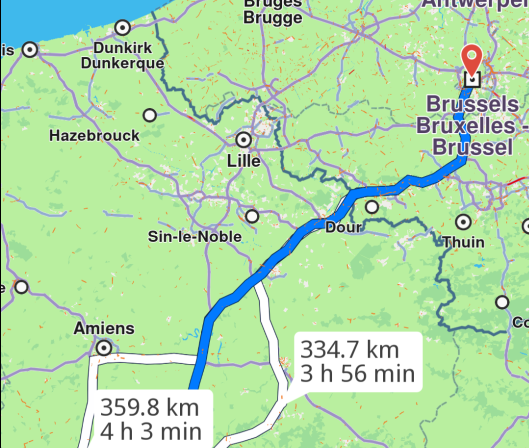](/docs/typescript/examples/routing-navigation/calculate-route.md) ##### [Calculate Route](/docs/typescript/examples/routing-navigation/calculate-route.md) [Compute a route between two locations.](/docs/typescript/examples/routing-navigation/calculate-route.md) [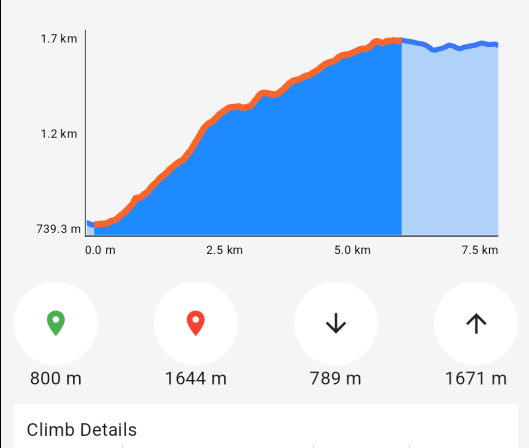](/docs/typescript/examples/routing-navigation/route-profile.md) ##### [Route Profile](/docs/typescript/examples/routing-navigation/route-profile.md) [Display a detailed route profile.](/docs/typescript/examples/routing-navigation/route-profile.md) [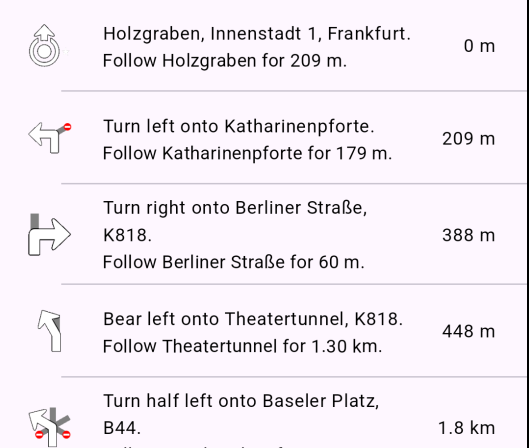](/docs/typescript/examples/routing-navigation/route-instructions.md) ##### [Route Instructions](/docs/typescript/examples/routing-navigation/route-instructions.md) [Show detailed route instructions.](/docs/typescript/examples/routing-navigation/route-instructions.md) [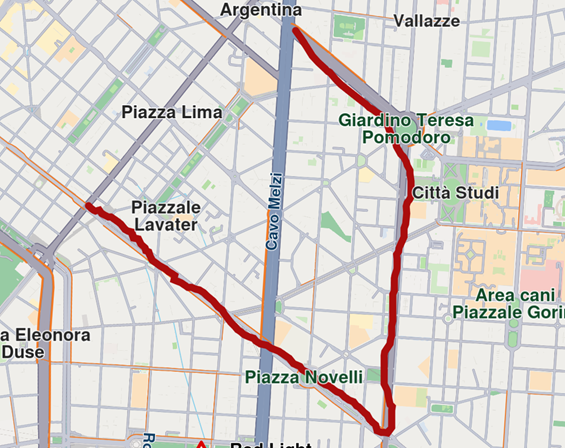](/docs/typescript/examples/routing-navigation/finger-route.md) ##### [Finger Route](/docs/typescript/examples/routing-navigation/finger-route.md) [Draw waypoints with your finger to calculate a route.](/docs/typescript/examples/routing-navigation/finger-route.md) [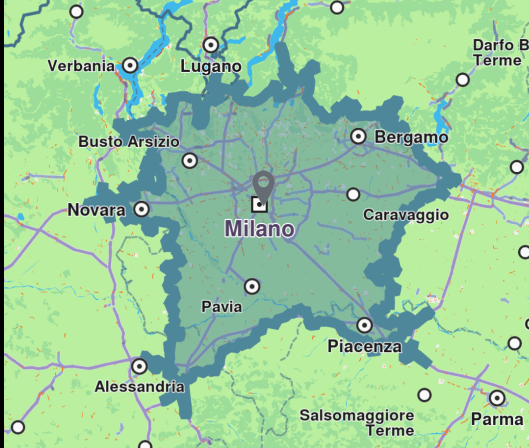](/docs/typescript/examples/routing-navigation/range-finder.md) ##### [Range Finder](/docs/typescript/examples/routing-navigation/range-finder.md) [Calculate the route range from a point of interest.](/docs/typescript/examples/routing-navigation/range-finder.md) [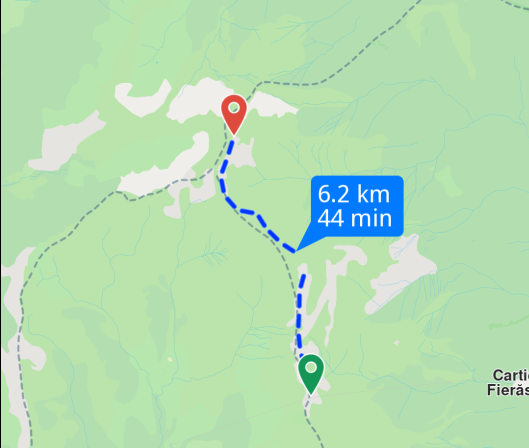](/docs/typescript/examples/routing-navigation/gpx-route.md) ##### [GPX Route](/docs/typescript/examples/routing-navigation/gpx-route.md) [Generate a route based on GPX data.](/docs/typescript/examples/routing-navigation/gpx-route.md) [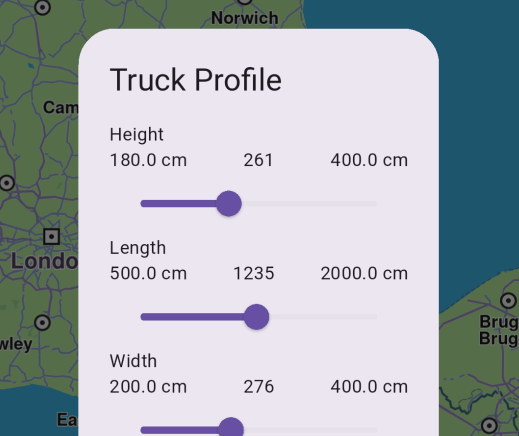](/docs/typescript/examples/routing-navigation/truck-profile.md) ##### [Truck Profile](/docs/typescript/examples/routing-navigation/truck-profile.md) [Compute routes tailored for truck-specific requirements.](/docs/typescript/examples/routing-navigation/truck-profile.md) [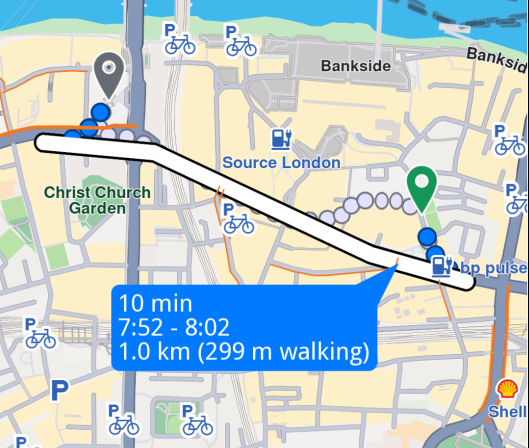](/docs/typescript/examples/routing-navigation/public-transit.md) ##### [Public Transit](/docs/typescript/examples/routing-navigation/public-transit.md) [Plan routes using public transportation.](/docs/typescript/examples/routing-navigation/public-transit.md) [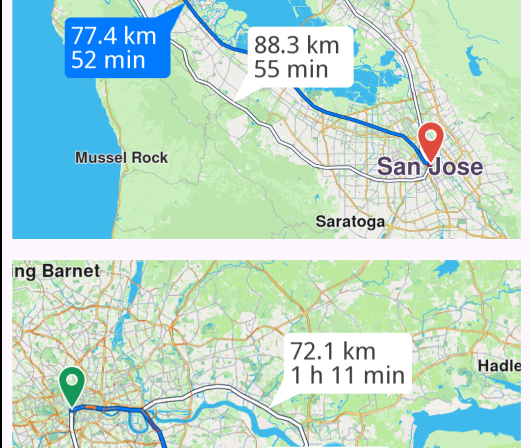](/docs/typescript/examples/routing-navigation/multimap-routing.md) ##### [Multi Map Routing](/docs/typescript/examples/routing-navigation/multimap-routing.md) [Manage routes on two maps simultaneously.](/docs/typescript/examples/routing-navigation/multimap-routing.md) [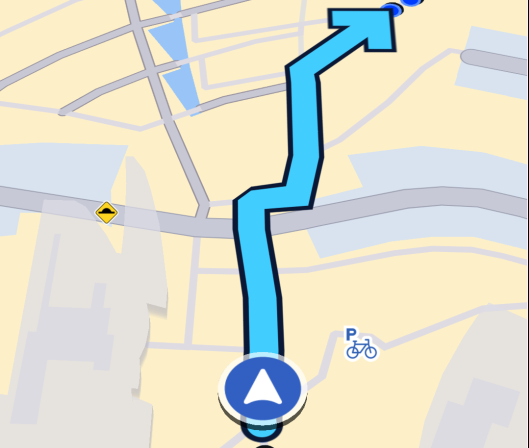](/docs/typescript/examples/routing-navigation/navigate-route.md) ##### [Navigate Route](/docs/typescript/examples/routing-navigation/navigate-route.md) [Navigate along a computed route with real-time guidance.](/docs/typescript/examples/routing-navigation/navigate-route.md) [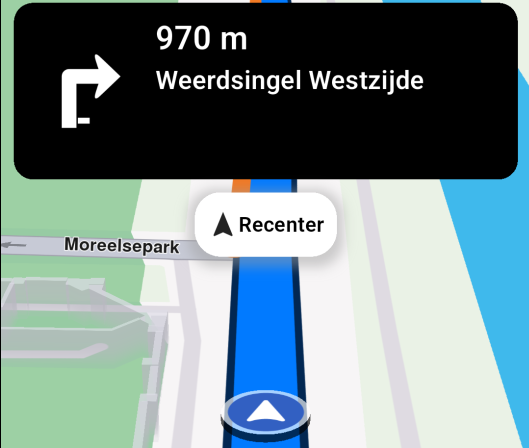](/docs/typescript/examples/routing-navigation/simulate-navigation.md) ##### [Simulate Navigation](/docs/typescript/examples/routing-navigation/simulate-navigation.md) [Simulate navigation along a route.](/docs/typescript/examples/routing-navigation/simulate-navigation.md) [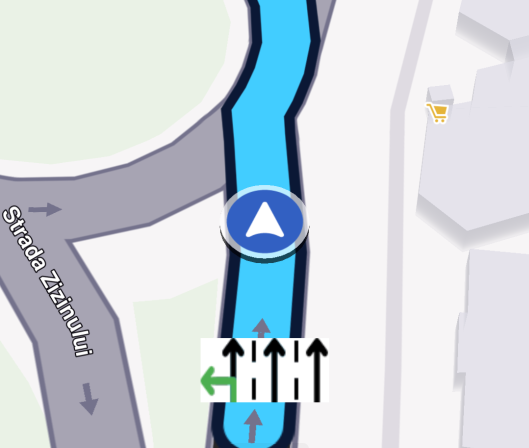](/docs/typescript/examples/routing-navigation/lane-instructions.md) ##### [Lane Instructions](/docs/typescript/examples/routing-navigation/lane-instructions.md) [Navigate on route and display real-time lane instructions guidance.](/docs/typescript/examples/routing-navigation/lane-instructions.md) [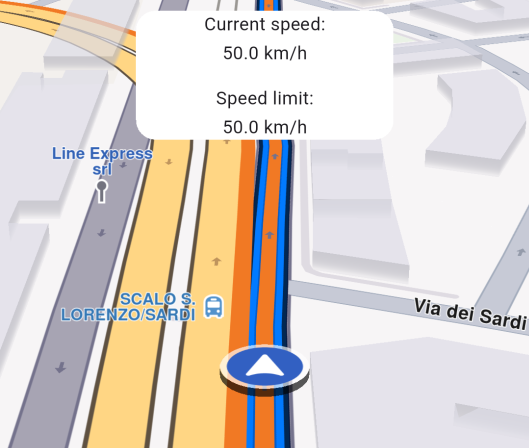](/docs/typescript/examples/routing-navigation/speed-watcher.md) ##### [Speed Watcher](/docs/typescript/examples/routing-navigation/speed-watcher.md) [Monitor speed in real-time.](/docs/typescript/examples/routing-navigation/speed-watcher.md) [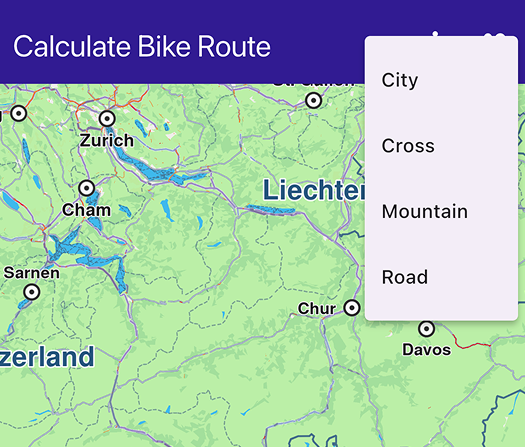](/docs/typescript/examples/routing-navigation/calculate-bike-route.md) ##### [Calculate Bike Route](/docs/typescript/examples/routing-navigation/calculate-bike-route.md) [Calculate bike-specific routes.](/docs/typescript/examples/routing-navigation/calculate-bike-route.md) [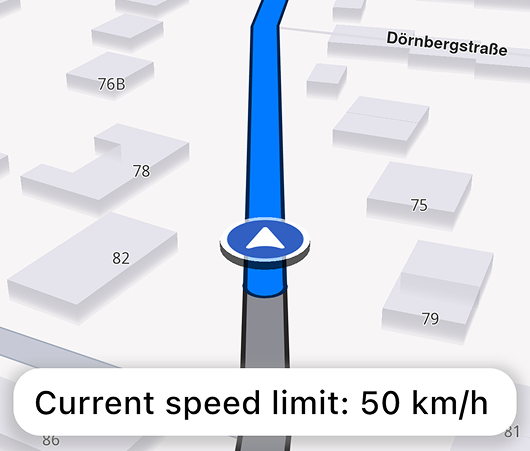](/docs/typescript/examples/routing-navigation/speed-tts-warning.md) ##### [Speed Text-to-speech Warnings](/docs/typescript/examples/routing-navigation/speed-tts-warning.md) [Get notified on speed limit changes while navigating.](/docs/typescript/examples/routing-navigation/speed-tts-warning.md) [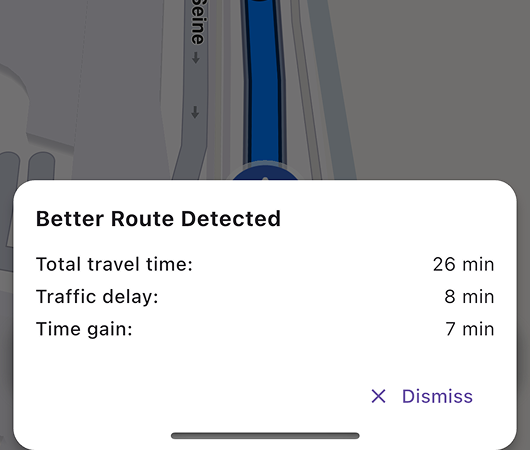](/docs/typescript/examples/routing-navigation/better-route-notification.md) ##### [Better Route Notification](/docs/typescript/examples/routing-navigation/better-route-notification.md) [Get notified when a better route is detected while navigating.](/docs/typescript/examples/routing-navigation/better-route-notification.md) [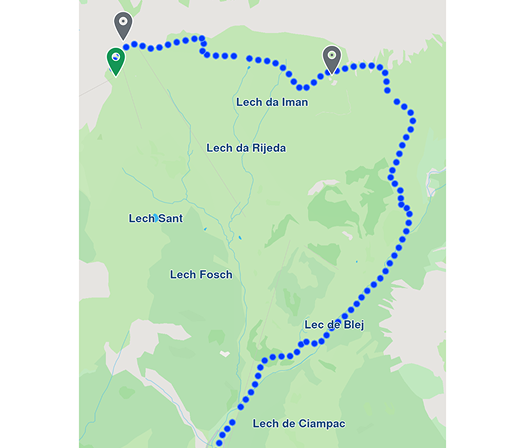](/docs/typescript/examples/routing-navigation/gpx-thumbnail-image/) ##### [GPX Routing Thumbnail Image](/docs/typescript/examples/routing-navigation/gpx-thumbnail-image/) [Calculate a Path from a GPX file and capture a thumbnail image of the route displayed on the map.](/docs/typescript/examples/routing-navigation/gpx-thumbnail-image/) [](/docs/typescript/examples/routing-navigation/route-alarms.md) ##### [Route Alarms](/docs/typescript/examples/routing-navigation/route-alarms.md) [Get notified when aproaching a map POI while navigating.](/docs/typescript/examples/routing-navigation/route-alarms.md) [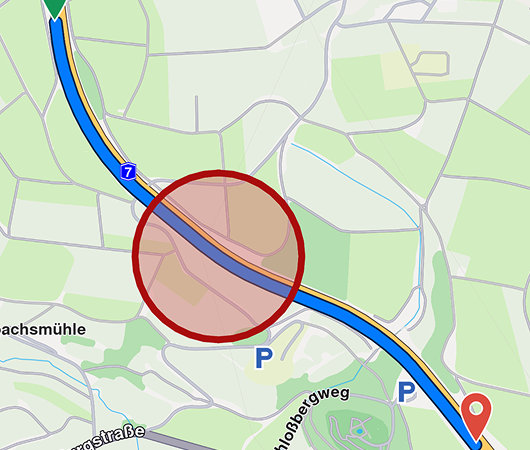](/docs/typescript/examples/routing-navigation/areas-alarms.md) ##### [Areas Alarms](/docs/typescript/examples/routing-navigation/areas-alarms.md) [Get notified when entering or exiting a geographic area.](/docs/typescript/examples/routing-navigation/areas-alarms.md) --- ### Areas Alarms |
This example demonstrates how to monitor geographic areas and receive notifications when entering or exiting defined zones during navigation simulation. #### Overview[](#overview "Direct link to Overview") The example demonstrates the following features: * Drawing circular geographic areas on the map using polygon markers * Calculating routes and displaying them on the map * Monitoring geographic areas with AlarmService * Receiving boundary crossing notifications during navigation simulation * Managing navigation lifecycle with start/stop controls #### Code Implementation[](#code-implementation "Direct link to Code Implementation") ##### Importing SDK Components[](#importing-sdk-components "Direct link to Importing SDK Components") index.ts[](areas_alarm/src/index.ts?ref_type=heads#L1) ```typescript import { GemKit, GemMap, Coordinates, PositionService, Landmark, RoutePreferences, RoutingService, NavigationService, GemError, Marker, MarkerCollection, MarkerType, MarkerCollectionRenderSettings, AlarmService, AlarmListener, CircleGeographicArea, TaskHandler, Route, Color } from '@magiclane/maps-sdk'; ``` ##### Drawing Geographic Areas[](#drawing-geographic-areas "Direct link to Drawing Geographic Areas") index.ts[](areas_alarm/src/index.ts?ref_type=heads#L160) ```typescript function onMapCreated(gemMap: GemMap) { map = gemMap; // Draw area on map const marker = new Marker(); const circleAreaCoords = generateCircleCoordinates( new Coordinates({ latitude: 50.92396, longitude: 9.54976 }), 200 ); circleAreaCoords.forEach(coord => marker.add(coord)); const markerCollection = MarkerCollection.create( MarkerType.Polygon, "Circle" ); markerCollection.add(marker); map.preferences.markers.add( markerCollection, { settings: new MarkerCollectionRenderSettings({ polygonFillColor: new Color(210, 104, 102, 111) })} ); } // Method for generating coordinates in a circle shape function generateCircleCoordinates( center: Coordinates, radiusMeters: number, numberOfPoints = 36 ): Coordinates[] { const earthRadius = 6371000; // in meters const centerLatRad = (center.latitude * Math.PI) / 180; const centerLonRad = (center.longitude * Math.PI) / 180; const coordinates: Coordinates[] = []; for (let i = 0; i < numberOfPoints; i++) { const angle = (2 * Math.PI * i) / numberOfPoints; const deltaLat = (radiusMeters / earthRadius) * Math.cos(angle); const deltaLon = (radiusMeters / (earthRadius * Math.cos(centerLatRad))) * Math.sin(angle); const pointLat = ((centerLatRad + deltaLat) * 180) / Math.PI; const pointLon = ((centerLonRad + deltaLon) * 180) / Math.PI; coordinates.push(new Coordinates({ latitude: pointLat, longitude: pointLon })); } return coordinates; } ``` ##### Calculating Routes[](#calculating-routes "Direct link to Calculating Routes") index.ts[](areas_alarm/src/index.ts?ref_type=heads#L187) ```typescript function onBuildRouteButtonPressed() { // Define the departure const departureLandmark = Landmark.withLatLng({ latitude: 50.92899490001731, longitude: 9.544136681645025 }); // Define the destination const destinationLandmark = Landmark.withLatLng({ latitude: 50.919902402432946, longitude: 9.55855522546262 }); // Define the route preferences const routePreferences = new RoutePreferences({}); // Calculate route routingHandler = RoutingService.calculateRoute( [departureLandmark, destinationLandmark], routePreferences, (err: GemError, routes: Route[]) => { routingHandler = null; if (err === GemError.success) { const routesMap = map?.preferences.routes; // Display the routes on map routes.forEach((route, index) => { routesMap?.add(route, index === 0); // First route is main }); // Center the camera on routes map?.centerOnRoutes({ routes }); } areRoutesBuilt = true; updateUI(); } ); } ``` ##### Monitoring Geographic Areas[](#monitoring-geographic-areas "Direct link to Monitoring Geographic Areas") index.ts[](areas_alarm/src/index.ts?ref_type=heads#L233) ```typescript function startSimulation() { const routes = map?.preferences.routes; map?.preferences.routes.clearAllButMainRoute(); if (!routes?.mainRoute) { showMessage("No main route available"); return; } // Register callback for area crossing alarmListener = AlarmListener.create({ onBoundaryCrossed: (enteredAreas: string[], exitedAreas: string[]) => { if (enteredAreas.length > 0) { areaNotification = `Entered area: ${enteredAreas[0]}`; } else { areaNotification = `Exited area: ${exitedAreas[0]}`; } updateUI(); } }); // Set the alarms service with the listener alarmService = AlarmService.create(alarmListener); alarmService.monitorArea( new CircleGeographicArea({ radius: 200, centerCoordinates: new Coordinates({ latitude: 50.92396, longitude: 9.54976 }) }), "Test area" ); navigationHandler = NavigationService.startSimulation( routes.mainRoute, undefined, { onNavigationInstruction: (instruction, events) => { isSimulationActive = true; updateUI(); }, onDestinationReached: (landmark) => { stopSimulation(); cancelRoute(); }, onError: (error) => { isSimulationActive = false; areaNotification = null; updateUI(); cancelRoute(); if (error !== GemError.cancel) { stopSimulation(); } } } ); // Set the camera to follow position map?.startFollowingPosition({ zoomLevel: 70, viewAngle: 0 }); } ``` ##### Managing Navigation State[](#managing-navigation-state "Direct link to Managing Navigation State") index.ts[](areas_alarm/src/index.ts?ref_type=heads#L307) ```typescript // Stop simulation function stopSimulation() { if (navigationHandler) { NavigationService.cancelNavigation(navigationHandler); navigationHandler = null; } areaNotification = null; cancelRoute(); isSimulationActive = false; updateUI(); } // Cancel route function cancelRoute() { map?.preferences.routes.clear(); if (routingHandler) { RoutingService.cancelRoute(routingHandler); routingHandler = null; } areRoutesBuilt = false; updateUI(); } ``` #### Live Demo[](#live-demo "Direct link to Live Demo") [Areas Alarms Demo](/docs/typescript/demos/areas_alarm/index.html) #### Key Features[](#key-features "Direct link to Key Features") * **Geographic Area Visualization**: Display circular areas on the map using polygon markers with custom colors * **Area Monitoring**: Monitor when navigation crosses defined geographic boundaries * **Boundary Notifications**: Receive callbacks when entering or exiting monitored areas * **Navigation Simulation**: Simulate route navigation to test area alarm functionality * **State Management**: Track navigation and routing states with TaskHandler references #### Explanation of Key Components[](#explanation-of-key-components "Direct link to Explanation of Key Components") * **CircleGeographicArea**: Defines a circular geographic zone with a center point and radius for monitoring * **AlarmService**: Service for monitoring geographic areas and triggering notifications * **AlarmListener**: Listener with `onBoundaryCrossed` callback that fires when boundaries are crossed * **monitorArea()**: Method to start monitoring a specific geographic area with an identifier * **MarkerCollection**: Collection of polygon markers used to visualize the geographic area on the map * **generateCircleCoordinates()**: Utility function that calculates polygon points to approximate a circle * **NavigationService.startSimulation()**: Starts simulated navigation along a route for testing area alarms * **TaskHandler**: Reference object used to cancel ongoing routing or navigation operations #### Next Steps[](#next-steps "Direct link to Next Steps") * [Route Alarms](/docs/typescript/examples/routing-navigation/route-alarms.md) - Learn about proximity-based alarms on routes * [Navigate Route](/docs/typescript/examples/routing-navigation/navigate-route.md) - Explore real-time route navigation * [Simulate Navigation](/docs/typescript/examples/routing-navigation/simulate-navigation.md) - Understand navigation simulation basics --- ### Better Route Notification |
This guide will teach you how to get notified when a better route is detected during navigation. #### How it works[](#how-it-works "Direct link to How it works") The example app demonstrates the following key features: * Rendering an interactive map. * Calculating routes with enhanced detection for better alternatives. * Simulating navigation along a predefined route. * Providing detailed insights on newly identified routes. warning The example functionality is highly dependent on current traffic conditions. If the time difference between the selected route and the others is no greater than 5 minutes, the notification will not appear. See the [Better Route Detection](/docs/typescript/guides/navigation/better-route-detection.md) documentation. ##### UI and Map Integration[](#ui-and-map-integration "Direct link to UI and Map Integration") The following code demonstrates how to initialize the map and create UI elements for building routes, starting simulation, and displaying navigation information. When a better route is identified, a notification modal will appear with details about the time savings. index.ts[](better_route_notification/src/index.ts?ref_type=heads#L93) ```typescript import { GemKit, GemMap, Coordinates, PositionService, Landmark, RoutePreferences, RoutingService, NavigationService, NavigationInstruction, GemError, Route } from '@magiclane/maps-sdk'; import { GEMKIT_TOKEN } from './token'; let map: GemMap | null = null; let currentInstruction: NavigationInstruction | null = null; let areRoutesBuilt = false; let isSimulationActive = false; // We use the progress listener to cancel the route calculation. let routingHandler: any = null; // We use the progress listener to cancel the navigation. let navigationHandler: any = null; // UI Elements let buildRouteBtn: HTMLButtonElement; let startSimulationBtn: HTMLButtonElement; let stopSimulationBtn: HTMLButtonElement; let recenterBtn: HTMLButtonElement; let navigationPanel: HTMLDivElement; let instructionPanel: HTMLDivElement; let bottomPanel: HTMLDivElement; function updateUI() { // Logic to toggle main buttons in the same spot buildRouteBtn.style.display = 'none'; startSimulationBtn.style.display = 'none'; stopSimulationBtn.style.display = 'none'; if (!areRoutesBuilt) { buildRouteBtn.style.display = 'block'; } else if (areRoutesBuilt && !isSimulationActive) { startSimulationBtn.style.display = 'block'; } else if (isSimulationActive) { stopSimulationBtn.style.display = 'block'; } navigationPanel.style.display = isSimulationActive ? 'block' : 'none'; bottomPanel.style.display = isSimulationActive ? 'block' : 'none'; } // Custom method for calling calculate route and displaying the results. function onBuildRouteButtonPressed() { // Define the departure const departureLandmark = Landmark.withLatLng({ latitude: 48.79743778098061, longitude: 2.4029037044571875 }); // Define the destination const destinationLandmark = Landmark.withLatLng({ latitude: 48.904767018940184, longitude: 2.3223936076132086 }); // Define the route preferences const routePreferences = new RoutePreferences({}); showMessage('The route is calculating.'); // Calculate route routingHandler = RoutingService.calculateRoute( [departureLandmark, destinationLandmark], routePreferences, (err: GemError, calculatedRoutes: Route[]) => { // If the route calculation is finished, we don't have a progress listener anymore. routingHandler = null; if (err === GemError.success) { const routesMap = map?.preferences.routes; // Display the routes on map calculatedRoutes.forEach((route, index) => { // Add route with label const label = getRouteLabel(route); routesMap?.add(route, index === 0, { label }); }); // Center the camera on routes map?.centerOnRoutes({ routes: calculatedRoutes }); showMessage('Route calculated successfully!'); } else { showMessage('Route calculation failed.'); } areRoutesBuilt = true; updateUI(); } ); updateUI(); } // Method for starting the simulation and following the position function startSimulation() { if (!map) return; const routes = map.preferences.routes; // Set main route (using second route if available) const routeAt1 = routes.at(1); if (routeAt1) { routes.mainRoute = routeAt1; } if (!routes.mainRoute) { showMessage("No main route available"); return; } navigationHandler = NavigationService.startSimulation( routes.mainRoute, undefined, { onNavigationInstruction: (instruction: NavigationInstruction, events: any) => { isSimulationActive = true; currentInstruction = instruction; updateNavigationUI(); updateUI(); }, onBetterRouteDetected: (route: Route, travelTime: number, delay: number, timeGain: number) => { // Display notification when a better route is detected showBetterRouteNotification(travelTime, delay, timeGain); }, onBetterRouteInvalidated: () => { console.log("The previously found better route is no longer valid"); }, onBetterRouteRejected: (reason: GemError) => { console.log("The check for better route failed with reason:", reason); }, onError: (error: GemError) => { // If the navigation has ended or if an error occurred while navigating, remove routes isSimulationActive = false; cancelRoute(); if (error !== GemError.cancel) { stopSimulation(); } updateUI(); } } ); // Clear route alternatives from map map.preferences.routes.clearAllButMainRoute(); // Set the camera to follow position map.startFollowingPosition(); } // Method for removing the routes from display function cancelRoute() { if (!map) return; // Remove the routes from map map.preferences.routes.clear(); if (routingHandler !== null) { // Cancel the navigation RoutingService.cancelRoute(routingHandler); routingHandler = null; } areRoutesBuilt = false; updateUI(); } // Method to stop the simulation and remove the displayed routes function stopSimulation() { if (navigationHandler !== null) { // Cancel the navigation NavigationService.cancelNavigation(navigationHandler); navigationHandler = null; } cancelRoute(); isSimulationActive = false; updateUI(); } ``` #### Live Demo[](#live-demo "Direct link to Live Demo") [Better Route Notification Demo](/docs/typescript/demos/better_route_notification/index.html) ##### Better Route Notification Modal[](#better-route-notification-modal "Direct link to Better Route Notification Modal") The modal displays when a better route is detected during navigation, showing travel time, delay, and time gain information. index.ts[](better_route_notification/src/index.ts?ref_type=heads#L325) ```typescript // Show better route notification modal function showBetterRouteNotification(travelTime: number, delay: number, timeGain: number) { // Create modal overlay const modal = document.createElement('div'); modal.style.cssText = ` position: fixed; top: 0; left: 0; width: 100%; height: 100%; background: rgba(0, 0, 0, 0.5); z-index: 3000; display: flex; justify-content: center; align-items: flex-end; `; // Create better route panel const panel = document.createElement('div'); panel.style.cssText = ` background: white; border-radius: 20px 20px 0 0; padding: 24px; width: 100%; max-width: 400px; margin: 20px; box-shadow: 0 -4px 20px rgba(0, 0, 0, 0.3); `; panel.innerHTML = `
Better Route Found!
Travel Time: ${formatDuration(travelTime)}
Delay: ${formatDuration(delay)}
Time Saved: ${formatDuration(timeGain)}
Calculate routes optimized for bicycle navigation with cycling-specific preferences. #### Live Demo[](#live-demo "Direct link to Live Demo") [Calculate Bike Route Demo](/docs/typescript/demos/calculate_bike_route/index.html) #### Code Implementation[](#code-implementation "Direct link to Code Implementation") index.ts[](calculate_bike_route/src/index.ts?ref_type=heads#L150) ```typescript function onBuildRouteButtonPressed() { const departureLandmark = Landmark.withLatLng({ latitude: 52.36239785, longitude: 4.89891628 }); const destinationLandmark = Landmark.withLatLng({ latitude: 52.3769534, longitude: 4.898427 }); const routePreferences = new RoutePreferences({ bikeProfile: new BikeProfileElectricBikeProfile({ profile: selectedBikeType || BikeProfile.city }) }); showMessage('The bike route is calculating.'); RoutingService.calculateRoute( [departureLandmark, destinationLandmark], routePreferences, (err: GemError, calculatedRoutes: Route[]) => { routingHandler = null; if (err === GemError.success) { const routesMap = map?.preferences.routes; calculatedRoutes.forEach((route, index) => { const label = getRouteLabel(route); routesMap?.add(route, index === 0, { label }); }); map?.centerOnRoutes({ routes: calculatedRoutes }); showMessage('Bike route calculated successfully!'); routes = calculatedRoutes; } else { showMessage('Bike route calculation failed.'); } } ); } updateUI(); updateUI(); ``` --- ### Calculate Route |
This example demonstrates how to create a web application that calculates a route between two locations and displays it on a map using Maps SDK for TypeScript. #### How it works[](#how-it-works "Direct link to How it works") The example app demonstrates the following features: * Calculate a route between two landmarks (Paris to Brussels). * Display the route on a map and allow user interaction with the route. * Provide options to cancel route calculation or clear the routes from the map. * Select alternative routes by clicking on them. #### Live Demo[](#live-demo "Direct link to Live Demo") Try the interactive demo below. Click "Build Route" to calculate a route between Paris and Brussels: [Calculate Route Demo](/docs/typescript/demos/calculate_route/index.html) #### Code Implementation[](#code-implementation "Direct link to Code Implementation") ##### Route Calculation and Map Integration[](#route-calculation-and-map-integration "Direct link to Route Calculation and Map Integration") This code handles the calculation of routes between two landmarks, displays the routes on the map, and provides options to cancel or clear the routes. The map is centered on the calculated routes, and a label showing the distance and duration is displayed. index.ts[](calculate_route/src/index.ts?ref_type=heads#L1) ```typescript import { GemKit, GemMap, Landmark, RoutePreferences, RoutingService, GemError, Route } from '@magiclane/maps-sdk'; let map: GemMap | null = null; let routingHandler: any = null; let routes: Route[] | null = null; function onBuildRouteButtonPressed() { // Define the departure (Paris) const departureLandmark = Landmark.withLatLng({ latitude: 48.85682, longitude: 2.34375 }); // Define the destination (Brussels) const destinationLandmark = Landmark.withLatLng({ latitude: 50.84644, longitude: 4.34587 }); // Define the route preferences const routePreferences = new RoutePreferences({}); showMessage('The route is calculating.'); // Calculate route routingHandler = RoutingService.calculateRoute( [departureLandmark, destinationLandmark], routePreferences, (err: GemError, calculatedRoutes: Route[]) => { routingHandler = null; if (err === GemError.success) { const routesMap = map?.preferences.routes; // Display the routes on map calculatedRoutes.forEach((route, index) => { // Add route with label const label = getRouteLabel(route); routesMap?.add(route, index === 0, { label }); }); // Center the camera on routes map?.centerOnRoutes({ routes: calculatedRoutes }); showMessage('Route calculated successfully!'); routes = calculatedRoutes; } else { showMessage('Route calculation failed.'); } updateUI(); } ); updateUI(); } ``` ##### Clear and Cancel Functionality[](#clear-and-cancel-functionality "Direct link to Clear and Cancel Functionality") Handle clearing routes from the map and canceling ongoing calculations: index.ts[](calculate_route/src/index.ts?ref_type=heads#L188) ```typescript // Clear routes functionality function onClearRoutesButtonPressed() { // Remove the routes from map map?.preferences.routes.clear(); routes = null; updateUI(); } // Cancel route calculation function onCancelRouteButtonPressed() { if (routingHandler) { RoutingService.cancelRoute(routingHandler); routingHandler = null; showMessage('Route calculation cancelled.'); } updateUI(); } ``` ##### Route Selection[](#route-selection "Direct link to Route Selection") Enable the user to select a specific route on the map by clicking on it. The selected route becomes the main route displayed: index.ts[](calculate_route/src/index.ts?ref_type=heads#L206) ```typescript // Register route tap callback for selecting alternative routes function registerRouteTapCallback() { if (!map) return; map.registerTouchCallback(async (pos: any) => { // Select the map objects at given position await map.setCursorScreenPosition(pos); // Get the selected routes const selectedRoutes = map.cursorSelectionRoutes(); // If there is a route at position, select it as the main one if (selectedRoutes.length > 0) { const routesMap = map.preferences.routes; if (routesMap) { routesMap.mainRoute = selectedRoutes[0]; } } }); } ``` ##### Displaying Route Information[](#displaying-route-information "Direct link to Displaying Route Information") Utility functions to format and display route information: index.ts[](calculate_route/src/index.ts?ref_type=heads#L227) ```typescript // Utility function to get route label (distance and duration) function getRouteLabel(route: Route): string { const timeDistance = route.getTimeDistance(); const totalDistance = timeDistance.unrestrictedDistanceM + timeDistance.restrictedDistanceM; const totalDuration = timeDistance.unrestrictedTimeS + timeDistance.restrictedTimeS; return `${convertDistance(totalDistance)}\n${convertDuration(totalDuration)}`; } // Convert meters distance into a suitable format function convertDistance(meters: number): string { if (meters >= 1000) { const kilometers = meters / 1000; return `${kilometers.toFixed(1)} km`; } else { return `${meters.toString()} m`; } } // Convert seconds duration into a suitable format function convertDuration(seconds: number): string { const hours = Math.floor(seconds / 3600); const minutes = Math.floor((seconds % 3600) / 60); const hoursText = hours > 0 ? `${hours} h ` : ''; const minutesText = `${minutes} min`; return hoursText + minutesText; } ``` #### Key Features[](#key-features "Direct link to Key Features") * **Route Calculation**: Calculates the best route between two points * **Visual Feedback**: Routes are displayed on the map with distance and time labels * **Interactive Selection**: Click on alternative routes to make them the main route * **Cancellation**: Cancel route calculation while it's in progress * **Clean UI**: Clear all routes from the map with one click #### Next Steps[](#next-steps "Direct link to Next Steps") * Try the [Route Profile](/docs/typescript/examples/routing-navigation/route-profile.md) example to see different route preferences * Explore [Navigate Route](/docs/typescript/examples/routing-navigation/navigate-route.md) for turn-by-turn navigation * Check out [Route Instructions](/docs/typescript/examples/routing-navigation/route-instructions.md) to display detailed directions --- ### Finger Route |
This example demonstrates how to draw a route by tapping or clicking on the map to place waypoints, then calculating and displaying a route through those points using the Maps SDK for TypeScript. #### Live Demo[](#live-demo "Direct link to Live Demo") [Finger Route Demo](/docs/typescript/demos/finger_draw/index.html) #### Overview[](#overview "Direct link to Overview") The example demonstrates the following features: * Enabling draw markers mode to collect waypoints * Drawing routes by tapping/clicking on the map * Calculating routes through multiple waypoints * Displaying route information (distance and duration) * Managing route calculation state #### Code Implementation[](#code-implementation "Direct link to Code Implementation") ##### Initialize GemKit and Setup[](#initialize-gemkit-and-setup "Direct link to Initialize GemKit and Setup") index.ts[](finger_route/src/index.ts?ref_type=heads#L6) ```typescript import { GemKit, GemMap, PositionService, RoutingService, RoutePreferences, GemError, Route, Coordinates } from '@magiclane/maps-sdk'; import { GEMKIT_TOKEN } from './token'; let map: GemMap | null = null; let routingHandler: any = null; let areRoutesBuilt = false; let isInDrawingMode = false; // UI Elements let drawBtn: HTMLButtonElement; let buildBtn: HTMLButtonElement; let cancelBtn: HTMLButtonElement; let clearBtn: HTMLButtonElement; window.addEventListener('DOMContentLoaded', async () => { const gemKit = await GemKit.initialize(GEMKIT_TOKEN); await PositionService.instance; const container = document.getElementById('map-container'); if (!container) throw new Error('Map container not found'); const viewId = 2; const wrapper = gemKit.createView(viewId, onMapCreated); if (wrapper) container.appendChild(wrapper); updateUI(); }); async function onMapCreated(gemMap: GemMap) { map = gemMap; updateUI(); map.centerOnCoordinates(Coordinates.fromLatLong(44.4268, 26.1025), { zoomLevel: 70 }); } ``` ##### Enable Draw Markers Mode[](#enable-draw-markers-mode "Direct link to Enable Draw Markers Mode") index.ts[](finger_route/src/index.ts?ref_type=heads#L177) ```typescript function onDrawPressed() { if (!map) return; map.enableDrawMarkersMode(); isInDrawingMode = true; updateUI(); showMessage("Tap on the map to place waypoints."); } ``` ##### Build Route from Waypoints[](#build-route-from-waypoints "Direct link to Build Route from Waypoints") index.ts[](finger_route/src/index.ts?ref_type=heads#L185) ```typescript function onBuildRouteButtonPressed() { if (!map) return; // Disable draw mode and get the collected waypoints const waypoints = map.disableDrawMarkersMode(); // Configure route preferences for finger-drawn routes const routePreferences = new RoutePreferences({ accurateTrackMatch: false, ignoreRestrictionsOverTrack: true }); showMessage('The route is being calculated.'); // Calculate route through all waypoints routingHandler = RoutingService.calculateRoute( waypoints, routePreferences, (err: GemError, routes: Route[]) => { routingHandler = null; isInDrawingMode = false; updateUI(); if (err === GemError.success && routes.length > 0) { const routesMap = map!.preferences.routes; // Add routes to map with labels routes.forEach((route, idx) => { routesMap.add(route, idx === 0, { label: getRouteMapLabel(route) }); }); // Center map on the calculated routes map!.centerOnRoutes({ routes }); areRoutesBuilt = true; updateUI(); } else { showMessage('Route calculation failed.'); } } ); updateUI(); } ``` ##### Clear and Cancel Operations[](#clear-and-cancel-operations "Direct link to Clear and Cancel Operations") index.ts[](finger_route/src/index.ts?ref_type=heads#L224) ```typescript function onClearRoutesButtonPressed() { if (!map) return; // Remove all routes from the map map.preferences.routes.clear(); areRoutesBuilt = false; updateUI(); } function onCancelRouteButtonPressed() { if (routingHandler) { // Cancel ongoing route calculation RoutingService.cancelRoute(routingHandler); routingHandler = null; isInDrawingMode = false; updateUI(); } } ``` ##### UI Management[](#ui-management "Direct link to UI Management") index.ts[](finger_route/src/index.ts?ref_type=heads#L156) ```typescript function updateUI() { // Show/hide buttons based on current state drawBtn.style.display = (!routingHandler && !areRoutesBuilt && !isInDrawingMode) ? 'block' : 'none'; buildBtn.style.display = (!routingHandler && !areRoutesBuilt && isInDrawingMode) ? 'block' : 'none'; cancelBtn.style.display = routingHandler ? 'block' : 'none'; clearBtn.style.display = areRoutesBuilt ? 'block' : 'none'; } ``` ##### Utility Functions[](#utility-functions "Direct link to Utility Functions") index.ts[](finger_route/src/index.ts) ```typescript // Helper function to create map label for routes function getRouteMapLabel(route: Route): string { const timeDistance = route.getTimeDistance(); const totalDistance = timeDistance.unrestrictedDistanceM + timeDistance.restrictedDistanceM; const totalDuration = timeDistance.unrestrictedTimeS + timeDistance.restrictedTimeS; return `${convertDistance(totalDistance)} \n${convertDuration(totalDuration)}`; } // Convert distance to human-readable format function convertDistance(meters: number): string { if (meters >= 1000) { const kilometers = meters / 1000; return `${kilometers.toFixed(1)} km`; } else { return `${meters.toString()} m`; } } // Convert duration to human-readable format function convertDuration(seconds: number): string { const hours = Math.floor(seconds / 3600); const minutes = Math.floor((seconds % 3600) / 60); const hoursText = hours > 0 ? `${hours} h ` : ''; const minutesText = `${minutes} min`; return hoursText + minutesText; } // Utility: show a temporary message function showMessage(message: string, duration = 3000) { let msgDiv = document.getElementById('status-msg'); if (!msgDiv) { msgDiv = document.createElement('div'); msgDiv.id = 'status-msg'; msgDiv.style.cssText = ` position: fixed; top: 20px; left: 50%; transform: translateX(-50%); background: #333; color: #fff; padding: 12px 20px; border-radius: 8px; z-index: 2000; font-size: 1em; `; document.body.appendChild(msgDiv); } msgDiv.textContent = message; setTimeout(() => { msgDiv.textContent = ''; }, duration); } ``` #### Key Features[](#key-features "Direct link to Key Features") * **Draw Markers Mode**: Interactive waypoint placement by tapping/clicking on the map * **Multi-Waypoint Routes**: Calculate routes through multiple user-defined points * **Route Preferences**: Customizable routing options for finger-drawn routes * **State Management**: Clear UI state transitions between drawing, calculating, and viewing routes * **Cancellation Support**: Cancel ongoing route calculations #### Route Preferences for Finger Routes[](#route-preferences-for-finger-routes "Direct link to Route Preferences for Finger Routes") When calculating routes from user-drawn waypoints, specific preferences are used: ```typescript const routePreferences = new RoutePreferences({ accurateTrackMatch: false, // Don't require precise track matching ignoreRestrictionsOverTrack: true // Ignore road restrictions }); ``` These settings are important for finger-drawn routes because: * Users may not place waypoints precisely on roads * The route should follow the general path indicated by waypoints * Road restrictions may prevent routing through some waypoints #### Workflow[](#workflow "Direct link to Workflow") 1. **Start Drawing**: Click "Draw Route" to enable waypoint placement 2. **Add Waypoints**: Tap/click on the map to add waypoints along your desired route 3. **Build Route**: Click "Build Route" to calculate a route through all waypoints 4. **View Results**: The route is displayed with distance and duration labels 5. **Clear/Restart**: Clear routes to start over or cancel during calculation #### UI States[](#ui-states "Direct link to UI States") The example manages four distinct UI states: * **Initial**: Show "Draw Route" button * **Drawing**: Show "Build Route" button (while placing waypoints) * **Calculating**: Show "Cancel" button (during route calculation) * **Complete**: Show "Clear Routes" button (when routes are displayed) #### Tips for Best Results[](#tips-for-best-results "Direct link to Tips for Best Results") * Place waypoints on or near roads for better routing * Use at least 2 waypoints (start and end points) * More waypoints give you more control over the route path * Zoom in for more precise waypoint placement * Routes are calculated to follow roads between waypoints #### Next Steps[](#next-steps "Direct link to Next Steps") * [Calculate Route](/docs/typescript/examples/routing-navigation/calculate-route.md) - Basic route calculation * [Route Instructions](/docs/typescript/examples/routing-navigation/route-instructions.md) - Get turn-by-turn directions * [Navigate Route](/docs/typescript/examples/routing-navigation/navigate-route.md) - Start navigation along a route --- ### GPX Route |
Import and display GPX route files on the map. #### Live Demo[](#live-demo "Direct link to Live Demo") [GPX Route Demo](/docs/typescript/demos/gpx_route/index.html) #### Code Implementation[](#code-implementation "Direct link to Code Implementation") index.ts[](gpx_route/src/index.ts?ref_type=heads#L176) ```typescript async function importGPX() { let landmarkList: Landmark[] = []; const response = await fetch('./recorded_route.gpx'); if (!response.ok) { showMessage('GPX file does not exist.'); return; } const pathData = new Uint8Array(await response.arrayBuffer()); const gemPath = Path.create({ data: pathData, format: PathFileFormat.gpx }); landmarkList = gemPath.toLandmarkList(); const routePreferences = new RoutePreferences({ transportMode: RouteTransportMode.bicycle }); RoutingService.calculateRoute( landmarkList, routePreferences, (err: GemError, routes: Route[]) => { if (err === GemError.success && routes.length > 0) { const routesMap = map!.preferences.routes; routes.forEach((route, idx) => { routesMap.add(route, idx === 0, { label: getRouteMapLabel(route) }); }); map!.centerOnRoutes({ routes }); areRoutesBuilt = true; isGpxDataLoaded = true; updateUI(); showMessage('Route loaded successfully.'); } else { showMessage('Route calculation failed.'); } } ); } ``` --- ### GPX Routing Thumbnail Image |
This example demonstrates how to import a GPX file, calculate a route from the path data, and capture a thumbnail image of the route displayed on the map. #### Overview[](#overview "Direct link to Overview") The example demonstrates the following features: * Loading and processing GPX file data * Creating a Path object from GPX data * Calculating a route from path waypoints * Rendering the route on the map with waypoints * Capturing a screenshot of the displayed route * Displaying the captured thumbnail image #### Code Implementation[](#code-implementation "Direct link to Code Implementation") ##### Importing SDK Components[](#importing-sdk-components "Direct link to Importing SDK Components") index.ts[](gpx_thumbnail_image/src/index.ts?ref_type=heads#L6) ```typescript import { GemKit, GemMap, PositionService, RoutingService, RoutePreferences, GemError, Route, Landmark, Path, PathFileFormat, RouteRenderSettings, RouteRenderOptions, RouteTransportMode ``` ##### Loading GPX Data and Creating Path[](#loading-gpx-data-and-creating-path "Direct link to Loading GPX Data and Creating Path") index.ts[](gpx_thumbnail_image/src/index.ts?ref_type=heads#L132) ```typescript async function importGPX() { showMessage('Importing GPX...', 3000); // Load GPX file from public/assets/recorded_route.gpx try { const response = await fetch('./recorded_route.gpx'); if (!response.ok) { showMessage('GPX file does not exist.'); return; } const pathData = new Uint8Array(await response.arrayBuffer()); // Process GPX data using SDK const gemPath = Path.create({ data: pathData, format: PathFileFormat.gpx }); // Calculate route from path const route = await calculateRouteFromPath(gemPath); presentRouteOnMap(route); // Center on path's area with margins if (map && route.geographicArea) { map.centerOnArea(route.geographicArea, { zoomLevel: 70 }); } // Wait for the map actions to complete await new Promise(res => setTimeout(res, 500)); // Capture the thumbnail image if (map) { screenshotImage = await map.captureImage(); if (!screenshotImage) { showMessage('Error while taking screenshot.'); return; } updateUI(); showMessage('Snapshot captured!'); } } catch (e) { console.error(e); showMessage('Error processing GPX.'); } } ``` ##### Calculating Route from Path[](#calculating-route-from-path "Direct link to Calculating Route from Path") index.ts[](gpx_thumbnail_image/src/index.ts?ref_type=heads#L188) ```typescript function calculateRouteFromPath(path: Path): Promise
Display lane guidance to help users navigate complex intersections and highway exits. #### Live Demo[](#live-demo "Direct link to Live Demo") [Lane Instructions Demo](/docs/typescript/demos/lane_instructions/index.html) #### Code Implementation[](#code-implementation "Direct link to Code Implementation") index.ts[](lane_instructions/src/index.ts?ref_type=heads#L141) ```typescript function updateLaneImagePanel() { if (!isSimulationActive || !currentInstruction) { if (laneImagePanel) laneImagePanel.style.display = 'none'; return; } const laneImg = currentInstruction.getLaneImage({ size: { width: 100, height: 50 } }); if (!laneImg) { if (laneImagePanel) laneImagePanel.style.display = 'none'; return; } const blob = new Blob([laneImg], { type: 'image/png' }); const url = URL.createObjectURL(blob); laneImagePanel.innerHTML = `
This example demonstrates how to create and manage multiple map views simultaneously, calculating and displaying different routes on each map using the Maps SDK for TypeScript. #### Live Demo[](#live-demo "Direct link to Live Demo") [Multi Map Routing Demo](/docs/typescript/demos/multi_map_routing/index.html) #### Overview[](#overview "Direct link to Overview") The example showcases the following capabilities: * Creating multiple independent map instances in a single application * Managing separate routing calculations for each map * Displaying different routes on different map views * Synchronizing UI controls across multiple maps * Handling multiple concurrent routing operations #### Code Implementation[](#code-implementation "Direct link to Code Implementation") ##### Initialize GemKit and Create Multiple Maps[](#initialize-gemkit-and-create-multiple-maps "Direct link to Initialize GemKit and Create Multiple Maps") index.ts[](multi_map_routing/src/index.ts?ref_type=heads#L6) ```typescript import { GemKit, GemMap, PositionService, RoutingService, RoutePreferences, Landmark, Route, GemError, } from '@magiclane/maps-sdk'; import { GEMKIT_TOKEN } from './token'; let map1: GemMap | null = null; let map2: GemMap | null = null; let routingHandler1: any = null; let routingHandler2: any = null; window.addEventListener('DOMContentLoaded', async () => { setupUI(); const gemKit = await GemKit.initialize(GEMKIT_TOKEN); await PositionService.instance; // Create first map instance const map1Container = document.getElementById('map1-container'); if (!map1Container) throw new Error('Map 1 container not found'); const wrapper1 = gemKit.createView(7, (gemMap: GemMap) => onMap1Created(gemMap)); if (wrapper1) map1Container.appendChild(wrapper1); // Create second map instance const map2Container = document.getElementById('map2-container'); if (!map2Container) throw new Error('Map 2 container not found'); const wrapper2 = gemKit.createView(8, (gemMap: GemMap) => onMap2Created(gemMap)); if (wrapper2) map2Container.appendChild(wrapper2); }); function onMap1Created(gemMap: GemMap) { map1 = gemMap; } function onMap2Created(gemMap: GemMap) { map2 = gemMap; } ``` ##### Setup User Interface[](#setup-user-interface "Direct link to Setup User Interface") index.ts[](multi_map_routing/src/index.ts?ref_type=heads#L164) ```typescript function setupUI() { // App bar with controls const appBar = document.createElement('div'); appBar.style.cssText = ` width: 100vw; height: 56px; background: #4527a0; color: #fff; display: flex; align-items: center; justify-content: space-between; padding: 0 16px; font-size: 1.2em; font-weight: 500; position: fixed; top: 0; left: 0; z-index: 2000; box-shadow: 0 2px 8px rgba(0,0,0,0.10); `; appBar.innerHTML = ` Multi Map Routing `; document.body.appendChild(appBar); // Button handlers (document.getElementById('removeRoutesBtn') as HTMLButtonElement).onclick = removeRoutes; (document.getElementById('buildRoute1Btn') as HTMLButtonElement).onclick = () => onBuildRouteButtonPressed(true); (document.getElementById('buildRoute2Btn') as HTMLButtonElement).onclick = () => onBuildRouteButtonPressed(false); // Layout for two maps const main = document.createElement('div'); main.style.cssText = ` position: absolute; top: 56px; left: 0; width: 100vw; height: calc(100vh - 56px); display: flex; flex-direction: column; `; main.innerHTML = ` `; document.body.appendChild(main); } ``` ##### Calculate Routes for Each Map[](#calculate-routes-for-each-map "Direct link to Calculate Routes for Each Map") index.ts[](multi_map_routing/src/index.ts?ref_type=heads#L125) ```typescript function onBuildRouteButtonPressed(isFirstMap: boolean) { const waypoints: Landmark[] = []; if (isFirstMap) { // San Francisco to San Jose waypoints.push(Landmark.withLatLng({ latitude: 37.77903, longitude: -122.41991 })); waypoints.push(Landmark.withLatLng({ latitude: 37.33619, longitude: -121.89058 })); } else { // London to Canterbury waypoints.push(Landmark.withLatLng({ latitude: 51.50732, longitude: -0.12765 })); waypoints.push(Landmark.withLatLng({ latitude: 51.27483, longitude: 0.52316 })); } const routePreferences = new RoutePreferences(); showSnackbar( isFirstMap ? 'The first route is calculating.' : 'The second route is calculating.', 2000 ); if (isFirstMap) { routingHandler1 = RoutingService.calculateRoute( waypoints, routePreferences, (err: GemError, routes: Route[] | null) => onRouteBuiltFinished(err, routes, true) ); } else { routingHandler2 = RoutingService.calculateRoute( waypoints, routePreferences, (err: GemError, routes: Route[] | null) => onRouteBuiltFinished(err, routes, false) ); } } ``` ##### Handle Route Calculation Results[](#handle-route-calculation-results "Direct link to Handle Route Calculation Results") index.ts[](multi_map_routing/src/index.ts?ref_type=heads#L110) ```typescript function onRouteBuiltFinished(err: GemError, routes: Route[] | null, isFirstMap: boolean) { // Clear routing handler if (isFirstMap) routingHandler1 = null; else routingHandler2 = null; if (err === GemError.success && routes && routes.length > 0) { const controller = isFirstMap ? map1 : map2; const routesMap = controller?.preferences.routes; // Add all routes to the map routes.forEach((route, idx) => { routesMap?.add(route, idx === 0, { label: getRouteLabel(route) }); }); // Center camera on routes controller?.centerOnRoutes({ routes }); } } ``` ##### Route Label Helper[](#route-label-helper "Direct link to Route Label Helper") index.ts[](multi_map_routing/src/index.ts?ref_type=heads#L74) ```typescript function getRouteLabel(route: Route): string { const td = route.getTimeDistance(); const totalDistance = td.unrestrictedDistanceM + td.restrictedDistanceM; const totalDuration = td.unrestrictedTimeS + td.restrictedTimeS; function convertDistance(meters: number): string { if (meters >= 1000) { return `${(meters / 1000).toFixed(1)} km`; } else { return `${meters} m`; } } function convertDuration(seconds: number): string { const hours = Math.floor(seconds / 3600); const minutes = Math.floor((seconds % 3600) / 60); return (hours > 0 ? `${hours} h ` : '') + `${minutes} min`; } return `${convertDistance(totalDistance)}\n${convertDuration(totalDuration)}`; } ``` ##### Remove Routes from All Maps[](#remove-routes-from-all-maps "Direct link to Remove Routes from All Maps") index.ts[](multi_map_routing/src/index.ts?ref_type=heads#L96) ```typescript function removeRoutes() { // Cancel any ongoing route calculations if (routingHandler1) { RoutingService.cancelRoute(routingHandler1); routingHandler1 = null; } if (routingHandler2) { RoutingService.cancelRoute(routingHandler2); routingHandler2 = null; } // Clear routes from both maps if (map1) map1.preferences.routes.clear(); if (map2) map2.preferences.routes.clear(); } ``` ##### Display Messages[](#display-messages "Direct link to Display Messages") index.ts[](multi_map_routing/src/index.ts?ref_type=heads#L32) ```typescript function showSnackbar(message: string, duration = 3000) { let snackbar = document.getElementById('snackbar'); if (!snackbar) { snackbar = document.createElement('div'); snackbar.id = 'snackbar'; snackbar.style.cssText = ` position: fixed; bottom: 24px; left: 50%; transform: translateX(-50%); background: #333; color: #fff; padding: 14px 28px; border-radius: 8px; font-size: 1.1em; z-index: 3000; box-shadow: 0 2px 12px rgba(0,0,0,0.18); opacity: 0.97; transition: opacity 0.2s; `; document.body.appendChild(snackbar); } snackbar.textContent = message; snackbar.style.opacity = '0.97'; setTimeout(() => { if (snackbar) snackbar.style.opacity = '0'; }, duration); } ``` #### Key Features[](#key-features "Direct link to Key Features") * **Multiple Map Instances**: Create and manage two independent map views simultaneously * **Independent Routing**: Calculate separate routes for each map * **Unique View IDs**: Each map has its own view ID (7 and 8 in this example) * **Concurrent Operations**: Handle multiple routing calculations in parallel * **Unified Controls**: Single UI controls manage both maps * **Route Cancellation**: Cancel ongoing route calculations when needed * **Route Labels**: Display distance and time information for each route #### Map Instance Management[](#map-instance-management "Direct link to Map Instance Management") Each map requires: 1. **Unique View ID**: Used to create the map instance ```typescript gemKit.createView(7, onMap1Created) // First map gemKit.createView(8, onMap2Created) // Second map ``` 2. **Separate Container**: Each map needs its own DOM element ```typescript ``` 3. **Individual State**: Each map maintains its own routes, preferences, and camera position #### Route Calculation Flow[](#route-calculation-flow "Direct link to Route Calculation Flow") 1. User clicks on one of the map buttons (🗺️1 or 🗺️2) 2. Waypoints are defined based on the selected map 3. Route calculation starts with `RoutingService.calculateRoute()` 4. Routing handler is stored for potential cancellation 5. On completion, routes are added to the appropriate map 6. Camera centers on the calculated routes 7. Route labels display distance and duration #### Sample Routes[](#sample-routes "Direct link to Sample Routes") **Map 1 - California Route:** * Start: San Francisco (37.77903, -122.41991) * End: San Jose (37.33619, -121.89058) **Map 2 - UK Route:** * Start: London (51.50732, -0.12765) * End: Canterbury (51.27483, 0.52316) #### UI Controls[](#ui-controls "Direct link to UI Controls") * **✖ Button**: Remove all routes from both maps * **🗺️1 Button**: Calculate route on the first map (San Francisco → San Jose) * **🗺️2 Button**: Calculate route on the second map (London → Canterbury) #### Use Cases[](#use-cases "Direct link to Use Cases") Multiple map views are useful for: * **Route Comparison**: Compare different routes in different regions * **Before/After Scenarios**: Show the same area with different settings * **Multi-Location Monitoring**: Track different areas simultaneously * **Journey Planning**: Plan multiple trip segments side by side * **Training/Demos**: Show examples of different routing scenarios * **Split-Screen Navigation**: Display overview and detail views #### Layout Structure[](#layout-structure "Direct link to Layout Structure") The example uses a vertical split layout: ```css display: flex; flex-direction: column; ``` Each map takes 50% of the available height: ```css flex: 1; min-height: 0; ``` You can modify this to horizontal layout by changing `flex-direction: row`. #### Advanced Customization[](#advanced-customization "Direct link to Advanced Customization") **Horizontal Layout:** ```typescript main.style.flexDirection = 'row'; ``` **Different Map Sizes:** ```typescript map1Container.style.flex = '2'; // 2/3 of space map2Container.style.flex = '1'; // 1/3 of space ``` **More Than Two Maps:** ```typescript const wrapper3 = gemKit.createView(9, onMap3Created); ``` #### Performance Considerations[](#performance-considerations "Direct link to Performance Considerations") * Each map instance consumes memory and rendering resources * Limit the number of simultaneous map views based on device capabilities * Consider lazy loading maps that aren't immediately visible * Use unique view IDs for each map instance * Clean up map instances when no longer needed #### Next Steps[](#next-steps "Direct link to Next Steps") * [Calculate Route](/docs/typescript/examples/routing-navigation/calculate-route.md) - Learn basic route calculation * [Multiview Map](/docs/typescript/examples/maps-3dscene/multiview-map.md) - Different perspective on multi-map views * [Route Preferences](/docs/typescript/guides/routing/route-preferences.md) - Customize routing options --- ### Navigate Route |
In this guide, you will learn how to compute a route between a departure point and a destination point, render the route on an interactive map, and then navigate along the route with real GPS positioning. #### How it works[](#how-it-works "Direct link to How it works") This example demonstrates the following features: * Compute routes between current location and destination * Display routes on a map with alternative route options * Begin turn-by-turn navigation with real-time positioning * Show navigation instructions and remaining distance/time * Handle route recalculation when off-route #### Live Demo[](#live-demo "Direct link to Live Demo") Try the interactive demo below. Click "Build Route" and then "Start Navigation" to begin turn-by-turn guidance: [Navigate Route Demo](/docs/typescript/demos/navigate_route/index.html) #### Code Implementation[](#code-implementation "Direct link to Code Implementation") ##### Building the Route[](#building-the-route "Direct link to Building the Route") Calculate route from current location to destination: index.ts[](navigate_route/src/index.ts?ref_type=heads#L284) ```typescript function onBuildRouteButtonPressed() { if (!currentLocation) { showMessage('Current location is needed to compute the route.'); return; } const departureLandmark = Landmark.withCoordinates(currentLocation); const destinationLandmark = Landmark.withLatLng({ latitude: 52.51614, longitude: 13.37748 }); const routePreferences = new RoutePreferences({}); showMessage('The route is calculating.'); routingHandler = RoutingService.calculateRoute( [departureLandmark, destinationLandmark], routePreferences, (err: GemError, calculatedRoutes: Route[]) => { routingHandler = null; if (err === GemError.routeTooLong) { showMessage('The destination is too far from your current location. Change the coordinates of the destination.'); return; } if (err === GemError.success) { const routesMap = map?.preferences.routes; calculatedRoutes.forEach((route, index) => { const label = getRouteLabel(route); routesMap?.add(route, index === 0, { label }); }); map?.centerOnRoutes({ routes: calculatedRoutes }); showMessage('Route calculated successfully!'); routes = calculatedRoutes; areRoutesBuilt = true; } else { showMessage('Route calculation failed.'); } updateUI(); } ); updateUI(); } ``` ##### Starting Navigation[](#starting-navigation "Direct link to Starting Navigation") Begin turn-by-turn navigation along the calculated route: index.ts[](navigate_route/src/index.ts?ref_type=heads#L323) ```typescript function onStartNavigation() { if (!map) return; const routesMap = map.preferences.routes; if (!routesMap.mainRoute) { showMessage('No main route available'); return; } navigationHandler = NavigationService.startSimulation( routesMap.mainRoute, undefined, { onNavigationInstruction: (instruction: NavigationInstruction, events: any) => { isNavigationActive = true; currentInstruction = instruction; updateUI(); }, onError: (error: GemError) => { isNavigationActive = false; cancelRoute(); if (error !== GemError.cancel) stopNavigation(); updateUI(); } } ); map.startFollowingPosition(); updateUI(); } // --- Stop navigation --- function stopNavigation() { if (navigationHandler) { NavigationService.cancelNavigation(navigationHandler); navigationHandler = null; } cancelRoute(); isNavigationActive = false; updateUI(); } ``` ##### Handling Navigation Updates[](#handling-navigation-updates "Direct link to Handling Navigation Updates") Process navigation instructions and update the UI: index.ts[](navigate_route/src/index.ts) ```typescript function onNavigationUpdate(instruction: NavigationInstruction) { currentInstruction = instruction; // Update instruction panel if (instruction.text) { showInstructionPanel(instruction); } // Update bottom info panel showBottomPanel(instruction); // Update current location if (instruction.currentPosition) { currentLocation = instruction.currentPosition; } } function showInstructionPanel(instruction: NavigationInstruction) { let panel = document.getElementById('nav-instruction-panel'); if (!panel) { panel = document.createElement('div'); panel.id = 'nav-instruction-panel'; panel.style.cssText = ` position: fixed; top: 80px; left: 50%; transform: translateX(-50%); background: white; padding: 20px 30px; border-radius: 12px; box-shadow: 0 4px 12px rgba(0,0,0,0.15); z-index: 2000; min-width: 350px; text-align: center; `; document.body.appendChild(panel); } const distanceToTurn = getFormattedDistanceToNextTurn(instruction); panel.innerHTML = `
${getManeuverIcon(instruction.type)}
${instruction.text}
in ${distanceToTurn}
Distance
${distance}
Duration
${duration}
Arrival
${eta}
This example demonstrates how to calculate public transit routes, display route segments with transit types, and handle alternative route selection. #### Overview[](#overview "Direct link to Overview") The example demonstrates the following features: * Calculating routes using public transportation mode * Converting routes to public transit routes (PTRoute) * Extracting and displaying route segments with transit information * Showing route details including departure/arrival times and walking distances * Handling alternative routes with tap selection * Displaying wheelchair accessibility information #### Code Implementation[](#code-implementation "Direct link to Code Implementation") ##### Importing SDK Components[](#importing-sdk-components "Direct link to Importing SDK Components") index.ts[](public_transit/src/index.ts?ref_type=heads#L6) ```typescript import { GemKit, GemMap, PositionService, Landmark, RoutePreferences, RoutingService, GemError, Route, PTRoute, PTRouteSegment, TransitType, RouteTransportMode, } from '@magiclane/maps-sdk'; ``` ##### Calculating Public Transit Routes[](#calculating-public-transit-routes "Direct link to Calculating Public Transit Routes") index.ts[](public_transit/src/index.ts?ref_type=heads#L277) ```typescript function onBuildRouteButtonPressed() { // Define the departure const departureLandmark = Landmark.withLatLng({ latitude: 51.505929, longitude: -0.097579, }); // Define the destination const destinationLandmark = Landmark.withLatLng({ latitude: 51.507616, longitude: -0.105036, }); // Define the route preferences with public transport mode const routePreferences = new RoutePreferences({ transportMode: RouteTransportMode.public, }); routingHandler = RoutingService.calculateRoute( [departureLandmark, destinationLandmark], routePreferences, (err: GemError, routes: Route[]) => { routingHandler = null; if (err === GemError.success && routes.length > 0) { const routesMap = map?.preferences.routes; routes.forEach((route, idx) => { routesMap?.add(route, idx === 0, { label: idx === 0 ? getRouteLabel(route) : undefined }); }); map?.centerOnRoutes({ routes }); // Convert normal route to PTRoute and extract segments const ptRoute: PTRoute | null = routes[0].toPTRoute() ? routes[0].toPTRoute() : null; if (ptRoute) { const segments: PTRouteSegment[] = ptRoute.segments .map((seg: any) => seg.toPTRouteSegment && seg.toPTRouteSegment()) .filter((seg: any) => !!seg); ptSegments = segments; } } updateUI(); } ); } ``` ##### Converting Routes to Public Transit Format[](#converting-routes-to-public-transit-format "Direct link to Converting Routes to Public Transit Format") index.ts[](public_transit/src/index.ts?ref_type=heads#L147) ```typescript function getRouteLabel(route: Route): string { const td = route.getTimeDistance(); const totalDistance = td.unrestrictedDistanceM + td.restrictedDistanceM; const totalDuration = td.unrestrictedTimeS + td.restrictedTimeS; // Convert the route to a public transit route (PTRoute) const publicTransitRoute: PTRoute | null = route.toPTRoute ? route.toPTRoute() : null; if (!publicTransitRoute) return ""; // Get the first and last segments of the route const firstSegment = publicTransitRoute.segments[0]?.toPTRouteSegment?.(); const lastSegment = publicTransitRoute.segments[ publicTransitRoute.segments.length - 1 ]?.toPTRouteSegment?.(); if (!firstSegment || !lastSegment) return ""; // Get departure and arrival times from the segments const departureTime = firstSegment.departureTime; const arrivalTime = lastSegment.arrivalTime; // Calculate total walking distance const totalWalkingDistance = firstSegment.timeDistance.totalDistanceM + lastSegment.timeDistance.totalDistanceM; let formattedDepartureTime = ""; let formattedArrivalTime = ""; if (departureTime && arrivalTime) { formattedDepartureTime = `${departureTime.getHours()}:${ departureTime.getMinutes().toString().padStart(2, '0') }`; formattedArrivalTime = `${arrivalTime.getHours()}:${ arrivalTime.getMinutes().toString().padStart(2, '0') }`; } // Build the label string with the route's details return `${convertDuration(totalDuration)}\n` + `${formattedDepartureTime} - ${formattedArrivalTime}\n` + `${convertDistance(totalDistance)} (${convertDistance(totalWalkingDistance)} walking)\n` + `${publicTransitRoute.publicTransportFare || ''}`; } ``` ##### Handling Route Selection[](#handling-route-selection "Direct link to Handling Route Selection") index.ts[](public_transit/src/index.ts?ref_type=heads#L347) ```typescript // Register route tap callback for selecting alternative routes function registerRouteTapCallback() { if (!map) return; map.registerTouchCallback(async (pos: any) => { await map!.setCursorScreenPosition(pos); const selectedRoutes = map!.cursorSelectionRoutes(); if (selectedRoutes.length > 0) { map!.preferences.routes.mainRoute = selectedRoutes[0]; } }); } ``` ##### Canceling Route Calculation[](#canceling-route-calculation "Direct link to Canceling Route Calculation") index.ts[](public_transit/src/index.ts?ref_type=heads#L338) ```typescript function onCancelRouteButtonPressed() { if (routingHandler) { RoutingService.cancelRoute(routingHandler); routingHandler = null; showMessage('Route calculation cancelled.'); } updateUI(); } ``` #### Live Demo[](#live-demo "Direct link to Live Demo") [Public Transit Demo](/docs/typescript/demos/public_transit/index.html) #### Key Features[](#key-features "Direct link to Key Features") * **Public Transport Routing**: Calculate routes optimized for public transportation including buses, trains, and walking segments * **PTRoute Conversion**: Convert standard routes to public transit format for detailed segment information * **Route Segments**: Access individual transit segments with type, duration, and accessibility details * **Time Information**: Retrieve departure and arrival times for transit segments * **Alternative Routes**: Display and select from multiple route options * **Wheelchair Support**: Check wheelchair accessibility for each transit segment #### Explanation of Key Components[](#explanation-of-key-components "Direct link to Explanation of Key Components") * **RouteTransportMode.public**: Route calculation mode optimized for public transportation networks * **PTRoute**: Public transit route representation containing detailed segment information * **PTRouteSegment**: Individual segment of a public transit route with transit type, times, and accessibility * **toPTRoute()**: Method to convert a standard Route object to PTRoute format * **TransitType**: Enumeration of transit types (walk, bus, train, etc.) * **departureTime/arrivalTime**: Timestamp properties indicating when transit segments begin and end * **hasWheelchairSupport**: Boolean property indicating wheelchair accessibility for transit segments * **publicTransportFare**: Property containing fare information for the route * **registerTouchCallback()**: Register callback for map touch events to enable route selection #### Next Steps[](#next-steps "Direct link to Next Steps") * [Calculate Route](/docs/typescript/examples/routing-navigation/calculate-route.md) - Learn basic route calculation features * [Route Instructions](/docs/typescript/examples/routing-navigation/route-instructions.md) - Display turn-by-turn navigation instructions * [Navigate Route](/docs/typescript/examples/routing-navigation/navigate-route.md) - Explore route navigation capabilities --- ### Range Finder |
This example demonstrates how to calculate and display reachable areas (range) from a selected landmark based on time or distance constraints using the Maps SDK for TypeScript. #### Live Demo[](#live-demo "Direct link to Live Demo") [Range Finder Demo](/docs/typescript/demos/range_finder/index.html) #### Overview[](#overview "Direct link to Overview") The example demonstrates the following features: * Selecting landmarks on the map by tapping * Configuring range parameters (time-based ranges) * Setting transport modes and route preferences * Calculating and visualizing reachable areas * Displaying range boundaries on the map #### Code Implementation[](#code-implementation "Direct link to Code Implementation") ##### Initialize GemKit and Setup[](#initialize-gemkit-and-setup "Direct link to Initialize GemKit and Setup") index.ts[](range_finder/src/index.ts?ref_type=heads#L7) ```typescript import { GemKit, GemMap, Landmark, RoutePreferences, RoutingService, GemError, Route, RouteRenderSettings, RouteRenderOptions } from '@magiclane/maps-sdk'; import { Range } from './range'; import { convertDuration, convertDistance, convertWh } from './utility'; import { GEMKIT_TOKEN } from './token'; let map: GemMap | null = null; let focusedLandmark: Landmark | null = null; let rangePanelDiv: HTMLDivElement | null = null; let routeRanges: Range[] = []; window.addEventListener('DOMContentLoaded', async () => { const gemKit = await GemKit.initialize(GEMKIT_TOKEN); const container = document.getElementById('map-container'); if (!container) throw new Error('Map container not found'); const viewId = 1; const wrapper = gemKit.createView(viewId, (gemMap: GemMap) => { map = gemMap; registerLandmarkTapCallback(); showMessage('Tap on the map to select a center point'); }); if (wrapper) container.appendChild(wrapper); // Create the range panel overlay (hidden by default) rangePanelDiv = document.createElement('div'); rangePanelDiv.style.display = 'none'; document.body.appendChild(rangePanelDiv); }); ``` ##### Register Landmark Selection Callback[](#register-landmark-selection-callback "Direct link to Register Landmark Selection Callback") index.ts[](range_finder/src/index.ts?ref_type=heads#L92) ```typescript function registerLandmarkTapCallback() { if (!map) return; map.registerTouchCallback(async (pos: any) => { // Set cursor position and get landmarks at that position await map!.setCursorScreenPosition(pos); const landmarks = map!.cursorSelectionLandmarks(); await map!.resetMapSelection(); if (!landmarks.length) return; // Highlight selected landmark map!.activateHighlight(landmarks); focusedLandmark = landmarks[0]; // Show range configuration panel showRangePanel(); }); } ``` ##### Create Range Configuration Panel[](#create-range-configuration-panel "Direct link to Create Range Configuration Panel") index.ts[](range_finder/src/index.ts?ref_type=heads#L105) ```typescript function showRangePanel() { if (!rangePanelDiv || !focusedLandmark) return; rangePanelDiv.innerHTML = ''; rangePanelDiv.style.display = 'block'; // Title const title = document.createElement('div'); title.textContent = 'Range Finder Panel'; title.style.fontWeight = 'bold'; rangePanelDiv.appendChild(title); // Range value slider (time-based: 60s to 10800s / 1min to 3h) const rangeValueLabel = document.createElement('label'); rangeValueLabel.textContent = 'Range Value:'; rangeValueLabel.style.display = 'block'; rangePanelDiv.appendChild(rangeValueLabel); const rangeValueInput = document.createElement('input'); rangeValueInput.type = 'range'; rangeValueInput.min = '60'; rangeValueInput.max = '10800'; rangeValueInput.value = '3600'; rangeValueInput.step = '60'; rangeValueInput.style.width = '100%'; rangePanelDiv.appendChild(rangeValueInput); const rangeValueDisplay = document.createElement('span'); rangeValueDisplay.textContent = convertDuration(3600); rangePanelDiv.appendChild(rangeValueDisplay); rangeValueInput.oninput = () => { rangeValueDisplay.textContent = convertDuration(Number(rangeValueInput.value)); }; // Transport mode dropdown const transportLabel = document.createElement('label'); transportLabel.textContent = 'Transport Mode:'; transportLabel.style.display = 'block'; rangePanelDiv.appendChild(transportLabel); const transportSelect = document.createElement('select'); const transportModes = [ { label: 'Car', value: 0 }, { label: 'Lorry', value: 1 }, { label: 'Pedestrian', value: 2 }, { label: 'Bicycle', value: 3 }, { label: 'Public Transit', value: 4 }, { label: 'Shared Vehicles', value: 5 } ]; transportModes.forEach(mode => { const opt = document.createElement('option'); opt.value = String(mode.value); opt.textContent = mode.label; transportSelect.appendChild(opt); }); rangePanelDiv.appendChild(transportSelect); // Add route preference checkboxes createPreferenceCheckboxes(rangePanelDiv); // Add action buttons createActionButtons(rangePanelDiv, rangeValueInput, transportSelect); } ``` ##### Calculate and Display Range[](#calculate-and-display-range "Direct link to Calculate and Display Range") index.ts[](range_finder/src/index.ts) ```typescript function calculateRange(rangeValue: number, transportMode: number, preferences: any) { if (!map || !focusedLandmark) return; // Build RoutePreferences with range configuration const routePreferences = new RoutePreferences({ avoidMotorways: preferences.avoidMotorways, avoidTollRoads: preferences.avoidTollRoads, avoidFerries: preferences.avoidFerries, avoidUnpavedRoads: preferences.avoidUnpavedRoads, transportMode, routeRanges: [rangeValue], // Time-based range in seconds }); showMessage('Calculating range...'); RoutingService.calculateRoute( [focusedLandmark], routePreferences, (err: GemError, routes: Route[]) => { if (err === GemError.success && routes.length > 0) { // Generate random color for the range const randomColor = `rgba(${Math.floor(Math.random()*200)},${Math.floor(Math.random()*200)},${Math.floor(Math.random()*200)},0.5)`; // Display the range on map if (map) { const routeRenderSettings = new RouteRenderSettings({ options: new Set([RouteRenderOptions.main]) }); map.preferences.routes.add(routes[0], true, { routeRenderSettings }); // Center the camera on range map.centerOnRoute(routes[0]); } // Store range information routeRanges.push({ route: routes[0], color: randomColor, transportMode, value: convertDuration(rangeValue), isEnabled: true, }); showMessage('Range calculated!'); } else { showMessage('Range calculation failed.'); } } ); } ``` ##### Range Data Structure[](#range-data-structure "Direct link to Range Data Structure") index.ts[](range_finder/src/index.ts) ```typescript import { Route, RouteTransportMode } from '@magiclane/maps-sdk'; export interface Range { route: Route; color: string; // CSS color string (e.g., rgba or hex) transportMode: RouteTransportMode; value: string; // Human-readable duration isEnabled: boolean; } ``` ##### Utility Functions[](#utility-functions "Direct link to Utility Functions") index.ts[](range_finder/src/index.ts) ```typescript // Utility function to convert the seconds duration into a suitable format export function convertDuration(seconds: number): string { const hours = Math.floor(seconds / 3600); const minutes = Math.floor((seconds % 3600) / 60); const hoursText = hours > 0 ? `${hours} h ` : ''; const minutesText = `${minutes} min`; return hoursText + minutesText; } // Utility function to convert the meters distance into a suitable format export function convertDistance(meters: number): string { if (meters >= 1000) { const kilometers = meters / 1000; return `${kilometers.toFixed(1)} km`; } else { return `${meters} m`; } } // Utility function to convert energy value export function convertWh(value: number): string { return `${value} wh`; } ``` #### Key Features[](#key-features "Direct link to Key Features") * **Interactive Landmark Selection**: Tap on the map to select a starting point for range calculation * **Configurable Range Values**: Adjust time-based ranges from 1 minute to 3 hours * **Multiple Transport Modes**: Support for car, lorry, pedestrian, bicycle, public transit, and shared vehicles * **Route Preferences**: Avoid motorways, toll roads, ferries, and unpaved roads * **Visual Representation**: Display reachable areas as colored route boundaries on the map * **Multiple Ranges**: Calculate and display multiple ranges from the same landmark #### Range Calculation[](#range-calculation "Direct link to Range Calculation") Ranges are calculated using the `routeRanges` property in `RoutePreferences`: ```typescript const routePreferences = new RoutePreferences({ transportMode: 0, // Car routeRanges: [3600], // 1 hour range in seconds }); ``` The SDK calculates all roads/paths reachable within the specified time from the selected landmark, considering: * Selected transport mode capabilities * Road restrictions and preferences * Traffic conditions (if enabled) * Route avoidance settings #### Transport Modes[](#transport-modes "Direct link to Transport Modes") Available transport modes for range calculation: * **Car (0)**: Standard vehicle routing * **Lorry (1)**: Heavy vehicle with restrictions * **Pedestrian (2)**: Walking paths and sidewalks * **Bicycle (3)**: Bike paths and bike-friendly roads * **Public Transit (4)**: Bus, train, and transit routes * **Shared Vehicles (5)**: Car-sharing and ride-sharing routes #### Route Preferences[](#route-preferences "Direct link to Route Preferences") Customize range calculation with various avoidance options: * **Avoid Motorways**: Exclude highways from the range * **Avoid Toll Roads**: Skip toll roads in calculations * **Avoid Ferries**: Don't include ferry routes * **Avoid Unpaved Roads**: Stick to paved surfaces only #### Use Cases[](#use-cases "Direct link to Use Cases") Range finder is useful for: * **Delivery Planning**: Determine delivery coverage areas * **Service Areas**: Define service zones based on travel time * **Real Estate**: Show areas within commute time of a location * **Emergency Services**: Calculate response time coverage * **Electric Vehicles**: Show reachable areas on current charge * **Tourism**: Find attractions within a certain travel time #### Workflow[](#workflow "Direct link to Workflow") 1. **Select Landmark**: Tap on the map to choose a starting point 2. **Configure Range**: Adjust the time range slider (1 min to 3 hours) 3. **Set Transport Mode**: Choose the appropriate transport type 4. **Set Preferences**: Enable/disable route avoidance options 5. **Calculate**: Click "Calculate Range" to compute the reachable area 6. **View Results**: The range boundary is displayed on the map 7. **Multiple Ranges**: Repeat to compare different scenarios #### Next Steps[](#next-steps "Direct link to Next Steps") * [Calculate Route](/docs/typescript/examples/routing-navigation/calculate-route.md) - Basic route calculation * [Route Preferences](/docs/typescript/guides/routing/route-preferences.md) - Learn about routing options --- ### Route Alarms |
This example demonstrates how to calculate a route with overlay items, simulate navigation along it, and receive real-time alarm notifications when approaching hazards or points of interest. #### Overview[](#overview "Direct link to Overview") The example demonstrates the following features: * Calculating routes containing social reports or overlay items * Setting up alarm listeners to track proximity to overlay items * Simulating navigation with alarm notifications * Displaying alarm information with distance and images * Managing alarm service with configurable alarm distance #### Code Implementation[](#code-implementation "Direct link to Code Implementation") ##### Importing SDK Components[](#importing-sdk-components "Direct link to Importing SDK Components") index.ts[](route_alarms/src/index.ts?ref_type=heads#L6) ```typescript import { GemKit, GemMap, Landmark, RoutePreferences, RoutingService, NavigationService, SearchService, AlarmService, AlarmListener, GemError, Route, Coordinates, RectangleGeographicArea, SearchPreferences, RouteRenderOptions, TaskHandler, RouteRenderSettings } from '@magiclane/maps-sdk'; ``` ##### Setting Up Alarm Listener[](#setting-up-alarm-listener "Direct link to Setting Up Alarm Listener") index.ts[](route_alarms/src/index.ts?ref_type=heads#L311) ```typescript function startSimulation() { const routes = map?.preferences.routes; map?.preferences.routes.clearAllButMainRoute(); if (!routes?.mainRoute) { showMessage('No main route available'); return; } alarmListener = new AlarmListener({ onOverlayItemAlarmsUpdated: (alarmsList: OverlayItemAlarmsList) => { if (alarmsList.items && alarmsList.items.length > 0) { closestOverlayItem = alarmsList.items.reduce((closest, current) => current.distance < closest.distance ? current : closest ); updateUI(); } else { closestOverlayItem = null; updateUI(); } }, onOverlayItemAlarmsPassedOver: () => { closestOverlayItem = null; updateUI(); }, }); try { alarmService = new AlarmService(alarmListener); alarmService.alarmDistance = 500; } ``` ##### Starting Navigation Simulation[](#starting-navigation-simulation "Direct link to Starting Navigation Simulation") index.ts[](route_alarms/src/index.ts?ref_type=heads#L342) ```typescript navigationHandler = NavigationService.startSimulation( routes.mainRoute, undefined, { onNavigationInstruction: (instruction: any, events: any) => { isSimulationActive = true; updateUI(); }, onDestinationReached: (landmark: any) => { stopSimulation(); cancelRoute(); showMessage("Destination reached"); }, onError: (error: any) => { isSimulationActive = false; closestOverlayItem = null; cancelRoute(); updateUI(); if (error !== GemError.cancel) stopSimulation(); }, } ); map?.startFollowingPosition(); ``` ##### Searching for Overlay Items[](#searching-for-overlay-items "Direct link to Searching for Overlay Items") index.ts[](route_alarms/src/index.ts?ref_type=heads#L396) ```typescript async function getReportFromMap(): Promise
Learn how to retrieve and display turn-by-turn navigation instructions for a calculated route. #### Live Demo[](#live-demo "Direct link to Live Demo") [Route Instructions Demo](/docs/typescript/demos/route_instructions/index.html) #### Code Implementation[](#code-implementation "Direct link to Code Implementation") index.ts[](route_instructions/src/index.ts?ref_type=heads#L6) ```typescript import { Route, RouteSegment, RouteInstruction } from '@magiclane/maps-sdk'; function getInstructionsFromSegments(segments: RouteSegment[]): RouteInstruction[] { const instructionsList: RouteInstruction[] = []; for (const segment of segments) { const segmentInstructions = segment.instructions; instructionsList.push(...segmentInstructions); } return instructionsList; } ``` --- ### Route Profile |
In this guide you will learn how to display a map, calculate routes between multiple points, and show a detailed route profile with elevation data and terrain analysis. #### How it Works[](#how-it-works "Direct link to How it Works") This example demonstrates the following key features: * Calculates routes and renders them on the map * Displays elevation profile with interactive charts * Shows terrain analysis including slopes and climbs * Provides road and surface type information * Allows filtering and highlighting specific route attributes #### Live Demo[](#live-demo "Direct link to Live Demo") Try the interactive demo below. Click "Build Route" to see the elevation profile and route analysis: [Route Profile Demo](/docs/typescript/demos/route_profile/index.html) #### Code Implementation[](#code-implementation "Direct link to Code Implementation") ##### Building Route with Profile Data[](#building-route-with-profile-data "Direct link to Building Route with Profile Data") Calculate a route and generate terrain profile data: index.ts[](route_profile/src/index.ts?ref_type=heads#L190) ```typescript async function onBuildRouteButtonPressed() { console.log('Build route button pressed'); showMessage('Calculating terrain route...'); try { // Define the departure (Swiss Alps - start point) const departureLandmark = Landmark.withCoordinates( Coordinates.fromLatLong(46.59344, 7.91069) ); // Define the destination (Swiss Alps - end point) const destinationLandmark = Landmark.withCoordinates( Coordinates.fromLatLong(46.55945, 7.89293) ); // Define the route preferences with terrain profile enabled const routePreferences = new RoutePreferences({ buildTerrainProfile: new BuildTerrainProfile({ enable: true }), transportMode: RouteTransportMode.pedestrian }); const routes = await calculateRoute([departureLandmark, destinationLandmark], routePreferences); if (routes && routes.length > 0) { showMessage('Route calculated successfully!'); const routesMap = map?.preferences.routes; for (const route of routes) { const routeRenderSettings = new RouteRenderSettings({options: new Set([ RouteRenderOptions.showTraffic, RouteRenderOptions.showHighlights, ])}); const isMainRoute = route === routes[0]; routesMap?.add(route, isMainRoute, { routeRenderSettings: routeRenderSettings }); } if (routesMap) { routesMap.mainRoute = routes[0]; } focusedRoute = routes[0]; centerOnRoute([focusedRoute]); createRouteProfilePanel(focusedRoute); updateUI(); } else { showMessage('Route calculation failed.'); } } catch (error) { console.error('Error in onBuildRouteButtonPressed:', error); showMessage('Route calculation error.'); } } ``` ##### Building Terrain Profile[](#building-terrain-profile "Direct link to Building Terrain Profile") Generate and display elevation and terrain data: index.ts[](route_profile/src/index.ts?ref_type=heads#L692) ```typescript function createElevationSection(route: Route): HTMLElement { const section = document.createElement('div'); section.style.cssText = ` background: white; padding: 20px; border-radius: 12px; margin-bottom: 20px; box-shadow: 0 4px 12px rgba(0,0,0,0.05); border: 1px solid #f0f0f0; `; const title = document.createElement('h3'); title.textContent = 'Elevation Profile'; title.style.cssText = 'margin: 0 0 16px 0; color: #333; font-size: 15px; font-weight:600;'; section.appendChild(title); const samples = getElevationSamples(route); if (samples.length > 0) { section.appendChild(createSimpleElevationChart(samples, route)); } else { section.innerHTML += '
No data
';
}
return section;
}
```
##### Displaying Terrain Statistics[](#displaying-terrain-statistics "Direct link to Displaying Terrain Statistics")
Show elevation gain, loss, and slope information:
index.ts[](route_profile/src/index.ts?ref_type=heads#L409)
```typescript
function createInteractiveSliderSection(title: string, type: string, route: Route): HTMLElement {
const section = document.createElement('div');
section.style.cssText = `
background: white; padding: 20px; border-radius: 12px; margin-bottom: 20px;
box-shadow: 0 4px 12px rgba(0,0,0,0.05); border: 1px solid #f0f0f0;
`;
const titleEl = document.createElement('h3');
titleEl.textContent = title;
titleEl.style.cssText = 'margin: 0 0 16px 0; color: #333; font-size: 15px; font-weight:600;';
section.appendChild(titleEl);
const mockSections = createMockSections(type);
const barContainer = document.createElement('div');
barContainer.style.cssText = `
position: relative; height: 32px; border-radius: 6px; overflow: hidden;
margin-bottom: 16px; background: #f5f5f5; display: flex;
`;
mockSections.forEach((sec) => {
const seg = document.createElement('div');
seg.style.width = `${sec.percent * 100}%`;
seg.style.backgroundColor = sec.color;
seg.title = `${sec.name}`;
barContainer.appendChild(seg);
});
// Slider Controls
const sliderContainer = document.createElement('div');
sliderContainer.style.cssText = 'position: relative; margin-top: -32px; z-index: 5; height:32px;';
const slider = document.createElement('input');
slider.type = 'range';
slider.min = '0';
const totalDistance = route.getTimeDistance().unrestrictedDistanceM + route.getTimeDistance().restrictedDistanceM;
slider.max = totalDistance.toString();
slider.value = '0';
slider.style.cssText = `
width: 100%; height: 32px; cursor: pointer; position:absolute; top:0; left:0;
background: transparent; -webkit-appearance: none; appearance: none; outline: none; margin:0;
`;
// Inject style for slider thumb
const styleId = `slider-${type.replace(/\s/g,'')}-${Date.now()}`;
const style = document.createElement('style');
style.textContent = `
#${styleId}::-webkit-slider-thumb {
-webkit-appearance: none; width: 4px; height: 32px; background: #212121;
border: 1px solid white; box-shadow: 0 0 4px rgba(0,0,0,0.5); cursor: pointer;
}
#${styleId}::-moz-range-thumb {
width: 4px; height: 32px; background: #212121; border: 1px solid white; cursor: pointer;
}
`;
document.head.appendChild(style);
slider.id = styleId;
sliderContainer.appendChild(slider);
section.appendChild(barContainer);
section.appendChild(sliderContainer);
const info = document.createElement('div');
info.style.cssText = 'font-size: 13px; color: #666; margin-top:8px; display:flex; justify-content:space-between;';
const infoText = document.createElement('span');
infoText.textContent = 'Drag to analyze';
info.appendChild(infoText);
section.appendChild(info);
// Logic
const updateAnalysis = (val: number) => {
const sec = findSectionAtDistance(val, totalDistance, mockSections);
infoText.innerHTML = `${sec.name} at ${convertDistance(val)}`;
// IMPORTANT: Pass the full section object to highlightRouteSection
highlightRouteSection(route, sec, val);
};
slider.addEventListener('input', (e) => updateAnalysis(parseFloat((e.target as HTMLInputElement).value)));
return section;
}
```
#### Key Features[](#key-features "Direct link to Key Features")
* **Elevation Profile**: Visual representation of route elevation changes
* **Terrain Analysis**: Detailed slope, climb, and descent information
* **Surface Types**: Road and surface type breakdown
* **Interactive Charts**: Clickable elevation profile to highlight route segments
* **Statistics**: Total elevation gain/loss, max slope, and more
#### Next Steps[](#next-steps "Direct link to Next Steps")
* Try the [Navigate Route](/docs/typescript/examples/routing-navigation/navigate-route.md) example for turn-by-turn navigation
* Explore [Calculate Bike Route](/docs/typescript/examples/routing-navigation/calculate-bike-route.md) for cycling-specific routing
---
### Simulate Navigation
|
This example demonstrates how to simulate navigation along a calculated route. This is useful for testing navigation features without actually driving or moving. #### How it works[](#how-it-works "Direct link to How it works") The example app demonstrates the following features: * Calculate a route between two locations * Start navigation simulation along the route * Display turn-by-turn instructions * Show remaining distance and estimated time of arrival * Follow the simulated position on the map #### Live Demo[](#live-demo "Direct link to Live Demo") Try the interactive demo below. Click "Build Route" first, then "Start Simulation" to see the navigation in action: [Simulate Navigation Demo](/docs/typescript/demos/simulate_navigation/index.html) #### Code Implementation[](#code-implementation "Direct link to Code Implementation") ##### Starting Navigation Simulation[](#starting-navigation-simulation "Direct link to Starting Navigation Simulation") This code demonstrates how to start navigation simulation after calculating a route: index.ts[](simulate_navigation/src/index.ts?ref_type=heads#L260) ```typescript function startSimulation() { if (!map || !routes || !routes[0]) return; map.preferences.routes.clearAllButMainRoute?.(); const routesMap = map.preferences.routes; if (!routesMap.mainRoute) { showMessage('No main route available'); return; } navigationHandler = NavigationService.startSimulation( routesMap.mainRoute, undefined, { onNavigationInstruction: (instruction: NavigationInstruction) => { isSimulationActive = true; currentInstruction = instruction; updateUI(); }, onError: (error: GemError) => { isSimulationActive = false; cancelRoute(); if (error !== GemError.cancel) { stopSimulation(); } } } ); map.startFollowingPosition?.(); isSimulationActive = true; updateUI(); showMessage("Simulation started"); } function stopSimulation() { if (navigationHandler) { NavigationService.cancelNavigation(navigationHandler); navigationHandler = null; } cancelRoute(); isSimulationActive = false; areRoutesBuilt = false; updateUI(); showMessage("Simulation stopped"); } ``` ##### Handling Navigation Updates[](#handling-navigation-updates "Direct link to Handling Navigation Updates") Process navigation instructions and update the UI: index.ts[](simulate_navigation/src/index.ts) ```typescript function onNavigationUpdate(instruction: NavigationInstruction) { currentInstruction = instruction; // Display the current instruction displayInstruction(instruction); // Update remaining distance and time updateRemainingInfo(instruction); // Update current location on map if (instruction.currentPosition) { updateMapPosition(instruction.currentPosition); } } function displayInstruction(instruction: NavigationInstruction) { const text = instruction.text || 'Continue on route'; const distance = getFormattedDistanceToNextTurn(instruction); console.log(`Instruction: ${text} in ${distance}`); // Update UI panel with instruction updateInstructionPanel(text, distance); } function updateRemainingInfo(instruction: NavigationInstruction) { const remainingDistance = getFormattedRemainingDistance(instruction); const remainingDuration = getFormattedRemainingDuration(instruction); const eta = getFormattedETA(instruction); console.log(`Remaining: ${remainingDistance}, ${remainingDuration}, ETA: ${eta}`); // Update UI with remaining info updateBottomPanel(remainingDistance, remainingDuration, eta); } ``` ##### Formatting Navigation Data[](#formatting-navigation-data "Direct link to Formatting Navigation Data") Utility functions to format distance, duration, and time: index.ts[](simulate_navigation/src/index.ts) ```typescript function getFormattedDistanceToNextTurn(instr: NavigationInstruction): string { const td = instr.timeDistanceToNextTurn; const total = td.unrestrictedDistanceM + td.restrictedDistanceM; return convertDistance(total); } function getFormattedRemainingDistance(instr: NavigationInstruction): string { const td = instr.remainingTravelTimeDistance; const total = td.unrestrictedDistanceM + td.restrictedDistanceM; return convertDistance(total); } function getFormattedRemainingDuration(instr: NavigationInstruction): string { const td = instr.remainingTravelTimeDistance; const total = td.unrestrictedTimeS + td.restrictedTimeS; return convertDuration(total); } function getFormattedETA(instr: NavigationInstruction): string { const td = instr.remainingTravelTimeDistance; const totalSeconds = td.unrestrictedTimeS + td.restrictedTimeS; const now = new Date(); const eta = new Date(now.getTime() + totalSeconds * 1000); return eta.toTimeString().slice(0, 5); } function convertDistance(meters: number): string { if (meters >= 1000) { return `${(meters / 1000).toFixed(1)} km`; } return `${meters} m`; } function convertDuration(seconds: number): string { const hours = Math.floor(seconds / 3600); const minutes = Math.floor((seconds % 3600) / 60); return (hours > 0 ? `${hours} h ` : '') + `${minutes} min`; } ``` ##### UI Panels[](#ui-panels "Direct link to UI Panels") Create instruction and info panels: index.ts[](simulate_navigation/src/index.ts?ref_type=heads#L313) ```typescript function showInstructionPanel(instruction: NavigationInstruction) { let panel = document.getElementById('instruction-panel'); if (!panel) { panel = document.createElement('div'); panel.id = 'instruction-panel'; panel.style.cssText = ` position: fixed; top: 80px; left: 50%; transform: translateX(-50%); background: white; padding: 20px; border-radius: 12px; box-shadow: 0 4px 12px rgba(0,0,0,0.15); z-index: 2000; min-width: 300px; text-align: center; `; document.body.appendChild(panel); } const text = instruction.text || 'Continue on route'; const distance = getFormattedDistanceToNextTurn(instruction); panel.innerHTML = `
${text}
in ${distance}
`;
}
function showBottomPanel(instruction: NavigationInstruction) {
let panel = document.getElementById('bottom-panel');
if (!panel) {
panel = document.createElement('div');
panel.id = 'bottom-panel';
panel.style.cssText = `
position: fixed; bottom: 20px; left: 50%; transform: translateX(-50%);
background: white; padding: 16px 24px; border-radius: 12px;
box-shadow: 0 4px 12px rgba(0,0,0,0.15);
z-index: 2000; display: flex; gap: 24px;
`;
document.body.appendChild(panel);
}
const distance = getFormattedRemainingDistance(instruction);
const duration = getFormattedRemainingDuration(instruction);
const eta = getFormattedETA(instruction);
panel.innerHTML = `
Distance
${distance}
Duration
${duration}
ETA
${eta}
This example demonstrates how to integrate Text-to-Speech (TTS) voice warnings for speed limit changes during navigation using the Maps SDK for TypeScript with browser TTS capabilities. #### Live Demo[](#live-demo "Direct link to Live Demo") [Speed TTS Warning Demo](/docs/typescript/demos/speed_tts_warning/index.html) #### Overview[](#overview "Direct link to Overview") The example showcases the following features: * Route calculation between two points * Navigation simulation with position following * Speed limit detection using `AlarmService` * Real-time TTS announcements for speed limit changes * Visual display of current speed limits * Integration with browser's `window.speechSynthesis` API #### Code Implementation[](#code-implementation "Direct link to Code Implementation") ##### Initialize `GemKit` and setup UI[](#initialize-gemkit-and-setup-ui "Direct link to initialize-gemkit-and-setup-ui") index.ts[](speed_tts_warning/src/index.ts?ref_type=heads#L6) ```typescript import { GemKit, GemMap, Landmark, RoutePreferences, RoutingService, GemError, Route, NavigationService, NavigationInstruction, PositionService, AlarmService, AlarmListener, Coordinates, TaskHandler } from '@magiclane/maps-sdk'; import { GEMKIT_TOKEN } from './token'; let map: GemMap | null = null; let ttsEngine: TTSEngine; let areRoutesBuilt = false; let isSimulationActive = false; let routingHandler: TaskHandler | null = null; let navigationHandler: TaskHandler | null = null; let alarmService: AlarmService | null = null; let alarmListener: AlarmListener | null = null; let currentSpeedLimit: number | null = null; // UI References let controlsDiv: HTMLDivElement; let buildRouteBtn: HTMLButtonElement; let startSimBtn: HTMLButtonElement; let stopSimBtn: HTMLButtonElement; let speedLimitPanel: HTMLDivElement; let followBtn: HTMLButtonElement | null = null; window.addEventListener('DOMContentLoaded', async () => { const gemKit = await GemKit.initialize(GEMKIT_TOKEN); ttsEngine = new TTSEngine(); const mapContainer = document.getElementById('map-container'); if (!mapContainer) throw new Error('Map container not found'); const viewId = 2; const wrapper = gemKit.createView(viewId, (gemMap: GemMap) => { map = gemMap; routingHandler = null; areRoutesBuilt = false; updateUI(); }); if (wrapper) mapContainer.appendChild(wrapper); // --- Controls Container (Fixed Header) --- controlsDiv = document.createElement('div'); controlsDiv.style.cssText = ` position: fixed; top: 30px; left: 50%; transform: translateX(-50%); display: flex; gap: 12px; z-index: 2000; align-items: center; justify-content: center; `; document.body.appendChild(controlsDiv); // Build Route button buildRouteBtn = document.createElement('button'); buildRouteBtn.innerHTML = `${ICONS.route} Build Route`; styleButton(buildRouteBtn, '#673ab7', '#7e57c2'); buildRouteBtn.onclick = () => onBuildRouteButtonPressed(); controlsDiv.appendChild(buildRouteBtn); // Start Simulation button startSimBtn = document.createElement('button'); startSimBtn.innerHTML = `${ICONS.play} Start Simulation`; styleButton(startSimBtn, '#4caf50', '#66bb6a'); startSimBtn.onclick = () => startSimulation(); controlsDiv.appendChild(startSimBtn); // Stop Simulation button stopSimBtn = document.createElement('button'); stopSimBtn.innerHTML = `${ICONS.stop} Stop Simulation`; styleButton(stopSimBtn, '#f44336', '#ef5350'); stopSimBtn.onclick = () => stopSimulation(); controlsDiv.appendChild(stopSimBtn); // Initialize Speed Limit Panel (Hidden by default) createSpeedLimitPanel(); updateUI(); }); ``` ##### TTS Engine Implementation[](#tts-engine-implementation "Direct link to TTS Engine Implementation") index.ts[](speed_tts_warning/src/index.ts?ref_type=heads#L416) ```typescript class TTSEngine { private synth: SpeechSynthesis; private utter: SpeechSynthesisUtterance | null = null; constructor() { this.synth = window.speechSynthesis; } speakText(text: string) { if (this.synth.speaking) { this.synth.cancel(); } this.utter = new SpeechSynthesisUtterance(text); this.utter.rate = 0.9; this.utter.pitch = 1.0; this.utter.volume = 1.0; this.synth.speak(this.utter); } stop() { if (this.synth.speaking) { this.synth.cancel(); } } } ``` ##### Calculate Route[](#calculate-route "Direct link to Calculate Route") index.ts[](speed_tts_warning/src/index.ts?ref_type=heads#L263) ```typescript function onBuildRouteButtonPressed() { // Departure: Kassel const departureLandmark = Landmark.withCoordinates( Coordinates.fromLatLong(51.35416637819253, 9.378580176120199) ); // Destination: Kassel (nearby) const destinationLandmark = Landmark.withCoordinates( Coordinates.fromLatLong(51.36704970265849, 9.404698019844462) ); const routePreferences = new RoutePreferences({}); showMessage('Calculating route...'); routingHandler = RoutingService.calculateRoute( [departureLandmark, destinationLandmark], routePreferences, (err: GemError, routes: Route[]) => { routingHandler = null; if (err === GemError.success && routes.length > 0) { const routesMap = map!.preferences.routes; routes.forEach((route: Route, idx: number) => { routesMap.add(route, idx === 0); }); map!.centerOnRoutes({ routes }); areRoutesBuilt = true; showMessage('Route built successfully.'); } else { showMessage('Route calculation failed.'); } updateUI(); } ); updateUI(); } routingHandler = null; if (err === GemError.success && routes.length > 0) { const routesMap = map!.preferences.routes; routes.forEach((route: Route, idx: number) => { routesMap.add(route, idx === 0); }); map!.centerOnRoutes({ routes }); areRoutesBuilt = true; } else { showMessage('Route calculation failed.'); } updateUI(); } ); updateUI(); } ``` ##### Start Simulation with Speed Alarms[](#start-simulation-with-speed-alarms "Direct link to Start Simulation with Speed Alarms") index.ts[](speed_tts_warning/src/index.ts?ref_type=heads#L298) ```typescript function startSimulation() { const routes = map!.preferences.routes; routes.clearAllButMainRoute?.(); if (!routes.mainRoute) { showMessage('No main route available'); return; } alarmListener = AlarmListener.create({ onSpeedLimit: async (speed: number, limit: number, insideCityArea: boolean) => { // API often returns m/s, convert to km/h const speedLimitConverted = Math.round(limit * 3.6); if (currentSpeedLimit !== speedLimitConverted) { currentSpeedLimit = speedLimitConverted; updateUI(); const speedWarning = `Speed limit is ${speedLimitConverted} kilometers per hour`; ttsEngine.speakText(speedWarning); showMessage(`Alert: ${speedLimitConverted} km/h limit`); } }, }); alarmService = AlarmService.create(alarmListener); // Start navigation simulation navigationHandler = NavigationService.startSimulation( routes.mainRoute, undefined, { onNavigationInstruction: (instruction: NavigationInstruction) => { isSimulationActive = true; updateUI(); }, onDestinationReached: (landmark: any) => { stopSimulation(); cancelRoute(); }, onError: (error: GemError) => { isSimulationActive = false; cancelRoute(); if (error !== GemError.cancel) { stopSimulation(); } } } ); // Enable position following map!.startFollowingPosition?.(); isSimulationActive = true; updateUI(); } ``` ##### Stop Simulation[](#stop-simulation "Direct link to Stop Simulation") index.ts[](speed_tts_warning/src/index.ts?ref_type=heads#L354) ```typescript function stopSimulation() { if (navigationHandler) { NavigationService.cancelNavigation(navigationHandler); navigationHandler = null; } cancelRoute(); isSimulationActive = false; currentSpeedLimit = null; alarmService = null; ttsEngine.stop(); updateUI(); } function cancelRoute() { map!.preferences.routes.clear?.(); if (routingHandler) { RoutingService.cancelRoute(routingHandler); routingHandler = null; } areRoutesBuilt = false; updateUI(); } ``` ##### Visual Speed Display[](#visual-speed-display "Direct link to Visual Speed Display") index.ts[](speed_tts_warning/src/index.ts?ref_type=heads#L189) ```typescript function createSpeedLimitPanel() { speedLimitPanel = document.createElement('div'); speedLimitPanel.style.cssText = ` position: fixed; bottom: 30px; left: 50%; transform: translateX(-50%); background: rgba(0, 0, 0, 0.9); color: #fff; border: 3px solid #f44336; border-radius: 50%; width: 100px; height: 100px; display: none; justify-content: center; align-items: center; font-size: 24px; font-weight: bold; z-index: 2001; `; document.body.appendChild(speedLimitPanel); } function updateSpeedPanel(limit: number) { if (speedLimitPanel) { speedLimitPanel.textContent = `${limit}`; speedLimitPanel.style.display = 'flex'; } } function updateUI() { if (buildRouteBtn) { buildRouteBtn.style.display = !routingHandler && !areRoutesBuilt ? 'block' : 'none'; } if (startSimBtn) { startSimBtn.style.display = !isSimulationActive && areRoutesBuilt ? 'block' : 'none'; } if (stopSimBtn) { stopSimBtn.style.display = isSimulationActive ? 'block' : 'none'; } if (currentSpeedLimit !== null) { updateSpeedPanel(currentSpeedLimit); } else if (speedLimitPanel) { speedLimitPanel.style.display = 'none'; } } ``` #### Key Features[](#key-features "Direct link to Key Features") * **Browser TTS Integration**: Uses `window.speechSynthesis` for voice announcements * **Speed Limit Detection**: Real-time monitoring via `AlarmService.onSpeedLimit` * **Automatic Conversion**: Converts speed from m/s to km/h for display * **Change Detection**: Only announces when speed limit changes * **Visual Feedback**: Bottom panel displays current speed limit * **Position Following**: Camera follows simulated position during navigation * **Clean State Management**: Proper cleanup when stopping simulation #### Alarm Service[](#alarm-service "Direct link to Alarm Service") The `AlarmService` provides real-time notifications during navigation: ```typescript alarmListener = AlarmListener.create({ onSpeedLimit: async (speed: number, limit: number, insideCityArea: boolean) => { // speed: Current vehicle speed (m/s) // limit: Speed limit at current location (m/s) // insideCityArea: Whether inside city boundaries } }); alarmService = AlarmService.create(alarmListener); ``` #### TTS Configuration[](#tts-configuration "Direct link to TTS Configuration") Customize voice characteristics through `SpeechSynthesisUtterance`: ```typescript utterance.rate = 0.75; // Speed: 0.1 to 10 (1 = normal) utterance.pitch = 1.0; // Pitch: 0 to 2 (1 = normal) utterance.volume = 0.8; // Volume: 0 to 1 (1 = maximum) utterance.lang = 'en-US'; // Language code ``` #### Speed Conversion[](#speed-conversion "Direct link to Speed Conversion") Convert between m/s (SDK format) and km/h (display format): ```typescript // m/s to km/h const speedKmh = Math.round(speedMs * 3.6); // km/h to m/s const speedMs = speedKmh / 3.6; ``` #### Workflow[](#workflow "Direct link to Workflow") 1. **Build Route**: Calculate route between departure and destination 2. **Start Simulation**: Begin simulated navigation with alarm monitoring 3. **Speed Detection**: `AlarmService` detects speed limit changes 4. **TTS Announcement**: Browser TTS speaks the new speed limit 5. **Visual Update**: Bottom panel displays current speed limit 6. **Stop Simulation**: Clean up navigation and alarm services #### Use Cases[](#use-cases "Direct link to Use Cases") Speed TTS warnings are useful for: * **Driver Assistance**: Alert drivers to changing speed limits * **Navigation Safety**: Prevent speeding violations * **Educational Tools**: Teaching road rules and speed awareness * **Fleet Management**: Monitor speed compliance during routes * **Accessibility**: Audio feedback for visually impaired users * **Testing**: Verify route speed limit data accuracy #### Browser TTS Limitations[](#browser-tts-limitations "Direct link to Browser TTS Limitations") When using `window.speechSynthesis`: * Voice quality varies by browser and OS * Limited voice selection compared to native platforms * No human voice support (TTS only) * Utterances may be interrupted by page events * Some browsers require user interaction before TTS #### Best Practices[](#best-practices "Direct link to Best Practices") * **Cancel Before Speaking**: Always cancel ongoing speech before new announcements * **Debounce Changes**: Only announce when speed limit actually changes * **Clear Speech**: Use slightly slower rate (0.75) for better clarity * **Error Handling**: Check for `synth.speaking` before canceling * **Cleanup**: Stop TTS when navigation ends #### Next Steps[](#next-steps "Direct link to Next Steps") * [Voice Guidance](/docs/typescript/guides/navigation/voice-guidance.md) - Complete voice guidance documentation * [Navigate Route](/docs/typescript/examples/routing-navigation/navigate-route.md) - Real navigation implementation * [Simulate Navigation](/docs/typescript/examples/routing-navigation/simulate-navigation.md) - Basic simulation without TTS --- ### Speed Watcher |
Monitor current speed and get warnings when exceeding speed limits. #### Live Demo[](#live-demo "Direct link to Live Demo") [Speed Watcher Demo](/docs/typescript/demos/speed_watcher/index.html) #### Code Implementation[](#code-implementation "Direct link to Code Implementation") index.ts[](speed_watcher/src/index.ts?ref_type=heads#L157) ```typescript this.positionListener = (position: GemImprovedPosition) => { this.speedText.textContent = `${mpsToKmph(position.speed)}`; const limit = mpsToKmph(position.speedLimit); this.limitContainer.textContent = limit > 0 ? `${limit}` : '--'; // Visual Alert if speeding if (limit > 0 && mpsToKmph(position.speed) > limit) { this.speedText.style.color = '#ff5252'; } else { this.speedText.style.color = '#fff'; } }; this.gemPositionListener = PositionService.instance.addImprovedPositionListener(this.positionListener); } ``` --- ### Truck Profile |
This example demonstrates how to create a TypeScript application that displays a truck profile and calculates routes using the Maps SDK. Users can modify truck parameters and visualize routes on the map. #### How it works[](#how-it-works "Direct link to How it works") The example app demonstrates the following features: * Display an interactive map. * Configure truck details through a settings dialog. * Calculate routes based on the truck's profile and visualize them on the map. * Select alternative routes by tapping on them. ##### UI and Map Integration[](#ui-and-map-integration "Direct link to UI and Map Integration") The following code demonstrates how to initialize the map and create UI elements for managing truck profiles and routes. The application displays action buttons in the top bar and a floating settings button for configuring truck parameters. index.ts[](truck_profile/src/index.ts?ref_type=heads#L6) ```typescript import { GemKit, GemMap, Landmark, TruckProfile, RoutePreferences, RoutingService, GemError, Route, Coordinates, TaskHandler } from '@magiclane/maps-sdk'; import { GEMKIT_TOKEN } from './token'; let map: GemMap | null = null; let truckProfile: TruckProfile = new TruckProfile(); let routingHandler: TaskHandler | null = null; let routes: Route[] | null = null; let settingsSidebar: HTMLDivElement; // UI References let controlsDiv: HTMLDivElement; let buildRouteBtn: HTMLButtonElement; let cancelRouteBtn: HTMLButtonElement; let clearRoutesBtn: HTMLButtonElement; let settingsBtn: HTMLButtonElement; // UI layout and initialization window.addEventListener('DOMContentLoaded', async () => { const gemKit = await GemKit.initialize(GEMKIT_TOKEN); const container = document.getElementById('map-container'); if (!container) throw new Error('Map container not found'); const viewId = 1; const wrapper = gemKit.createView(viewId, async (gemMap: GemMap) => { map = gemMap; await registerRouteTapCallback(); }); if (wrapper) container.appendChild(wrapper); // --- Controls Container (Fixed Header) --- controlsDiv = document.createElement('div'); controlsDiv.style.cssText = ` position: fixed; top: 30px; left: 50%; transform: translateX(-50%); display: flex; gap: 12px; z-index: 2000; align-items: center; justify-content: center; `; document.body.appendChild(controlsDiv); // Build Route button buildRouteBtn = document.createElement('button'); buildRouteBtn.innerHTML = `${ICONS.route} Build Route`; styleButton(buildRouteBtn, '#673ab7', '#7e57c2'); buildRouteBtn.onclick = () => onBuildRouteButtonPressed(); controlsDiv.appendChild(buildRouteBtn); // Cancel Route button cancelRouteBtn = document.createElement('button'); cancelRouteBtn.innerHTML = `${ICONS.close} Cancel`; styleButton(cancelRouteBtn, '#f44336', '#ef5350'); cancelRouteBtn.onclick = () => onCancelRouteButtonPressed(); controlsDiv.appendChild(cancelRouteBtn); // Clear Routes button clearRoutesBtn = document.createElement('button'); clearRoutesBtn.innerHTML = `${ICONS.trash} Clear`; styleButton(clearRoutesBtn, '#ff9800', '#ffb74d'); clearRoutesBtn.onclick = () => onClearRoutesButtonPressed(); controlsDiv.appendChild(clearRoutesBtn); // Settings Sidebar createSettingsSidebar(); // Floating Settings Toggle Button settingsBtn = document.createElement('button'); settingsBtn.innerHTML = ICONS.settings; settingsBtn.style.cssText = ` position: fixed; bottom: 30px; left: 20px; width: 56px; height: 56px; background: #fff; color: #555; border: none; border-radius: 50%; font-size: 1.5em; cursor: pointer; z-index: 2000; box-shadow: 0 4px 12px rgba(0,0,0,0.15); display: flex; align-items: center; justify-content: center; transition: transform 0.2s, color 0.2s; `; settingsBtn.onmouseenter = () => { settingsBtn.style.transform = 'scale(1.1)'; settingsBtn.style.color = '#673ab7'; }; settingsBtn.onmouseleave = () => { settingsBtn.style.transform = 'scale(1)'; settingsBtn.style.color = '#555'; }; settingsBtn.onclick = () => toggleSettingsSidebar(true); document.body.appendChild(settingsBtn); updateUI(); }); function updateUI() { buildRouteBtn.style.display = (!routingHandler && !routes) ? 'flex' : 'none'; cancelRouteBtn.style.display = (routingHandler) ? 'flex' : 'none'; clearRoutesBtn.style.display = (routes) ? 'flex' : 'none'; } ``` #### Live Demo[](#live-demo "Direct link to Live Demo") [Truck Profile Demo](/docs/typescript/demos/truck_profile/index.html) ##### Route Calculation[](#route-calculation "Direct link to Route Calculation") This code handles the route calculation based on the truck’s profile and updates the UI with the calculated routes. index.ts[](truck_profile/src/index.ts?ref_type=heads#L228) ```typescript function onBuildRouteButtonPressed() { if (!map) return; const departureLandmark = Landmark.withCoordinates(Coordinates.fromLatLong(48.87126, 2.33787)); // Paris const destinationLandmark = Landmark.withCoordinates(Coordinates.fromLatLong(51.4739, -0.0302)); // London const routePreferences = new RoutePreferences({ truckProfile }); showMessage('Calculating truck route...'); routingHandler = RoutingService.calculateRoute( [departureLandmark, destinationLandmark], routePreferences, (err: GemError, calculatedRoutes: Route[]) => { routingHandler = null; updateUI(); if (err === GemError.success && map) { const routesMap = map.preferences.routes; calculatedRoutes.forEach((route, index) => { routesMap.add(route, index === 0, { label: getMapLabel(route) }); }); map.centerOnRoutes({ routes: calculatedRoutes }); routes = calculatedRoutes; updateUI(); showMessage('Routes calculated successfully!'); } else { showMessage('Failed to calculate route'); } } ); updateUI(); } function onClearRoutesButtonPressed() { if (!map) return; map.preferences.routes.clear(); routes = null; updateUI(); showMessage('Routes cleared'); } function onCancelRouteButtonPressed() { if (routingHandler) { RoutingService.cancelRoute(routingHandler); routingHandler = null; updateUI(); showMessage('Route calculation cancelled'); } } // In order to be able to select an alternative route, we have to register the route tap gesture callback async function registerRouteTapCallback() { if (!map) return; // Register the generic map touch gesture map.registerTouchCallback(async (pos: { x: number; y: number }) => { if (!map) return; // Select the map objects at given position await map.setCursorScreenPosition(pos); // Get the selected routes const selectedRoutes = map.cursorSelectionRoutes(); // If there is a route at position, we select it as the main one on the map if (selectedRoutes.length > 0) { map.preferences.routes.mainRoute = selectedRoutes[0]; } }); } ``` ##### Truck Profile Dialog[](#truck-profile-dialog "Direct link to Truck Profile Dialog") This function creates a modal dialog that allows users to modify truck profile parameters using interactive sliders. index.ts[](truck_profile/src/index.ts) ```typescript function showTruckProfileDialog() { if (truckProfileModal) { truckProfileModal.remove(); truckProfileModal = null; } truckProfileModal = document.createElement('div'); truckProfileModal.style.cssText = ` position: fixed; top: 0; left: 0; right: 0; bottom: 0; background: rgba(0,0,0,0.25); z-index: 3000; display: flex; align-items: center; justify-content: center; `; const modalContent = document.createElement('div'); modalContent.style.cssText = ` background: #fff; border-radius: 12px; box-shadow: 0 4px 24px rgba(0,0,0,0.2); padding: 32px 24px; min-width: 400px; max-width: 90vw; max-height: 90vh; overflow-y: auto; `; // Title const title = document.createElement('h2'); title.textContent = 'Truck Profile'; title.style.cssText = 'margin-top: 0; color: #673ab7; margin-bottom: 20px;'; modalContent.appendChild(title); // Container for sliders const slidersContainer = document.createElement('div'); slidersContainer.style.cssText = 'display: flex; flex-direction: column; gap: 20px;'; // Create sliders for truck parameters const sliders = [ { label: 'Height', property: 'height', min: 180, max: 400, unit: 'cm', step: 1 }, { label: 'Length', property: 'length', min: 500, max: 2000, unit: 'cm', step: 10 }, { label: 'Width', property: 'width', min: 200, max: 400, unit: 'cm', step: 1 }, { label: 'Axle Load', property: 'axleLoad', min: 1500, max: 10000, unit: 'kg', step: 50 }, { label: 'Max Speed', property: 'maxSpeed', min: 60, max: 250, unit: 'km/h', step: 5 }, { label: 'Weight', property: 'mass', min: 3000, max: 50000, unit: 'kg', step: 100 }, ]; sliders.forEach(({ label, property, min, max, unit, step }) => { const sliderContainer = buildSlider(label, property as keyof TruckProfile, min, max, unit, step); slidersContainer.appendChild(sliderContainer); }); modalContent.appendChild(slidersContainer); // Done button const doneBtn = document.createElement('button'); doneBtn.textContent = 'Done'; doneBtn.style.cssText = 'margin-top: 24px; padding: 12px 24px; background: #673ab7; color: #fff; border: none; border-radius: 8px; font-size: 1em; font-weight: 500; cursor: pointer; width: 100%;'; doneBtn.onclick = () => { truckProfileModal?.remove(); truckProfileModal = null; showMessage('Truck profile updated'); }; modalContent.appendChild(doneBtn); truckProfileModal.appendChild(modalContent); document.body.appendChild(truckProfileModal); } function buildSlider( label: string, property: keyof TruckProfile, min: number, max: number, unit: string, step: number ): HTMLElement { const container = document.createElement('div'); container.style.cssText = 'display: flex; flex-direction: column;'; // Header row with label, min, current value, max const headerRow = document.createElement('div'); headerRow.style.cssText = 'display: flex; justify-content: space-between; align-items: end; margin-bottom: 8px;'; const labelCol = document.createElement('div'); labelCol.style.cssText = 'display: flex; flex-direction: column; align-items: flex-start;'; const labelText = document.createElement('div'); labelText.textContent = label; labelText.style.fontWeight = '600'; const minText = document.createElement('div'); minText.textContent = \`\${min} \${unit}\`; minText.style.cssText = 'font-size: 0.8em; color: #666;'; labelCol.appendChild(labelText); labelCol.appendChild(minText); const currentValue = Math.max(min, (truckProfile as any)[property] || min); const valueText = document.createElement('div'); valueText.textContent = currentValue.toString(); valueText.style.cssText = 'font-weight: 600; font-size: 1.1em;'; const maxText = document.createElement('div'); maxText.textContent = \`\${max} \${unit}\`; maxText.style.cssText = 'font-size: 0.8em; color: #666;'; headerRow.appendChild(labelCol); headerRow.appendChild(valueText); headerRow.appendChild(maxText); // Slider const slider = document.createElement('input'); slider.type = 'range'; slider.min = min.toString(); slider.max = max.toString(); slider.step = step.toString(); slider.value = currentValue.toString(); slider.style.cssText = 'width: 100%; height: 6px; border-radius: 3px; background: #ddd; outline: none;'; slider.addEventListener('input', () => { const newValue = parseInt(slider.value); (truckProfile as any)[property] = newValue; valueText.textContent = newValue.toString(); }); container.appendChild(headerRow); container.appendChild(slider); return container; } ``` ##### Utility Functions[](#utility-functions "Direct link to Utility Functions") index.ts[](truck_profile/src/index.ts) ```typescript // Utility: show a temporary message function showMessage(message: string, duration = 3000) { let msgDiv = document.getElementById('status-msg'); if (!msgDiv) { msgDiv = document.createElement('div'); msgDiv.id = 'status-msg'; msgDiv.style.cssText = ` position: fixed; top: 20px; left: 50%; transform: translateX(-50%); background: #333; color: #fff; padding: 12px 20px; border-radius: 8px; z-index: 2000; font-size: 1em; `; document.body.appendChild(msgDiv); } msgDiv.textContent = message; setTimeout(() => { msgDiv.textContent = ''; }, duration); } // Extension methods for Route function getMapLabel(route: Route): string { try { const timeDistance = route.getTimeDistance(); const totalDistance = timeDistance.unrestrictedDistanceM + timeDistance.restrictedDistanceM; const totalDuration = timeDistance.unrestrictedTimeS + timeDistance.restrictedTimeS; return \`\${convertDistance(totalDistance)} \\n\${convertDuration(totalDuration)}\`; } catch { return 'Route'; } } // Utility function to convert the meters distance into a suitable format function convertDistance(meters: number): string { if (meters >= 1000) { const kilometers = meters / 1000; return \`\${kilometers.toFixed(1)} km\`; } else { return \`\${meters.toString()} m\`; } } // Utility function to convert the seconds duration into a suitable format function convertDuration(seconds: number): string { const hours = Math.floor(seconds / 3600); const minutes = Math.floor((seconds % 3600) / 60); const hoursText = hours > 0 ? \`\${hours} h \` : ''; const minutesText = \`\${minutes} min\`; return hoursText + minutesText; } ``` --- ### Core The articles will guide you in working with landmarks and markers, providing a deeper understanding of predefined and user-defined points of interest, rich metadata, and dynamic annotations. Additionally, you'll learn how to integrate layered map data through overlays and create navigable routes for various use cases. Finally, you'll delve into real-time navigation system entities, capable of supporting turn-by-turn guidance and route simulation to enhance user experience. #### [📄️ Base entities](/docs/typescript/guides/core/base-entities.md) [On this page, we present the simpler entities (coordinates, position, path, geographic areas), while in the following pages we cover the more complex ones (landmarks, markers, overlays, routes).](/docs/typescript/guides/core/base-entities.md) #### [📄️ Positions](/docs/typescript/guides/core/positions.md) [The GemPosition and GemImprovedPosition classes provide a representation of geographical and movement data for web-based location systems. They include details like coordinates, speed, altitude, direction, and accuracy derived from the browser's Geolocation API, along with road-related metadata such as speed limits and modifiers. With support for position quality assessment and timestamped data, they are well-suited for navigation applications.](/docs/typescript/guides/core/positions.md) #### [📄️ Landmarks](/docs/typescript/guides/core/landmarks.md) [A landmark is a predefined, permanent location that holds detailed information such as its name, address, description, geographic area, categories (e.g., Gas Station, Shopping), entrance locations, contact details, and sometimes associated multimedia (e.g., icons or images). It represents significant, categorized locations with rich metadata, providing structured context about a place.](/docs/typescript/guides/core/landmarks.md) #### [📄️ Markers](/docs/typescript/guides/core/markers.md) [A marker is a visual representation (such as an icon or a geometry, like a polyline or polygon) placed at a specific geographic location on a map to indicate an important point of interest, event, or location.](/docs/typescript/guides/core/markers.md) #### [📄️ Overlays](/docs/typescript/guides/core/overlays.md) [An Overlay is an additional map layer, either default or user-defined, with data stored on Magic Lane servers, accessible in online and offline modes, with few exceptions.](/docs/typescript/guides/core/overlays.md) #### [📄️ Landmarks vs Markers vs Overlays](/docs/typescript/guides/core/landmarks-markers-overlays.md) [When building a sophisticated mapping application, choosing the right type of object to use for your specific needs is crucial. To assist in making an informed decision, we compare the three core mapping entities in the table below:](/docs/typescript/guides/core/landmarks-markers-overlays.md) #### [📄️ Routes](/docs/typescript/guides/core/routes.md) [A Route usually represents a navigable path between two or more landmarks (waypoints). It includes data such as distance, estimated time, and navigation instructions.](/docs/typescript/guides/core/routes.md) #### [📄️ Navigation instructions](/docs/typescript/guides/core/navigation-instructions.md) [The Maps SDK for TypeScript offers comprehensive real-time navigation guidance, providing detailed information on the current and upcoming route, including road details, street names, speed limits, and turn directions. It delivers essential data such as remaining travel time, distance to destination, and upcoming turn or road information, ensuring users receive accurate, timely instructions. Designed for both navigation and simulation scenarios, this feature enhances the overall user experience by supporting smooth and efficient route planning and execution.](/docs/typescript/guides/core/navigation-instructions.md) #### [📄️ Traffic Events](/docs/typescript/guides/core/traffic-events.md) [The Maps SDK for TypeScript provides real-time information about traffic events, such as delays, which can occur in various forms.](/docs/typescript/guides/core/traffic-events.md) --- ### Base entities |
On this page, we present the simpler entities (coordinates, position, path, geographic areas), while in the following pages we cover the more complex ones (landmarks, markers, overlays, routes). Reading this helps you understand and use the SDK effectively. #### Coordinates[](#coordinates "Direct link to Coordinates") The `Coordinates` class is a core component designed to represent geographic positions with an optional altitude. The Maps SDK for TypeScript uses the [WGS](https://en.wikipedia.org/wiki/World_Geodetic_System) coordinates standard. Below is an overview of its functionality: Key Features: * **Latitude**: Specifies the north-south position. Range: -90.0 to +90.0. * **Longitude**: Specifies the east-west position. Range: -180.0 to +180.0. * **Altitude** (optional): Specifies the height in meters. Can be positive or negative. ##### Instantiate Coordinates[](#instantiate-coordinates "Direct link to Instantiate Coordinates") To create a `Coordinates` instance using latitude and longitude: ```typescript import { Coordinates } from '@magiclane/maps-sdk'; const coordinates = new Coordinates({ latitude: 48.858844, longitude: 2.294351 }); // Eiffel Tower ``` ##### Distance between coordinates[](#distance-between-coordinates "Direct link to Distance between coordinates") To calculate the distance between two coordinates, the `distance` method can be used. This method provides the distance between two coordinates in meters. It also takes into account the altitude if both coordinates have a value for this field. This method computes the Haversine distance, the shortest path over the Earth's surface, and returns the result in meters. ```typescript const coordinates1 = new Coordinates({ latitude: 48.858844, longitude: 2.294351 }); const coordinates2 = new Coordinates({ latitude: 48.854520, longitude: 2.299751 }); const distance = coordinates1.distance(coordinates2); console.log(`Distance: ${distance} meters`); ``` The result represents the great-circle distance between the two geographic points and is different from the route distance that would be traveled along roads. ##### Copy with meters offset[](#copy-with-meters-offset "Direct link to Copy with meters offset") A new coordinate can be created from an existing one by applying a meter offset. In the example below, the `coordinates2` object is based on the original coordinate, with a 5-meter shift to the north and a 3-meter shift to the east. ```typescript const coordinates1 = new Coordinates({ latitude: 48.858844, longitude: 2.294351 }); const coordinates2 = coordinates1.copyWithMetersOffset(5, 3); ``` note The `copyWithMetersOffset` and `distance` methods may exhibit slight inaccuracies. warning Coordinates should not be compared using direct equality checks, as minor variations in floating-point precision can lead to inconsistent results. For example, a coordinate specified as **(48.858395, 2.294469)** may differ slightly from a stored value such as **(48.858394583109785, 2.294469162581987)** due to rounding or internal representation differences. These discrepancies are inherent to floating-point arithmetic and do not indicate a meaningful positional difference. To ensure reliable comparisons, coordinates should be evaluated using a small numerical tolerance (epsilon) rather than strict equality, preventing false negatives when identifying identical or near-identical geographic locations. #### Path[](#path "Direct link to Path") A `Path` represents a sequence of connected coordinates. The `Path` class is a core component for representing and managing paths on a map. It offers functionality for path creation, manipulation, and data export, allowing users to define paths and perform various operations programmatically. Key Features: * **Path Creation & Management** * Paths can be created from data buffers in multiple formats (e.g., GPX, KML, GeoJSON). * Supports cloning paths in reverse order or between specific coordinates. * **Coordinates Handling** * Provides read-only access to internal coordinates lists. * Retrieves coordinates based on a percentage along the path. * **Path Properties** * **name**: Manage the name of the path. * **area**: Retrieve the bounding rectangle of the path. * **wayPoints**: Access waypoints along the path. * **Export Functionality** * Export path data in various formats such as GPX, KML, and GeoJSON. To create a `Path` using coordinates: ```typescript import { Path, Coordinates } from '@magiclane/maps-sdk'; const coords = [ new Coordinates({ latitude: 40.786, longitude: -74.202 }), new Coordinates({ latitude: 40.690, longitude: -74.209 }), new Coordinates({ latitude: 40.695, longitude: -73.814 }), new Coordinates({ latitude: 40.782, longitude: -73.710 }), ]; const gemPath = Path.fromCoordinates(coords); ``` To create a `Path` from GPX data: ```typescript const data: Uint8Array = ...; // Path data in GPX format const path = Path.create({ data: data, format: PathFileFormat.GPX }); ``` To export a `Path` to a given format (like GeoJSON for example): ```typescript const exportedData = path.exportAs(PathFileFormat.GeoJSON); ``` ##### Export a Path as String[](#export-a-path-as-string "Direct link to Export a Path as String") The `exportAs` method allows you to export a Path into a textual representation. The returned value contains the full Path data in the requested format.
This makes it easy to store the Path as a file or share it with other applications that support formats like GPX, KML, NMEA, or GeoJSON. ```typescript const dataGpx = path.exportAs(PathFileFormat.GPX); // You now have the full GPX data ``` #### Geographic areas[](#geographic-areas "Direct link to Geographic areas") Geographic areas represent specific regions of the world and serve various purposes, such as centering, restricting searches to a specific region, geofencing, and more. Multiple entities can return a bounding box as a geographic area, defining the zone that contains the item. The geographic area types are: * **Rectangle Geographic Area**: Represents a rectangular area with the top and bottom sides parallel to the longitude and latitude lines. * **Circle Geographic Area**: Encompasses an area around specific coordinates with a certain distance. * **Polygon Geographic Area**: Represents a complex area with high precision, ideal for more detailed geographic boundaries. At the foundation of the geographic area hierarchy is the abstract `GeographicArea` class, which defines the following operations: | Method / Field | Description | Return Type | | --------------------- | -------------------------------------------------------------------------------------------------- | ------------------------- | | `boundingBox` | Get the bounding box of the geographic area, which is the smallest rectangle surrounding the area. | `RectangleGeographicArea` | | `convert` | Converts the geographic area to another type, if possible. | `GeographicArea \| null` | | `centerPoint` | Retrieves the center point of the geographic area, calculated as the geographic center. | `Coordinates` | | `containsCoordinates` | Checks if the specified point is contained within the geographic area. | `boolean` | | `isDefault` | Checks if the geographic area has default values. | `boolean` | | `type` | Retrieves the specific type of the geographic area. | `GeographicAreaType` | | `reset` | Resets the geographic area to its default state. | `void` | ##### Rectangle geographic area[](#rectangle-geographic-area "Direct link to Rectangle geographic area") The `RectangleGeographicArea` class represents a rectangular geographic area defined by two coordinates: the top-left and bottom-right corners. It provides operations to check for intersections, containment, and unions with other rectangles. To create a new `RectangleGeographicArea`, use the constructor by providing the top-left and bottom-right coordinates: ```typescript import { RectangleGeographicArea, Coordinates } from '@magiclane/maps-sdk'; const topLeftCoords = new Coordinates({ latitude: 44.93343, longitude: 25.09946 }); const bottomRightCoords = new Coordinates({ latitude: 44.93324, longitude: 25.09987 }); const area = new RectangleGeographicArea({ topLeft: topLeftCoords, bottomRight: bottomRightCoords }); ``` Warning A valid `RectangleGeographicArea` should have the latitude of `topLeft` coordinates greater than the latitude of the `bottomRight` coordinates and the longitude of `topLeft` coordinates smaller than the longitude of `bottomRight` coordinate. ##### Circle geographic area[](#circle-geographic-area "Direct link to Circle geographic area") The `CircleGeographicArea` class represents a circular geographic area defined by a center point and a radius. It provides methods for checking if a point lies within the circle, calculating the bounding box, and more. To create a new `CircleGeographicArea`, use the constructor by providing the center point and the distance in meters: ```typescript import { CircleGeographicArea, Coordinates } from '@magiclane/maps-sdk'; const center = new Coordinates({ latitude: 40.748817, longitude: -73.985428 }); const circle = new CircleGeographicArea({ radius: 500, centerCoordinates: center }); ``` ##### Polygon geographic area[](#polygon-geographic-area "Direct link to Polygon geographic area") The `PolygonGeographicArea` class can be used to represent complex custom areas with a high level of precision. They can be created by providing a list of coordinates: ```typescript import { PolygonGeographicArea, Coordinates } from '@magiclane/maps-sdk'; const coordinates = [ new Coordinates({ latitude: 10, longitude: 0 }), new Coordinates({ latitude: 10, longitude: 10 }), new Coordinates({ latitude: 0, longitude: 10 }), new Coordinates({ latitude: 0, longitude: 0 }), ]; const polygonGeographicArea = new PolygonGeographicArea({ coordinates }); ``` Warning A valid `PolygonGeographicArea` should have at least 3 coordinates. Avoid overlapping and intersecting edges. --- ### Landmarks |
A **landmark** is a predefined, permanent location that holds detailed information such as its name, address, description, geographic area, categories (e.g., Gas Station, Shopping), entrance locations, contact details, and sometimes associated multimedia (e.g., icons or images). It represents significant, categorized locations with rich metadata, providing structured context about a place. #### Landmark Structure[](#landmark-structure "Direct link to Landmark Structure") ##### Geographic Details[](#geographic-details "Direct link to Geographic Details") A landmark's position is defined by its `coordinates`, which represent the centroid, and its `geographicArea`, representing the full boundary (e.g., circle, rectangle, or polygon). Since landmarks can correspond to buildings, roads, settlements, or regions, the geographic area can be complex. For specific bounding areas, the `getContourGeographicArea` method is used. To calculate the distance between two landmarks in meters, use the `distance` method from the `Coordinates` class, which computes the Haversine distance between the coordinates of the two landmarks: ```typescript import { Coordinates } from '@magiclane/maps-sdk'; const distanceInMeters: number = landmark1.coordinates.distance(landmark2.coordinates); ``` Check the [Coordinates](/docs/typescript/guides/core/base-entities.md) guide for more details about the `distance` method. ##### Waypoint Track Data[](#waypoint-track-data "Direct link to Waypoint Track Data") Some landmarks include a `trackData` attribute, which represents a sequence of geographic points (waypoints) that outline a path. The following operations are available for managing waypoint track data: * `hasTrackData` - returns `true` if the landmark contains track data * `trackData` (getter) - returns the track as a `Path` object; returns an empty `Path` when no track is present * `trackData` (setter) - replace the landmark's track with a provided `Path` * `reverseTrackData()` - reverses the sequence of points in the waypoint track ```typescript import { Landmark, Path } from '@magiclane/maps-sdk'; // Check if landmark has track data if (landmark.hasTrackData) { // Get the track const track: Path = landmark.trackData; // Reverse the track direction landmark.reverseTrackData(); // Set new track data const newTrack = new Path(/* waypoints */); landmark.trackData = newTrack; } ``` The waypoint track data is used for path-based routes. See the [Compute path based route](/docs/typescript/guides/routing/advanced-features.md) guide for more details. ##### Descriptive Information[](#descriptive-information "Direct link to Descriptive Information") Landmarks include attributes like `name`, `description`, and `author`. The name adapts to the SDK's language settings, ensuring localization where applicable. ```typescript const landmarkName: string = landmark.name; const landmarkDescription: string | undefined = landmark.description; const landmarkAuthor: string | undefined = landmark.author; ``` ##### Metadata[](#metadata "Direct link to Metadata") Landmarks can belong to one or more `categories`, described by `LandmarkCategory`. Additional details like `contactInfo` (e.g., phone, email) and `extraInfo` (a structured hashmap) add flexibility for storing metadata. ```typescript import { LandmarkCategory, ContactInfo, ExtraInfo } from '@magiclane/maps-sdk'; // Get categories const categories: LandmarkCategory[] = landmark.categories; // Get contact information const contactInfo: ContactInfo | undefined = landmark.contactInfo; // Get extra metadata const extraInfo: ExtraInfo | undefined = landmark.extraInfo; ``` ##### Media and Imagery[](#media-and-imagery "Direct link to Media and Imagery") Images associated with landmarks can be retrieved using getters like `img` (primary image) or `extraImg` (secondary images). Please note that these images might contain invalid data and it is the user's responsibility to check the validity of the objects using the provided methods. ```typescript import { Img, ImageFileFormat } from '@magiclane/maps-sdk'; // Get primary image const primaryImage: Img | undefined = landmark.img; // Get image data for display if (primaryImage) { const imageData = landmark.getImage( { width: 100, height: 100 }, ImageFileFormat.png ); if (imageData && imageData.byteLength > 0) { // Display image const blob = new Blob([new Uint8Array(imageData.buffer as ArrayBuffer)], { type: 'image/png' }); const imageUrl = URL.createObjectURL(blob); imgElement.src = imageUrl; } } ``` ##### Advanced Metadata[](#advanced-metadata "Direct link to Advanced Metadata") Attributes such as `landmarkStoreId`, `landmarkStoreType` provide information about assigned landmark store, the landmark store type. The `timeStamp` records information about the time the landmark was inserted into a store. ```typescript const storeId: number = landmark.landmarkStoreId; const storeType: LandmarkStoreType = landmark.landmarkStoreType; const insertTime: number = landmark.timeStamp; // Unix timestamp ``` ##### Address[](#address "Direct link to Address") The `address` attribute connects landmarks to `AddressInfo`, providing details about the physical address of the location. ```typescript import { AddressInfo, AddressField } from '@magiclane/maps-sdk'; const address: AddressInfo | undefined = landmark.address; if (address) { const street = address.getField(AddressField.streetName); const city = address.getField(AddressField.city); const country = address.getField(AddressField.country); } ``` ##### Unique Identifier[](#unique-identifier "Direct link to Unique Identifier") The `id` ensures every landmark is uniquely identifiable. ```typescript const landmarkId: number = landmark.id; ``` warning If the `ContactInfo` or `ExtraInfo` object retrieved from a landmark is modified, you must use the corresponding setter to update the value associated with the landmark. For example: ```typescript let info: ContactInfo = landmark.contactInfo; info.addField({ type: ContactInfoFieldType.phone, value: '5555551234', name: 'office phone' }); // Must update the landmark with the modified info landmark.contactInfo = info; ``` warning The `ExtraInfo` object also stores data relevant for the geographic area, contour geographic area and the Wikipedia-related information. Modifying the `extraInfo` field of the landmark may lead to the loss of this information if the related fields are not preserved. #### Instantiating Landmarks[](#instantiating-landmarks "Direct link to Instantiating Landmarks") Landmarks can be instantiated in multiple ways: ```typescript import { Landmark, Coordinates } from '@magiclane/maps-sdk'; // 1. Default initialization const landmark1 = new Landmark(); // 2. Using latitude & longitude const landmark2 = Landmark.withLatLng(37.7749, -122.4194); // 3. With a Coordinates object const coords = new Coordinates({ latitude: 37.7749, longitude: -122.4194 }); const landmark3 = Landmark.withCoordinates(coords); ``` warning Creating a new landmark does not automatically make it visible on the map. Refer to the [Display landmarks](/docs/typescript/guides/maps/display-map-items/display-landmarks.md) guide for detailed instructions on how to display a landmark. #### Interaction with Landmarks[](#interaction-with-landmarks "Direct link to Interaction with Landmarks") ##### Selecting Landmarks[](#selecting-landmarks "Direct link to Selecting Landmarks") Landmarks are selectable by default, meaning user interactions, such as taps or clicks, can identify specific landmarks programmatically (e.g., through the function `cursorSelectionLandmarks()`). Refer to the [Landmark selection guide](/docs/typescript/guides/maps/interact-with-map.md#landmark-selection) for more details. ```typescript import { GemMap } from '@magiclane/maps-sdk'; // Get landmarks at cursor position const selectedLandmarks = map.cursorSelectionLandmarks(); selectedLandmarks.forEach(landmark => { console.log('Selected:', landmark.name); }); ``` ##### Highlighting Landmarks[](#highlighting-landmarks "Direct link to Highlighting Landmarks") A list of landmarks can be highlighted, enabling customization of their visual appearance. Highlighting also allows displaying a list of user-created landmarks on the map. When displaying them, we can also provide an identifier for the highlight. It is possible to deactivate that highlight or to update it - in this case the old highlight is overridden. Refer to the [Highlight landmarks](/docs/typescript/guides/maps/display-map-items/display-landmarks.md#highlight-landmarks) guide for more details. ```typescript import { HighlightRenderSettings } from '@magiclane/maps-sdk'; // Highlight landmarks on the map const renderSettings = new HighlightRenderSettings(); map.activateHighlight([landmark1, landmark2], { renderSettings }); // Deactivate highlight map.deactivateHighlight(); ``` ##### Searching Landmarks[](#searching-landmarks "Direct link to Searching Landmarks") Landmarks are searchable (both landmarks from map and user-created landmarks). Search can be performed based on name, geographic location, proximity to a given route, address, and more. Options to filter the search based on landmark categories are available. Refer to the [Get started with Search](/docs/typescript/guides/search/get-started-search.md) guide for more details. ```typescript import { SearchService, SearchPreferences, GemError } from '@magiclane/maps-sdk'; const preferences = SearchPreferences.create({ maxMatches: 40, searchAddresses: true, searchMapPOIs: true }); SearchService.search({ textFilter: 'restaurant', referenceCoordinates: coordinates, preferences: preferences, onCompleteCallback: (err: GemError, results: Landmark[]) => { if (err === GemError.success) { console.log('Found landmarks:', results); } } }); ``` ##### Calculating Route with Landmarks[](#calculating-route-with-landmarks "Direct link to Calculating Route with Landmarks") Landmarks are the sole entities used for route calculations. For detailed guidance, refer to the [Get started with Routing](/docs/typescript/guides/routing/get-started-routing.md) guide. ```typescript import { RoutingService, RoutePreferences } from '@magiclane/maps-sdk'; RoutingService.calculateRoute({ waypoints: [landmark1, landmark2, landmark3], preferences: RoutePreferences.create(), onCompleteCallback: (err, routes) => { if (err === GemError.success && routes.length > 0) { console.log('Route calculated:', routes[0]); } } }); ``` ##### Get Notifications When Approaching Landmarks[](#get-notifications-when-approaching-landmarks "Direct link to Get Notifications When Approaching Landmarks") Alarms can be configured to notify users when approaching specific landmarks that have been custom-selected. #### Other Usages[](#other-usages "Direct link to Other Usages") * Most map POIs (such as settlements, roads, addresses, businesses, etc.) are landmarks * Search results return a list of landmarks * Intermediary points in a Route are landmarks #### Landmark Categories[](#landmark-categories "Direct link to Landmark Categories") Landmarks are categorized based on their assigned categories. Each category is defined by a unique ID, an image (which can be used in various UI components created by the SDK user), and a name that is localized based on the language set for the SDK in the case of default categories. Additionally, a landmark may be associated with a parent landmark store if assigned to one. note A single landmark can belong to multiple categories simultaneously. ##### Predefined Generic Categories[](#predefined-generic-categories "Direct link to Predefined Generic Categories") The default landmark categories are presented below: | **Category** | **Description** | | -------------------------------- | ----------------------------------------------------------------------------- | | **gasStation** | Locations where fuel is available for vehicles. | | **parking** | Designated areas for vehicle parking, including public and private lots. | | **foodAndDrink** | Places offering food and beverages, such as restaurants, cafes, or bars. | | **accommodation** | Facilities providing lodging, including hotels, motels, and hostels. | | **medicalServices** | Healthcare facilities like hospitals, clinics, and pharmacies. | | **shopping** | Retail stores, shopping malls, and markets for purchasing goods. | | **carServices** | Auto repair shops, car washes, and other vehicle maintenance services. | | **publicTransport** | Locations associated with buses, trains, trams, and other public transit. | | **wikipedia** | Points of interest with available Wikipedia information for added context. | | **education** | Educational institutions such as schools, universities, and training centers. | | **entertainment** | Places for leisure activities, such as cinemas, theaters, or amusement parks. | | **publicServices** | Government or civic buildings like post offices and administrative offices. | | **geographicalArea** | Specific geographical zones or regions of interest. | | **business** | Office buildings, corporate headquarters, and other business establishments. | | **sightseeing** | Tourist attractions, landmarks, and scenic points of interest. | | **religiousPlaces** | Places of worship, such as churches, mosques, temples, or synagogues. | | **roadside** | Features or amenities located along the side of roads, such as rest areas. | | **sports** | Facilities for sports and fitness activities, like stadiums and gyms. | | **uncategorized** | Landmarks that do not fall into any specific category. | | **hydrants** | Locations of water hydrants, typically for firefighting purposes. | | **emergencyServicesSupport** | Facilities supporting emergency services, such as dispatch centers. | | **civilEmergencyInfrastructure** | Infrastructure related to emergency preparedness, such as shelters. | | **chargingStation** | Stations for charging electric vehicles. | | **bicycleChargingStation** | Locations where bicycles can be charged, typically for e-bikes. | | **bicycleParking** | Designated parking areas for bicycles. | The id for each category can be found in the `GenericCategoriesId` enum, each value having assigned an `id`. Use the `getCategory` static method from the `GenericCategories` class to get the `LandmarkCategory` class associated with a `GenericCategoriesId` value. ```typescript import { GenericCategories, GenericCategoriesId, LandmarkCategory } from '@magiclane/maps-sdk'; // Get category by ID const parkingCategory: LandmarkCategory | null = GenericCategories.getCategory( GenericCategoriesId.parking ); if (parkingCategory) { console.log('Category name:', parkingCategory.name); console.log('Category ID:', parkingCategory.id); } ``` In addition to the predefined categories, custom landmark categories can be created, offering flexibility to define tailored classifications for specific needs or applications. ##### Tree Structure[](#tree-structure "Direct link to Tree Structure") Each **generic landmark category** can include multiple **POI subcategories**. The `LandmarkCategory` is used both for generic categories and POI subcategories. For example, the *Parking* generic category contains *Park and Ride*, *Parking Garage*, *Parking Lot*, *RV Park*, *Truck Parking*, *Truck Stop* and *Parking meter* POI subcategories. ```typescript // Get POI subcategories for a generic category const parkingSubcategories: LandmarkCategory[] = GenericCategories.getPoiCategories( GenericCategoriesId.parking ); parkingSubcategories.forEach(subcategory => { console.log('Subcategory:', subcategory.name); }); // Get parent generic category of a POI subcategory const parentCategory: LandmarkCategory | null = GenericCategories.getGenericCategory( subcategoryId ); ``` warning Do not confuse the `getCategory` and `getGenericCategory` methods: * The `getCategory` is used to get the `LandmarkCategory` object based on the id * The `getGenericCategory` is used to get the *parent generic* `LandmarkCategory` object of the POI subcategory with the provided id ##### Usage[](#usage "Direct link to Usage") * Can be used as a filter parameter within the various types of search * Landmark visibility on the map can be toggled based on the categories * Landmark organization within a store #### Landmark Stores[](#landmark-stores "Direct link to Landmark Stores") warning **Note**: Landmark stores are **not persistently saved** in the TypeScript/browser environment. Unlike the Flutter SDK where stores are saved to SQLite databases on the device, the TypeScript SDK runs in a browser environment where landmarks and stores exist only during the session. Data will be lost when the page is refreshed or closed unless you implement your own persistence mechanism (e.g., using localStorage, IndexedDB, or a backend service). **Landmark stores** are collections of landmarks used for multiple purposes through the Maps SDK for TypeScript. They are comprised of landmarks and landmark categories. Each store has a unique `name` and `id`. ##### Implementing Persistence (Optional)[](#implementing-persistence-optional "Direct link to Implementing Persistence (Optional)") If you need to persist landmarks across sessions, consider these approaches: ```typescript // Example: Save to localStorage function saveLandmarkStore(store: LandmarkStore) { const landmarks = store.getLandmarks(); const data = { name: store.name, landmarks: landmarks.map(lm => ({ name: lm.name, lat: lm.coordinates.latitude, lng: lm.coordinates.longitude, // ... other properties })) }; localStorage.setItem(`landmarkStore_${store.name}`, JSON.stringify(data)); } // Example: Load from localStorage function loadLandmarkStore(storeName: string): LandmarkStore | null { const data = localStorage.getItem(`landmarkStore_${storeName}`); if (!data) return null; const parsed = JSON.parse(data); const store = LandmarkStoreService.createLandmarkStore(storeName); parsed.landmarks.forEach((lmData: any) => { const landmark = Landmark.withLatLng(lmData.lat, lmData.lng); landmark.name = lmData.name; store.addLandmark(landmark); }); return store; } ``` ##### Manage Landmark Stores[](#manage-landmark-stores "Direct link to Manage Landmark Stores") The operations related to LandmarkStore management can be found within the `LandmarkStoreService` class. ###### Create a New Landmark Store[](#create-a-new-landmark-store "Direct link to Create a New Landmark Store") A new landmark store can be created in the following way: ```typescript import { LandmarkStoreService, LandmarkStore } from '@magiclane/maps-sdk'; const landmarkStore: LandmarkStore = LandmarkStoreService.createLandmarkStore('MyLandmarkStore'); ``` The `createLandmarkStore` will create a new landmark store with the given name if it does not already exist or will return the existing landmark store if an instance with the given name already exists. warning In the TypeScript SDK, since stores are not persistent, `createLandmarkStore` will create a fresh empty store each time the application loads, unlike the Flutter SDK where it may return an existing store from previous sessions. ###### Get Landmark Store by ID[](#get-landmark-store-by-id "Direct link to Get Landmark Store by ID") A landmark store can be obtained by its id: ```typescript const landmarkStoreById: LandmarkStore | null = LandmarkStoreService.getLandmarkStoreById(12345); if (landmarkStoreById) { console.log('Found store:', landmarkStoreById.name); } ``` The `getLandmarkStoreById` method retrieves a valid `LandmarkStore` object when provided with a valid ID. If the ID does not correspond to any `LandmarkStore`, the method returns null. ###### Get Landmark Store by Name[](#get-landmark-store-by-name "Direct link to Get Landmark Store by Name") A landmark store can be obtained by its name: ```typescript const landmarkStoreByName: LandmarkStore | null = LandmarkStoreService.getLandmarkStoreByName('MyLandmarkStore'); if (landmarkStoreByName) { console.log('Found store:', landmarkStoreByName.name); } ``` The `getLandmarkStoreByName` method returns a valid `LandmarkStore` object if a landmark store exists with the given name and null if the given name does not correspond to any `LandmarkStore`. ###### Get All Landmark Stores[](#get-all-landmark-stores "Direct link to Get All Landmark Stores") The list of landmark stores can be retrieved via the `landmarkStores` getter: ```typescript const landmarkStores: LandmarkStore[] = LandmarkStoreService.landmarkStores; landmarkStores.forEach(store => { console.log(`Store: ${store.name}, ID: ${store.id}`); }); ``` note The `landmarkStores` getter returns both user-created landmark stores and predefined stores in the Maps SDK for TypeScript. ###### Remove Landmark Stores[](#remove-landmark-stores "Direct link to Remove Landmark Stores") A landmark store can be removed in the following way: ```typescript const landmarkStoreId: number = landmarkStore.id; landmarkStore.dispose(); LandmarkStoreService.removeLandmarkStore(landmarkStoreId); ``` warning Disposing the `LandmarkStore` object is mandatory before calling the `removeLandmarkStore` method. If the store is not disposed then it **will not be removed**. Any operation called on a disposed `LandmarkStore` instance will result in an exception being thrown. Therefore, it is crucial to obtain the landmark store ID before it is disposed. The `removeLandmarkStore` method will fail if the store is in use (for example, if it is displayed on the map). In this case, an error will be thrown. ###### Retrieving the Landmark Store Type[](#retrieving-the-landmark-store-type "Direct link to Retrieving the Landmark Store Type") The type of a `LandmarkStore` can be returned by calling `LandmarkStoreService.getLandmarkStoreType` with the store ID: ```typescript import { LandmarkStoreType } from '@magiclane/maps-sdk'; const storeType: LandmarkStoreType = LandmarkStoreService.getLandmarkStoreType(landmarkStoreId); ``` ###### Predefined Landmark Stores[](#predefined-landmark-stores "Direct link to Predefined Landmark Stores") The Maps SDK for TypeScript includes several predefined landmark stores, and their IDs can be retrieved as follows: ```typescript const mapPoisLandmarkStoreId: number = LandmarkStoreService.mapPoisLandmarkStoreId; const mapAddressLandmarkStoreId: number = LandmarkStoreService.mapAddressLandmarkStoreId; const mapCitiesLandmarkStoreId: number = LandmarkStoreService.mapCitiesLandmarkStoreId; ``` These values can be useful when determining whether a landmark originated from the default map elements. If its associated `landmarkStoreId` has one of these 3 values, it means it comes from the map rather than from other custom data. warning These three landmark stores are not intended to be modified. They are only used for functionalities like: * Filter the categories of landmarks displayed on the map * Check whether a landmark comes from the map * When searching, to filter the significant landmarks ##### Available Operations[](#available-operations "Direct link to Available Operations") The `LandmarkStore` instance provides the following operations for managing landmarks and categories: | Operation | Description | | --------------------------------------------------------------- | ---------------------------------------------------------------------------------------------------------------------------------------------------------------------------------------------------------- | | `addCategory(category: LandmarkCategory)` | Adds a new category to the store. The category must have a name. After addition, the category belongs to this store. | | `addLandmark(landmark: Landmark, categoryId?: number)` | Adds a **copy of the landmark** to a specified category in the store. Updates category info if the landmark already exists. Can specify a category. Defaults to uncategorized if no category is specified. | | `getLandmark(landmarkId: number)` | Retrieves the landmark with the specified landmarkId from the store. Returns null if the landmark does not exist in the store. | | `updateLandmark(landmark: Landmark)` | Updates information about a specific landmark in the store. This does not affect the landmark's category. The landmark must belong to this store. | | `containsLandmark(landmarkId: number)` | Checks if the store contains a specific landmark by its ID. Returns `true` if found, `false` otherwise. | | `categories` | Retrieves a list of all categories in the store. | | `getCategoryById(categoryId: number)` | Fetches a category by its ID. Returns `null` if not found. | | `getLandmarks(categoryId?: number)` | Retrieves a list of landmarks in a specified category. Defaults to all categories if none is specified. | | `removeCategory(categoryId: number, removeLandmarks?: boolean)` | Removes a category by its ID. Optionally removes landmarks in the category or marks them as uncategorized. | | `removeLandmark(landmarkId: number)` | Removes a specific landmark from the store. | | `updateCategory(category: LandmarkCategory)` | Updates a specific category's details. The category must belong to this store. | | `removeAllLandmarks()` | Removes all landmarks from the store. | | `id` | Retrieves the ID of the landmark store. | | `name` | Retrieves the name of the landmark store. | | `type` | Retrieves the type of the landmark store. Can be none, defaultType, mapAddress, mapPoi, mapCity, mapHighwayExit or mapCountry. | ##### Example: Working with Landmark Stores[](#example-working-with-landmark-stores "Direct link to Example: Working with Landmark Stores") ```typescript import { LandmarkStoreService, LandmarkStore, Landmark, LandmarkCategory, GenericCategories, GenericCategoriesId } from '@magiclane/maps-sdk'; // Create a landmark store const myStore = LandmarkStoreService.createLandmarkStore('Favorites'); // Add a category const customCategory = new LandmarkCategory(); customCategory.name = 'My Places'; myStore.addCategory(customCategory); // Create and add landmarks const landmark1 = Landmark.withLatLng(37.7749, -122.4194); landmark1.name = 'San Francisco Office'; myStore.addLandmark(landmark1, customCategory.id); const landmark2 = Landmark.withLatLng(34.0522, -118.2437); landmark2.name = 'Los Angeles Office'; myStore.addLandmark(landmark2, customCategory.id); // Get all landmarks in the category const landmarks = myStore.getLandmarks(customCategory.id); console.log(`Found ${landmarks.length} landmarks`); // Update a landmark landmark1.description = 'Main office location'; myStore.updateLandmark(landmark1); // Remove a landmark myStore.removeLandmark(landmark2.id); // Clean up myStore.dispose(); ``` ##### Usage[](#usage-1 "Direct link to Usage") * Landmarks are displayed on the map through landmark stores * Landmark stores are used to customize search functionality * Landmark stores are used for organizing custom landmarks --- ### Landmarks vs Markers vs Overlays |
When building a sophisticated mapping application, choosing the right type of object to use for your specific needs is crucial. To assist in making an informed decision, we compare the three core mapping entities in the table below: | Characteristic | Landmarks | Markers | Overlays | | --------------------------------- | -------------------------------------------------------------------------------------------- | ---------------------------------------------------------------------------------------------------------------------------------------------------------------------------------------------------------------------------------------- | ----------------------------------------------------------------------------------------------------- | | Select from map | basic selection using `cursorSelectionLandmarks()` | advanced selection using `cursorSelectionMarkers()`, providing matched marker and the collection it belongs to, plus positional details such as the marker’s index within its collection, which part/segment or vertex was hit and so on | basic selection using `cursorSelectionOverlayItems()` | | On the map by default | yes | no | yes, if present within the style | | Customizable render settings | basic level of customization using highlights | high level of customization using MarkerRenderSettings | within the style (in Studio). Also allows customization using highlights | | Visibility and layering | toggleable based on the category and store | can individually be changed | toggleable based on the category and overlay | | Searchable | yes | no | yes | | Can be used for route calculation | yes | no | no | | Can be used for alarms | yes | no | yes | | Create custom items | programmatically within the client application | programmatically within the client application | using uploaded GeoJSON Data Sets (in Studio); they cannot be created within the client application(1) | | Available offline | yes | yes | no, with some exceptions | | Shared among users | yes, only for predefined landmarks. Changes made to landmarks and custom landmarks are local | no | yes, the overlay items are accessible by all users given they have the correct style applied | | Extra info | address contact info, category, etc. | no | data with flexible structure (`SearchableParameterList`) | note Social reports can be created and modified by app clients and are accessible to all other users. --- ### Markers |
A **marker** is a visual representation (such as an icon or a geometry, like a polyline or polygon) placed at a specific geographic location on a map to indicate an important point of interest, event, or location. Markers can represent temporary or user-specified points on the map, such as user-defined locations, waypoints, or temporary annotations. While they are often represented by icons, they can also take the form of more complex geometries, like lines or shapes, depending on the context or requirements. Markers typically contain only basic metadata, such as their position, title, or description, without extensive associated details. By default, the map does not include any visual elements categorized as markers. Users have the ability to create and add markers to the map as needed. #### Instantiating Markers[](#instantiating-markers "Direct link to Instantiating Markers") Markers can be instantiated via: ```typescript import { Marker, Coordinates, RectangleGeographicArea } from '@magiclane/maps-sdk'; // 1. Default Initialization const marker1 = new Marker(); // 2. Coordinates const coords: Coordinates[] = [ new Coordinates({ latitude: 37.7749, longitude: -122.4194 }), new Coordinates({ latitude: 37.7849, longitude: -122.4294 }) ]; const marker2 = Marker.fromCoords(coords); // 3. Circle Area const marker3 = Marker.fromCircle( new Coordinates({ latitude: 37.7749, longitude: -122.4194 }), 1000 // radius in meters ); // 4. Circle Radii (elliptical area) const marker4 = Marker.fromCircleRadii({ centerCoords: new Coordinates({ latitude: 37.7749, longitude: -122.4194 }), horizRadius: 1000, vertRadius: 800 }); // 5. Rectangle Area const marker5 = Marker.fromRectangle( new Coordinates({ latitude: 37.7849, longitude: -122.4294 }), // top-left new Coordinates({ latitude: 37.7749, longitude: -122.4194 }) // bottom-right ); // 6. RectangleGeographicArea const area = new RectangleGeographicArea(/* ... */); const marker6 = Marker.fromArea(area); ``` warning Creating a marker does not automatically display it on the map. Ensure you set its coordinates and attach it to the desired map. Refer to the [Display markers guide](/docs/typescript/guides/maps/display-map-items/display-markers.md) for detailed instructions. #### Marker Structure[](#marker-structure "Direct link to Marker Structure") A marker can contain multiple coordinates, which can be organized into different parts. If no part is specified, the coordinates are added to a default part, indexed as 0. Each part is rendered differently based on the marker type. ##### Types of Markers[](#types-of-markers "Direct link to Types of Markers") There are 3 types of markers: * **Point markers** (each part is a group of points - array of coordinates) * **Polyline markers** (each part is a polyline - array of coordinates) * **Polygon markers** (each part is a polygon - array of coordinates) The marker has methods for managing and manipulating markers on a map, including operations such as adding, updating, and deleting coordinates or parts. A marker can be rendered in multiple ways on the map, either through default settings or user-specified rendering options: * An image icon * A polyline having an associated image at each point * A polygon drawn with a specific color, with a specific fill color, etc. #### Customization Options[](#customization-options "Direct link to Customization Options") Markers offer extensive customization options on the map, enabling developers to tailor their appearance and behavior. Customizable features include: * **Colors**: Modify the fill color, contour color, and text color to match the desired style. * **Sizes**: Adjust dimensions such as line width, label size, and margins to fit specific requirements. * **Labeling and Positioning**: Define custom labeling modes, reposition item or group labels, and adjust the alignment of labels and images relative to geographic coordinates. * **Grouping Behavior**: Configure how multiple markers are grouped when located in proximity. * **Icons**: Customize icons for individual markers or groups, including options for image fit and alignment. * **Polyline and Polygon Textures**: Apply unique textures to polylines and polygons for enhanced visualization. **MarkerSketches** are some predefined collections in the view. For each marker type, there is such a collection. Each element of the collection has a different render settings object. #### Interaction with Markers[](#interaction-with-markers "Direct link to Interaction with Markers") ##### Selecting Markers[](#selecting-markers "Direct link to Selecting Markers") Markers are selectable by default, meaning user interactions, such as taps or clicks, can identify specific markers programmatically (e.g., through the function `cursorSelectionMarkers` method of `GemView`). ```typescript import { GemView, MarkerMatch } from '@magiclane/maps-sdk'; // Get markers at cursor position const markerMatches: MarkerMatch[] = gemView.cursorSelectionMarkers(); markerMatches.forEach(match => { console.log('Marker type:', match.markerType); console.log('Collection ID:', match.collectionId); console.log('Marker index:', match.markerIndex); console.log('Part index:', match.partIndex); }); ``` tip When cursor is hovering over a grouped marker cluster, the `cursorSelectionMarkers` method will return the `MarkerMatch` of **group head marker**. See more about group head markers at [Marker Clustering](/docs/typescript/guides/maps/display-map-items/display-markers.md#marker-clustering). The result is a list of matches. The match contains detailed information about the match: * the marker type * the collection of the marker * the marker index in the collection * the part index inside the marker ##### Searching Markers[](#searching-markers "Direct link to Searching Markers") Markers are **not searchable**. ##### Calculating Route with Marker[](#calculating-route-with-marker "Direct link to Calculating Route with Marker") Markers are **not** designed for route calculation. tip To enable route calculation and navigation, create a new landmark using the relevant coordinates of the marker and a representative name and use that object for routing. #### MarkerCollection[](#markercollection "Direct link to MarkerCollection") The `MarkerCollection` class is the main collection holding markers. All the markers within a collection have the same type and are styled in the same way. ##### MarkerCollection Structure and Operations[](#markercollection-structure-and-operations "Direct link to MarkerCollection Structure and Operations") | Name | Type | Description | | -------------------------------------- | ----------------------- | ------------------------------------------------------------------------------------------- | | `id` | number | Retrieves the collection's unique ID. | | `clear()` | void | Deletes all markers from the collection. | | `add(marker: Marker, index?: number)` | void | Adds a marker to the collection at a specific index (default is the end of the collection). | | `indexOf(marker: Marker)` | number | Returns the index of a given marker in the collection. | | `delete(index: number)` | void | Deletes a marker from the collection by index. | | `area` | RectangleGeographicArea | The geographic area enclosing all markers in the collection. | | `getMarkerAt(index: number)` | Marker | Returns the marker at a specific index or an empty marker if the index is invalid. | | `getMarkerById(id: number)` | Marker | Retrieves a marker by its unique ID. | | `getPointsGroupHead(id: number)` | Marker | Retrieves the head of a points group for a given marker ID. | | `getPointsGroupComponents(id: number)` | Marker\[] | Retrieves the components of a points group by its ID. | | `name` | string | The name of the marker collection. | | `size` | number | Returns the number of markers in the collection. | | `type` | MarkerType | Retrieves the type of the marker collection. | ##### Instantiating MarkerCollections[](#instantiating-markercollections "Direct link to Instantiating MarkerCollections") A marker collection is created by providing the name and the marker type: ```typescript import { MarkerCollection, MarkerType } from '@magiclane/maps-sdk'; const markerCollection = MarkerCollection.create( MarkerType.Point, 'myCollection' ); ``` ##### Usage[](#usage "Direct link to Usage") The `MarkerCollection` class is used to display markers on the map by adding them to the map's `MapViewMarkerCollections`. Each collection can hold multiple markers of the same type, allowing for organized management and rendering of markers on the map. --- ### Navigation instructions |
The Maps SDK for TypeScript offers comprehensive real-time navigation guidance, providing detailed information on the current and upcoming route, including road details, street names, speed limits, and turn directions. It delivers essential data such as remaining travel time, distance to destination, and upcoming turn or road information, ensuring users receive accurate, timely instructions. Designed for both navigation and simulation scenarios, this feature enhances the overall user experience by supporting smooth and efficient route planning and execution. The main class responsible for turn-by-turn live navigation. guidance is the `NavigationInstruction` class. note It is important to distinguish between `NavigationInstruction` and `RouteInstruction`. `NavigationInstruction` offers real-time, turn-by-turn navigation based on the user's current position and is relevant only during navigation or simulation. In contrast, `RouteInstruction` provides an overview of the entire route available as soon as the route is calculated and the list of instructions do not change as the user navigates on the route. #### Instantiating navigation instructions[](#instantiating-navigation-instructions "Direct link to Instantiating navigation instructions") Navigation instructions cannot be directly instantiated. Instead, they must be provided by the SDK while navigating. For detailed guidance on how to navigate on routes, refer to the [Getting Started with Navigation Guide](/docs/typescript/guides/navigation/get-started-navigation.md). There are two main ways of getting a navigation instruction: * `NavigationInstruction` instances can be obtained via the callback provided as parameters to the `startNavigation` and `startSimulation` methods. * The `NavigationService` class provides a `getNavigationInstruction` method which returns the currently available navigation instruction. Make sure navigation/simulation is active before using the method provided above. #### NavigationInstruction structure[](#navigationinstruction-structure "Direct link to NavigationInstruction structure") | Member | Type | Description | | ----------------------------------------- | ---------------- | ------------------------------------------------------------------------------------------------------------------------------------ | | currentCountryCodeISO | string | Returns the ISO 3166-1 alpha-3 country code for the current navigation instruction. Empty string means no country. | | currentStreetName | string | Returns the current street name. | | currentStreetSpeedLimit | number | Returns the maximum speed limit on the current street in meters per second. Returns 0 if not available. | | driveSide | DriveSide | Returns the drive side flag of the current traveled road. | | hasNextNextTurnInfo | boolean | Returns true if next-next turn information is available. | | hasNextTurnInfo | boolean | Returns true if next turn information is available. | | instructionIndex | number | Returns the index of the current route instruction on the current route segment. | | laneImg | LaneImg | Returns a customizable image representation of current lane configuration. The user is responsabile to verify if the image is valid. | | navigationStatus | NavigationStatus | Returns the navigation/simulation status. | | nextCountryCodeISO | string | Returns the ISO 3166-1 alpha-3 country code for the next navigation instruction. | | nextNextStreetName | string | Returns the next-next street name. | | nextNextTurnDetails | TurnDetails | Returns the full details for the next-next turn. Used for customizing turn display in UI. | | nextNextTurnImg | Img | Returns a simplified schematic image of the next-next turn. The user is responsabile to verify if the image is valid. | | nextNextTurnInstruction | string | Returns the textual description for the next-next turn. | | getNextSpeedLimitVariation | NextSpeedLimit | Returns the next speed limit variation within specified check distance. | | nextStreetName | string | Returns the next street name. | | nextTurnDetails | TurnDetails | Returns the full details for the next turn. Used for customizing turn display in UI. | | nextTurnImg | Img | Returns a simplified schematic image of the next turn. The user is responsabile to verify if the image is valid. | | nextTurnInstruction | string | Returns the textual description for the next turn. | | remainingTravelTimeDistance | TimeDistance | Returns the remaining travel time in seconds and distance in meters. | | remainingTravelTimeDistanceToNextWaypoint | TimeDistance | Returns the remaining travel time in seconds and distance in meters to the next waypoint. | | currentRoadInformation | RoadInfo\[] | Returns the current road information list. | | nextRoadInformation | RoadInfo\[] | Returns the next road information list. | | nextNextRoadInformation | RoadInfo\[] | Returns the next-next road information list. | | segmentIndex | number | Returns the index of the current route segment. | | signpostDetails | SignpostDetails | Returns the extended signpost details. | | signpostInstruction | string | Returns the textual description for the signpost information. | | timeDistanceToNextNextTurn | TimeDistance | Returns the time (seconds) and distance (meters) to the next-next turn. Returns values for next turn if no next-next turn available. | | timeDistanceToNextTurn | TimeDistance | Returns the time (seconds) and distance (meters) to the next turn. | | traveledTimeDistance | TimeDistance | Returns the traveled time in seconds and distance in meters. | The field `nextTurnInstruction` provides a instruction in text format, suitable for displaying on UI. Please use the `onTextToSpeechInstruction` callback for getting a instruction suitable for text-to-speech. #### Turn details[](#turn-details "Direct link to Turn details") ##### Next turn details[](#next-turn-details "Direct link to Next turn details") The following snippet shows how to extract detailed instructions for the next turn along the route. It's typically used in the navigation UI to show users the upcoming maneuver. You may also use this to provide turn-by-turn instructions with images or detailed text for navigation display: ```typescript import { NavigationInstruction, TurnDetails, TurnEvent } from '@magiclane/maps-sdk'; const navigationInstruction: NavigationInstruction = // ... obtained from navigation callback // If hasNextTurnInfo is false some details are not available const hasNextTurnInfo: boolean = navigationInstruction.hasNextTurnInfo; if (hasNextTurnInfo) { // The next turn instruction const nextTurnInstruction: string = navigationInstruction.nextTurnInstruction; // The next turn details const turnDetails: TurnDetails = navigationInstruction.nextTurnDetails; // Turn event type (continue straight, turn right, turn left, etc.) const event: TurnEvent = turnDetails.event; // The image representation of the abstract geometry const abstractGeometryImage: Uint8Array | null = turnDetails.getAbstractGeometryImage({ width: 300, height: 300 }); // The image representation of the next turn const turnImage: Uint8Array | null = navigationInstruction.getNextTurnImage({ width: 300, height: 300 }); // Roundabout exit number (-1 if not a roundabout) const roundaboutExitNumber: number = turnDetails.roundaboutExitNumber; } ``` See the [TurnDetails](/docs/typescript/guides/core/routes.md#turn-details) guide for more details about the fields within the `TurnDetails` class. ##### Next next turn details[](#next-next-turn-details "Direct link to Next next turn details") Details about the subsequent turn (i.e., the turn following the next one) can be crucial for certain use cases, such as providing a preview of upcoming maneuvers. These details can be accessed in a similar manner: ```typescript import { NavigationInstruction, TurnDetails } from '@magiclane/maps-sdk'; const navigationInstruction: NavigationInstruction = // ... obtained from navigation callback // If hasNextNextTurnInfo is false some details are not available const hasNextNextTurnInfo: boolean = navigationInstruction.hasNextNextTurnInfo; if (hasNextNextTurnInfo) { const nextNextTurnInstruction: string = navigationInstruction.nextNextTurnInstruction; const nextNextTurnDetails: TurnDetails = navigationInstruction.nextNextTurnDetails; const nextNextTurnImage: Uint8Array | null = navigationInstruction.getNextNextTurnImage({ width: 300, height: 300 }); } ``` The `hasNextNextTurnInfo` might be false if the next instruction is the destination. The same operations discussed earlier for the next turn details can also be applied to the subsequent turn details. #### Street information[](#street-information "Direct link to Street information") ##### Current street information[](#current-street-information "Direct link to Current street information") The following snippet shows how to get information about the current road: ```typescript import { NavigationInstruction, RoadInfo, DriveSide } from '@magiclane/maps-sdk'; const navigationInstruction: NavigationInstruction = // ... obtained from navigation callback // Current street name const currentStreetName: string = navigationInstruction.currentStreetName; // Road info related to the current road const currentRoadInfo: RoadInfo[] = navigationInstruction.currentRoadInformation; // Country ISO code const countryCode: string = navigationInstruction.currentCountryCodeISO; // The drive direction (left or right) const driveDirection: DriveSide = navigationInstruction.driveSide; ``` It is important to note that some streets may not have an assigned name. In such cases, `currentStreetName` will return an empty string. The `RoadInfo` class offers additional details, including the road name and shield type, which correspond to the official codes or names assigned to a road. For example, the `currentStreetName` might return "Bloomsbury Street," while the `roadname` field in the associated RoadInfo instance could provide the official designation, such as "A400." This distinction ensures comprehensive road identification. ##### Next & next next street information[](#next--next-next-street-information "Direct link to Next & next next street information") Information about the next street, as well as the street following it (next-next street), can also be retrieved. These details include the street name, type, and other associated metadata, enabling enhanced navigation and situational awareness: ```typescript import { NavigationInstruction, RoadInfo } from '@magiclane/maps-sdk'; const navigationInstruction: NavigationInstruction = // ... obtained from navigation callback // Street name const nextStreetName: string = navigationInstruction.nextStreetName; const nextNextStreetName: string = navigationInstruction.nextNextStreetName; // Road info const nextRoadInformation: RoadInfo[] = navigationInstruction.nextRoadInformation; const nextNextRoadInformation: RoadInfo[] = navigationInstruction.nextNextRoadInformation; // Next country iso code const nextCountryCodeISO: string = navigationInstruction.nextCountryCodeISO; ``` The fields associated with these streets retain the same meanings as discussed earlier about the current street. warning Ensure that `hasNextTurnInfo` and `hasNextNextTurnInfo` are true before attempting to access the respective fields. This verification prevents errors and ensures the availability of reliable data for the requested information. #### Speed limit information[](#speed-limit-information "Direct link to Speed limit information") The NavigationInstruction class not only provides information about the current road's speed limit but also offers details about upcoming speed limits within a specified distance, assuming the user adheres to the recommended navigation route. The following snippet demonstrates how to retrieve these details and handle various scenarios appropriately: ```typescript import { NavigationInstruction, NextSpeedLimit, Coordinates } from '@magiclane/maps-sdk'; const navigationInstruction: NavigationInstruction = // ... obtained from navigation callback // The current street speed limit in m/s (0 if not available) const currentStreetSpeedLimit: number = navigationInstruction.currentStreetSpeedLimit; // Get next speed limit in 500 meters const nextSpeedLimit: NextSpeedLimit = navigationInstruction.getNextSpeedLimitVariation(500); // Coordinates where next speed limit changes const coordinatesWhereSpeedLimitChanges: Coordinates = nextSpeedLimit.coords; // Distance to where the next speed limit changes const distanceToNextSpeedLimitChange: number = nextSpeedLimit.distance; // Value of the next speed limit (m/s) const nextSpeedLimitValue: number = nextSpeedLimit.speed; if (distanceToNextSpeedLimitChange === 0 && nextSpeedLimitValue === 0) { console.log("The speed limit does not change within the specified interval"); } else if (nextSpeedLimitValue === 0) { console.log( "The speed limit changes in the specified interval but the value is not available"); } else { console.log( `The next speed limit changes to ${nextSpeedLimitValue} m/s in ${distanceToNextSpeedLimitChange} meters`); } ``` #### Lane image[](#lane-image "Direct link to Lane image") The lane image can be used to more effectively illustrate the correct lane for upcoming turns, providing clearer guidance: ```typescript import { NavigationInstruction, LaneImg, ImageFileFormat } from '@magiclane/maps-sdk'; const navigationInstruction: NavigationInstruction = // ... obtained from navigation callback const laneImage: LaneImg = navigationInstruction.laneImage; const laneImageData: Uint8Array | null = laneImage.getRenderableImageBytes({ width: 500, height: 300, format: ImageFileFormat.png }); ``` Below is an example of a rendered lane image:  **Lane image containing three lanes** #### Change the language of the instructions[](#change-the-language-of-the-instructions "Direct link to Change the language of the instructions") The texts used in navigation instructions and related classes follow the language set in the SDK. See [the internationalization guide](/docs/typescript/guides/get-started/internationalization.md) for more details. --- ### Overlays |
An `Overlay` is an additional map layer, either default or user-defined, with data stored on Magic Lane servers, accessible in **online** and **offline** modes, with few exceptions. In order to define overlay data, you can use the [Magic Lane Map Studio](https://developer.magiclane.com/documentation/OnlineStudio/guide_creating_a_style.html). It allows uploading data regarding the POIs and their corresponding categories and binary information (via `GeoJSON` format). An `Overlay` can have multiple associated categories and subcategories. A single item from an overlay is called an overlay item. #### OverlayInfo[](#overlayinfo "Direct link to OverlayInfo") `OverlayInfo` is the class that contains information about an overlay. ##### OverlayInfo structure[](#overlayinfo-structure "Direct link to OverlayInfo structure") The class that contains information about an overlay is `OverlayInfo`. It has the following structure: | Property / Method | Description | Type | | -------------------------------- | -------------------------------------------- | ----------------------- | | `uid` | Gets the unique ID of the overlay. | number | | `categories` | Gets the categories of the overlay. | OverlayCategory\[] | | `getCategory(categId: number)` | Gets a category by its ID. | OverlayCategory | null | | `img` | Gets the Img object of the overlay. | Img | | `image` | Gets the image of the overlay as Uint8Array. | Uint8Array | null | | `name` | Gets the name of the overlay. | string | | `hasCategories(categId: number)` | Checks if the category has subcategories. | boolean | ##### Usage[](#usage "Direct link to Usage") The primary function of the `OverlayInfo` class is to provide the categories within an overlay. It also provides the `uid` of the overlay which can be used to filter the results of search and also can be used to toggle the visibility of the overlay on the map. Other fields can be displayed on the UI. #### OverlayCategory[](#overlaycategory "Direct link to OverlayCategory") The `OverlayCategory` class represents hierarchical data related to overlay categories. ##### OverlayCategory structure[](#overlaycategory-structure "Direct link to OverlayCategory structure") The `OverlayCategory` has the following structure: | Property / Method | Description | Type | | ------------------ | ----------------------------------------------------------------- | ------------------ | | `uid` | The category ID. | number | | `overlayuid` | The parent overlay ID. Refers to the id of the OverlayInfo object | number | | `img` | The category icon as Img object. | Img | | `image` | The category icon as Uint8Array. | Uint8Array | null | | `name` | The category name. | string | | `subcategories` | The subcategories of the category. | OverlayCategory\[] | | `hasSubcategories` | Checks if the category has subcategories. | boolean | ##### Usage[](#usage-1 "Direct link to Usage") The `OverlayCategory` class provides the category `uid`, which can be utilized in various search functionalities to filter results. Additionally, the `uid` can be used to filter and manage overlay items that trigger alerts within the `AlarmService`. #### OverlayItem[](#overlayitem "Direct link to OverlayItem") An `OverlayItem` represents a single item within an overlay. It contains specific information about that item but also about the overlay it is part of. ##### OverlayItem structure[](#overlayitem-structure "Direct link to OverlayItem structure") The `OverlayItem` has the following structure: | Property / Method | Description | Type | | -------------------------------------- | ------------------------------------------------------------------------------------------------------------------------------------------------------------------------------- | ----------------------- | | `categoryId` | Gets the OverlayItem's category ID. May be 0 if the item does not belong to a specific category. Gives the id of the root category which may not be the direct parent category. | number | | `coordinates` | Gets the coordinates of the OverlayItem. | Coordinates | | `hasPreviewExtendedData` | Checks if the OverlayItem has preview extended data (dynamic data). Available only for overlays predefined. | boolean | | `img` | Gets the Img object of the OverlayItem. | Img | | `image` | Gets the image of the OverlayItem as Uint8Array. | Uint8Array | | `name` | Gets the name of the OverlayItem. | string | | `uid` | Gets the unique ID of the OverlayItem within the overlay. | number | | `overlayInfo` | Gets the parent OverlayInfo. | OverlayInfo | null | | `previewData` | Gets the OverlayItem preview data as a parameters list. | SearchableParameterList | | `previewDataJson` | Gets the OverlayItem preview data as a JSON object. | any | | `previewUrl` | Gets the preview URL for the item (if any). | string | | `overlayUid` | Gets the parent overlay UID. | number | | `isOfType(overlayId: CommonOverlayId)` | Checks if the overlay is of the given type. | boolean | warning Avoid confusing the uid of `OverlayInfo`, `OverlayCategory`, and `OverlayItem`, as they each serve distinct purposes. tip To check if an `OverlayItem` belongs to an `OverlayInfo`, use the `overlayUid` property, or retrieve the whole `OverlayInfo` object via the `overlayInfo` property. tip The `categoryId` getter returns the ID of the root category, which may not necessarily be the direct parent category of the `OverlayItem`. To obtain the direct parent category, you can access the preview data parameters and find the icon parameter which contains the category ID: ```typescript import { OverlayItem } from '@magiclane/maps-sdk'; const overlayItem: OverlayItem = // ... obtained from search or selection const previewData = overlayItem.previewData; // Find the icon parameter which contains the parent category ID const iconParam = previewData.findParameter('icon'); if (iconParam) { const parentCategoryId: number = iconParam.value as number; // Use getCategory method from parent OverlayInfo to get the category const parentCategory = overlayItem.overlayInfo?.getCategory(parentCategoryId); } ``` Use the `getCategory` method from the parent `OverlayInfo` class to retrieve the `OverlayCategory` object corresponding to this ID. ##### Usage[](#usage-2 "Direct link to Usage") `OverlayItems` can be selected from the map or be provided by the `AlarmService` on approach. Other fields and information can be displayed on the UI. #### Classification[](#classification "Direct link to Classification") There are a few types of predefined overlays: * Safety overlay * Public transport overlay * Social reports overlay The `CommonOverlayId` enum contains information about the ids of the predefined overlay categories. ```typescript import { CommonOverlayId } from '@magiclane/maps-sdk'; // Predefined overlay IDs const safetyId = CommonOverlayId.Safety; // 0x8100 const publicTransportId = CommonOverlayId.PublicTransport; // 0x2EEFAA const socialLabelsId = CommonOverlayId.SocialLabels; // 0xA200 const socialReportsId = CommonOverlayId.SocialReports; // 0xA300 ``` ##### Safety Overlay[](#safety-overlay "Direct link to Safety Overlay") These overlays represent speed limit cameras, red light controls and so on. For a speed limit, `previewData` might include information searchable by keys like: * `eStrDrivingDirection`: the driving direction on which the overlay item applies as string, e.g. "Both Ways" * `speedValue`: value of maximum allowed speed as number, e.g. 50 * `speedUnit`: unit of measurement for speed as string, e.g "km/h" * `Country`: country name where the overlay is reported as string, e.g "FRA" ```typescript import { OverlayItem, CommonOverlayId } from '@magiclane/maps-sdk'; const overlayItem: OverlayItem = // ... obtained from search or selection if (overlayItem.isOfType(CommonOverlayId.Safety)) { const previewData = overlayItem.previewData; const direction = previewData.findParameter('eStrDrivingDirection')?.value as string; const speedValue = previewData.findParameter('speedValue')?.value as number; const speedUnit = previewData.findParameter('speedUnit')?.value as string; const country = previewData.findParameter('Country')?.value as string; console.log(`Speed limit: ${speedValue} ${speedUnit} (${direction}) in ${country}`); } ``` ##### Public Transport Overlay[](#public-transport-overlay "Direct link to Public Transport Overlay") This overlay is responsible for displaying public transport stations. For a bus station, `previewData` might include information searchable by keys like: * `id`: unique overlay id as number * `create_stamp_utc`: unix epoch time when overlay has been created as number * `icon`: category icon id as number * `name`: name of bus station as string ```typescript import { OverlayItem, CommonOverlayId } from '@magiclane/maps-sdk'; const overlayItem: OverlayItem = // ... obtained from search or selection if (overlayItem.isOfType(CommonOverlayId.PublicTransport)) { const previewData = overlayItem.previewData; const id = previewData.findParameter('id')?.value as number; const createStamp = previewData.findParameter('create_stamp_utc')?.value as number; const iconId = previewData.findParameter('icon')?.value as number; const name = previewData.findParameter('name')?.value as string; // Convert Unix timestamp to Date const createDate = new Date(createStamp * 1000); console.log(`Bus station: ${name} (created: ${createDate.toLocaleString()})`); } ``` warning There are two types of public transport stops available on the map: * Bus station with schedule information, available on the map as overlay items. * Bus station without schedule information, available on the map as landmarks. ##### Social Reports Overlay[](#social-reports-overlay "Direct link to Social Reports Overlay") This overlay is responsible for displaying fixed cameras, construction sites and more. For a construction report, `previewData` includes information searchable by keys like: * `longitude`: value for longitude coordinate as number * `latitude`: value for latitude coordinates as number * `owner_name`: user's name that reported the event as string * `score`: likes (confirmations) offered by other users as number * `location_address`: address of reported location as string, it contains street, city and country ```typescript import { OverlayItem, CommonOverlayId } from '@magiclane/maps-sdk'; const overlayItem: OverlayItem = // ... obtained from search or selection if (overlayItem.isOfType(CommonOverlayId.SocialReports)) { const previewData = overlayItem.previewData; const longitude = previewData.findParameter('longitude')?.value as number; const latitude = previewData.findParameter('latitude')?.value as number; const ownerName = previewData.findParameter('owner_name')?.value as string; const score = previewData.findParameter('score')?.value as number; const address = previewData.findParameter('location_address')?.value as string; console.log(`Report by ${ownerName} at ${address} (score: ${score})`); } ``` #### Interaction with Overlays[](#interaction-with-overlays "Direct link to Interaction with Overlays") ##### OverlayService[](#overlayservice "Direct link to OverlayService") The `OverlayService` is a key component for managing overlays in the Maps SDK. It provides methods to retrieve, enable, disable, and manage overlay data, both online and offline. ###### Retrieving overlay info with OverlayService[](#retrieving-overlay-info-with-overlayservice "Direct link to Retrieving overlay info with OverlayService") You can retrieve the list of all available overlays for the current map style using the `getAvailableOverlays` method from the `OverlayService`. This method returns a `Pair
The `GemPosition` and `GemImprovedPosition` classes provide a representation of geographical and movement data for web-based location systems. They include details like coordinates, speed, altitude, direction, and accuracy derived from the browser's Geolocation API, along with road-related metadata such as speed limits and modifiers. With support for position quality assessment and timestamped data, they are well-suited for navigation applications. tip Do not confuse the `Coordinates` and `Position` classes. The `Coordinates` class represents geographic locations using latitude, longitude and altitude, and is widely used throughout the Maps SDK for TypeScript. In contrast, the `GemPosition` and `GemImprovedPosition` classes contain additional data from the browser's Geolocation API, and are primarily used to represent the user's location and movement details. #### Browser Geolocation API[](#browser-geolocation-api "Direct link to Browser Geolocation API") The Maps SDK for TypeScript relies on the browser's [Geolocation API](https://developer.mozilla.org/en-US/docs/Web/API/Geolocation_API) to obtain position data. The available position properties are limited to what the browser provides through the `GeolocationCoordinates` interface: * **latitude** - Geographic latitude in decimal degrees * **longitude** - Geographic longitude in decimal degrees * **accuracy** - Horizontal accuracy in meters (always available) * **altitude** - Height in meters (may be null if unavailable) * **altitudeAccuracy** - Vertical accuracy in meters (may be null) * **heading** - Direction of travel in degrees from north (may be null) * **speed** - Current speed in meters per second (may be null) note Unlike native mobile SDKs, the TypeScript SDK does not have access to raw device sensors. All position data comes from the browser's Geolocation API, which varies in accuracy and available fields depending on the device, browser, and user permissions. #### Instantiating GemPositions[](#instantiating-gempositions "Direct link to Instantiating GemPositions") The `GemPosition` class can be instantiated using the provided methods within the `SenseDataFactory` class. Additionally, it can be accessed through the methods exposed by the Maps SDK for TypeScript. For more details, refer to the Get Started with Positioning guide. #### Raw position data[](#raw-position-data "Direct link to Raw position data") Raw position data represents unprocessed data from the browser's Geolocation API. It provides basic information and corresponds to the `GemPosition` interface. #### Map matched position data[](#map-matched-position-data "Direct link to Map matched position data") Map matching is a method in location-based services that aligns raw GPS data with a digital map, correcting inaccuracies by snapping the position to the nearest logical location, such as roads. It corresponds with the `GemImprovedPosition` interface. #### Raw position data vs map matched position data[](#raw-position-data-vs-map-matched-position-data "Direct link to Raw position data vs map matched position data") The Map Matched positions provide more information, as can be seen in the table below. Note that not all fields are guaranteed to be available from the browser's Geolocation API - availability depends on the device, browser, and GPS capabilities. | Attribute | Raw | Map Matched | Browser Support | Description | | -------------------- | --- | ----------- | ------------------- | -------------------------------------------------------------------------------------------------------------------- | | acquisitionTime | ✅ | ✅ | always | The system time when the data was collected from the browser. | | satelliteTime | ✅ | ✅ | always | The timestamp when position was collected (from browser). | | provider | ✅ | ✅ | always | The provider type (GPS, network, unknown) | | latitude & longitude | ✅ | ✅ | always | The latitude and longitude at the position in degrees (always provided by browser) | | altitude | ✅ | ✅ | optional | The altitude at the given position. Might be negative. **May be null if unavailable** | | speed | ✅ | ✅ | optional | The current speed (always non-negative). **May be null if unavailable** | | speedAccuracy | ❌ | ❌ | not available | **Not available in browser Geolocation API** | | course | ✅ | ✅ | optional | The current direction of movement in degrees (0 north, 90 east, 180 south, 270 west). **May be null if unavailable** | | courseAccuracy | ❌ | ❌ | not available | **Not available in browser Geolocation API** | | accuracyH | ✅ | ✅ | always | The horizontal accuracy in meters. Always positive (typical accuracy 5-50 meters on web) | | accuracyV | ✅ | ✅ | optional | The vertical accuracy in meters. Always positive. **May be null if unavailable** | | fixQuality | ✅ | ✅ | always | The accuracy quality (inertial – based on extrapolation, low – inaccurate, high – good accuracy, invalid – unknown) | | coordinates | ✅ | ✅ | always | The coordinates of the position | | roadModifiers | ❌ | ✅ | hasRoadLocalization | The road modifiers (such as tunnel, bridge, ramp, etc.) | | speedLimit | ❌ | ✅ | always | The speed limit on the current road in m/s. It is 0 if no speedLimit information is available | | terrainAltitude | ❌ | ✅ | hasTerrainData | The terrain altitude in meters. Might be negative. It can be different than altitude | | terrainSlope | ❌ | ✅ | hasTerrainData | The current terrain slope in degrees. Positive values for ascent, negative values for descent. | | address | ❌ | ✅ | always | The current address. | note The browser's Geolocation API does not provide `speedAccuracy` or `courseAccuracy` fields. These values are not available in the TypeScript SDK. Additionally, fields like `altitude`, `altitudeAccuracy`, `heading`, and `speed` may be null depending on the device and browser capabilities. note The `speedLimit` field may not always have a value, even if the position is map matched. This can happen if data is unavailable for the current road segment or if the position is not on a road. In such cases, the `speedLimit` field will be set to 0. tip One common use case for `speed` and `speedLimit` is to check if a user is exceeding the legal speed limit. The `AlarmService` class offers a reliable solution for this scenario. --- ### Routes |
A Route usually represents a navigable path between two or more landmarks (waypoints). It includes data such as distance, estimated time, and navigation instructions. Routes can be computed in different ways: * Based on 2 or more intermediary landmarks (waypoints) - route is navigable. * Over-track routes (based on a predefined `path`, which could come from a GPX file but is not limited to this) are navigable. * Route ranges: These routes are **not** navigable and do not have segments or instructions. A navigable route consists of one or more segments. Each segment represents the portion of the route between two consecutive waypoints and includes its own set of route instructions. #### Instantiating Routes[](#instantiating-routes "Direct link to Instantiating Routes") Routes cannot be instantiated directly. Instead, they must be computed based on a predefined list of landmarks. For detailed guidance on how to calculate routes, refer to the [Getting Started with Routing Guide](/docs/typescript/guides/routing/get-started-routing.md). warning Calculating a route does not automatically display it on the map. Refer to the [Display markers guide](/docs/typescript/guides/maps/display-map-items/display-markers.md) for detailed instructions on how to display one or more routes. #### Route specializations[](#route-specializations "Direct link to Route specializations") The Maps SDK for TypeScript supports multiple routes types, each tailored for specific use cases and implemented through dedicated classes: 1. **Normal Routes** - Standard routes computed for typical navigation scenarios. 2. **Public Transport (PT) Routes** - Routes calculated using a public transport mode, providing additional details such as frequency, ticket purchase information, and other public transport-specific data. 3. **Over-Track (OT) Routes** - Routes generated based on a predefined path, such as those derived from GPX files or routes drawn with the finder. 4. **Electric Vehicle (EV) Routes** - Not fully implemented at the moment. Are designed for EV-specific needs, including charging station information and related details. ##### Specific Classes[](#specific-classes "Direct link to Specific Classes") Each route type is associated with specific classes that offer functionality suited to its requirements: | **Route Type** | **Route Class** | **Segment Class** | **Instruction Class** | | ---------------------- | --------------- | ----------------- | --------------------- | | Normal Route | `Route` | `RouteSegment` | `RouteInstruction` | | Public Transport Route | `PTRoute` | `PTRouteSegment` | `PTRouteInstruction` | | Over-Track Route | `OTRoute` | Not Available | Not Available | | Electric Vehicle Route | `EVRoute` | `EVRouteSegment` | `EVRouteInstruction` | The specific classes extend the functionality of the base classes `RouteBase`, `RouteSegmentBase`, `RouteInstructionBase` that provide the common features for each type of entity. #### Route structure[](#route-structure "Direct link to Route structure") The most important route characteristics are: | Field | Type | Explanation | | --------------------- | ----------------------------- | ----------------------------------------------------------------------------------------------------------------------------------------------------------------------------------------------------------------------------------------------------------------- | | geographicArea | GeographicArea | A geographic boundary or region covered by the route. | | polygonGeographicArea | PolygonGeographicArea | A polygon representing the geographic area as a series of connected points. | | tilesGeographicArea | TilesCollectionGeographicArea | A collection of map tiles representing the geographic area. | | dominantRoads | string\[] | A list of road names or identifiers that dominate the route. | | hasFerryConnections | boolean | Indicates whether the route includes ferry connections. | | hasTollRoads | boolean | Indicates whether the route includes toll roads. | | tollSections | TollSection\[] | The list of toll sections along the route. | | incursCosts | boolean | Specifies if the route incurs any monetary costs, such as tolls or fees \[DEPRECATED - same as hasTollRoads] | | routeStatus | RouteStatus | If we are navigating a route and we deviate from it, the route is recalculated. This means that the `routeStatus` might signal that route is computed or we don't have internet connection, or even that on recomputation we got an error. | | terrainProfile | number\[] | A profile of terrain elevations along the route, represented as a list of elevation values. | | segments | RouteSegment\[] | A collection of route segments, each representing a specific portion of the route.Segments are split based on the initial waypoints that were used to compute the route.For Public Transit routes a segment is either a pedestrian part or a public transit part. | | trafficEvents | RouteTrafficEvent\[] | A list of traffic events, such as delays or road closures, affecting the route. | #### RouteSegment structure[](#routesegment-structure "Direct link to RouteSegment structure") A route segment represents the portion of a route between two consecutive waypoints. For public transport routes, segments are further categorized as either pedestrian sections or public transit sections, depending on the mode of travel within that segment. | Field/Method | Return Type | Description | | ---------------- | ------------------------- | -------------------------------------------------------------------------------------------------------------------------- | | `waypoints` | Landmark\[] | Retrieves the list of landmarks representing the start and end waypoints of the route segment. | | `timeDistance` | `TimeDistance` | Provides the length in meters and estimated travel time in seconds for the route segment. | | `geographicArea` | `RectangleGeographicArea` | Retrieves the smallest rectangle enclosing the geographic area of the route. | | `incursCosts` | boolean | Checks whether traveling the route or segment incurs a cost to the user. | | `summary` | string | Provides a summary of the route segment. | | `instructions` | RouteInstruction\[] | Retrieves the list of route instructions for the segment. | | `isCommon` | boolean | Indicates whether the segment shares the same travel mode as the parent route. Mostly used within public transport routes. | | tollSections | TollSection\[] | The list of toll sections along the route segment. | #### RouteInstruction structure[](#routeinstruction-structure "Direct link to RouteInstruction structure") A route instruction provides detailed guidance for navigation, offering various methods to retrieve specific information about each maneuver the user needs to make, such as coordinates, turn directions, distances and time to next waypoints. | Method | Return Type | Description | | ------------------------------------------- | --------------------- | ---------------------------------------------------------------------------------------------- | | `coordinates` | `Coordinates` | Gets coordinates for this route instruction. | | `countryCodeISO` | string | Gets ISO 3166-1 alpha-3 country code for the navigation instruction. | | `exitDetails` | string | Gets exit route instruction text. | | `followRoadInstruction` | string | Gets textual description for follow road information. | | `realisticNextTurnImg` | `AbstractGeometryImg` | Gets image for the realistic turn information. | | `remainingTravelTimeDistance` | `TimeDistance` | Gets remaining travel time and distance until the destination | | `remainingTravelTimeDistanceToNextWaypoint` | `TimeDistance` | Gets remaining travel time and distance to the next waypoint. | | `roadInfo` | RoadInfo\[] | Gets road information. | | `roadInfoImg` | `RoadInfoImg` | Gets road information image. | | `signpostDetails` | `SignpostDetails` | Gets extended signpost details. | | `signpostInstruction` | string | Gets textual description for the signpost information. | | `timeDistanceToNextTurn` | `TimeDistance` | Gets distance and time to the next turn. | | `traveledTimeDistance` | `TimeDistance` | Gets traveled time and distance. | | `turnDetails` | `TurnDetails` | Gets full details for the turn. | | `turnImg` | `Img` | Gets image for the turn. | | `turnInstruction` | string | Gets textual description for the turn. | | `hasFollowRoadInfo` | boolean | Checks if follow road information is available. | | `hasSignpostInfo` | boolean | Checks if signpost information is available. | | `hasTurnInfo` | boolean | Checks if turn information is available. | | `hasRoadInfo` | boolean | Checks if road information is available. | | `isCommon` | boolean | Checks if this instruction is of common type - has the same transport mode as the parent route | | `isExit` | boolean | Checks if the route instruction is a main road exit instruction. | | `isFerry` | boolean | Checks if the route instruction is on a ferry segment. | | `isTollRoad` | boolean | Checks if the route instruction is on a toll road. | note It is important to distinguish between `NavigationInstruction` and `RouteInstruction`. `NavigationInstruction` offers real-time, turn-by-turn navigation based on the user's current position and is relevant only during navigation or simulation. In contrast, `RouteInstruction` provides an overview of the entire route available as soon as the route is calculated and the list of instructions do not change as the user navigates on the route. #### Other classes[](#other-classes "Direct link to Other classes") ##### Time distance[](#time-distance "Direct link to Time distance") The TimeDistance class is used to get details about the time and distance to/from certain important points of interests. The TimeDistance class differentiates between unrestricted and restricted road portions. Restricted segments refer to non-public roads, while unrestricted represent publicly accessible roads: | Field | Type | Explanation | | -------------------------------------- | ------- | ------------------------------------------------------------------------------------------ | | `unrestrictedTimeS` | number | Unrestricted time in seconds. | | `restrictedTimeS` | number | Restricted time in seconds. | | `unrestrictedDistanceM` | number | Unrestricted distance in meters. | | `restrictedDistanceM` | number | Restricted distance in meters. | | `ndBeginEndRatio` | number | Ratio representing the division of restricted time/distance between the begin and the end. | | `totalTimeS` | number | Total time in seconds (sum of unrestricted and restricted times). | | `totalDistanceM` | number | Total distance in meters (sum of unrestricted and restricted distances). | | `isEmpty` | boolean | Indicates whether the total time is zero. | | `isNotEmpty` | boolean | Indicates whether the total time is non-zero. | | `hasRestrictedBeginEndDifferentiation` | boolean | Indicates if the begin and end have differentiated restricted values based on the ratio. | | `restrictedTimeAtBegin` | number | Restricted time allocated to the beginning, based on the ratio. | | `restrictedTimeAtEnd` | number | Restricted time allocated to the end, based on the ratio. | | `restrictedDistanceAtBegin` | number | Restricted distance allocated to the beginning, based on the ratio. | | `restrictedDistanceAtEnd` | number | Restricted distance allocated to the end, based on the ratio. | ##### Signpost details[](#signpost-details "Direct link to Signpost details") Signposts near roadways typically indicate intersections and directions to various destinations. The Maps SDK for Typescript provides realistic image renderings of these signposts, along with additional relevant information. Below is an example of a rendered signpost details image:  **Signpost image captured during highway navigation**
The `SignpostDetails` class also provides properties such as: | Member | Type | Description | | -------------------- | --------------- | ------------------------------------------------------------------------- | | `backgroundColor` | `Color` | Retrieves the background color of the signpost. | | `borderColor` | `Color` | Retrieves the border color of the signpost. | | `textColor` | `Color` | Retrieves the text color of the signpost. | | `hasBackgroundColor` | boolean | Indicates whether the signpost has a background color. | | `hasBorderColor` | boolean | Indicates whether the signpost has a border color. | | `hasTextColor` | boolean | Indicates whether the signpost has a text color. | | `items` | SignpostItem\[] | Retrieves a list of `SignpostItem` elements associated with the signpost. | Each `SignpostItem` has the following properties: | Member | Type | Description | | -------------------- | ------------------------ | -------------------------------------------------------------------------------------- | | `row` | number | Retrieves the one-based row of the item. Zero indicates not applicable. | | `column` | number | Retrieves the one-based column of the item. Zero indicates not applicable. | | `connectionInfo` | `SignpostConnectionInfo` | Retrieves the connection type of the item (branch, towards, exit, invalid) | | `phoneme` | string | Retrieves the phoneme assigned to the item if available, otherwise empty. | | `pictogramType` | `SignpostPictogramType` | Retrieves the pictogram type for the item (airport, busStation, parkingFacility, etc). | | `shieldType` | `RoadShieldType` | Retrieves the shield type for the item (county, state, federal, interstate, etc) | | `text` | string | Retrieves the text assigned to the item, if available. | | `type` | `SignpostItemType` | Retrieves the type of the item (placeName, routeNumber, routeName, etc). | | `hasAmbiguity` | boolean | Indicates if the item has ambiguity. Avoid using such items for TTS. | | `hasSameShieldLevel` | boolean | Indicates if the road code item has the same shield level as its road. | ##### Turn Details[](#turn-details "Direct link to Turn Details") The `TurnDetails` class provides details such as: * **event**: enum containing the turn type. Values for this field include straight, right, left, lightLeft, lightRight, sharpRight, sharpLeft, roundaboutExitRight, roundabout, roundRight, roundLeft, infoGeneric, driveOn, exitNr, exitLeft, exitRight, stayOn and more. * **abstractGeometryImg**: abstract image of the turn (the user needs to verify if the image is valid). The colors might be further personalized with `AbstractGeometryImageRenderSettings`. * **roundaboutExitNumber**: the roundabout exist number if it exists. ###### Turn details abstract image vs. turn image:[](#turn-details-abstract-image-vs-turn-image "Direct link to Turn details abstract image vs. turn image:") The difference between images obtained via `abstractGeometryImg` (left) and `turnImg` (right) is shown below:  **Turn details abstract image**  **Turn image**
* **abstractGeometryImg**: Provides a detailed representation of the entire intersection, offering a comprehensive view of the turn geometry. This image can be customized, including options to adjust various colors for better visual alignment with the application's theme. * **turnImg**: Delivers a simplified schematic of the upcoming turn, focusing solely on the essential turn direction. Unlike abstractGeometryImg, this method does not support customization. tip Each image is assigned a unique identifier. You can use the `uid` getter of the images classes to retrieve this id and update the image in the UI only when the ID changes. This strategy can significantly enhance performance during navigation, especially in scenarios where frequent updates might otherwise impact efficiency. ###### Abstract geometry image customization[](#abstract-geometry-image-customization "Direct link to Abstract geometry image customization") The `AbstractGeometryImageRenderSettings` allows for abstract geometry render settings customization, with the possibility of specifying the colors, improving the overall user experience: ```typescript import { AbstractGeometryImageRenderSettings, Color } from '@magiclane/maps-sdk'; const customizedRenderSettings = new AbstractGeometryImageRenderSettings({ activeInnerColor: Color.fromRGBA(255, 0, 0, 1), // Red activeOuterColor: Color.fromRGBA(0, 255, 0, 1), // Green inactiveInnerColor: Color.fromRGBA(0, 0, 255, 1), // Blue inactiveOuterColor: Color.fromRGBA(255, 255, 0, 1) // Yellow }); ``` The render settings from above will create the following image when used:  **Customized next turn details abstract image** #### Toll sections[](#toll-sections "Direct link to Toll sections") The `TollSection` class represents a tolled portion of a route. It defines where the toll segment starts and ends (measured in meters from the beginning of the route), along with the toll cost and currency. | Member | Type | Description | | ---------------- | ------ | ------------------------------------------------------------------------ | | `startDistanceM` | number | Distance in meters where the section starts (from route starting point). | | `endDistanceM` | number | Distance in meters where the section ends (from route starting point). | | `cost` | number | Cost in the specified currency. | | `currency` | string | Currency code, e.g. EUR, USD. | If no data for the cost of the section is available then the cost field is 0 and the currency field is empty string. tip In order to get the WGS Coordinates of the start and end of a `TollSection`, you can use the `Route.getCoordinateOnRoute` method, passing the `startDistanceM` and `endDistanceM` values respectively. #### Change the language of the instructions[](#change-the-language-of-the-instructions "Direct link to Change the language of the instructions") The texts used in route instructions and related classes follow the language set in the SDK. See [the internationalization guide](/docs/typescript/guides/get-started/internationalization.md) for more details. --- ### Traffic Events |
The Maps SDK for TypeScript provides real-time information about traffic events, such as delays, which can occur in various forms. When enabled and supported by the applied map style, traffic events are visually represented on the map as red overlays on affected road segments. Based on the source of the event: * Most traffic events are provided by the Magic Lane servers if online and provide up-to-date traffic data * The user can add custom user-defined roadblocks in order to blacklist certain road segments or areas. Based on the impact zone: * The traffic event can be a path-based traffic area, following the shape of a road. * The traffic event can be an area-based traffic area, including a larger geographic area. The central class for handling both traffic events and roadblocks is `TrafficEvent`. Instances of this class can be obtained either through user interaction with the map (e.g., selecting a road segment) or as part of user-defined roadblock operations. For route-specific traffic data, the SDK provides the `RouteTrafficEvent` class, which extends `TrafficEvent` by including detailed information relevant to a specific route. These events are provided by the route. Traffic events, including delays and user-defined roadblocks, are fully integrated into the routing and navigation logic. This ensures that calculated routes dynamically account for traffic conditions and any restricted segments. #### TrafficEvent structure[](#trafficevent-structure "Direct link to TrafficEvent structure") The `TrafficEvent` class has the following structure: | Member | Type | Description | | -------------------------- | -------------------------- | ------------------------------------------------------------------------------------------------------------------------------------------------------------- | | `isRoadblock` | boolean | Returns `true` if the event represents a roadblock. | | `delay` | number | Estimated delay in seconds. Returns `-1` if unknown. | | `length` | number | Length in meters of the road segment affected. Returns `-1` if unknown if the event is an area-based roadblock. | | `impactZone` | `TrafficEventImpactZone` | Indicates if the event affects a point or area. | | `referencePoint` | `Coordinates` | The central coordinate for the event. Returns `(0,0)` for area events. | | `boundingBox` | `RectangleGeographicArea` | Geographical bounding box surrounding the event. | | `area` | `GeographicArea` | The geographic area associated with the event (see `TrafficService.addPersistentRoadblockByArea`). If no area is provided, this is the same as `boundingBox`. | | `isAntiArea` | boolean | Check if the impact zone is the anti-area of the event area. Valid only for area impact zone. | | `isActive` | boolean | Check if traffic event is active ( i.e. is started ). | | `isExpired` | boolean | Check if traffic event is expired ( i.e. is ended ). | | `description` | string | Human-readable description of the traffic event. If it is a user-defined roadblock contains the id | | `eventClass` | `TrafficEventClass` | Classification of the traffic event. | | `eventSeverity` | `TrafficEventSeverity` | Severity level of the event. | | `getImage({size, format})` | Uint8Array | null | Returns an image representing the traffic event. | | `img` | `Img` | Retrieves the event image in internal format (`Img`). | | `previewUrl` | string | Returns a URL to preview the traffic event. Returns emtpy if not available (user-defined roadblock). | | `isUserRoadblock` | boolean | Returns `true` if the event is a user-defined roadblock. | | `affectedTransportModes` | Set\
Magic Lane provides machine-readable documentation files that integrate with popular AI coding assistants. Use them to get accurate, context-aware answers about the Maps SDK for TypeScript while you code. #### Available resources[](#available-resources "Direct link to Available resources") Two files are generated with every documentation build and published alongside the docs: | File | Contents | URL | | ----------------- | ------------------------------------------------- | ---------------------------------------------------------------------------------------------------------------------- | | **llms-full.txt** | Developer guides, explanations, and code examples | [developer.magiclane.com/docs/typescript/llms-full.txt](https://developer.magiclane.com/docs/typescript/llms-full.txt) | | **llms.txt** | Concise API overview and page index | [developer.magiclane.com/docs/typescript/llms.txt](https://developer.magiclane.com/docs/typescript/llms.txt) | These files follow the [llms.txt](https://llmstxt.org/) standard and contain detailed concept explanations, code examples, documentation references, and source file locations for verification. #### Using with AI coding tools[](#using-with-ai-coding-tools "Direct link to Using with AI coding tools") Download both files and place them in your project. Each tool reads them differently - follow the setup for the one you use. ##### Cursor[](#cursor "Direct link to Cursor") 1. Create a `.cursor` directory in your project root. 2. Place `llms-full.txt` and `llms.txt` inside it. 3. Open **Cursor Settings → Rules** and add a new rule with type **Apply Intelligently**. 4. Set the description to: *Use this rule whenever a question is asked about Magic Lane Maps SDK for TypeScript.* 5. Reference the files in the rule body. Cursor will automatically use them when relevant. ##### GitHub Copilot[](#github-copilot "Direct link to GitHub Copilot") 1. Create a `.copilot` directory in your project root. 2. Place `llms-full.txt` and `llms.txt` inside it. 3. In Copilot Chat, reference the files by stating: ```text Please use the context from the llms.txt files in the .copilot directory when answering questions about the Magic Lane Maps SDK. ``` ##### JetBrains AI Assistant[](#jetbrains-ai-assistant "Direct link to JetBrains AI Assistant") 1. Create a `.idea/ai` directory in your project root. 2. Place `llms-full.txt` and `llms.txt` inside it. 3. Reference the files in AI Assistant chat when asking about the SDK. ##### Windsurf[](#windsurf "Direct link to Windsurf") 1. Create a `.windsurf` directory in your project root. 2. Place `llms-full.txt` and `llms.txt` inside it. 3. Reference the files in chat for context-aware responses. ##### Claude Desktop / Claude Code[](#claude-desktop--claude-code "Direct link to Claude Desktop / Claude Code") Pass the `llms-full.txt` URL directly in your prompt: ``` Use https://developer.magiclane.com/docs/typescript/llms-full.txt as context for the following question about the Magic Lane Maps SDK for TypeScript: [YOUR QUESTION HERE] ``` #### Tips[](#tips "Direct link to Tips") * Experiment with different prompts and models to get the best results. * The `llms-full.txt` file is best for general questions and guides. Use `llms.txt` for a quick overview of available pages. * Always verify generated code against the official [API reference](/docs/typescript/api-reference/). --- ### Create your first application |
This guide will walk you through the steps to create a simple web application that displays an interactive map using the Magic Lane Maps SDK for TypeScript. For this guide you will need an API key - follow our [step-by-step guide](https://developer.magiclane.com/docs/guides/get-started) to sign up for a free account, create a project and generate your API key. #### Create a New Project[](#create-a-new-project "Direct link to Create a New Project") We'll use Vite for this example, as it provides the best development experience with fast HMR and optimized builds. ```bash # Create a new Vite project with TypeScript npm create vite@latest my-first-map-app -- --template vanilla-ts # Navigate to the project directory cd my-first-map-app # Install dependencies npm install # Install the Maps SDK npm install @magiclane/maps-sdk ``` If you already have a project, you can skip the project creation step and just install the SDK. #### Project Structure[](#project-structure "Direct link to Project Structure") Your project should have the following structure: ```text my-first-map-app/ ├── public/ ├── src/ │ ├── main.ts │ └── style.css ├── index.html ├── package.json ├── tsconfig.json └── vite.config.ts ``` #### Configure Vite[](#configure-vite "Direct link to Configure Vite") Create or update `vite.config.ts` to support WebAssembly: ```typescript import { defineConfig } from 'vite'; export default defineConfig({ server: { port: 3000, headers: { 'Cross-Origin-Opener-Policy': 'same-origin', 'Cross-Origin-Embedder-Policy': 'require-corp' } }, optimizeDeps: { exclude: ['@magiclane/maps-sdk'] } }); ``` #### Setup Environment Variables[](#setup-environment-variables "Direct link to Setup Environment Variables") Create a `.env` file in the root of your project: ```bash VITE_MAGICLANE_API_TOKEN=your_api_token_here ``` important Don't forget to add `.env` to your `.gitignore` file to avoid committing your API token to version control! #### HTML Setup[](#html-setup "Direct link to HTML Setup") Update `index.html`: ```html
Error Loading Map
${message}
The Magic Lane SDK for TypeScript provides extensive multilingual and localization support, ensuring seamless integration for global applications. By supporting a wide range of localizations, the SDK helps applications meet internationalization standards, enhance user engagement, and reduce friction for end-users across different markets. #### Browser Language Detection[](#browser-language-detection "Direct link to Browser Language Detection") When running in a browser, the SDK automatically detects and uses the browser's preferred language by default. The browser language is determined from: ```typescript // Browser's preferred language const browserLang = navigator.language; // e.g., "en-US", "fr-FR", "de-DE" // All preferred languages (in order of preference) const browserLangs = navigator.languages; // e.g., ["en-US", "en", "fr"] ``` The SDK will automatically select the best matching language from `navigator.languages` during initialization. #### Set the SDK Language[](#set-the-sdk-language "Direct link to Set the SDK Language") To configure the SDK's language, select a language from the `SdkSettings.languageList` getter and assign it using the `SdkSettings.language` setter. ```typescript import { SdkSettings, Language } from '@magiclane/maps-sdk'; // Get the best language match for English const engLang: Language | null = SdkSettings.getBestLanguageMatch("eng"); if (engLang) { SdkSettings.language = engLang; } ``` ##### Manual Language Selection[](#manual-language-selection "Direct link to Manual Language Selection") You can override the browser's default language: ```typescript // Set to German const germanLang = SdkSettings.getBestLanguageMatch("deu"); if (germanLang) { SdkSettings.language = germanLang; } // Set to French const frenchLang = SdkSettings.getBestLanguageMatch("fra"); if (frenchLang) { SdkSettings.language = frenchLang; } // Set to Spanish const spanishLang = SdkSettings.getBestLanguageMatch("spa"); if (spanishLang) { SdkSettings.language = spanishLang; } ``` ##### Detecting Browser Language[](#detecting-browser-language "Direct link to Detecting Browser Language") Get the browser's language and match it to SDK language: ```typescript function setBrowserLanguage() { // Get browser's primary language code const browserLang = navigator.language; // e.g., "en-US" const langCode = browserLang.split('-')[0]; // "en" // Map common language codes to ISO 639-3 const langMap: { [key: string]: string } = { 'en': 'eng', 'fr': 'fra', 'de': 'deu', 'es': 'spa', 'it': 'ita', 'pt': 'por', 'ru': 'rus', 'zh': 'zho', 'ja': 'jpn', 'ko': 'kor', 'ar': 'ara', 'hi': 'hin' }; const iso639_3 = langMap[langCode] || 'eng'; // Default to English const sdkLang = SdkSettings.getBestLanguageMatch(iso639_3); if (sdkLang) { SdkSettings.language = sdkLang; console.log(`SDK language set to: ${sdkLang.name}`); } } // Call after SDK initialization setBrowserLanguage(); ``` Note The `languageCode` follows the [ISO 639-3 standard](https://iso639-3.sil.org/code_tables/639/data). Multiple variants may exist for a single language code. Further filtering can be applied using the `regionCode` field within the `Language` object, which adheres to the [ISO 3166-1](https://en.wikipedia.org/wiki/ISO_3166-1_alpha-3) standard. #### Language List[](#language-list "Direct link to Language List") Get all available languages: ```typescript import { SdkSettings, Language } from '@magiclane/maps-sdk'; // Get all supported languages const languages: Language[] = SdkSettings.languageList; languages.forEach(lang => { console.log(`${lang.name} (${lang.languageCode})`); }); ``` #### What SDK Language Affects[](#what-sdk-language-affects "Direct link to What SDK Language Affects") Setting the SDK language modifies the following: * **Landmark search results**: The displayed names of landmarks * **Overlay items**: Names and details shown on the map and in search results * **Landmark categories**: The displayed category names * **Overlays**: The displayed overlay names * **Navigation and routing instructions**: Text-based instructions intended for on-screen display
*(Text-to-speech instructions remain unaffected)* * **`name` field of `GemParameter` objects** returned by operations such as: * Weather forecasts * Overlay item previews * Traffic event previews * Content store parameters * Route extra information * Data source parameters * **Content store item names**: Names of downloadable road maps and styles * **Wikipedia external information**: Titles, descriptions, and localized URLs #### Map Language[](#map-language "Direct link to Map Language") To ensure the map uses the same language all over the world, use the following code: ```typescript import { SdkSettings, MapLanguage } from '@magiclane/maps-sdk'; // Show translated location names (e.g., "Beijing" in English) SdkSettings.mapLanguage = MapLanguage.automatic; ``` To show location names in their native language (where available) for the respective region, use this code: ```typescript // Show native location names (e.g., "北京市" for Beijing) SdkSettings.mapLanguage = MapLanguage.native; ``` ##### Example[](#example "Direct link to Example") For example, if the SDK language is set to English: * When `MapLanguage` is set to `automatic`, landmarks like Beijing are translated and displayed on the map as "Beijing." * When `MapLanguage` is set to `native`, landmarks remain in their local language and are displayed as "北京市." #### Set the Unit of Measurement[](#set-the-unit-of-measurement "Direct link to Set the Unit of Measurement") Change between different unit systems using the `unitSystem` property of the `SdkSettings` class. The following unit systems are supported: | Unit | Distance | Temperature | | ------------ | --------------------- | ------------------ | | `metric` | Kilometers and meters | Celsius degrees | | `imperialUK` | Miles and yards | Celsius degrees | | `imperialUS` | Miles and feet | Fahrenheit degrees | ```typescript import { SdkSettings, UnitSystem } from '@magiclane/maps-sdk'; // Metric system (km, meters, Celsius) SdkSettings.unitSystem = UnitSystem.metric; // Imperial UK (miles, yards, Celsius) SdkSettings.unitSystem = UnitSystem.imperialUK; // Imperial US (miles, feet, Fahrenheit) SdkSettings.unitSystem = UnitSystem.imperialUS; ``` ##### Auto-detect Browser Locale Unit System[](#auto-detect-browser-locale-unit-system "Direct link to Auto-detect Browser Locale Unit System") ```typescript function setBrowserUnitSystem() { // Get browser's locale const locale = navigator.language; // e.g., "en-US", "en-GB", "fr-FR" // Countries using imperial US system const imperialUSCountries = ['US', 'AS', 'GU', 'MP', 'PR', 'VI']; // Countries using imperial UK system const imperialUKCountries = ['GB', 'IE']; const country = locale.split('-')[1] || ''; if (imperialUSCountries.includes(country)) { SdkSettings.unitSystem = UnitSystem.imperialUS; } else if (imperialUKCountries.includes(country)) { SdkSettings.unitSystem = UnitSystem.imperialUK; } else { SdkSettings.unitSystem = UnitSystem.metric; } console.log(`Unit system set to: ${SdkSettings.unitSystem}`); } ``` ##### What Unit System Affects[](#what-unit-system-affects "Direct link to What Unit System Affects") This change will affect: * The values for distance interpolated in strings (both intended for display and TTS) such as navigation and routing instructions * The values provided by the map scale * The values for temperature used in weather forecasts warning Keep in mind that all values returned by numeric getters and required by numeric setters are expressed using SI (International System) units, regardless of the `unitSystem` setting: * Meters for distance * Seconds for time * Kilograms for mass * Meters per second for speed * Watts for power Exceptions to this convention are explicitly documented in the API reference and user guide. For example, truck profile dimensions may use centimeters instead of SI units. #### DateTime Convention[](#datetime-convention "Direct link to DateTime Convention") Most members returning a `Date` value use the UTC time zone. ```typescript // Working with UTC dates const utcDate = new Date(); // Browser creates in local time const utcTimestamp = Date.UTC( utcDate.getUTCFullYear(), utcDate.getUTCMonth(), utcDate.getUTCDate(), utcDate.getUTCHours(), utcDate.getUTCMinutes(), utcDate.getUTCSeconds() ); ``` warning Some members return the **local time** of the trip's location, but should still be treated as UTC for consistency. These exceptions are documented in both the API reference and the user guide. Tip Use the `TimezoneService` class to convert between UTC and local time zones. See the [TimezoneService guide](/docs/typescript/guides/timezone-service.md) for more details. #### Number Separators[](#number-separators "Direct link to Number Separators") Numbers can be formatted using custom characters for decimal and digit group separators. These settings are controlled via the `SdkSettings` class. ##### Set the Decimal Separator[](#set-the-decimal-separator "Direct link to Set the Decimal Separator") The **decimal separator** divides the whole and fractional parts of a number. ```typescript import { SdkSettings } from '@magiclane/maps-sdk'; // Use period (default in US) SdkSettings.decimalSeparator = '.'; // 1234.56 // Use comma (common in Europe) SdkSettings.decimalSeparator = ','; // 1234,56 ``` ##### Set the Digit Group Separator[](#set-the-digit-group-separator "Direct link to Set the Digit Group Separator") The digit group separator is used to group large numbers (e.g., separating thousands). ```typescript // Use comma (default in US) SdkSettings.digitGroupSeparator = ','; // 1,234.56 // Use period (common in Europe) SdkSettings.digitGroupSeparator = '.'; // 1.234,56 // Use space (common in France) SdkSettings.digitGroupSeparator = ' '; // 1 234,56 ``` ##### Auto-detect Browser Locale Number Format[](#auto-detect-browser-locale-number-format "Direct link to Auto-detect Browser Locale Number Format") ```typescript function setBrowserNumberFormat() { const testNumber = 1234.56; const formatted = testNumber.toLocaleString(navigator.language); // Try to detect separators from formatted number // e.g., "1,234.56" (US) vs "1.234,56" (DE) vs "1 234,56" (FR) if (formatted.includes(',') && formatted.indexOf(',') > formatted.indexOf('.')) { // US format: 1,234.56 SdkSettings.digitGroupSeparator = ','; SdkSettings.decimalSeparator = '.'; } else if (formatted.includes('.') && formatted.indexOf('.') < formatted.lastIndexOf(',')) { // European format: 1.234,56 SdkSettings.digitGroupSeparator = '.'; SdkSettings.decimalSeparator = ','; } else if (formatted.includes(' ')) { // French format: 1 234,56 SdkSettings.digitGroupSeparator = ' '; SdkSettings.decimalSeparator = ','; } console.log(`Number format: ${1234.56} → ${formatted}`); } ``` #### ISO Code Conversions[](#iso-code-conversions "Direct link to ISO Code Conversions") Various methods require and provide different standards of ISO codes. Use the `ISOCodeConversions` class to convert country or language codes between formats. ##### Country Code Conversion[](#country-code-conversion "Direct link to Country Code Conversion") ```typescript import { ISOCodeConversions, ISOCodeType } from '@magiclane/maps-sdk'; // Converting country ISO from ISO 3166-1 alpha-2 to ISO 3166-1 alpha-3 const res1 = ISOCodeConversions.convertCountryIso("BR", ISOCodeType.iso_3); // Result: "BRA" // Converting country ISO from ISO 3166-1 alpha-3 to ISO 3166-1 alpha-2 const res2 = ISOCodeConversions.convertCountryIso("BRA", ISOCodeType.iso_2); // Result: "BR" ``` ##### Language Code Conversion[](#language-code-conversion "Direct link to Language Code Conversion") ```typescript // Converting language ISO from ISO 639-3 to ISO 639-1 const res3 = ISOCodeConversions.convertLanguageIso("hun", ISOCodeType.iso_2); // Result: "hu" // Converting language ISO from ISO 639-1 to ISO 639-3 const res4 = ISOCodeConversions.convertLanguageIso("hu", ISOCodeType.iso_3); // Result: "hun" ``` ##### Browser Locale to ISO Conversion[](#browser-locale-to-iso-conversion "Direct link to Browser Locale to ISO Conversion") ```typescript function getBrowserCountryISO3(): string | null { const locale = navigator.language; // e.g., "en-US" const countryCode = locale.split('-')[1]; // "US" if (countryCode) { return ISOCodeConversions.convertCountryIso(countryCode, ISOCodeType.iso_3); } return null; } const countryISO3 = getBrowserCountryISO3(); console.log('Country ISO 3166-1 alpha-3:', countryISO3); // "USA" ``` #### Complete Internationalization Setup[](#complete-internationalization-setup "Direct link to Complete Internationalization Setup") Here's a complete example that sets up internationalization based on browser settings: ```typescript import { GemKit, SdkSettings, Language, MapLanguage, UnitSystem, ISOCodeConversions, ISOCodeType } from '@magiclane/maps-sdk'; async function setupInternationalization() { // 1. Set SDK language based on browser const browserLang = navigator.language.split('-')[0]; // "en" const langMap: { [key: string]: string } = { 'en': 'eng', 'fr': 'fra', 'de': 'deu', 'es': 'spa', 'it': 'ita', 'pt': 'por', 'ru': 'rus', 'zh': 'zho', 'ja': 'jpn', 'ko': 'kor', 'ar': 'ara', 'hi': 'hin' }; const iso639_3 = langMap[browserLang] || 'eng'; const sdkLang = SdkSettings.getBestLanguageMatch(iso639_3); if (sdkLang) { SdkSettings.language = sdkLang; } // 2. Set map language SdkSettings.mapLanguage = MapLanguage.automatic; // 3. Set unit system based on browser locale const locale = navigator.language; const country = locale.split('-')[1] || ''; if (['US', 'AS', 'GU', 'MP', 'PR', 'VI'].includes(country)) { SdkSettings.unitSystem = UnitSystem.imperialUS; } else if (['GB', 'IE'].includes(country)) { SdkSettings.unitSystem = UnitSystem.imperialUK; } else { SdkSettings.unitSystem = UnitSystem.metric; } // 4. Set number format based on browser locale const testNumber = 1234.56; const formatted = testNumber.toLocaleString(navigator.language); if (formatted.includes(',') && formatted.indexOf(',') > formatted.indexOf('.')) { SdkSettings.digitGroupSeparator = ','; SdkSettings.decimalSeparator = '.'; } else if (formatted.includes('.') && formatted.indexOf('.') < formatted.lastIndexOf(',')) { SdkSettings.digitGroupSeparator = '.'; SdkSettings.decimalSeparator = ','; } else if (formatted.includes(' ')) { SdkSettings.digitGroupSeparator = ' '; SdkSettings.decimalSeparator = ','; } console.log('Internationalization setup complete:', { language: SdkSettings.language?.name, mapLanguage: SdkSettings.mapLanguage, unitSystem: SdkSettings.unitSystem, decimalSeparator: SdkSettings.decimalSeparator, digitGroupSeparator: SdkSettings.digitGroupSeparator }); } // Initialize SDK and setup internationalization window.addEventListener('DOMContentLoaded', async () => { await GemKit.initialize('your-api-token'); await setupInternationalization(); }); ``` #### User Language Preference[](#user-language-preference "Direct link to User Language Preference") Allow users to manually override browser settings: ```typescript function createLanguageSelector() { const languages = SdkSettings.languageList; const select = document.createElement('select'); languages.forEach(lang => { const option = document.createElement('option'); option.value = lang.languageCode; option.textContent = lang.name; if (lang.languageCode === SdkSettings.language?.languageCode) { option.selected = true; } select.appendChild(option); }); select.addEventListener('change', (e) => { const selectedCode = (e.target as HTMLSelectElement).value; const selectedLang = SdkSettings.getBestLanguageMatch(selectedCode); if (selectedLang) { SdkSettings.language = selectedLang; console.log('Language changed to:', selectedLang.name); } }); return select; } // Add to your UI const languageSelector = createLanguageSelector(); document.getElementById('settings-panel')?.appendChild(languageSelector); ``` #### Best Practices[](#best-practices "Direct link to Best Practices") 1. **Detect browser language on initialization**: Set SDK language based on `navigator.language` for better UX 2. **Provide language selector**: Allow users to override automatic detection 3. **Sync unit systems**: Match browser locale for units (metric vs imperial) 4. **Format numbers correctly**: Use browser locale for decimal and group separators 5. **Handle missing translations**: Provide fallbacks for unsupported languages 6. **Test with different locales**: Verify behavior across various language and region combinations --- ### Usage Guidelines |
This page outlines the recommended usage guidelines for the Maps SDK for TypeScript. Adhering to these recommendations can enhance code reliability and help prevent issues that may arise from improper implementation. #### Do Not Extend SDK Classes[](#do-not-extend-sdk-classes "Direct link to Do Not Extend SDK Classes") The SDK is designed to deliver all necessary functionalities in an intuitive and straightforward manner. Avoid extending any of the Maps SDK classes. Use the callback methods and event handlers provided by the SDK for seamless integration. #### Date and Time Parameters[](#date-and-time-parameters "Direct link to Date and Time Parameters") Ensure that any `Date` objects passed to SDK methods are valid. The SDK expects UTC timestamps for time-based operations. ```typescript // Valid date usage const validDate = new Date(); const utcTimestamp = validDate.getTime(); ``` #### General Principles for Event Listeners[](#general-principles-for-event-listeners "Direct link to General Principles for Event Listeners") * Use the provided register methods or callback parameters **to subscribe** to events. * Only one callback can be active per event type. If multiple callbacks are registered for the same event type, the most recently registered callback will **override** the previous one. * **To unsubscribe** from events, pass `undefined` or an empty callback. ```typescript // Subscribe to map events map.registerMapAngleUpdateCallback((angle: number) => { console.log('Map angle changed:', angle); }); // Unsubscribe from events map.registerMapAngleUpdateCallback(undefined); ``` #### Avoid Using Internal Members[](#avoid-using-internal-members "Direct link to Avoid Using Internal Members") Members, methods, and fields marked as **internal** or prefixed with underscore (`_`) are intended for internal use and should not be accessed or used by API users. **Examples of Internal Members to Avoid:** * Fields starting with `_` (e.g., `_internalState`, `_nativeHandle`) * Methods marked as `@internal` in documentation * Private constructors or factory methods not documented in the public API warning Using these internal elements can lead to unexpected behavior and compatibility issues since they are not part of the public API contract and may change or be removed without notice. #### Check Error Codes[](#check-error-codes "Direct link to Check Error Codes") Many asynchronous operations use callbacks that include error codes. Ensure that all failure cases are handled appropriately to maintain code robustness and prevent unexpected behavior. The `GemError` enum defines the possible values corresponding to the outcome of an operation. The following values indicate successful outcomes: * `GemError.success` (0): The operation completed successfully. * `GemError.reducedResult` (-16): The operation completed successfully, but only a subset of the results was returned. * `GemError.scheduled` (-41): The operation has been scheduled for execution at a later time. All other negative values indicate errors. Common error codes include: * `GemError.general` (-1): General error * `GemError.cancel` (-3): Operation canceled * `GemError.notFound` (-11): Required item not found * `GemError.invalidInput` (-15): Invalid input provided * `GemError.noRoute` (-18): No route possible * `GemError.connection` (-22): Connection failed * `GemError.networkTimeout` (-29): Network operation timeout For a complete list of error codes, refer to the [API Reference](/docs/typescript/api-reference/). ```typescript import { SearchService, GemError } from '@magiclane/maps-sdk'; SearchService.search({ textFilter: 'restaurant', referenceCoordinates: coordinates, onCompleteCallback: (err: GemError, results: Landmark[]) => { if (err === GemError.success) { console.log('Search completed successfully:', results); } else { console.error('Search failed with error:', err); } } }); ``` ##### Handle Errors with Promises[](#handle-errors-with-promises "Direct link to Handle Errors with Promises") For better error handling, you can wrap callback-based operations in Promises: ```typescript function searchAsync(text: string, coordinates: Coordinates): Promise
Welcome to the Developer Guide for the Magic Lane Maps SDK for TypeScript. This guide provides everything you need to build immersive, location-aware applications with seamless mapping and navigation experiences into their web applications. #### Why use the Maps SDK for TypeScript ?[](#why-use-the-maps-sdk-for-typescript- "Direct link to Why use the Maps SDK for TypeScript ?") With a unique combination of capabilities, Magic Lane has turned the vision of advanced navigation into a reality: * **Global Coverage**: Access to up-to-date, high-quality OpenStreetMap data provides global coverage for mapping and navigation needs. * **3D Terrain Topography**: A visually immersive experience with detailed 3D terrain modeling. * **Lightweight and Efficient**: Designed for high performance using WebAssembly (WASM), the SDK runs smoothly in modern web browsers * **Optimized Navigation**: * **Turn-by-Turn Navigation**: Offers optimized routing for car, pedestrian, and bicycle navigation, ensuring accurate and efficient routes tailored to each mode of transportation. * **Voice Guidance**: Optional voice guidance available in multiple languages, enhancing the navigation experience. * **Customizable Routing**: Flexible routing options, allowing developers to customize routing preferences based on specific requirements * **Real-Time Traffic and Incident Information**: Integration of real-time traffic data and incident updates to adjust routes dynamically and improve accuracy. * **Routing with Traffic Awareness**: Enhanced routing that considers real-time traffic data, ensuring optimal travel times and route adjustments as traffic conditions change. * **Customizable Map Styles**: Customizable map appearance, enabling developers to adjust colors, elements, and design to fit their app's branding and user experience. * **Advanced Search Capabilities**: Comprehensive search functionality, including POI (Points of Interest), addresses and geocoding features * **Recorder Feature**: Advanced sensor recorder to capture, manage, and analyze sensor data during navigation sessions, enabling developers to collect valuable insights and providing comprehensive activity tracking. * **Flexible API & SDKs**: Developer-friendly API and SDK with documentation, making integration into various applications straightforward and flexible. * **Cross-Browser Support**: Full support for modern browsers including Chrome, Firefox, Safari, and Edge, ensuring compatibility with a broad range of devices and environments. * **Comprehensive Developer Documentation**: Extensive documentation with sample code, best practices and API reference, empowering developers to get started quickly and easily. These guides enable you to get quickly started using Magic Lane - Maps SDK for TypeScript to render your first interactive map, then plot a route, simulate navigation along the route, and search for points of interest. note The Maps SDK for TypeScript is currently available on npm as the `@magiclane/maps-sdk` package. For installation instructions, refer to the [Getting Started](https://developer.magiclane.com/docs/typescript/guides/get-started) guide. #### Audience[](#audience "Direct link to Audience") This documentation is tailored for developers already acquainted with TypeScript/JavaScript development and modern web technologies. It assumes a basic understanding of user-facing map and navigation applications. With this guide, you'll be equipped to explore and build web applications using the Maps SDK for TypeScript. For detailed information on specific classes and methods, refer to the comprehensive [API reference documentation](https://developer.magiclane.com/docs/typescript/api-reference). #### Browser Compatibility[](#browser-compatibility "Direct link to Browser Compatibility") The Maps SDK for TypeScript is built using WebAssembly (WASM) and modern web standards. It is compatible with: * **Chrome** 90+ * **Firefox** 89+ * **Safari** 15+ * **Edge** 90+ tip For the best performance and feature support, we recommend using the latest version of your preferred browser. --- ### Minimum requirements The Maps SDK for TypeScript enables the development of web-based mapping applications that run in modern browsers. Refer to the minimum requirements outlined below. #### Development Environment[](#development-environment "Direct link to Development Environment") ##### Node.js and npm[](#nodejs-and-npm "Direct link to Node.js and npm") * **Node.js**: Version 18.0 or higher * **npm**: Version 9.0 or higher (or equivalent package manager like yarn or pnpm) To check your versions: ```bash node --version npm --version ``` ##### TypeScript (Optional but Recommended)[](#typescript-optional-but-recommended "Direct link to TypeScript (Optional but Recommended)") * **TypeScript**: Version 5.0 or higher The SDK is fully typed and works seamlessly with TypeScript, but can also be used with plain JavaScript. ##### Module Bundler[](#module-bundler "Direct link to Module Bundler") The SDK works with modern bundlers and build tools: * **Vite** 4.0+ (Recommended) * **Webpack** 5.0+ * **Rollup** 3.0+ * **esbuild** 0.17+ tip We recommend using Vite for the best development experience with fast hot module replacement (HMR) and optimized builds. #### Browser Support[](#browser-support "Direct link to Browser Support") The SDK uses WebAssembly (WASM) and modern web APIs. The following browsers are supported: ##### Desktop Browsers[](#desktop-browsers "Direct link to Desktop Browsers") * **Chrome**: Version 90 or higher * **Firefox**: Version 89 or higher * **Safari**: Version 15 or higher * **Edge**: Version 90 or higher ##### Mobile Browsers[](#mobile-browsers "Direct link to Mobile Browsers") * **iOS Safari**: Version 15 or higher (iOS 15.0+) * **Chrome for Android**: Version 90 or higher * **Firefox for Android**: Version 89 or higher note The SDK requires WebAssembly support and modern JavaScript features (ES2020+). Make sure your target browsers support these features. #### Dependencies[](#dependencies "Direct link to Dependencies") The Maps SDK for TypeScript has minimal external dependencies. The package includes: * Core mapping engine (WebAssembly) * TypeScript type definitions * Asset files for map rendering No additional mapping libraries or frameworks are required. #### Performance Considerations[](#performance-considerations "Direct link to Performance Considerations") ##### Recommended System Requirements[](#recommended-system-requirements "Direct link to Recommended System Requirements") * **RAM**: 4GB minimum, 8GB recommended * **Storage**: At least 100MB free space for SDK and map assets * **Network**: Stable internet connection for initial map data download (offline capabilities available after download) ##### WebAssembly Performance[](#webassembly-performance "Direct link to WebAssembly Performance") The SDK is compiled to WebAssembly for near-native performance in the browser. However, performance may vary based on: * Device hardware capabilities * Browser implementation * Available system resources * Map complexity and zoom level performance tip For the best performance, ensure hardware acceleration is enabled in your browser settings. This significantly improves rendering performance for 3D maps and terrain visualization. #### HTTPS Requirement[](#https-requirement "Direct link to HTTPS Requirement") For security reasons, many modern web APIs used by the SDK (including geolocation) require a secure context: * Development: `localhost` or `http://127.0.0.1` (automatically considered secure) * Production: HTTPS is **required** warning The SDK will not function properly over plain HTTP in production environments. Always deploy your application using HTTPS. --- ### Location Wikipedia |
Landmarks can include Wikipedia data such as title, image title, URL, description, page summary, language, and more. To demonstrate how to retrieve Wikipedia information, we introduce the `ExternalInfo` class, which handles Wikipedia data. Objects of type `ExternalInfo` are provided by the `ExternalInfoService` class. #### Check if Wikipedia data is available[](#check-if-wikipedia-data-is-available "Direct link to Check if Wikipedia data is available") Use the static `hasWikiInfo` method of the `ExternalInfoService` class to check if a landmark has wikipedia data available: ```typescript import { ExternalInfoService, Landmark } from '@magiclane/maps-sdk'; const hasExternalInfo: boolean = ExternalInfoService.hasWikiInfo(landmark); ``` warning Make sure the wikipedia related fields from the `extraInfo` property of the `Landmark` object are not tempered with if changes are made to the landmark data. #### ExternalInfo class[](#externalinfo-class "Direct link to ExternalInfo class") This class provides Wikipedia information for a landmark. An `ExternalInfo` object is obtained using the static method `requestWikiInfo` of the `ExternalInfoService` class. ```typescript import { ExternalInfoService, GemError, ExternalInfo, Landmark } from '@magiclane/maps-sdk'; const requestListener = ExternalInfoService.requestWikiInfo( landmark, (err: GemError, externalInfo: ExternalInfo | null) => { if (err !== GemError.success) { console.log(`Error getting wiki info: ${err}`); return; } // Data about the page const title: string = externalInfo!.wikiPageTitle; const content: string = externalInfo!.wikiPageDescription; const language: string = externalInfo!.wikiPageLanguage; const pageUrl: string = externalInfo!.wikiPageUrl; } ); ``` The `requestWikiInfo` returns a progress listener which can be used to cancel the request using the `cancelWikiInfo` method of the `ExternalInfoService` class. note Wikipedia data is provided in the language specified in `SDKSettings`. Learn more about setting the SDK language [here](/docs/typescript/guides/get-started/internationalization.md). The method provides a result based on the outcome of the operation: * On success returns `GemError.success` and a non-null `ExternalInfo` object. * On failure returns a null `ExternalInfo` object and one of the following `GemError` values: * `GemError.invalidInput` : The specified landmark does not contain Wikipedia-related information. * `GemError.connection` : No internet connection is available. * `GemError.notFound` : Wikipedia information could not be retrieved for the given landmark. * `GemError.general` : An unspecified error occurred. #### Wikipedia image data[](#wikipedia-image-data "Direct link to Wikipedia image data") The `ExternalInfo` class provides the following details regarding images: ```typescript import { ExternalInfo } from '@magiclane/maps-sdk'; const imgCount: number = externalInfo.wikiImagesCount; const imageUrl: string = externalInfo.getWikiImageUrl(0); const imageDescription: string = externalInfo.getWikiImageDescription(0); const imageTitle: string = externalInfo.getWikiImageTitle(0); ``` Detailed informations about an image can be retrieved using the `requestWikiImageInfo` method: ```typescript import { GemError } from '@magiclane/maps-sdk'; const imageInfoListener = externalInfo.requestWikiImageInfo( 0, // imageIndex (error: GemError, imageInfo: string | null) => { if (error !== GemError.success) { console.log(`Error getting wiki image info: ${error}`); return; } // Do something with image info... } ); ``` The `requestWikiImageInfo` method return a progress listener which can be used to cancel the request using the `cancelWikiImageInfoRequest` method. #### Relevant example demonstrating Wikipedia-related features[](#relevant-example-demonstrating-wikipedia-related-features "Direct link to Relevant example demonstrating Wikipedia-related features") * [Location Wikipedia](/docs/typescript/examples/places-search/location-wikipedia.md) --- ### Maps Through this series, we'll take you step-by-step into key concepts such as adjusting map views, interacting with maps using gestures, and implementing personalized styles. Additionally, you'll discover how to handle map overlays, markers, routes, and navigation, all while ensuring a smooth and engaging user experience. Whether you're a seasoned developer or new to mapping technology, this guide will empower you to build innovative, map-driven applications with ease. #### [📄️ Get started with maps](/docs/typescript/guides/maps/get-started.md) [The Maps SDK for TypeScript delivers powerful mapping capabilities, enabling developers to effortlessly integrate dynamic map views into their web applications. Core features include embedding and customizing map views, controlling displayed locations, and fine-tuning map properties. At the center of the mapping API is the GemMap class, offering a wide range of configurable options.](/docs/typescript/guides/maps/get-started.md) #### [📄️ Adjust the map view](/docs/typescript/guides/maps/adjust-map.md) [The Maps SDK for TypeScript provides multiple ways to modify the map view, center on coordinates or areas, including \`GemView\` functionality for exploring different perspectives.](/docs/typescript/guides/maps/adjust-map.md) #### [📄️ Interact with the map](/docs/typescript/guides/maps/interact-with-map.md) [The Maps SDK for TypeScript map view natively supports common gestures like pinch and double-tap for zooming. The table below outlines the available gestures and their default behaviors on the map.](/docs/typescript/guides/maps/interact-with-map.md) #### [🗃️ Display map items](/docs/typescript/guides/maps/display-map-items.md) [6 items](/docs/typescript/guides/maps/display-map-items.md) --- ### Adjust the map view |
The Maps SDK for TypeScript provides multiple ways to modify the map view, center on coordinates or areas, including `GemView` functionality for exploring different perspectives. The SDK enables a range of features, including zooming in and out, tilting the camera, centering on specific locations, and more, all through the `GemMapController` provided by the `GemMap` upon creation. * Use `viewport` getter to return the current viewport of the map view. * Center on specific coordinates with `centerOnCoordinates` which takes extra parameters for centering preferences such as zoom level, screen position, map angle, animation and more. * Center on a specific geographic area represented by a rectangle with coordinates as corners with `centerOnArea`. * Align map according to the north direction by using `alignNorthUp`. * Adjust the current zoom level using `setZoomLevel`, where lower values result in a more zoomed-out view. * Perform a scrolling behavior based on horizontal and vertical scroll offsets with `scroll` method. * `MapCamera` class provides further functionality such as manipulating orientation, position, and state. #### Map viewport[](#map-viewport "Direct link to Map viewport") The map viewport refers to the area displayed by the `GemMap` component. Getting the current viewport provides a `Rectangle` object which consists of xy (left and top) screen coordinates and width and height on `GemMap`. The top left coordinate of the screen is represented by \[0, 0] and bottom right \[`viewport.width`, `viewport.height`]. ```typescript const currentViewport = mapController.viewport; ``` This viewport can be useful when you need to use methods such as `centerOnAreaRect`. Note The width and height of the map view is measured in physical pixels. To transform them into browser logical pixels you need to use `window.devicePixelRatio`. See more about devicePixelRatio at [MDN documentation](https://developer.mozilla.org/en-US/docs/Web/API/Window/devicePixelRatio). To convert physical pixels used within the SDK to browser's logical pixels, you can follow this approach: ```typescript const currentViewport = mapController.viewport; const logicalHeightPixels = currentViewport.height / window.devicePixelRatio; const logicalWidthPixels = currentViewport.width / window.devicePixelRatio; ``` #### Map centering[](#map-centering "Direct link to Map centering") Map centering can be achieved using the `centerOnCoordinates`, `centerOnArea`, `centerOnAreaRect`, `centerOnRoute`, `centerOnRoutePart`, `centerOnRouteInstruction`, `centerOnRouteTrafficEvent` methods. ##### Map centering on coordinates[](#map-centering-on-coordinates "Direct link to Map centering on coordinates") In order to center the [WGS](https://en.wikipedia.org/wiki/World_Geodetic_System) coordinates on the viewport coordinates you can use the `centerOnCoordinates` method like so: ```typescript mapController.centerOnCoordinates({ latitude: 45, longitude: 25 }); ``` A linear animation can be incorporated while centering, as demonstrated below: ```typescript import { GemAnimation, AnimationType } from '@magiclane/maps-sdk'; controller.centerOnCoordinates( { latitude: 52.14569, longitude: 1.0615 }, { animation: new GemAnimation({ type: AnimationType.linear, duration: 2000 }) } ); ``` tip You can call the `skipAnimation()` method of `GemMapController` to bypass the animation. To check if an animation is in progress the `isAnimationInProgress` getter can be used. To check if the camera is moving (as a consequence of an animation or not), the `isCameraMoving` getter can be used. warning Do not confuse the `zoomLevel` with the `slippyZoomLevel`. The `slippyZoomLevel` is a value linked with the tile system. ##### Converting between screen and WGS coordinates[](#converting-between-screen-and-wgs-coordinates "Direct link to Converting between screen and WGS coordinates") In order to convert a screen position to WGS coordinates, the `GemMapController.transformScreenToWgs()` method is used: ```typescript import { Point } from '@magiclane/maps-sdk'; const coordsToCenter = mapController.transformScreenToWgs({ x: pos.x, y: pos.y }); mapController.centerOnCoordinates(coordsToCenter, { zoomLevel: 70 }); ``` note If the applied style includes elevation and terrain data is loaded, the `transformScreenToWgs` method returns `Coordinates` objects that include altitude. You can check for terrain support using the `hasTerrainTopography` getter. To convert WGS coordinates to screen coordinates, the `GemMapController.transformWgsToScreen()`: ```typescript const wgsCoordinates = { latitude: 8, longitude: 25 }; const screenPosition = mapController.transformWgsToScreen(wgsCoordinates); ``` tip In order to convert a list of WGS coordinates to screen coordinates, use `GemMapController.transformWgsListToScreen` method. In order to convert a `Rectangle
warning When applying padding, such as using the height of a browser panel, note that the height is measured in logical pixels, which do not directly correspond to the SDK's physical pixels. A conversion is required, as detailed [here](#map-viewport). #### Map zoom[](#map-zoom "Direct link to Map zoom") To get the current zoom level use the `zoomLevel` getter. A bigger value means the camera is closer to the terrain. Changing the zoom level is done throughout `setZoomLevel` method of `MapViewPreferences` from the `GemMapController` class in the following way: ```typescript const zoomLevel: number = mapController.zoomLevel; mapController.setZoomLevel(50); ``` The maximum and minimum allowed zoom levels can be accessed via the `maxZoomLevel` and `minZoomLevel` getters from the `GemMapController` class. This class also provides setters for these limits. In order to check if a particular zoom level can be applied, use the `canZoom` method. #### Map rotation angle[](#map-rotation-angle "Direct link to Map rotation angle") To get the current rotation angle of the map, use the `mapAngle` getter from the `MapViewPreferences` class. Changing the rotation angle is done throughout `mapAngle` setter of `MapViewPreferences` inside of `GemMapController` like so: ```typescript const rotationAngle: number = mapController.preferences.mapAngle; mapController.preferences.mapAngle = 45; ``` The provided value needs to be between 0 and 360. By default, the camera has a rotation angle value of 0 degrees corresponding to the north-up alignment. Note that the rotation axis is always perpendicular to the ground and passes through the camera, regardless of the current camera orientation. This operation can also be done via the `mapAngle` setter from the `GemMapController` class. #### Map view angle[](#map-view-angle "Direct link to Map view angle") The camera can transform the flat 2D map into a 3D perspective, allowing you to view features like distant roads appearing on the horizon. By default, the camera has a top-down perspective (viewAngle = 90°). In addition to adjusting the camera's view angle, you can modify its tilt angle. The `tiltAngle` is defined as the complement of the `viewAngle`, calculated as `tiltAngle = 90-viewAngle` In order to change the view angle of camera you need to access the `preferences` field of `GemMapController` like so: ```typescript const viewAngle: number = mapController.preferences.viewAngle; mapController.preferences.setViewAngle(45); ``` 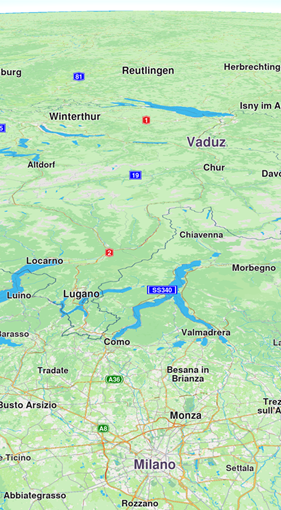 **Map with a view angle of 60 degrees** 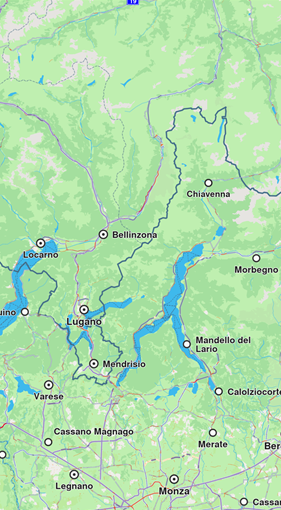 **Map with a view angle of 0 degrees**
To adjust the camera's perspective dynamically, you can utilize both the `tiltAngle` and `viewAngle` properties. This operation can also be done using the `viewAngle` setter available in the `GemMapController` class. Note Keep in mind that adjusting the rotation value produces different outcomes depending on the camera's tilt. When the camera is tilted, changing the rotation will shift the target location, whereas with no tilt, the target location remains fixed. #### Map perspective[](#map-perspective "Direct link to Map perspective") Map perspective can be either two dimensional or three dimensional and can also be set by using `MapViewPreferences` method `setMapViewPerspective`: ```typescript import { MapViewPerspective } from '@magiclane/maps-sdk'; const perspective: MapViewPerspective = mapController.preferences.mapViewPerspective; mapController.preferences.setMapViewPerspective(MapViewPerspective.threeDimensional); ``` By default, the map perspective is three-dimensional. 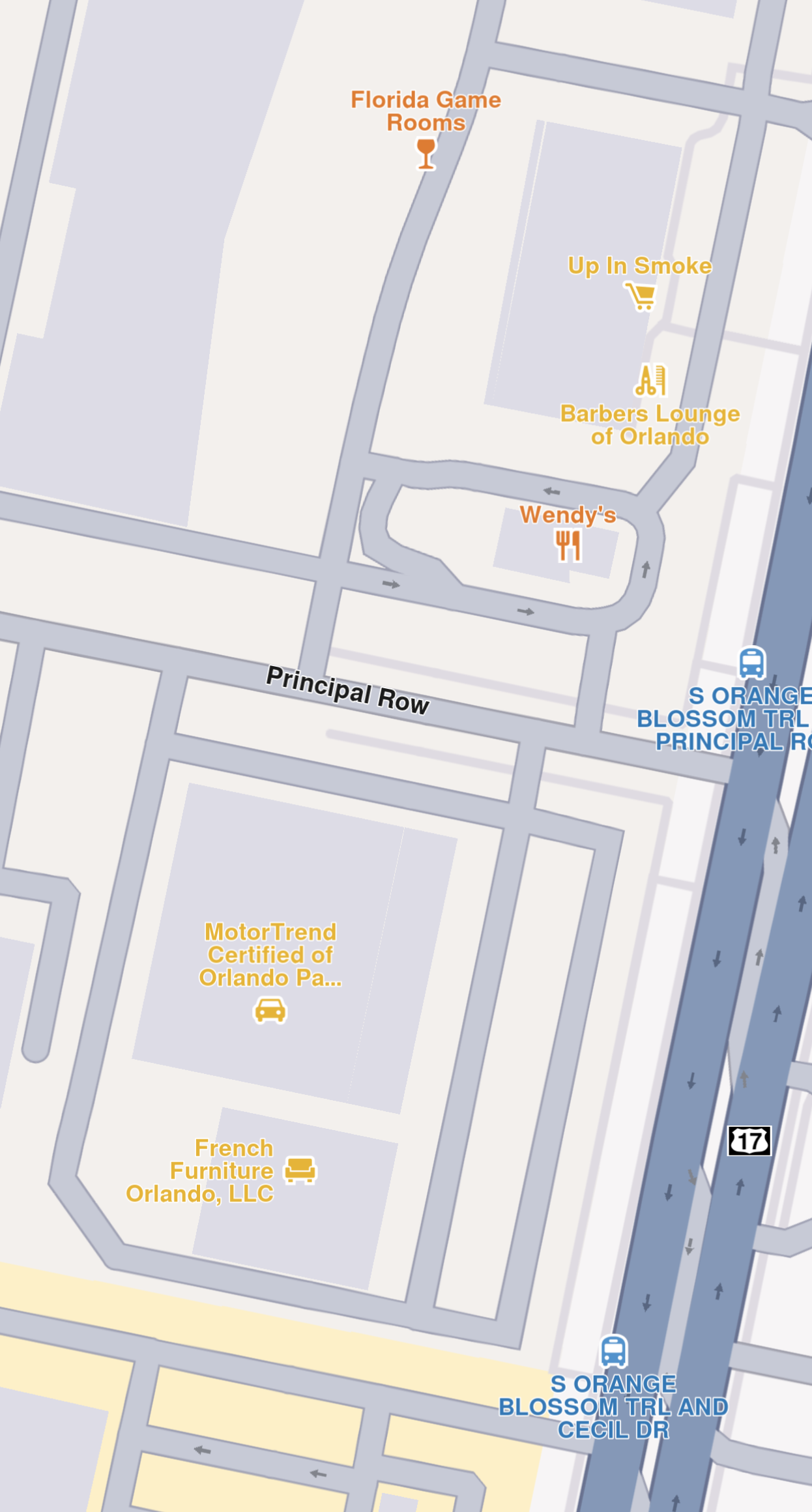 **Map with a two-dimensional perspective** 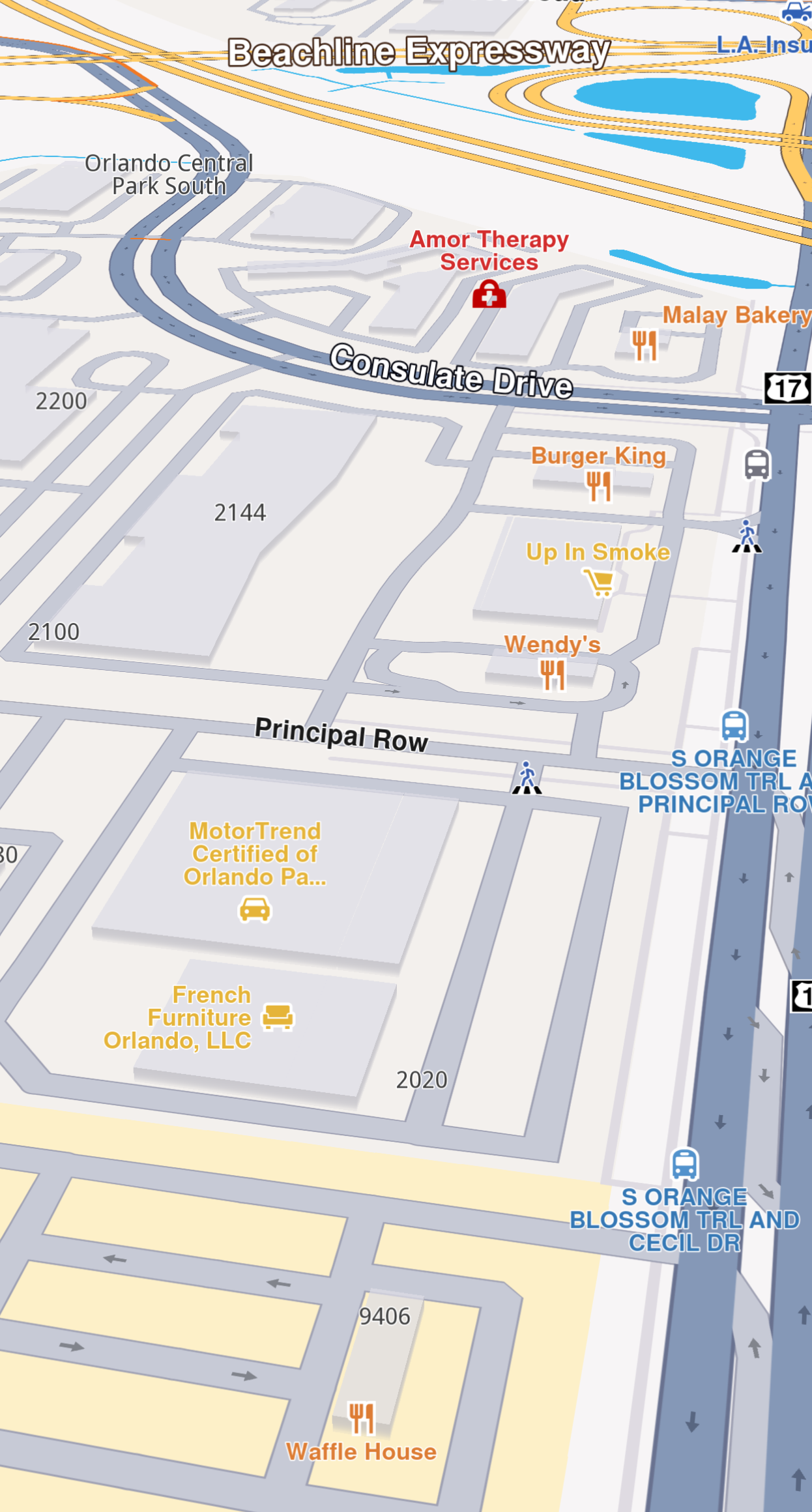 **Map with a three-dimensional perspective**
A three-dimensional perspective gives buildings a realistic, 3D appearance, while a two-dimensional perspective makes them appear as flat shapes. note To ensure three-dimensional buildings are visible, the camera angle should not be perpendicular to the map. Instead, the view angle must be less than 90 degrees. The same effect can be implemented more precisely using the `tiltAngle`/`viewAngle` fields. #### Building visibility[](#building-visibility "Direct link to Building visibility") Building visibility can be controlled using the `buildingsVisibility` getter/setter from the `MapViewPreferences` class: * `defaultVisibility`: Uses the default visibility defined in the map style. * `hide`: Hides all buildings. * `twoDimensional`: Displays buildings as flat 2D polygons without height. * `threeDimensional`: Displays buildings as 3D polygons with height. ```typescript import { BuildingsVisibility } from '@magiclane/maps-sdk'; const visibility: BuildingsVisibility = mapController.preferences.buildingsVisibility; mapController.preferences.buildingsVisibility = BuildingsVisibility.twoDimensional; ``` Buildings become visible when the camera is zoomed in close to the ground. The 3D effect is most noticeable when viewed from a tilted angle. Note that the 3D buildings do not reflect realistic or accurate heights. #### Store and restore a view[](#store-and-restore-a-view "Direct link to Store and restore a view") The map camera object has getters and setters for position and orientation ensuring a high level of control over the map view. For storing a particular view the `cameraState` getter can be used. This member returns a `Uint8Array` object and depending on the usecase this can be stored inside a variable or serialized in a file. ```typescript const state = mapController.camera.cameraState; ``` Restoring a saved view can be done easily using the `cameraState` setter: ```typescript mapController.camera.cameraState = state; ``` Alternatively the `position` and `orientation` can be stored and restored separately using the provided getters and setters. Note Please note that `cameraState` does not contain information about the current style. #### Download individual map tiles[](#download-individual-map-tiles "Direct link to Download individual map tiles") A map tile is a small, rectangular image or data chunk that represents a specific geographic area at a particular zoom level on a `GemMap` component. Tiles are usually downloaded when panning or zooming in on a map, and they are used to render the map's visual content. However, you can also download tiles that are not currently visible on the screen, using the `MapDownloaderService` class. ##### Configuring the MapDownloaderService[](#configuring-the-mapdownloaderservice "Direct link to Configuring the MapDownloaderService") The service can be configured by setting specific maximum area size in square kilometers to download by using the `setMaxSquareKm` setter: ```typescript import { MapDownloaderService } from '@magiclane/maps-sdk'; const service = new MapDownloaderService(); // Set a new value service.setMaxSquareKm = 100; // Verify the new value const updatedMaxSquareKm: number = service.getMaxSquareKm; ``` The larger the area, the more tiles can be downloaded, which can lead to increased memory usage. The default value is 1000 square kilometers. warning If the `RectangleGeographicArea` surface exceeds the `MaxSquareKm`, the `MapDownloaderService` will return `GemError.outOfRange`. Downloading tiles is done by calling the `startDownload` method of `MapDownloaderService` like so: ```typescript import { MapDownloaderService, RectangleGeographicArea, Coordinates, GemError } from '@magiclane/maps-sdk'; const service = new MapDownloaderService(); service.setMaxSquareKm = 300; service.startDownload( [ // Area in which the tiles will be downloaded that is under 300 square kilometers new RectangleGeographicArea({ topLeft: new Coordinates({ latitude: 67.69866, longitude: 24.81115 }), bottomRight: new Coordinates({ latitude: 67.58326, longitude: 25.36093 }) }) ], (err: GemError) => { console.log('Download completed with error:', err); } ); ``` When tiles are downloaded, the `onComplete` callback is invoked with a `GemError` parameter indicating the success or failure of the operation. If the download is successful, the error will be `GemError.success`. Downloaded tiles are stored in the cache and can be used later for features such as viewing map content, `searchAlongRoute`, `searchAroundPosition`, `searchInArea` without requiring an internet connection.  **Downloaded tiles centered in the middle, top and bottom tiles are not available** Note SearchService.search method will return `GemError.invalidInput` when trying to search in a downloded tiles area as it requires indexing, which is not available for downloaded tiles. Download can be canceled by calling the `cancelDownload` method of `MapDownloaderService` and the `onComplete` callback will be invoked with `GemError.cancelled`. tip Trying to download previously downloaded tiles will not result in a `GemError.upToDate`, as downloaded tiles are present inside the `Data/Temporary/Tiles` folder of your application folder as `.dat1` files. You can access detailed download statistics for map tiles using the `transferStatistics` getter. #### Change map settings while following the current position[](#change-map-settings-while-following-the-current-position "Direct link to Change map settings while following the current position") The `FollowPositionPreferences` class provides more customization while the camera in in the follow position mode. To retreve an instance, use the snippet below: ```typescript import { FollowPositionPreferences } from '@magiclane/maps-sdk'; const preferences: FollowPositionPreferences = mapController.preferences.followPositionPreferences; ``` See the [customize follow position settings guide](/docs/typescript/guides/positioning/show-your-location-on-the-map.md#customize-follow-position-settings) for more details. warning Do not call methods on disposed `GemMapController` instances as it may lead to exceptions. If the `GemMap` component is removed from the DOM, ensure to avoid invoking any methods on its associated `GemMapController` or on the associated entities such as: * `MapViewPreferences` * `MapViewRoutesCollection` * `MapViewPathCollection` * `LandmarkStoreCollection` * `FollowPositionPreferences` * `MapViewExtensions` * `MapViewMarkerCollections` #### Relevant examples demonstrating map related features[](#relevant-examples-demonstrating-map-related-features "Direct link to Relevant examples demonstrating map related features") * [Map Compass](/docs/typescript/examples/maps-3dscene/map-compass.md) * [Map Perspective](/docs/typescript/examples/maps-3dscene/map-perspective.md) * [Center Coordinates](/docs/typescript/examples/maps-3dscene/center-coordinates.md) --- ### Display map items This collection of articles covers a wide range of features and techniques for displaying various elements on a map within a mobile application, including landmarks, markers, overlays, routes, instructions, and paths. #### [📄️ Display landmarks](/docs/typescript/guides/maps/display-map-items/display-landmarks.md) [When displaying the map, we can choose what types of landmarks we want to display. Each landmark can have one or more LandmarkCategory. To selectively display specific categories of landmarks programmatically, you can use the addStoreCategoryId method provided by the LandmarkStoreCollection class:](/docs/typescript/guides/maps/display-map-items/display-landmarks.md) #### [📄️ Display markers](/docs/typescript/guides/maps/display-map-items/display-markers.md) [The base class for the marker hierarchy is Marker. It encapsulates coordinates assigned to a specific part. Multiple coordinates can be added to the same marker and be separated into different parts. If no part is specified, the coordinates are added to a default part, indexed as 0. The coordinates are stored in a list-like structure, where you can specify their index explicitly. By default, the index is set to -1, meaning the coordinate will be appended to the end of the list.](/docs/typescript/guides/maps/display-map-items/display-markers.md) #### [📄️ Display overlays](/docs/typescript/guides/maps/display-map-items/display-overlays.md) [Overlays are used to provide enhanced, layered information that adds contextual value to a base map, offering users dynamic, interactive, and customized data that can be visualized on top of other map elements.](/docs/typescript/guides/maps/display-map-items/display-overlays.md) #### [📄️ Display routes](/docs/typescript/guides/maps/display-map-items/display-routes.md) [Routes can be displayed on the map by using \`MapViewPreferences.routes.add(route, isMainRoute). Multiple routes can be displayed at the same time, but only one is the main one, the others being treated as secondary. Specifying which one is the main route can be done when calling MapViewRoutesCollection.add by passing true to the bMainRoute parameter, or by calling the MapViewRoutesCollection.mainRoute\` setter.](/docs/typescript/guides/maps/display-map-items/display-routes.md) #### [📄️ Display route instructions](/docs/typescript/guides/maps/display-map-items/display-route-instructions.md) [Instructions are represented as arrows on the map and can be displayed by using \`GemMap.centerOnRouteInstruction(instruction, zoomLevel)\`. To obtain a route's instructions, see the Route structure section. The following example iterates through all instructions of the first segment of a route and displays each one by centering:](/docs/typescript/guides/maps/display-map-items/display-route-instructions.md) #### [📄️ Display paths](/docs/typescript/guides/maps/display-map-items/display-paths.md) [Paths can be displayed by adding them into \`MapViewPathCollection. The MapViewPathCollection is an iterable collection, having fields like size, add, remove, removeAt, getPathAt and getPathByName\`.](/docs/typescript/guides/maps/display-map-items/display-paths.md) --- ### Display landmarks |
### Filter landmarks by category When displaying the map, we can choose what types of landmarks we want to display. Each landmark can have one or more `LandmarkCategory`. To selectively display specific categories of landmarks programmatically, you can use the `addStoreCategoryId` method provided by the `LandmarkStoreCollection` class: ```typescript import { GenericCategories } from '@magiclane/maps-sdk'; // Clear all the landmark types on the map gemMap.preferences.lmks.clear(); // Display only gas stations gemMap.preferences.lmks.addStoreCategoryId( GenericCategories.landmarkStoreId, GenericCategories.categories.find(c => c.name === 'Gas Stations')!.id ); ``` This allows filtering the default map data. Next, we might want to also add custom landmarks to the map (see the next section). #### Display custom landmarks[](#display-custom-landmarks "Direct link to Display custom landmarks") Landmarks can be added to the map by storing them in a `LandmarkStore`. Next, the `LandmarkStore` is added to the `LandmarkStoreCollection` within `MapViewPreferences`. The following code demonstrates all these steps: first, creating custom landmarks, then adding them to a store, and finally adding the store to the collection of stores. ```typescript import { LandmarkStoreService, Landmark, Coordinates, GenericCategories } from '@magiclane/maps-sdk'; const landmarksToAdd: Landmark[] = []; // Create first landmark const landmark1 = Landmark.create(); landmark1.name = "Added landmark1"; landmark1.coordinates = new Coordinates({ latitude: 51.509865, longitude: -0.118092 }); landmarksToAdd.push(landmark1); // Create second landmark const landmark2 = Landmark.create(); landmark2.name = "Added landmark2"; landmark2.coordinates = new Coordinates({ latitude: 51.505165, longitude: -0.112992 }); landmarksToAdd.push(landmark2); // Create landmark store const landmarkStore = LandmarkStoreService.createLandmarkStore('landmarks'); // Add landmarks to store for (const lmk of landmarksToAdd) { landmarkStore.addLandmark(lmk, { categoryId: GenericCategories.categories[0].id }); } // Add store to map preferences gemMap.preferences.lmks.add(landmarkStore); ``` 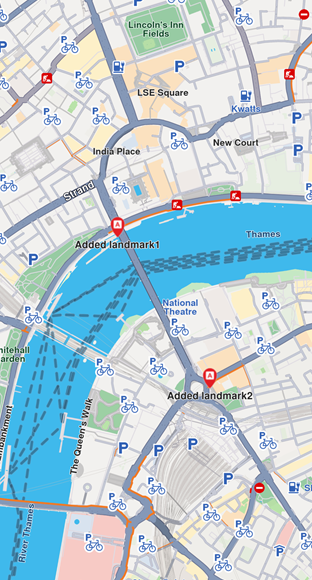 **Landmarks displayed**
Some methods of `LandmarkStoreCollection` class are explained below: * `add(lms: LandmarkStore)`: add a new store to be displayed on map. All the landmarks from the store will be displayed, regardless of the category provided. * `addAllStoreCategories(storeId: number)`: does the same thing as `add` but uses the `storeId`, not the `LandmarkStore` instance. * `addStoreCategoryId(storeId: number, categoryId: number)`: adds the landmarks with the specified category from the landmark store on the map. * `clear()`: removes all landmark stores from the map. * `contains(storeId: number, categoryId: number)`: check if the specified category ID from the specified store ID was already added. * `containsLandmarkStore(lms: LandmarkStore)`: check if the specified store has any categories of landmarks shown on the map. #### Highlight landmarks[](#highlight-landmarks "Direct link to Highlight landmarks") Highlights allow customizing a list of landmarks, making them more visible and providing options to customize the render settings. Highlights can only be used upon Landmarks. By default, highlighted landmarks are not selectable but can be made selectable if necessary. Highlighting a landmark allows: * Customizing its appearance. * Temporarily isolating it from standard interactions - it cannot be selected (default behavior, can be modified for each highlight). tip Landmarks retrieved through search or other means can be highlighted to enhance their prominence and customize their appearance. Additionally, custom landmarks can be highlighted, but they have to be added to a `LandmarkStore` first. ##### Activate highlights[](#activate-highlights "Direct link to Activate highlights") Highlights can be displayed on map by using `gemMap.activateHighlight()`. For demonstration purposes, a new `Landmark` object will be instantiated and filled with specifications using available setters. Next, the created landmark needs to be added to a `Landmark[]` array and a `HighlightRenderSettings` needs to be provided in order to enable desired customizations. Then `activateHighlight` can be called with a unique `highlightId`. ```typescript import { LandmarkStoreService, Landmark, Coordinates, HighlightRenderSettings, HighlightOptions } from '@magiclane/maps-sdk'; const landmarksToHighlight: Landmark[] = []; // Create landmark const landmark = Landmark.create(); landmark.name = "New Landmark"; landmark.coordinates = new Coordinates({ latitude: 52.48209, longitude: -2.48888 }); landmarksToHighlight.push(landmark); // Configure highlight render settings const settings = new HighlightRenderSettings({ imgSz: 50, textSz: 10, options: [ HighlightOptions.noFading, HighlightOptions.overlap ] }); // Add landmark to store const lmkStore = LandmarkStoreService.createLandmarkStore('landmarks'); lmkStore.addLandmark(landmark); // Add store to map gemMap.preferences.lmks.add(lmkStore); // Activate highlight gemMap.activateHighlight(landmarksToHighlight, { renderSettings: settings, highlightId: 2 }); // Center map on landmark gemMap.centerOnCoordinates( new Coordinates({ latitude: 52.48209, longitude: -2.48888 }), { zoomLevel: 40 } ); ``` ##### Hightlight options[](#hightlight-options "Direct link to Hightlight options") The `HighlightOptions` enum provides several options to customize the behavior of highlighted landmarks: | Option | Description | | -------------- | ------------------------------------------------------------------------------------------------------------------------------------------------------------------------ | | `showLandmark` | Shows the landmark icon & text. By default is enabled. | | `showContour` | Shows the landmark contour area if available. By default, this option is enabled. | | `group` | Groups landmarks when many are present in close proximity. Available only with `showLandmark`. By default it is disabled. | | `overlap` | Overlap highlight over existing map data. Available only with `showLandmark`. By default, disabled. | | `noFading` | Disable highlight fading in/out. Available only with `showLandmark`. By default, disabled. | | `bubble` | Displays highlights in a bubble with custom icon placement inside the text. Available only with `showLandmark`. Automatically invalidates `group`. By default, disabled. | | `selectable` | Makes highlights selectable using `setCursorScreenPosition`. Available only with `showLandmark`. By default, disabled. | warning When showing bubble highlights, if the whole bubble does not fit on the screen, it will not be displayed at all. Make sure to truncate the text if the text length is very long. warning For a landmark contour to be displayed, the landmark must have a valid contour area. Landmarks which have a polygon representation on OpenStreetMap will have a contour area. Make sure the contour geographic related fields from the `extraInfo` property of the `Landmark` are not removed or altered. ##### Deactivate highlights[](#deactivate-highlights "Direct link to Deactivate highlights") To remove a displayed landmark from the map, use `gemMap.deactivateHighlight(id)` to selectively remove a specific landmark, or `gemMap.deactivateAllHighlights()` to clear all displayed landmarks at once. ```typescript gemMap.deactivateHighlight({ highlightId: 2 }); ``` To get the highlighted landmarks based on a particular highlight id: ##### Get highlighted landmarks[](#get-highlighted-landmarks "Direct link to Get highlighted landmarks") ```typescript const landmarks: Landmark[] = gemMap.getHighlight(2); ``` tip Overlay items can also be highlighted using the `activateHighlightOverlayItems` method in a similar way. #### Disabling landmarks[](#disabling-landmarks "Direct link to Disabling landmarks") Removing all presented landmarks can be done by calling `removeAllStoreCategories(GenericCategories.landmarkStoreId)` method of `LandmarkStoreCollection` class. The following code does just that: ```typescript import { GenericCategories } from '@magiclane/maps-sdk'; gemMap.preferences.lmks.removeAllStoreCategories(GenericCategories.landmarkStoreId); ``` --- ### Display markers |
The base class for the marker hierarchy is `Marker`. It encapsulates coordinates assigned to a specific part. Multiple coordinates can be added to the same marker and be separated into different parts. If no part is specified, the coordinates are added to a default part, indexed as 0. The coordinates are stored in a list-like structure, where you can specify their index explicitly. By default, the index is set to -1, meaning the coordinate will be appended to the end of the list. 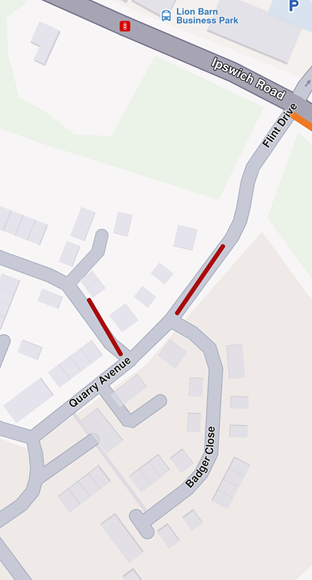 **Displaying a marker with coordinates separated into different parts** 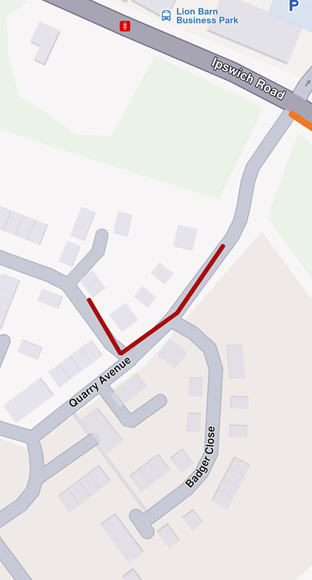 **Displaying a marker with coordinates added to same part**
```typescript import { Marker, Coordinates } from '@magiclane/maps-sdk'; // code used for displaying a marker with coordinates separated into different parts const marker1 = new Marker(); marker1.setCoordinates([ new Coordinates({ latitude: 52.1459, longitude: 1.0613 }), new Coordinates({ latitude: 52.14569, longitude: 1.0615 }) ], 0); marker1.setCoordinates([ new Coordinates({ latitude: 52.14585, longitude: 1.06186 }), new Coordinates({ latitude: 52.14611, longitude: 1.06215 }) ], 1); ``` ```typescript // code used for displaying a marker with coordinates added to the same part const marker1 = new Marker(); marker1.setCoordinates([ new Coordinates({ latitude: 52.1459, longitude: 1.0613 }), new Coordinates({ latitude: 52.14569, longitude: 1.0615 }), new Coordinates({ latitude: 52.14585, longitude: 1.06186 }), new Coordinates({ latitude: 52.14611, longitude: 1.06215 }) ]); ``` To display any type of marker on a map, it must first be added to a `MarkerCollection`. Creating a collection of markers requires providing a name and specifying the desired `MarkerType` enum as parameters. The collection of markers displayed above used `MarkerType.Polyline`, but it can also be `MarkerType.Point` or `MarkerType.Polygon`. Once the `MarkerCollection` object has been populated, it must be added to the `MapViewMarkerCollections` field within the `MapViewPreferences` class. This can be accessed through the `gemMap` instance, as shown below: ```typescript gemMap.preferences.markers.add(markerCollection); ``` ##### Point Type Marker[](#point-type-marker "Direct link to Point Type Marker") Visually represented as an icon, it is used to dynamically highlight user-defined locations. To display a point-type marker, the `MarkerCollection` to which the markers are added must be of the `MarkerType.Point` type. ```typescript import { Marker, Coordinates, MarkerCollection, MarkerType } from '@magiclane/maps-sdk'; const marker = new Marker(); marker.setCoordinates([ new Coordinates({ latitude: 52.1459, longitude: 1.0613 }), new Coordinates({ latitude: 52.14569, longitude: 1.0615 }), new Coordinates({ latitude: 52.14585, longitude: 1.06186 }), new Coordinates({ latitude: 52.14611, longitude: 1.06215 }) ]); const markerCollection = MarkerCollection.create( MarkerType.Point, "myCollection" ); markerCollection.add(marker); gemMap.preferences.markers.add(markerCollection); gemMap.centerOnArea(markerCollection.area); ``` The result will be the following: 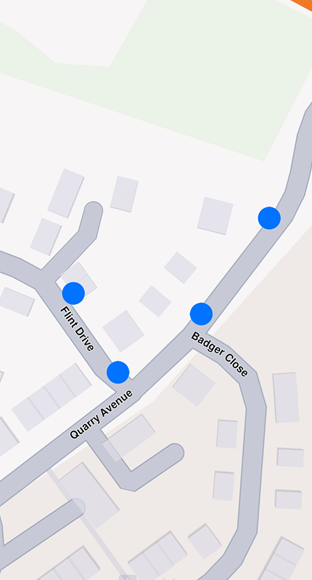 **Displaying point-type markers on map**
Info By default, point-type markers appear as blue circles up to a specific zoom level. When the zoom threshold is exceeded, they automatically cluster into orange circles, and at higher levels of clustering, they transition to red circles. Learn more at [Marker Clustering](#marker-clustering) ##### Polyline Type Marker[](#polyline-type-marker "Direct link to Polyline Type Marker") This type of marker is designed to display a continuous line consisting of one or more connected straight-line segments. To use it, ensure the `MarkerCollection` specifies `markerType` as `MarkerType.Polyline`. It's important to note that markers can include multiple coordinates, which may or may not belong to the same part. Coordinates within the same part are connected by a polyline, which is red by default, while coordinates outside the part remain unconnected. For more information, see [Markers section](/docs/typescript/guides/maps/display-map-items/display-markers.md). ##### Polygon Type Marker[](#polygon-type-marker "Direct link to Polygon Type Marker") This type of marker is designed to display a closed two-dimensional figure composed of straight-line segments that meet at their endpoints. To use it, ensure the `MarkerRenderSettings` specifies `markerType` as `MarkerType.Polygon`. 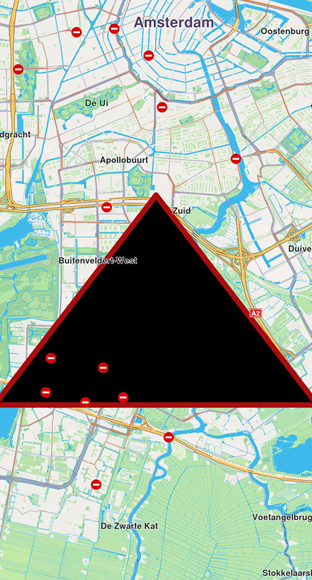 **Polygon drawn between three coordinates**
note To successfully create a polygon, at least three coordinates must be added to the same part. Otherwise, the result will be an open polyline rather than a closed shape. Polygons can be customized using properties like `polygonFillColor` and `polygonTexture`. Additionally, since polygon edges are essentially polylines, you can further refine their appearance with polyline-related attributes such as `polylineInnerColor`, `polylineOuterColor`, `polylineTexture`, and more. ##### Marker Customizations[](#marker-customizations "Direct link to Marker Customizations") To customize the appearance of markers on GemMap, you can use the `MarkerCollectionRenderSettings` class. This class is designed for customizing the appearance of individual markers. It includes various fields that can influence a marker's appearance, regardless of its type, as it provides customizable features for all marker types. For example: * For markers of type `MarkerType.polyline`, you can use fields such as `polylineInnerColor`, `polylineOuterColor`, `polylineInnerSize`, and `polylineOuterSize`. * For `MarkerType.polygon`, the `polygonFillColor`, `polygonTexture` fields are available, among others. * For `MarkerType.point`, you can use fields such as `labelTextColor`, `labelTextSize`, `image`, `imageSize`. All dimensional sizes (`imageSize`, `textSize`, etc.) are measured in millimeters. Note If customizations unrelated to a marker's specific type are applied - for example, using `polylineInnerColor` for a `MarkerType.point`-they will simply be ignored, and the marker's appearance will remain unaffected. For `MarkerType.point`, a key customizable field is `labelingMode`. This field is a set that consists of values from `MarkerLabelingMode` enum. This allows you to enable desired features, such as positioning the label text above the icon or placing the icon above the marker's coordinates, by adding them to the `labelingMode` set as shown below: ```typescript import { MarkerCollectionRenderSettings, MarkerLabelingMode } from '@magiclane/maps-sdk'; const renderSettings = new MarkerCollectionRenderSettings({ labelingMode: [ MarkerLabelingMode.itemLabelVisible, MarkerLabelingMode.textAbove, MarkerLabelingMode.iconBottomCenter ] }); gemMap.preferences.markers.add(markerCollection, { settings: renderSettings }); ``` info To hide a marker's name or its group's name, create a `MarkerCollectionRenderSettings` object with a `labelingMode` that excludes `MarkerLabelingMode.itemLabelVisible` and `MarkerLabelingMode.groupLabelVisible`. By default, both options are enabled. The above code will result in the following marker appearance:  **Displaying a marker with text above icon**  **Displaying a marker with text centered on icon**
note To assign a name to a marker, use the name setter of the `Marker` class. To customize the icons of the displayed markers, add the collection to `MapViewMarkerCollections` and configure a `MarkerCollectionRenderSettings` instance with the relevant image field. This field controls the appearance of the entire collection. ```typescript import { MarkerCollectionRenderSettings, GemImage, ImageFileFormat } from '@magiclane/maps-sdk'; // Load image from URL const response = await fetch('assets/poi83.png'); const imageBuffer = await response.arrayBuffer(); const pngImage = new Uint8Array(imageBuffer); const renderSettings = new MarkerCollectionRenderSettings({ image: new GemImage({ image: pngImage, format: ImageFileFormat.png }) }); ``` Code above is setting a custom icon to a marker. The result is the following: 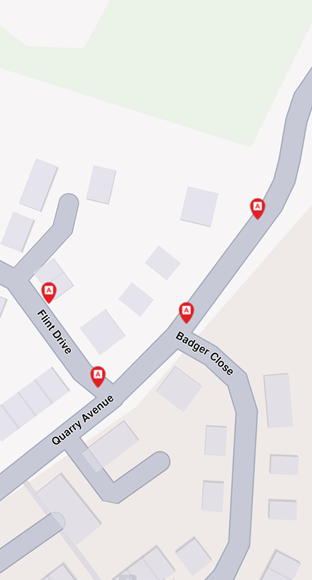 **Displaying point-type markers with render settings** ###### Marker Sketches[](#marker-sketches "Direct link to Marker Sketches") To customize the appearance of each marker individually, use the `MarkerSketches` class, which extends `MarkerCollection`. This lets you define unique styles and properties for every marker. You can obtain a MarkerSketches object using the `MapViewMarkerCollections.getSketches()` method: ```typescript import { MarkerType } from '@magiclane/maps-sdk'; const sketches = gemMap.preferences.markers.getSketches(MarkerType.point); ``` Typical operations are adding a sketch with an optional per‑marker render configuration and position, reading a sketch’s rendering configuration. note There are only three `MarkerSketches` collections, one for each marker type: `MarkerType.Point`, `MarkerType.Polyline`, and `MarkerType.Polygon`. Each collection is singleton. Adding markers to a `MarkerSketches` collection is similar to adding them to a `MarkerCollection`. However, when adding markers to a `MarkerSketches` collection, you can specify individual `MarkerRenderSettings` and index for each marker. This allows for greater customization of each marker's appearance. ```typescript import { Marker, Coordinates, MarkerRenderSettings, GemImage, GemIcon } from '@magiclane/maps-sdk'; const marker1 = new Marker(); marker1.setCoordinates([new Coordinates({ latitude: 39.76741, longitude: -46.8962 })]); marker1.name = "HelloMarker"; sketches.addMarker(marker1, { settings: new MarkerRenderSettings({ labelTextColor: '#FF0000', // red labelTextSize: 3.0, image: new GemImage({ imageId: GemIcon.toll.id }) }), index: 0 }); ```  **Displaying a marker using MarkerSketches** In order to change a marker's appearance after it has been added to a `MarkerSketches` collection, you can use `setRenderSettings` method: ```typescript sketches.setRenderSettings( 0, // marker index new MarkerRenderSettings({ labelTextColor: '#FF0000', // red labelTextSize: 3.0, image: new GemImage({ imageId: GemIcon.toll.id }) }) ); ``` In order to obtain the current render settings of a marker, you can use `getRenderSettings` method called with the marker index: ```typescript const returnedSettings = sketches.getRenderSettings(0); ``` warning Calling `getRenderSettings` with an invalid index will return a `MarkerRenderSettings` object with default values. The `MarkerSketches` collection does not need to be added to `MapViewMarkerCollections`, as it is already part of it. Any changes made to the `MarkerSketches` collection will be automatically reflected on the map. tip Adding a `MarkerSketches` object to `MapViewMarkerCollections` with `MarkerCollectionRenderSettings` will be overwritten by the individual `MarkerRenderSettings` of markers from the collection. ##### Marker Clustering[](#marker-clustering "Direct link to Marker Clustering") Clustering or grouping is a default feature of markers. Beyond a certain zoom level, the markers automatically cluster into a single marker containing a number of items lesser than `lowGCountDefault` if the group is a low density one. The image of those groups can be customized with `lowDensityPointsGroupImage`, `mediumDensityPointsGroupImage`, `highDensityPointsGroupImage` fields of `MarkerCollectionRenderSettings`. The number of markers contained by a group can be set through `lowDensityPointsGroupMaxCount`, `mediumDensityPointsGroupMaxCount`. ```typescript // code for markers not grouping at zoom level 70 const renderSettings = new MarkerCollectionRenderSettings(); gemMap.preferences.markers.add(markerCollection, { settings: renderSettings }); gemMap.centerOnCoordinates( new Coordinates({ latitude: 52.14611, longitude: 1.06215 }), { zoomLevel: 70 } ); ``` 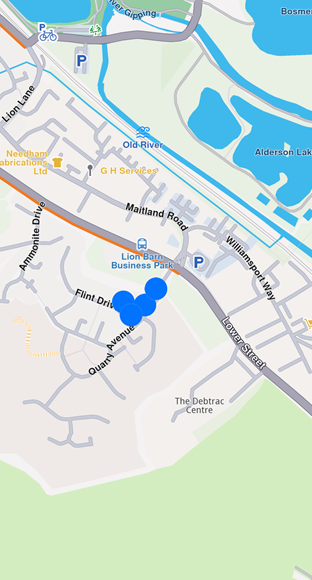 **Markers not clustering** ```typescript // code for markers grouping at zoom level 70 const renderSettings = new MarkerCollectionRenderSettings({ labelTextSize: 3.0, labelingMode: labelingMode, pointsGroupingZoomLevel: 70 }); gemMap.preferences.markers.add(markerCollection, { settings: renderSettings }); gemMap.centerOnCoordinates( new Coordinates({ latitude: 52.14611, longitude: 1.06215 }), { zoomLevel: 70 } ); ``` 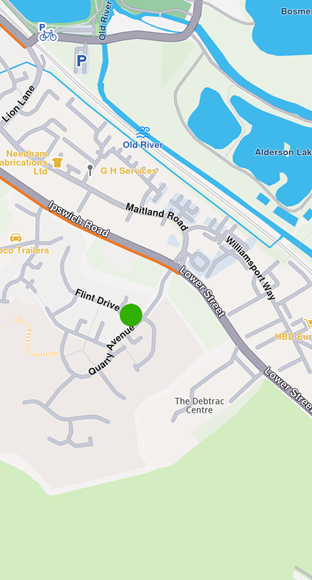 **Clustered markers** note You can disable marker clustering by setting the `pointGroupingZoomLevel` to 0. However, note that doing so for a large number of markers may significantly impact performance, as rendering each individual marker increases GPU resource usage. Marker clusters are represented by the first marker from the collection as the **group head**. The group head marker is returned by the `getPointsGroupHead` method: ```typescript const markerCollection = MarkerCollection.create( MarkerType.Point, "Collection1" ); const marker1 = new Marker(); marker1.setCoordinates([new Coordinates({ latitude: 39.76717, longitude: -46.89583 })]); marker1.name = "NiceName"; const marker2 = new Marker(); marker2.setCoordinates([new Coordinates({ latitude: 39.767138, longitude: -46.895640 })]); marker2.name = "NiceName2"; const marker3 = new Marker(); marker3.setCoordinates([new Coordinates({ latitude: 39.767145, longitude: -46.895690 })]); marker3.name = "NiceName3"; markerCollection.add(marker1); markerCollection.add(marker2); markerCollection.add(marker3); gemMap.preferences.markers.add(markerCollection, { settings: new MarkerCollectionRenderSettings({ buildPointsGroupConfig: true }) }); // This centering triggers marker grouping gemMap.centerOnCoordinates( new Coordinates({ latitude: 39.76717, longitude: -46.89583 }), { zoomLevel: 50 } ); // Wait for the center process to finish await new Promise(resolve => setTimeout(resolve, 250)); const marker = markerCollection.getPointsGroupHead(marker2.id); // Returns marker1 ``` Since marker grouping depends on the loading of tiles at a certain zoom level, you need to wait for them to load; otherwise, calling `getPointsGroupHead` will return a reference to the queried marker, because the markers are not yet grouped. Thus `getPointsGroupComponents` will return an empty list. warning This behavior occurs only when the `MarkerCollection` is added to `MapViewMarkerCollections` using **MarkerCollectionRenderSettings(buildPointsGroupConfig: true)** and the markers are **grouped** based on the zoom level. In all other cases, the method returns a direct reference to the queried marker. All markers from a group can be returned by using `getPointsGroupComponents` method called with the head marker id, returned by `MarkerCollection.getPointsGroupHead` method, which is considered the `groupId`. This method returns all markers except the group head marker. ```typescript const marker = markerCollection.getPointsGroupHead(marker2.id); const groupMarkers = markerCollection.getPointsGroupComponents(marker.id); ``` warning If `getPointsGroupComponents` is not invoked with the ID of the group head marker, the method will return an empty list. ##### Adding large amount of markers[](#adding-large-amount-of-markers "Direct link to Adding large amount of markers") If there is a need for adding lots of markers at the same time, this can be done much more efficiently through `addList` method of `MapViewMarkerCollection`. This uses a list of `MarkerWithRenderSettings` objects, which consists of an `MarkerJson` (essentially, it’s a marker consisting of a list of coordinates and an associated marker name) and an `MarkerRenderSettings`. The following example showcases how it works: ```typescript import { MarkerWithRenderSettings, MarkerJson, Coordinates, MarkerRenderSettings, GemImage, ImageFileFormat, MarkerCollectionRenderSettings } from '@magiclane/maps-sdk'; const markers: MarkerWithRenderSettings[] = []; for (let i = 0; i < 8000; i++) { // Generate random coordinates to display some markers. const randomLat = minLat + Math.random() * (maxLat - minLat); const randomLon = minLon + Math.random() * (maxLon - minLon); const marker = new MarkerJson({ coords: [new Coordinates({ latitude: randomLat, longitude: randomLon })], name: `POI ${i}` }); // Choose a random POI icon for the marker and set the label size. const renderSettings = new MarkerRenderSettings({ image: new GemImage({ image: listPngs[Math.floor(Math.random() * listPngs.length)], format: ImageFileFormat.png }), labelTextSize: 2.0 }); // Create a MarkerWithRenderSettings object. const markerWithRenderSettings = new MarkerWithRenderSettings( marker, renderSettings ); // Add the marker to the list of markers. markers.push(markerWithRenderSettings); } // Create the settings for the collections. const settings = new MarkerCollectionRenderSettings(); // Set the label size. settings.labelGroupTextSize = 2; // The zoom level at which the markers will be grouped together. settings.pointsGroupingZoomLevel = 35; // Set the image of the collection. settings.image = new GemImage({ image: imageBytes, format: ImageFileFormat.png }); // To delete the list you can use this method: gemMap.preferences.markers.clear(); // Add the markers and the settings on the map. gemMap.preferences.markers.addList({ list: markers, settings: settings, name: "Markers" }); ``` #### Relevant examples demonstrating markers related features[](#relevant-examples-demonstrating-markers-related-features "Direct link to Relevant examples demonstrating markers related features") * [Add markers with external rendering](/docs/typescript/examples/maps-3dscene/external-markers.md) --- ### Display overlays |
Overlays are used to provide enhanced, layered information that adds contextual value to a base map, offering users dynamic, interactive, and customized data that can be visualized on top of other map elements. ##### Disabling overlays[](#disabling-overlays "Direct link to Disabling overlays") Overlays can be disabled either by applying a predefined, custom map style created in [Magic Lane Map Studio](https://developer.magiclane.com/documentation/OnlineStudio/guide_creating_a_style.html)-where certain overlays are already disabled - or by using the `disableOverlay` method, as shown below: ```dart GemError error = OverlayService.disableOverlay(CommonOverlayId.publicTransport.id); ``` Passing -1 (default value) as the optional `categUid` parameter indicates that we want to disable the entire public transport overlay, rather than targeting a specific category. The error returned will be `success` if the overlay was disabled or `notFound` if no overlay (or overlay category) with the specified ID was found in the applied style. To disable specific overlays within a category, you'll need to retrieve their unique identifiers (uid) as shown below: ```dart final Completer
[Paths](/docs/typescript/guides/core/base-entities.md#path) can be displayed by adding them into `MapViewPathCollection`. The `MapViewPathCollection` is an iterable collection, having fields like `size`, `add`, `remove`, `removeAt`, `getPathAt` and `getPathByName`. ```typescript map.preferences.paths.add(path); ``` The `add` method of `MapViewPathCollection` includes optional parameters for customizing the appearance of paths on the map, such as `colorBorder`, `colorInner`, `szBorder`, and `szInner`. To center the map on a path, use the `GemMap.centerOnArea()` method with the path's area retrieved from the area getter. ```typescript map.preferences.paths.add(path); map.centerOnArea(path.area); ``` 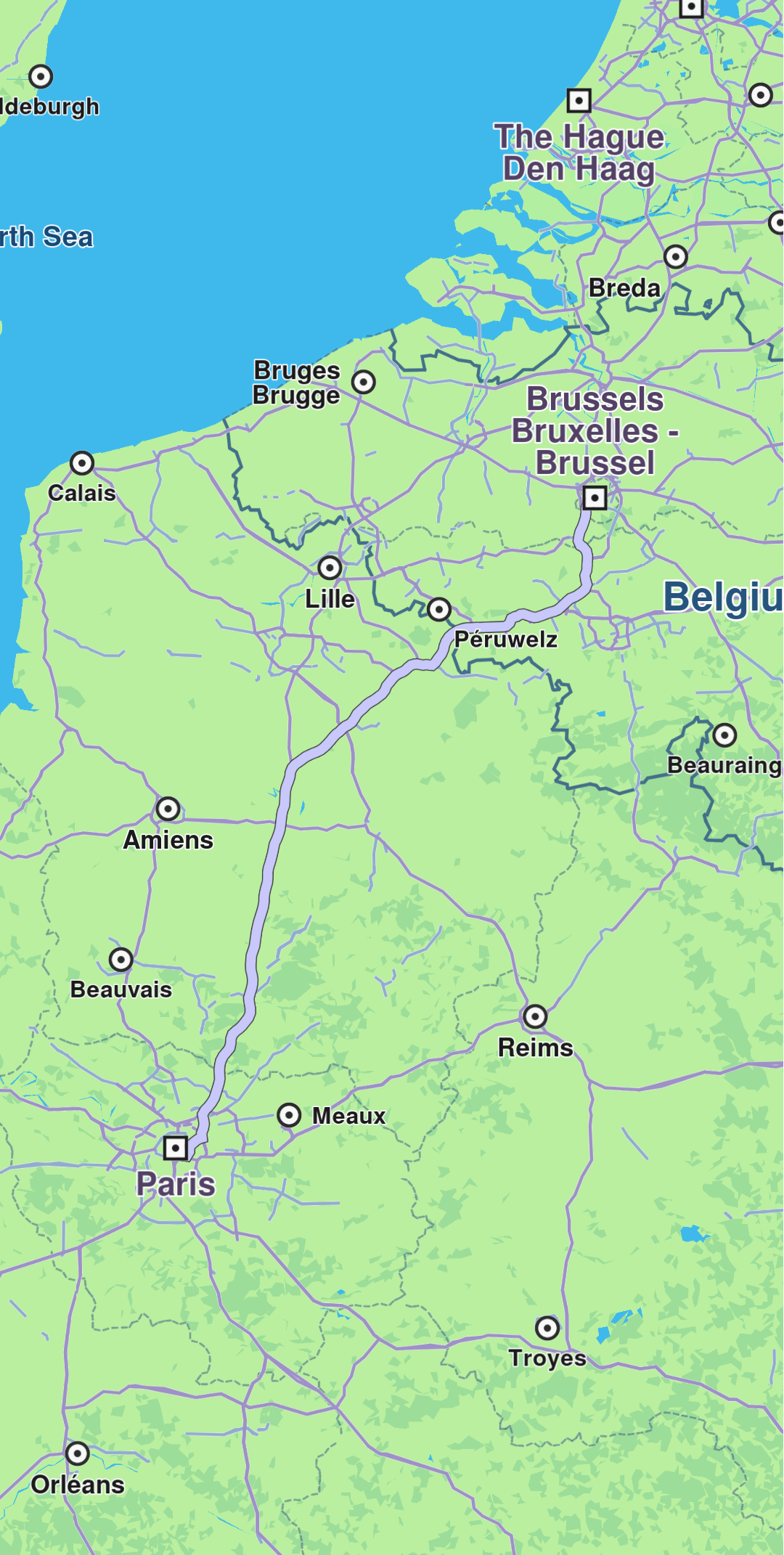 **Path displayed** To remove all paths from `GemMap` use `MapViewPathCollection.clear()`. To remove selectively, use `MapViewPathCollection.remove(path)` or `MapViewPathCollection.removeAt(index)`. #### Relevant examples demonstrating paths related features[](#relevant-examples-demonstrating-paths-related-features "Direct link to Relevant examples demonstrating paths related features") * [GPX Thumbnail Image](/docs/typescript/examples/routing-navigation/gpx-route.md) --- ### Display route instructions |
Instructions are represented as arrows on the map and can be displayed by using `GemMap.centerOnRouteInstruction(instruction, zoomLevel)`. To obtain a route's instructions, see the [Route structure](/docs/typescript/guides/core/routes.md#route-structure) section. The following example iterates through all instructions of the first segment of a route and displays each one by centering: ```typescript for (const instruction of route.segments[0].instructions) { map.centerOnRouteInstruction(instruction, { zoomLevel: 75 }); await new Promise(resolve => setTimeout(resolve, 3000)); } ``` 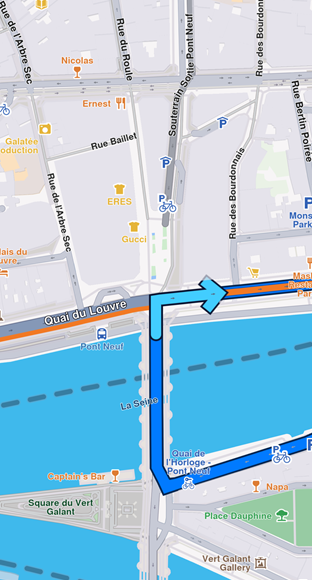 **Turn right arrow instruction** In order to remove the instruction arrow from the map, use `GemMap.clearRouteInstruction()` method. The route instruction arrow is automatically cleared when a new route instruction is centered on or when the route is cleared. #### Relevant examples demonstrating route instructions related features[](#relevant-examples-demonstrating-route-instructions-related-features "Direct link to Relevant examples demonstrating route instructions related features") * [Route Instructions](/docs/typescript/examples/routing-navigation/route-instructions.md) --- ### Display routes |
Routes can be displayed on the map by using `MapViewPreferences.routes.add(route, isMainRoute)`. Multiple routes can be displayed at the same time, but only one is the main one, the others being treated as secondary. Specifying which one is the main route can be done when calling `MapViewRoutesCollection.add` by passing true to the `bMainRoute` parameter, or by calling the `MapViewRoutesCollection.mainRoute` setter. ```dart mapController.preferences.routes.add(route, true); mapController.centerOnRoute(route); ``` 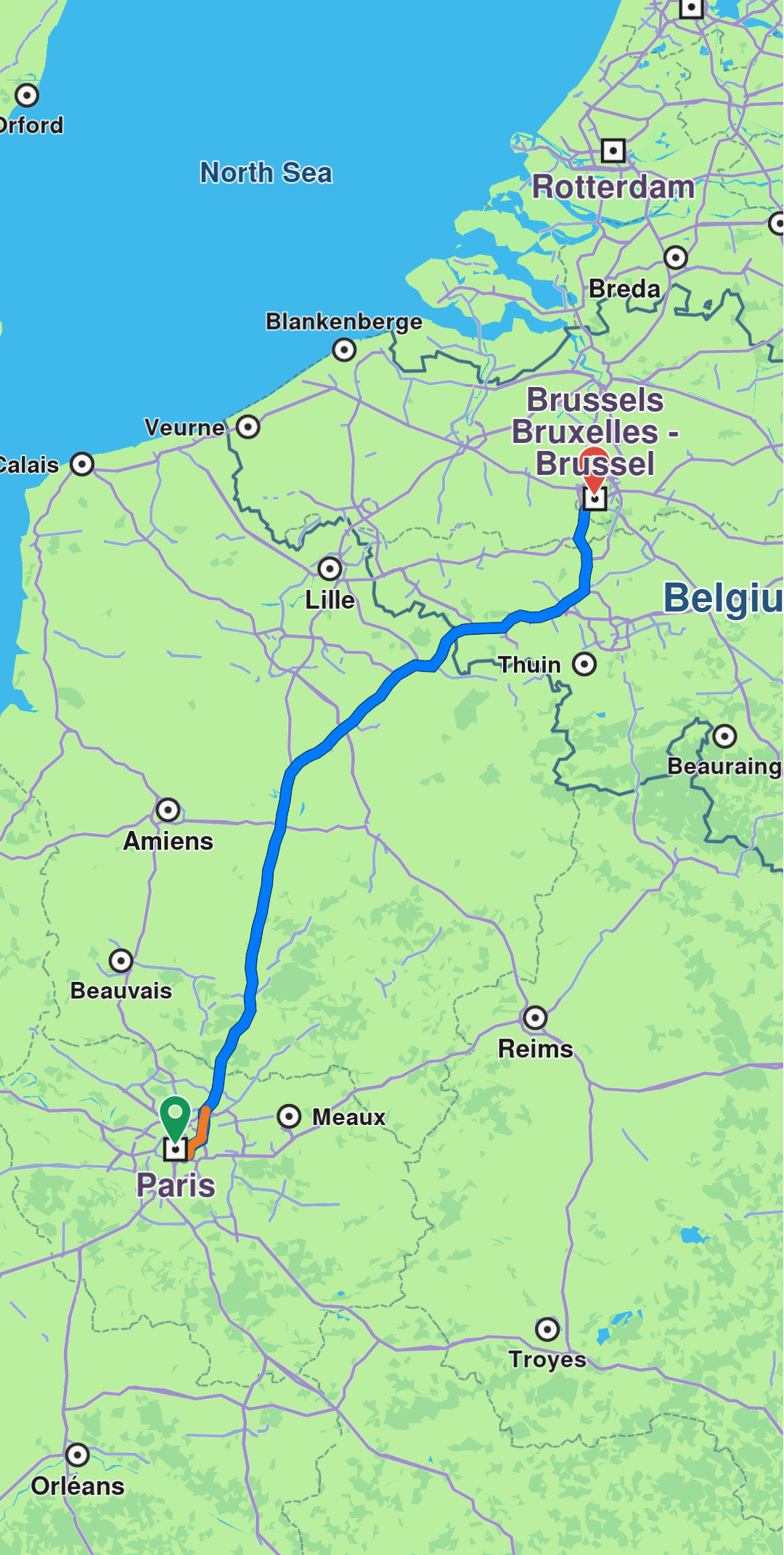 **Route displayed** tip To center on a route with padding, refer to the [Adjust Map View](/docs/typescript/guides/maps/adjust-map.md#map-centering-on-area-with-padding) guide. Utilize the `screenRect` parameter in the `centerOnRoute` method to define the specific region of the viewport that should be centered. ```dart mapController.preferences.routes.add(route1, true); mapController.preferences.routes.add(route2, false); mapController.preferences.routes.add(route3, false); mapController.centerOnMapRoutes(); ``` 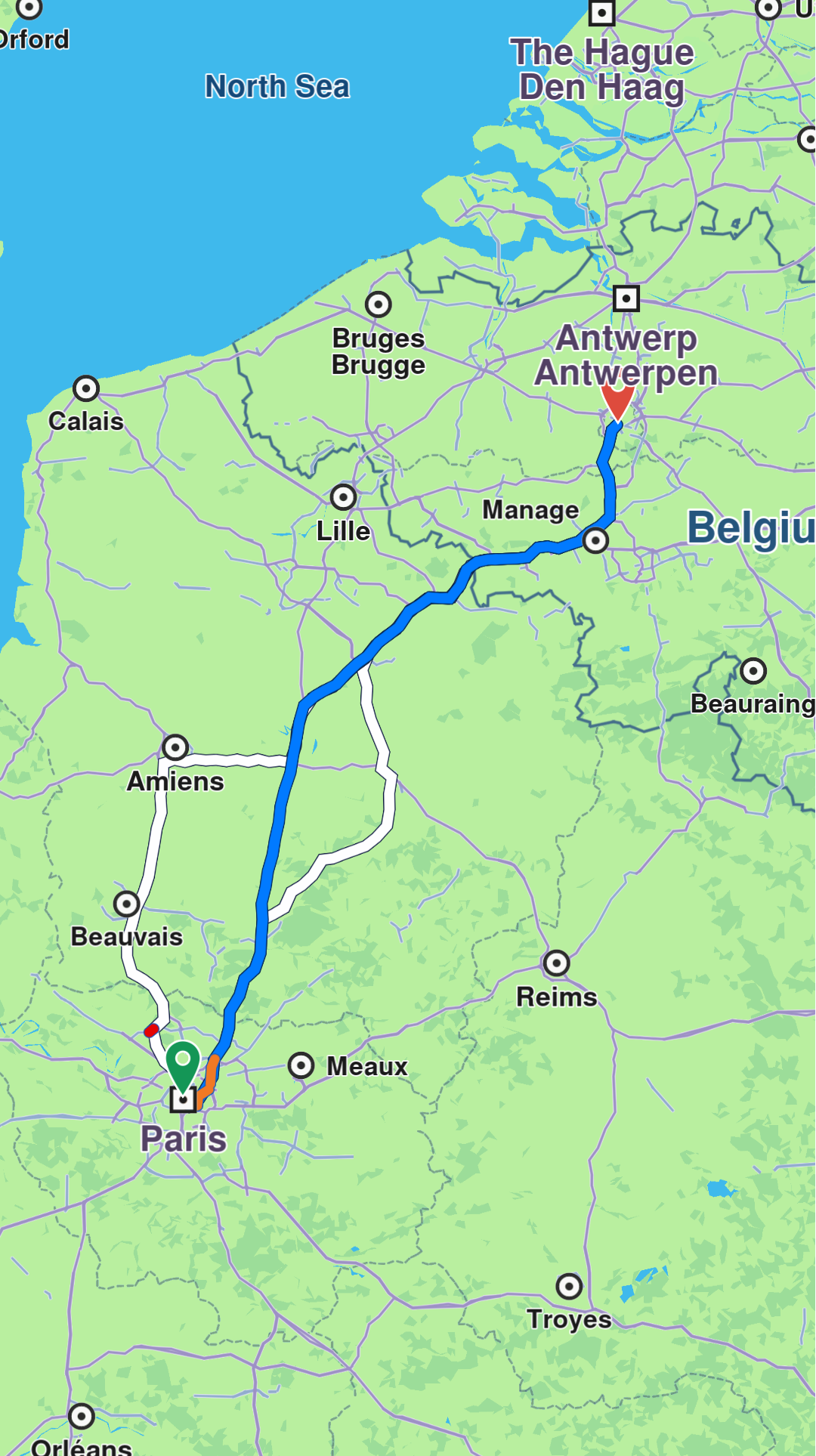 **Three routes displayed, one in the middle is main** Route appearance on map can be customized via `RouteRenderSettings` when added, passed to the `MapViewRoutesCollection.add`'s optional parameter `routeRenderSettings`, or later on, via `MapViewRoute.renderSettings` setter. ```dart final renderSettings = RouteRenderSettings(innerColor: Color.fromARGB(255, 255, 0, 0)); mapController.preferences.routes.add(route, true, routeRenderSettings: renderSettings) ``` ```dart final mapViewRoute = mapController.preferences.routes.getMapViewRoute(0); mapViewRoute?.renderSettings = RouteRenderSettings(innerColor: Color.fromARGB(255, 255, 0, 0)); ``` All dimensional sizes within the `RouteRenderSettings` are measured in millimeters. 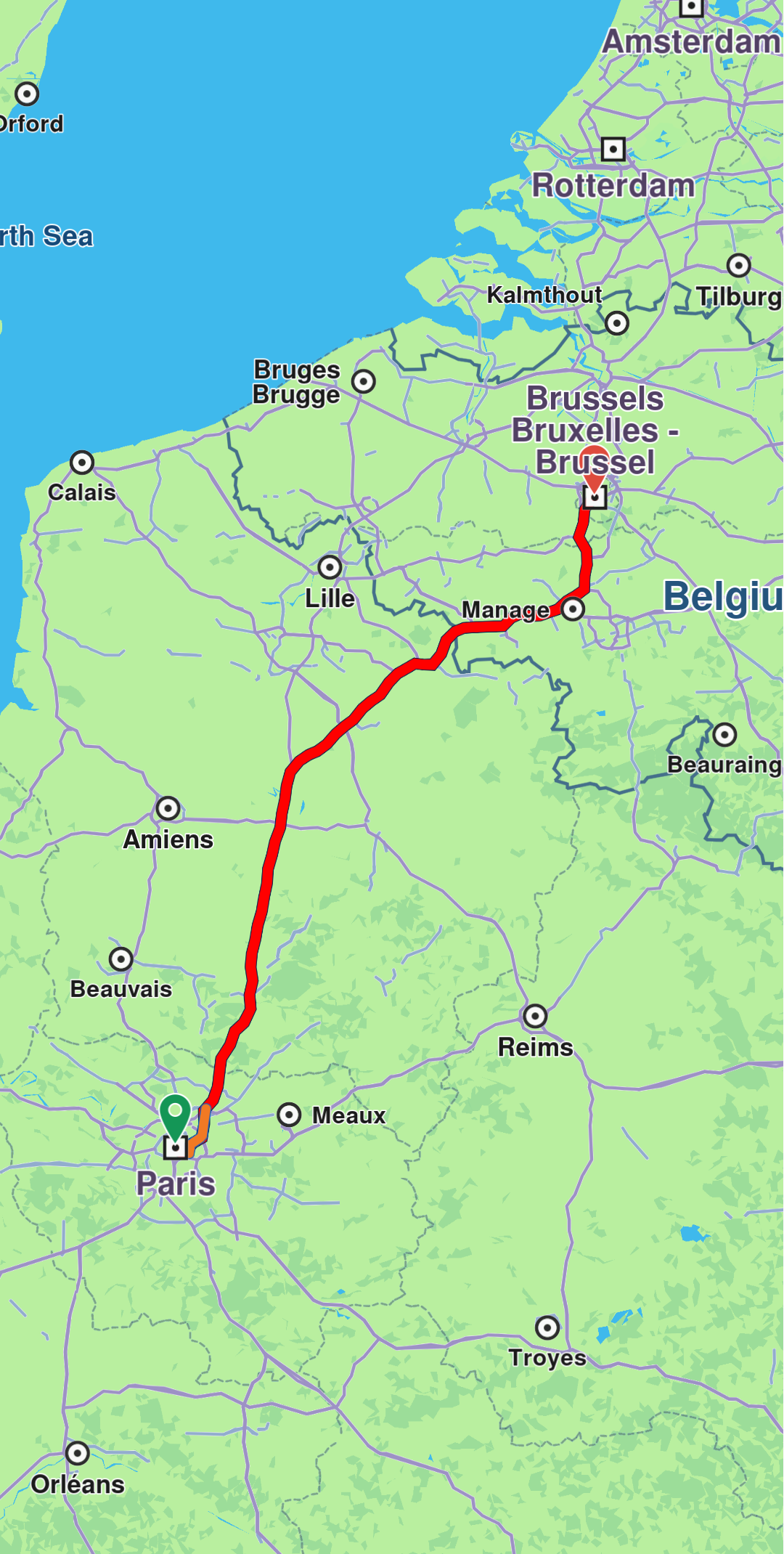 **Route displayed with custom render settings** To remove displayed routes, use `MapViewRoutesCollection.clear()`. You can also remove all secondary routes with `mapController.preferences.routes.clearAllButMainRoute()`. ##### Set route labels[](#set-route-labels "Direct link to Set route labels") A route can include a label that provides information such as ETA, distance, toll prices, and more. To attach a label to a route, the label optional parameter `label` of the `MapViewRoutesCollection.add` method is utilized: ```dart mapController.preferences.routes.add(route, true, label: "Added label"); ``` 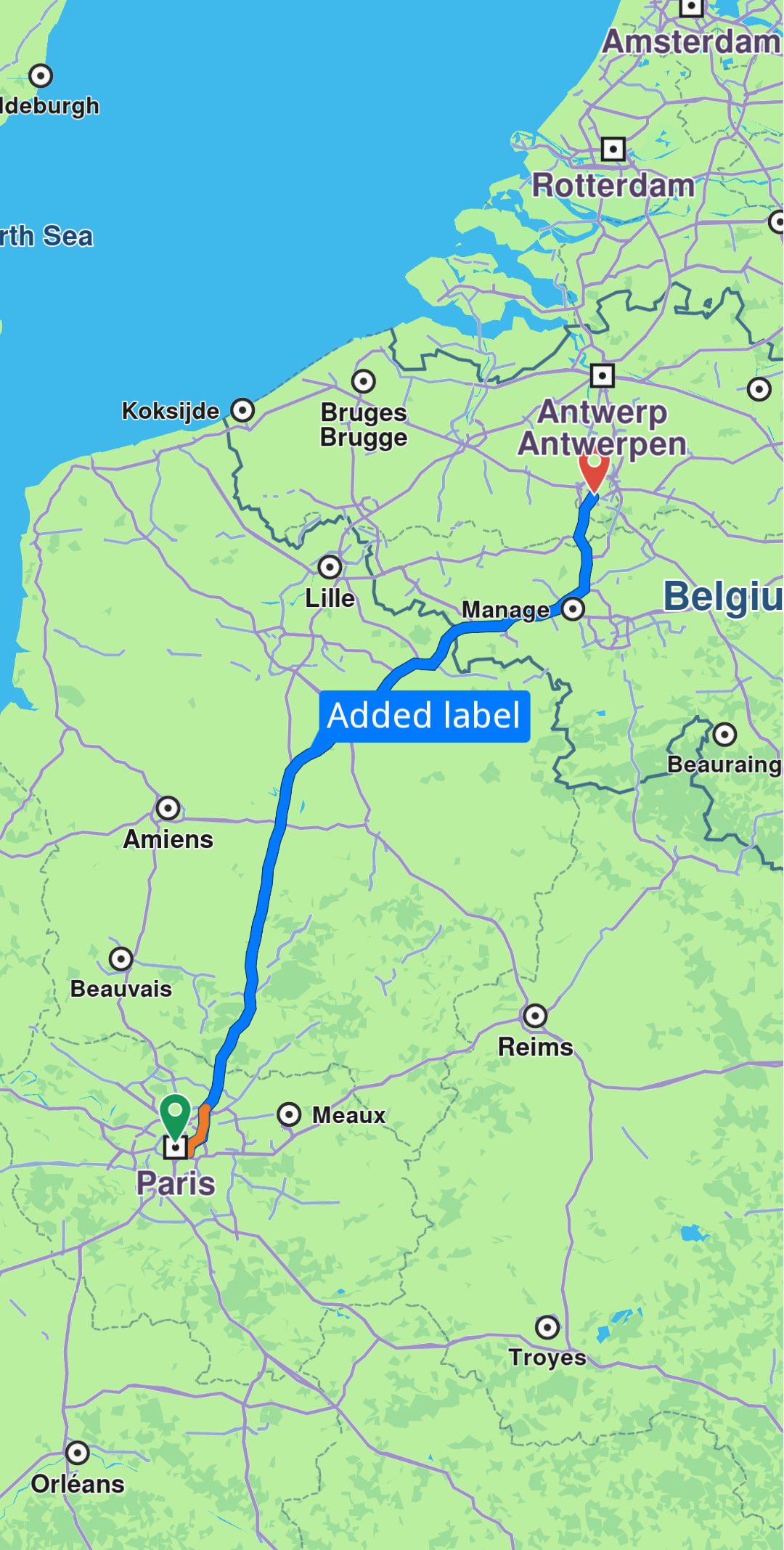 **Route with label** You can enhance the label by adding up to **two icons** using the optional `labelIcons` parameter, which accepts a `List
The Maps SDK for TypeScript delivers powerful mapping capabilities, enabling developers to effortlessly integrate dynamic map views into their web applications. Core features include embedding and customizing map views, controlling displayed locations, and fine-tuning map properties. At the center of the mapping API is the `GemMap` class, offering a wide range of configurable options. #### Display a map[](#display-a-map "Direct link to Display a map") The following code demonstrates how to show a map view in a web application. ##### HTML Structure[](#html-structure "Direct link to HTML Structure") ```html
Hello Map
The Maps SDK for TypeScript map view natively supports common gestures like pinch and double-tap for zooming. The table below outlines the available gestures and their default behaviors on the map. | Gesture | Description | | -------------------- | -------------------------------------------------------------------------------------------------------------------------------------------------------------------------------------------------------------------------------------------------------------------------------------------------------- | | Tap | **Tap the screen with one finger**. This gesture does not have a predefined map action. | | Double Tap | **To zoom the map in by a fixed amount**, tap the screen twice with one finger. | | Long Press | **Press and hold one finger to the screen**. This gesture does not have a predefined map action. | | Pan | **To move the map**, press and hold one finger to the screen, and move it in any direction. The map will keep moving with a little momentum after the finger was lifted. | | 2 Finger Pan / Shove | **To tilt the map**, press and hold two fingers to the screen, and move them vertically. No behavior is predefined for other directions. | | 2 Finger Tap | **To align map towards north**, tap the screen with two fingers. | | Pinch | **To zoom in or out continuously**, press and hold two fingers to the screen, and increase or decrease the distance between them. **To rotate the map continuously**, press and hold two fingers to the screen, and change the angle between them either by rotating them both or by moving one of them. | The SDK provides support in `GemMapController`, for informing whenever the user performs and action that could be detected. Usually, you will want to add a specific behavior to your application after a gesture was detected, like performing a selection after a tap on map. * Tap: `registerTouchCallback` * Double Tap (one finger taps the same area in quick succession): `registerDoubleTouchCallback` * Two Taps (two fingers tap the screen simultaneously): `registerTwoTouchesCallback` * Long Press: `registerLongPressCallback` * Pan: `registerMoveCallback` obtains the two points between which the movement occurred. * Shove: `registerShoveCallback`obtains the angle, and gesture specific points * Rotate: `registerMapAngleUpdateCallback` * Fling: `registerSwipeCallback` * Pinch: `registerPinchCallback` The user can also listen for composite gestures: * Tap followed by a pan: `registerTouchMoveCallback` * Pinch followed by a swipe: `registerPinchSwipeCallback` * Tap followed by a pinch: `registerTouchPinchCallback` * Two double touches: `registerTwoDoubleTouchesCallback` warning Keep in mind that only one listener can be active at a time for a specific gesture. If multiple listeners are registered, only the most recently set listener will be invoked when the gesture is detected. Use `registerMapViewMoveStateChangedCallback` to retrieve the corresponding `RectangleGeographicArea` currently visible whenever the map starts or stops moving. ```typescript mapController.registerMapViewMoveStateChangedCallback((hasStarted, rect) => { if (hasStarted) { console.log(`Gesture started at: ${rect.topLeft.toString()} , ${rect.bottomRight.toString()}`); } else { console.log(`Gesture ended at: ${rect.topLeft.toString()} , ${rect.bottomRight.toString()}`); } }); ``` warning This callback is triggered when the camera is moved programmatically using methods like `centerOnRoutes`, `followPosition`, or `centerOnArea`, but not when the user performs a panning gesture. For detecting **user behaviour**, use `registerMoveCallback`. Note The callback function is defined as `(isCameraMoving: boolean, area: RectangleGeographicArea) => void`, where the `isCameraMoving` parameter is `true` when the camera is moving and `false` when it is stationary. #### Enable and disable gestures[](#enable-and-disable-gestures "Direct link to Enable and disable gestures") Touch gestures can be disabled or enabled by calling `enableTouchGestures` method like so: ```typescript import { TouchGestures } from '@magiclane/maps-sdk'; mapController.preferences.enableTouchGestures([TouchGestures.onTouch, TouchGestures.onMove], false); ``` Note The desired gestures in the `TouchGestures` enum list can be enabled or disabled by setting the `enabled` parameter to `true` or `false`, respectively. By default, all gestures are enabled. The TouchGestures enum supports the following gesture types: * *Basic Touch*: onTouch, onLongDown, onDoubleTouch, onTwoPointersTouch, onTwoPointersDoubleTouch * *Movement*: onMove, onTouchMove, onSwipe * *Pinch and Rotation*: onPinchSwipe, onPinch, onRotate, onShove * *Combined Gestures*: onTouchPinch, onTouchRotate, onTouchShove, onRotatingSwipe * *Other*: internalProcessing For checking if a gesture is enables the `isTouchGestureEnabled` method can be used: ```typescript import { TouchGestures } from '@magiclane/maps-sdk'; const isTouchEnabled: boolean = mapController.preferences.isTouchGestureEnabled(TouchGestures.onTouch); ``` #### Implement gesture listeners[](#implement-gesture-listeners "Direct link to Implement gesture listeners") Let's see an example of how gesture listeners can be registered. The `GemMapController` provides specific listeners for each gesture. As soon as you register a listener, it will receive all related events for that gesture via the dedicated callback. ```typescript import { GemMap, Point } from '@magiclane/maps-sdk'; // Create GemMap and get controller const gemMap = new GemMap(canvas, pointerId, mapId); gemMap.registerMapAngleUpdateCallback((angle: number) => { console.log("Gesture: onMapAngleUpdate", angle); }); gemMap.registerTouchCallback((point: Point) => { console.log("Gesture: onTouch", point); }); gemMap.registerMoveCallback((point1: Point, point2: Point) => { console.log(`Gesture: onMove from (${point1.x} ${point1.y}) to (${point2.x} ${point2.y})`); }); gemMap.registerLongPressCallback((point: Point) => { console.log('Gesture: onLongPress', point); }); gemMap.registerMapViewMoveStateChangedCallback((hasStarted, rect) => { if (hasStarted) { console.log(`Gesture started at: ${rect.topLeft.toString()} , ${rect.bottomRight.toString()}`); } else { console.log(`Gesture ended at: ${rect.topLeft.toString()} , ${rect.bottomRight.toString()}`); } }); ``` warning Executing resource-intensive tasks within map-related callbacks can degrade performance. #### Implement map render listeners[](#implement-map-render-listeners "Direct link to Implement map render listeners") The `registerOnViewportResized` method allows you to monitor when the map's viewport dimensions change. This can occur when the user resizes the application window or changes the orientation of the device. In this callback, you receive a `RectType
The Maps SDK for TypeScript continuously monitors traffic conditions and automatically evaluates alternative routes to ensure optimal navigation. This feature enhances user experience by providing real-time route adjustments, reducing travel time, and improving overall efficiency, especially in dynamic traffic environments. #### Requirements[](#requirements "Direct link to Requirements") ###### Route preferences[](#route-preferences "Direct link to Route preferences") For this feature to function, the route used in navigation or simulation must be computed with specific settings within the `RoutePreferences` object: * the `transportMode` needs to be `RouteTransportMode.car` or `RouteTransportMode.lorry` * the `avoidTraffic` needs to be `TrafficAvoidance.all` or `TrafficAvoidance.roadblocks` * the `routeType` needs to be `RouteType.fastest` Unless the settings are set as above the better route detection feature will not trigger. ```typescript import { RoutePreferences, RouteType, TrafficAvoidance, RouteTransportMode } from '@magiclane/maps-sdk'; const routePreferences = new RoutePreferences({ routeType: RouteType.fastest, avoidTraffic: TrafficAvoidance.roadblocks, transportMode: RouteTransportMode.car, }); ``` Additional settings can be configured within the `RoutePreferences` object during route calculation, as long as they do not override or conflict with the required preferences mentioned above. ###### Traffic[](#traffic "Direct link to Traffic") For the callbacks to be triggered, traffic needs to be present of the route on which the navigation is active. ###### Significant time gain[](#significant-time-gain "Direct link to Significant time gain") A newly identified route must have a substantial time delay compared to the current route for it to be considered. The relevant callback will only be triggered if an alternative route offers a time savings of more than five minutes, ensuring that route adjustments are meaningful and beneficial to the user. warning The better route detection feature will not function as intended if any of the required conditions outlined above are not met. #### Listen for notification events[](#listen-for-notification-events "Direct link to Listen for notification events") The `startSimulation` and `startNavigation` methods provided by the `NavigationService` class enable the registration of the following callbacks: * `onBetterRouteDetected` : Triggered when a better route is identified. It provides information such as the newly detected route, its total travel time, the traffic-induced delay on the new route, and the time savings compared to the current route. * `onBetterRouteInvalidated` : Triggered when a previously detected better route is no longer valid. This can occur if the user deviates from the shared trunk of both routes, an even better alternative becomes available, or changing traffic conditions eliminate the previously detected advantage. * `onBetterRouteRejected` : Triggered when no suitable alternative route is found during the better route check. It is the responsibility of the API user to manage the recommended route. The navigation service does not automatically switch to the better route, requiring explicit handling and implementation by the user. ```typescript import { NavigationService, Route } from '@magiclane/maps-sdk'; NavigationService.startSimulation(route, { onBetterRouteDetected: (route: Route, travelTime: number, delay: number, timeGain: number) => { console.log(`A better route has been detected - total travel time: ${travelTime} s, traffic delay on the better route: ${delay} s, time gain from current route: ${timeGain} s`); // Do something with the route ... }, onBetterRouteInvalidated: () => { console.log('The previously found better route is no longer valid'); }, onBetterRouteRejected: (reason: string) => { console.log(`The check for better route failed with reason: ${reason}`); }, }); ``` #### Force the check for better route[](#force-the-check-for-better-route "Direct link to Force the check for better route") The system automatically performs the better route check at predefined intervals, provided all required conditions are met. Additionally, the API user can manually trigger the check by calling the `checkBetterRoute` static method from the `Debug` class. If a better route is found, the `onBetterRouteDetected` callback is invoked; otherwise, if no suitable alternative is available, the `onBetterRouteRejected` callback is triggered - assuming the check was successfully initiated. ```typescript import { Debug } from '@magiclane/maps-sdk'; Debug.checkBetterRoute(); ``` #### Relevant examples demonstrating better route related features[](#relevant-examples-demonstrating-better-route-related-features "Direct link to Relevant examples demonstrating better route related features") * [Better Route Notification](/docs/typescript/examples/routing-navigation/better-route-notification.md) --- ### Getting started with Navigation |
The Navigation module provides comprehensive turn-by-turn navigation capabilities, enabling real-time guidance along calculated routes. It includes features such as voice instructions, automatic route recalculation, lane guidance, and speed limit warnings. #### Starting navigation[](#starting-navigation "Direct link to Starting navigation") To start navigation, you first need a calculated route: ```typescript import { NavigationService, RoutingService, Coordinates } from '@magiclane/maps-sdk'; async function startNavigation() { //If we have already computed routes shown on the map, we can take them from there. See RoutingService.calculateRoute how a route can be calculated const routesMap = map.preferences.routes; if (!routesMap.mainRoute) { showMessage('No main route available'); return; } // Start Navigation on the main route navigationHandler = NavigationService.startNavigation(routesMap.mainRoute, undefined, { onNavigationInstruction: ( instruction: NavigationInstruction, events: NavigationEventType[] ) => { isNavigationActive = true; currentInstruction = instruction; updateUI(); }, onError: (error: GemError) => { isNavigationActive = false; cancelRoute(); if (error !== GemError.cancel) stopNavigation(); updateUI(); }, }); map.startFollowingPosition(); updateUI(); } ``` #### Navigation events[](#navigation-events "Direct link to Navigation events") Listen to navigation events to update your UI: ```typescript import { NavigationService, NavigationEvent } from '@magiclane/maps-sdk'; function setupNavigationListeners() { const navigationService = NavigationService.getInstance(); // Listen for navigation instructions navigationService.on('instruction', (instruction) => { console.log(`Next instruction: ${instruction.text}`); console.log(`Distance to instruction: ${instruction.distance}m`); console.log(`Time to instruction: ${instruction.time}s`); // Update UI with instruction updateNavigationUI(instruction); }); // Listen for position updates along the route navigationService.on('positionUpdate', (position) => { console.log(`Current position: ${position.coordinates.latitude}, ${position.coordinates.longitude}`); console.log(`Distance remaining: ${position.remainingDistance / 1000}km`); console.log(`Time remaining: ${position.remainingTime / 60}min`); }); // Listen for route deviation navigationService.on('routeDeviation', () => { console.log('User deviated from route'); // Automatic rerouting will trigger if enabled }); // Listen for arrival navigationService.on('arrival', (destination) => { console.log('Arrived at destination!'); showArrivalNotification(); }); // Listen for waypoint reached navigationService.on('waypointReached', (waypoint) => { console.log(`Reached waypoint: ${waypoint.name}`); }); } ``` #### Simulation mode[](#simulation-mode "Direct link to Simulation mode") For testing navigation without actual GPS movement: ```typescript function startSimulation(route: Route) { const navigationService = NavigationService.getInstance(); navigationService.startNavigation(route, { simulationMode: true, simulationSpeed: 50, // km/h voiceGuidance: false }); // Control simulation navigationService.pauseSimulation(); navigationService.resumeSimulation(); navigationService.setSimulationSpeed(100); // Change speed to 100 km/h } ``` #### Voice guidance[](#voice-guidance "Direct link to Voice guidance") Configure voice guidance for navigation: ```typescript import { VoiceGuidance } from '@magiclane/maps-sdk'; function configureVoiceGuidance() { const voiceGuidance = VoiceGuidance.getInstance(); // Enable voice guidance voiceGuidance.setEnabled(true); // Set language voiceGuidance.setLanguage('en-US'); // Set volume (0.0 to 1.0) voiceGuidance.setVolume(0.8); // Configure instruction types voiceGuidance.setInstructionTypes({ turnInstructions: true, distanceAnnouncements: true, speedWarnings: true, arrivalAnnouncements: true }); } ``` #### Auto rerouting[](#auto-rerouting "Direct link to Auto rerouting") The SDK automatically recalculates the route when you deviate from the planned path: ```typescript function configureAutoReroute() { const navigationService = NavigationService.getInstance(); // Configure auto-reroute settings navigationService.setAutoRerouteEnabled(true); navigationService.setRerouteThreshold(50); // Reroute after 50m deviation // Listen for reroute events navigationService.on('rerouteStarted', () => { console.log('Calculating new route...'); showRerouteIndicator(); }); navigationService.on('rerouteCompleted', (newRoute) => { console.log('New route calculated'); hideRerouteIndicator(); }); navigationService.on('rerouteFailed', (error) => { console.error('Reroute failed:', error); showRerouteError(); }); } ``` #### Lane guidance[](#lane-guidance "Direct link to Lane guidance") Display lane information for upcoming maneuvers: ```typescript navigationService.on('laneGuidance', (laneInfo) => { console.log(`Total lanes: ${laneInfo.totalLanes}`); console.log(`Recommended lanes: ${laneInfo.recommendedLanes.join(', ')}`); // Display lane guidance UI displayLaneGuidance(laneInfo); }); ``` #### Speed limit warnings[](#speed-limit-warnings "Direct link to Speed limit warnings") Get notifications about speed limits: ```typescript navigationService.on('speedLimitUpdate', (speedLimit) => { console.log(`Current speed limit: ${speedLimit} km/h`); updateSpeedLimitDisplay(speedLimit); }); navigationService.on('speedingWarning', (currentSpeed, speedLimit) => { console.log(`Warning: Speeding! ${currentSpeed} km/h in ${speedLimit} km/h zone`); showSpeedingWarning(); }); ``` #### Navigation UI integration[](#navigation-ui-integration "Direct link to Navigation UI integration") Example of integrating navigation with a map view: ```typescript import { GemMap, NavigationService } from '@magiclane/maps-sdk'; function setupNavigationUI(gemMap: GemMap, route: Route) { const navigationService = NavigationService.getInstance(); // Start navigation navigationService.startNavigation(route, { voiceGuidance: true, autoReroute: true }); // Follow user position gemMap.setFollowPositionMode(true); // Update camera for navigation gemMap.setCameraMode('navigation'); // Tilted view for navigation // Update UI on instructions navigationService.on('instruction', (instruction) => { // Update instruction panel document.getElementById('instruction-text').textContent = instruction.text; document.getElementById('instruction-distance').textContent = `${instruction.distance}m`; // Update maneuver icon updateManeuverIcon(instruction.type); }); // Update distance and time navigationService.on('positionUpdate', (position) => { const distanceKm = (position.remainingDistance / 1000).toFixed(1); const timeMin = Math.round(position.remainingTime / 60); document.getElementById('distance-remaining').textContent = `${distanceKm} km`; document.getElementById('time-remaining').textContent = `${timeMin} min`; }); } ``` #### Stopping navigation[](#stopping-navigation "Direct link to Stopping navigation") When navigation is complete or cancelled: ```typescript function stopNavigation() { const navigationService = NavigationService.getInstance(); navigationService.stopNavigation(); // Reset map view gemMap.setFollowPositionMode(false); gemMap.setCameraMode('default'); console.log('Navigation stopped'); } ``` #### Complete navigation example[](#complete-navigation-example "Direct link to Complete navigation example") ```typescript import { GemKit, GemMap, RoutingService, NavigationService, Coordinates } from '@magiclane/maps-sdk'; class NavigationExample { private gemMap: GemMap; private navigationService: NavigationService; constructor(gemMap: GemMap) { this.gemMap = gemMap; this.navigationService = NavigationService.getInstance(); this.setupListeners(); } async startNavigationTo(destination: Coordinates) { try { // Get current position const currentPosition = await this.getCurrentPosition(); // Calculate route const routes = await calculateRouteAsync( [currentPosition, destination], new RoutePreferences({ transportMode: TransportMode.Car, routeType: RouteType.Fastest, considerTraffic: true }) ); if (routes.length === 0) { throw new Error('No route found'); } // Start navigation this.navigationService.startNavigation(routes[0], { voiceGuidance: true, autoReroute: true, simulationMode: false }); // Configure map for navigation this.gemMap.setFollowPositionMode(true); this.gemMap.setCameraMode('navigation'); } catch (error) { console.error('Navigation error:', error); } } private setupListeners() { this.navigationService.on('instruction', (instruction) => { this.updateInstructionUI(instruction); }); this.navigationService.on('arrival', () => { this.handleArrival(); }); this.navigationService.on('rerouteCompleted', (newRoute) => { console.log('Route updated due to deviation'); }); } private updateInstructionUI(instruction: any) { // Update your UI components } private handleArrival() { this.navigationService.stopNavigation(); this.gemMap.setFollowPositionMode(false); console.log('Navigation complete!'); } private async getCurrentPosition(): Promise
A roadblock is a user-defined restriction applied to a specific road segment or geographic area, used to reflect traffic disruptions such as construction, closures, or areas to avoid. It influences route planning by marking certain paths or zones as unavailable for navigation. Roadblocks can be **path-based** (defined by a sequence of coordinates) or **area-based** (covering a geographic region), and may be either **temporary** or **persistent**, depending on their intended duration. Persistent roadblocks remain after a SDK uninitialization. Temporary roadblocks are short-lived. The primary entity responsible for representing roadblocks is the `TrafficEvent` class. Check the [Traffic Events guide](/docs/typescript/guides/core/traffic-events.md) for more details. Roadblocks are mainly managed through the `TrafficService` class. While some roadblocks are provided in real time by online data from Magic Lane servers, users can also define their own **user roadblocks** to customize routing behavior. If the applied style includes traffic data and traffic display is enabled (`MapViewPreferences.setTrafficVisibility` is set to true), a visual indication of the blocked portion will appear on the map, highlighted in red. tip Adding/removing user roadblocks affects only the current user and does not impact other users' routes. #### Configure the traffic service[](#configure-the-traffic-service "Direct link to Configure the traffic service") Traffic behavior can be customized through the `TrafficPreferences` instance, accessible via the `TrafficService` class. The `TrafficPreferences` class provides the `useTraffic` property, which defines how traffic data should be applied during routing and navigation. The `TrafficUsage` enum offers the following configuration options: | Value | Description | | --------- | ------------------------------------------------------------------ | | `none` | Disables all traffic data usage. | | `online` | Uses both online and offline traffic data (default setting). | | `offline` | Uses only offline traffic data, including user-defined roadblocks. | For example, in order to set allow only offline usage the following line can be used: ```typescript import { TrafficService, TrafficUsage } from '@magiclane/maps-sdk'; TrafficService.preferences.useTraffic = TrafficUsage.offline; ``` #### Add a temporary user roadblock while in navigation[](#add-a-temporary-user-roadblock-while-in-navigation "Direct link to Add a temporary user roadblock while in navigation") A roadblock can be added to bypass a portion of the route for a specified distance. Once the roadblock is applied, the route will be recalculated, and the updated route will be returned via the `onRouteUpdated` callback provided to either the `startNavigation` or `startSimulation` method. The snippet below will add a roadblock of 100 meters starting in 10 meters: ```dart NavigationService.setNavigationRoadBlock(100, startDistance: 10); ``` Roadblocks added through the `setNavigationRoadBlock` method provided by the `NavigationService` only affect the ongoing navigation. #### Check if a geographic position has traffic information[](#check-if-a-geographic-position-has-traffic-information "Direct link to Check if a geographic position has traffic information") The `getOnlineServiceRestrictions` method can be used. It takes a `Coordinates` object as argument and returns a `TrafficOnlineRestrictions` enum. For example, in order to check if traffic events are available for a certain geographic position: ```typescript import { Coordinates, TrafficService, TrafficOnlineRestrictions } from '@magiclane/maps-sdk'; const coords = Coordinates.fromLatLong(50.108, 8.783); const restriction: TrafficOnlineRestrictions = TrafficService.getOnlineServiceRestrictions(coords); ``` The `TrafficOnlineRestrictions` enum provides the following values: * `none`: No restrictions are in place; online traffic is available. * `settings`: Online traffic is disabled in the `TrafficPreferences` object. * `connection`: No internet connection is available. * `networkType`: Not allowed on extra charged networks (e.g., roaming). * `providerData`: Required provider data is missing. * `worldMapVersion`: The world map version is outdated and incompatible. Please update the road map. * `diskSpace`: Insufficient disk space to download or store traffic data. * `initFail`: Failed to initialize the traffic service. #### Add a user-defined persistent roadblock[](#add-a-user-defined-persistent-roadblock "Direct link to Add a user-defined persistent roadblock") To add a persistent user-defined roadblock, the user must provide the following: * **startTime** : the timestamp indicating when the roadblock becomes active. * **expireTime** : the timestamp indicating when the roadblock is no longer in effect. * **transportMode** : the specific mode of transport affected by the roadblock. * **id** : a unique string ID for the roadblock. * **coords/area** : either: * a list of coordinates (for path-based roadblocks), or * a geographic area (for area-based roadblocks). When a user-defined roadblock is added, it will affect routing and navigation between the specified **startTime** and **expireTime**. Once the **expireTime** is reached, the roadblock is automatically removed without any user intervention. warning The following conditions apply when adding a roadblock: * If roadblocks are disabled in the `TrafficPreferences` object, the addition will fail with the `GemError.activation` code. * If a roadblock already exists at the same location where the user attempts to add a new one, the operation will fail with the `GemError.exist` code. * If the input parameters are invalid (e.g., **expireTime** is later than **startTime**, missing **id**, or invalid coordinates/area object), the addition will fail with the `GemError.invalidInput` code. * If a roadblock with the same **id** already exists, the addition will fail with the `GemError.inUse` code. ##### Add a area-based persistent roadblock[](#add-a-area-based-persistent-roadblock "Direct link to Add a area-based persistent roadblock") The `addPersistentRoadblockByArea` method is used to add **area-based** user roadblocks. It accepts a `GeographicArea` object which represents the area to be avoided. The method returns: * If the addition is successful, the method returns the newly created `TrafficEvent` instance along with the `GemError.success` code. * If the addition fails, the method returns `null` and an appropriate `GemError` code, indicating the reason for the failure. For example, adding a area-based user-defined persistent roadblock on a given area, starting from now and available for 1 hour which affects cars can be done in the following way: ```typescript import { RectangleGeographicArea, Coordinates, TrafficService, RouteTransportMode, GemError } from '@magiclane/maps-sdk'; const area = new RectangleGeographicArea( Coordinates.fromLatLong(46.764942, 7.122563), Coordinates.fromLatLong(46.762031, 7.127992) ); const [event, error] = TrafficService.addPersistentRoadblockByArea({ area, startTime: new Date(), expireTime: new Date(Date.now() + 60 * 60 * 1000), transportMode: RouteTransportMode.car, id: 'test_id', }); if (error === GemError.success) { console.log('The addition was successful'); // event is a TrafficEvent } else { console.log(`The addition failed with error code ${error}`); } ``` ##### Add a path-based persistent roadblock[](#add-a-path-based-persistent-roadblock "Direct link to Add a path-based persistent roadblock") The `addPersistentRoadblockByCoordinates` method is used to add **path-based** user roadblocks. It accepts a list of `Coordinate` objects and supports two modes of operation: * **Single Coordinate**: Defines a **point-based** roadblock. This may result in two roadblocks being created - one for each travel direction. * **Multiple Coordinates**: Defines a **path-based** roadblock, starting at the first coordinate and ending at the last. This is used to restrict access along a specific road segment. For example, adding a path-based user-defined persistent roadblock on both sides of the matching road, starting from now and available for 1 hour which affects cars can be done in the following way: ```typescript import { Coordinates, TrafficService, RouteTransportMode, GemError } from '@magiclane/maps-sdk'; const coords = [Coordinates.fromLatLong(45.847994, 24.956233)]; const [event, error] = TrafficService.addPersistentRoadblockByCoordinates({ coords, startTime: new Date(), expireTime: new Date(Date.now() + 60 * 60 * 1000), transportMode: RouteTransportMode.car, id: 'test_id', }); if (error === GemError.success) { console.log('The addition was successful'); // event is a TrafficEvent } else { console.log(`The addition failed with error code ${error}`); } ``` The method returns the result in a similar way to the `addPersistentRoadblockByArea` method. warning In addition to the scenarios described above, the `addPersistentRoadblockByCoordinates` method may also fail in the following cases: * **No Suitable Road Found**: If a valid road cannot be identified at the specified coordinates, or if no road data (online or offline) is available for the given location, the method will return `null` along with the `GemError.notFound` error code. * **Route Computation Failed**: If multiple coordinates are provided but a valid route cannot be computed between them, the method will return `null` and the `GemError.noRoute` error code. ##### Add an anti-area persistent roadblock[](#add-an-anti-area-persistent-roadblock "Direct link to Add an anti-area persistent roadblock") If a region contains a persistent roadblock, the user may wish to whitelist a specific sub-area within the larger restricted zone to allow routing and navigation through that portion. This can be achieved using the `addAntiPersistentRoadblockByArea` method, which accepts the same arguments as the `addPersistentRoadblockByArea` method described above. This functionality enables fine-grained control over blocked regions by allowing exceptions within otherwise restricted areas. #### Get all user-defined persistent roadblocks[](#get-all-user-defined-persistent-roadblocks "Direct link to Get all user-defined persistent roadblocks") The `persistentRoadblocks` getter provided by the `TrafficService` provides the list of persistent roadblocks. The following snippet iterates through all persistent roadblocks - both path-based and area-based - and prints their unique identifiers. ```typescript import { TrafficService } from '@magiclane/maps-sdk'; const roadblocks = TrafficService.persistentRoadblocks; for (const roadblock of roadblocks) { console.log(roadblock.description); } ``` All user-defined roadblocks that are currently active or scheduled to become active are returned. Expired roadblocks are automatically removed. #### Get user-defined persistent roadblocks[](#get-user-defined-persistent-roadblocks "Direct link to Get user-defined persistent roadblocks") To get both path-based and area-based roadblocks if the identifier is known use the `getPersistentRoadblock` method. This method takes the identifier string as argument and returns null if the event could not be found or the event if it exists. ```typescript import { TrafficService } from '@magiclane/maps-sdk'; const event = TrafficService.getPersistentRoadblock('unique_id'); if (event) { console.log('Event was found'); } else { console.log('Event does not exist'); } ``` #### Remove user-defined roadblocks[](#remove-user-defined-roadblocks "Direct link to Remove user-defined roadblocks") ##### Remove persistent user-defined roadblock by id[](#remove-persistent-user-defined-roadblock-by-id "Direct link to Remove persistent user-defined roadblock by id") Use the `removePersistentRoadblockById` method to remove a roadblock if the identifier is known. ```typescript import { TrafficService, GemError } from '@magiclane/maps-sdk'; const error = TrafficService.removePersistentRoadblockById('identifier'); if (error === GemError.success) { console.log('Removal succeeded'); } else { console.log(`Removal failed with error code ${error}`); } ``` The method returns `GemError.success` if the roadblock was removed and `GemError.notFound` if no roadblock was found with the given id. This method work both for path-based and area-based roadblocks. ##### Remove persistent user-defined roadblock by coordinates[](#remove-persistent-user-defined-roadblock-by-coordinates "Direct link to Remove persistent user-defined roadblock by coordinates") Use the `removePersistentRoadblockByCoordinates` method to remove a roadblock to a remove path-based roadblocks by providing the method with the *first* coordinate of the roadblock to be removed. ```typescript import { TrafficService, GemError, Coordinates } from '@magiclane/maps-sdk'; const coords = Coordinates.fromLatLong(45.847994, 24.956233); const error = TrafficService.removePersistentRoadblockByCoordinates(coords); if (error === GemError.success) { console.log('Removal succeeded'); } else { console.log(`Removal failed with error code ${error}`); } ``` The method returns `GemError.success` if the roadblock was removed and `GemError.notFound` if no roadblock was found starting with the given coordinate. ##### Remove user-defined roadblock given the TrafficEvent[](#remove-user-defined-roadblock-given-the-trafficevent "Direct link to Remove user-defined roadblock given the TrafficEvent") If the `TrafficEvent` instance is available, it can be removed using the `removeUserRoadblock` method: ```typescript import { TrafficService, TrafficEvent } from '@magiclane/maps-sdk'; const event: TrafficEvent = /* get event */; TrafficService.removeUserRoadblock(event); ``` tip This method can be used for both persistent and non-persistent roadblocks. ##### Remove all user-defined persistent roadblocks[](#remove-all-user-defined-persistent-roadblocks "Direct link to Remove all user-defined persistent roadblocks") Use the `removeAllPersistentRoadblocks` method to delete all existing user-defined roadblocks. #### Get preview of a path-based user-defined roadblock[](#get-preview-of-a-path-based-user-defined-roadblock "Direct link to Get preview of a path-based user-defined roadblock") Before adding a persistent user roadblock, the user can preview the path using an intermediary list of coordinates generated between two positions. This functionality is provided by the `getPersistentRoadblockPathPreview` method, which helps visualize the intended roadblock on the map. This method takes as arguments: * `UserRoadblockPathPreviewCoordinate from` - The starting point of the roadblock. Can be obtained: * Can be constructed from a `Coordinates` object using the `.fromCoordinates()` factory constructor. * Also returned by the `getPersistentRoadblockPathPreview` method to allow daisy-chaining multiple segments. * `Coordinates to` - The ending point of the roadblock. * `RouteTransportMode transportMode` - The transport mode (e.g., car, bicycle, pedestrian) to be used for the roadblock preview and calculation. The method returns a tuple containing: * `List
Voice guidance in the Maps SDK for TypeScript allows you to enhance navigation experiences with spoken instructions. This guide covers how to integrate custom playback using the `onTextToSpeechInstruction` callback with the browser's built-in Text-to-Speech capabilities. The Maps SDK for TypeScript provides instruction playback through: * **External integration** - delivery of TTS strings for use with the browser's `window.speechSynthesis` API or other third-party solutions. Browser Environment In the browser environment, the Maps SDK delivers text instructions through callbacks. You can use the browser's built-in `window.speechSynthesis` API to convert these text instructions into speech, as demonstrated in the examples below. #### Basic Voice Guidance[](#basic-voice-guidance "Direct link to Basic Voice Guidance") To enable voice guidance in a browser application, you need to: 1. Get TTS instruction strings from the SDK via the `onTextToSpeechInstruction` callback 2. Use the browser's `speechSynthesis` API to speak the instructions Here's a complete example of setting up voice guidance: ```typescript import { NavigationService, NavigationInstruction, Route, GemError, AlarmService, AlarmListener } from '@magiclane/maps-sdk'; // TTS engine using browser's speechSynthesis class TTSEngine { private synth: SpeechSynthesis; private utter: SpeechSynthesisUtterance | null = null; constructor() { this.synth = window.speechSynthesis; } speakText(text: string) { if (this.synth.speaking) { this.synth.cancel(); } this.utter = new SpeechSynthesisUtterance(text); this.utter.rate = 0.75; this.utter.pitch = 1.0; this.utter.volume = 0.8; this.synth.speak(this.utter); } stop() { if (this.synth.speaking) { this.synth.cancel(); } } } // Create TTS engine instance const ttsEngine = new TTSEngine(); // Start simulation with voice guidance const navigationHandler = NavigationService.startSimulation( route, undefined, { onNavigationInstruction: (instruction: NavigationInstruction) => { // Handle navigation instruction updates }, onTextToSpeechInstruction: (textInstruction: string) => { // Speak the instruction using browser's TTS ttsEngine.speakText(textInstruction); }, onDestinationReached: (landmark: any) => { // Handle destination reached }, onError: (error: GemError) => { // Handle errors } } ); ``` tip You can customize the voice characteristics by modifying the `SpeechSynthesisUtterance` properties: * `rate`: Speed of speech (0.1 to 10, default 1) * `pitch`: Voice pitch (0 to 2, default 1) * `volume`: Volume level (0 to 1, default 1) * `lang`: Language code (e.g., 'en-US', 'de-DE') * `voice`: Select from available voices via `window.speechSynthesis.getVoices()` #### Voice Language and Browser TTS[](#voice-language-and-browser-tts "Direct link to Voice Language and Browser TTS") When using the browser's `speechSynthesis` API, you can control the language and voice selection: ```typescript // Get available voices const voices = window.speechSynthesis.getVoices(); // Create TTS engine with custom language class TTSEngine { private synth: SpeechSynthesis; private selectedVoice: SpeechSynthesisVoice | null = null; constructor(languageCode?: string) { this.synth = window.speechSynthesis; if (languageCode) { // Find voice matching the language code const voices = this.synth.getVoices(); this.selectedVoice = voices.find(v => v.lang.startsWith(languageCode)) || null; } } speakText(text: string) { if (this.synth.speaking) { this.synth.cancel(); } const utterance = new SpeechSynthesisUtterance(text); utterance.rate = 0.75; utterance.pitch = 1.0; utterance.volume = 0.8; if (this.selectedVoice) { utterance.voice = this.selectedVoice; utterance.lang = this.selectedVoice.lang; } this.synth.speak(utterance); } } // Create TTS engine for German const germanTTS = new TTSEngine('de'); ``` tip To change the language of the instructions provided through the `onTextToSpeechInstruction` callback, you can use `SdkSettings.setTTSVoiceByLanguage` to set the SDK's instruction language. The text will be generated in that language, and then you can use the browser's TTS with a matching voice. #### Using Voice Guidance with Speed Alarms[](#using-voice-guidance-with-speed-alarms "Direct link to Using Voice Guidance with Speed Alarms") You can combine voice guidance with alarm notifications for a more comprehensive navigation experience: ```typescript import { AlarmService, AlarmListener, NavigationService } from '@magiclane/maps-sdk'; const ttsEngine = new TTSEngine(); let alarmListener: any = null; let alarmService: any = null; // Create alarm listener for speed limit warnings alarmListener = AlarmListener.create({ onSpeedLimit: async (speed: number, limit: number, insideCityArea: boolean) => { const speedLimitConverted = Math.round(limit * 3.6); // Convert m/s to km/h const speedWarning = `Current speed limit: ${speedLimitConverted}`; ttsEngine.speakText(speedWarning); } }); // Create alarm service alarmService = AlarmService.create(alarmListener); // Start navigation with TTS instructions const navigationHandler = NavigationService.startSimulation( route, undefined, { onNavigationInstruction: (instruction: NavigationInstruction) => { // Handle navigation updates }, onTextToSpeechInstruction: (textInstruction: string) => { ttsEngine.speakText(textInstruction); }, onDestinationReached: (landmark: any) => { // Clean up alarmService = null; }, onError: (error: GemError) => { // Handle error } } ); ``` #### Changing SDK Language for Instructions[](#changing-sdk-language-for-instructions "Direct link to Changing SDK Language for Instructions") To change the language of text instructions provided by the SDK: ```typescript import { SdkSettings, Language, GemError } from '@magiclane/maps-sdk'; // Get the desired language const lang: Language | null = SdkSettings.getBestLanguageMatch("de", { regionCode: "DEU" }); if (lang) { // Set the SDK to use German for instructions const error: GemError = SdkSettings.setTTSVoiceByLanguage(lang); if (error === GemError.success) { console.log("Instruction language set to German"); // Now create a matching German TTS voice const germanTTS = new TTSEngine('de-DE'); } } ``` Note The SDK language (`SdkSettings.language`) controls UI text, while the TTS language controls spoken instructions. You can set them independently based on your needs. #### Available Browser Voices[](#available-browser-voices "Direct link to Available Browser Voices") You can list and select from available voices in the browser: ```typescript // Wait for voices to load window.speechSynthesis.onvoiceschanged = () => { const voices = window.speechSynthesis.getVoices(); console.log('Available voices:'); voices.forEach((voice, index) => { console.log(`${index}: ${voice.name} (${voice.lang})`); }); // Filter for English voices const englishVoices = voices.filter(v => v.lang.startsWith('en')); console.log('English voices:', englishVoices.map(v => v.name)); }; ``` warning The `SoundPlayingService` class and its features (built-in voice playback, human voices, voice management) are not available in the browser environment. Voice guidance in browsers must be implemented using the `onTextToSpeechInstruction` callback with `window.speechSynthesis` or other web-based TTS solutions. #### Relevant examples demonstrating voice-related features[](#relevant-examples-demonstrating-voice-related-features "Direct link to Relevant examples demonstrating voice-related features") * [Speed TTS Warning](/docs/typescript/examples/routing-navigation/speed-tts-warning.md) --- ### Positioning & Sensors The Positioning module provides powerful tools for managing location data in your web app, enabling features like navigation, tracking, and location-based services. It offers flexibility by supporting both real GPS data (via browser Geolocation API) and custom location sources, allowing for dynamic and accurate position tracking. In addition, the Recorder module complements the Positioning capabilities by enabling the recording of sensor data. #### [📄️ Sensors and data sources](/docs/typescript/guides/positioning/sensors-and-data-sources.md) [This section provides an overview of how the Maps SDK for TypeScript integrates with various sensors and external data sources to enhance map functionality and interactivity. From GPS and compass data to accelerometer readings and custom telemetry inputs, the SDK is designed to support a wide range of sensor-driven scenarios.](/docs/typescript/guides/positioning/sensors-and-data-sources.md) #### [📄️ Get started with positioning](/docs/typescript/guides/positioning/get-started-positioning.md) [The Positioning module enables your web application to obtain and utilize location data, serving as the foundation for features like navigation, tracking, and location-based services. This data can be sourced either from the browser's Geolocation API or from a custom data source, offering flexibility to suit diverse application needs.](/docs/typescript/guides/positioning/get-started-positioning.md) #### [📄️ Show location on map](/docs/typescript/guides/positioning/show-your-location-on-the-map.md) [The location of the device is shown by default using an arrow position tracker. If \`setLiveDataSource\` has been successfully set and the required permissions were granted then the position tracker showing the current location should be visible on the map as an arrow.](/docs/typescript/guides/positioning/show-your-location-on-the-map.md) #### [📄️ Custom positioning](/docs/typescript/guides/positioning/custom-positioning.md) [The Maps SDK for TypeScript allows setting custom data source with the PositionService to dynamically manage and simulate location data. This approach allows for external or simulated positioning data, providing flexibility beyond traditional GPS signals, and is ideal for testing or custom tracking solutions.](/docs/typescript/guides/positioning/custom-positioning.md) #### [📄️ Projections](/docs/typescript/guides/positioning/projections.md) [Besides the Coordinates class, the Maps SDK for TypeScript provides a Projection class that represents the base class for different geocoordinate systems such as:](/docs/typescript/guides/positioning/projections.md) --- ### Custom positioning |
The Maps SDK for TypeScript allows setting custom data source with the PositionService to dynamically manage and simulate location data. This approach allows for external or simulated positioning data, providing flexibility beyond traditional GPS signals, and is ideal for testing or custom tracking solutions. tip Utilizing a custom data source eliminates the need for the previously discussed location permission management. #### Create custom data source[](#create-custom-data-source "Direct link to Create custom data source") The following code snippet illustrates how to integrate a custom data source with the PositionService to manage and simulate location data dynamically. Instead of relying on real GPS signals, the custom data source provides flexibility by allowing external or simulated position data to be used in the application. ```typescript import { DataSource, DataType, PositionService, SenseDataFactory } from '@magiclane/maps-sdk'; // Create a custom data source. const dataSource = DataSource.createExternalDataSource([DataType.position]); if (dataSource === null) { console.error("The datasource could not be created"); return; } // Positions will be provided from the data source. PositionService.setExternalDataSource(dataSource); // Start the data source. dataSource.start(); // Push the first position in the data source dataSource.pushData( SenseDataFactory.producePosition({ acquisitionTime: Date.now(), latitude: 48.85682, longitude: 2.34375, altitude: 0, course: 0, speed: 0, }) ); // Optional, usually done if we want the map to take into // account the current position. gemMap.startFollowingPosition(); while (true) { await new Promise(resolve => setTimeout(resolve, 50)); // Provide latitude, longitude, heading, speed. const lat = 45; const lon = 10; const head = 0; const speed = 0; // Add each position to data source. dataSource.pushData( SenseDataFactory.producePosition({ acquisitionTime: Date.now(), latitude: lat, longitude: lon, altitude: 0, course: head, speed: speed, }) ); } ``` How It Works: * **Creating and Registering a Custom Data Source**: A custom DataSource object is created and configured to handle position data. This data source is registered with the PositionService, overriding the default GPS-based data provider. This allows the application to retrieve location updates from the custom source. * **Starting the Data Source**: The custom data source is activated by calling the start() method. Once started, it becomes ready to accept and process location data that is pushed into it. * **Pushing Initial Position Data**: An initial position is sent to the data source using the pushData method. This data includes details such as latitude, longitude, altitude, heading, speed, and a timestamp. It acts as a starting point for tracking the location. * **Enabling Map Follow Mode**: The startFollowingPosition method ensures the map camera follows the position tracker. As the custom data source provides new position updates, the map view adjusts automatically to keep the position tracker in focus. * **Updating Location Data in Real-Time**: A loop continuously generates and pushes simulated position updates to the data source at regular intervals (every 50 milliseconds). These updates include coordinates, heading, and speed. This dynamic update mechanism allows the application to simulate movement or integrate location data from custom sources, such as a mock GPS or external tracking systems. #### Improve custom data source positions[](#improve-custom-data-source-positions "Direct link to Improve custom data source positions") While providing latitude, longitude, and timestamp may suffice for some use cases, this data may not offer sufficient accuracy, particularly during navigation. In such cases, the system might occasionally register incorrect turns or unexpected deviations. To improve precision, the `heading` field of `ExternalPositionData` is utilized to indicate the direction of movement, which is factored into the positioning calculations. ##### Calculate heading[](#calculate-heading "Direct link to Calculate heading") A simple function to calculate the heading knowing the current coordinate and the next coordinate is presented below: ```typescript import { Coordinates } from '@magiclane/maps-sdk'; function getHeading(from: Coordinates, to: Coordinates): number { const dx = to.longitude - from.longitude; const dy = to.latitude - from.latitude; const radianToDegree = 57.2957795; let val = Math.atan2(dx, dy) * radianToDegree; if (val < 0) { val = val + 360; } return val; } ``` ##### Calculate speed[](#calculate-speed "Direct link to Calculate speed") The `speed` field from the `ExternalPositionData` can be computed using by dividing the distance between the two coordinates by the duration of the movement between the two coordinates. The distance can be computed using the `distance` method from the `Coordinate` class. ```typescript function getSpeed(from: Coordinates, to: Coordinates, timestampAtFrom: number, timestampAtTo: number): number { const timeDiff = (timestampAtTo - timestampAtFrom) / 1000; // Convert to seconds const distance = from.distance(to); if (timeDiff === 0) { return 0; } return distance / timeDiff; } ``` If the coordinates to be pushed in the custom data source are not known they can be extrapolated based on the previous values. #### Remove the custom datasource[](#remove-the-custom-datasource "Direct link to Remove the custom datasource") To remove the data source once we don't need it anymore, we can proceed in the following way: ```typescript const dataSource = DataSource.createExternalDataSource([DataType.position]); if (dataSource === null) { console.error("The datasource could not be created"); return; } PositionService.setExternalDataSource(dataSource); dataSource.start(); // Do something with the data source... // Stop the data source. dataSource.stop(); // Remove the data source from the position service. PositionService.removeDataSource(); ``` warning It's important to stop the data source and remove it from the position service once work is finished with it. Otherwise there can be unexpected problems especially when trying to use other data sources (live or custom). #### Create simulation data source[](#create-simulation-data-source "Direct link to Create simulation data source") The following code snippet illustrates how to integrate a simulation data source with the PositionService to manage and simulate location data dynamically. Instead of relying on real GPS signals, the simulation data source provides flexibility by following a given route. This kind of data source behaves as a route simulation. ```typescript import { DataSource, PositionService, Route } from '@magiclane/maps-sdk'; // Create a simulation data source. const dataSource = DataSource.createSimulationDataSource(route); // Positions will be provided from the data source. PositionService.setExternalDataSource(dataSource); // Start the data source. dataSource.start(); ``` How It Works: * **Creating and Registering a Custom Data Source**: A custom DataSource object is created and configured to handle position data. This data source is registered with the PositionService, overriding the default GPS-based data provider. This allows the application to retrieve location updates from the custom source. * **Starting the Data Source**: The custom data source is activated by calling the start() method. Once started, it starts simulating the given route. #### Remove the simulation datasource[](#remove-the-simulation-datasource "Direct link to Remove the simulation datasource") To remove the data source once we don't need it anymore, we can proceed in the following way: ```typescript const dataSource = DataSource.createSimulationDataSource(route); PositionService.setExternalDataSource(dataSource); dataSource.start(); // Do something with the data source... // Stop the data source. dataSource.stop(); // Remove the data source from the position service. PositionService.removeDataSource(); ``` warning It's important to stop the data source and remove it from the position service once work is finished with it. Otherwise there can be unexpected problems especially when trying to use other data sources (live or custom). #### Create log data source[](#create-log-data-source "Direct link to Create log data source") The following code snippet illustrates how to integrate a log data source with the PositionService to manage and simulate location data dynamically. Instead of relying on real GPS signals, the log data source provides flexibility by mirroring a given log file. This enables the application to replay location data from a stable and predefined log, ensuring uniformity across different runs. ```typescript // Create a simulation data source. const dataSource = DataSource.createLogDataSource(logFile); // Positions will be provided from the data source. PositionService.setExternalDataSource(dataSource); ``` warning The log data source will start automatically when created, so there is no need to call the start() method. How It Works: * **Creating and Registering a Custom Data Source**: A custom DataSource object is created and configured to handle position data. This data source is registered with the PositionService, overriding the default GPS-based data provider. This allows the application to retrieve location updates from the custom source. * **Starting the Data Source**: The custom data source is activated by calling the start() method. Once started, it starts simulating the recorded data. #### Remove the log datasource[](#remove-the-log-datasource "Direct link to Remove the log datasource") To remove the data source once we don't need it anymore, we can proceed in the following way: ```typescript const dataSource = DataSource.createLogDataSource(logFile); PositionService.setExternalDataSource(dataSource); // Do something with the data source... // Stop the data source. dataSource.stop(); // Remove the data source from the position service. PositionService.removeDataSource(); ``` warning The log data source cannot be of type `.gm`. Using this file type is not supported in the public SDK. You can use another format, such as `gpx`, `nmea` or `kml`, that can be exported from the `.gm` file. warning It's important to stop the data source and remove it from the position service once work is finished with it. Otherwise there can be unexpected problems especially when trying to use other data sources (live or custom). --- ### Get started with positioning |
The Positioning module enables your web application to obtain and utilize location data, serving as the foundation for features like navigation, tracking, and location-based services. This data can be sourced either from the browser's Geolocation API or from a custom data source, offering flexibility to suit diverse application needs. Using the Positioning module, you can: * Leverage browser geolocation: Obtain accurate, real-time location updates directly from the browser's built-in Geolocation API. * Integrate custom location data: Configure the module to use location data provided by external sources, such as mock services or specialized hardware. In the following sections, you will learn how to request the necessary location permissions in the browser, set up live data sources, and manage location updates effectively. This comprehensive guide will help you integrate robust and flexible positioning capabilities into your web application. #### Requesting Location Permissions[](#requesting-location-permissions "Direct link to Requesting Location Permissions") ##### Browser Geolocation API[](#browser-geolocation-api "Direct link to Browser Geolocation API") Modern web browsers require explicit user consent to access location data. The SDK provides a convenient method to request location permissions. ```typescript import { PositionService } from '@magiclane/maps-sdk'; async function requestLocationPermission(): Promise
Besides the `Coordinates` class, the Maps SDK for TypeScript provides a `Projection` class that represents the base class for different geocoordinate systems such as: * `WGS84` (World Geodetic System 1984) * `GK` (Gauss-Kruger) * `UTM` (Universal Transverse Mercator) * `LAM` (Lambert) * `BNG` (British National Grid) * `MGRS` (Military Grid Reference System) * `W3W` (What three words) To know the type of the `Projection` you can use the `type` getter: ```typescript const type = projection.type; ``` #### WGS84 Projection[](#wgs84-projection "Direct link to WGS84 Projection") The `WGS84` projection is a widely used geodetic datum that serves as the foundation for GPS and other mapping systems. It provides a standard reference frame for the Earth's surface, allowing for accurate positioning and navigation. A `WGS84` projection can be instantiated using a `Coordinates` object: ```typescript import { WGS84Projection, Coordinates } from '@magiclane/maps-sdk'; const obj = new WGS84Projection(new Coordinates({ latitude: 5.0, longitude: 5.0 })); ``` Then, the coordinates can be accessed and set using the `coordinates` getter and setter: ```typescript const coordinates = obj.coordinates; // Get coordinates obj.coordinates = new Coordinates({ latitude: 10.0, longitude: 10.0 }); // Set coordinates ``` info The coordinates getter returns null if the coordinates are not set. #### GK Projection[](#gk-projection "Direct link to GK Projection") The `Gauss-Kruger` projection is a cylindrical map projection that is commonly used for large-scale mapping in regions with a north-south orientation. It divides the Earth into zones, each with its own coordinate system, allowing for accurate representation of geographic features. A `Gauss-Kruger` projection can be instantiated using the following constructor: ```typescript import { GKProjection } from '@magiclane/maps-sdk'; const obj = new GKProjection({ x: 6325113.72, y: 5082540.66, zone: 1 }); ``` In order to obtain the x, y and zone values, the `easting`, `northing` and `zone` getters can be used, while setting them can be done using the `setFields` method: ```typescript const obj = new GKProjection({ x: 6325113.72, y: 5082540.66, zone: 1 }); const type = obj.type; // ProjectionType.gk const zone = obj.zone; // 1 const easting = obj.easting; // 6325113.72 const northing = obj.northing; // 5082540.66 obj.setFields({ x: 1, y: 1, zone: 2 }); const newZone = obj.zone; // 2 const newEasting = obj.easting; // 1 const newNorthing = obj.northing; // 1 ``` warning The `Gauss-Kruger` projection is currently supported only for countries that use **Bessel ellipsoid**. Trying to convert to and from `Gauss-Kruger` projection for other countries will result in a `GemError.notSupported` error. #### BNG Projection[](#bng-projection "Direct link to BNG Projection") The `BNG` (British National Grid) projection is a coordinate system used in Great Britain for mapping and navigation. It provides a grid reference system that allows for precise location identification within the country. A `BNG` projection can be instantiated using the following constructor: ```typescript import { BNGProjection } from '@magiclane/maps-sdk'; const obj = new BNGProjection({ easting: 500000, northing: 4649776 }); ``` In order to obtain the easting and northing values, the `easting` and `northing` getters can be used, while setting them can be done using the `setFields` method: ```typescript const obj = new BNGProjection({ easting: 6325113.72, northing: 5082540.66 }); obj.setFields({ easting: 1, northing: 1 }); const type = obj.type; // ProjectionType.bng const newEasting = obj.easting; // 1 const newNorthing = obj.northing; // 1 ``` #### MGRS Projection[](#mgrs-projection "Direct link to MGRS Projection") The `MGRS` (Military Grid Reference System) projection is a coordinate system used by the military for precise location identification. It combines the UTM and UPS coordinate systems to provide a grid reference system that is easy to use in the field. A `MGRS` projection can be instantiated using the following constructor: ```typescript import { MGRSProjection } from '@magiclane/maps-sdk'; const obj = new MGRSProjection({ easting: 99316, northing: 10163, zone: '30U', letters: 'XC' }); ``` In order to obtain the easting, northing, zone and letters values, the `easting`, `northing`, `zone` and `letters` getters can be used, while setting them can be done using the `setFields` method: ```typescript const obj = new MGRSProjection({ easting: 6325113, northing: 5082540, zone: 'A', letters: 'letters' }); obj.setFields({ easting: 1, northing: 1, zone: 'B', letters: 'newLetters' }); const type = obj.type; // ProjectionType.mgrs const newZone = obj.zone; // B const newEasting = obj.easting; // 1 const newNorthing = obj.northing; // 1 const newLetters = obj.letters; // newLetters ``` #### W3W Projection[](#w3w-projection "Direct link to W3W Projection") The `W3W` (What three words) projection is a geocoding system that divides the world into a grid of 3m x 3m squares, each identified by a unique combination of three words. This system provides a simple and memorable way to reference specific locations. A `W3W` projection can be instantiated using the following constructor: ```typescript import { W3WProjection } from '@magiclane/maps-sdk'; const obj = new W3WProjection('word1.word2.word3'); ``` In order to obtain and set the token and words values, the `token` and `words` getters and setters can be used. #### LAM Projection[](#lam-projection "Direct link to LAM Projection") The `LAM` (Lambert) projection is a conic map projection that is commonly used for large-scale mapping in regions with an east-west orientation. It provides a way to represent geographic features accurately while minimizing distortion. A `LAM` projection can be instantiated using the following constructor: ```typescript import { LAMProjection } from '@magiclane/maps-sdk'; const obj = new LAMProjection({ x: 6325113.72, y: 5082540.66 }); ``` In order to obtain the x and y values, the `x` and `y` getters can be used, while setting them can be done using the `setFields` method. ```typescript const obj = new LAMProjection({ x: 6325113.72, y: 5082540.66 }); obj.setFields({ x: 1, y: 1 }); const type = obj.type; // ProjectionType.lam const newX = obj.x; // 1 const newY = obj.y; // 1 ``` #### UTM Projection[](#utm-projection "Direct link to UTM Projection") The `UTM` (Universal Transverse Mercator) projection is a global map projection that divides the world into a series of zones, each with its own coordinate system. It provides a way to represent geographic features accurately while minimizing distortion. A `UTM` projection can be instantiated using the following constructor: ```typescript import { UTMProjection, Hemisphere } from '@magiclane/maps-sdk'; const obj = new UTMProjection({ x: 6325113.72, y: 5082540.66, zone: 1, hemisphere: Hemisphere.south }); ``` In order to obtain the x, y, zone and hemisphere values, the `x`, `y`, `zone` and `hemisphere` getters can be used, while setting them can be done using the `setFields` method: ```typescript const obj = new UTMProjection({ x: 6325113.72, y: 5082540.66, zone: 1, hemisphere: Hemisphere.south }); obj.setFields({ x: 1, y: 1, zone: 2, hemisphere: Hemisphere.north }); const type = obj.type; // ProjectionType.utm const newZone = obj.zone; // 2 const newX = obj.x; // 1 const newY = obj.y; // 1 const newHemisphere = obj.hemisphere; // Hemisphere.north ``` #### Projection Service[](#projection-service "Direct link to Projection Service") The `ProjectionService` class provides a method to convert between different projection types. It allows you to transform coordinates from one projection to another, making it easier to work with various geospatial data formats. The class is abstract and features a static `convert` method: ```typescript import { WGS84Projection, Coordinates, ProjectionService, ProjectionType, GemError, MGRSProjection } from '@magiclane/maps-sdk'; const from = new WGS84Projection(new Coordinates({ latitude: 51.5074, longitude: -0.1278 })); const toType = ProjectionType.mgrs; const result = await new Promise
This section provides an overview of how the Maps SDK for TypeScript integrates with various sensors and external data sources to enhance map functionality and interactivity. From GPS and compass data to accelerometer readings and custom telemetry inputs, the SDK is designed to support a wide range of sensor-driven scenarios. You'll learn how to access and configure these inputs, how the SDK responds to real-time changes, and how to incorporate your own data streams into the mapping experience. Whether you're building navigation apps, augmented reality layers, or location-aware services, this section will guide you through the sensor and data integration process. #### Sensor types[](#sensor-types "Direct link to Sensor types") The supported sensor data types can be summarized in the following table: | **Type** | **Description** | | --------------------- | ----------------------------------------------------------------------------------------------------------------------------------------------- | | **Acceleration** | Measures linear movement of the device in three-dimensional space. Useful for detecting motion, steps, or sudden changes in speed. | | **Activity** | Represents user activity such as walking, running, or being stationary, typically inferred from motion data. Only available on Android devices. | | **Attitude** | Describes the orientation of the device in 3D space, often expressed as Euler angles or quaternions. | | **Battery** | Provides battery status information such as charge level and power state. | | **Camera** | Indicates data coming from or triggered by the device's camera, such as frames or detection events. | | **Compass** | Gives directional heading relative to magnetic or true north using magnetometer data. | | **Magnetic Field** | Reports raw magnetic field strength, useful for environmental sensing or heading correction. | | **Orientation** | Combines multiple sensors (like accelerometer and magnetometer) to calculate absolute device orientation. | | **Position** | Basic geographic position data, including latitude, longitude, and optionally altitude. | | **Improved Position** | Enhanced position data that has been refined using filtering, correction services, or sensor fusion. | | **Gyroscope** | Measures the rate of rotation around the device’s axes, used to detect turns and angular movement. | | **Temperature** | Provides temperature readings, either ambient or internal device temperature. | | **Notification** | Represents external or system-level events that are not tied to physical sensors. | | **Mount Information** | Describes how the device is physically mounted or oriented within a fixed system, such as in a vehicle. | | **Heart Rate** | Biometric data representing beats per minute, typically from a fitness or health sensor. | | **NMEA Chunk** | Raw navigation data in NMEA sentence format, typically from GNSS receivers for high-precision tracking. Only available on Android devices. | | **Unknown** | A fallback type used when the source of the data cannot be determined. | More details about the `Position` and `ImprovedPosition` classes are available [here](/docs/typescript/guides/core/positions.md). warning When using DataType values, ensure that the specific types are supported on the target platform. Attempting to create data sources or recordings with unsupported types may result in failures. #### Working with data sources[](#working-with-data-sources "Direct link to Working with data sources") A simplified view of the main classes used to work with data sources can be seen in the following diagram: 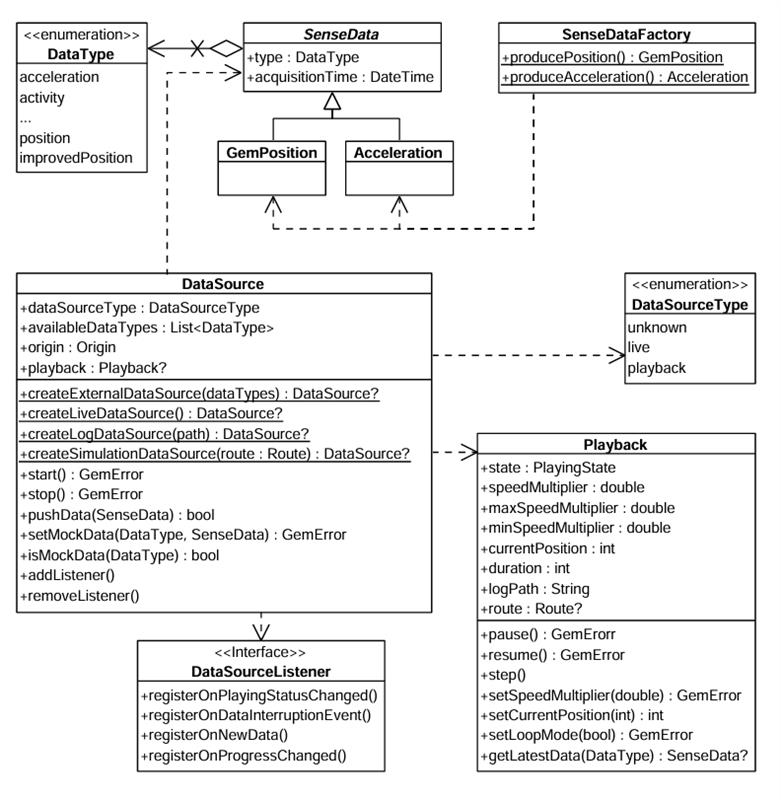 **DataSource** There are multiple possible data types, represented by the `DataType` enum. Each sensor value is stored in a class that is derived from `SenseData`. Two such classes are `GemPosition` and `Acceleration`. If you want to create objects of these types, a helper class `SenseDataFactory` is provided. This class has static methods like `producePosition`, `produceAcceleration` that can create custom sensor data. In principle, this will only be necessary if you want to create a custom data source that will be fed with custom data. You can create a `DataSource` by using one of the static methods: * `createLiveDataSource`: Creates a data source that collects data from the device’s built-in sensors in real time. This is the most common use case for applications relying on actual sensor input. * `createExternalDataSource`: Creates a custom data source that accepts user-supplied data. You can feed data into this source via the `pushData` method. Note that `pushData` will return `false` if used with a non-external source. * `createLogDataSource`: Creates a data source that replays data from a previously recorded session (log file: gpx, nmea). This is useful for debugging, training, or offline data processing. * `createSimulationDataSource`: Creates a data source that simulates movement along a specified route. It can be used for UI prototyping, testing, or feature validation without relying on real-world movement. The first two types (live and external) are categorized under `DataSourceType.live`, whereas the latter two (log and simulation) fall under `DataSourceType.playback`. note By default, a data source starts automatically upon creation. However, it's possible that it hasn't fully initialized by the time you obtain the data source object. If you add a `DataSourceListener` immediately after acquiring the data source, there's a chance you'll miss the initial "playing status changed" notification that indicates the data source has started - since it may already be in the started state when the listener is attached. ##### Configuring and Controlling a Data Source[](#configuring-and-controlling-a-data-source "Direct link to Configuring and Controlling a Data Source") Once created, a data source can be stopped or started using the appropriate control methods: ```typescript dataSource.stop(); // ... dataSource.start(); ``` You can also configure a data source's behavior using methods like: * `setConfiguration`: to set the sampling rate or data filtering behavior. * `setMockPosition`: to simulate location updates. warning The `setMockPosition` method is only available for live data sources and supports only the `DataType.position` type. To mock other data types, use an external `DataSource`. ##### Using `DataSourceListener`[](#using-datasourcelistener "Direct link to using-datasourcelistener") To receive updates from a data source, you can register a `DataSourceListener`. This listener allows you to react to various events such as: * Changes in the playing status of the data source. * Interruptions in data flow (e.g., sensor stopped, app went to background, etc.). * New sensor data becoming available. * Progress updates during playback. You can create a listener using the factory constructor and pass the appropriate callbacks: ```typescript import { DataSourceListener, DataType, PlayingStatus, DataInterruptionReason, SenseData } from '@magiclane/maps-sdk'; const listener = DataSourceListener.create({ onPlayingStatusChanged: (dataType: DataType, status: PlayingStatus) => { console.log(`Status for ${dataType} changed to ${status}`); }, onDataInterruptionEvent: (dataType: DataType, reason: DataInterruptionReason, ended: boolean) => { console.log(`Data interruption on ${dataType}: ${reason}. Ended: ${ended}`); }, onNewData: (data: SenseData) => { console.log('New data received:', data); }, onProgressChanged: (progress: number) => { console.log(`Playback progress: ${progress}%`); }, }); ``` Once created, this listener can be registered with a `DataSource`, for a specific `DataType` (in this case the position): ```typescript myDataSource.addListener(listener, DataType.position); ``` Later, you can remove the listener when it's no longer needed: ```typescript myDataSource.removeListener(listener, DataType.position); ``` #### Using the `Playback` interface[](#using-the-playback-interface "Direct link to using-the-playback-interface") The `Playback` interface allows you to control data sources that support playback functionality - specifically those of type `DataSourceType.playback`, such as *log files* or *simulated route replays*. **It is not compatible with live or custom data sources**. To access a `Playback` instance, you can check the type of the data source and retrieve it accordingly: ```typescript if (myDataSource.dataSourceType === DataSourceType.playback) { const playback = myDataSource.playback; playback.pause(); // ... playback.resume(); } ``` As shown above, playback-enabled data sources can be paused and resumed. Additionally, you can adjust the playback speed by setting a `speedMultiplier`, which must fall within the range defined by `Playback.minSpeedMultiplier` and `Playback.maxSpeedMultiplier`. To control playback position, use `Playback.currentPosition`, which represents the elapsed time in milliseconds from the beginning of the log or simulation. This allows you to skip to any point in the playback. You also have access to supplementary metadata, such as: * `Playback.logPath` – the path to the log file being executed * `Playback.route` – the route being simulated (if applicable) #### Tracking positions[](#tracking-positions "Direct link to Tracking positions") Positions from a `DataSource` can be tracked on a map by rendering a marker polyline between relevant map links points. This is done by using the `MapViewExtensions` class accessed through the `GemMap` instance. 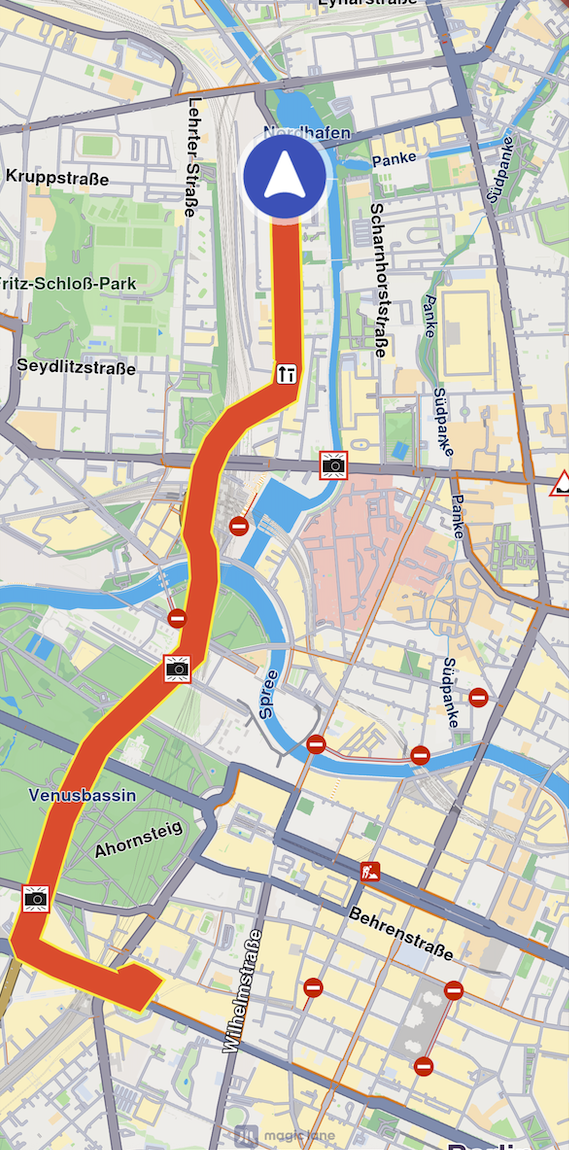 **Tracked path** The following code illustrates the functionality shown in the screenshot above. ```typescript import { MarkerCollectionRenderSettings, DataSource } from '@magiclane/maps-sdk'; const mapViewExtensions = gemMap.extensions; const err = mapViewExtensions.startTrackPositions({ updatePositionMs: 500, settings: new MarkerCollectionRenderSettings({ polylineInnerColor: 0xFFFF0000, // Red polylineOuterColor: 0xFFFFFF00, // Yellow polylineInnerSize: 3.0, polylineOuterSize: 2.0 }), dataSource: dataSource }); // other code ... mapViewExtensions.stopTrackPositions(); ``` | **Method** | **Parameters** | **Return type** | | ----------------------- | ------------------------------------------------------------------------------------------------------------------------------------------------------------------------------------------------------------------------------------------------------------------------------------------------------------------------ | ------------------------------------------------------------------------------------- | | **startTrackPositions** | - `updatePositionMs`: The tracked position collection update frequency. High frequency may decrease rendering performances on low end devices
- `MarkerCollectionRenderSettings`: The markers collection rendering settings in the map view
- `DataSource?`: The DataSource object which positions are tracked | `GemError` | | **stopTrackPositions** | | - `GemError.success` on success
- `GemError.notFound` if tracking is not started | | **isTrackedPositions** | | `boolean` | | **trackedPositions** | | `Coordinates[]` | info If the `dataSource` parameter is left null, tracking will use the current `DataSource` set in `PositionService`. If no `DataSource` is set in `PositionService`, `GemError.notFound` will be returned. ##### Getting tracked positions[](#getting-tracked-positions "Direct link to Getting tracked positions") After calling `MapViewExtensions.startTrackPositions`, you can retrieve the tracked positions later using `trackedPositions` getter. This method returns a list of Coordinates that are used to render the path polyline on `GemMap`. ```typescript const mapViewExtensions = gemMap.extensions; const positions = mapViewExtensions.trackedPositions; // other code ... mapViewExtensions.stopTrackPositions(); ``` warning Calling the `trackedPositions` getter **after** the `stopTrackPositions` is called will result in returning an empty list. --- ### Show location on map |
The location of the device is shown by default using an arrow position tracker. If `setLiveDataSource` has been successfully set and the required permissions were granted then the position tracker showing the current location should be visible on the map as an arrow.  **Default position tracker showing current position** At the moment it is not possible to have multiple position trackers on the map. note GPS accuracy may be limited in environments such as indoor spaces, areas with weak GPS signals, or locations with significant obstructions, such as narrow streets or between tall buildings. In these situations, the tracker may exhibit erratic movement within a confined area. Additionally, the performance of device sensors, such as the accelerometer and gyroscope, can further impact GPS positioning accuracy. This behavior is more pronounced when the device is stationary. #### Start follow position[](#start-follow-position "Direct link to Start follow position") Following the position tracker can be done calling the `startFollowingPosition` method on the GemMap instance. ```typescript map.startFollowingPosition(); ``` When the `startFollowingPosition` method is called, the camera enters a mode where it automatically follows the movement and rotation of the position tracker. This ensures the user's current location and orientation are consistently centered and updated on the map. The `startFollowingPosition` method can take parameters such as `animation`, which controls the movement from the current map camera position to the position of the tracker and `zoomLevel` and `viewAngle`. ```typescript import { GemAnimation, AnimationType } from '@magiclane/maps-sdk'; const animation = new GemAnimation({ type: AnimationType.linear }); map.startFollowingPosition({ animation }); ``` ##### Set map rotation mode[](#set-map-rotation-mode "Direct link to Set map rotation mode") When following position, it is possible to have the map rotated with the user orientation: ```typescript const prefs = map.preferences.followPositionPreferences; prefs.setMapRotationMode(FollowPositionMapRotationMode.positionHeading); ``` If you want to use the compass sensor for map rotation use `FollowPositionMapRotationMode.compass`: ```typescript prefs.setMapRotationMode(FollowPositionMapRotationMode.compass); ``` The map rotation can also be fixed to a given angle using the `FollowPositionMapRotationMode.fixed` value and providing a `mapAngle` value: ```typescript prefs.setMapRotationMode(FollowPositionMapRotationMode.fixed, 30); ``` A value of `0` given for the `mapAngle` parameter represents north-up alignment The `mapRotationMode` returns a record containing: * the current `FollowPositionMapRotationMode` mode * the map angle set in case of `FollowPositionMapRotationMode.fixed` #### Exit follow position[](#exit-follow-position "Direct link to Exit follow position") The `stopFollowingPosition` method from the GemMap instance can be used to programmatically stop following the position. ```typescript map.stopFollowingPosition(); ``` The follow mode will be exited automatically if the user interacts with the map. Actions such as panning, or tilting will disable the camera's automatic tracking. This can be deactivated by setting `touchHandlerExitAllow` to false (see the section below). #### Customize follow position settings[](#customize-follow-position-settings "Direct link to Customize follow position settings") The `FollowPositionPreferences` class has options which can be used to customize the behavior of following the position. This can be accessed from the `preferences` getter of the GemMap instance. The fields defined in `FollowPositionPreferences` take effect only when the camera is in follow position mode. To customize camera behavior when not following the position, refer to the fields available in `MapViewPreferences` and `GemMap`. | Field | Type | Explanation | | --------------------------------- | ------- | ---------------------------------------------------------------------------------------------------- | | cameraFocus | Point | The position on the viewport where the position tracker is located on the screen. | | timeBeforeTurnPresentation | number | The time interval before starting a turn presentation | | touchHandlerExitAllow | boolean | If set to false then gestures made by the user will exit follow position mode | | touchHandlerModifyPersistent | boolean | If set to true then changes made by the user using gestures are persistent | | viewAngle | number | The viewAngle used within follow position mode | | zoomLevel | number | The zoomLevel used within follow position mode | | accuracyCircleVisibility | boolean | Specifies if the accuracy circle should be visible (regardless if is in follow position mode or not) | | isTrackObjectFollowingMapRotation | boolean | Specifies if the track object should follow the map rotation | Please refer to the [adjust map guide](/docs/typescript/guides/maps/adjust-map.md) for more information about the `viewAngle`, `zoomLevel` and `cameraFocus` fields. If no zoom level is set, a default value is used. ###### Use of *touchHandlerModifyPersistent*[](#use-of-touchhandlermodifypersistent "Direct link to use-of-touchhandlermodifypersistent") When the camera enters follow position mode and manually adjusts the zoom level or view angle, these modifications are retained until the mode is exited, either manually or programmatically. If `touchHandlerModifyPersistent` is set to `true`, then invoking `startFollowingPosition` (with default parameters for zoom and angle) will restore the zoom level and view angle from the previous follow position session. If `touchHandlerModifyPersistent` is set to `false`, then calling `startFollowingPosition` (with default zoom and angle parameters) will result in appropriate values for the zoom level and view angle being recalculated. tip It is recommended to set the `touchHandlerModifyPersistent` property value right before calling the `startFollowingPosition` method. ###### Use of *touchHandlerExitAllow*[](#use-of-touchhandlerexitallow "Direct link to use-of-touchhandlerexitallow") If the camera is in follow position mode and the `touchHandlerExitAllow` property is set to `true`, a two-finger pan gesture in a non-vertical direction will cause the camera to exit follow position mode. If `touchHandlerExitAllow` is set to false, the user cannot manually exit follow position mode through touch gestures. In this case, the mode can only be exited programmatically by calling the `stopFollowingPosition` method. ##### Set circle visibility[](#set-circle-visibility "Direct link to Set circle visibility") For example, in order to show the accuracy circle visibility on the map (which is by default hidden): ```typescript const prefs = map.preferences.followPositionPreferences; const error = prefs.setAccuracyCircleVisibility(true); ``` 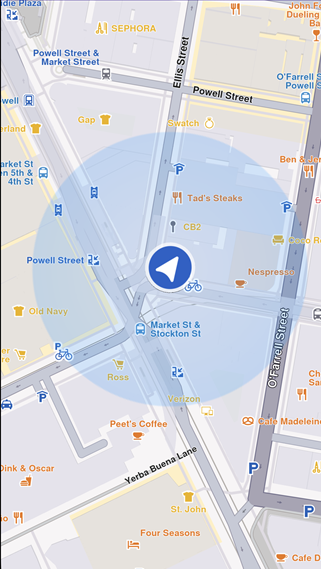 **Accuracy circle turned on** ##### Customize circle color[](#customize-circle-color "Direct link to Customize circle color") The accuracy circle color can be set using the `setDefPositionTrackerAccuracyCircleColor` static method from the `MapSceneObject` class: ```typescript import { MapSceneObject } from '@magiclane/maps-sdk'; const setErrorCode = MapSceneObject.setDefPositionTrackerAccuracyCircleColor(0x80FF0000); // Red with 50% opacity console.log("Error code for setting the circle color:", setErrorCode); ``` tip It is recommended to use colors with partial opacity instead of fully opaque colors for improved visibility and usability. The current color can be retrieved using the `getDefPositionTrackerAccuracyCircleColor` static method: ```typescript const color = MapSceneObject.getDefPositionTrackerAccuracyCircleColor(); ``` The color can be reset to the default value using the `resetDefPositionTrackerAccuracyCircleColor` static method: ```typescript const resetErrorCode = MapSceneObject.resetDefPositionTrackerAccuracyCircleColor(); console.log("Error code for resetting the circle color:", resetErrorCode); ``` ##### Set position of the position tracker on the viewport[](#set-position-of-the-position-tracker-on-the-viewport "Direct link to Set position of the position tracker on the viewport") In order to set the position tracker on a particular spot of the viewport while in follow position mode the `cameraFocus` property can be used: ```typescript // Calculate the position relative to the viewport const twoThirdsX = 2 / 3; const threeFifthsY = 3 / 5; const position = { x: twoThirdsX, y: threeFifthsY }; // Set the position of the position tracker in the viewport // while in follow position mode const prefs = map.preferences.followPositionPreferences; const error = prefs.setCameraFocus(position); map.startFollowingPosition(); ``` The `setCameraFocus` method uses a coordinate system relative to the viewport, not physical pixels. In this way `{ x: 0.0, y: 0.0 }` corresponds with top left corner and `{ x: 1.0, y: 1.0 }` corresponds with right bottom corner. #### Customize position icon[](#customize-position-icon "Direct link to Customize position icon") The SDK supports customizing the position tracker to suit your application's requirements. For example, you can set a simple PNG as the position tracker using the following approach: ```typescript import { MapSceneObject, SceneObjectFileFormat } from '@magiclane/maps-sdk'; // Fetch the image file const response = await fetch('/assets/navArrow.png'); const imageBlob = await response.blob(); const imageArrayBuffer = await imageBlob.arrayBuffer(); // Convert to Uint8Array const imageUint8Array = new Uint8Array(imageArrayBuffer); // Customize the position tracker MapSceneObject.customizeDefPositionTracker(imageUint8Array, SceneObjectFileFormat.tex); ``` Besides simple 2D icons, 3D objects as `glb` files can be set. The format parameter of the customizeDefPositionTracker should be set to `SceneObjectFileFormat.tex` in this case. At this moment it is not possible to set different icons for different maps. warning Make sure the resource (in this example `navArrow.png`) is correctly available in your project's public assets directory.  **Custom position tracker** #### Other position tracker settings[](#other-position-tracker-settings "Direct link to Other position tracker settings") Other settings such as scale and the visibility of the position tracker can be changed using the methods available on the `MapSceneObject` which can be obtained using `MapSceneObject.getDefPositionTracker`. ##### Change the position tracker scale[](#change-the-position-tracker-scale "Direct link to Change the position tracker scale") To change the scale of the position tracker we can use the `scale` setter: ```typescript // Get the position tracker const mapSceneObject = MapSceneObject.getDefPositionTracker(); // Change the scale mapSceneObject.scale = 0.5; ``` A value of 1 corresponds with the default scale value. The parameter passed to the setter should be in the range `(0, mapSceneObject.maxScale]`. The code snippet from above sets half the scale. Note The scale of the position tracker stays constant on the viewport regardless of the map zoom level. ##### Change the position tracker visibility[](#change-the-position-tracker-visibility "Direct link to Change the position tracker visibility") To change the visibility of the position tracker we can use the `visibility` setter: ```typescript // Get the position tracker const mapSceneObject = MapSceneObject.getDefPositionTracker(); // Change the visibility mapSceneObject.visibility = false; ``` The snippet above makes the position tracker invisible. #### Relevant examples demonstrating custom position icon related features[](#relevant-examples-demonstrating-custom-position-icon-related-features "Direct link to Relevant examples demonstrating custom position icon related features") * [Custom Position Icon](/docs/typescript/examples/maps-3dscene/custom-position-icon.md) --- ### Public Transit stops |
This API provides detailed access to public transport data including agencies, routes, stops, and trips. It is designed to integrate with interactive map-based applications using the Magic Lane SDK and allows developers to dynamically fetch and explore real-time public transportation information from selected positions on the map. tip The structure of the public transport data is modeled after the [General Transit Feed Specification (GTFS)](https://gtfs.org/documentation/schedule/reference/) and offers access to a subset of the fields and entities defined in GTFS. * Query public transport overlays by screen position. * Retrieve structured information about transport agencies, stops, routes, and trips. You can filter the trips by: * route short name (`tripsByRouteShortName`) * route type (`tripsByRouteType`) * agency (`tripsByAgency`) These can be accomplished by using the following methods of the `PTStopInfo` class: ```typescript tripsByRouteShortName(routeShortName: string): PTTrip[] tripsByRouteType(routeType: PTRouteType): PTTrip[] tripsByAgency(agency: PTAgency): PTTrip[] ``` Where: * `PTTrip` is the trip type (see below) * `PTRouteType` is the route type enum * `PTAgency` is the agency type An example illustrating this is the following: ```typescript import { PTRouteType, PTTrip } from '@magiclane/maps-sdk'; const trips: PTTrip[] = ptStopInfo.tripsByRouteType(PTRouteType.bus); ``` * Set a position on the map using `setCursorScreenPosition`. * Query for public transport overlays with `cursorSelectionOverlayItemsByType` or for generic overlays with `cursorSelectionOverlayItems`. * Retrieve stop information using `getPTStopInfo()` on each overlay item. * Use the returned `PTStopInfo` object to explore agencies, stops, and trips. * This API is part of a modular system intended to support rich and interactive transit applications. An example of using this feature is the following: ```typescript import { GemMap, CommonOverlayId } from '@magiclane/maps-sdk'; let map: GemMap; function onMapCreated(gemMap: GemMap) { map = gemMap; map.registerLongPressCallback(async (pos) => { await map.setCursorScreenPosition(pos); const items = map.cursorSelectionOverlayItemsByType(CommonOverlayId.PublicTransport); for (const item of items) { const ptStopInfo = await item.getPTStopInfo(); if (ptStopInfo) { // Agencies const agencies = ptStopInfo.agencies; // Stops and generic routes const stops = ptStopInfo.stops; // Trips (with route, agency, stop times, real-time info, etc.) const trips = ptStopInfo.trips; // How to use stops for (const stop of stops) { console.log(`Stop id: ${stop.stopId}`); console.log(`Stop name: ${stop.stopName}`); console.log('Routes:'); for (const route of stop.routes) { console.log(` Route id: ${route.routeId}`); console.log(` Route short name: ${route.routeShortName}`); console.log(` Route long name: ${route.routeLongName}`); } } } } }); } ``` tip You can also obtain instances of `PTStopInfo` by performing an overlay search using `CommonOverlayId.publicTransport`. Once you retrieve the corresponding `OverlayItem`s, use their `getPTStopInfo` method to access the stop information. See the [Search guide](/docs/typescript/guides/search/get-started-search.md) for more details on searching. warning All returned times are local times. They are represented as `DateTime` values in UTC (timezone offset 0). Use the `TimezoneService` to convert them to other time zones. warning There are two types of public transit stops on the map: * Stops which are of type `OverlayItem` and can be selected via the `cursorSelectionOverlayItemsByType` method. These stops provide extensive details structured as `PTStopInfo` objects. They are displayed with a blue icon when using the default style. * Stops which are of type `Landmark` and can be selected via the `cursorSelectionLandmarks` method. These stops do not provide extensive details. They are displayed with a gray icon when using the default style. #### Agencies[](#agencies "Direct link to Agencies") The `PTAgency` class represents a public transport agency. | Property | Type | Description | | -------- | --------------------- | ----------------------------------- | | `id` | `number` | Agency ID | | `name` | `string` | Full name of the transit agency. | | `url` | `string \| undefined` | Optional URL of the transit agency. | #### Public Transport Routes[](#public-transport-routes "Direct link to Public Transport Routes") The `PTRouteInfo` class represents a public transport route. | Property | Type | Description | | ---------------- | --------------------- | ------------------------------------------------------------------------------------------------------------------------------------- | | `routeId` | `number` | Route ID | | `routeShortName` | `string \| undefined` | Short name of a route. Often a short, abstract identifier (e.g., "32", "100X") that riders use to identify a route. May be undefined. | | `routeLongName` | `string \| undefined` | Full name of a route. This name is generally more descriptive than the short name and often includes the route's destination or stop. | | `routeType` | `PTRouteType` | Type of route. | | `routeColor` | `Color \| undefined` | Route color designation that matches public-facing material. May be used to color the route on the map or to be shown on UI elements. | | `routeTextColor` | `Color \| undefined` | Legible color to use for text drawn against a background of `routeColor`. | | `heading` | `string \| undefined` | Optional heading information. | warning Do not confuse the `PTRoute` and `PTRouteInfo` classes. * `PTRouteInfo` provides information about the public transit routes available at a specific stop. * `PTRoute`, on the other hand, represents a computed public transit route between multiple waypoints and includes detailed instructions. For more information on computing public transit routes using `PTRoute`, refer to the [Compute Public Transit Routes](/docs/typescript/guides/routing/advanced-features.md#compute-public-transit-routes) section. The type of public transport route is represented by the `PTRouteType` enum. | Enum Case | Description | | ---------------- | ---------------------------------------------------------------------------------------------- | | `bus` | Bus, Trolleybus. Used for short and long-distance bus routes. | | `underground` | Subway, Metro. Any underground rail system within a metropolitan area. | | `railway` | Rail. Used for intercity or long-distance travel. | | `tram` | Tram, Streetcar, Light rail. Any light rail or street level system within a metropolitan area. | | `waterTransport` | Water transport. Used for ferries and other water-based transit. | | `misc` | Miscellaneous. Includes other types of public transport not covered by the other categories. | #### Stops[](#stops "Direct link to Stops") The `PTStop` class represents a public transport stop. | Property | Type | Description | | ----------- | ---------------------- | ----------------------------------------------------------------------------------------------------------------------------------------------------- | | `stopId` | `number` | Identifies a location: stop/platform, station, entrance/exit, node or boarding area | | `stopName` | `string` | Name of the location. Matches the agency's rider-facing name for the location as printed on a timetable, published online, or represented on signage. | | `isStation` | `boolean \| undefined` | Whether this location is a station or not. A station is considered a physical structure or area that contains one or more platforms. | | `routes` | `PTRouteInfo[]` | Associated routes for the stop. Contains all routes serving this stop, whether active at the given time or not. | #### Stop Times[](#stop-times "Direct link to Stop Times") The `PTStopTime` class provides details about stop time in a `PTTrip`. | Property | Type | Description | | ---------------------- | ------------------- | ---------------------------------------------------------- | | `stopName` | `string` | The name of the serviced stop. | | `coordinates` | `Coordinates` | WGS latitude and longitude for the stop. | | `hasRealtime` | `boolean` | Whether data is provided in real-time or not. | | `delay` | `number` | Delay in seconds. Not available if `hasRealtime` is false. | | `departureTime` | `Date \| undefined` | Optional departure time in the local timezone. | | `isBefore` | `boolean` | Whether the stop time is before the current time. | | `isWheelchairFriendly` | `boolean` | Whether the stop is wheelchair accessible. | #### Trips[](#trips "Direct link to Trips") The `PTTrip` class represents a public transport trip. | Property | Type | Description | | ------------------------ | ---------------------- | ---------------------------------------------------------- | | `route` | `PTRouteInfo` | Associated route | | `agency` | `PTAgency` | Associated agency | | `tripIndex` | `number` | Trip index | | `tripDate` | `Date \| undefined` | The date of the trip | | `departureTime` | `Date \| undefined` | Departure time of the trip from the first stop | | `hasRealtime` | `boolean` | Whether real-time data is available | | `isCancelled` | `boolean \| undefined` | Whether the trip is cancelled | | `delayMinutes` | `number \| undefined` | Delay in minutes. Not available if `hasRealtime` is false. | | `stopTimes` | `PTStopTime[]` | Details of stop times in the trip | | `stopIndex` | `number` | Stop index | | `stopPlatformCode` | `string \| undefined` | Platform code | | `isWheelchairAccessible` | `boolean` | Whether the stop is wheelchair accessible. | | `isBikeAllowed` | `boolean` | Whether bikes are allowed on the stop. | warning Do not confuse the `PTRoute` and `PTTrip` classes. The `PTRouteInfo` class represents the public-facing service that riders recognize, like “Bus 42” while a `PTTrip` is a single scheduled journey along that route at a specific time, with its own stop times and sequence. In other words, the route is the line or service identity, and the trips are the individual vehicle runs that make up that service throughout the day. #### Stop Info[](#stop-info "Direct link to Stop Info") The `PTStopInfo` class aggregates stop-related data including agencies, stops, and trips related to a specific public transit overlay item. | Property | Type | Description | | ---------- | ------------ | -------------------------------------------- | | `agencies` | `PTAgency[]` | Agencies serving the selected item | | `trips` | `PTTrip[]` | Trips in which the selected item is involved | | `stops` | `PTStop[]` | Stops associated with the trips | #### Relevant examples demonstrating public transit related features[](#relevant-examples-demonstrating-public-transit-related-features "Direct link to Relevant examples demonstrating public transit related features") * [Public Transit](/docs/typescript/examples/routing-navigation/public-transit.md) --- ### Routing The Routing module provides advanced route calculation capabilities, enabling efficient navigation between waypoints. It supports multiple route types (car, pedestrian, bicycle), customizable preferences (fastest, shortest, eco-friendly), and real-time traffic awareness. Advanced features include route alternatives, waypoint optimization, and custom routing constraints. #### [📄️ Getting started with Routing](/docs/typescript/guides/routing/get-started-routing.md) [The Routing module provides powerful route calculation capabilities, enabling you to compute routes between multiple waypoints with various transportation modes and preferences. Whether you need the fastest route, the shortest distance, or an eco-friendly path, the SDK offers comprehensive routing functionality.](/docs/typescript/guides/routing/get-started-routing.md) #### [📄️ Handling Route Preferences](/docs/typescript/guides/routing/route-preferences.md) [Before computing a route, we need to specify some route options.](/docs/typescript/guides/routing/route-preferences.md) #### [📄️ Advanced features](/docs/typescript/guides/routing/advanced-features.md) [Compute route ranges](/docs/typescript/guides/routing/advanced-features.md) --- ### Advanced features | #### Compute route ranges[](#compute-route-ranges "Direct link to Compute route ranges") In order to compute a route range we need to: * Specify in the `RoutePreferences` the most important route preferences (others can also be used): * `routeRanges` list containing a list of range values, one for each route we compute. Measurement units are corresponding to the specified `routeType` (see the table below) * \[optional] `transportMode` (by default `TransportMode.car`) * \[optional] `routeType` (can be `fastest`, `economic`, `shortest` - by default is fastest) * \[optional] `routeRangesQuality` ( a value in the interval \[0, 100], default 100) representing the quality of the generated polygons. * The list of landmarks will contain only one landmark, the starting point for the route range computation. | Preference | Measurement unit | | ---------- | ---------------- | | fastest | seconds | | shortest | meters | | economic | Wh | warning Routes computed using route ranges are **not navigable**. warning The `RouteType.scenic` route type is not supported for route ranges. Route can be computed with a code like the following. It is a range route computation because it only has a simple `Landmark` and `routeRanges` contains values (in this case 2 routes will be computed). ```typescript // Define the departure. const startLandmark = Landmark.withLatLng({ latitude: 48.85682, longitude: 2.34375 }); // Define the route preferences. // Compute 2 ranges, 30 min and 60 min const routePreferences = new RoutePreferences({ routeType: RouteType.fastest, routeRanges: [1800, 3600], }); const taskHandler = RoutingService.calculateRoute( [startLandmark], routePreferences, (err, routes) => { if (err === GemError.success) { showSnackbar("Route range computed"); } else if (err === GemError.cancel) { showSnackbar("Route computation canceled"); } else { showSnackbar(`Error: ${err}`); } } ); ``` Note The computed routes can be displayed on the map, just like any regular route, with the only difference that the additional settings `RouteRenderSettings.m_fillColor` is used to define the polygon fill color. #### Compute path based routes[](#compute-path-based-routes "Direct link to Compute path based routes") A `Path` is a structure containing a list of coordinates (a track). It can be created based on: * custom coordinates specified by the user * coordinates recorded in a GPX file * coordinates obtained by doing a finger draw on the map A **Path backed landmark** is a special kind of `Landmark` that has a `Path` inside it. Sometimes we want to compute routes based on a list of one or more **Path backed landmark**(s) and optionally some regular `Landmark`(s). In this case the result will only contain one route. The path provided as waypoint track is used as a hint for the routing algorithm. You can see an example below (the highlighted area represents the code necessary to create the list with one element of type landmark built based on a path): ```typescript const coords = [ new Coordinates({ latitude: 40.786, longitude: -74.202 }), new Coordinates({ latitude: 40.690, longitude: -74.209 }), new Coordinates({ latitude: 40.695, longitude: -73.814 }), new Coordinates({ latitude: 40.782, longitude: -73.710 }), ]; const gemPath = Path.fromCoordinates(coords); // A list containing only one Path backed Landmark const landmarkList = gemPath.toLandmarkList(); // Define the route preferences. const routePreferences = new RoutePreferences({}); const taskHandler = RoutingService.calculateRoute( landmarkList, routePreferences, (err, routes) => { if (err === GemError.success) { showSnackbar(`Number of routes: ${routes.length}`); } else if (err === GemError.cancel) { showSnackbar("Route computation canceled"); } else { showSnackbar(`Error: ${err}`); } } ); ``` tip The `Path` object associated to a path based landmark can be modified using the `trackData` setter available on the `Landmark` object. See the [Landmarks guide](/docs/typescript/guides/core/landmarks.md) for more details about this. warning When computing a route based on a path backed landmark **and** non-path backed landmarks, it is mandatory to set the `accurateTrackMatch` field from `RoutePreferences` to `true`. Otherwise, the routing computation will fail with a `GemError.unsupported` error. The `isTrackResume` field from `RoutePreferences` can also be set to configure the behaviour of the routing engine when one track based landmark is used as a waypoint toghether with other landmarks. If this field is set to `true`, the routing engine will try to match the entire track of the path based landmark. Otherwise, if set to `false`, only the end point of the track will be used as waypoints. #### Computing a route based on a GPX file[](#computing-a-route-based-on-a-gpx-file "Direct link to Computing a route based on a GPX file") You can compute a route based on a GPX file by using the `path based landmark` described in the previous section. The only difference is how we compute the `gemPath`. ```typescript // Fetch or read GPX file content const response = await fetch("recorded_route.gpx"); // Return if GPX file cannot be fetched if (!response.ok) { return showSnackbar('GPX file does not exist'); } const pathData = await response.arrayBuffer(); const pathBytes = new Uint8Array(pathData); // Get landmarklist containing all GPX points from file. const gemPath = Path.create({ data: pathBytes, format: PathFileFormat.gpx }); // LandmarkList will contain only one path based landmark. const landmarkList = gemPath.toLandmarkList(); // Define the route preferences. const routePreferences = new RoutePreferences({ transportMode: RouteTransportMode.bicycle }); RoutingService.calculateRoute( landmarkList, routePreferences, (err, routes) => { // handle result } ); ``` #### Finger drawn path[](#finger-drawn-path "Direct link to Finger drawn path") When necessary, it is possible to record a path based on drawing with the finger on the map. It is also possible to record multiple paths. In this situation a straight line is added between any 2 consecutive finger drawn paths. When you want to enter this recording mode: ```typescript mapController.enableDrawMarkersMode(); ``` When you want to exit this mode, you can get the generated `Landmark[]` with the following: ```typescript const landmarks = mapController.disableDrawMarkersMode(); const routePreferences = new RoutePreferences({ accurateTrackMatch: false, ignoreRestrictionsOverTrack: true }); const taskHandler = RoutingService.calculateRoute( landmarks, routePreferences, (err, routes) => { // handle result } ); ``` The resulted `List
This makes it easy to store the route as a file or share it with other applications that support formats like GPX, KML, NMEA, or GeoJSON. ```typescript const dataGpx = routes[0].exportAs(PathFileFormat.gpx); // You now have the full GPX as a string ``` --- ### Getting started with Routing |
The Routing module provides powerful route calculation capabilities, enabling you to compute routes between multiple waypoints with various transportation modes and preferences. Whether you need the fastest route, the shortest distance, or an eco-friendly path, the SDK offers comprehensive routing functionality. #### Basic route calculation[](#basic-route-calculation "Direct link to Basic route calculation") The simplest way to calculate a route is by providing start and destination coordinates: ```typescript import { GemError, RoutingService, RoutePreferences, Landmark, Route, RouteTransportMode, RouteType, TrafficAvoidance, RouteAlternativesSchema } from '@magiclane/maps-sdk'; // Define waypoints const start = Landmark.withLatLng ({ latitude: 48.858844, longitude: 2.294351 }); // Eiffel Tower const destination = Landmark.withLatLng({ latitude: 48.853409, longitude: 2.349014 }); // Notre-Dame // Create route preferences const preferences = new RoutePreferences({ transportMode: RouteTransportMode.car, routeType: RouteType.fastest }); // Calculate the route const taskHandler = RoutingService.calculateRoute( [start, destination], preferences, (err, routes) => { if (err === GemError.success && routes.length > 0) { const route = routes[0]; const timeDistance = route.getTimeDistance(); const totalDistance = timeDistance.unrestrictedDistanceM + timeDistance.restrictedDistanceM; const totalDuration = timeDistance.unrestrictedTimeS + timeDistance.restrictedTimeS; console.log(`Route distance: ${totalDistance / 1000} km`); console.log(`Estimated time: ${totalDuration / 60} minutes`); // Display route on map displayRoutesOnMap(gemMap, routes); } else { console.error(`Routing error: ${err}`); } } ); ``` #### Transport modes[](#transport-modes "Direct link to Transport modes") The SDK supports different transportation modes: ```typescript enum RouteTransportMode { car, lorry, pedestrian, bicycle, public, sharedVehicles } // Example: Pedestrian route const preferences = new RoutePreferences({ transportMode: RouteTransportMode.pedestrian, routeType: RouteType.shortest }); ``` #### Route types[](#route-types "Direct link to Route types") Choose the type of route based on your needs: ```typescript enum RouteType { fastest, // Minimize travel time shortest, // Minimize distance economic, // Fuel-efficient route scenic // Fast route with scenic preference } ``` #### Multiple waypoints[](#multiple-waypoints "Direct link to Multiple waypoints") Calculate routes with intermediate stops: ```typescript const waypoints = [ Landmark.withLatLng({ latitude: 48.858844, longitude: 2.294351 }), // Start: Eiffel Tower Landmark.withLatLng({ latitude: 48.865717, longitude: 2.321906 }), // Via: Arc de Triomphe Landmark.withLatLng({ latitude: 48.853409, longitude: 2.349014 }) // End: Notre-Dame ]; const taskHandler = RoutingService.calculateRoute( waypoints, preferences, (err, routes) => { if (err === GemError.success) { console.log(`Route with ${waypoints.length - 2} intermediate stops calculated`); } } ); ``` #### Route preferences[](#route-preferences "Direct link to Route preferences") Customize routing behavior with detailed preferences: ```typescript const preferences = new RoutePreferences({ transportMode: RouteTransportMode.car, routeType: RouteType.fastest, avoidMotorways: false, avoidTollRoads: false, avoidFerries: false, avoidUnpavedRoads: true, avoidTraffic: TrafficAvoidance.none }); ``` #### Handling route alternatives[](#handling-route-alternatives "Direct link to Handling route alternatives") Request multiple route options: ```typescript const preferences = new RoutePreferences({ transportMode: RouteTransportMode.car, routeType: RouteType.fastest, alternativesSchema: RouteAlternativesSchema.always // Explicitly request alternatives }); const taskHandler = RoutingService.calculateRoute( [start, destination], preferences, (err, routes) => { if (err === GemError.success) { console.log(`Found ${routes.length} alternative routes:`); routes.forEach((route, index) => { const timeDistance = route.getTimeDistance(); const totalDistance = timeDistance.unrestrictedDistanceM + timeDistance.restrictedDistanceM; const totalDuration = timeDistance.unrestrictedTimeS + timeDistance.restrictedTimeS; console.log(`Route ${index + 1}:`); console.log(` Distance: ${totalDistance / 1000} km`); console.log(` Time: ${totalDuration / 60} min`); }); } } ); ``` #### Displaying routes on the map[](#displaying-routes-on-the-map "Direct link to Displaying routes on the map") Once you have calculated a route, display it on the map: ```typescript import { GemMap, Route } from '@magiclane/maps-sdk'; function displayRoutesOnMap(gemMap: GemMap, routes: Route[]) { const routesMap = gemMap.preferences.routes; routesMap.clear(); // Add all routes and mark the first one as main route routes.forEach((route, index) => { routesMap.add(route, index === 0); }); gemMap.centerOnRoutes({ routes }); } ``` #### Route information[](#route-information "Direct link to Route information") Access detailed route information: ```typescript function displayRouteInfo(route: Route) { const timeDistance = route.getTimeDistance(); const totalDistance = timeDistance.unrestrictedDistanceM + timeDistance.restrictedDistanceM; const totalDuration = timeDistance.unrestrictedTimeS + timeDistance.restrictedTimeS; const instructions = route.segments.flatMap((segment) => segment.instructions); console.log('Route Information:'); console.log(`Total distance: ${(totalDistance / 1000).toFixed(2)} km`); console.log(`Estimated time: ${Math.round(totalDuration / 60)} minutes`); console.log(`Number of instructions: ${instructions.length}`); // Display turn-by-turn instructions instructions.forEach((instruction, index) => { console.log(`${index + 1}. ${instruction.text} (${instruction.distance}m)`); }); } ``` #### Canceling a route calculation[](#canceling-a-route-calculation "Direct link to Canceling a route calculation") If you need to cancel an ongoing route calculation: ```typescript if (taskHandler) { RoutingService.cancelRoute(taskHandler); console.log('Route calculation cancelled'); } ``` #### Using Promises (Alternative Pattern)[](#using-promises-alternative-pattern "Direct link to Using Promises (Alternative Pattern)") Wrap routing in a Promise for async/await usage: ```typescript function calculateRouteAsync( waypoints: Landmark[], preferences: RoutePreferences ): Promise
Before computing a route, we need to specify some route options. #### Route Preferences structure[](#route-preferences-structure "Direct link to Route Preferences structure") The most generic supported route options are briefly presented in the following table. | Preference | Explanation | Default Value | | -------------------------------- | --------------------------------------------------------------------------------------------------------------------------------------- | ---------------------------------------------------- | | accurateTrackMatch | Enables accurate track matching for routes. | true | | allowOnlineCalculation | Allows online calculations. | true | | alternativeRoutesBalancedSorting | Balances sorting of alternative routes. | true | | alternativesSchema | Defines the schema for alternative routes. | RouteAlternativesSchema.defaultSchema | | departureHeading | Sets departure heading and accuracy. | `new DepartureHeading({ heading: -1, accuracy: 0 })` | | ignoreRestrictionsOverTrack | Ignores restrictions over the track. | false | | maximumDistanceConstraint | Enables maximum distance constraints. | true | | pathAlgorithm | Algorithm used for path calculation. | RoutePathAlgorithm.ml | | pathAlgorithmFlavor | Flavor for the path algorithm. | RoutePathAlgorithmFlavor.magicLane | | resultDetails | Level of details in the route result. | RouteResultDetails.full | | routeRanges | Ranges for the routes. | \[] | | routeRangesQuality | Quality level for route ranges. | 100 | | routeType | Preferred route type. | RouteType.fastest | | timestamp | Custom timestamp for the route. Used with PT routes to specify the desired arrival/departure time. `null` means automatic current time. | null (current time will be used) | | transportMode | Transport mode for the route. | RouteTransportMode.car | warning In order to compute the `timestamp` in the required format, please check the snippet below: ```typescript const departureLandmark = Landmark.withLatLng({ latitude: 45.65, longitude: 25.60 }); const destinationLandmark = Landmark.withLatLng({ latitude: 46.76, longitude: 23.58 }); const oneHourLater = new Date(Date.now() + 60 * 60 * 1000); TimezoneService.getTimezoneInfoFromCoordinates({ coords: departureLandmark.coordinates, time: oneHourLater, // Compute time for one hour later onComplete: (error, result) => { if (error !== GemError.success || !result) { // Handle error return; } const timestamp = result.localTime; // Pass the timestamp to RoutePreferences } }); ``` Check the [Timezone Service guide](/docs/typescript/guides/timezone-service.md) for more details. Enabling complex structures creation options are presented in the following table: | Preference | Explanation | Default Value | | ------------------- | -------------------------------------- | -------------------------------------------- | | buildConnections | Enables building of route connections. | false | | buildTerrainProfile | Enables building of terrain profile. | `new BuildTerrainProfile({ enable: false })` | Route specific options for custom profiles are presented in the following table: | Preference | Explanation | Default Value | | ------------------- | --------------------------------------------------------------------------------------------------------------- | ---------------------- | | bikeProfile | Profile configuration for bikes. | null | | carProfile | Profile configuration for cars. | null | | vehicleRegistration | Derived read-only vehicle registration profile based on selected transport mode and configured profile objects. | null | | pedestrianProfile | Profile configuration for pedestrians. | PedestrianProfile.walk | | truckProfile | Profile configuration for trucks. | null | Avoid options are presented in the following table: | Preference | Explanation | Default Value | | -------------------------- | ---------------------------------- | --------------------- | | avoidBikingHillFactor | Factor to avoid biking hills. | 0.5 | | avoidCarpoolLanes | Avoids carpool lanes. | false | | avoidFerries | Avoids ferries in the route. | false | | avoidMotorways | Avoids motorways in the route. | false | | avoidTollRoads | Avoids toll roads in the route. | false | | avoidTraffic | Strategy for avoiding traffic. | TrafficAvoidance.none | | avoidTurnAroundInstruction | Avoids turn-around instructions. | false | | avoidUnpavedRoads | Avoids unpaved roads in the route. | false | Emergency vehicles preferences are shown in the following table: | Preference | Explanation | Default Value | | ---------------------------------- | -------------------------------------------- | ------------- | | emergencyVehicleExtraFreedomLevels | Extra freedom levels for emergency vehicles. | 0 | | emergencyVehicleMode | Enables emergency vehicle mode. | false | Public Transport preferences are shown in the following table: | Preference | Explanation | Default Value | | ---------------------------- | -------------------------------------- | -------------------------- | | algorithmType | Algorithm type used for routing. | PTAlgorithmType.departure | | minimumTransferTimeInMinutes | Minimum transfer time in minutes. | 1 | | maximumTransferTimeInMinutes | Sets maximum transfer time in minutes. | 300 | | maximumWalkDistance | Maximum walking distance in meters. | 5000 | | sortingStrategy | Strategy for sorting routes. | PTSortingStrategy.bestTime | | routeTypePreferences | Preferences for route types. | RouteTypePreferences.none | | useBikes | Enables use of bikes in the route. | false | | useWheelchair | Enables wheelchair-friendly routes. | false | | routeGroupIdsEarlierLater | IDs for earlier/later route groups. | \[] | A short example of how they can be used to compute the fastest car route and also to compute a terrain profile is presented below: ```typescript const routePreferences = new RoutePreferences({ transportMode: RouteTransportMode.car, routeType: RouteType.fastest, buildTerrainProfile: new BuildTerrainProfile({ enable: true })}); ``` There are also properties that can't be set and only can be obtained for a route, in order to know how that route was computed: | Preference | Explanation | Default Value | | --------------- | --------------------- | -------------------- | | routeResultType | Type of route result. | RouteResultType.path | #### Profiles structure[](#profiles-structure "Direct link to Profiles structure") ##### Car Profile[](#car-profile "Direct link to Car Profile") The `CarProfile` class is responsible for defining car specific routing preferences. The available options are presented in the following table: | Member | Type | Default | Description | | ----------- | -------- | ------------------------------ | ---------------------------------------------------- | | fuel | FuelType | petrol | Engine fuel type | | mass | int | 0 - not considered in routing. | Vehicle mass in kg. | | maxSpeed | double | 0 - not considered in routing. | Vehicle max speed in m/s. Not considered in routing. | | plateNumber | string | "" | Vehicle plate number. | `FuelType` can have the following values: petrol, diesel, lpg (liquid petroleum gas), electric. By default, all field except `fuel` have default value 0, meaning they are not considered in the routing. `fuel` by default is `FuelType.petrol`. #### Truck Profile[](#truck-profile "Direct link to Truck Profile") The `TruckProfile` class is responsible for defining truck specific routing preferences. The available options are presented in the following table: | Member | Type | Default | Description | | ----------- | -------- | ----------------------------- | ------------------------- | | axleLoad | int | 0 - not considered in routing | Truck axle load in kg. | | fuel | FuelType | petrol | Engine fuel type. | | height | int | 0 - not considered in routing | Truck height in cm. | | length | int | 0 - not considered in routing | Truck length in cm. | | mass | int | 0 - not considered in routing | Vehicle mass in kg. | | maxSpeed | double | 0 - not considered in routing | Vehicle max speed in m/s. | | width | int | 0 - not considered in routing | Truck width in cm. | | plateNumber | string | "" | Vehicle plate number. | #### Electric Bike Profile[](#electric-bike-profile "Direct link to Electric Bike Profile") The `ElectricBikeProfile` class is responsible for defining electric bike specific routing preferences. The available options are presented in the following table: | Member | Type | Default | Description | | ----------------------- | ---------------- | ------------------------- | ----------------------------------------------------------- | | auxConsumptionDay | double | 0 - default value is used | Bike auxiliary power consumption during day in Watts. | | auxConsumptionNight | double | 0 - default value is used | Bike auxiliary power consumption during night in Watts. | | bikeMass | double | 0 - default value is used | Bike mass in kg. | | bikerMass | double | 0 - default value is used | Biker mass in kg. | | ignoreLegalRestrictions | bool | false | Ignore country-based legal restrictions related to e-bikes. | | type | ElectricBikeType | ElectricBikeType.none | E-bike type. | | plateNumber | string | "" | Vehicle plate number. | The `ElectricBikeProfile` class is encapsulated within the `BikeProfileElectricBikeProfile` class, together with the `BikeProfile` enum. #### Computing truck routes[](#computing-truck-routes "Direct link to Computing truck routes") To compute routes for trucks we can write code like the following by initializing the `truckProfile` field of `RoutePreferences`: ```typescript // Define the departure. const departureLandmark = Landmark.withLatLng({ latitude: 48.87126, longitude: 2.33787 }); // Define the destination. const destinationLandmark = Landmark.withLatLng({ latitude: 51.4739, longitude: -0.0302 }); const truckProfile = new TruckProfile({ height: 180, // cm length: 500, // cm width: 200, // cm axleLoad: 1500, // kg maxSpeed: 60, // km/h mass: 3000, // kg fuel: FuelType.diesel }); // Define the route preferences with current truck profile and lorry transport mode. const routePreferences = new RoutePreferences({ truckProfile: truckProfile, transportMode: RouteTransportMode.lorry, // <- This field is crucial }); const taskHandler = RoutingService.calculateRoute( [departureLandmark, destinationLandmark], routePreferences, (err, routes) => { // handle results } ); ``` #### Computing caravan routes[](#computing-caravan-routes "Direct link to Computing caravan routes") Certain vehicles, such as caravans or trailers, may be restricted on some roads due to their size or weight, yet still permitted on roads where trucks are prohibited. To calculate routes for caravans or trailers, we can use the `truckProfile` field of `RoutePreferences` with the appropriate dimensions and weight. ```typescript // Define the departure. const departureLandmark = Landmark.withLatLng({ latitude: 48.87126, longitude: 2.33787 }); // Define the destination. const destinationLandmark = Landmark.withLatLng({ latitude: 51.4739, longitude: -0.0302 }); const truckProfile = new TruckProfile({ height: 180, // cm length: 500, // cm width: 200, // cm axleLoad: 1500, // kg }); // Define the route preferences with current truck profile and car transport mode. const routePreferences = new RoutePreferences({ truckProfile: truckProfile, transportMode: RouteTransportMode.car, // <- This field is crucial to distinguish caravan from truck }); const taskHandler = RoutingService.calculateRoute( [departureLandmark, destinationLandmark], routePreferences, (err, routes) => { // handle results } ); ``` At least one of the fields `height`, `length`, `width` or `axleLoad` must be set to a non-zero value in order for the settings to be taken into account during routing. If all these fields are set to 0 then a normal car route will be calculated. #### Relevant examples demonstrating routing related features[](#relevant-examples-demonstrating-routing-related-features "Direct link to Relevant examples demonstrating routing related features") * [Calculate Route](/docs/typescript/examples/routing-navigation/calculate-route.md) * [Better Route Notification](/docs/typescript/examples/routing-navigation/better-route-notification.md) * [Calculate Bike Route](/docs/typescript/examples/routing-navigation/calculate-bike-route.md) * [Public Transit](/docs/typescript/examples/routing-navigation/public-transit.md) * [Truck Profile](/docs/typescript/examples/routing-navigation/truck-profile.md) --- ### Search The SDK supports several search methods including text search, proximity search, and category-based search, with customizable preferences like fuzzy matching and distance limits. Additionally, users can search for custom landmarks or within overlays. For geocoding, the SDK provides reverse geocoding, converting geographic coordinates into comprehensive address details, and geocoding, which allows locating specific places based on address components. The SDK also offers integration with Wikipedia for location-based content, and auto-suggestions to dynamically generate search results while typing. #### [📄️ Getting started with Search](/docs/typescript/guides/search/get-started-search.md) [The Maps SDK for TypeScript provides flexible and robust search functionality, allowing you to search for locations using text queries and coordinates:](/docs/typescript/guides/search/get-started-search.md) #### [📄️ Search & Geocoding features](/docs/typescript/guides/search/search-geocoding-features.md) [The Maps SDK for TypeScript provides geocoding and reverse geocoding capabilities. Key features include:](/docs/typescript/guides/search/search-geocoding-features.md) --- ### Getting started with Search |
The Maps SDK for TypeScript provides flexible and robust search functionality, allowing you to search for locations using text queries and coordinates: * **Text Search**: Perform searches using a text query and geographic coordinates to prioritize results within a specific area. * **Search Preferences**: Customize search behavior using various options, such as allowing fuzzy results, limiting search distance, or specifying the number of results. * **Category-Based Search**: Filter search results by predefined categories, such as gas stations or parking areas. * **Proximity Search**: Retrieve all nearby landmarks without specifying a text query. #### Text search[](#text-search "Direct link to Text search") The simplest way to search for something is by providing text and specifying coordinates. The coordinates serve as a hint, prioritizing points of interest (POIs) within the indicated area. ```typescript import { SearchService, SearchPreferences, Coordinates, GemError, Landmark } from '@magiclane/maps-sdk'; const text = "Paris"; const coords = new Coordinates({ latitude: 45, longitude: 10 }); const preferences = SearchPreferences.create({ maxMatches: 40, searchAddresses: true, searchMapPOIs: true }); const taskHandler = SearchService.search({ textFilter: text, referenceCoordinates: coords, preferences: preferences, onCompleteCallback: (err: GemError, results: Landmark[]) => { // If there is an error or there aren't any results, the method will return an empty list. if (err === GemError.success) { if (results.length === 0) { console.log("No results"); } else { console.log(`Number of results: ${results.length}`); results.forEach(result => { console.log(`- ${result.name} at ${result.coordinates.latitude}, ${result.coordinates.longitude}`); }); } } else { console.error(`Error: ${err}`); } } }); ``` note The `SearchService.search` method returns `null` only when the geographic search fails to initialize. In such cases, calling `SearchService.cancelSearch(taskHandler)` is not possible. Error details will be delivered through the `onComplete` callback of the `SearchService.search` method. The `err` provided by the callback function can have the following values: | Value | Significance | | --------------------------- | ------------------------------------------------------------------------------------------------------------------------------------------------------------ | | `GemError.success` | Successfully completed | | `GemError.Cancel` | Cancelled by the user | | `GemError.NoMemory` | Search engine couldn't allocate the necessary memory for the operation | | `GemError.OperationTimeout` | Search was executed on the online service and the operation took too much time to complete (usually more than 1 min, depending on the server overload state) | | `GemError.NetworkTimeout` | Can't establish the connection or the server didn't respond on time | | `GemError.NetworkFailed` | Search was executed on the online service and the operation failed due to bad network connection | #### Specifying preferences[](#specifying-preferences "Direct link to Specifying preferences") As seen in the previous example, before searching we need to specify some `SearchPreferences`. The following characteristics apply to a search: | Field | Type | Default Value | Explanation | | ----------------- | ------- | ------------- | ----------------------------------------------------------------------------- | | allowFuzzyResults | boolean | true | Allows fuzzy search results, enabling approximate matches for queries. | | maxMatches | number | 100 | Maximum number of search results to return. | | searchDistance | number | unlimited | Maximum distance (in meters) from the search coordinates to consider results. | Example with more preferences: ```typescript const preferences = SearchPreferences.create({ maxMatches: 20, searchAddresses: true, searchMapPOIs: true }); ``` #### Category-based search[](#category-based-search "Direct link to Category-based search") You can filter search results by specific categories: ```typescript import { SearchService, LandmarkCategory, Landmark, GemError } from '@magiclane/maps-sdk'; const coords = new Coordinates({ latitude: 48.858844, longitude: 2.294351 }); // Paris const preferences = SearchPreferences.create({ maxMatches: 10, searchAddresses: true, searchMapPOIs: true }); const taskHandler = SearchService.search({ textFilter: "", // Empty text for category-only search referenceCoordinates: coords, preferences: preferences, onCompleteCallback: (err: GemError, results: Landmark[]) => { if (err === GemError.success) { console.log(`Found ${results.length} results`); } } }); ``` #### Proximity search[](#proximity-search "Direct link to Proximity search") Retrieve all nearby landmarks without specifying a text query: ```typescript const coords = new Coordinates({ latitude: 40.748817, longitude: -73.985428 }); // New York const preferences = SearchPreferences.create({ maxMatches: 50, searchAddresses: true, searchMapPOIs: true }); const taskHandler = SearchService.search({ textFilter: "", referenceCoordinates: coords, preferences: preferences, onCompleteCallback: (err: GemError, results: Landmark[]) => { if (err === GemError.success) { console.log(`Found ${results.length} nearby landmarks`); } } }); ``` #### Canceling a search[](#canceling-a-search "Direct link to Canceling a search") If you need to cancel an ongoing search operation: ```typescript if (taskHandler) { SearchService.cancelSearch(taskHandler); console.log('Search cancelled'); } ``` #### Using Promises (Alternative Pattern)[](#using-promises-alternative-pattern "Direct link to Using Promises (Alternative Pattern)") You can wrap the search in a Promise for async/await usage: ```typescript function searchAsync( text: string, coords: Coordinates, preferences: SearchPreferences ): Promise
The Maps SDK for TypeScript provides geocoding and reverse geocoding capabilities. Key features include: * Reverse Geocoding: Transform geographic coordinates into comprehensive address details, such as country, city, street name, postal code, and more. * Geocoding: Locate specific places (e.g., cities, streets, or house numbers) based on address components. * Route-Based Search: Perform searches along predefined routes to identify landmarks and points of interest. * Wikipedia Integration: Access Wikipedia descriptions and related information for identified landmarks. * Auto-Suggestion Implementation: Dynamically generate search suggestions as users type. #### Reverse geocode coordinates to address[](#reverse-geocode-coordinates-to-address "Direct link to Reverse geocode coordinates to address") Given a coordinate, we can get the corresponding address by searching around the given location and getting the `AddressInfo` associated with the nearest Landmark found nearby. The AddressInfo provides information about the country, city, street name, street number, postal code, state, district, country code, and other relevant information. Fields from an `AddressInfo` object can be accessed via the `getField` method or can be automatically converted to a string containing the address info using the `format` method. ```typescript import { SearchService, SearchPreferences, Coordinates, GemError, Landmark, AddressField } from '@magiclane/maps-sdk'; const prefs = SearchPreferences.create({ maxMatches: 10, searchAddresses: true, searchMapPOIs: true }); const coordinates = new Coordinates({ latitude: 51.519305, longitude: -0.128022, }); SearchService.searchAroundPosition({ position: coordinates, preferences: prefs, onCompleteCallback: (err, results) => { if (err !== GemError.success || results.length === 0) { console.log("No results found"); } else { const landmark = results[0]; const addressInfo = landmark.address; const country = addressInfo.getField(AddressField.country); const city = addressInfo.getField(AddressField.city); const street = addressInfo.getField(AddressField.streetName); const streetNumber = addressInfo.getField(AddressField.streetNumber); const fullAddress = addressInfo.format({}); console.log(`Address: ${fullAddress}`); } }, }); ``` #### Geocode address to location[](#geocode-address-to-location "Direct link to Geocode address to location") The Maps SDK for TypeScript provides geocoding capabilities to convert addresses into geographic coordinates. Addresses represent a tree-like structure, where each node is a `Landmark` with a specific `AddressDetailLevel`. At the root of the tree, we have the country-level landmarks, followed by other levels such as cities, streets, and house numbers. warning The address structure is not the same in all countries. For example, some countries do not have states or provinces. Use the `getNextAddressDetailLevel` method from the `GuidedAddressSearchService` class to get the next available levels in the address hierarchy. ##### Search countries by name[](#search-countries-by-name "Direct link to Search countries by name") It is possible to do a search at a country level. In this case you can use code like the following: ```typescript import { GuidedAddressSearchService, GemError } from '@magiclane/maps-sdk'; GuidedAddressSearchService.searchCountries("Germany", (err, result) => { if (err !== GemError.success && err !== GemError.reducedResult) { console.error(`Error: ${err}`); } if (result.length === 0) { console.log("No results"); } // do something with "result" }); ``` This can provide the parent landmark for the other `GuidedAddressSearchService` methods. It does a search restricted to country-level results. This allows the use of more flexible search terms as it works regardless of the language. ##### Search the hierarchical address structure[](#search-the-hierarchical-address-structure "Direct link to Search the hierarchical address structure") We will create the example in two steps. First, we create a function that for a parent landmark, an `AddressDetailLevel` and a text returns the children having the required detail level and matching the text. The possible values for `AddressDetailLevel` are: noDetail, country, state, county, district, city, settlement, postalCode, street, streetSection, streetLane, streetAlley, houseNumber, crossing. ```typescript import { GuidedAddressSearchService, Landmark, AddressDetailLevel, GemError } from '@magiclane/maps-sdk'; // Address search method. async function searchAddress({ landmark, detailLevel, text, }: { landmark: Landmark; detailLevel: AddressDetailLevel; text: string; }): Promise
The `TimezoneService` provides functionality for managing and retrieving time zone information. It allows you to transform a UTC `DateTime` to a specific time zone, but also provides other details regarding the offset and the timezone. The `TimezoneService` class provides methods to get timezone information online (more accurate and takes into account new changes) or offline (faster, works regardless of network access but may be outdated). * `getTimezoneInfoFromCoordinates` and `getTimezoneInfoFromTimezoneId` methods retrieve timezone information from an online service. * `getTimezoneInfoFromCoordinatesSync` and `getTimezoneInfoFromTimezoneIdSync` methods provide similar functionality but use built-in timezone data, which may be outdated. A SDK update is required once in a while to refresh timezone data. #### The TimezoneResult structure[](#the-timezoneresult-structure "Direct link to The TimezoneResult structure") The `TimezoneResult` class represents the result of a time zone lookup operation. It contains the following properties: | Member | Type | Description | | ------------ | ---------------- | ------------------------------------------------------------------------------------------------------------------------------------------------------------------------------------------------------------------------ | | `dstOffset` | `number` | Daylight Saving Time (DST) offset in seconds. | | `utcOffset` | `number` | The raw UTC offset in seconds, excluding DST. Can be negative. | | `offset` | `number` | The total offset in seconds in respect to UTC (`dstOffset` + `utcOffset`). Can be negative. | | `status` | `TimeZoneStatus` | Status of the response. See the values below. | | `timezoneId` | `string` | The timezone identifier in format `Continent/City_Name`. Examples: `Europe/Paris`, `America/New_York`. | | `localTime` | `Date` | The local time as a UTC `Date` object, but representing the local time of the requested timezone, affected by offsets. Use the `getDate()`, `getHours()`, `getMinutes()`, `getSeconds()` methods from the `Date` object. | warning The `localTime` returned via the `TimezoneService` methods is returned as a UTC `Date` object, but represents the local time in the specified time zone. The `TimeZoneStatus` enum represents the status of a time zone lookup operation. It can have the following values: * `success` - the request was successful. * `invalidCoordinate` - the provided geographic coordinates were invalid or out of range. * `wrongTimezoneId` - the provided timezone identifier was malformed or not recognized. * `wrongTimestamp` - the provided timestamp (DateTime) was invalid or could not be parsed. * `timezoneNotFound` - no timezone could be found for the given input. * `successUsingObsoleteData` - the request succeeded but the service had to fall back to obsolete/outdated timezone data. Relevant when using `getTimezoneInfoFromCoordinatesSync` and `getTimezoneInfoTimezoneIdSync`. Please update the SDK. #### Get timezone info by coordinates[](#get-timezone-info-by-coordinates "Direct link to Get timezone info by coordinates") ##### Get timezone info by coordinates online[](#get-timezone-info-by-coordinates-online "Direct link to Get timezone info by coordinates online") The `getTimezoneInfoFromCoordinates` method allows you to retrieve time zone information based on geographic coordinates (latitude and longitude) and an UTC `Date`. This can be useful for applications that need to determine the local time zone for a specific location. ```typescript import { TimezoneService, Coordinates, GemError, TimezoneResult } from '@magiclane/maps-sdk'; TimezoneService.getTimezoneInfoFromCoordinates({ coords: new Coordinates({ latitude: 55.626, longitude: 37.457 }), time: new Date(Date.UTC(2025, 6, 1, 6, 0)), // <-- This is always the Date in UTC onComplete: (error: GemError, result?: TimezoneResult) => { if (error !== GemError.success) { // The request failed, handle the error } else { // Do something with the result } } }); ``` ##### Get timezone info by coordinates offline[](#get-timezone-info-by-coordinates-offline "Direct link to Get timezone info by coordinates offline") The `getTimezoneInfoFromCoordinatesSync` method allows you to retrieve time zone information based on geographic coordinates (latitude and longitude) and an UTC `Date` without making an online request. This can be useful for applications that need to determine the local time zone for a specific location without relying on network access. ```typescript import { TimezoneService, Coordinates, TimezoneResult } from '@magiclane/maps-sdk'; const result: TimezoneResult | null = TimezoneService.getTimezoneInfoFromCoordinatesSync({ coords: new Coordinates({ latitude: 55.626, longitude: 37.457 }), time: new Date(Date.UTC(2025, 6, 1, 6, 0)), // <-- Always in UTC }); ``` #### Get timezone info by timezone ID[](#get-timezone-info-by-timezone-id "Direct link to Get timezone info by timezone ID") ##### Get timezone info by timezone ID online[](#get-timezone-info-by-timezone-id-online "Direct link to Get timezone info by timezone ID online") The `getTimezoneInfoFromTimezoneId` method allows you to retrieve time zone information based on a specific timezone ID and an UTC `Date`. ```typescript import { TimezoneService, GemError, TimezoneResult } from '@magiclane/maps-sdk'; TimezoneService.getTimezoneInfoFromTimezoneId({ timezoneId: 'Europe/Moscow', time: new Date(Date.UTC(2025, 6, 1, 6, 0)), // <-- Always in UTC onComplete: (error: GemError, result?: TimezoneResult) => { if (error !== GemError.success) { // The request failed, handle the error } else { // Do something with the result } }, }); ``` ##### Get timezone info by timezone ID offline[](#get-timezone-info-by-timezone-id-offline "Direct link to Get timezone info by timezone ID offline") The `getTimezoneInfoFromTimezoneIdSync` method allows you to retrieve time zone information based on a specific timezone ID and an UTC `Date` without making an online request. This can be useful for applications that need to determine the local time zone for a specific location without relying on network access. ```typescript import { TimezoneService, TimezoneResult } from '@magiclane/maps-sdk'; const result: TimezoneResult | null = TimezoneService.getTimezoneInfoTimezoneIdSync({ timezoneId: 'Europe/Moscow', time: new Date(Date.UTC(2025, 6, 1, 6, 0)), // <-- Always in UTC }); ``` --- ### Create a React Native app |
This guide walks you through creating a React Native project and running it on Android or iOS. #### Create a project[](#create-a-project "Direct link to Create a project") ```bash npx @react-native-community/cli@latest init hello_world ``` #### Install Magic Lane dependencies[](#install-magic-lane-dependencies "Direct link to Install Magic Lane dependencies") Add the Maps SDK packages: ```bash cd hello_world npm install @magiclane/maps-sdk @magiclane/maps-sdk-react-native ``` If you prefer editing `package.json` manually, add: ```json "dependencies": { "@magiclane/maps-sdk-react-native": "0.1.0" } ``` Then run: ```bash npm install ``` #### Build on Android[](#build-on-android "Direct link to Build on Android") ```bash cd hello_world npx react-native run-android ``` If you see an Android SDK error, ensure `ANDROID_HOME` is set and add a local SDK path in `android/local.properties`: ```properties sdk.dir=/path/to/your/android/sdk ``` Replace `/path/to/your/android/sdk` with the actual path to your Android SDK. #### Build on iOS[](#build-on-ios "Direct link to Build on iOS") ```bash cd hello_world npx react-native run-ios ``` Make sure Xcode is installed and you have permission to run the iOS simulator. #### Add the Hello World map[](#add-the-hello-world-map "Direct link to Add the Hello World map") Replace your `App.tsx` with the React Native Hello World example: * [React Native Hello World](/docs/typescript/react-native/examples/hello-world.md) That example shows how to initialize the SDK and render a map using `GLView`. --- ### React Native Examples React Native is a popular framework for building mobile applications using JavaScript and React. #### [📄️ Hello World](/docs/typescript/react-native/examples/hello-world.md) [This example demonstrates the simplest way to display a map in a React Native application.](/docs/typescript/react-native/examples/hello-world.md) #### [📄️ Human Voice Navigation](/docs/typescript/react-native/examples/human-voice-navigation.md) [This example calculates a multi-stop route, starts navigation simulation, and plays human voice instructions while updating the UI with turn and ETA details.](/docs/typescript/react-native/examples/human-voice-navigation.md) #### [📄️ Map Download](/docs/typescript/react-native/examples/map-download.md) [This example lists available offline map packages and lets the user download, pause, or delete them. It also shows download progress and status for each item.](/docs/typescript/react-native/examples/map-download.md) #### [📄️ Voice Download](/docs/typescript/react-native/examples/voice-download.md) [This example lets users browse available human voice packages, download them, and display country flags for each voice.](/docs/typescript/react-native/examples/voice-download.md) --- ### Hello World |
This example demonstrates the simplest way to display a map in a React Native application. #### Overview[](#overview "Direct link to Overview") This example shows: * How to initialize the SDK in React Native * How to create a map view using the `GLView` component * Platform-specific initialization handling * Basic map lifecycle management #### Key Differences from Web[](#key-differences-from-web "Direct link to Key Differences from Web") The React Native SDK shares 99% of the Maps SDK for TypeScript functionality. The only difference is how you create the map view: * **Web**: Use `gemKit.createView()` to create a DOM element * **React Native**: Use the `GLView` component All other APIs (search, routing, navigation, etc.) work identically. #### Complete Code[](#complete-code "Direct link to Complete Code") ```typescript import React, { useEffect, useState } from 'react'; import { View, Text, StyleSheet, Platform, StatusBar, SafeAreaView } from 'react-native'; import { GemKitPlatform, SdkSettings, IGemKitPlatform, } from '@magiclane/maps-sdk'; import { GemKitNativeReact } from '@magiclane/maps-sdk-react-native'; import { GLView } from '@magiclane/maps-sdk-react-native'; export default function HelloWorldDemo() { const [initialized, setInitialized] = useState(false); const [initError, setInitError] = useState
This example calculates a multi-stop route, starts navigation simulation, and plays human voice instructions while updating the UI with turn and ETA details. #### Highlights[](#highlights "Direct link to Highlights") * Build a route with multiple waypoints * Render the route on the map * Start navigation simulation with voice guidance * Display instruction, ETA, and remaining distance #### Key implementation[](#key-implementation "Direct link to Key implementation") ##### Initialize the SDK and select a voice[](#initialize-the-sdk-and-select-a-voice "Direct link to Initialize the SDK and select a voice") ```typescript import { GemKitPlatform, SdkSettings, ContentStore, ContentType, IGemKitPlatform, } from '@magiclane/maps-sdk'; import { GemKitNativeReact } from '@magiclane/maps-sdk-react-native'; let gemKitInstance; if (IGemKitPlatform.getInstance() == null) { gemKitInstance = new GemKitNativeReact(); GemKitPlatform.getInstance(gemKitInstance); } else { gemKitInstance = IGemKitPlatform.getInstance(); } await GemKitPlatform.getInstance().loadNative(); SdkSettings.appAuthorization = 'YOUR_API_TOKEN_HERE'; const voices = ContentStore.getLocalContentList(ContentType.humanVoice); if (voices && voices.length > 0) { SdkSettings.setVoiceByPath(voices[0].fileName); } ``` ##### Build the route and start simulation[](#build-the-route-and-start-simulation "Direct link to Build the route and start simulation") ```typescript import { Landmark, RoutePreferences, RoutingService, NavigationService, SoundPlayingService, GemError, } from '@magiclane/maps-sdk'; const handler = RoutingService.calculateRoute( [departureLandmark, intermediaryLandmark, destinationLandmark], new RoutePreferences({}), (err: GemError, calculatedRoutes: Route[]) => { if (err === GemError.success && calculatedRoutes.length > 0) { const routesMap = gemMap.preferences.routes; calculatedRoutes.forEach((route, index) => { routesMap.add(route, index === 0, getRouteLabel(route)); }); gemMap.centerOnRoutes(calculatedRoutes); } } ); SoundPlayingService.canPlaySounds = true; NavigationService.startSimulation(routesMap.first, undefined, { onNavigationInstruction: (instruction) => { setCurrentInstruction(instruction); }, onError: (error: GemError) => { if (error !== GemError.cancel) { NavigationService.cancelNavigation(handler); } }, }); ``` #### Notes[](#notes "Direct link to Notes") * Replace `YOUR_API_TOKEN_HERE` with your Magic Lane API token. * On Android, add a short delay before initialization if needed. * Voice packages must be installed locally before selection. --- ### Map Download |
This example lists available offline map packages and lets the user download, pause, or delete them. It also shows download progress and status for each item. #### Highlights[](#highlights "Direct link to Highlights") * Load available map packages with `ContentStore` * Download and pause map packages * Delete downloaded packages * Track download status and progress #### Key implementation[](#key-implementation "Direct link to Key implementation") ##### Enable content downloads[](#enable-content-downloads "Direct link to Enable content downloads") ```typescript import { GemKitPlatform, SdkSettings, ServiceGroupType, IGemKitPlatform, } from '@magiclane/maps-sdk'; import { GemKitNativeReact } from '@magiclane/maps-sdk-react-native'; let gemKitInstance; if (IGemKitPlatform.getInstance() == null) { gemKitInstance = new GemKitNativeReact(); GemKitPlatform.getInstance(gemKitInstance); } else { gemKitInstance = IGemKitPlatform.getInstance(); } GemKitPlatform.getInstance().loadNative(); SdkSettings.appAuthorization = 'YOUR_API_TOKEN_HERE'; SdkSettings.setAllowOffboardServiceOnExtraChargedNetwork( ServiceGroupType.ContentService, true ); SdkSettings.setAllowInternetConnection(true); ``` ##### Load available maps[](#load-available-maps "Direct link to Load available maps") ```typescript import { ContentStore, ContentType, GemError } from '@magiclane/maps-sdk'; ContentStore.asyncGetStoreContentList( ContentType.roadMap, (err: GemError, items) => { if (err === GemError.success && items) { setMaps(items); } } ); ``` ##### Download and pause[](#download-and-pause "Direct link to Download and pause") ```typescript mapItem.asyncDownload( (err: GemError) => { if (err === GemError.success) { setProgress(100); } }, { onProgressCallback: (prog: number) => { setProgress(prog); }, allowChargedNetworks: true, } ); await mapItem.pauseDownload(() => { setStatus(mapItem.status); }); ``` #### Notes[](#notes "Direct link to Notes") * Replace `YOUR_API_TOKEN_HERE` with your Magic Lane API token. * Use `ContentStoreItemStatus` to reflect download state in the UI. * The map view uses `GLView`, but the content workflow is identical to the web SDK. --- ### Voice Download |
This example lets users browse available human voice packages, download them, and display country flags for each voice. #### Highlights[](#highlights "Direct link to Highlights") * Load voice packages from `ContentStore` * Download and pause voices * Display a country flag per voice * Track progress and completion state #### Key implementation[](#key-implementation "Direct link to Key implementation") ##### Load voices[](#load-voices "Direct link to Load voices") ```typescript import { ContentStore, ContentType, GemError } from '@magiclane/maps-sdk'; ContentStore.asyncGetStoreContentList( ContentType.humanVoice, (err: GemError, items) => { if (err === GemError.success && items) { setVoices(items); } } ); ``` ##### Render the country flag[](#render-the-country-flag "Direct link to Render the country flag") ```typescript import { MapDetails } from '@magiclane/maps-sdk'; const flagImg = MapDetails.getCountryFlag(countryCode, { width: 80, height: 80 }); if (flagImg) { const base64 = convertUint8ArrayToBase64(flagImg); const uri = 'data:image/png;base64,' + base64; } ``` ##### Download a voice package[](#download-a-voice-package "Direct link to Download a voice package") ```typescript voiceItem.asyncDownload( (err: GemError) => { if (err === GemError.success) { setIsDownloaded(true); } }, { onProgressCallback: (prog: number) => { setProgress(prog); }, allowChargedNetworks: true, } ); ``` #### Notes[](#notes "Direct link to Notes") * Replace `YOUR_API_TOKEN_HERE` with your Magic Lane API token. * Voice content uses `ContentType.humanVoice`. * UI state reflects `ContentStoreItemStatus` during download. --- ### React Native plugin |
Built on top of the Magic Lane TypeScript SDK, the React Native plugin extends its core mapping capabilities with a native component for map rendering, providing full access to the same powerful features. #### What you can reuse[](#what-you-can-reuse "Direct link to What you can reuse") * Maps, markers, and overlays * Search and geocoding * Routing and navigation * Positioning and location services #### What is different[](#what-is-different "Direct link to What is different") * **Web**: create a view with `gemKit.createView()` * **React Native**: render a map using the `GLView` component #### Next steps[](#next-steps "Direct link to Next steps") * [Plugin integration](/docs/typescript/react-native/plugin-integration.md) * [Create a React Native app](/docs/typescript/react-native/create-a-react-native-app.md) * [Hello World Example](/docs/typescript/react-native/examples/hello-world.md) * [Human Voice Navigation Example](/docs/typescript/react-native/examples/human-voice-navigation.md) * [Map Download Example](/docs/typescript/react-native/examples/map-download.md) * [Voice Download Example](/docs/typescript/react-native/examples/voice-download.md) --- ### Plugin integration |
The Magic Lane Maps SDK for React Native is built on top of the TypeScript SDK, providing the same powerful mapping features with a native React Native component for rendering maps. info The React Native plugin shares nearly all functionality with the TypeScript SDK. The only distinction lies in how the map view is created and rendered, using the GLView component. Everything else - APIs, features, and functionality covered in the TypeScript SDK documentation - applies to React Native as well. #### Installation[](#installation "Direct link to Installation") Install both the core Maps SDK and the React Native adapter: ##### Using npm[](#using-npm "Direct link to Using npm") ```bash npm install @magiclane/maps-sdk @magiclane/maps-sdk-react-native ``` ##### Using yarn[](#using-yarn "Direct link to Using yarn") ```bash yarn add @magiclane/maps-sdk @magiclane/maps-sdk-react-native ``` ##### Using pnpm[](#using-pnpm "Direct link to Using pnpm") ```bash pnpm add @magiclane/maps-sdk @magiclane/maps-sdk-react-native ``` #### Get Your API Token[](#get-your-api-token "Direct link to Get Your API Token") To use the Maps SDK, you need an API token from Magic Lane. 1. Visit the [Magic Lane Developer Portal](https://developer.magiclane.com/api/dashboard) 2. Sign up or log in to your account 3. Create a new project or select an existing one 4. Copy your API token from the project dashboard important Keep your API token secure! Never commit it directly to version control. Use environment variables or a secure configuration management solution. #### Basic Setup[](#basic-setup "Direct link to Basic Setup") ##### Initialize the SDK[](#initialize-the-sdk "Direct link to Initialize the SDK") Before creating the map view, you need to initialize the SDK with your API token: ```typescript import { GemKitPlatform, SdkSettings, IGemKitPlatform } from '@magiclane/maps-sdk'; import { GemKitNativeReact } from '@magiclane/maps-sdk-react-native'; // Initialize the platform (do this once in your app) let gemKitInstance; if (IGemKitPlatform.getInstance() == null) { gemKitInstance = new GemKitNativeReact(); GemKitPlatform.getInstance(gemKitInstance); } else { gemKitInstance = IGemKitPlatform.getInstance(); } // Load the native module and set authorization GemKitPlatform.getInstance().loadNative(); SdkSettings.appAuthorization = "YOUR_API_TOKEN_HERE"; ``` Platform-specific initialization On Android, you may need to delay initialization slightly to ensure native modules are ready: ```typescript if (Platform.OS === 'android') { setTimeout(init, 2000); } else { init(); } ``` ##### Create the Map View[](#create-the-map-view "Direct link to Create the Map View") The key difference in React Native is using the `GLView` component instead of creating a DOM element: ```typescript import { GLView } from '@magiclane/maps-sdk-react-native';