Display markers
Learn how to add and style point, polyline, and polygon markers, including labeling and clustering behavior.
Overview
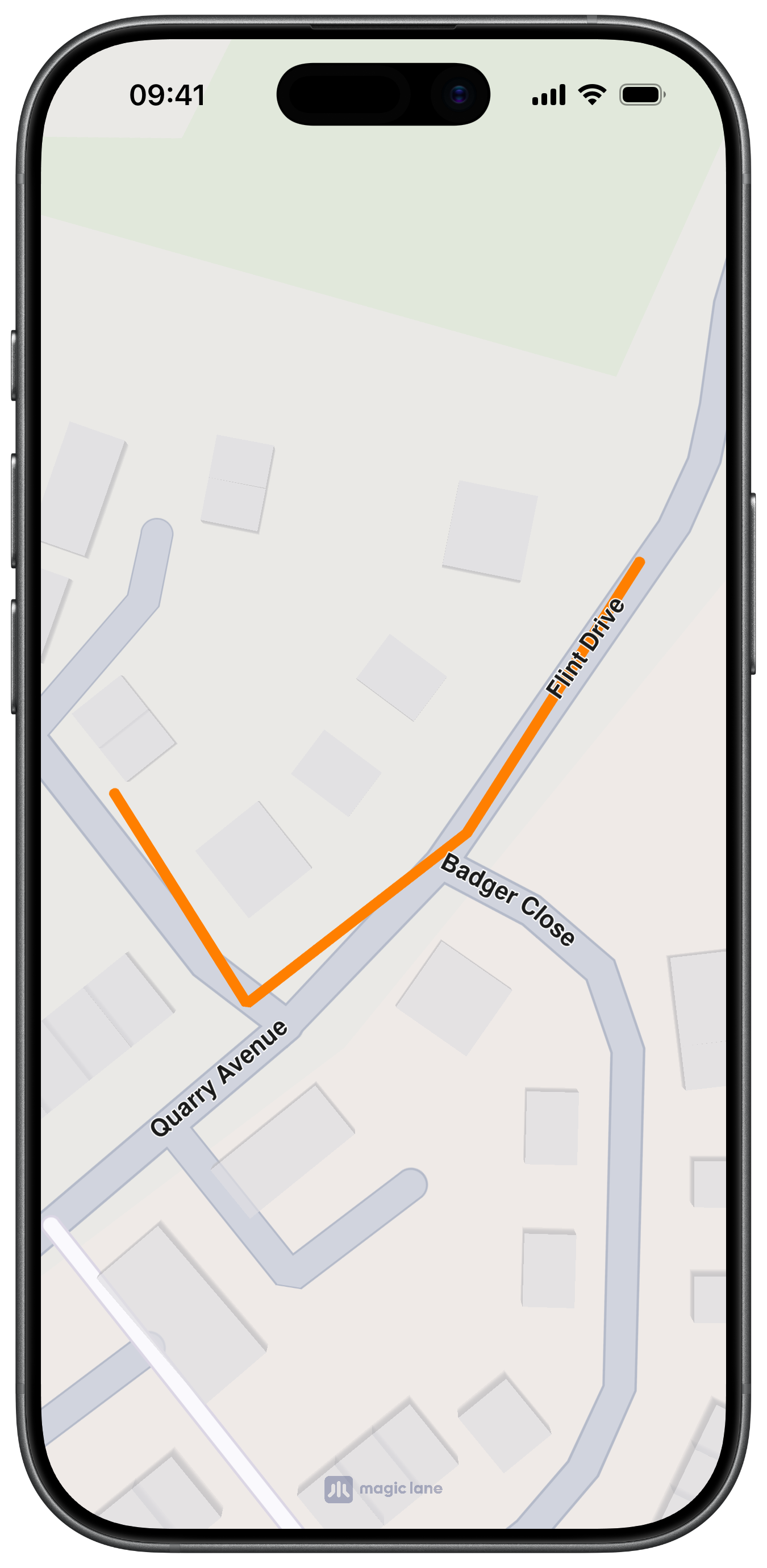
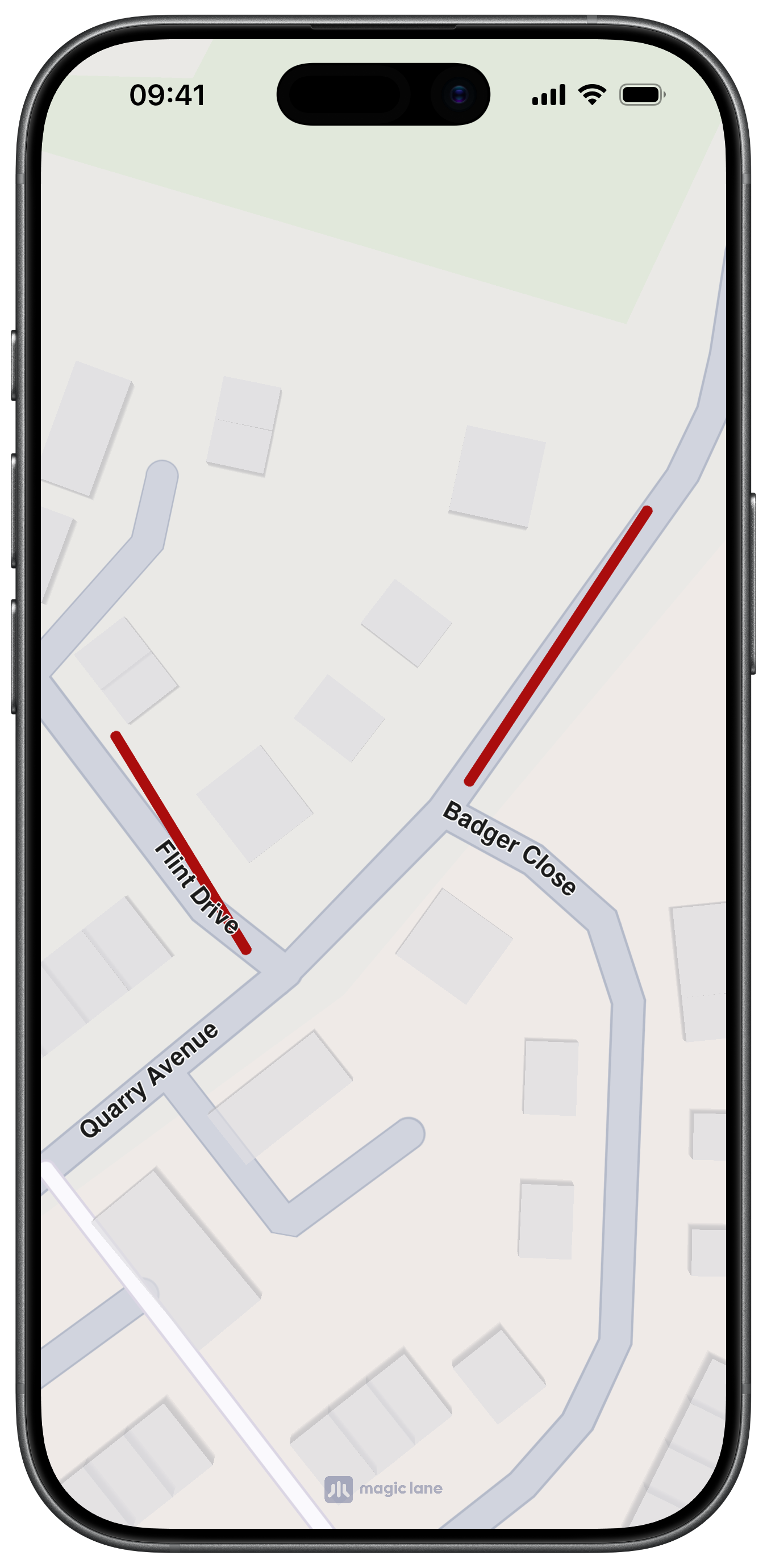
MarkerObject stores coordinates grouped into marker parts. Coordinates in the same part are connected for polyline/polygon marker collections, while different parts stay independent. You can append coordinates in order or insert at a specific index.
Code used for creating a marker with coordinates added to the same part:
let marker = MarkerObject(coordinates: [
    CoordinatesObject.coordinates(withLatitude: 52.1459, longitude: 1.0613),
    CoordinatesObject.coordinates(withLatitude: 52.14569, longitude: 1.0615),
    CoordinatesObject.coordinates(withLatitude: 52.14585, longitude: 1.06186),
    CoordinatesObject.coordinates(withLatitude: 52.14611, longitude: 1.06215)
])
Code used for creating a marker with coordinates separated into different parts:
let marker = MarkerObject(coordinates: [
    CoordinatesObject.coordinates(withLatitude: 52.1459, longitude: 1.0613),
    CoordinatesObject.coordinates(withLatitude: 52.14569, longitude: 1.0615)
])

marker.add(
    CoordinatesObject.coordinates(withLatitude: 52.14585, longitude: 1.06186),
    index: -1,
    part: 1
)
marker.add(
    CoordinatesObject.coordinates(withLatitude: 52.14611, longitude: 1.06215),
    index: -1,
    part: 1
)
Add markers to the map
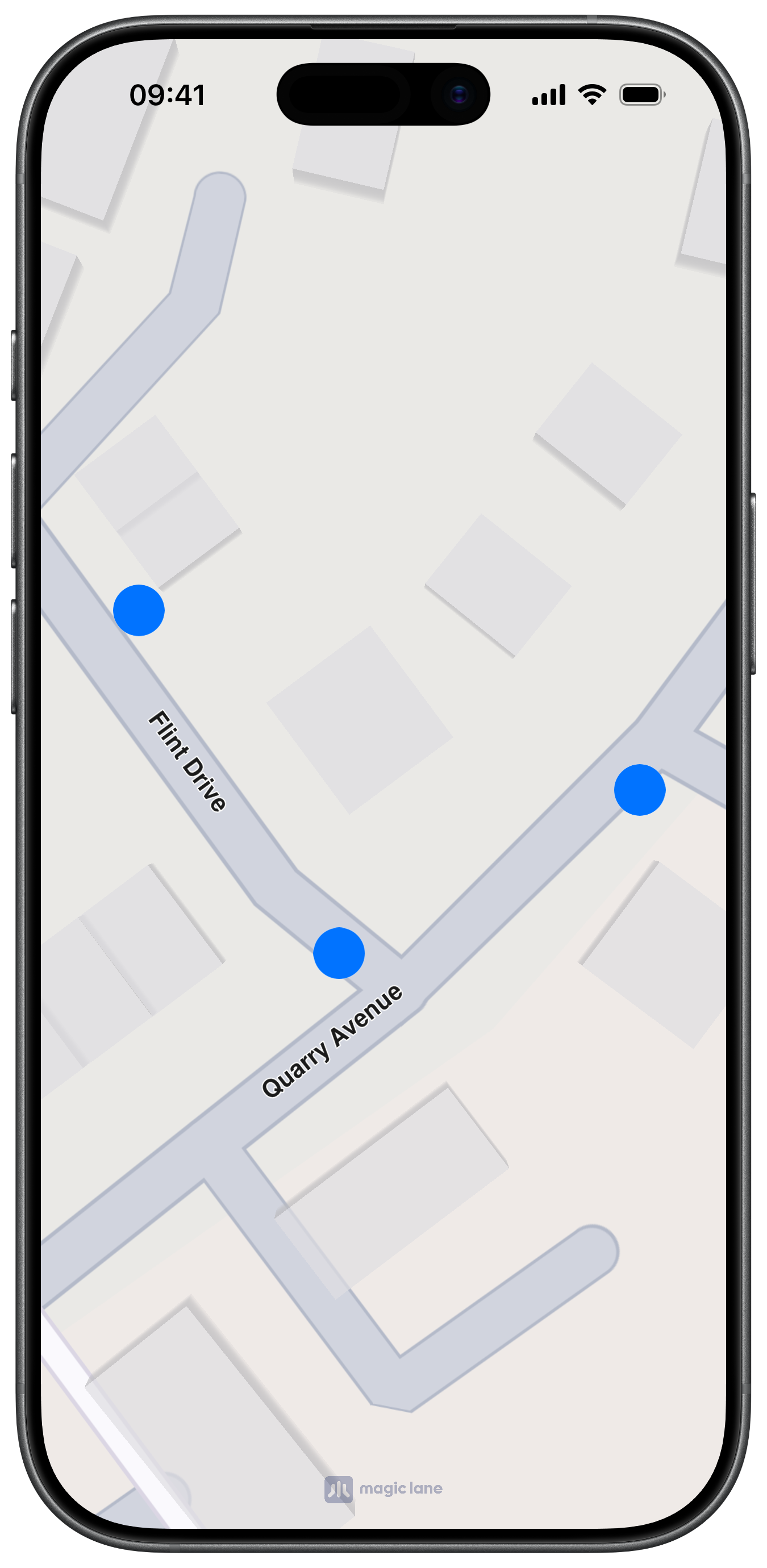
Create MarkerObject instances and group them in a MarkerCollectionObject, then add the collection to the map.
let marker = MarkerObject(coordinates: [
    CoordinatesObject.coordinates(withLatitude: 52.14590, longitude: 1.06130),
    CoordinatesObject.coordinates(withLatitude: 52.14569, longitude: 1.06150),
    CoordinatesObject.coordinates(withLatitude: 52.14579, longitude: 1.06180),
])

let collection = MarkerCollectionObject(name: "points", type: .point)
collection.addMarker(marker)

mapViewController.addMarker(collection)
For MarkerCollectionObject, choose a marker type that matches your geometry: .point, .polyline, .polygon, or .area.
Marker types
MarkerCollectionTypePointfor point markersMarkerCollectionTypePolylinefor line markersMarkerCollectionTypePolygonfor filled polygonsMarkerCollectionTypeAreafor top-level area overlays
Point markers
Point markers are rendered as icons and can be labeled or grouped at configured zoom levels.
Polyline markers
Polyline markers render connected segments for coordinates in the same part.
Polygon markers
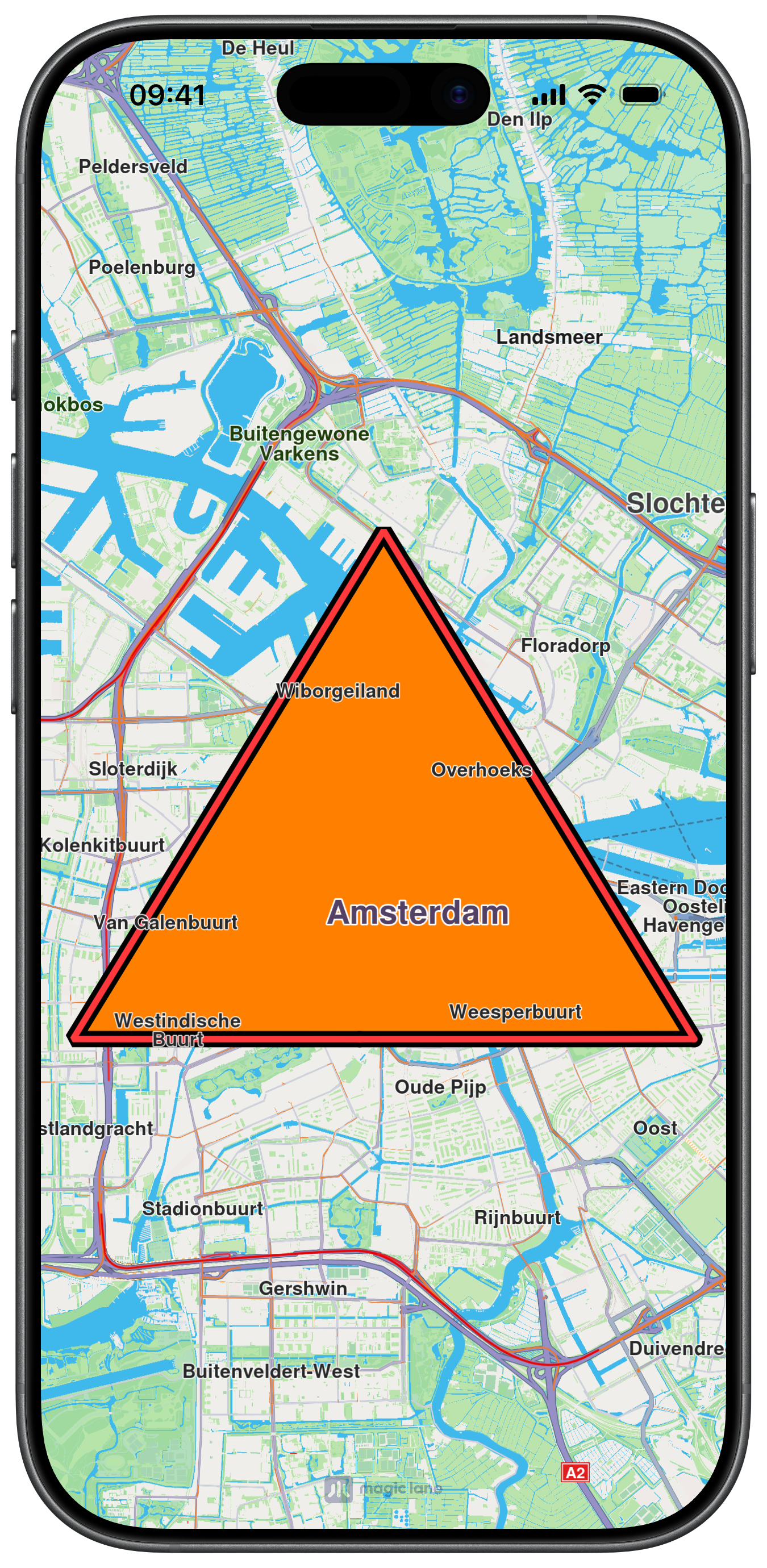
Polygon markers render filled areas when each part has at least three coordinates.
If a polygon part has fewer than three coordinates, it is rendered as an open polyline.
Polyline and polygon example
let line = MarkerObject(coordinates: [
    CoordinatesObject.coordinates(withLatitude: 52.360495, longitude: 4.936882),
    CoordinatesObject.coordinates(withLatitude: 52.360495, longitude: 4.836882),
    CoordinatesObject.coordinates(withLatitude: 52.410495, longitude: 4.886882),
])

// change type to .polyline for open polyline rendering
let lines = MarkerCollectionObject(name: "polyExample", type: .polygon)
lines.addMarker(line)
lines.setInnerColor(.systemRed)
lines.setOuterColor(.black)
lines.setInnerSize(1.0)
lines.setOuterSize(1.4)

mapViewController.addMarker(lines)
Customize marker appearance
You can style a collection directly or pass MarkerCollectionRenderSettingsObject when adding.
MarkerCollectionRenderSettingsObject supports type-specific customization:
- Point markers:
pointImage,imageSize,labelTextSize,labelTextColor,labelingMode - Polyline markers:
polylineInnerColor,polylineOuterColor,polylineInnerSize,polylineOuterSize - Polygon markers:
polygonFillColor
All size values are in millimeters.
Properties not applicable to the collection type are ignored.
let settings = MarkerCollectionRenderSettingsObject()
settings.pointImage = UIImage(systemName: "mappin.circle.fill")
settings.imageSize = 4.0
settings.labelTextSize = 2.6
settings.labelingMode = NSNumber(
    value: MarkerLabelingMode.item.rawValue |
           MarkerLabelingMode.textAbove.rawValue
)
settings.pointsGroupingZoomLevel = 70

mapViewController.addMarker(collection, renderSettingsObject: settings)
Labeling and clustering
let clusteredCollection = MarkerCollectionObject(name: "poi-clustered", type: .point)

for index in 0..<40 {
    let latitude = 52.3676 + Double(index % 8) * 0.0012
    let longitude = 4.9041 + Double(index / 8) * 0.0012

    let point = MarkerObject(coordinates: [
        CoordinatesObject.coordinates(withLatitude: latitude, longitude: longitude)
    ])
    clusteredCollection.addMarker(point)
}

let clusteringSettings = MarkerCollectionRenderSettingsObject()
clusteringSettings.imageSize = 3.8
clusteringSettings.labelTextSize = 2.4
clusteringSettings.labelGroupTextSize = 2.6
clusteringSettings.labelingMode = NSNumber(
    value: MarkerLabelingMode.item.rawValue |
           MarkerLabelingMode.group.rawValue |
           MarkerLabelingMode.textAbove.rawValue
)
clusteringSettings.pointsGroupingZoomLevel = 70

mapViewController.addMarker(clusteredCollection, renderSettingsObject: clusteringSettings)

// Compare behavior around the grouping threshold.
let focus = CoordinatesObject.coordinates(withLatitude: 52.3690, longitude: 4.9060)
mapViewController.center(onCoordinates: focus, zoomLevel: 72, animationDuration: 0)
Set pointsGroupingZoomLevel to 0 to disable grouping for that collection. Be careful though, as a large number of visible point markers may impact performance.
Remove markers
mapViewController.removeMarker(collection)
mapViewController.removeAllMarkers()

let current = mapViewController.getAvailableMarkers()
print("marker collections on map: \(current.count)")