Display landmarks
Learn how to filter, add, and highlight landmarks on the map.
Filter landmarks by category
Use LandmarkStoreContextCollection from MapViewPreferencesContext to control which store/category combinations are visible.
guard let stores = mapViewController.getPreferences().getLandmarkStoreCollection() else {
    return
}

// Remove all currently displayed generic POI categories.
let genericCategories = GenericCategoriesContext()
let genericStoreId = genericCategories.getLandmarkStoreId()
_ = stores.removeAllStoreCategories(genericStoreId)

// Display only gas stations from generic categories.
_ = stores.addStoreCategoryId(genericStoreId, categoryId: Int32(GenericCategoryType.gasStation.rawValue))
Add custom landmarks
Create a custom landmark, add it to a landmark store, then make that store visible.
let customStore = LandmarkStoreContext(name: "custom-landmarks")

let landmark = LandmarkObject.landmark(
    withName: "Charging stop",
    location: CoordinatesObject.coordinates(withLatitude: 52.3780, longitude: 4.9008)
)
landmark.setLandmarkDescription("Fast charging station")

_ = customStore.addLandmark(landmark)

if let stores = mapViewController.getPreferences().getLandmarkStoreCollection() {
    _ = stores.addAllStoreCategories(customStore.getId())
}
Initializing a LandmarkStoreContext will create a file inside the app's sandboxed file system if it doesn't already exist.
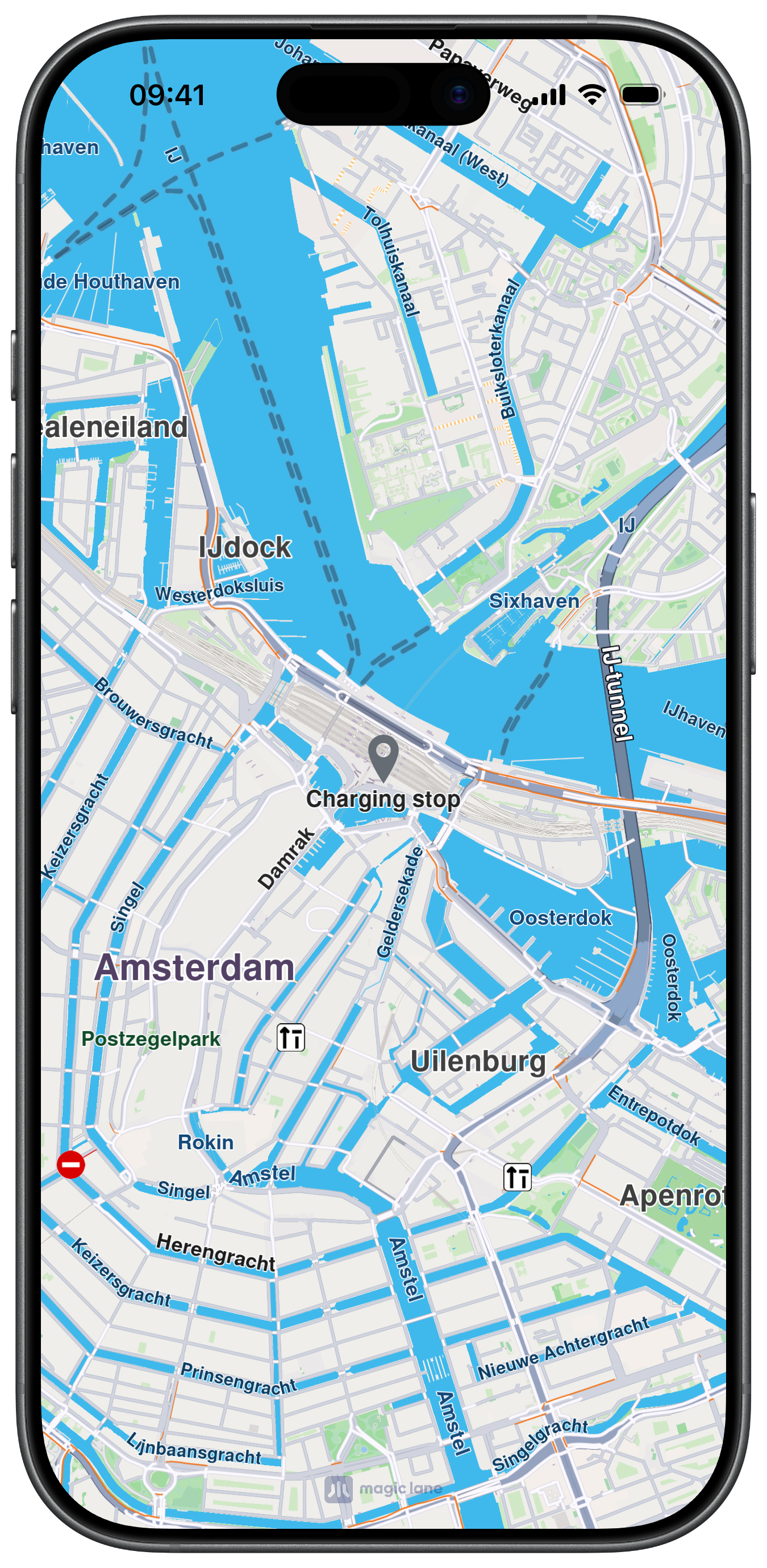
Registering a landmark store from an external file is also possible with LandmarkStoreContextService:
func registerFromURL(url: URL) {

    let name = "LandmarkStoreFromURL"

    let landmarkStoreService = LandmarkStoreContextService()

    let identifier = landmarkStoreService.registerLandmarkStoreContext(name, path: url.relativePath)

    if identifier > 0 {

        let landmarkStore = landmarkStoreService.getLandmarkStoreContext(withIdentifier: Int32(identifier))

        // Use landmarkStore as needed, for example to add landmarks or retrieve data
    }
}
Highlight landmarks
Highlights allow you to customize landmarks, making them more visible and providing render settings options. By default, highlighted landmarks are not selectable but can be made selectable if necessary.
Highlighting a landmark allows you to:
- Customize its appearance
- Temporarily isolate it from standard interactions (default behavior, can be modified)
Landmarks retrieved through search can be highlighted to enhance their prominence and customize their appearance. Custom landmarks can also be highlighted, but must be added to a LandmarkStore first.
let settings = HighlightRenderSettings()
settings.showPin = true
settings.imageSize = 7
settings.options = Int32(
    HighlightOption.showLandmark.rawValue |
    HighlightOption.overlap.rawValue |
    HighlightOption.noFading.rawValue
)

mapViewController.presentHighlights([landmark], settings: settings, highlightId: 2)
Highlight options
The HighlightOption enum provides options to customize highlighted landmark behavior:
| Option | iOS enum case | Description |
|---|---|---|
showLandmark | HighlightOption.showLandmark | Shows the landmark icon and text. Enabled by default. |
showContour | HighlightOption.showContour | Shows the landmark contour area when available. Enabled by default. |
group | HighlightOption.group | Groups landmarks in close proximity. Available only with showLandmark. Disabled by default. |
overlap | HighlightOption.overlap | Overlaps highlight over existing map data. Available only with showLandmark. Disabled by default. |
noFading | HighlightOption.noFading | Disables highlight fading in/out. Available only with showLandmark. Disabled by default. |
bubble | HighlightOption.bubble | Displays highlights in a bubble with custom icon placement. Available only with showLandmark. Automatically invalidates group. Disabled by default. |
selectable | HighlightOption.selectable | Makes highlights selectable from cursor/touch selection flow. Available only with showLandmark. Disabled by default. |
When showing bubble highlights, if the whole bubble does not fit on the screen, it will not be displayed at all. Make sure to truncate the text if the text length is very long.
For a landmark contour to be displayed, the landmark must have a valid contour area. Landmarks with a polygon representation on OpenStreetMap will have a contour area. Make sure the landmarks you want to highlight with contours have valid contour data with isContourGeograficAreaEmpty()
Remove highlights
// remove highlights with a specific ID
mapViewController.removeHighlight(2)

// remove all highlights
mapViewController.removeHighlights()
Remove landmark categories from map
let genericStoreId = GenericCategoriesContext().getLandmarkStoreId()
_ = mapViewController.getPreferences()
    .getLandmarkStoreCollection()?
    .removeAllStoreCategories(genericStoreId)