
Road Block

Last updated: April 7, 2026 | 2 minutes read

This example demonstrates how to use GEMKit in a UIKit application to set a road block ahead of the simulated position during navigation, forcing the engine to recalculate around the blocked segment.

Check the full implementation on GitHub.
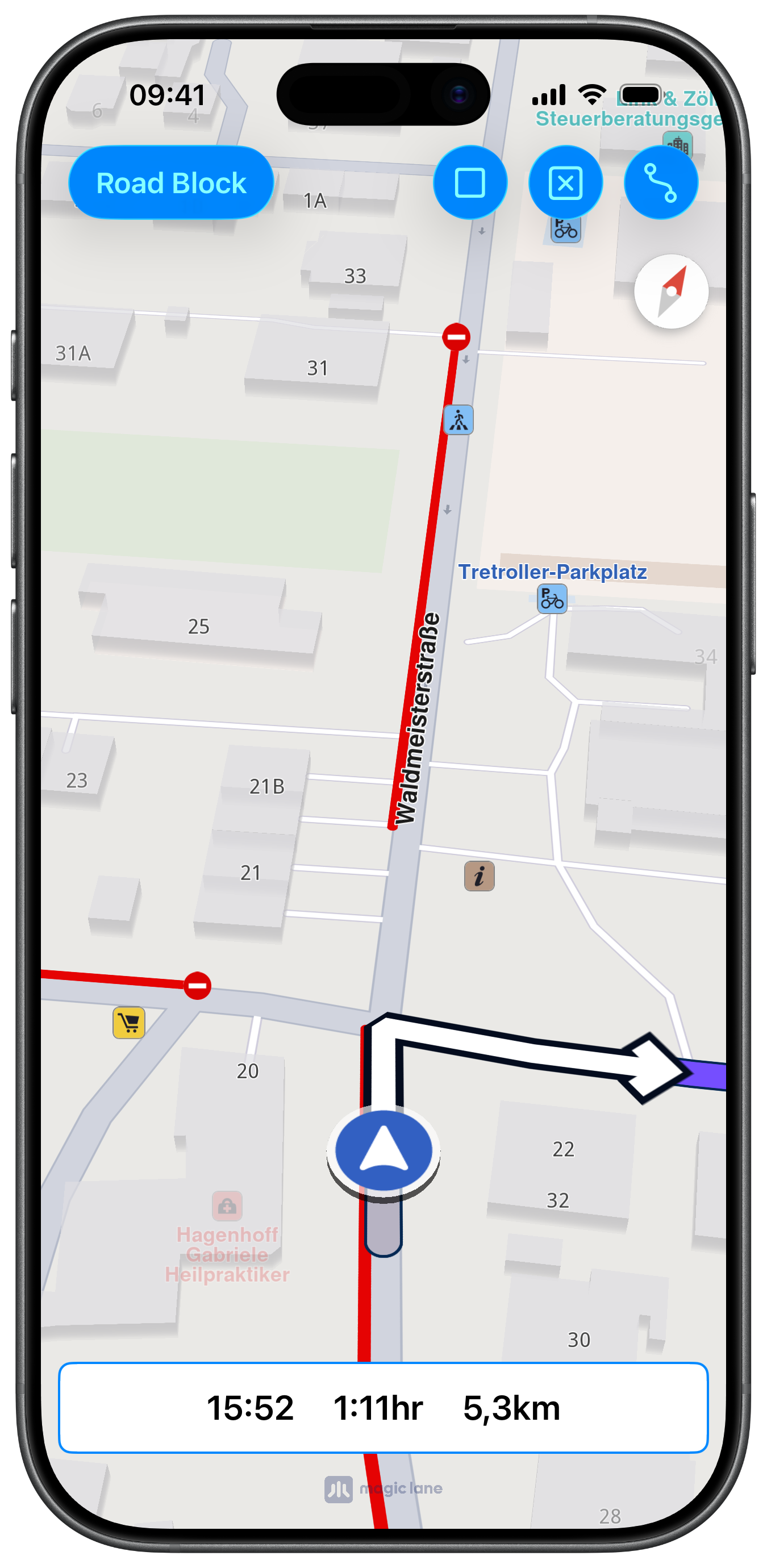
Rerouting after adding roadblocks

UI and Map Integration

A Road Block button is added to the left side of the navigation bar and is enabled only once a simulation is active:

ViewController.swiftView on GitHub
class ViewController: UIViewController, MapViewControllerDelegate, NavigationContextDelegate {

var mapViewController: MapViewController?
var navigationContext: NavigationContext?
var soundContext: SoundContext?

var mainRoute: RouteObject?
var panelNavigationViewController: NavigationViewController?

override func viewDidLoad() {

super.viewDidLoad()

self.createMapView()
self.mapViewController!.startRender()

self.addRoadBlockButton()
self.addRouteButton()
}

func addRoadBlockButton() {

let barButton = UIBarButtonItem.init(title: "Road Block", style: .done, target: self, action: #selector(roadBlockAction))
barButton.isEnabled = false

self.navigationItem.leftBarButtonItem = barButton
}

Adding a Road Block During Navigation

When the button is tapped while navigation or simulation is active, a 100-metre road block is inserted starting from the current position. The engine immediately reroutes:

ViewController.swiftView on GitHub
@objc func roadBlockAction() {

guard let navigationContext = self.navigationContext else { return }

if navigationContext.isSimulationActive() || navigationContext.isNavigationActive() {

let length = 100 // m

navigationContext.setRoadBlockWithLength(length, starting: -1)
}
}
info

The NavigationViewController used in this example is a full-featured turn-by-turn panel displaying turn images, distance, lane guidance, traffic events, signpost overlays, and safety alerts. Due to its size it is not reproduced here — check the full implementation on GitHub.