Search Category
- UIKit
This example demonstrates how to use GEMKit in a UIKit application to search for Landmarks in a specific category.
Check the full implementation on GitHub.
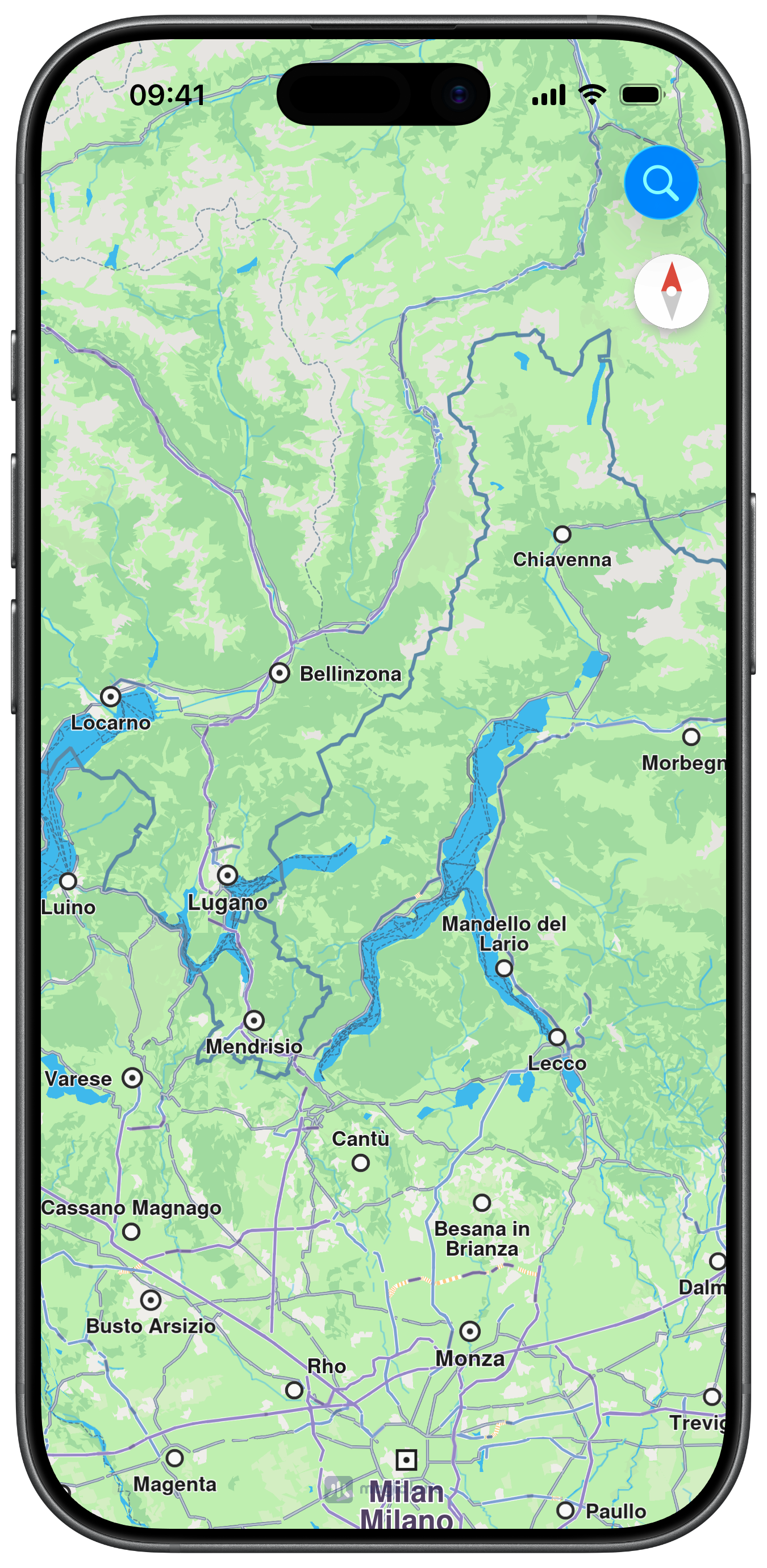
Initial screen
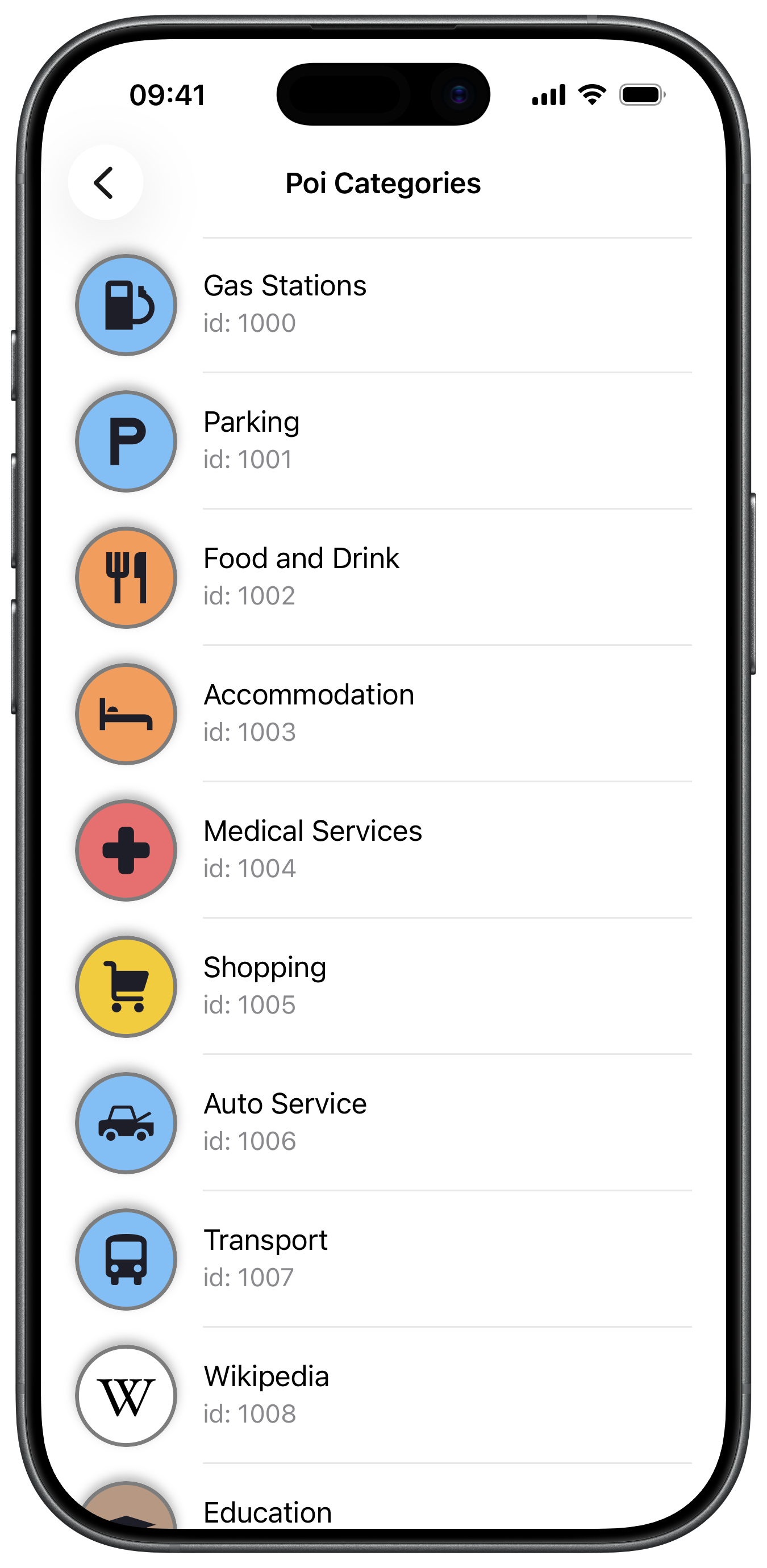
Categories List
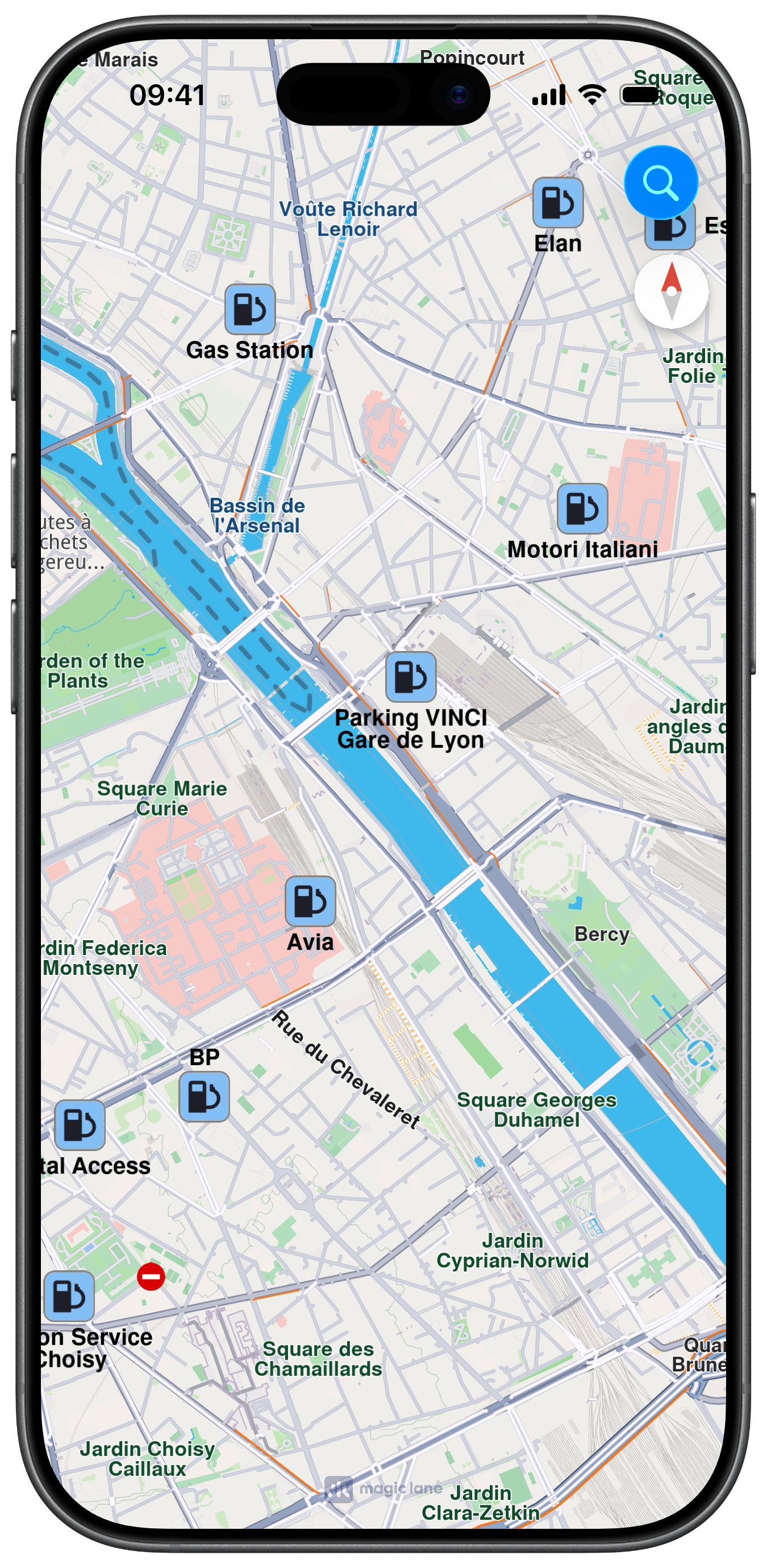
Gas Station Category Search
Map Display and Search Button
The following code outlines the map view with a search button in the navigation bar. Tapping the search button will navigate to a list of categories:
ViewController.swiftView on GitHub
class ViewController: UIViewController {

    var mapViewController: MapViewController?

    override func viewDidLoad() {
        super.viewDidLoad()
        // Do any additional setup after loading the view.

        if let navigationController = self.navigationController {

            let appearance = navigationController.navigationBar.standardAppearance

            navigationController.navigationBar.scrollEdgeAppearance = appearance
        }

        self.createMapView()

        self.mapViewController!.startRender()

        self.addSearchButton()
    }

    // MARK: - Map View

    func createMapView() {

        self.mapViewController = MapViewController.init()
        self.mapViewController!.view.backgroundColor = UIColor.systemBackground

        self.addChild(self.mapViewController!)
        self.view.addSubview(self.mapViewController!.view)
        self.mapViewController!.didMove(toParent: self)

        self.mapViewController?.view.translatesAutoresizingMaskIntoConstraints = false
        NSLayoutConstraint.activate([
            self.mapViewController!.view.topAnchor.constraint(equalTo: self.view.topAnchor),
            self.mapViewController!.view.leadingAnchor.constraint(equalTo: self.view.leadingAnchor),
            self.mapViewController!.view.bottomAnchor.constraint(equalTo: self.view.bottomAnchor),
            self.mapViewController!.view.trailingAnchor.constraint(equalTo: self.view.trailingAnchor)
        ])
    }

    // MARK: - Search

    func addSearchButton() {

        let barButton = UIBarButtonItem.init(
            image: UIImage.init(systemName: "magnifyingglass"), style: .done, target: self, action: #selector(searchButton(item:)))

        self.navigationItem.rightBarButtonItems = [barButton]
    }

    @objc func searchButton(item: UIBarButtonItem) {

        let poiListViewController = PoiCategoriesViewController.init()

        self.navigationController?.pushViewController(poiListViewController, animated: true)
    }
}
Preparing Categories List and Performing Search
The code for PoiCategoriesViewController prepares a list of categories and performs a search when a category is selected. The search results are then highlighted on the map:
PoiCategoriesViewController.swiftView on GitHub
class PoiCategoriesViewController: UITableViewController {

    let searchContext = SearchContext.init()

    let categoriesContext = GenericCategoriesContext.init()

    var categoriesList: [LandmarkCategoryObject] = []

    deinit {

        NSLog("PoiCategoriesViewController: deinit")
    }

    // MARK: - Life Cycle

    override func viewDidLoad() {

        super.viewDidLoad()

        self.title = "Poi Categories"
        self.navigationItem.largeTitleDisplayMode = .never

        self.view.backgroundColor = UIColor.systemBackground

        self.searchContext.setMaxMatches(40)
        self.searchContext.setSearchMapPOIs(true)

        self.refreshList()
    }

    // MARK: - Refresh

    func refreshList() {

        self.categoriesList = self.categoriesContext.getCategories()

        self.tableView.reloadData()
    }

    // MARK: - UITableViewData

    override func numberOfSections(in tableView: UITableView) -> Int {

        return 1
    }

    override func tableView(_ tableView: UITableView, numberOfRowsInSection section: Int) -> Int {

        let rows = self.categoriesList.count

        return rows
    }

    override func tableView(_ tableView: UITableView, cellForRowAt indexPath: IndexPath) -> UITableViewCell {

        let identifier = "defaultCellId"

        var cell = tableView.dequeueReusableCell(withIdentifier: identifier)

        if cell == nil {

            cell = UITableViewCell.init(style: .subtitle, reuseIdentifier: identifier)

            cell!.textLabel!.numberOfLines = 0
            cell!.detailTextLabel!.numberOfLines = 0
        }

        self.setupText(tableView: tableView, cell: cell!, indexPath: indexPath)

        self.setupImage(tableView: tableView, cell: cell!, indexPath: indexPath)

        return cell!
    }

    func setupText(tableView: UITableView, cell: UITableViewCell, indexPath: IndexPath) {

        let category = self.categoriesList[indexPath.row]

        let text = category.getName()
        cell.textLabel?.text = text

        let description = "id: " + String(category.getIdentifier())
        cell.detailTextLabel?.text = description
    }

    func setupImage(tableView: UITableView, cell: UITableViewCell, indexPath: IndexPath) {

        let scale = UIScreen.main.scale
        let size = CGSize.init(width: 60.0 * scale, height: 60.0 * scale)

        let category = self.categoriesList[indexPath.row]

        if let image = category.getImage(size) {

            cell.imageView?.image = image
            cell.imageView?.layer.shadowOpacity = 0.8
            cell.imageView?.layer.shadowColor = UIColor.lightGray.cgColor

        } else {

            cell.imageView?.image = nil
            cell.imageView?.layer.shadowOpacity = 0
            cell.imageView?.layer.shadowColor = nil
        }
    }

    override func tableView(_ tableView: UITableView, titleForHeaderInSection section: Int) -> String? {
        return nil
    }

    override func tableView(_ tableView: UITableView, estimatedHeightForRowAt indexPath: IndexPath) -> CGFloat {
        return 80
    }

    override func tableView(_ tableView: UITableView, heightForRowAt indexPath: IndexPath) -> CGFloat {
        return 80
    }

    override func tableView(_ tableView: UITableView, didSelectRowAt indexPath: IndexPath) {

        tableView.deselectRow(at: indexPath, animated: true)

        let category = self.categoriesList[indexPath.row]

        let success = self.searchContext.setCategory(category)

        guard success == true else {
            return
        }

        if let viewController = self.navigationController?.viewControllers.first as? ViewController {

            self.navigationController?.popViewController(animated: true)

            if let mapViewController = viewController.mapViewController {

                let location = CoordinatesObject.coordinates(withLatitude: 48.840827, longitude: 2.371899)

                mapViewController.removeHighlights()

                mapViewController.center(onCoordinates: location, zoomLevel: 60, animationDuration: 1200)

                self.searchContext.searchAround(withLocation: location) { (results: [LandmarkObject]) in

                    let settings = HighlightRenderSettings.init()

                    mapViewController.presentHighlights(results, settings: settings)
                }
            }
        }
    }
}