# Map Style Following Theme
Last updated:
October 18, 2026
\| 2 minutes read
* UIKit
* SwiftUI
This example demonstrates how to use **GEMKit** in a UIKit application to apply a map style that follows the device theme (light/dark mode).
Check the full implementation on [GitHub](https://github.com/magiclane/magiclane-maps-sdk-examples-for-ios/tree/main/UIKit/3DScene/MapStyleFollowingTheme).
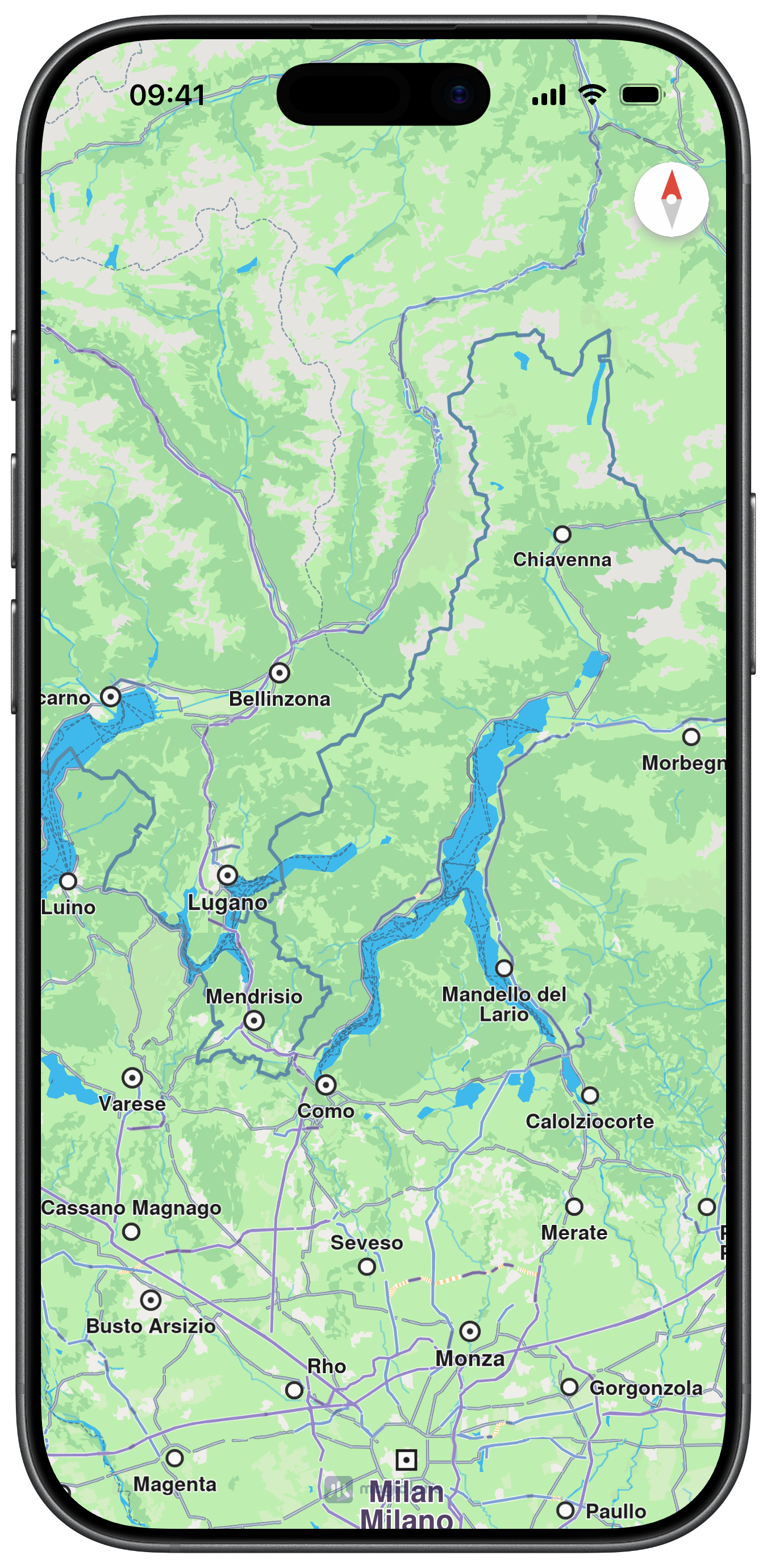
**Map Light Theme**
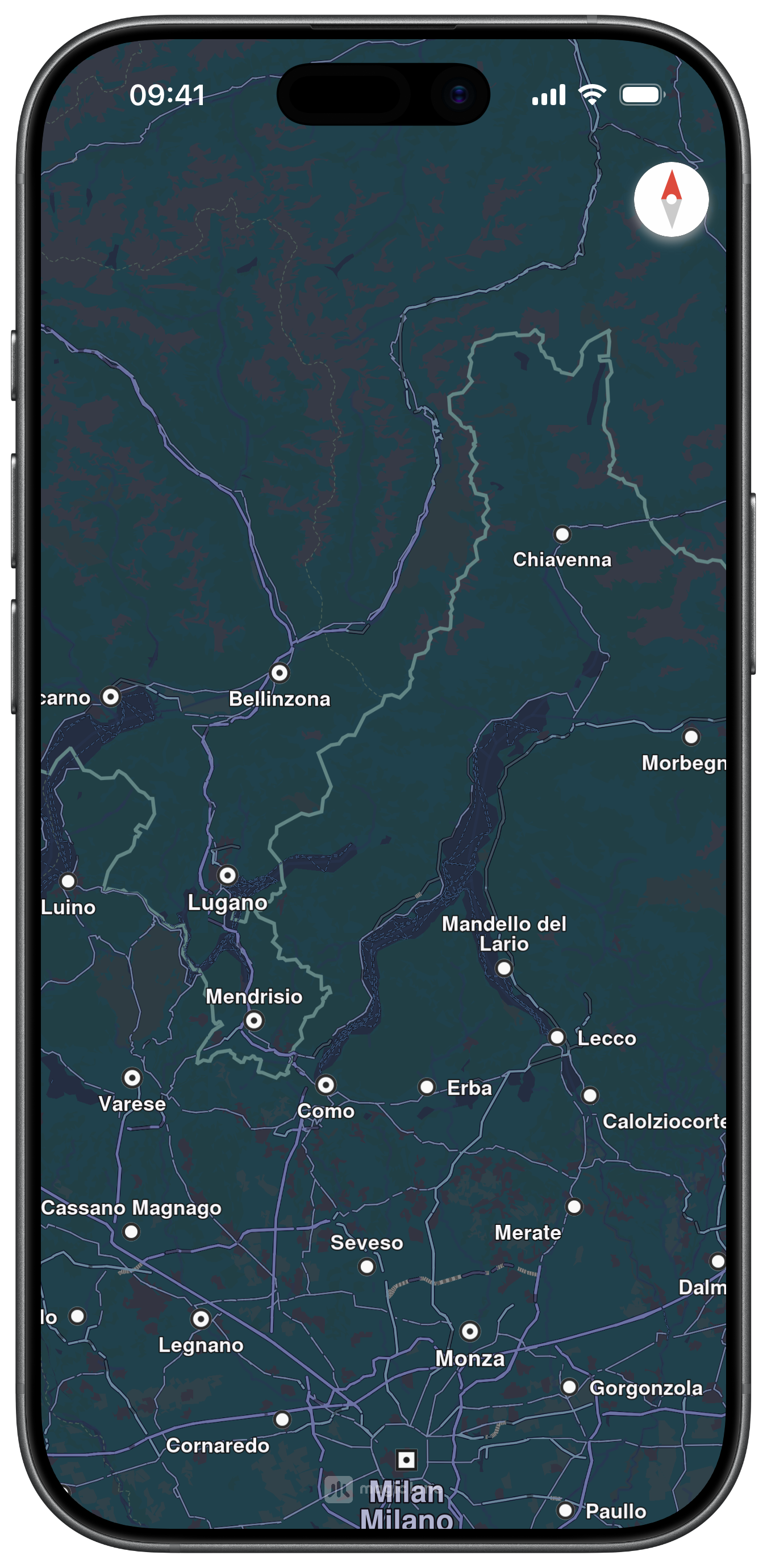
**Map Dark Theme**
### Applying the Style on Load and Theme Change[](#applying-the-style-on-load-and-theme-change "Direct link to Applying the Style on Load and Theme Change")
`applyStyleForCurrentTheme()` reads `traitCollection.userInterfaceStyle` to choose between `MapStyleIdentifiers.day` and `.night`, then applies it via `applyStyle(withStyleIdentifier:smoothTransition:)`. It is called once in `viewDidLoad` and again in `traitCollectionDidChange(_:)` whenever the system appearance changes:
ViewController.swift[View on GitHub](https://github.com/magiclane/magiclane-maps-sdk-examples-for-ios/tree/main/UIKit/3DScene/MapStyleFollowingTheme/MapStyleFollowingTheme/ViewController.swift)
```swift
override func viewDidLoad() {
super.viewDidLoad()
// ...
self.applyStyleForCurrentTheme()
}
override func traitCollectionDidChange(_ previousTraitCollection: UITraitCollection?) {
super.traitCollectionDidChange(previousTraitCollection)
if previousTraitCollection?.userInterfaceStyle != traitCollection.userInterfaceStyle {
self.applyStyleForCurrentTheme()
}
}
// MARK: - Style
func applyStyleForCurrentTheme() {
let styleIdentifier: Int
if traitCollection.userInterfaceStyle == .dark {
styleIdentifier = MapStyleIdentifiers.night.rawValue
} else {
styleIdentifier = MapStyleIdentifiers.day.rawValue
}
self.mapViewController?.applyStyle(withStyleIdentifier: styleIdentifier, smoothTransition: false)
}
```
This example demonstrates how to use **GEMKit** in a SwiftUI application to apply a map style that follows the device theme (light/dark mode).
Check the full implementation on [GitHub](https://github.com/magiclane/magiclane-maps-sdk-examples-for-ios/tree/main/SwiftUI/3DScene/MapStyleFollowingTheme).

**Map Light Theme**

**Map Dark Theme**
### Map Display and Style Following OS Theme[](#map-display-and-style-following-os-theme "Direct link to Map Display and Style Following OS Theme")
`@Environment(\.colorScheme)` observes the current system appearance. The `.mapStyle()` modifier is called with the result of `getStyleFollowingOS()`, which returns `MapStyleIdentifiers.night` in dark mode and `.day` in light mode. SwiftUI automatically re-evaluates the view whenever `colorScheme` changes, so the map style updates in real time:
ContentView\.swift[View on GitHub](https://github.com/magiclane/magiclane-maps-sdk-examples-for-ios/tree/main/SwiftUI/3DScene/MapStyleFollowingTheme/MapStyleFollowingTheme/ContentView.swift)
```swift
struct ContentView: View {
@Environment(\.colorScheme) var colorScheme
var body: some View {
MapReader { proxy in
MapBase()
.mapStyle(getStyleFollowingOS())
.ignoresSafeArea()
}
}
func getStyleFollowingOS() -> Int {
return colorScheme == .dark ? MapStyleIdentifiers.night.rawValue : MapStyleIdentifiers.day.rawValue
}
}
```