Put your own data on the map
In this tutorial you upload a file of places, add it to a style as a layer, label each place with its name, and show only one category.
Time: about 15 minutes.
Before you start
- A style open in Studio. If this is your first time, start with Your first style in 10 minutes.
- The sample file bucharest-places.geojson: eight places in Bucharest, each with a
name, acategory, aratingand awheelchairflag. Open the link and save the file (Ctrl+S, ⌘S on a Mac). - Prefer a spreadsheet? bucharest-charging-stations.csv holds eight charging stations with
latandloncolumns, and works the same way.
1. Create a data source
- On the Layers screen, open Available Layers › Data Sources Layers.
- Click + Add on the CUSTOM row. A new data source opens in the Properties column.
- Click the name field and type
Bucharest places.
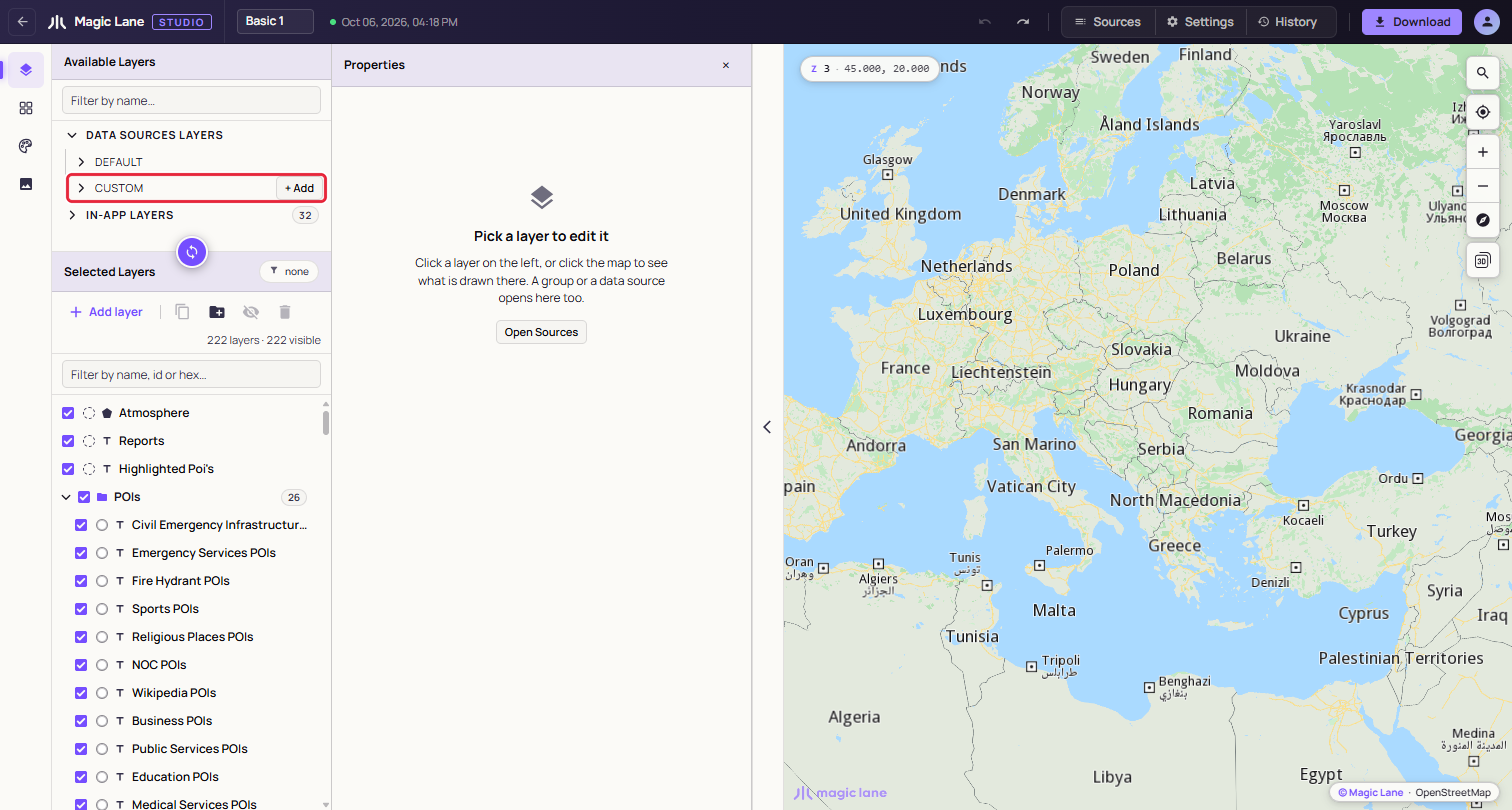
Your own data sources live under CUSTOM.
2. Upload the file
- Click Upload a data file.
- Drop
bucharest-places.geojsonon the dropzone, or click it and pick the file. - The panel says "GeoJSON file successfully parsed (8 features)." Click Append to put them in the data source.
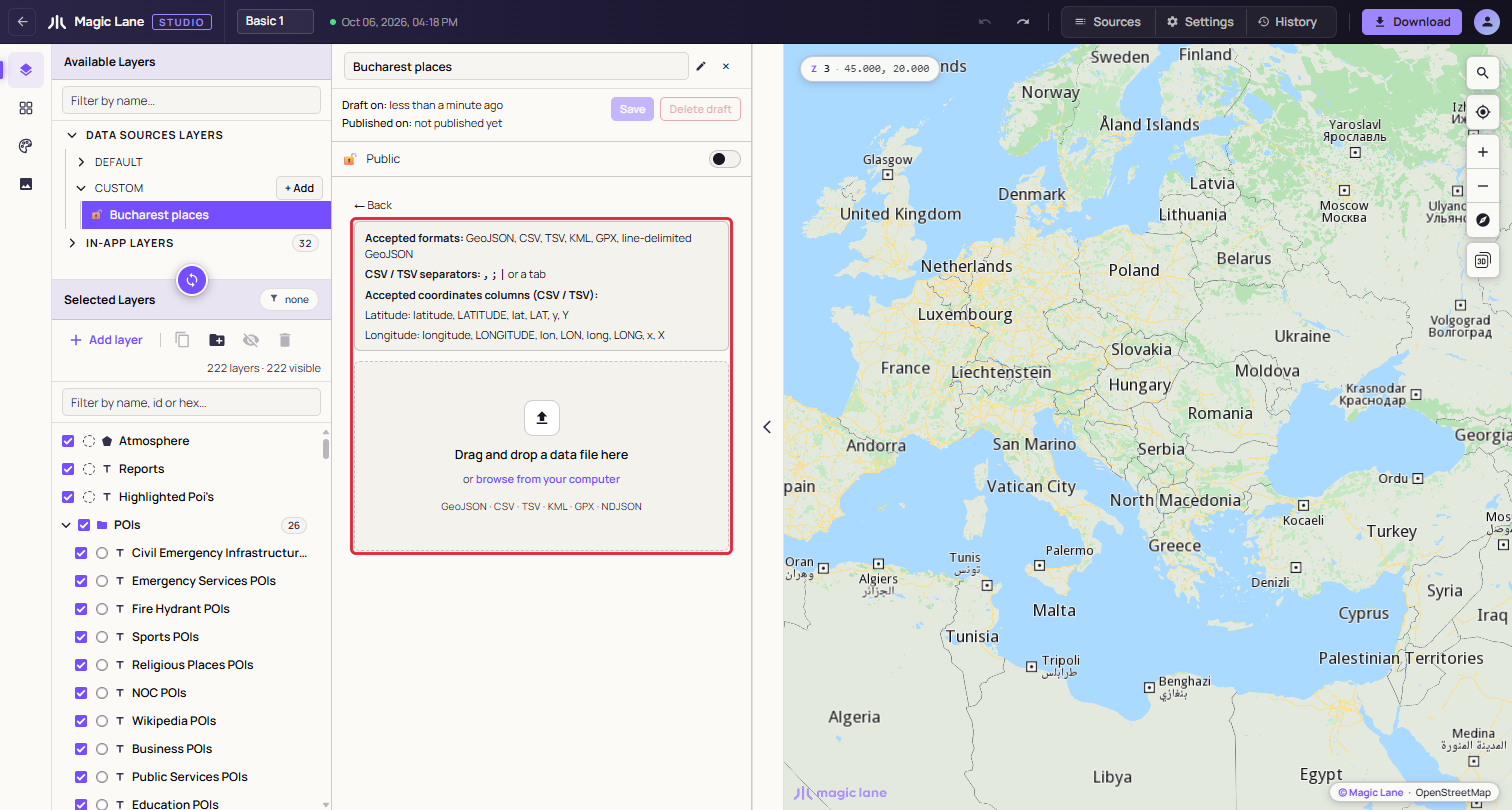
Drop the file anywhere in the dashed area.
Studio reads GeoJSON, CSV, TSV, KML, GPX and line-delimited GeoJSON. See Data sources.
3. Save it
- Click Save. The status line shows "◌ Tiling…" while the server prepares your data.
- After a short wait it reads "✔ Tiled — drag it into Selected Layers to use it.", and a notice says the source is ready.
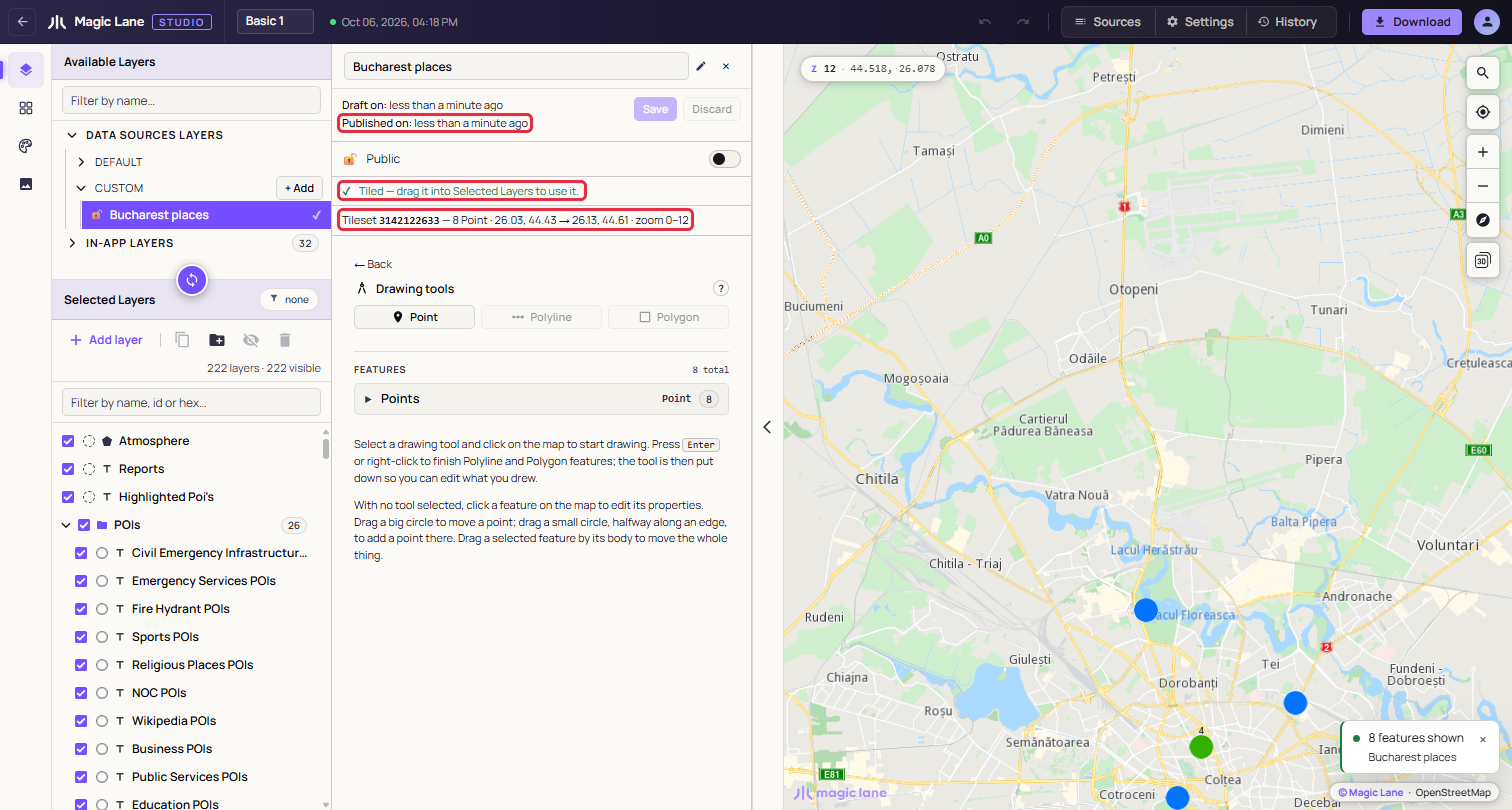
Studio tells you when your data is ready.
4. Add it to the style
- Drag the Bucharest places row from CUSTOM into Selected Layers, near the top of the list so the places are drawn above the roads.
- A layer named after the source is added and selected, and the map moves to Bucharest. Each place is drawn with the map's default marker.
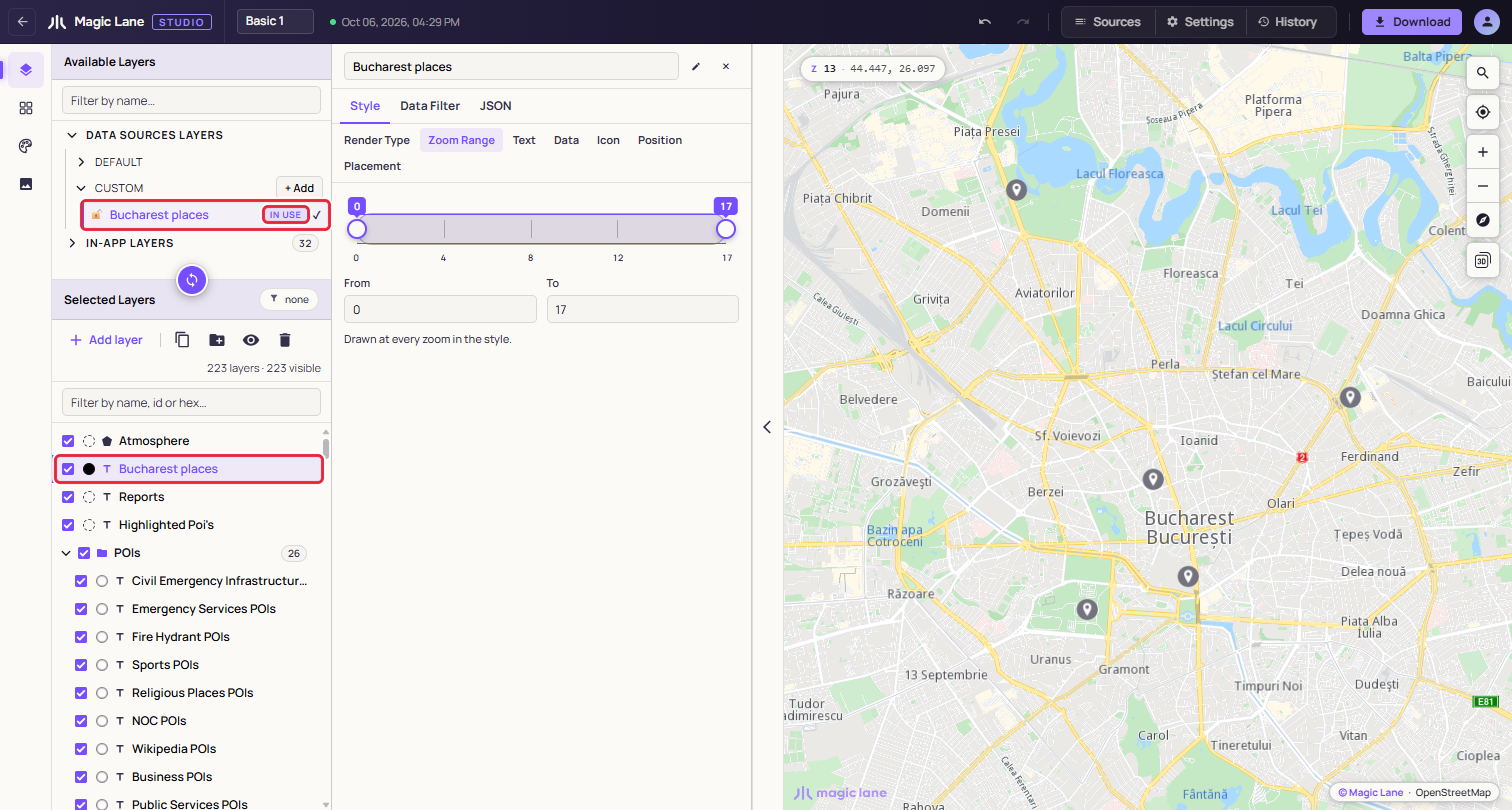
The new layer is selected, ready to style.
5. Label each place with its name
- With the new layer selected, open Style › Text and select Text Field.
- Type
|name|in the box. The bars mean "the value of this field", so every place is labelled with its own name. You can also click thenamechip under "Fields on this layer's data". - Select Inner Color and pick a colour for the text, then Inner Size to make it larger or smaller.
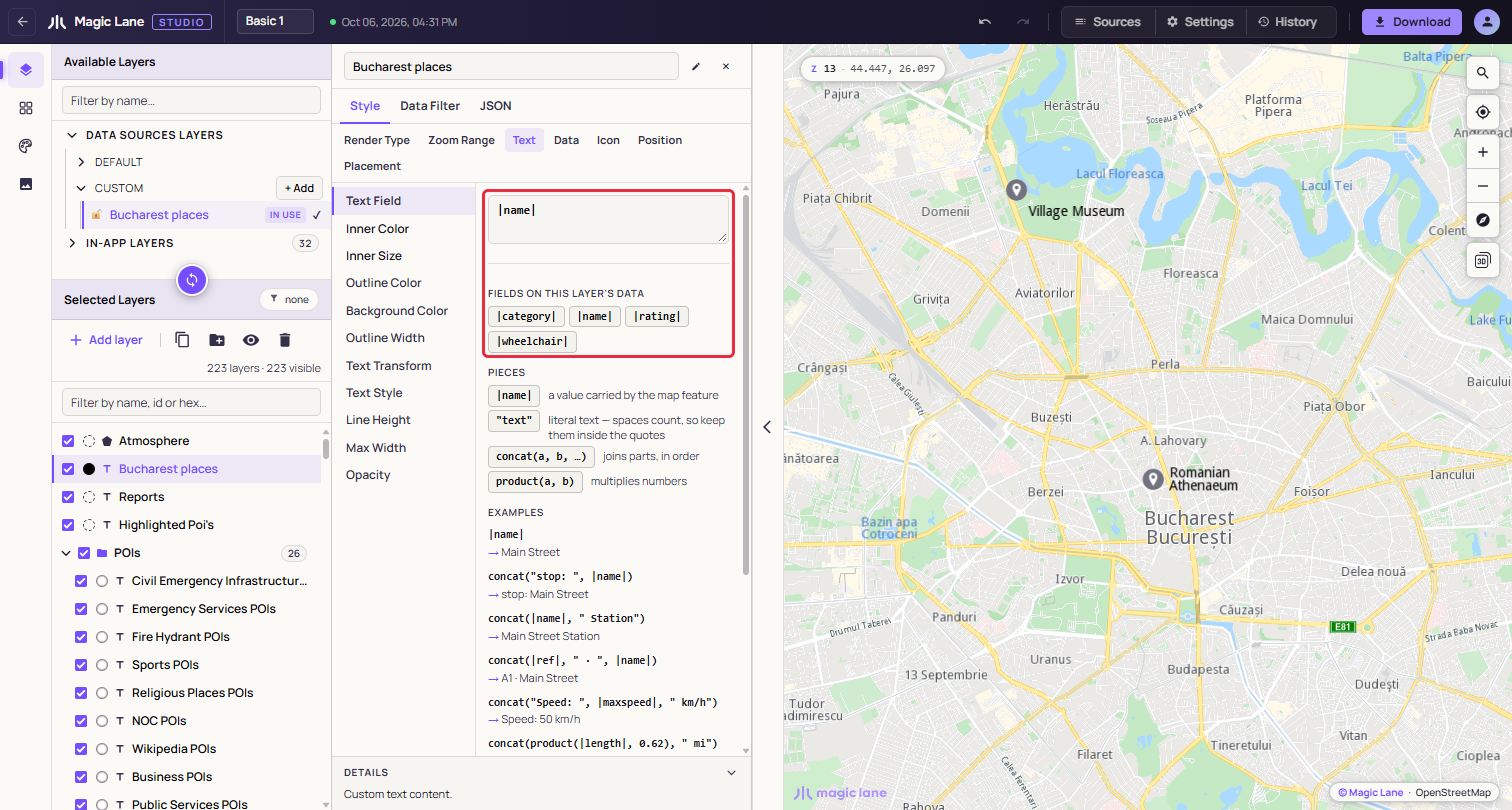
Text Field reads |name|, so each place is labelled with its own name.
To add a word to every label, combine pieces: concat(|name|, " (", |category|, ")") reads "Obor Market (food)".
6. Show only one category
- Open the Data Filter tab and click Add Filter.
- In the first dropdown, pick
category. In the second, pick equals. - Click the value chip and pick
culture. The map now shows only the three museums and concert halls, and the panel counts the matches. - To show more than one category, pick is any of and select each value. Remove filter shows all eight places again.
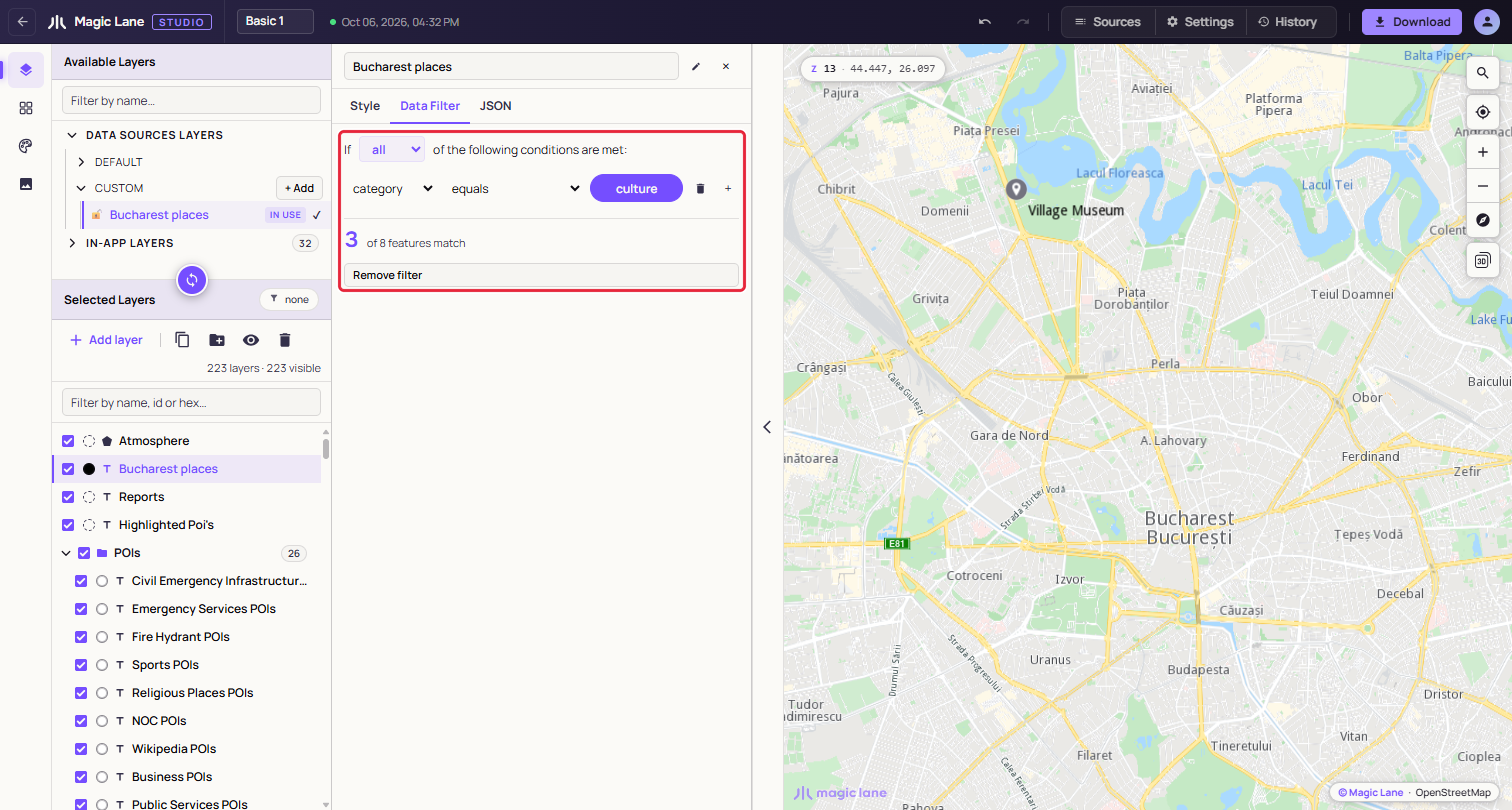
category equals culture: the layer draws only the matching places, and the panel counts them.
Finished product
Your style now carries your own data as a layer: eight places in Bucharest, labelled with their names, filtered to one category. Download the style as in Download, and the layer goes with it.
Next steps
- Give the places your own icon: The image library.
- Draw points, lines and areas yourself: Drawing on the map.
- Add or edit the fields of a place: Features and their properties.