Your first style in 10 minutes
In this tutorial you create a style from a template, recolour its roads, give it a Day and a Night theme, set where it opens, and download both themes as files your app can load.
Time: about 10 minutes.
Before you start
- A Magic Lane portal account. When you are signed in to the portal, you are signed in to Studio. You need nothing else: the tutorial creates the style it works on.
Every change you make is saved as you go, and Ctrl+Z (⌘Z on a Mac) takes back the last style edit, so you can try things freely.
1. Create the style
- In the portal, open Map styles in the sidebar and click New style.
- Keep Basic 1 under Style template and Base under Choose a variation, and click Create new style. The style opens in Studio (see Create a style).
- Wait for "Putting your style on the map…" to clear. The map now shows your style.
- Click the style name at the left of the top bar, type
My first styleand press Enter.
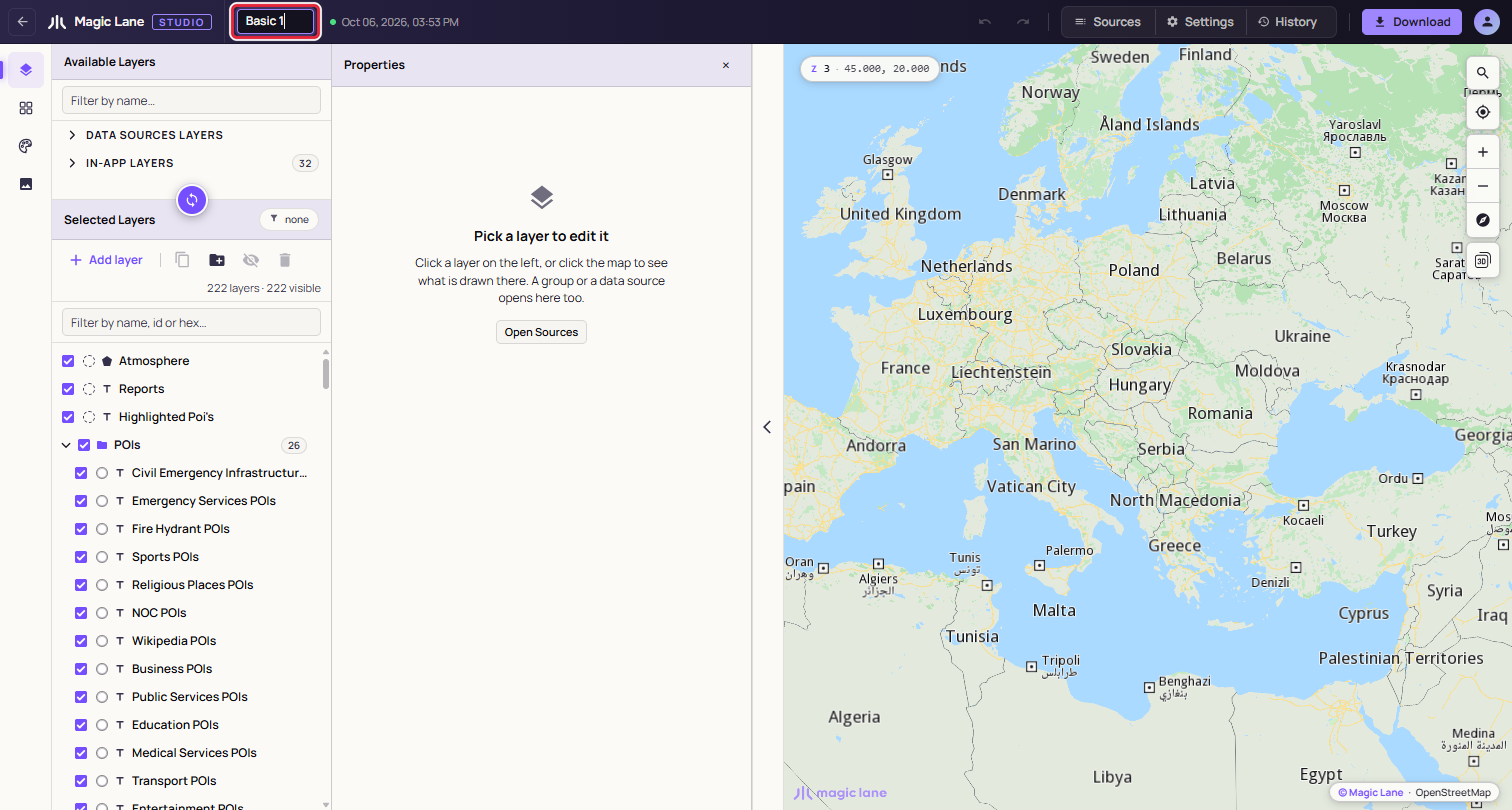
The style name is a field: click it, type, press Enter.
2. Find what draws a road
- Click a road on the map. A list opens with every layer drawn at that point.
- Click a road layer in the list. It opens in the Properties column, with its properties ready to edit.
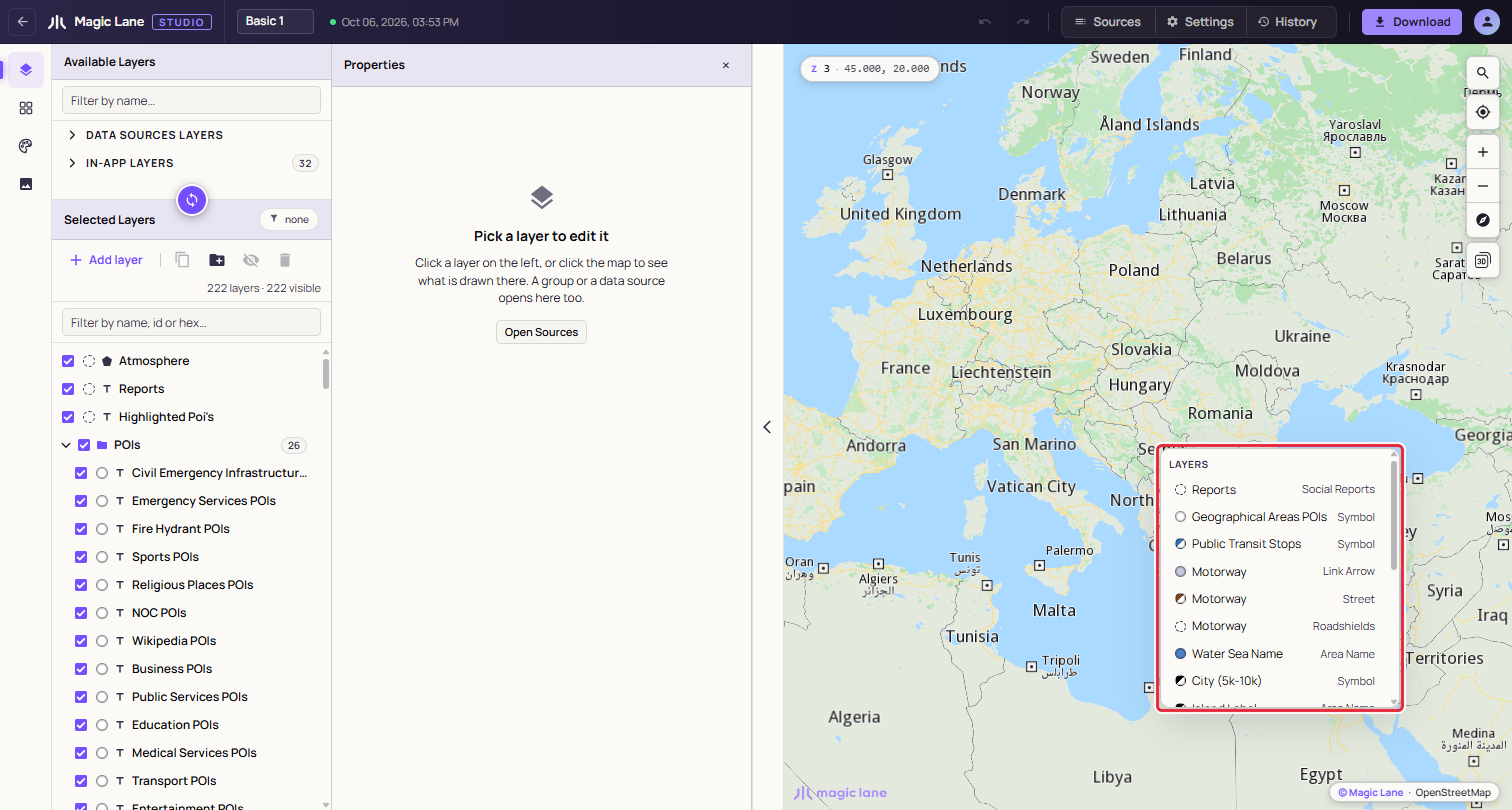
A click on the map lists the layers drawn there.
This is the quickest way to find the layer behind anything you see. See The map, settings and history.
3. Recolour all the roads
- In Selected Layers, click the Roads group header. The group panel opens.
- In its By type list, click line. All the road lines in the group are selected; the toolbar reads "29 selected" in Basic 1.
- In the Properties column, open Style › Line › Inner Color. The status line reads "Editing 29 layers. Changes here apply to all of them."
- Type a hex value such as
#f2c46din the colour field and press Enter, or click the swatch and pick a colour. Every road changes together.
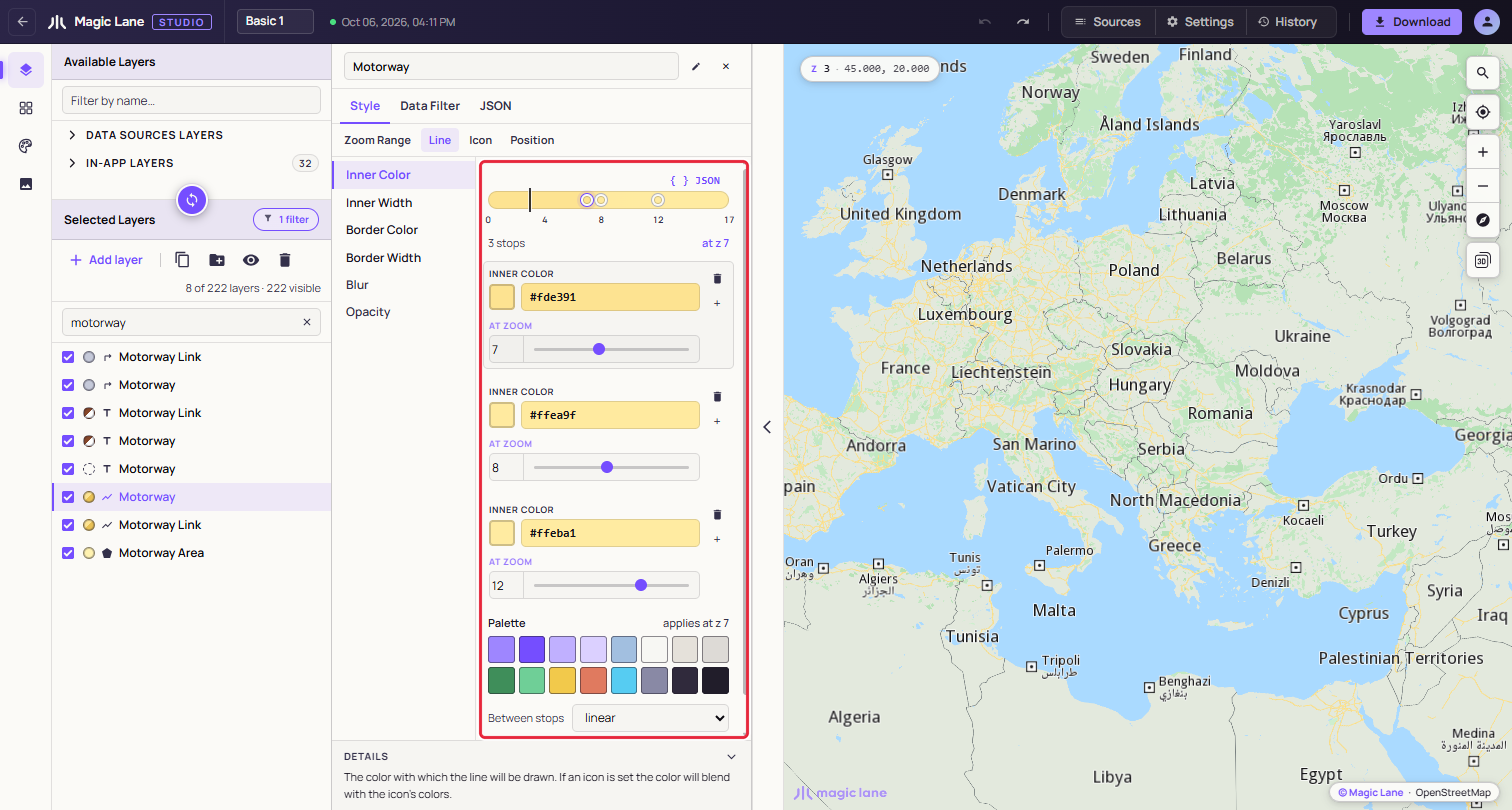
Inner Color. Each card is a stop; the palette under them offers quick colours.
Not happy with it? Ctrl+Z puts all 29 roads back in one step. See Editing several layers.
4. Make a Day and a Night theme
- Open Shared colours on the rail.
- Click + New, type
Dayand press Create theme. Day records the look you just made.
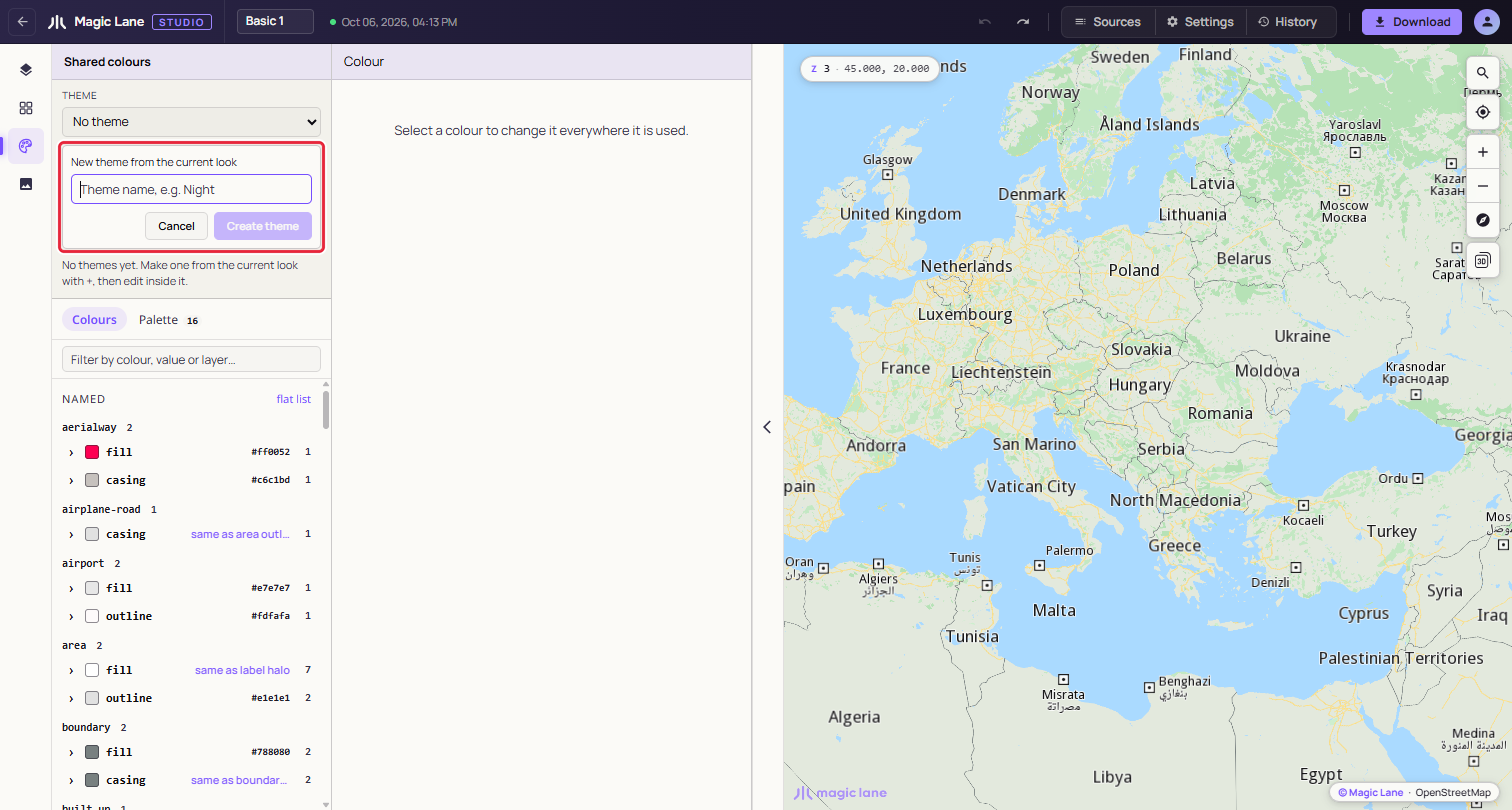
A new theme starts as a copy of what is on screen.
- With Day selected, click + New again, type
Nightand press Create theme. You are now editing Night.
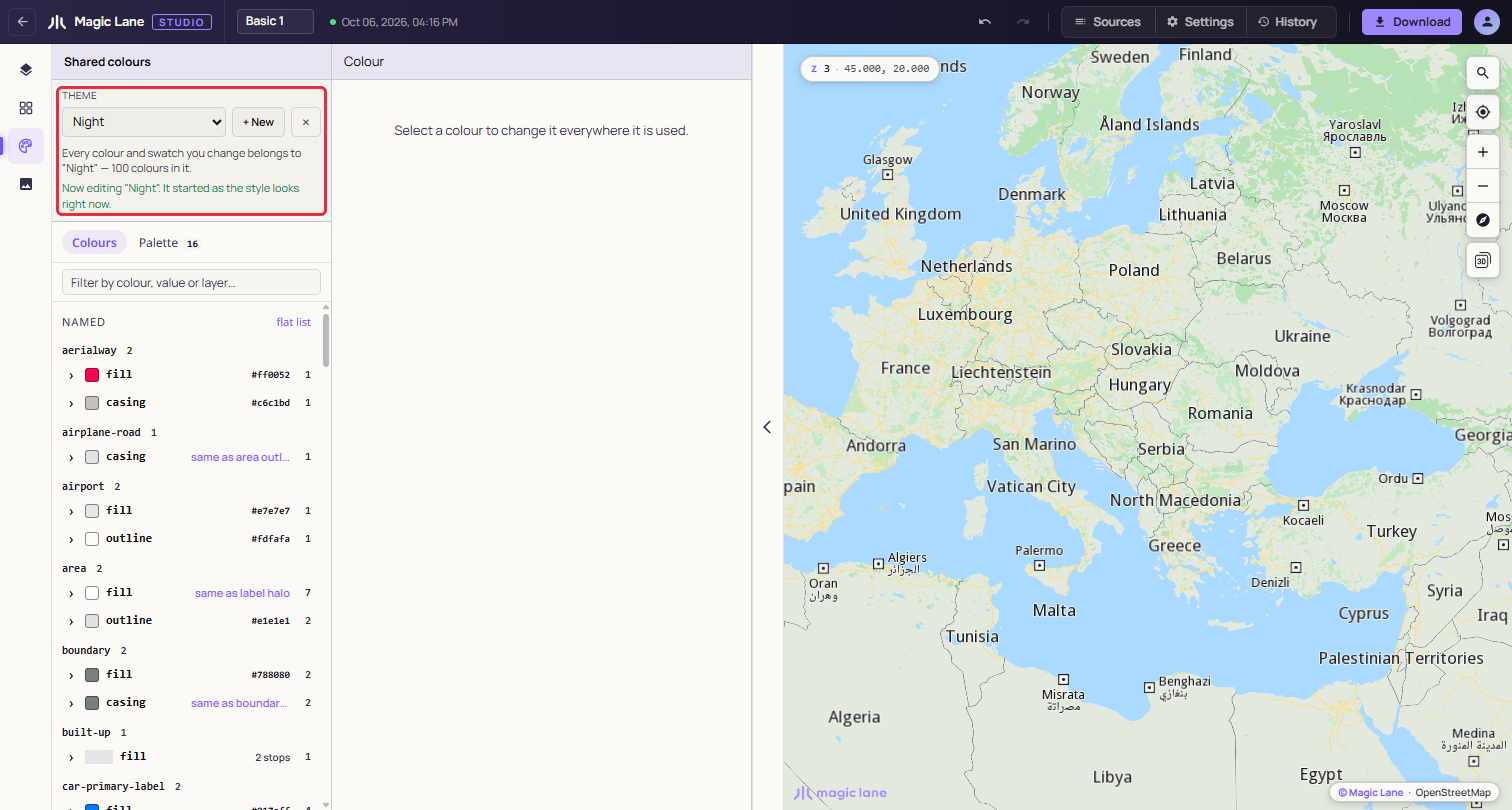
The bar says which theme your colour edits go to.
- Type
waterin the filter box, "Filter by colour, value or layer…", and open the first colour in the list. Pick a dark blue, for example#1b2a3a. Every layer that uses this colour follows. - Do the same for land and for the roads: filter, open a colour, pick a darker value.
- Switch between Day and Night in the Theme dropdown to compare them. Widths, zoom ranges and everything else that is not a colour stay the same in both.
See Themes and Shared colours.
5. Choose where the style opens
- Move the map to the place your app should show first.
- Open Settings in the top bar and click Use current view under Default map position.
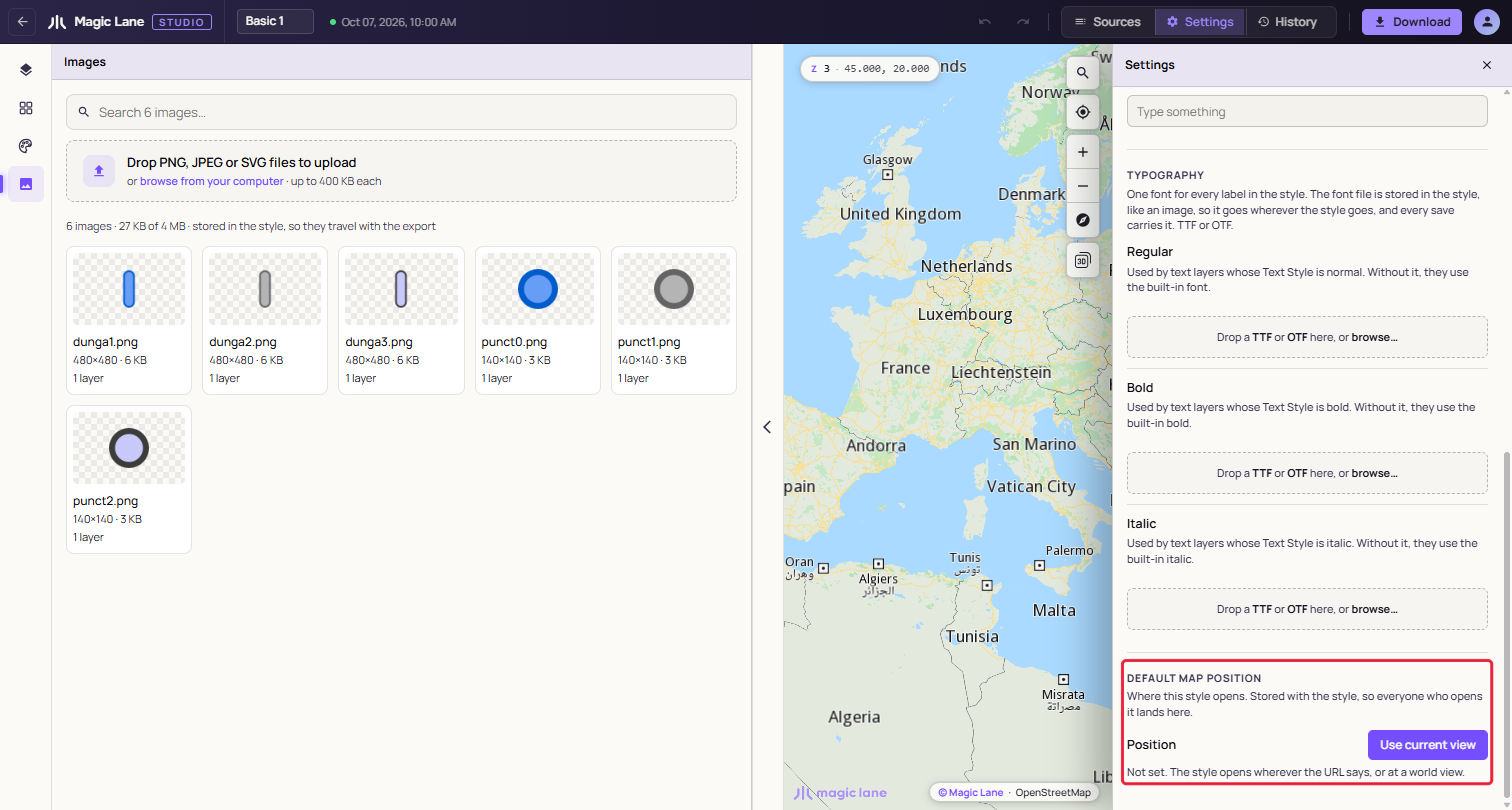
The default view is stored with the style.
6. Download the themes for your app
- Click Download at the right of the top bar.
- Choose Style file for apps.
- Under Theme, pick Day. The file name becomes
my-first-style-day. - Click Download. A notice at the bottom right says "Style file built: my-first-style-day.style".
- Open Download again, pick Night and download
my-first-style-night.style.
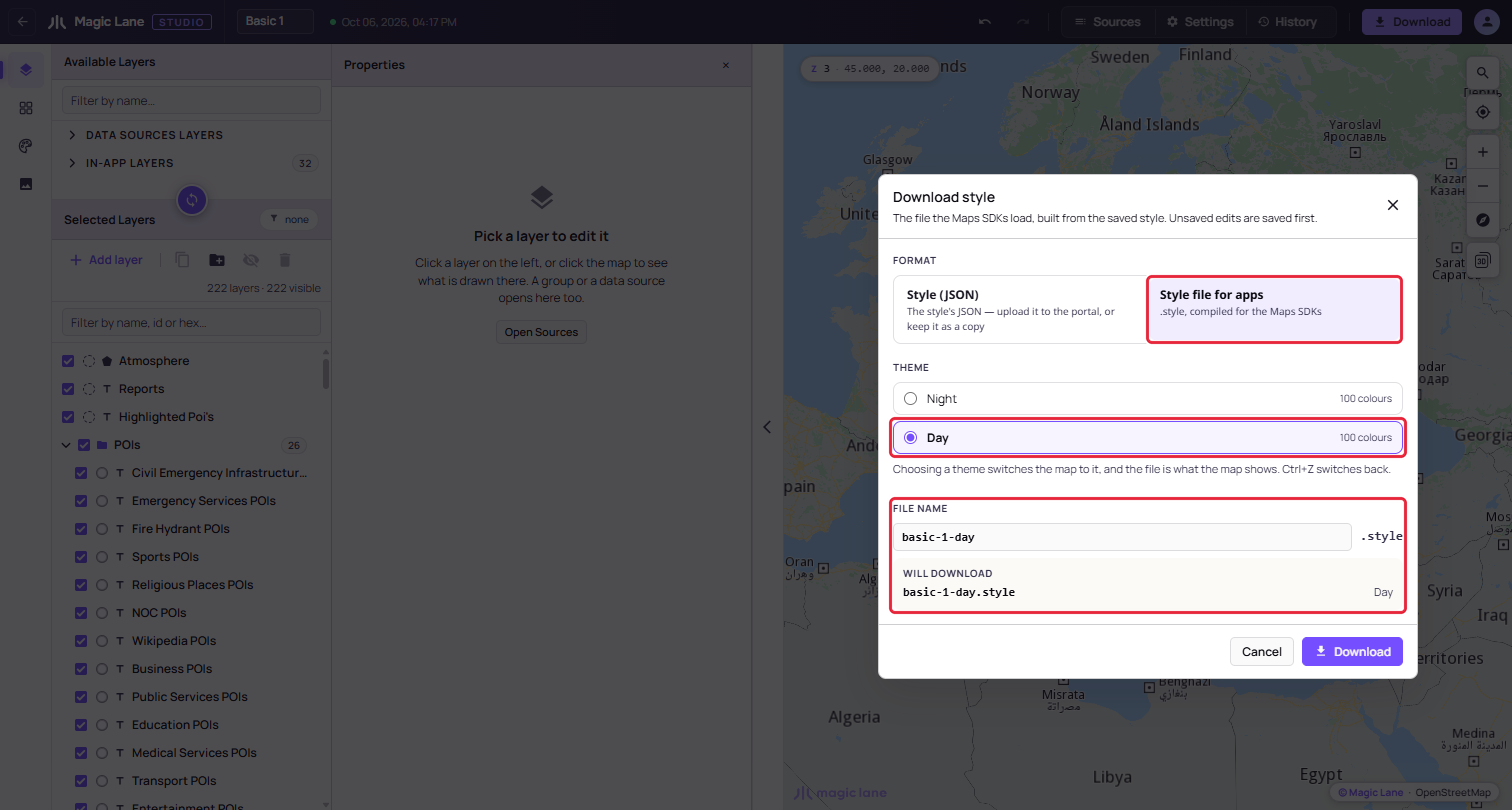
Style file for apps with Day picked: one file holds one theme.
Finished product
You have a style with your own road colour, a Day and a Night theme, a default view, and two .style files, one per theme, ready for the Maps SDKs.
Next steps
- Load the files in your app: Loading the style in your app.
- Add your own places to the map: Put your own data on the map.
- Show a layer only from a certain zoom, or filter it: The Properties column.