Keyboard shortcuts
Every keyboard shortcut in Magic Lane Studio, in the groups of the in-app reference. On a Mac, use ⌘ for Ctrl and ⌥ for Alt; Ctrl works on a Mac too.
Press ? outside a text field, or choose Keyboard shortcuts in the account menu, to see this list in Studio. Shortcuts do not work while you type in a text field, except Ctrl+S.
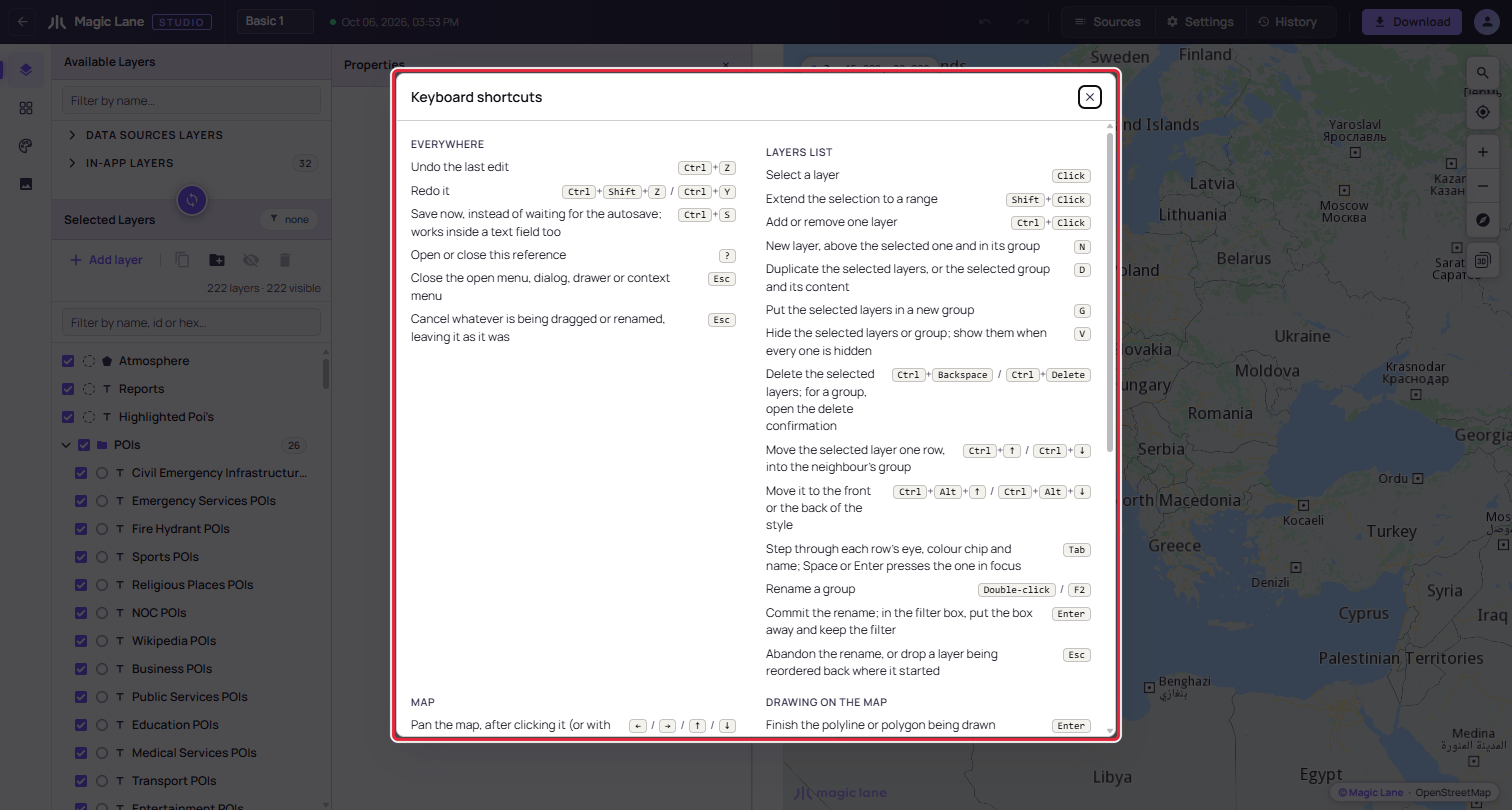
Everywhere
| Keys | Action |
|---|---|
Ctrl+Z | Undo the last change to the style |
Ctrl+Shift+Z or Ctrl+Y | Redo it |
Ctrl+S | Save now (also inside a text field) |
? | Open or close the shortcut reference |
Esc | Close the open menu, dialog, drawer or context menu |
Esc | Cancel a drag or a rename, leaving things as they were (a shape dragged on the map stays where it is) |
Layers list
These work while the Selected Layers list has focus.
| Keys | Action |
|---|---|
| Click | Select a layer |
Shift+Click | Select a range |
Ctrl+Click | Add or remove one layer |
N | New layer, above the selected one |
D | Duplicate the selected layers or group |
G | Put the selected layers in a new group |
V | Hide the selected layers; show them if all are hidden |
Ctrl+Backspace or Ctrl+Delete | Delete the selected layers; for a group, ask first |
Ctrl+↑ or Ctrl+↓ | Move the selected layer up or down one row; at the edge of a group, out of it, or into the group that starts next |
Ctrl+Alt+↑ or Ctrl+Alt+↓ | Move it to the top or the bottom |
Tab | Step through each row's controls; Space or Enter presses one |
Double-click or F2 | Rename a group |
Enter | Finish the rename; in the Filters card's name box, close the card and keep the filter |
Esc | Cancel the rename, or drop a dragged layer back where it was |
Map
These work after you click the map, or when nothing else has focus.
| Keys | Action |
|---|---|
← → ↑ ↓ | Pan the map |
Shift + arrow | Pan three times as far |
Shift+Plus | Zoom in |
Shift+Minus | Zoom out |
Drawing on the map
These work while a data source's drawing tool is in hand.
| Keys | Action |
|---|---|
Enter or right-click | Finish the line or area being drawn |
Esc | End a drag; the shape stays where it is |
Drawing changes are not undone with Ctrl+Z; see Drawing on the map.
Value fields
These work in the number fields, zoom-range handles and stop lists of the Properties column.
| Keys | Action |
|---|---|
↑ ↓ | Step a number up or down |
Shift+↑ Shift+↓ | Step ten times as far |
← → | Move a selected zoom-range handle by one zoom level |
Enter | Confirm the value; in a stop's zoom box, also re-sort the stops |
Layer JSON
These work in the JSON tab of the Properties column.
| Keys | Action |
|---|---|
Ctrl+Enter | Apply the JSON to the layer |
Tab | Indent |
Shift+Tab | Leave the editor |
Filters, tags and search
| Keys | Action |
|---|---|
Enter or , | Add the tag you typed (Settings) |
Backspace | In an empty tag box, remove the last tag |
Esc | Clear a search or filter box and stay in it; in map search, also close the search; in the Filters card, close the card |
Search and filter boxes show a × once they hold text; click it to empty the box.
See also: A tour of the editor