Magic Lane Studio overview
Magic Lane Studio is a web editor for Magic Lane map styles. You open a style, change it against a live map, and every change is saved to the server as you work. When the style is ready, you download it and load it in your app with a Magic Lane Maps SDK.
Studio runs in your browser and uses your portal account: if you are signed in to the portal, you are signed in to Studio. A designer can style a map in it without writing code; a developer downloads the result for the app. Because the style is saved as you edit, the file a developer downloads is always the map the designer last looked at.
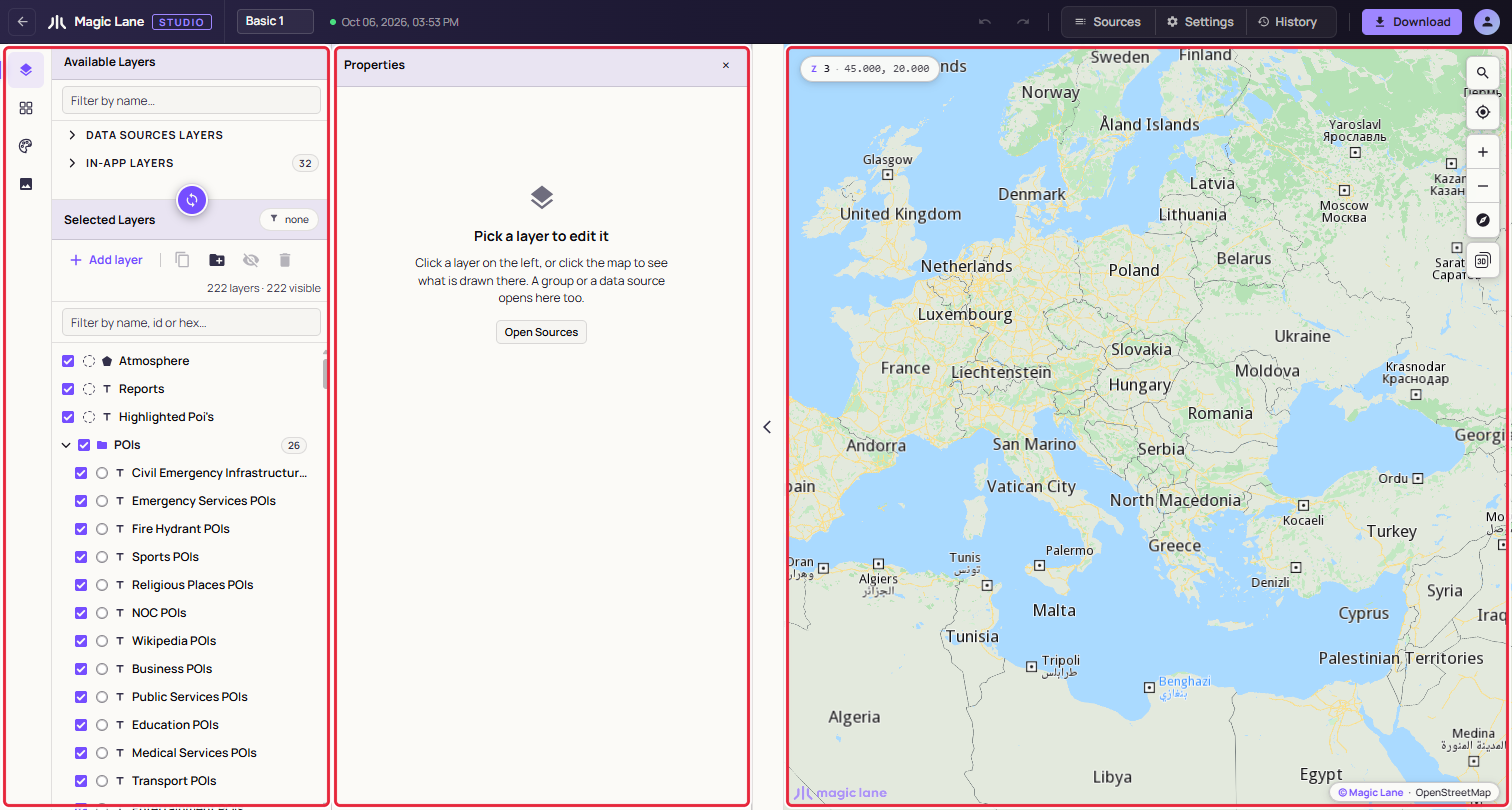
What a style is made of
A style tells the map engine what to draw and how.
- Layers do the drawing. Each layer takes data from a source (roads, water, place names or your own data), draws it as one type (a line, an area, a symbol, a label and so on), and has properties such as colour, width and opacity, often changing with the zoom. The top of the layer list is drawn last, on top of the rest.
- Groups collect layers under one name, to keep a long list readable. They do not change the map.
- Shared colours are the colours the style uses, each with a name and the layers that use it. Changing one recolours all of those layers.
- Themes are colour versions of the style, such as Day and Night, that you switch between in Studio to compare them. A style used in an app has one set of colours, so each theme is downloaded as its own file.
- Data sources hold the features layers draw. Every style can use the map data Magic Lane serves; you can also upload or draw your own.
- Images are the icons stored in the style, so they travel with it: PNG, JPEG or SVG, up to 400 KB each and 4 MB in total.
- The font is the style's own font for its labels, also stored in the style: TTF or OTF files for its regular, bold and italic faces, each used on its own. A face the style does not have is drawn in the built-in font. See The style's font.
How a style reaches an app
You start from a template in the portal (see Create a style) and edit it in Studio. When it is ready, click Download in the top bar and choose Style file for apps. You get a .style file, which your app loads with the Maps SDK. The other format, Style (JSON), is for keeping a copy or uploading the style to the portal. See Download and use in your app.
What Studio does not do
Some things other map style editors offer are not part of Magic Lane styles, so Studio does not have them:
- Paint from a feature's data. A colour, width or size can change with the zoom, not with a feature's properties. To draw categories differently, use one layer per category, each with its own Data Filter.
- Lighting. There are no light settings or light presets. For a day and a night look, use Themes; each theme is downloaded as its own file.
- A font per layer. A style has one font, in regular, bold and italic faces, for all of its labels.
- Some properties and layer types: line join, letter spacing, raster adjustments, hillshade colours, and heatmap layers.
- Saving a picture of the map. Use your system's screenshot tool.
A tour of the editor
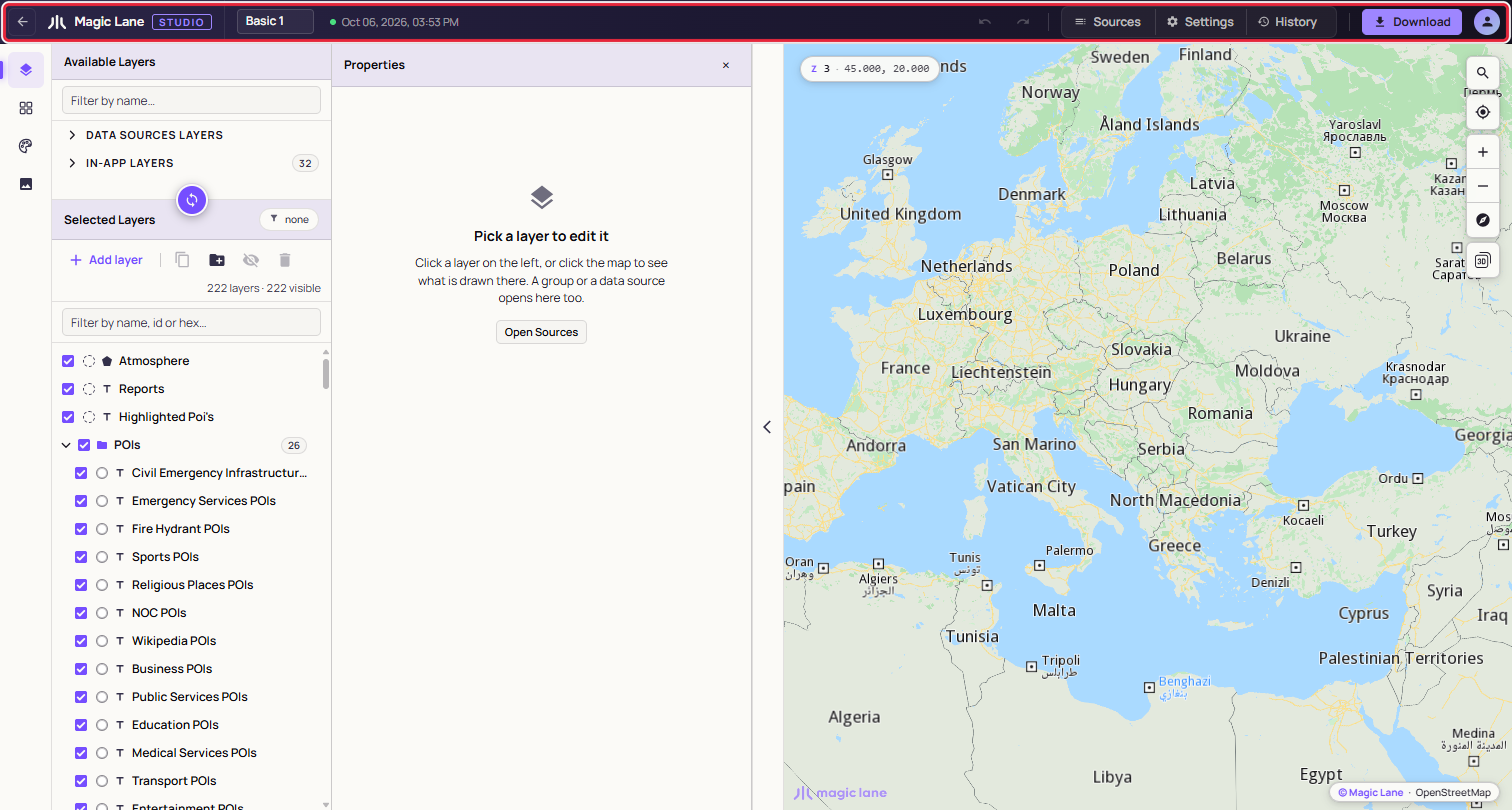
The top bar
From left to right:
- Back arrow: back to the portal's Styles page.
- Style name: click to rename the style.
- Save state: green when everything is saved; see Opening and saving.
- Undo and redo: also
Ctrl+ZandCtrl+Shift+Z(⌘on a Mac). - Sources, Settings, History: open a drawer at the right of the map. Sources lists what the style reads from; all three are described in The map, settings and history.
- Download: the filled button.
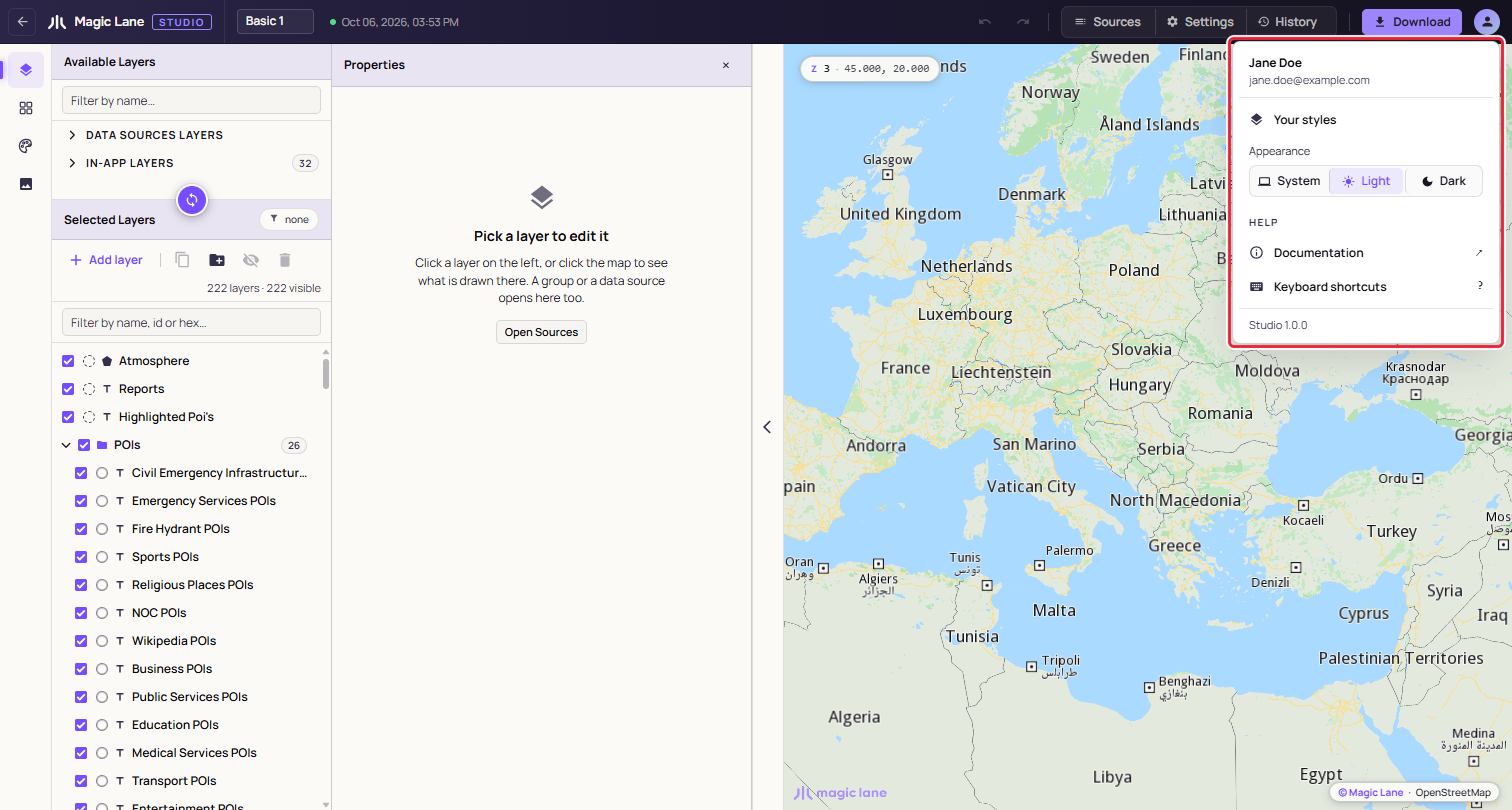
- Account menu: your account, "Your styles", Appearance (System, Light, Dark), Help with Documentation and Keyboard shortcuts, and the version.
The rail
The narrow column at the far left switches between four screens:
- Layers: the layer list and the Properties column. See The layer list.
- Components: the same layers grouped as the parts of a map, such as Water, Roads and Place labels. See The Components screen.
- Shared colours: colours, palette and themes. See Shared colours.
- Images: the icons in the style. See The image library.
The layer lists
On the Layers screen, Available Layers at the top lists what you can add: map data, your own data sources, and layers an app draws at run time, such as routes and traffic. Drag an entry into Selected Layers, the style's own layers in drawing order. Each row has a visibility tick box, a colour chip, a type icon and the name.
The Properties column
Between the layer list and the map. Select a layer and it shows the layer's settings in three tabs: Style, Data Filter and JSON. See The Properties column. The × closes the column to give the map more room.
The map
The live preview of your style. Click it to see which layers drew at that point; the controls on the right search for places and zoom. Notices, such as a finished download or an error, appear at the bottom right of the map. See The map, settings and history.
The thin strip with an arrow between the sidebar and the map hides the sidebar, so the map fills the window.
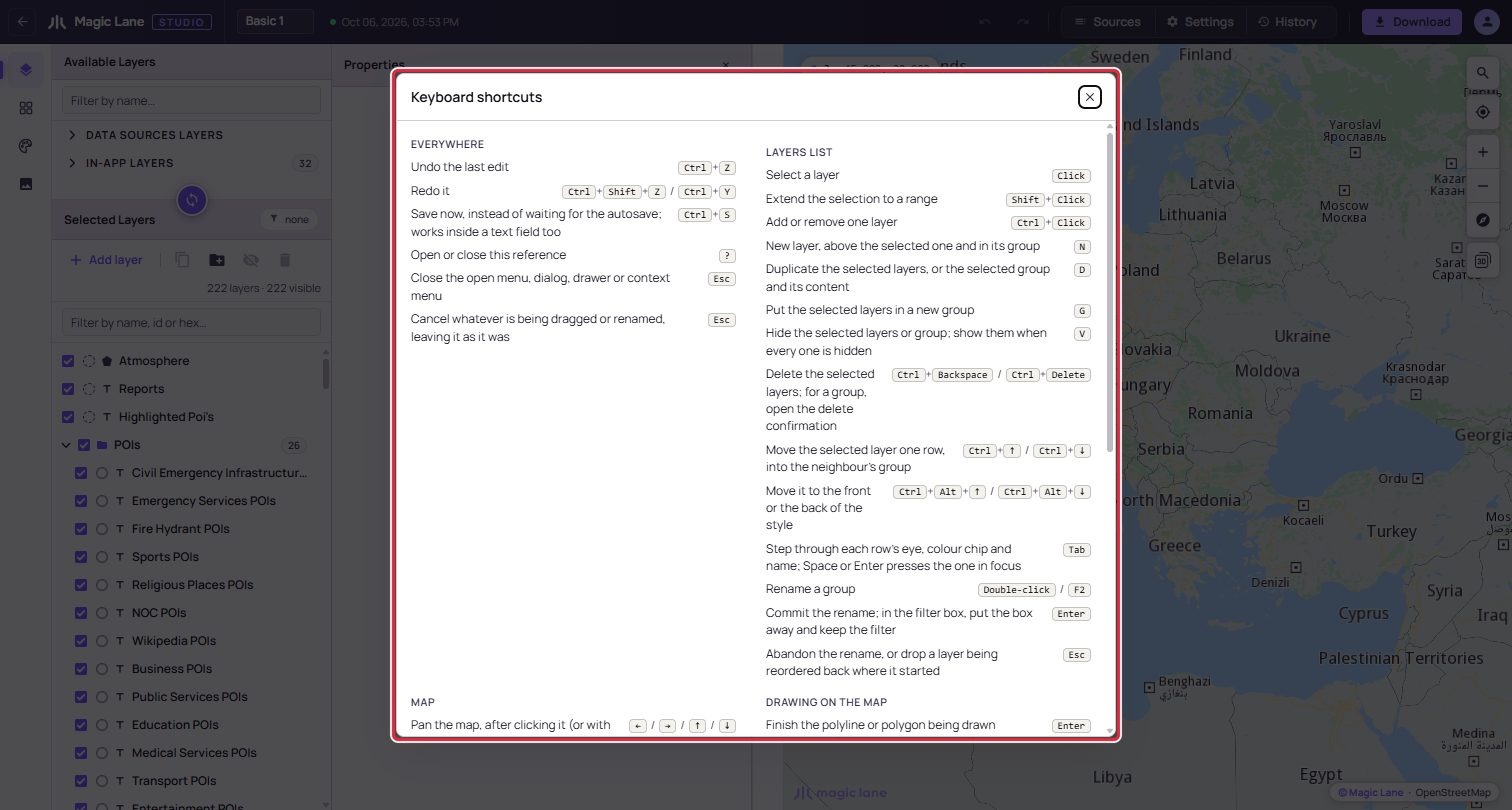
Keyboard shortcuts
Press ? outside a text field, or choose Keyboard shortcuts in the account menu, to see every shortcut. See Keyboard shortcuts.
See also: Create a style · Opening and saving · Your first style in 10 minutes · Glossary