Opening and saving
You open a style from the portal, and Studio saves every change to the server as you make it. This page covers opening a style, signing in, saving, and what to do when something goes wrong.
Step by step
Open a style
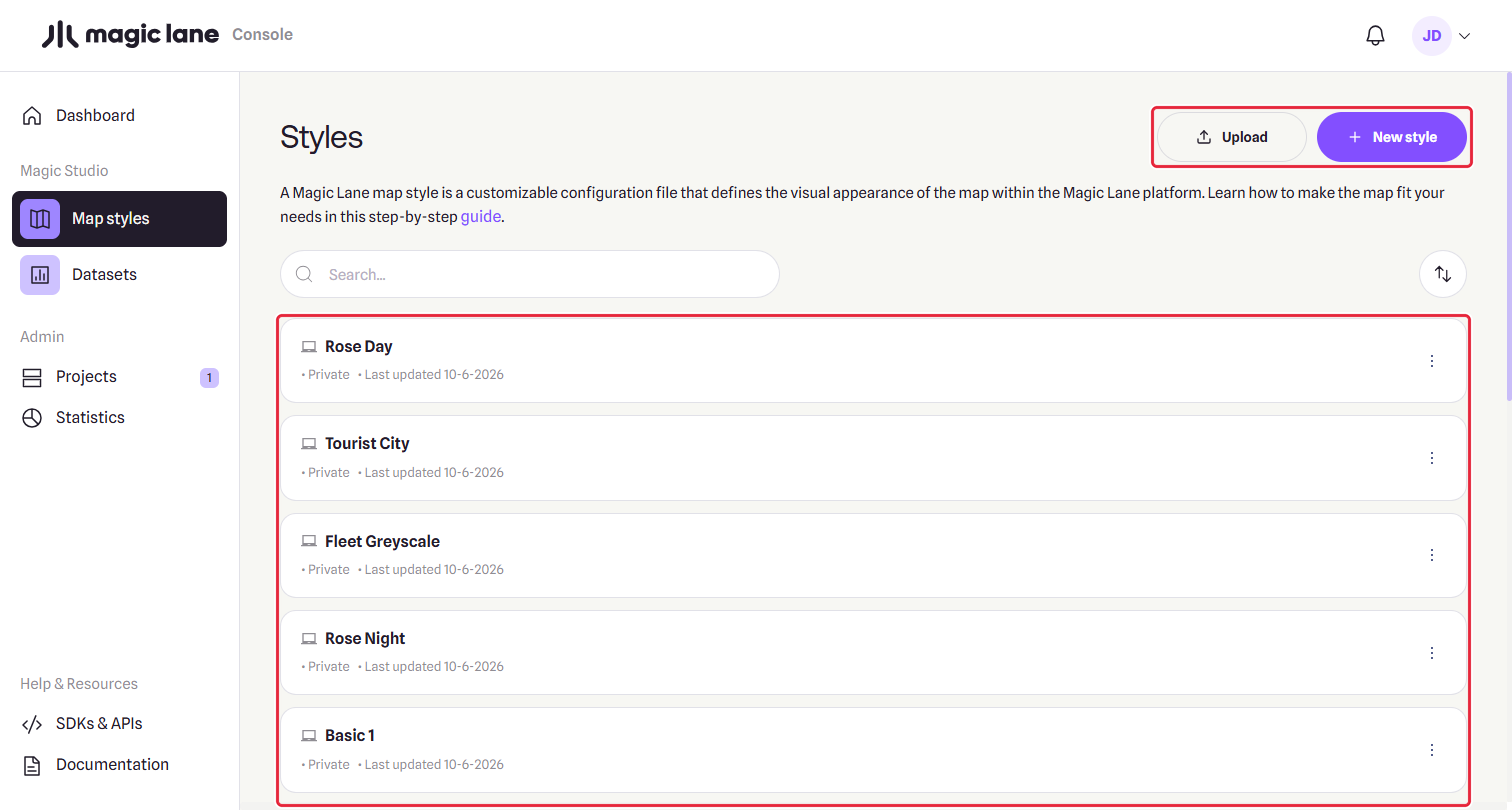
- In the portal, go to Map styles in the sidebar. No style yet? See Create a style.
- Click a style. It opens in Studio, and the map shows "Putting your style on the map…" until it is ready.
Send someone the view you are looking at
- Move the map to the view.
- Copy the address from the browser's address bar and send it. It opens the same style at the same place, for anyone who has access to the style.
Opening a style
Every style has its own address, /studio/<style id>. After a #, the address also keeps the map view as #zoom/latitude/longitude, such as #9.85/45.7681/25.7061, so a reload or a shared link opens at the same place. Where a style opens when the address has no view is set in Settings.
While a style loads, the screen says what is happening: "Fetching your style…", then "Reading <name> — N layers…", then "Putting your style on the map…". A large style takes a moment; after a minute without an answer, Studio stops and offers to retry. Opening a style saves nothing.
A style with parts Studio cannot read, such as a layer with no type, still opens. A "Parts of this style could not be read" notice says what was found and what the next save will change, and Show these layers lists the layers concerned. See A style with damaged parts.
The back arrow in the top bar and Your styles in the account menu return to the portal's Styles page.
When a style cannot be loaded
Studio says "The style could not be loaded." with the reason and what you can do. Most often the style does not exist or you have no access to it: check the link with whoever sent it, or ask the style's owner for access. If the service is unavailable or cannot be reached, wait a moment and click Retry. Every message is listed in Errors and troubleshooting.
Signing in
Studio uses your portal session. If you are not signed in when you open a style, Studio takes you to the portal login, and keeps the address so that you come back to the same style and view.
If your session expires while you are editing, Studio keeps your work on the page and shows a banner: "Your session has expired." Click Sign in to sign in again in a new tab, then come back. Your changes save by themselves; Retry save sends them at once.
Saving
Every change is saved to the server a moment after you make it, so there is no Save button. Undoing a change is saved too. Ctrl+S (⌘S on a Mac) saves at once.
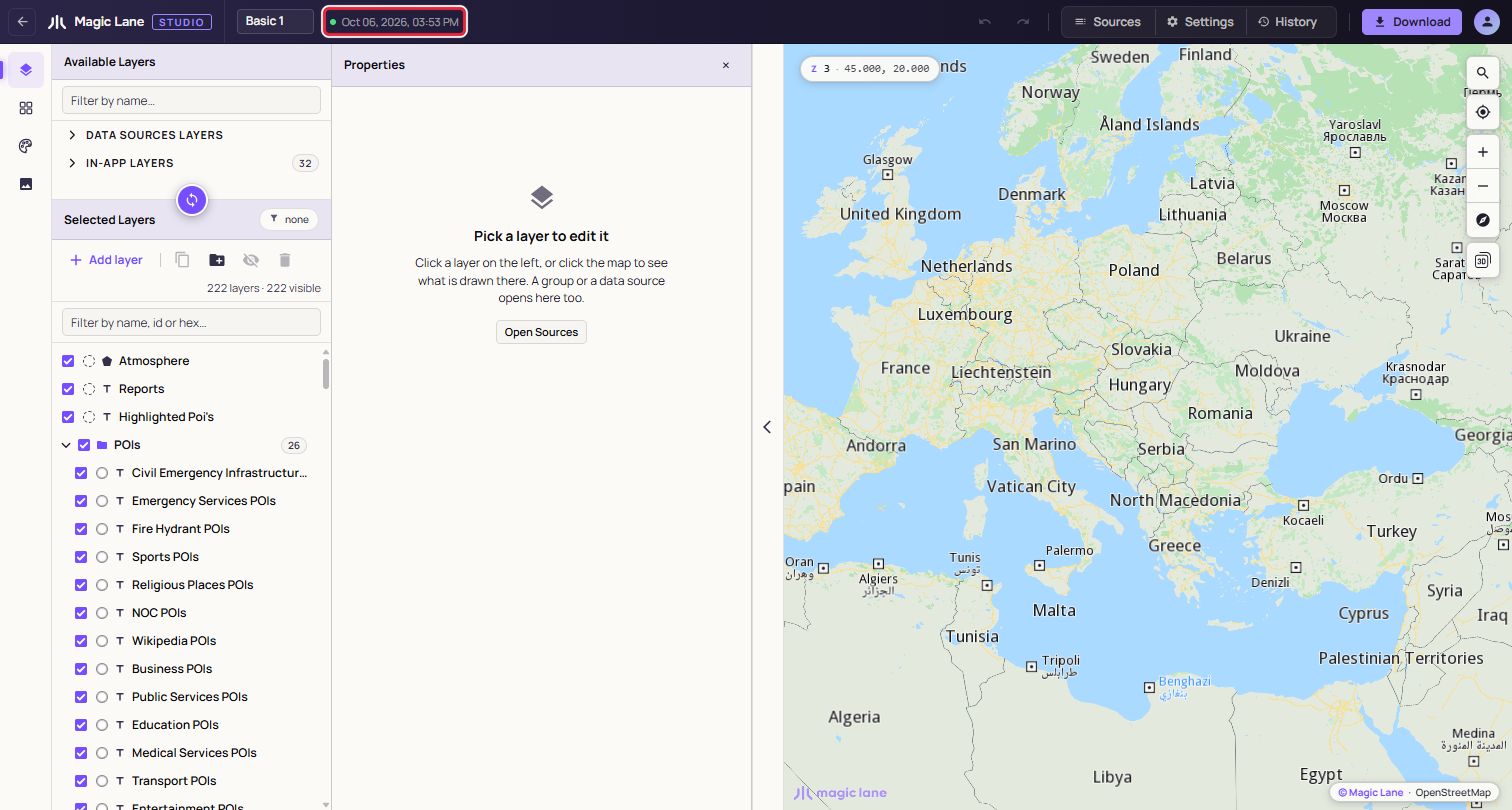
The dot beside the style name shows the save state:
- Green, with the time of the last save, or "no changes": everything is saved.
- Amber, "unsaved changes": a save is about to start.
- Pulsing, "saving…": a save is on its way.
- Red, "save failed": the last save did not go through. Hover the dot for the reason.
When a save fails because the network or the server is briefly unavailable, Studio keeps trying by itself, and the label counts down to the next try. Without a network it waits until you are back online. Click Retry to try at once. Your next change also carries everything that was not saved. If you try to close the tab while something is unsaved, the browser asks first.
One tab at a time
Edit a style in one browser tab at a time. Each tab saves its whole copy of the style and does not see changes saved from another tab, browser or computer, so whichever saves last replaces the other's changes. Studio does not warn you when this happens. To see changes saved elsewhere, reload the page before you edit.
What the save is used for
The saved style is what the portal and the Download dialog use. Style file for apps saves your latest changes before building the file; if the last save failed, no file is built until the save goes through.
See also: Studio overview · The map, settings and history · Errors and troubleshooting