Download and use in your app
The Download button saves the open style as a file: a .style file that your app loads with the Magic Lane Maps SDK, or the style's JSON to keep as a copy or upload to the portal.
Step by step
Download a style for an app
- Click Download at the right of the top bar.
- Under Format, choose Style file for apps.
- If the style has themes, pick the theme the file should hold.
- Check the file name, then click Download. Studio saves your latest changes, builds the file, and reports "Style file built: …" at the bottom right.
- Add the
.stylefile to your app and load it with your SDK; see Loading the style in your app.
Update a style that is already in an app
- Edit the style in Studio.
- Download it again as Style file for apps, with the same theme and file name as before.
- Replace the old file in your app with the new one and release the app. If your app downloads the style file from your own server instead, replace the file there; the app shows the new style the next time it loads it.
The Download dialog
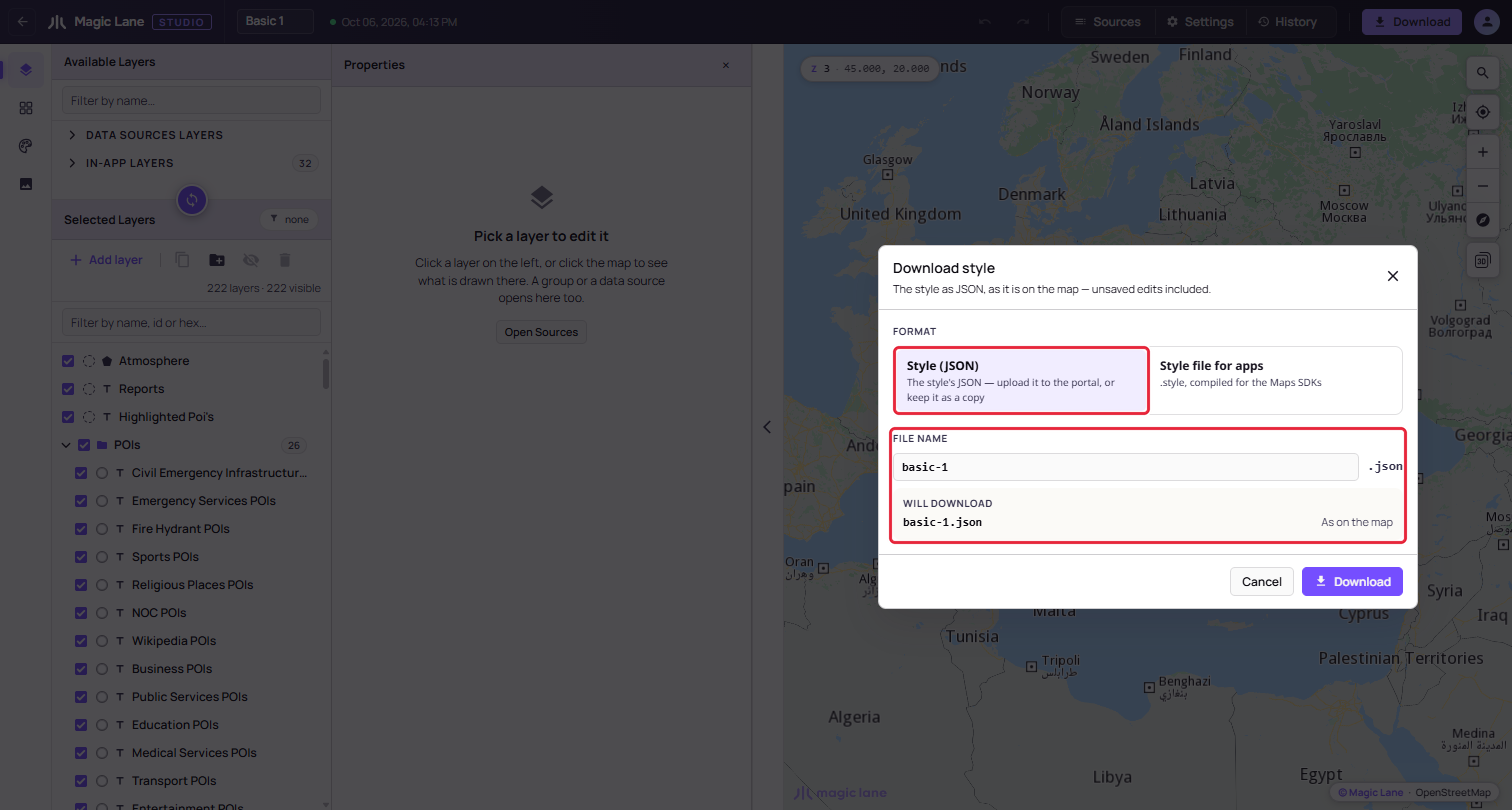
Format
- Style file for apps (
.style): the file the Maps SDKs load. It is built on the server from the saved style, so Studio saves your latest changes first; the button reads "Saving, then building…" meanwhile. It is the same file the portal offers for the style. - Style (JSON) (
.json): the style as it is on the map, built at once in your browser. Upload it on the portal's Styles page to make a new style from it, or to move a style to another account, or keep it as a copy. It does not carry Studio's additions (themes, shared colour names and the default map position), so a style uploaded from it starts without them.
Both files hold every layer, including layers you hid in the editor, and the style's images and font. A style with errors is not downloaded: the dialog says "Nothing was downloaded — the notice at the bottom right says why.", and the notice lists the errors. Warnings do not stop a download.
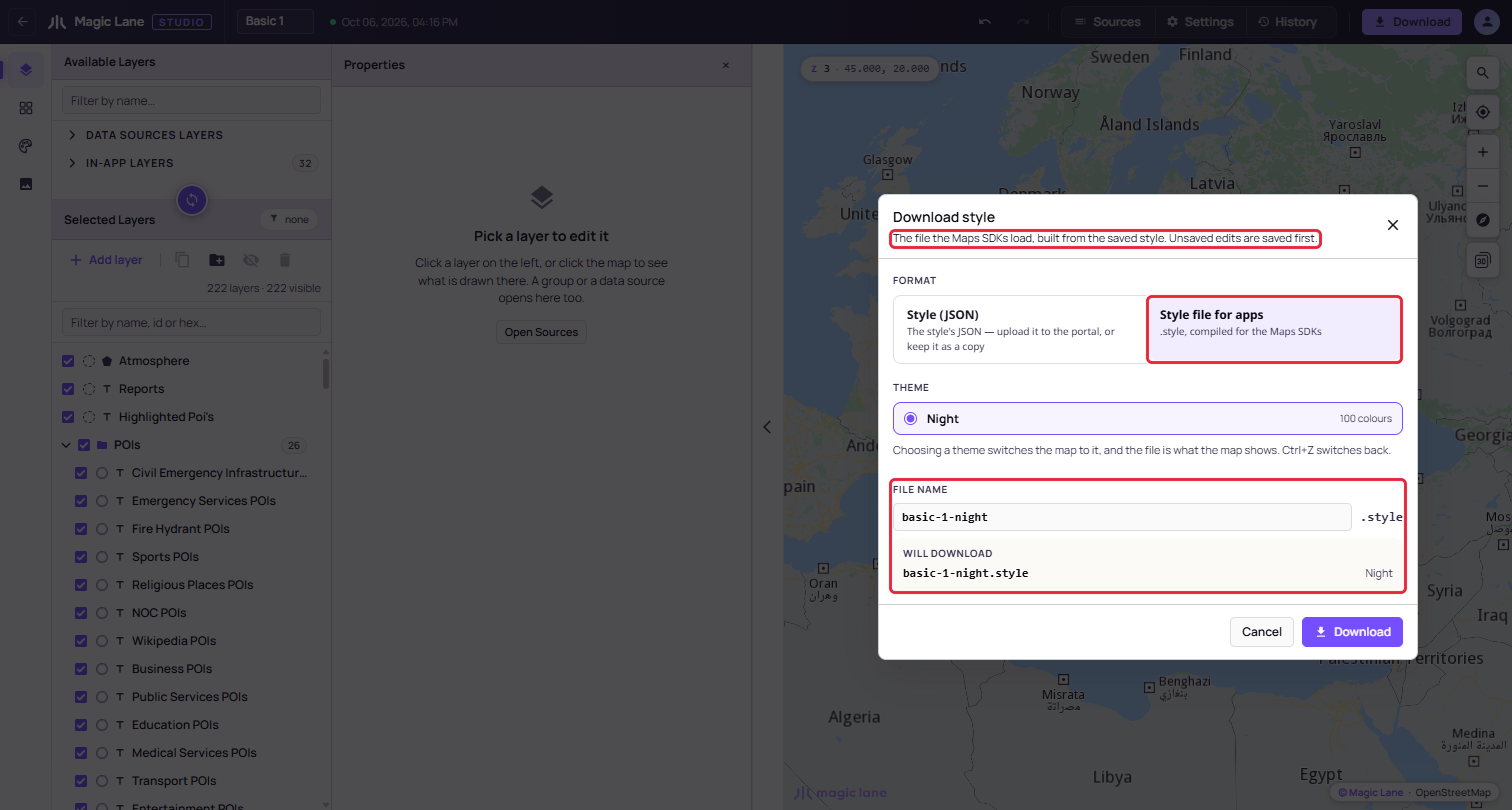
Theme
A style used in an app has one set of colours. Themes (see Themes) are for trying out colour versions in Studio, such as Day and Night; each file you download holds one of them.
When the style has themes, the dialog lists them. Choosing one switches the map to it, and the file holds what the map shows. The switch stays after the dialog closes, and Ctrl+Z switches back. With no theme selected, the file holds the map as it is now.
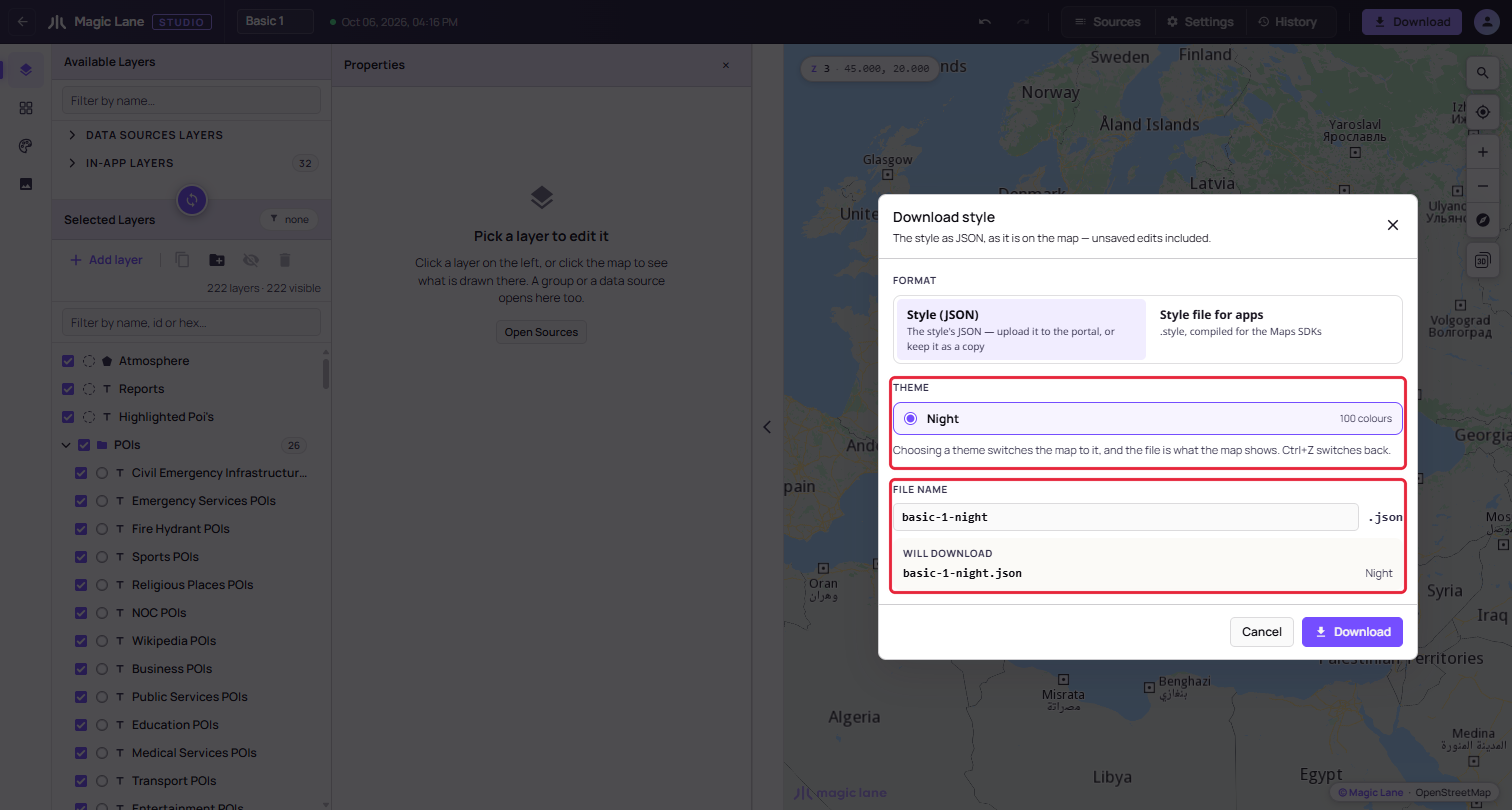
File name
The name comes from the style's name, in lower case with hyphens: "Basic 1" becomes basic-1. With a theme selected, the theme's name is added, as in basic-1-night, so two downloads do not overwrite each other. You can type your own name.
Private data sources
When the style draws one of your private data sources, the dialog says so, for example: "This style uses a private data source: Stores. Its layers only draw in apps that use an API key from your account. In anyone else's app they are empty. Make it public, or share this style only within your account." With several, it names them all. Click a name to open that data source in the Properties column, where its Private switch is (see Public and private). The warning is shown for both formats and does not stop the download.
Loading the style in your app
The .style file is the whole style, including its images and its font, with nothing to convert. Bundle it with your app, or serve it from your own server, and pass it to the map as a file or as bytes. The map can fade from the previous style to the new one.
The code depends on your SDK and is kept up to date in that SDK's documentation: open your SDK in the Magic Lane developer documentation and look for its page or example on map styles.
Switching between two styles
To offer a day and a night look, download one .style file per theme. The app loads one file or the other when the look should change, for example at sunset or when the device switches to dark mode, and can fade between them.
What the app sets
The app, not the style, decides the language of place names (Studio's Place names setting is a preview of this) and where the map opens. The default map position from Settings is used only in Studio.
See also: Themes · Style file format · Saving