Create a style
You make a style in the portal, from a template, and it opens in Studio. This page covers what you need before you begin, creating a style from a template, and starting from a style file instead.
Before you begin
- A Magic Lane portal account. When you are signed in to the portal, you are signed in to Studio.
- An API key is not needed to edit a style: the map in Studio draws without one. Your app needs one to show the map, and in Studio place search and route previews use it. Get started explains how to create a project and a key.
Step by step
Create a style from a template
- In the portal, open Map styles in the sidebar. The Styles page lists your styles.
- Click New style.
- Under Style template, pick a template: Basic 1, Basic 2 or Basic 3 for a general map, Satellite 1 or Satellite 2 for imagery, Wind for weather, or Blank to start from scratch. The preview on the right shows the template.
- Under Choose a variation, pick a look: Base, Modern, Night Blues, Nocturnal or Oldtime, each also offered with Elevation, which adds terrain shading.
- Click Create new style. The style is named after the template and the variation, such as "Basic 1 Modern", and opens in Studio. Click its name in the top bar to rename it.
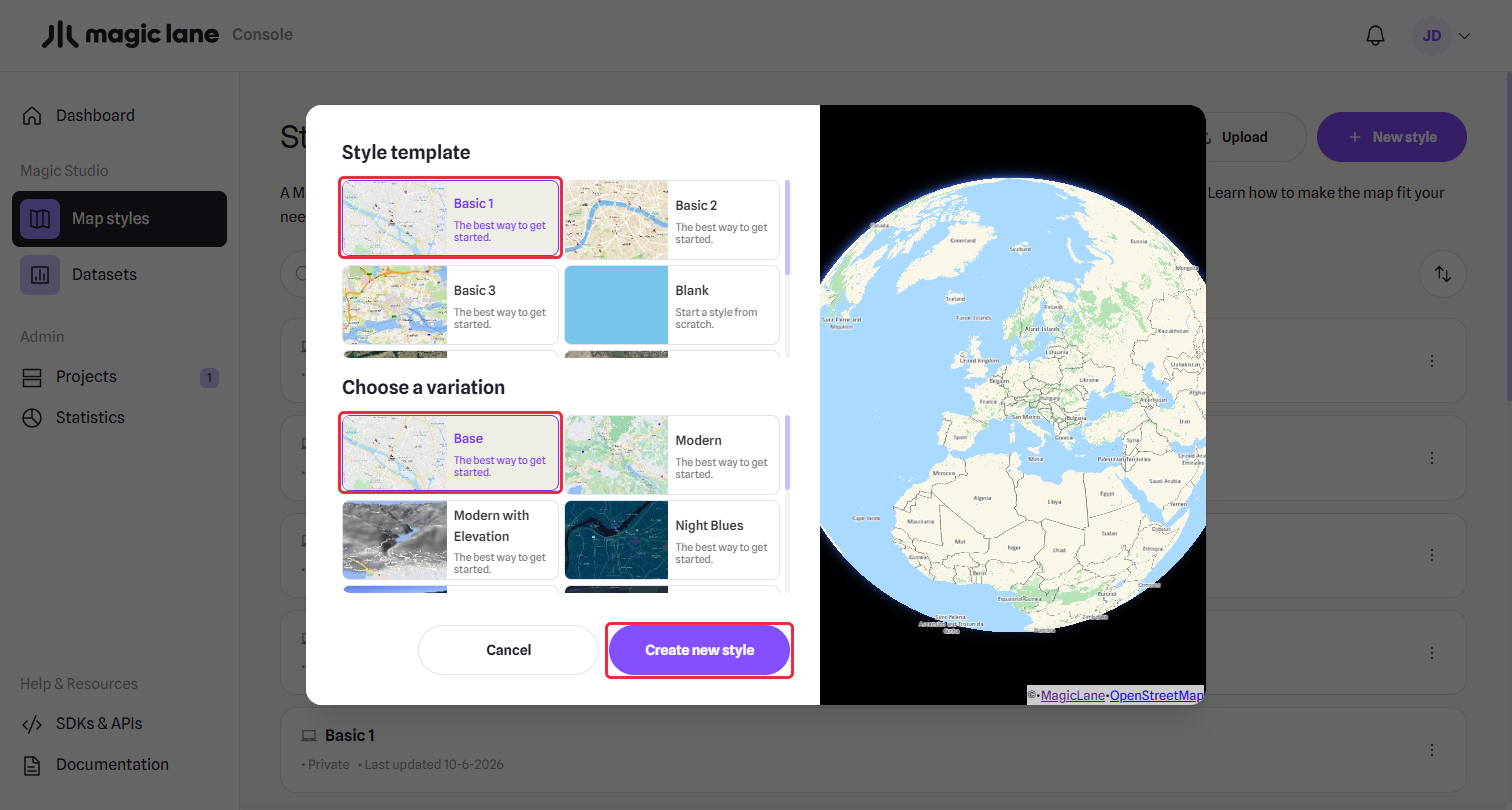
Basic 1 with the Base variation is the template the tutorials use.
Start from a style file
- On the Styles page, click Upload and choose a style JSON file, for example one saved with Download › Style (JSON) in Studio (see Download and use in your app).
- The style appears in the list. Click it to open it in Studio.
A style made from a JSON file starts without Studio's additions: themes, shared colour names and the default map position.
Your styles
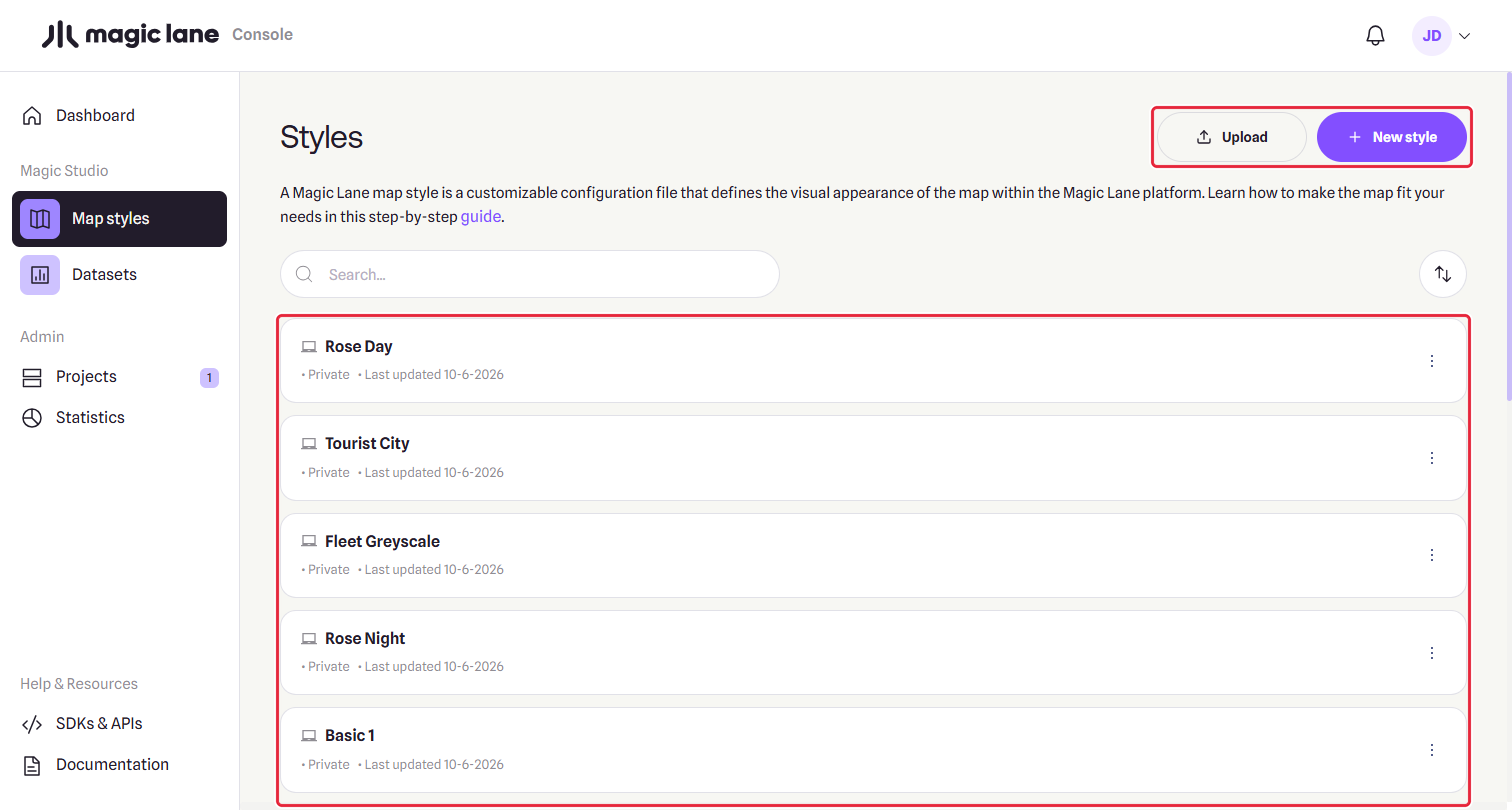
The Styles page: Upload and New style at the top, one row per style.
Every style you create is listed on the Styles page, with when it was last updated and its tags. Click a style to open it in Studio; the back arrow in Studio's top bar brings you back here. The ⋮ menu at the end of a row holds the portal's own actions for the style.
See also: Studio overview · Opening and saving · Your first style in 10 minutes