Themes
A theme is a named set of colours for a style, such as Day, Night or a customer's brand. You switch between themes and edit inside one; everything that is not a colour stays the same in all of them. Themes are for trying out colour versions in Studio: in an app, a style has one set of colours, so each theme is downloaded as its own file.
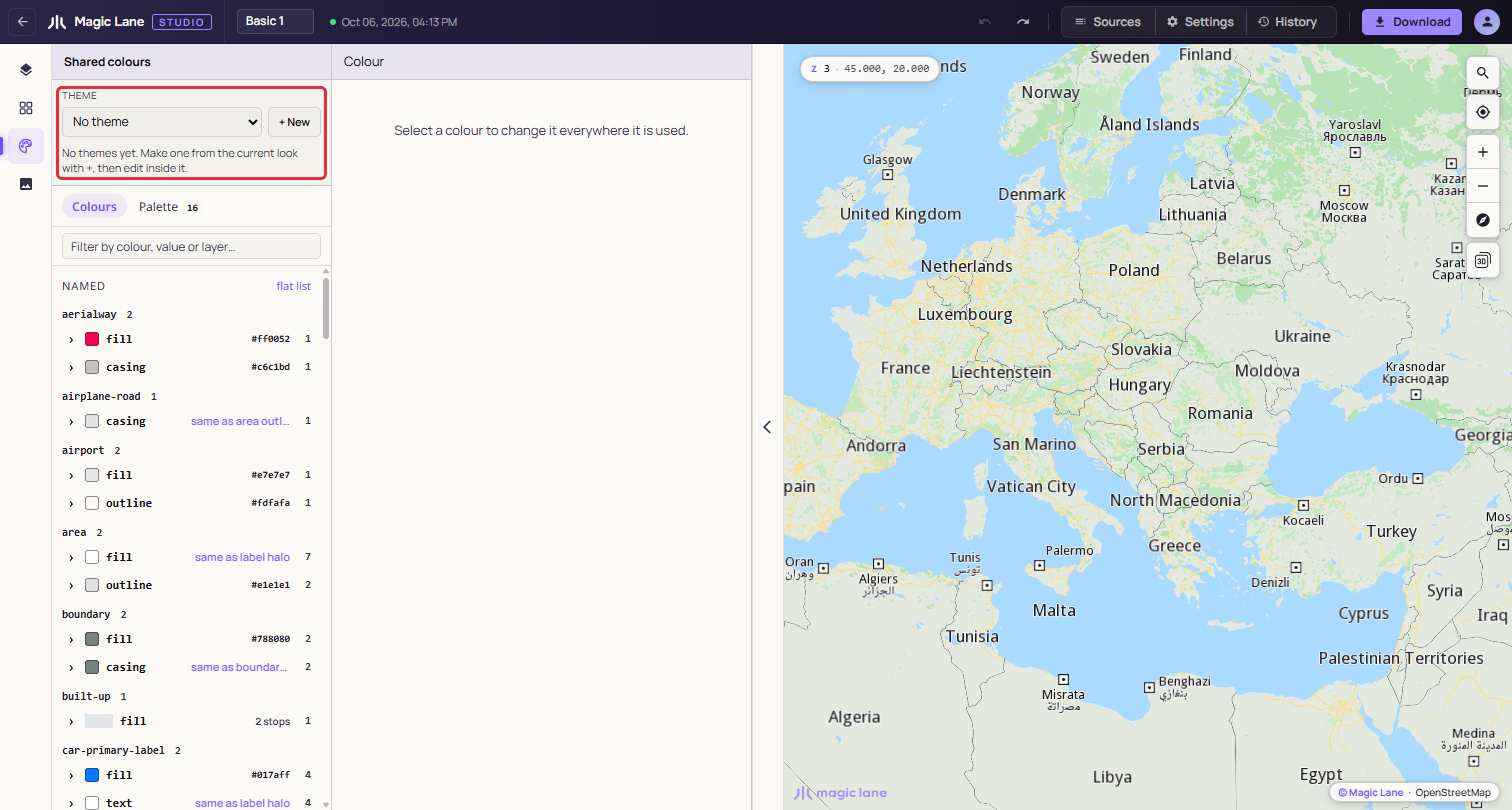
Themes live in the Theme bar at the top of the Shared colours screen. Until a style has one, the dropdown reads "No theme".
Step by step
Make a Night theme
- Open Shared colours on the rail.
- Click + New, type
Dayand press Create theme. Day records the style's current look, so it stays one click away. - With Day selected, click + New again, type
Nightand press Create theme. Night starts as a copy of Day, and you are now editing Night. - Recolour the map for the night. In the Colours tab, open a colour such as water, land or a road and pick a darker value; every layer using it follows. Colour edits on the Layers screen belong to Night as well while it is selected.
- Switch between Day and Night in the Theme dropdown to compare. Widths, zoom ranges, filters and visibility are the same in both.
- Download each theme as its own file for your app: in the Download dialog, pick the theme, then download (see Download).
The one rule
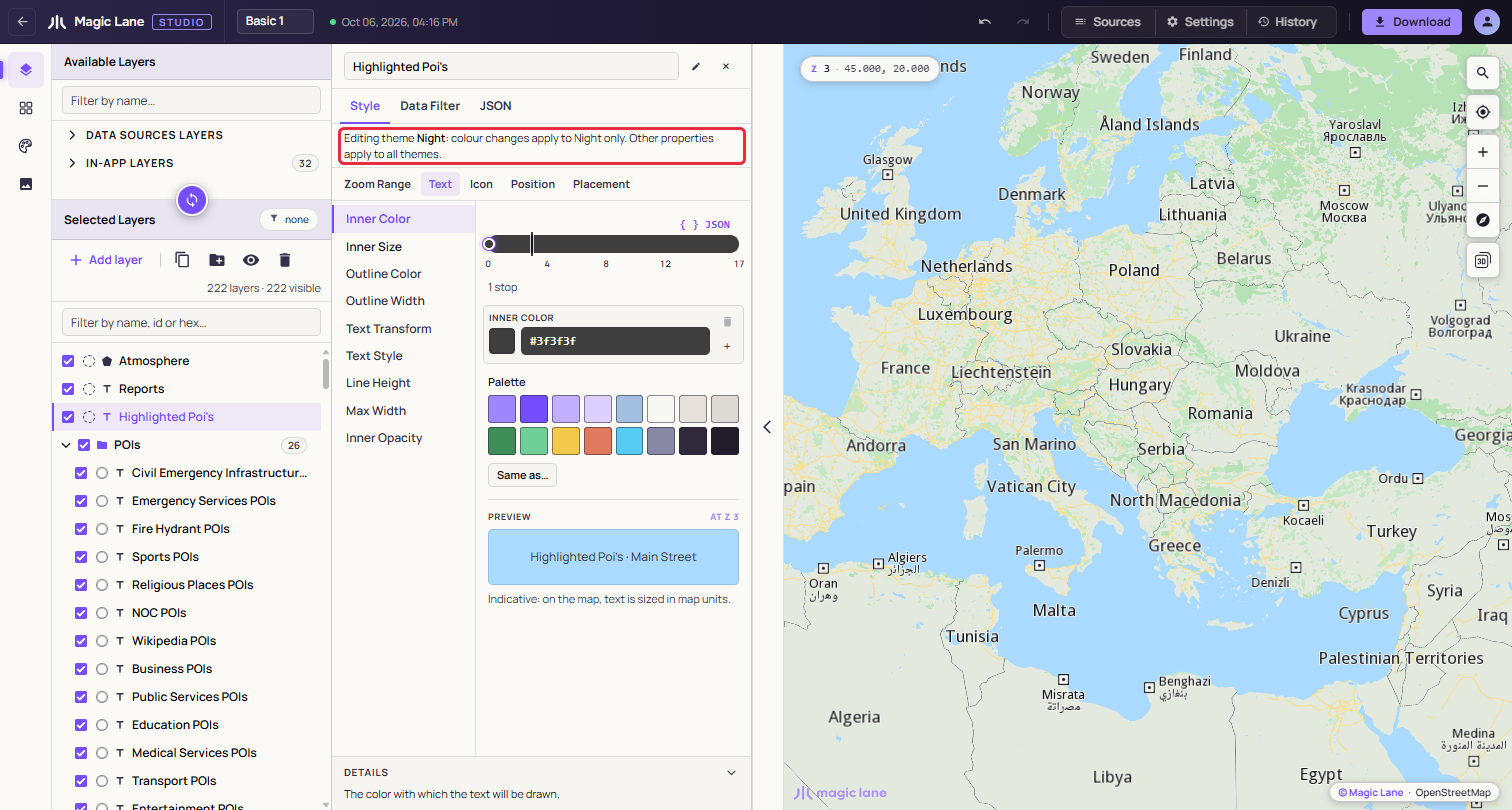
With a theme selected, a colour change belongs to that theme, wherever you make it: in Shared colours, on the palette, or on a layer in the Properties column. Everything else belongs to the style and applies to every theme: widths, opacity, zoom ranges, filters, visibility, and layers added or removed.
Creating, switching and deleting
- + New makes a theme from what is on screen: every colour and the palette. With a theme selected, the new theme is a copy of it. Using the name of an existing theme replaces it, and the button says Replace theme.
- The dropdown switches the map to another theme. Each theme remembers every layer's colours, including a layer you recoloured on its own, so switching back brings everything back exactly. A switch is one step in History, and Ctrl+Z (⌘Z on a Mac) returns to the theme you were in.
- × beside the dropdown deletes the selected theme after asking. The map keeps what it shows, and you continue in the next theme. Ctrl+Z undoes it.
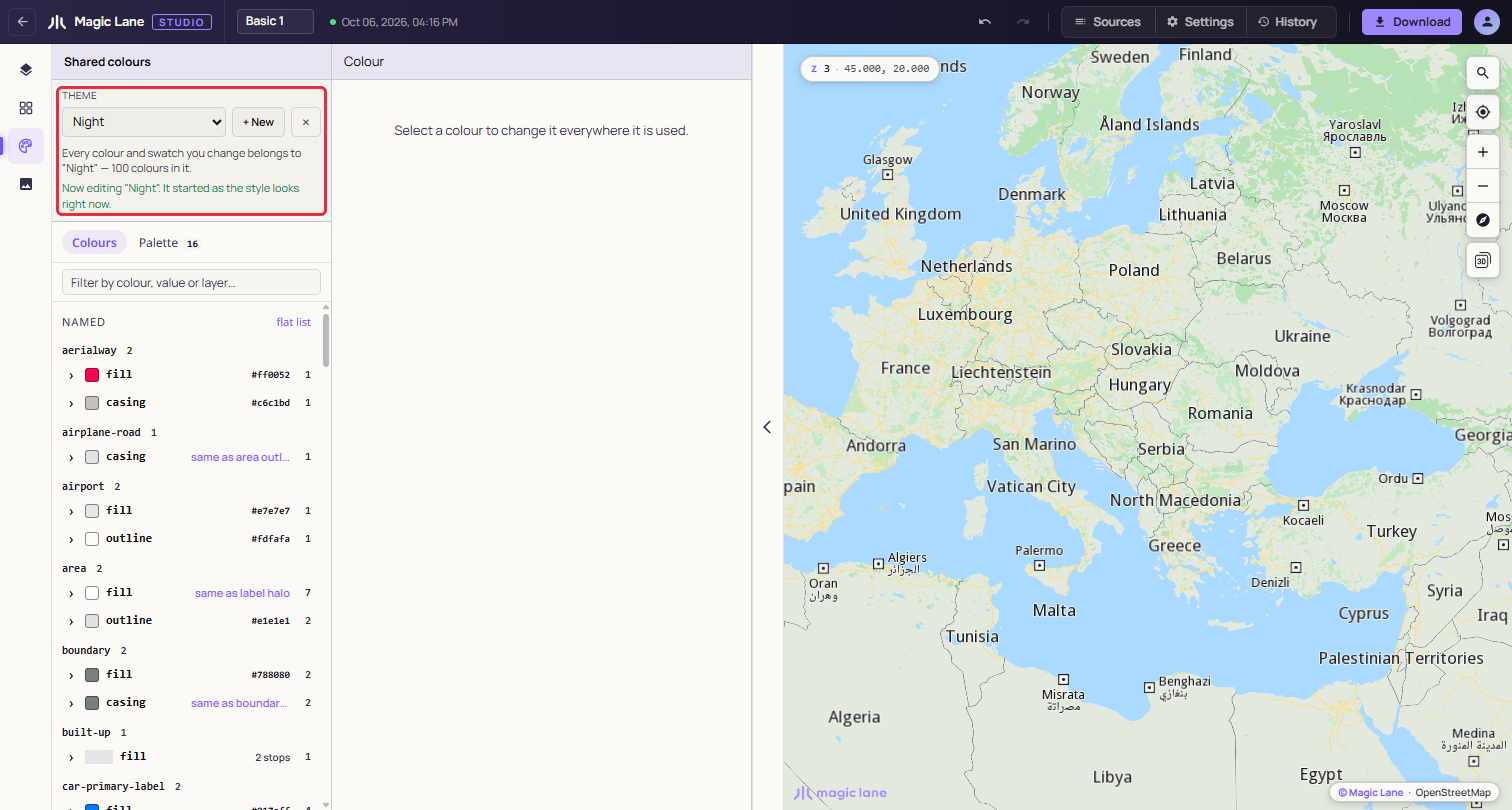
Once a style has a theme, the "No theme" entry leaves the dropdown, so create Day first if you want to keep the look you started with.
Downloading a theme
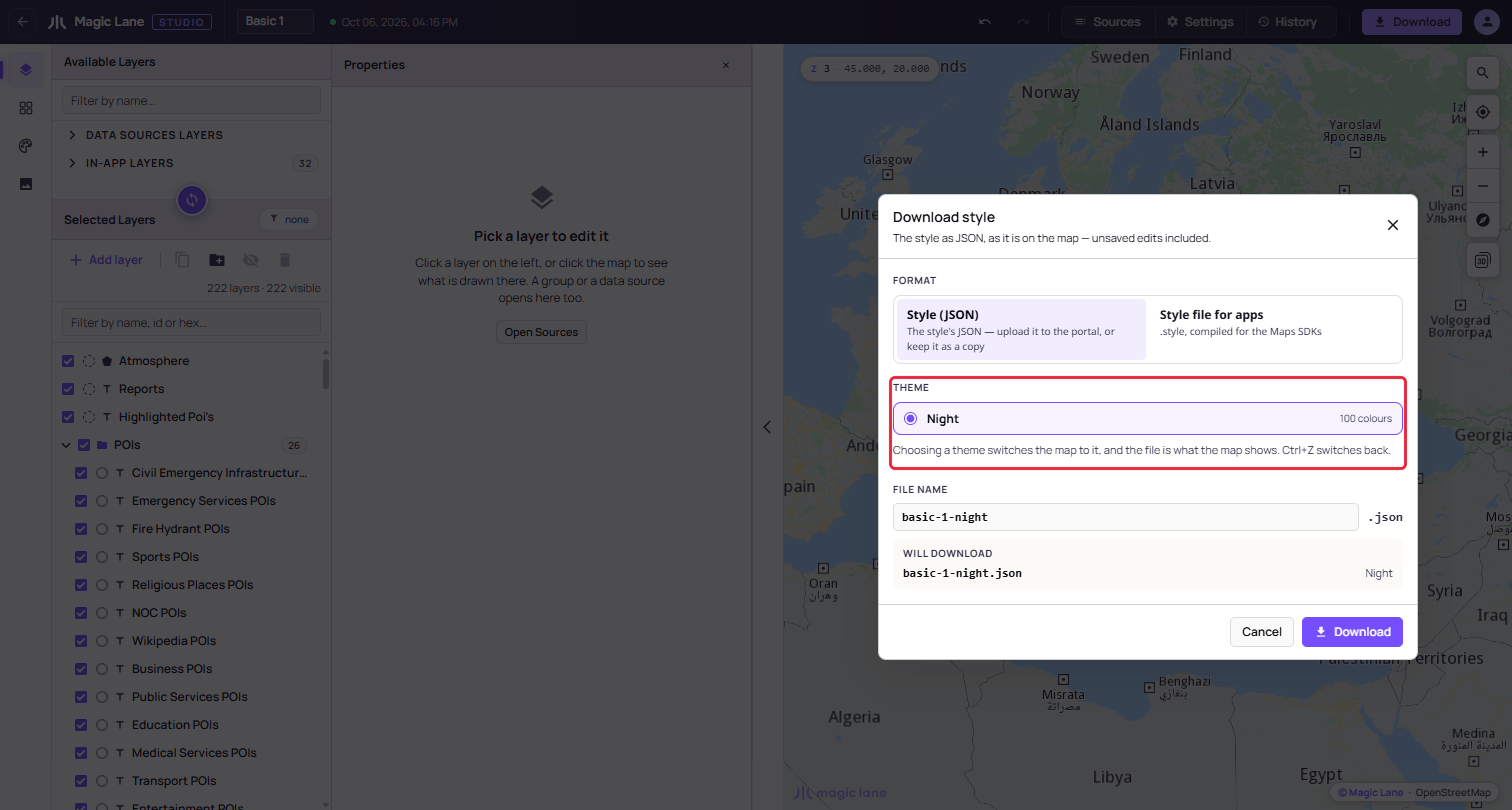
In the Download dialog, pick the theme the file should hold; the map switches to it, and the file name gets the theme's name, such as basic-1-night. If your app needs both a day and a night look, download each theme as its own file, and the app loads one or the other (see Switching between two styles).
See also: Shared colours · Download · History