The Properties column
The Properties column shows the selected layer and is where you edit how it is drawn: its zoom range, colours, sizes, text, icon, data filter and the layer as JSON.
Step by step
Show a layer only from zoom 12
- Select the layer in Selected Layers.
- In the Properties column, open Style › Zoom Range.
- Type
12in From and press Enter, or drag the left handle to 12. - The note now reads "Drawn from zoom 12 to 17; hidden outside that window." Zoom the map out below 12 to see the layer go.
Make a line thicker as you zoom in
- Select the line layer and open Style › Line › Inner Width.
- Click + on the stop to add a second stop, and set its zoom to 13.
- Give the first stop a small width, such as
0.5, and the zoom 13 stop a larger one, such as1.75. These are the widths Basic 1 gives residential streets. The graph shows the width growing with zoom.
Filter a layer to one category
The example is a layer over the tutorial's sample data, bucharest-places.geojson, whose eight places each carry a category field.
- Select the layer and open the Data Filter tab.
- Click Add Filter.
- In the first dropdown, pick the field,
category. In the second, pick equals. - Click the value chip and pick the value, for example
culture. The map draws only the matching features, and the panel counts them, "3 of 8 features match". - For several categories, pick is any of instead and select each value. Remove filter takes the filter off again.
Change several layers you pick yourself
- In Selected Layers, click a layer, then Ctrl+click (⌘+click on a Mac) each of the others; Shift+click selects a run. The toolbar reads "N selected".
- If the layers are all one type, the Properties column opens their editor. If they are of different types, it lists them by type: click the type you want to change.
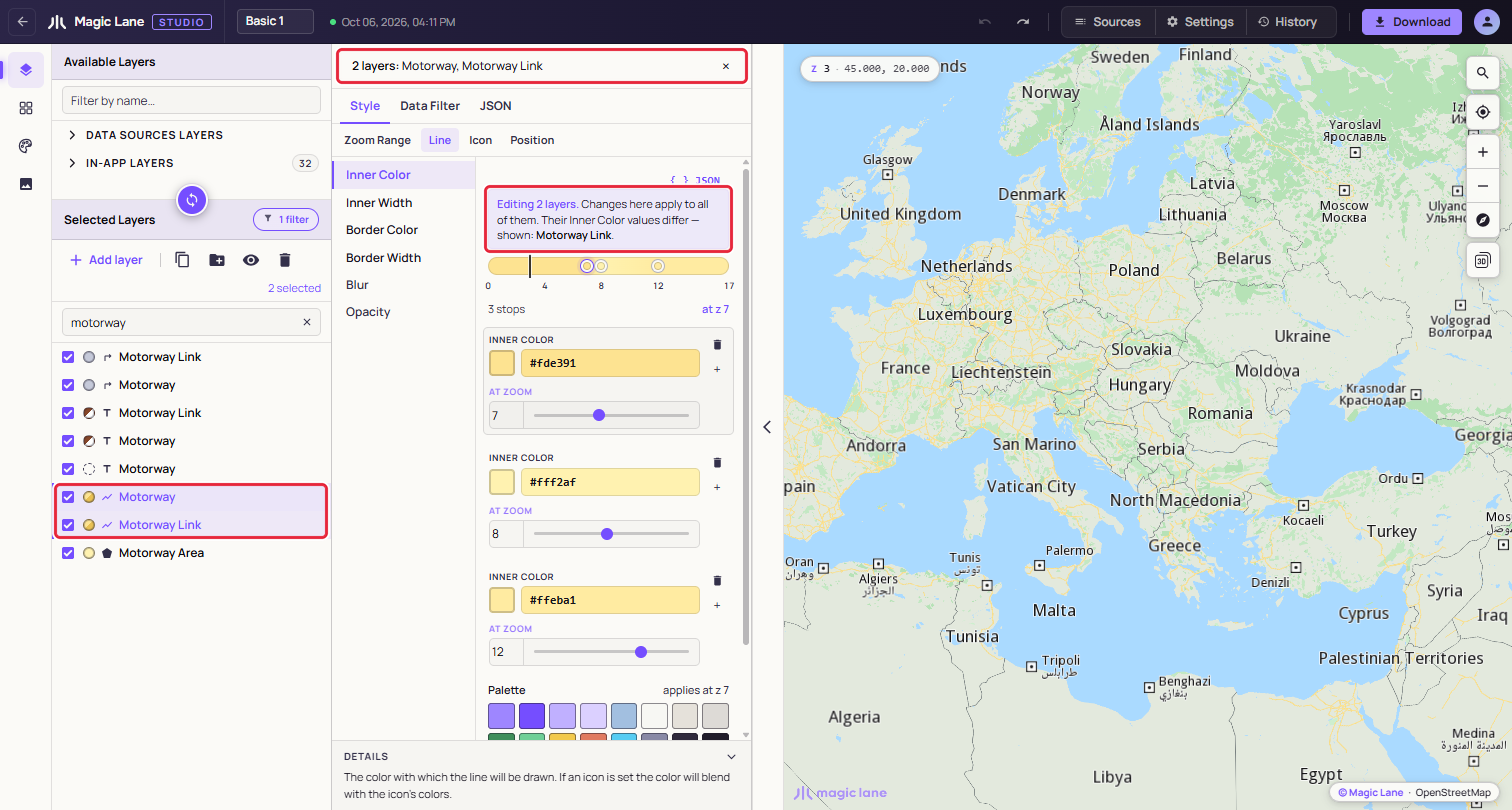
- Change a property, for example Line › Inner Color. The line above the editor reads "Editing N layers. Changes here apply to all of them.", and every selected layer of that type takes the new value, as one undo step.
- If you picked a type, click ‹ All N to go back to the whole selection and pick another.
The column
At the top is the layer name, which you can edit, and three tabs: Style, Data Filter and JSON.
The Style tab has a row of sub-tabs, a list of the properties on the left and the editor for the selected property on the right. The footer, DETAILS, explains the selected property. A property the layer does not set is greyed in the list. The sub-tabs depend on the layer type; for example a symbol layer has Zoom Range, Text, Data, Icon, Position and Placement, and a line layer has Zoom Range, Line, Icon and Position. Every type and property is listed in the Layer types reference.
The column keeps the sub-tab and property you were on when you select another layer, so you can go down a list of layers changing the same property.
When the layer has a problem, the column starts with what it is: its data source was deleted, or the style came with a part of this layer Studio could not read. A layer whose data source was deleted, or that has no type, draws nothing, so the note comes with Delete layer (unavailable when it is the style's only layer). See A style with damaged parts.
Render Type
A layer drawn over your own data has one more sub-tab before Zoom Range: Render Type. Its Render as control chooses what the layer draws the data as: Symbol (an icon or a label at each point), Symbols Group, Line or Area. Studio sets it from the data when you drag a data source in, so you rarely need to change it. Changing it replaces the layer's paint with the starting paint of the new type; only the Icon Overlap setting is kept. Layers over the map data Magic Lane serves have no Render Type.
Zoom range
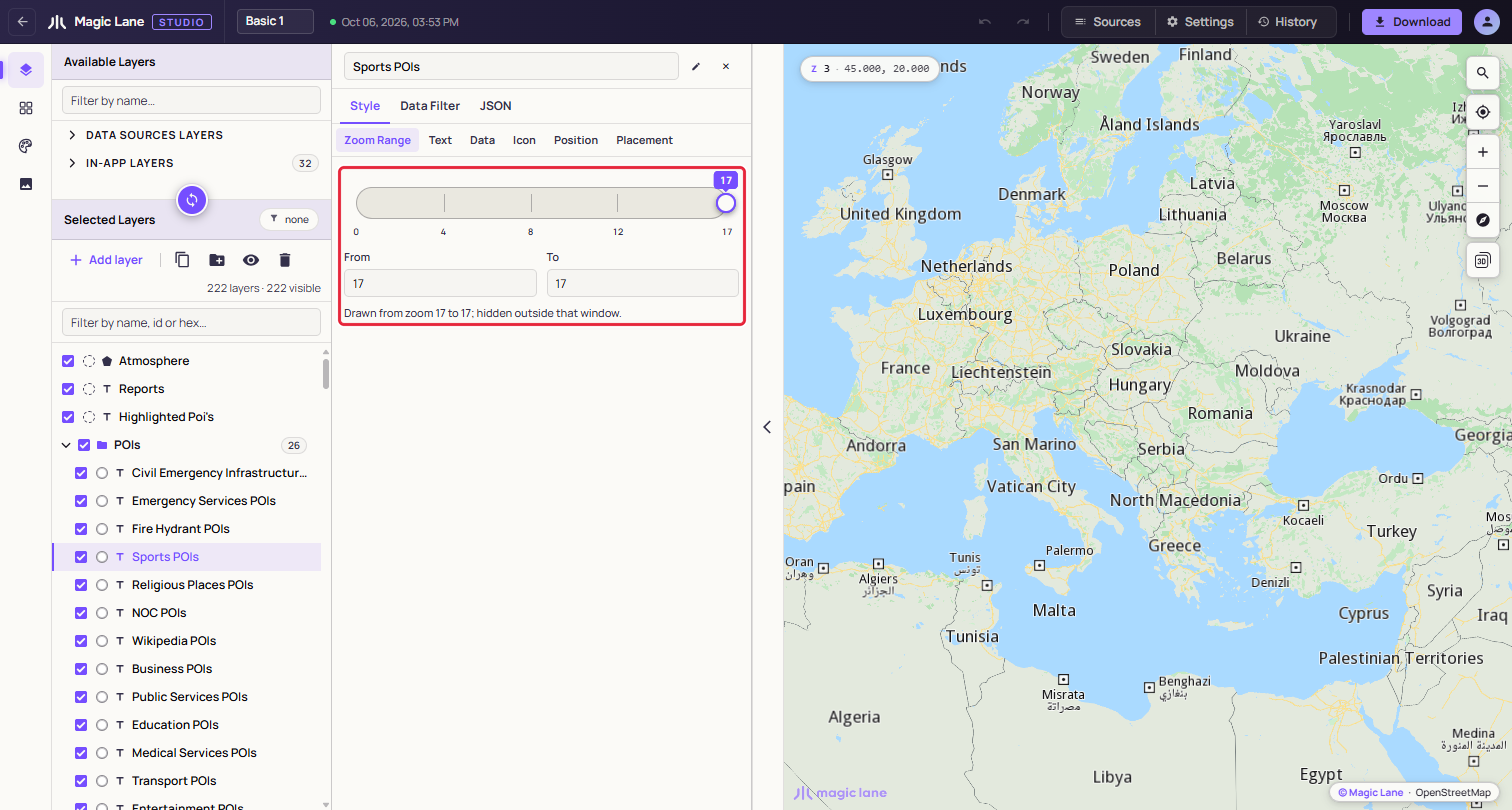
The zoom range is the window of zoom levels in which the layer is drawn. Drag either handle, or type in From and To. The note under them says what the range means, for example "Drawn at every zoom in the style." for 0–17.
Values that change with zoom
Every paint property is a list of stops: each stop is a zoom level and a value, and the map blends from one stop to the next. One stop means one value at every zoom.
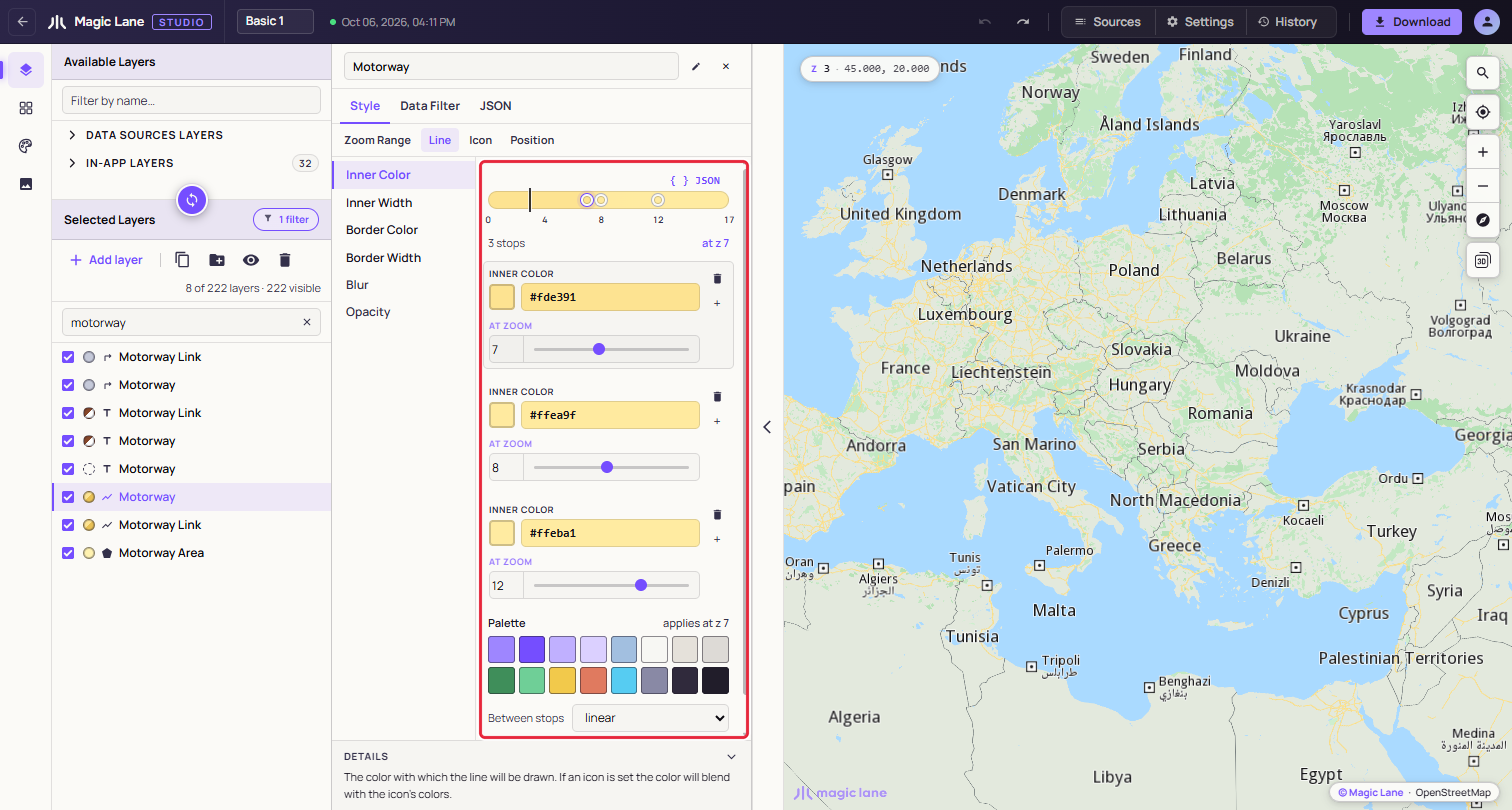
- + on a stop adds one after it; the bin removes one.
- Set each stop's zoom in its "At zoom" box, and its value in the field above.
- Between stops chooses how the value moves from one stop to the next: linear, or one of 21 easing curves.
- For a colour, the track at the top shows the colour at every zoom; click a pin to move the map to that stop's zoom. For a number, a graph shows the value against zoom.
Number fields commit when you press Enter or leave them. ↑ and ↓ step a number by 0.1, and Shift+↑ and Shift+↓ by 1.
Colours
Type a hex value in a colour's field, or click its chip for the colour picker. The Palette row under the stops holds the style's quick colours: click one to use it on the stop you are editing. The picker, the opacity strip and the palette are described in Shared colours.
To give many layers the same colour and keep them together, use Shared colours.
When a property is not set
A property the layer does not set says so, for example "Inner Color is not set on this layer — the map uses its default." Set Inner Color gives it a starting value to edit. Same as… lists the values other layers already use for this property, most used first, and copies the one you pick.
Text
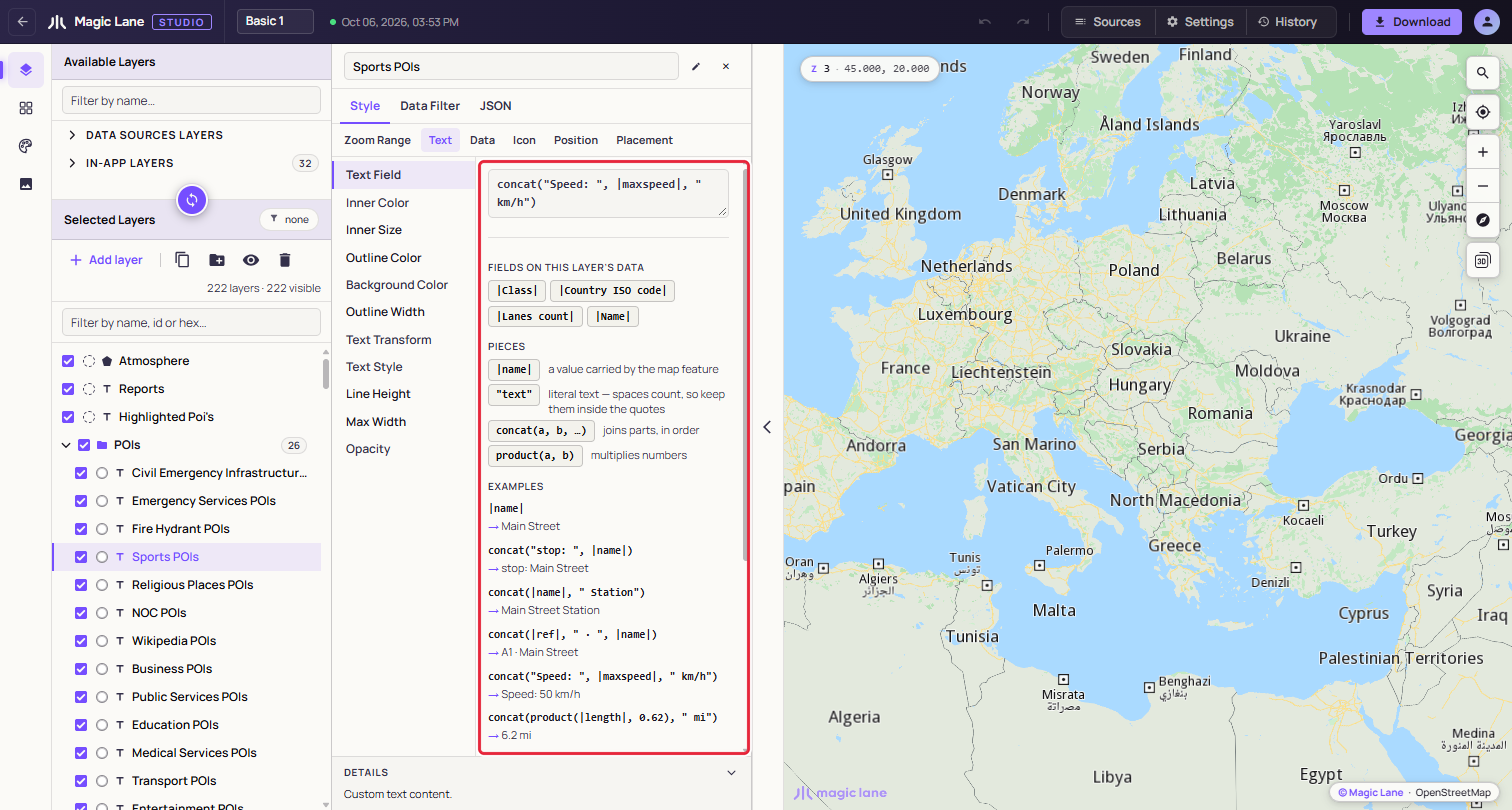
Symbol layers have Text Field: the text each label shows, written as one expression.
|name|shows the feature'snamefield. Bars mark a field."EV"shows the text EV. Quotes mark literal text.concat(|name|, " (", |category|, ")")joins the parts: "Obor Market (food)".concat(|max_kw|, " kW")shows "150 kW" for a charging station whosemax_kwis 150.product(|rating|, 20)multiplies two numbers and shows the result with two decimals: aratingof 4.6 out of 5 shows as 92.00.
The chips under "Fields on this layer's data", and the Pieces, insert at the cursor. A mistake is shown under the box, and the map keeps the last working text until the expression reads correctly again. An empty box removes the label. The Preview card shows the label with the layer's text colours and size, in the face of the style's font that its Text Style uses. Under it, "Style font: Poppins — change in Settings" names that font ("built-in" when the style has no such face); there is no font per layer. See The style's font.
Icon
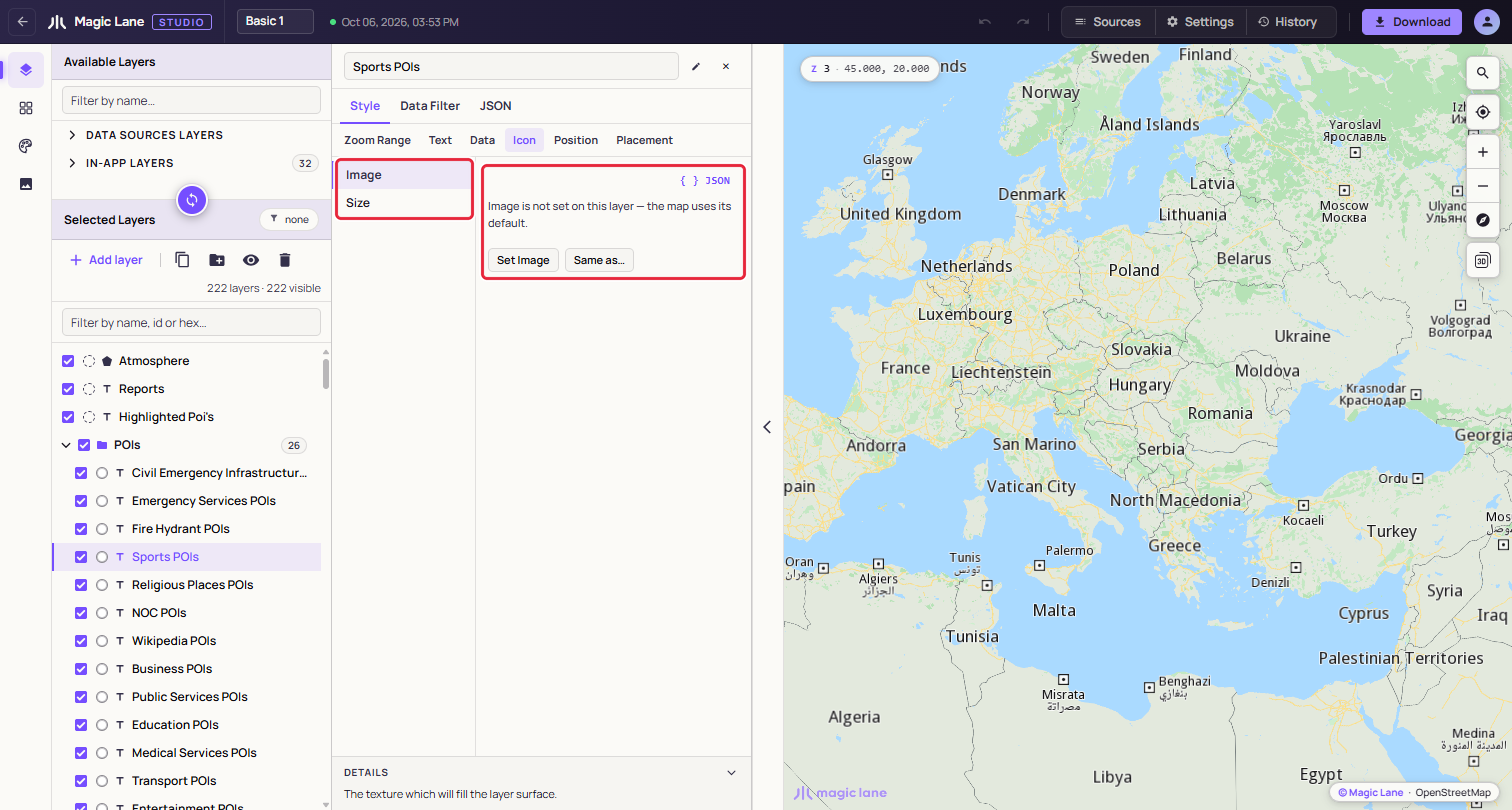
Image picks one of the style's images, or "No icon". The picker's Upload image… adds a new file to the style and uses it at once; Manage images opens the Images screen. Size scales the icon. See The image library.
Data, Position and Placement
- Data › POI Category, on POI layers, picks the category of points of interest the layer draws. The map draws each category's own icon.
- Position places text and icons: Text Align, Text Anchor (a 3×3 grid), rotation, and moving the text or icon by Translate and Offset values.
- Placement decides what happens when labels or icons collide: whether they may overlap others, whether one can be left out to make room, and how much space to keep around them.
Data Filter
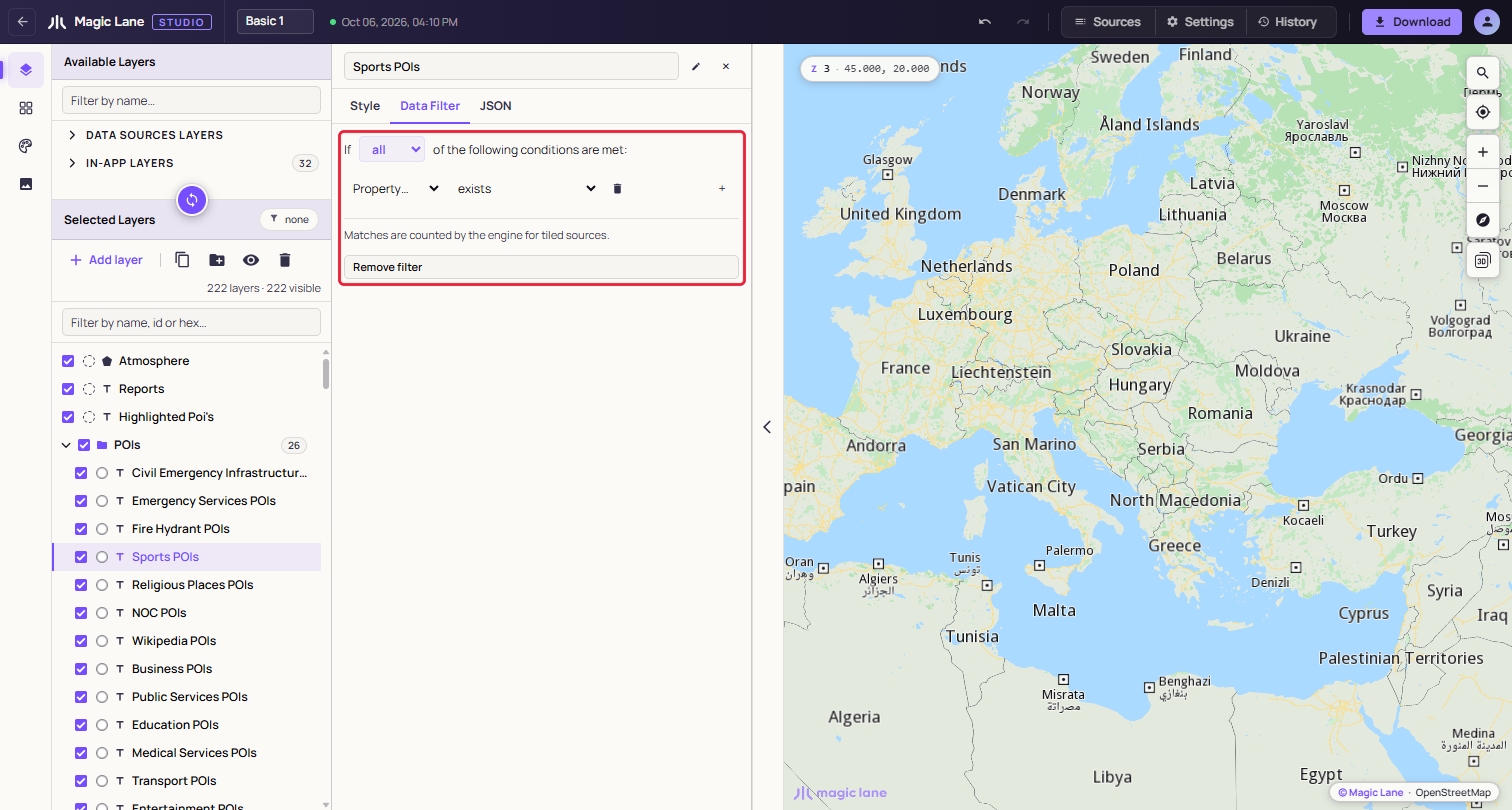
The Data Filter tab limits which features of the layer's data the layer draws; the steps are under Filter a layer to one category. A filter reads "If [all ▾] of the following conditions are met:"; change all to any or none when you need to. When a comparison takes values, you can also type one and choose "Add “…” to values list". + adds another condition and the bin removes one.
| Comparison | Takes |
|---|---|
| exists, does not exist | no value |
| equals, not equals | one value |
| is any of, is not any of | one or more values |
| is greater than, is less than, is greater than or equal to, is less than or equal to | a whole number. These work only on the map data's number fields, such as Lanes count on roads. On text, including every field of your own data, they let every feature through. |
The JSON tab
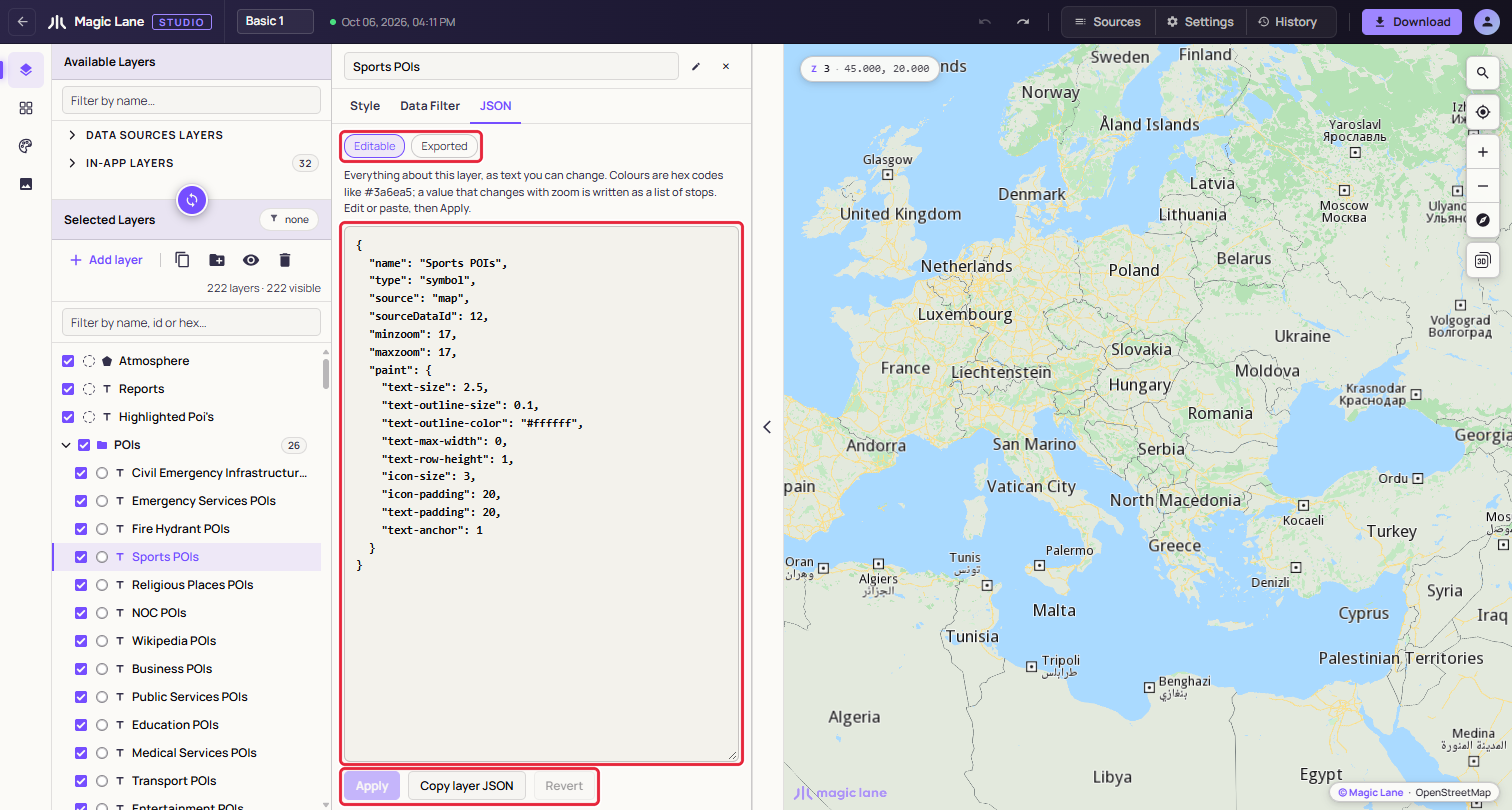
The JSON tab shows the whole layer as text. Edit or paste, then press Apply (Ctrl+Enter, ⌘+Enter on a Mac); nothing changes until the text is valid, and the problems are listed with line numbers. Exported shows the layer exactly as the downloaded file writes it. Each property also has a { } JSON button that shows just that value as text. See Style file format.
Editing several layers
With several layers selected, a paint edit reaches every selected layer that has the property, as one undo step. The steps are under Change several layers you pick yourself.
When the selected layers are of different types, for example lines and areas, the column lists them by type with a count, like a group's panel, and Hide layers (or Show layers) hides or shows them all, as one undo step.
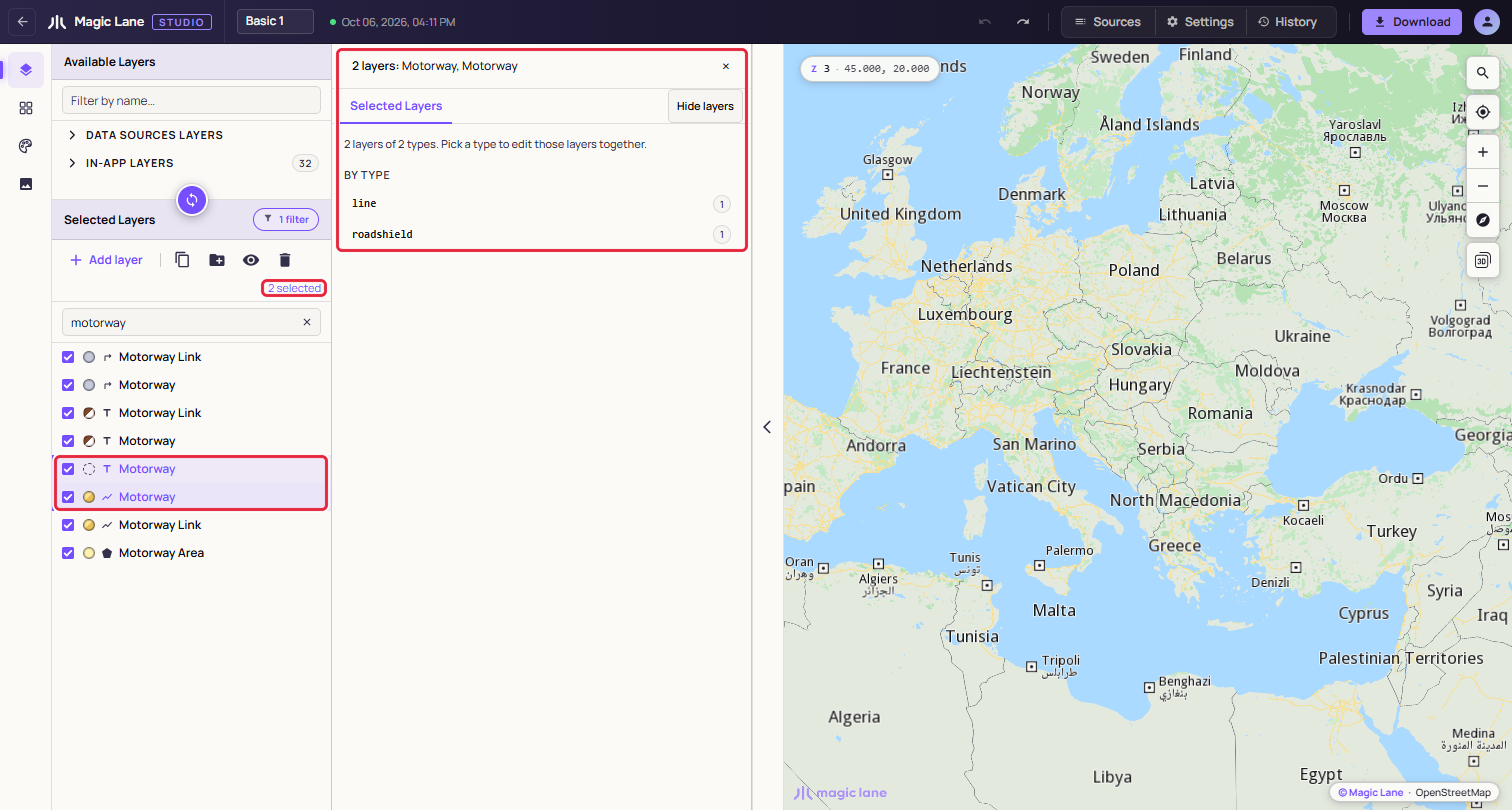
The top of the column lists the selection, for example "2 layers: Trunk Area, Motorway Area"; hover it for the whole list. The values shown are those of the layer you clicked last. Above the editor a line says what an edit will do: "Editing 5 layers. Changes here apply to all of them.", "Their Inner Color values differ — shown: Motorway.", or "2 selected layers have no Inner Color and are left alone."
Zoom Range, Text Field, POI Category, Data Filter and the JSON tab apply to the layer shown only. To rename a layer, select it on its own: with several selected, the name box and rename button are hidden. One Ctrl+Z (⌘Z on a Mac) undoes a change on every layer it reached.
To select every road line at once, click the group header that holds them and pick line in its By type list (see Selecting). To change one colour everywhere it is used, for example the grey of all 29 one-way arrow layers in Basic 1, use Shared colours.
Editing inside a theme
While a theme is selected in Shared colours, the Style tab says so: "Editing theme Night: colour changes apply to Night only. Other properties apply to all themes." See Themes.
See also: The layer list · Layer types reference · Shared colours · The image library