The map, settings and history
The map on the right of the editor shows your style as you edit it. This page covers moving around it, finding out which layer drew something, the Settings drawer, and undoing changes with History.
Step by step
Find the layer that draws something
- Click the thing on the map, such as a road or a label. A popup headed LAYERS lists every layer that drew at that point, topmost first.
- Click a row. The layer opens in the Properties column, on the screen you are on.
Set where the style opens
- Move the map to the view the style should open at.
- Open Settings in the top bar and click Use current view under Default map position.
- Under Lock default position, keep URL wins so that shared links open where they were copied, or choose Always open here.
Go back to how the style looked earlier
- Open History in the top bar.
- Click the row of the last change you want to keep. Every change above it is undone. To undo everything from this session, click the bottom row, "Opened <style name>".
Moving around the map
Drag to pan. Zoom with the + and − buttons, or pinch on a touch screen. The keyboard works too, when the map has focus (click it first):
- Arrow keys pan by 100 pixels; with
Shift, by 300. Shift+PlusandShift+Minuszoom in and out.Ctrl+PlusandCtrl+Minusstay the browser's page zoom.
On a Mac, ⌘ stands in for Ctrl throughout Studio.
The chip at the top left shows the zoom and the latitude and longitude of the map centre. This is the zoom the layers' zoom ranges and stops refer to. Hover it for more decimals.
The column on the right edge holds, from the top:
- Search: find a place (see below).
- My location: centres the map on you and follows you, after the browser asks for permission. Disable stops following.
- Zoom in, Zoom out and North up, which turns the map so north is at the top.
- Perspective view: tilts the map into 3D and back.
When the sample route of a travelled-route layer is on the map, a Simulate button also appears here; it reads Stop while the drive runs (see In-App Layers).
Searching for a place
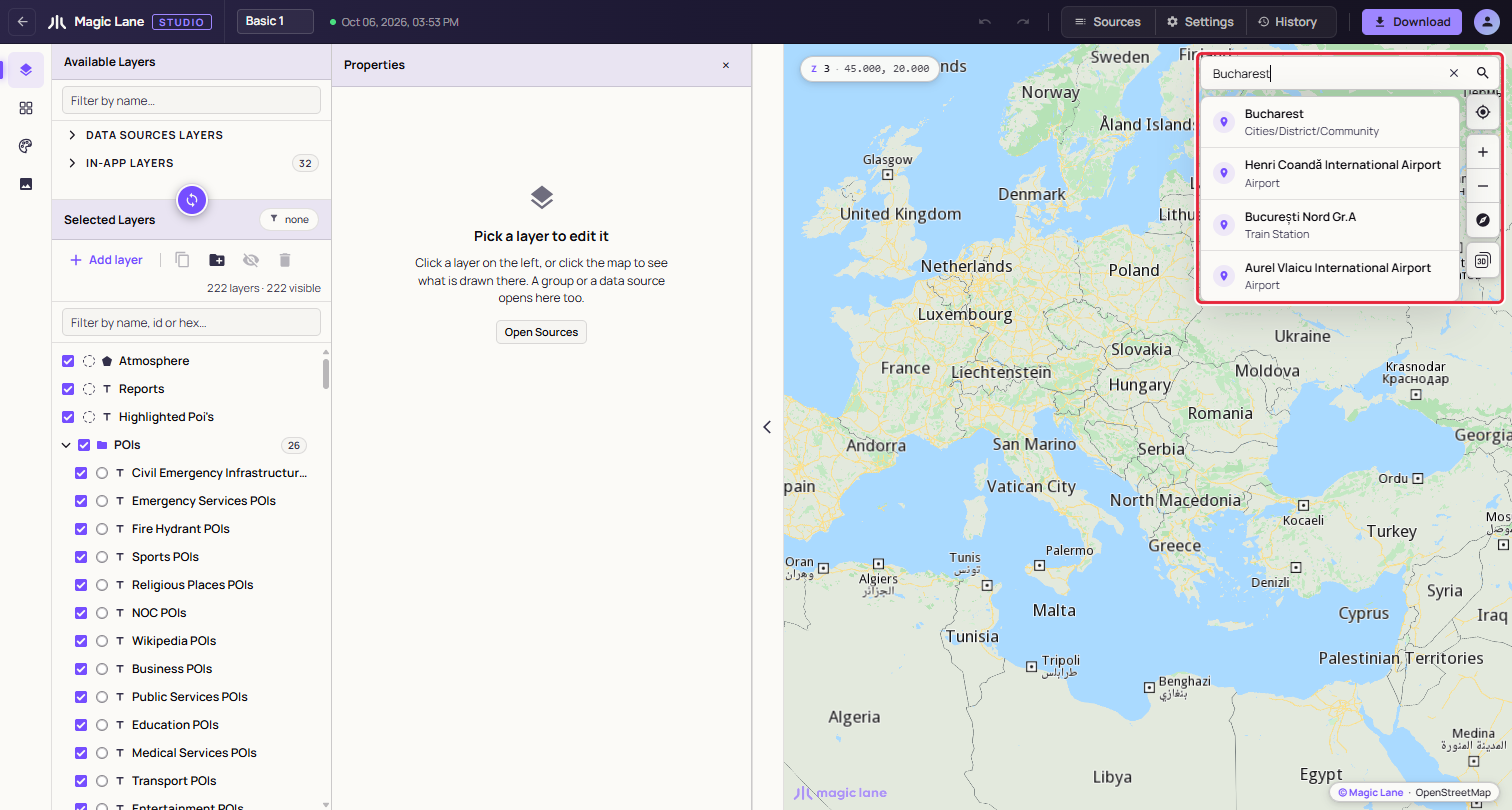
Click the magnifier and type. Results are ranked from the map centre, so nearer places come first, and each shows what kind of place it is. Click a result, or use the arrow keys and Enter. The map moves to the place; a city or region is outlined in red. Esc or the × clears the search and the outline.
Clicking the map
The steps are under Find the layer that draws something. Each row of the LAYERS popup shows a layer's colour, name and type, and opens the layer on the screen you are on: in the Properties column on Layers and Components, its colour on Shared colours, or its images on Images.
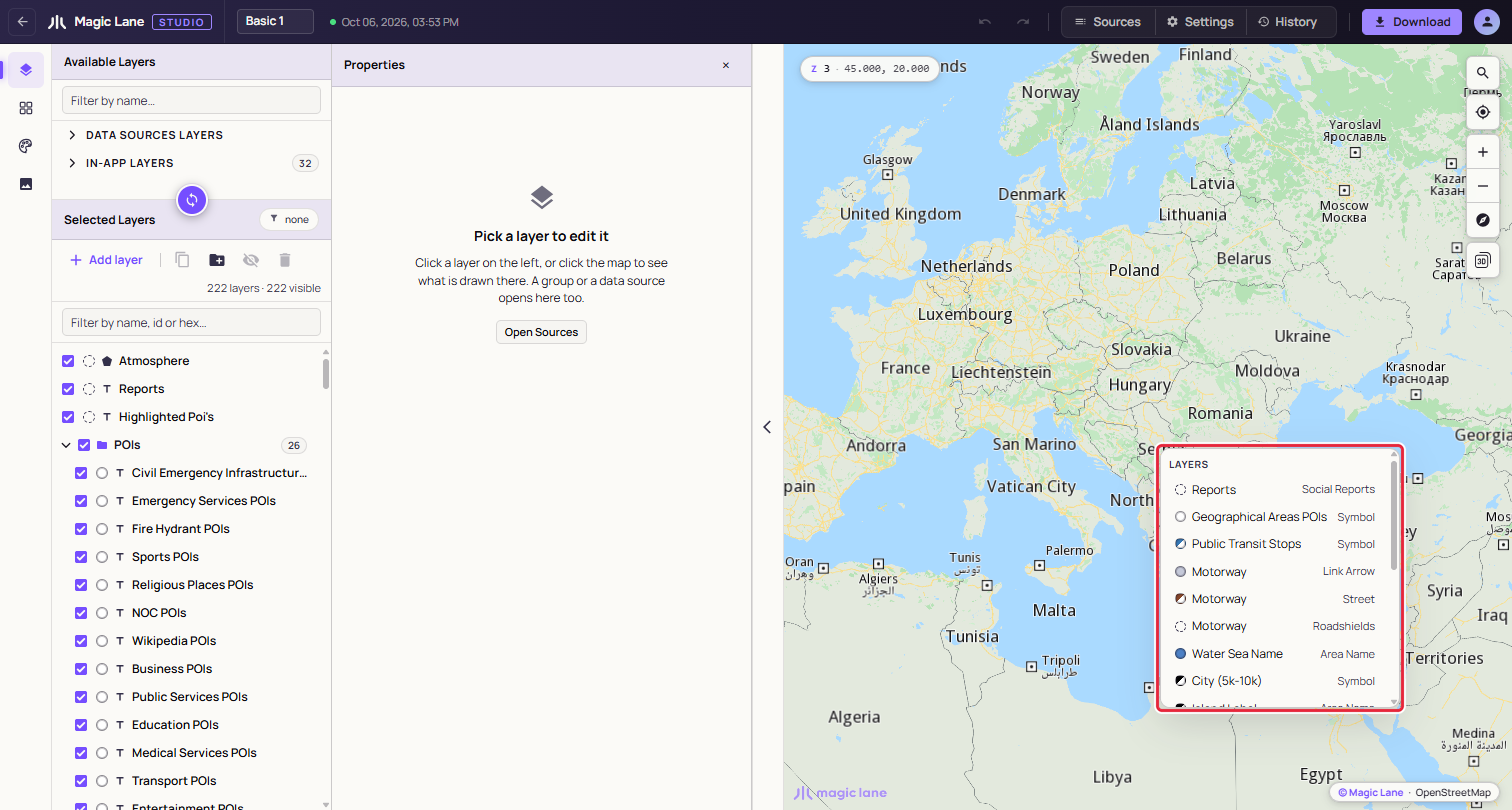
A second section, UNDER THE CURSOR, names places, roads and your own data at that point, with their properties. Where nothing in the style drew, the popup says "No style layer painted this pixel." While a data source is selected, clicks draw instead (see Drawing on the map).
Sources
Open Sources in the top bar to see what the style reads from. The drawer starts with a summary line, such as "Basic 1 · 222 layers · 18 groups · 66 sources · 6 images", which ends with "font (1 face)" when the style has its own font. It then lists every data source the style's layers draw from: the names of the first layers on it, its source, and how many layers use it. Click a row's caret to list those layers, and click a layer to select it. Select all selects every layer on that source, so one edit in the Properties column reaches them all; the funnel filters the layer list to them. With more than eight sources, a "Filter sources…" box appears above the list.
A source that needs attention is listed first, with the reason, for example one of your data sources that has since been deleted, or a source that no layer uses. Select N selects the layers concerned so you can fix or delete them.
Settings
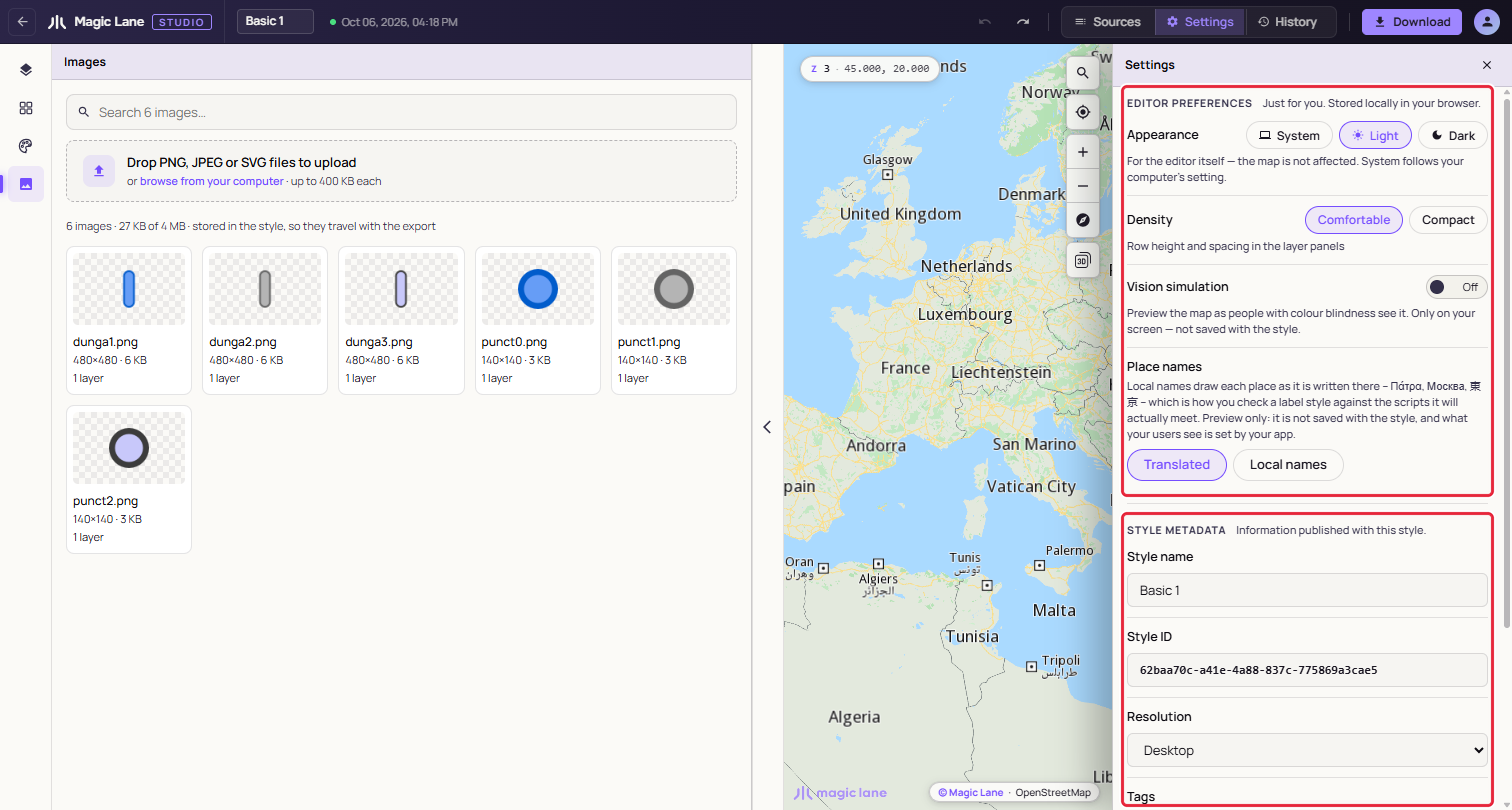
Open Settings in the top bar. The drawer has four parts: your editor preferences, the style metadata, the style's font and the default map position.
Editor preferences
These are kept in your browser, apply to every style you open in it, and are never part of the style.
- Appearance: System, Light or Dark. It changes the editor, never the map.
- Density: Comfortable or Compact rows in the layer panels.
- Place names: Translated or Local names. Local names shows names as they are written there (Πάτρα, Москва, 東京), to check your labels against other scripts. It is a preview only: the language users see is set by the app.
Vision simulation
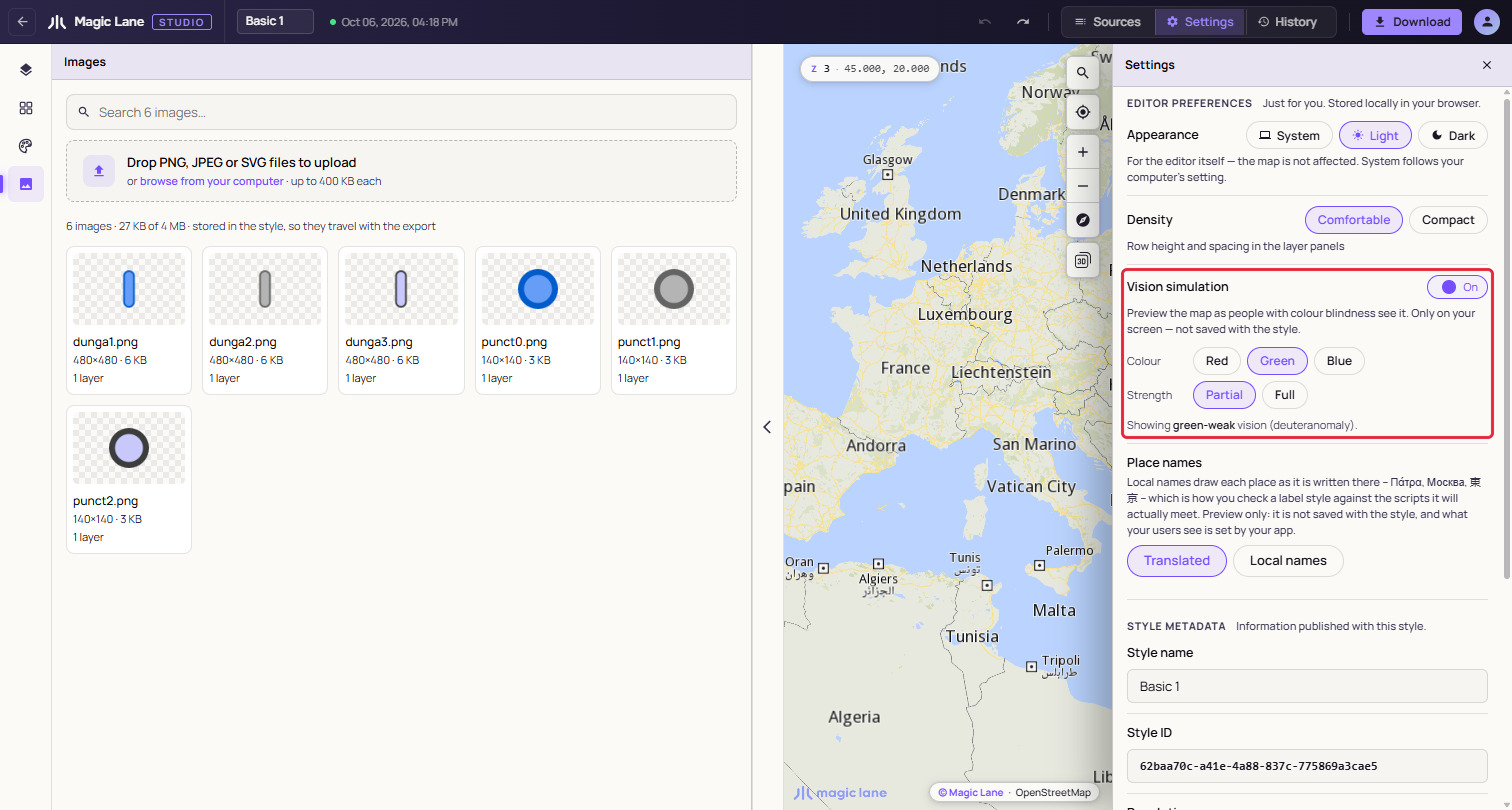
Turn on Vision simulation to see the map as people with colour blindness see it. Pick the Colour they have trouble with (Red, Green or Blue) and the Strength (Partial or Full); a line names the condition shown, such as "Showing green-weak vision (deuteranomaly)." Only the map changes, so the swatches in the Properties column keep their true colours. The simulation turns off when you reload.
Style metadata
These are saved with the style in the portal, like every other change.
- Style name: shown in the top bar, in the portal and as the download's file name. You can also edit it in the top bar.
- Style ID: the portal's identifier for the style. It is read-only.
- Resolution: Desktop or Mobile, a label the portal uses to sort styles. It does not change the map.
- Tags: words to find the style by in the portal. Type one and press
Enteror a comma; the × removes it.
Typography
The style's own font for its labels: a TTF or OTF file in each of up to three slots, Regular, Bold and Italic, stored in the style like an image. Each face is used on its own; a face the style does not have is drawn in the map's built-in font. See The style's font.
Default map position
This sets where the style opens, for everyone who opens it in Studio. Move the map, then click Use current view to store its centre and zoom. You can then type exact values; Clear removes the position. The map's rotation and tilt are not part of the position: the style opens with north up and flat, as a shared link does.
The first view of a style is chosen in this order:
- The default position, if Always open here is selected.
- The view in the address, from a shared link or a reload (see Opening a style).
- The default position, if URL wins is selected (the default).
- A view of the whole world.
The default position is used only in Studio. In an app, the app sets where the map opens.
History
The undo and redo arrows in the top bar, and Ctrl+Z and Ctrl+Shift+Z (or Ctrl+Y), undo and redo changes to the style. Hover the undo arrow to see what it will undo. In a text field, the keys undo the typing in that field instead.
These can be undone: changes to layers, their properties and their order; components; shared colours and themes; the image library; the style metadata, font and default position in Settings.
These are not part of the style's history, so Ctrl+Z does not undo them:
- Data sources: uploads, drawing, feature properties, renaming and deleting a data source. A saved data source can go back to its last saved version with Discard (see Data sources). Deleting a data source cannot be undone, though the layers deleted with it can.
- The palette, which has its own Undo and Redo buttons on the Palette tab of Shared colours.
- Moving the map, and your editor preferences.
An undo is saved like any other change, so the saved style always matches what you see.
The History drawer
Open History in the top bar to see this session's changes, newest first. Each row says what was done and to which layer or group, and when. A colour drag or a change to many layers at once is one row; "×n" shows how many changes it merged.
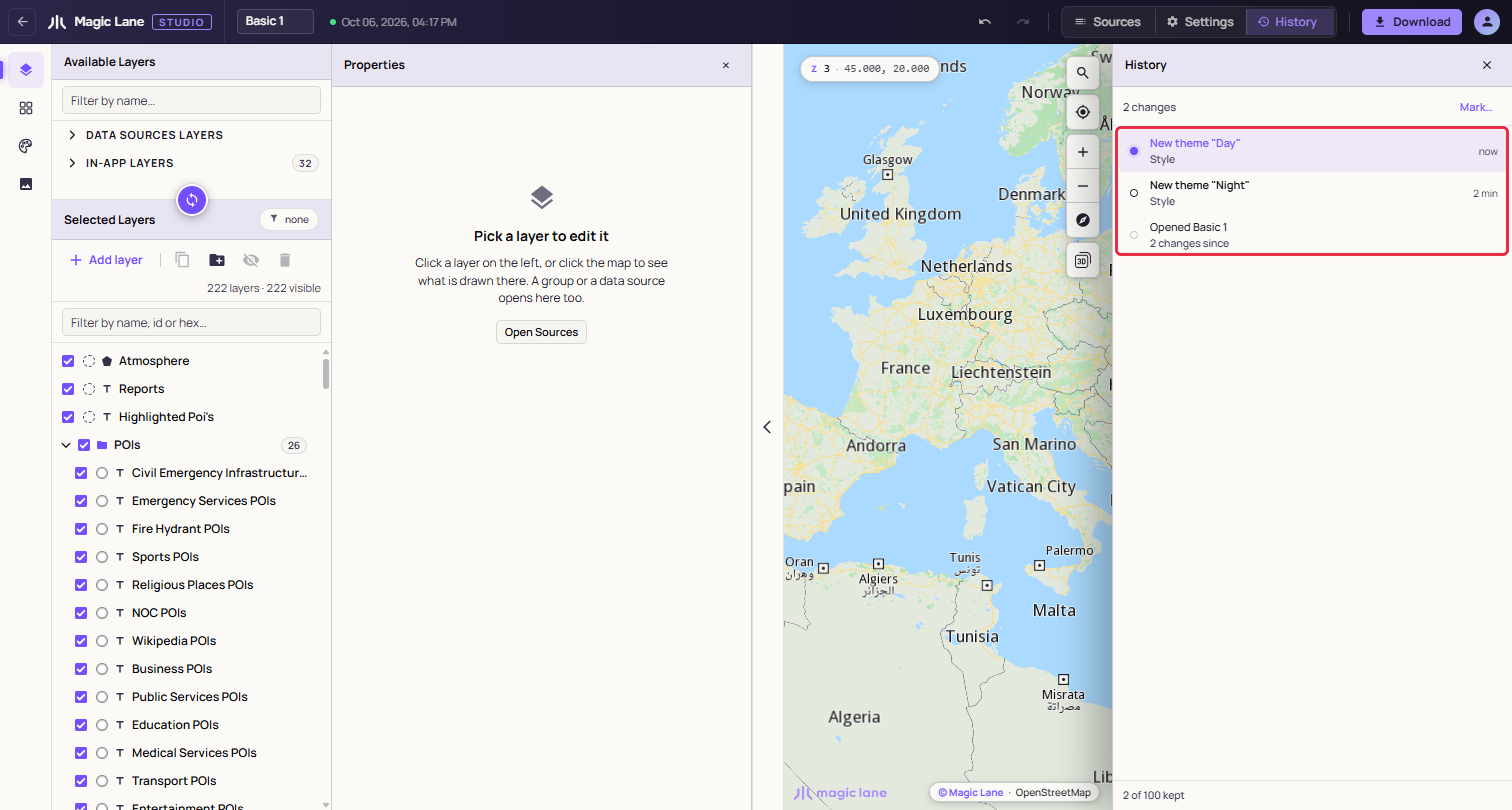
- Click a row to go back to just after that change. The changes above it are greyed and marked "redo"; click one to redo up to it. A new change clears them.
- Mark… names the current point, such as "Before the night colours". Revert to ◆ name in the footer then goes back to it in one click.
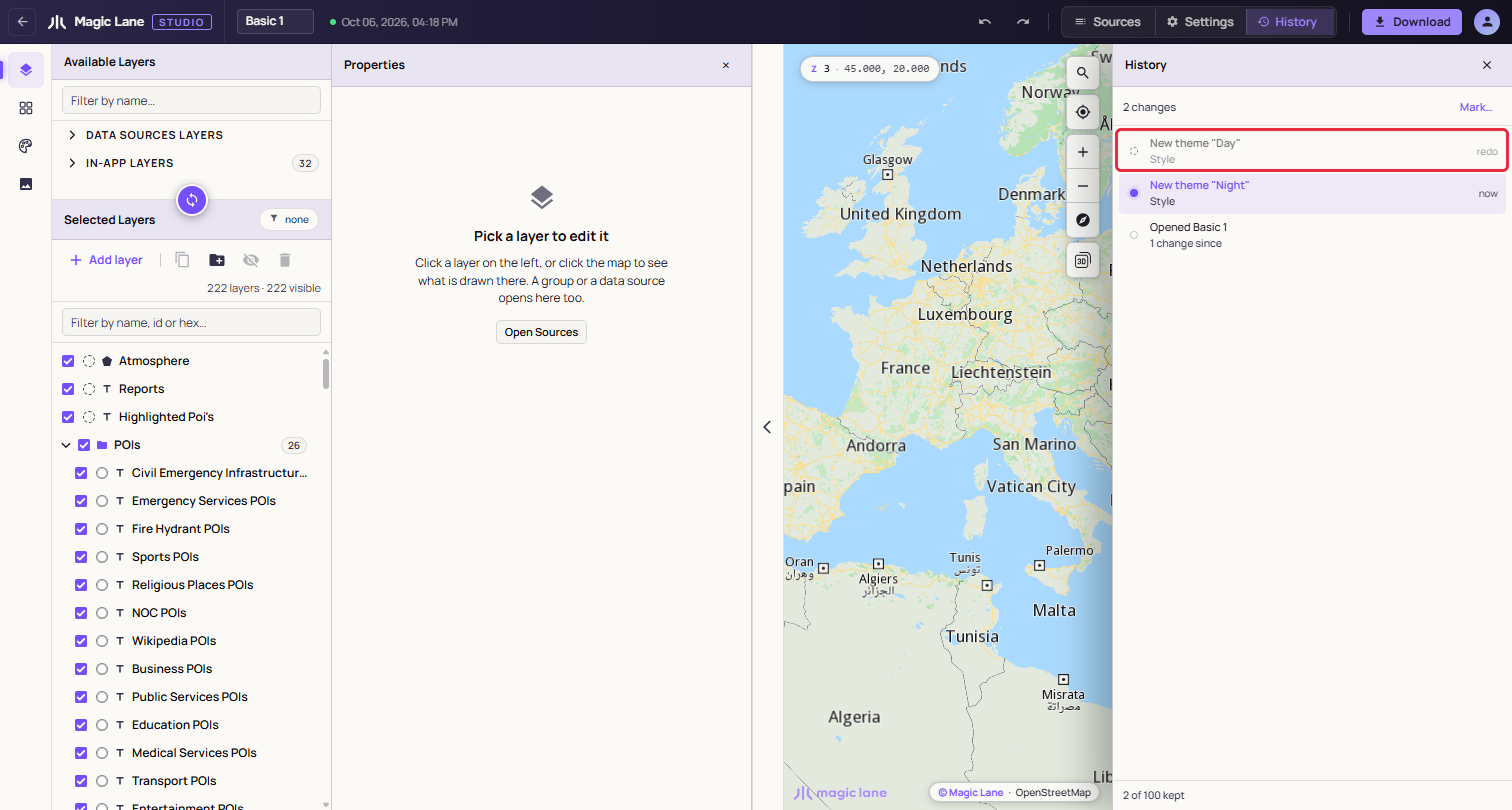
History keeps the last 100 changes of this session. Reloading the page or opening the style again starts a new list. Your changes are not lost, since each was saved as you made it; only the way back past the reload goes. Before a large change you may want to return from, download a copy (see Download and use in your app).
See also: Keyboard shortcuts · Saving