The layer list
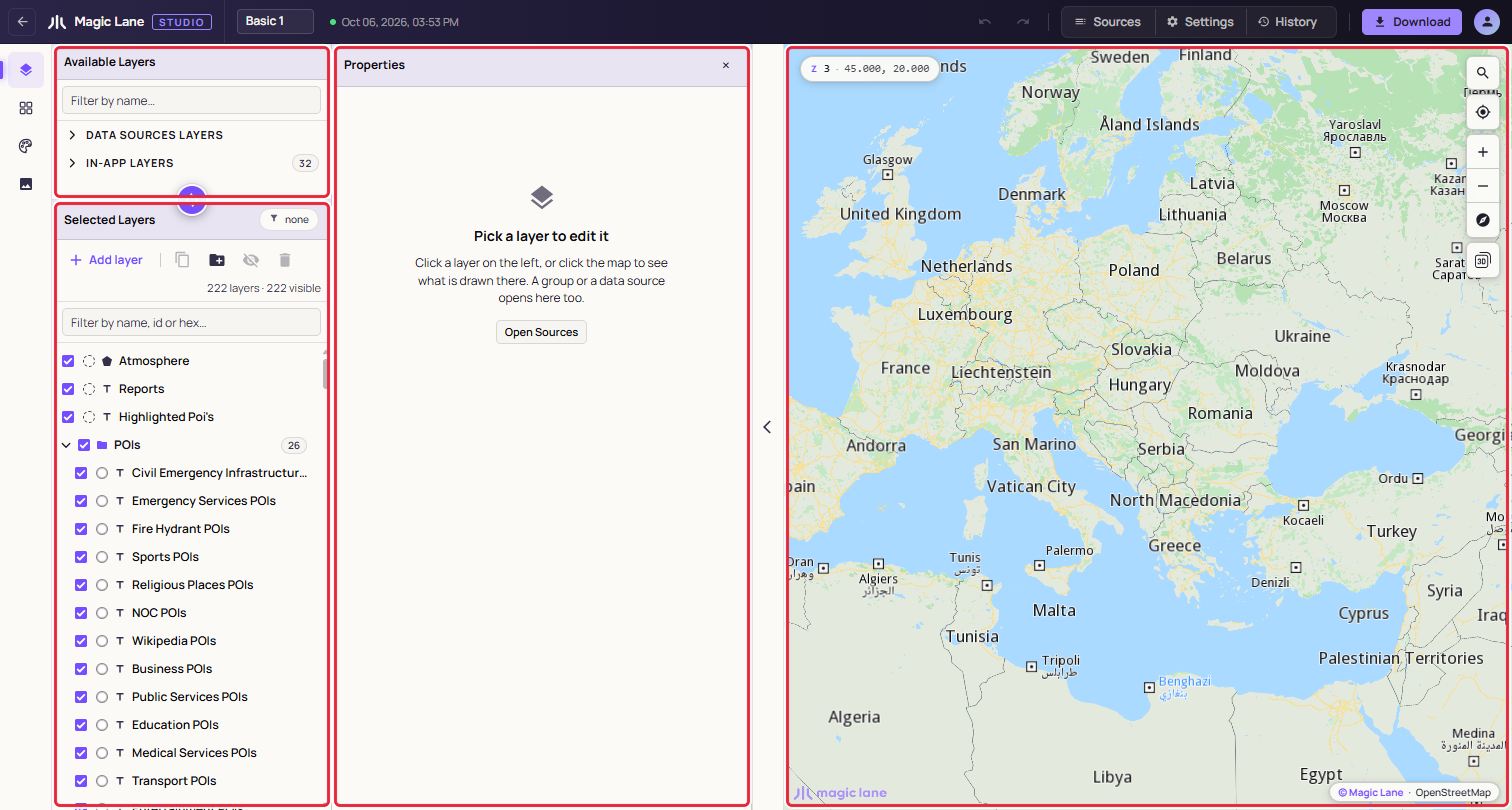
The Layers screen has two lists on the left. Available Layers is the catalogue of what a layer can draw; Selected Layers holds the layers of your style, in drawing order. This page covers adding layers, and selecting, ordering, grouping, hiding and deleting them.
Step by step
Add a layer
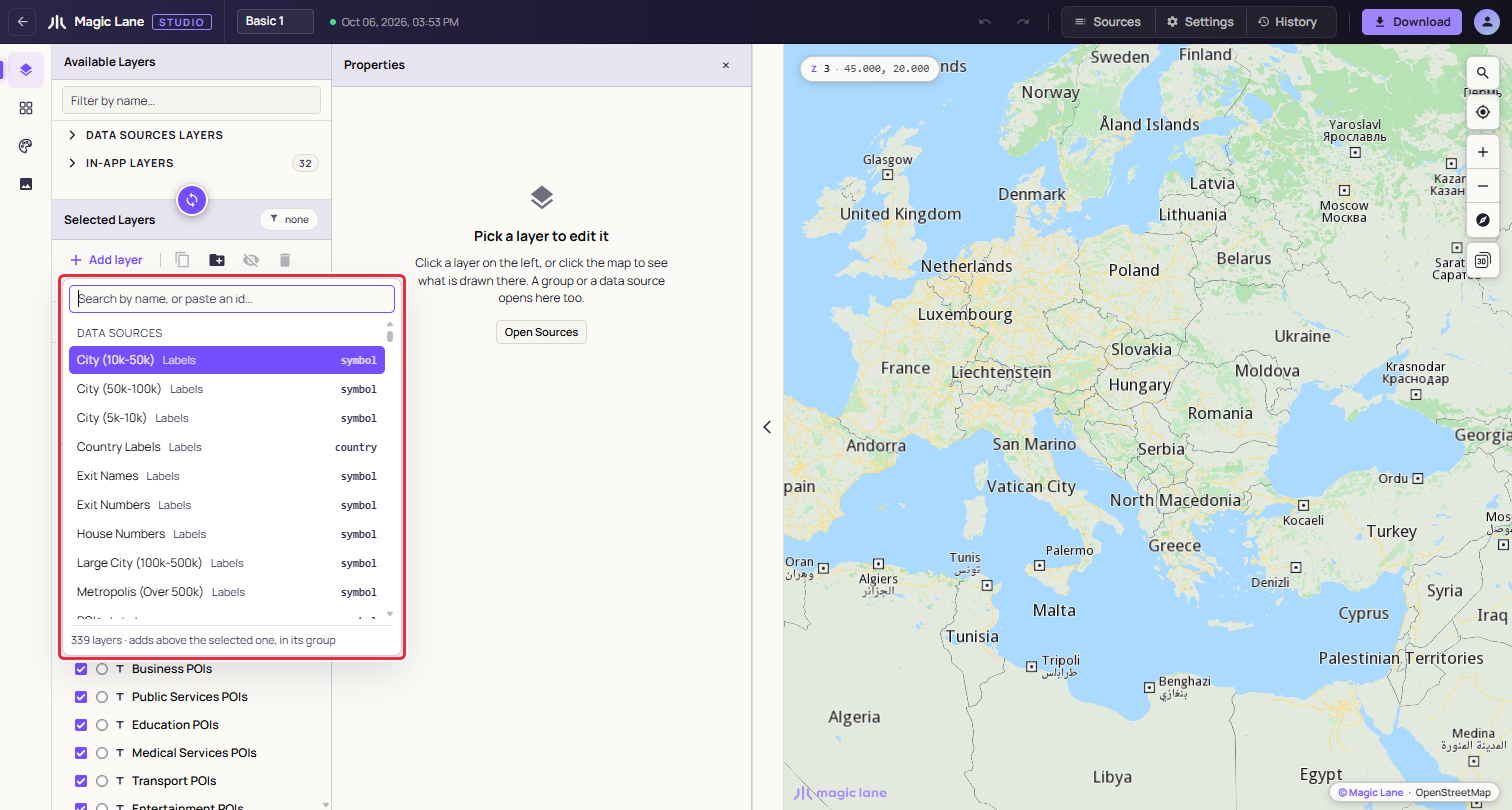
- Click Add layer in the Selected Layers toolbar, or press N.
- Type part of a name, such as
motorway, or paste a data source id. - Press Enter or click a row. The layer is added above the selected layer, in its group, and is selected.
You can also drag any row from Available Layers into Selected Layers.
Put layers in a group
- Select the layers: click one, then Shift+click another to select the run between them, or Ctrl+click (⌘+click on a Mac) to add single layers.
- Press G, or click Add group in the toolbar. The layers go into a new group named "New Group".
- Double-click the group name, type a name and press Enter.
Available Layers
Every layer draws from data, and the data is chosen when the layer is created:
- Data Sources Layers › DEFAULT: the map data Magic Lane serves, in groups such as Roads, Labels and Areas. Open a group to see its sources.
- Data Sources Layers › CUSTOM: your own data, uploaded or drawn. + Add creates a data source (see Data sources); it can be added to the style once it is tiled, marked ✔.
- In-App Layers: templates for what an app draws on the map at run time, such as routes, traffic, drawings, markers and reports.
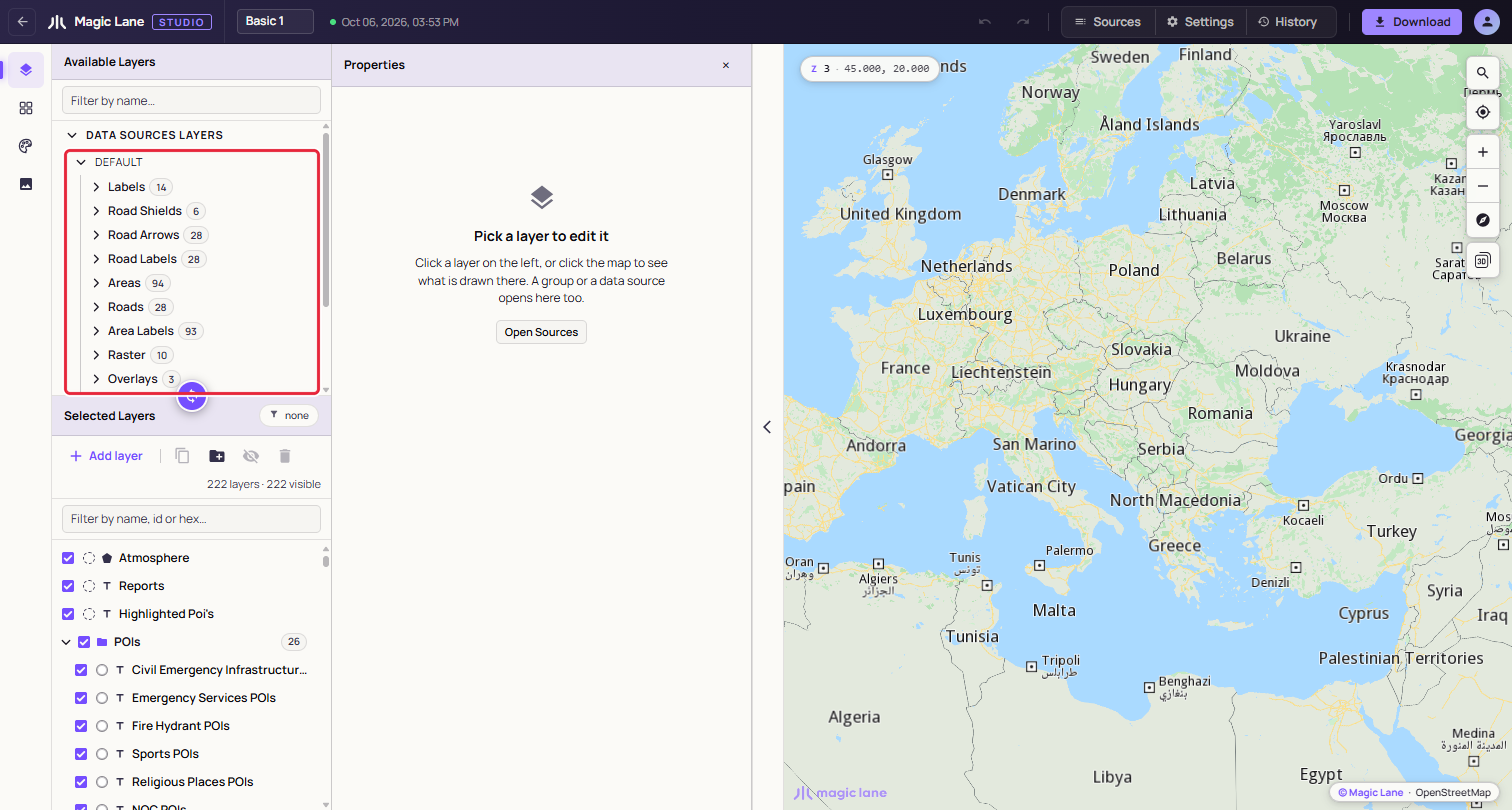
The "Filter by name…" box searches all three. When the selected layer draws from a source, that source's row is marked "IN USE".
The Add layer picker lists the same things, under "Data sources", "In-app layers" and "Your data". Use ↑ and ↓ and Enter, or click; Esc closes it. Its footer says where a pick lands, for example "340 layers · adds above the selected one, in its group".
When you drag a row in, where you let go decides where the layer lands: on a layer, above it and in its group; on a group header, at the top of that group; on the "Drop here" band above or below the list, on top of or under every layer (see Reordering).
A layer over your own data takes its type from the data (see Adding it to the style). A new layer starts with simple black paint for you to style.
In-App Layers
In-App Layers are templates for what an app draws on the map while it runs: routes, the part of a route already travelled, traffic, turn arrows, markers, and the points, paths and areas an app lets its users draw. Drag one in to decide how your app draws those things in this style. Every In-App Layer type is listed in the Layer types reference.
The map has no routes of its own, so a route layer draws nothing where you are. Studio offers a sample instead, and moves the map only when you ask:
- Select one route layer. A pill over the map says, for example, "Primary Route is drawn on a calculated route, and there is none here."
- Click Show sample route in Washington, DC. The map moves there and draws a sample route in the layer's paint. If no route can be calculated there, the sample is in Amsterdam, and the pill says so.
- The pill now reads "Sample route · Washington, DC". While it is up, selecting another route layer shows that layer's sample at once.
- Click Back to where you were to return the map to where it was, with the same perspective. The × hides the pill.
For a travelled-route layer, the pill adds "Press Simulate to draw the travelled part." Simulate, at the right of the map, drives along the sample route at five times normal speed, so the travelled part appears in the layer's paint; the map stays where you put it, and Stop ends the drive. Public transport routes cannot be simulated, so their travelled part is not drawn.
Highlighted Landmarks (Highlighted POI Pin in In-App Layers) works the same way with a highlighted search result: "… is drawn on a highlighted search result, and there is none here.", Show sample in New York, then "Sample highlight · New York". If the map is already zoomed in on the sample's place, the sample is shown without asking. Route labels have no sample.
For the in-app drawing layers, the Properties column shows a sample shape in the layer's paint.
Selected Layers
Each row has a visibility checkbox, a colour chip, a type icon and the name. Hover the name for the layer's type and zoom range, for example Motorway · Line · z3-17. Click the colour chip to open that colour in the Properties column. A layer higher in the list is drawn over the layers below it.
The counts line under the toolbar reads "222 layers · 222 visible". With a filter on it reads "8 of 222 layers · 222 visible", and with several layers selected, "2 selected".
Selecting
Click a layer to select it. Shift+click selects the run between two layers; Ctrl+click (⌘+click on a Mac) adds or removes one. With several layers selected, a paint edit reaches all of them; see Editing several layers.
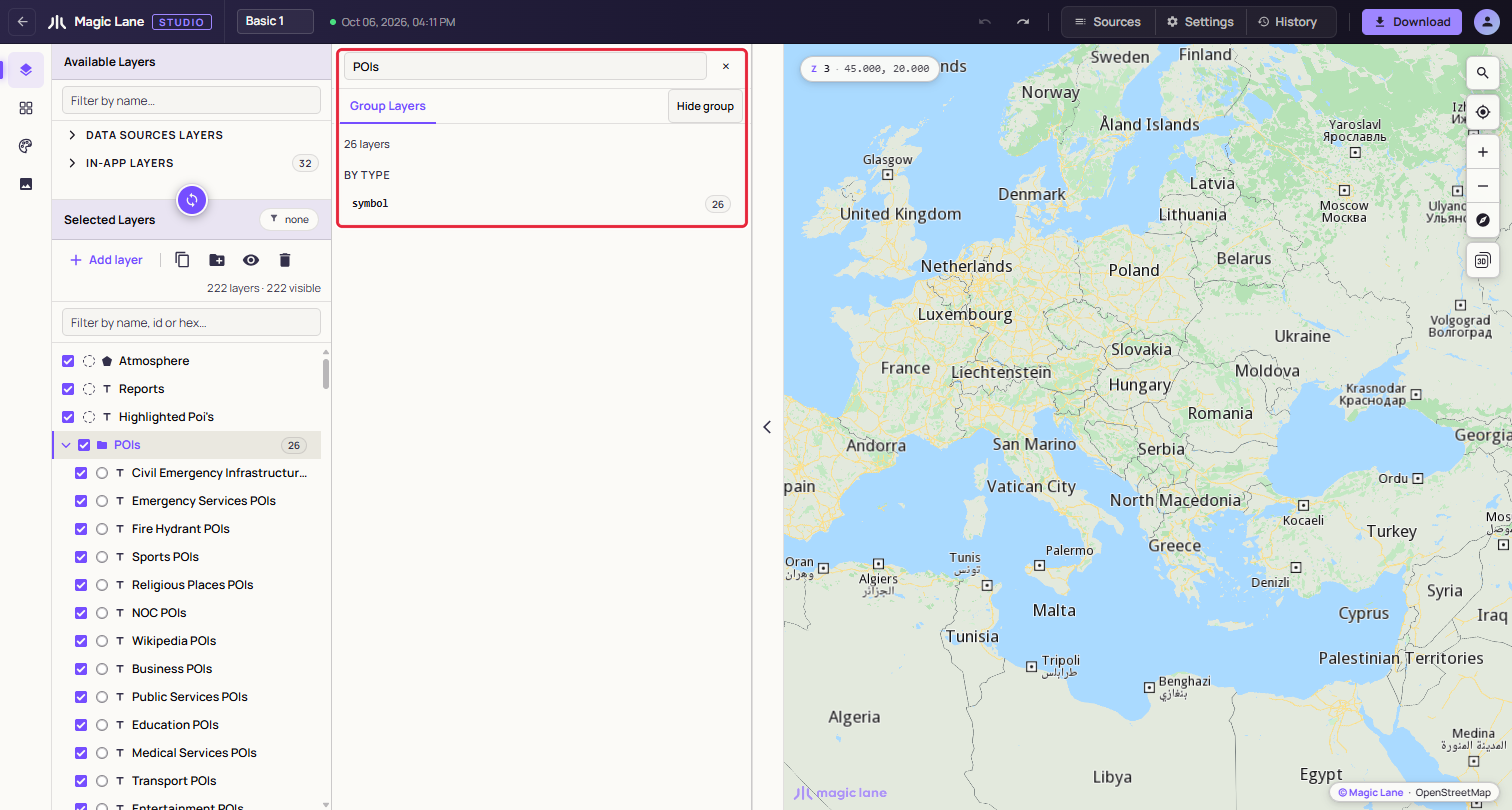
Click a group header to open the group panel: its name, Hide group, the number of layers, and a By type list. Click a type there, such as "symbol 26", to select every layer of that type in the group.
Reordering
Drag a row; Esc drops it back where it was. Where you let go decides the result:
- on the top or bottom edge of a layer: before or after it, in its group;
- on the middle of a layer: both layers go into a new group;
- on the upper part of a group header: above the group; on the lower part: inside it, at the top;
- on "↑ Drop here to put it on top", which takes the place of the filter box while you drag, or on "↓ Drop here to put it at the bottom", under the list: on top of or under every layer, outside every group. The label changes to "Let go to put it on top" (or "at the bottom") when the pointer is over it.
Hold the dragged row near the top or bottom edge of the list and the list scrolls by itself, so you can drop a layer at a place that was off screen. A layer you add is scrolled into view and briefly highlighted; if a filter would hide it, the filter is cleared.
With the keyboard, Ctrl+↑ and Ctrl+↓ move the selected layer one row; at the edge of a group they move it out of the group, or into the group that starts next. Ctrl+Alt+↑ and Ctrl+Alt+↓ move it to the front or the back (⌘ and ⌥ on a Mac). Clear the filter before you drag: the filtered list is flat, and the "put it on top" target is not offered.
Groups
With nothing selected, G or Add group adds an empty group at the top. F2 also renames the selected group. Right-click a group for Hide group, Rename group, Duplicate group & content, Delete group, which keeps the layers, and Delete group & content, which asks first. The caret folds a group away. Groups organise the list; they do not change how the map is drawn.
Hiding and showing
The checkbox hides or shows a layer; a hidden layer is greyed, with a crossed eye at the end of its row. A group's checkbox hides or shows everything in it. V hides the selected layers, or shows them when they are all hidden. The last visible layer cannot be hidden. Hiding is saved with the style and can be undone.
Filtering the list
Type in "Filter by name, id or hex…" to narrow the list. It matches layer names, a hex colour such as #c5c9d9 (every layer that uses it: in Basic 1, the 29 one-way arrow layers), and a data source number such as 12. The chip at the top right, "none" or "1 filter", opens the Filters card, where you can filter by shape and by layer type. Esc or the × clears the box.
Layers with problems
A layer with a problem has a short label at the end of its row: "Source deleted" when its data source was deleted, or a label such as "No type" or "Zoom unreadable" when the style came with a part Studio could not read. Hover the label for the full explanation. When there are such layers, a ⚠ chip with their number follows the layer count, such as "⚠ 3": click it to show only those layers, and click it again to show every layer. What each label means is listed in A style with damaged parts.
Toolbar and right-click menu
| Toolbar button | Shortcut | What it does |
|---|---|---|
| Add layer | N | Opens the picker. |
| Duplicate | D | Copies the selected layers, or a selected group with its content. |
| Add group | G | Puts the selected layers in a new group. |
| Hide / Show | V | Hides or shows the selection. |
| Delete | Ctrl+Backspace or Ctrl+Delete | Deletes the selected layers, or asks before deleting a group. |
Right-click a layer for Zoom to data (for your own data; double-clicking the row does the same), Hide layer, Copy Style and Paste Style (paint and zoom range), Group, Remove from group, Move up, Move down, Move to front, Move to back, Duplicate and Delete. With several layers selected, the items say how many they act on, for example "Delete (2)".
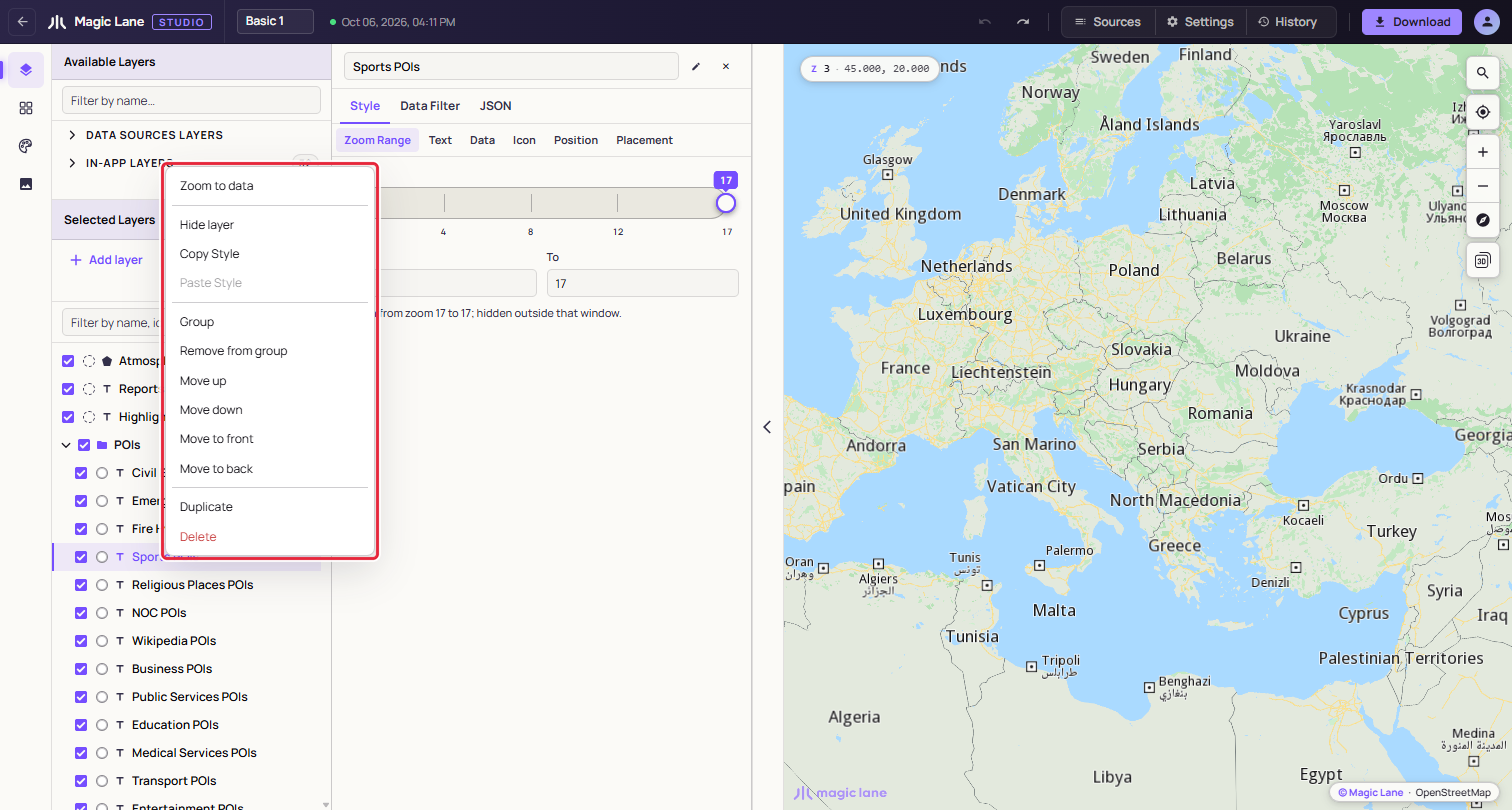
A style keeps at least one layer. Every add, move, hide and delete is one undo step.
See also: The Properties column · Data sources · Keyboard shortcuts