The image library
The Images screen holds the pictures a style can draw: icons for points, and textures for lines and areas. Upload, find and remove them here.
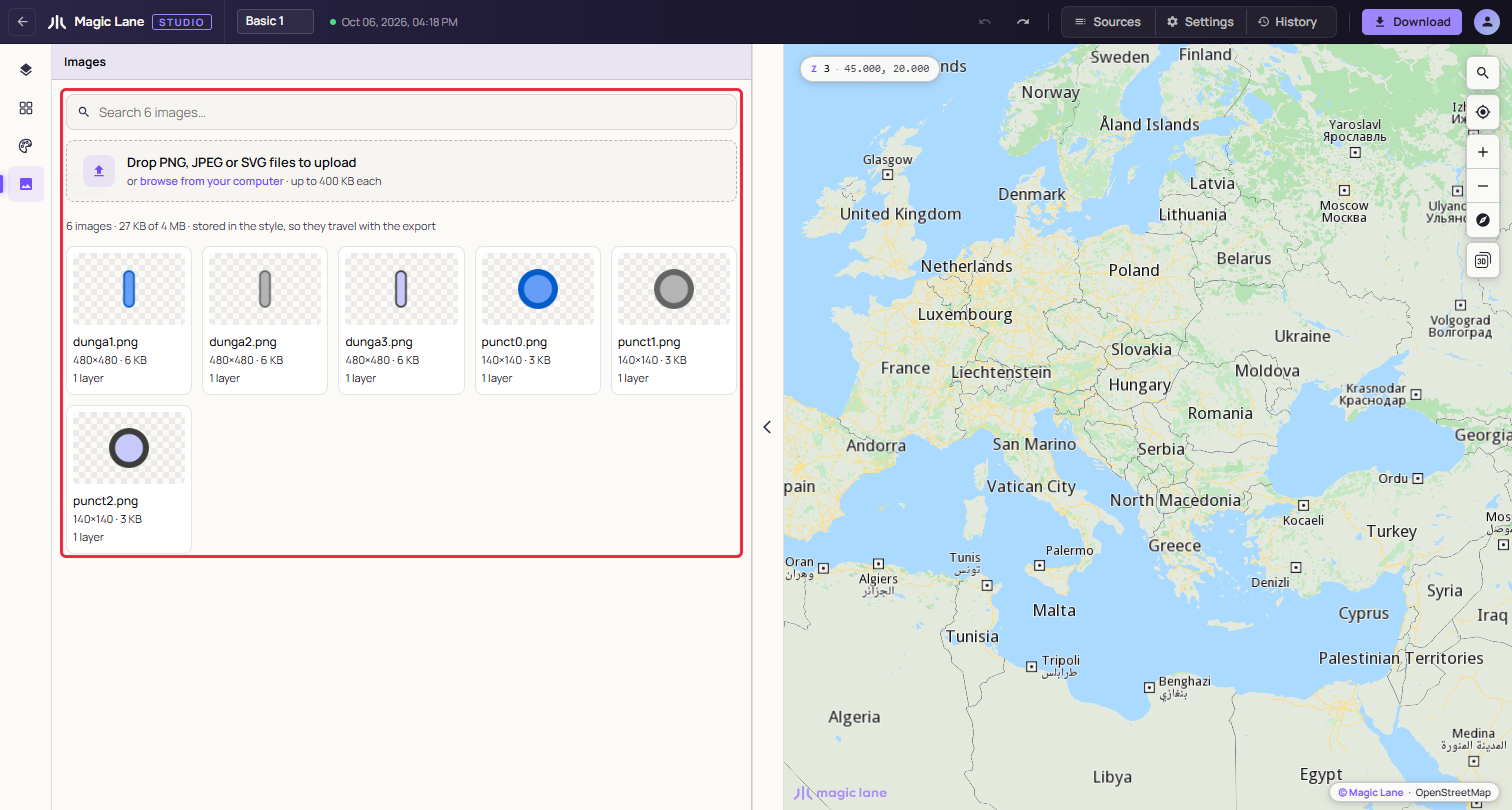
Open it from the Images button on the rail. Images are stored inside the style, so they travel with every download.
Step by step
Give a point your own icon
- Select a point layer, for example one built from your own data.
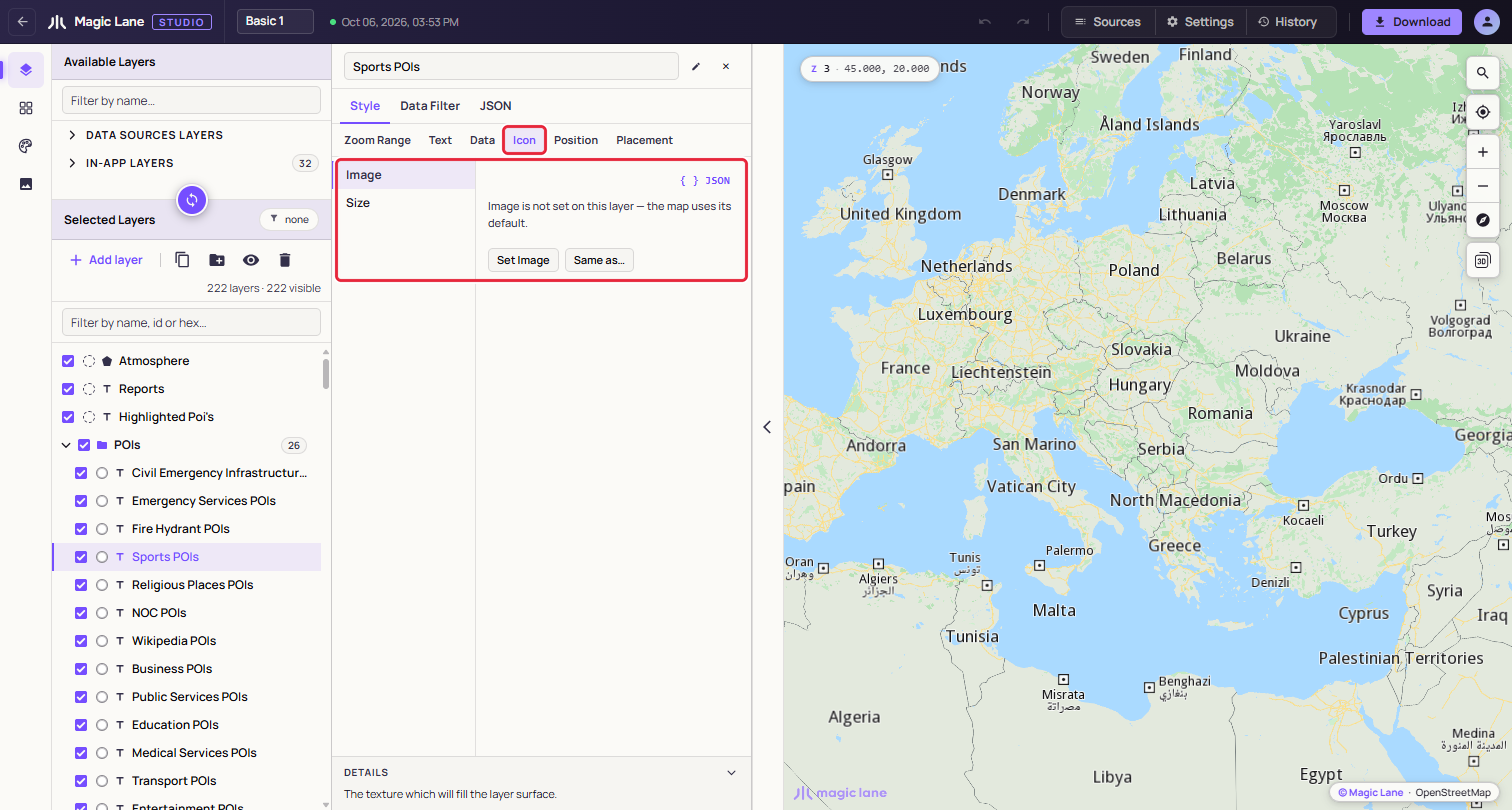
- Open Style › Icon and select Image. If the editor reads "Image is not set on this layer — the map uses its default.", click Set Image.
- Open the image picker and click Upload image…. Choose a PNG, JPEG or SVG file of up to 400 KB. It is added to the style's images and used on the layer at once.
- To use an image the style already has, pick it from the list instead.
- Use Size, beside Image, to make the icon larger or smaller.
Uploading
Drop files on the dropzone, or click it to browse. Several files can go in at once, and one Ctrl+Z (⌘Z on a Mac) takes them all back.
| Limit | Value |
|---|---|
| Formats | PNG, JPEG, SVG |
| Each image | up to 400 KB |
| All images in one style | up to 4 MB |
The counts line starts with how much room is left, for example "6 images · 27 KB of 4 MB". A file over a limit is refused and the counts line says why; the other files still go in. A file with the same name as an image already in the style is added as museum(1).png, so no layer changes by surprise.
Choosing images: use a PNG with a transparent background, or an SVG, at about the size the icon will be drawn. The card shows the image on a checkerboard, so you can see whether its background is transparent.
Finding and checking images
"Search 6 images…" filters the cards by name. Each card shows the image, its name, its pixel size and weight, such as "480×480 · 6 KB", and how many layers use it, or "Unused".
Click a card, or its layer count, to see which layers use the image. A line above the cards reads, for example, "museum.png is used by 2 layers:" with a chip for each layer, or "museum.png is not used by any layer." Click a chip to open that layer in the layer list. Click the card again, or the ×, to close the line.
Click the map and pick a layer from the list, and the screen marks the images that layer uses, for example "Bucharest places uses museum.png."
Using an image in a layer
In the Properties column, Style › Icon › Image picks one of the style's images or "No icon". Under the list, Upload image… adds a file and uses it at once, and Manage images opens this screen with a Use for this stop button on every card. On a line or an area, an image fills the layer as a texture, blended with the layer's colours. Points of interest on the base map draw their category's icon; an image set there replaces it.
Removing an image
Click the × on a card. An unused image goes at once. An image in use asks first and names the layers that use it, for example "One layer uses it, and will be set to No icon until you pick another: Bucharest places." Undo brings the image back, with the layers drawing it again.
An image name the style does not hold shows "Missing image" in the layer's Image picker; pick another image, or No icon.
See also: The Properties column · Download · History