The Components screen
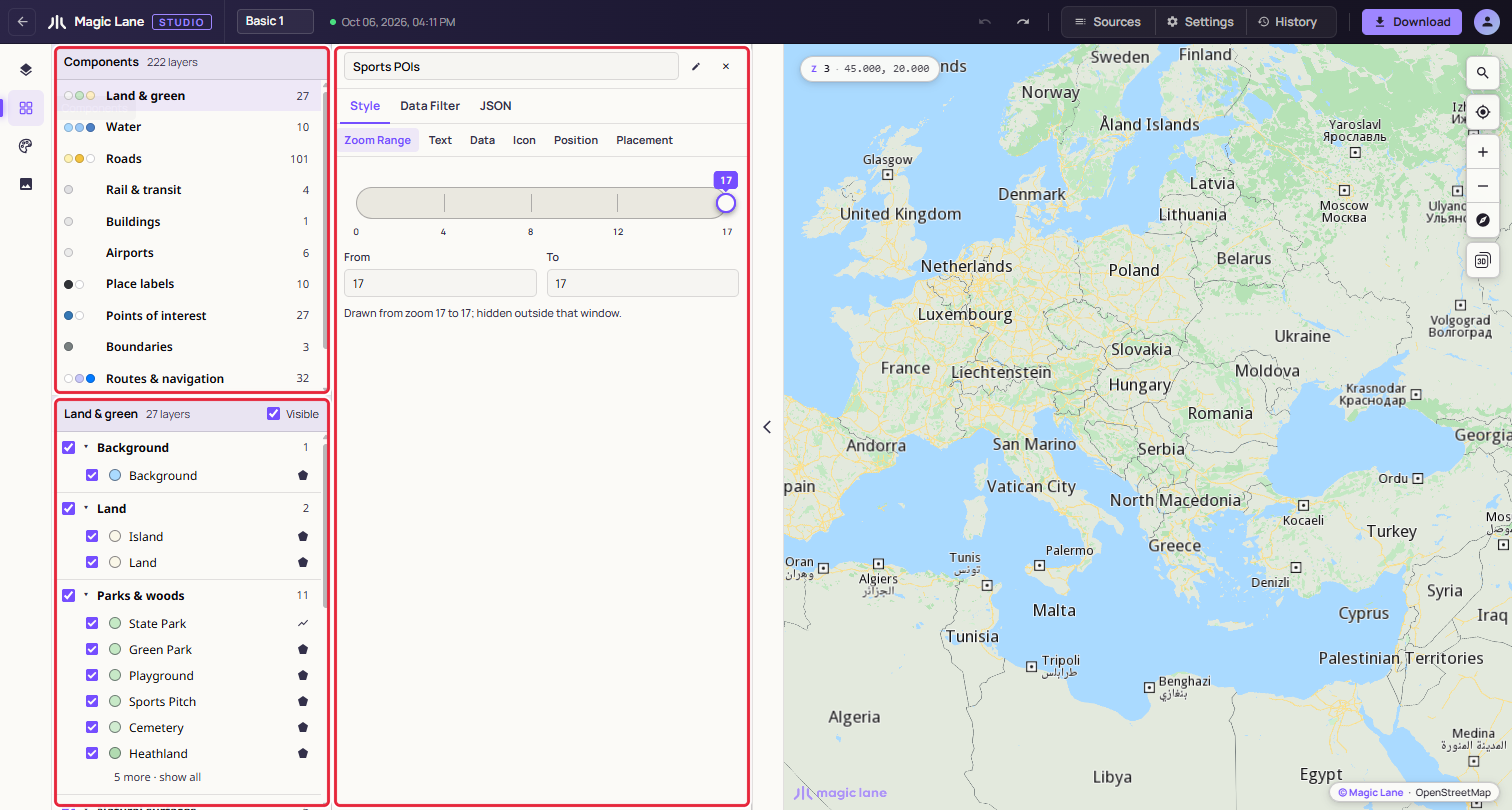
The Components screen shows the style as the things a map is made of, such as Roads, Water and Place labels, with the layers inside each one. Use it to hide a whole part of the map, or to find a layer without knowing its name.
Step by step
Hide all the points of interest
- Open Components on the rail.
- Click Points of interest in the list.
- Untick Visible in the header of the lower pane. Every point of interest disappears from the map; tick it again to bring them back.
Find the layer that draws motorways
- Open Components and click Roads.
- Under Major roads, click Motorway. Its properties open in the Properties column beside the list.
Components
Studio sorts every layer of the style into a component, automatically, so every style has them. There are twelve; one with no layers in the style is left out of the list.
| Component | Groups inside it |
|---|---|
| Land & green | Background, Land, Parks & woods, Natural surfaces, Built land use, Area names |
| Water | Water, Water names, Ferry lines |
| Roads | Major roads, Secondary roads, Minor roads, Paths & tracks, Road surfaces, Road names, Road shields, One-way arrows |
| Rail & transit | Rail |
| Buildings | Buildings |
| Airports | Airports |
| Place labels | Place names |
| Points of interest | Points of interest, Overlay points |
| Boundaries | Boundaries |
| Routes & navigation | Routes, Traffic, Markers & landmarks, Drawing tools |
| Sky & atmosphere | Atmosphere |
| Custom data | Other layers |
Custom data holds every layer that fits nowhere else, so every layer appears on the screen.
Using the screen
Each row in the list shows the component's main colours, its name and its number of layers, with "partly hidden ·" or "hidden ·" when some or all are hidden. Click a row to open it below.
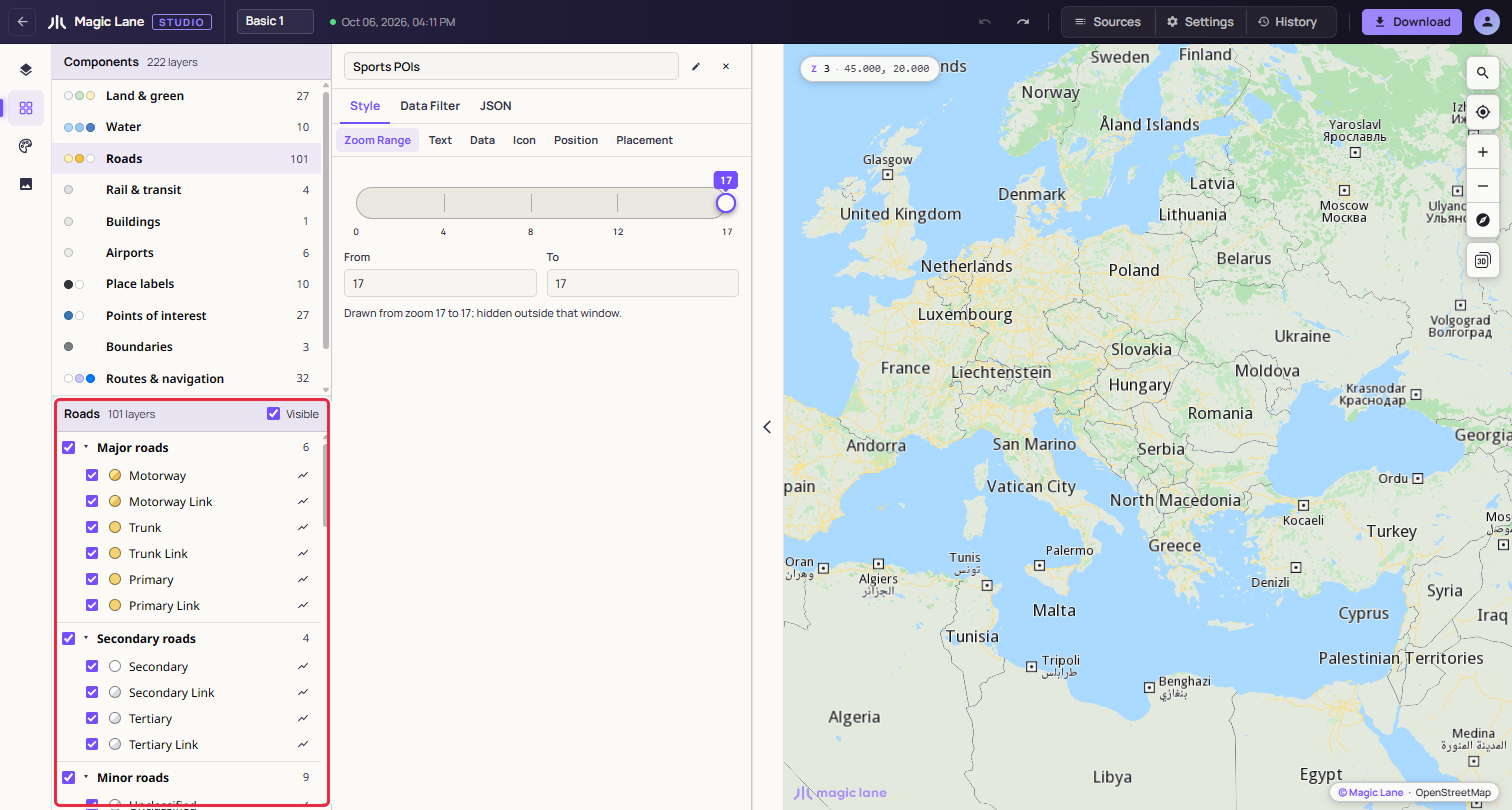
In the open component:
- The Visible checkbox in the header shows or hides the whole component.
- Each group's checkbox shows or hides that group; its caret folds it away. A long group shows six layers and a "show all" link.
- Each layer has an eye to show or hide it, a colour swatch that opens its colour in the Properties column, and its name, which opens its properties. Shift+click and Ctrl+click (⌘+click on a Mac) select several layers, to edit them together.
- Right-click a layer for Show in Layers, which opens the layer list with the layer selected and in view, then Hide layer, Copy Style and Paste Style (paint and zoom range), Duplicate and Delete. With several layers selected, the items say how many they act on, for example "Delete (2)". To change the drawing order or put a layer in a group, use Show in Layers and do it there.
Click the map and pick a layer from the list, and the screen opens that layer's component and group and shows the layer.
Hiding here is the same as hiding in the layer list: it is saved with the style, appears in History and can be undone. The last visible layer cannot be hidden.
See also: The layer list · The Properties column · Shared colours