Drawing on the map
With a data source selected, you can draw points, lines and areas straight onto the map and reshape them with handles.
Step by step
Draw an area
- Select a data source in Available Layers › Data Sources Layers › CUSTOM (see Data sources). If it is empty, click Create on map.
- Click Polygon under "Drawing tools".
- Click on the map at each corner of the area.
- Press
Enter, or right-click, to finish. The tool is put down and the new area is selected. - Click Save in the panel.
Change the shape of a line or an area
- With no tool in hand, click the feature on the map to select it.
- Drag a big circle to move a corner, or a small circle (halfway along an edge) to add a corner there.
- To move the whole feature, drag it by its body.
- Click Save.
The drawing tools
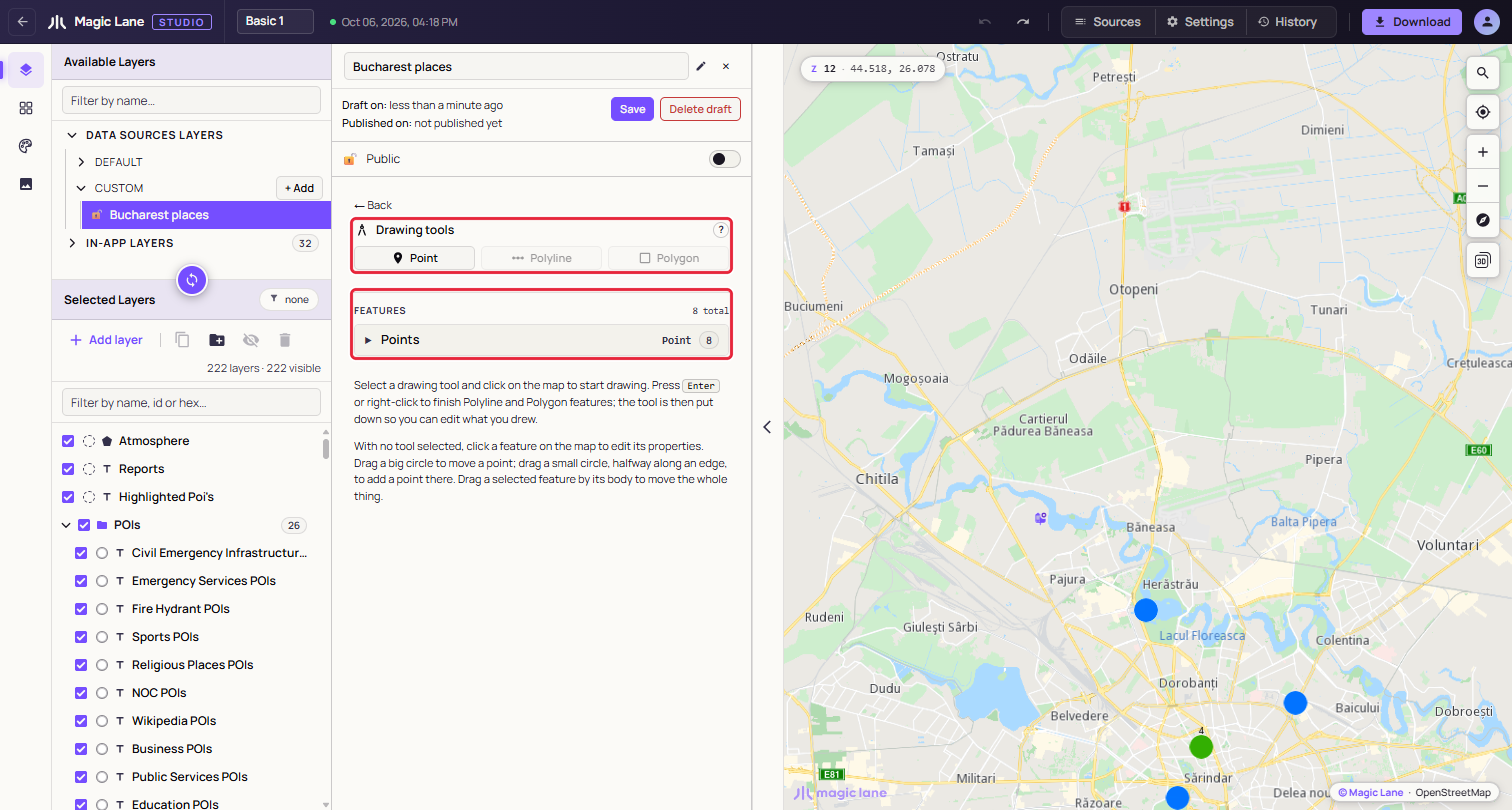
Click Point, Polyline or Polygon to pick it up, and click it again to put it down. While a data source is selected, clicks on the map draw or edit instead of opening the layer popup.
A data source holds one kind of feature, so once it has features only that kind's tool is offered. To draw another kind, create another data source.
- Point: each click places a point. The tool stays in hand for the next one.
- Polyline and Polygon: each click adds a corner. Press
Enteror right-click to finish. A line needs at least two corners and an area three; with fewer, the panel says so and the shape stays unfinished.
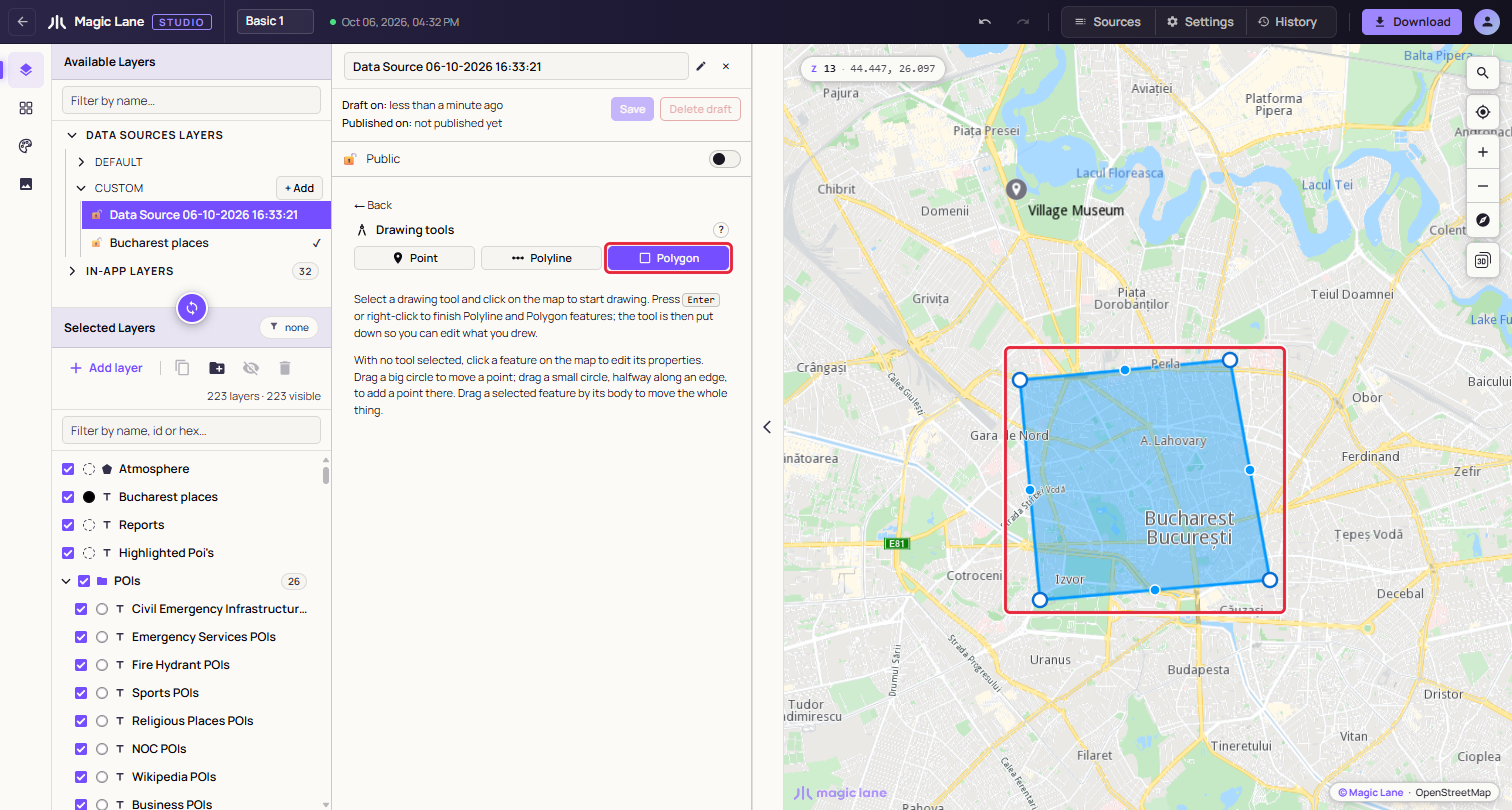
Finishing a line or an area puts the tool down and selects the new feature, so the next click edits it rather than starting another one.
Editing a feature
With no tool in hand, click a feature on the map to select it; its card opens in the panel (see Features and their properties). A selected line or area shows handles:
- Big circle, on a corner: drag to move that corner.
- Small circle, halfway along an edge: drag to add a new corner where you let go. Very short edges show no small circle.
- The feature's body: drag to move the whole feature. This works only on a feature that is already selected; dragging an unselected one pans the map.
A point has no handles; drag the point itself.
A drag ends when you release the mouse button, even outside the map. Esc also ends it; the shape stays where it is. There is no undo for drawing: to put a shape back, drag it back, or click Discard to return to the last saved version.
Keys
Enteror right-click on the map: finish the line or area being drawn.Esc: end a drag.- Arrow keys and
Shift+Plus/Shift+Minus: pan and zoom the map while you draw, when the map has focus (see The map, settings and history).
See also: Data sources · Keyboard shortcuts