Data sources
A data source is your own set of points, lines or areas, uploaded from a file or drawn on the map. Studio saves it to your account, the server cuts it into tiles, and a layer in your style draws it.
Step by step
Upload a file and use it on the map
- On the Layers screen, open Available Layers › Data Sources Layers and click + Add on the CUSTOM row. A new data source opens in the Properties column.
- Type a name for it in the name field.
- Click Upload a data file, then drop your file on the dropzone or click it to browse. When the panel says the file was parsed, click Append.
- Click Save. The status line shows "◌ Tiling…", then "✔ Tiled — drag it into Selected Layers to use it."
- Drag the source's row from CUSTOM into Selected Layers. A layer named after the source is added and selected, and the map moves to your data.
- Style the new layer in the Properties column like any other layer.
Add a property and use it as a label
- Select the data source and click a feature in the FEATURES list.
- On the feature's card, click Add new property, type a name such as
nameand a value, and click Confirm. - Click Save and wait for "✔ Tiled".
- Select the layer that draws the source. On a symbol layer, the Text Field editor now offers
nameunder "Fields on this layer's data"; the Data Filter tab offers it too.
Delete a data source
- Right-click its row in CUSTOM and choose Delete….
- If layers in the style draw from it, leave Also delete the layer… ticked to remove them too.
- Click Delete. The data source cannot be restored;
Ctrl+Z(⌘Zon Mac) brings back only the layers.
What a data source is
Most of what a style draws is the base map served by Magic Lane; a data source is the part that is yours. It lives in your account, not in the style. Editing it does not mark the style unsaved, does not enter the style's history, and Ctrl+Z does not undo it.
A data source holds one kind of feature: points, lines or areas. Until you save it, it exists only in this browser tab. Saving sends it to the server, which cuts it into tiles; only then can a layer draw it.
The CUSTOM list
Your data sources are listed under Available Layers › Data Sources Layers › CUSTOM. It starts collapsed.
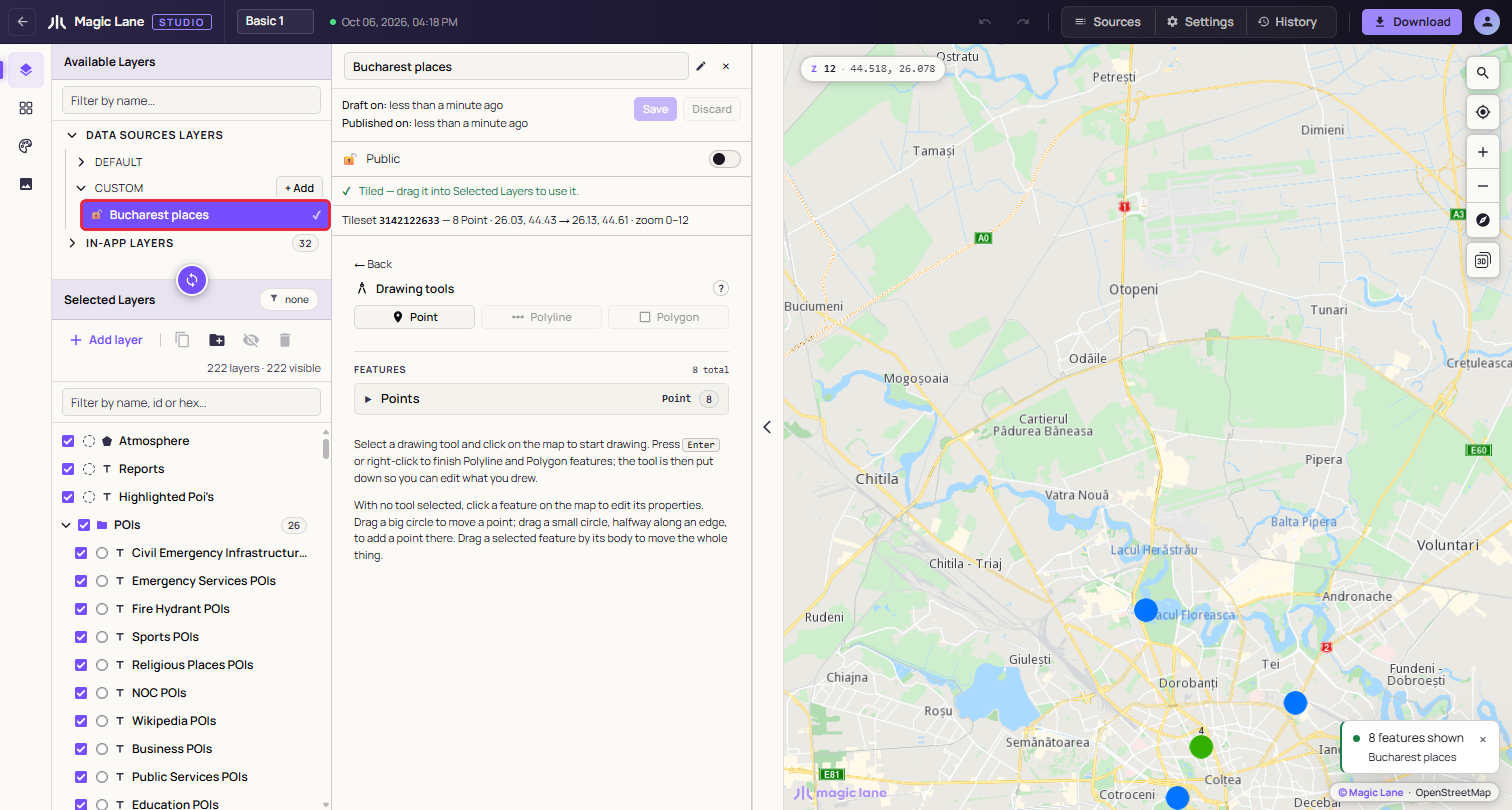
Each row shows a lock (open for public, closed for private), the name, "IN USE" when the selected layer draws from it, and a status mark: ✔ when tiled, ◌ while tiling, nothing if it was never saved. Click a row to open it in the Properties column.
The data source panel
+ Add creates a draft named after the moment it was made, such as "Data Source 01-10-2026 16:01:54", and opens it.
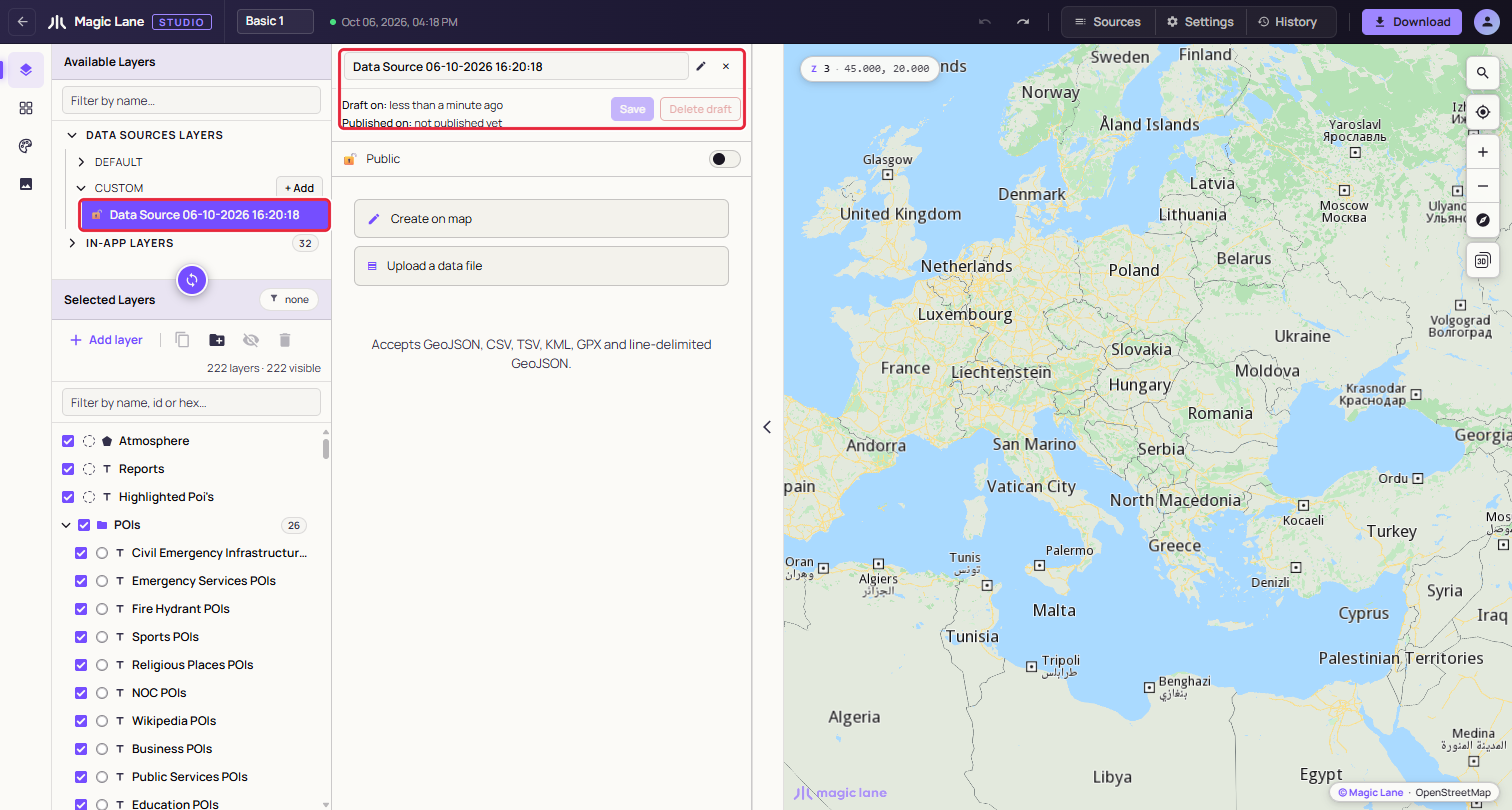
- Name: type to rename. A saved source is renamed on the server by itself, half a second after you stop typing; a draft's name goes with the next Save. An empty name becomes "Untitled".
- Draft on / Published on: when the source was last changed, and when tiling last finished.
- Save: sends the features to the server and starts tiling.
- Discard: goes back to the last saved version. On a source that was never saved it reads Delete draft, and a second click on "Delete N features" removes the draft and everything in it, with no undo.
- Public / Private: which apps can draw the source; see Public and private. New sources start as Public. Under the switch, "Used by 3 layers in this style." counts the layers of this style that draw the source.
- Status line: tiling progress, then "✔ Tiled" once the source can be dragged in.
An empty source offers two buttons: Create on map opens the drawing tools (see Drawing on the map), and Upload a data file opens the upload panel. "← Back" returns to this choice.
Public and private
The switch decides which apps can draw the source's layers:
- Public: the layers draw in any app that shows the style.
- Private: the source is served only to API keys from your account. In your own apps its layers draw as usual; in an app that uses someone else's API key they are empty, and nothing reports an error.
While a source used by this style is private, the line under the switch adds "They only draw in apps that use an API key from your account." Before you give the style to a customer or a partner, make the sources it uses public. The Download dialog warns when the style uses a private source; see Private data sources.
Uploading a file
Drop one file on the dropzone, or click it to browse. Studio reads the format from the file's extension:
- GeoJSON:
.geojson,.json(a FeatureCollection, a single Feature or a bare geometry) - Line-delimited GeoJSON:
.ndjson,.geojsonl,.jsonl - CSV and TSV:
.csv,.tsv - KML:
.kml(Placemarks with points, lines and polygons; name, description and ExtendedData become properties) - GPX:
.gpx(waypoints become points; tracks and routes become lines)
CSV and TSV. The first row is the header, and every row becomes a point. The separator can be a comma, semicolon, pipe or tab. Studio looks for the coordinates in a column named latitude, lat or y and one named longitude, lon, long or x, written all in lower case or all in upper case (lat or LAT; Lat is not recognised). Write coordinates with a decimal point. A file without such columns fails with "Missing coordinates or coordinates format is invalid."
Size. We recommend files under 5 MB. Larger files work, but take longer to read and draw: Studio warns "File is very large. This will take some time to render." and waits for you to click Continue or Abort.
A file that fails the checks shows "This file could not be imported as-is." with the problems numbered, and nothing is imported.
Append, Replace or Cancel
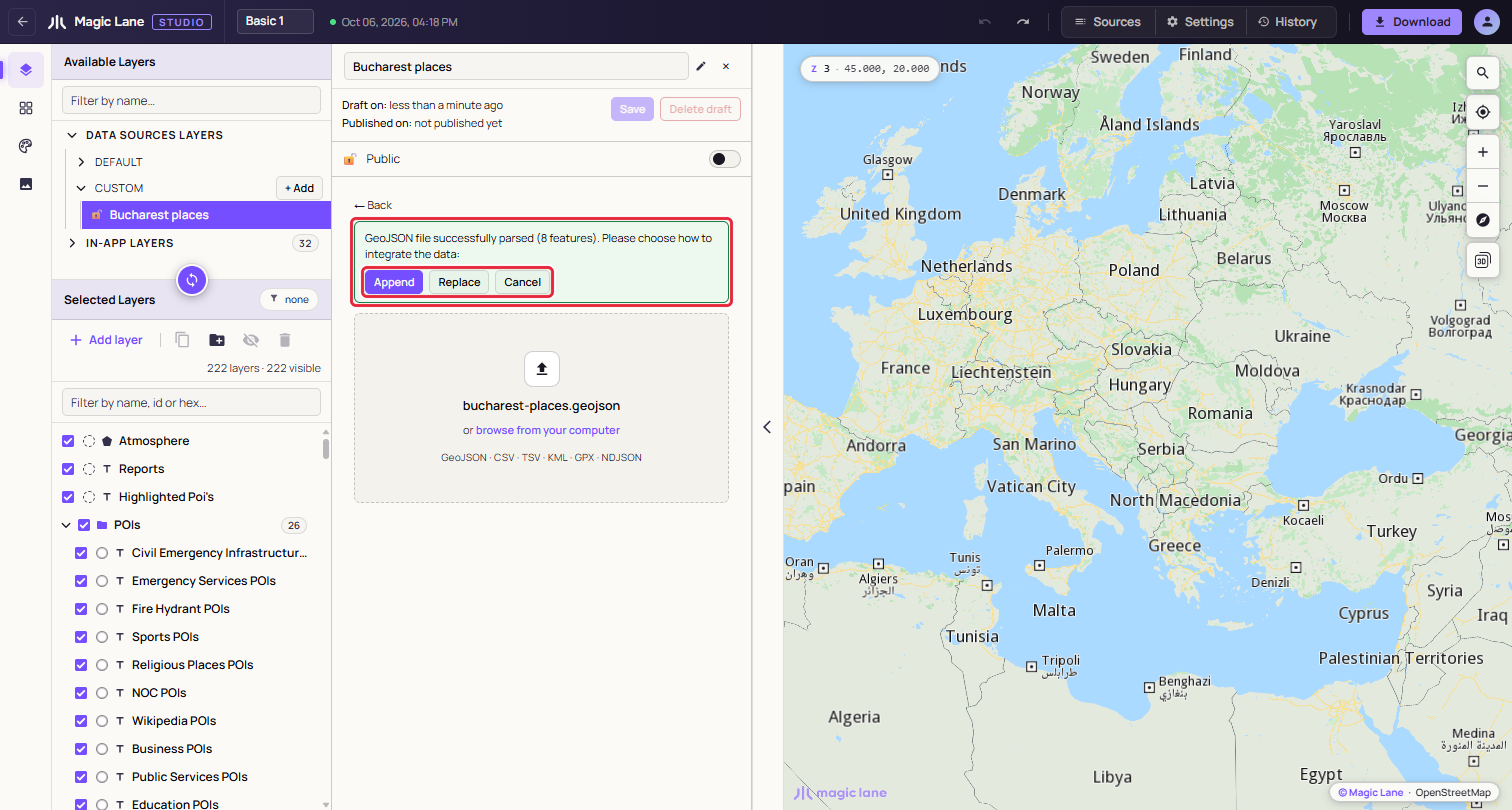
- Append adds the file's features to what the source already holds.
- Replace uses the file instead of what the source holds. If the source has features, a second click on "Replace N features" is needed.
- Cancel forgets the file.
If the file's features are a different kind from the source's (lines into a source of points, say), only Replace is offered.
After Append or Replace the features are drawn on the map in blue, the map moves to fit them, and Save is enabled.
A file with several kinds of shape
A file that mixes points, lines and areas, such as a GPX with a track and waypoints, becomes one data source per kind. A dialog lists the parts before anything is created, with their names, the layer type that will draw each one and their counts; click Create two data sources (or three) to go ahead, or Cancel.
The parts are named after the file, for example "Utrecht Mixed Geometry · Areas", "· Lines" and "· Points". In CUSTOM they share one row with a badge and a caret. Collapsed, the row is dragged, renamed and deleted as one; expanded, each part can be used on its own. Renaming a part away from the "name · Areas" pattern makes it a separate row.
Saving and tiling
Click Save. A notice says tiling has started, and the status line and the row show ◌. When the server finishes, the status becomes "✔ Tiled" and a notice says the source is ready. If tiling has not finished after ten minutes, Studio stops waiting and suggests reloading the page to check again.
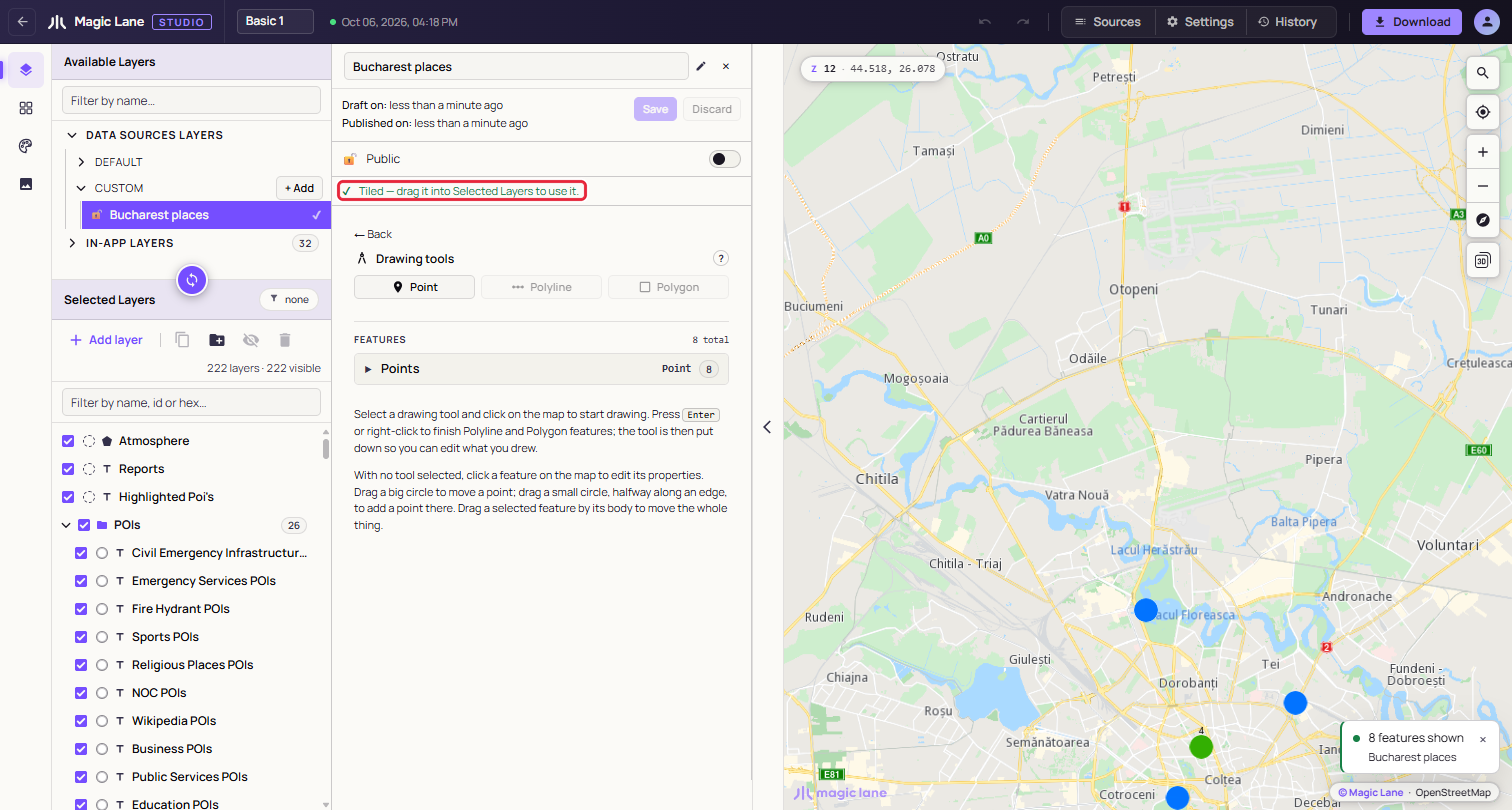
Saving an edited source keeps its tileset, and layers that draw it reload with the new data.
Adding it to the style
Drag the tiled row from CUSTOM into Selected Layers, as with any layer (see The layer list). A row that is not tiled yet cannot be dragged in; a notice says to save it or wait for tiling.
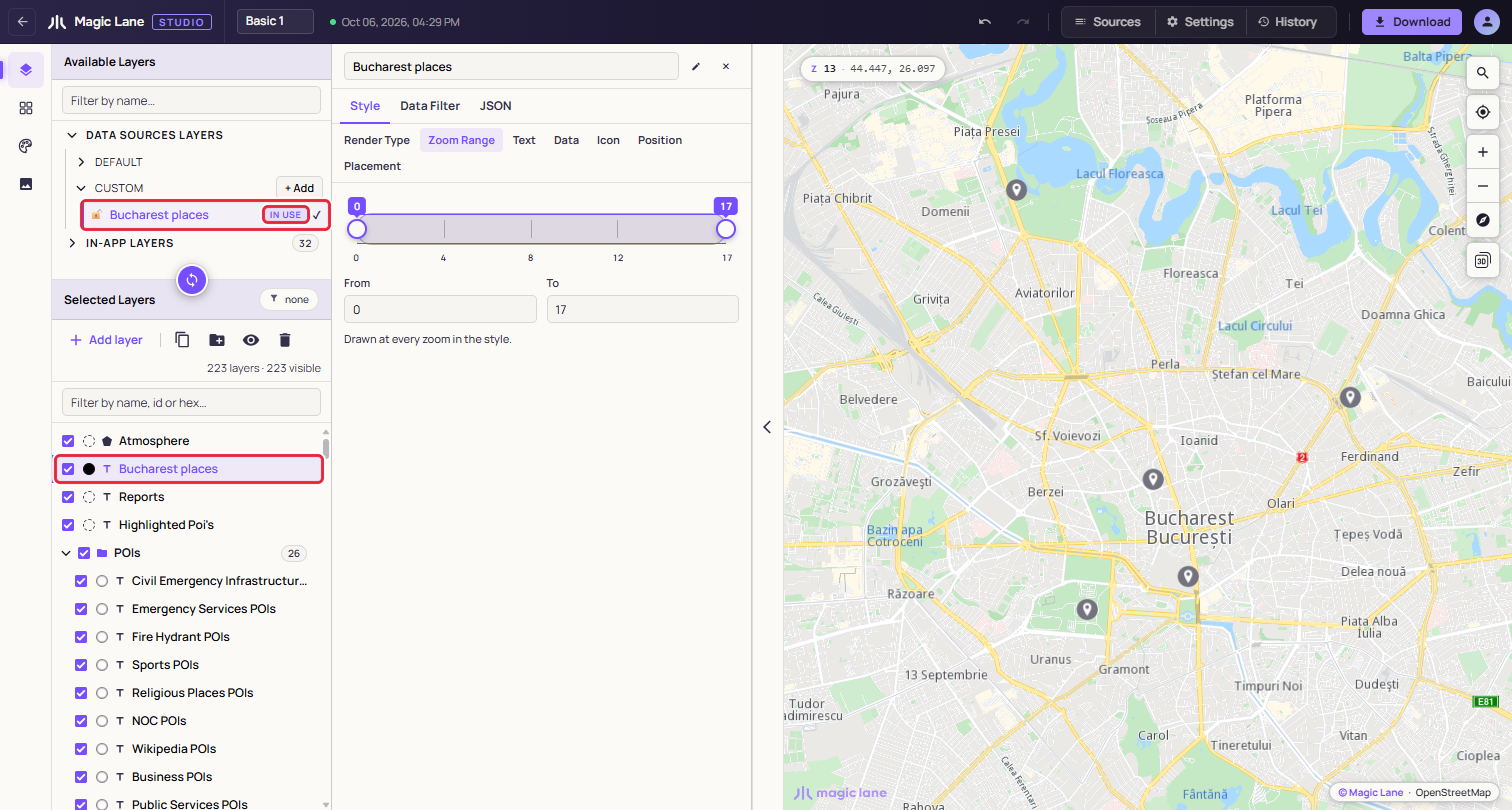
The layer's type follows the shapes: points become Symbol, lines Line and areas Area. To draw the data another way, change Render Type in the Properties column (see Render Type). A file split into parts adds one layer per part, in a group named after the source. Right-click the layer later and choose Zoom to data to return to the data.
Features and their properties
Under the drawing tools, the FEATURES list groups the source's features into Points, Lines and Areas, with counts. Each row shows the feature's name property, or "Feature 1", "Feature 2" and so on, and how many properties it has. A long group shows eight rows at a time, with "show 32 more" below. Sources with more than eight features get a Filter features by name… box.
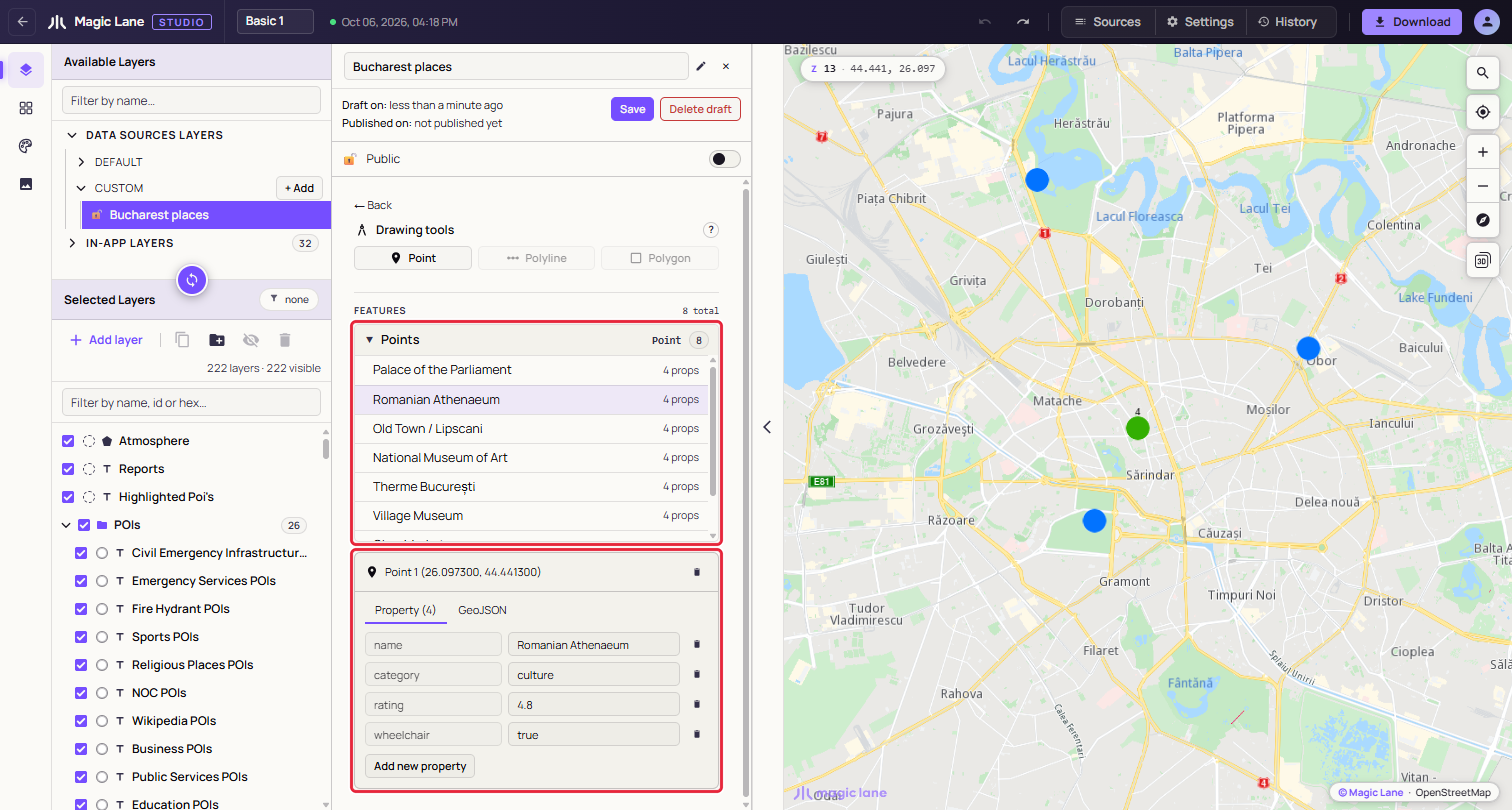
Click a row, or click the feature on the map with no drawing tool in hand, to open its card. The card's bin deletes the feature immediately, with no undo. The card has two tabs:
- Property: one row per property, with an editable value and a bin. To rename a property, delete it and add it again. Add new property asks for a name and a value; a name the feature already has is refused with "Field already exists." Values are stored as text.
- GeoJSON: the feature as GeoJSON, read-only.
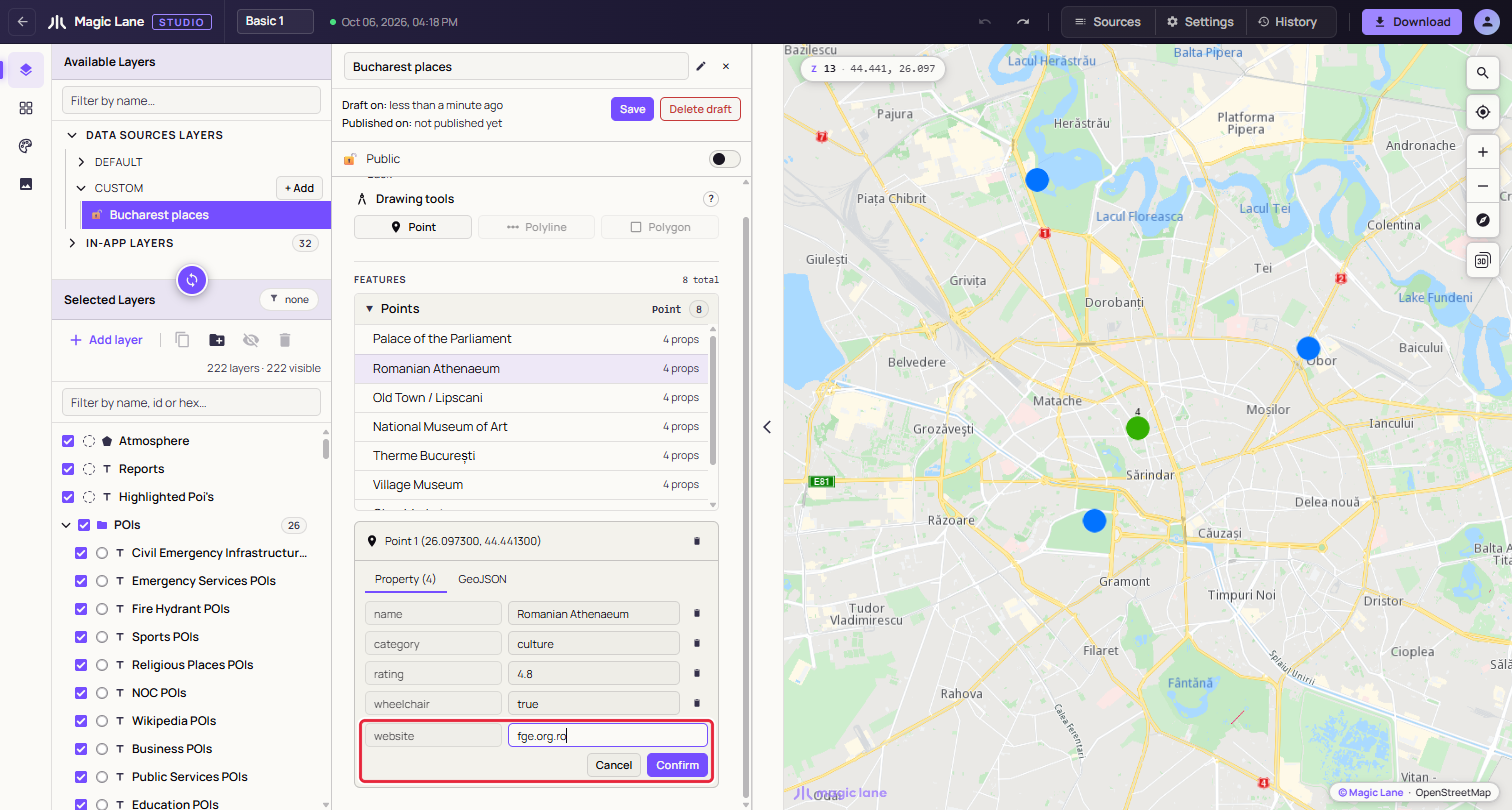
Every change makes the source unsaved, and properties reach the style only after the next Save and tiling (see Add a property and use it as a label). The map's click popup also lists them, with the name, title or label property as its heading.
Unsaved changes and deleting
Leaving with unsaved changes. If you select something else while a source has unsaved changes, Studio asks whether to save them: Save, Discard (back to the last saved version) or Cancel (stay as you are). For a source that was never saved, the middle button reads Discard & delete.
Deleting. The steps are under Delete a data source.
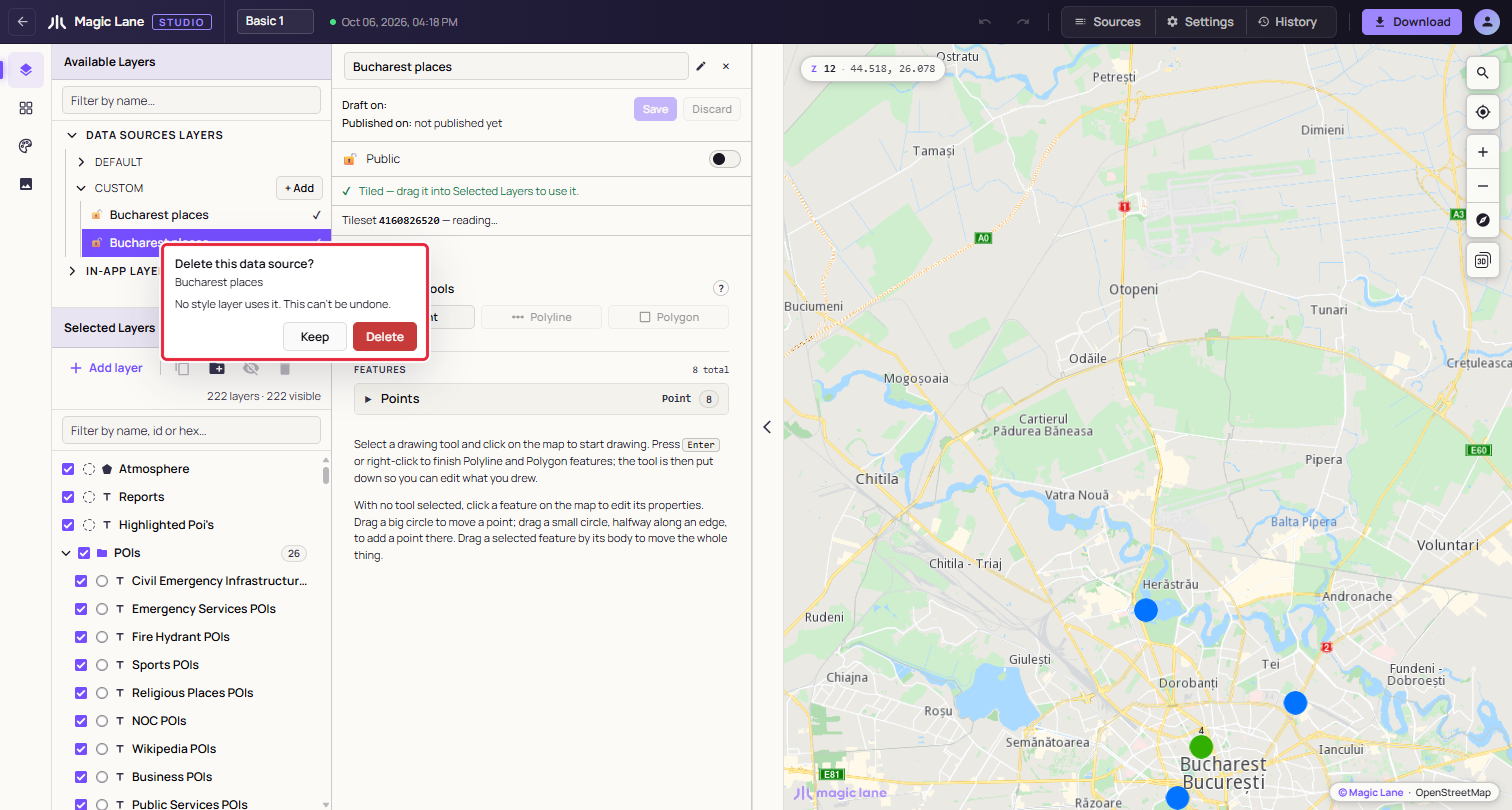
If you untick Also delete the layer in this style that draws it, the layers stay, marked "Source deleted", and may stop drawing at any time; delete them or point them at another source. A style must keep at least one layer, so the box is disabled when these are its only layers. On a split file's collapsed row, every part is deleted.
See also: Drawing on the map · The layer list · Put your own data on the map