# Get Started
Last updated:
October 13, 2026
\| 3 minutes read
In this guide you will learn how to create your free Magic Lane account and your first project, and how to get your API Key.
Warning
Ensure that the API key remains secure and is not exposed. If the key is compromised or its integrity is uncertain, promptly revoke it and generate a new one to maintain security and prevent unauthorized usage that may incur additional costs.
## Create your account[](#create-your-account "Direct link to Create your account")
Go to the Magic Lane [registration/sign up page](https://developer.magiclane.com/api/register) to create a free account.
You only need to type in your email address and choose a new password. Optionally, you can also enter your name and company.
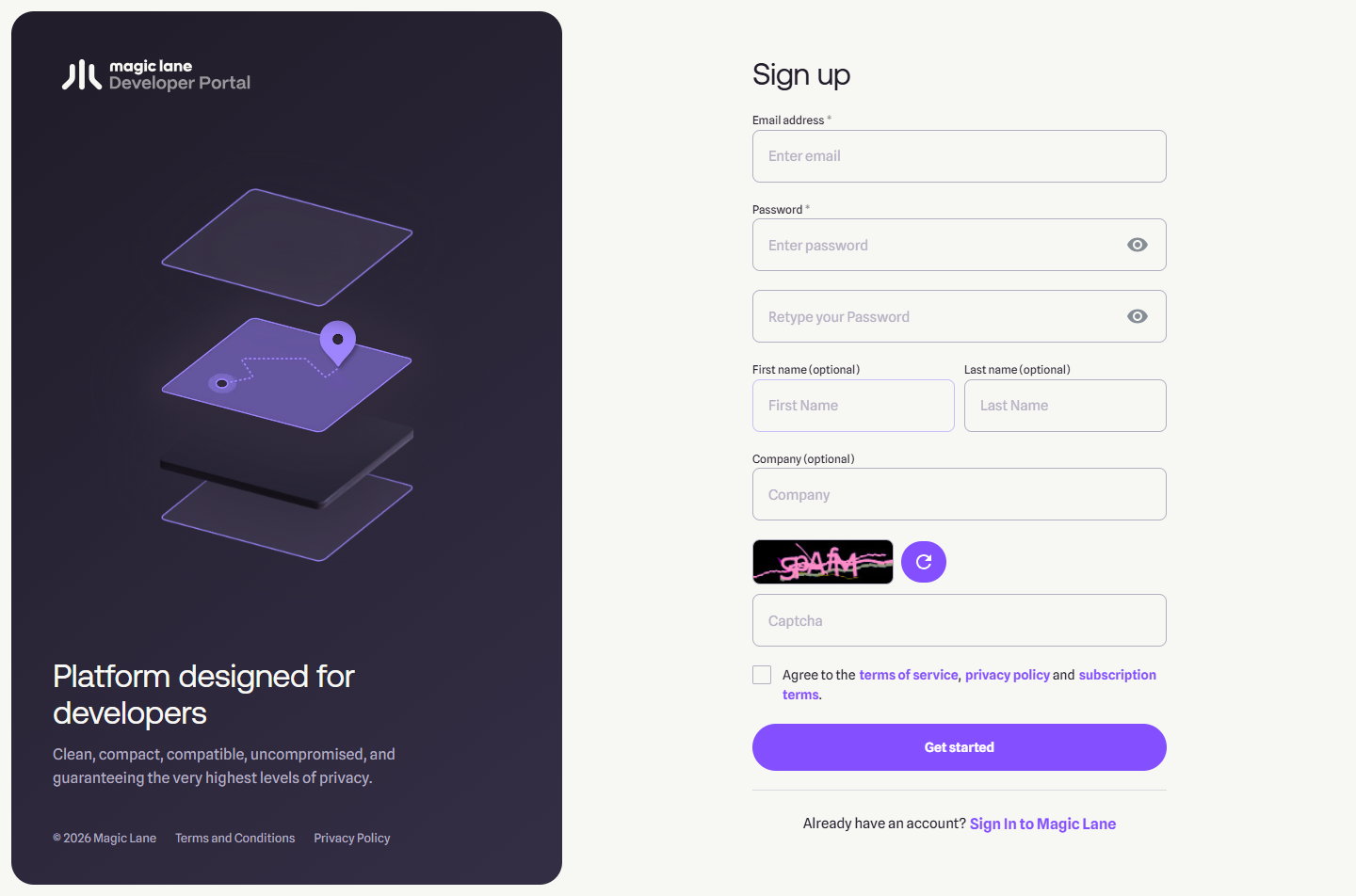
**Register**
Click the `Get started` button after reviewing the terms of service and privacy policy. You will get a confirmation email with a link to activate your account. After you activate your account by clicking on the link you received, you can sign in!
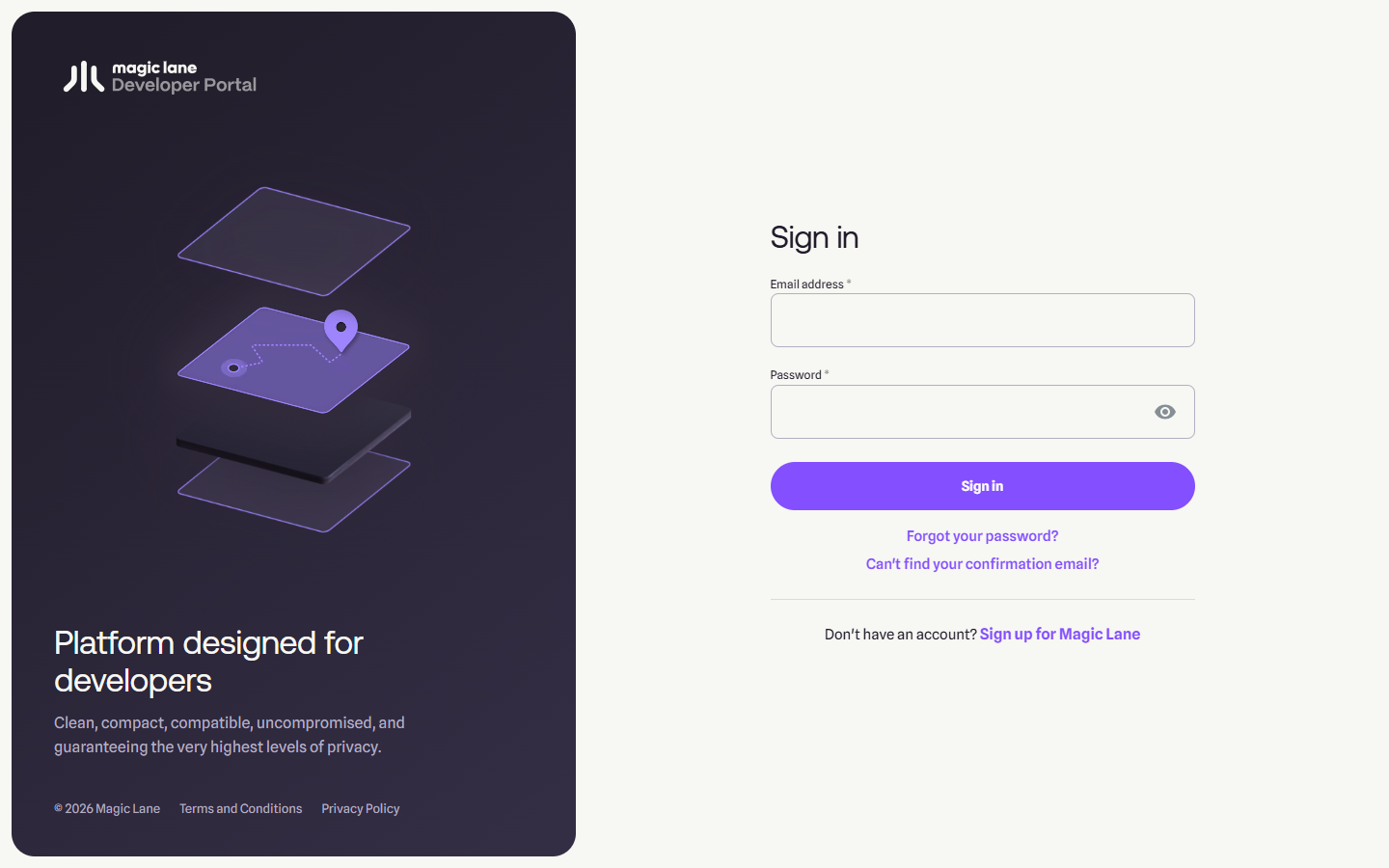
**Sign in**
Go to the Magic Lane [login page](https://developer.magiclane.com/api/login) to sign in to your new account. Type your complete email address, which you used to create the account, and the password you created when you signed up in the previous step.
## Create a project[](#create-a-project "Direct link to Create a project")
Once logged in, you are on your [Dashboard](https://developer.magiclane.com/api/dashboard) page. Click the [Projects](https://developer.magiclane.com/api/projects) tab.
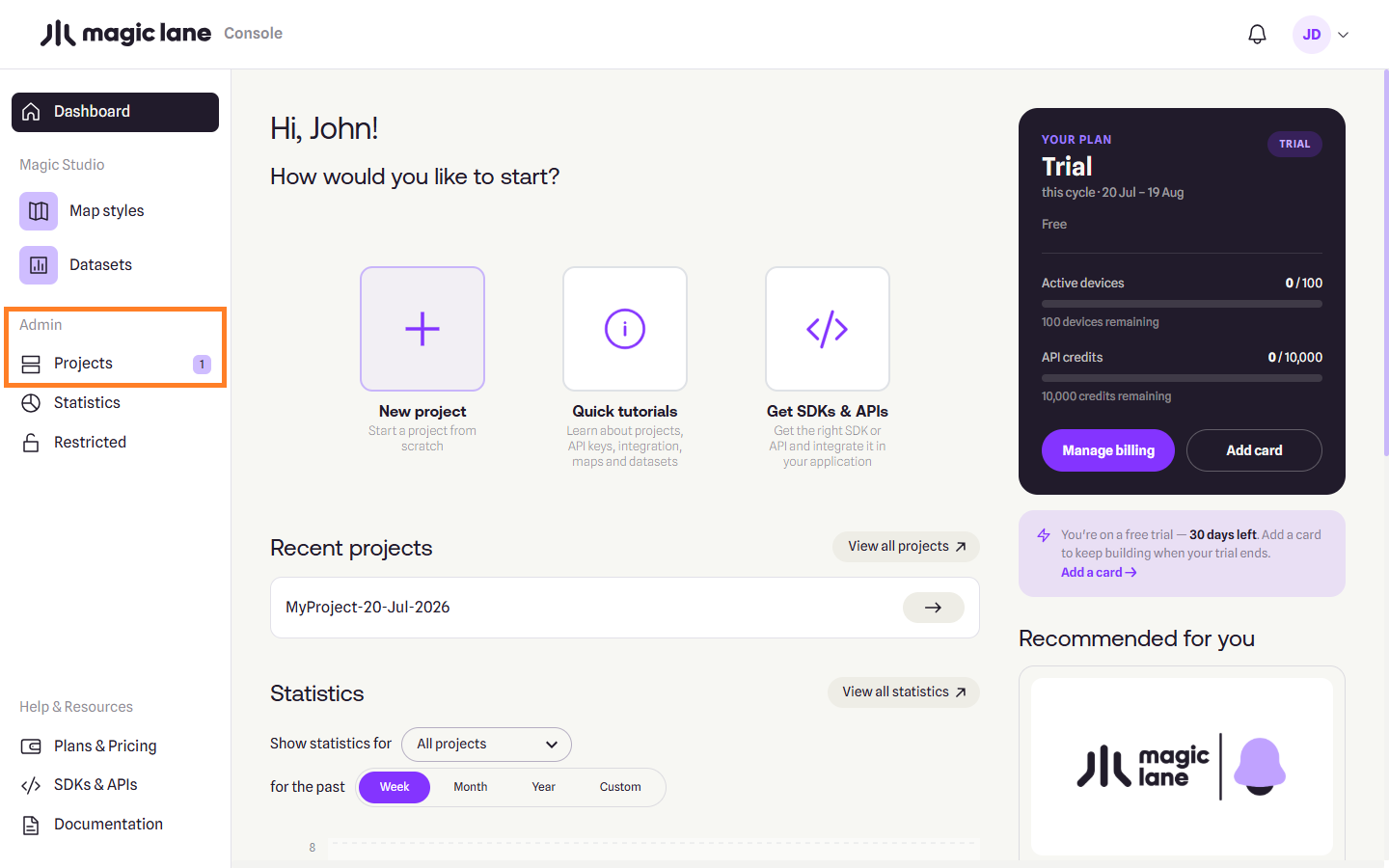
**Projects**
On the My Projects page, click the `Create project` button from the top-right side of the page.
A dialog appears, where you can type a name for the new project, and a short description. When done, click `Create project`.
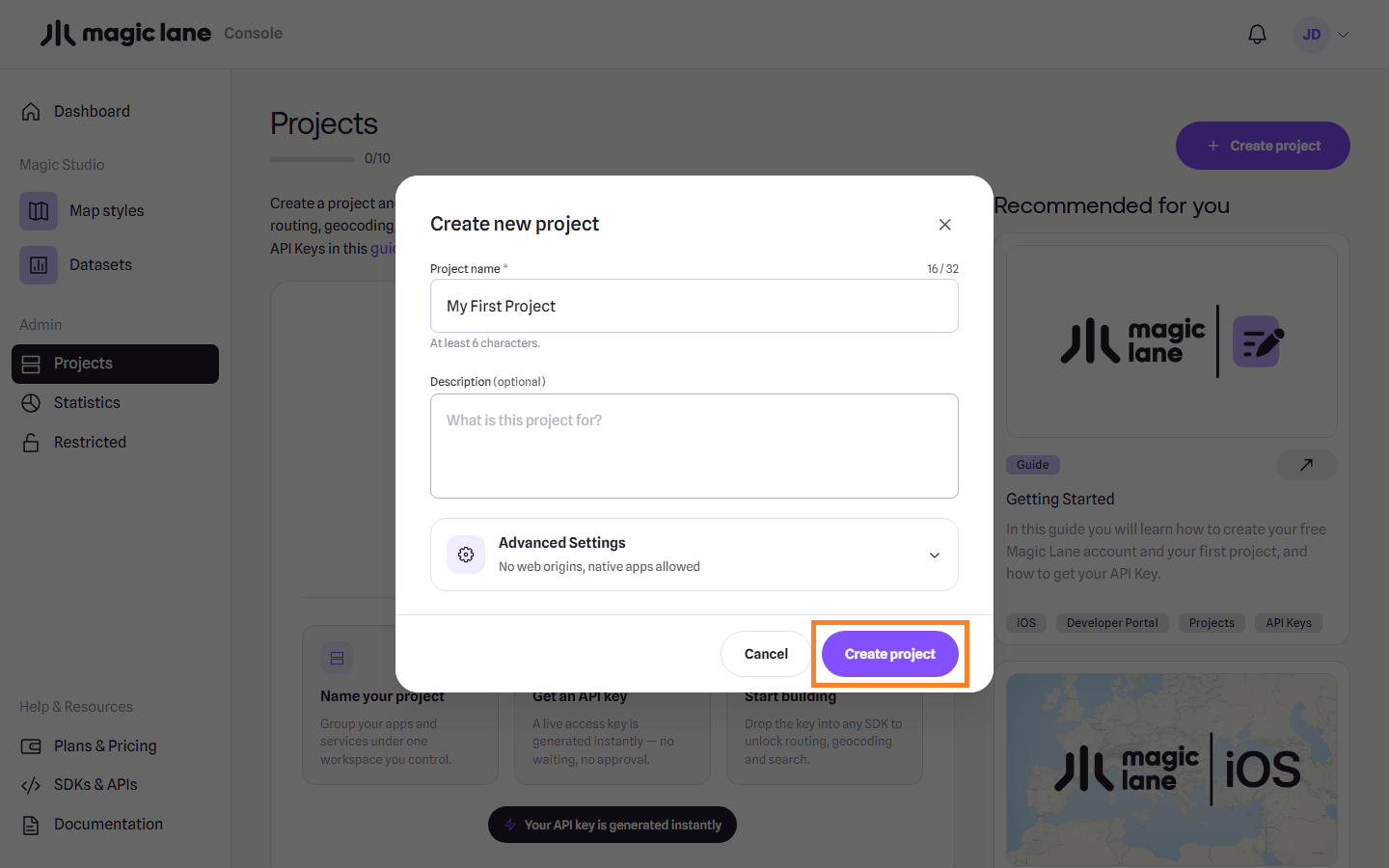
**Create project modal**
## Create an API Key[](#create-an-api-key "Direct link to Create an API Key")
The project is created with an API key with a short expiration date.
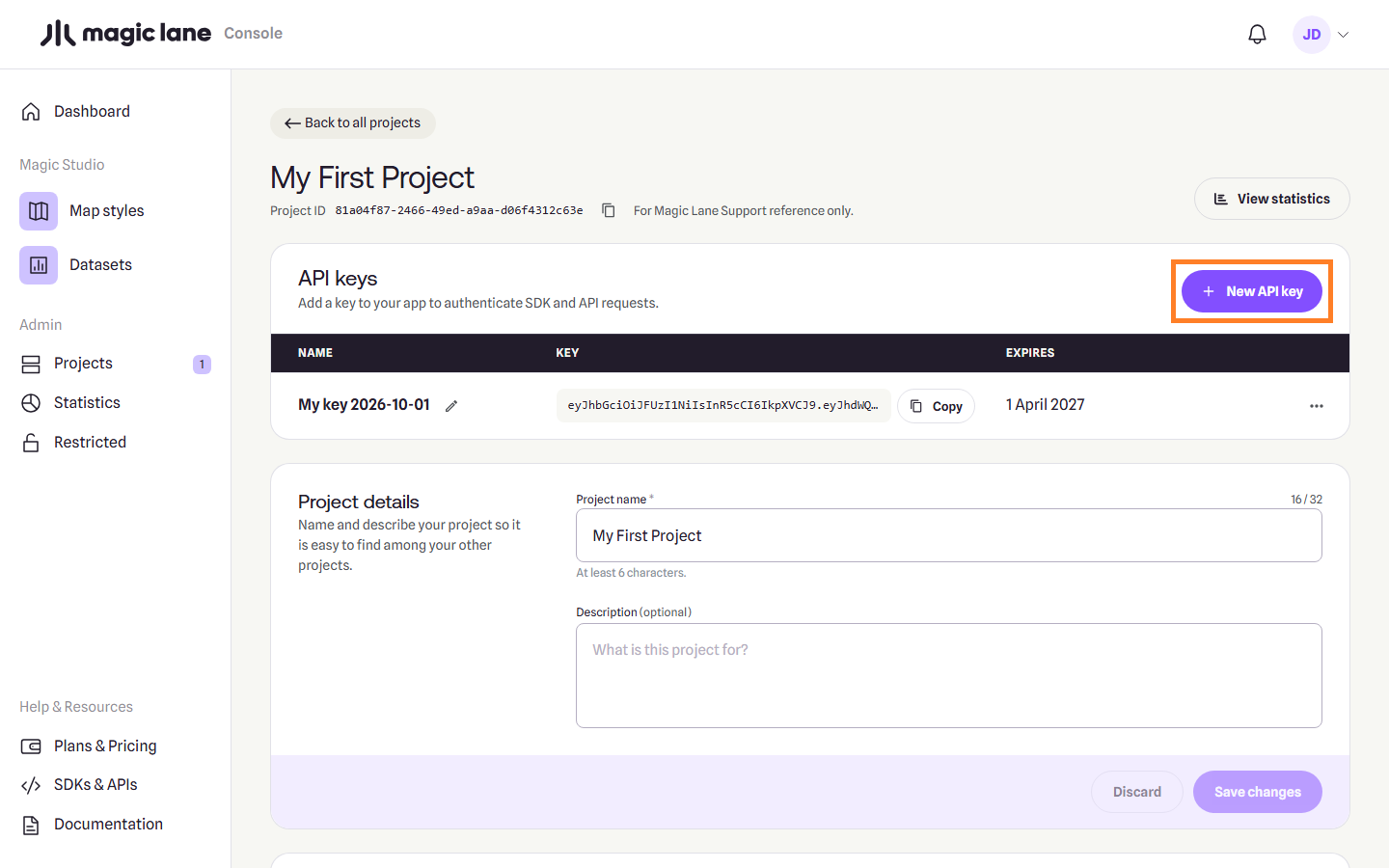
**Project API Keys**
Click `Generate additional API Key` to create another key for your project, where you can set an expiration date further into the future.
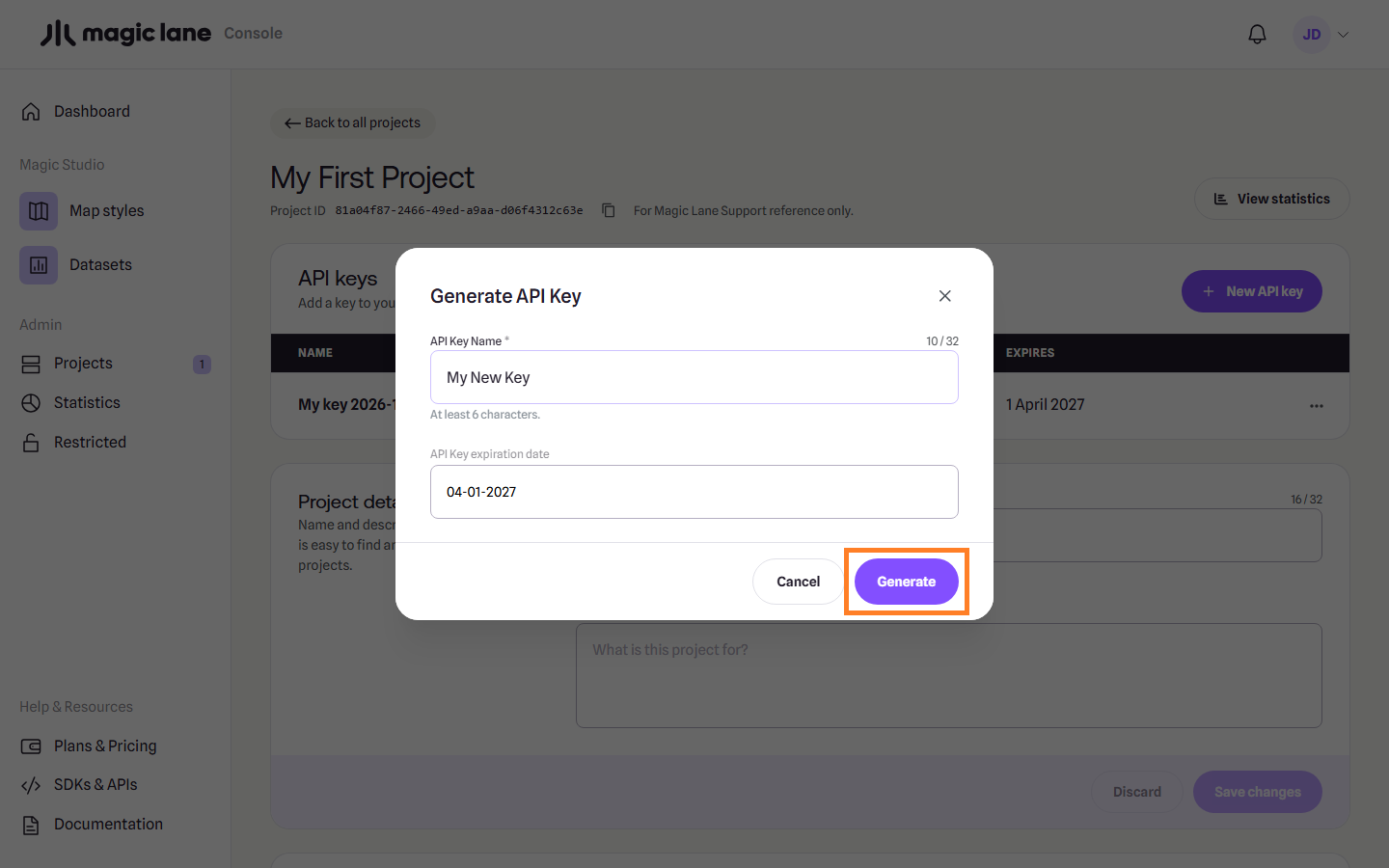
**Generate API Key modal**
You can give the new API key a different name, and set any expiration date you want. Click `Generate` to generate the API key.
Warning
Ensure that key management is properly planned and that the key on the client’s device is updated before its expiration date. Failure to do so will result in a watermark being displayed on the map and certain features becoming limited once the key has expired.
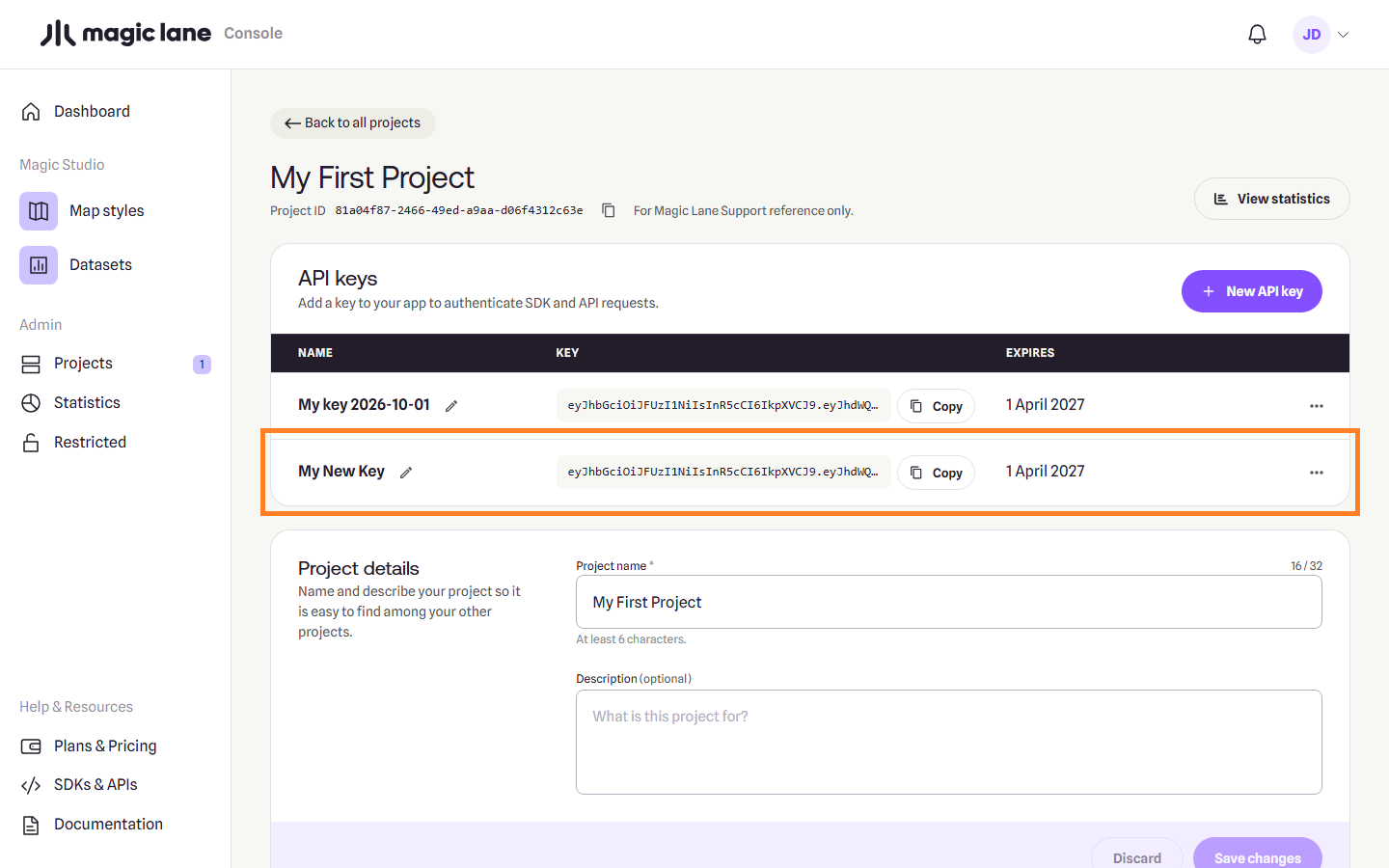
**Project page**
You just created your first project and Magic Lane API Key !
You can click on the copy button to the right of the API Key to copy it, and then paste it in your code.