# Magic Lane - Maps SDK for Flutter documentation
## Docs
### Get Started With Sample Apps
Last updated:
March 20, 2026
| 5 minutes read
#### Prerequisites[](#prerequisites "Direct link to Prerequisites")
Before running the example applications, ensure you have an IDE for development such as Android Studio or Visual Studio Code installed on your machine.
Then set up your IDE for Flutter development by following the official setup guides for [Visual Studio Code](https://docs.flutter.dev/install/with-vs-code) and [Android Studio](https://www.geeksforgeeks.org/android/android-studio-setup-for-flutter-development/).
After setup is complete, verify that Flutter is correctly installed by running the following command in your terminal:
```bash
flutter doctor
```
It should display a summary of installed tooling and report any issues found. Make sure there are no errors related to Flutter, Dart, or your IDE.
info
If running the command results in the **command not found: flutter** error, ensure that Flutter is correctly installed and added to your system's PATH so your terminal can access it. You can verify the installation by running `flutter --version` in your terminal.
#### Downloading the examples[](#downloading-the-examples "Direct link to Downloading the examples")
Example applications for the Maps SDK for Flutter are available on [Github](https://github.com/magiclane/magiclane-maps-sdk-examples-for-flutter). You can clone the repository or download project ZIP file by clicking the blue `Code` button and selecting `Download ZIP`.
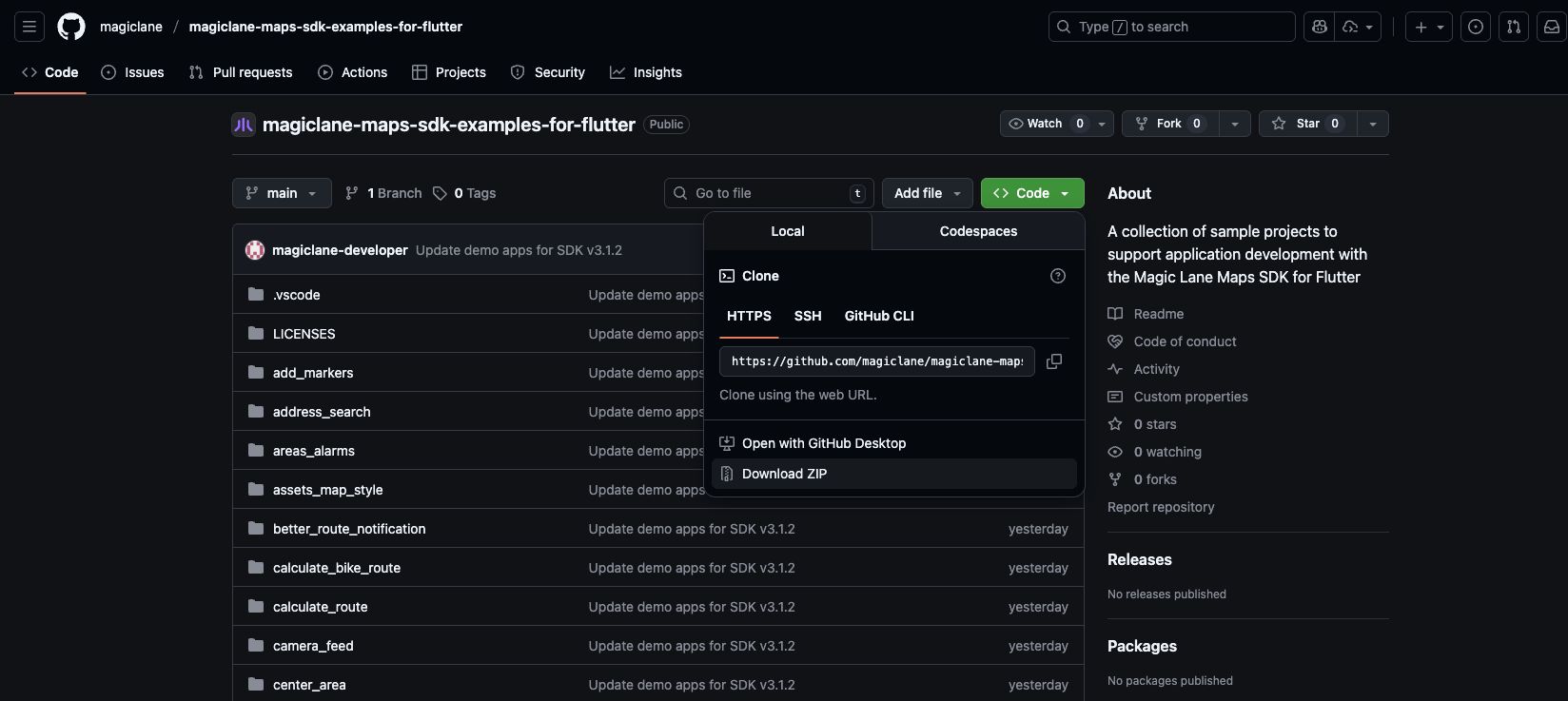
**Download Examples from Github**
If you chose to download the ZIP file, make sure to **extract** it after the download is complete.
#### Running the examples[](#running-the-examples "Direct link to Running the examples")
##### Create and use an API key[](#create-and-use-an-api-key "Direct link to Create and use an API key")
Authentication is **recommended** to use the Maps SDK for Flutter without the watermark and ensure full functionality. This [guide](https://developer.magiclane.com/docs/guides/get-started) provides detailed instructions on how to obtain and set up your API key. Some features do not work unless a valid token is set and the number of allowed requests is limited.
Once you have your API key, you need to set it in the example project. Open the `lib/main.dart` file and locate the following line:
```dart
const projectApiToken = String.fromEnvironment('YOUR_API_TOKEN_HERE');
```
And replace the `String.fromEnvironment('YOUR_API_TOKEN_HERE')` with your actual API key, keeping the quotes. For example:
```dart
const projectApiToken = 'eyJhbGciOi...';
```
tip
You can also set the API key as an environment variable named `YOUR_API_TOKEN_HERE` in your IDE or terminal, which allows you to keep your API key secure and avoid hardcoding it in the source code.
warning
Make sure the token is not commited or shared publicly. If the token is exposed, please deactivate it and generate a new one.
##### Launching the example[](#launching-the-example "Direct link to Launching the example")
Open the selected example project in your preferred IDE (such as Android Studio or Visual Studio Code).
* Visual Studio Code
* Android Studio
Initially, the example project may display many errors.
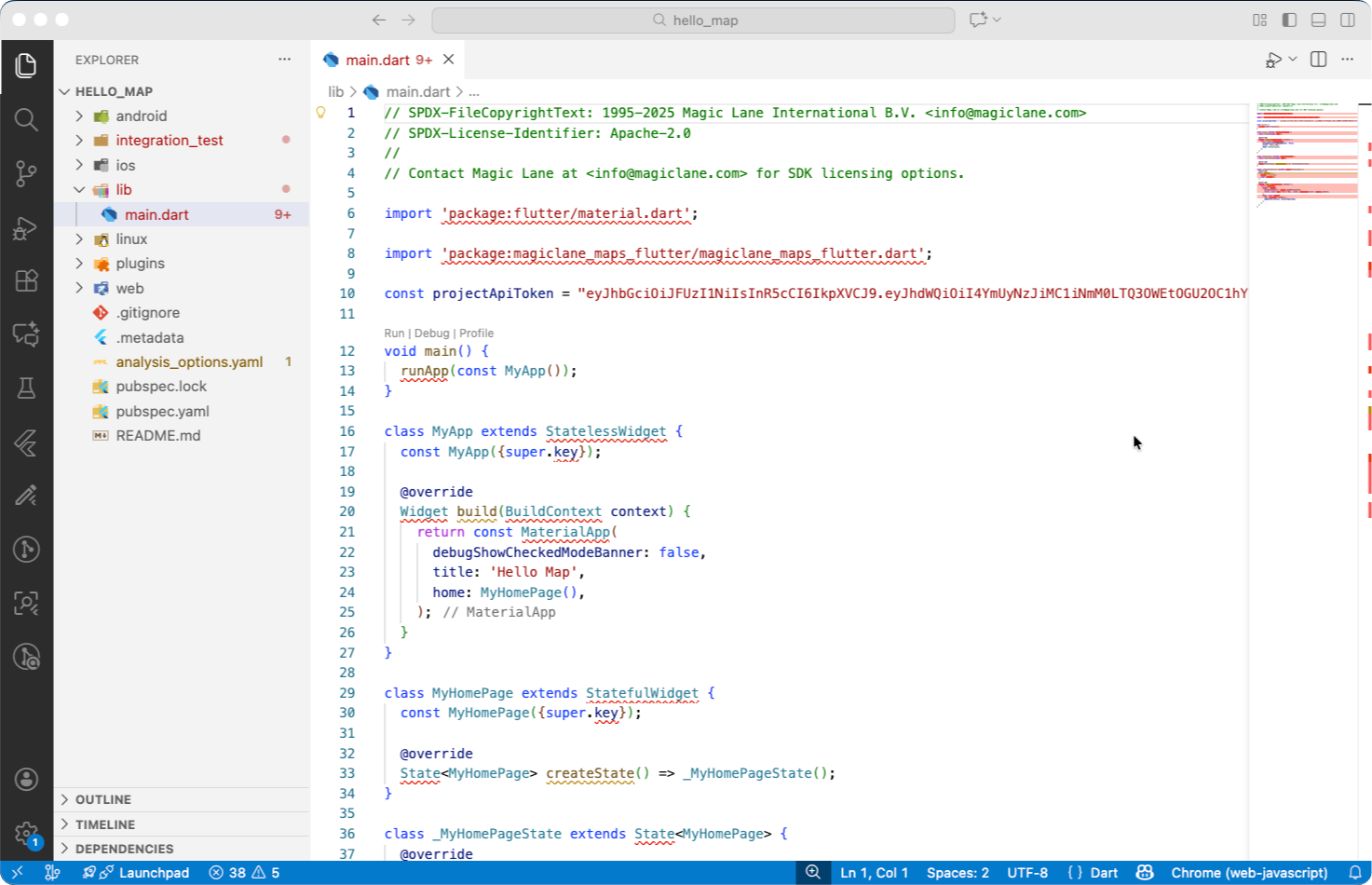
**Project open in Visual Studio Code**
Execute the following command in the terminal from the root directory of the example project to fetch the required dependencies:
```bash
flutter pub get
```
info
If you intend to run on an iOS device or simulator, ensure that you have CocoaPods installed and run the following command in the `ios` directory of the example project:
```bash
cd ios
pod install
```
After fetching the dependencies, the errors should disappear, and you can run the example application by tapping F5 or by clicking the run button above the main function. You can run the application on an emulator or a physical device connected to your development machine. Make sure the device is set up for development, recognized by your IDE and selected as the target device.
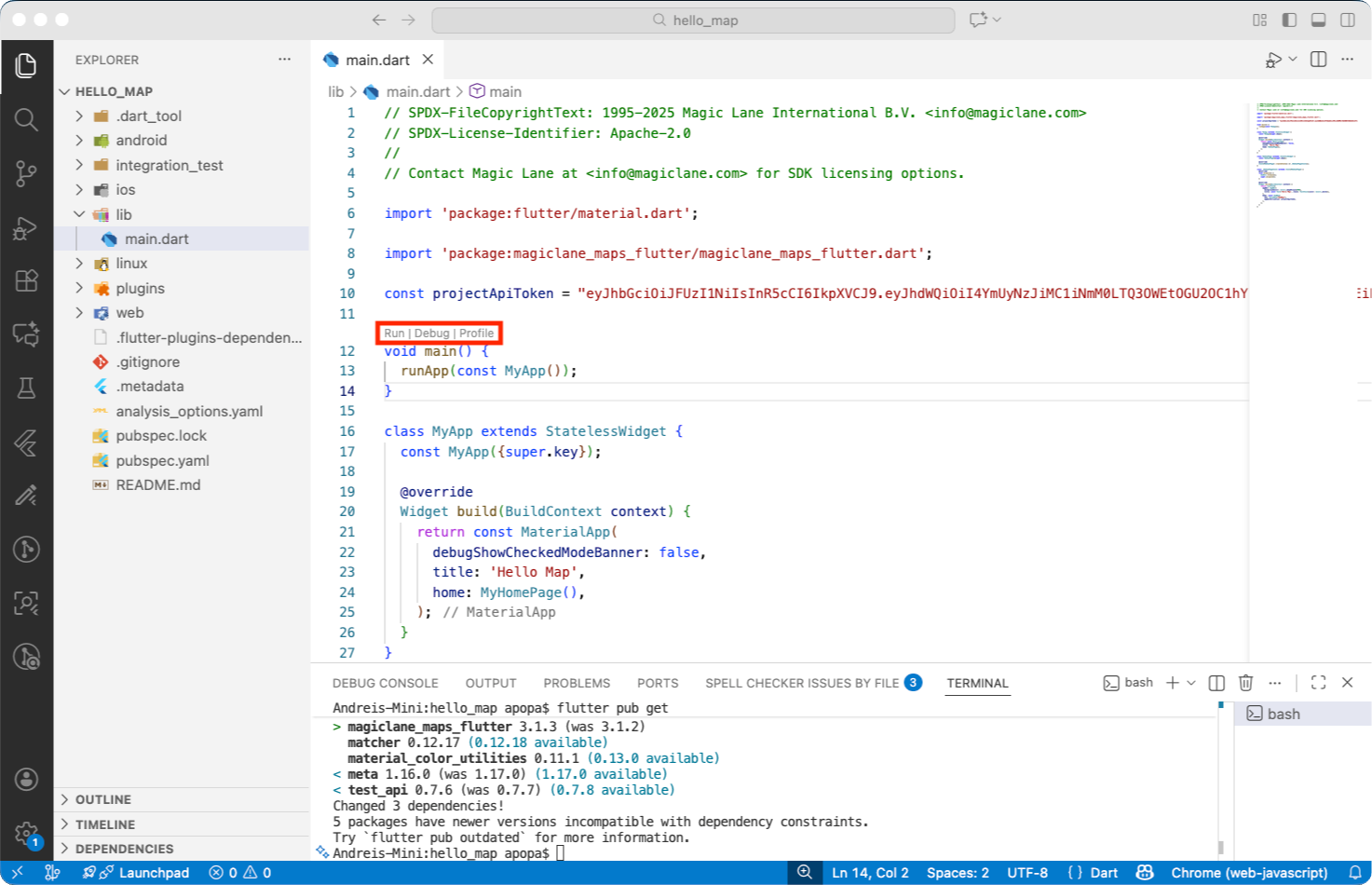
**Project after fetching dependencies**
Once launched, the application should build and run without issues.
After running the example, you can use the following command to delete the fetched dependencies and undo the changes made by the previous commands. This also deletes the build folders and cleans up resources :
```bash
flutter clean
```
Initially, the example project may display many errors.
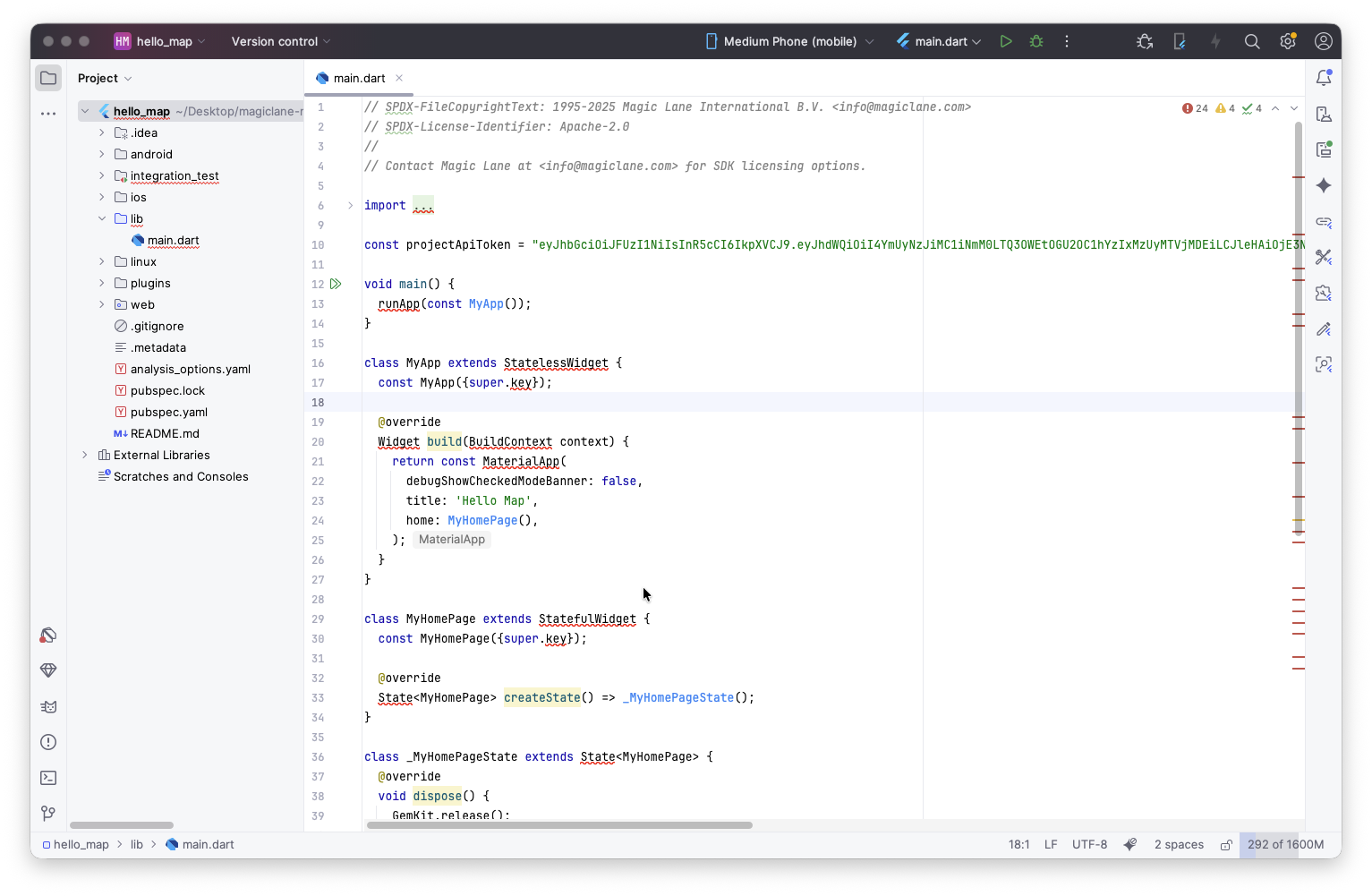
**Project open in Android Studio**
Execute the following command in the terminal from the root directory of the example project to fetch the required dependencies or click the `Get dependencies` button in the top right corner of the IDE:
```bash
flutter pub get
```
After fetching the dependencies, the errors should disappear, and you can run the example application by clicking the run or debug button on top of the editor. You can run the application on an emulator or a physical device connected to your development machine. Make sure the device is set up for development, recognized by your IDE and selected as the target device.
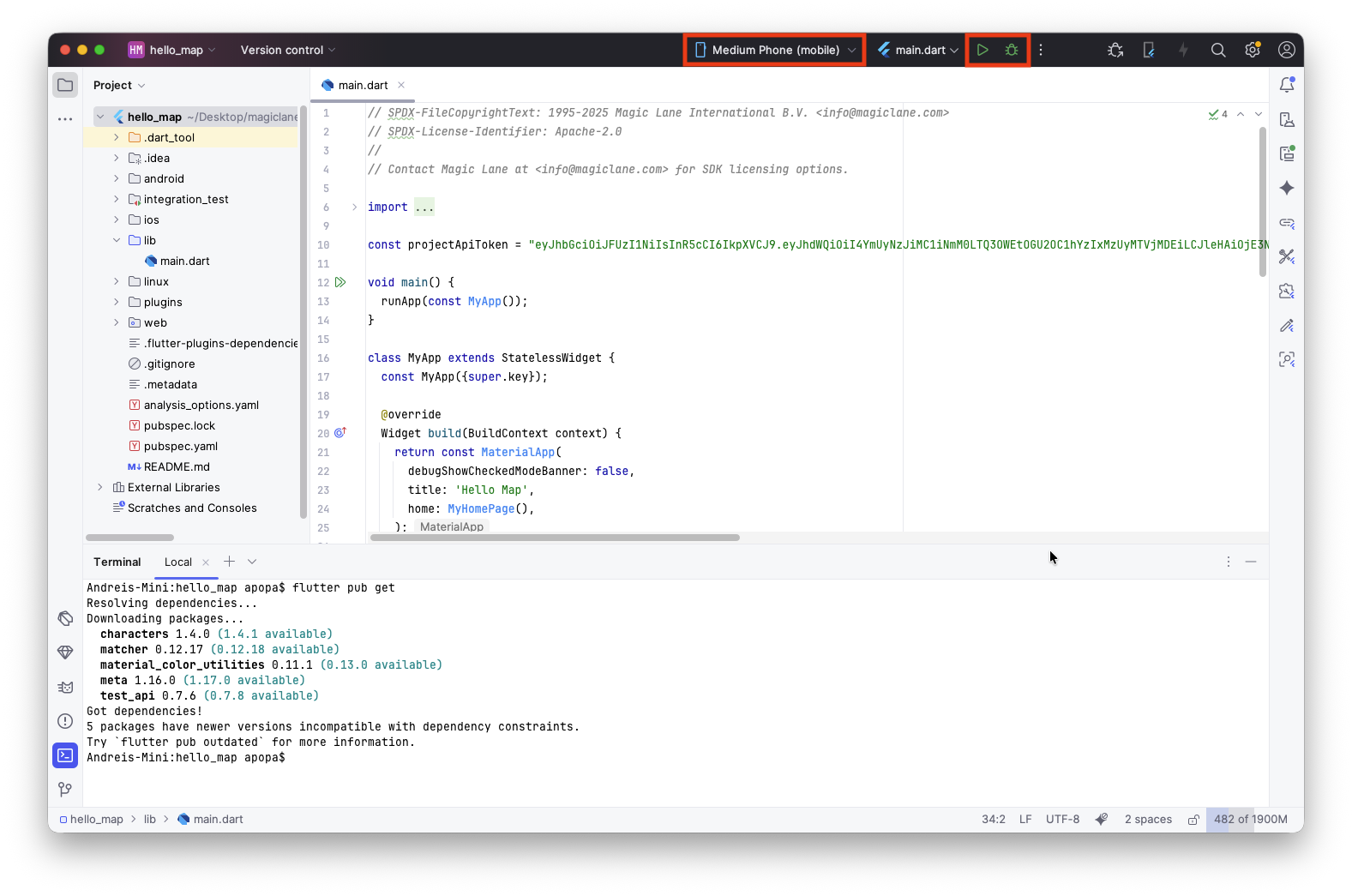
**Project after fetching dependencies**
Once launched, the application should build and run without issues.
After running the example, you can use the following command to delete the fetched dependencies and undo the changes made by the previous commands. This also deletes the build folders and cleans up resources :
```bash
flutter clean
```
#### Disclaimer[](#disclaimer "Direct link to Disclaimer")
The example applications are primarily designed for standard mobile device screen sizes and may not be fully responsive on all screen sizes. These examples are intentionally simplified to enhance clarity and ease of understanding. They do not necessarily reflect best practices for production environments.
---
### Maps & 3D Scene
These articles provide extensive coverage of `GemMap` widget functionality and techniques.
[](/docs/flutter/examples/maps-3dscene/hello-map.md)
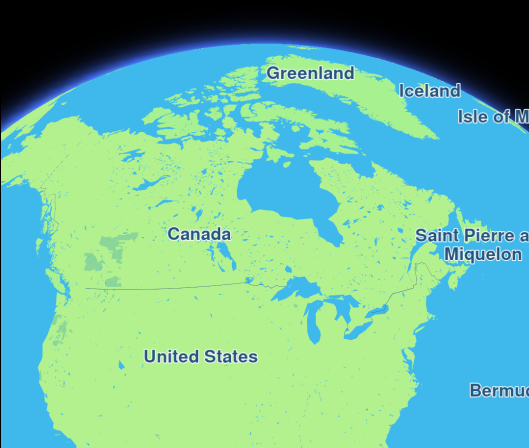
##### [Hello Map](/docs/flutter/examples/maps-3dscene/hello-map.md)
[Display an interactive map using Maps SDK for Flutter.](/docs/flutter/examples/maps-3dscene/hello-map.md)
[](/docs/flutter/examples/maps-3dscene/map-styles.md)
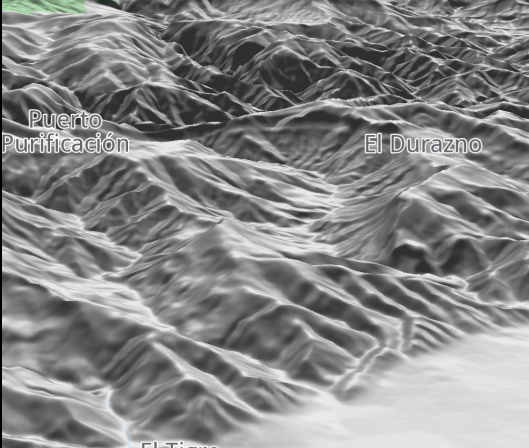
##### [Map Styles](/docs/flutter/examples/maps-3dscene/map-styles.md)
[Display an interactive map with a non-default style.](/docs/flutter/examples/maps-3dscene/map-styles.md)
[](/docs/flutter/examples/maps-3dscene/assets-map-styles.md)
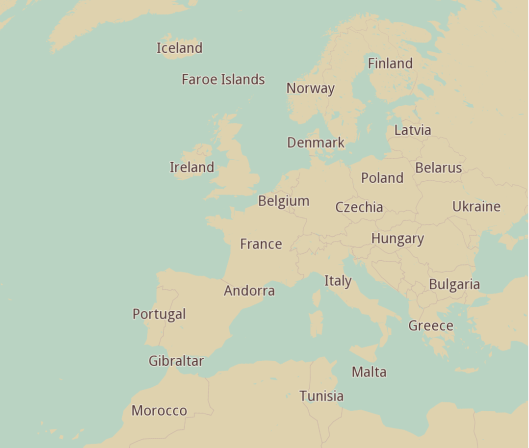
##### [Assets Map Style](/docs/flutter/examples/maps-3dscene/assets-map-styles.md)
[Display an interactive map with a custom style from assets.](/docs/flutter/examples/maps-3dscene/assets-map-styles.md)
[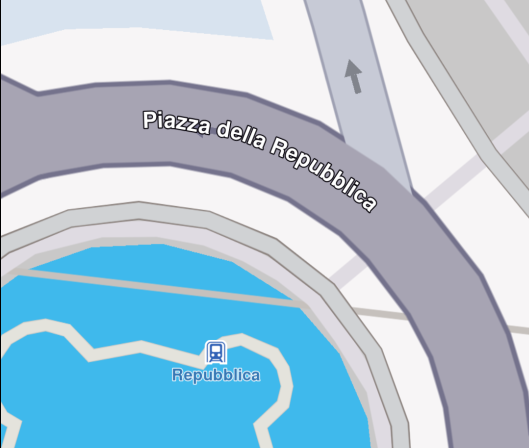](/docs/flutter/examples/maps-3dscene/center-coordinates.md)
##### [Center Coordinates](/docs/flutter/examples/maps-3dscene/center-coordinates.md)
[Center the map on specific coordinates.](/docs/flutter/examples/maps-3dscene/center-coordinates.md)
[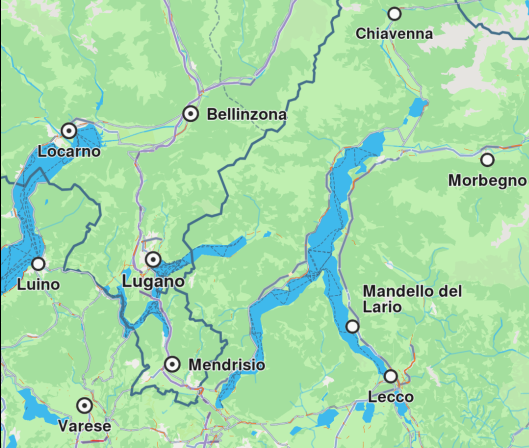](/docs/flutter/examples/maps-3dscene/map-gestures.md)
##### [Map Gestures](/docs/flutter/examples/maps-3dscene/map-gestures.md)
[Capture gestures data on a map.](/docs/flutter/examples/maps-3dscene/map-gestures.md)
[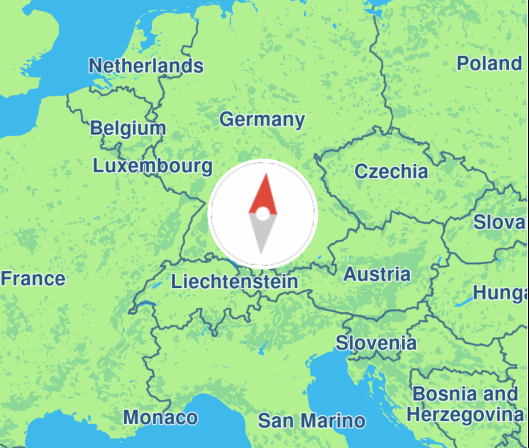](/docs/flutter/examples/maps-3dscene/map-compass.md)
##### [Map Compass](/docs/flutter/examples/maps-3dscene/map-compass.md)
[Render a compass icon that displays the heading rotation of the map.](/docs/flutter/examples/maps-3dscene/map-compass.md)
[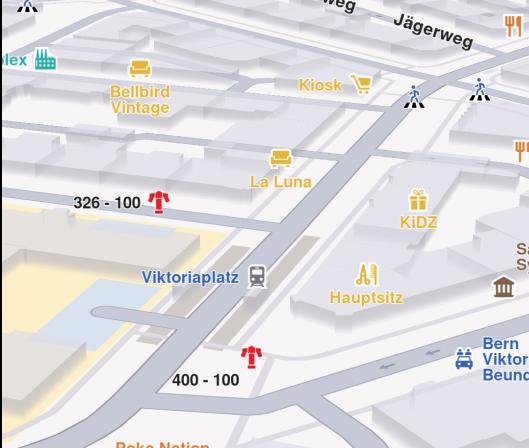](/docs/flutter/examples/maps-3dscene/map-perspective.md)
##### [Map Perspective](/docs/flutter/examples/maps-3dscene/map-perspective.md)
[Toggle between 2D and 3D map perspective.](/docs/flutter/examples/maps-3dscene/map-perspective.md)
[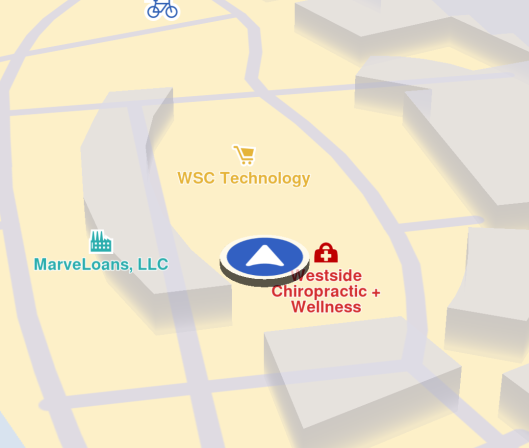](/docs/flutter/examples/maps-3dscene/follow-position.md)
##### [Follow Position](/docs/flutter/examples/maps-3dscene/follow-position.md)
[Follow the device's location on a map.](/docs/flutter/examples/maps-3dscene/follow-position.md)
[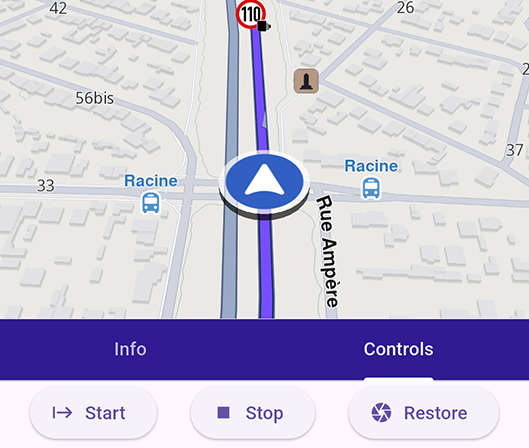](/docs/flutter/examples/maps-3dscene/advanced-follow-position.md)
##### [Advanced Follow Position](/docs/flutter/examples/maps-3dscene/advanced-follow-position.md)
[Configure advanced settings for following the device's location on a map.](/docs/flutter/examples/maps-3dscene/advanced-follow-position.md)
[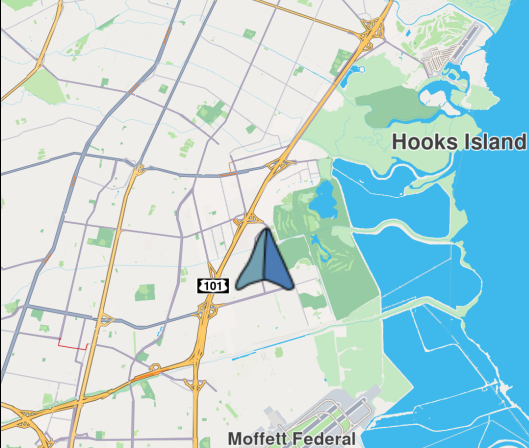](/docs/flutter/examples/maps-3dscene/custom-position-icon.md)
##### [Custom Position Icon](/docs/flutter/examples/maps-3dscene/custom-position-icon.md)
[Customize the position tracker.](/docs/flutter/examples/maps-3dscene/custom-position-icon.md)
[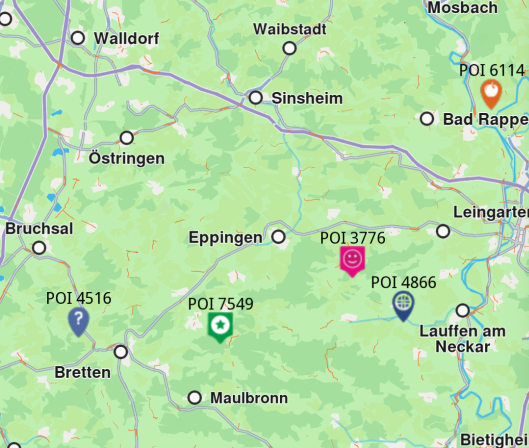](/docs/flutter/examples/maps-3dscene/add-markers.md)
##### [Add Markers](/docs/flutter/examples/maps-3dscene/add-markers.md)
[Add custom markers on map.](/docs/flutter/examples/maps-3dscene/add-markers.md)
[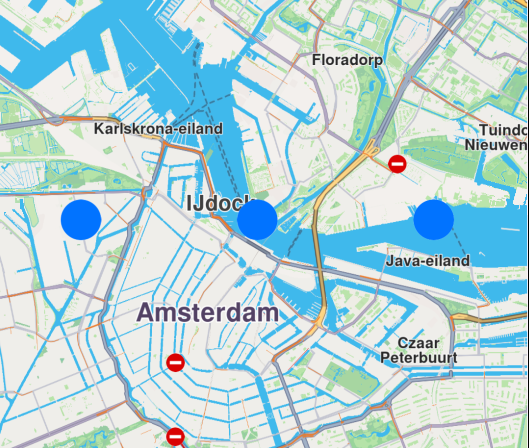](/docs/flutter/examples/maps-3dscene/draw-shapes.md)
##### [Draw Shapes on Map](/docs/flutter/examples/maps-3dscene/draw-shapes.md)
[Draw and display polylines, polygons and points.](/docs/flutter/examples/maps-3dscene/draw-shapes.md)
[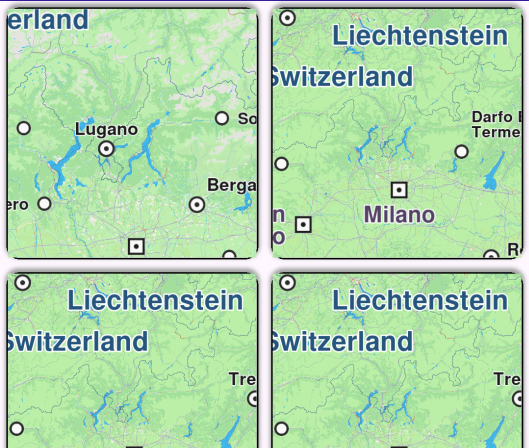](/docs/flutter/examples/maps-3dscene/multiview-map.md)
##### [Multiview Map](/docs/flutter/examples/maps-3dscene/multiview-map.md)
[Display multiple interactive maps in one viewport.](/docs/flutter/examples/maps-3dscene/multiview-map.md)
[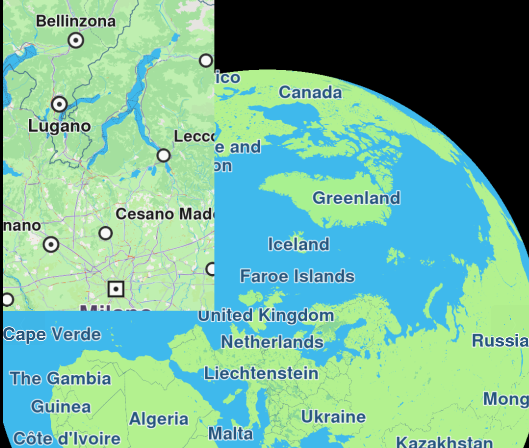](/docs/flutter/examples/maps-3dscene/overlapped-maps.md)
##### [Overlapped Maps](/docs/flutter/examples/maps-3dscene/overlapped-maps.md)
[Display two overlapped maps.](/docs/flutter/examples/maps-3dscene/overlapped-maps.md)
[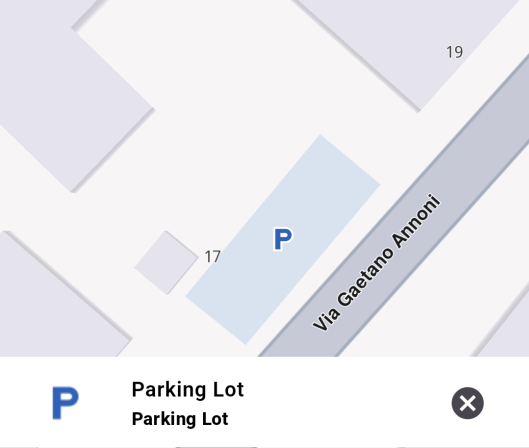](/docs/flutter/examples/maps-3dscene/map-selection.md)
##### [Map Selection](/docs/flutter/examples/maps-3dscene/map-selection.md)
[Explore POIs and select destination with ease.](/docs/flutter/examples/maps-3dscene/map-selection.md)
[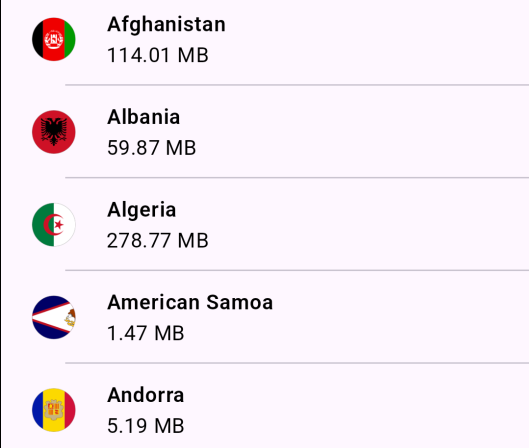](/docs/flutter/examples/maps-3dscene/map-download.md)
##### [Map Download](/docs/flutter/examples/maps-3dscene/map-download.md)
[Download maps for offline use.](/docs/flutter/examples/maps-3dscene/map-download.md)
[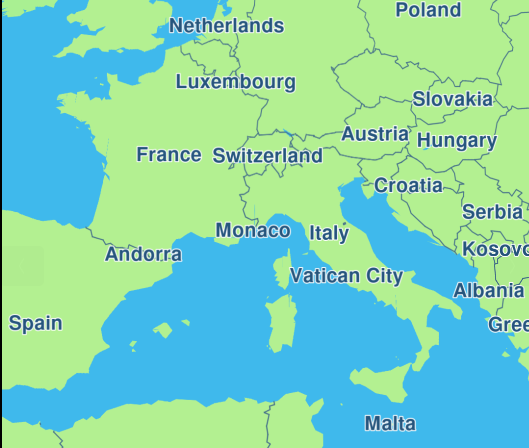](/docs/flutter/examples/maps-3dscene/map-update.md)
##### [Map Update](/docs/flutter/examples/maps-3dscene/map-update.md)
[Download and apply updates to maps.](/docs/flutter/examples/maps-3dscene/map-update.md)
[](/docs/flutter/examples/maps-3dscene/center-area.md)
##### [Center Area](/docs/flutter/examples/maps-3dscene/center-area.md)
[Center map camera on a specific geographic area.](/docs/flutter/examples/maps-3dscene/center-area.md)
[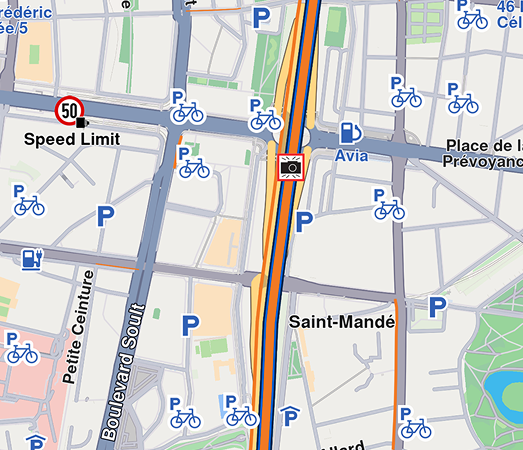](/docs/flutter/examples/maps-3dscene/center-traffic.md)
##### [Center Traffic](/docs/flutter/examples/maps-3dscene/center-traffic.md)
[Center map camera on a specific geographic area.](/docs/flutter/examples/maps-3dscene/center-traffic.md)
[](/docs/flutter/examples/maps-3dscene/map-style-update.md)
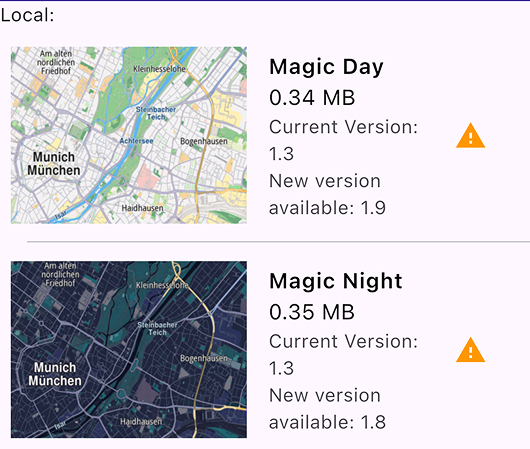
##### [Map Style Update](/docs/flutter/examples/maps-3dscene/map-style-update.md)
[Update old versions of map styles.](/docs/flutter/examples/maps-3dscene/map-style-update.md)
[](/docs/flutter/examples/maps-3dscene/send-debug-info.md)
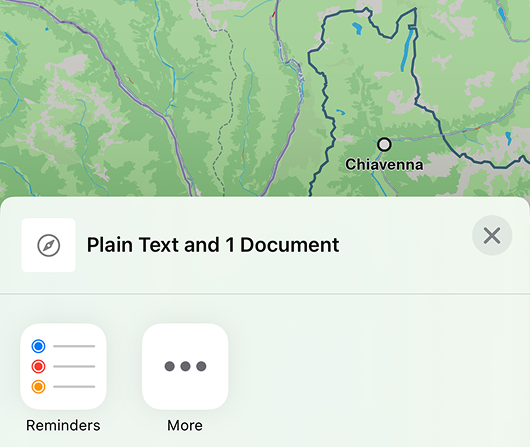
##### [Send Debug Info](/docs/flutter/examples/maps-3dscene/send-debug-info.md)
[Share debug information as a .txt file.](/docs/flutter/examples/maps-3dscene/send-debug-info.md)
[](/docs/flutter/examples/maps-3dscene/social-report.md)
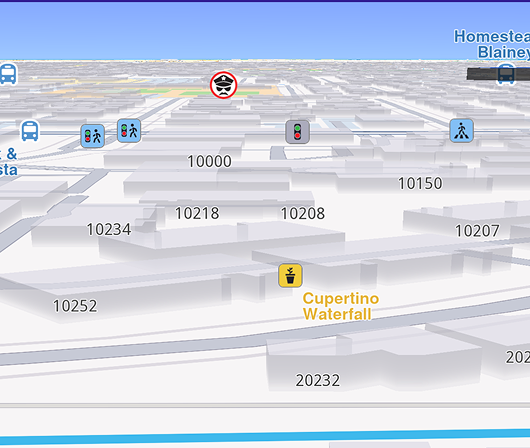
##### [Social Report](/docs/flutter/examples/maps-3dscene/social-report.md)
[Upload and view social reports.](/docs/flutter/examples/maps-3dscene/social-report.md)
[](/docs/flutter/examples/maps-3dscene/public-transport-stop-schedule.md)
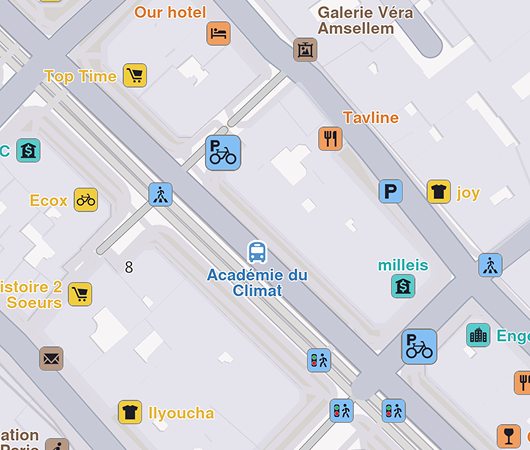
##### [Public Transport Stop Schedule](/docs/flutter/examples/maps-3dscene/public-transport-stop-schedule.md)
[Display stop times for public transport POIs.](/docs/flutter/examples/maps-3dscene/public-transport-stop-schedule.md)
[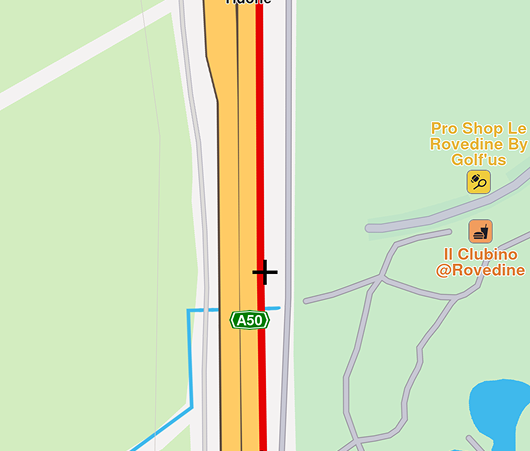](/docs/flutter/examples/maps-3dscene/draw-roadblock.md)
##### [Draw Roadblock](/docs/flutter/examples/maps-3dscene/draw-roadblock.md)
[Draw and upload a roadblock using coordinates.](/docs/flutter/examples/maps-3dscene/draw-roadblock.md)
[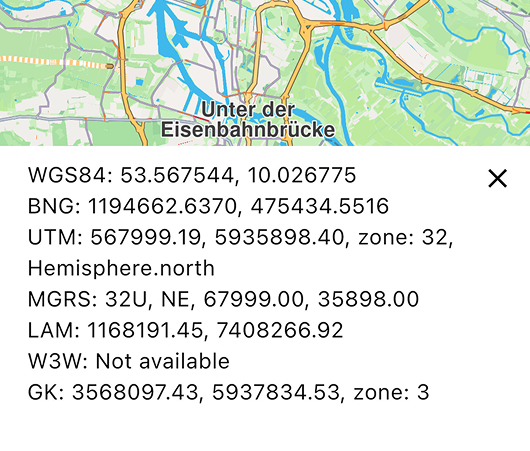](/docs/flutter/examples/maps-3dscene/projections.md)
##### [Projections](/docs/flutter/examples/maps-3dscene/projections.md)
[Display coordinates in different projections systems.](/docs/flutter/examples/maps-3dscene/projections.md)
[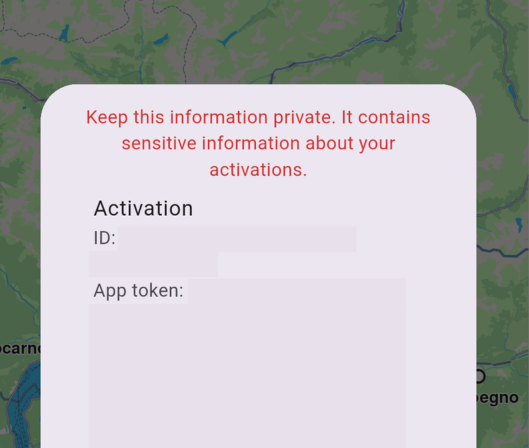](/docs/flutter/examples/maps-3dscene/sdk-auto-activation.md)
##### [SDK Automatic Activation](/docs/flutter/examples/maps-3dscene/sdk-auto-activation.md)
[Perform automatic activation of the SDK based on the provided token.](/docs/flutter/examples/maps-3dscene/sdk-auto-activation.md)
[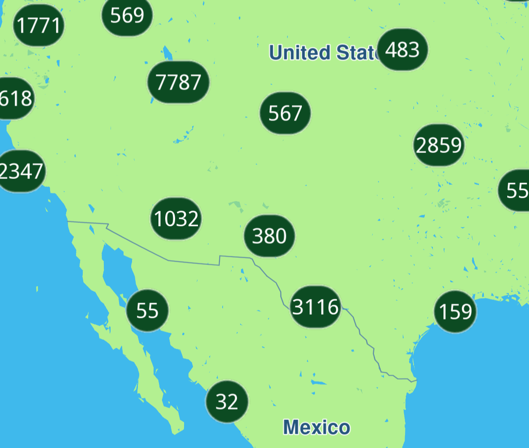](/docs/flutter/examples/maps-3dscene/marker-clustering.md)
##### [Marker Clustering](/docs/flutter/examples/maps-3dscene/marker-clustering.md)
[Render thousands of GeoJSON markers, cluster them into count pills, and show coloured pins.](/docs/flutter/examples/maps-3dscene/marker-clustering.md)
---
### Add Markers
Last updated:
July 15, 2026
| 4 minutes read
This example demonstrates how to create a Flutter app that displays a large number of markers on a map using Maps SDK for Flutter.
#### Saving Assets[](#saving-assets "Direct link to Saving Assets")
Before running the app, ensure that you save the necessary files (marker icons) into the assets directory.
Update your pubspec.yaml file to include these assets:
```yaml
flutter:
assets:
- assets/
```
#### How it works[](#how-it-works "Direct link to How it works")
The example app demonstrates the following features:
* Display a large number of markers on the map.
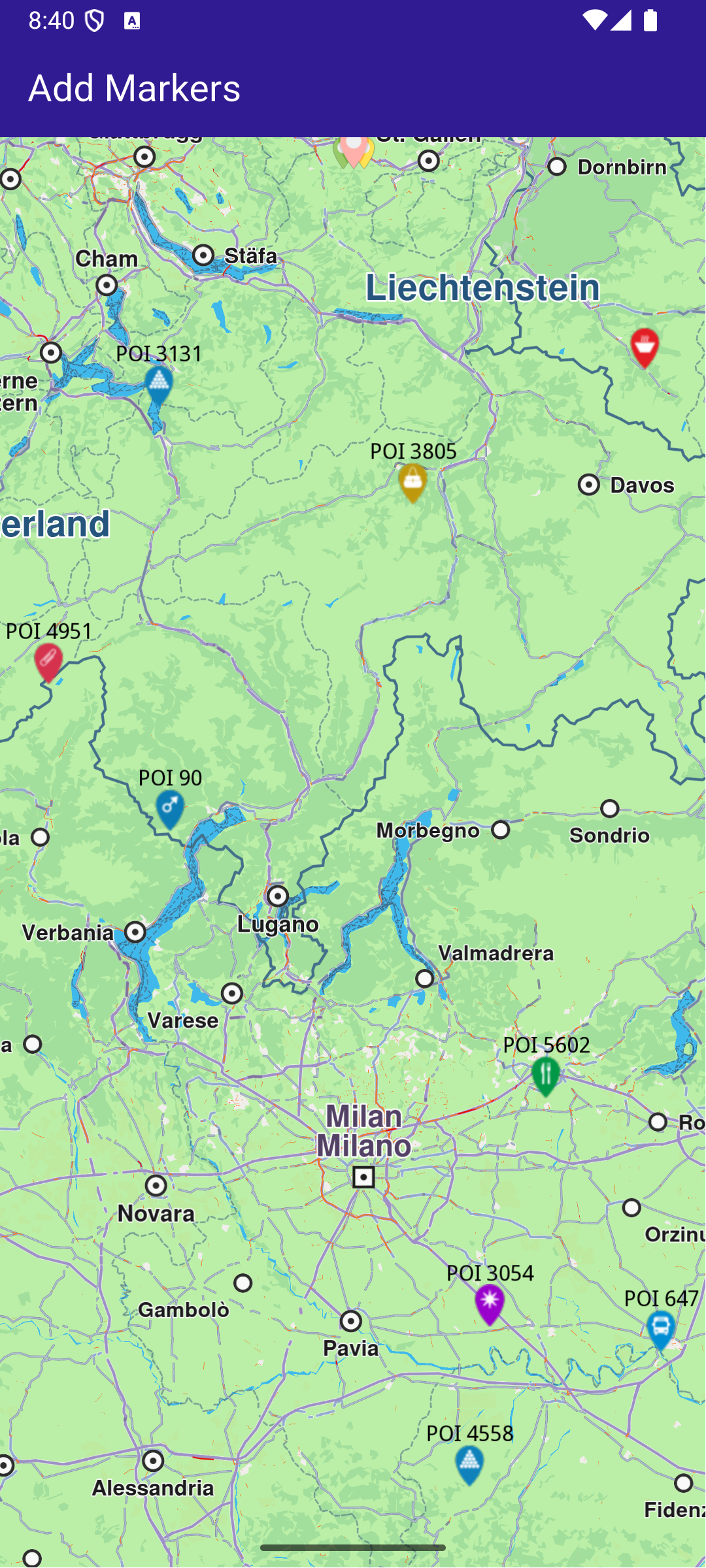
**GemMap widget**
##### UI and Map Integration[](#ui-and-map-integration "Direct link to UI and Map Integration")
This code sets up the basic structure of the app, including the map and the app bar, and initializes the map when it is created.
main.dart[View on Github](https://github.com/magiclane/magiclane-maps-sdk-examples-for-flutter/tree/main/add_markers/lib/main.dart?ref_type=heads#L20)
```dart
class MyApp extends StatelessWidget {
const MyApp({super.key});
@override
Widget build(BuildContext context) {
return const MaterialApp(
debugShowCheckedModeBanner: false,
title: 'Add Markers',
home: MyHomePage(),
);
}
}
class MyHomePage extends StatefulWidget {
const MyHomePage({super.key});
@override
State createState() => _MyHomePageState();
}
class _MyHomePageState extends State {
late GemMapController _mapController;
@override
void dispose() {
GemKit.release();
super.dispose();
}
@override
Widget build(BuildContext context) {
return Scaffold(
appBar: AppBar(
backgroundColor: Colors.deepPurple[900],
title: const Text('Add Markers', style: TextStyle(color: Colors.white)),
),
body: GemMap(
key: ValueKey("GemMap"),
onMapCreated: _onMapCreated,
appAuthorization: projectApiToken,
),
);
}
// The callback for when map is ready to use.
Future _onMapCreated(GemMapController controller) async {
// Save controller for further usage.
_mapController = controller;
await addMarkers();
}
```
##### Adding and displaying Markers[](#adding-and-displaying-markers "Direct link to Adding and displaying Markers")
This code creates and adds a large number of markers to the map, generating random coordinates across Europe for demonstration purposes. It loads PNG images from assets to be used as marker icons.
main.dart[View on Github](https://github.com/magiclane/magiclane-maps-sdk-examples-for-flutter/tree/main/add_markers/lib/main.dart?ref_type=heads#L72)
```dart
Future addMarkers() async {
final listPngs = await loadPngs();
// Save the image for the group icon.
final ByteData imageData = await rootBundle.load(
'assets/pois/GroupIcon.png',
);
final Uint8List imageBytes = imageData.buffer.asUint8List();
Random random = Random();
double minLat = 35.0; // Southernmost point of Europe
double maxLat = 71.0; // Northernmost point of Europe
double minLon = -10.0; // Westernmost point of Europe
double maxLon = 40.0; // Easternmost point of Europe
List markers = [];
for (int i = 0; i < 8000; ++i) {
// Generate random coordinates to display some markers.
double randomLat = minLat + random.nextDouble() * (maxLat - minLat);
double randomLon = minLon + random.nextDouble() * (maxLon - minLon);
final marker = MarkerJson(
coords: [Coordinates(latitude: randomLat, longitude: randomLon)],
name: "POI $i",
);
// Choose a random POI icon for the marker and set the label size.
final renderSettings = MarkerRenderSettings(
image: GemImage(
image: listPngs[random.nextInt(listPngs.length)],
format: ImageFileFormat.png,
),
labelTextSize: 2.0,
);
// Create a MarkerWithRenderSettings object.
final markerWithRenderSettings = MarkerWithRenderSettings(
marker,
renderSettings,
);
// Add the marker to the list of markers.
markers.add(markerWithRenderSettings);
}
// Create the settings for the collections.
final settings = MarkerCollectionRenderSettings();
// Set the label size.
settings.labelGroupTextSize = 2;
// The zoom level at which the markers will be grouped together.
settings.pointsGroupingZoomLevel = 35;
// Set the image of the collection.
settings.image = GemImage(image: imageBytes, format: ImageFileFormat.png);
// To delete the list you can use this method: _mapController.preferences.markers.clear();
// Add the markers and the settings on the map.
_mapController.preferences.markers.addList(
list: markers,
settings: settings,
name: "Markers",
);
}
// Load all the images from assets and transform them to Uint8List.
Future> loadPngs() async {
List pngs = [];
for (int i = 83; i < 183; ++i) {
try {
final ByteData imageData = await rootBundle.load(
'assets/pois/poi$i.png',
);
final Uint8List png = imageData.buffer.asUint8List();
pngs.add(png);
} catch (e) {
throw ("Error loading png $i");
}
}
return pngs;
}
```
---
### Advanced Follow Position
Last updated:
July 15, 2026
| 15 minutes read
This example demonstrates how to create a Flutter app that showcases advanced options for follow position functionality.
#### How it works[](#how-it-works "Direct link to How it works")
The example app demonstrates the following features:
* Calculate a route and simulate movement along it.
* Follow the simulated position on the map with customizable options.
* Get information about the current follow position state.
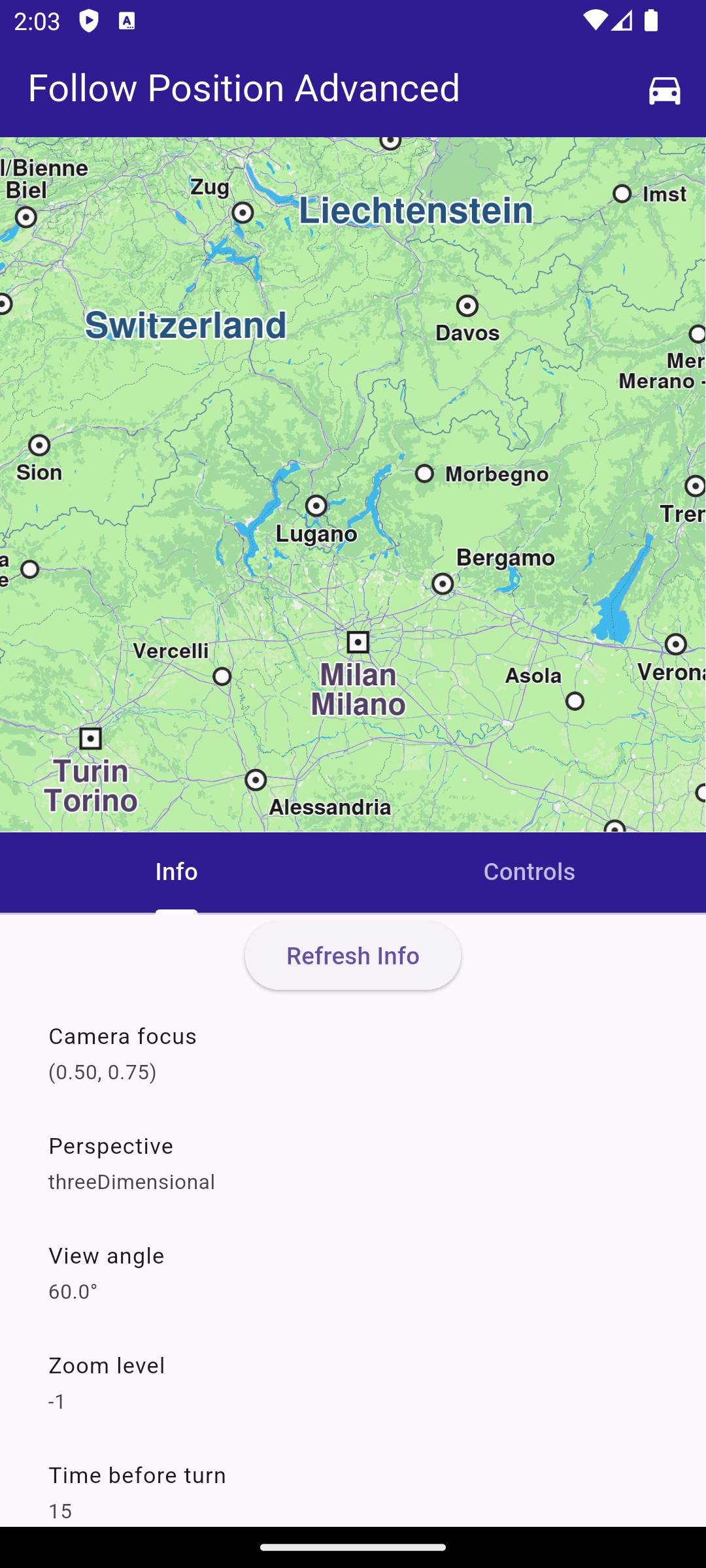
**Initial map view with no route and opened information screen**
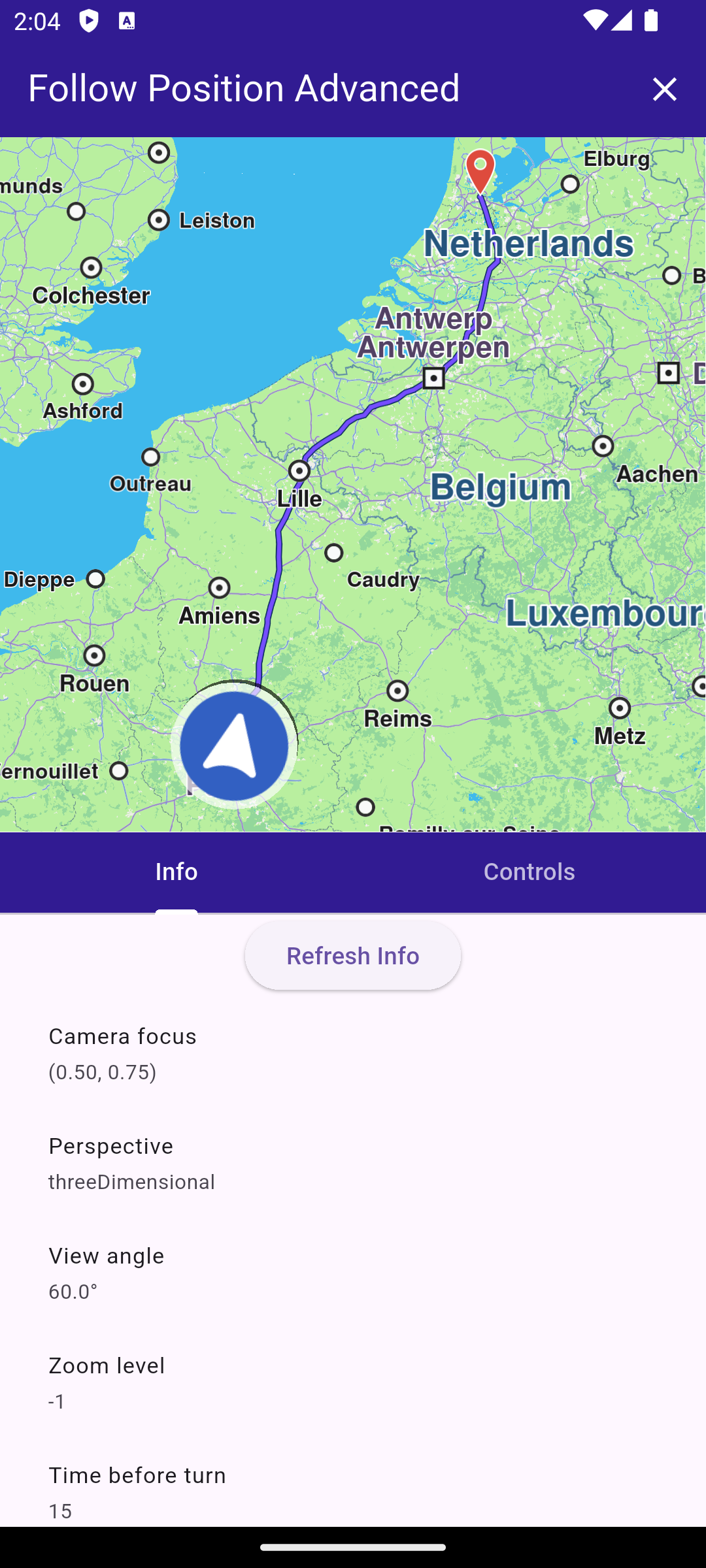
**Information screen with calculated route**
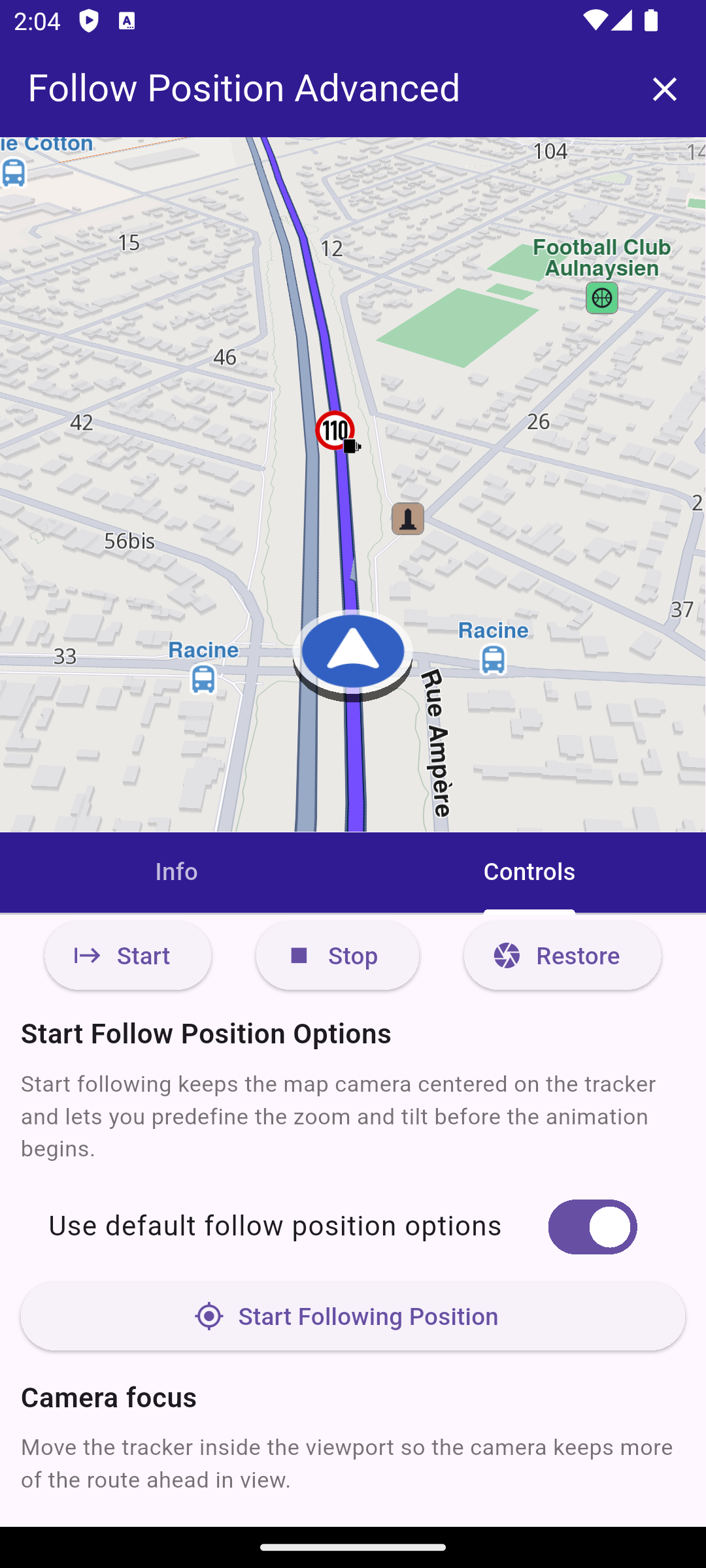
**Controls following the simulated position**
##### UI and Map Integration[](#ui-and-map-integration "Direct link to UI and Map Integration")
main.dart[View on Github](https://github.com/magiclane/magiclane-maps-sdk-examples-for-flutter/tree/main/follow_position_advanced/lib/main.dart?ref_type=heads#L16)
```dart
void main() async {
WidgetsFlutterBinding.ensureInitialized();
await GemKit.initialize(appAuthorization: projectApiToken);
runApp(const MyApp());
}
class MyApp extends StatelessWidget {
const MyApp({super.key});
@override
Widget build(BuildContext context) {
return const MaterialApp(
title: 'Follow Position Advanced',
debugShowCheckedModeBanner: false,
home: MyHomePage(),
);
}
}
class MyHomePage extends StatefulWidget {
const MyHomePage({super.key});
@override
State createState() => _MyHomePageState();
}
class _MyHomePageState extends State {
final FollowPositionController _controller = FollowPositionController();
TaskHandler? _routingTask;
TaskHandler? _simulationTask;
bool _hasMapRoute = false;
GemMapController? _mapController;
@override
void dispose() {
_controller.dispose();
GemKit.release();
super.dispose();
}
@override
Widget build(BuildContext context) {
return AnimatedBuilder(
animation: _controller,
builder: (context, _) {
return LayoutBuilder(
builder: (context, constraints) {
final bool isLandscape =
constraints.maxWidth > constraints.maxHeight;
final double sidePanelWidth = min(360, constraints.maxWidth * 0.5);
final Widget bodyContent = isLandscape
? _buildLandscapeLayout(sidePanelWidth)
: _buildPortraitLayout();
return Scaffold(
appBar: AppBar(
backgroundColor: Colors.deepPurple[900],
title: const Text(
'Follow Position Advanced',
style: TextStyle(color: Colors.white),
),
actions: [
if (!_hasMapRoute &&
_routingTask == null &&
_simulationTask == null)
IconButton(
icon: const Icon(
Icons.directions_car,
color: Colors.white,
),
onPressed: _calculateAndNavigate,
),
if (_hasMapRoute)
IconButton(
icon: const Icon(Icons.clear, color: Colors.white),
onPressed: _hasMapRoute
? _cancelRoutingAndNavigation
: null,
),
],
),
body: Column(children: [Expanded(child: bodyContent)]),
);
},
);
},
);
}
void _onMapCreated(GemMapController controller) async {
_mapController = controller;
_controller.attachMapController(controller);
await _controller.refreshInfo();
}
Widget _buildLandscapeLayout(double sidePanelWidth) {
return Row(
children: [
Expanded(
child: GemMap(
key: const ValueKey('GemMap'),
onMapCreated: _onMapCreated,
appAuthorization: projectApiToken,
),
),
SizedBox(width: sidePanelWidth, child: _buildPanelTabs()),
],
);
}
Widget _buildPortraitLayout() {
return SafeArea(
child: Column(
crossAxisAlignment: CrossAxisAlignment.stretch,
children: [
Expanded(
child: GemMap(
key: const ValueKey('GemMap'),
onMapCreated: _onMapCreated,
appAuthorization: projectApiToken,
),
),
Expanded(child: _buildPanelTabs()),
],
),
);
}
Widget _buildPanelTabs() {
return DefaultTabController(
length: 2,
child: Column(
crossAxisAlignment: CrossAxisAlignment.stretch,
children: [
Material(
color: Colors.deepPurple[900],
child: TabBar(
tabs: const [
Tab(text: 'Info'),
Tab(text: 'Controls'),
],
indicatorColor: Colors.white,
labelColor: Colors.white,
unselectedLabelColor: Colors.white70,
),
),
Expanded(
child: TabBarView(
children: [
FollowPositionInfoPanel(controller: _controller),
FollowPositionControlsPanel(controller: _controller),
],
),
),
],
),
);
}
void _cancelRoutingAndNavigation() {
if (_routingTask != null) {
RoutingService.cancelRoute(_routingTask!);
_routingTask = null;
}
if (_simulationTask != null) {
NavigationService.cancelNavigation(_simulationTask!);
_simulationTask = null;
}
_mapController?.preferences.routes.clear();
setState(() {
_hasMapRoute = false;
});
}
```
This code sets up the main application UI, including an app bar and a body that contains a map and a panel with tabs for information and controls related to follow position functionality.
##### Navigate on Simulated Route[](#navigate-on-simulated-route "Direct link to Navigate on Simulated Route")
main.dart[View on Github](https://github.com/magiclane/magiclane-maps-sdk-examples-for-flutter/tree/main/follow_position_advanced/lib/main.dart?ref_type=heads#L175)
```dart
void _cancelRoutingAndNavigation() {
if (_routingTask != null) {
RoutingService.cancelRoute(_routingTask!);
_routingTask = null;
}
if (_simulationTask != null) {
NavigationService.cancelNavigation(_simulationTask!);
_simulationTask = null;
}
_mapController?.preferences.routes.clear();
setState(() {
_hasMapRoute = false;
});
}
Future _calculateAndNavigate() async {
if (_routingTask != null || _simulationTask != null) {
return;
}
final departure = Landmark.withCoordinates(
Coordinates(latitude: 48.85682, longitude: 2.34375),
); // Paris
final destination = Landmark.withCoordinates(
Coordinates(latitude: 52.370216, longitude: 4.895168),
); // Amsterdam
final prefs = RoutePreferences(
transportMode: RouteTransportMode.car,
routeType: RouteType.fastest,
);
setState(() {
_routingTask = RoutingService.calculateRoute(
[departure, destination],
prefs,
(err, routes) {
_routingTask = null;
if (err == GemError.success && routes.isNotEmpty) {
final route = routes.first;
_mapController?.preferences.routes.add(route, true);
_mapController?.centerOnArea(route.geographicArea);
setState(() {
_hasMapRoute = true;
});
_simulationTask = NavigationService.startSimulation(
route,
onNavigationInstruction: (instruction, events) {},
onDestinationReached: (landmark) {},
onError: (err) {
ScaffoldMessenger.of(context).showSnackBar(
SnackBar(content: Text('Simulation error: $err')),
);
},
speedMultiplier: 2,
);
if (_simulationTask != null) {
_mapController?.startFollowingPosition();
}
} else {
ScaffoldMessenger.of(
context,
).showSnackBar(SnackBar(content: Text('Routing error: $err')));
}
},
);
});
}
```
##### Follow Position Controller[](#follow-position-controller "Direct link to Follow Position Controller")
follow\_position\_controller.dart[View on Github](https://github.com/magiclane/magiclane-maps-sdk-examples-for-flutter/tree/main/follow_position_advanced/lib/follow_position_controller.dart?ref_type=heads#L11)
```dart
class FollowPositionInfo {
FollowPositionInfo({
required this.cameraFocus,
required this.perspective,
required this.timeBeforeTurnPresentation,
required this.touchHandlerExitAllow,
required this.touchHandlerModifyPersistent,
required this.touchHandlerModifyHorizontalAngleLimits,
required this.touchHandlerModifyVerticalAngleLimits,
required this.touchHandlerModifyDistanceLimits,
required this.viewAngle,
required this.zoomLevel,
required this.accuracyCircleVisibility,
required this.isTrackObjectFollowingMapRotation,
required this.mapRotationMode,
required this.mapRotationAngle,
required this.isFollowingPosition,
required this.isFollowingPositionTouchHandlerModified,
required this.isDefaultFollowingPosition,
required this.isCameraMoving,
required this.accuracyCircleColor,
required this.positionTrackerScale,
});
final Point cameraFocus;
final MapViewPerspective perspective;
final int timeBeforeTurnPresentation;
final bool touchHandlerExitAllow;
final bool touchHandlerModifyPersistent;
final (double, double) touchHandlerModifyHorizontalAngleLimits;
final (double, double) touchHandlerModifyVerticalAngleLimits;
final (double, double) touchHandlerModifyDistanceLimits;
final double viewAngle;
final int zoomLevel;
final bool accuracyCircleVisibility;
final bool isTrackObjectFollowingMapRotation;
final FollowPositionMapRotationMode mapRotationMode;
final double mapRotationAngle;
final bool isFollowingPosition;
final bool isFollowingPositionTouchHandlerModified;
final bool isDefaultFollowingPosition;
final bool isCameraMoving;
final Color accuracyCircleColor;
final double positionTrackerScale;
static FollowPositionInfo empty() {
return FollowPositionInfo(
cameraFocus: const Point(0.5, 0.5),
perspective: MapViewPerspective.twoDimensional,
timeBeforeTurnPresentation: -1,
touchHandlerExitAllow: true,
touchHandlerModifyPersistent: false,
touchHandlerModifyHorizontalAngleLimits: (0, 0),
touchHandlerModifyVerticalAngleLimits: (0, 0),
touchHandlerModifyDistanceLimits: (50, 100),
viewAngle: 0,
zoomLevel: -1,
accuracyCircleVisibility: false,
isTrackObjectFollowingMapRotation: true,
mapRotationMode: FollowPositionMapRotationMode.positionHeading,
mapRotationAngle: 0,
isFollowingPosition: false,
isFollowingPositionTouchHandlerModified: false,
isDefaultFollowingPosition: false,
isCameraMoving: false,
accuracyCircleColor: Colors.blue,
positionTrackerScale: 1,
);
}
}
class FollowPositionController extends ChangeNotifier {
GemMapController? _mapController;
FollowPositionInfo _info = FollowPositionInfo.empty();
FollowPositionInfo get info => _info;
double cameraFocusX = 0.5;
double cameraFocusY = 0.5;
MapViewPerspective perspective = MapViewPerspective.twoDimensional;
bool animatePerspective = true;
double viewAngle = 45;
bool animateViewAngle = true;
bool autoZoom = false;
int zoomLevel = 50;
int zoomDuration = 0;
FollowPositionMapRotationMode mapRotationMode =
FollowPositionMapRotationMode.positionHeading;
double mapAngle = 0;
bool objectFollowMap = true;
bool touchHandlerExitAllow = true;
bool touchHandlerModifyPersistent = false;
RangeValues horizontalAngleLimits = const RangeValues(0, 0);
RangeValues verticalAngleLimits = const RangeValues(0, 0);
RangeValues distanceLimits = const RangeValues(50, 200);
bool distanceMaxUnlimited = true;
bool useDefaultTurnPresentationTime = true;
double turnPresentationSeconds = 5;
bool useDefaultStartFollowPosition = true;
int startZoomLevel = 40;
double startViewAngle = 45;
double positionTrackerScale = 1;
void updateValues(VoidCallback updates) {
updates();
notifyListeners();
}
void attachMapController(GemMapController controller) {
_mapController = controller;
notifyListeners();
}
Future refreshInfo() async {
if (_mapController == null) {
_info = FollowPositionInfo.empty();
notifyListeners();
return;
}
final prefs = _mapController!.preferences.followPositionPreferences;
final (rotationMode, rotationAngle) = prefs.mapRotationMode;
final MapSceneObject tracker = MapSceneObject.getDefPositionTracker();
debugPrint(
'[FollowPositionController] calling all getters to refresh info',
);
_info = FollowPositionInfo(
cameraFocus: prefs.cameraFocus,
perspective: prefs.perspective,
timeBeforeTurnPresentation: prefs.timeBeforeTurnPresentation,
touchHandlerExitAllow: prefs.touchHandlerExitAllow,
touchHandlerModifyPersistent: prefs.touchHandlerModifyPersistent,
touchHandlerModifyHorizontalAngleLimits:
prefs.touchHandlerModifyHorizontalAngleLimits,
touchHandlerModifyVerticalAngleLimits:
prefs.touchHandlerModifyVerticalAngleLimits,
touchHandlerModifyDistanceLimits: prefs.touchHandlerModifyDistanceLimits,
viewAngle: prefs.viewAngle,
zoomLevel: prefs.zoomLevel,
accuracyCircleVisibility: prefs.accuracyCircleVisibility,
isTrackObjectFollowingMapRotation:
prefs.isTrackObjectFollowingMapRotation,
mapRotationMode: rotationMode,
mapRotationAngle: rotationAngle,
isFollowingPosition: _mapController!.isFollowingPosition,
isFollowingPositionTouchHandlerModified:
_mapController!.isFollowingPositionTouchHandlerModified,
isDefaultFollowingPosition: _mapController!.isDefaultFollowingPosition,
isCameraMoving: _mapController!.isCameraMoving,
accuracyCircleColor: MapSceneObject.defPositionTrackerAccuracyCircleColor,
positionTrackerScale: tracker.scale,
);
notifyListeners();
}
Future startFollowingPosition() async {
if (_mapController == null) {
return;
}
final animation = GemAnimation(type: AnimationType.linear);
final zoomLevel = useDefaultStartFollowPosition ? -1 : startZoomLevel;
final viewAngle = useDefaultStartFollowPosition ? null : startViewAngle;
debugPrint(
'[FollowPositionController] startFollowingPosition with zoomLevel=$zoomLevel and viewAngle=$viewAngle animation: type=${animation.type} duration=${animation.duration}',
);
_mapController!.startFollowingPosition(
animation: animation,
zoomLevel: zoomLevel,
viewAngle: viewAngle,
);
await refreshInfo();
}
void stopFollowingPosition({bool restoreCameraMode = false}) {
if (_mapController == null) {
return;
}
debugPrint('[FollowPositionController] stopFollowingPosition');
_mapController!.stopFollowingPosition(restoreCameraMode: restoreCameraMode);
refreshInfo();
}
void restoreFollowingPosition() {
if (_mapController == null) {
return;
}
debugPrint('[FollowPositionController] restoreFollowingPosition');
_mapController!.restoreFollowingPosition(
animation: GemAnimation(type: AnimationType.linear, duration: 600),
);
refreshInfo();
}
void applyCameraFocus() {
if (_mapController == null) {
return;
}
final prefs = _mapController!.preferences.followPositionPreferences;
debugPrint(
'[FollowPositionController] applyCameraFocus: cameraFocus=(${cameraFocusX.toStringAsFixed(3)}, ${cameraFocusY.toStringAsFixed(3)})',
);
prefs.setCameraFocus(Point(cameraFocusX, cameraFocusY));
refreshInfo();
}
void applyPerspective() {
if (_mapController == null) {
return;
}
final prefs = _mapController!.preferences.followPositionPreferences;
final animation = animatePerspective
? GemAnimation(type: AnimationType.linear, duration: 350)
: null;
debugPrint(
'[FollowPositionController] applyPerspective: perspective=$perspective animate=$animatePerspective animationDuration=${animation?.duration}',
);
prefs.setPerspective(perspective, animation: animation);
refreshInfo();
}
void applyViewAngle() {
if (_mapController == null) {
return;
}
final prefs = _mapController!.preferences.followPositionPreferences;
debugPrint(
'[FollowPositionController] applyViewAngle: viewAngle=$viewAngle animate=$animateViewAngle',
);
prefs.setViewAngle(viewAngle, animated: animateViewAngle);
refreshInfo();
}
void applyZoomLevel() {
if (_mapController == null) {
return;
}
final prefs = _mapController!.preferences.followPositionPreferences;
debugPrint(
'[FollowPositionController] applyZoomLevel: zoomLevel=${autoZoom ? -1 : zoomLevel} autoZoom=$autoZoom duration=$zoomDuration',
);
prefs.setZoomLevel(autoZoom ? -1 : zoomLevel, duration: zoomDuration);
refreshInfo();
}
void applyMapRotationMode() {
if (_mapController == null) {
return;
}
final prefs = _mapController!.preferences.followPositionPreferences;
debugPrint(
'[FollowPositionController] applyMapRotationMode: mapRotationMode=$mapRotationMode mapAngle=$mapAngle objectFollowMap=$objectFollowMap',
);
prefs.setMapRotationMode(
mapRotationMode,
mapAngle: mapAngle,
objectFollowMap: objectFollowMap,
);
refreshInfo();
}
void applyTurnPresentationTime() {
if (_mapController == null) {
return;
}
final prefs = _mapController!.preferences.followPositionPreferences;
final value = useDefaultTurnPresentationTime
? -1
: turnPresentationSeconds.round();
debugPrint(
'[FollowPositionController] applyTurnPresentationTime: value=$value useDefault=$useDefaultTurnPresentationTime',
);
prefs.timeBeforeTurnPresentation = value;
refreshInfo();
}
void applyTouchHandlerExitAllow() {
if (_mapController == null) {
return;
}
final prefs = _mapController!.preferences.followPositionPreferences;
debugPrint(
'[FollowPositionController] applyTouchHandlerExitAllow: touchHandlerExitAllow=$touchHandlerExitAllow',
);
prefs.touchHandlerExitAllow = touchHandlerExitAllow;
refreshInfo();
}
void applyTouchHandlerModifyPersistent() {
if (_mapController == null) {
return;
}
final prefs = _mapController!.preferences.followPositionPreferences;
debugPrint(
'[FollowPositionController] applyTouchHandlerModifyPersistent: touchHandlerModifyPersistent=$touchHandlerModifyPersistent',
);
prefs.touchHandlerModifyPersistent = touchHandlerModifyPersistent;
refreshInfo();
}
void applyHorizontalAngleLimits() {
if (_mapController == null) {
return;
}
final prefs = _mapController!.preferences.followPositionPreferences;
debugPrint(
'[FollowPositionController] applyHorizontalAngleLimits: start=${horizontalAngleLimits.start} end=${horizontalAngleLimits.end}',
);
prefs.touchHandlerModifyHorizontalAngleLimits = (
horizontalAngleLimits.start,
horizontalAngleLimits.end,
);
refreshInfo();
}
void applyVerticalAngleLimits() {
if (_mapController == null) {
return;
}
final prefs = _mapController!.preferences.followPositionPreferences;
debugPrint(
'[FollowPositionController] applyVerticalAngleLimits: start=${verticalAngleLimits.start} end=${verticalAngleLimits.end}',
);
prefs.touchHandlerModifyVerticalAngleLimits = (
verticalAngleLimits.start,
verticalAngleLimits.end,
);
refreshInfo();
}
void applyDistanceLimits() {
if (_mapController == null) {
return;
}
final prefs = _mapController!.preferences.followPositionPreferences;
final maxDistance = distanceLimits.end;
debugPrint(
'[FollowPositionController] applyDistanceLimits: start=${distanceLimits.start} end=$maxDistance distanceMaxUnlimited=$distanceMaxUnlimited',
);
prefs.touchHandlerModifyDistanceLimits = (
distanceLimits.start,
maxDistance,
);
refreshInfo();
}
void applyPositionTrackerScale() {
final tracker = MapSceneObject.getDefPositionTracker();
tracker.scale = positionTrackerScale;
refreshInfo();
}
}
```
This code defines a controller class that manages the follow position settings and state. It provides methods to update and apply various follow position preferences, as well as to start and stop following the device's position.
##### Controls Panel[](#controls-panel "Direct link to Controls Panel")
follow\_position\_controls\_panel.dart[View on Github](https://github.com/magiclane/magiclane-maps-sdk-examples-for-flutter/tree/main/follow_position_advanced/lib/follow_position_controls_panel.dart?ref_type=heads#L10)
```dart
class FollowPositionControlsPanel extends StatelessWidget {
const FollowPositionControlsPanel({super.key, required this.controller});
final FollowPositionController controller;
@override
Widget build(BuildContext context) {
return ListenableBuilder(
listenable: controller,
builder: (context, _) {
return Column(
children: [
Row(
mainAxisAlignment: MainAxisAlignment.spaceEvenly,
children: [
_actionButton(
icon: Icons.start,
label: 'Start',
onPressed: controller.startFollowingPosition,
),
_actionButton(
icon: Icons.stop,
label: 'Stop',
onPressed: controller.stopFollowingPosition,
),
_actionButton(
icon: Icons.camera,
label: 'Restore',
onPressed: controller.restoreFollowingPosition,
),
],
),
Expanded(
child: ListView(
padding: const EdgeInsets.all(12),
children: [
_sectionHeader('Start Follow Position Options'),
_sectionDescription(
'Start following keeps the map camera centered on the tracker and lets you predefine the zoom and tilt before the animation begins.',
),
SwitchListTile(
title: const Text('Use default follow position options'),
value: controller.useDefaultStartFollowPosition,
onChanged: (value) => controller.updateValues(() {
controller.useDefaultStartFollowPosition = value;
}),
),
if (!controller.useDefaultStartFollowPosition)
_sliderTile(
label: 'Zoom level',
value: controller.startZoomLevel.toDouble(),
min: 0,
max: 100,
onChanged: (value) => controller.updateValues(() {
controller.startZoomLevel = value.round();
}),
valueLabel: controller.startZoomLevel.toString(),
),
if (!controller.useDefaultStartFollowPosition)
_sliderTile(
label: 'View angle',
value: controller.startViewAngle,
min: 0,
max: 90,
onChanged: (value) => controller.updateValues(() {
controller.startViewAngle = value;
}),
valueLabel:
'${controller.startViewAngle.toStringAsFixed(0)}°',
),
_actionButton(
label: 'Start Following Position',
icon: Icons.my_location,
onPressed: controller.startFollowingPosition,
),
const SizedBox(height: 12),
_sectionHeader('Camera focus'),
_sectionDescription(
'Move the tracker inside the viewport so the camera keeps more of the route ahead in view.',
),
_sliderTile(
label: 'Focus X',
value: controller.cameraFocusX,
min: 0,
max: 1,
onChanged: (value) => controller.updateValues(() {
controller.cameraFocusX = value;
}),
valueLabel: controller.cameraFocusX.toStringAsFixed(2),
),
_sliderTile(
label: 'Focus Y',
value: controller.cameraFocusY,
min: 0,
max: 1,
onChanged: (value) => controller.updateValues(() {
controller.cameraFocusY = value;
}),
valueLabel: controller.cameraFocusY.toStringAsFixed(2),
),
_applyButton('Apply focus', controller.applyCameraFocus),
const SizedBox(height: 12),
_sectionHeader('Perspective'),
_sectionDescription(
'Swap between 2D bird-eye or 3D perspective views to change.',
),
DropdownButton(
value: controller.perspective,
isExpanded: true,
items: MapViewPerspective.values
.map(
(value) => DropdownMenuItem(
value: value,
child: Text(value.name),
),
)
.toList(),
onChanged: (value) => controller.updateValues(() {
if (value != null) {
controller.perspective = value;
}
}),
),
SwitchListTile(
title: const Text('Animate perspective'),
value: controller.animatePerspective,
onChanged: (value) => controller.updateValues(() {
controller.animatePerspective = value;
}),
),
_applyButton(
'Apply perspective',
controller.applyPerspective,
),
const SizedBox(height: 12),
_sectionHeader('View angle'),
_sectionDescription(
'Tilt the camera from top-down to angled to show more horizon when following a route.',
),
_sliderTile(
label: 'View angle',
value: controller.viewAngle,
min: 0,
max: 90,
onChanged: (value) => controller.updateValues(() {
controller.viewAngle = value;
}),
valueLabel: '${controller.viewAngle.toStringAsFixed(0)}°',
),
SwitchListTile(
title: const Text('Animate view angle'),
value: controller.animateViewAngle,
onChanged: (value) => controller.updateValues(() {
controller.animateViewAngle = value;
}),
),
_applyButton('Apply view angle', controller.applyViewAngle),
const SizedBox(height: 12),
_sectionHeader('Zoom'),
_sectionDescription('Control the follow camera zoom level.'),
SwitchListTile(
title: const Text('Auto zoom'),
value: controller.autoZoom,
onChanged: (value) => controller.updateValues(() {
controller.autoZoom = value;
}),
),
if (!controller.autoZoom)
_sliderTile(
label: 'Zoom level',
value: controller.zoomLevel.toDouble(),
min: 0,
max: 100,
onChanged: (value) => controller.updateValues(() {
controller.zoomLevel = value.round();
}),
valueLabel: controller.zoomLevel.toString(),
),
_sliderTile(
label: 'Zoom animation (ms)',
value: controller.zoomDuration.toDouble(),
min: 0,
max: 2000,
onChanged: (value) => controller.updateValues(() {
controller.zoomDuration = value.round();
}),
valueLabel: controller.zoomDuration.toString(),
),
_applyButton('Apply zoom', controller.applyZoomLevel),
const SizedBox(height: 12),
_sectionHeader('Map rotation'),
_sectionDescription(
'Choose whether the map rotates with your heading, the compass, or stays fixed at a custom angle.',
),
DropdownButton(
value: controller.mapRotationMode,
isExpanded: true,
items: FollowPositionMapRotationMode.values
.map(
(value) => DropdownMenuItem(
value: value,
child: Text(value.name),
),
)
.toList(),
onChanged: (value) => controller.updateValues(() {
if (value != null) {
controller.mapRotationMode = value;
}
}),
),
if (controller.mapRotationMode ==
FollowPositionMapRotationMode.fixed)
_sliderTile(
label: 'Fixed map angle',
value: controller.mapAngle,
min: 0,
max: 360,
onChanged: (value) => controller.updateValues(() {
controller.mapAngle = value;
}),
valueLabel: '${controller.mapAngle.toStringAsFixed(0)}°',
),
SwitchListTile(
title: const Text('Tracker follows map rotation'),
value: controller.objectFollowMap,
onChanged: (value) => controller.updateValues(() {
controller.objectFollowMap = value;
}),
),
_applyButton(
'Apply rotation',
controller.applyMapRotationMode,
),
const SizedBox(height: 12),
_sectionHeader('Touch handler'),
_sectionDescription(
'Decide if touch gestures kick you out of follow mode and how much pan/tilt/distance adjustments persist.',
),
SwitchListTile(
title: const Text('Allow exit by touch'),
value: controller.touchHandlerExitAllow,
onChanged: (value) => controller.updateValues(() {
controller.touchHandlerExitAllow = value;
}),
),
_applyButton(
'Apply touch exit',
controller.applyTouchHandlerExitAllow,
),
SwitchListTile(
title: const Text('Persist touch adjustments'),
value: controller.touchHandlerModifyPersistent,
onChanged: (value) => controller.updateValues(() {
controller.touchHandlerModifyPersistent = value;
}),
),
_applyButton(
'Apply persistence',
controller.applyTouchHandlerModifyPersistent,
),
_rangeSliderTile(
label: 'Horizontal angle limits',
values: controller.horizontalAngleLimits,
min: 0,
max: 180,
onChanged: (values) => controller.updateValues(() {
controller.horizontalAngleLimits = values;
}),
),
_applyButton(
'Apply horizontal limits',
controller.applyHorizontalAngleLimits,
),
_rangeSliderTile(
label: 'Vertical angle limits',
values: controller.verticalAngleLimits,
min: 0,
max: 90,
onChanged: (values) => controller.updateValues(() {
controller.verticalAngleLimits = values;
}),
),
_applyButton(
'Apply vertical limits',
controller.applyVerticalAngleLimits,
),
SwitchListTile(
title: const Text('Unlimited distance max'),
value: controller.distanceMaxUnlimited,
onChanged: (value) => controller.updateValues(() {
controller.distanceMaxUnlimited = value;
}),
),
_rangeSliderTile(
label: 'Distance limits (m)',
values: controller.distanceLimits,
min: 0,
max: 1000,
onChanged: (values) => controller.updateValues(() {
controller.distanceLimits = values;
}),
),
_applyButton(
'Apply distance limits',
controller.applyDistanceLimits,
),
const SizedBox(height: 12),
_sectionHeader('Turn presentation'),
_sectionDescription(
'Sets how many seconds before an upcoming turn the map camera should start presenting the turn animation.',
),
SwitchListTile(
title: const Text('Use SDK default'),
value: controller.useDefaultTurnPresentationTime,
onChanged: (value) => controller.updateValues(() {
controller.useDefaultTurnPresentationTime = value;
}),
),
if (!controller.useDefaultTurnPresentationTime)
_sliderTile(
label: 'Seconds before turn',
value: controller.turnPresentationSeconds,
min: 0,
max: 30,
onChanged: (value) => controller.updateValues(() {
controller.turnPresentationSeconds = value;
}),
valueLabel:
'${controller.turnPresentationSeconds.toStringAsFixed(0)} s',
),
_applyButton(
'Apply turn time',
controller.applyTurnPresentationTime,
),
const SizedBox(height: 12),
_sectionHeader('Position tracker'),
_sectionDescription(
'Scale the tracker icon, independent of map zoom level.',
),
_sliderTile(
label: 'Tracker scale',
value: controller.positionTrackerScale,
min: 0.2,
max: 2,
onChanged: (value) => controller.updateValues(() {
controller.positionTrackerScale = value;
}),
valueLabel: controller.positionTrackerScale.toStringAsFixed(
2,
),
),
_applyButton(
'Apply tracker scale',
controller.applyPositionTrackerScale,
),
],
),
),
],
);
},
);
}
Widget _sectionHeader(String text) {
return Padding(
padding: const EdgeInsets.only(bottom: 8),
child: Text(
text,
style: const TextStyle(fontSize: 16, fontWeight: FontWeight.w600),
),
);
}
Widget _sectionDescription(String text) {
return Padding(
padding: const EdgeInsets.only(bottom: 8),
child: Text(
text,
style: const TextStyle(fontSize: 13, color: Colors.black54),
),
);
}
Widget _sliderTile({
required String label,
required double value,
required double min,
required double max,
required ValueChanged? onChanged,
required String valueLabel,
}) {
return Padding(
padding: const EdgeInsets.all(16.0),
child: Column(
crossAxisAlignment: CrossAxisAlignment.start,
children: [
Text('$label: $valueLabel'),
Slider(
value: value.clamp(min, max),
min: min,
max: max,
onChanged: onChanged,
),
],
),
);
}
Widget _rangeSliderTile({
required String label,
required RangeValues values,
required double min,
required double max,
required ValueChanged? onChanged,
}) {
return Padding(
padding: const EdgeInsets.symmetric(horizontal: 16.0),
child: Column(
crossAxisAlignment: CrossAxisAlignment.start,
children: [
Text(
'$label: ${values.start.toStringAsFixed(1)} → ${values.end.toStringAsFixed(1)}',
),
RangeSlider(
values: RangeValues(
values.start.clamp(min, max),
values.end.clamp(min, max),
),
min: min,
max: max,
onChanged: onChanged,
),
],
),
);
}
Widget _applyButton(String label, VoidCallback onPressed) {
return Padding(
padding: const EdgeInsets.symmetric(horizontal: 16.0),
child: Align(
alignment: Alignment.centerLeft,
child: ElevatedButton(onPressed: onPressed, child: Text(label)),
),
);
}
Widget _actionButton({
String? label,
required IconData icon,
required VoidCallback? onPressed,
}) {
if (label == null) {
return ElevatedButton(onPressed: onPressed, child: Icon(icon));
} else {
return ElevatedButton.icon(
onPressed: onPressed,
icon: Icon(icon),
label: Text(label),
);
}
}
}
```
This code defines a controls panel widget that provides a user interface for adjusting various follow position settings. It includes buttons to start, stop, and restore following position, as well as sliders, switches, and dropdowns for modifying preferences.
##### Info Panel[](#info-panel "Direct link to Info Panel")
follow\_position\_info\_panel.dart[View on Github](https://github.com/magiclane/magiclane-maps-sdk-examples-for-flutter/tree/main/follow_position_advanced/lib/follow_position_info_panel.dart?ref_type=heads#L9)
```dart
class FollowPositionInfoPanel extends StatelessWidget {
const FollowPositionInfoPanel({super.key, required this.controller});
final FollowPositionController controller;
@override
Widget build(BuildContext context) {
final info = controller.info;
return Column(
children: [
ElevatedButton(
onPressed: () => controller.refreshInfo(),
child: const Text('Refresh Info'),
),
Expanded(
child: ListView(
padding: const EdgeInsets.symmetric(horizontal: 12),
children: [
_infoTile(
'Camera focus',
'(${info.cameraFocus.x.toStringAsFixed(2)}, ${info.cameraFocus.y.toStringAsFixed(2)})',
),
_infoTile('Perspective', info.perspective.name),
_infoTile('View angle', '${info.viewAngle.toStringAsFixed(1)}°'),
_infoTile('Zoom level', info.zoomLevel.toString()),
_infoTile(
'Time before turn',
info.timeBeforeTurnPresentation.toString(),
),
const Divider(),
_infoTile('Map rotation mode', info.mapRotationMode.name),
_infoTile(
'Map rotation angle',
'${info.mapRotationAngle.toStringAsFixed(1)}°',
),
_infoTile(
'Tracker follows map',
info.isTrackObjectFollowingMapRotation.toString(),
),
const Divider(),
_infoTile(
'Accuracy circle visible',
info.accuracyCircleVisibility.toString(),
),
_infoTile(
'Accuracy circle color',
info.accuracyCircleColor.toString(),
),
_infoTile(
'Tracker scale',
info.positionTrackerScale.toStringAsFixed(2),
),
const Divider(),
_infoTile(
'Touch exit allow',
info.touchHandlerExitAllow.toString(),
),
_infoTile(
'Touch modify persistent',
info.touchHandlerModifyPersistent.toString(),
),
_infoTile(
'Horizontal angle limits',
_formatRange(info.touchHandlerModifyHorizontalAngleLimits),
),
_infoTile(
'Vertical angle limits',
_formatRange(info.touchHandlerModifyVerticalAngleLimits),
),
_infoTile(
'Distance limits',
_formatRange(info.touchHandlerModifyDistanceLimits, unit: 'm'),
),
const Divider(),
_infoTile(
'Is following position',
info.isFollowingPosition.toString(),
),
_infoTile(
'Is default follow',
info.isDefaultFollowingPosition.toString(),
),
_infoTile(
'Touch modified follow',
info.isFollowingPositionTouchHandlerModified.toString(),
),
_infoTile('Is camera moving', info.isCameraMoving.toString()),
const Divider(),
],
),
),
],
);
}
Widget _infoTile(String label, String value) {
return ListTile(dense: true, title: Text(label), subtitle: Text(value));
}
String _formatRange((double, double) range, {String unit = '°'}) {
final start = range.$1.toStringAsFixed(1);
final end = range.$2.isInfinite ? '∞' : range.$2.toStringAsFixed(1);
return '$start $unit → $end $unit';
}
}
```
This code defines an info panel widget that displays the current follow position settings and state. It includes a button to refresh the information and presents various properties in a list format.
---
### Assets Map Styles
Last updated:
July 15, 2026
| 3 minutes read
This example showcases how to build a Flutter app featuring an interactive map with a custom style, seamlessly imported from the assets folder, using the Maps SDK for Flutter.
#### How it works[](#how-it-works "Direct link to How it works")
The example app demonstrates the following features:
* Display a map.
* Loading and applying map styles from the app assets folder.
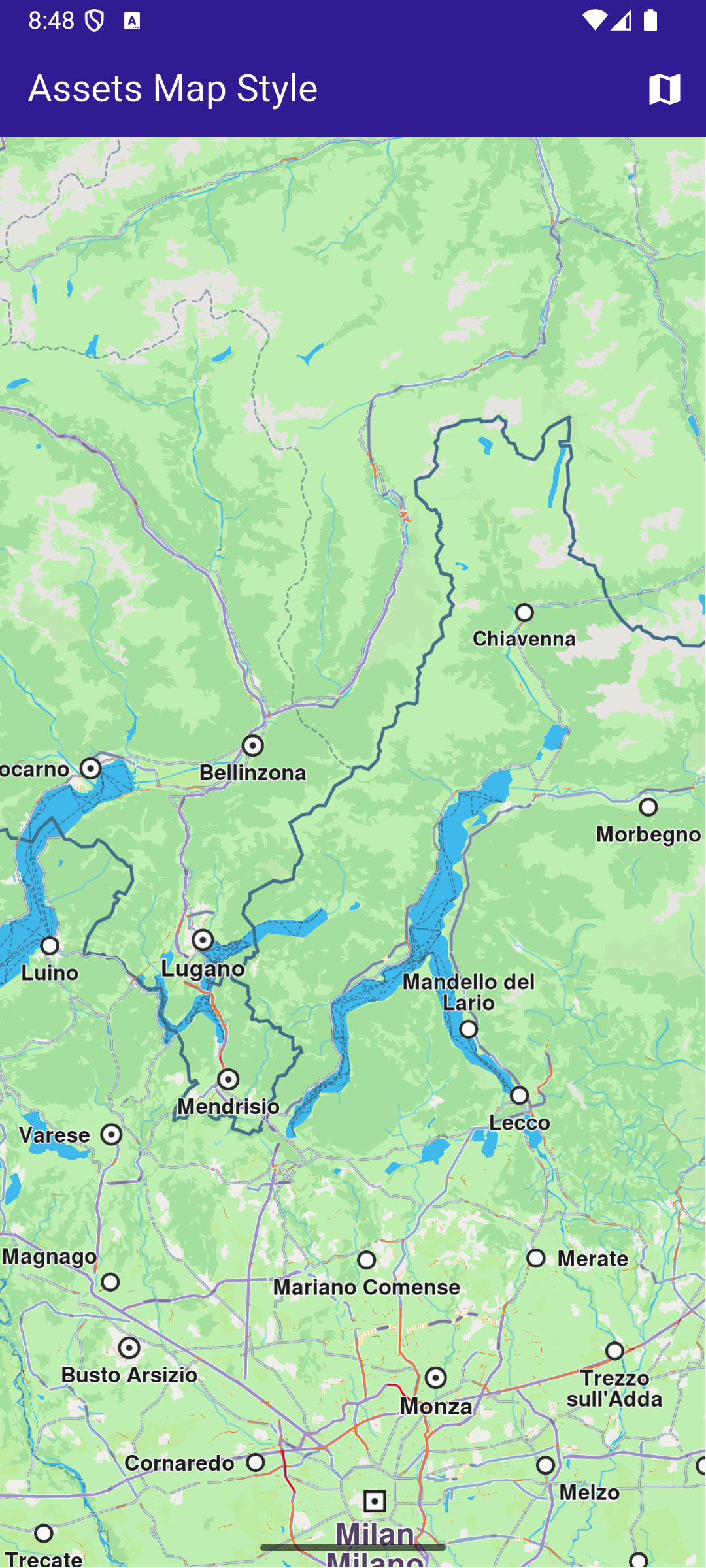
**Initial map style**
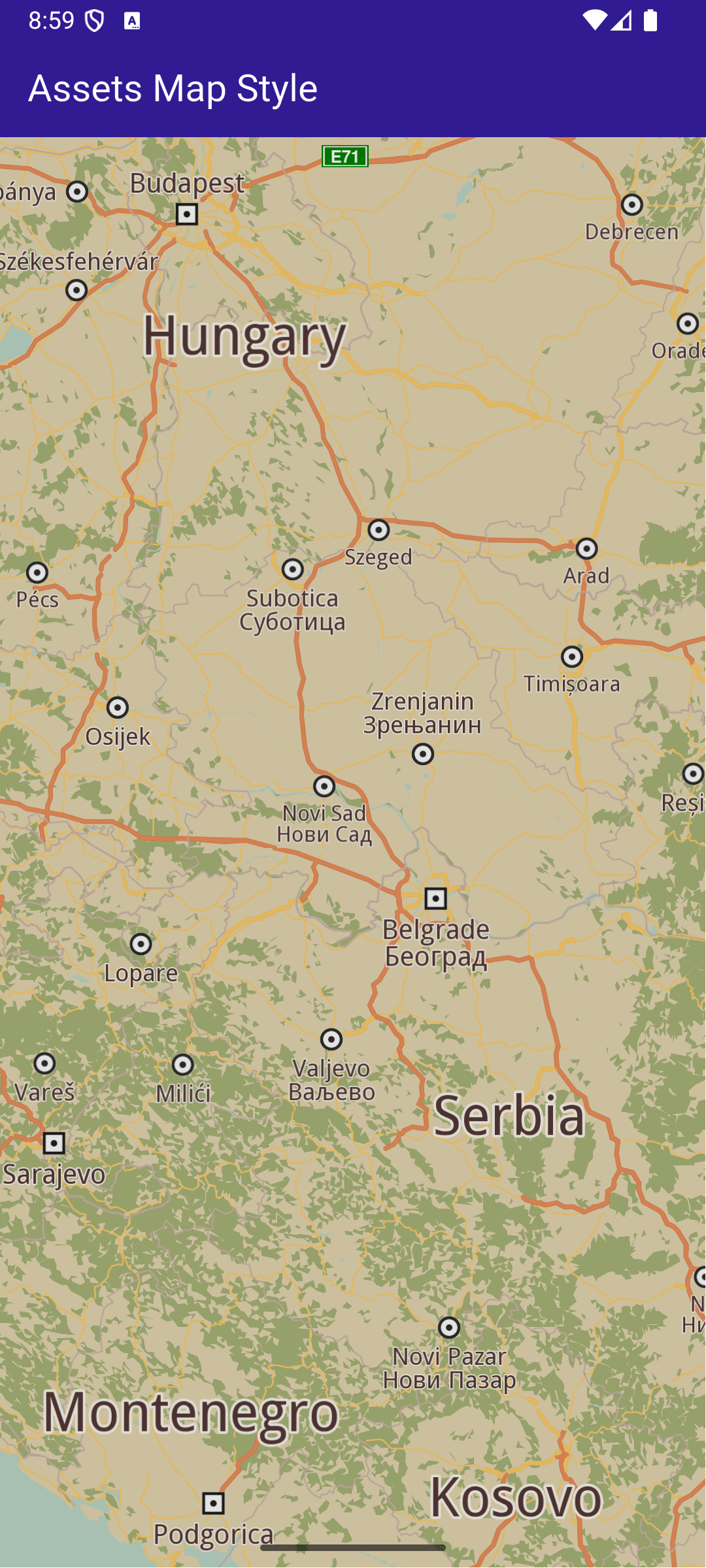
**Applied map style**
##### Add style to project[](#add-style-to-project "Direct link to Add style to project")
In the root directory of your project, create a new folder named assets. Specify the path to the assets folder in the pubspec.yaml file. Modify the file as follows:
```yaml
flutter:
uses-material-design: true
assets:
- assets/
```
Place a `.style` file inside the assets directory.
##### UI and Map Integration[](#ui-and-map-integration "Direct link to UI and Map Integration")
The following code builds an UI with a `GemMap` widget and an app bar with a set map style button.
main.dart[View on Github](https://github.com/magiclane/magiclane-maps-sdk-examples-for-flutter/tree/main/assets_map_style/lib/main.dart?ref_type=heads#L32)
```dart
class MyHomePage extends StatefulWidget {
const MyHomePage({super.key});
@override
State createState() => _MyHomePageState();
}
class _MyHomePageState extends State {
// GemMapController object used to interact with the map
late GemMapController _mapController;
bool _isStyleLoaded = false;
@override
void dispose() {
GemKit.release();
super.dispose();
}
@override
Widget build(BuildContext context) {
return Scaffold(
appBar: AppBar(
backgroundColor: Colors.deepPurple[900],
title: const Text(
'Assets Map Style',
style: TextStyle(color: Colors.white),
),
actions: [
if (!_isStyleLoaded)
IconButton(
onPressed: () => _applyStyle(),
icon: Icon(Icons.map, color: Colors.white),
),
],
),
body: GemMap(
key: ValueKey("GemMap"),
onMapCreated: _onMapCreated,
appAuthorization: projectApiToken,
),
);
}
void _onMapCreated(GemMapController controller) async {
```
This code sets up the main screen with a map and a button that triggers the \_applyStyle method to load a custom style file.
##### Loading and Applying Map Styles[](#loading-and-applying-map-styles "Direct link to Loading and Applying Map Styles")
This code loads the .style file as bytes, applies it to the map with a smooth transition, and centers the map on specified coordinates.
main.dart[View on Github](https://github.com/magiclane/magiclane-maps-sdk-examples-for-flutter/tree/main/assets_map_style/lib/main.dart?ref_type=heads#L81)
```dart
Future _applyStyle() async {
_showSnackBar(context, message: "The map style is loading.");
await Future.delayed(Duration(milliseconds: 250));
final styleData = await _loadStyle();
_mapController.preferences.setMapStyleByBuffer(
styleData,
smoothTransition: true,
);
setState(() {
_isStyleLoaded = true;
});
if (mounted) {
ScaffoldMessenger.of(context).hideCurrentSnackBar();
}
_mapController.centerOnCoordinates(
Coordinates(latitude: 45, longitude: 20),
zoomLevel: 25,
);
}
```
##### Loading the Style File[](#loading-the-style-file "Direct link to Loading the Style File")
This method reads the .style file from assets and returns the data as Uint8List bytes.
main.dart[View on Github](https://github.com/magiclane/magiclane-maps-sdk-examples-for-flutter/tree/main/assets_map_style/lib/main.dart?ref_type=heads#L108)
```dart
Future _loadStyle() async {
// Load style into memory
final data = await rootBundle.load('assets/Basic_1_Oldtime-1_21_656.style');
```
---
### Center Area
Last updated:
March 20, 2026
| 2 minutes read
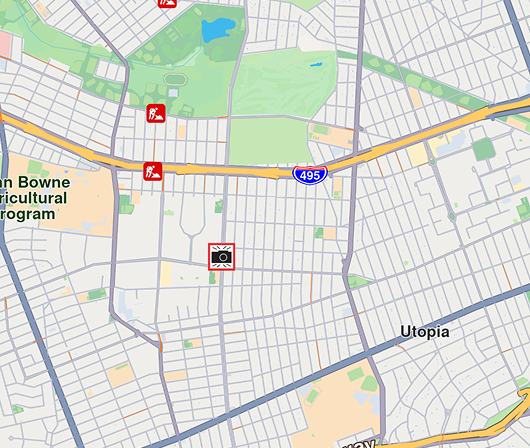
This example showcases how to build a Flutter app featuring an interactive map and how to center the camera on a `RectangleGeographicArea`, using the Maps SDK for Flutter.
#### How it works[](#how-it-works "Direct link to How it works")
The example app demonstrates the following features:
* Display an interactive map.
* Center the camera on a geographic area.
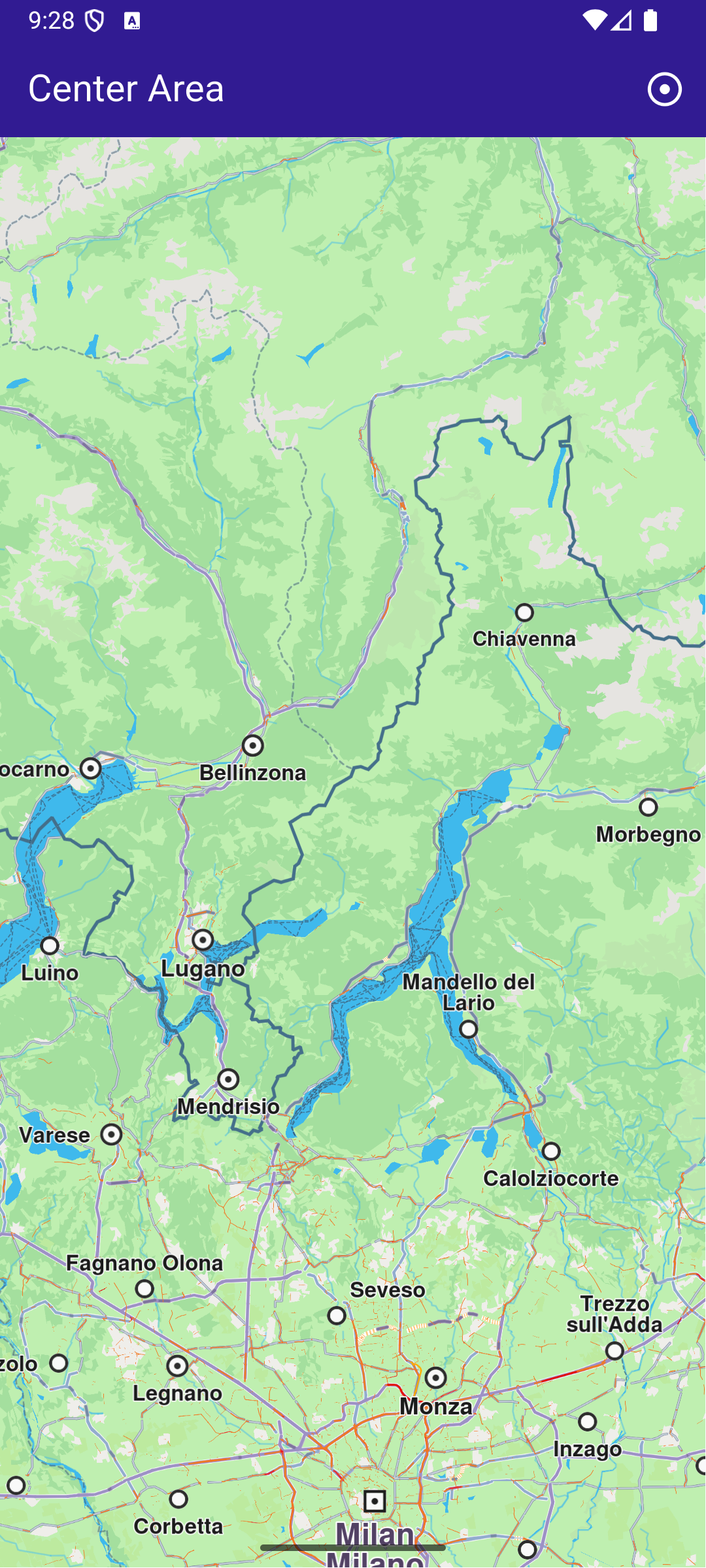
**Initial screen**
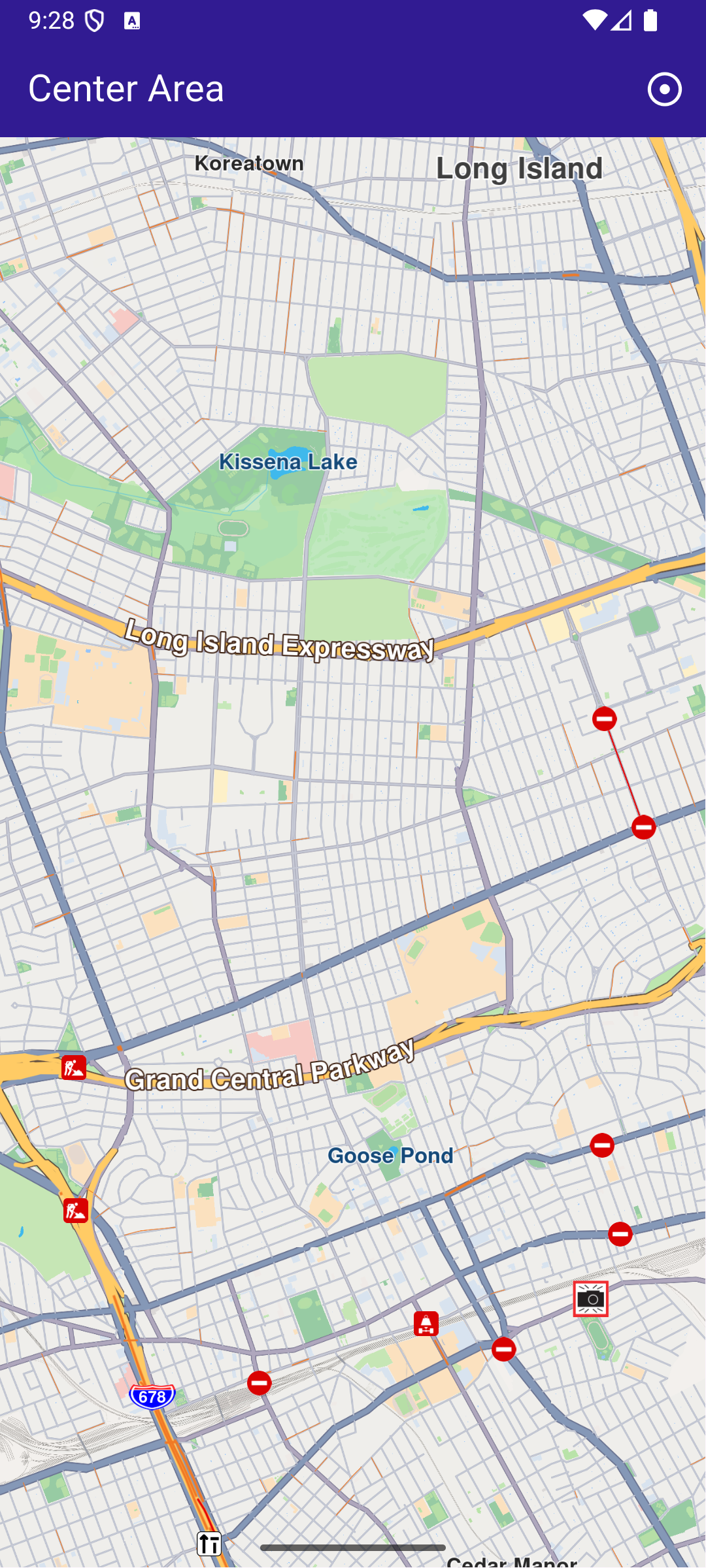
**Map camera centered on Queens, NY**
##### UI and Map Integration[](#ui-and-map-integration "Direct link to UI and Map Integration")
The following code builds a UI with an interactive `GemMap` widget and an app bar with a button in order to execute the center operation.
main.dart[View on Github](https://github.com/magiclane/magiclane-maps-sdk-examples-for-flutter/tree/main/center_area/lib/main.dart?ref_type=heads#L10)
```dart
const projectApiToken = String.fromEnvironment('YOUR_API_TOKEN_HERE');
void main() {
runApp(const MyApp());
}
class MyApp extends StatelessWidget {
const MyApp({super.key});
@override
Widget build(BuildContext context) {
return const MaterialApp(
debugShowCheckedModeBanner: false,
title: 'Center Area',
home: MyHomePage(),
);
}
}
class MyHomePage extends StatefulWidget {
const MyHomePage({super.key});
@override
State createState() => _MyHomePageState();
}
class _MyHomePageState extends State {
late GemMapController _mapController;
@override
void dispose() {
GemKit.release();
super.dispose();
}
@override
Widget build(BuildContext context) {
return Scaffold(
appBar: AppBar(
backgroundColor: Colors.deepPurple[900],
title: const Text('Center Area', style: TextStyle(color: Colors.white)),
actions: [
IconButton(
onPressed: _onCenterCoordinatesButtonPressed,
icon: const Icon(Icons.adjust, color: Colors.white),
),
],
),
body: GemMap(
key: ValueKey("GemMap"),
onMapCreated: _onMapCreated,
appAuthorization: projectApiToken,
),
);
}
// The callback for when map is ready to use.
void _onMapCreated(GemMapController controller) async {
// Save controller for further usage.
_mapController = controller;
}
void _onCenterCoordinatesButtonPressed() {
// Predefined area for Queens, New York.
final area = RectangleGeographicArea(
topLeft: Coordinates(
latitude: 40.73254497605159,
longitude: -73.82536953324063,
),
bottomRight: Coordinates(
latitude: 40.723227048410024,
longitude: -73.77693793474619,
),
);
// Create an animation (optional).
final animation = GemAnimation(type: AnimationType.linear);
// Use the map controller to center on coordinates.
_mapController.centerOnArea(area, animation: animation);
}
}
```
---
### Center Coordinates
Last updated:
July 15, 2026
| 2 minutes read
This example showcases how to build a Flutter app featuring an interactive map and how to center the camera on map WGS coordinates
#### How it works[](#how-it-works "Direct link to How it works")
The example app demonstrates the following features:
* Center the map on predefined coordinates.
* Optionally use an animation to smoothly transition the map view.
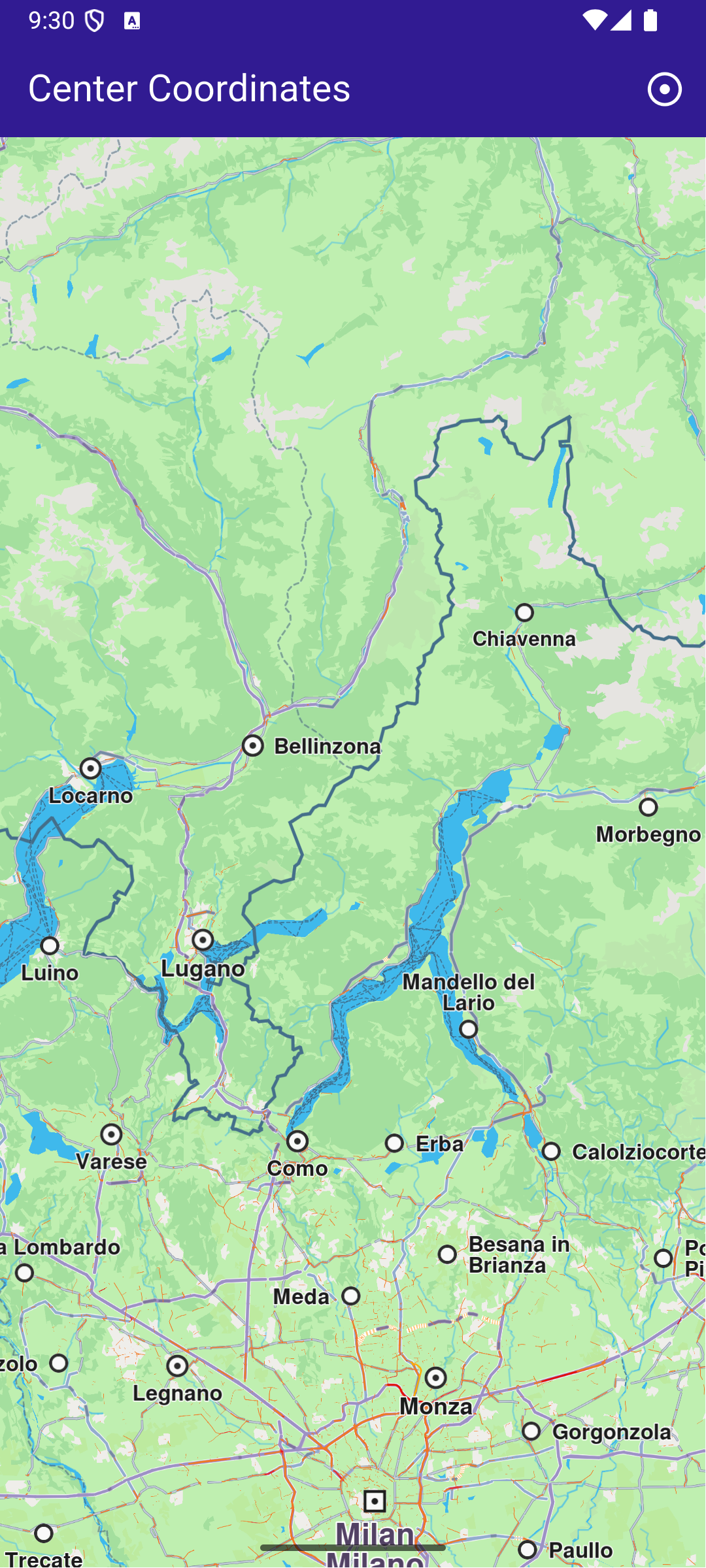
**Initial map view**
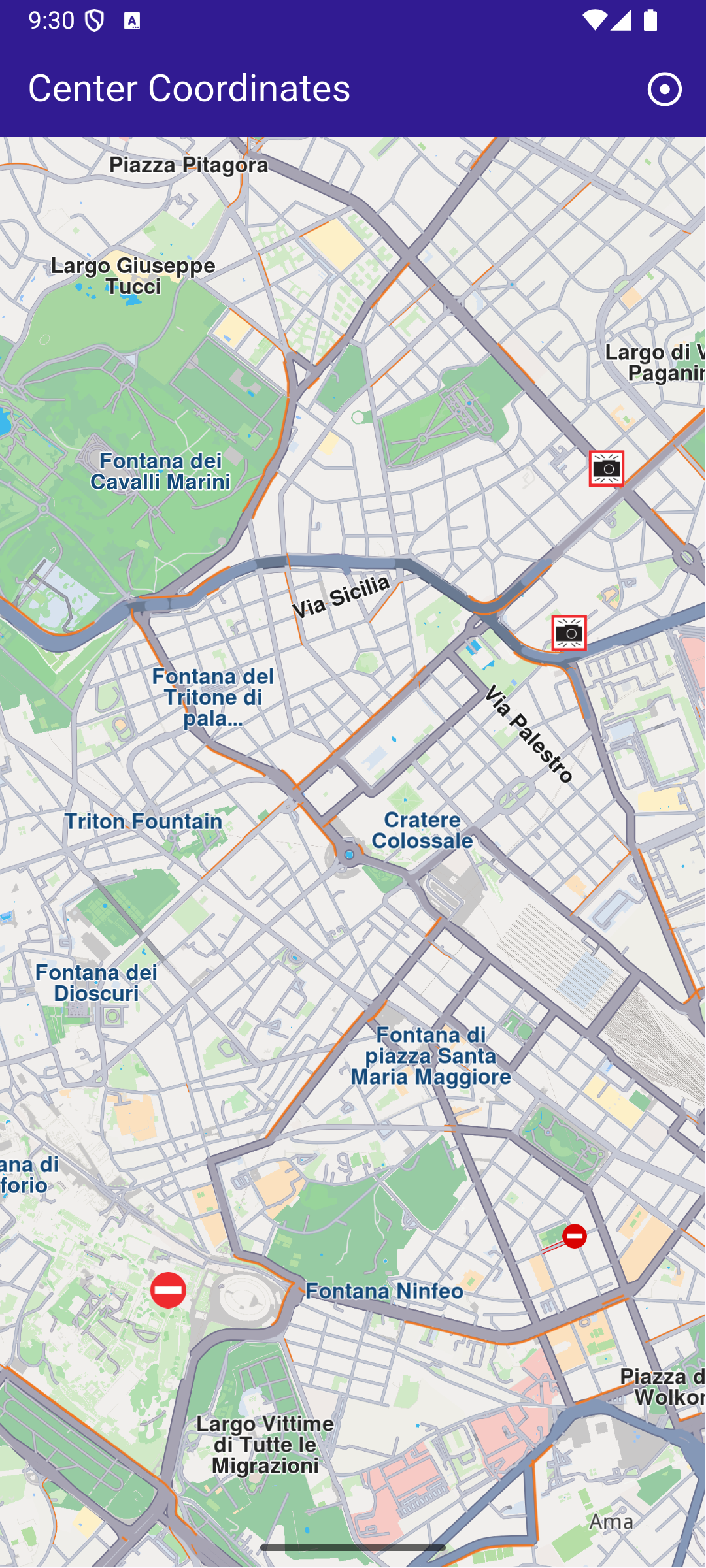
**Map view after centering on coordinates**
##### UI and Map Integration[](#ui-and-map-integration "Direct link to UI and Map Integration")
main.dart[View on Github](https://github.com/magiclane/magiclane-maps-sdk-examples-for-flutter/tree/main/center_coordinates/lib/main.dart?ref_type=heads#L16)
```dart
class MyApp extends StatelessWidget {
const MyApp({super.key});
@override
Widget build(BuildContext context) {
return const MaterialApp(
debugShowCheckedModeBanner: false,
title: 'Center Coordinates',
home: MyHomePage(),
);
}
}
class MyHomePage extends StatefulWidget {
const MyHomePage({super.key});
@override
State createState() => _MyHomePageState();
}
class _MyHomePageState extends State {
late GemMapController _mapController;
@override
void dispose() {
GemKit.release();
super.dispose();
}
@override
Widget build(BuildContext context) {
return Scaffold(
appBar: AppBar(
backgroundColor: Colors.deepPurple[900],
title: const Text(
'Center Coordinates',
style: TextStyle(color: Colors.white),
),
actions: [
IconButton(
onPressed: _onCenterCoordinatesButtonPressed,
icon: const Icon(Icons.adjust, color: Colors.white),
),
],
),
body: GemMap(
key: ValueKey("GemMap"),
onMapCreated: _onMapCreated,
appAuthorization: projectApiToken,
),
);
}
```
This code sets up the basic structure of the app, including the map and the app bar. It also provides a button in the app bar for centering the map on specific coordinates.
main.dart[View on Github](https://github.com/magiclane/magiclane-maps-sdk-examples-for-flutter/tree/main/center_coordinates/lib/main.dart?ref_type=heads#L75)
```dart
void _onCenterCoordinatesButtonPressed() {
// Predefined coordinates for Rome, Italy.
final targetCoordinates = Coordinates(
latitude: 41.902782,
longitude: 12.496366,
);
// Create an animation (optional).
final animation = GemAnimation(type: AnimationType.linear);
// Use the map controller to center on coordinates.
_mapController.centerOnCoordinates(
targetCoordinates,
animation: animation,
zoomLevel: 60,
);
}
```
This code handles centering the map on the predefined coordinates for Rome, Italy. The GemMapController is used to perform this action, and an optional animation is provided for a smooth transition.
---
### Center Traffic
Last updated:
March 20, 2026
| 4 minutes read
This example showcases how to build a Flutter app featuring an interactive map and how to center the camera on a route area with traffic, using the Maps SDK for Flutter.
#### How it works[](#how-it-works "Direct link to How it works")
The example app demonstrates the following features:
* Display an interactive map.
* Calculate a route.
* Center on a traffic segment.
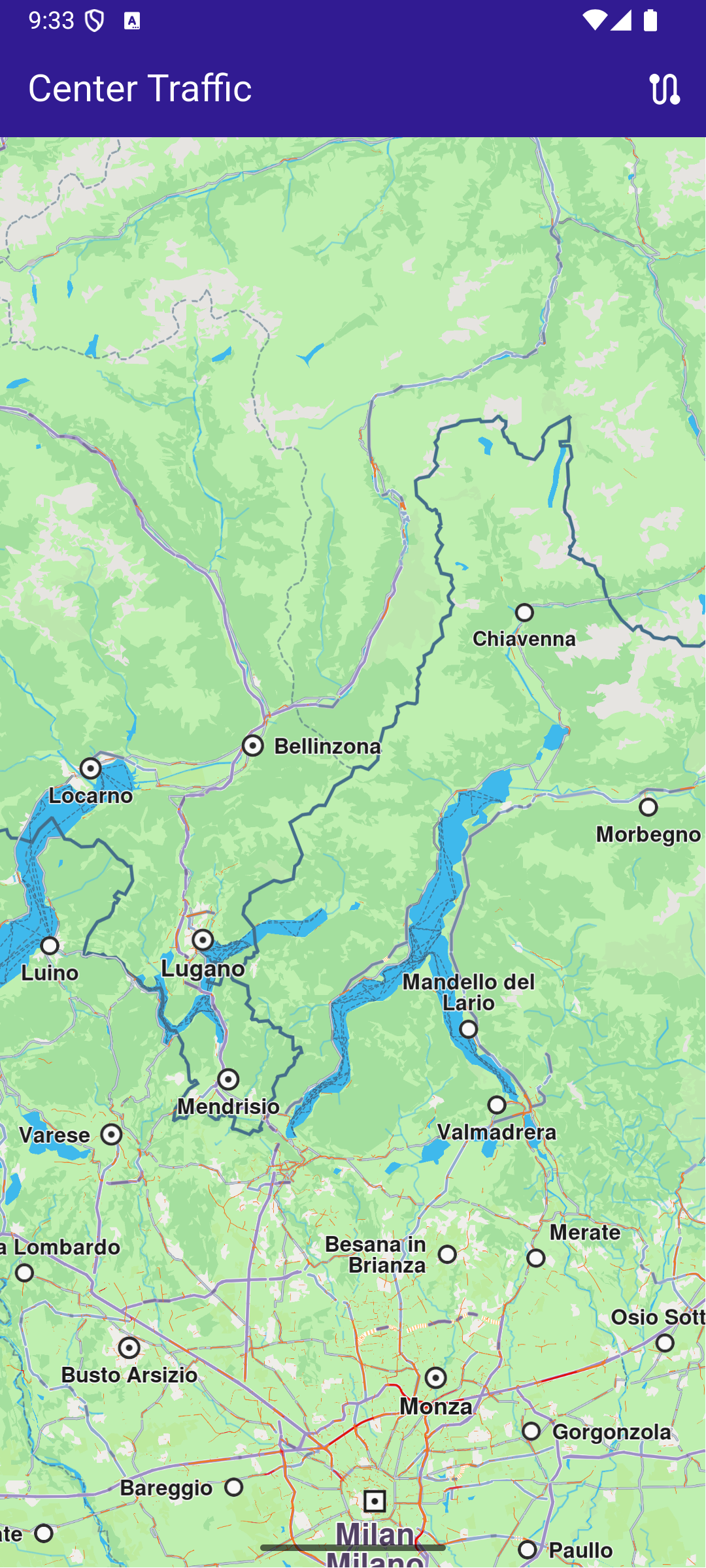
**Initial screen**
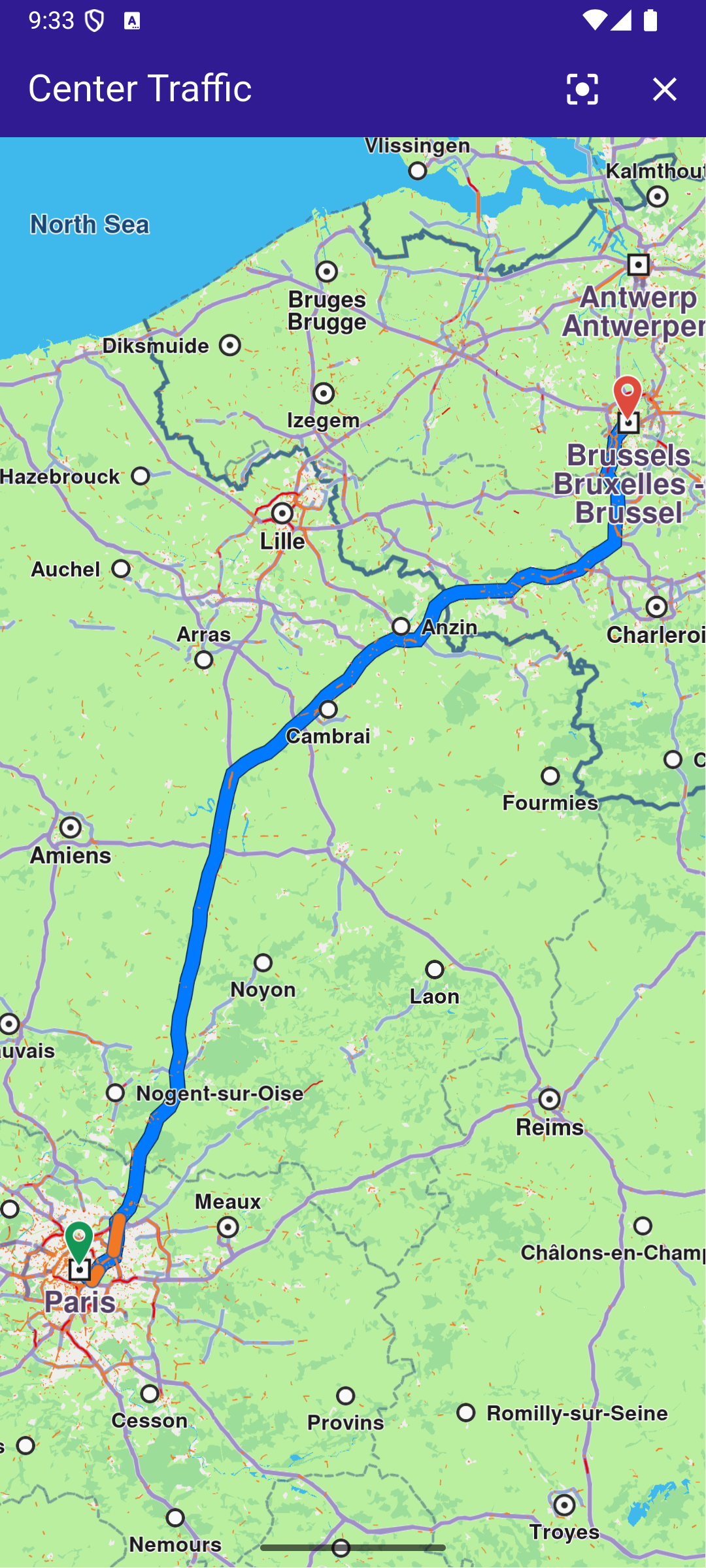
**Route calculated**
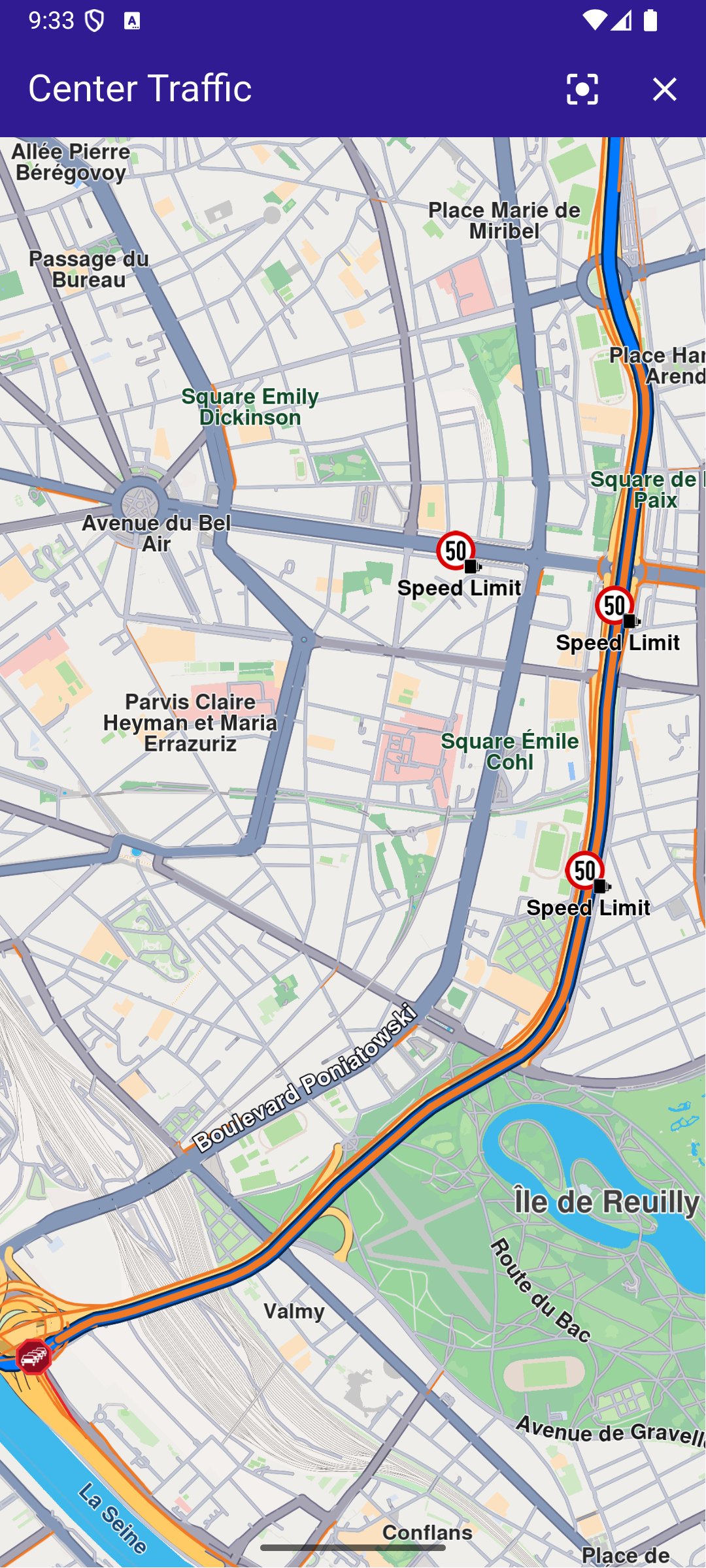
**Map camera centered traffic**
##### UI and Map Integration[](#ui-and-map-integration "Direct link to UI and Map Integration")
The following code builds a UI with an interactive `GemMap` widget and an AppBar with buttons for computing a route, centering on traffic, and clearing the presented route.
main.dart[View on Github](https://github.com/magiclane/magiclane-maps-sdk-examples-for-flutter/tree/main/center_traffic/lib/main.dart?ref_type=heads#L10)
```dart
const projectApiToken = String.fromEnvironment('YOUR_API_TOKEN_HERE');
void main() {
runApp(const MyApp());
}
class MyApp extends StatelessWidget {
const MyApp({super.key});
@override
Widget build(BuildContext context) {
return const MaterialApp(
debugShowCheckedModeBanner: false,
title: 'Center Traffic',
home: MyHomePage(),
);
}
}
class MyHomePage extends StatefulWidget {
const MyHomePage({super.key});
@override
State createState() => _MyHomePageState();
}
class _MyHomePageState extends State {
late GemMapController _mapController;
// We use the handler to cancel the route calculation.
TaskHandler? _routingHandler;
Route? _route;
@override
void dispose() {
GemKit.release();
super.dispose();
}
@override
Widget build(BuildContext context) {
return Scaffold(
appBar: AppBar(
backgroundColor: Colors.deepPurple[900],
title: const Text(
'Center Traffic',
style: TextStyle(color: Colors.white),
),
actions: [
// Routes are not built.
if (_routingHandler == null && _route == null)
IconButton(
onPressed: () => _onBuildRouteButtonPressed(context),
icon: const Icon(Icons.route, color: Colors.white),
),
// Routes calculating is in progress.
if (_routingHandler != null)
IconButton(
onPressed: () => _onCancelRouteButtonPressed(),
icon: const Icon(Icons.stop, color: Colors.white),
),
// Routes calculating is finished.
if (_route != null)
IconButton(
onPressed: () => _centerOnTraffic(_route!),
icon: const Icon(Icons.center_focus_strong, color: Colors.white),
),
if (_route != null)
IconButton(
onPressed: () => _onClearRoutesButtonPressed(),
icon: const Icon(Icons.clear, color: Colors.white),
),
],
),
body: GemMap(
key: ValueKey("GemMap"),
onMapCreated: _onMapCreated,
appAuthorization: projectApiToken,
),
);
}
// The callback for when map is ready to use.
Future _onMapCreated(GemMapController controller) async {
// Save controller for further usage.
_mapController = controller;
}
void _onBuildRouteButtonPressed(BuildContext context) {
// Define the departure.
final departureLandmark = Landmark.withLatLng(
latitude: 48.85682,
longitude: 2.34375,
);
// Define the destination.
final destinationLandmark = Landmark.withLatLng(
latitude: 50.84644,
longitude: 4.34587,
);
// Define the route preferences.
final routePreferences = RoutePreferences();
_showSnackBar(context, message: "The route is being calculated.");
// Calling the calculateRoute SDK method.
// (err, results) - is a callback function that gets called when the route computing is finished.
// err is an error enum, results is a list of routes.
_routingHandler = RoutingService.calculateRoute(
[departureLandmark, destinationLandmark],
routePreferences,
(err, routes) {
// If the route calculation is finished, we don't have a progress listener anymore.
_routingHandler = null;
ScaffoldMessenger.of(context).clearSnackBars();
// If there aren't any errors, we display the routes.
if (err == GemError.success) {
// Get the routes collection from map preferences.
final routesMap = _mapController.preferences.routes;
// Display the routes on map.
routesMap.add(routes.first, true);
// Center the camera on routes.
_mapController.centerOnRoute(routes.first);
setState(() {
_route = routes.first;
});
}
},
);
setState(() {});
}
void _centerOnTraffic(Route route) {
// Get the traffic events from the route.
final trafficEvents = route.trafficEvents;
if (trafficEvents.isEmpty) {
_showSnackBar(context, message: "No traffic events found.");
return;
}
final trafficEvent = trafficEvents.first;
_mapController.centerOnRouteTrafficEvent(trafficEvent, zoomLevel: 70);
}
void _onClearRoutesButtonPressed() {
// Remove the routes from map.
_mapController.preferences.routes.clear();
// Remove the highlights from map.
_mapController.deactivateAllHighlights();
setState(() {
_route = null;
});
}
void _onCancelRouteButtonPressed() {
// If we have a progress listener we cancel the route calculation.
if (_routingHandler != null) {
RoutingService.cancelRoute(_routingHandler!);
setState(() {
_routingHandler = null;
});
}
}
// Show a snackbar indicating that the route calculation is in progress.
void _showSnackBar(
BuildContext context, {
required String message,
Duration duration = const Duration(hours: 1),
}) {
final snackBar = SnackBar(content: Text(message), duration: duration);
ScaffoldMessenger.of(context).showSnackBar(snackBar);
}
}
```
---
### Custom Position Icon
Last updated:
July 15, 2026
| 4 minutes read
This example presents how to create an app that displays a custom icon for the position tracker on a map using Maps SDK for Flutter.
#### How it works[](#how-it-works "Direct link to How it works")
The example app demonstrates the following features:
* Display a custom icon for the position tracker on the map.
* Handle user interaction to start following the current position.
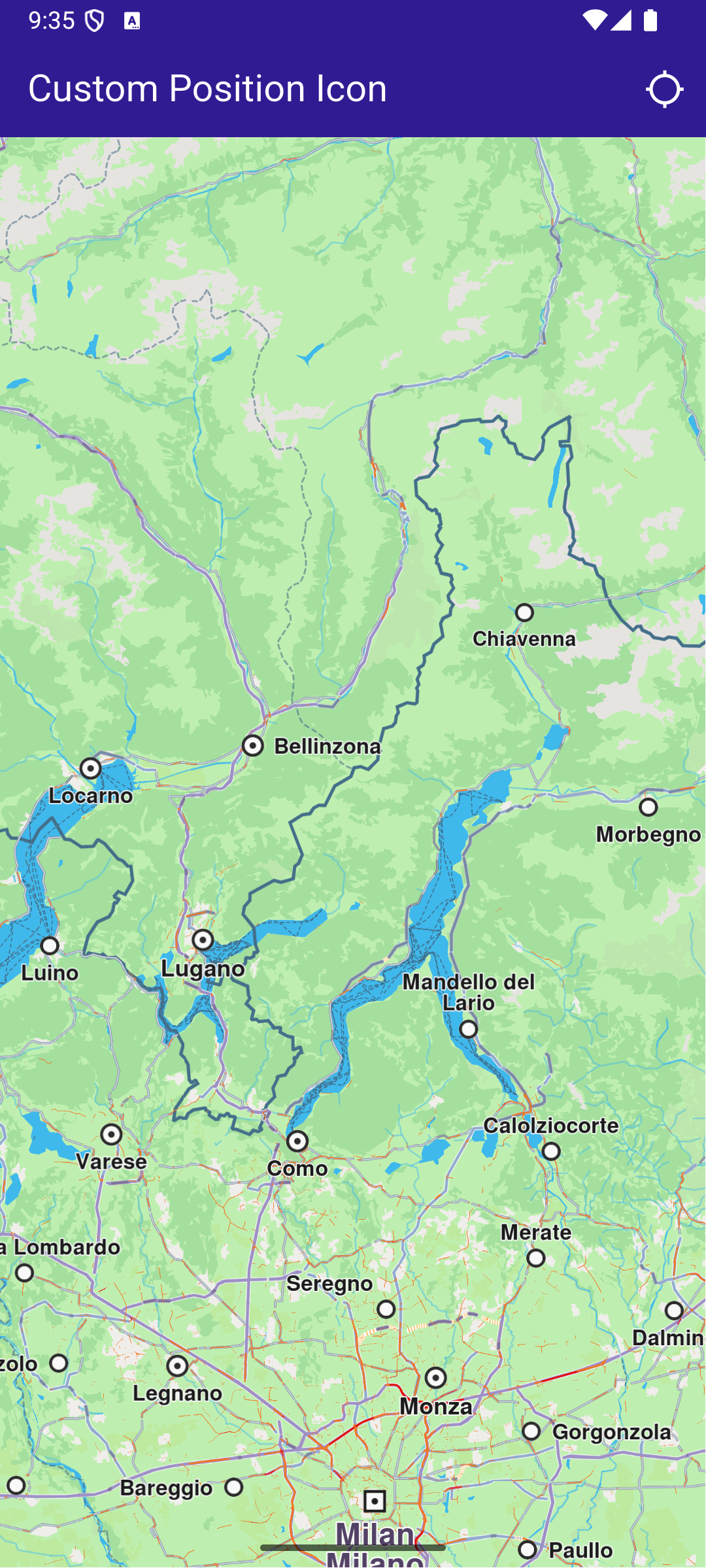
**Initial screen**
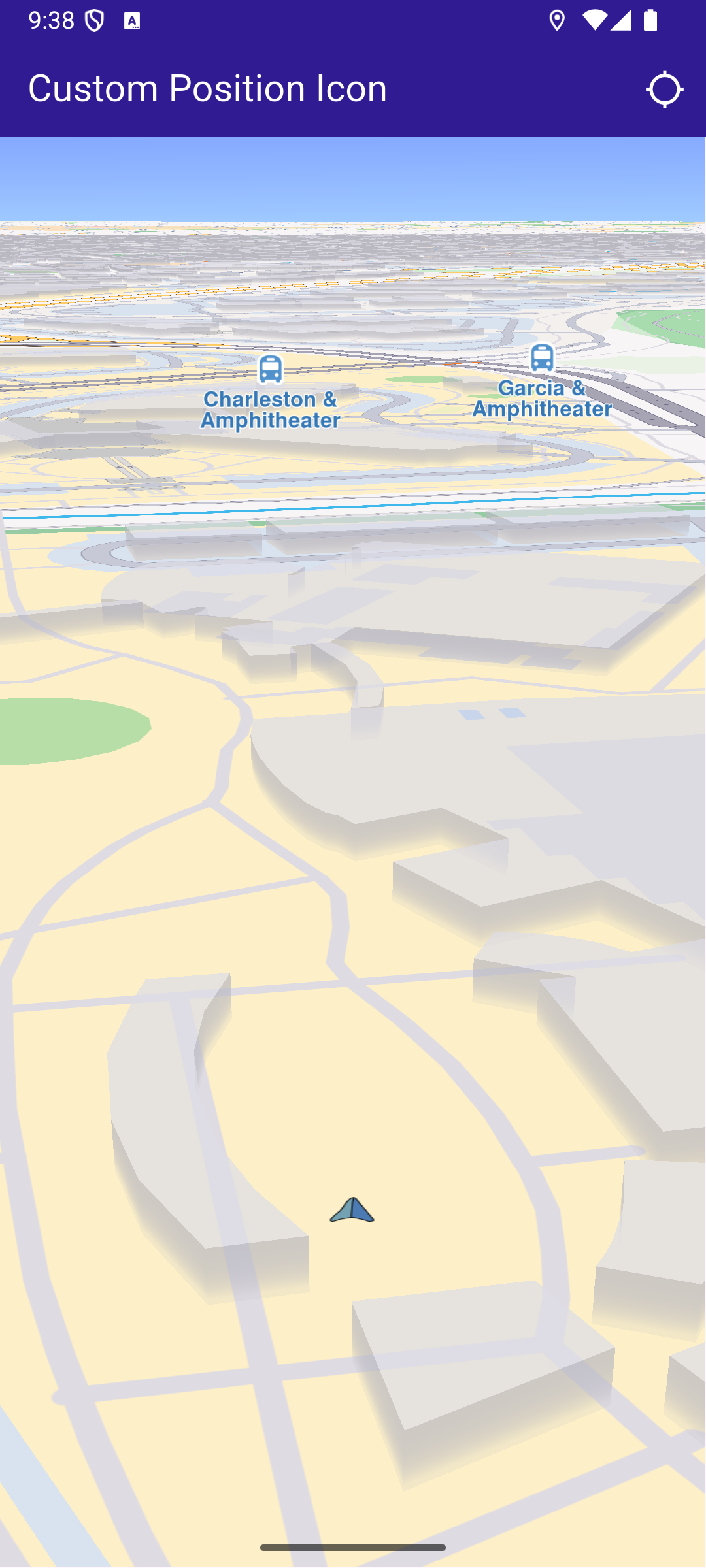
**Custom position tracker icon**
##### Importing Assets[](#importing-assets "Direct link to Importing Assets")
Before running the app, ensure that you save the necessary files (such as the custom icon or 3D object) into the assets directory. For example:
* Save your custom icon image (e.g., navArrow.png ) in the assets folder.
Update your pubspec.yaml file to include these assets:
```yaml
flutter:
assets:
- assets/
```
##### UI and Map Integration[](#ui-and-map-integration "Direct link to UI and Map Integration")
main.dart[View on Github](https://github.com/magiclane/magiclane-maps-sdk-examples-for-flutter/tree/main/custom_position_icon/lib/main.dart?ref_type=heads#L19)
```dart
class MyApp extends StatelessWidget {
const MyApp({super.key});
@override
Widget build(BuildContext context) {
return const MaterialApp(
title: 'Custom Position Icon',
debugShowCheckedModeBanner: false,
home: MyHomePage(),
);
}
}
class MyHomePage extends StatefulWidget {
const MyHomePage({super.key});
@override
State createState() => _MyHomePageState();
}
class _MyHomePageState extends State {
late GemMapController _mapController;
PermissionStatus _locationPermissionStatus = PermissionStatus.denied;
bool _hasLiveDataSource = false;
@override
void dispose() {
GemKit.release();
super.dispose();
}
@override
Widget build(BuildContext context) {
return Scaffold(
appBar: AppBar(
backgroundColor: Colors.deepPurple[900],
title: const Text(
'Custom Position Icon',
style: TextStyle(color: Colors.white),
),
actions: [
IconButton(
onPressed: _onFollowPositionButtonPressed,
icon: const Icon(
Icons.location_searching_sharp,
color: Colors.white,
),
),
],
),
body: GemMap(
key: ValueKey("GemMap"),
onMapCreated: _onMapCreated,
appAuthorization: projectApiToken,
),
);
}
```
This code defines the main UI elements, including the map and an app bar with a button to follow the current position.
##### Map Creation and Custom Position Tracker Icon[](#map-creation-and-custom-position-tracker-icon "Direct link to Map Creation and Custom Position Tracker Icon")
This method initializes the map controller, loads a custom icon for the position tracker from the assets, and applies it with a specified scale.
main.dart[View on Github](https://github.com/magiclane/magiclane-maps-sdk-examples-for-flutter/tree/main/custom_position_icon/lib/main.dart?ref_type=heads#L78)
```dart
// The callback for when map is ready to use.
void _onMapCreated(GemMapController controller) async {
// Save controller for further usage.
_mapController = controller;
// You can upload a custom icon for the position tracker, it can also be a 3D object as "quad.glb" file in the assets, or use a texture.
//final bytes = await loadAsUint8List('assets/quad.glb');
final bytes = await loadAsUint8List('assets/navArrow.png');
setPositionTrackerImage(bytes, scale: 0.5);
}
```
##### Handling Position Tracking[](#handling-position-tracking "Direct link to Handling Position Tracking")
This method handles user interaction to request location permissions, sets the live data source, and starts following the current position on the map.
main.dart[View on Github](https://github.com/magiclane/magiclane-maps-sdk-examples-for-flutter/tree/main/custom_position_icon/lib/main.dart?ref_type=heads#L89)
```dart
void _onFollowPositionButtonPressed() async {
if (kIsWeb) {
// On web platform permission are handled differently than other platforms.
// The SDK handles the request of permission for location.
final locationPermssionWeb =
await PositionService.requestLocationPermission();
if (locationPermssionWeb == true) {
_locationPermissionStatus = PermissionStatus.granted;
} else {
_locationPermissionStatus = PermissionStatus.denied;
}
} else {
// For Android & iOS platforms, permission_handler package is used to ask for permissions.
_locationPermissionStatus = await Permission.locationWhenInUse.request();
}
if (_locationPermissionStatus == PermissionStatus.granted) {
// After the permission was granted, we can set the live data source (in most cases the GPS).
// The data source should be set only once, otherwise we'll get -5 error.
if (!_hasLiveDataSource) {
PositionService.setLiveDataSource();
_hasLiveDataSource = true;
}
// Optionally, we can set an animation
final animation = GemAnimation(type: AnimationType.linear);
// Calling the start following position SDK method.
_mapController.startFollowingPosition(animation: animation);
setState(() {});
}
}
```
##### Utility Functions[](#utility-functions "Direct link to Utility Functions")
The setPositionTrackerImage method is crucial as it allows you to customize the position tracker icon with any image or 3D object. Ensure the image is correctly loaded from assets and properly scaled to fit your application’s design.
main.dart[View on Github](https://github.com/magiclane/magiclane-maps-sdk-examples-for-flutter/tree/main/custom_position_icon/lib/main.dart?ref_type=heads#L124)
```dart
Future loadAsUint8List(String filename) async {
final fileData = await rootBundle.load(filename);
return fileData.buffer.asUint8List();
}
// Method that sets the custom icon for the position tracker.
void setPositionTrackerImage(Uint8List imageData, {double scale = 1.0}) {
try {
MapSceneObject.customizeDefPositionTracker(
imageData,
SceneObjectFileFormat.tex,
);
final positionTracker = MapSceneObject.getDefPositionTracker();
positionTracker.scale = scale;
} catch (e) {
throw (e.toString());
}
}
```
Required Permissions
To ensure this example functions correctly, the necessary permissions must be added to the project's Android and iOS configuration files:
* Android
* iOS
Add the following code to the `android/app/src/main/AndroidManifest.xml` file, within the `` block:
```
```
This example uses the [Permission Handler](https://pub.dev/packages/permission_handler) package. Be sure to follow the [setup guide](https://pub.dev/packages/permission_handler#setup).
Add the following to `ios/Runner/Info.plist` inside the ``:
```
NSLocationWhenInUseUsageDescription
Location is needed for map localization and navigation
```
This example uses the [Permission Handler](https://pub.dev/packages/permission_handler) package. Follow the [official setup instructions](https://pub.dev/packages/permission_handler#setup). Add this to your `ios/Podfile`:
```
post_install do |installer|
installer.pods_project.targets.each do |target|
flutter_additional_ios_build_settings(target)
target.build_configurations.each do |config|
config.build_settings['GCC_PREPROCESSOR_DEFINITIONS'] ||= [
'$(inherited)',
'PERMISSION_LOCATION=1',
]
end
end
end
```
---
### Draw Roadblock
Last updated:
July 15, 2026
| 5 minutes read
This example showcases how to build a Flutter app featuring an interactive map. Users can draw paths on map, whose coordinates can be used to confirm a roadblock.
#### How it works[](#how-it-works "Direct link to How it works")
The example app includes the following features:
* Display a map.
* Draw a roadblock in one or multiple steps.
* Display preview paths on map.
* Confirm a persistent Roadblock based on the drawn path.
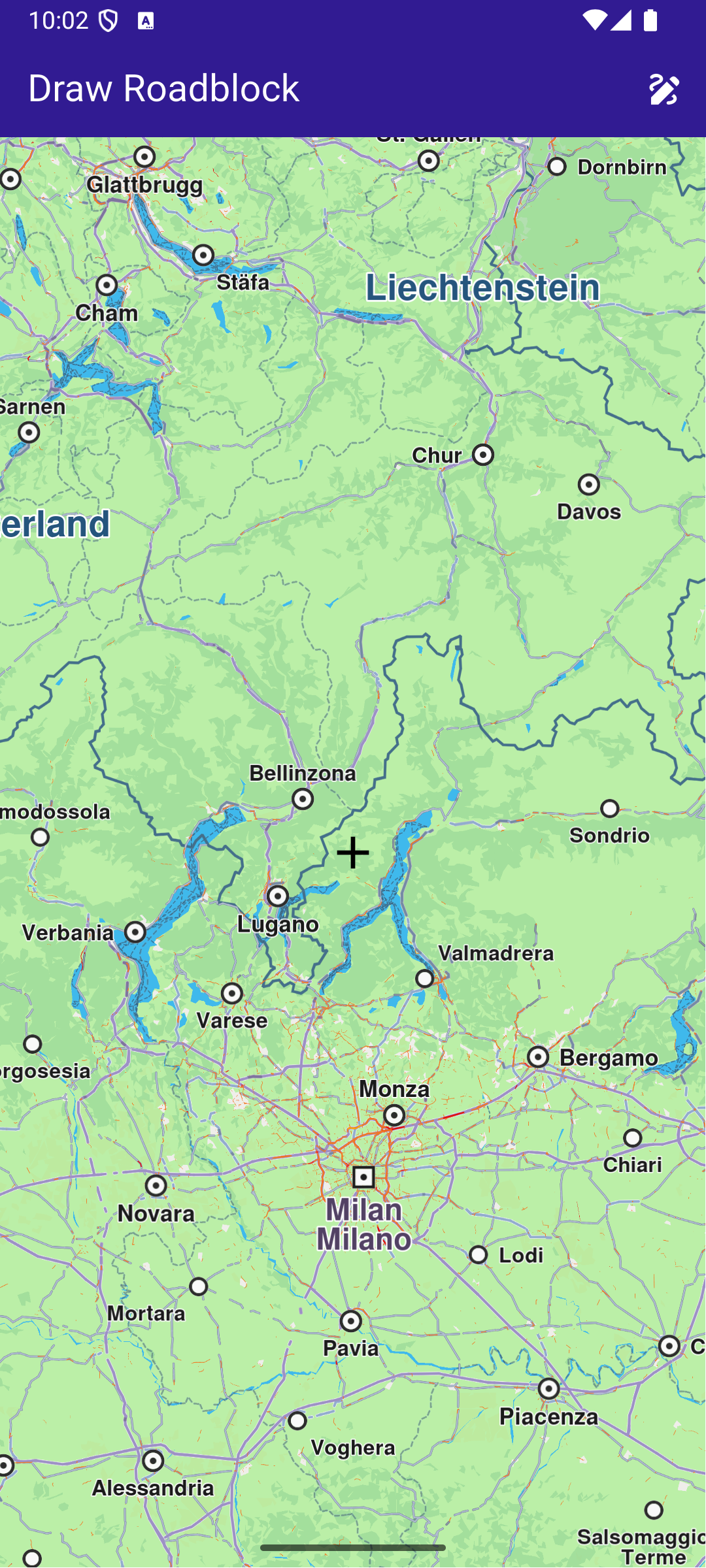
**Initial map screen**
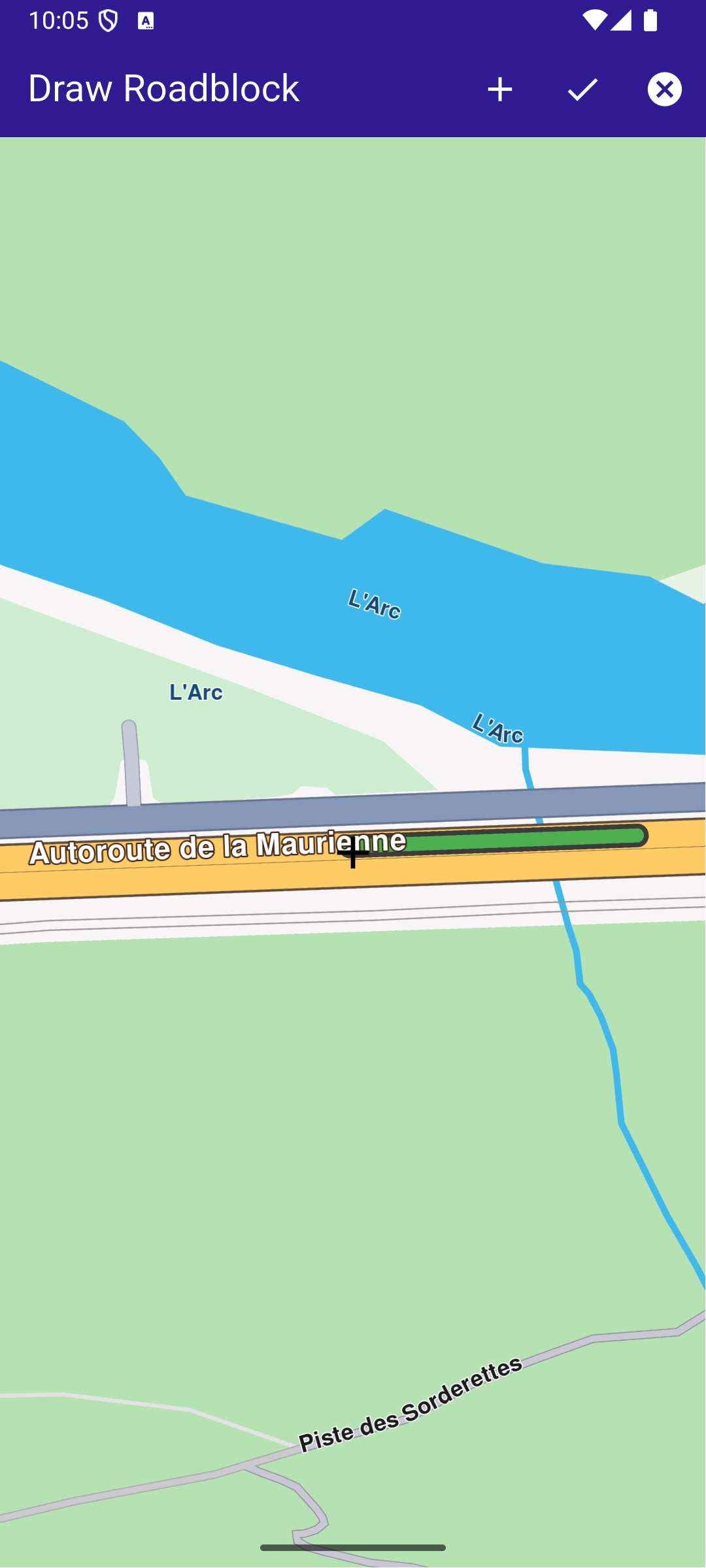
**Started drawing preview path**
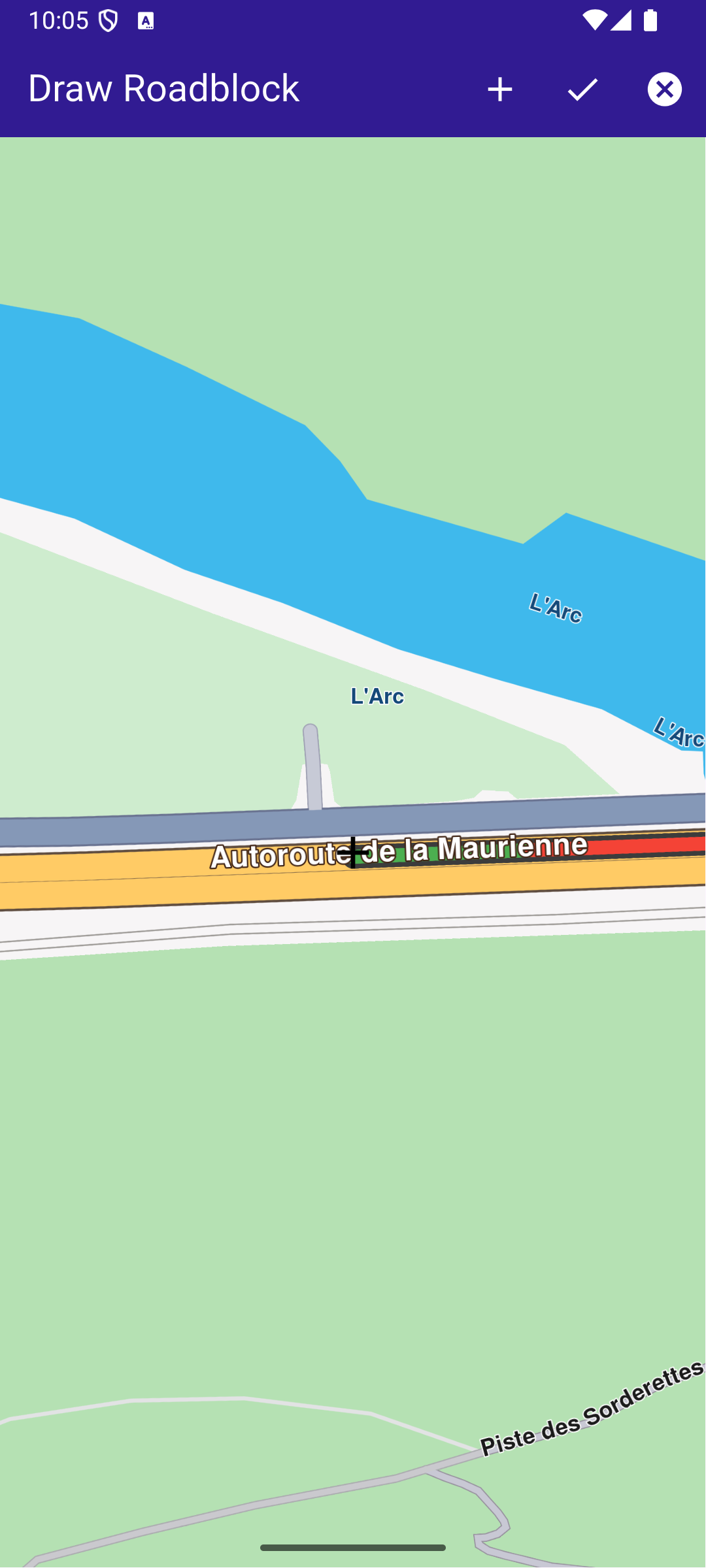
**Confirmed previous path (in red)**
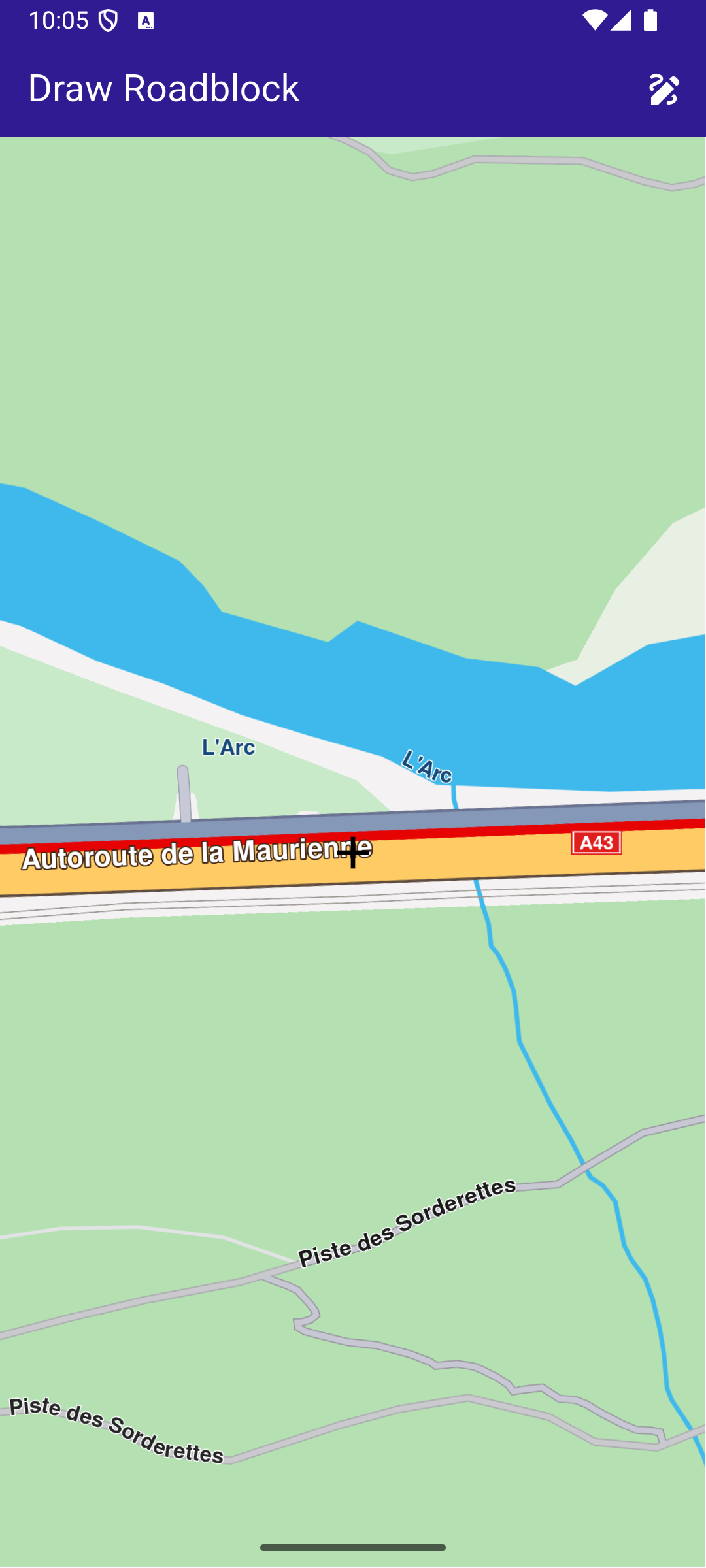
**Confirmed roadblock on map**
##### UI and Map Integration[](#ui-and-map-integration "Direct link to UI and Map Integration")
The code below builds a user interface featuring an interactive GemMap and an app bar with action buttons to start drawing mode, confirm the drawn path, cancel drawing, and confirm a roadblock.
main.dart[View on Github](https://github.com/magiclane/magiclane-maps-sdk-examples-for-flutter/tree/main/draw_roadblock/lib/main.dart?ref_type=heads#L13)
```dart
const projectApiToken = String.fromEnvironment('YOUR_API_TOKEN_HERE');
void main() async {
runApp(const MyApp());
}
class MyApp extends StatelessWidget {
const MyApp({super.key});
@override
Widget build(BuildContext context) {
return const MaterialApp(
debugShowCheckedModeBanner: false,
title: 'Draw Roadblock',
home: MyHomePage(),
);
}
}
class MyHomePage extends StatefulWidget {
const MyHomePage({super.key});
@override
State createState() => _MyHomePageState();
}
class _MyHomePageState extends State {
late GemMapController _mapController;
// The coordinate where the preview currently ends (acts as a cursor for preview path)
UserRoadblockPathPreviewCoordinate? previewCursor;
// List of permanent coordinates (user confirmed)
List permanentCoords = [];
// List of preview (temporary) coordinates
List previewCoordsList = [];
// Draw mode
bool drawMode = false;
/// Debouncer in order to calculate preview only after movement is stopped
Timer? _debounce;
@override
void initState() {
super.initState();
}
@override
void dispose() {
GemKit.release();
super.dispose();
}
@override
Widget build(BuildContext context) {
return Scaffold(
appBar: AppBar(
automaticallyImplyLeading: true,
foregroundColor: Colors.white,
title: const Text(
"Draw Roadblock",
style: TextStyle(color: Colors.white),
),
backgroundColor: Colors.deepPurple[900],
actions: [
// Add temporary coordinates to permanent
if (drawMode)
IconButton(
icon: Icon(Icons.add),
onPressed: () {
permanentCoords = [...permanentCoords, ...previewCoordsList];
previewCoordsList = [];
_redrawPath();
},
),
// Draw mode activate button
if (!drawMode)
IconButton(
icon: Icon(Icons.draw),
onPressed: () {
setState(() {
drawMode = true;
permanentCoords = [];
previewCursor = null;
previewCoordsList = [];
});
_handlePreviewPathUpdate(allowRecursive: false);
},
),
// Add roadblock by permanent coordinates and reset the draw mode and coordinates lists
if (drawMode)
IconButton(
icon: Icon(Icons.check),
onPressed: () {
final roadblockResult =
TrafficService.addPersistentRoadblockByCoordinates(
coords: permanentCoords,
startTime: DateTime.now(),
expireTime: DateTime.now().add(const Duration(days: 1)),
transportMode: RouteTransportMode.car,
id: DateTime.now().toIso8601String(), // Unique identifier
);
setState(() {
drawMode = false;
permanentCoords = [];
previewCursor = null;
previewCoordsList = [];
});
// In case of error, show snackbar
if (roadblockResult.$2 != GemError.success) {
ScaffoldMessenger.of(context).showSnackBar(
SnackBar(
content: Text(
'Error ${roadblockResult.$2} when adding roadblock.',
),
backgroundColor: Colors.red,
duration: Duration(seconds: 3),
),
);
}
// Reset the coordinates
permanentCoords = [];
previewCoordsList = [];
_redrawPath();
},
),
// Cancel draw mode
if (drawMode)
IconButton(
icon: Icon(Icons.cancel),
onPressed: () {
setState(() {
drawMode = false;
permanentCoords = [];
previewCoordsList = [];
});
permanentCoords = [];
previewCoordsList = [];
previewCursor = null;
_redrawPath();
},
),
],
),
body: Stack(
children: [
GemMap(
appAuthorization: projectApiToken,
onMapCreated: _onMapCreated,
),
// Mark the center of the viewport
const Center(child: Icon(Icons.add, size: 32, color: Colors.black)),
],
),
);
}
/// Called when the map is created. Registers the move callback for draw mode.
void _onMapCreated(GemMapController controller) async {
_mapController = controller;
_mapController.registerOnMove((_, __) {
if (!drawMode) return;
_debounce?.cancel();
_debounce = Timer(const Duration(milliseconds: 100), () {
_handlePreviewPathUpdate(allowRecursive: true);
});
});
}
/// Handles updating the preview path when the map moves.
void _handlePreviewPathUpdate({required bool allowRecursive}) {
final centerScreen = Point(
_mapController.viewport.width ~/ 2,
_mapController.viewport.height ~/ 2,
);
final centerCoord = _mapController.transformScreenToWgs(centerScreen);
// On first call, initialize permanentCoords with the center coordinate
if (permanentCoords.isEmpty) {
permanentCoords.add(centerCoord);
}
// If previewCursor is null, set it and return
if (previewCursor == null) {
previewCursor = UserRoadblockPathPreviewCoordinate.fromCoordinates(
centerCoord,
);
return;
}
// Compute route coordinates from previous coordinates to new coordinates
final (from, to, error) = TrafficService.getPersistentRoadblockPathPreview(
from: previewCursor!,
to: centerCoord,
transportMode: RouteTransportMode.car,
);
if (error != GemError.success) {
_resetPreviewPathOnError(allowRecursive);
return;
}
_updatePreviewPath(from, to);
}
/// Resets the preview path and optionally retries if an error occurs.
void _resetPreviewPathOnError(bool allowRecursive) {
previewCoordsList = [];
previewCursor = UserRoadblockPathPreviewCoordinate.fromCoordinates(
permanentCoords.last,
);
_redrawPath();
if (allowRecursive) {
_handlePreviewPathUpdate(allowRecursive: false);
}
}
/// Updates the preview path and redraws the map.
void _updatePreviewPath(
List from,
UserRoadblockPathPreviewCoordinate to,
) {
previewCoordsList = [...previewCoordsList, ...from];
previewCursor = to;
_redrawPath();
}
/// Redraws the permanent and preview paths on the map.
void _redrawPath() {
final previewPath = Path.fromCoordinates(previewCoordsList);
final permanentPath = Path.fromCoordinates(permanentCoords);
_mapController.preferences.paths.clear();
_mapController.preferences.paths.add(previewPath, colorInner: Colors.green);
_mapController.preferences.paths.add(permanentPath, colorInner: Colors.red);
}
}
```
---
### Draw Shapes on Map
Last updated:
July 15, 2026
| 3 minutes read
This example presents how to create a Flutter app that draws and displays shapes like polylines, polygons, and points on a map using Maps SDK for Flutter.
#### How it works[](#how-it-works "Direct link to How it works")
The example app demonstrates the following features:
* Draw and display polylines, polygons, and points on the map.
* Handle user interaction through app bar buttons.
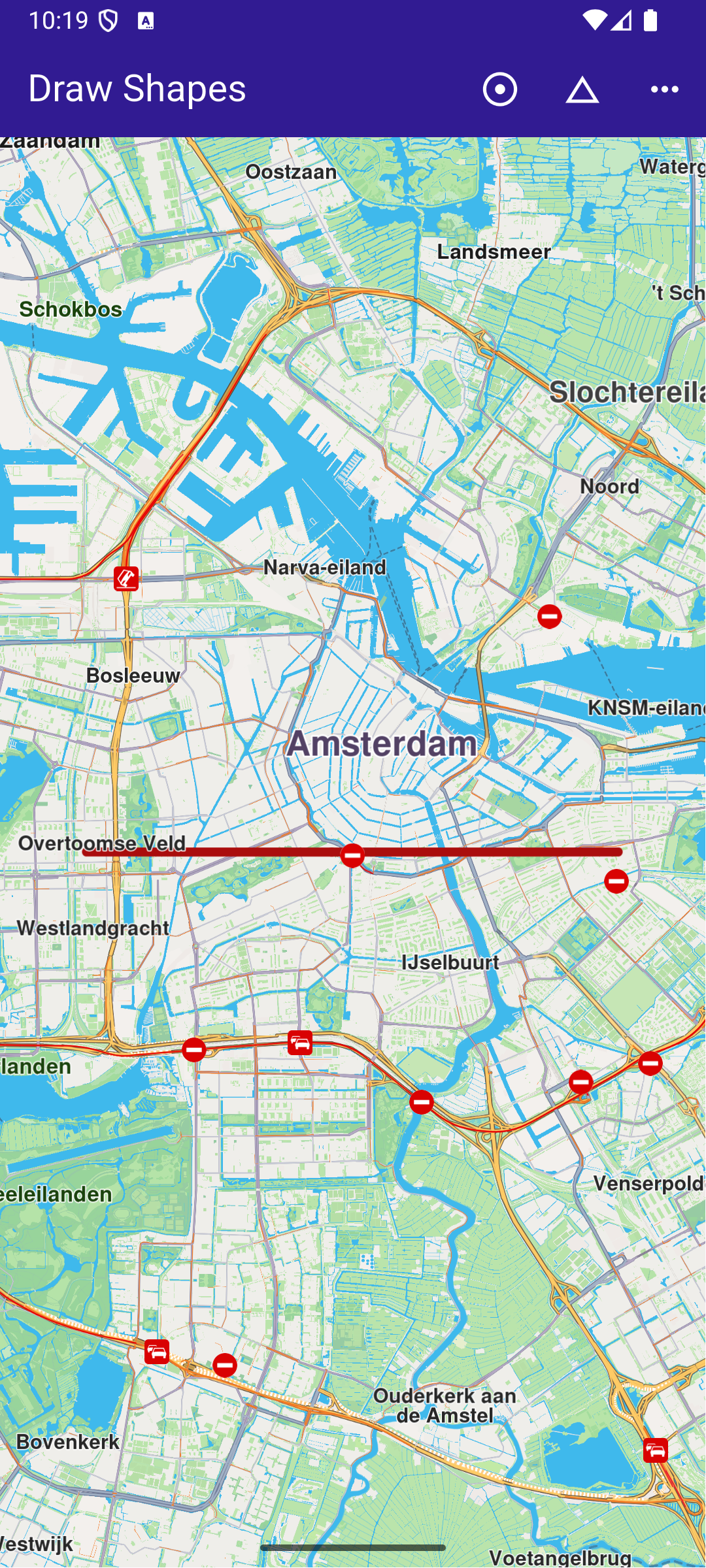
**Polygon drawing**
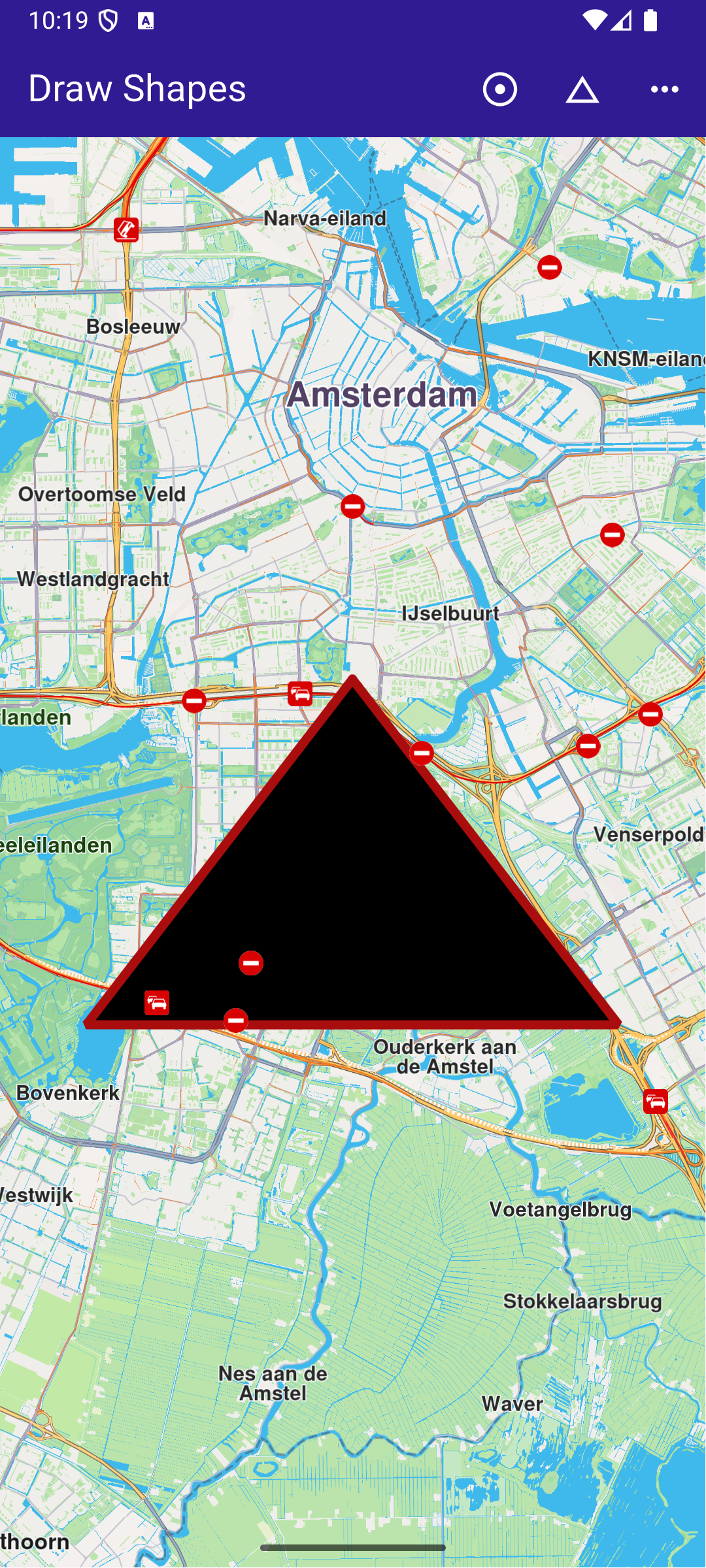
**Polyline drawing**
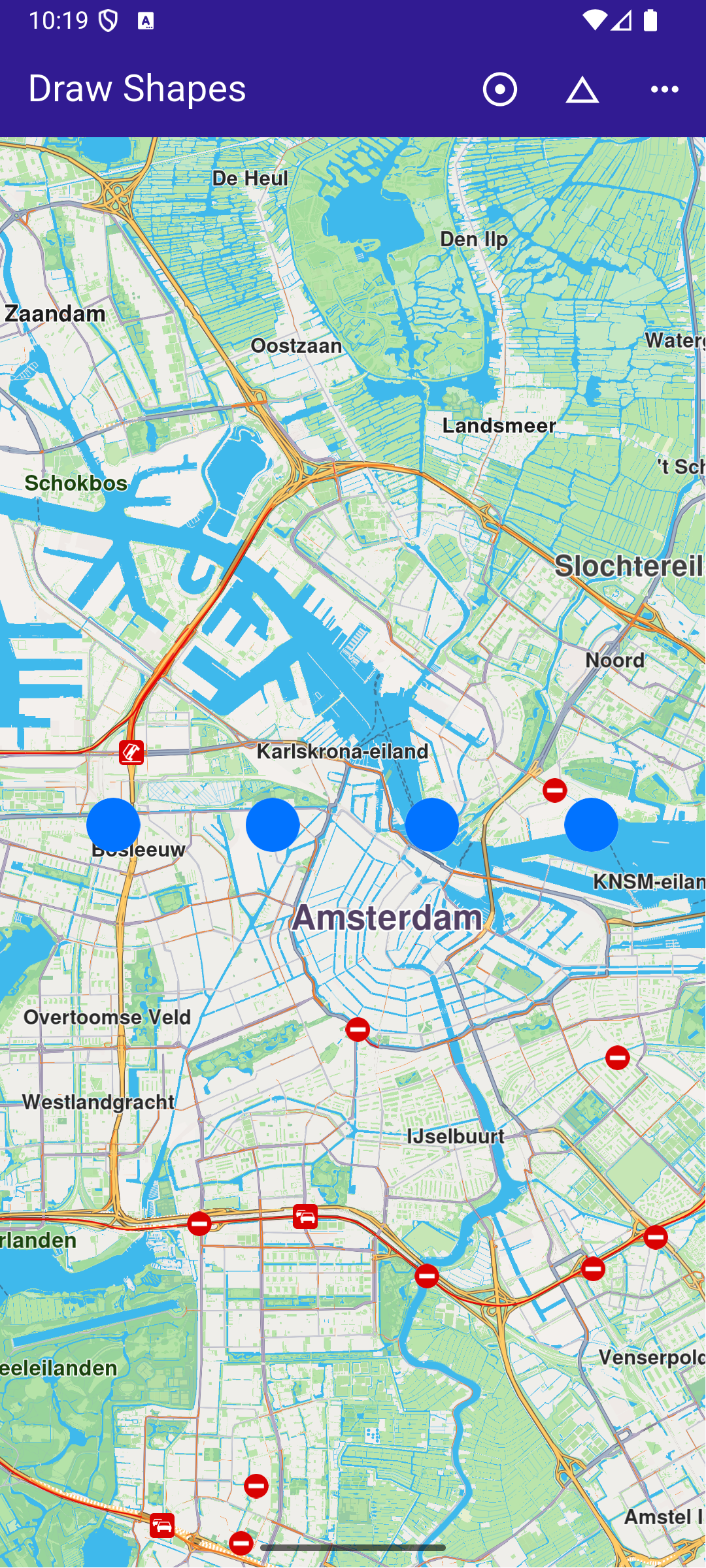
**Points drawing**
##### UI and Map Integration[](#ui-and-map-integration "Direct link to UI and Map Integration")
This code defines the main UI elements, including the map and an app bar with buttons to draw polylines, polygons, and points on the map.
main.dart[View on Github](https://github.com/magiclane/magiclane-maps-sdk-examples-for-flutter/tree/main/draw_shapes/lib/main.dart?ref_type=heads#L16)
```dart
class MyApp extends StatelessWidget {
const MyApp({super.key});
@override
Widget build(BuildContext context) {
return const MaterialApp(
debugShowCheckedModeBanner: false,
title: 'Draw Shapes',
home: MyHomePage(),
);
}
}
class MyHomePage extends StatefulWidget {
const MyHomePage({super.key});
@override
State createState() => _MyHomePageState();
}
class _MyHomePageState extends State {
late GemMapController _mapController;
@override
void dispose() {
GemKit.release();
super.dispose();
}
@override
Widget build(BuildContext context) {
return Scaffold(
appBar: AppBar(
backgroundColor: Colors.deepPurple[900],
title: const Text('Draw Shapes', style: TextStyle(color: Colors.white)),
actions: [
IconButton(
onPressed: _onPolylineButtonPressed,
icon: const Icon(Icons.adjust, color: Colors.white),
),
IconButton(
onPressed: _onPolygonButtonPressed,
icon: const Icon(Icons.change_history, color: Colors.white),
),
IconButton(
onPressed: _onPointsButtonPressed,
icon: const Icon(Icons.more_horiz, color: Colors.white),
),
],
),
body: GemMap(
key: ValueKey("GemMap"),
onMapCreated: _onMapCreated,
appAuthorization: projectApiToken,
),
);
}
```
##### Drawing and Displaying Shapes[](#drawing-and-displaying-shapes "Direct link to Drawing and Displaying Shapes")
This code snippet defines the methods to draw and display different shapes (polyline, polygon, points) on the map. Each method creates a MarkerCollection , adds markers with specific coordinates, and displays them on the map.
main.dart[View on Github](https://github.com/magiclane/magiclane-maps-sdk-examples-for-flutter/tree/main/draw_shapes/lib/main.dart?ref_type=heads#L75)
```dart
void _onMapCreated(GemMapController controller) async {
// Save controller for further usage.
_mapController = controller;
}
// Method to draw and center on a polyline
void _onPolylineButtonPressed() {
// Create a marker collection
final markerCollection = MarkerCollection(
markerType: MarkerType.polyline,
name: 'Polyline marker collection',
);
// Set coordinates of marker
final marker = Marker();
marker.setCoordinates([
Coordinates(latitude: 52.360495, longitude: 4.936882),
Coordinates(latitude: 52.360495, longitude: 4.836882),
]);
markerCollection.add(marker);
_showMarkerCollectionOnMap(markerCollection);
}
// Method to draw and center on a polygon
void _onPolygonButtonPressed() {
// Create a marker collection
final markerCollection = MarkerCollection(
markerType: MarkerType.polygon,
name: 'Polygon marker collection',
);
// Set coordinates of marker
final marker = Marker();
marker.setCoordinates([
Coordinates(latitude: 52.340234, longitude: 4.886882),
Coordinates(latitude: 52.300495, longitude: 4.936882),
Coordinates(latitude: 52.300495, longitude: 4.836882),
]);
markerCollection.add(marker);
_showMarkerCollectionOnMap(markerCollection);
}
// Method to draw and center on points
void _onPointsButtonPressed() {
// Create a marker collection
final markerCollection = MarkerCollection(
markerType: MarkerType.point,
name: 'Points marker collection',
);
// Set coordinates of marker
final marker = Marker();
marker.setCoordinates([
Coordinates(latitude: 52.380495, longitude: 4.930882),
Coordinates(latitude: 52.380495, longitude: 4.900882),
Coordinates(latitude: 52.380495, longitude: 4.870882),
Coordinates(latitude: 52.380495, longitude: 4.840882),
]);
markerCollection.add(marker);
_showMarkerCollectionOnMap(markerCollection);
}
```
##### Utility Functions[](#utility-functions "Direct link to Utility Functions")
This utility method clears any previous markers on the map, then displays the new MarkerCollection and centers the map on the area containing the markers.
main.dart[View on Github](https://github.com/magiclane/magiclane-maps-sdk-examples-for-flutter/tree/main/draw_shapes/lib/main.dart?ref_type=heads#L140)
```dart
Future _showMarkerCollectionOnMap(
MarkerCollection markerCollection,
) async {
final settings = MarkerCollectionRenderSettings();
// Clear previous markers from the map
await _mapController.preferences.markers.clear();
// Show the current marker on map and center on it
_mapController.preferences.markers.add(
markerCollection,
settings: settings,
);
_mapController.centerOnArea(markerCollection.area, zoomLevel: 50);
}
```
---
### Follow Position
Last updated:
July 15, 2026
| 3 minutes read
This example demonstrates how to create a Flutter app that follows the device’s location on a map using Maps SDK for Flutter, with an option to request location permissions if necessary.
#### How it works[](#how-it-works "Direct link to How it works")
The example app demonstrates the following features:
* Requesting location permissions on Android and iOS, with automatic handling on web platforms.
* Setting the live data source for the map (typically the device’s GPS).
* Following the device’s location on the map with optional animation.
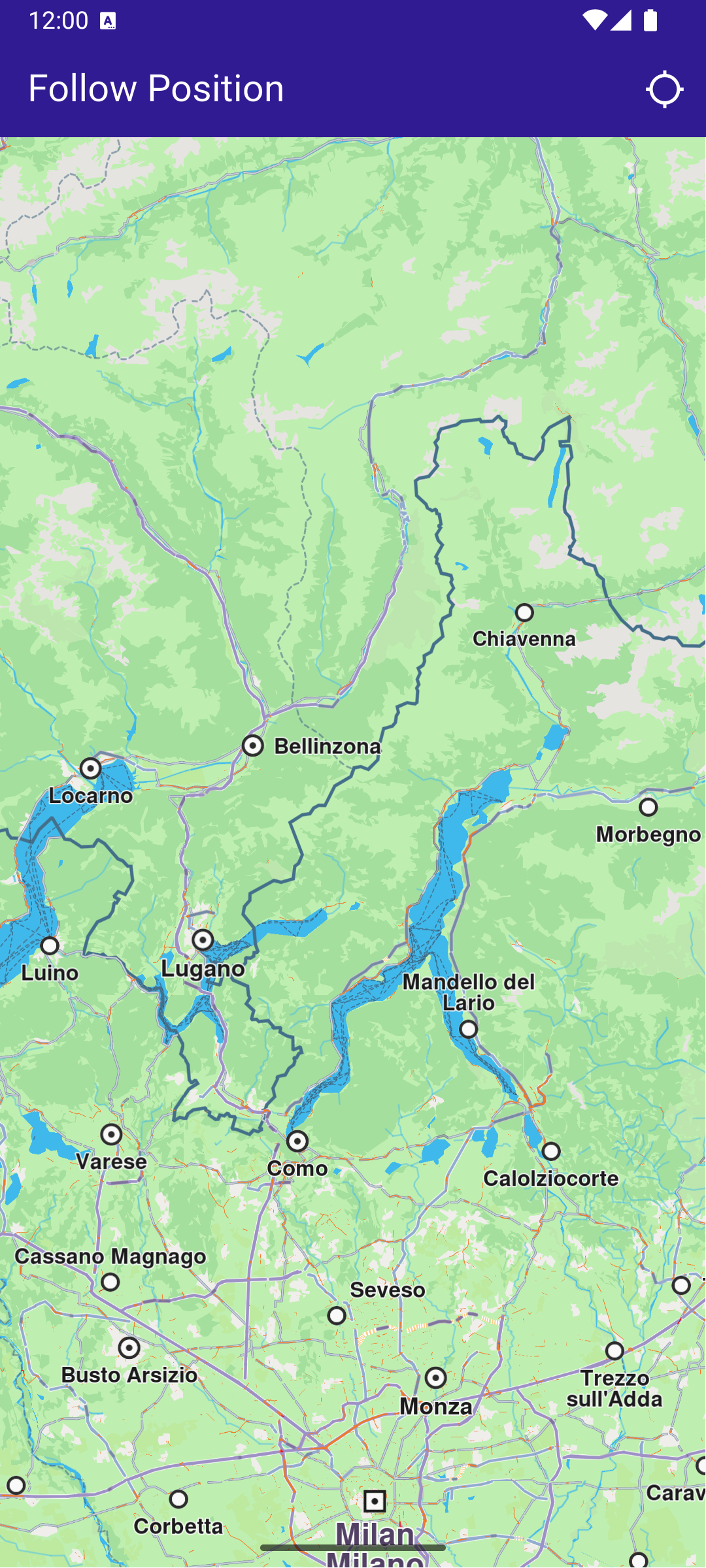
**Initial map view**
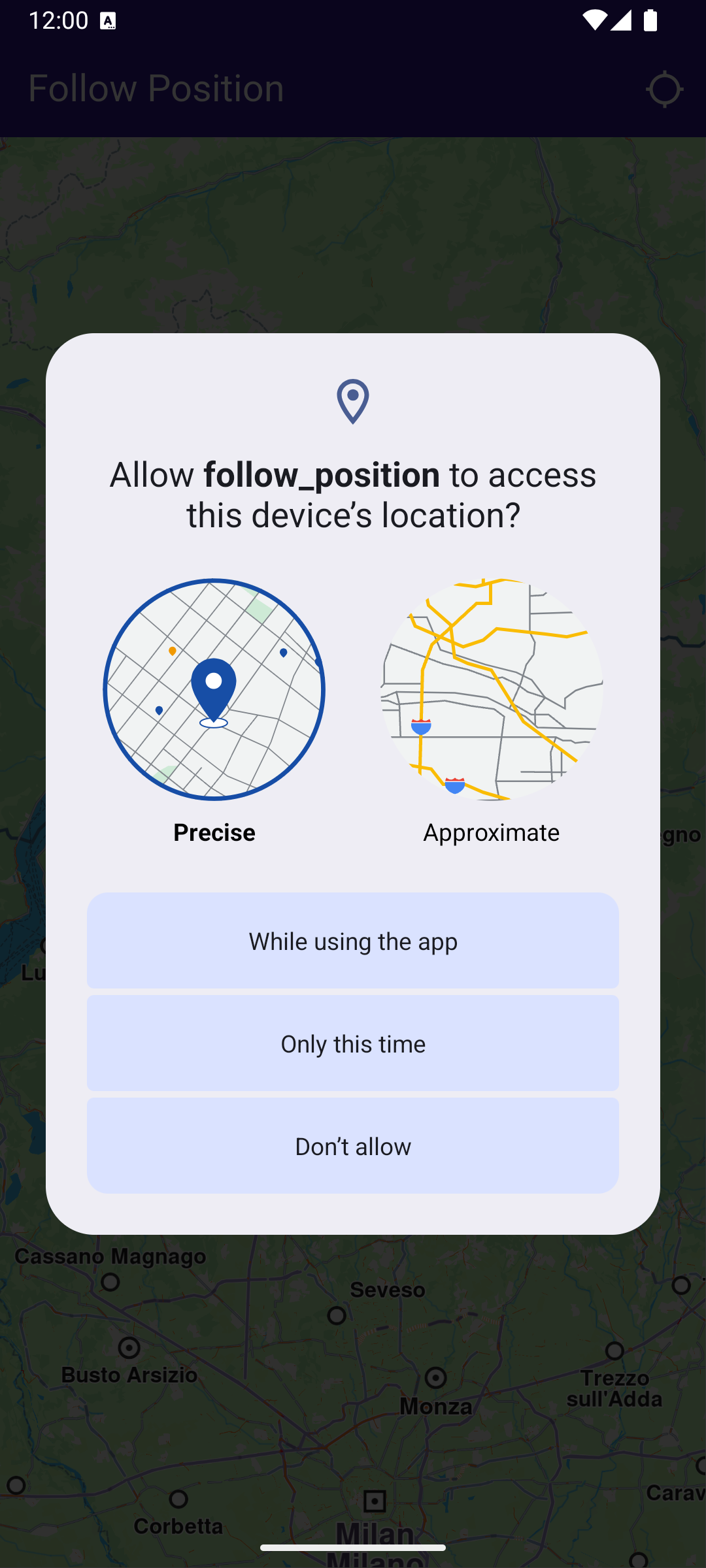
**Location permission dialog**
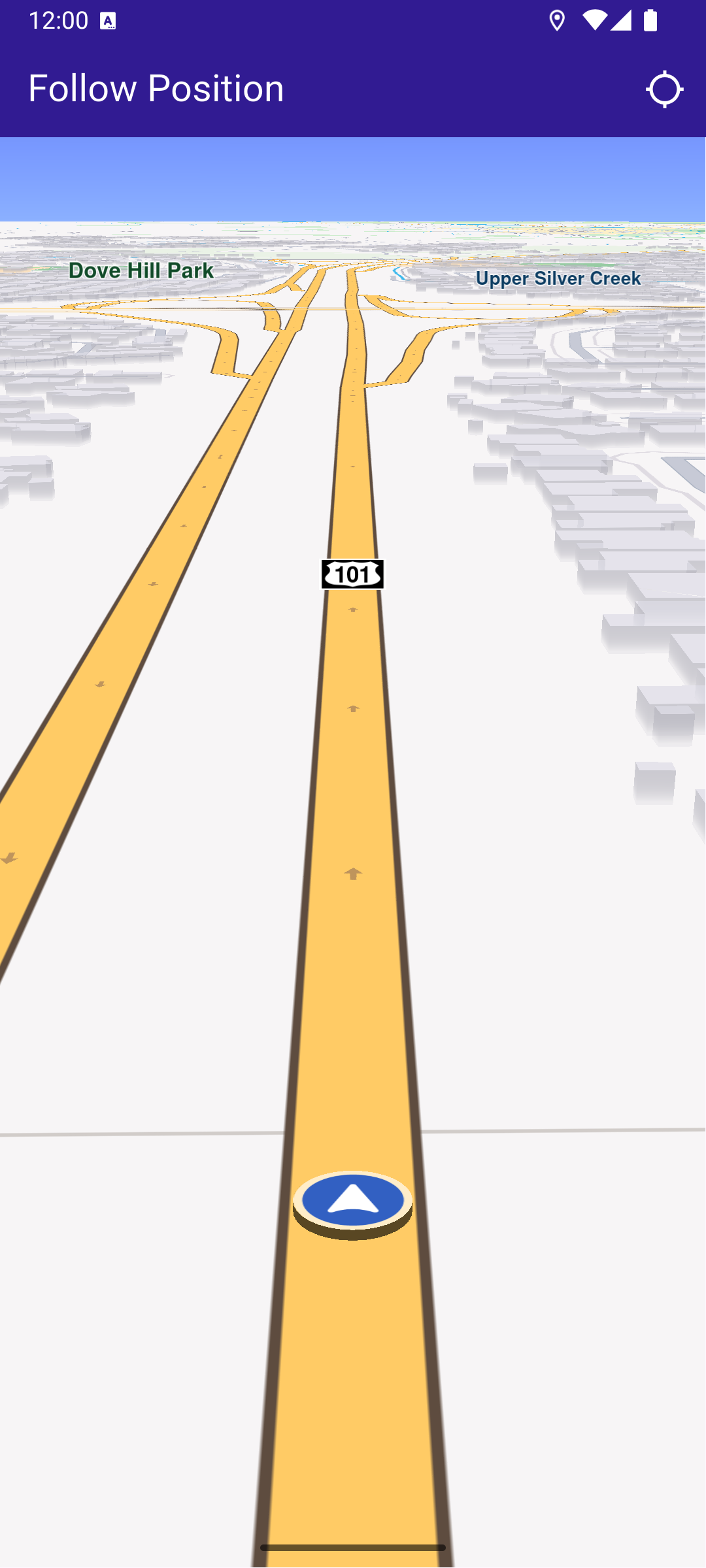
**Camera following current position**
##### UI and Map Integration[](#ui-and-map-integration "Direct link to UI and Map Integration")
main.dart[View on Github](https://github.com/magiclane/magiclane-maps-sdk-examples-for-flutter/tree/main/follow_position/lib/main.dart?ref_type=heads#L18)
```dart
class MyApp extends StatelessWidget {
const MyApp({super.key});
@override
Widget build(BuildContext context) {
return const MaterialApp(
title: 'Follow Position',
debugShowCheckedModeBanner: false,
home: MyHomePage(),
);
}
}
class MyHomePage extends StatefulWidget {
const MyHomePage({super.key});
@override
State createState() => _MyHomePageState();
}
class _MyHomePageState extends State {
late GemMapController _mapController;
PermissionStatus _locationPermissionStatus = PermissionStatus.denied;
bool _hasLiveDataSource = false;
@override
void dispose() {
GemKit.release();
super.dispose();
}
@override
Widget build(BuildContext context) {
return Scaffold(
appBar: AppBar(
backgroundColor: Colors.deepPurple[900],
title: const Text(
'Follow Position',
style: TextStyle(color: Colors.white),
),
actions: [
IconButton(
onPressed: _onFollowPositionButtonPressed,
icon: const Icon(
Icons.location_searching_sharp,
color: Colors.white,
),
),
],
),
body: GemMap(
key: ValueKey("GemMap"),
onMapCreated: _onMapCreated,
appAuthorization: projectApiToken,
),
);
}
```
This code sets up the app’s user interface, including a map and a button to follow the device’s position.
##### Handling Location Permissions and Following Position[](#handling-location-permissions-and-following-position "Direct link to Handling Location Permissions and Following Position")
main.dart[View on Github](https://github.com/magiclane/magiclane-maps-sdk-examples-for-flutter/tree/main/follow_position/lib/main.dart?ref_type=heads#L77)
```dart
// The callback for when map is ready to use.
void _onMapCreated(GemMapController controller) async {
// Save controller for further usage.
_mapController = controller;
}
void _onFollowPositionButtonPressed() async {
if (kIsWeb) {
// On web platform permission are handled differently than other platforms.
// The SDK handles the request of permission for location.
final locationPermssionWeb =
await PositionService.requestLocationPermission();
if (locationPermssionWeb == true) {
_locationPermissionStatus = PermissionStatus.granted;
} else {
_locationPermissionStatus = PermissionStatus.denied;
}
} else {
// For Android & iOS platforms, permission_handler package is used to ask for permissions.
_locationPermissionStatus = await Permission.locationWhenInUse.request();
}
if (_locationPermissionStatus == PermissionStatus.granted) {
// After the permission was granted, we can set the live data source (in most cases the GPS).
// The data source should be set only once, otherwise we'll get -5 error.
if (!_hasLiveDataSource) {
PositionService.setLiveDataSource();
_hasLiveDataSource = true;
}
// Optionally, we can set an animation
final animation = GemAnimation(type: AnimationType.linear);
// Calling the start following position SDK method.
_mapController.startFollowingPosition(animation: animation);
setState(() {});
}
}
}
```
This code handles the process of requesting location permissions, setting the GPS as the live data source, and starting the map’s follow position mode.
##### Displaying Position Information[](#displaying-position-information "Direct link to Displaying Position Information")
When the “Follow Position” button is pressed, the \_onFollowPositionButtonPressed() callback is triggered. It requests location permission if it hasn’t been granted already, and sets the location data source to the device’s GPS sensor. Once the permission is granted and the data source is set, the map will follow the device’s location, centering the camera on the current position. The follow position feature is disabled if the user interacts with the map, such as by panning, until the button is pressed again.
Required Permissions
To ensure this example functions correctly, the necessary permissions must be added to the project's Android and iOS configuration files:
* Android
* iOS
Add the following code to the `android/app/src/main/AndroidManifest.xml` file, within the `` block:
```
```
This example uses the [Permission Handler](https://pub.dev/packages/permission_handler) package. Be sure to follow the [setup guide](https://pub.dev/packages/permission_handler#setup).
Add the following to `ios/Runner/Info.plist` inside the ``:
```
NSLocationWhenInUseUsageDescription
Location is needed for map localization and navigation
```
This example uses the [Permission Handler](https://pub.dev/packages/permission_handler) package. Follow the [official setup instructions](https://pub.dev/packages/permission_handler#setup). Add this to your `ios/Podfile`:
```
post_install do |installer|
installer.pods_project.targets.each do |target|
flutter_additional_ios_build_settings(target)
target.build_configurations.each do |config|
config.build_settings['GCC_PREPROCESSOR_DEFINITIONS'] ||= [
'$(inherited)',
'PERMISSION_LOCATION=1',
]
end
end
end
```
---
### Hello Map
Last updated:
January 27, 2026
| 1 minute read
This example demonstrates how to create a Flutter app that displays an interactive map using Maps SDK for Flutter.
#### How it works[](#how-it-works "Direct link to How it works")
The example app demonstrates the following feature:
* Display a map.
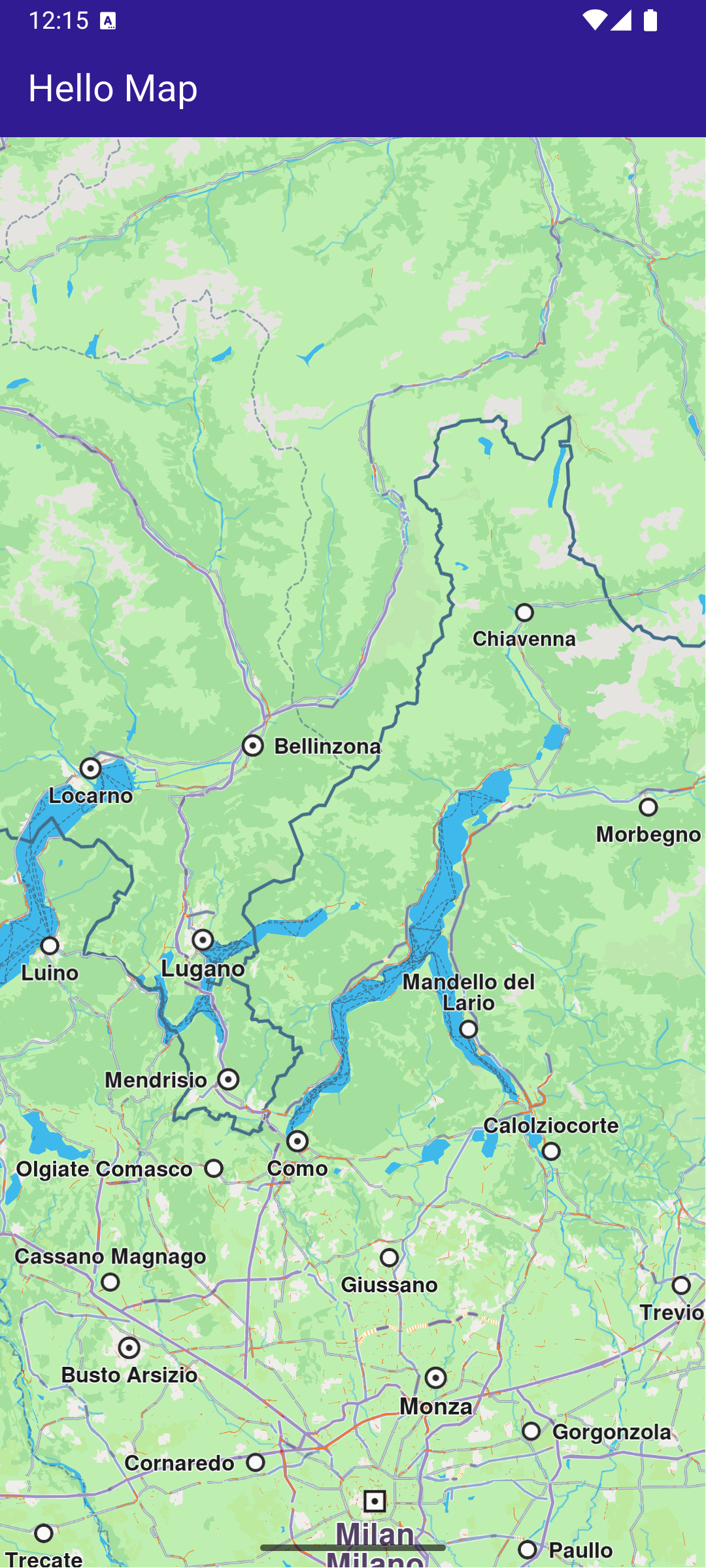
**GemMap widget**
##### Map Display and Cleanup[](#map-display-and-cleanup "Direct link to Map Display and Cleanup")
The following code outlines the main page widget, which displays the map and handles resource clean-up:
main.dart[View on Github](https://github.com/magiclane/magiclane-maps-sdk-examples-for-flutter/tree/main/hello_map/lib/main.dart?ref_type=heads#L29)
```dart
class MyHomePage extends StatefulWidget {
const MyHomePage({super.key});
@override
State createState() => _MyHomePageState();
}
class _MyHomePageState extends State {
@override
void dispose() {
GemKit.release();
super.dispose();
}
@override
Widget build(BuildContext context) {
return Scaffold(
appBar: AppBar(
backgroundColor: Colors.deepPurple[900],
title: const Text('Hello Map', style: TextStyle(color: Colors.white)),
),
body: const GemMap(
key: ValueKey("GemMap"),
appAuthorization: projectApiToken,
),
);
}
}
```
##### Explanation of key components[](#explanation-of-key-components "Direct link to Explanation of key components")
* The `MyHomePage` widget contains the scaffold that houses the map.
* The `dispose` method ensures that resources are released when the widget is destroyed.
* The `GemMap` widget is used to display the interactive map in the body of the scaffold.
---
### Map Compass
Last updated:
July 15, 2026
| 3 minutes read
This example demonstrates how to render a compass icon that displays the heading rotation of an interactive map. The compass indicates the direction where 0 degrees is north, 90 degrees is east, 180 degrees is south, and 270 degrees is west. You will also learn how to rotate the map back to its default north-up orientation.
#### How it works[](#how-it-works "Direct link to How it works")
The example app demonstrates the following features:
* Display a map and sync a compass to its rotation.
* Align north up the map.
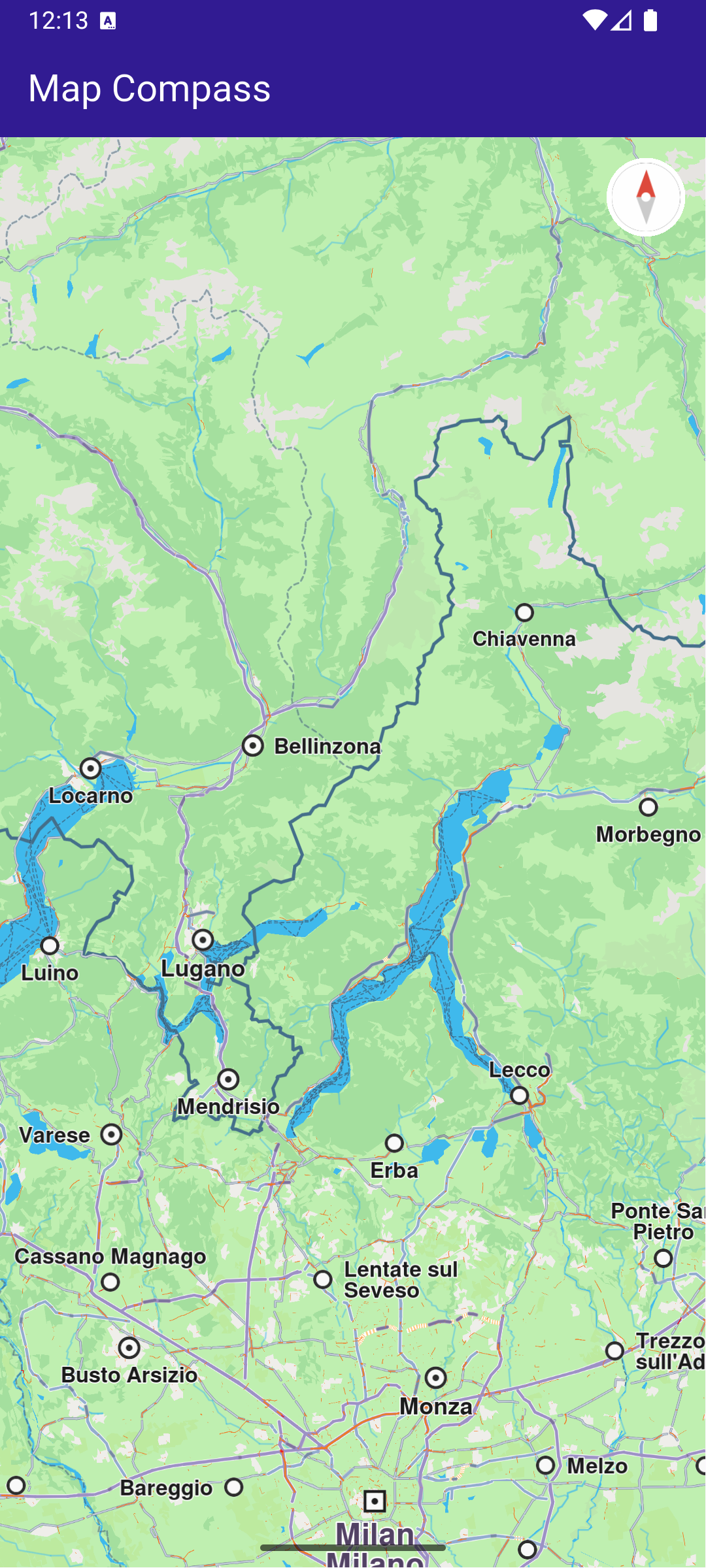
**Initial map rotation angle, north pointing up**
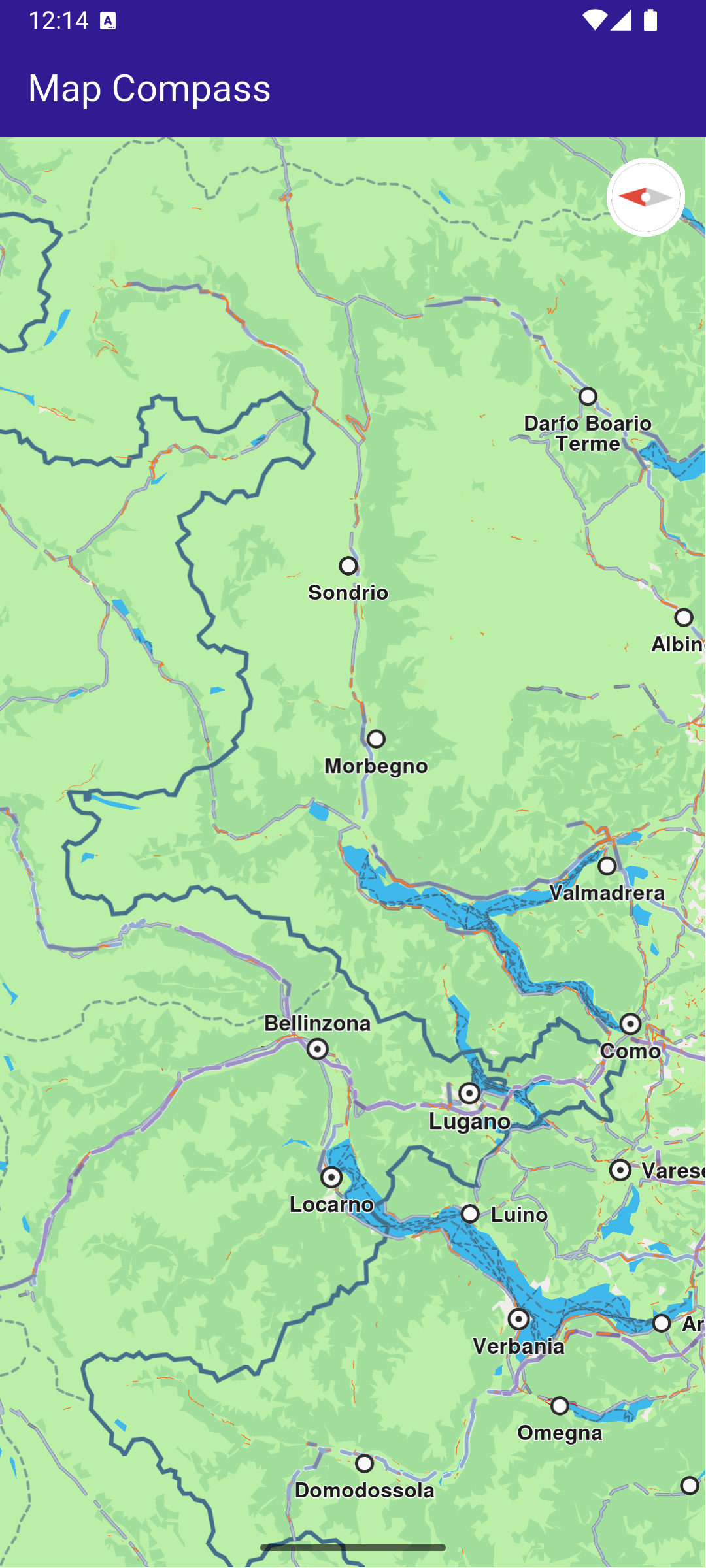
**Map rotation angle changed, north pointing differently**
##### Map and UI components display[](#map-and-ui-components-display "Direct link to Map and UI components display")
main.dart[View on Github](https://github.com/magiclane/magiclane-maps-sdk-examples-for-flutter/tree/main/map_compass/lib/main.dart?ref_type=heads#L38)
```dart
class _MyHomePageState extends State {
late GemMapController mapController;
double compassAngle = 0;
Uint8List? compassImage;
@override
void dispose() {
GemKit.release();
super.dispose();
}
@override
Widget build(BuildContext context) {
return Scaffold(
appBar: AppBar(
backgroundColor: Colors.deepPurple[900],
title: const Text("Map Compass", style: TextStyle(color: Colors.white)),
),
body: Stack(
children: [
GemMap(
key: ValueKey("GemMap"),
onMapCreated: _onMapCreated,
appAuthorization: projectApiToken,
),
if (compassImage != null)
Positioned(
right: 12,
top: 12,
child: InkWell(
// Align the map north to up.
onTap: () => mapController.alignNorthUp(),
child: Transform.rotate(
angle: -compassAngle * (3.141592653589793 / 180),
child: Container(
padding: const EdgeInsets.all(3),
decoration: const BoxDecoration(
shape: BoxShape.circle,
color: Colors.white,
),
child: SizedBox(
width: 40,
height: 40,
child: Image.memory(compassImage!, gaplessPlayback: true),
),
),
),
),
),
],
),
);
}
// The callback for when map is ready to use.
void _onMapCreated(GemMapController controller) {
mapController = controller;
// Register the map angle update callback.
mapController.registerOnMapAngleUpdate(
(angle) => setState(() => compassAngle = angle),
);
setState(() {
compassImage = _compassImage();
});
}
Uint8List? _compassImage() {
// We will use the SDK image for compass but any widget can be used to represent the compass.
final image = SdkSettings.getImageById(
id: EngineMisc.compassEnableSensorOFF.id,
size: const Size(100, 100),
);
return image;
}
}
```
This callback function is triggered when the interactive map is initialized and ready for use. The map angle update callback is registered to ensure that the compass icon reflects the map’s current heading.
When the map’s heading angle changes (e.g., due to rotation), the compassAngle variable is updated, causing the compass widget to rotate accordingly. Tapping on the compass icon calls mapController.alignNorthUp() , which reorients the map so that 0 degrees (north) is at the top of the screen.
---
### Map Download
Last updated:
July 15, 2026
| 5 minutes read
This example demonstrates how to list the road maps available on the server for download, how to download a map while indicating the download progress, and how to display the download’s finished status.
#### How it works[](#how-it-works "Direct link to How it works")
This example demonstrates the following features:
* List road maps available on the server for download.
* Download a map while displaying download progress.
* Indicate when the download is finished.
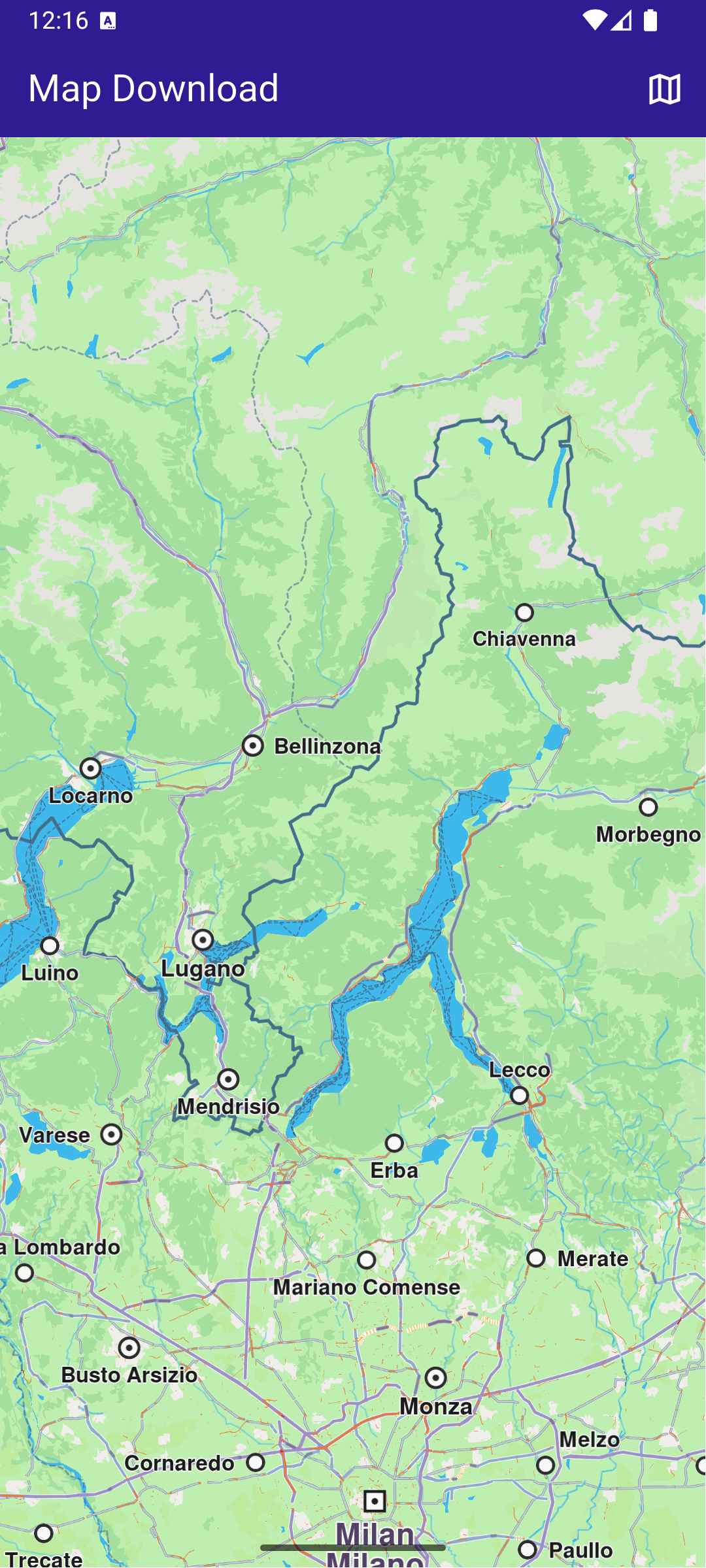
**Initial map view**
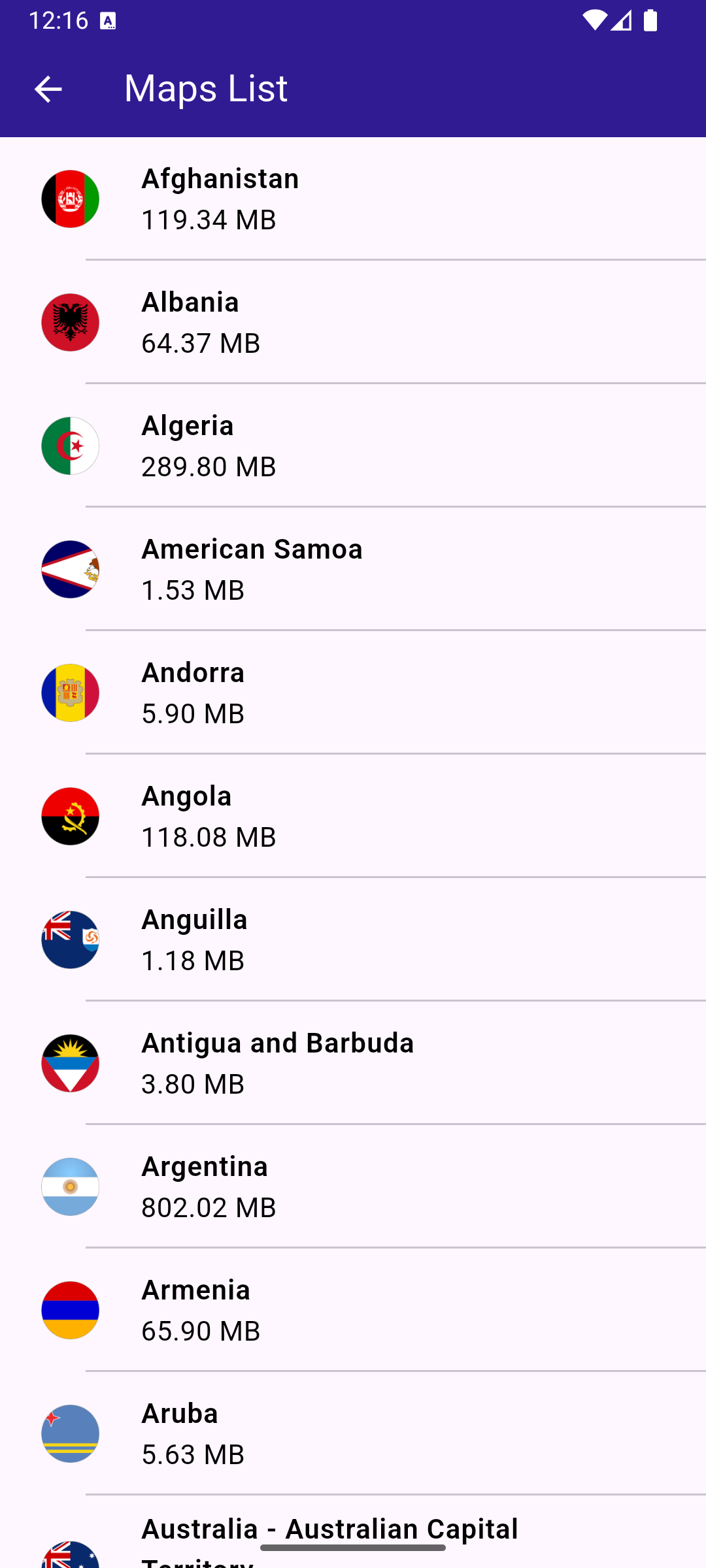
**Downloadable Maps list**
##### UI and Map Integration[](#ui-and-map-integration "Direct link to UI and Map Integration")
This code defines the main app structure and how it handles the map’s initialization and the navigation to the map download page.
main.dart[View on Github](https://github.com/magiclane/magiclane-maps-sdk-examples-for-flutter/tree/main/map_download/lib/main.dart?ref_type=heads#L31)
```dart
class MyHomePage extends StatefulWidget {
const MyHomePage({super.key});
@override
State createState() => _MyHomePageState();
}
class _MyHomePageState extends State {
@override
void dispose() {
GemKit.release();
super.dispose();
}
@override
Widget build(BuildContext context) {
return Scaffold(
appBar: AppBar(
backgroundColor: Colors.deepPurple[900],
title: const Text(
'Map Download',
style: TextStyle(color: Colors.white),
),
actions: [
IconButton(
onPressed: () => _onMapButtonTap(context),
icon: const Icon(Icons.map_outlined, color: Colors.white),
),
],
),
body: GemMap(
key: ValueKey("GemMap"),
onMapCreated: _onMapCreated,
appAuthorization: projectApiToken,
),
);
}
void _onMapCreated(GemMapController controller) async {
SdkSettings.setAllowOffboardServiceOnExtraChargedNetwork(
ServiceGroupType.contentService,
true,
);
}
// Method to navigate to the Maps Page.
void _onMapButtonTap(BuildContext context) async {
Navigator.of(
context,
).push(MaterialPageRoute(builder: (context) => const MapsPage()));
}
}
```
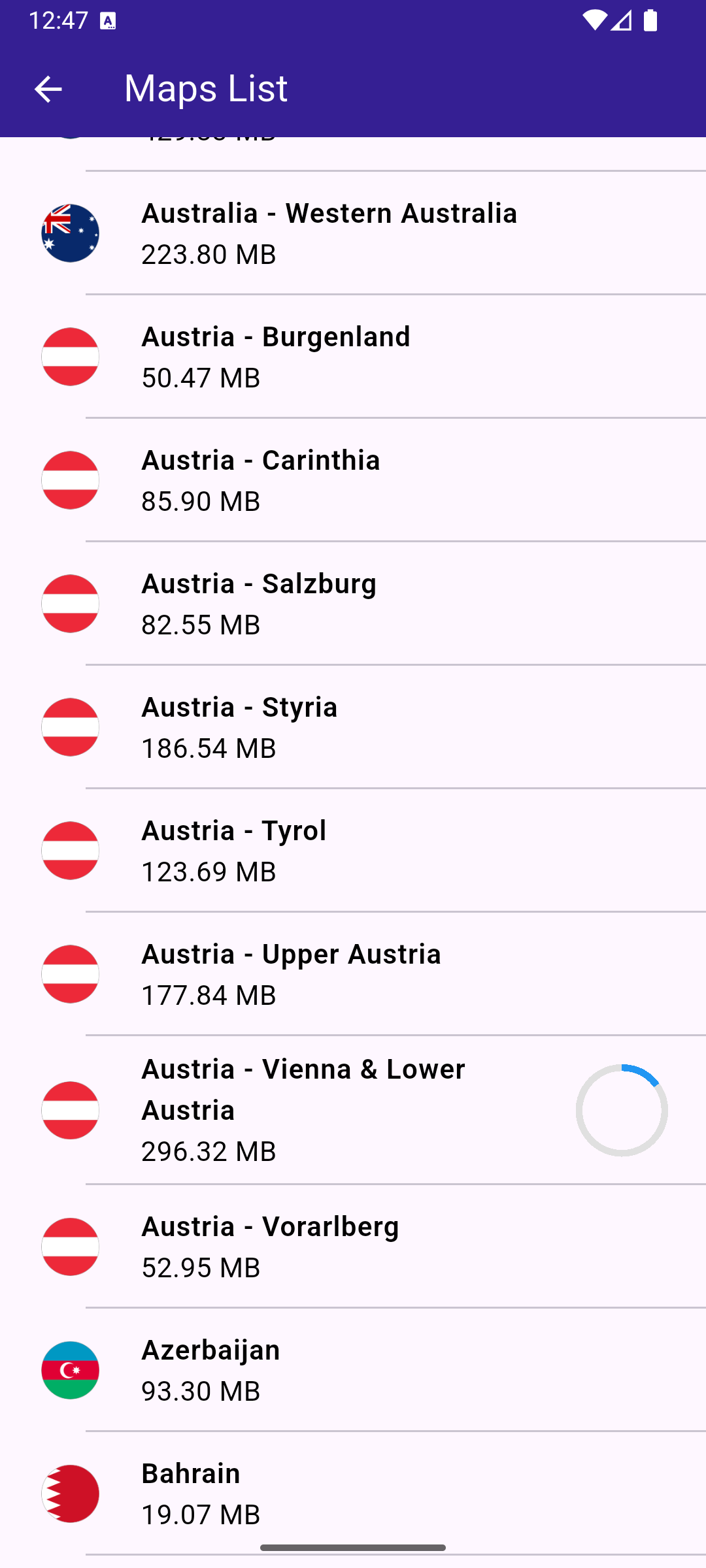
**Map downloading**
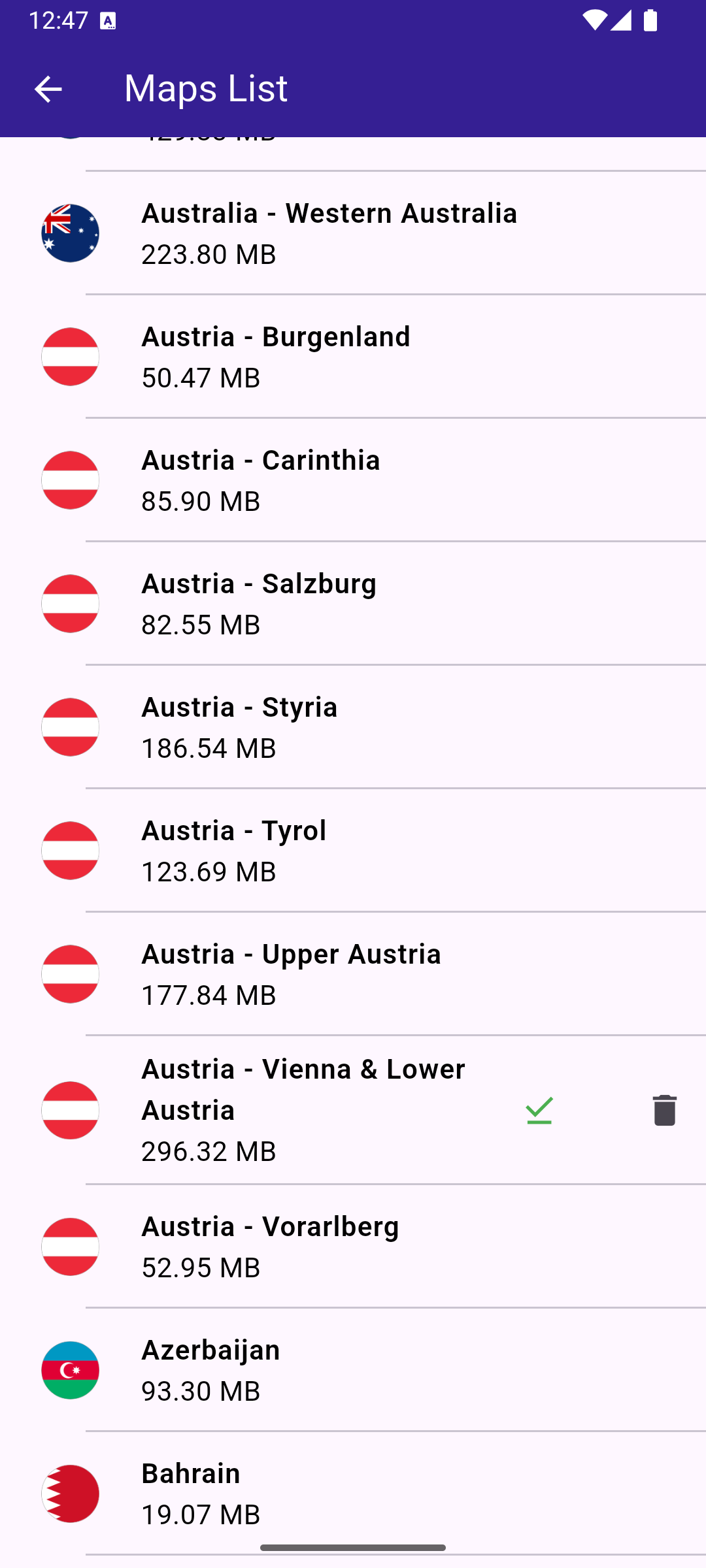
**Downloaded map**
##### Maps page[](#maps-page "Direct link to Maps page")
The MapsPage widget fetches the list of maps available for download and displays them in a scrollable list.
maps\_page.dart[View on Github](https://github.com/magiclane/magiclane-maps-sdk-examples-for-flutter/tree/main/map_download/lib/maps_page.dart?ref_type=heads#L13)
```dart
class MapsPage extends StatefulWidget {
const MapsPage({super.key});
@override
State createState() => _MapsPageState();
}
class _MapsPageState extends State {
final mapsList = [];
@override
Widget build(BuildContext context) {
return Scaffold(
appBar: AppBar(
automaticallyImplyLeading: true,
foregroundColor: Colors.white,
title: const Text("Maps List", style: TextStyle(color: Colors.white)),
backgroundColor: Colors.deepPurple[900],
),
body: FutureBuilder>(
future: getMaps(),
builder: (context, snapshot) {
if (!snapshot.hasData || snapshot.data == null) {
return const Center(child: CircularProgressIndicator());
}
return Scrollbar(
child: ListView.separated(
padding: EdgeInsets.zero,
itemCount: snapshot.data!.length,
separatorBuilder: (context, index) =>
const Divider(indent: 50, height: 0),
itemBuilder: (context, index) {
final mapItem = snapshot.data!.elementAt(index);
return MapsItem(mapItem: mapItem);
},
),
);
},
),
);
}
}
```
##### Map item[](#map-item "Direct link to Map item")
The MapsItem widget represents each map item in the list, allowing users to download or delete maps and see the download progress. The widget also allows pausing and resuming downloads.
maps\_item.dart[View on Github](https://github.com/magiclane/magiclane-maps-sdk-examples-for-flutter/tree/main/map_download/lib/maps_item.dart?ref_type=heads#L13)
```dart
class MapsItem extends StatefulWidget {
final ContentStoreItem mapItem;
const MapsItem({super.key, required this.mapItem});
@override
State createState() => _MapsItemState();
}
class _MapsItemState extends State {
ContentStoreItem get mapItem => widget.mapItem;
@override
void initState() {
super.initState();
mapItem.setProgressListener(
_onMapDownloadFinished,
_onMapDownloadProgressUpdated,
);
}
@override
Widget build(BuildContext context) {
return Row(
children: [
Expanded(
child: ListTile(
onTap: _onTileTap,
leading: Container(
padding: const EdgeInsets.all(8),
width: 50,
child: getImage(mapItem) != null
? Image.memory(getImage(mapItem)!)
: SizedBox(),
),
title: Text(
mapItem.name,
style: const TextStyle(
color: Colors.black,
fontSize: 16,
fontWeight: FontWeight.w600,
),
),
subtitle: Text(
"${(mapItem.totalSize / (1024.0 * 1024.0)).toStringAsFixed(2)} MB",
style: const TextStyle(color: Colors.black, fontSize: 16),
),
trailing: SizedBox.square(
dimension: 50,
child: Builder(
builder: (context) {
if (mapItem.isCompleted) {
return const Icon(Icons.download_done, color: Colors.green);
} else if (getIsDownloadingOrWaiting(mapItem)) {
return SizedBox(
height: 10,
child: CircularProgressIndicator(
value: mapItem.downloadProgress / 100.0,
color: Colors.blue,
backgroundColor: Colors.grey.shade300,
),
);
} else if (mapItem.status == ContentStoreItemStatus.paused) {
return const Icon(Icons.pause);
}
return const SizedBox.shrink();
},
),
),
),
),
if (mapItem.isCompleted)
IconButton(
onPressed: () {
if (mapItem.deleteContent() == GemError.success) {
setState(() {});
}
},
padding: EdgeInsets.zero,
icon: const Icon(Icons.delete),
),
],
);
}
void _onTileTap() {
if (!mapItem.isCompleted) {
if (getIsDownloadingOrWaiting(mapItem)) {
_pauseDownload();
} else {
_downloadMap();
}
}
}
void _downloadMap() {
// Download the map.
mapItem.asyncDownload(
_onMapDownloadFinished,
onProgress: _onMapDownloadProgressUpdated,
allowChargedNetworks: true,
);
}
void _pauseDownload() {
// Pause the download.
mapItem.pauseDownload();
setState(() {});
}
void _onMapDownloadProgressUpdated(int progress) {
if (mounted) {
setState(() {});
}
}
void _onMapDownloadFinished(GemError err) {
// If there is no error, we change the state
if (mounted && err == GemError.success) {
setState(() {});
}
}
}
```
##### Util functions[](#util-functions "Direct link to Util functions")
In the file `utils.dart` there are some helping functions and extensions for:
* getting the list of online maps
* pause and restart a download (a trick to re-wire the UI logic to the `ContentStoreItem`s) - Important to mention is that restarting the download is only made after the item is completely paused.
utils.dart[View on Github](https://github.com/magiclane/magiclane-maps-sdk-examples-for-flutter/tree/main/map_download/lib/utils.dart?ref_type=heads#L16)
```dart
bool getIsDownloadingOrWaiting(ContentStoreItem contentItem) => [
ContentStoreItemStatus.downloadQueued,
ContentStoreItemStatus.downloadRunning,
ContentStoreItemStatus.downloadWaitingNetwork,
ContentStoreItemStatus.downloadWaitingFreeNetwork,
ContentStoreItemStatus.downloadWaitingNetwork,
].contains(contentItem.status);
// Method that returns the image of the country associated with the road map item
Uint8List? getImage(ContentStoreItem contentItem) {
Img? img = MapDetails.getCountryFlagImg(contentItem.countryCodes[0]);
if (img == null) return null;
if (!img.isValid) return null;
return img.getRenderableImageBytes(size: Size(100, 100));
}
// Method to load the maps
Future> getMaps() async {
final mapsListCompleter = Completer>();
ContentStore.asyncGetStoreContentList(ContentType.roadMap, (
err,
items,
isCached,
) {
if (err == GemError.success) {
mapsListCompleter.complete(items);
} else {
mapsListCompleter.complete([]);
}
});
return mapsListCompleter.future;
}
```
---
### Map Gestures
Last updated:
July 15, 2026
| 3 minutes read
This example demonstrates how to create a Flutter app that enables map gesture interactions using Maps SDK for Flutter. Users can interact with the map using gestures such as touch, move, angle change, and long press.
#### How it works[](#how-it-works "Direct link to How it works")
The example app demonstrates the following features:
* Main App Setup : The main app initializes GemKit and displays a map.
* Map Gesture Handlers : Various gesture callbacks are registered on the map to track user interactions, including touch, movement, angle changes, and long presses.
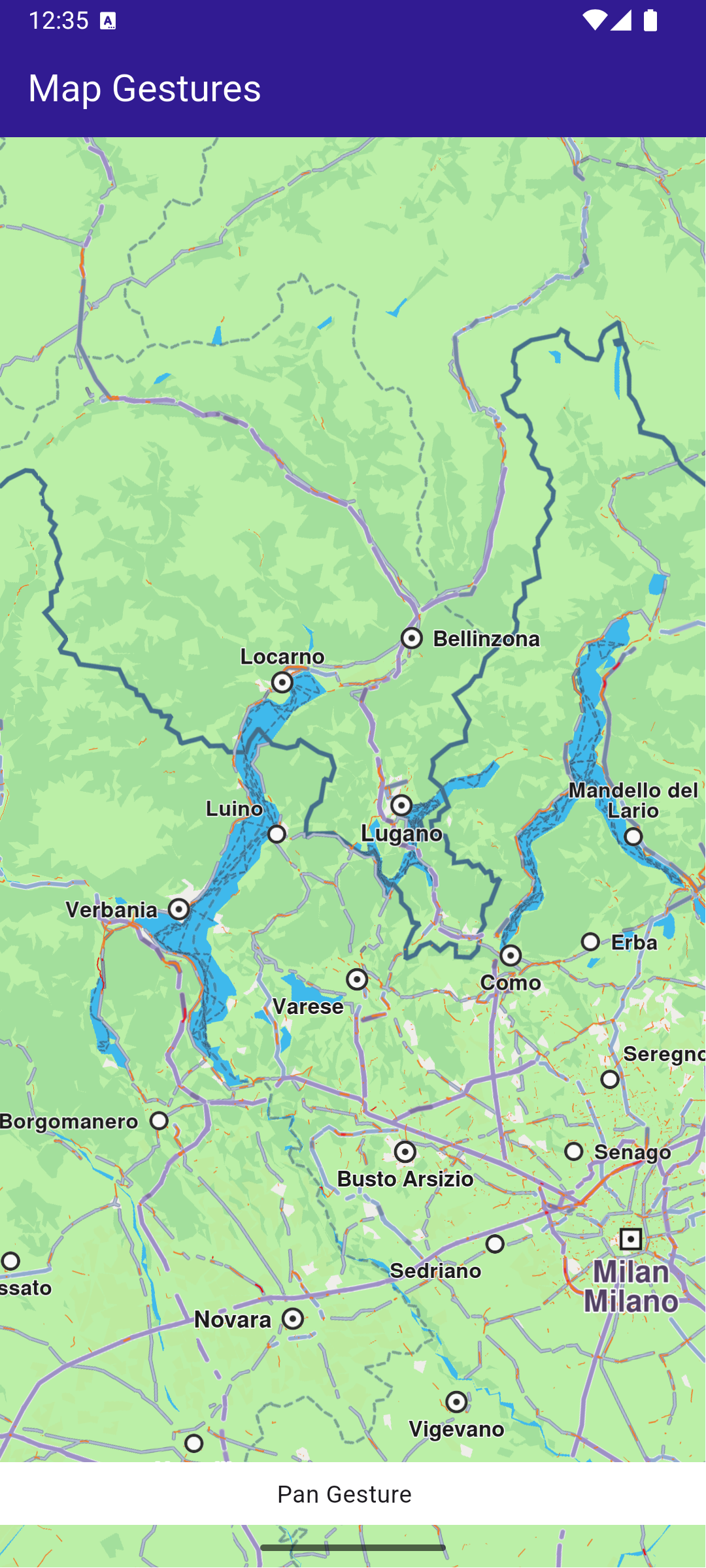
**Pan gesture**
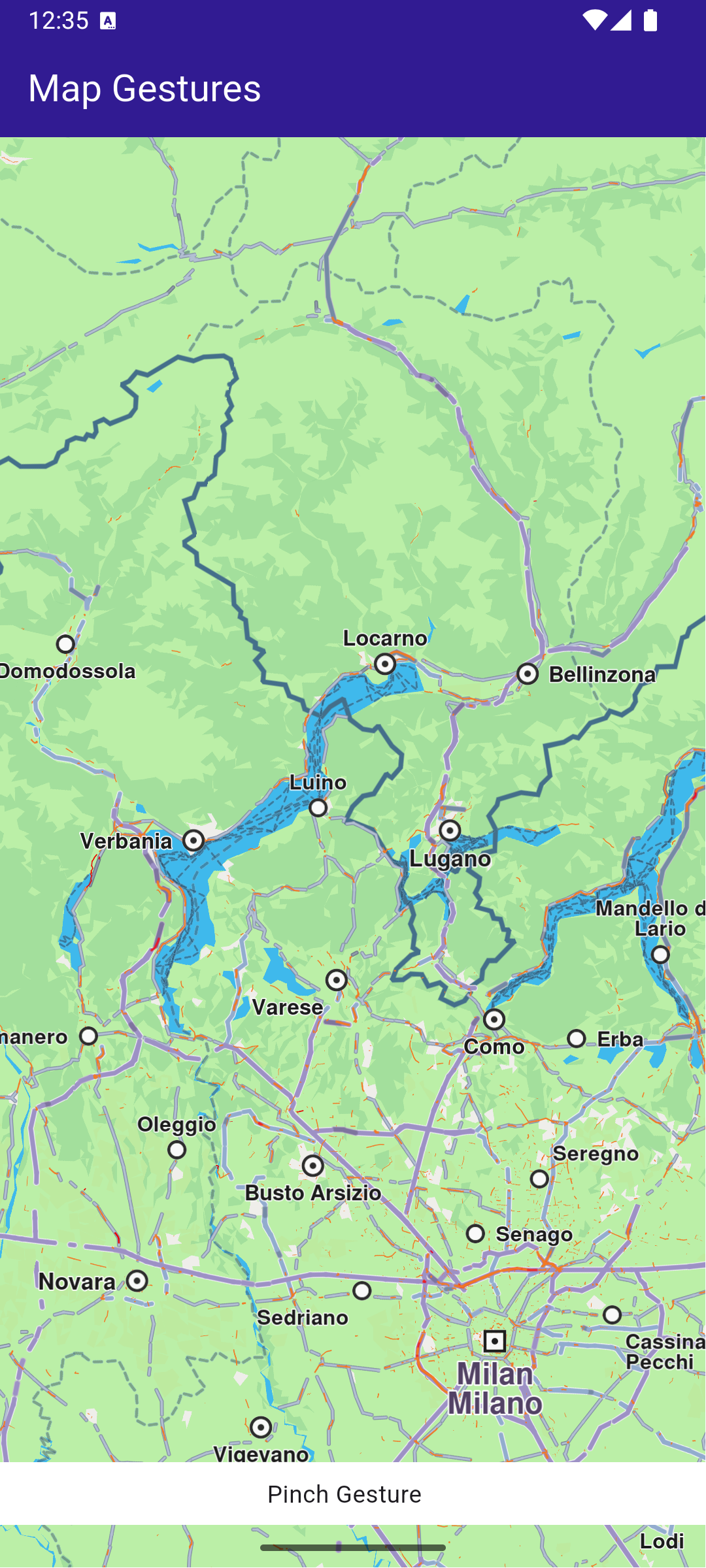
**Pinch gesture**
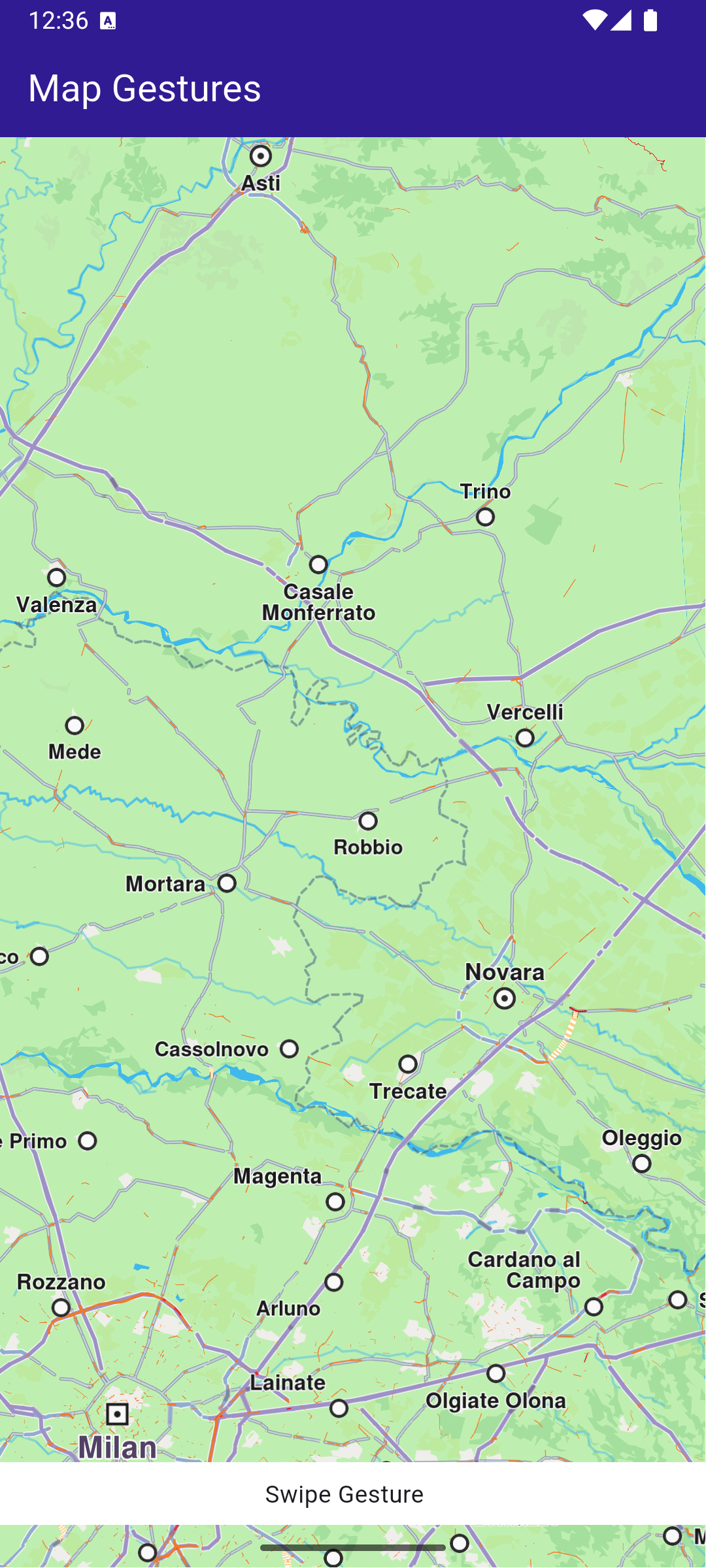
**Swipe gesture**
##### UI and Map Integration[](#ui-and-map-integration "Direct link to UI and Map Integration")
main.dart[View on Github](https://github.com/magiclane/magiclane-maps-sdk-examples-for-flutter/tree/main/map_gestures/lib/main.dart?ref_type=heads#L19)
```dart
class MyApp extends StatelessWidget {
const MyApp({super.key});
@override
Widget build(BuildContext context) {
return const MaterialApp(
debugShowCheckedModeBanner: false,
title: 'Map Gestures',
home: MyHomePage(),
);
}
}
class MyHomePage extends StatefulWidget {
const MyHomePage({super.key});
@override
State createState() => _MyHomePageState();
}
```
##### Map Gesture interactions[](#map-gesture-interactions "Direct link to Map Gesture interactions")
main.dart[View on Github](https://github.com/magiclane/magiclane-maps-sdk-examples-for-flutter/tree/main/map_gestures/lib/main.dart?ref_type=heads#L39)
```dart
class _MyHomePageState extends State {
// GemMapController object used to interact with the map
late GemMapController _mapController;
String? _mapGesture;
@override
void dispose() {
GemKit.release();
super.dispose();
}
@override
Widget build(BuildContext context) {
return Scaffold(
appBar: AppBar(
backgroundColor: Colors.deepPurple[900],
title: const Text(
'Map Gestures',
style: TextStyle(color: Colors.white),
),
actions: [],
),
body: Stack(
children: [
GemMap(
key: ValueKey("GemMap"),
onMapCreated: _onMapCreated,
appAuthorization: projectApiToken,
),
if (_mapGesture != null)
Positioned(
bottom: MediaQuery.of(context).padding.bottom + 1,
child: GesturePanel(gesture: _mapGesture!),
),
],
),
);
}
void _onMapCreated(GemMapController controller) async {
_mapController = controller;
_mapController.registerOnMapAngleUpdate((angle) {
setState(() {
_mapGesture = 'Rotate gesture';
});
print("Gesture: onMapAngleUpdate $angle");
});
_mapController.registerOnTouch((point) {
setState(() {
_mapGesture = 'Touch Gesture';
});
print("Gesture: onTouch $point");
});
_mapController.registerOnMove((point1, point2) {
setState(() {
_mapGesture = 'Pan Gesture';
});
print(
'Gesture: onMove from (${point1.x} ${point1.y}) to (${point2.x} ${point2.y})',
);
});
_mapController.registerOnLongPress((point) {
setState(() {
_mapGesture = 'Long Press Gesture';
});
print('Gesture: onLongPress $point');
});
_mapController.registerOnDoubleTouch((point) {
setState(() {
_mapGesture = 'Double Touch Gesture';
});
print('Gesture: onDoubleTouch $point');
});
_mapController.registerOnPinch((point1, point2, point3, point4, point5) {
setState(() {
_mapGesture = 'Pinch Gesture';
});
print(
'Gesture: onPinch from (${point1.x} ${point1.y}) to (${point2.x} ${point2.y})',
);
});
_mapController.registerOnShove((degrees, point1, point2, point3) {
setState(() {
_mapGesture = 'Shove Gesture';
});
print(
'Gesture: onShove with $degrees angle from (${point1.x} ${point1.y}) to (${point2.x} ${point2.y})',
);
});
_mapController.registerOnSwipe((distX, distY, speedMMPerSec) {
setState(() {
_mapGesture = 'Swipe Gesture';
});
print(
'Gesture: onSwipe with $distX distance in X and $distY distance in Y at $speedMMPerSec mm/s',
);
});
_mapController.registerOnPinchSwipe((point, zoomSpeed, rotateSpeed) {
setState(() {
_mapGesture = 'Pinch Swipe Gesture';
});
print(
'Gesture: onPinchSwipe with zoom speed $zoomSpeed and rotate speed $rotateSpeed',
);
});
_mapController.registerOnTwoTouches((point) {
setState(() {
_mapGesture = 'Two Touches Gesture';
});
print('Gesture: onTwoTouches $point');
});
_mapController.registerOnTouchPinch((point1, point2, point3, point4) {
setState(() {
_mapGesture = 'Touch Pinch Gesture';
});
print(
'Gesture: onTouchPinch from (${point1.x} ${point1.y}) to (${point2.x} ${point2.y})',
);
});
}
void showSnackbar(String message) {
final snackBar = SnackBar(
content: Text(message),
duration: const Duration(seconds: 3),
);
ScaffoldMessenger.of(context).showSnackBar(snackBar);
}
}
```
This code sets up the main screen with a map and registers gesture handlers to print updates to the console based on user interactions.
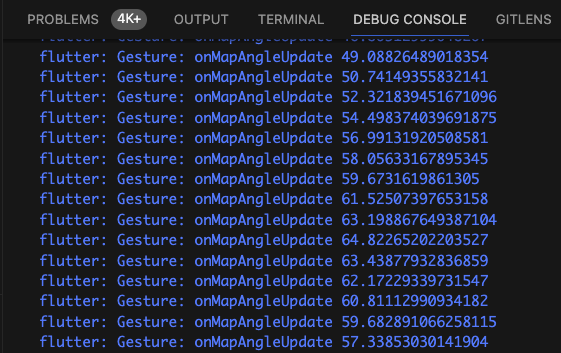
**Updates coming from registered callbacks**
---
### Map Perspective
Last updated:
January 27, 2026
| 3 minutes read
This example demonstrates how to toggle the map view angle between 2D (vertical look-down at the map) and 3D (perspective, tilted map, looking toward the horizon).
#### How it works[](#how-it-works "Direct link to How it works")
This example demonstrates the following features:
* Toggle between 2D (vertical) and 3D (perspective) map views.
* Adjust the map tilt angle dynamically based on the selected mode.
* Interact with the map’s settings through GemMapController.
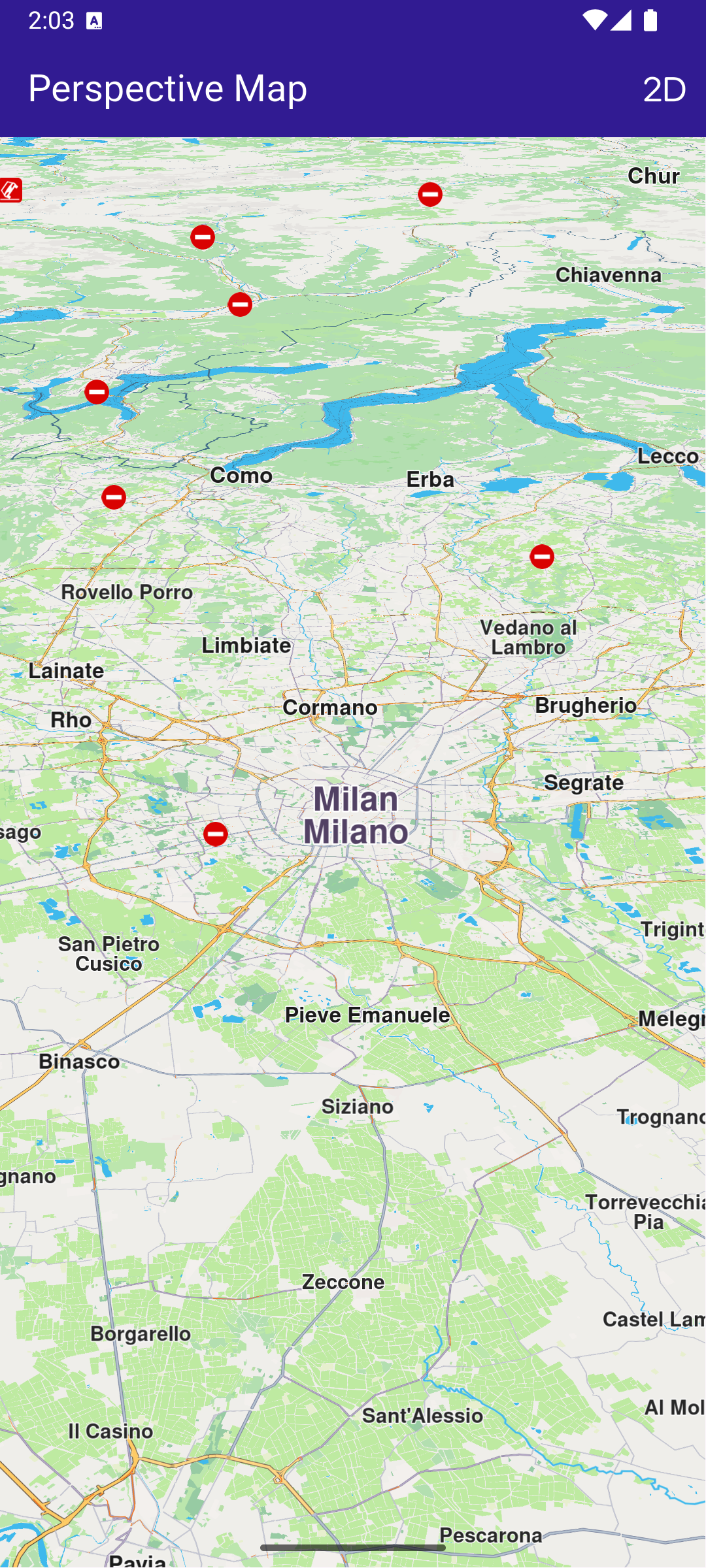
**Displaying a map with a tilt angle of 30 degrees**
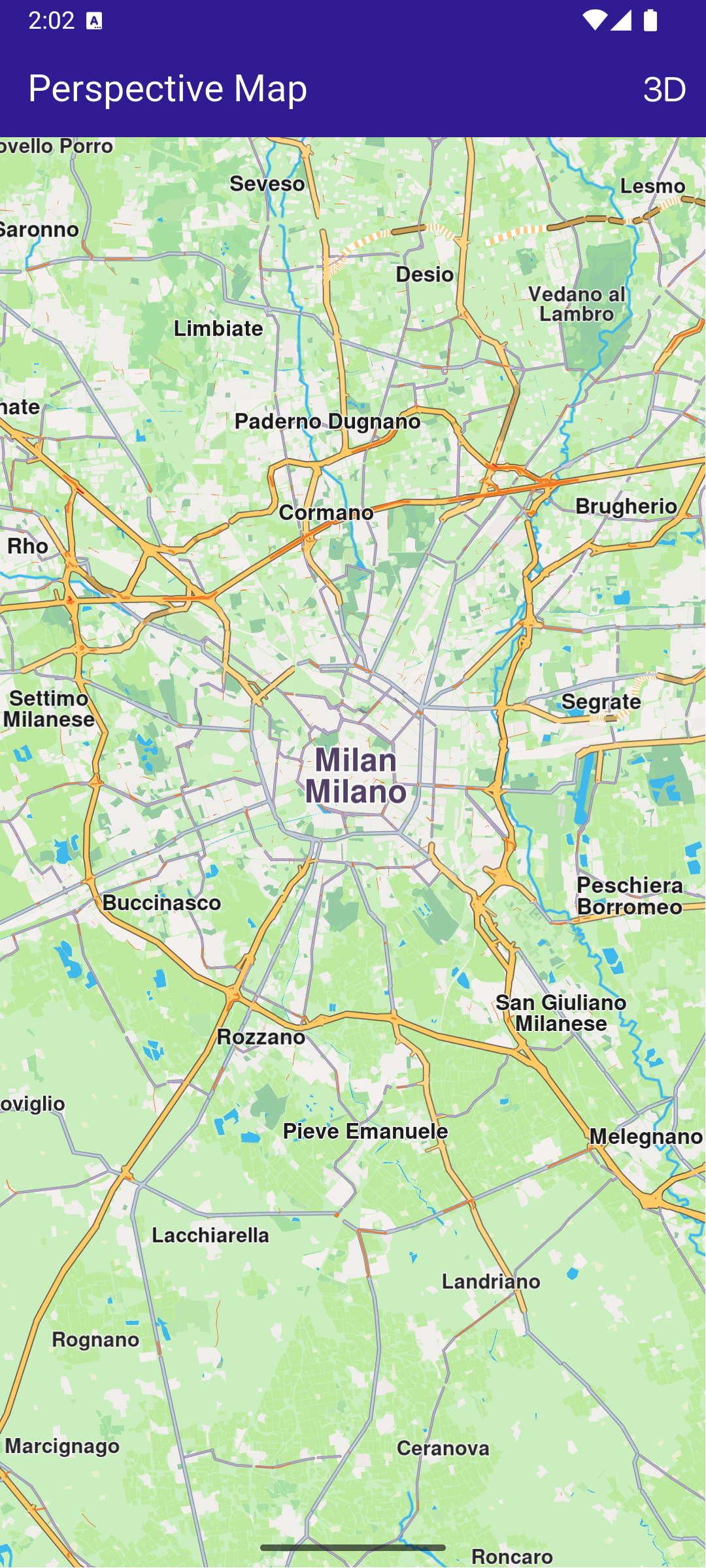
**Displaying a map with a tilt angle of 90 degrees**
##### UI and Map Integration[](#ui-and-map-integration "Direct link to UI and Map Integration")
main.dart[View on Github](https://github.com/magiclane/magiclane-maps-sdk-examples-for-flutter/tree/main/map_perspective/lib/main.dart?ref_type=heads#L19)
```dart
class MyApp extends StatelessWidget {
const MyApp({super.key});
@override
Widget build(BuildContext context) {
return const MaterialApp(
debugShowCheckedModeBanner: false,
title: 'Map Perspective',
home: MyHomePage(),
);
}
}
class MyHomePage extends StatefulWidget {
const MyHomePage({super.key});
@override
State createState() => _MyHomePageState();
}
class _MyHomePageState extends State {
// Map preferences are used to change map perspective
late MapViewPreferences _mapPreferences;
late bool _isInPerspectiveView = false;
// Tilt angle for perspective view
final double _3dViewAngle = 30;
// Tilt angle for orthogonal/vertical view
final double _2dViewAngle = 90;
@override
void dispose() {
GemKit.release();
super.dispose();
}
@override
Widget build(BuildContext context) {
return Scaffold(
appBar: AppBar(
backgroundColor: Colors.deepPurple[900],
title: const Text(
'Perspective Map',
style: TextStyle(color: Colors.white),
),
actions: [
IconButton(
onPressed: _onChangePersectiveButtonPressed,
icon: Icon(
_isInPerspectiveView
? CupertinoIcons.view_2d
: CupertinoIcons.view_3d,
color: Colors.white,
),
),
],
),
body: GemMap(
key: ValueKey("GemMap"),
onMapCreated: _onMapCreated,
appAuthorization: projectApiToken,
),
);
}
// The callback for when map is ready to use
void _onMapCreated(GemMapController controller) async {
_mapPreferences = controller.preferences;
}
void _onChangePersectiveButtonPressed() async {
setState(() => _isInPerspectiveView = !_isInPerspectiveView);
// Based on view type, set the view angle
if (_isInPerspectiveView) {
_mapPreferences.buildingsVisibility =
BuildingsVisibility.threeDimensional;
_mapPreferences.tiltAngle = _3dViewAngle;
} else {
_mapPreferences.buildingsVisibility = BuildingsVisibility.twoDimensional;
_mapPreferences.tiltAngle = _2dViewAngle;
}
}
}
```
The map view angle is set using \_mapPreferences.tiltAngle , where the map preferences are obtained from the GemMapController controller that is passed into the \_onMapCreated() callback, which is called when the interactive map is initialized and ready to use.
The map view angle is set to 90 degrees (looking vertically downward at the map) for 2D mode.
The map view angle is set to 30 degrees (looking 30 degrees downward from the horizon) for 3D mode.
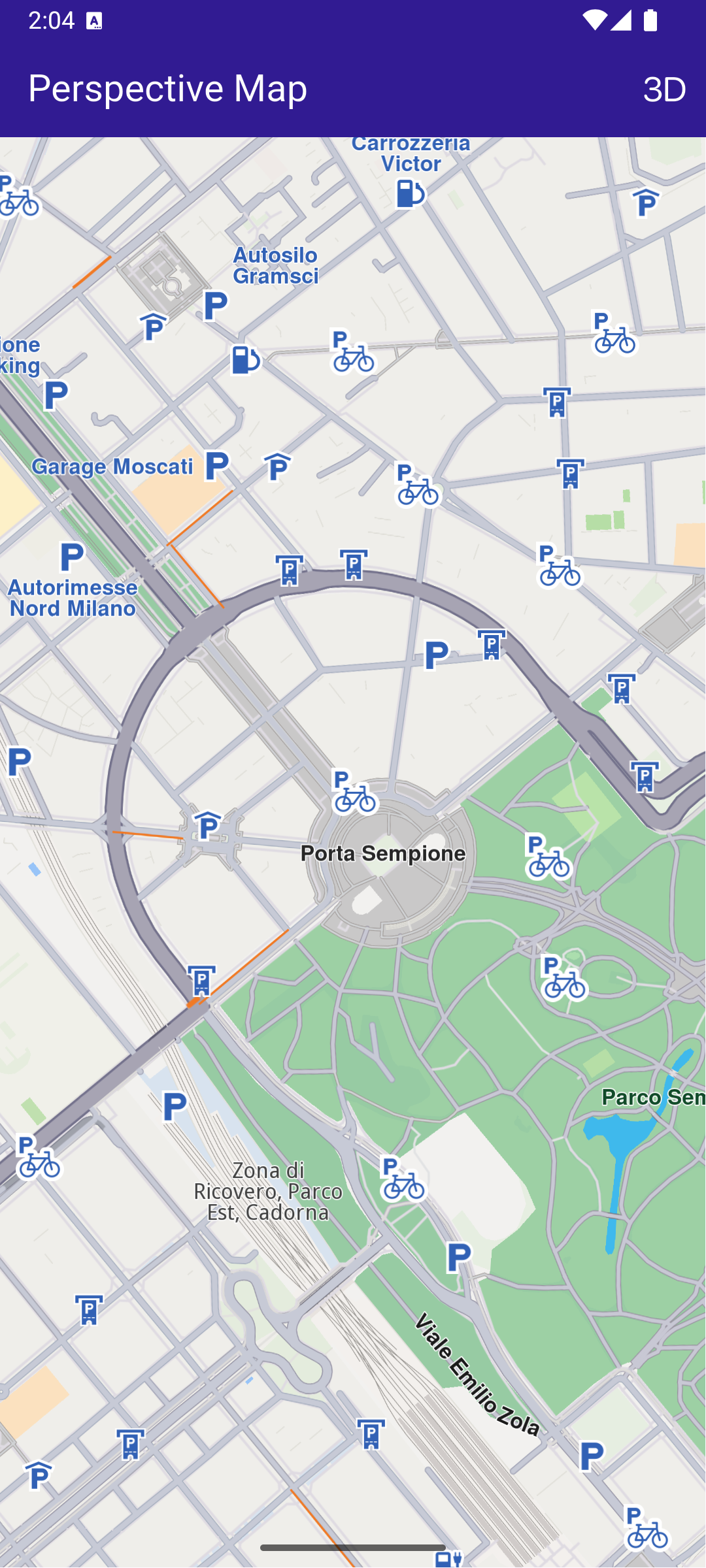
**Displaying a map with a two-dimensional perspective**
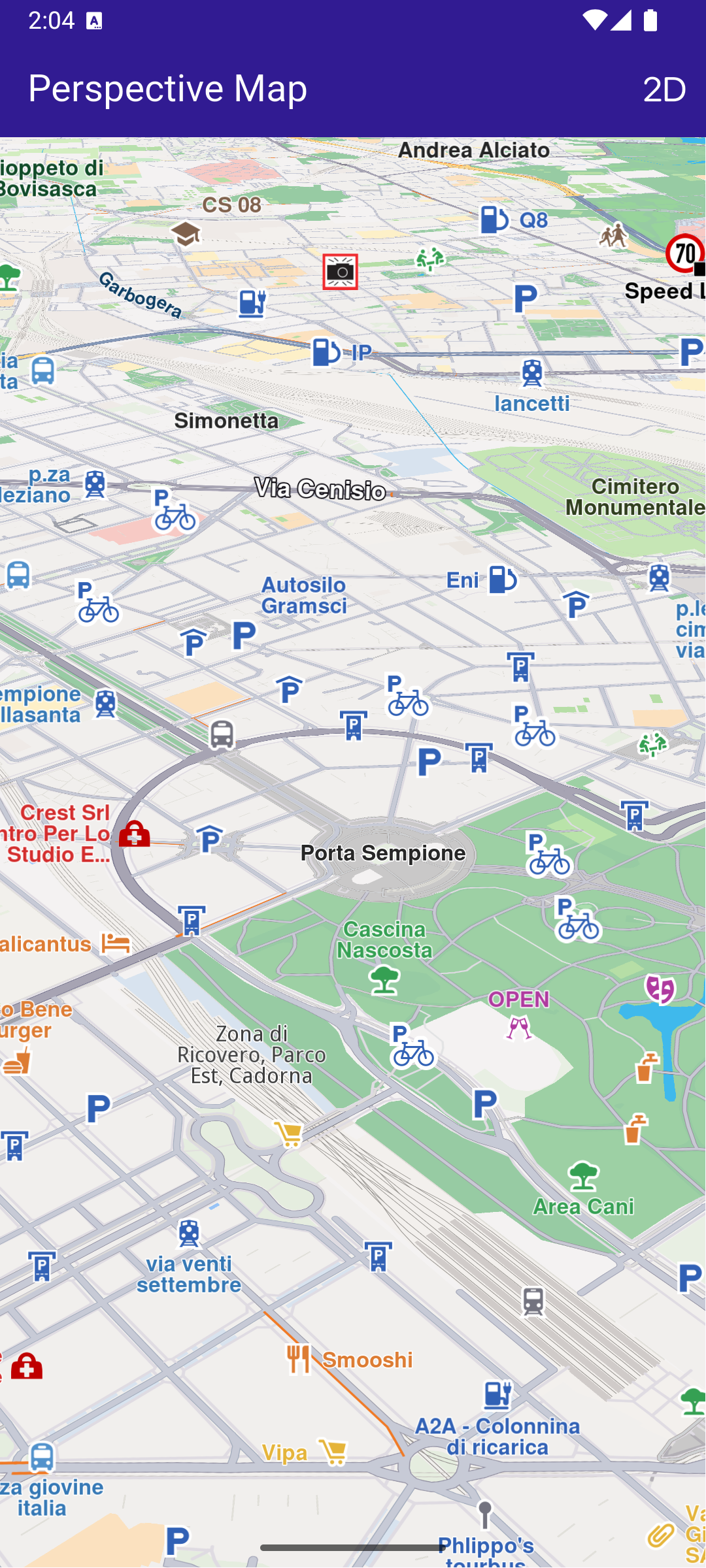
**Displaying a map with a three-dimensional perspective**
---
### Map Selection
Last updated:
July 15, 2026
| 3 minutes read
This example demonstrates how to explore various points of interest (POIs) and select destinations with ease.
#### How it works[](#how-it-works "Direct link to How it works")
This example demonstrates the following features:
* Explore and select Points of Interest (POIs) on the map.
* Highlight and display detailed information about selected landmarks.
* Dynamically interact with map features through user taps.
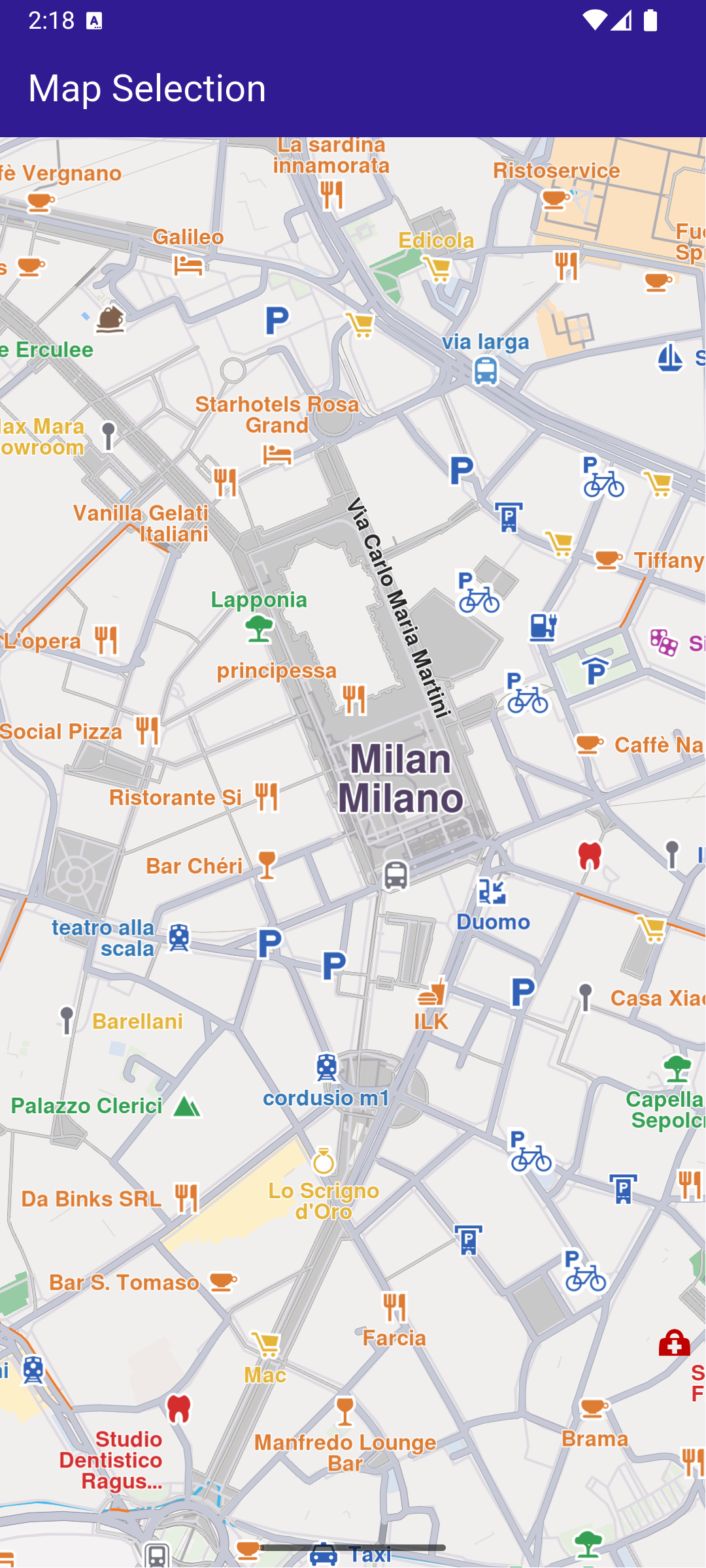
**Map displaying multiple POIs**
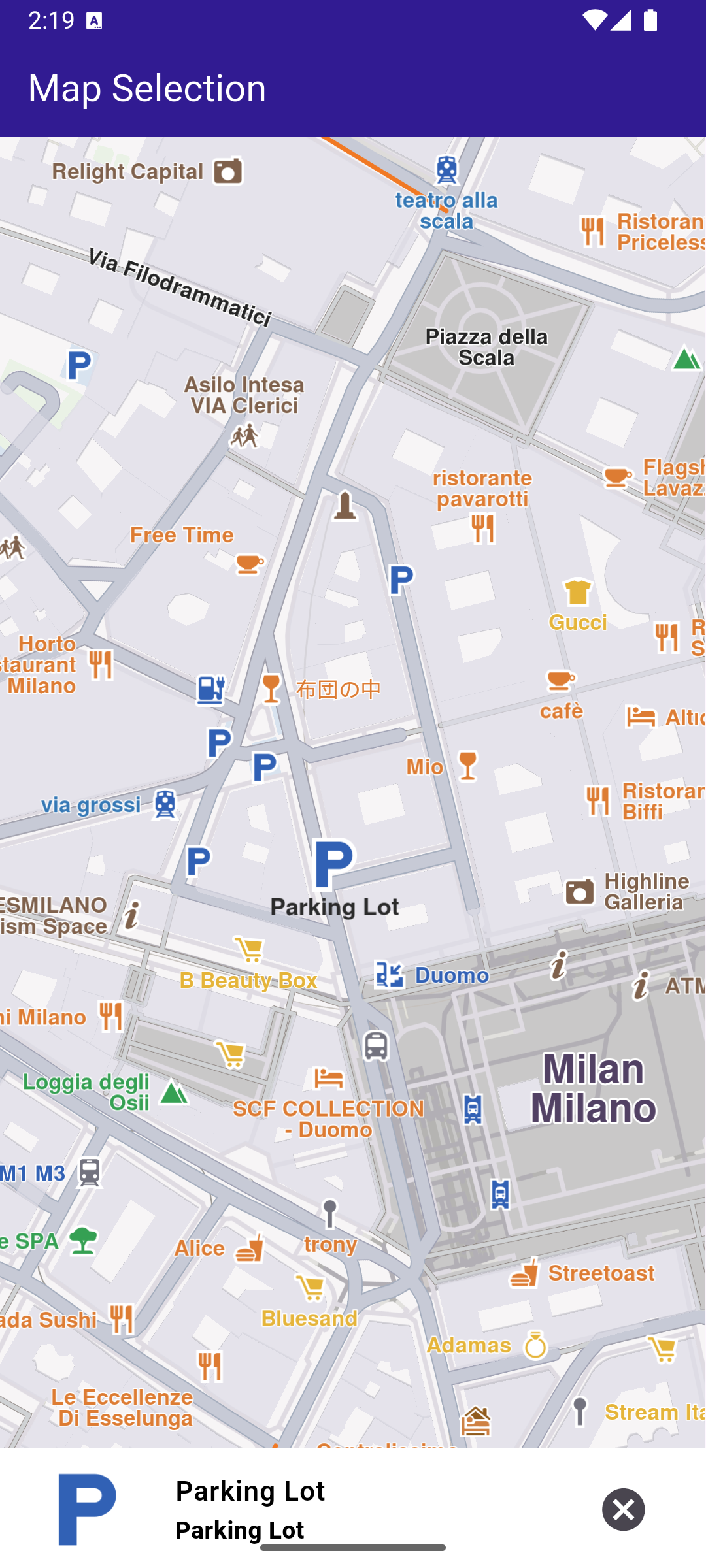
**Selected Parking Garage POI**
##### UI and Map Integration[](#ui-and-map-integration "Direct link to UI and Map Integration")
The selection is highlighted when it is tapped. The taps are listened to by \_registerLandmarkTapCallback , which is called in the \_onMapCreated() callback, executed when the interactive map is initialized and ready for use.
main.dart[View on Github](https://github.com/magiclane/magiclane-maps-sdk-examples-for-flutter/tree/main/map_selection/lib/main.dart?ref_type=heads#L18)
```dart
class MyApp extends StatelessWidget {
const MyApp({super.key});
@override
Widget build(BuildContext context) {
return const MaterialApp(
debugShowCheckedModeBanner: false,
title: 'Map Selection',
home: MyHomePage(),
);
}
}
class MyHomePage extends StatefulWidget {
const MyHomePage({super.key});
@override
State createState() => _MyHomePageState();
}
class _MyHomePageState extends State {
late GemMapController _mapController;
Landmark? _focusedLandmark;
@override
void dispose() {
GemKit.release();
super.dispose();
}
@override
Widget build(BuildContext context) {
return Scaffold(
appBar: AppBar(
backgroundColor: Colors.deepPurple[900],
title: const Text(
'Map Selection',
style: TextStyle(color: Colors.white),
),
),
body: Stack(
children: [
GemMap(
key: ValueKey("GemMap"),
onMapCreated: _onMapCreated,
appAuthorization: projectApiToken,
),
if (_focusedLandmark != null)
Align(
alignment: Alignment.bottomCenter,
child: LandmarkPanel(
onCancelTap: _onCancelLandmarkPanelTap,
landmark: _focusedLandmark!,
),
),
],
),
resizeToAvoidBottomInset: false,
);
}
// The callback for when map is ready to use.
Future _onMapCreated(GemMapController controller) async {
// Save controller for further usage.
_mapController = controller;
// Listen for map landmark selection events.
await _registerLandmarkTapCallback();
// Center the map on coordinates of Milan, Italy.
_mapController.centerOnCoordinates(
Coordinates(latitude: 45.46467971801758, longitude: 9.192851066589355),
zoomLevel: 70,
);
}
Future _registerLandmarkTapCallback() async {
_mapController.registerOnTouch((pos) async {
// Select the object at the tap position.
await _mapController.setCursorScreenPosition(pos);
// Get the selected landmarks.
final landmarks = _mapController.cursorSelectionLandmarks();
// Reset the cursor position back to middle of the screen
await _mapController.resetMapSelection();
// Check if there is a selected Landmark.
if (landmarks.isNotEmpty) {
// Highlight the selected landmark.
_mapController.activateHighlight(landmarks);
setState(() {
_focusedLandmark = landmarks[0];
});
// Use the map controller to center on coordinates.
_mapController.centerOnCoordinates(
_focusedLandmark!.coordinates,
zoomLevel: 70,
);
}
});
}
void _onCancelLandmarkPanelTap() {
// Remove landmark highlights from the map.
_mapController.deactivateAllHighlights();
setState(() {
_focusedLandmark = null;
});
}
}
```
---
### Map Style Update
Last updated:
July 15, 2026
| 12 minutes read
This example showcases how to build a Flutter app featuring an interactive map and how to center the camera on a route area with traffic, using the Maps SDK for Flutter.
#### Saving Assets[](#saving-assets "Direct link to Saving Assets")
Before running the app, ensure that you save the necessary file (Oldtime style) into the assets directory.
Update your pubspec.yaml file to include these assets:
```yaml
flutter:
assets:
- assets/
```
#### How it works[](#how-it-works "Direct link to How it works")
The example app demonstrates the following features:
* Display an interactive map.
* View online and offline map styles.
* Update old local styles.
* Download new styles.
* Set a map style.
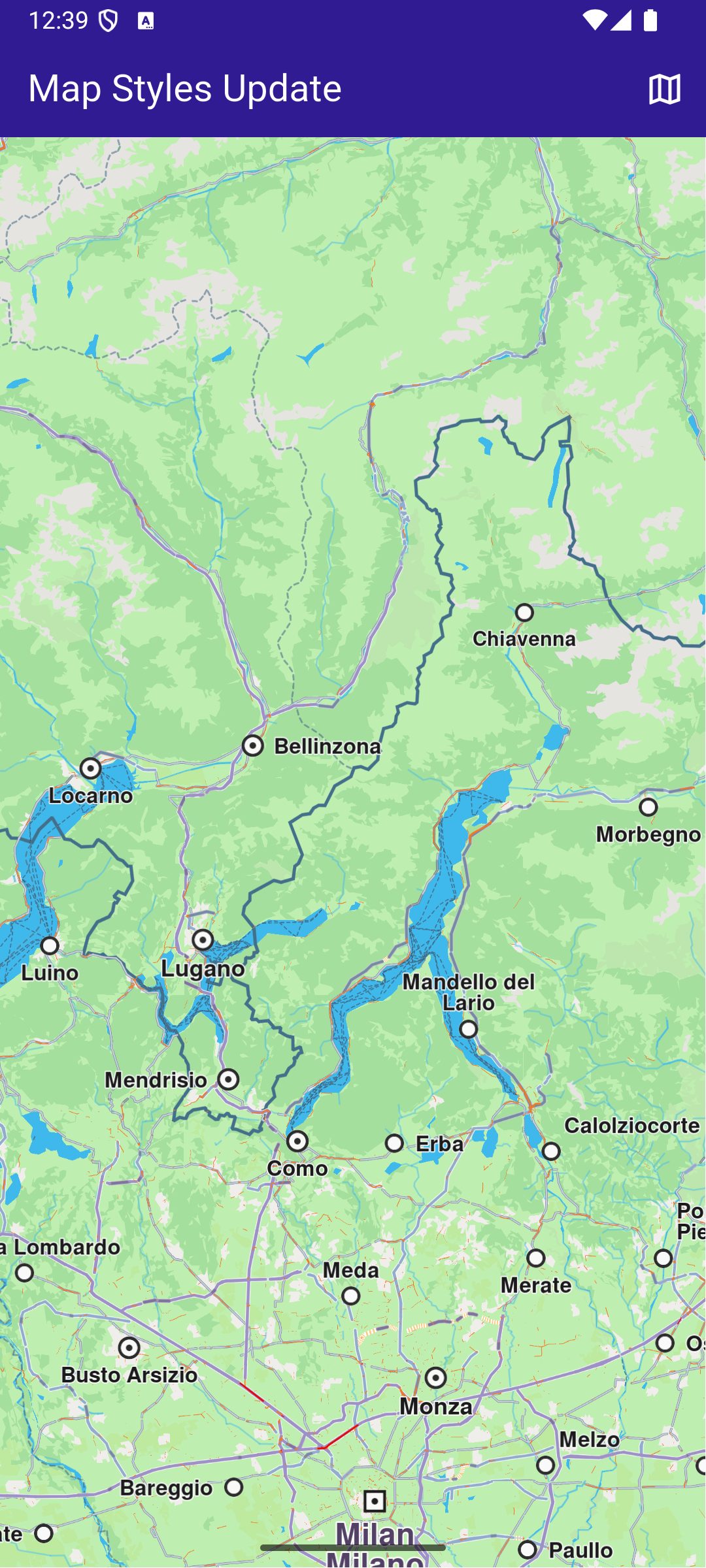
**Initial map view**
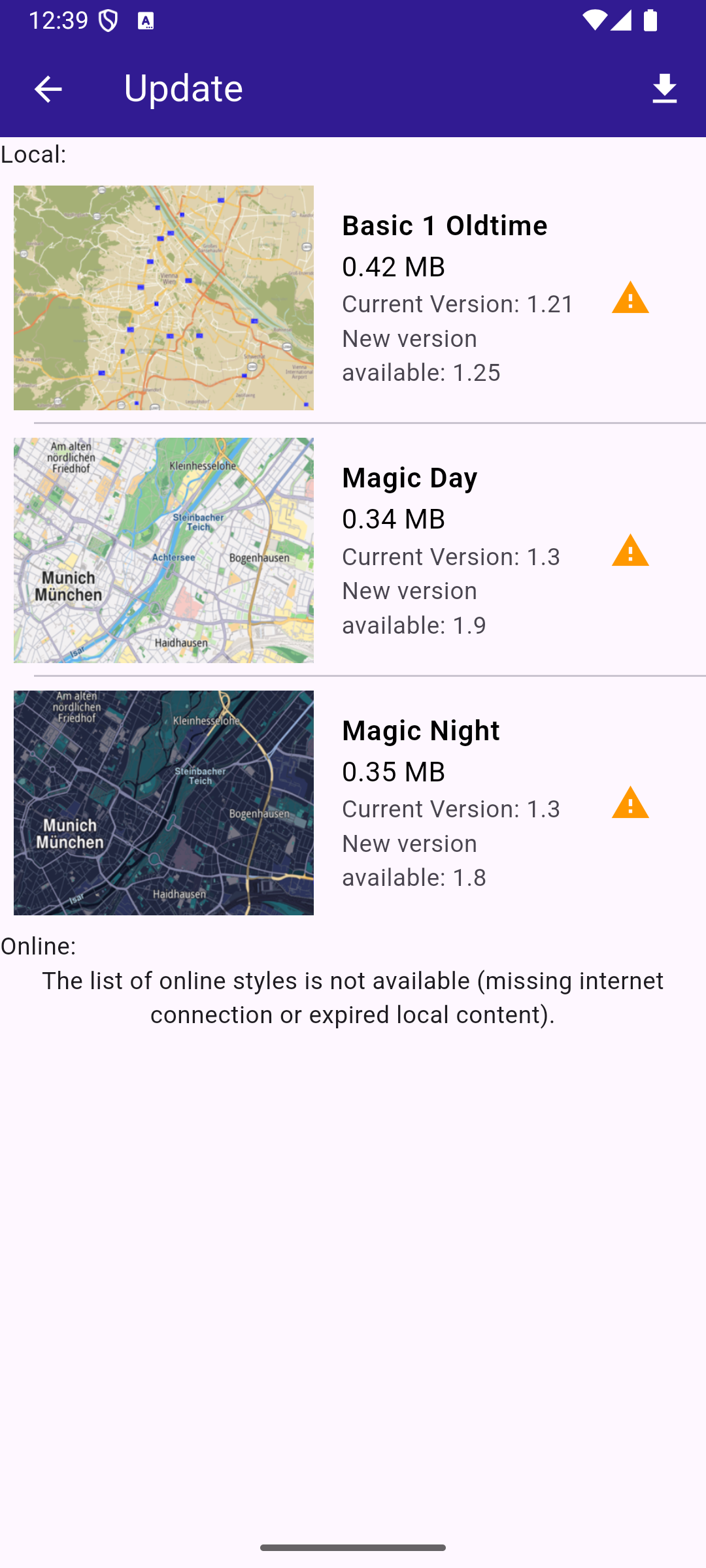
**Outdated local map styles**
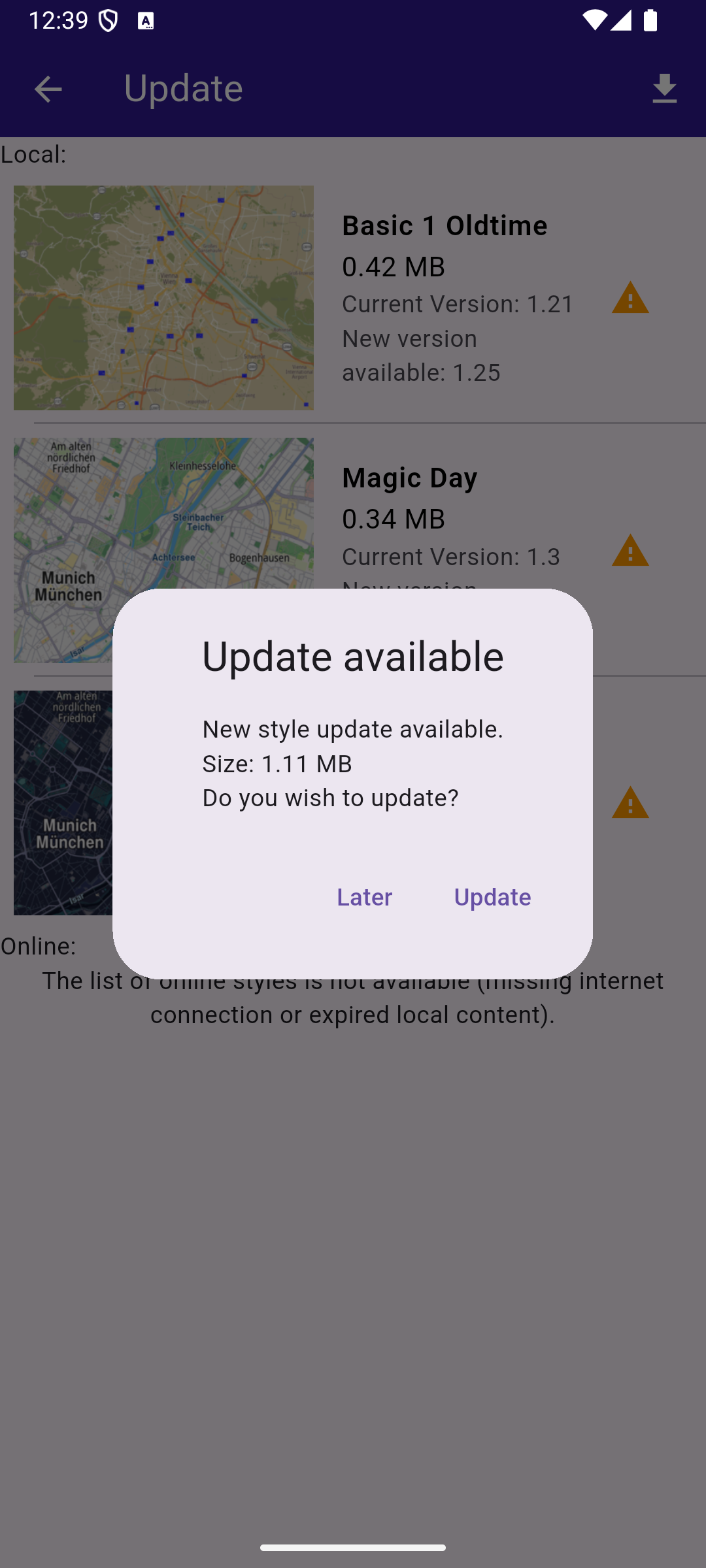
**Update local styles dialog**
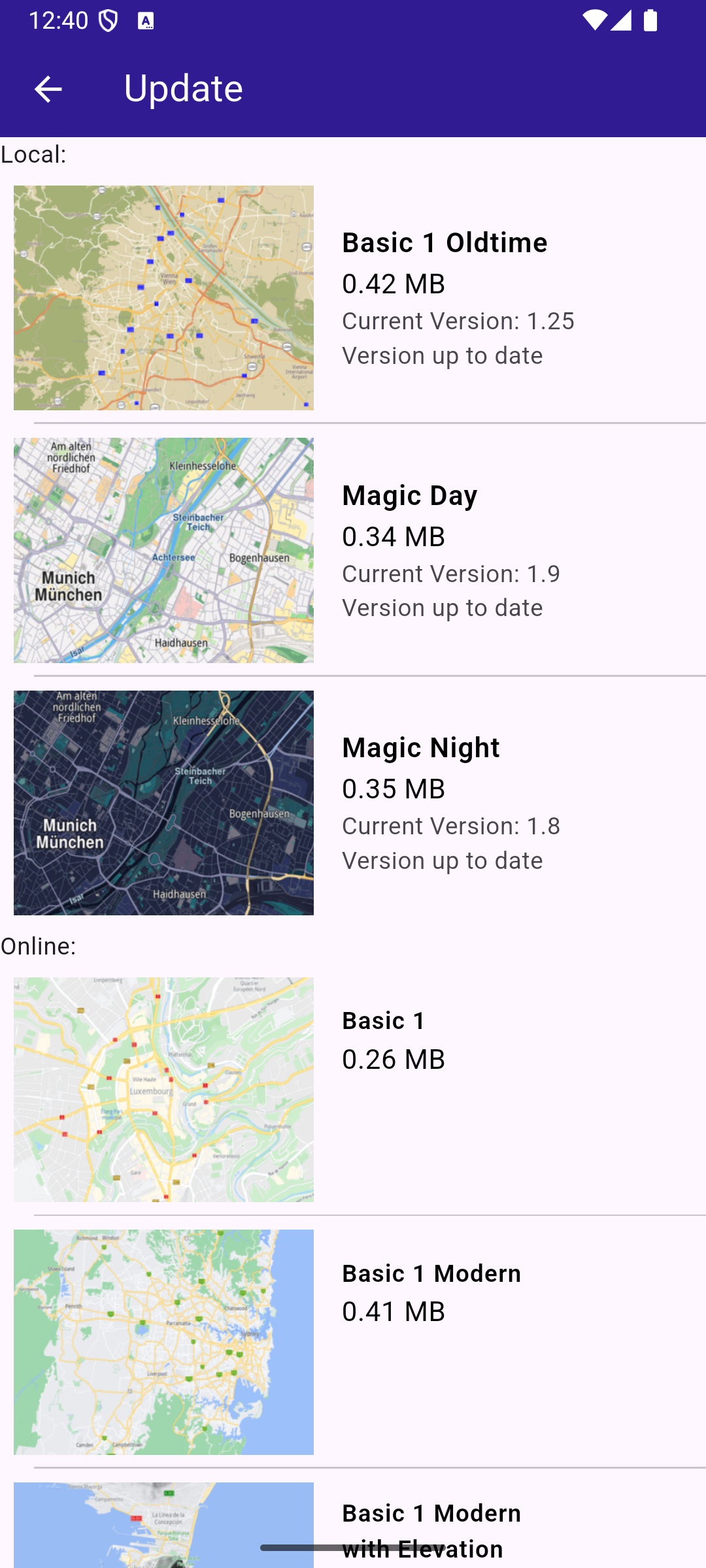
**Up-to-date styles**
##### UI and Map Integration[](#ui-and-map-integration "Direct link to UI and Map Integration")
The following code builds a UI with a `GemMap` and a map styles page. The user can update local styles or download other ones.
main.dart[View on Github](https://github.com/magiclane/magiclane-maps-sdk-examples-for-flutter/tree/main/map_style_update/lib/main.dart?ref_type=heads#L18)
```dart
void main() {
// Ensuring that all Flutter bindings are initialized
WidgetsFlutterBinding.ensureInitialized();
final autoUpdate = AutoUpdateSettings(
isAutoUpdateForRoadMapEnabled: true,
isAutoUpdateForViewStyleHighResEnabled: false,
isAutoUpdateForViewStyleLowResEnabled: false,
isAutoUpdateForResourcesEnabled: false,
);
GemKit.initialize(
appAuthorization: projectApiToken,
autoUpdateSettings: autoUpdate,
);
runApp(const MyApp());
}
class MyApp extends StatelessWidget {
const MyApp({super.key});
@override
Widget build(BuildContext context) {
return const MaterialApp(
debugShowCheckedModeBanner: false,
title: 'Map Styles Update',
home: MyHomePage(),
);
}
}
class MyHomePage extends StatefulWidget {
const MyHomePage({super.key});
@override
State createState() => _MyHomePageState();
}
class _MyHomePageState extends State {
// GemMapController object used to interact with the map
late GemMapController _mapController;
late StylesProvider stylesProvider;
@override
void initState() {
super.initState();
stylesProvider = StylesProvider.instance;
}
@override
void dispose() {
GemKit.release();
super.dispose();
}
@override
Widget build(BuildContext context) {
return Scaffold(
appBar: AppBar(
backgroundColor: Colors.deepPurple[900],
title: const Text(
'Map Styles Update',
style: TextStyle(color: Colors.white),
),
actions: [
IconButton(
onPressed: () => _onMapButtonTap(context),
icon: const Icon(Icons.map_outlined, color: Colors.white),
),
],
),
body: GemMap(key: ValueKey("GemMap"), onMapCreated: _onMapCreated),
);
}
void _onMapCreated(GemMapController controller) async {
_mapController = controller;
}
Future _onMapButtonTap(BuildContext context) async {
// Initialize the styles provider
await stylesProvider.init();
final result = await Navigator.push(
// ignore: use_build_context_synchronously
context,
MaterialPageRoute(
builder: (context) => StylesPage(stylesProvider: stylesProvider),
),
);
if (result != null) {
// Handle the returned data
// Wait for the map refresh to complete
await Future.delayed(Duration(milliseconds: 800));
// Set selected map style
_mapController.preferences.setMapStyle(result);
}
}
}
```
##### Map Styles Page[](#map-styles-page "Direct link to Map Styles Page")
The code that displays the list of styles is in the `styles_page.dart` file. You can see both online and offline items and to start/cancel the update styles process.
styles\_page.dart[View on Github](https://github.com/magiclane/magiclane-maps-sdk-examples-for-flutter/tree/main/map_style_update/lib/styles_page.dart?ref_type=heads#L16)
```dart
class StylesPage extends StatefulWidget {
final StylesProvider stylesProvider;
const StylesPage({super.key, required this.stylesProvider});
@override
State createState() => _MapStylesUpdatePageState();
}
class _MapStylesUpdatePageState extends State {
final stylesList = [];
StylesProvider stylesProvider = StylesProvider.instance;
int? updateProgress;
@override
Widget build(BuildContext context) {
final offlineStyles = StylesProvider.getOfflineStyles();
return Scaffold(
appBar: AppBar(
automaticallyImplyLeading: true,
backgroundColor: Colors.deepPurple[900],
foregroundColor: Colors.white,
title: Row(
children: [
const Text("Update", style: TextStyle(color: Colors.white)),
const SizedBox(width: 10),
if (updateProgress != null)
Expanded(child: ProgressBar(value: updateProgress!)),
const SizedBox(width: 10),
],
),
actions: [
if (stylesProvider.canUpdateStyles)
updateProgress != null
? GestureDetector(
onTap: () {
stylesProvider.cancelUpdateStyles();
},
child: const Text("Cancel"),
)
: IconButton(
onPressed: () {
showUpdateDialog();
},
icon: const Icon(Icons.download),
),
],
),
body: FutureBuilder?>(
future: StylesProvider.getOnlineStyles(),
builder: (context, snapshot) {
return CustomScrollView(
slivers: [
const SliverToBoxAdapter(child: Text("Local: ")),
SliverList.separated(
separatorBuilder: (context, index) =>
const Divider(indent: 20, height: 0),
itemCount: offlineStyles.length,
itemBuilder: (context, index) {
final styleItem = offlineStyles.elementAt(index);
return Padding(
padding: const EdgeInsets.all(8.0),
child: OfflineItem(
styleItem: styleItem,
onItemStatusChanged: () {
if (mounted) setState(() {});
},
),
);
},
),
const SliverToBoxAdapter(child: Text("Online: ")),
if (snapshot.connectionState == ConnectionState.waiting)
const SliverToBoxAdapter(
child: Center(child: CircularProgressIndicator()),
)
else if (snapshot.data == null || snapshot.data!.isEmpty)
const SliverToBoxAdapter(
child: Center(
child: Text(
'The list of online styles is not available (missing internet connection or expired local content).',
textAlign: TextAlign.center,
),
),
)
else
SliverList.separated(
itemCount: snapshot.data!.length,
separatorBuilder: (context, index) =>
const Divider(indent: 20, height: 0),
itemBuilder: (context, index) {
final styleItem = snapshot.data!.elementAt(index);
return Padding(
padding: const EdgeInsets.all(8.0),
child: OnlineItem(
styleItem: styleItem,
onItemStatusChanged: () {
if (mounted) setState(() {});
},
),
);
},
),
],
);
},
),
);
}
void showUpdateDialog() {
showDialog(
context: context,
builder: (context) {
return CustomDialog(
title: "Update available",
content:
"New style update available.\nSize: ${(StylesProvider.computeUpdateSize() / (1024.0 * 1024.0)).toStringAsFixed(2)} MB\nDo you wish to update?",
positiveButtonText: "Update",
negativeButtonText: "Later",
onPositivePressed: () {
final statusId = stylesProvider.updateStyles(
onContentUpdaterStatusChanged: onUpdateStatusChanged,
onContentUpdaterProgressChanged: onUpdateProgressChanged,
);
if (statusId != GemError.success) {
_showMessage("Error updating $statusId");
}
},
onNegativePressed: () {
Navigator.pop(context);
},
);
},
);
}
void _showMessage(String message) => ScaffoldMessenger.of(
context,
).showSnackBar(SnackBar(content: Text(message)));
void onUpdateProgressChanged(int? value) {
if (mounted) {
setState(() {
updateProgress = value;
});
}
}
void onUpdateStatusChanged(ContentUpdaterStatus status) {
if (mounted && isReady(status)) {
showDialog(
context: context,
builder: (context) {
return CustomDialog(
title: "Update finished",
content: "The update is done.",
positiveButtonText: "Ok",
negativeButtonText: "", // No negative button for this dialog
onPositivePressed: () {
//Navigator.pop(context);
},
onNegativePressed: () {
// You can leave this empty or add additional behavior if needed
},
);
},
);
}
}
}
class ProgressBar extends StatelessWidget {
final int value;
const ProgressBar({super.key, required this.value});
@override
Widget build(BuildContext context) {
return Column(
children: [
Text("$value%", style: TextStyle(fontSize: 12.0)),
LinearProgressIndicator(
value: value.toDouble() * 0.01,
color: Colors.white,
backgroundColor: Colors.grey,
),
],
);
}
}
```
##### Offline and Online Style Items[](#offline-and-online-style-items "Direct link to Offline and Online Style Items")
offline\_item.dart[View on Github](https://github.com/magiclane/magiclane-maps-sdk-examples-for-flutter/tree/main/map_style_update/lib/offline_item.dart?ref_type=heads#L13)
```dart
class OfflineItem extends StatefulWidget {
final ContentStoreItem styleItem;
final void Function() onItemStatusChanged;
const OfflineItem({
super.key,
required this.styleItem,
required this.onItemStatusChanged,
});
@override
State createState() => _OfflineItemState();
}
class _OfflineItemState extends State {
late Version _clientVersion;
late Version _updateVersion;
@override
Widget build(BuildContext context) {
final styleItem = widget.styleItem;
bool isOld = styleItem.isUpdatable;
_clientVersion = styleItem.clientVersion;
_updateVersion = styleItem.updateVersion;
return InkWell(
onTap: () => _onStyleTap(),
child: Row(
children: [
Image.memory(
getStyleImage(styleItem, Size(400, 300))!,
width: 175,
gaplessPlayback: true,
),
Expanded(
child: ListTile(
title: Text(
styleItem.name,
style: const TextStyle(
color: Colors.black,
fontSize: 16,
fontWeight: FontWeight.w600,
),
),
subtitle: Column(
crossAxisAlignment: CrossAxisAlignment.start,
children: [
Text(
"${(styleItem.totalSize / (1024.0 * 1024.0)).toStringAsFixed(2)} MB",
style: const TextStyle(color: Colors.black, fontSize: 16),
),
Text("Current Version: ${getString(_clientVersion)}"),
if (_updateVersion.major != 0 && _updateVersion.minor != 0)
Text("New version available: ${getString(_updateVersion)}")
else
const Text("Version up to date"),
],
),
trailing: (isOld)
? const Icon(Icons.warning, color: Colors.orange)
: null,
),
),
],
),
);
}
// Method that downloads the current style
void _onStyleTap() {
final item = widget.styleItem;
if (item.isUpdatable) return;
if (item.isCompleted) {
Navigator.of(context).pop(item);
return;
}
if (getIsDownloadingOrWaiting(item)) {
// Pause the download.
item.pauseDownload();
setState(() {});
} else {
// Download the style.
_startStyleDownload(item);
}
}
void _onStyleDownloadProgressUpdated(int progress) {
if (mounted) {
setState(() {
print('Progress: $progress');
});
}
}
void _onStyleDownloadFinished(GemError err) {
widget.onItemStatusChanged();
// If success, update state
if (err == GemError.success && mounted) {
setState(() {});
}
}
void _startStyleDownload(ContentStoreItem styleItem) {
// Download style
styleItem.asyncDownload(
_onStyleDownloadFinished,
onProgress: _onStyleDownloadProgressUpdated,
allowChargedNetworks: true,
);
}
}
```
online\_item.dart[View on Github](https://github.com/magiclane/magiclane-maps-sdk-examples-for-flutter/tree/main/map_style_update/lib/online_item.dart?ref_type=heads#L13)
```dart
class OnlineItem extends StatefulWidget {
final ContentStoreItem styleItem;
final void Function() onItemStatusChanged;
const OnlineItem({
super.key,
required this.styleItem,
required this.onItemStatusChanged,
});
@override
State createState() => _StyleItemState();
}
class _StyleItemState extends State {
int _downloadProgress = 0;
@override
void initState() {
super.initState();
final styleItem = widget.styleItem;
_downloadProgress = styleItem.downloadProgress;
// If the style is downloading pause and start downloading again
// so the progress indicator updates value from callback
if (getIsDownloadingOrWaiting(styleItem)) {
final errCode = styleItem.pauseDownload();
if (errCode == GemError.success) {
Future.delayed(Duration(seconds: 1), () {
_startStyleDownload(styleItem);
});
} else {
print(
"Download pause for item ${styleItem.id} failed with code $errCode",
);
}
}
}
@override
Widget build(BuildContext context) {
final styleItem = widget.styleItem;
return InkWell(
onTap: () => _onStyleTap(),
child: Row(
crossAxisAlignment: CrossAxisAlignment.start,
children: [
Image.memory(
getStyleImage(styleItem, Size(400, 300))!,
width: 175,
gaplessPlayback: true,
),
Expanded(
child: ListTile(
title: Text(
maxLines: 5,
styleItem.name,
overflow: TextOverflow.ellipsis,
style: const TextStyle(
color: Colors.black,
fontSize: 14,
fontWeight: FontWeight.w600,
),
),
subtitle: Text(
"${(styleItem.totalSize / (1024.0 * 1024.0)).toStringAsFixed(2)} MB",
style: const TextStyle(color: Colors.black, fontSize: 16),
),
trailing: SizedBox.square(
dimension: 50,
child: Builder(
builder: (context) {
if (styleItem.isCompleted) {
return const Icon(
Icons.download_done,
color: Colors.green,
);
} else if (getIsDownloadingOrWaiting(styleItem)) {
return SizedBox(
height: 10,
child: CircularProgressIndicator(
value: _downloadProgress.toDouble() / 100,
color: Colors.blue,
backgroundColor: Colors.grey.shade300,
),
);
} else if (styleItem.status ==
ContentStoreItemStatus.paused) {
return const Icon(Icons.pause);
}
return const SizedBox.shrink();
},
),
),
),
),
],
),
);
}
// Method that downloads the current style
Future _onStyleTap() async {
final item = widget.styleItem;
if (item.isCompleted) {
Navigator.of(context).pop(item);
}
if (getIsDownloadingOrWaiting(item)) {
// Pause the download.
item.pauseDownload();
setState(() {});
} else {
// Download the style.
_startStyleDownload(item);
}
}
void _onStyleDownloadProgressUpdated(int progress) {
if (mounted) {
setState(() {
_downloadProgress = progress;
print('Progress: $progress');
});
}
}
void _onStyleDownloadFinished(GemError err) {
widget.onItemStatusChanged();
// If success, update state
if (err == GemError.success && mounted) {
setState(() {});
}
}
void _startStyleDownload(ContentStoreItem styleItem) {
// Download style
styleItem.asyncDownload(
_onStyleDownloadFinished,
onProgress: _onStyleDownloadProgressUpdated,
allowChargedNetworks: true,
);
}
}
```
##### Styles Provider class[](#styles-provider-class "Direct link to Styles Provider class")
styles\_provider.dart[View on Github](https://github.com/magiclane/magiclane-maps-sdk-examples-for-flutter/tree/main/map_style_update/lib/styles_provider.dart?ref_type=heads#L19)
```dart
class StylesProvider {
CurrentStylesStatus _currentStylesStatus = CurrentStylesStatus.unknown;
ContentUpdater? _contentUpdater;
void Function(int?)? _onContentUpdaterProgressChanged;
StylesProvider._privateConstructor();
static final StylesProvider instance = StylesProvider._privateConstructor();
Future init() {
final completer = Completer();
SdkSettings.setAllowInternetConnection(true);
// Keep track of the new styles status
SdkSettings.offBoardListener.registerOnWorldwideRoadMapSupportStatus((
status,
) async {
print("StylesProvider: Styles status updated: $status");
});
SdkSettings.offBoardListener.registerOnAvailableContentUpdate((
type,
status,
) {
if (type == ContentType.viewStyleHighRes ||
type == ContentType.viewStyleLowRes) {
_currentStylesStatus = CurrentStylesStatus.fromStatus(status);
}
if (!completer.isCompleted) {
completer.complete();
}
});
// Force trying the style update process
// The user will be notified via onAvailableContentUpdateCallback
final code = ContentStore.checkForUpdate(ContentType.viewStyleHighRes);
print("StylesProvider: checkForUpdate resolved with code $code");
return completer.future;
}
CurrentStylesStatus get stylesStatus => _currentStylesStatus;
bool get isUpToDate => _currentStylesStatus == CurrentStylesStatus.upToDate;
bool get canUpdateStyles =>
_currentStylesStatus == CurrentStylesStatus.expiredData ||
_currentStylesStatus == CurrentStylesStatus.oldData;
GemError updateStyles({
void Function(ContentUpdaterStatus)? onContentUpdaterStatusChanged,
void Function(int?)? onContentUpdaterProgressChanged,
}) {
if (_contentUpdater != null) return GemError.inUse;
final result = ContentStore.createContentUpdater(
ContentType.viewStyleHighRes,
);
// If successfully created a new content updater
// or one already exists
if (result.$2 == GemError.success || result.$2 == GemError.exist) {
_contentUpdater = result.$1;
_onContentUpdaterProgressChanged = onContentUpdaterProgressChanged;
_onContentUpdaterProgressChanged?.call(0);
// Call the update method
_contentUpdater!.update(
true,
onStatusUpdated: (status) {
print("StylesProvider: onNotifyStatusChanged with code $status");
// fully ready - for all old styles the new styles are downloaded
// partially ready - only a part of the new styles were downloaded because of memory constraints
if (isReady(status)) {
// newer styles are downloaded and everything is set to
// - delete old styles and keep the new ones
// - update style version to the new version
final err = _contentUpdater!.apply();
print("StylesProvider: apply resolved with code ${err.code}");
if (err == GemError.success) {
_currentStylesStatus = CurrentStylesStatus.upToDate;
}
_onContentUpdaterProgressChanged?.call(null);
_onContentUpdaterProgressChanged = null;
_contentUpdater = null;
}
onContentUpdaterStatusChanged?.call(status);
},
onProgressUpdated: (progress) {
_onContentUpdaterProgressChanged?.call(progress);
print('Progress: $progress');
},
onComplete: (error) {
if (error == GemError.success) {
print('StylesProvider: Successful update');
} else {
print('StylesProvider: Update finished with error $error');
}
},
);
} else {
print(
"StylesProvider: There was an error creating the content updater: ${result.$2}",
);
}
return result.$2;
}
void cancelUpdateStyles() {
_contentUpdater?.cancel();
_onContentUpdaterProgressChanged?.call(null);
_onContentUpdaterProgressChanged = null;
_contentUpdater = null;
}
// Method to load the online styles list
static Future> getOnlineStyles() async {
final stylesListCompleter = Completer>();
ContentStore.asyncGetStoreContentList(ContentType.viewStyleHighRes, (
err,
items,
isCached,
) {
if (err == GemError.success && items.isNotEmpty) {
stylesListCompleter.complete(items);
} else {
stylesListCompleter.complete([]);
}
});
return stylesListCompleter.future;
}
// Method to load the downloaded styles list
static List getOfflineStyles() {
final localStyles = ContentStore.getLocalContentList(
ContentType.viewStyleHighRes,
);
final result = [];
for (final style in localStyles) {
if (style.status == ContentStoreItemStatus.completed) {
result.add(style);
}
}
return result;
}
// Method to compute update size (sum of all style sizes)
static int computeUpdateSize() {
final localStyles = ContentStore.getLocalContentList(
ContentType.viewStyleHighRes,
);
int sum = 0;
for (final localStyle in localStyles) {
if (localStyle.isUpdatable &&
localStyle.status == ContentStoreItemStatus.completed) {
sum += localStyle.updateSize;
}
}
return sum;
}
}
enum CurrentStylesStatus {
expiredData, // more than one version behind
oldData, // one version behind
upToDate, // updated
unknown; // not received any notification yet
static CurrentStylesStatus fromStatus(ContentStoreStatus status) {
switch (status) {
case ContentStoreStatus.expiredData:
return CurrentStylesStatus.expiredData;
case ContentStoreStatus.oldData:
return CurrentStylesStatus.oldData;
case ContentStoreStatus.upToDate:
return CurrentStylesStatus.upToDate;
}
}
}
String getString(Version version) => '${version.major}.${version.minor}';
// Map style image preview
Uint8List? getStyleImage(ContentStoreItem contentItem, Size? size) =>
contentItem.imgPreview.getRenderableImageBytes(
size: size,
format: ImageFileFormat.png,
);
bool getIsDownloadingOrWaiting(ContentStoreItem contentItem) => [
ContentStoreItemStatus.downloadQueued,
ContentStoreItemStatus.downloadRunning,
ContentStoreItemStatus.downloadWaitingNetwork,
ContentStoreItemStatus.downloadWaitingFreeNetwork,
ContentStoreItemStatus.downloadWaitingNetwork,
].contains(contentItem.status);
bool isReady(ContentUpdaterStatus updaterStatus) =>
updaterStatus == ContentUpdaterStatus.partiallyReady ||
updaterStatus == ContentUpdaterStatus.fullyReady;
Future loadOldStyles(AssetBundle assetBundle) async {
const style = 'Basic_1_Oldtime-1_21_656.style';
final dirPath = await _getDirPath();
final resFilePath = path.joinAll([dirPath.path, "Data", "SceneRes"]);
await _deleteAssets(resFilePath, RegExp(r'Basic_1_Oldtime.+\.style'));
await _loadAsset(assetBundle, style, resFilePath);
}
Future _loadAsset(
AssetBundle assetBundle,
String assetName,
String destinationDirectoryPath,
) async {
final destinationFilePath = path.join(destinationDirectoryPath, assetName);
File file = File(destinationFilePath);
if (await file.exists()) {
return false;
}
await file.create();
final asset = await assetBundle.load('assets/$assetName');
final buffer = asset.buffer;
await file.writeAsBytes(
buffer.asUint8List(asset.offsetInBytes, asset.lengthInBytes),
flush: true,
);
print('INFO: Copied asset $destinationFilePath.');
return true;
}
Future _getDirPath() async {
if (Platform.isAndroid) {
return (await getExternalStorageDirectory())!;
} else if (Platform.isIOS) {
return await getApplicationDocumentsDirectory();
} else {
throw Exception('Platform not supported');
}
}
Future _deleteAssets(String directoryPath, RegExp pattern) async {
final directory = Directory(directoryPath);
if (!directory.existsSync()) {
print('WARNING: Directory $directoryPath not found.');
}
for (final file in directory.listSync()) {
final filename = path.basename(file.path);
if (pattern.hasMatch(filename)) {
try {
print('INFO DELETE ASSETS: deleting file ${file.path}');
file.deleteSync();
} catch (e) {
print(
'WARNING: Deleting file ${file.path} failed. Reason:\n${e.toString()}.',
);
}
}
}
}
```
---
### Map Styles
Last updated:
July 15, 2026
| 6 minutes read
This example demonstrates how to create a Flutter app that displays an interactive map with a non-default style using Maps SDK for Flutter.
#### How it works[](#how-it-works "Direct link to How it works")
This example demonstrates the following features:
* Display and manage various map styles dynamically.
* Provide smooth transitions between styles while ensuring a seamless user experience.
* Download online map styles.
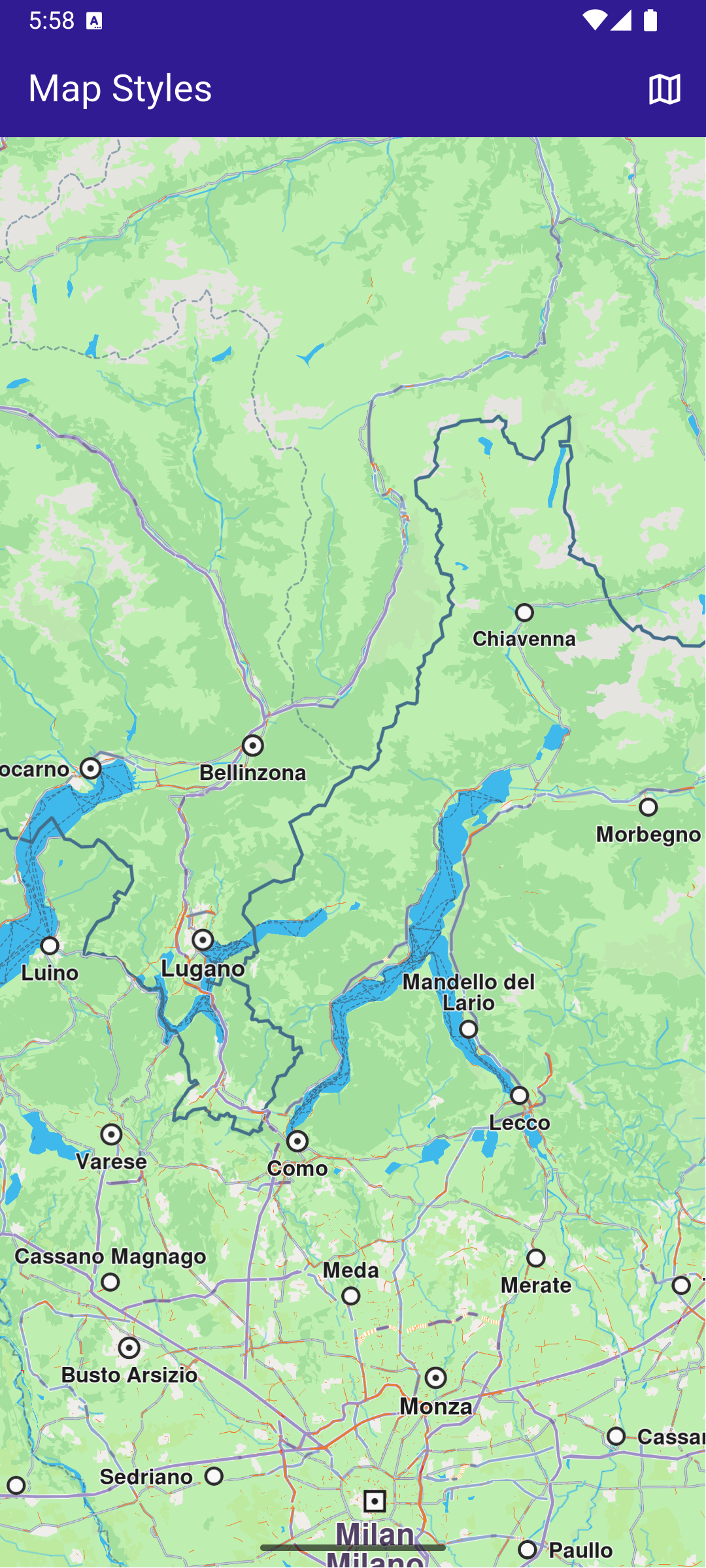
**Initial map view**
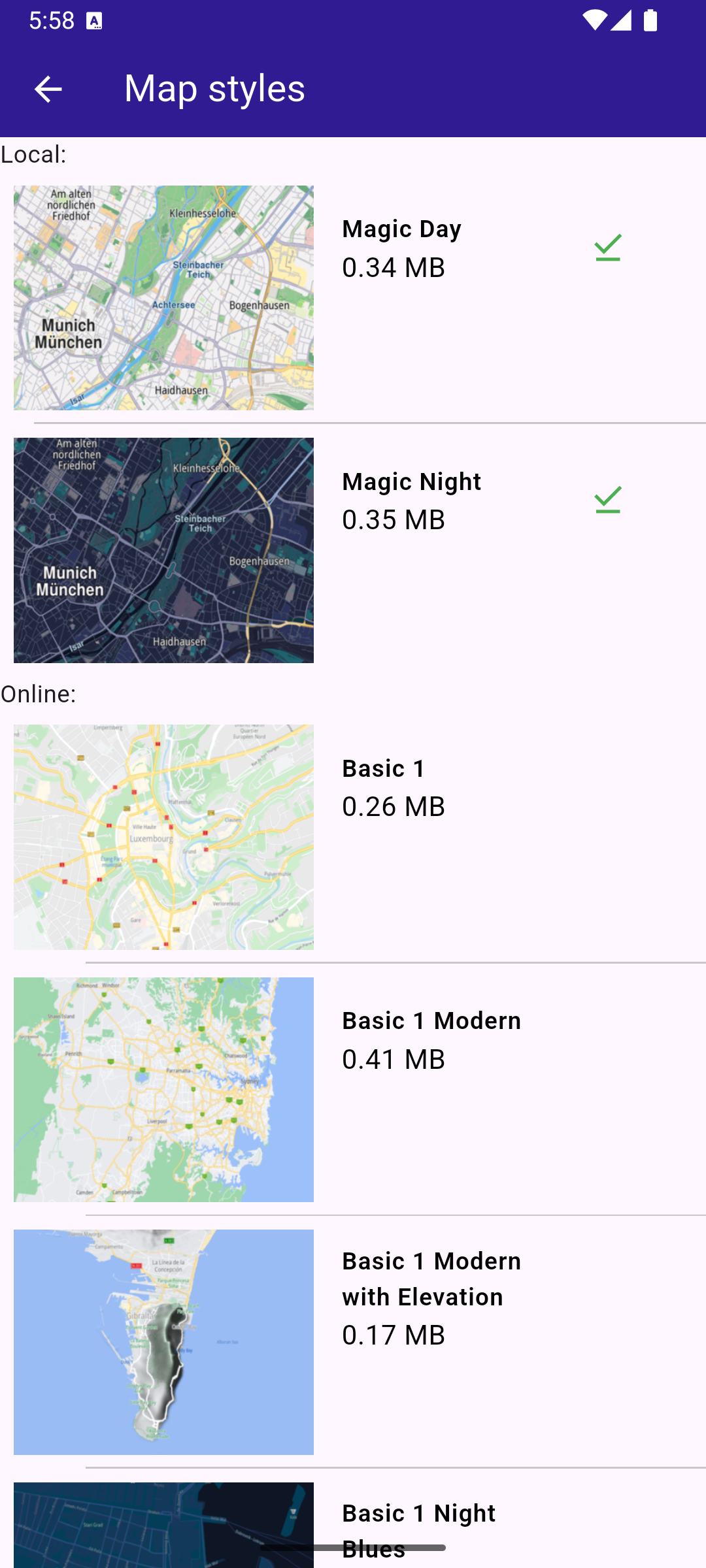
**Map styles page**
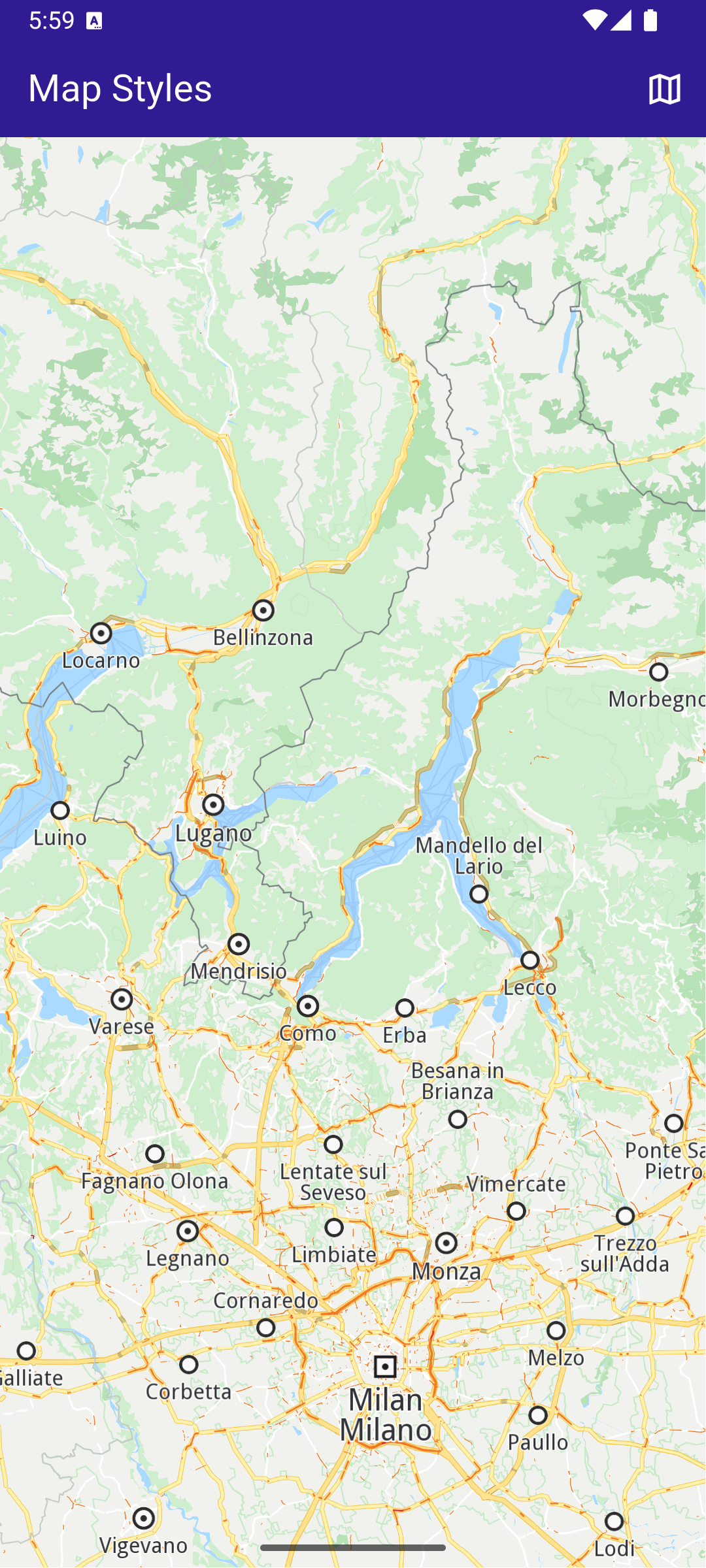
**Applied map style**
##### Build the main application[](#build-the-main-application "Direct link to Build the main application")
Define the main application widget, `MyApp` .
main.dart[View on Github](https://github.com/magiclane/magiclane-maps-sdk-examples-for-flutter/tree/main/map_styles/lib/main.dart?ref_type=heads#L17)
```dart
void main() {
runApp(const MyApp());
}
class MyApp extends StatelessWidget {
const MyApp({super.key});
@override
Widget build(BuildContext context) {
return const MaterialApp(
debugShowCheckedModeBanner: false,
title: 'Map Styles',
home: MyHomePage(),
);
}
}
class MyHomePage extends StatefulWidget {
const MyHomePage({super.key});
@override
State createState() => _MyHomePageState();
}
class _MyHomePageState extends State {
// GemMapController object used to interact with the map
late GemMapController _mapController;
@override
void dispose() {
GemKit.release();
super.dispose();
}
@override
Widget build(BuildContext context) {
return Scaffold(
appBar: AppBar(
backgroundColor: Colors.deepPurple[900],
title: const Text('Map Styles', style: TextStyle(color: Colors.white)),
actions: [
IconButton(
onPressed: () async => await _onMapButtonTap(context),
icon: const Icon(Icons.map_outlined, color: Colors.white),
),
],
),
body: GemMap(
key: ValueKey("GemMap"),
onMapCreated: _onMapCreated,
appAuthorization: projectApiToken,
),
);
}
void _onMapCreated(GemMapController controller) async {
_mapController = controller;
SdkSettings.setAllowOffboardServiceOnExtraChargedNetwork(
ServiceGroupType.contentService,
true,
);
_mapController.registerOnSetMapStyle((styleId, stylePath, viaApi) {
print("Style updated!");
});
}
Future _onMapButtonTap(BuildContext context) async {
final result = await Navigator.push(
context,
MaterialPageRoute(
builder: (context) => MapStylesPage(),
),
);
if (result != null) {
// Handle the returned data
// Wait for the map refresh to complete
await Future.delayed(Duration(milliseconds: 500));
// Set selected map style
_mapController.preferences.setMapStyle(result);
}
}
}
```
##### Map Styles Page[](#map-styles-page "Direct link to Map Styles Page")
map\_styles\_page.dart[View on Github](https://github.com/magiclane/magiclane-maps-sdk-examples-for-flutter/tree/main/map_styles/lib/map_styles_page.dart?ref_type=heads#L13)
```dart
class MapStylesPage extends StatefulWidget {
const MapStylesPage({super.key});
@override
State createState() => _MapStylesPageState();
}
class _MapStylesPageState extends State {
final stylesList = [];
StylesProvider stylesProvider = StylesProvider.instance;
@override
Widget build(BuildContext context) {
final offlineStyles = StylesProvider.getOfflineStyles();
return Scaffold(
appBar: AppBar(
automaticallyImplyLeading: true,
backgroundColor: Colors.deepPurple[900],
foregroundColor: Colors.white,
title: Text("Map styles"),
),
body: FutureBuilder?>(
future: StylesProvider.getOnlineStyles(),
builder: (context, snapshot) {
return CustomScrollView(
slivers: [
const SliverToBoxAdapter(child: Text("Local: ")),
SliverList.separated(
separatorBuilder: (context, index) =>
const Divider(indent: 20, height: 0),
itemCount: offlineStyles.length,
itemBuilder: (context, index) {
final styleItem = offlineStyles.elementAt(index);
return Padding(
padding: const EdgeInsets.all(8.0),
child: StyleItem(
styleItem: styleItem,
onItemStatusChanged: () {
if (mounted) setState(() {});
},
),
);
},
),
const SliverToBoxAdapter(child: Text("Online: ")),
if (snapshot.connectionState == ConnectionState.waiting)
const SliverToBoxAdapter(
child: Center(child: CircularProgressIndicator()),
)
else if (snapshot.data == null || snapshot.data!.isEmpty)
const SliverToBoxAdapter(
child: Center(
child: Text(
'The list of online styles is not available (missing internet connection or expired local content).',
textAlign: TextAlign.center,
),
),
)
else
SliverList.separated(
itemCount: snapshot.data!.length,
separatorBuilder: (context, index) =>
const Divider(indent: 50, height: 0),
itemBuilder: (context, index) {
final styleItem = snapshot.data!.elementAt(index);
return Padding(
padding: const EdgeInsets.all(8.0),
child: StyleItem(
styleItem: styleItem,
onItemStatusChanged: () {
if (mounted) setState(() {});
},
),
);
},
),
],
);
},
),
);
}
}
class StyleItem extends StatefulWidget {
final ContentStoreItem styleItem;
final void Function() onItemStatusChanged;
const StyleItem({
super.key,
required this.styleItem,
required this.onItemStatusChanged,
});
@override
State createState() => _StyleItemState();
}
class _StyleItemState extends State {
int _downloadProgress = 0;
@override
void initState() {
super.initState();
final styleItem = widget.styleItem;
_downloadProgress = styleItem.downloadProgress;
// If the style is downloading pause and start downloading again
// so the progress indicator updates value from callback
if (getIsDownloadingOrWaiting(styleItem)) {
final errCode = styleItem.pauseDownload();
if (errCode == GemError.success) {
Future.delayed(Duration(seconds: 1), () {
_startStyleDownload(styleItem);
});
} else {
print(
"Download pause for item ${styleItem.id} failed with code $errCode",
);
}
}
}
@override
Widget build(BuildContext context) {
final styleItem = widget.styleItem;
return InkWell(
onTap: () => _onStyleTap(),
child: Row(
crossAxisAlignment: CrossAxisAlignment.start,
children: [
Image.memory(
getStyleImage(styleItem, Size(400, 300))!,
width: 175,
gaplessPlayback: true,
),
Expanded(
child: ListTile(
title: Text(
maxLines: 5,
styleItem.name,
overflow: TextOverflow.ellipsis,
style: const TextStyle(
color: Colors.black,
fontSize: 14,
fontWeight: FontWeight.w600,
),
),
subtitle: Text(
"${(styleItem.totalSize / (1024.0 * 1024.0)).toStringAsFixed(2)} MB",
style: const TextStyle(color: Colors.black, fontSize: 16),
),
trailing: SizedBox.square(
dimension: 50,
child: Builder(
builder: (context) {
if (styleItem.isCompleted) {
return const Icon(
Icons.download_done,
color: Colors.green,
);
} else if (getIsDownloadingOrWaiting(styleItem)) {
return SizedBox(
height: 10,
child: CircularProgressIndicator(
value: _downloadProgress.toDouble() / 100,
color: Colors.blue,
backgroundColor: Colors.grey.shade300,
),
);
} else if (styleItem.status ==
ContentStoreItemStatus.paused) {
return const Icon(Icons.pause);
}
return const SizedBox.shrink();
},
),
),
),
),
],
),
);
}
// Method that downloads the current selected map style
void _onStyleTap() {
final item = widget.styleItem;
if (item.isCompleted) {
Navigator.of(context).pop(item);
return;
}
if (getIsDownloadingOrWaiting(item)) {
// Pause the download.
item.pauseDownload();
setState(() {});
} else {
// Download the map.
_startStyleDownload(item);
}
}
void _onStyleDownloadProgressUpdated(int progress) {
if (mounted) {
setState(() {
_downloadProgress = progress;
print('Progress: $progress');
});
}
}
void _onStyleDownloadFinished(GemError err) {
widget.onItemStatusChanged();
// If success, update state
if (err == GemError.success && mounted) {
setState(() {});
}
}
void _startStyleDownload(ContentStoreItem styleItem) {
// Download style
styleItem.asyncDownload(
_onStyleDownloadFinished,
onProgress: _onStyleDownloadProgressUpdated,
allowChargedNetworks: true,
);
}
}
```
##### Map Styles Provider[](#map-styles-provider "Direct link to Map Styles Provider")
styles\_provider.dart[View on Github](https://github.com/magiclane/magiclane-maps-sdk-examples-for-flutter/tree/main/map_styles/lib/styles_provider.dart?ref_type=heads#L15)
```dart
class StylesProvider {
StylesProvider._privateConstructor();
static final StylesProvider instance = StylesProvider._privateConstructor();
// Method to load the local-available styles
static List getOfflineStyles() {
final localMaps = ContentStore.getLocalContentList(
ContentType.viewStyleHighRes,
);
final result = [];
for (final map in localMaps) {
if (map.status == ContentStoreItemStatus.completed) {
result.add(map);
}
}
return result;
}
// Method to load the available styles
static Future> getOnlineStyles() {
final completer = Completer>();
ContentStore.asyncGetStoreContentList(ContentType.viewStyleHighRes, (
err,
items,
isCached,
) {
if (err != GemError.success) {
print("Error while getting styles: ${err.name}");
return;
}
completer.complete(items);
});
return completer.future;
}
}
Uint8List? getStyleImage(ContentStoreItem contentItem, Size? size) =>
contentItem.imgPreview.getRenderableImageBytes(
size: size,
format: ImageFileFormat.png,
);
bool getIsDownloadingOrWaiting(ContentStoreItem contentItem) => [
ContentStoreItemStatus.downloadQueued,
ContentStoreItemStatus.downloadRunning,
ContentStoreItemStatus.downloadWaitingNetwork,
ContentStoreItemStatus.downloadWaitingFreeNetwork,
ContentStoreItemStatus.downloadWaitingNetwork,
].contains(contentItem.status);
```
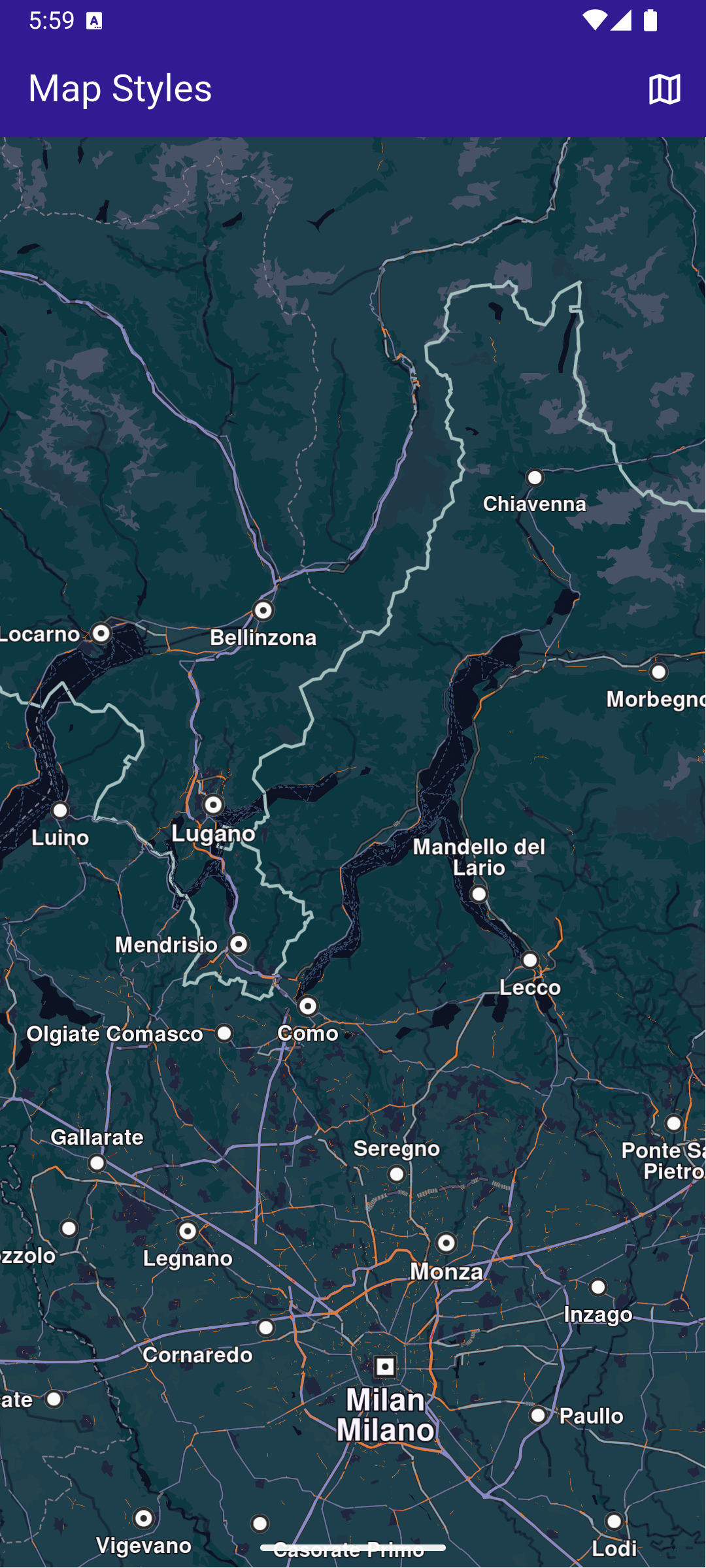
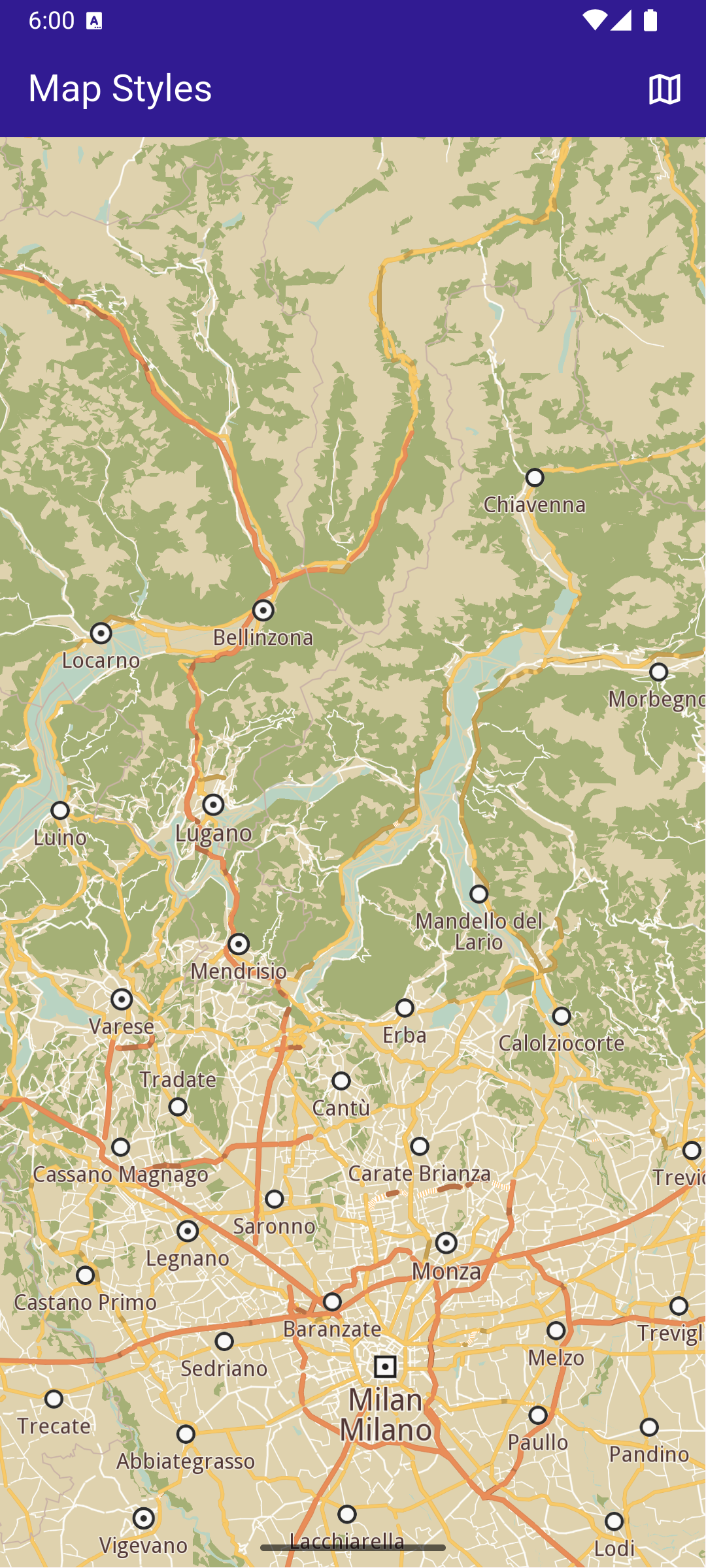
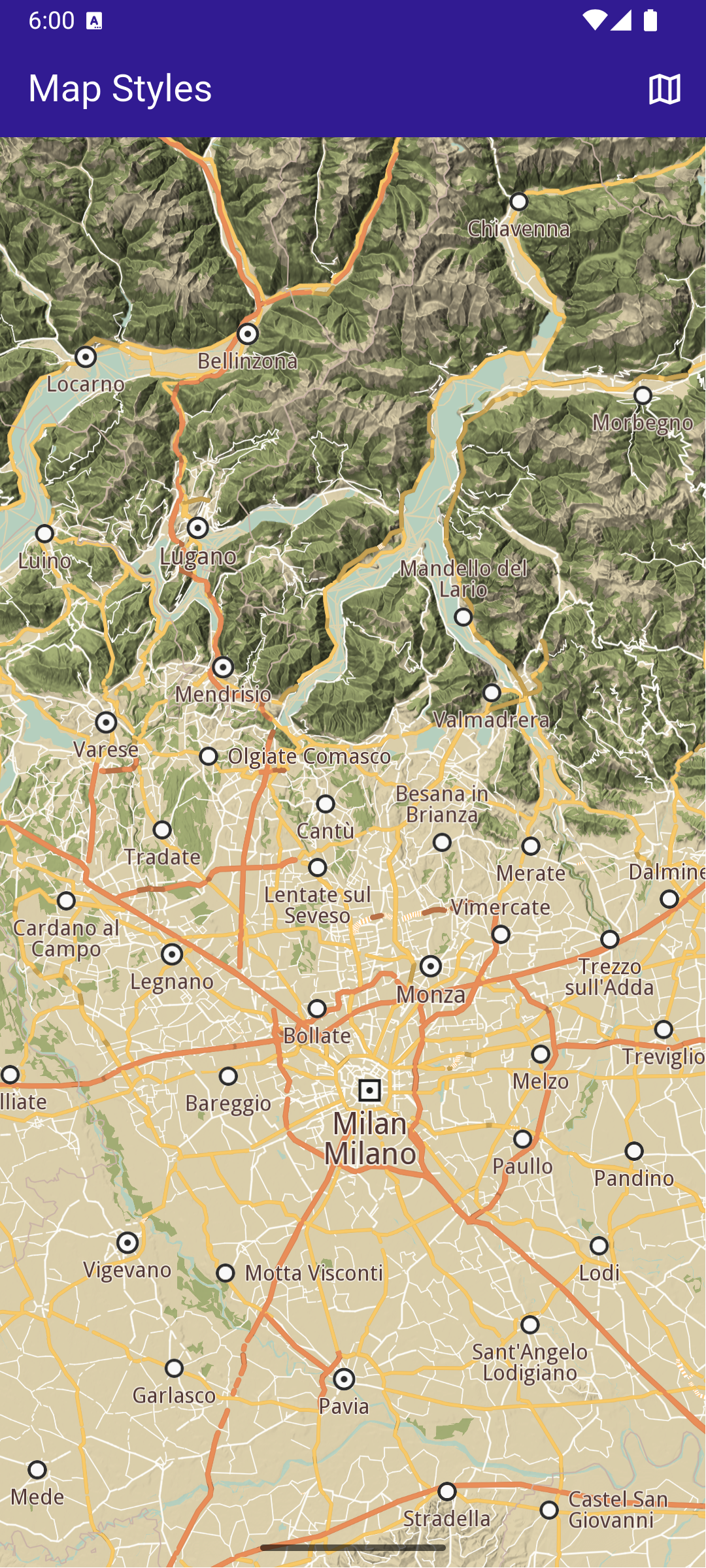
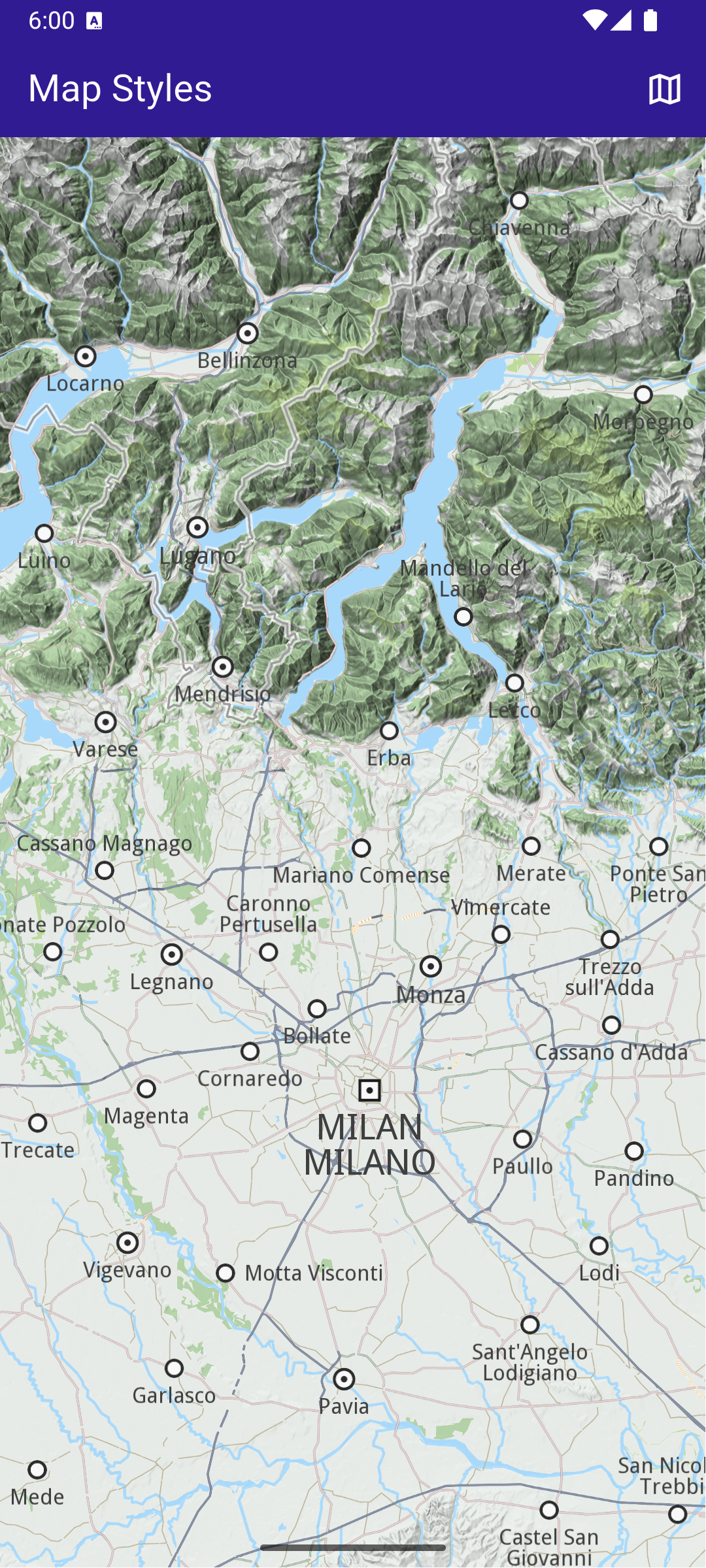
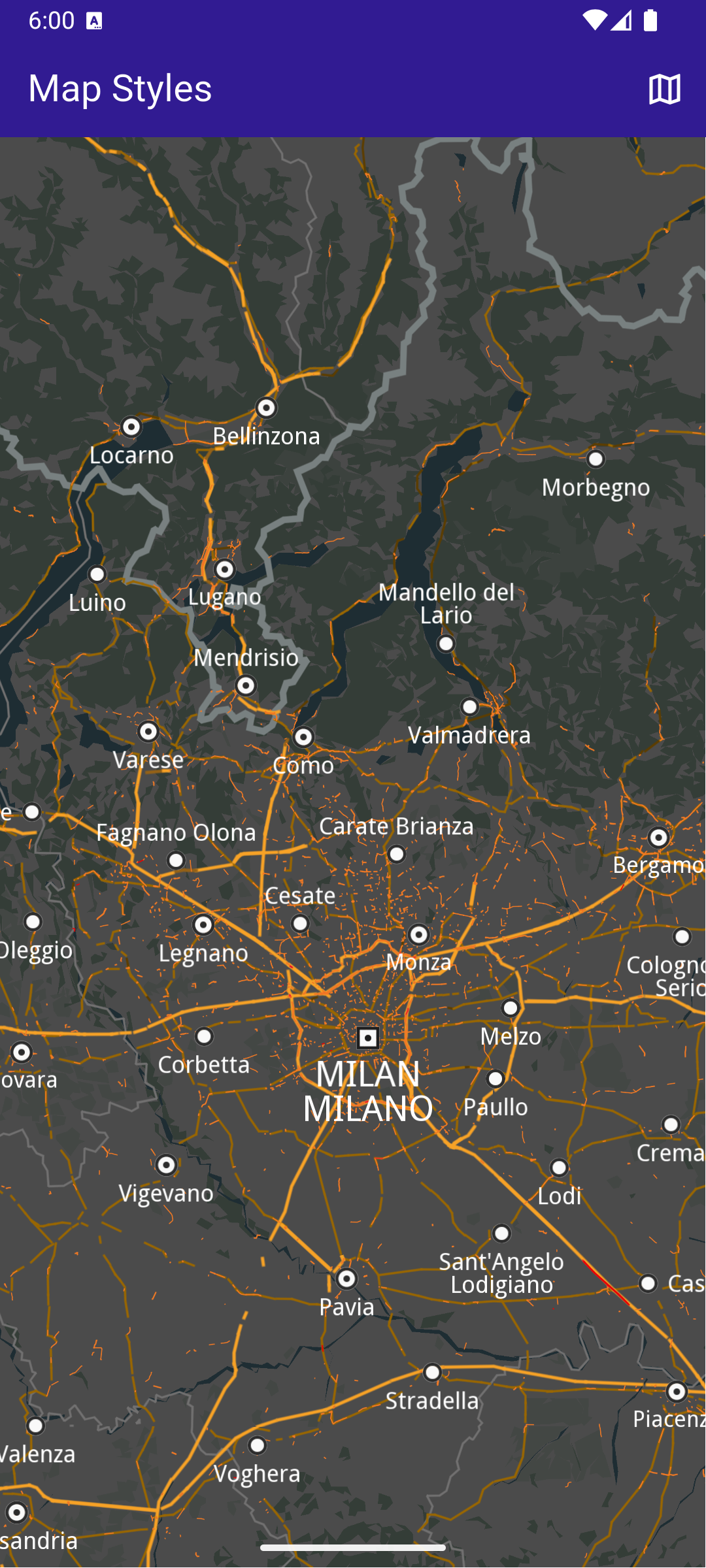
---
### Map Update
Last updated:
July 15, 2026
| 12 minutes read
In this guide, you will learn how to download and apply updates to maps. The assets directory includes a world map file and a map for Andorra that are used in this example.
#### Saving Assets[](#saving-assets "Direct link to Saving Assets")
Before running the app, ensure that you save the necessary files (world map file and Andorra map) into the assets directory.
Update your pubspec.yaml file to include these assets:
```yaml
flutter:
assets:
- assets/
```
#### How it Works[](#how-it-works "Direct link to How it Works")
This example demonstrates the following features:
* Replace the default map with an older version from the app’s assets to simulate a map update (*this is a hack and you shouldn't do it yourself* - is used here only for demonstration purposes).
* Apply the necessary logic to update the map to the latest version.
* Manage and integrate map update functionality seamlessly within the app’s UI.
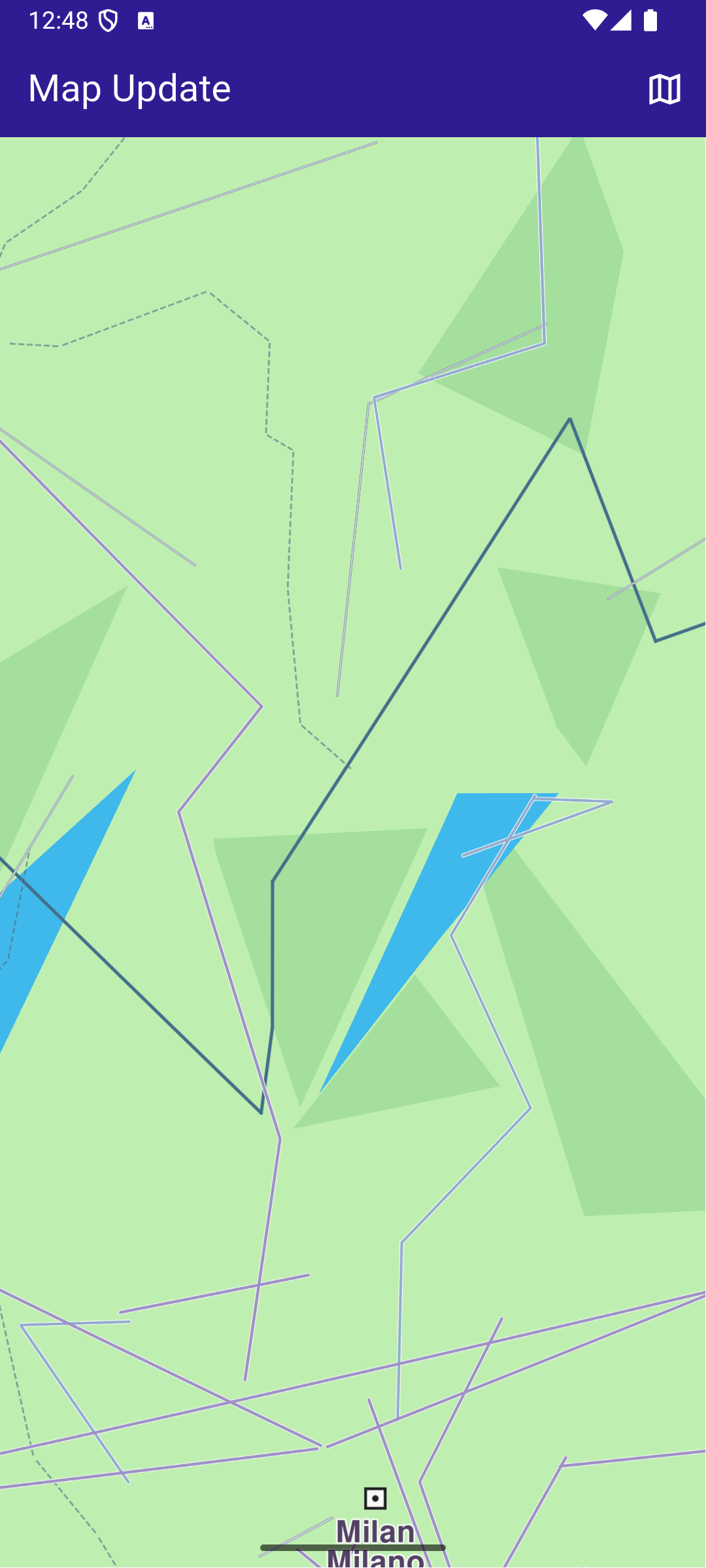
**Initial map view without any data**
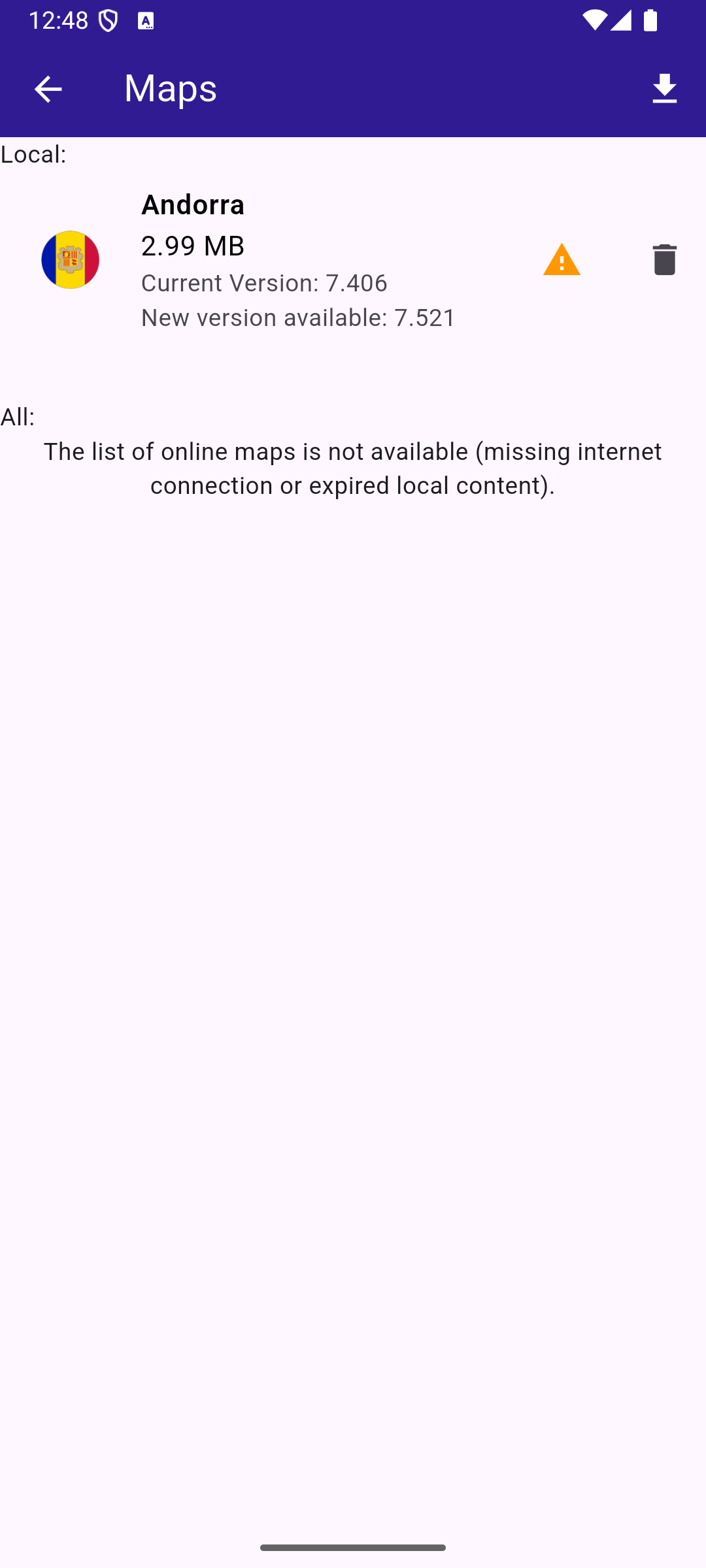
**Maps list, outdated Androrra map**
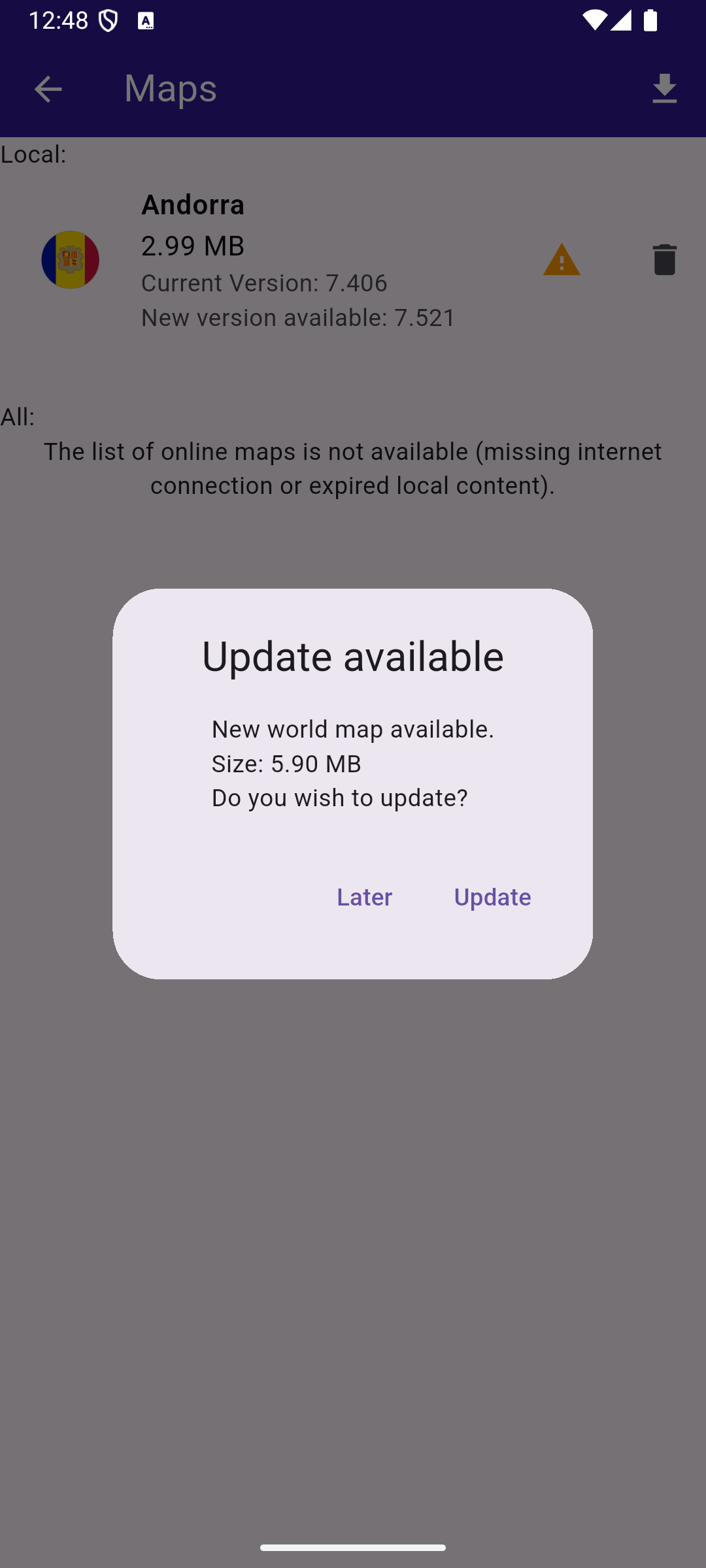
**Map update dialog**
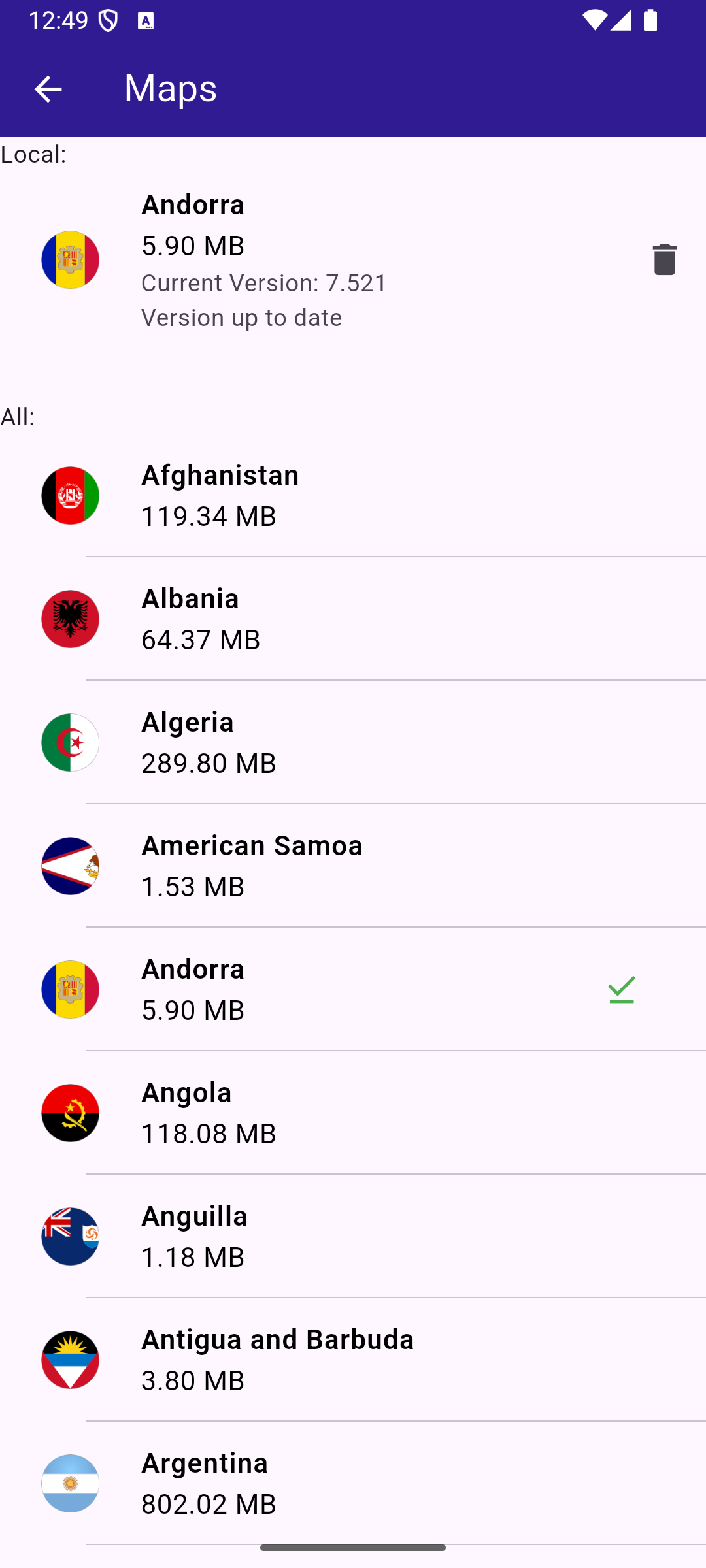
**Up to date Andorra map**
##### Handle the map update logic[](#handle-the-map-update-logic "Direct link to Handle the map update logic")
The handling of map update logic is made in the `maps_provider.dart` file.
maps\_provider.dart[View on Github](https://github.com/magiclane/magiclane-maps-sdk-examples-for-flutter/tree/main/map_update/lib/maps_provider.dart?ref_type=heads#L21)
```dart
class MapsProvider {
CurrentMapsStatus _currentMapsStatus = CurrentMapsStatus.unknown;
ContentUpdater? _contentUpdater;
void Function(int?)? _onContentUpdaterProgressChanged;
MapsProvider._privateConstructor();
static final MapsProvider instance = MapsProvider._privateConstructor();
Future init() async {
// Keep track of the new maps status
SdkSettings.offBoardListener.registerOnWorldwideRoadMapSupportStatus((
status,
) async {
print("MapsProvider: Maps status updated: $status");
_currentMapsStatus = CurrentMapsStatus.fromStatus(status);
});
// Force trying the map update process
// The user will be notified via onWorldwideRoadMapSupportStatusCallback
final code = ContentStore.checkForUpdate(ContentType.roadMap);
print("MapsProvider: checkForUpdate resolved with code $code");
}
CurrentMapsStatus get mapsStatus => _currentMapsStatus;
bool get isUpToDate => _currentMapsStatus == CurrentMapsStatus.upToDate;
bool get canUpdateMaps =>
_currentMapsStatus == CurrentMapsStatus.expiredData ||
_currentMapsStatus == CurrentMapsStatus.oldData;
GemError updateMaps({
void Function(ContentUpdaterStatus)? onContentUpdaterStatusChanged,
void Function(int?)? onContentUpdaterProgressChanged,
}) {
if (_contentUpdater != null) return GemError.inUse;
final result = ContentStore.createContentUpdater(ContentType.roadMap);
// If successfully created a new content updater
// or one already exists
if (result.$2 == GemError.success || result.$2 == GemError.exist) {
_contentUpdater = result.$1;
_onContentUpdaterProgressChanged = onContentUpdaterProgressChanged;
// Call the update method
_contentUpdater!.update(
true,
onStatusUpdated: (status) {
print("MapsProvider: onNotifyStatusChanged with code $status");
// fully ready - for all old maps the new maps are downloaded
// partially ready - only a part of the new maps were downloaded because of memory constraints
if (isReady(status)) {
// newer maps are downloaded and everything is set to
// - delete old maps and keep the new ones
// - update map version to the new version
final err = _contentUpdater!.apply();
print("MapsProvider: apply resolved with code ${err.code}");
if (err == GemError.success) {
_currentMapsStatus = CurrentMapsStatus.upToDate;
}
_onContentUpdaterProgressChanged?.call(null);
_onContentUpdaterProgressChanged = null;
_contentUpdater = null;
}
onContentUpdaterStatusChanged?.call(status);
},
onProgressUpdated: (progress) {
_onContentUpdaterProgressChanged?.call(progress);
print('Progress: $progress');
},
onComplete: (error) {
if (error == GemError.success) {
print('MapsProvider: Successful uupdate');
} else {
print('MapsProvider: Update finished with error $error');
}
},
);
} else {
print(
"MapsProvider: There was an erorr creating the content updater: ${result.$2}",
);
}
return result.$2;
}
void cancelUpdateMaps() {
_contentUpdater?.cancel();
_onContentUpdaterProgressChanged?.call(null);
_onContentUpdaterProgressChanged = null;
_contentUpdater = null;
}
// Method to load the online map list
static Future> getOnlineMaps() async {
final mapsListCompleter = Completer>();
ContentStore.asyncGetStoreContentList(ContentType.roadMap, (
err,
items,
isCached,
) {
if (err == GemError.success && items.isNotEmpty) {
mapsListCompleter.complete(items);
} else {
mapsListCompleter.complete([]);
}
});
return mapsListCompleter.future;
}
// Method to load the downloaded map list
static List getOfflineMaps() {
final localMaps = ContentStore.getLocalContentList(ContentType.roadMap);
final result = [];
for (final map in localMaps) {
if (map.status == ContentStoreItemStatus.completed) {
result.add(map);
}
}
return result;
}
// Method to compute update size (sum of all maps sizes)
static int computeUpdateSize() {
final localMaps = ContentStore.getLocalContentList(ContentType.roadMap);
int sum = 0;
for (final localMap in localMaps) {
if (localMap.isUpdatable &&
localMap.status == ContentStoreItemStatus.completed) {
sum += localMap.updateSize;
}
}
return sum;
}
}
Future loadOldMaps(AssetBundle assetBundle) async {
const cmap = 'AndorraOSM_2021Q1.cmap';
const worldMap = 'WM_7_406.map';
final dirPath = await _getDirPath();
final resFilePath = path.joinAll([dirPath.path, "Data", "Res"]);
final mapsFilePath = path.joinAll([dirPath.path, "Data", "Maps"]);
await _deleteAssets(resFilePath, RegExp(r'WM_\d_\d+\.map'));
await _deleteAssets(mapsFilePath, RegExp(r'.+\.cmap'));
await _loadAsset(assetBundle, cmap, mapsFilePath);
await _loadAsset(assetBundle, worldMap, resFilePath);
}
Future _loadAsset(
AssetBundle assetBundle,
String assetName,
String destinationDirectoryPath,
) async {
final destinationFilePath = path.join(destinationDirectoryPath, assetName);
File file = File(destinationFilePath);
if (await file.exists()) {
return false;
}
await file.create();
final asset = await assetBundle.load('assets/$assetName');
final buffer = asset.buffer;
await file.writeAsBytes(
buffer.asUint8List(asset.offsetInBytes, asset.lengthInBytes),
flush: true,
);
print('INFO: Copied asset $destinationFilePath.');
return true;
}
Future _getDirPath() async {
if (Platform.isAndroid) {
return (await getExternalStorageDirectory())!;
} else if (Platform.isIOS) {
return await getApplicationDocumentsDirectory();
} else {
throw Exception('Platform not supported');
}
}
Future _deleteAssets(String directoryPath, RegExp pattern) async {
final directory = Directory(directoryPath);
if (!directory.existsSync()) {
print('WARNING: Directory $directoryPath not found.');
}
for (final file in directory.listSync()) {
final filename = path.basename(file.path);
if (pattern.hasMatch(filename)) {
try {
//print('INFO DELETE ASSETS: deleting file ${file.path}');
file.deleteSync();
} catch (e) {
print(
'WARNING: Deleting file ${file.path} failed. Reason:\n${e.toString()}.',
);
}
}
}
}
enum CurrentMapsStatus {
expiredData, // more than one version behind
oldData, // one version behind maps
upToDate, // updated maps
unknown; // not received any notification yet
static CurrentMapsStatus fromStatus(ContentStoreStatus status) {
switch (status) {
case ContentStoreStatus.expiredData:
return CurrentMapsStatus.expiredData;
case ContentStoreStatus.oldData:
return CurrentMapsStatus.oldData;
case ContentStoreStatus.upToDate:
return CurrentMapsStatus.upToDate;
}
}
}
String getString(Version version) => '${version.major}.${version.minor}';
// Method that returns the image of the country associated with the road map item
Uint8List? getImage(ContentStoreItem contentItem) {
Img? img = MapDetails.getCountryFlagImg(contentItem.countryCodes[0]);
if (img == null) return null;
if (!img.isValid) return null;
return img.getRenderableImageBytes(size: Size(100, 100));
}
bool getIsDownloadingOrWaiting(ContentStoreItem contentItem) => [
ContentStoreItemStatus.downloadQueued,
ContentStoreItemStatus.downloadRunning,
ContentStoreItemStatus.downloadWaitingNetwork,
ContentStoreItemStatus.downloadWaitingFreeNetwork,
ContentStoreItemStatus.downloadWaitingNetwork,
].contains(contentItem.status);
bool isReady(ContentUpdaterStatus status) =>
```
This file contains the `MapsProvider` class and a few helpful methods and extensions.
The methods of the `MapsProvider` class do the following:
| Method | Explanation |
| ------------------- | ----------------------------------------------------------------------------------------------------------------------------------------------------------------- |
| init() | - initiates the connection and listens to status updates
- forces checking for updates, when we have an answer you can get the map status |
| ContentStoreStatus | - unknown - no answer from the server yet
- expired - 2 or more map versions behind
- oldData - previous version
- upToDate - newest map available |
| updateMaps() | Method that initiates the map update. It has callbacks that notify about progress. |
| cancelUpdateMaps() | Method that cancels the map update. |
| getOnlineMaps() | Method returning the online maps. |
| getOfflineMaps() | Method returning the offline maps on the device. |
| computeUpdateSize() | Method returning what would be the size of an update (sum of sizes for offline maps) |
There are also some helping enums, extensions and useful methods that allow working with assets.
##### The main page with the map[](#the-main-page-with-the-map "Direct link to The main page with the map")
In the `main.dart` file we have the code that displays the map and allows you to tap the button that shows you the maps.
main.dart[View on Github](https://github.com/magiclane/magiclane-maps-sdk-examples-for-flutter/tree/main/map_update/lib/main.dart?ref_type=heads#L18)
```dart
void main() async {
WidgetsFlutterBinding.ensureInitialized();
// A init is required to create the assets directory structure where the
// road map files are located. The SDK needs to be released before copying
// the old map files into the assets directory.
await GemKit.initialize(
appAuthorization: projectApiToken,
autoUpdateSettings: AutoUpdateSettings.allDisabled(),
);
await GemKit.release();
// Simulate old maps
// delete all maps, all resources and get some old ones
// AS A USER YOU NEVER DO THAT
await loadOldMaps(rootBundle);
await GemKit.initialize(
appAuthorization: projectApiToken,
autoUpdateSettings: AutoUpdateSettings.allDisabled(),
);
// As the maps have been changed manually we need to refresh the content store
// This method may cause syncronization issues when used in a real app
// AS A USER YOU NEVER DO THAT
Debug.refreshContentStore();
await MapsProvider.instance.init();
runApp(const MyApp());
}
class MyApp extends StatelessWidget {
const MyApp({super.key});
@override
Widget build(BuildContext context) {
return const MaterialApp(
debugShowCheckedModeBanner: false,
title: 'Map Update',
home: MyHomePage(),
);
}
}
class MyHomePage extends StatefulWidget {
const MyHomePage({super.key});
@override
State createState() => _MyHomePageState();
}
class _MyHomePageState extends State {
GemMapController? mapController;
void onMapCreated(GemMapController controller) async {
mapController = controller;
}
@override
void dispose() {
GemKit.release();
super.dispose();
}
@override
Widget build(BuildContext context) {
return Scaffold(
appBar: AppBar(
backgroundColor: Colors.deepPurple[900],
title: const Text('Map Update', style: TextStyle(color: Colors.white)),
actions: [
IconButton(
onPressed: () => _onMapButtonTap(context),
icon: const Icon(Icons.map_outlined, color: Colors.white),
),
],
),
body: GemMap(
key: ValueKey("GemMap"),
onMapCreated: onMapCreated,
appAuthorization: projectApiToken,
),
// body: Container(),
);
}
// Method to navigate to the Maps Page.
void _onMapButtonTap(BuildContext context) async {
if (mapController != null) {
Navigator.of(
context,
).push(MaterialPageRoute(builder: (context) => MapsPage()));
}
}
}
```
##### Displaying the list of maps[](#displaying-the-list-of-maps "Direct link to Displaying the list of maps")
The code that displays the list of maps is in the `maps_page.dart` file. You can see both online and offline maps and to start/cancel the update maps process.
maps\_page.dart[View on Github](https://github.com/magiclane/magiclane-maps-sdk-examples-for-flutter/tree/main/map_update/lib/maps_page.dart?ref_type=heads#L18)
```dart
class MapsPage extends StatefulWidget {
const MapsPage({super.key});
@override
State createState() => _MapsPageState();
}
class _MapsPageState extends State {
final mapsList = [];
MapsProvider mapsProvider = MapsProvider.instance;
int? updateProgress;
@override
Widget build(BuildContext context) {
final localMaps = MapsProvider.getOfflineMaps();
return Scaffold(
appBar: AppBar(
automaticallyImplyLeading: true,
foregroundColor: Colors.white,
title: Row(
children: [
const Text("Maps", style: TextStyle(color: Colors.white)),
const SizedBox(width: 10),
if (updateProgress != null)
Expanded(child: ProgressBar(value: updateProgress!)),
const SizedBox(width: 10),
],
),
actions: [
if (mapsProvider.canUpdateMaps)
updateProgress != null
? GestureDetector(
onTap: () {
mapsProvider.cancelUpdateMaps();
},
child: const Text("Cancel Update"),
)
: IconButton(
onPressed: () {
showUpdateDialog();
},
icon: const Icon(Icons.download),
),
],
backgroundColor: Colors.deepPurple[900],
),
body: FutureBuilder?>(
future: MapsProvider.getOnlineMaps(),
builder: (context, snapshot) {
//The CustomScrollView is required in order to render the online map list items lazily
return CustomScrollView(
slivers: [
const SliverToBoxAdapter(child: Text("Local: ")),
SliverList.separated(
separatorBuilder: (context, index) =>
const Divider(indent: 50, height: 0),
itemCount: localMaps.length,
itemBuilder: (context, index) {
final mapItem = localMaps.elementAt(index);
return OfflineItem(
mapItem: mapItem,
deleteMap: (map) {
if (map.deleteContent() == GemError.success) {
setState(() {});
}
},
);
},
),
const SliverToBoxAdapter(child: SizedBox(height: 30)),
const SliverToBoxAdapter(child: Text("All: ")),
if (snapshot.connectionState == ConnectionState.waiting)
const SliverToBoxAdapter(
child: Center(child: CircularProgressIndicator()),
)
else if (snapshot.data == null || snapshot.data!.isEmpty)
const SliverToBoxAdapter(
child: Center(
child: Text(
'The list of online maps is not available (missing internet connection or expired local content).',
textAlign: TextAlign.center,
),
),
)
else
SliverList.separated(
itemCount: snapshot.data!.length,
separatorBuilder: (context, index) =>
const Divider(indent: 50, height: 0),
itemBuilder: (context, index) {
final mapItem = snapshot.data!.elementAt(index);
return OnlineItem(
mapItem: mapItem,
onItemStatusChanged: () {
if (mounted) setState(() {});
},
);
},
),
],
);
},
),
);
}
void showUpdateDialog() {
showDialog(
context: context,
builder: (context) {
return CustomDialog(
title: "Update available",
content:
"New world map available.\nSize: ${(MapsProvider.computeUpdateSize() / (1024.0 * 1024.0)).toStringAsFixed(2)} MB\nDo you wish to update?",
positiveButtonText: "Update",
negativeButtonText: "Later",
onPositivePressed: () {
final statusId = mapsProvider.updateMaps(
onContentUpdaterStatusChanged: onUpdateStatusChanged,
onContentUpdaterProgressChanged: onUpdateProgressChanged,
);
if (statusId != GemError.success) {
_showMessage("Error updating $statusId");
}
},
onNegativePressed: () {
Navigator.pop(context);
},
);
},
);
}
void _showMessage(String message) => ScaffoldMessenger.of(
context,
).showSnackBar(SnackBar(content: Text(message)));
void onUpdateProgressChanged(int? value) {
if (mounted) {
setState(() {
updateProgress = value;
});
}
}
void onUpdateStatusChanged(ContentUpdaterStatus status) {
if (mounted && isReady(status)) {
showDialog(
context: context,
builder: (context) {
return CustomDialog(
title: "Update finished",
content: "The update is done.",
positiveButtonText: "Ok",
negativeButtonText: "", // No negative button for this dialog
onPositivePressed: () {
//Navigator.pop(context);
},
onNegativePressed: () {
// You can leave this empty or add additional behavior if needed
},
);
},
);
}
}
}
class ProgressBar extends StatelessWidget {
final int value;
const ProgressBar({super.key, required this.value});
@override
Widget build(BuildContext context) {
return Column(
children: [
Text("$value%"),
LinearProgressIndicator(
value: value.toDouble() * 0.01,
color: Colors.white,
backgroundColor: Colors.grey,
),
],
);
}
}
```
##### Displaying each online item[](#displaying-each-online-item "Direct link to Displaying each online item")
The code that displays each item is the following:
offline\_item.dart[View on Github](https://github.com/magiclane/magiclane-maps-sdk-examples-for-flutter/tree/main/map_update/lib/offline_item.dart?ref_type=heads#L13)
```dart
class OfflineItem extends StatefulWidget {
final ContentStoreItem mapItem;
final void Function(ContentStoreItem) deleteMap;
const OfflineItem({
super.key,
required this.mapItem,
required this.deleteMap,
});
@override
State createState() => _OfflineItemState();
}
class _OfflineItemState extends State {
late Version _clientVersion;
late Version _updateVersion;
@override
Widget build(BuildContext context) {
final mapItem = widget.mapItem;
bool isOld = mapItem.isUpdatable;
_clientVersion = mapItem.clientVersion;
_updateVersion = mapItem.updateVersion;
return Row(
children: [
Expanded(
child: ListTile(
leading: Container(
padding: const EdgeInsets.all(8),
width: 50,
child: getImage(mapItem) != null
? Image.memory(getImage(mapItem)!)
: SizedBox(),
),
title: Text(
mapItem.name,
style: const TextStyle(
color: Colors.black,
fontSize: 16,
fontWeight: FontWeight.w600,
),
),
subtitle: Column(
crossAxisAlignment: CrossAxisAlignment.start,
children: [
Text(
"${(mapItem.totalSize / (1024.0 * 1024.0)).toStringAsFixed(2)} MB",
style: const TextStyle(color: Colors.black, fontSize: 16),
),
Text("Current Version: ${getString(_clientVersion)}"),
if (_updateVersion.major != 0 && _updateVersion.minor != 0)
Text("New version available: ${getString(_updateVersion)}")
else
const Text("Version up to date"),
],
),
trailing: (isOld)
? const Icon(Icons.warning, color: Colors.orange)
: null,
),
),
IconButton(
onPressed: () => widget.deleteMap(mapItem),
padding: EdgeInsets.zero,
icon: const Icon(Icons.delete),
),
],
);
}
}
```
offline\_item.dart[View on Github](https://github.com/magiclane/magiclane-maps-sdk-examples-for-flutter/tree/main/map_update/lib/offline_item.dart?ref_type=heads#L13)
```dart
class OfflineItem extends StatefulWidget {
final ContentStoreItem mapItem;
final void Function(ContentStoreItem) deleteMap;
const OfflineItem({
super.key,
required this.mapItem,
required this.deleteMap,
});
@override
State createState() => _OfflineItemState();
}
class _OfflineItemState extends State {
late Version _clientVersion;
late Version _updateVersion;
@override
Widget build(BuildContext context) {
final mapItem = widget.mapItem;
bool isOld = mapItem.isUpdatable;
_clientVersion = mapItem.clientVersion;
_updateVersion = mapItem.updateVersion;
return Row(
children: [
Expanded(
child: ListTile(
leading: Container(
padding: const EdgeInsets.all(8),
width: 50,
child: getImage(mapItem) != null
? Image.memory(getImage(mapItem)!)
: SizedBox(),
),
title: Text(
mapItem.name,
style: const TextStyle(
color: Colors.black,
fontSize: 16,
fontWeight: FontWeight.w600,
),
),
subtitle: Column(
crossAxisAlignment: CrossAxisAlignment.start,
children: [
Text(
"${(mapItem.totalSize / (1024.0 * 1024.0)).toStringAsFixed(2)} MB",
style: const TextStyle(color: Colors.black, fontSize: 16),
),
Text("Current Version: ${getString(_clientVersion)}"),
if (_updateVersion.major != 0 && _updateVersion.minor != 0)
Text("New version available: ${getString(_updateVersion)}")
else
const Text("Version up to date"),
],
),
trailing: (isOld)
? const Icon(Icons.warning, color: Colors.orange)
: null,
),
),
IconButton(
onPressed: () => widget.deleteMap(mapItem),
padding: EdgeInsets.zero,
icon: const Icon(Icons.delete),
),
],
);
}
}
```
---
### Marker Clustering
Last updated:
July 20, 2026
| 5 minutes read
This example demonstrates how to render thousands of markers loaded from a bundled GeoJSON file and cluster them natively using Maps SDK for Flutter. At low zoom the markers group into count "pill" bubbles; as you zoom in the clusters break apart into per-type coloured pins. Tapping a cluster zooms in to split it, and tapping a pin opens an info sheet.
#### Dependencies[](#dependencies "Direct link to Dependencies")
This example requires **Maps SDK for Flutter 3.1.10** or newer. Add it to the `dependencies` section of your `pubspec.yaml`:
```yaml
dependencies:
magiclane_maps_flutter: ^3.1.10
```
#### Saving Assets[](#saving-assets "Direct link to Saving Assets")
Before running the app, ensure that you save the campsite data and pin icons into the assets directory:
* `assets/campsites.geojson` — the marker source data
* `assets/pin_bookable.png` — red pin, bookable campsites
* `assets/pin_non_bookable.png` — green pin, info-only campsites
Update your `pubspec.yaml` file to include these assets:
```yaml
flutter:
assets:
- assets/campsites.geojson
- assets/pin_bookable.png
- assets/pin_non_bookable.png
```
#### How it works[](#how-it-works "Direct link to How it works")
The map uses **two overlapping SDK-drawn marker collections**. A marker that carries its own per-marker render settings suppresses the SDK's cluster count label, so the count and the coloured pins cannot come from a single collection:
* **Cluster layer** — one point-marker per campsite with collection-level settings only. The SDK groups the points into density "pill" bubbles and paints the count on them; loose points draw a transparent image.
* **Detail layer** — one coloured green/red pin per campsite added through the SDK's optimised bulk `addList(...)` path. Its group images are transparent, so it shows nothing while clustered and only its pins once the clusters split.
Both collections group at the same zoom level, so a pill never sits on top of a pin.
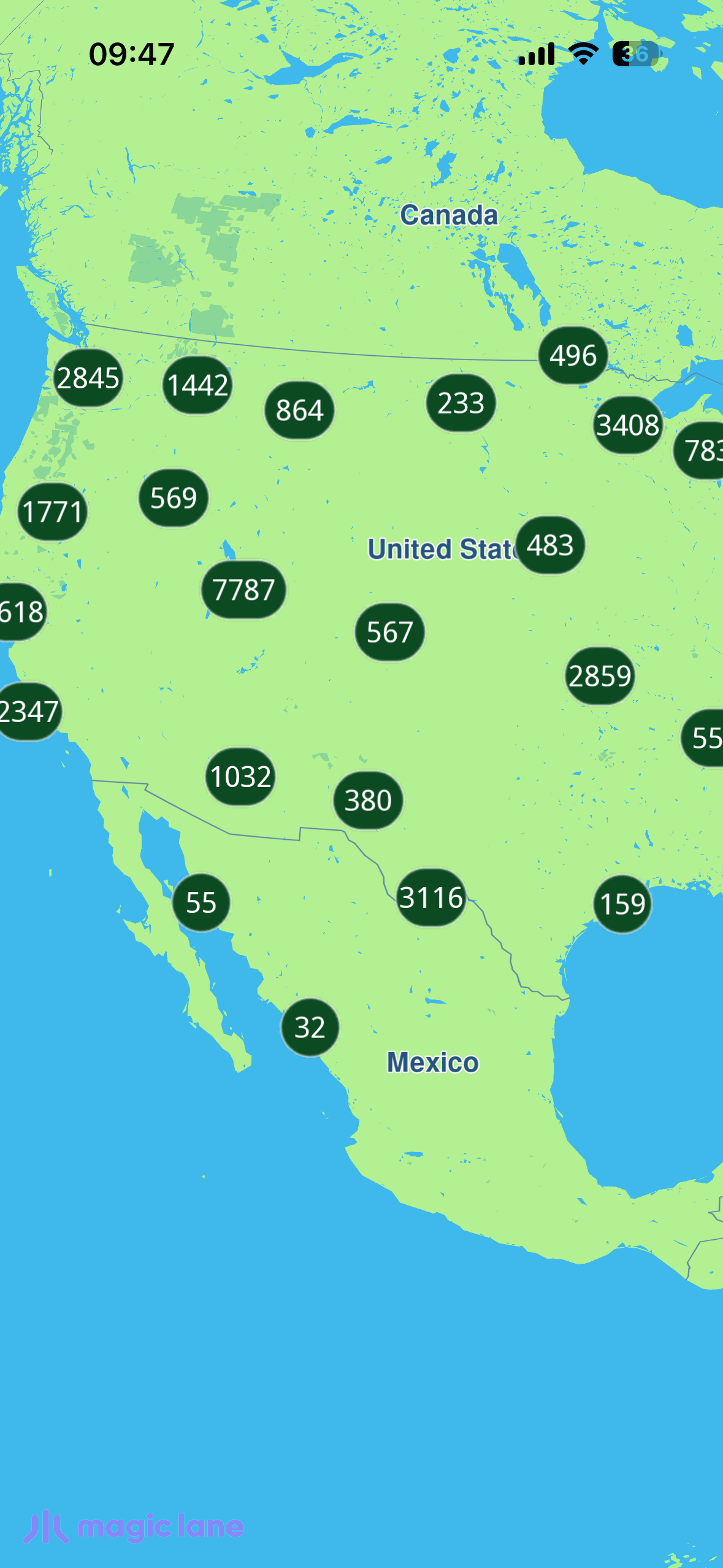
**Clustered markers**
##### UI and Map Integration[](#ui-and-map-integration "Direct link to UI and Map Integration")
This code sets up the map screen, enables the (invisible) cursor so a tap can select a marker, and centers the camera on the initial view.
main.dart[View on Github](https://github.com/magiclane/magiclane-maps-sdk-examples-for-flutter/tree/main/marker_clustering/lib/main.dart?ref_type=heads#L37)
```dart
class MyApp extends StatelessWidget {
const MyApp({super.key});
@override
Widget build(BuildContext context) {
return const MaterialApp(
debugShowCheckedModeBanner: false,
title: 'Marker Clustering',
home: MapScreen(),
);
}
}
Future _onMapCreated(GemMapController controller) async {
_controller = controller;
// Enable the (invisible) cursor so tap → marker selection works.
controller.preferences.enableCursor = true;
controller.preferences.enableCursorRender = false;
controller.centerOnCoordinates(_usCenter, zoomLevel: _usZoom);
controller.registerOnTouch(_onTouch);
}
```
##### Loading and parsing the GeoJSON[](#loading-and-parsing-the-geojson "Direct link to Loading and parsing the GeoJSON")
The bundled GeoJSON is read from assets and decoded on a background isolate (`compute`) so the multi-MB parse never janks the UI thread.
campsite.dart[View on Github](https://github.com/magiclane/magiclane-maps-sdk-examples-for-flutter/tree/main/marker_clustering/lib/campsite.dart?ref_type=heads#L74)
```dart
class CampsiteLoader {
static Future> loadFromAssets(
[String asset = 'assets/campsites.geojson']) async {
final raw = await rootBundle.loadString(asset);
return compute(_parse, raw);
}
static List _parse(String raw) {
final root = jsonDecode(raw) as Map;
final features = (root['features'] as List?) ?? const [];
final result = [];
for (final feature in features) {
final f = feature as Map;
final geometry = f['geometry'] as Map?;
final coords = geometry?['coordinates'] as List?;
final props = f['properties'] as Map?;
if (coords == null || coords.length < 2 || props == null) continue;
result.add(Campsite(
id: _asInt(props['campsiteId'])!,
name: (props['name'] as String?) ?? '',
isBookable: props['bookable'] == true,
latitude: _asDouble(coords[1])!,
longitude: _asDouble(coords[0])!,
// ...
));
}
return result;
}
}
```
##### The cluster layer (count "pill" bubbles)[](#the-cluster-layer-count-pill-bubbles "Direct link to The cluster layer (count \"pill\" bubbles)")
The first collection holds one point-marker per campsite with collection-level settings only. `buildPointsGroupConfig` plus the density images and count thresholds make the SDK group loose points into count-bearing pills. Note that `labelGroupTextColor` defaults to transparent — it must be set opaque or the count is invisible.
main.dart[View on Github](https://github.com/magiclane/magiclane-maps-sdk-examples-for-flutter/tree/main/marker_clustering/lib/main.dart?ref_type=heads#L146)
```dart
final clusterCollection = MarkerCollection(
markerType: MarkerType.point,
name: '$_collectionName-clustered',
);
for (final c in campsites) {
clusterCollection.add(
Marker.fromCoords(
[Coordinates(latitude: c.latitude, longitude: c.longitude)]),
);
}
final clusterSettings = MarkerCollectionRenderSettings(
pointsGroupingZoomLevel: _clusterZoom,
buildPointsGroupConfig: true,
lowDensityPointsGroupImage: assets.lowPill,
mediumDensityPointsGroupImage: assets.mediumPill,
highDensityPointsGroupImage: assets.highPill,
lowDensityPointsGroupMaxCount: 200,
mediumDensityPointsGroupMaxCount: 4000,
labelGroupTextSize: 2.7,
labelingMode: const {
MarkerLabelingMode.groupLabelVisible,
MarkerLabelingMode.groupCenter,
},
);
// Count colour defaults to transparent — set it opaque, or the count is invisible.
clusterSettings.labelGroupTextColor = const Color(0xFFFFFFFF);
clusterSettings.imageSize = 5.8;
clusterSettings.image = assets.transparent; // loose singles invisible
controller.preferences.markers
.add(clusterCollection, settings: clusterSettings);
```
##### The detail layer (coloured pins)[](#the-detail-layer-coloured-pins "Direct link to The detail layer (coloured pins)")
The second collection carries one green/red pin per campsite through the optimised bulk `addList(...)` path. Its group images are transparent, so while clustered it shows nothing and the cluster layer's pills show instead; once the clusters split its pins appear.
main.dart[View on Github](https://github.com/magiclane/magiclane-maps-sdk-examples-for-flutter/tree/main/marker_clustering/lib/main.dart?ref_type=heads#L195)
```dart
final markers = [];
for (final c in campsites) {
markers.add(
MarkerWithRenderSettings(
MarkerJson(
coords: [Coordinates(latitude: c.latitude, longitude: c.longitude)],
name: c.markerName,
),
MarkerRenderSettings(
image: assets.pinFor(bookable: c.isBookable),
imageSize: 6.0,
labelingMode: const {MarkerLabelingMode.iconBottomCenter},
),
),
);
}
final detailSettings = MarkerCollectionRenderSettings(
pointsGroupingZoomLevel: _clusterZoom,
// Transparent group images → nothing shown while clustered.
lowDensityPointsGroupImage: assets.transparent,
mediumDensityPointsGroupImage: assets.transparent,
highDensityPointsGroupImage: assets.transparent,
labelGroupTextSize: 0,
labelingMode: const {MarkerLabelingMode.iconBottomCenter},
);
await controller.preferences.markers.addList(
list: markers,
settings: detailSettings,
name: '$_collectionName-detail',
);
```
As you zoom in, the clusters break apart: smaller count pills give way to the individual green (info-only) and red (bookable) pins.
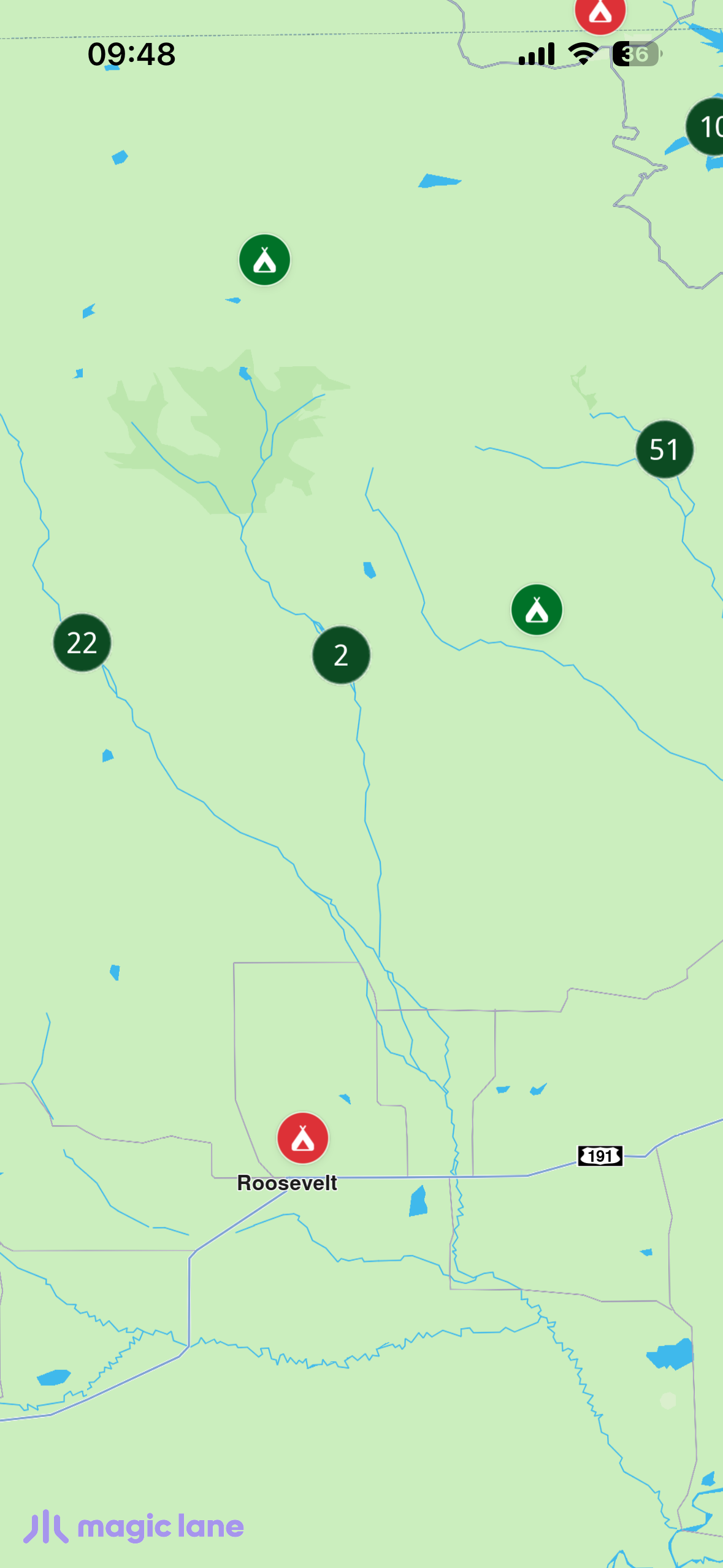
**Clusters breaking apart into pins**
##### Handling taps[](#handling-taps "Direct link to Handling taps")
On touch, the cursor position is set (awaited) before reading the selection. A `coordinateGroup` match means a cluster was tapped — zoom in toward the tap to break it apart. Otherwise a single campsite was tapped — center on it and show its info sheet.
main.dart[View on Github](https://github.com/magiclane/magiclane-maps-sdk-examples-for-flutter/tree/main/marker_clustering/lib/main.dart?ref_type=heads#L242)
```dart
Future _onTouch(Point pos) async {
await controller.setCursorScreenPosition(pos);
final matches = controller.cursorSelectionMarkers();
if (matches.isEmpty) return;
final isCluster =
matches.any((m) => m.type == MarkerMatchType.coordinateGroup);
if (isCluster) {
final target = (controller.zoomLevel + 12).clamp(0, 90).toInt();
controller.centerOnCoordinates(
controller.transformScreenToWgs(pos),
zoomLevel: target,
animation: GemAnimation(type: AnimationType.linear, duration: 500),
);
return;
}
// Single campsite → decode metadata and show the info sheet.
final marker = matches.first.marker;
final info = Campsite.decodeMarkerName(marker.name);
// ... center on it and setState to show _InfoSheet
}
```
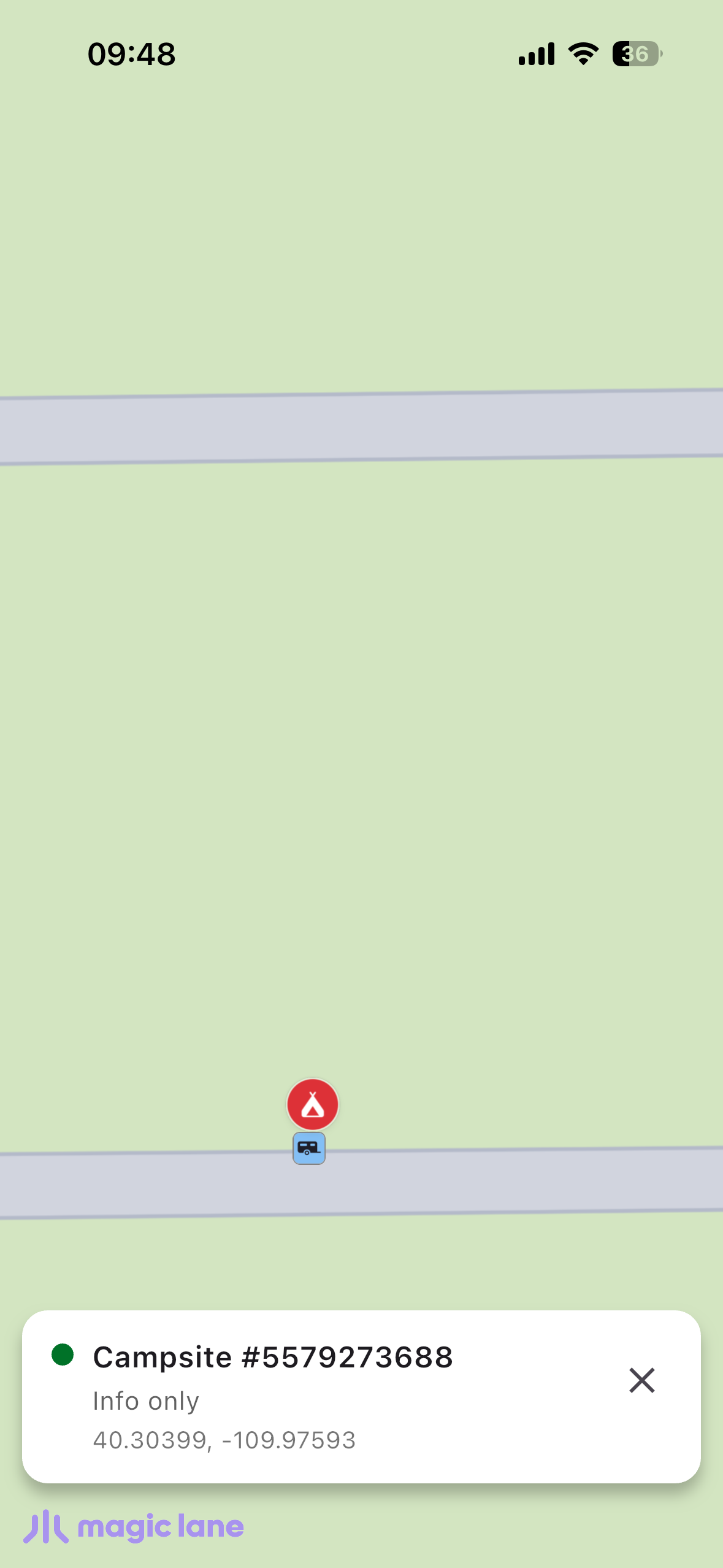
**Coloured pins and info sheet**
---
### Multiview Map
Last updated:
July 15, 2026
| 2 minutes read
In this guide, you will learn how to display multiple interactive maps in one viewport.
#### How it works[](#how-it-works "Direct link to How it works")
This example demonstrates the following features:
* Display multiple map views in a grid layout, each independently interactive with features like panning and zooming.
**Initial empty viewport**
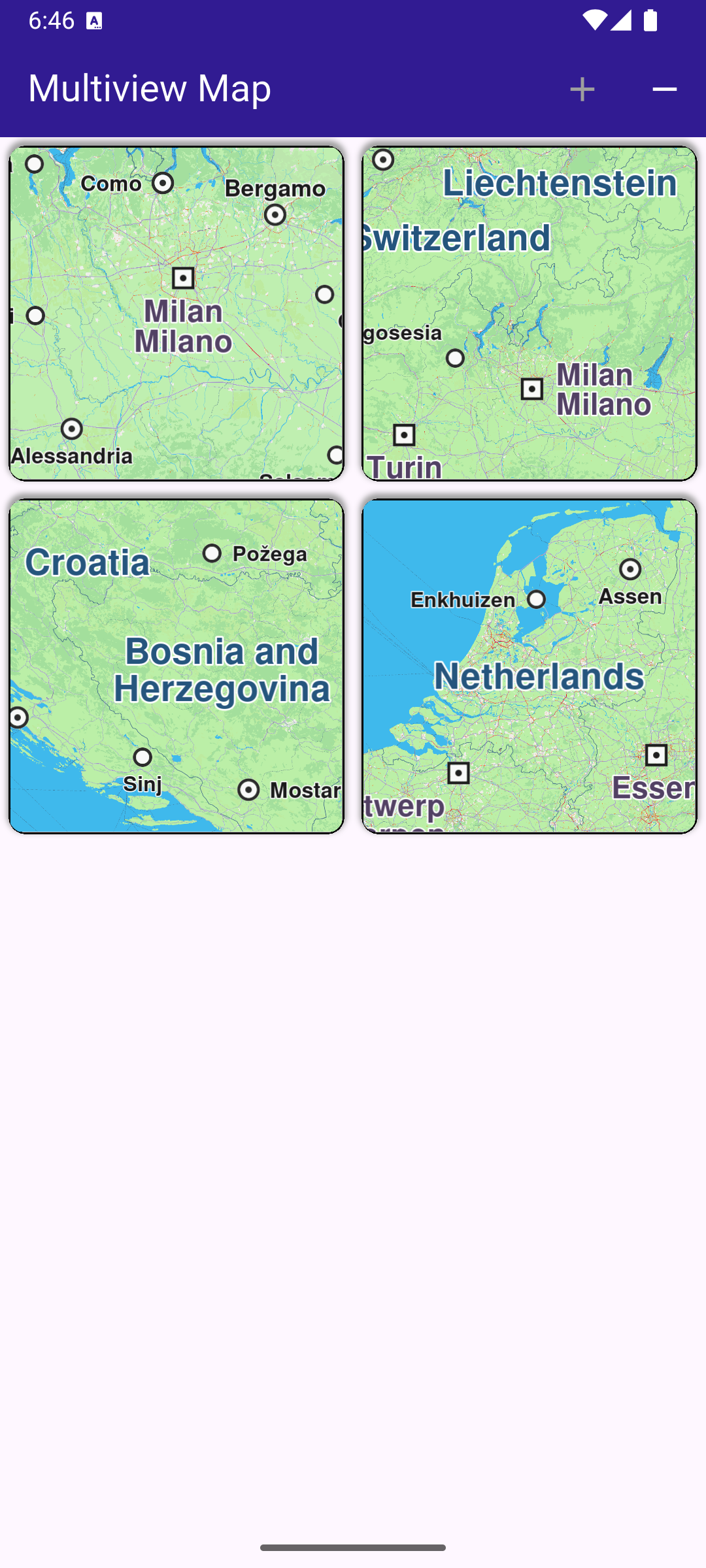
**Four different interactive maps**
##### Creating the Grid of Maps[](#creating-the-grid-of-maps "Direct link to Creating the Grid of Maps")
A GridView is used to create a grid with a maximum of 2 map views per row. Each map view is created by GemMap() and enclosed in a Container as a grid element.
main.dart[View on Github](https://github.com/magiclane/magiclane-maps-sdk-examples-for-flutter/tree/main/multiview_map/lib/main.dart?ref_type=heads#L72)
```dart
body: GridView.builder(
physics: const NeverScrollableScrollPhysics(),
gridDelegate: const SliverGridDelegateWithFixedCrossAxisCount(
crossAxisCount: 2,
),
itemCount: _mapViewsCount,
itemBuilder: (context, index) {
return Container(
clipBehavior: Clip.hardEdge,
decoration: BoxDecoration(
border: Border.all(color: Colors.black, width: 1),
borderRadius: BorderRadius.circular(10),
boxShadow: const [
BoxShadow(
color: Colors.grey,
offset: Offset(0, -2),
spreadRadius: 1,
blurRadius: 2,
),
],
),
margin: const EdgeInsets.all(5),
child: const GemMap(
key: ValueKey("GemMap"),
appAuthorization: projectApiToken,
),
);
},
),
```
##### Managing the Number of Map Views[](#managing-the-number-of-map-views "Direct link to Managing the Number of Map Views")
The number of interactive map views (initially zero) to display is stored in \_mapViewsCount and can be increased or decreased interactively by the user using the functions shown above.
Each map is a separate view and can be panned/zoomed independently of the others.
main.dart[View on Github](https://github.com/magiclane/magiclane-maps-sdk-examples-for-flutter/tree/main/multiview_map/lib/main.dart?ref_type=heads#L105)
```dart
void _addViewButtonPressed() => setState(() {
if (_mapViewsCount < 4) {
_mapViewsCount += 1;
}
});
void _removeViewButtonPressed() => setState(() {
if (_mapViewsCount > 0) {
_mapViewsCount -= 1;
}
});
```
---
### Overlapped Maps
Last updated:
July 15, 2026
| 2 minutes read
This example demonstrates how to create a Flutter application that utilizes the Maps SDK for Flutter to display overlapped maps. The application initializes the GemKit SDK and renders two maps on top of each other, showcasing the ability to layer map views.
#### How it works[](#how-it-works "Direct link to How it works")
* Main App Setup : Sets up the app’s home screen with two maps overlapped.
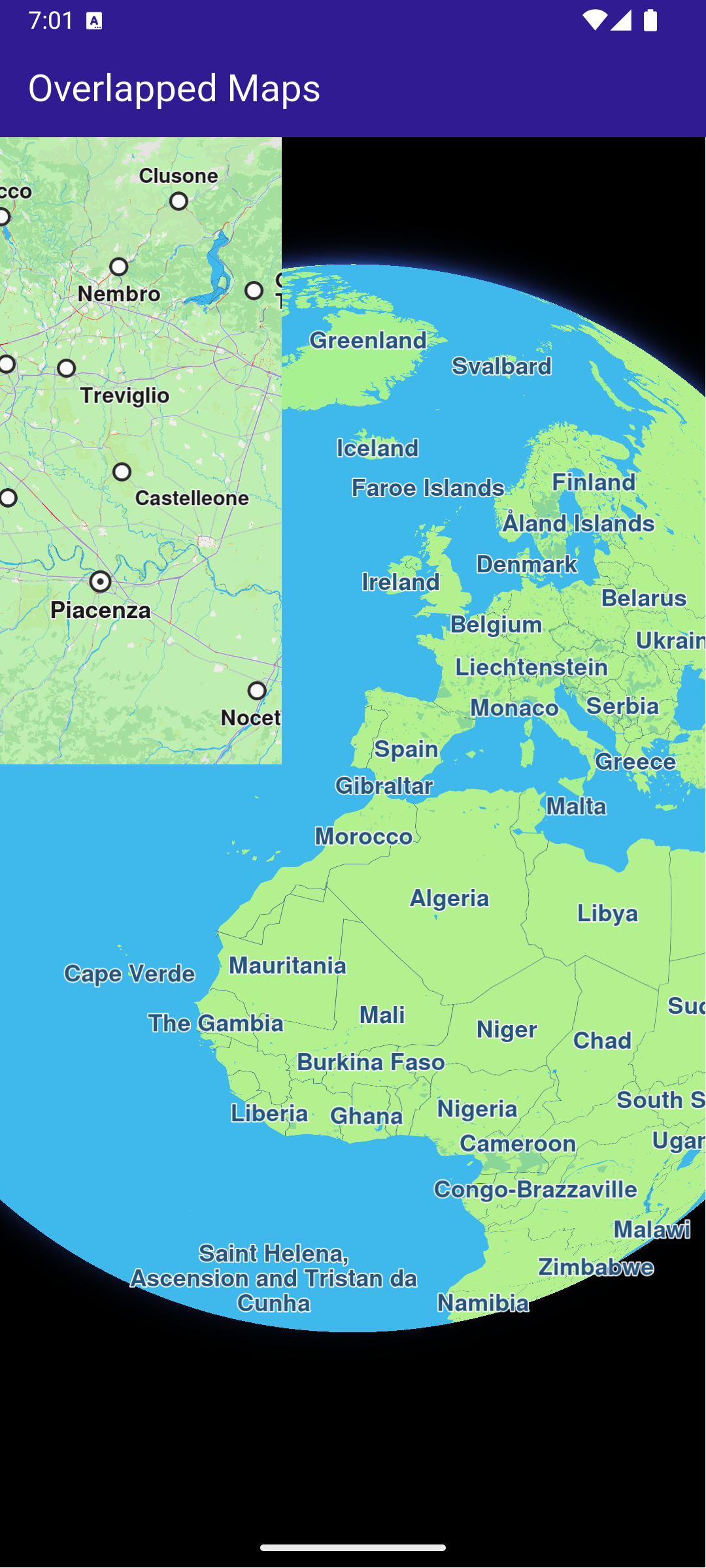
**Two overlapped GemMap widgets**
##### UI and Map Integration[](#ui-and-map-integration "Direct link to UI and Map Integration")
The main application consists of a simple user interface that displays two maps stacked on top of each other. The user can see both maps simultaneously, allowing for comparison or overlaying of different data. This code sets up the main application UI, including an app bar and a body that contains a stack of maps.
main.dart[View on Github](https://github.com/magiclane/magiclane-maps-sdk-examples-for-flutter/tree/main/overlapped_maps/lib/main.dart?ref_type=heads#L16)
```dart
class MyApp extends StatelessWidget {
const MyApp({super.key});
@override
Widget build(BuildContext context) {
return const MaterialApp(
debugShowCheckedModeBanner: false,
title: 'Overlapped Maps',
home: MyHomePage(),
);
}
}
class MyHomePage extends StatefulWidget {
const MyHomePage({super.key});
@override
State createState() => _MyHomePageState();
}
class _MyHomePageState extends State {
@override
void dispose() {
GemKit.release();
super.dispose();
}
@override
Widget build(BuildContext context) {
return Scaffold(
appBar: AppBar(
backgroundColor: Colors.deepPurple[900],
title: const Text(
'Overlapped Maps',
style: TextStyle(color: Colors.white),
),
),
// Stack maps
body: Stack(
children: [
const GemMap(
key: ValueKey("GemMap"),
appAuthorization: projectApiToken,
),
SizedBox(
height: MediaQuery.of(context).size.height * 0.4,
width: MediaQuery.of(context).size.width * 0.4,
child: const GemMap(),
),
],
),
);
}
}
```
---
### Projections
Last updated:
July 15, 2026
| 5 minutes read
This example showcases how to build a Flutter app featuring an interactive map. Users can select a point on map and see its coordinates in different projections systems.
#### How it works[](#how-it-works "Direct link to How it works")
The example app includes the following features:
* Display a map.
* Select a point on the map.
* Display the coordinates of the selected point in different projection systems.
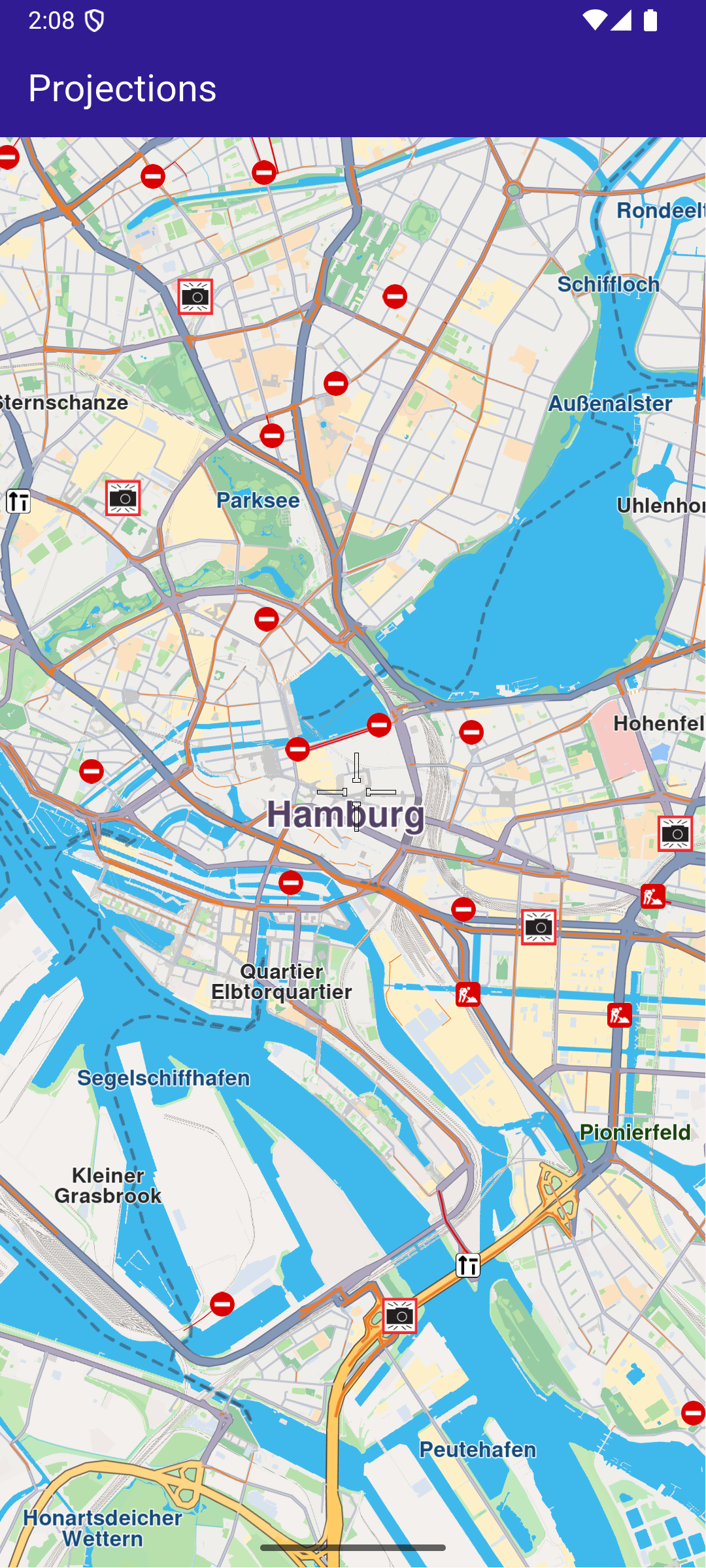
**Initial map screen**
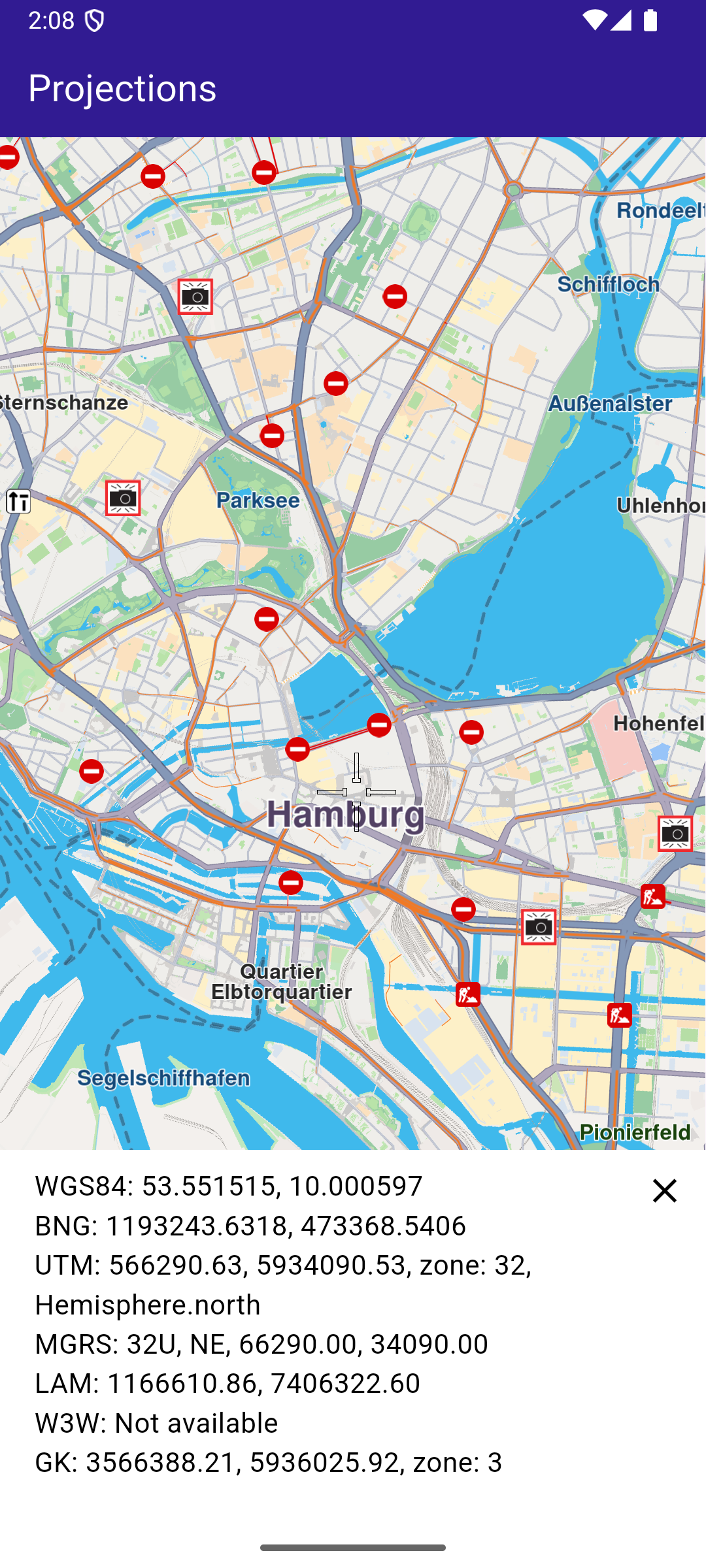
**Selected point coordinates**
##### UI and Map Integration[](#ui-and-map-integration "Direct link to UI and Map Integration")
The code below builds a user interface featuring an interactive `GemMap` which can be tapped to select a point. When a point is selected, the coordinates are displayed in different projection systems.
main.dart[View on Github](https://github.com/magiclane/magiclane-maps-sdk-examples-for-flutter/tree/main/projections/lib/main.dart?ref_type=heads#L19)
```dart
class MyApp extends StatelessWidget {
const MyApp({super.key});
@override
Widget build(BuildContext context) {
return const MaterialApp(
title: 'Projections',
debugShowCheckedModeBanner: false,
home: MyHomePage(),
);
}
}
class MyHomePage extends StatefulWidget {
const MyHomePage({super.key});
@override
State createState() => _MyHomePageState();
}
class _MyHomePageState extends State {
late GemMapController _mapController;
WGS84Projection? _wgsProjection;
MGRSProjection? _mgrsProjection;
UTMProjection? _utmProjection;
LAMProjection? _lamProjection;
W3WProjection? _w3wProjection;
GKProjection? _gkProjection;
BNGProjection? _bngProjection;
@override
void dispose() {
GemKit.release();
super.dispose();
}
@override
Widget build(BuildContext context) {
return Scaffold(
appBar: AppBar(
backgroundColor: Colors.deepPurple[900],
title: const Text('Projections', style: TextStyle(color: Colors.white)),
),
body: Stack(
alignment: AlignmentDirectional.bottomStart,
children: [
GemMap(
key: ValueKey("GemMap"),
onMapCreated: _onMapCreated,
appAuthorization: projectApiToken,
),
if (_wgsProjection != null)
ProjectionsPanel(
wgsProjection: _wgsProjection,
mgrsProjection: _mgrsProjection,
utmProjection: _utmProjection,
lamProjection: _lamProjection,
w3wProjection: _w3wProjection,
gkProjection: _gkProjection,
bngProjection: _bngProjection,
onClose: () {
setState(() {
_wgsProjection = null;
_mgrsProjection = null;
_utmProjection = null;
_lamProjection = null;
_w3wProjection = null;
_gkProjection = null;
_bngProjection = null;
});
},
),
],
),
);
}
// The callback for when map is ready to use.
void _onMapCreated(GemMapController controller) async {
// Save controller for further usage.
_mapController = controller;
_mapController.centerOnCoordinates(
Coordinates(latitude: 45.472358, longitude: 9.184945),
zoomLevel: 80,
);
// Enable cursor to render on screen
_mapController.preferences.enableCursor = true;
_mapController.preferences.enableCursorRender = true;
// Register touch callback to set cursor to tapped position
_mapController.registerOnTouch((point) async {
// Transform the screen point to Coordinates
final coords = _mapController.transformScreenToWgs(point);
// Update cursor position on the map
_mapController.setCursorScreenPosition(point);
// Build WGS84 projection from Coordinates
final wgsProjection = WGS84Projection(coords);
final utmProjection =
await convertProjection(wgsProjection, ProjectionType.utm)
as UTMProjection?;
final mgrsProjection =
await convertProjection(wgsProjection, ProjectionType.mgrs)
as MGRSProjection?;
final lamProjection =
await convertProjection(wgsProjection, ProjectionType.lam)
as LAMProjection?;
final w3wProjection =
await convertProjection(wgsProjection, ProjectionType.w3w)
as W3WProjection?;
final gkProjection =
await convertProjection(wgsProjection, ProjectionType.gk)
as GKProjection?;
final bngProjection =
await convertProjection(wgsProjection, ProjectionType.bng)
as BNGProjection?;
setState(() {
_wgsProjection = wgsProjection;
_utmProjection = utmProjection;
_mgrsProjection = mgrsProjection;
_lamProjection = lamProjection;
_w3wProjection = w3wProjection;
_gkProjection = gkProjection;
_bngProjection = bngProjection;
});
});
}
Future convertProjection(
Projection projection,
ProjectionType type,
) async {
final completer = Completer();
ProjectionService.convert(
from: projection,
toType: type,
onComplete: (err, convertedProjection) {
if (err != GemError.success) {
completer.complete(null);
} else {
completer.complete(convertedProjection);
}
},
);
return await completer.future;
}
}
```
##### Projections Panel[](#projections-panel "Direct link to Projections Panel")
The `ProjectionsPanel` widget displays the coordinates in different projection systems. It is shown when a point is selected on the map.
projections\_panel.dart[View on Github](https://github.com/magiclane/magiclane-maps-sdk-examples-for-flutter/tree/main/projections/lib/projections_panel.dart?ref_type=heads#L9)
```dart
class ProjectionsPanel extends StatelessWidget {
final WGS84Projection? wgsProjection;
final MGRSProjection? mgrsProjection;
final UTMProjection? utmProjection;
final LAMProjection? lamProjection;
final W3WProjection? w3wProjection;
final GKProjection? gkProjection;
final BNGProjection? bngProjection;
final VoidCallback onClose;
const ProjectionsPanel({
super.key,
this.wgsProjection,
this.mgrsProjection,
this.utmProjection,
this.lamProjection,
this.w3wProjection,
this.gkProjection,
this.bngProjection,
required this.onClose,
});
@override
Widget build(BuildContext context) {
return Stack(
children: [
Container(
color: Colors.white,
width: MediaQuery.of(context).size.width,
child: Padding(
padding: const EdgeInsets.only(
bottom: 50.0,
left: 20.0,
right: 20.0,
top: 10,
),
child: Column(
mainAxisSize: MainAxisSize.min,
crossAxisAlignment: CrossAxisAlignment.start,
children: [
Text(
'WGS84: ${wgsProjection!.coordinates.latitude.toStringAsFixed(6)}, ${wgsProjection!.coordinates.longitude.toStringAsFixed(6)}',
style: const TextStyle(color: Colors.black, fontSize: 16),
),
(bngProjection != null)
? Text(
'BNG: ${bngProjection!.easting.toStringAsFixed(4)}, ${bngProjection!.northing.toStringAsFixed(4)}',
style: const TextStyle(
color: Colors.black,
fontSize: 16,
),
)
: const Text(
'BNG: Not available',
style: TextStyle(color: Colors.black, fontSize: 16),
),
(utmProjection != null)
? Text(
'UTM: ${utmProjection!.x.toStringAsFixed(2)}, ${utmProjection!.y.toStringAsFixed(2)}, zone: ${utmProjection!.zone}, ${utmProjection!.hemisphere}',
style: const TextStyle(
color: Colors.black,
fontSize: 16,
),
)
: const Text(
'UTM: Not available',
style: TextStyle(color: Colors.black, fontSize: 16),
),
(mgrsProjection != null)
? Text(
'MGRS: ${mgrsProjection!.zone}, ${mgrsProjection!.letters}, ${mgrsProjection!.easting.toStringAsFixed(2)}, ${mgrsProjection!.northing.toStringAsFixed(2)}',
style: const TextStyle(
color: Colors.black,
fontSize: 16,
),
)
: const Text(
'MGRS: Not available',
style: TextStyle(color: Colors.black, fontSize: 16),
),
(lamProjection != null)
? Text(
'LAM: ${lamProjection!.x.toStringAsFixed(2)}, ${lamProjection!.y.toStringAsFixed(2)}',
style: const TextStyle(
color: Colors.black,
fontSize: 16,
),
)
: const Text(
'LAM: Not available',
style: TextStyle(color: Colors.black, fontSize: 16),
),
(w3wProjection != null)
? Text(
'W3W: ${w3wProjection!.words}',
style: const TextStyle(
color: Colors.black,
fontSize: 16,
),
)
: const Text(
'W3W: Not available',
style: TextStyle(color: Colors.black, fontSize: 16),
),
(gkProjection != null)
? Text(
'GK: ${gkProjection!.easting.toStringAsFixed(2)}, ${gkProjection!.northing.toStringAsFixed(2)}, zone: ${gkProjection!.zone}',
style: const TextStyle(
color: Colors.black,
fontSize: 16,
),
)
: const Text(
'GK: Not available',
style: TextStyle(color: Colors.black, fontSize: 16),
),
],
),
),
),
Positioned(
top: 0,
right: 0,
child: IconButton(
icon: const Icon(Icons.close, color: Colors.black),
onPressed: onClose,
),
),
],
);
}
}
```
---
### Public Transit Stop Schedule
Last updated:
July 15, 2026
| 6 minutes read
This example showcases how to build a Flutter app featuring an interactive map. Users can select public transport points of interest (POIs) to access detailed information, including departure times, route names, and the status of transport vehicles, such as whether they have departed.
#### How it works[](#how-it-works "Direct link to How it works")
The example app includes the following features:
* Display a map.
* Select public transport stations from the map.
* Display public transport trip information.
* Show departure times for each public transport trip.
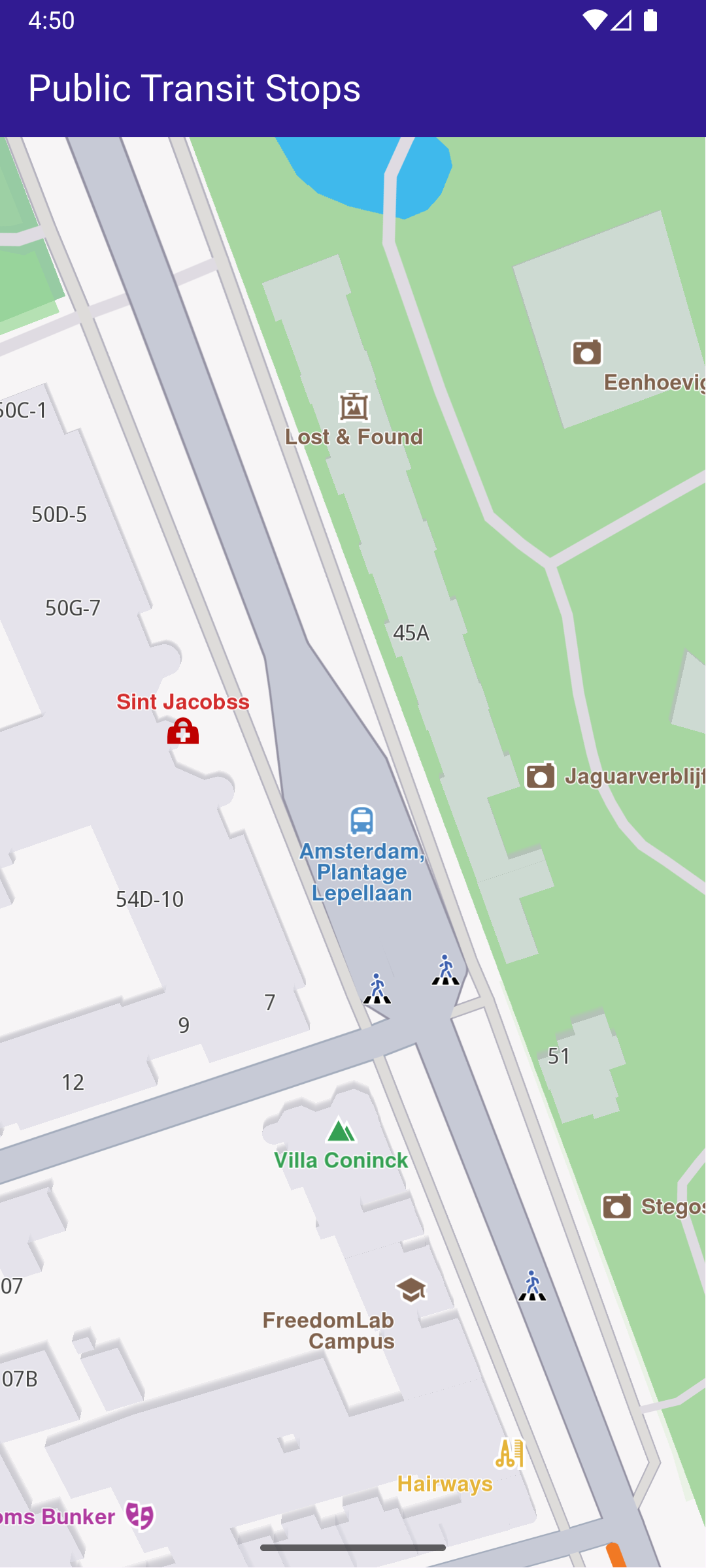
**Public Transport POI**
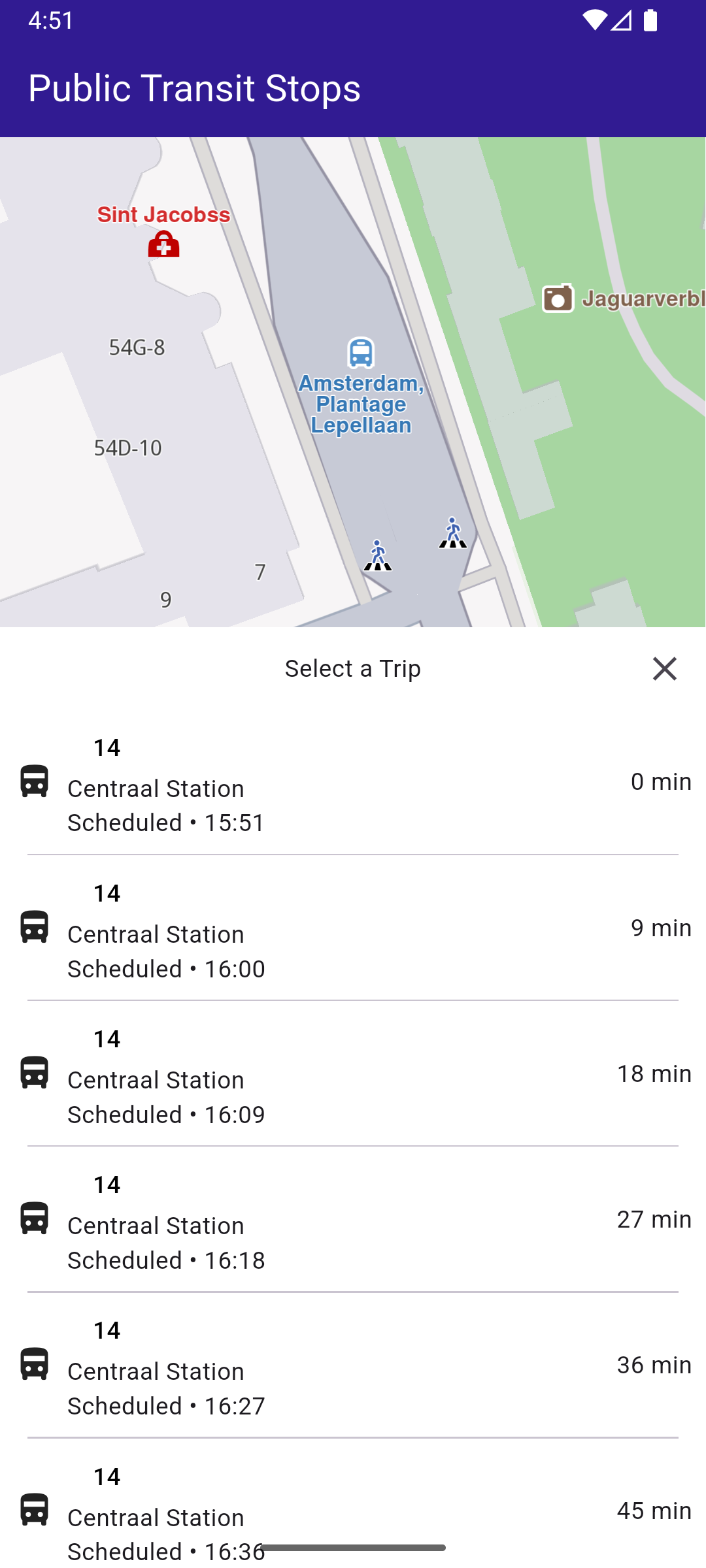
**Public Transport Routes**
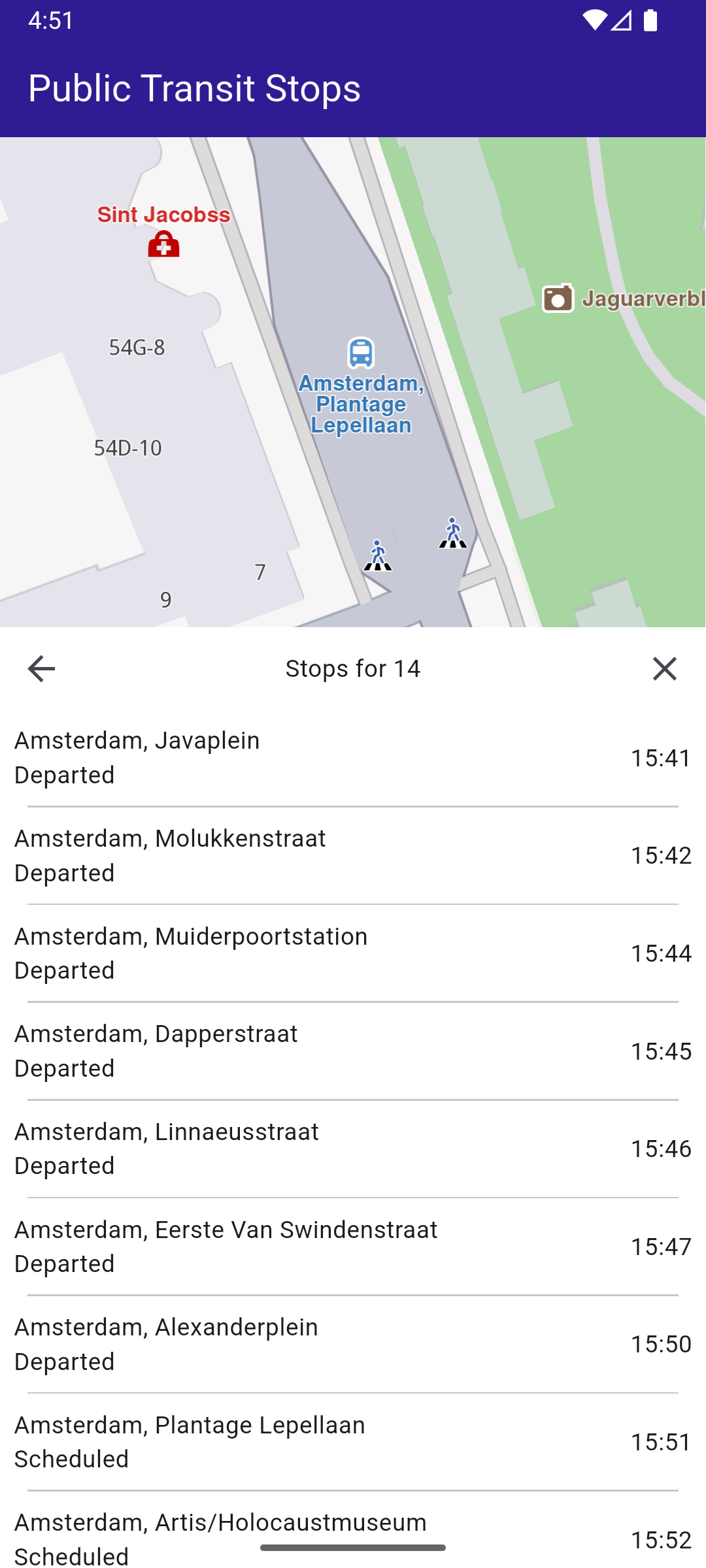
**Departure Times**
##### UI and Map Integration[](#ui-and-map-integration "Direct link to UI and Map Integration")
The following code creates a user interface with an interactive `GemMap` and an app bar.
main.dart[View on Github](https://github.com/magiclane/magiclane-maps-sdk-examples-for-flutter/tree/main/public_transit_stop_schedule/lib/main.dart?ref_type=heads#L12)
```dart
const projectApiToken = String.fromEnvironment('YOUR_API_TOKEN_HERE');
void main() {
runApp(const MyApp());
}
class MyApp extends StatelessWidget {
const MyApp({super.key});
@override
Widget build(BuildContext context) {
return const MaterialApp(
debugShowCheckedModeBanner: false,
title: 'Public Transit Stops',
home: MyHomePage(),
);
}
}
class MyHomePage extends StatefulWidget {
const MyHomePage({super.key});
@override
State createState() => _MyHomePageState();
}
class _MyHomePageState extends State {
late GemMapController _mapController;
PTStopInfo? _selectedPTStop;
Coordinates? _selectedPTStopCoords;
@override
void dispose() {
GemKit.release();
super.dispose();
}
@override
Widget build(BuildContext context) {
return Scaffold(
appBar: AppBar(
backgroundColor: Colors.deepPurple[900],
title: const Text(
'Public Transit Stops',
style: TextStyle(color: Colors.white),
),
),
body: Stack(
children: [
GemMap(
key: ValueKey("GemMap"),
appAuthorization: projectApiToken,
onMapCreated: (controller) => _onMapCreated(controller),
),
if (_selectedPTStop != null)
Positioned(
bottom: 0,
left: 0,
right: 0,
child: SizedBox(
height: MediaQuery.of(context).size.height * 0.6,
child: FutureBuilder(
future: getLocalTime(_selectedPTStopCoords!),
builder: (context, snapshot) {
if (snapshot.connectionState == ConnectionState.waiting) {
return Container();
}
return PublicTransitStopPanel(
ptStopInfo: _selectedPTStop!,
localTime: snapshot.data!,
onCloseTap: () => setState(() {
_selectedPTStop = null;
_selectedPTStopCoords = null;
}),
);
},
),
),
),
],
),
);
}
void _onMapCreated(GemMapController controller) async {
// Save controller for further usage.
_mapController = controller;
_mapController.registerOnLongPress((pos) async {
// Update the cursor screen position
await _mapController.setCursorScreenPosition(pos);
// Get the public transit overlay items at that position
final items = _mapController.cursorSelectionOverlayItemsByType(
CommonOverlayId.publicTransport,
);
final coords = _mapController.transformScreenToWgs(pos);
for (final OverlayItem item in items) {
// Get the stop information
final ptStopInfo = await item.getPTStopInfo();
if (ptStopInfo != null) {
setState(() {
_selectedPTStop = ptStopInfo;
_selectedPTStopCoords = coords;
});
}
}
});
_mapController.centerOnCoordinates(
Coordinates(latitude: 41.40377426147461, longitude: 2.173604965209961),
zoomLevel: 95,
);
}
}
```
##### Public Transport Stop Panel[](#public-transport-stop-panel "Direct link to Public Transport Stop Panel")
public\_transit\_stop\_panel.dart[View on Github](https://github.com/magiclane/magiclane-maps-sdk-examples-for-flutter/tree/main/public_transit_stop_schedule/lib/public_transit_stop_panel.dart?ref_type=heads#L13)
```dart
class PublicTransitStopPanel extends StatefulWidget {
final PTStopInfo ptStopInfo;
final DateTime localTime;
final VoidCallback onCloseTap;
const PublicTransitStopPanel({
super.key,
required this.ptStopInfo,
required this.localTime,
required this.onCloseTap,
});
@override
State createState() => _PublicTransitStopPanelState();
}
class _PublicTransitStopPanelState extends State {
PTTrip? _selectedTrip;
@override
Widget build(BuildContext context) {
return Column(
children: [
Container(
width: double.infinity,
color: Colors.white,
child: Row(
mainAxisAlignment: MainAxisAlignment.spaceBetween,
children: [
if (_selectedTrip != null)
IconButton(
icon: const Icon(Icons.arrow_back),
onPressed: () => setState(() => _selectedTrip = null),
)
else
const SizedBox(width: 48),
Text(
_selectedTrip == null
? 'Select a Trip'
: 'Stops for ${_selectedTrip!.route.routeShortName}',
),
IconButton(
icon: const Icon(Icons.close),
onPressed: widget.onCloseTap,
),
],
),
),
// Body: either list of trips or list of stops
Expanded(
child: Container(
color: Colors.white,
child: _selectedTrip == null
? ListView.separated(
itemCount: widget.ptStopInfo.trips.length,
itemBuilder: (context, index) {
final trip = widget.ptStopInfo.trips[index];
return Padding(
padding: const EdgeInsets.all(8.0),
child: PTLineListItem(
localCurrentTime: widget.localTime,
ptTrip: trip,
onTap: () {
setState(() {
_selectedTrip = trip;
});
},
),
);
},
separatorBuilder: (_, __) => const Divider(
height: 1,
thickness: 1,
indent: 16,
endIndent: 16,
),
)
: DepartureTimesPanel(
stopTimes: _selectedTrip!.stopTimes,
localTime: widget.localTime,
onCloseTap: widget.onCloseTap,
),
),
),
],
);
}
}
class PTLineListItem extends StatelessWidget {
final PTTrip ptTrip;
final DateTime localCurrentTime;
final VoidCallback onTap;
const PTLineListItem({
super.key,
required this.ptTrip,
required this.localCurrentTime,
required this.onTap,
});
@override
Widget build(BuildContext context) {
return InkWell(
onTap: onTap,
child: Row(
mainAxisAlignment: MainAxisAlignment.spaceBetween,
children: [
Row(
children: [
Icon(getTransportIcon(ptTrip.route.routeType)),
SizedBox(width: 7.0),
Column(
crossAxisAlignment: CrossAxisAlignment.start,
children: [
Container(
padding: EdgeInsets.symmetric(
vertical: 4.0,
horizontal: 15.0,
),
decoration: BoxDecoration(
color: ptTrip.route.routeColor,
borderRadius: BorderRadius.circular(
14.0,
), // adjust radius as you like
),
child: Text(
ptTrip.route.routeShortName ?? "None",
style: TextStyle(
color: ptTrip.route.routeTextColor,
fontWeight: FontWeight.w500,
),
),
),
Text(
ptTrip.route.heading ?? ptTrip.route.routeLongName ?? "Nan",
maxLines: 1,
overflow: TextOverflow.ellipsis,
),
Text(
ptTrip.departureTime != null
? 'Scheduled • ${DateFormat('H:mm').format(ptTrip.departureTime!)}'
: 'Scheduled • ',
),
],
),
],
),
Text(calculateTimeDifference(localCurrentTime, ptTrip)),
],
),
);
}
}
```
##### Departure Times Panel[](#departure-times-panel "Direct link to Departure Times Panel")
departure\_times\_panel.dart[View on Github](https://github.com/magiclane/magiclane-maps-sdk-examples-for-flutter/tree/main/public_transit_stop_schedule/lib/departure_times_panel.dart?ref_type=heads#L11)
```dart
class DepartureTimesPanel extends StatelessWidget {
final List stopTimes;
final DateTime localTime;
final VoidCallback onCloseTap;
const DepartureTimesPanel({
super.key,
required this.stopTimes,
required this.localTime,
required this.onCloseTap,
});
@override
Widget build(BuildContext context) {
return Column(
children: [
// the scrollable list with dividers
Expanded(
child: Container(
color: Colors.white,
child: ListView.separated(
itemCount: stopTimes.length,
itemBuilder: (context, index) => Padding(
padding: const EdgeInsets.all(8.0),
child: DepartureTimesListItem(
stop: stopTimes[index],
localCurrentTime: localTime,
),
),
separatorBuilder: (context, index) => const Divider(
height: 1,
thickness: 1,
indent: 16, // optional: inset the divider from the left
endIndent: 16, // optional: inset the divider from the right
),
),
),
),
],
);
}
}
class DepartureTimesListItem extends StatelessWidget {
final PTStopTime stop;
final DateTime localCurrentTime;
const DepartureTimesListItem({
super.key,
required this.stop,
required this.localCurrentTime,
});
@override
Widget build(BuildContext context) {
return Row(
mainAxisAlignment: MainAxisAlignment.spaceBetween,
children: [
Expanded(
child: Column(
crossAxisAlignment: CrossAxisAlignment.start,
children: [
Text(stop.stopName, maxLines: 1, overflow: TextOverflow.ellipsis),
if (stop.departureTime != null)
Text(
stop.departureTime!.isAfter(localCurrentTime)
? "Scheduled"
: "Departed",
),
],
),
),
SizedBox(width: 8),
Text(
stop.departureTime != null
? DateFormat('H:mm').format(stop.departureTime!)
: '-',
),
],
);
}
}
```
##### Utility Functions[](#utility-functions "Direct link to Utility Functions")
utils.dart[View on Github](https://github.com/magiclane/magiclane-maps-sdk-examples-for-flutter/tree/main/public_transit_stop_schedule/lib/utils.dart?ref_type=heads#L12)
```dart
// Retrieves the local time for the region corresponding to the given coordinates.
Future getLocalTime(Coordinates referenceCoords) async {
final completer = Completer();
TimezoneService.getTimezoneInfoFromCoordinates(
coords: referenceCoords,
time: DateTime.now(),
onComplete: (error, result) {
if (error == GemError.success) completer.complete(result);
},
);
final timezoneResult = await completer.future;
return timezoneResult.localTime;
}
IconData getTransportIcon(PTRouteType type) {
switch (type) {
case PTRouteType.bus:
return Icons.directions_bus;
case PTRouteType.underground:
return Icons.directions_subway;
case PTRouteType.railway:
return Icons.directions_railway;
case PTRouteType.tram:
return Icons.directions_bus_filled;
case PTRouteType.waterTransport:
return Icons.directions_boat;
case PTRouteType.misc:
return Icons.miscellaneous_services;
}
}
// Computes how many minutes remain until the PTTrip’s scheduled departure.
String calculateTimeDifference(DateTime localCurrentTime, PTTrip ptTrip) {
return ptTrip.departureTime != null
? '${ptTrip.departureTime!.difference(localCurrentTime).inMinutes} min'
```
---
### SDK Automatic Activation
Last updated:
July 15, 2026
| 4 minutes read
This example shows how to perform automatic activation of the SDK based on the provided token. Activations are used to authorize the use of the SDK on a device. Each device will have its own activation record based on the same application token. The role of activations are to track the number of devices for special licensing scenarios.
#### How it works[](#how-it-works "Direct link to How it works")
The example app includes the following features:
* Display a page for entering a custom token.
* Automatic activation of the SDK using the provided token.
* Display the map upon successful activation and see the activation status.
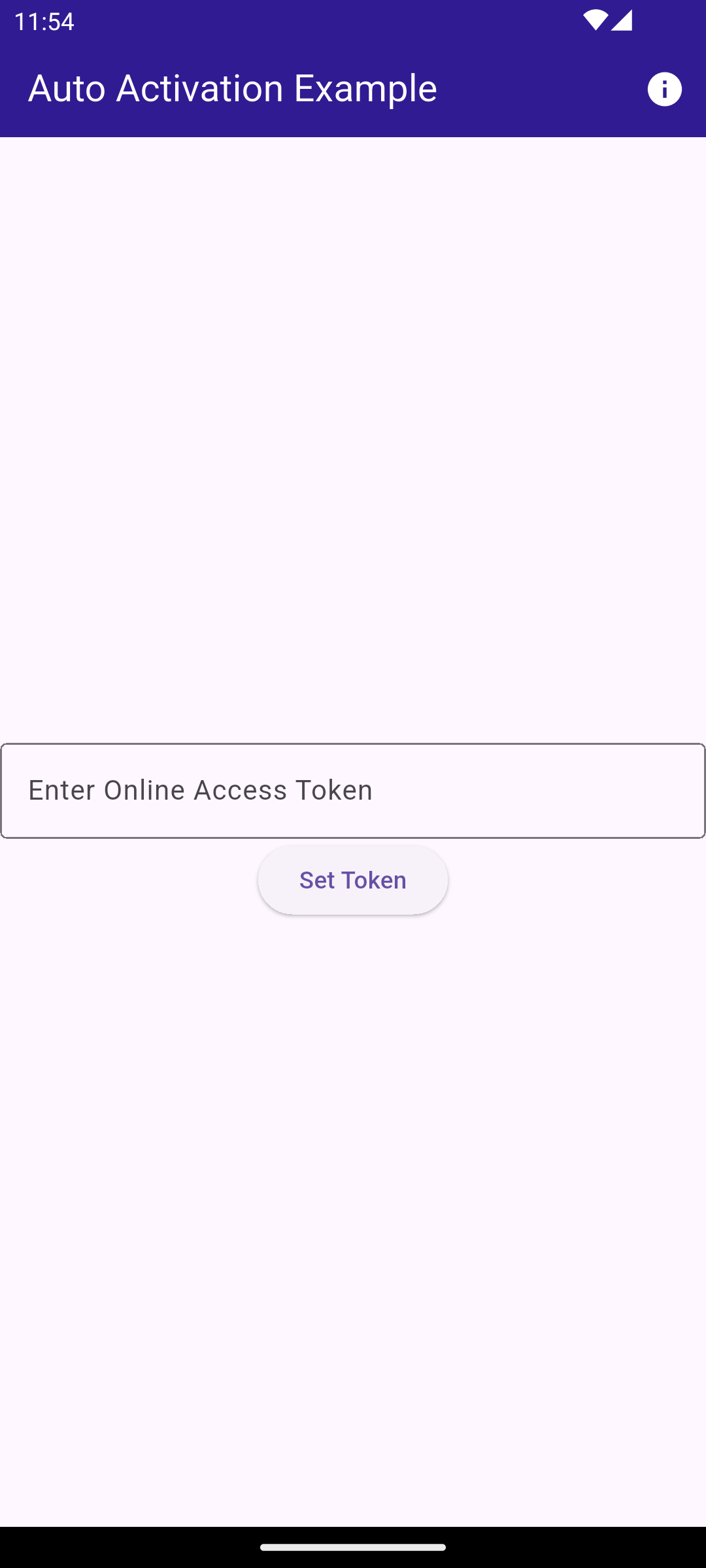
**Initial screen for activation**
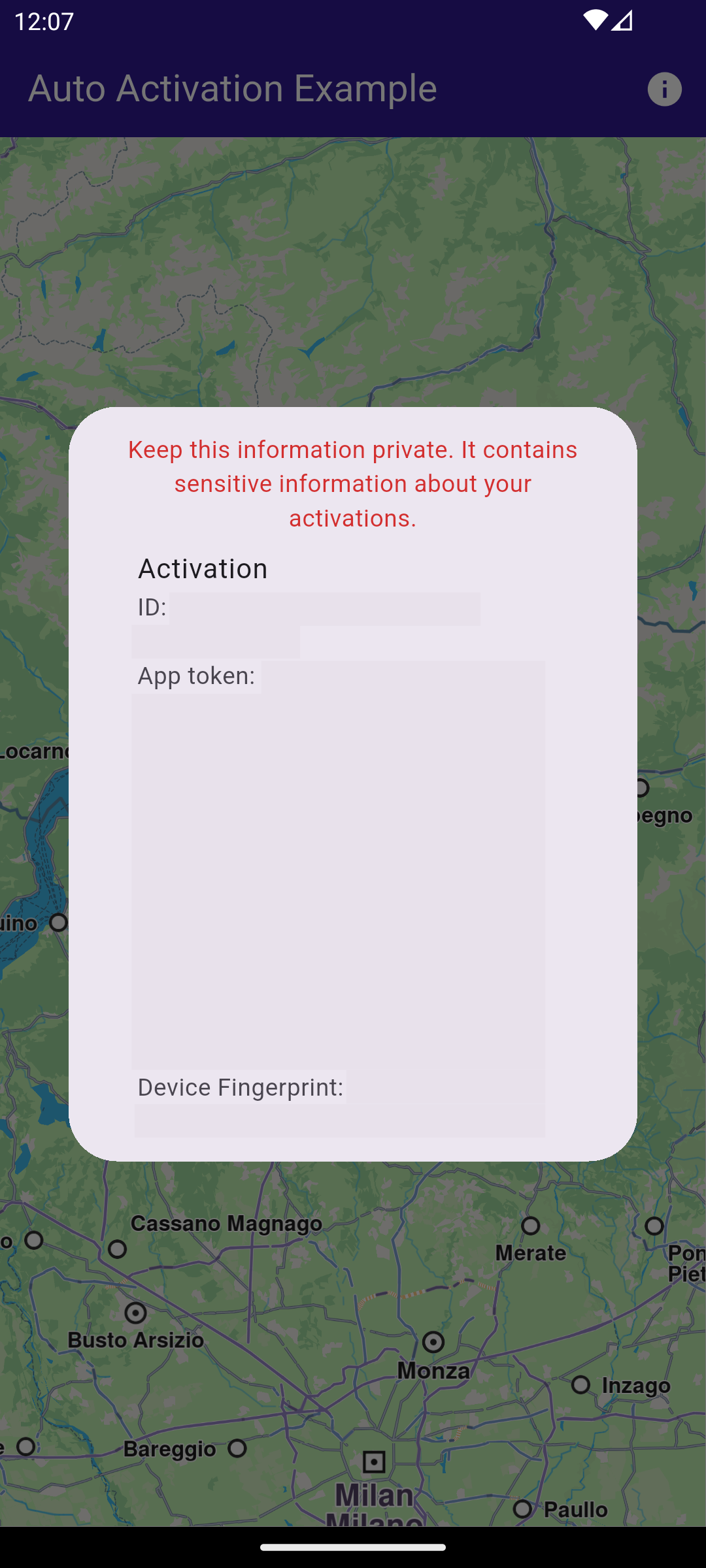
**Popup with activation status**
##### UI and Map Integration[](#ui-and-map-integration "Direct link to UI and Map Integration")
main.dart[View on Github](https://github.com/magiclane/magiclane-maps-sdk-examples-for-flutter/tree/main/sdk_auto_activation/lib/main.dart?ref_type=heads#L31)
```dart
class MyHomePage extends StatefulWidget {
const MyHomePage({super.key});
@override
State createState() => _MyHomePageState();
}
class _MyHomePageState extends State {
@override
void initState() {
super.initState();
_loadStoredToken();
}
Future _loadStoredToken() async {
final prefs = await SharedPreferences.getInstance();
final token = prefs.getString('activation_token');
if (token != null) {
await GemKit.initialize(appAuthorization: token);
setState(() {
_isActivated = true;
_isLoadingPreferences = false;
});
} else {
setState(() {
_isLoadingPreferences = false;
});
}
}
@override
void dispose() {
GemKit.release();
super.dispose();
}
bool _isLoadingPreferences = true;
bool _isActivated = false;
@override
Widget build(BuildContext context) {
return Scaffold(
appBar: AppBar(
backgroundColor: Colors.deepPurple[900],
title: const Text(
'Auto Activation Example',
style: TextStyle(color: Colors.white),
),
actions: [
IconButton(
icon: const Icon(Icons.info, color: Colors.white),
onPressed: () async {
if (!_isActivated) {
showDialog(
context: context,
builder: (context) =>
const AlertDialog(content: Text('No activations found.')),
);
} else {
// ignore: experimental_member_use
final activations = ActivationService.getActivationsForProduct(
ProductID.core,
);
showDialog(
context: context,
builder: (context) => AlertDialog(
content: SizedBox(
width: 600,
height: 400,
child: Builder(
builder: (context) {
if (activations.isEmpty) {
return const Text('No activations found.');
}
return ListView(
shrinkWrap: true,
children: [
Text(
"Keep this information private. It contains sensitive information about your activations.",
style: TextStyle(color: Colors.red[700]),
textAlign: TextAlign.center,
),
...activations.map((activation) {
return ListTile(
title: const Text('Activation'),
subtitle: Column(
mainAxisSize: MainAxisSize.min,
crossAxisAlignment:
CrossAxisAlignment.start,
children: [
SelectableText('ID: ${activation.id}'),
SelectableText(
'App token: ${activation.appToken}',
),
SelectableText(
'Device Fingerprint: ${activation.deviceFingerprint}',
),
SelectableText(
'Status: ${activation.status.name}',
),
SelectableText(
'Expires: ${activation.expiry}',
),
SelectableText(
'License Key: ${activation.licenseKey}',
),
],
),
);
}),
const Divider(),
Padding(
padding: const EdgeInsets.all(16.0),
child: SelectableText(
"Token set in SdkSettings: ${SdkSettings.appAuthorization}",
),
),
],
);
},
),
),
),
);
}
},
),
],
),
body: Builder(
key: const Key('main_builder'),
builder: (context) {
if (_isActivated) return const GemMap();
if (_isLoadingPreferences) return const LoadingPreferencesWidget();
return ActivationRequiredScreen(
onSilentActivation: (token) async {
final prefs = await SharedPreferences.getInstance();
await prefs.setString('activation_token', token);
await GemKit.initialize(appAuthorization: token);
if (!mounted) return;
setState(() {
_isActivated = true;
});
},
);
},
),
);
}
}
```
The working of the `MyHomePage` widget is as follows:
* When the app launches it checks for a saved activation token on your device.
* If a token exists, the app initializes the SDK automatically and opens the map for you.
* If no token is found, you see a simple token entry screen where you paste or type your token and tap Set Token.
* Tapping Set Token saves the token, initializes the SDK, and then shows the map.
* Use the top-right info button to view your current activations and the stored token (keep this information private).
##### Token Entry Screen[](#token-entry-screen "Direct link to Token Entry Screen")
main.dart[View on Github](https://github.com/magiclane/magiclane-maps-sdk-examples-for-flutter/tree/main/sdk_auto_activation/lib/main.dart?ref_type=heads#L193)
```dart
class ActivationRequiredScreen extends StatefulWidget {
const ActivationRequiredScreen({super.key, required this.onSilentActivation});
final void Function(String token) onSilentActivation;
@override
State createState() =>
_ActivationRequiredScreenState();
}
class _ActivationRequiredScreenState extends State {
final TextEditingController _controller = TextEditingController();
@override
void initState() {
super.initState();
_controller.text = projectApiToken;
}
@override
Widget build(BuildContext context) {
return Center(
child: Column(
mainAxisAlignment: MainAxisAlignment.center,
crossAxisAlignment: CrossAxisAlignment.center,
children: [
TextField(
controller: _controller,
decoration: InputDecoration(
border: OutlineInputBorder(),
labelText: 'Enter Online Access Token',
),
),
ElevatedButton(
onPressed: () async {
final token = _controller.text.trim();
widget.onSilentActivation(token);
},
child: const Text('Set Token'),
),
],
),
);
}
}
```
The `ActivationRequiredScreen` widget provides a simple UI for entering the token. When the user presses the "Set Token" button, the `onSilentActivation` callback is invoked with the entered token.
---
### Send Debug Info
Last updated:
July 15, 2026
| 2 minutes read
This example showcases how to build a Flutter app featuring an interactive map and how to share debug information as a .txt file, using the Maps SDK for Flutter.
#### How it works[](#how-it-works "Direct link to How it works")
The example app demonstrates the following features:
* Display an interactive map.
* Share debug logs.
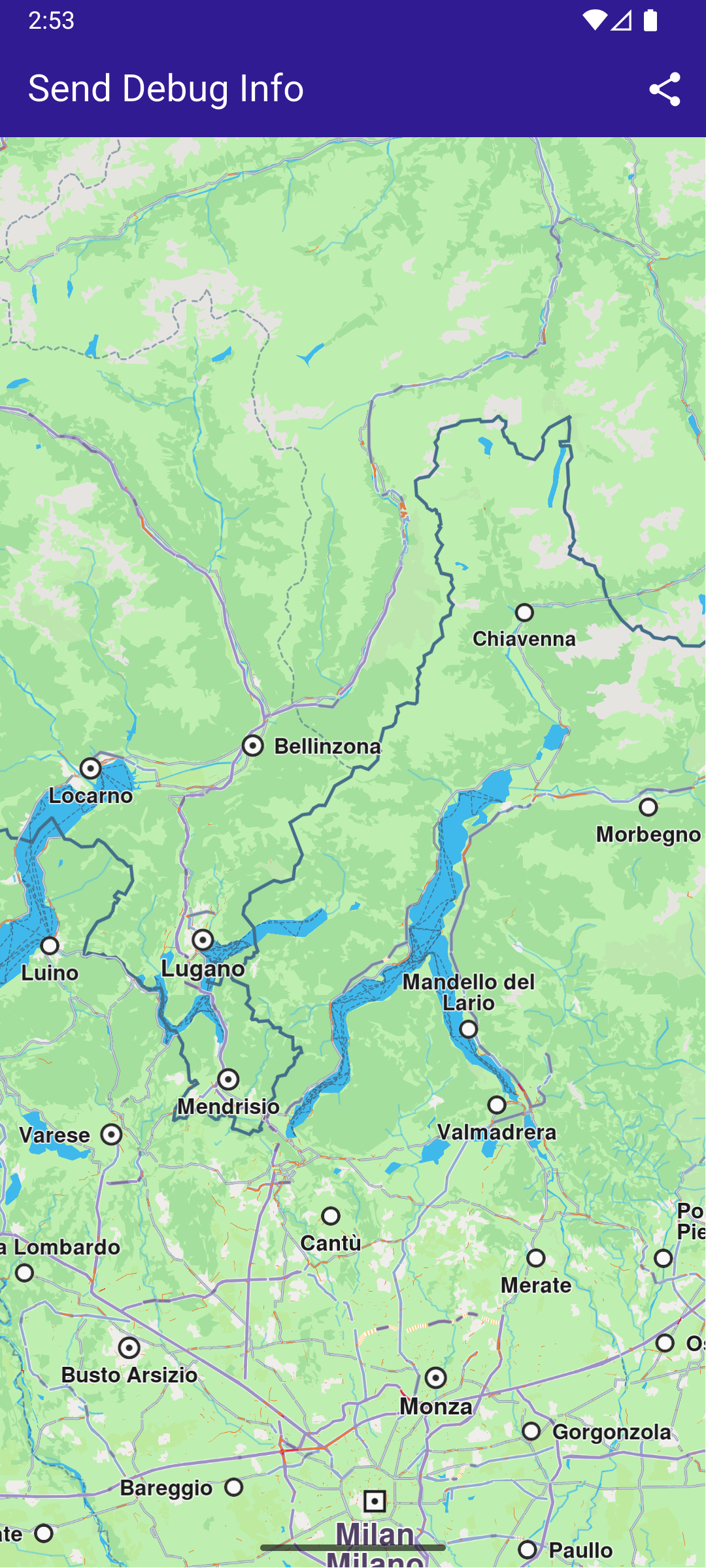
**Initial map screen**
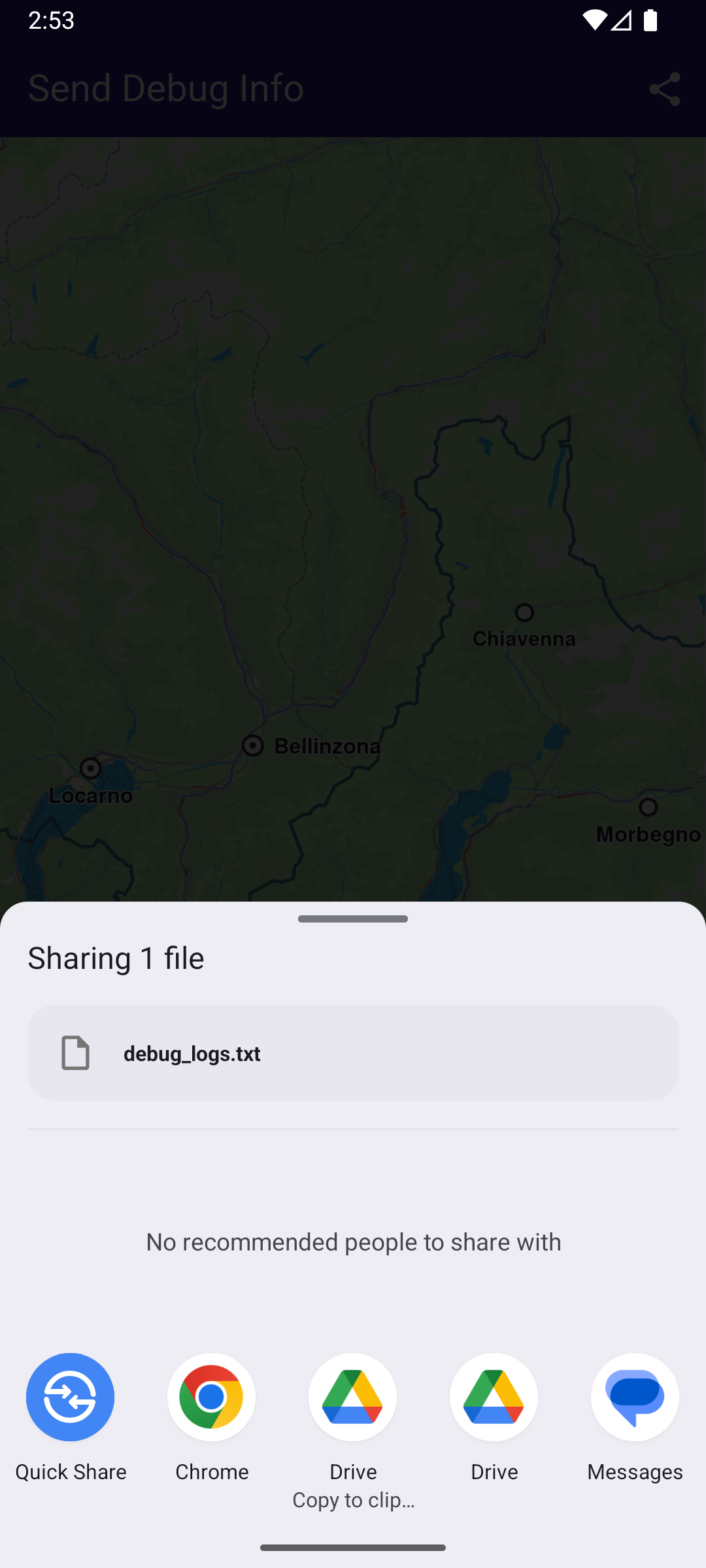
**Share menu open with .txt file**
##### UI and Map Integration[](#ui-and-map-integration "Direct link to UI and Map Integration")
The following code builds a UI with an interactive `GemMap` and a share button.
main.dart[View on Github](https://github.com/magiclane/magiclane-maps-sdk-examples-for-flutter/tree/main/send_debug_info/lib/main.dart?ref_type=heads#L16)
```dart
const projectApiToken = String.fromEnvironment('YOUR_API_TOKEN_HERE');
void main() async {
// Turn on logging
Debug.logCallObjectMethod = false;
Debug.logCreateObject = true;
Debug.logLevel = GemLoggingLevel.all;
Debug.logListenerMethod = true;
runApp(const MyApp());
}
class MyApp extends StatelessWidget {
const MyApp({super.key});
@override
Widget build(BuildContext context) {
return const MaterialApp(
debugShowCheckedModeBanner: false,
title: 'Send Debug Info',
home: MyHomePage(),
);
}
}
class MyHomePage extends StatefulWidget {
const MyHomePage({super.key});
@override
State createState() => _MyHomePageState();
}
class _MyHomePageState extends State {
@override
void dispose() {
GemKit.release();
super.dispose();
}
@override
Widget build(BuildContext context) {
return Scaffold(
appBar: AppBar(
backgroundColor: Colors.deepPurple[900],
title: const Text(
'Send Debug Info',
style: TextStyle(color: Colors.white),
),
actions: [
IconButton(
onPressed: _shareLogs,
icon: const Icon(Icons.share, color: Colors.white),
),
],
),
body: GemMap(
key: ValueKey("GemMap"),
appAuthorization: projectApiToken,
onMapCreated: (ctrl) async {
await Debug.setSdkDumpLevel(GemDumpSdkLevel.verbose);
// Redirect Dart SDK logs to the SDK dump log file
final dartSdkLogger = Logger('GemSdkLogger');
dartSdkLogger.onRecord.listen((record) {
Debug.log(
level: GemDumpSdkLevel.verbose,
message: '${record.time} ${record.message}',
);
});
},
),
);
}
Future _shareLogs() async {
// Get the path to the SDK log dump file
final logPath = await Debug.sdkLogDumpPath;
await SharePlus.instance.share(ShareParams(files: [XFile(logPath)]));
}
}
```
---
### Social Report
Last updated:
July 15, 2026
| 5 minutes read
This example demonstrates how to create a Flutter app with an interactive map that allows users to upload and view social events, using the Maps SDK for Flutter.
#### How it works[](#how-it-works "Direct link to How it works")
The example app includes the following features:
* Display an interactive map.
* Upload a social report.
* Select and view existing social reports directly from the map.
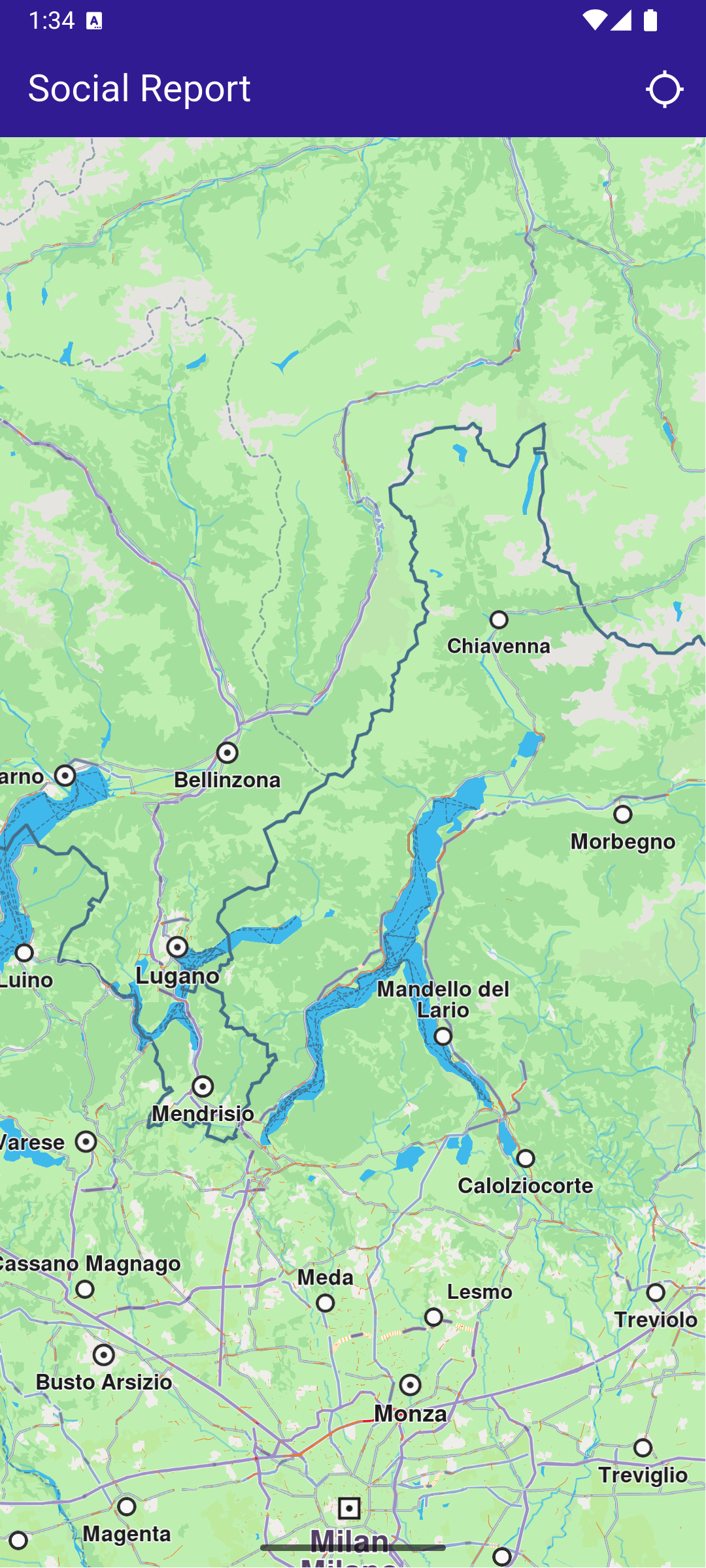
**Initial map view**
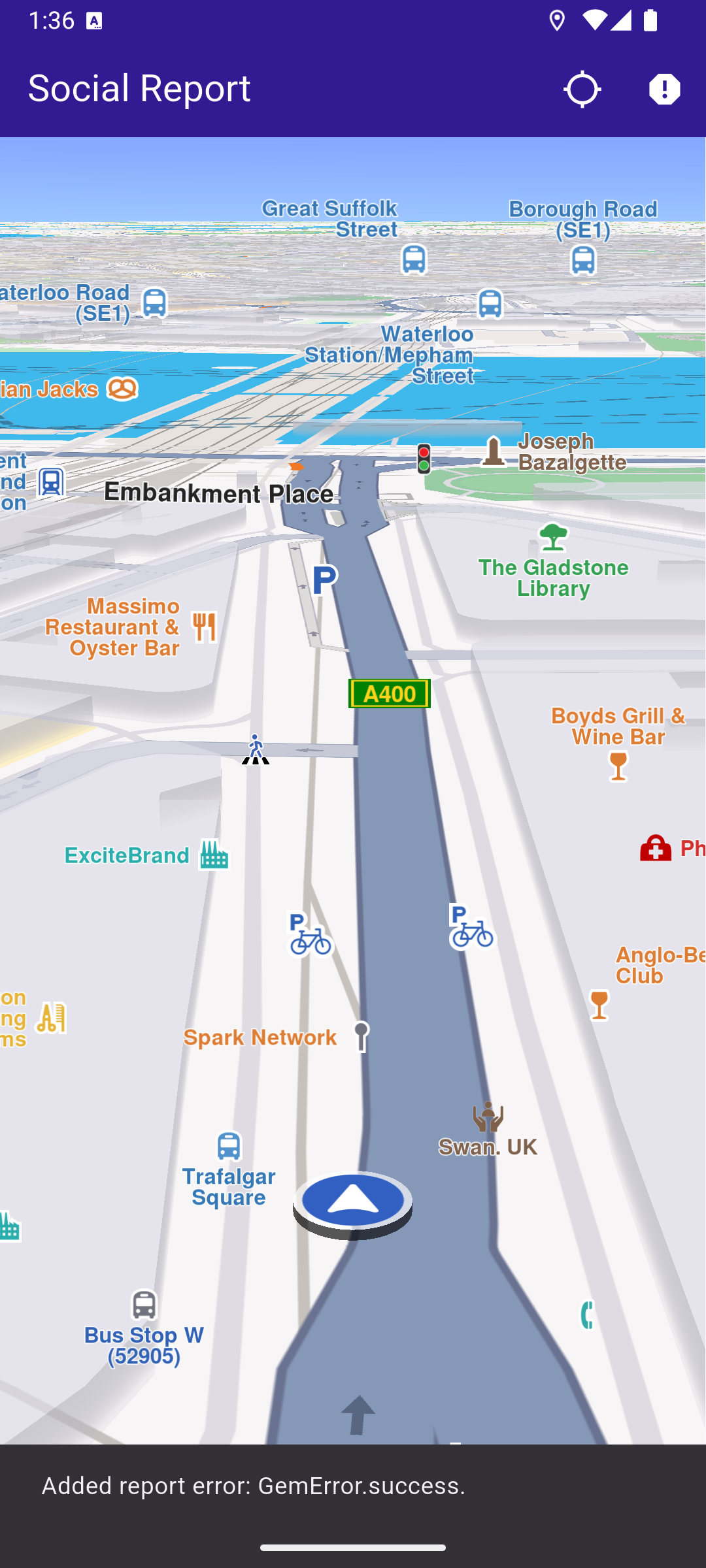
**Uploaded report**
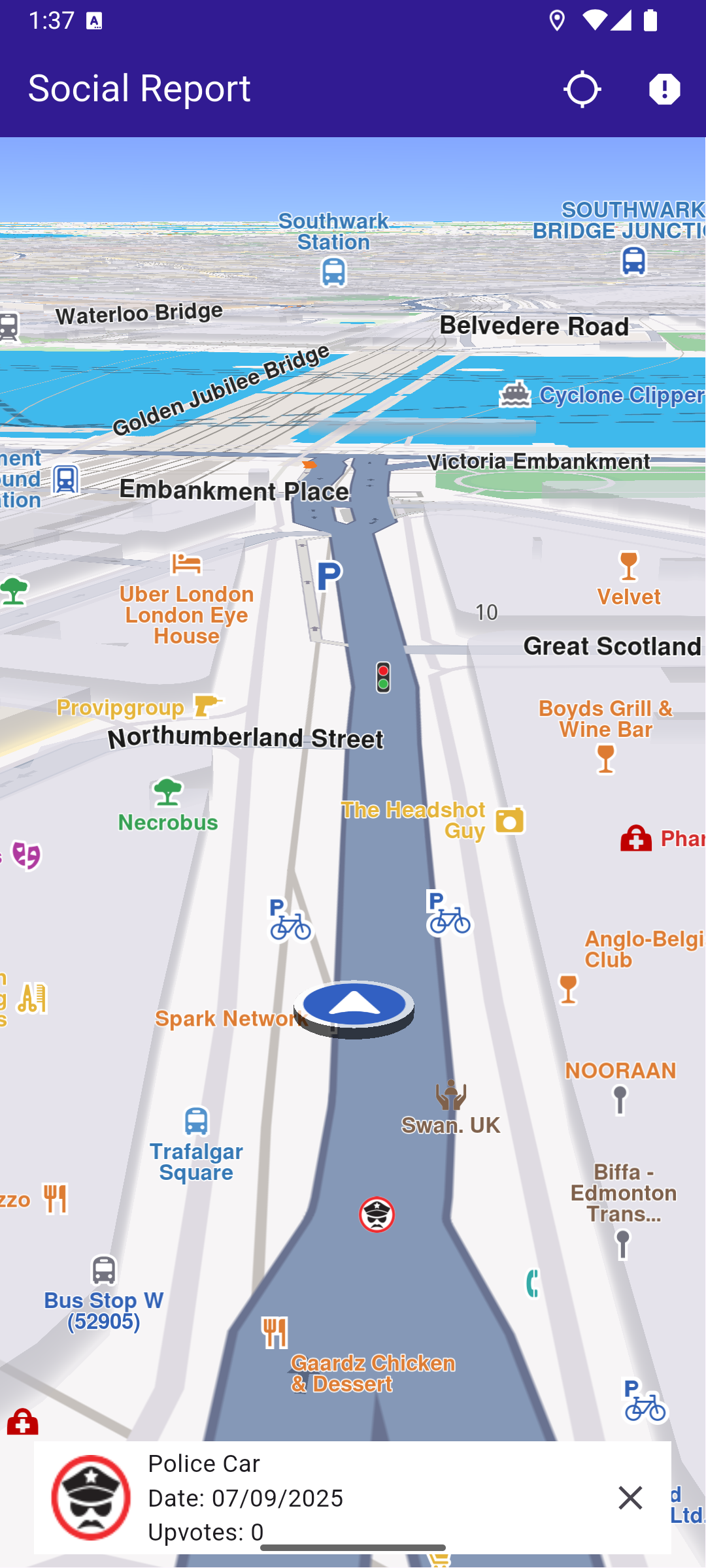
**Selected social report**
##### UI and Map Integration[](#ui-and-map-integration "Direct link to UI and Map Integration")
The following code creates a user interface with an interactive `GemMap` and an app bar. The app bar includes two buttons: one for acquiring the user's current position and another for uploading a police report at the current location.
main.dart[View on Github](https://github.com/magiclane/magiclane-maps-sdk-examples-for-flutter/tree/main/social_report/lib/main.dart?ref_type=heads#L13)
```dart
const projectApiToken = String.fromEnvironment('YOUR_API_TOKEN_HERE');
void main() {
runApp(const MyApp());
}
class MyApp extends StatelessWidget {
const MyApp({super.key});
@override
Widget build(BuildContext context) {
return const MaterialApp(
title: 'Social Report',
debugShowCheckedModeBanner: false,
home: MyHomePage(),
);
}
}
class MyHomePage extends StatefulWidget {
const MyHomePage({super.key});
@override
State createState() => _MyHomePageState();
}
class _MyHomePageState extends State {
late GemMapController _mapController;
PermissionStatus _locationPermissionStatus = PermissionStatus.denied;
bool _hasLiveDataSource = false;
// Current selected overlay item
OverlayItem? _selectedItem;
@override
void dispose() {
GemKit.release();
super.dispose();
}
@override
Widget build(BuildContext context) {
return Scaffold(
appBar: AppBar(
backgroundColor: Colors.deepPurple[900],
title: const Text(
'Social Report',
style: TextStyle(color: Colors.white),
),
actions: [
IconButton(
onPressed: _onFollowPositionButtonPressed,
icon: const Icon(
Icons.location_searching_sharp,
color: Colors.white,
),
),
if (_hasLiveDataSource)
IconButton(
onPressed: _onPrepareReportingButtonPressed,
icon: Icon(Icons.report, color: Colors.white),
),
],
),
body: Stack(
children: [
GemMap(
key: ValueKey("GemMap"),
onMapCreated: _onMapCreated,
appAuthorization: projectApiToken,
),
if (_selectedItem != null)
Padding(
padding: const EdgeInsets.all(8.0),
child: Align(
alignment: Alignment.bottomCenter,
child: SocialEventPanel(
overlayItem: _selectedItem!,
onClose: () {
setState(() {
_selectedItem = null;
});
},
),
),
),
],
),
);
}
// The callback for when map is ready to use.
void _onMapCreated(GemMapController controller) async {
// Save controller for further usage.
_mapController = controller;
// Register callback for touch events and updated cursor position
_mapController.registerOnTouch((point) {
_mapController.setCursorScreenPosition(point);
});
// Get selected overlay items under cursor
_mapController.registerOnCursorSelectionUpdatedOverlayItems((items) {
if (items.isEmpty) return;
final selectedItem = items.first;
// Update selected item
setState(() {
_selectedItem = selectedItem;
});
});
}
void _onFollowPositionButtonPressed() async {
if (kIsWeb) {
// On web platform permission are handled differently than other platforms.
// The SDK handles the request of permission for location.
final locationPermssionWeb =
await PositionService.requestLocationPermission();
if (locationPermssionWeb == true) {
_locationPermissionStatus = PermissionStatus.granted;
} else {
_locationPermissionStatus = PermissionStatus.denied;
}
} else {
// For Android & iOS platforms, permission_handler package is used to ask for permissions.
_locationPermissionStatus = await Permission.locationWhenInUse.request();
}
if (_locationPermissionStatus == PermissionStatus.granted) {
// After the permission was granted, we can set the live data source (in most cases the GPS).
// The data source should be set only once, otherwise we'll get -5 error.
if (!_hasLiveDataSource) {
PositionService.setLiveDataSource();
_hasLiveDataSource = true;
}
// Optionally, we can set an animation
final animation = GemAnimation(type: AnimationType.linear);
// Calling the start following position SDK method.
_mapController.startFollowingPosition(animation: animation);
setState(() {});
}
}
void _onPrepareReportingButtonPressed() async {
// Get current position quality
final improvedPos = PositionService.improvedPosition;
final posQuality = improvedPos!.fixQuality;
if (posQuality == PositionQuality.invalid ||
posQuality == PositionQuality.inertial) {
_showSnackBar(
context,
message: "There is no accurate position at the moment.",
duration: Duration(seconds: 3),
);
return;
}
// Get the reporting id (uses current position). Requires accurate position, may return GemError.notFound when in buildings/tunnels etc.
int idReport = SocialOverlay.prepareReporting();
// Get the subcategory id
SocialReportsOverlayInfo info = SocialOverlay.reportsOverlayInfo;
List categs = info
.getSocialReportsCategories();
SocialReportsOverlayCategory cat = categs.first;
List subcats = cat.overlaySubcategories;
SocialReportsOverlayCategory subCategory = subcats.first;
// Report
SocialOverlay.report(
prepareId: idReport,
categId: subCategory.uid,
onComplete: (error) {
_showSnackBar(
context,
message: "Added report error: $error.",
duration: Duration(seconds: 3),
);
},
);
}
// Show a snackbar indicating that the route calculation is in progress.
void _showSnackBar(
BuildContext context, {
required String message,
Duration duration = const Duration(hours: 1),
}) {
final snackBar = SnackBar(content: Text(message), duration: duration);
ScaffoldMessenger.of(context).showSnackBar(snackBar);
}
}
```
##### Social Event Panel[](#social-event-panel "Direct link to Social Event Panel")
The following code demonstrates how to retrieve details from an `OverlayItem` that represents a social event.
social\_event\_panel.dart[View on Github](https://github.com/magiclane/magiclane-maps-sdk-examples-for-flutter/tree/main/social_report/lib/social_event_panel.dart?ref_type=heads#L9)
```dart
import 'package:intl/intl.dart';
class SocialEventPanel extends StatelessWidget {
final OverlayItem overlayItem;
final VoidCallback onClose;
const SocialEventPanel({
super.key,
required this.overlayItem,
required this.onClose,
});
@override
Widget build(BuildContext context) {
final overlayImg = overlayItem.img;
return Container(
width: MediaQuery.of(context).size.width - 40,
color: Colors.white,
child: Column(
mainAxisSize: MainAxisSize.min,
children: [
Row(
mainAxisAlignment: MainAxisAlignment.spaceBetween,
children: [
Row(
children: [
Padding(
padding: const EdgeInsets.all(8.0),
child: overlayImg.isValid
? Image.memory(
overlayImg.getRenderableImageBytes(
size: Size(50, 50),
format: ImageFileFormat.png,
)!,
)
: const SizedBox(),
),
Column(
crossAxisAlignment: CrossAxisAlignment.start,
children: [
Text(overlayItem.name),
Text(
"Date: ${formatTimestamp(overlayItem.previewDataJson["parameters"]["create_stamp_utc"] as String)}",
),
Text(
"Upvotes: ${overlayItem.previewDataJson["parameters"]["score"]}",
),
],
),
],
),
IconButton(onPressed: onClose, icon: Icon(Icons.close)),
],
),
],
),
);
}
String formatTimestamp(String timestampStr) {
final timestamp = int.tryParse(timestampStr);
if (timestamp == null) return "Invalid date";
final date = DateTime.fromMillisecondsSinceEpoch(timestamp * 1000);
return DateFormat('MM/dd/yyyy').format(date);
}
}
```
Required Permissions
To ensure this example functions correctly, the necessary permissions must be added to the project's Android and iOS configuration files:
* Android
* iOS
Add the following code to the `android/app/src/main/AndroidManifest.xml` file, within the `` block:
```
```
This example uses the [Permission Handler](https://pub.dev/packages/permission_handler) package. Be sure to follow the [setup guide](https://pub.dev/packages/permission_handler#setup).
Add the following to `ios/Runner/Info.plist` inside the ``:
```
NSLocationWhenInUseUsageDescription
Location is needed for map localization and navigation
```
This example uses the [Permission Handler](https://pub.dev/packages/permission_handler) package. Follow the [official setup instructions](https://pub.dev/packages/permission_handler#setup). Add this to your `ios/Podfile`:
```
post_install do |installer|
installer.pods_project.targets.each do |target|
flutter_additional_ios_build_settings(target)
target.build_configurations.each do |config|
config.build_settings['GCC_PREPROCESSOR_DEFINITIONS'] ||= [
'$(inherited)',
'PERMISSION_LOCATION=1',
]
end
end
end
```
---
### Places & Search
These resources cover diverse features and methods for location-based intelligence and search operations.
[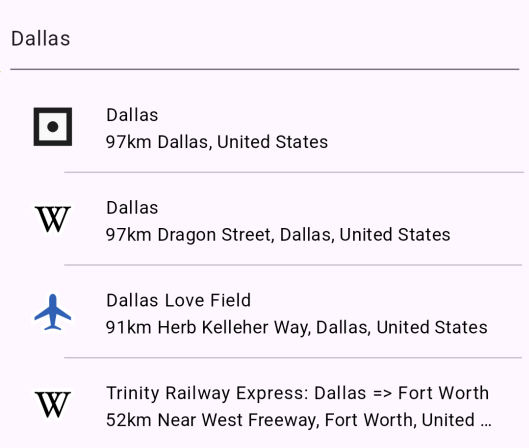](/docs/flutter/examples/places-search/text-search.md)
##### [Text Search](/docs/flutter/examples/places-search/text-search.md)
[Search locations by text and select a result.](/docs/flutter/examples/places-search/text-search.md)
[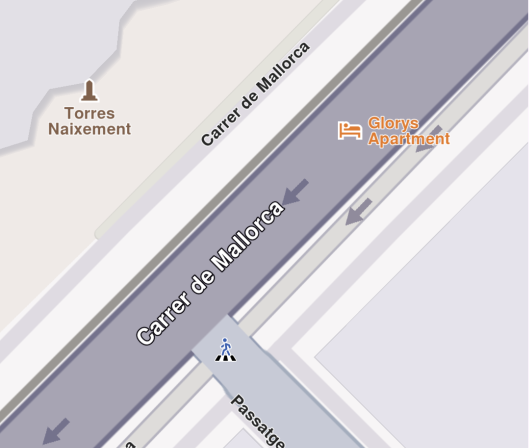](/docs/flutter/examples/places-search/address-search.md)
##### [Address Search](/docs/flutter/examples/places-search/address-search.md)
[Perform search by address and display the results.](/docs/flutter/examples/places-search/address-search.md)
[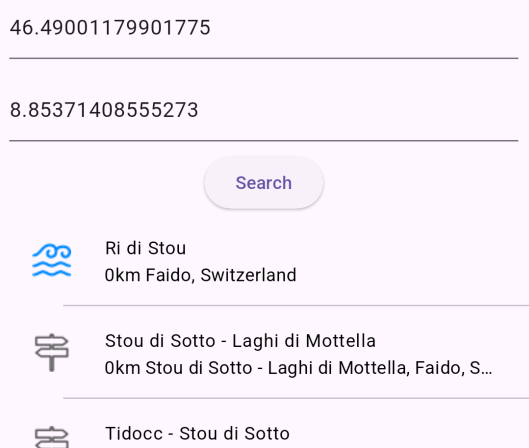](/docs/flutter/examples/places-search/search-location.md)
##### [Search Location](/docs/flutter/examples/places-search/search-location.md)
[Search locations by WGS coordinates.](/docs/flutter/examples/places-search/search-location.md)
[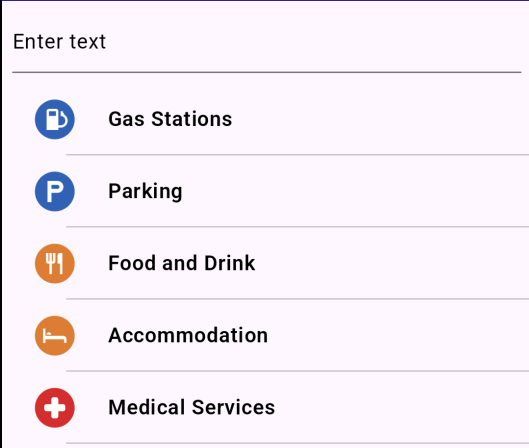](/docs/flutter/examples/places-search/search-category.md)
##### [Search Category](/docs/flutter/examples/places-search/search-category.md)
[Search POIs by their category.](/docs/flutter/examples/places-search/search-category.md)
[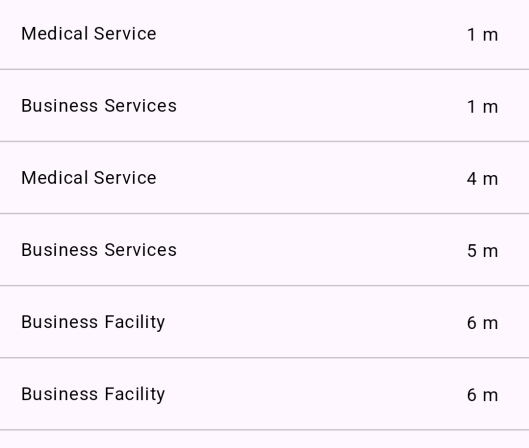](/docs/flutter/examples/places-search/what-is-nearby.md)
##### [What is Nearby](/docs/flutter/examples/places-search/what-is-nearby.md)
[Show nearby landmarks based on current position.](/docs/flutter/examples/places-search/what-is-nearby.md)
[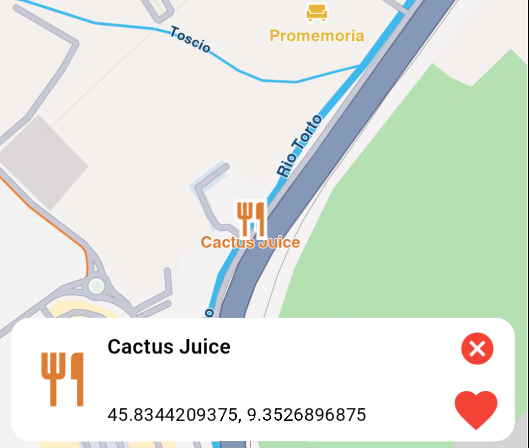](/docs/flutter/examples/places-search/save-favorites.md)
##### [Save Favorites](/docs/flutter/examples/places-search/save-favorites.md)
[Add landmarks to a favorites collection.](/docs/flutter/examples/places-search/save-favorites.md)
[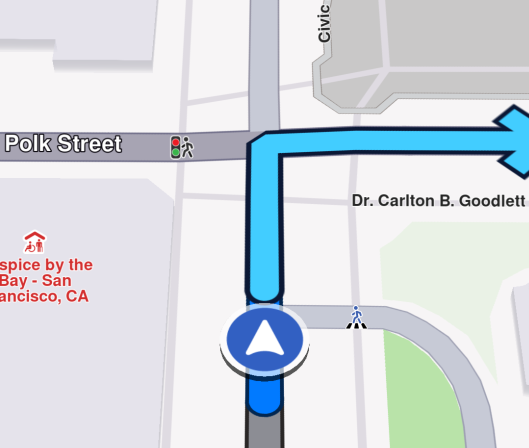](/docs/flutter/examples/places-search/search-along-route.md)
##### [Search Along Route](/docs/flutter/examples/places-search/search-along-route.md)
[Search for landmarks along the route while navigating.](/docs/flutter/examples/places-search/search-along-route.md)
[](/docs/flutter/examples/places-search/location-wikipedia.md)
##### [Location Wikipedia](/docs/flutter/examples/places-search/location-wikipedia.md)
[Display Wikipedia information about a certain location.](/docs/flutter/examples/places-search/location-wikipedia.md)
[](/docs/flutter/examples/places-search/display-cursor-street.md)
##### [Display Cursor Street Name](/docs/flutter/examples/places-search/display-cursor-street.md)
[Display the name of the street under cursor position.](/docs/flutter/examples/places-search/display-cursor-street.md)
[](/docs/flutter/examples/places-search/weather-forecast.md)
##### [Weather Forecast](/docs/flutter/examples/places-search/weather-forecast.md)
[Get current, hourly and daily weather forecasts.](/docs/flutter/examples/places-search/weather-forecast.md)
[](/docs/flutter/examples/places-search/what-is-nearby-category.md)
##### [What Is Nearby Category](/docs/flutter/examples/places-search/what-is-nearby-category.md)
[Get closest landmarks from a specific category.](/docs/flutter/examples/places-search/what-is-nearby-category.md)
[](/docs/flutter/examples/places-search/import-custom-landmarks.md)
##### [Import Custom Landmarks](/docs/flutter/examples/places-search/import-custom-landmarks.md)
[Import landmarks from a KML file and search within them.](/docs/flutter/examples/places-search/import-custom-landmarks.md)
[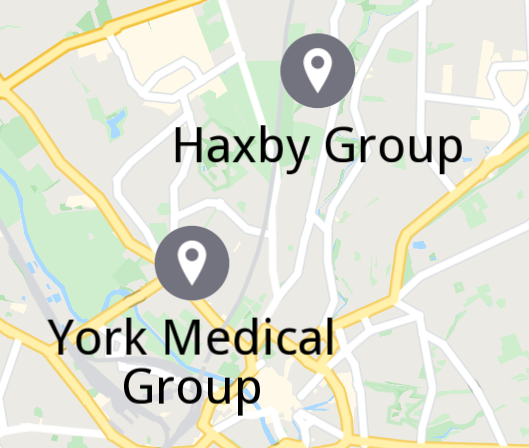](/docs/flutter/examples/places-search/create-custom-overlay.md)
##### [Create Custom Overlay](/docs/flutter/examples/places-search/create-custom-overlay.md)
[Create a custom overlay linked to a style, apply the style and interact with newly created overlay items.](/docs/flutter/examples/places-search/create-custom-overlay.md)
---
### Address Search
Last updated:
July 15, 2026
| 6 minutes read
This example demonstrates how to create a Flutter app that performs address searches and displays the results on a map using Maps SDK for Flutter.
#### How it works[](#how-it-works "Direct link to How it works")
The example app demonstrates the following features:
* Search for a specific address by country, city, street, and house number.
* Highlight and center the map on the searched address.
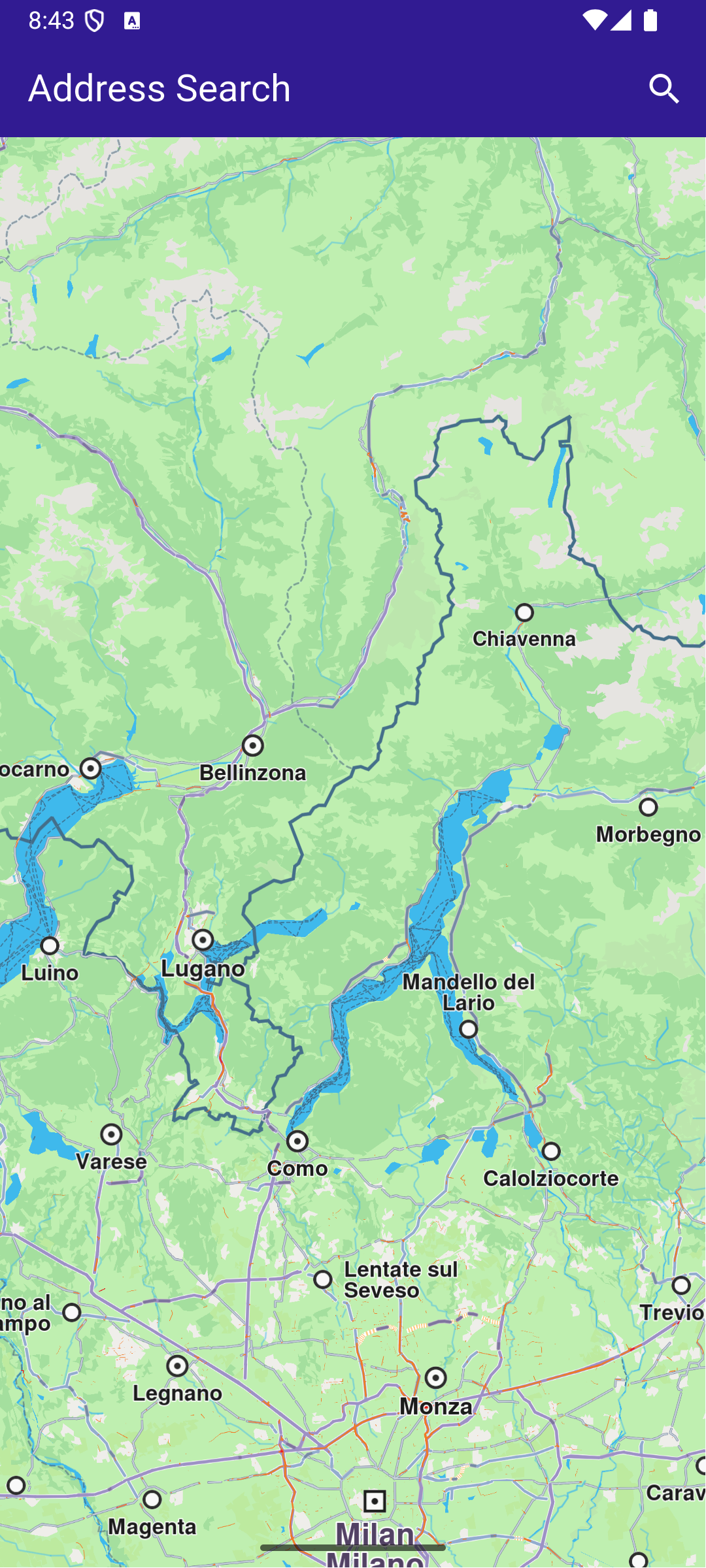
**Initial map view**
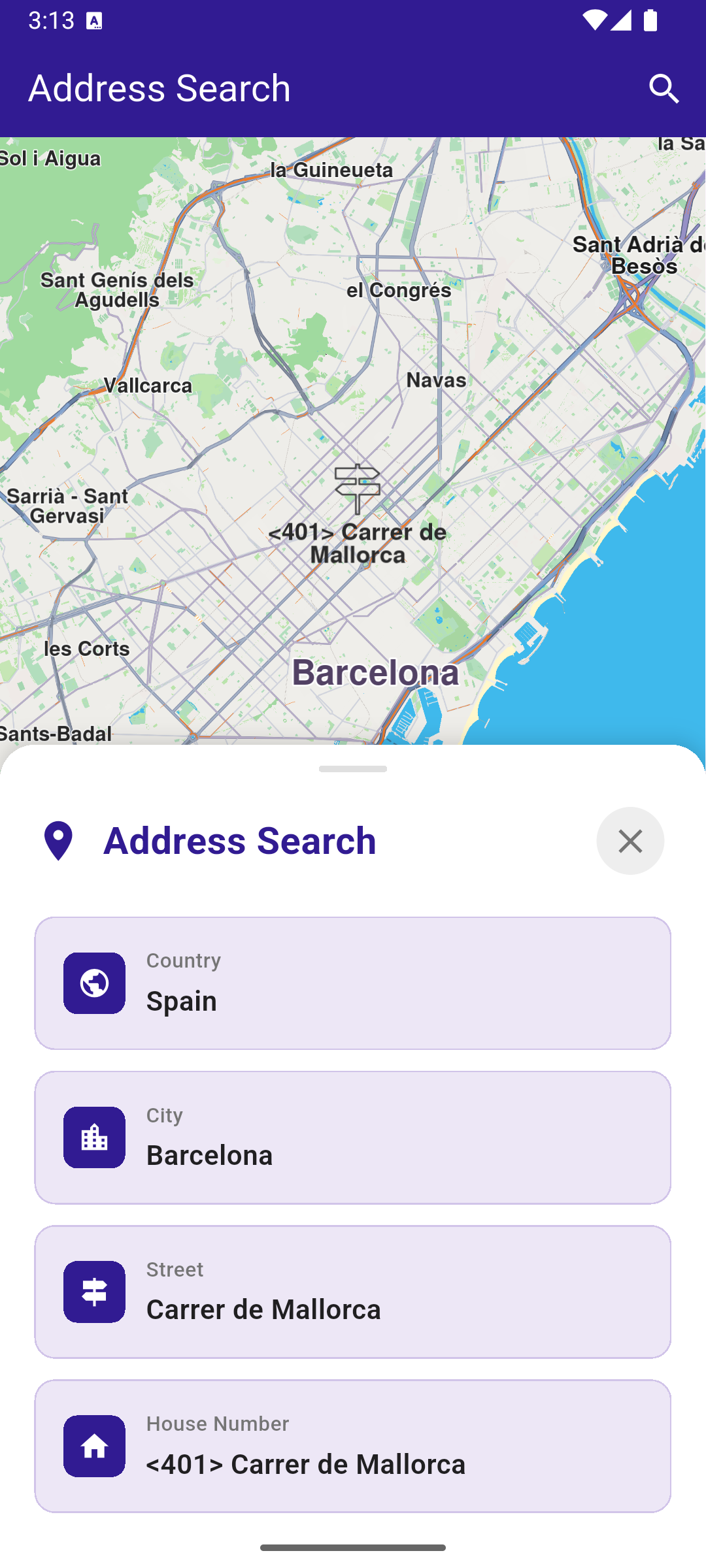
**Address Search Results**
##### UI and Map Integration[](#ui-and-map-integration "Direct link to UI and Map Integration")
This code sets up the basic structure of the app, including the map and the app bar. It also provides a search button in the app bar for initiating the address search.
main.dart[View on Github](https://github.com/magiclane/magiclane-maps-sdk-examples-for-flutter/tree/main/address_search/lib/main.dart?ref_type=heads#L21)
```dart
class MyApp extends StatelessWidget {
const MyApp({super.key});
@override
Widget build(BuildContext context) {
return const MaterialApp(
debugShowCheckedModeBanner: false,
title: 'Address Search',
home: MyHomePage(),
);
}
}
class MyHomePage extends StatefulWidget {
const MyHomePage({super.key});
@override
State createState() => _MyHomePageState();
}
class _MyHomePageState extends State {
late GemMapController _mapController;
String? _country;
String? _city;
String? _street;
String? _houseNumber;
bool _isPanelVisible = false;
@override
void dispose() {
GemKit.release();
super.dispose();
}
@override
Widget build(BuildContext context) {
return Scaffold(
appBar: AppBar(
backgroundColor: Colors.deepPurple[900],
title: const Text(
'Address Search',
style: TextStyle(color: Colors.white),
),
actions: [
IconButton(
onPressed: () {
_onSearchButtonPressed(context).then((value) {
if (context.mounted) {
ScaffoldMessenger.of(context).clearSnackBars();
}
});
},
icon: const Icon(Icons.search, color: Colors.white),
),
],
),
body: Stack(
children: [
GemMap(
key: ValueKey("GemMap"),
onMapCreated: _onMapCreated,
appAuthorization: projectApiToken,
),
if (_isPanelVisible) _buildBottomPanel(),
],
),
);
}
// The callback for when map is ready to use
void _onMapCreated(GemMapController controller) {
// Save controller for further usage
_mapController = controller;
}
```
##### Address Search and Map Interaction[](#address-search-and-map-interaction "Direct link to Address Search and Map Interaction")
This code enables the app to search for addresses by different levels of detail (country, city, street, house number) and highlights the searched location on the map. The map is centered on the found address, with an optional animation.
main.dart[View on Github](https://github.com/magiclane/magiclane-maps-sdk-examples-for-flutter/tree/main/address_search/lib/main.dart?ref_type=heads#L97)
```dart
Future _onSearchButtonPressed(BuildContext context) async {
setState(() {
_country = null;
_city = null;
_street = null;
_houseNumber = null;
_isPanelVisible = true;
});
// Predefined landmark for Spain.
final countryLandmark = GuidedAddressSearchService.getCountryLevelItem(
'ESP',
)!;
print('[example] Country: ${countryLandmark.name}');
setState(() => _country = countryLandmark.name);
// Use the address search to get a landmark for a city in Spain (e.g., Barcelona).
final cityLandmark = await _searchAddress(
landmark: countryLandmark,
detailLevel: AddressDetailLevel.city,
text: 'Barcelona',
);
if (cityLandmark == null) return;
print('[example] City: ${cityLandmark.name}');
setState(() => _city = cityLandmark.name);
// Use the address search to get a predefined street's landmark in the city (e.g., Carrer de Mallorca).
final streetLandmark = await _searchAddress(
landmark: cityLandmark,
detailLevel: AddressDetailLevel.street,
text: 'Carrer de Mallorca',
);
if (streetLandmark == null) return;
print('[example] Street: ${streetLandmark.name}');
setState(() => _street = streetLandmark.name);
// Use the address search to get a predefined house number's landmark on the street (e.g., House Number 401).
final houseNumberLandmark = await _searchAddress(
landmark: streetLandmark,
detailLevel: AddressDetailLevel.houseNumber,
text: '401',
);
if (houseNumberLandmark == null) return;
print('[example] House number: ${houseNumberLandmark.name}');
setState(() => _houseNumber = houseNumberLandmark.name);
// Center the map on the final result.
_presentLandmark(houseNumberLandmark);
}
void _presentLandmark(Landmark landmark) {
// Highlight the landmark on the map.
_mapController.activateHighlight([landmark]);
// Create an animation (optional).
final animation = GemAnimation(type: AnimationType.linear);
// Calculate the screen position for the landmark (optional).
// We do this to place the landmark above the bottom panel, instead of in the center of the screen.
final screenPosition = Point(
(_mapController.viewport.height / 4).toInt(),
(_mapController.viewport.width / 2).toInt(),
);
// Use the map controller to center on coordinates.
_mapController.centerOnCoordinates(
landmark.coordinates,
animation: animation,
zoomLevel: 50,
screenPosition: screenPosition,
);
}
// Address search method.
Future _searchAddress({
required Landmark landmark,
required AddressDetailLevel detailLevel,
required String text,
}) async {
final completer = Completer();
// Calling the address search SDK method.
// (err, results) - is a callback function that gets called when the search is finished.
// err is an error enum, results is a list of landmarks.
GuidedAddressSearchService.search(text, landmark, detailLevel, (
err,
results,
) {
// If there is an error, the method will return a null list.
if (err != GemError.success && err != GemError.reducedResult ||
results.isEmpty) {
completer.complete(null);
return;
}
completer.complete(results.first);
});
return completer.future;
}
```
##### Bottom Panel for Search Results[](#bottom-panel-for-search-results "Direct link to Bottom Panel for Search Results")
This code builds a bottom panel that displays the search results for each address component (country, city, street and house number). Each result is shown with an icon and a label. The panel can be dismissed by dragging it down or by tapping the close button.
main.dart[View on Github](https://github.com/magiclane/magiclane-maps-sdk-examples-for-flutter/tree/main/address_search/lib/main.dart?ref_type=heads#L202)
```dart
Widget _buildBottomPanel() {
return Positioned(
left: 0,
right: 0,
bottom: 0,
child: GestureDetector(
onVerticalDragEnd: (details) {
// Close panel when dragged down with sufficient velocity
if (details.velocity.pixelsPerSecond.dy > 200) {
setState(() => _isPanelVisible = false);
}
},
child: Container(
decoration: BoxDecoration(
color: Colors.white,
borderRadius: const BorderRadius.vertical(top: Radius.circular(20)),
boxShadow: [
BoxShadow(
color: Colors.black.withValues(alpha: 0.15),
blurRadius: 10,
offset: const Offset(0, -2),
),
],
),
child: Column(
mainAxisSize: MainAxisSize.min,
children: [
// Handle bar (drag indicator)
Container(
margin: const EdgeInsets.only(top: 12, bottom: 16),
width: 40,
height: 4,
decoration: BoxDecoration(
color: Colors.grey[300],
borderRadius: BorderRadius.circular(2),
),
),
// Header with close button
Padding(
padding: const EdgeInsets.symmetric(horizontal: 20),
child: Row(
children: [
Icon(
Icons.location_on,
color: Colors.deepPurple[900],
size: 28,
),
const SizedBox(width: 12),
Text(
'Address Search',
style: TextStyle(
fontSize: 22,
fontWeight: FontWeight.bold,
color: Colors.deepPurple[900],
),
),
const Spacer(),
IconButton(
onPressed: () => setState(() => _isPanelVisible = false),
icon: Icon(Icons.close, color: Colors.grey[600]),
style: IconButton.styleFrom(
backgroundColor: Colors.grey[200],
padding: const EdgeInsets.all(8),
),
),
],
),
),
const SizedBox(height: 20),
// Address details
Padding(
padding: const EdgeInsets.symmetric(horizontal: 20),
child: Column(
children: [
_buildAddressRow(
icon: Icons.public,
label: 'Country',
value: _country,
isLoading: _country == null,
),
_buildAddressRow(
icon: Icons.location_city,
label: 'City',
value: _city,
isLoading: _city == null && _country != null,
),
_buildAddressRow(
icon: Icons.signpost,
label: 'Street',
value: _street,
isLoading: _street == null && _city != null,
),
_buildAddressRow(
icon: Icons.home,
label: 'House Number',
value: _houseNumber,
isLoading: _houseNumber == null && _street != null,
),
],
),
),
const SizedBox(height: 20),
],
),
),
),
);
}
// Build individual address row
Widget _buildAddressRow({
required IconData icon,
required String label,
String? value,
bool isLoading = false,
}) {
if (value == null && !isLoading) return const SizedBox.shrink();
return Container(
margin: const EdgeInsets.only(bottom: 12),
padding: const EdgeInsets.all(16),
decoration: BoxDecoration(
color: Colors.deepPurple[50],
borderRadius: BorderRadius.circular(12),
border: Border.all(color: Colors.deepPurple[100]!),
),
child: Row(
children: [
Container(
padding: const EdgeInsets.all(8),
decoration: BoxDecoration(
color: Colors.deepPurple[900],
borderRadius: BorderRadius.circular(8),
),
child: Icon(icon, color: Colors.white, size: 20),
),
const SizedBox(width: 12),
Expanded(
child: Column(
crossAxisAlignment: CrossAxisAlignment.start,
children: [
Text(
label,
style: TextStyle(
fontSize: 12,
color: Colors.grey[600],
fontWeight: FontWeight.w500,
),
),
const SizedBox(height: 4),
if (isLoading)
SizedBox(
height: 16,
width: 100,
child: LinearProgressIndicator(
color: Colors.deepPurple[900],
backgroundColor: Colors.deepPurple[100],
),
)
else
Text(
value ?? '',
style: const TextStyle(
fontSize: 16,
fontWeight: FontWeight.w600,
color: Colors.black87,
),
),
],
),
),
],
),
);
}
```
---
### Create Custom Overlay
Last updated:
October 2, 2026
| 12 minutes read
In this guide, you will learn how to add a dataset based on a GeoJSON file and link the dataset to a style. The style is then applied to a map. The dataset is available as an overlay, with the individual points presented as `OverlayItem`.
#### How it works[](#how-it-works "Direct link to How it works")
* Import the dataset and create the style in Magic Lane Console.
* Apply the style containing the dataset to a map.
* Interact with the map to see the overlay items.
#### Import the Dataset[](#import-the-dataset "Direct link to Import the Dataset")
We will need a GeoJSON file containing custom POI information. You can use the [GP Surgeries in York](https://data.yorkopendata.org/dataset/5490d87f-aacf-4f4e-9607-06a33a09b78b) or any other GeoJSON containing points data. Download the GeoJSON file.
For this example, a Magic Lane account is mandatory. [Login](https://developer.magiclane.com/api/login) into your Magic Lane account or [register](https://developer.magiclane.com/api/register) a new account.
Enter the [Datasets](https://developer.magiclane.com/api/datasets) tab from the Magic Lane Console and click the **Upload** button from the top right corner.
**Datasets page**
Drag and drop the downloaded GeoJSON file into the upload area or select the file manually. Click the **Upload** button to finish. The dataset should now be visible in the list.
At the moment, there are no option to automatically update the dataset.
#### Create a Map Style[](#create-a-map-style "Direct link to Create a Map Style")
Enter the [Styles](https://developer.magiclane.com/api/styles) tab from the Magic Lane Console and click the **New Style** button from the top right corner. Alternatively, you can use an existing style as a base by clicking the **Upload** button and selecting a style file.
**Styles page**
Select a template and a variation. Select **Create New Style** from the bottom side.
**Style template and variation**
Under the **Available Layers** section, expand the **Custom** group and select the dataset you just uploaded. The dataset should now be visible on the map in the relevant geographic region (the city of York, UK).
**Dataset is under Available Layers**
tip
If the privacy switch is set to *Private*, the dataset will only be available in apps activated with a token created by you which have the associated style applied. If the privacy switch is set to *Public*, the dataset will be available in all apps activated where the associated style is applied, regardless of the token used.
Drag and drop the dataset from the *Available Layers* section to the *Selected Layers* section. The dataset is now linked to the style. The points should be visible on the map as pinpoints icons.
**Dataset is under Selected Layers**
warning
The dataset needs to be dragged under the **Selected Layers** section to be visible on the map on the exported style.
##### Style the overlay items[](#style-the-overlay-items "Direct link to Style the overlay items")
###### Render Type[](#render-type "Direct link to Render Type")
The Render Type tab controlls if the data should be rendered as symbols, groups of symbols, lines of shapes, depending on the geometry.
###### Zoom Range[](#zoom-range "Direct link to Zoom Range")
The Zoom Range specifies the minimum and maximum zoom levels at which the layer is visible. A higher value means the camera is closer to the ground.
###### Text[](#text "Direct link to Text")
The Text tab allows you to specify the text for each point and customize its appearance.
A propery from the GeoJSON can be used as the text. For example, if the GeoJSON feature has a property called `name`, you can use it as the text by entering `|name|` in the *Text Field*.
As the provided GeoJSON file has the following feature structure, we will use `|Group_|` as the value for the *Text Field* to display the name of the GP surgery:
```json
{
"type": "Feature",
"properties": {
"OBJECTID": 1,
"Group_": "Old School Medical Practice",
"Address_1": "Old School Medical Practice",
"Address_2": "Horseman Lane",
"Town": "York",
"Postcode": "YO23 3UA",
"opening_ho": "8am - 6pm",
"Saturday": "Closed",
"Sunday": "Closed",
"Ward": "00FFxx1"
},
"geometry": {
"type": "Point",
"coordinates": [
-1.142303573355,
53.91565528443143,
0
]
}
}
```
The result can be seen in the image above.
###### Icon[](#icon "Direct link to Icon")
The Icon tab allows you to select the icon for the points. You can use one of the available icons. There are also options to change the size of the icon.
tip
On the right side of top status bar there is a *Images* button that allows you to upload custom icons to be used within the style, including for the OverlayItem icon.
###### Position[](#position "Direct link to Position")
The Position tab allows you to specify the position of the text relative to the icon, the rotation angle and offsets.
###### Placement[](#placement "Direct link to Placement")
The Placement tab controlls options such as overlap, padding and other settings.
#### Download the style[](#download-the-style "Direct link to Download the style")
Go back to the [Styles](https://developer.magiclane.com/api/styles) page. On the right side of the style you just created, click the menu button and select **Download Style**.
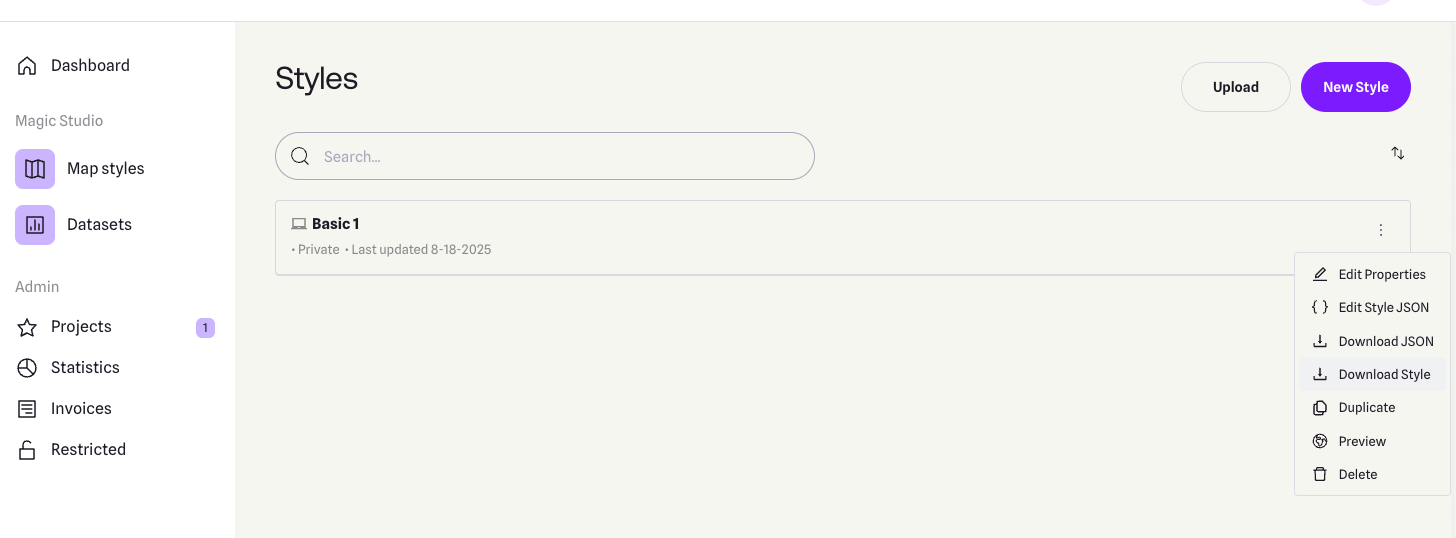
**List of styles**
Rename the file to `style_with_data.style` and save it to the `assets` folder of the example.
#### Set token and overlay uid[](#set-token-and-overlay-uid "Direct link to Set token and overlay uid")
warning
The `projectApiToken` you provide to the `GemMap` widget **must be created by the same account** that owns both the dataset and the style. If the token is generated from a different account, the dataset will remain inaccessible (since it is private).
Be sure to update the constants `projectApiToken` and `overlayUid` in the `main.dart` file of the example with the correct values.
tip
You can find the `overlayUid` of your custom dataset by following these steps:
1. Open the [Styles page](https://developer.magiclane.com/api/styles).
2. Locate the relevant style and click the menu button from the right side.
3. Choose **Edit style JSON**.
4. In the JSON file, navigate to: `map_schemes_section > map_schemes > 0 > definition > layers > [layer number depending on the layer order] > sourcedata_id`
5. The value of `sourcedata_id` is your `overlayUid`.
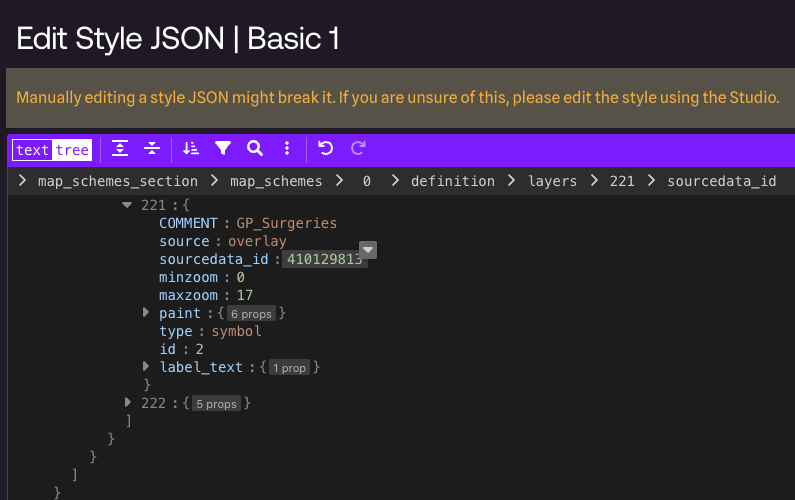
**List of styles**
Do not modify the JSON file, as it may cause issues.
##### UI and Map Integration[](#ui-and-map-integration "Direct link to UI and Map Integration")
The main app shows a map, applies the custom style and enables searching only in the overlay.
By updating the `SearchPreferences` to include only the overlay, all subsequent searches will be scoped to these objects, improving search accuracy.
main.dart[View on Github](https://github.com/magiclane/magiclane-maps-sdk-examples-for-flutter/tree/main/create_custom_overlay/lib/main.dart?ref_type=heads#L6)
```dart
import 'dart:async';
import 'dart:io';
import 'package:flutter/material.dart' hide Route;
import 'package:flutter/services.dart';
import 'package:magiclane_maps_flutter/magiclane_maps_flutter.dart';
import 'package:create_custom_overlay/overlay_item_panel.dart';
import 'package:create_custom_overlay/search_page.dart';
// ignore_for_file: avoid_print
const projectApiToken = String.fromEnvironment('YOUR_API_TOKEN_HERE');
const overlayUid = 0; // <-- Replace with your overlay UID
void main() {
print(pid);
runApp(const MyApp());
}
class MyApp extends StatelessWidget {
const MyApp({super.key});
@override
Widget build(BuildContext context) {
return const MaterialApp(
debugShowCheckedModeBanner: false,
title: 'Create custom overlay',
home: MyHomePage(),
);
}
}
class MyHomePage extends StatefulWidget {
const MyHomePage({super.key});
@override
State createState() => _MyHomePageState();
}
class _MyHomePageState extends State {
late GemMapController _mapController;
OverlayItem? _focusedOverlayItem;
late SearchPreferences preferences;
bool isMapApplied = false;
@override
void dispose() {
GemKit.release();
super.dispose();
}
@override
Widget build(BuildContext context) {
return Scaffold(
appBar: AppBar(
backgroundColor: Colors.deepPurple[900],
title: const Text(
"Create custom overlay",
style: TextStyle(color: Colors.white),
),
actions: [
IconButton(
onPressed: applyStyle,
icon: const Icon(Icons.publish, color: Colors.white),
),
if (isMapApplied)
IconButton(
onPressed: () => _onSearchButtonPressed(context, preferences),
icon: const Icon(Icons.search, color: Colors.white),
),
],
),
body: Stack(
children: [
GemMap(
key: ValueKey("GemMap"),
onMapCreated: _onMapCreated,
appAuthorization: projectApiToken,
),
if (_focusedOverlayItem != null)
Positioned(
bottom: 30,
child: OverlayItemPanel(
onCancelTap: _onCancelOverlayItemPanelTap,
overlayItem: _focusedOverlayItem!,
),
),
],
),
resizeToAvoidBottomInset: false,
);
}
void _onMapCreated(GemMapController controller) {
_mapController = controller;
_registerLandmarkTapCallback();
}
void applyStyle() async {
// Import asset style data
// The style containing custom overlay items from York should be added by the user in the assets folder of the project.
final assetStyleData = await rootBundle.load(
'assets/style_with_data.style',
);
final assetStyleBytes = assetStyleData.buffer.asUint8List();
// Apply the style to the map
_mapController.preferences.setMapStyleByBuffer(assetStyleBytes);
// Center to the York region containing custom overlay items from the imported style
RectangleGeographicArea yorkArea = RectangleGeographicArea(
topLeft: Coordinates(latitude: 54.0001, longitude: -1.1678),
bottomRight: Coordinates(latitude: 53.9130, longitude: -1.0015),
);
_mapController.centerOnArea(yorkArea);
// Add the overlay to the search preferences
preferences = SearchPreferences();
// Make sure the overlays are loaded
await _awaitOverlaysReady();
// Add the overlay to the search preferences
preferences.overlays.add(overlayUid);
// If no results from the map POIs should be returned then searchMapPOIs should be set to false
preferences.searchMapPOIs = false;
// If no results from the addresses should be returned then searchAddresses should be set to false
preferences.searchAddresses = false;
setState(() {
isMapApplied = true;
});
}
Future _awaitOverlaysReady() async {
Completer completer = Completer();
OverlayService.getAvailableOverlays(
onCompleteDownload: (GemError error) {
if (error != GemError.success) {
print("Error while getting overlays: $error");
}
completer.complete();
},
);
await completer.future;
}
Future _registerLandmarkTapCallback() async {
_mapController.registerOnTouch((pos) async {
// Select the object at the tap position.
await _mapController.setCursorScreenPosition(pos);
// Get the selected overlay items.
final overlayItems = _mapController.cursorSelectionOverlayItems();
// Reset the cursor position back to middle of the screen
await _mapController.resetMapSelection();
// Check if there is a selected OverlayItem.
if (overlayItems.isNotEmpty) {
_highlightOverlayItems(overlayItems);
return;
}
});
}
void _highlightOverlayItems(List overlayItems) {
final settings = HighlightRenderSettings(
options: {
HighlightOptions.showLandmark,
HighlightOptions.showContour,
HighlightOptions.overlap,
},
);
// Highlight the overlay item on the map.
_mapController.activateHighlightOverlayItems(
overlayItems,
renderSettings: settings,
);
final overlay = overlayItems[0];
setState(() {
_focusedOverlayItem = overlay;
});
// Wait for a short duration before centering the map, otherwise the map tile
// will not be valid and OverlayItem previewData will be incorrect
Future.delayed(Duration(milliseconds: 500), () {
_mapController.centerOnCoordinates(overlay.coordinates);
});
}
void _onCancelOverlayItemPanelTap() {
_mapController.deactivateAllHighlights();
setState(() {
_focusedOverlayItem = null;
});
}
// Custom method for navigating to search screen
void _onSearchButtonPressed(
BuildContext context,
SearchPreferences preferences,
) async {
// Navigating to search screen. The result will be the selected search result(OverlayItem)
final result = await Navigator.of(context).push(
MaterialPageRoute(
builder: (context) => SearchPage(
coordinates: Coordinates.fromLatLong(53.9617, -1.0779),
preferences: preferences,
),
),
);
if (result is OverlayItem) {
_mapController.centerOnCoordinates(result.coordinates, zoomLevel: 70);
}
}
}
```
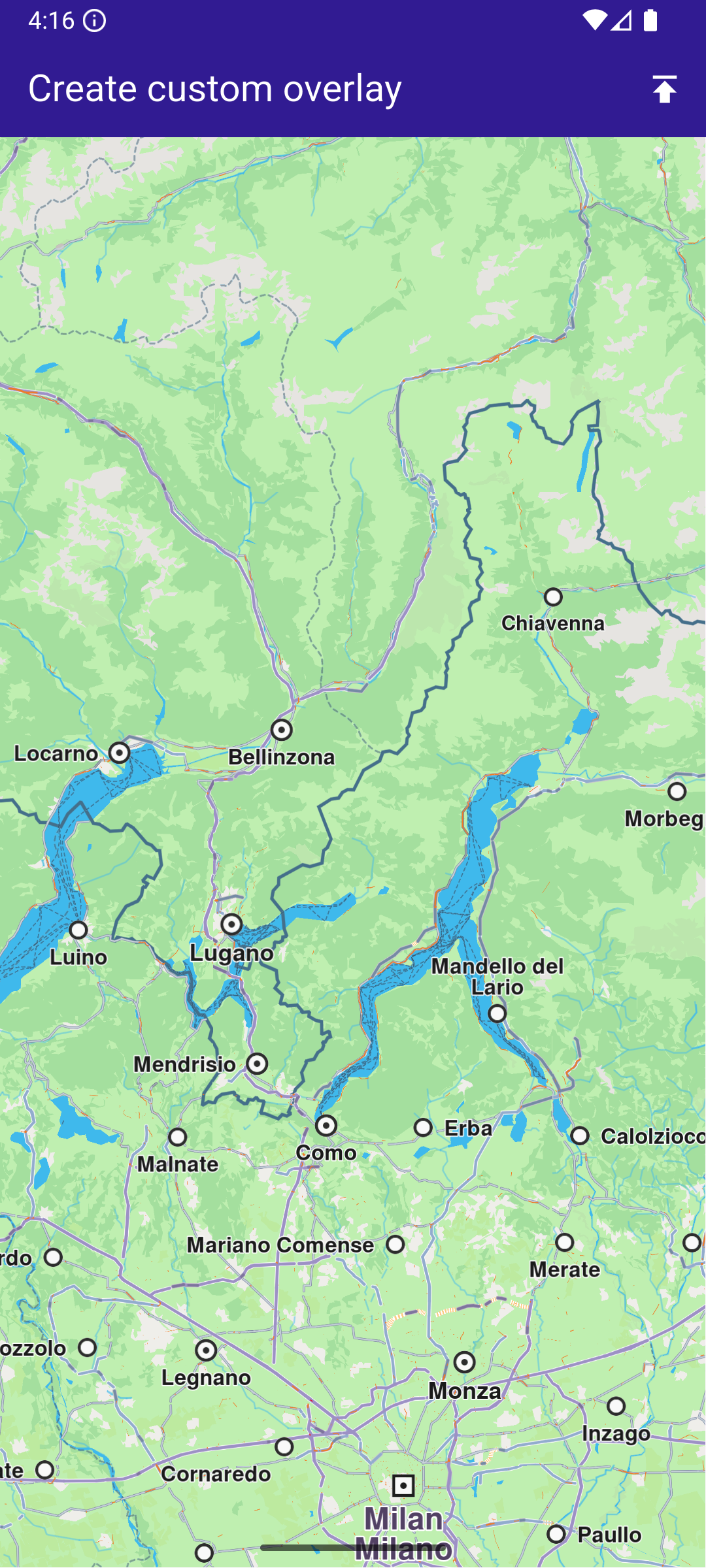
**Initial map view**
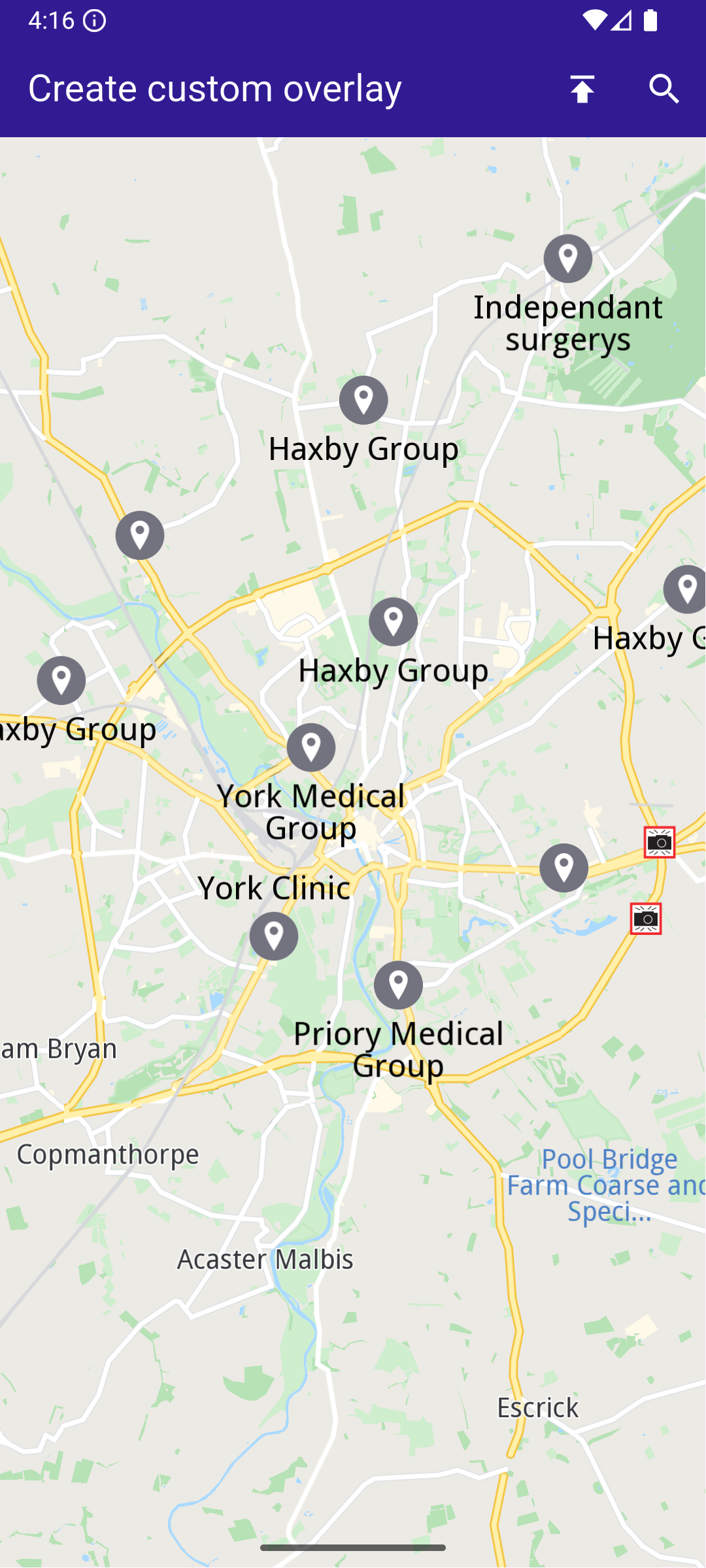
**Map with style containing dataset**
##### Overlay Item Panel[](#overlay-item-panel "Direct link to Overlay Item Panel")
The overlay item panel is responsible for presenting detailed information about the currently selected item.
It retrieves and displays key attributes such as name, previewData, image, and geographic coordinates, and provides controls for closing the panel or taking actions related to the selected item.
overlay\_item\_panel.dart[View on Github](https://github.com/magiclane/magiclane-maps-sdk-examples-for-flutter/tree/main/create_custom_overlay/lib/overlay_item_panel.dart?ref_type=heads#L6)
```dart
import 'package:flutter/material.dart';
import 'package:magiclane_maps_flutter/map.dart';
class OverlayItemPanel extends StatelessWidget {
final VoidCallback onCancelTap;
final OverlayItem overlayItem;
const OverlayItemPanel({
super.key,
required this.onCancelTap,
required this.overlayItem,
});
@override
Widget build(BuildContext context) {
return Container(
width: MediaQuery.of(context).size.width - 20,
padding: const EdgeInsets.symmetric(horizontal: 5),
margin: const EdgeInsets.symmetric(horizontal: 10),
decoration: BoxDecoration(
color: Colors.white,
borderRadius: BorderRadius.circular(15),
),
child: Row(
children: [
Container(
padding: const EdgeInsets.symmetric(horizontal: 10),
child: overlayItem.img.isValid
? Image.memory(
overlayItem.img.getRenderableImageBytes(
size: Size(50, 50),
)!,
)
: SizedBox(),
),
Row(
mainAxisAlignment: MainAxisAlignment.spaceBetween,
children: [
SizedBox(
width: MediaQuery.of(context).size.width - 150,
child: Row(
children: [
SizedBox(
width: MediaQuery.of(context).size.width - 150,
child: Column(
mainAxisAlignment: MainAxisAlignment.center,
crossAxisAlignment: CrossAxisAlignment.start,
children: [
Text(
overlayItem.name,
maxLines: 2,
overflow: TextOverflow.ellipsis,
style: const TextStyle(
color: Colors.black,
fontSize: 16,
fontWeight: FontWeight.w600,
),
),
const SizedBox(height: 5),
// Show data in key-value pair structure
SingleChildScrollView(
scrollDirection: Axis.horizontal,
child: Text(
overlayItem.previewDataParameterList
.map((kv) => '${kv.key}: ${kv.value}')
.join(', '),
overflow: TextOverflow.ellipsis,
style: const TextStyle(
color: Colors.black,
fontSize: 14,
fontWeight: FontWeight.w800,
),
),
),
const SizedBox(height: 5),
Text(
'${overlayItem.coordinates.latitude.toString()}, ${overlayItem.coordinates.longitude.toString()}',
maxLines: 2,
overflow: TextOverflow.visible,
style: const TextStyle(
color: Colors.black,
fontSize: 14,
fontWeight: FontWeight.w400,
),
),
],
),
),
],
),
),
SizedBox(
width: 50,
child: Column(
mainAxisAlignment: MainAxisAlignment.start,
children: [
Align(
alignment: Alignment.topRight,
child: IconButton(
padding: EdgeInsets.zero,
onPressed: onCancelTap,
icon: const Icon(
Icons.cancel,
color: Colors.red,
size: 30,
),
),
),
],
),
),
],
),
],
),
);
}
}
```
##### Search Page[](#search-page "Direct link to Search Page")
The search page component handles querying landmarks using `SearchService`.
It applies the `SearchPreferences` configured in the main app, ensuring that search results are limited to the custom overlay.
Search results are presented in a scrollable list, and selecting a result returns it to the calling screen for highlighting and map centering.
search\_page.dart[View on Github](https://github.com/magiclane/magiclane-maps-sdk-examples-for-flutter/tree/main/create_custom_overlay/lib/search_page.dart?ref_type=heads#L6)
```dart
import 'package:magiclane_maps_flutter/core.dart';
import 'package:magiclane_maps_flutter/map.dart';
import 'package:magiclane_maps_flutter/search.dart';
import 'package:flutter/material.dart';
import 'dart:async';
class SearchPage extends StatefulWidget {
final Coordinates coordinates;
final SearchPreferences preferences;
const SearchPage({
super.key,
required this.coordinates,
required this.preferences,
});
@override
State createState() => _SearchPageState();
}
class _SearchPageState extends State {
List overlayItems = [];
@override
Widget build(BuildContext context) {
return Scaffold(
appBar: AppBar(
automaticallyImplyLeading: true,
title: const Text(
"Search Overlay Items",
style: TextStyle(color: Colors.white),
),
backgroundColor: Colors.deepPurple[900],
foregroundColor: Colors.white,
),
body: Column(
children: [
Padding(
padding: const EdgeInsets.all(8.0),
child: TextField(
onSubmitted: (value) => _onSearchSubmitted(value),
cursorColor: Colors.deepPurple[900],
decoration: const InputDecoration(
hintText: 'Hint: York',
hintStyle: TextStyle(color: Colors.black),
focusedBorder: UnderlineInputBorder(
borderSide: BorderSide(color: Colors.deepPurple, width: 2.0),
),
),
),
),
Expanded(
child: ListView.separated(
padding: EdgeInsets.zero,
itemCount: overlayItems.length,
controller: ScrollController(),
separatorBuilder: (context, index) =>
const Divider(indent: 50, height: 0),
itemBuilder: (context, index) {
final lmk = overlayItems.elementAt(index);
return SearchResultItem(overlayItem: lmk);
},
),
),
],
),
);
}
void _onSearchSubmitted(String text) {
search(text, widget.coordinates, preferences: widget.preferences);
}
// Search method. Text and coordinates parameters are mandatory, preferences are optional.
Future search(
String text,
Coordinates coordinates, {
SearchPreferences? preferences,
}) async {
Completer> completer = Completer>();
// Calling the search method from the sdk.
// (err, results) - is a callback function that calls when the computing is done.
// err is an error code, results is a list of landmarks
SearchService.search(text, coordinates, preferences: preferences, (
err,
results,
) async {
// If there is an error or there aren't any results, the method will return an empty list.
if (err != GemError.success) {
completer.complete([]);
return;
}
// Convert Landmarks to OverlayItems
final overlayItems = results
.map((lmk) => lmk.overlayItem)
.where((item) => item != null)
.cast()
.toList();
if (!completer.isCompleted) completer.complete(overlayItems);
});
final result = await completer.future;
setState(() {
overlayItems = result;
});
}
}
// Class for the search results.
class SearchResultItem extends StatefulWidget {
final OverlayItem overlayItem;
const SearchResultItem({super.key, required this.overlayItem});
@override
State createState() => _SearchResultItemState();
}
class _SearchResultItemState extends State {
@override
Widget build(BuildContext context) {
return ListTile(
onTap: () => Navigator.of(context).pop(widget.overlayItem),
leading: Container(
padding: const EdgeInsets.all(8),
child: widget.overlayItem.img.isValid
? Image.memory(
widget.overlayItem.img.getRenderableImageBytes(
size: Size(50, 50),
)!,
)
: SizedBox(),
),
title: Text(
widget.overlayItem.name,
overflow: TextOverflow.fade,
style: const TextStyle(
color: Colors.black,
fontSize: 14,
fontWeight: FontWeight.w400,
),
maxLines: 2,
),
);
}
}
```
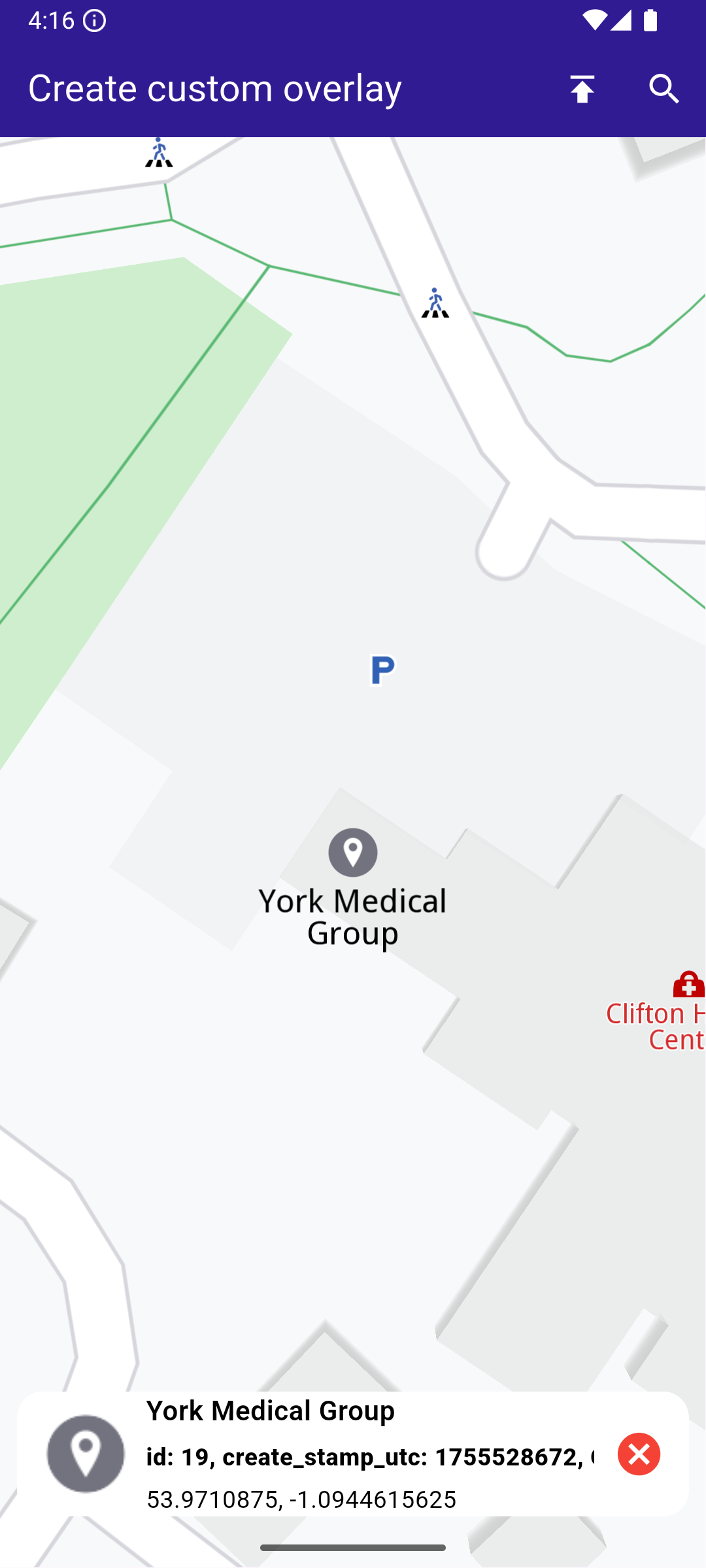
**Selected overlay item with panel**
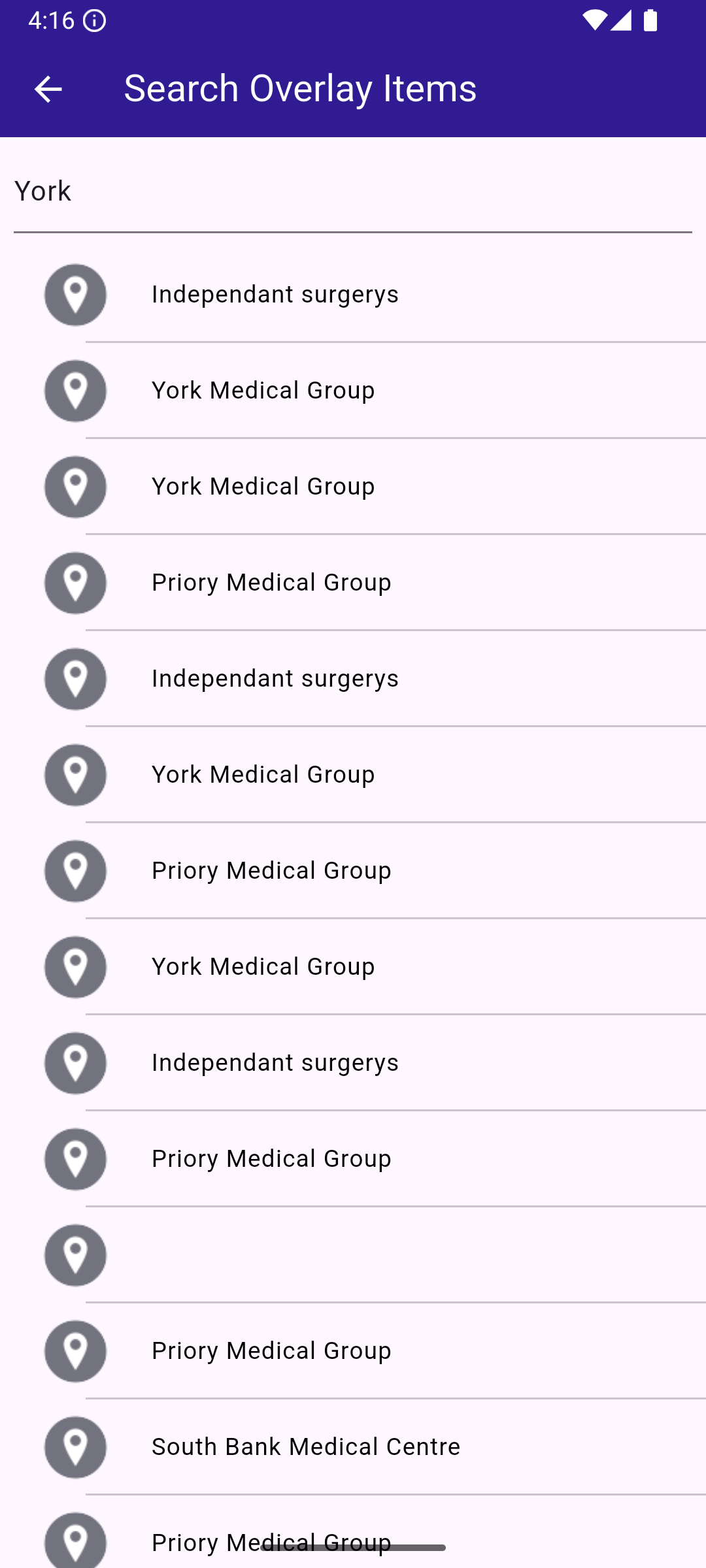
**Search page with results**
---
### Display Cursor Street Name
Last updated:
July 15, 2026
| 3 minutes read
This example demonstrates how to create a Flutter app that displays the name of the street at the cursor position using Maps SDK for Flutter. When the user taps on the map, the app retrieves and displays the street name at that location.
#### How it works[](#how-it-works "Direct link to How it works")
* Main App Setup : Initializes the Maps SDK and sets up the app’s home screen with a map.
* Displaying Street Name : The map detects touch input, centers on the selected coordinates, and displays the street name at the tapped location in a bottom-centered container.
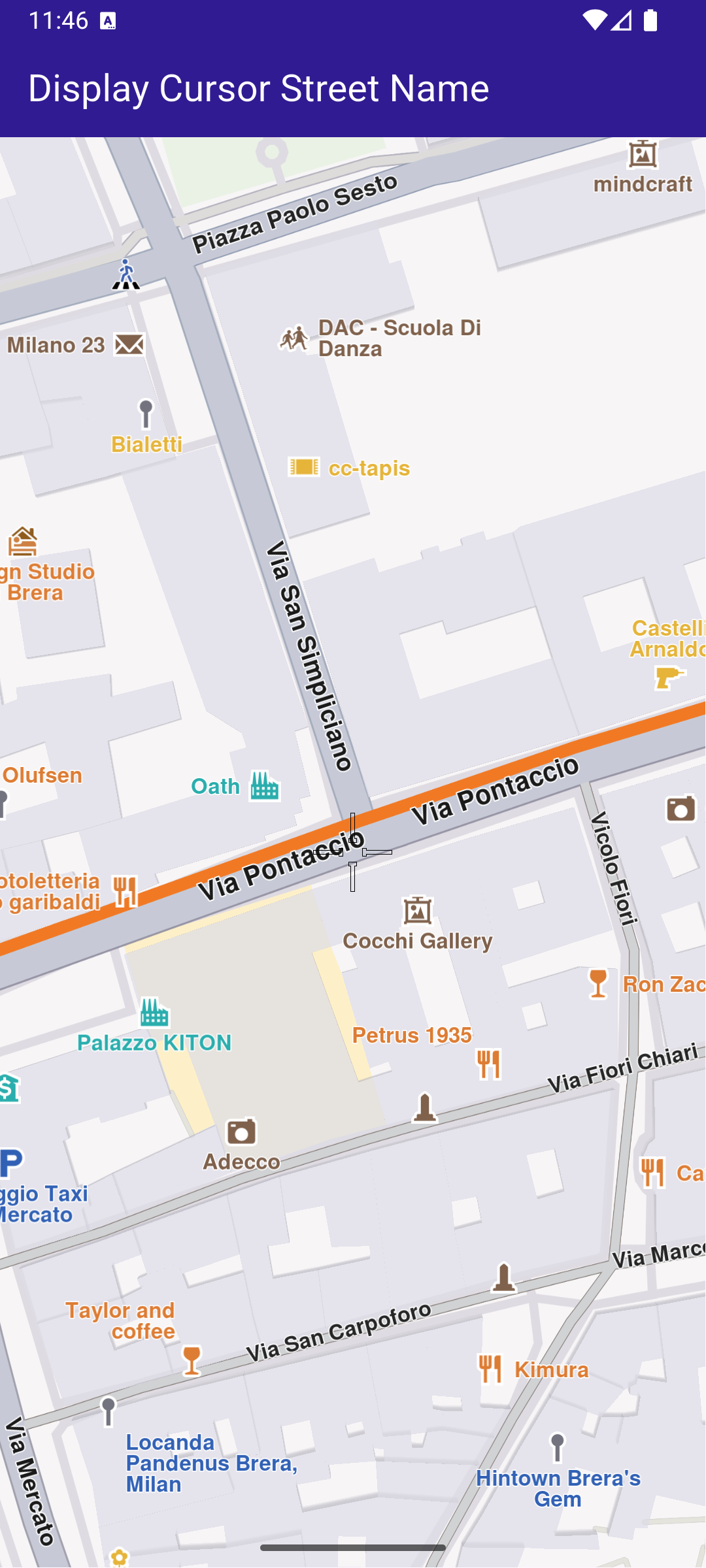
**Initial map view**
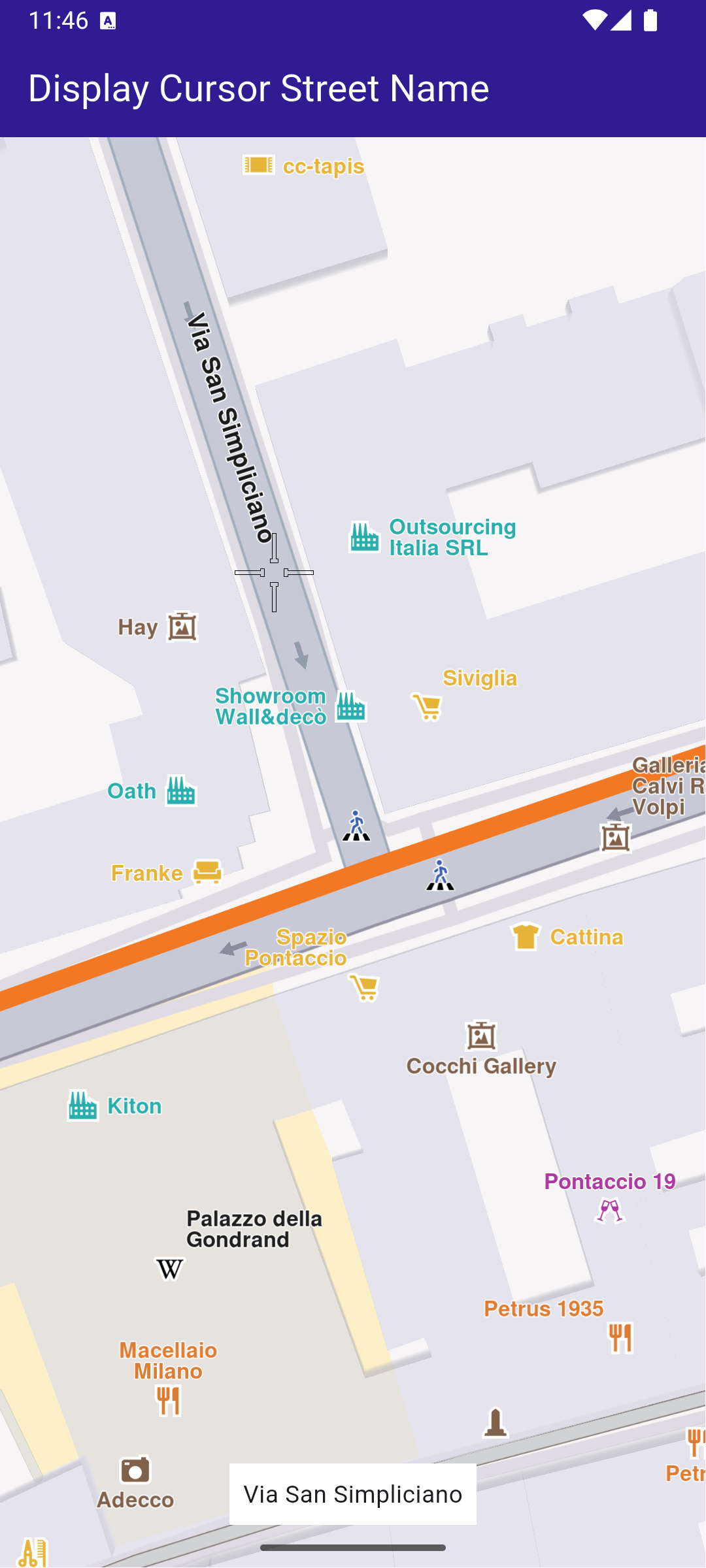
**Tapped on street**
##### UI and Map Integration[](#ui-and-map-integration "Direct link to UI and Map Integration")
The map screen includes an AppBar and displays a container at the bottom showing the street name upon tapping a location on the map. The container at the bottom displays the street name when it is available.
main.dart[View on Github](https://github.com/magiclane/magiclane-maps-sdk-examples-for-flutter/tree/main/display_cursor_street_name/lib/main.dart?ref_type=heads#L29)
```dart
class MyHomePage extends StatefulWidget {
const MyHomePage({super.key});
@override
State createState() => _MyHomePageState();
}
class _MyHomePageState extends State {
late GemMapController _mapController;
String _currentStreetName = "";
@override
void dispose() {
GemKit.release();
super.dispose();
}
@override
Widget build(BuildContext context) {
return Scaffold(
appBar: AppBar(
backgroundColor: Colors.deepPurple[900],
title: const Text(
'Display Cursor Street Name',
style: TextStyle(color: Colors.white),
),
),
body: Stack(
alignment: AlignmentDirectional.bottomCenter,
children: [
GemMap(
key: ValueKey("GemMap"),
onMapCreated: _onMapCreated,
appAuthorization: projectApiToken,
),
if (_currentStreetName != "")
Padding(
padding: const EdgeInsets.symmetric(vertical: 25.0),
child: Container(
color: Colors.white,
child: Padding(
padding: const EdgeInsets.all(8.0),
child: Text(_currentStreetName),
),
),
),
],
),
);
}
```
##### Handling Cursor Position and Retrieving Street Name[](#handling-cursor-position-and-retrieving-street-name "Direct link to Handling Cursor Position and Retrieving Street Name")
This code sets the cursor to follow the tapped location and retrieves the street name. This code initializes the map controller, sets the cursor to follow the user’s taps, and retrieves the street name, which is then displayed in the UI.
main.dart[View on Github](https://github.com/magiclane/magiclane-maps-sdk-examples-for-flutter/tree/main/display_cursor_street_name/lib/main.dart?ref_type=heads#L81)
```dart
void _onMapCreated(GemMapController controller) async {
// Save controller for further usage.
_mapController = controller;
_mapController.centerOnCoordinates(
Coordinates(latitude: 45.472358, longitude: 9.184945),
zoomLevel: 80,
);
// Enable cursor to render on screen
_mapController.preferences.enableCursor = true;
_mapController.preferences.enableCursorRender = true;
// Register touch callback to set cursor to tapped position
_mapController.registerOnTouch((point) async {
await _mapController.setCursorScreenPosition(point);
final streets = _mapController.cursorSelectionStreets();
setState(() {
_currentStreetName = streets.isEmpty
? "Unnamed street"
: streets.first.name;
});
});
}
```
---
### Import Custom Landmarks
Last updated:
July 15, 2026
| 9 minutes read
In this guide, you will learn how to display a map, import a **LandmarkStore** from a **KML** file, render custom landmarks on the map, **search within those custom landmarks**, and **tap** to view details.
#### How it works[](#how-it-works "Direct link to How it works")
This example demonstrates the following key features:
* Display a map.
* Import a `LandmarkStore` from a KML file.
* Display the custom Landmarks on the map.
* Search on custom Landmarks.
* Tap and get info about the custom Landmarks.
This workflow involves initializing a map view, loading landmarks from an external KML file, and adding them to a dedicated `LandmarkStore`.
Once imported, these landmarks become available for rendering on the map, for targeted searches, and for interaction through user input such as taps or selections.
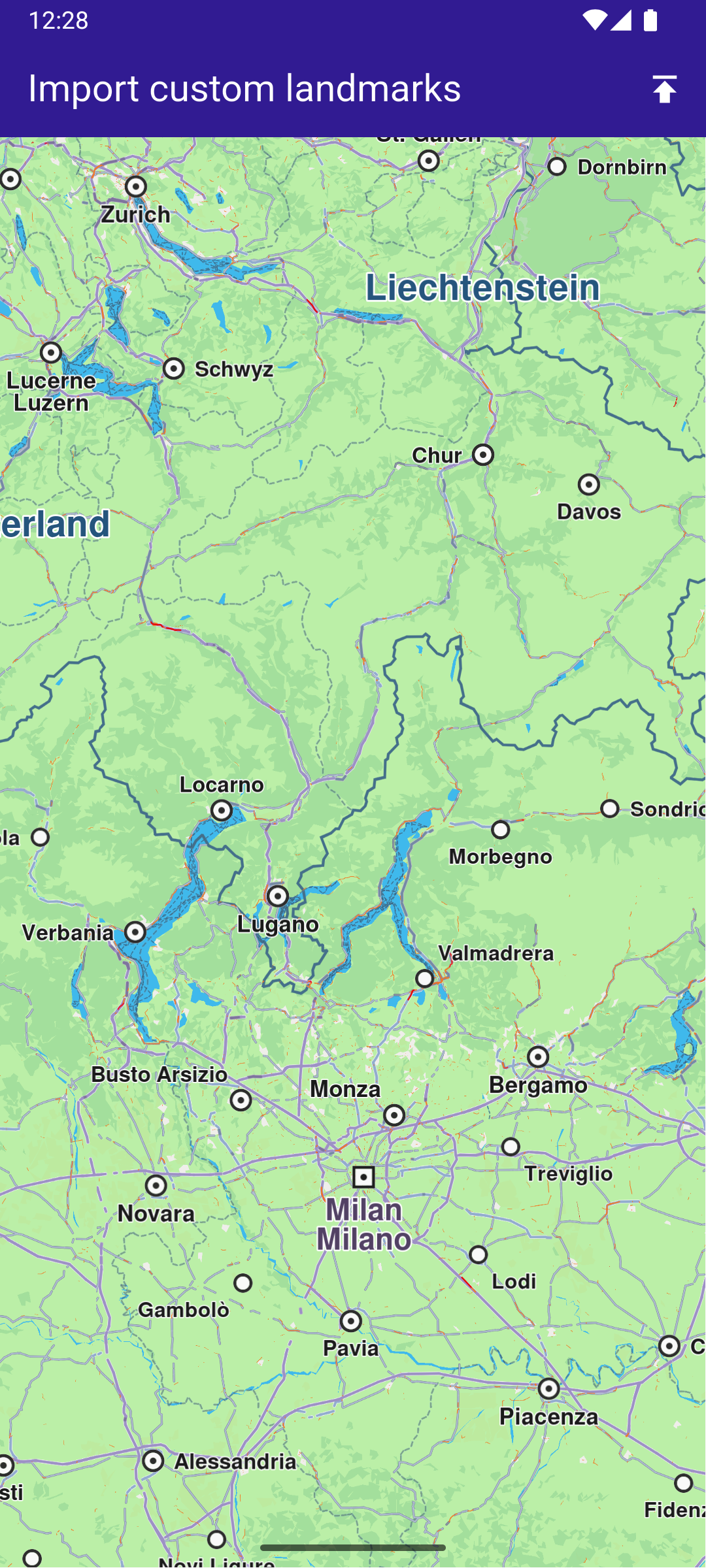
**Initial map view**
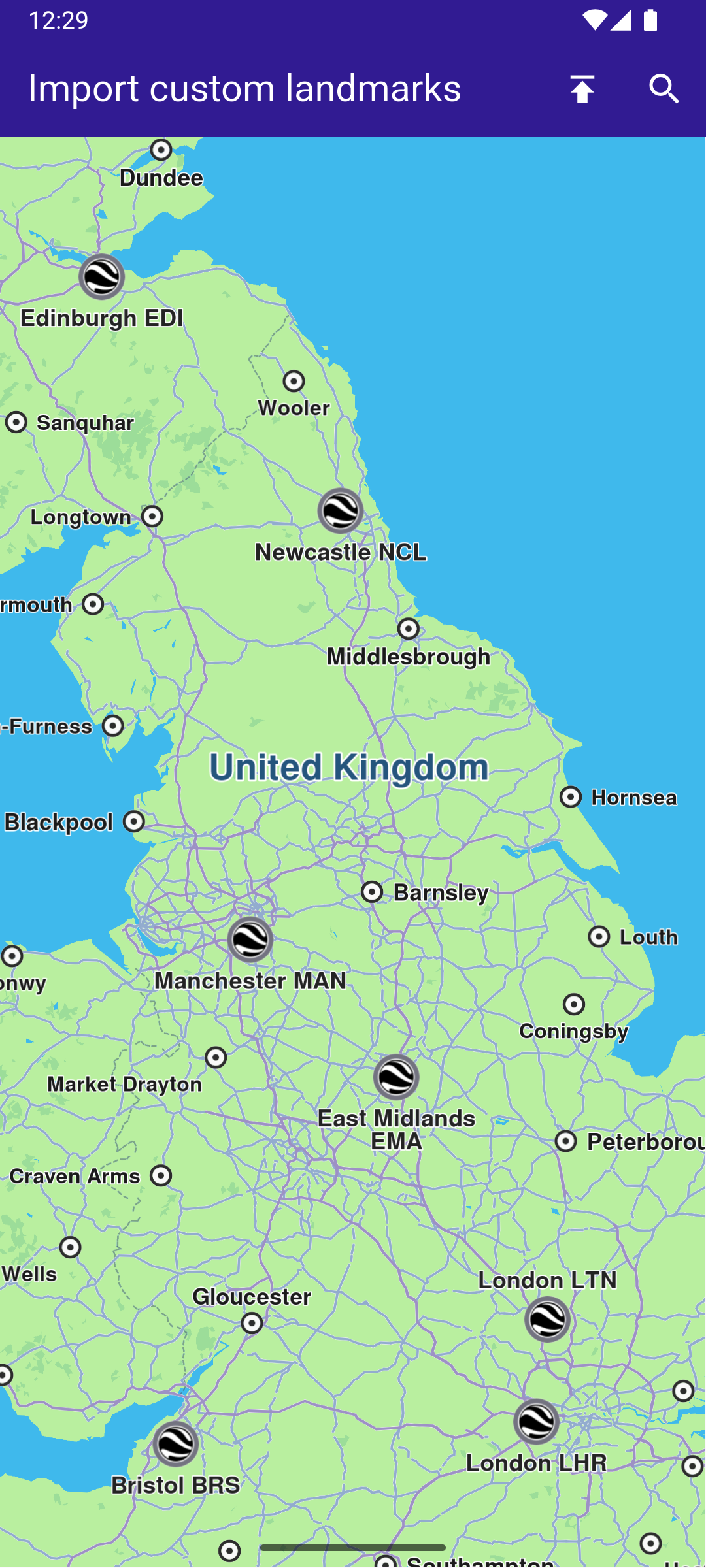
**KML imported - custom POIs visible**
##### UI and Map Integration[](#ui-and-map-integration "Direct link to UI and Map Integration")
The main app shows a map, imports landmarks from a KML file into a `LandmarkStore`, adds that store to map preferences, and enables searching only in the imported store.
When the KML file is imported, the data is parsed and stored in a `LandmarkStore` object.
The `LandmarkStore` is then registered in the map controller’s preferences so the map engine can display the new landmarks.
By updating the `SearchPreferences` to include only this store, all subsequent searches will be scoped to these imported landmarks, improving search accuracy and performance.
main.dart[View on Github](https://github.com/magiclane/magiclane-maps-sdk-examples-for-flutter/tree/main/import_custom_landmarks/lib/main.dart?ref_type=heads#L20)
```dart
void main() {
runApp(const MyApp());
}
class MyApp extends StatelessWidget {
const MyApp({super.key});
@override
Widget build(BuildContext context) {
return const MaterialApp(
debugShowCheckedModeBanner: false,
title: 'Import custom landmarks',
home: MyHomePage(),
);
}
}
class MyHomePage extends StatefulWidget {
const MyHomePage({super.key});
@override
State createState() => _MyHomePageState();
}
class _MyHomePageState extends State {
late GemMapController _mapController;
Landmark? _focusedLandmark;
late SearchPreferences preferences;
bool isStoreCreated = false;
@override
void dispose() {
GemKit.release();
super.dispose();
}
@override
Widget build(BuildContext context) {
return Scaffold(
appBar: AppBar(
backgroundColor: Colors.deepPurple[900],
title: const Text(
"Import custom landmarks",
style: TextStyle(color: Colors.white),
),
actions: [
IconButton(
onPressed: addLandmarkStore,
icon: const Icon(Icons.publish, color: Colors.white),
),
if (isStoreCreated)
IconButton(
onPressed: () => _onSearchButtonPressed(context, preferences),
icon: const Icon(Icons.search, color: Colors.white),
),
],
),
body: Stack(
children: [
GemMap(
key: ValueKey("GemMap"),
onMapCreated: _onMapCreated,
appAuthorization: projectApiToken,
),
if (_focusedLandmark != null)
Positioned(
bottom: 30,
child: LandmarkPanel(
onCancelTap: _onCancelLandmarkPanelTap,
landmark: _focusedLandmark!,
),
),
],
),
resizeToAvoidBottomInset: false,
);
}
void _onMapCreated(GemMapController controller) {
_mapController = controller;
_registerLandmarkTapCallback();
}
Future _importLandmarks() async {
final completer = Completer();
final file = await assetToUint8List('assets/airports_europe.kml');
final store = LandmarkStoreService.createLandmarkStore('archies_europe');
//Ensure the store is empty before importing
store.removeAllLandmarks();
final img = await assetToUint8List('assets/KMLCategory.png');
store.importLandmarksWithDataBuffer(
buffer: file,
format: LandmarkFileFormat.kml,
image: Img(img),
onComplete: (err) {
if (err != GemError.success) {
completer.complete(false);
} else {
completer.complete(true);
}
},
categoryId: -1,
);
final res = await completer.future;
if (res) {
return store.id;
} else {
LandmarkStoreService.removeLandmarkStore(store.id);
throw "Error importing landmarks";
}
}
void addLandmarkStore() async {
final id = await _importLandmarks();
final store = LandmarkStoreService.getLandmarkStoreById(id!);
_mapController.preferences.lmks.add(store!);
_mapController.centerOnCoordinates(
Coordinates(latitude: 53.70762, longitude: -1.61112),
screenPosition: Point(
_mapController.viewport.width ~/ 2,
_mapController.viewport.height ~/ 2,
),
zoomLevel: 25,
);
// Add the store to the search preferences
preferences = SearchPreferences();
preferences.landmarks.add(store);
// If no results from the map POIs should be returned then searchMapPOIs should be set to false
preferences.searchMapPOIs = false;
// If no results from the addresses should be returned then searchAddresses should be set to false
preferences.searchAddresses = false;
setState(() {
isStoreCreated = true;
});
}
Future _registerLandmarkTapCallback() async {
_mapController.registerOnTouch((pos) async {
// Select the object at the tap position.
await _mapController.setCursorScreenPosition(pos);
// Get the selected landmarks.
final landmarks = _mapController.cursorSelectionLandmarks();
// Reset the cursor position back to middle of the screen
await _mapController.resetMapSelection();
// Check if there is a selected Landmark.
if (landmarks.isNotEmpty) {
_highlightLandmark(landmarks);
return;
}
// Get the selected streets.
final streets = _mapController.cursorSelectionStreets();
// Check if there is a selected street.
if (streets.isNotEmpty) {
_highlightLandmark(streets);
return;
}
final coordinates = _mapController.transformScreenToWgs(
Point(pos.x, pos.y),
);
// If no landmark was found, we create one.
final lmk = Landmark.withCoordinates(coordinates);
lmk.name = '${coordinates.latitude} ${coordinates.longitude}';
lmk.setImageFromIcon(GemIcon.searchResultsPin);
_highlightLandmark([lmk]);
});
}
void _highlightLandmark(List landmarks) {
final settings = HighlightRenderSettings(
options: {
HighlightOptions.showLandmark,
HighlightOptions.showContour,
HighlightOptions.overlap,
},
);
// Highlight the landmark on the map.
_mapController.activateHighlight(landmarks, renderSettings: settings);
final lmk = landmarks[0];
setState(() {
_focusedLandmark = lmk;
});
_mapController.centerOnCoordinates(
lmk.coordinates,
screenPosition: Point(
_mapController.viewport.width ~/ 2,
_mapController.viewport.height ~/ 2,
),
zoomLevel: 50,
);
}
void _onCancelLandmarkPanelTap() {
_mapController.deactivateAllHighlights();
setState(() {
_focusedLandmark = null;
});
}
// Custom method for navigating to search screen
void _onSearchButtonPressed(
BuildContext context,
SearchPreferences preferences,
) async {
// Navigating to search screen. The result will be the selected search result(Landmark)
final result = await Navigator.of(context).push(
MaterialPageRoute(
builder: (context) => SearchPage(
coordinates: Coordinates(latitude: 53.70762, longitude: -1.61112),
preferences: preferences,
),
),
);
if (result is Landmark) {
// Activating the highlight
_mapController.activateHighlight([
result,
], renderSettings: HighlightRenderSettings());
// Centering the map on the desired coordinates
_mapController.centerOnCoordinates(result.coordinates, zoomLevel: 70);
}
}
Future assetToUint8List(String assetPath) async {
final byteData = await rootBundle.load(assetPath);
return byteData.buffer.asUint8List();
}
}
```
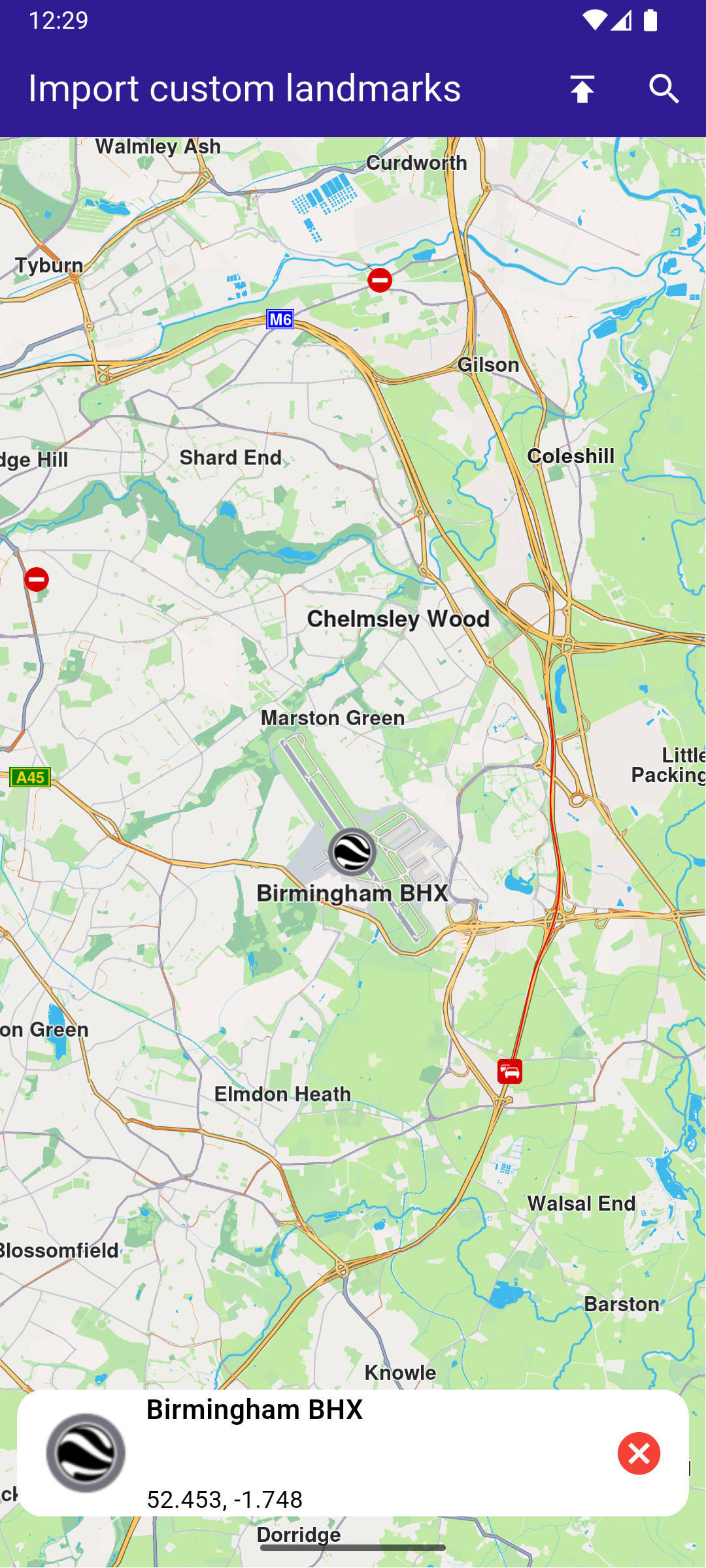
**Landmark details panel**
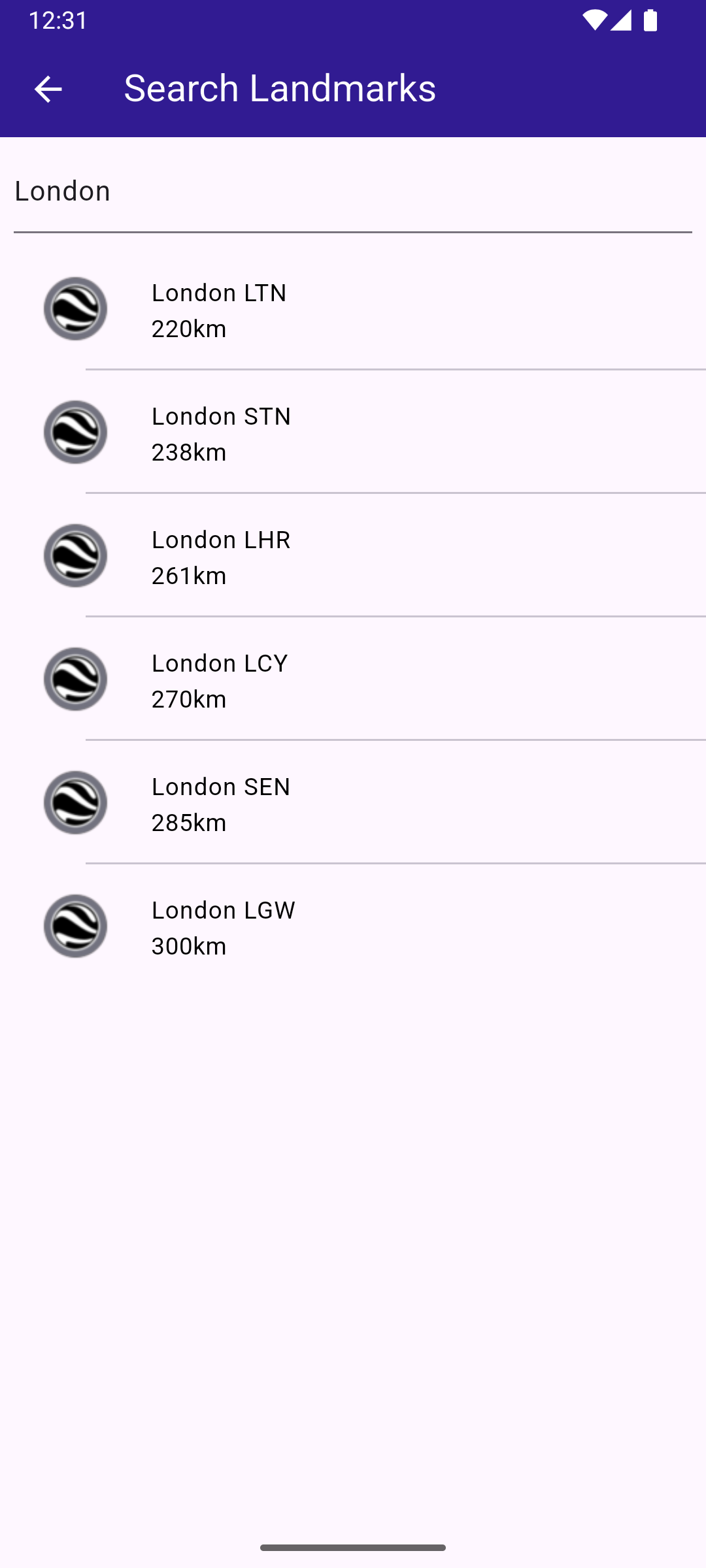
**Searching within custom landmarks**
##### LandmarkPanel[](#landmarkpanel "Direct link to LandmarkPanel")
The landmark panel is responsible for presenting detailed information about the currently selected landmark.
It retrieves and displays key attributes such as name, category, image, and geographic coordinates, and provides controls for closing the panel or taking actions related to the selected landmark.
landmark\_panel.dart[View on Github](https://github.com/magiclane/magiclane-maps-sdk-examples-for-flutter/tree/main/import_custom_landmarks/lib/landmark_panel.dart?ref_type=heads#L10)
```dart
class LandmarkPanel extends StatelessWidget {
final VoidCallback onCancelTap;
final Landmark landmark;
const LandmarkPanel({
super.key,
required this.onCancelTap,
required this.landmark,
});
@override
Widget build(BuildContext context) {
return Container(
width: MediaQuery.of(context).size.width - 20,
padding: const EdgeInsets.symmetric(horizontal: 5),
margin: const EdgeInsets.symmetric(horizontal: 10),
decoration: BoxDecoration(
color: Colors.white,
borderRadius: BorderRadius.circular(15),
),
child: Row(
children: [
Container(
padding: const EdgeInsets.symmetric(horizontal: 10),
child: landmark.img.isValid
? Image.memory(
landmark.img.getRenderableImageBytes(size: Size(50, 50))!,
)
: SizedBox(),
),
Row(
mainAxisAlignment: MainAxisAlignment.spaceBetween,
children: [
SizedBox(
width: MediaQuery.of(context).size.width - 150,
child: Row(
children: [
SizedBox(
width: MediaQuery.of(context).size.width - 150,
child: Column(
mainAxisAlignment: MainAxisAlignment.center,
crossAxisAlignment: CrossAxisAlignment.start,
children: [
Text(
landmark.name,
maxLines: 2,
overflow: TextOverflow.ellipsis,
style: const TextStyle(
color: Colors.black,
fontSize: 16,
fontWeight: FontWeight.w600,
),
),
const SizedBox(height: 5),
Text(
landmark.categories.isNotEmpty
? landmark.categories.first.name
: '',
maxLines: 2,
overflow: TextOverflow.ellipsis,
style: const TextStyle(
color: Colors.black,
fontSize: 14,
fontWeight: FontWeight.w800,
),
),
const SizedBox(height: 5),
Text(
'${landmark.coordinates.latitude.toString()}, ${landmark.coordinates.longitude.toString()}',
maxLines: 2,
overflow: TextOverflow.visible,
style: const TextStyle(
color: Colors.black,
fontSize: 14,
fontWeight: FontWeight.w400,
),
),
],
),
),
],
),
),
SizedBox(
width: 50,
child: Column(
mainAxisAlignment: MainAxisAlignment.start,
children: [
Align(
alignment: Alignment.topRight,
child: IconButton(
padding: EdgeInsets.zero,
onPressed: onCancelTap,
icon: const Icon(
Icons.cancel,
color: Colors.red,
size: 30,
),
),
),
],
),
),
],
),
],
),
);
}
}
```
##### Search Page[](#search-page "Direct link to Search Page")
The search page component handles querying landmarks using `SearchService`.
It applies the `SearchPreferences` configured in the main app, ensuring that search results are limited to the imported `LandmarkStore`.
Search results are presented in a scrollable list, and selecting a result returns it to the calling screen for highlighting and map centering.
search\_page.dart[View on Github](https://github.com/magiclane/magiclane-maps-sdk-examples-for-flutter/tree/main/import_custom_landmarks/lib/search_page.dart?ref_type=heads#L13)
```dart
class SearchPage extends StatefulWidget {
final Coordinates coordinates;
final SearchPreferences preferences;
const SearchPage({
super.key,
required this.coordinates,
required this.preferences,
});
@override
State createState() => _SearchPageState();
}
class _SearchPageState extends State {
List landmarks = [];
@override
Widget build(BuildContext context) {
return Scaffold(
appBar: AppBar(
automaticallyImplyLeading: true,
title: const Text(
"Search Landmarks",
style: TextStyle(color: Colors.white),
),
backgroundColor: Colors.deepPurple[900],
foregroundColor: Colors.white,
),
body: Column(
children: [
Padding(
padding: const EdgeInsets.all(8.0),
child: TextField(
onSubmitted: (value) => _onSearchSubmitted(value),
cursorColor: Colors.deepPurple[900],
decoration: const InputDecoration(
hintText: 'Hint: London',
hintStyle: TextStyle(color: Colors.black),
focusedBorder: UnderlineInputBorder(
borderSide: BorderSide(color: Colors.deepPurple, width: 2.0),
),
),
),
),
Expanded(
child: ListView.separated(
padding: EdgeInsets.zero,
itemCount: landmarks.length,
controller: ScrollController(),
separatorBuilder: (context, index) =>
const Divider(indent: 50, height: 0),
itemBuilder: (context, index) {
final lmk = landmarks.elementAt(index);
return SearchResultItem(landmark: lmk);
},
),
),
],
),
);
}
void _onSearchSubmitted(String text) {
search(text, widget.coordinates, preferences: widget.preferences);
}
// Search method. Text and coordinates parameters are mandatory, preferences are optional.
Future search(
String text,
Coordinates coordinates, {
SearchPreferences? preferences,
}) async {
Completer> completer = Completer>();
// Calling the search method from the sdk.
// (err, results) - is a callback function that calls when the computing is done.
// err is an error code, results is a list of landmarks
SearchService.search(text, coordinates, preferences: preferences, (
err,
results,
) async {
// If there is an error or there aren't any results, the method will return an empty list.
if (err != GemError.success) {
completer.complete([]);
return;
}
if (!completer.isCompleted) completer.complete(results);
});
final result = await completer.future;
setState(() {
landmarks = result;
});
}
}
// Class for the search results.
class SearchResultItem extends StatefulWidget {
final Landmark landmark;
const SearchResultItem({super.key, required this.landmark});
@override
State createState() => _SearchResultItemState();
}
class _SearchResultItemState extends State {
@override
Widget build(BuildContext context) {
return ListTile(
onTap: () => Navigator.of(context).pop(widget.landmark),
leading: Container(
padding: const EdgeInsets.all(8),
child: widget.landmark.img.isValid
? Image.memory(
widget.landmark.img.getRenderableImageBytes(
size: Size(50, 50),
)!,
)
: SizedBox(),
),
title: Text(
widget.landmark.name,
overflow: TextOverflow.fade,
style: const TextStyle(
color: Colors.black,
fontSize: 14,
fontWeight: FontWeight.w400,
),
maxLines: 2,
),
subtitle: Text(
'${getFormattedDistance(widget.landmark)} ${getAddress(widget.landmark)}',
overflow: TextOverflow.ellipsis,
style: const TextStyle(
color: Colors.black,
fontSize: 14,
fontWeight: FontWeight.w400,
),
),
);
}
}
String getAddress(Landmark landmark) {
final addressInfo = landmark.address;
final street = addressInfo.getField(AddressField.streetName);
final city = addressInfo.getField(AddressField.city);
final country = addressInfo.getField(AddressField.country);
return " ${street ?? ""} ${city ?? ""} ${country ?? ""}";
}
String getFormattedDistance(Landmark landmark) {
String formattedDistance = '';
double distance =
(landmark.extraInfo.getByKey(
PredefinedExtraInfoKey.gmSearchResultDistance,
) /
1000)
as double;
formattedDistance = "${distance.toStringAsFixed(0)}km";
return formattedDistance;
}
```
---
### Location Wikipedia
Last updated:
July 15, 2026
| 3 minutes read
This example demonstrates how to create a Flutter app that displays a map and retrieves Wikipedia information about selected locations using Maps SDK for Flutter. Users can explore geographic data on a map and search for relevant Wikipedia content.
#### How it works[](#how-it-works "Direct link to How it works")
* Main App Setup : The main app initializes GemKit and sets up the primary map screen.
* Wikipedia Integration : The app enables location-based Wikipedia searches, displaying title and content of selected landmarks.
**Wikipedia information retrieved for the Statue of Liberty**
##### UI and Map Integration[](#ui-and-map-integration "Direct link to UI and Map Integration")
The following code sets up the main screen with a map and a search button for location-based Wikipedia information.
main.dart[View on Github](https://github.com/magiclane/magiclane-maps-sdk-examples-for-flutter/tree/main/location_wikipedia/lib/main.dart?ref_type=heads#L17)
```dart
class MyApp extends StatelessWidget {
const MyApp({super.key});
@override
Widget build(BuildContext context) {
return const MaterialApp(
debugShowCheckedModeBanner: false,
title: 'Location Wikipedia',
home: MyHomePage(),
);
}
}
class MyHomePage extends StatefulWidget {
const MyHomePage({super.key});
@override
State createState() => _MyHomePageState();
}
class _MyHomePageState extends State {
@override
void dispose() {
GemKit.release();
super.dispose();
}
@override
Widget build(BuildContext context) {
return Scaffold(
appBar: AppBar(
backgroundColor: Colors.deepPurple[900],
title: const Text(
'Location Wikipedia',
style: TextStyle(color: Colors.white),
),
actions: [
IconButton(
onPressed: () => _onLocationWikipediaTap(context),
icon: Icon(Icons.search, color: Colors.white),
),
],
),
body: const GemMap(
key: ValueKey("GemMap"),
appAuthorization: projectApiToken,
),
);
}
void _onLocationWikipediaTap(BuildContext context) {
Navigator.of(context).push(
MaterialPageRoute(
builder: (context) => const LocationWikipediaPage(),
),
);
}
}
```
##### Wikipedia Data Display[](#wikipedia-data-display "Direct link to Wikipedia Data Display")
The following code manages the Wikipedia data retrieval and display for the selected location.
location\_wikipedia\_page.dart[View on Github](https://github.com/magiclane/magiclane-maps-sdk-examples-for-flutter/tree/main/location_wikipedia/lib/location_wikipedia_page.dart?ref_type=heads#L6)
```dart
import 'dart:async';
import 'package:flutter/material.dart';
import 'package:magiclane_maps_flutter/core.dart';
import 'package:magiclane_maps_flutter/search.dart';
class LocationWikipediaPage extends StatefulWidget {
const LocationWikipediaPage({super.key});
@override
State createState() => _LocationWikipediaPageState();
}
class _LocationWikipediaPageState extends State {
@override
void initState() {
super.initState();
}
@override
Widget build(BuildContext context) {
return Scaffold(
appBar: AppBar(
automaticallyImplyLeading: true,
foregroundColor: Colors.white,
title: const Text(
"Location Wikipedia",
style: TextStyle(color: Colors.white),
),
backgroundColor: Colors.deepPurple[900],
),
body: FutureBuilder(
future: _getLocationWikipedia(),
builder: (context, snapshot) {
if (!snapshot.hasData || snapshot.data == null) {
return const Center(child: CircularProgressIndicator());
}
return Column(
mainAxisSize: MainAxisSize.max,
children: [
Text(
snapshot.data!.$1,
style: TextStyle(
overflow: TextOverflow.fade,
fontSize: 25.0,
fontWeight: FontWeight.bold,
),
),
Expanded(
child: SingleChildScrollView(child: Text(snapshot.data!.$2)),
),
],
);
},
),
);
}
Future<(String, String)> _getLocationWikipedia() async {
final searchCompleter = Completer>();
SearchService.search(
"Statue of Liberty",
Coordinates(latitude: 40.53859, longitude: -73.91619),
(err, lmks) {
searchCompleter.complete(lmks);
},
);
final lmk = (await searchCompleter.future).first;
if (!ExternalInfoService.hasWikiInfo(lmk)) {
return (
"Wikipedia info not available",
"The landamrk does not have Wikipedia info",
);
}
final completer = Completer();
ExternalInfoService.requestWikiInfo(
lmk,
onComplete: (err, externalInfo) => completer.complete(externalInfo),
);
final externalInfo = await completer.future;
if (externalInfo == null) {
return ("Querry failed", "The request to Wikipedia failed");
}
final title = externalInfo.wikiPageTitle;
final content = externalInfo.wikiPageDescription;
return (title, content);
}
}
```
---
### Save favorites
Last updated:
July 15, 2026
| 6 minutes read
In this guide, you will learn how to integrate map functionality and save landmarks to a favorites collection.
#### How it works[](#how-it-works "Direct link to How it works")
This example demonstrates the following key features:
* Allows users to save and remove landmarks from their list of favorites.
* Interacts with a map where users can tap on landmarks, check if they are favorites, and toggle them.
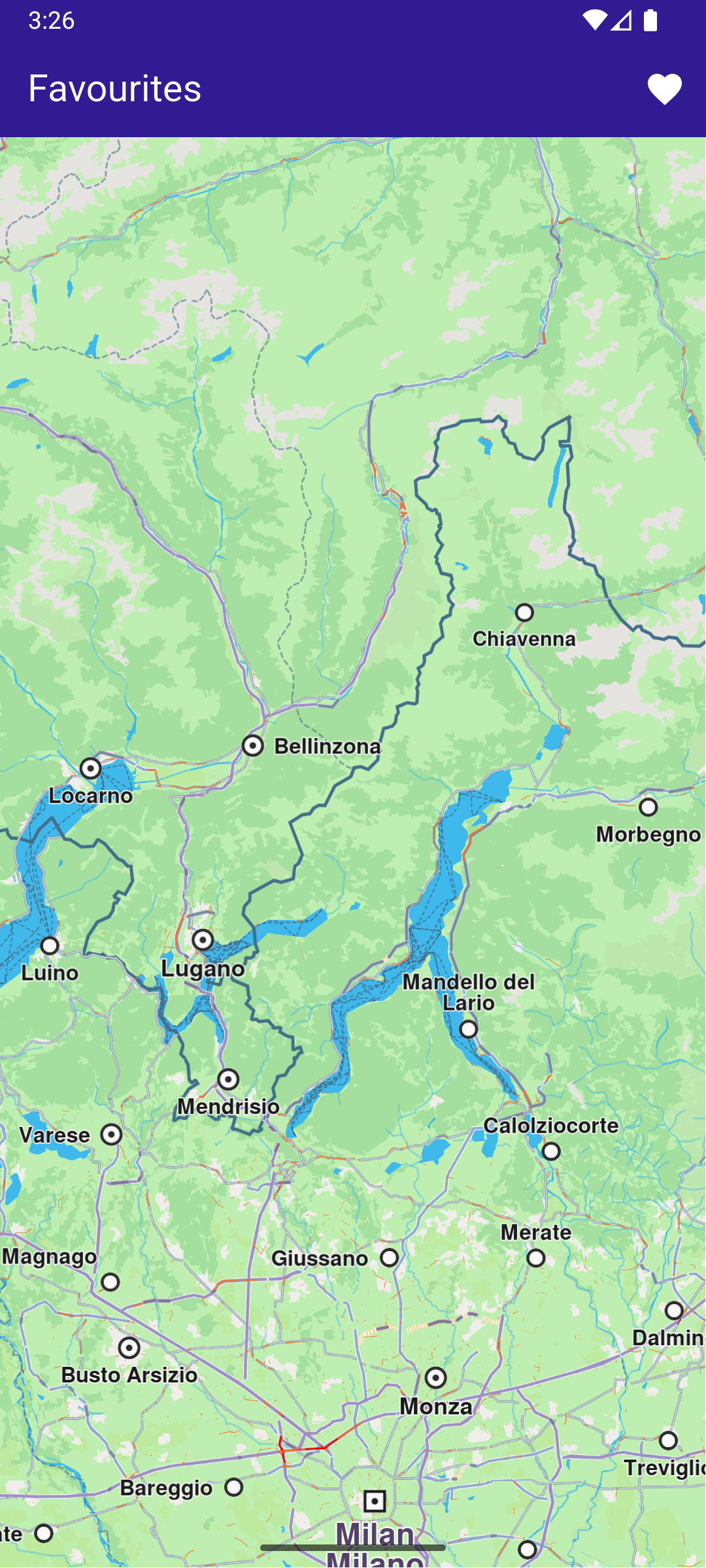
**Initial map view**
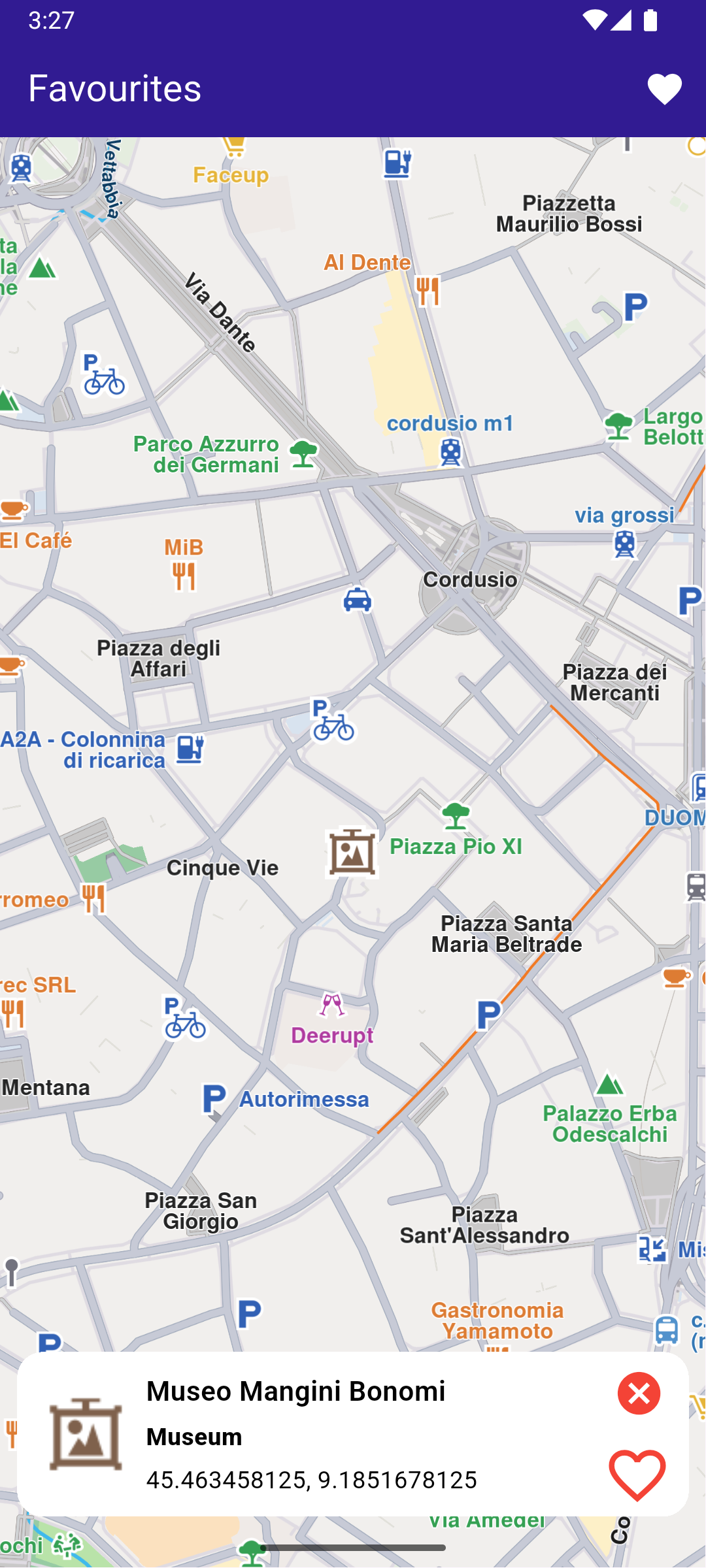
**Selected POI**
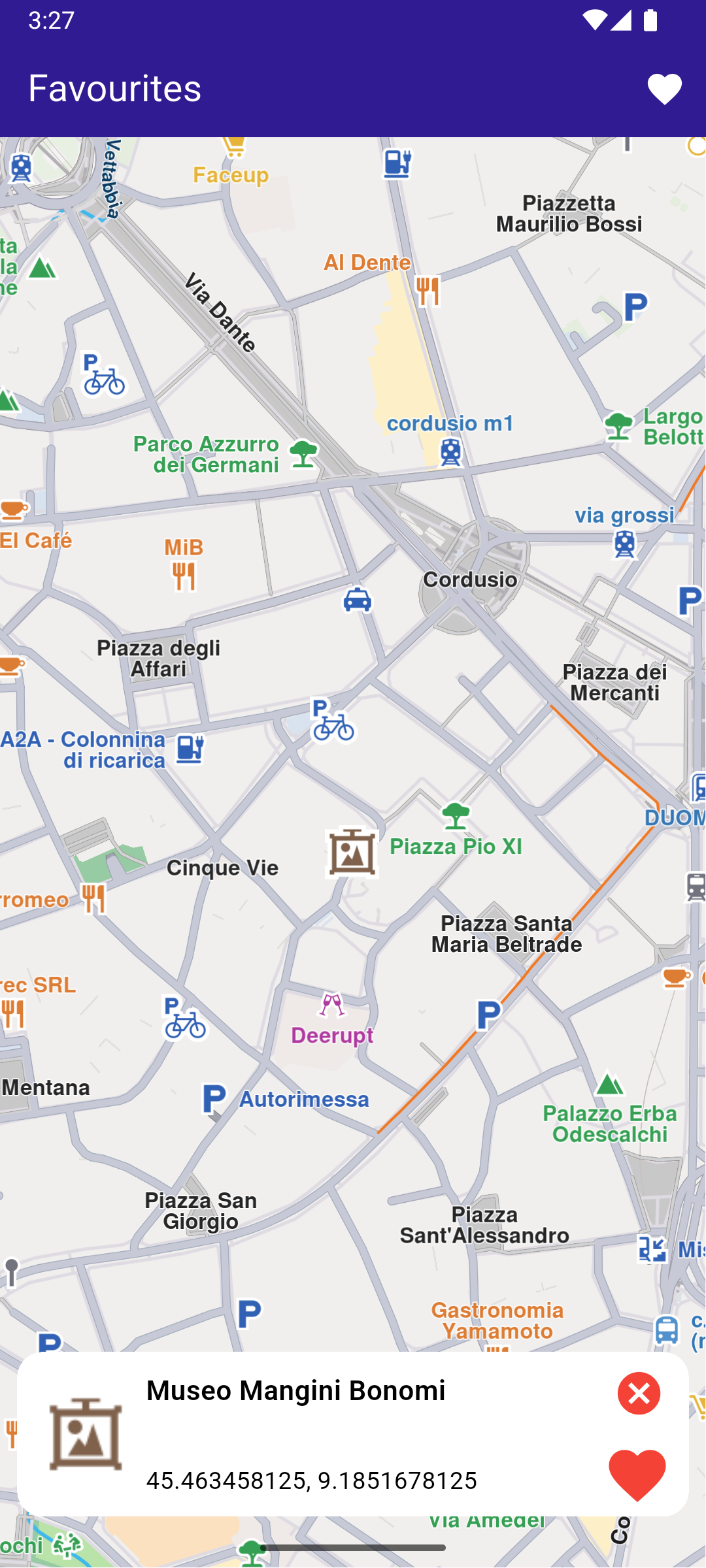
**Saved POI to favorites**
**Favorites list page**
##### UI and Map Integration[](#ui-and-map-integration "Direct link to UI and Map Integration")
Define the main application widget, MyApp. Create the stateful widget, `MyHomePage`, which will handle the map and favorite locations functionality. Within `_MyHomePageState`, define the necessary state variables and methods to manage favorites.
main.dart[View on Github](https://github.com/magiclane/magiclane-maps-sdk-examples-for-flutter/tree/main/save_favorites/lib/main.dart?ref_type=heads#L34)
```dart
class MyHomePage extends StatefulWidget {
const MyHomePage({super.key});
@override
State createState() => _MyHomePageState();
}
class _MyHomePageState extends State {
late GemMapController _mapController;
Landmark? _focusedLandmark;
// LandmarkStore object to save Landmarks.
late LandmarkStore? _favoritesStore;
bool _isLandmarkFavorite = false;
final favoritesStoreName = 'Favorites';
@override
void dispose() {
GemKit.release();
super.dispose();
}
@override
Widget build(BuildContext context) {
return Scaffold(
appBar: AppBar(
backgroundColor: Colors.deepPurple[900],
title: const Text('Favourites', style: TextStyle(color: Colors.white)),
actions: [
IconButton(
onPressed: () => _onFavouritesButtonPressed(context),
icon: const Icon(Icons.favorite, color: Colors.white),
),
],
),
body: Stack(
children: [
GemMap(
key: ValueKey("GemMap"),
onMapCreated: _onMapCreated,
appAuthorization: projectApiToken,
),
if (_focusedLandmark != null)
Positioned(
bottom: 30,
child: LandmarkPanel(
onCancelTap: _onCancelLandmarkPanelTap,
onFavoritesTap: _onFavoritesLandmarkPanelTap,
isFavoriteLandmark: _isLandmarkFavorite,
landmark: _focusedLandmark!,
),
),
],
),
resizeToAvoidBottomInset: false,
);
}
// The callback for when map is ready to use.
Future _onMapCreated(GemMapController controller) async {
// Save controller for further usage.
_mapController = controller;
// Retrieves the LandmarkStore with the given name.
_favoritesStore = LandmarkStoreService.getLandmarkStoreByName(
favoritesStoreName,
);
// If there is no LandmarkStore with this name, then create it.
_favoritesStore ??= LandmarkStoreService.createLandmarkStore(
favoritesStoreName,
);
// Listen for map landmark selection events.
await _registerLandmarkTapCallback();
}
```
##### Define Landmark Selection and Management[](#define-landmark-selection-and-management "Direct link to Define Landmark Selection and Management")
Implement methods to manage landmark selection and favorites.
main.dart[View on Github](https://github.com/magiclane/magiclane-maps-sdk-examples-for-flutter/tree/main/save_favorites/lib/main.dart?ref_type=heads#L114)
```dart
Future _registerLandmarkTapCallback() async {
_mapController.registerOnTouch((pos) async {
// Select the object at the tap position.
await _mapController.setCursorScreenPosition(pos);
// Get the selected landmarks.
final landmarks = _mapController.cursorSelectionLandmarks();
// Reset the cursor position back to middle of the screen
await _mapController.resetMapSelection();
// Check if there is a selected Landmark.
if (landmarks.isNotEmpty) {
_highlightLandmark(landmarks);
return;
}
// Get the selected streets.
final streets = _mapController.cursorSelectionStreets();
// Check if there is a selected street.
if (streets.isNotEmpty) {
_highlightLandmark(streets);
return;
}
final coordinates = _mapController.transformScreenToWgs(
Point(pos.x, pos.y),
);
// If no landmark was found, we create one.
final lmk = Landmark.withCoordinates(coordinates);
lmk.name = '${coordinates.latitude} ${coordinates.longitude}';
lmk.setImageFromIcon(GemIcon.searchResultsPin);
_highlightLandmark([lmk]);
});
}
void _highlightLandmark(List landmarks) {
final settings = HighlightRenderSettings(
options: {
HighlightOptions.showLandmark,
HighlightOptions.showContour,
HighlightOptions.overlap,
},
);
// Highlight the landmark on the map.
_mapController.activateHighlight(landmarks, renderSettings: settings);
final lmk = landmarks[0];
setState(() {
_focusedLandmark = lmk;
});
_mapController.centerOnCoordinates(
lmk.coordinates,
screenPosition: Point(
_mapController.viewport.width ~/ 2,
_mapController.viewport.height ~/ 2,
),
zoomLevel: 70,
);
_checkIfFavourite();
}
// Method to navigate to the Favourites Page.
void _onFavouritesButtonPressed(BuildContext context) async {
// Fetch landmarks from the store
final favoritesList = _favoritesStore!.getLandmarks();
// Navigating to favorites screen then the result will be the selected item in the list.
final result = await Navigator.of(context).push(
MaterialPageRoute(
builder: (context) => FavoritesPage(landmarkList: favoritesList),
),
);
if (result is Landmark) {
// Highlight the landmark on the map.
_mapController.activateHighlight([
result,
], renderSettings: HighlightRenderSettings());
// Centering the camera on landmark's coordinates.
_mapController.centerOnCoordinates(result.coordinates, zoomLevel: 70);
setState(() {
_focusedLandmark = result;
});
_checkIfFavourite();
}
}
void _onCancelLandmarkPanelTap() {
// Remove landmark highlights from the map.
_mapController.deactivateAllHighlights();
setState(() {
_focusedLandmark = null;
_isLandmarkFavorite = false;
});
}
void _onFavoritesLandmarkPanelTap() {
_checkIfFavourite();
if (_isLandmarkFavorite) {
// Remove the landmark to the store.
_favoritesStore!.removeLandmark(_focusedLandmark!);
} else {
// Add the landmark to the store.
_favoritesStore!.addLandmark(_focusedLandmark!);
}
setState(() {
_isLandmarkFavorite = !_isLandmarkFavorite;
});
}
// Utility method to check if the highlighted landmark is favourite.
void _checkIfFavourite() {
final focusedLandmarkCoords = _focusedLandmark!.coordinates;
final favourites = _favoritesStore!.getLandmarks();
for (final lmk in favourites) {
late Coordinates coords;
coords = lmk.coordinates;
if (focusedLandmarkCoords.latitude == coords.latitude &&
focusedLandmarkCoords.longitude == coords.longitude) {
setState(() {
_isLandmarkFavorite = true;
});
return;
}
}
setState(() {
_isLandmarkFavorite = false;
});
}
```
##### Favorites Page[](#favorites-page "Direct link to Favorites Page")
favorites\_page.dart[View on Github](https://github.com/magiclane/magiclane-maps-sdk-examples-for-flutter/tree/main/save_favorites/lib/favorites_page.dart?ref_type=heads#L6)
```dart
import 'package:magiclane_maps_flutter/core.dart';
import 'package:flutter/material.dart';
class FavoritesPage extends StatefulWidget {
final List landmarkList;
const FavoritesPage({super.key, required this.landmarkList});
@override
State createState() => _FavoritesPageState();
}
class _FavoritesPageState extends State {
@override
Widget build(BuildContext context) {
return Scaffold(
appBar: AppBar(
foregroundColor: Colors.white,
automaticallyImplyLeading: true,
title: const Text("Favorites list"),
backgroundColor: Colors.deepPurple[900],
),
body: ListView.separated(
padding: EdgeInsets.zero,
itemCount: widget.landmarkList.length,
separatorBuilder: (context, index) =>
const Divider(indent: 50, height: 0),
itemBuilder: (context, index) {
final lmk = widget.landmarkList.elementAt(index);
return FavoritesItem(landmark: lmk);
},
),
);
}
}
// Class for favorites landmark.
class FavoritesItem extends StatefulWidget {
final Landmark landmark;
const FavoritesItem({super.key, required this.landmark});
@override
State createState() => _FavoritesItemState();
}
class _FavoritesItemState extends State {
@override
Widget build(BuildContext context) {
return ListTile(
onTap: () => Navigator.of(context).pop(widget.landmark),
leading: Container(
padding: const EdgeInsets.all(8),
child: widget.landmark.img.isValid
? Image.memory(
widget.landmark.img.getRenderableImageBytes(
size: Size(50, 50),
)!,
)
: SizedBox(),
),
title: Text(
widget.landmark.name,
overflow: TextOverflow.fade,
style: const TextStyle(
color: Colors.black,
fontSize: 14,
fontWeight: FontWeight.w400,
),
maxLines: 2,
),
subtitle: Text(
'${widget.landmark.coordinates.latitude.toString()}, ${widget.landmark.coordinates.longitude.toString()}',
overflow: TextOverflow.fade,
style: const TextStyle(
color: Colors.black,
fontSize: 14,
fontWeight: FontWeight.w400,
),
maxLines: 2,
),
);
}
}
```
##### Landmark Panel[](#landmark-panel "Direct link to Landmark Panel")
landmark\_panel.dart[View on Github](https://github.com/magiclane/magiclane-maps-sdk-examples-for-flutter/tree/main/save_favorites/lib/landmark_panel.dart?ref_type=heads#L10)
```dart
class LandmarkPanel extends StatelessWidget {
final VoidCallback onCancelTap;
final VoidCallback onFavoritesTap;
final bool isFavoriteLandmark;
final Landmark landmark;
const LandmarkPanel({
super.key,
required this.onCancelTap,
required this.onFavoritesTap,
required this.isFavoriteLandmark,
required this.landmark,
});
@override
Widget build(BuildContext context) {
return Container(
width: MediaQuery.of(context).size.width - 20,
padding: const EdgeInsets.symmetric(horizontal: 5),
margin: const EdgeInsets.symmetric(horizontal: 10),
decoration: BoxDecoration(
color: Colors.white,
borderRadius: BorderRadius.circular(15),
),
child: Row(
children: [
Container(
padding: const EdgeInsets.symmetric(horizontal: 10),
child: landmark.img.isValid
? Image.memory(
landmark.img.getRenderableImageBytes(size: Size(50, 50))!,
)
: SizedBox(),
),
Row(
mainAxisAlignment: MainAxisAlignment.spaceBetween,
children: [
SizedBox(
width: MediaQuery.of(context).size.width - 150,
child: Row(
children: [
SizedBox(
width: MediaQuery.of(context).size.width - 150,
child: Column(
mainAxisAlignment: MainAxisAlignment.center,
crossAxisAlignment: CrossAxisAlignment.start,
children: [
Text(
landmark.name,
maxLines: 2,
overflow: TextOverflow.ellipsis,
style: const TextStyle(
color: Colors.black,
fontSize: 16,
fontWeight: FontWeight.w600,
),
),
const SizedBox(height: 5),
Text(
landmark.categories.isNotEmpty
? landmark.categories.first.name
: '',
maxLines: 2,
overflow: TextOverflow.ellipsis,
style: const TextStyle(
color: Colors.black,
fontSize: 14,
fontWeight: FontWeight.w800,
),
),
const SizedBox(height: 5),
Text(
'${landmark.coordinates.latitude.toString()}, ${landmark.coordinates.longitude.toString()}',
maxLines: 2,
overflow: TextOverflow.visible,
style: const TextStyle(
color: Colors.black,
fontSize: 14,
fontWeight: FontWeight.w400,
),
),
],
),
),
],
),
),
SizedBox(
width: 50,
child: Column(
mainAxisAlignment: MainAxisAlignment.start,
children: [
Align(
alignment: Alignment.topRight,
child: IconButton(
padding: EdgeInsets.zero,
onPressed: onCancelTap,
icon: const Icon(
Icons.cancel,
color: Colors.red,
size: 30,
),
),
),
IconButton(
padding: EdgeInsets.zero,
onPressed: onFavoritesTap,
icon: Icon(
isFavoriteLandmark
? Icons.favorite
: Icons.favorite_outline,
color: Colors.red,
size: 40,
),
),
],
),
),
],
),
],
),
);
}
}
```
---
### Search Along Route
Last updated:
July 15, 2026
| 8 minutes read
In this guide, you will learn how to calculate a route, simulate navigation, and search for landmarks along the route.
#### How it works[](#how-it-works "Direct link to How it works")
This example demonstrates the following key features:
* Calculates a route between two landmarks and displays it on a map.
* Simulates navigation along the route, allowing you to start and stop navigation.
* Provides a feature to search for landmarks along the calculated route and displays the results.
**Initial map view**
**Map with computed route**
**Navigating on route, search button available**
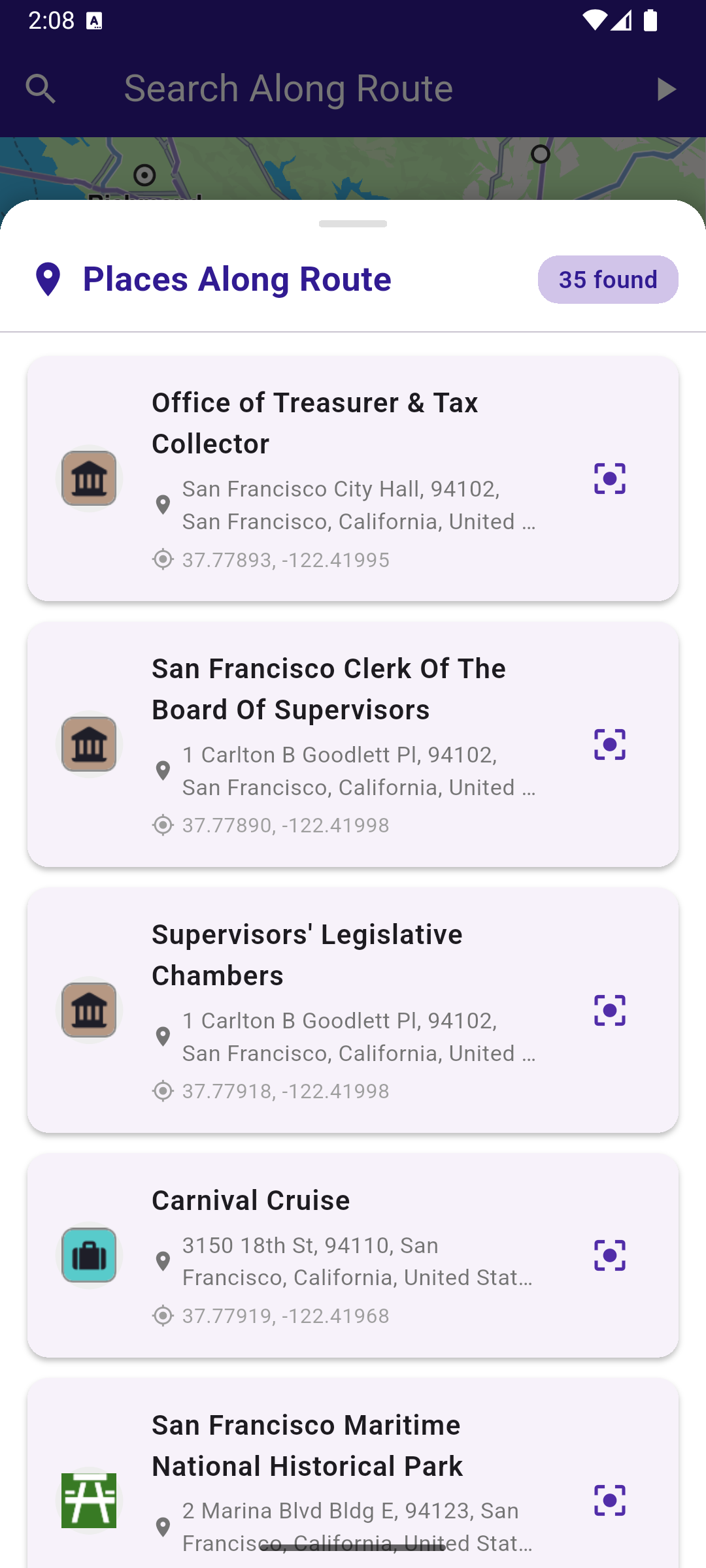
**Search results dialog**
##### UI and Map Integration[](#ui-and-map-integration "Direct link to UI and Map Integration")
main.dart[View on Github](https://github.com/magiclane/magiclane-maps-sdk-examples-for-flutter/tree/main/search_along_route/lib/main.dart?ref_type=heads#L20)
```dart
class MyApp extends StatelessWidget {
const MyApp({super.key});
@override
Widget build(BuildContext context) {
return const MaterialApp(
debugShowCheckedModeBanner: false,
title: 'Search Along Route',
home: MyHomePage(),
);
}
}
class MyHomePage extends StatefulWidget {
const MyHomePage({super.key});
@override
State createState() => _MyHomePageState();
}
class _MyHomePageState extends State {
late GemMapController _mapController;
bool _isSimulationActive = false;
bool _areRoutesBuilt = false;
// We use the handler to cancel the route calculation.
TaskHandler? _routingHandler;
// We use the handler to cancel the navigation.
TaskHandler? _navigationHandler;
@override
void dispose() {
GemKit.release();
super.dispose();
}
@override
Widget build(BuildContext context) {
return Scaffold(
appBar: AppBar(
backgroundColor: Colors.deepPurple[900],
title: const Text(
"Search Along Route",
style: TextStyle(color: Colors.white),
),
leading: Row(
children: [
if (_areRoutesBuilt)
IconButton(
onPressed: _searchAlongRoute,
icon: const Icon(Icons.search, color: Colors.white),
),
],
),
actions: [
if (!_isSimulationActive && _areRoutesBuilt)
IconButton(
onPressed: _startSimulation,
icon: const Icon(Icons.play_arrow, color: Colors.white),
),
if (_isSimulationActive)
IconButton(
onPressed: _stopSimulation,
icon: const Icon(Icons.stop, color: Colors.white),
),
if (!_areRoutesBuilt)
IconButton(
onPressed: () => _onBuildRouteButtonPressed(),
icon: const Icon(Icons.route, color: Colors.white),
),
],
),
body: GemMap(
key: ValueKey("GemMap"),
onMapCreated: _onMapCreated,
appAuthorization: projectApiToken,
),
);
}
```
##### Route calculation[](#route-calculation "Direct link to Route calculation")
This section shows how to calculate a route between two landmarks and display it on the map.
main.dart[View on Github](https://github.com/magiclane/magiclane-maps-sdk-examples-for-flutter/tree/main/search_along_route/lib/main.dart?ref_type=heads#L107)
```dart
Future _onBuildRouteButtonPressed() async {
// Define the departure.
final departureLandmark = Landmark.withLatLng(
latitude: 37.77903,
longitude: -122.41991,
);
// Define the destination.
final destinationLandmark = Landmark.withLatLng(
latitude: 37.33619,
longitude: -121.89058,
);
// Define the route preferences.
final routePreferences = RoutePreferences();
_showSnackBar(context, message: 'The route is calculating.');
_routingHandler = RoutingService.calculateRoute(
[departureLandmark, destinationLandmark],
routePreferences,
(err, routes) async {
// If the route calculation is finished, we don't have a progress listener anymore.
_routingHandler = null;
ScaffoldMessenger.of(context).clearSnackBars();
// If there aren't any errors, we display the routes.
if (err == GemError.success) {
// Get the routes collection from map preferences.
final routesMap = _mapController.preferences.routes;
// Display the routes on map.
for (final route in routes) {
routesMap.add(
route,
route == routes.first,
label: getMapLabel(route),
);
}
_mapController.centerOnRoute(routes.first);
}
setState(() {
_areRoutesBuilt = true;
});
},
);
}
// Start simulated navigation.
void _startSimulation() {
if (_isSimulationActive) return;
if (!_areRoutesBuilt) return;
_mapController.preferences.routes.clearAllButMainRoute();
final routes = _mapController.preferences.routes;
if (routes.mainRoute == null) {
_showSnackBar(context, message: "No main route available");
return;
}
_navigationHandler = NavigationService.startSimulation(
routes.mainRoute!,
onNavigationInstruction: (instruction, events) {
setState(() {
_isSimulationActive = true;
});
},
onError: (error) {
// If the navigation has ended or if and error occurred while navigating, remove routes.
setState(() {
_isSimulationActive = false;
_cancelRoute();
});
if (error != GemError.cancel) {
_stopSimulation();
}
return;
},
);
// Set the camera to follow position.
_mapController.startFollowingPosition();
setState(() {
_isSimulationActive = true;
});
}
```
##### Navigation Simulation[](#navigation-simulation "Direct link to Navigation Simulation")
This section demonstrates how to start and stop a simulated navigation along the calculated route.
main.dart[View on Github](https://github.com/magiclane/magiclane-maps-sdk-examples-for-flutter/tree/main/search_along_route/lib/main.dart?ref_type=heads#L157)
```dart
// Start simulated navigation.
void _startSimulation() {
if (_isSimulationActive) return;
if (!_areRoutesBuilt) return;
_mapController.preferences.routes.clearAllButMainRoute();
final routes = _mapController.preferences.routes;
if (routes.mainRoute == null) {
_showSnackBar(context, message: "No main route available");
return;
}
_navigationHandler = NavigationService.startSimulation(
routes.mainRoute!,
onNavigationInstruction: (instruction, events) {
setState(() {
_isSimulationActive = true;
});
},
onError: (error) {
// If the navigation has ended or if and error occurred while navigating, remove routes.
setState(() {
_isSimulationActive = false;
_cancelRoute();
});
if (error != GemError.cancel) {
_stopSimulation();
}
return;
},
);
// Set the camera to follow position.
_mapController.startFollowingPosition();
setState(() {
_isSimulationActive = true;
});
}
void _cancelRoute() {
// Remove the routes from map.
_mapController.preferences.routes.clear();
if (_routingHandler != null) {
// Cancel the navigation.
RoutingService.cancelRoute(_routingHandler!);
_routingHandler = null;
}
setState(() {
_areRoutesBuilt = false;
});
}
// Stop simulated navigation.
void _stopSimulation() {
// Cancel the navigation.
NavigationService.cancelNavigation(_navigationHandler);
_navigationHandler = null;
_cancelRoute();
setState(() {
_isSimulationActive = false;
_areRoutesBuilt = false;
});
}
```
##### Search Along Route[](#search-along-route-1 "Direct link to Search Along Route")
The following code shows how to search for landmarks along the calculated route. The search results are printed to the console and shown in a popup dialog on the screen.
main.dart[View on Github](https://github.com/magiclane/magiclane-maps-sdk-examples-for-flutter/tree/main/search_along_route/lib/main.dart?ref_type=heads#L229)
```dart
void _searchAlongRoute() {
if (!_areRoutesBuilt) return;
final routes = _mapController.preferences.routes;
if (routes.mainRoute == null) {
_showSnackBar(context, message: "No main route available");
return;
}
_showSnackBar(context, message: 'Searching along route...');
// Calling the search along route SDK method.
// (err, results) - is a callback function that gets called when the search is finished.
// err is an error enum, results is a list of landmarks.
SearchService.searchAlongRoute(routes.mainRoute!, (err, results) {
ScaffoldMessenger.of(context).clearSnackBars();
if (err != GemError.success) {
print("SearchAlongRoute - no results found");
_showSnackBar(
context,
message: "No results found",
duration: const Duration(seconds: 2),
);
return;
}
print("SearchAlongRoute - ${results.length} results:");
for (final Landmark landmark in results) {
final landmarkName = landmark.name;
print("SearchAlongRoute: $landmarkName");
}
// Show the results in a popup dialog
_showSearchResultsDialog(results);
});
}
```
tip
The result of the search operation is written in the console.
##### Search Results Dialog[](#search-results-dialog "Direct link to Search Results Dialog")
Create a popup dialog to display the search results. Each result is shown as a card with the landmark's name, address, coordinates, and category icon. Tapping the trailing icon centers the map on the landmark's location.
main.dart[View on Github](https://github.com/magiclane/magiclane-maps-sdk-examples-for-flutter/tree/main/search_along_route/lib/main.dart?ref_type=heads#L269)
```dart
void _showSearchResultsDialog(List results) {
showModalBottomSheet(
context: context,
isScrollControlled: true,
backgroundColor: Colors.transparent,
builder: (context) => DraggableScrollableSheet(
initialChildSize: 0.5,
minChildSize: 0.3,
maxChildSize: 0.9,
builder: (context, scrollController) => Container(
decoration: BoxDecoration(
color: Colors.white,
borderRadius: const BorderRadius.vertical(top: Radius.circular(20)),
boxShadow: [
BoxShadow(
color: Colors.black.withValues(alpha: 0.2),
blurRadius: 10,
spreadRadius: 2,
),
],
),
child: Column(
children: [
// Handle bar
Container(
margin: const EdgeInsets.only(top: 12, bottom: 8),
width: 40,
height: 4,
decoration: BoxDecoration(
color: Colors.grey[300],
borderRadius: BorderRadius.circular(2),
),
),
// Header
Padding(
padding: const EdgeInsets.symmetric(
horizontal: 16,
vertical: 8,
),
child: Row(
children: [
Icon(Icons.location_on, color: Colors.deepPurple[900]),
const SizedBox(width: 8),
Text(
'Places Along Route',
style: TextStyle(
fontSize: 20,
fontWeight: FontWeight.bold,
color: Colors.deepPurple[900],
),
),
const Spacer(),
Container(
padding: const EdgeInsets.symmetric(
horizontal: 12,
vertical: 4,
),
decoration: BoxDecoration(
color: Colors.deepPurple[100],
borderRadius: BorderRadius.circular(12),
),
child: Text(
'${results.length} found',
style: TextStyle(
color: Colors.deepPurple[900],
fontWeight: FontWeight.w600,
),
),
),
],
),
),
const Divider(),
// Results list
Expanded(
child: ListView.builder(
controller: scrollController,
padding: const EdgeInsets.symmetric(horizontal: 16),
itemCount: results.length,
itemBuilder: (context, index) {
final landmark = results[index];
return _buildLandmarkTile(landmark, index);
},
),
),
],
),
),
),
);
}
// Build a tile for each landmark
Widget _buildLandmarkTile(Landmark landmark, int index) {
final coordinates = landmark.coordinates;
final address = landmark.address;
return Card(
margin: const EdgeInsets.symmetric(vertical: 6),
elevation: 2,
shape: RoundedRectangleBorder(borderRadius: BorderRadius.circular(12)),
child: ListTile(
contentPadding: const EdgeInsets.symmetric(horizontal: 16, vertical: 8),
leading: _buildLandmarkIcon(landmark, index),
title: Text(
landmark.name.isNotEmpty ? landmark.name : 'Unknown Place',
style: const TextStyle(fontWeight: FontWeight.w600, fontSize: 16),
),
subtitle: Column(
crossAxisAlignment: CrossAxisAlignment.start,
children: [
Padding(
padding: const EdgeInsets.only(top: 4),
child: Row(
children: [
Icon(Icons.place, size: 14, color: Colors.grey[600]),
const SizedBox(width: 4),
Expanded(
child: Text(
address.format(),
style: TextStyle(color: Colors.grey[600], fontSize: 13),
maxLines: 2,
overflow: TextOverflow.ellipsis,
),
),
],
),
),
Padding(
padding: const EdgeInsets.only(top: 4),
child: Row(
children: [
Icon(Icons.gps_fixed, size: 14, color: Colors.grey[500]),
const SizedBox(width: 4),
Text(
'${coordinates.latitude.toStringAsFixed(5)}, ${coordinates.longitude.toStringAsFixed(5)}',
style: TextStyle(color: Colors.grey[500], fontSize: 12),
),
],
),
),
],
),
trailing: IconButton(
icon: Icon(Icons.center_focus_strong, color: Colors.deepPurple[700]),
onPressed: () {
Navigator.pop(context);
_mapController.centerOnCoordinates(coordinates);
},
),
),
);
}
// Build icon for landmark from category image
Widget _buildLandmarkIcon(Landmark landmark, int index) {
if (landmark.categories.isNotEmpty) {
final img = landmark.categories.first.img;
if (img.isValid) {
final bytes = img.getRenderableImageBytes(size: const ui.Size(48, 48));
if (bytes != null) {
return CircleAvatar(
backgroundColor: Colors.grey[200],
child: Image.memory(
bytes,
width: 32,
height: 32,
errorBuilder: (context, error, stackTrace) =>
_buildDefaultIcon(index),
),
);
}
}
}
return _buildDefaultIcon(index);
}
// Build default numbered icon
Widget _buildDefaultIcon(int index) {
return CircleAvatar(
backgroundColor: Colors.deepPurple[900],
child: Text(
'${index + 1}',
style: const TextStyle(
color: Colors.white,
fontWeight: FontWeight.bold,
),
),
);
}
```
##### Utility Functions[](#utility-functions "Direct link to Utility Functions")
Utility functions are defined to show messages and format route labels.
main.dart[View on Github](https://github.com/magiclane/magiclane-maps-sdk-examples-for-flutter/tree/main/search_along_route/lib/main.dart?ref_type=heads#L466)
```dart
final snackBar = SnackBar(content: Text(message), duration: duration);
ScaffoldMessenger.of(context).showSnackBar(snackBar);
}
}
String getMapLabel(Route route) {
return '${convertDistance(route.getTimeDistance().totalDistanceM)} \n${convertDuration(route.getTimeDistance().totalTimeS)}';
}
// Utility function to convert the meters distance into a suitable format.
String convertDistance(int meters) {
if (meters >= 1000) {
double kilometers = meters / 1000;
return '${kilometers.toStringAsFixed(1)} km';
} else {
return '${meters.toString()} m';
}
}
// Utility function to convert the seconds duration into a suitable format.
String convertDuration(int seconds) {
int hours = seconds ~/ 3600; // Number of whole hours
int minutes = (seconds % 3600) ~/ 60; // Number of whole minutes
String hoursText = (hours > 0) ? '$hours h ' : ''; // Hours text
String minutesText = '$minutes min'; // Minutes text
return hoursText + minutesText;
}
```
---
### Search Category
Last updated:
July 15, 2026
| 6 minutes read
In this guide, you will learn how to integrate map functionality and perform searches for landmarks.
#### How it works[](#how-it-works "Direct link to How it works")
This example demonstrates the following key features:
* Search for landmarks based on specific categories.
* Filter landmarks displayed on map by categories, making searches more targeted.
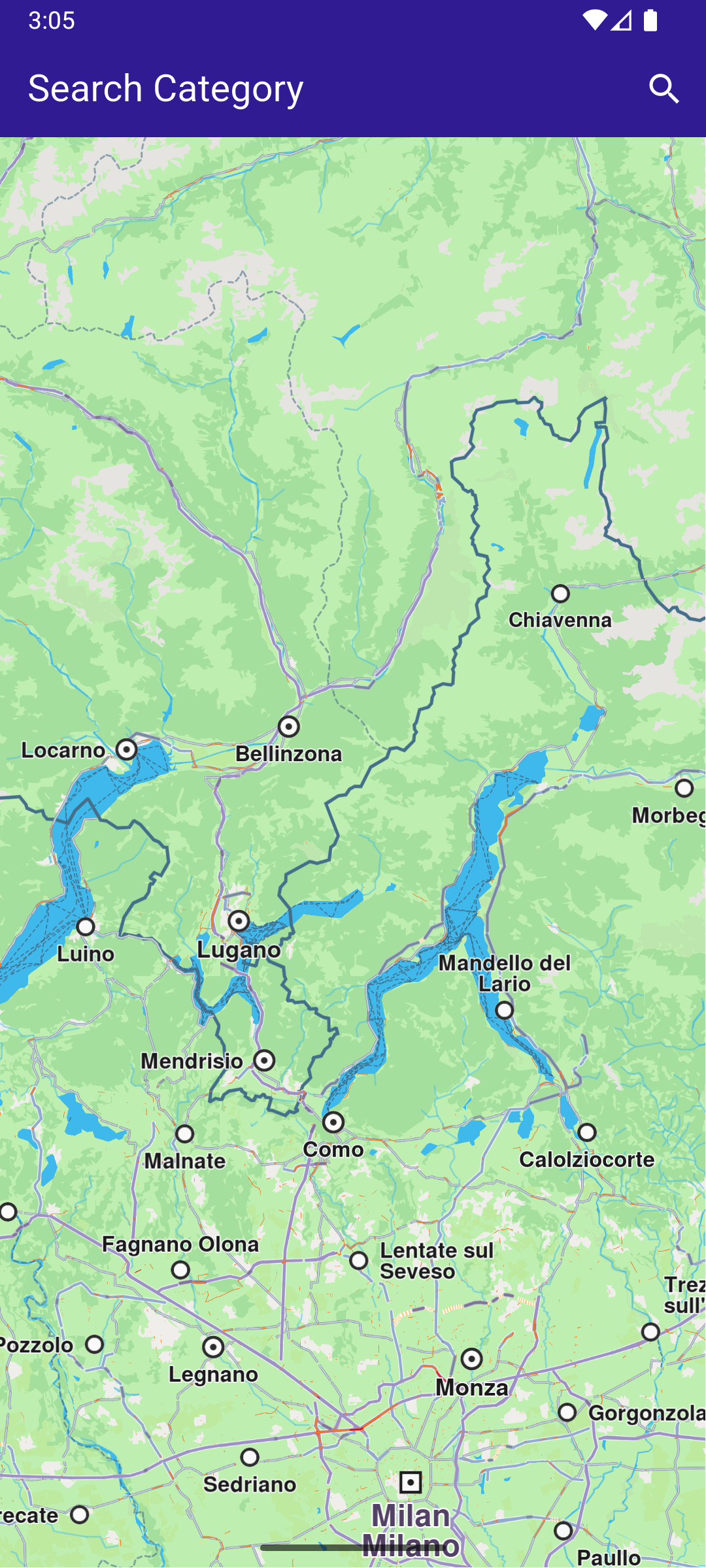
**Initial map view**
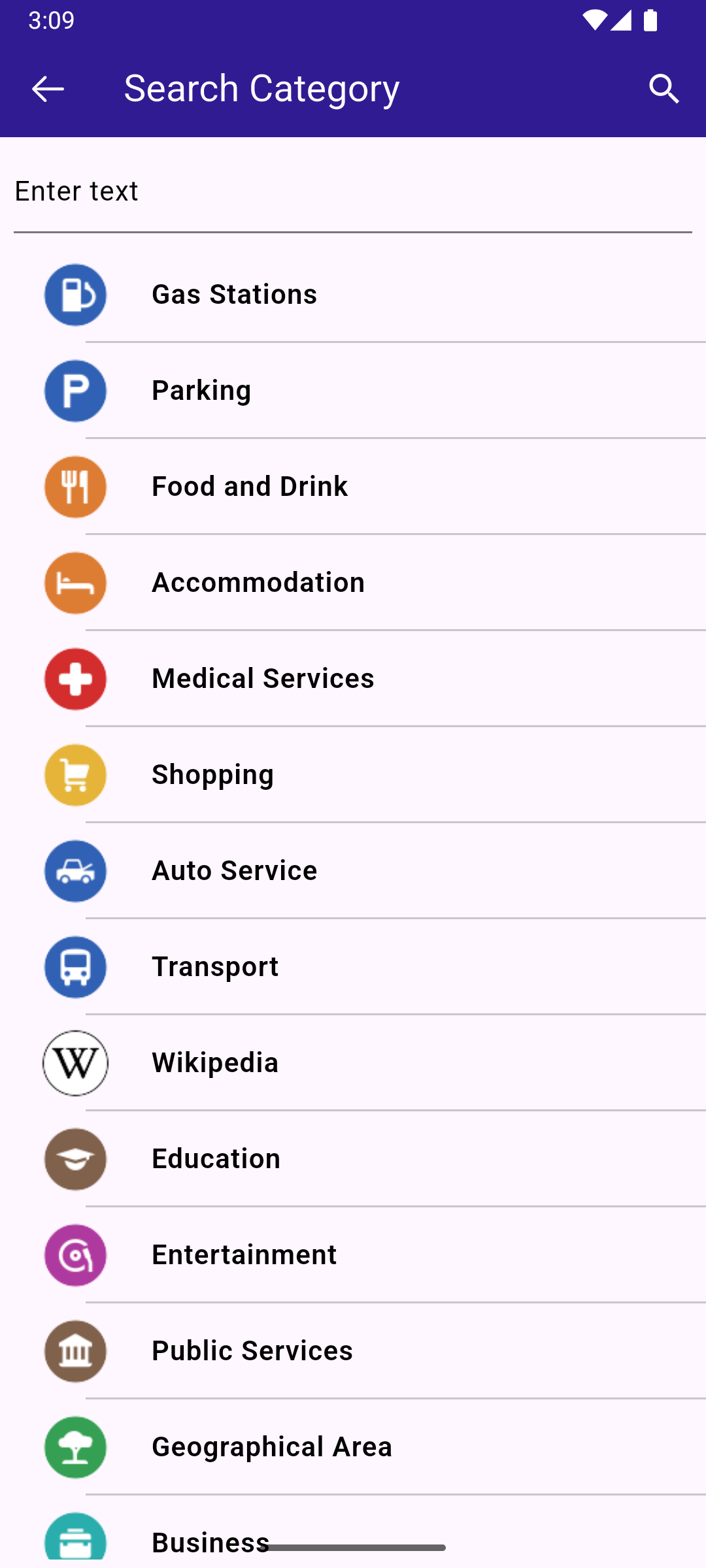
**Search Category Page**
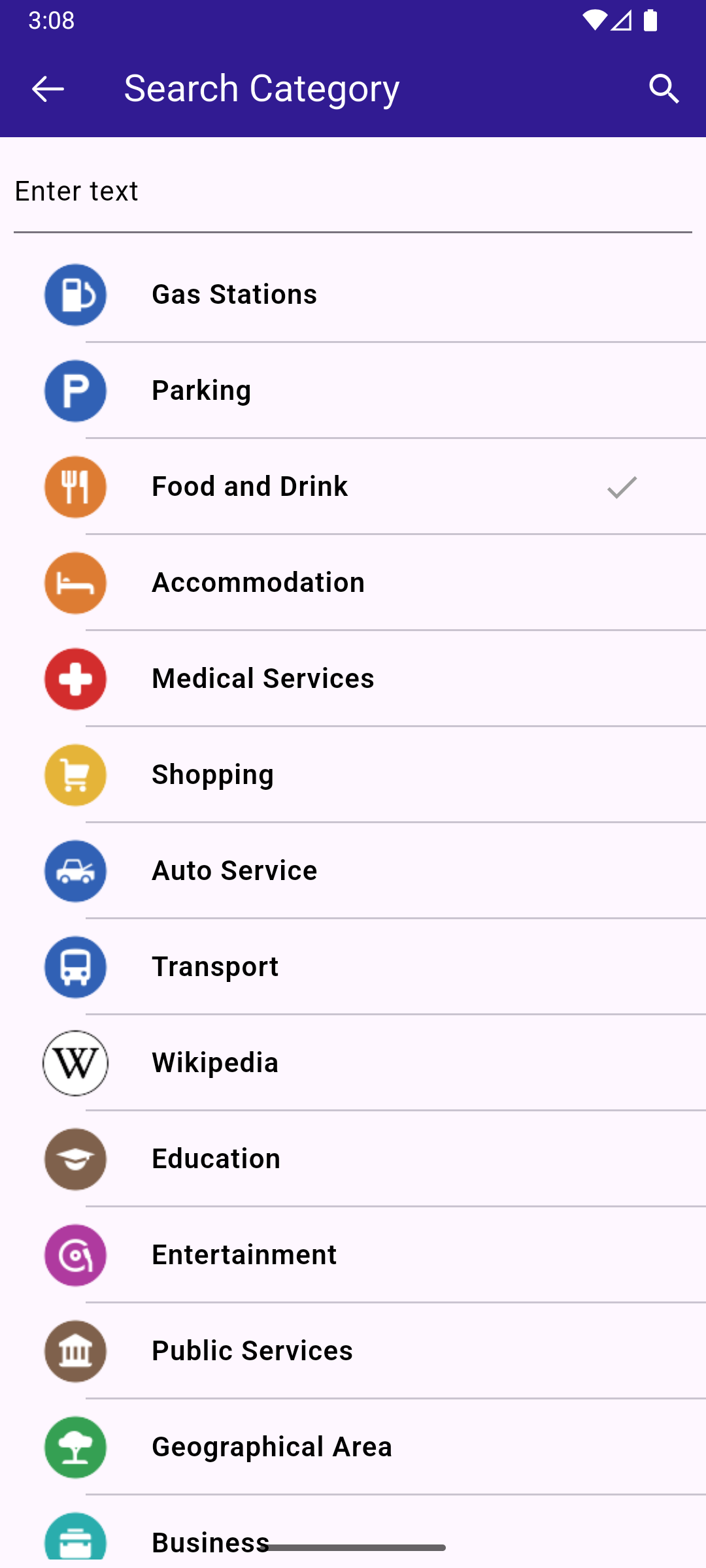
**Selected category for searching**
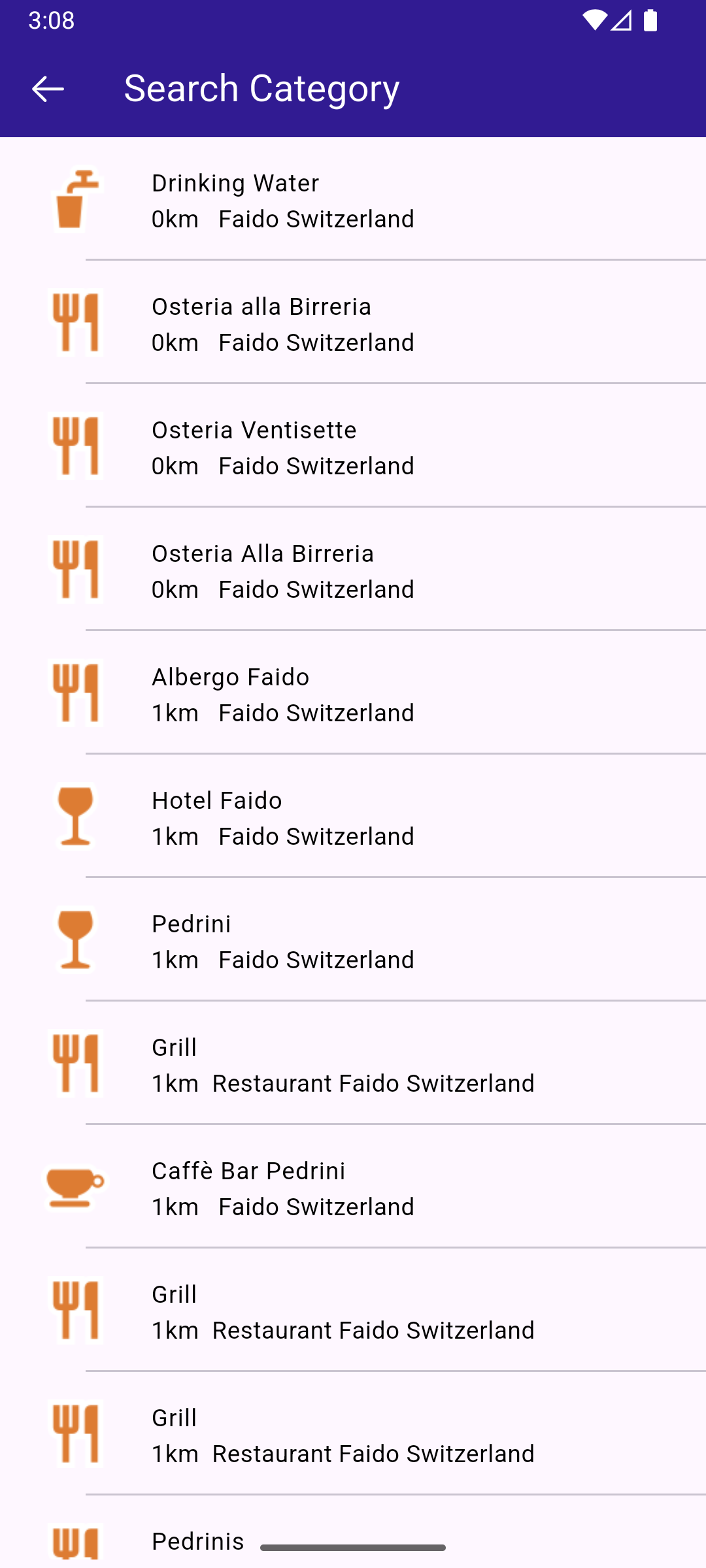
**Found landmarks by their category**
##### UI and Map Integration[](#ui-and-map-integration "Direct link to UI and Map Integration")
main.dart[View on Github](https://github.com/magiclane/magiclane-maps-sdk-examples-for-flutter/tree/main/search_category/lib/main.dart?ref_type=heads#L16)
```dart
void main() async {
runApp(const MyApp());
}
class MyApp extends StatelessWidget {
const MyApp({super.key});
@override
Widget build(BuildContext context) {
return const MaterialApp(
debugShowCheckedModeBanner: false,
title: 'Search Category',
home: MyHomePage(),
);
}
}
class MyHomePage extends StatefulWidget {
const MyHomePage({super.key});
@override
State createState() => _MyHomePageState();
}
class _MyHomePageState extends State {
late GemMapController _mapController;
@override
void dispose() {
GemKit.release();
super.dispose();
}
@override
Widget build(BuildContext context) {
return Scaffold(
appBar: AppBar(
backgroundColor: Colors.deepPurple[900],
title: const Text(
"Search Category",
style: TextStyle(color: Colors.white),
),
actions: [
IconButton(
onPressed: () => _onSearchButtonPressed(context),
icon: const Icon(Icons.search, color: Colors.white),
),
],
),
body: GemMap(
key: ValueKey("GemMap"),
onMapCreated: _onMapCreated,
appAuthorization: projectApiToken,
),
);
}
void _onMapCreated(GemMapController controller) {
_mapController = controller;
}
// Custom method for navigating to search screen
void _onSearchButtonPressed(BuildContext context) async {
// Taking the coordinates at the center of the screen as reference coordinates for search.
final x = MediaQuery.of(context).size.width / 2;
final y = MediaQuery.of(context).size.height / 2;
final mapCoords = _mapController.transformScreenToWgs(
Point(x.toInt(), y.toInt()),
);
// Navigating to search screen. The result will be the selected search result(Landmark)
final result = await Navigator.of(context).push(
MaterialPageRoute(
builder: (context) =>
SearchPage(controller: _mapController, coordinates: mapCoords),
),
);
if (result is Landmark) {
// Activating the highlight
_mapController.activateHighlight([
result,
], renderSettings: HighlightRenderSettings());
// Centering the map on the desired coordinates
_mapController.centerOnCoordinates(result.coordinates, zoomLevel: 70);
}
}
}
```
##### Define Search Functionality[](#define-search-functionality "Direct link to Define Search Functionality")
Implement the SearchPage widget that allows users to search for landmarks.
search\_page.dart[View on Github](https://github.com/magiclane/magiclane-maps-sdk-examples-for-flutter/tree/main/search_category/lib/search_page.dart?ref_type=heads#L17)
```dart
class SearchPage extends StatefulWidget {
final GemMapController controller;
final Coordinates coordinates;
// Method to get all the generic categories
final categories = GenericCategories.categories;
SearchPage({super.key, required this.controller, required this.coordinates});
@override
State createState() => _SearchPageState();
}
class _SearchPageState extends State {
final TextEditingController _textController = TextEditingController();
List landmarks = [];
List selectedCategories = [];
@override
Widget build(BuildContext context) {
return Scaffold(
appBar: AppBar(
leading: IconButton(
onPressed: _onLeadingPressed,
icon: const Icon(CupertinoIcons.arrow_left),
),
title: const Text("Search Category"),
backgroundColor: Colors.deepPurple[900],
foregroundColor: Colors.white,
actions: [
if (landmarks.isEmpty)
IconButton(
onPressed: () => _onSubmitted(_textController.text),
icon: const Icon(Icons.search),
),
],
),
body: Column(
children: [
if (landmarks.isEmpty)
Padding(
padding: const EdgeInsets.all(8.0),
child: TextField(
controller: _textController,
cursorColor: Colors.deepPurple[900],
decoration: const InputDecoration(
hintText: 'Enter text',
hintStyle: TextStyle(color: Colors.black),
focusedBorder: UnderlineInputBorder(
borderSide: BorderSide(
color: Colors.deepPurple,
width: 2.0,
),
),
),
),
),
if (landmarks.isEmpty)
Expanded(
child: ListView.separated(
padding: EdgeInsets.zero,
itemCount: widget.categories.length,
controller: ScrollController(),
separatorBuilder: (context, index) =>
const Divider(indent: 50, height: 0),
itemBuilder: (context, index) {
return CategoryItem(
onTap: () => _onCategoryTap(index),
category: widget.categories[index],
categoryIcon: widget.categories[index].img,
);
},
),
),
if (landmarks.isNotEmpty)
Expanded(
child: ListView.separated(
padding: EdgeInsets.zero,
itemCount: landmarks.length,
controller: ScrollController(),
separatorBuilder: (context, index) =>
const Divider(indent: 50, height: 0),
itemBuilder: (context, index) {
final lmk = landmarks.elementAt(index);
return SearchResultItem(landmark: lmk);
},
),
),
const SizedBox(height: 5),
],
),
);
}
int? _isCategorySelected(LandmarkCategory category) {
for (int index = 0; index < selectedCategories.length; index++) {
if (category.id == selectedCategories[index].id) {
return index;
}
}
return null;
}
void _onSubmitted(String text) {
// Setting the preferences so the results are only from the selected categories
SearchPreferences preferences = SearchPreferences(
maxMatches: 40,
allowFuzzyResults: false,
searchMapPOIs: true,
searchAddresses: false,
);
// Adding in search preferences the selected categories
for (final category in selectedCategories) {
preferences.landmarks.addStoreCategoryId(
category.landmarkStoreId,
category.id,
);
}
search(text, widget.coordinates, preferences);
}
late Completer> completer;
// Search method
Future search(
String text,
Coordinates coordinates,
SearchPreferences preferences,
) async {
completer = Completer>();
// Calling the search around position SDK method.
// (err, results) - is a callback function that calls when the computing is done.
// err is an error code, results is a list of landmarks
SearchService.searchAroundPosition(
coordinates,
preferences: preferences,
textFilter: text,
(err, results) async {
// If there is an error or there aren't any results, the method will return an empty list.
if (err != GemError.success) {
completer.complete([]);
return;
}
if (!completer.isCompleted) completer.complete(results);
},
);
final result = await completer.future;
setState(() {
landmarks = result;
});
}
void _onLeadingPressed() {
if (landmarks.isNotEmpty) {
landmarks.clear();
_textController.clear();
selectedCategories.clear();
setState(() {});
return;
}
Navigator.pop(context);
}
void _onCategoryTap(int index) {
int? categoryIndex = _isCategorySelected(widget.categories[index]);
if (categoryIndex != null) {
selectedCategories.removeAt(categoryIndex);
} else {
selectedCategories.add(widget.categories[index]);
}
}
}
// Class for the categories.
class CategoryItem extends StatefulWidget {
final LandmarkCategory category;
final Img categoryIcon;
final VoidCallback onTap;
const CategoryItem({
super.key,
required this.category,
required this.onTap,
required this.categoryIcon,
});
@override
State createState() => _CategoryItemState();
}
class _CategoryItemState extends State {
bool _isSelected = false;
@override
Widget build(BuildContext context) {
return ListTile(
onTap: () {
widget.onTap();
setState(() {
_isSelected = !_isSelected;
});
},
leading: Container(
padding: const EdgeInsets.all(8),
child: widget.categoryIcon.isValid
? Image.memory(
widget.categoryIcon.getRenderableImageBytes(
size: Size(50, 50),
)!,
gaplessPlayback: true,
)
: SizedBox(),
),
title: Text(
widget.category.name,
style: const TextStyle(
color: Colors.black,
fontSize: 16,
fontWeight: FontWeight.w600,
),
),
trailing: (_isSelected)
? const SizedBox(
width: 50,
child: Icon(Icons.check, color: Colors.grey),
)
: null,
);
}
}
// Class for the search results.
class SearchResultItem extends StatefulWidget {
final Landmark landmark;
const SearchResultItem({super.key, required this.landmark});
@override
State