Show location on map
The device location is shown by default using an arrow position tracker. When setLiveDataSource is successfully set and permissions are granted, the position tracker appears on the map as an arrow.
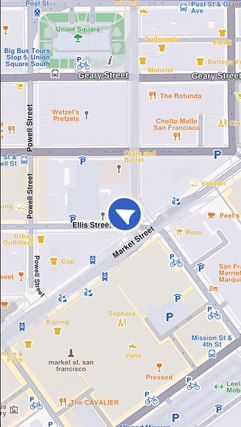
Multiple position trackers on the map are not currently supported.
GPS accuracy may be limited in environments such as indoor spaces, areas with weak GPS signals, or locations with significant obstructions like narrow streets or tall buildings. In these situations, the tracker may exhibit erratic movement within a confined area. Device sensor performance, such as accelerometer and gyroscope, can further impact GPS positioning accuracy.
This behavior is more pronounced when the device is stationary.
Follow position
Call the startFollowingPosition method on the mapController to follow the position tracker:
mapController.startFollowingPosition();
When called, the camera automatically follows the movement and rotation of the position tracker, keeping the user's current location and orientation centered on the map.
The startFollowingPosition method accepts parameters such as animation (controls camera movement to the tracker position), zoomLevel, and viewAngle.
Setting zoomLevel and viewAngle via startFollowingPosition may behave differently than configuring them through setZoomLevel and setViewAngle on FollowPositionPreferences, especially in scenarios involving complex user interactions (for example, when user-modified values via touch need to be persisted).
It is recommended to try both approaches and choose the one that best fits your specific use case.
Set map rotation mode
Rotate the map with the user orientation when following position:
final prefs = mapController.preferences.followPositionPreferences;
prefs.setMapRotationMode(FollowPositionMapRotationMode.positionHeading);
Use the compass sensor for map rotation with FollowPositionMapRotationMode.compass:
prefs.setMapRotationMode(FollowPositionMapRotationMode.compass);
Fix the map rotation to a given angle using FollowPositionMapRotationMode.fixed and providing a mapAngle value:
prefs.setMapRotationMode(FollowPositionMapRotationMode.fixed, mapAngle: 30);
A value of 0 for the mapAngle parameter represents north-up alignment.
The mapRotationMode returns a record containing:
- The current
FollowPositionMapRotationModemode - The map angle set in case of
FollowPositionMapRotationMode.fixed
Exit follow position
Call the stopFollowingPosition method to programmatically stop following the position:
mapController.stopFollowingPosition();
Follow mode exits automatically when the user interacts with the map. Actions such as panning or tilting disable automatic tracking. Deactivate this by setting touchHandlerExitAllow to false (see the section below).
Customize follow position settings
The FollowPositionPreferences class customizes the behavior of following the position. Access this from the preferences getter of the mapController.
The fields defined in FollowPositionPreferences take effect only when the camera is in follow position mode. To customize camera behavior when not following the position, refer to the fields available in MapViewPreferences and GemMapController.
| Field | Type | Explanation |
|---|---|---|
| cameraFocus | Point | The position on the viewport where the position tracker is located on the screen. |
| timeBeforeTurnPresentation | int | The time interval before starting a turn presentation |
| touchHandlerExitAllow | bool | If set to false then gestures made by the user will exit follow position mode |
| touchHandlerModifyPersistent | bool | If set to true then changes made by the user using gestures are persistent |
| viewAngle | double | The viewAngle used within follow position mode |
| zoomLevel | int | The zoomLevel used within follow position mode |
| accuracyCircleVisibility | bool | Specifies if the accuracy circle should be visible (regardless if is in follow position mode or not) |
| isTrackObjectFollowingMapRotation | bool | Specifies if the track object should follow the map rotation |
Refer to the adjust map guide for more information about the viewAngle, zoomLevel, and cameraFocus fields.
If no zoom level is set, a default value is used.
Use touchHandlerModifyPersistent
When the camera enters follow position mode and manually adjusts the zoom level or view angle, these modifications are retained until the mode is exited.
If touchHandlerModifyPersistent is set to true, invoking startFollowingPosition (with default parameters for zoom and angle) restores the zoom level and view angle from the previous follow position session.
If touchHandlerModifyPersistent is set to false, calling startFollowingPosition (with default zoom and angle parameters) recalculates appropriate values for the zoom level and view angle.
Set the touchHandlerModifyPersistent property value right before calling the startFollowingPosition method.
Use touchHandlerExitAllow
If the camera is in follow position mode and the touchHandlerExitAllow property is set to true, a two-finger pan gesture in a non-vertical direction exits follow position mode.
If touchHandlerExitAllow is set to false, the user cannot manually exit follow position mode through touch gestures. The mode can only be exited programmatically by calling the stopFollowingPosition method.
Set circle visibility
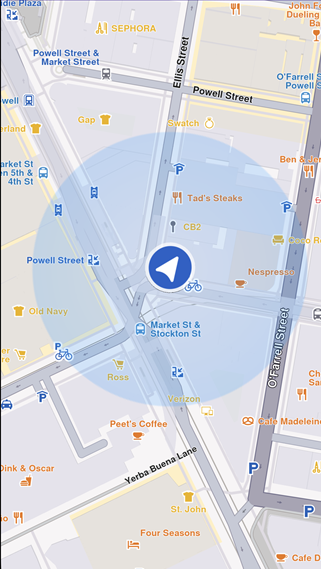
Show the accuracy circle on the map (hidden by default):
FollowPositionPreferences prefs = mapController.preferences.followPositionPreferences;
GemError error = prefs.setAccuracyCircleVisibility(true);
Customize circle color
Set the accuracy circle color using the setDefPositionTrackerAccuracyCircleColor static method from the MapSceneObject class:
final GemError setErrorCode = MapSceneObject.setDefPositionTrackerAccuracyCircleColor(Colors.red);
print("Error code for setting the circle color: $setErrorCode");
Use colors with partial opacity instead of fully opaque colors for improved visibility and usability.
Retrieve the current color using the defPositionTrackerAccuracyCircleColor static getter:
final Color color = MapSceneObject.defPositionTrackerAccuracyCircleColor;
Reset the color to the default value using the resetDefPositionTrackerAccuracyCircleColor static method:
final GemError resetErrorCode = MapSceneObject.resetDefPositionTrackerAccuracyCircleColor();
print("Error code for resetting the circle color: $resetErrorCode");
Set position of the position tracker on the viewport
Set the position tracker on a particular spot of the viewport while in follow position mode using the cameraFocus property:
// Calculate the position relative to the viewport
double twoThirdsX = 2 / 3;
double threeFifthsY = 3 / 5;
Point<double> position = Point(twoThirdsX, threeFifthsY);

// Set the position of the position tracker in the viewport
// while in follow position mode
FollowPositionPreferences prefs =
    mapController.preferences.followPositionPreferences;
GemError error = prefs.setCameraFocus(position);

mapController.startFollowingPosition();
The setCameraFocus method uses a coordinate system relative to the viewport, not physical pixels. Point(0.0, 0.0) corresponds with the top-left corner and Point(1.0, 1.0) corresponds with the bottom-right corner.
Customize position icon
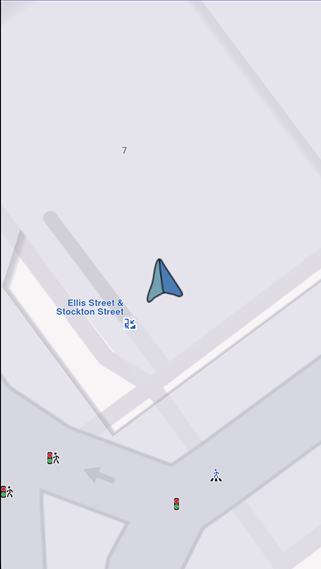
Customize the position tracker to suit your application's requirements. Set a simple PNG as the position tracker:
    // Read the file and load the image as a binary resource
    final imageByteData = (await rootBundle.load('assets/navArrow.png'));

    // Convert the binary data to Uint8List
    final imageUint8List = imageByteData.buffer.asUint8List();

    // Customize the position tracker
    MapSceneObject.customizeDefPositionTracker(imageUint8List, SceneObjectFileFormat.tex);
Besides simple 2D icons, 3D objects as glb files can be set. The format parameter of the customizeDefPositionTracker should be set to SceneObjectFileFormat.tex in this case.
Setting different icons for different maps is not currently supported.
Ensure the resource (in this example navArrow.png) is correctly registered within the pubspec.yaml file. See the Flutter documentation for more information.
Other position tracker settings
Change settings such as scale and visibility of the position tracker using the methods available on the MapSceneObject, obtained using MapSceneObject.getDefPositionTracker.
Change the position tracker scale
Use the scale setter to change the position tracker scale:
// Get the position tracker
MapSceneObject mapSceneObject = MapSceneObject.getDefPositionTracker();

// Change the scale
mapSceneObject.scale = 0.5;
A value of 1 corresponds with the default scale. The parameter passed to the setter should be in the range (0, mapSceneObject.maxScale]. The code snippet above sets half the scale.
The scale of the position tracker stays constant on the viewport regardless of the map zoom level.
Change the position tracker visibility
Use the visibility setter to change the position tracker visibility:
// Get the position tracker
MapSceneObject mapSceneObject = MapSceneObject.getDefPositionTracker();

// Change the visibility
mapSceneObject.visibility = false;
The snippet above makes the position tracker invisible.