# Create your first application
Last updated:
October 18, 2026
\| 4 minutes read
Follow this tutorial to build a Flutter app with an interactive map.
info
What you need:
* Flutter installed ([installation guide](https://docs.flutter.dev/get-started/install))
* [Free API key from MagicLane](https://developer.magiclane.com/docs/guides/get-started)
## Step 1: Create a new project[](#step-1-create-a-new-project "Direct link to Step 1: Create a new project")
```bash
flutter create my_first_map_app
cd my_first_map_app
```
Using an existing project?
Skip to Step 2 and add the SDK to your existing app.
## Step 2: Install the SDK[](#step-2-install-the-sdk "Direct link to Step 2: Install the SDK")
Add the package to `pubspec.yaml`:
```yaml
dependencies:
flutter:
sdk: flutter
magiclane_maps_flutter: # Add this line
```
Install it:
```bash
flutter pub get
```
:::warning Platform configuration required Complete the [platform setup](/docs/flutter/guides/get-started/integrate-sdk.md#step-2-configure-your-platform) for your target before continuing. Android and iOS require additional configuration (Maven repository, iOS version); web needs no setup. :::
## Step 3: Write the code[](#step-3-write-the-code "Direct link to Step 3: Write the code")
Open `lib/main.dart` and replace everything with this:
```dart
import 'package:flutter/material.dart' hide Route;
import 'package:magiclane_maps_flutter/magiclane_maps_flutter.dart';
const projectApiToken = String.fromEnvironment('YOUR_API_TOKEN_HERE');
void main() {
runApp(const MyApp());
}
class MyApp extends StatelessWidget {
const MyApp({super.key});
@override
Widget build(BuildContext context) {
return const MaterialApp(
debugShowCheckedModeBanner: false,
title: 'Hello Map',
home: MyHomePage(),
);
}
}
class MyHomePage extends StatefulWidget {
const MyHomePage({super.key});
@override
State createState() => _MyHomePageState();
}
class _MyHomePageState extends State {
@override
void dispose() {
GemKit.release(); // Clean up SDK resources
super.dispose();
}
@override
Widget build(BuildContext context) {
return Scaffold(
appBar: AppBar(
backgroundColor: Colors.deepPurple[900],
title: const Text('Hello Map', style: TextStyle(color: Colors.white)),
),
body: GemMap(
appAuthorization: projectApiToken,
onMapCreated: _onMapCreated,
),
);
}
void _onMapCreated(GemMapController mapController) {
// Map is initialized and ready to use
}
}
```
Paste your API token in place of `YOUR_API_TOKEN_HERE`, in between the qoutes. Example: `const projectApiToken = "eyJhbGciOi...";`
Understanding the code
* **`GemMap`** - Widget that displays the interactive map
* **`appAuthorization`** - Your API key for SDK authentication
* **`onMapCreated`** - Called when the map finishes loading
* **`GemKit.release()`** - Frees memory when the app closes
## Step 4: Run your app[](#step-4-run-your-app "Direct link to Step 4: Run your app")
Start the app with your API key:
```bash
flutter run --dart-define=YOUR_API_TOKEN_HERE="your_actual_token_here"
```
Quick test: Hardcode the token
For quick testing only, change line 4 to:
```dart
const projectApiToken = "your_actual_token_here";
```
**⚠️ Never commit hardcoded tokens to version control!**
Note
When you initialize the SDK with a valid API key, it also performs an automatic activation. This allows better flexibility for licensing.
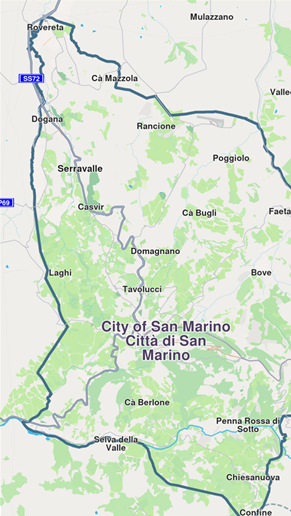
**Your first map app running**
🎉 **Success!** Your map app is running.
## What's next?[](#whats-next "Direct link to What's next?")
Explore what you can do with the map:
* [Add markers](/docs/flutter/examples/maps-3dscene/add-markers.md) - Pin locations on the map
* [Draw shapes](/docs/flutter/examples/maps-3dscene/draw-shapes.md) - Add polygons, lines, and circles
* [Change map styles](/docs/flutter/examples/maps-3dscene/map-styles.md) - Switch between light, dark, and custom themes
* [Search for places](/docs/flutter/examples/places-search.md) - Find addresses and points of interest
* [Add navigation](/docs/flutter/examples/routing-navigation.md) - Calculate routes and turn-by-turn directions
## Troubleshooting[](#troubleshooting "Direct link to Troubleshooting")
App crashes immediately
**Most common causes:**
1. **Missing platform setup** - Did you complete the [platform configuration](/docs/flutter/guides/get-started/integrate-sdk.md#step-2-configure-your-platform)? (Android and iOS only; web needs no setup.)
2. **Invalid API key** - Check your token is correct and active
3. **Flutter environment issues** - Run `flutter doctor` and fix any issues
GemKitUninitializedException error
You're calling SDK methods before the map initializes.
**Solution:** Only call SDK methods inside `onMapCreated` or after the map loads.
```dart
void _onMapCreated(GemMapController mapController) {
// ✓ Safe to call SDK methods here
}
```
How to check if my API key is valid
Add this code to verify your token:
```dart
SdkSettings.verifyAppAuthorization(projectApiToken, (status) {
if (status == GemError.success) {
print('✓ API key is valid');
} else {
print('✗ API key error: $status');
}
});
```
**Possible status codes:**
* `success` - Token is valid ✓
* `invalidInput` - Wrong format ✗
* `expired` - Token expired ✗
* `accessDenied` - Token blocked ✗
Map shows a watermark
This means your API key is missing or invalid.
**Without a valid API key:**
* ❌ Map downloads won't work
* ❌ Map updates disabled
* ⚠️ Watermark appears
* ⚠️ Limited features
**Fix:** Ensure you're passing a valid API key via `--dart-define=YOUR_API_TOKEN_HERE="your_token"`
Advanced: Manual SDK initialization
The SDK auto-initializes when you create a `GemMap` widget.
If you need to use SDK features **before** showing a map:
```dart
void main() async {
WidgetsFlutterBinding.ensureInitialized();
await GemKit.initialize(appAuthorization: projectApiToken);
runApp(const MyApp());
}
// Don't forget to clean up!
@override
void dispose() {
GemKit.release();
super.dispose();
}
```
**When to use this:**
* Background location tracking before map display
* Preloading map data
* SDK services without showing a map