# Follow Position
Last updated:
October 18, 2026
\| 3 minutes read
This example demonstrates how to create a Flutter app that follows the device’s location on a map using Maps SDK for Flutter, with an option to request location permissions if necessary.
## How it works[](#how-it-works "Direct link to How it works")
The example app demonstrates the following features:
* Requesting location permissions on Android and iOS, with automatic handling on web platforms.
* Setting the live data source for the map (typically the device’s GPS).
* Following the device’s location on the map with optional animation.
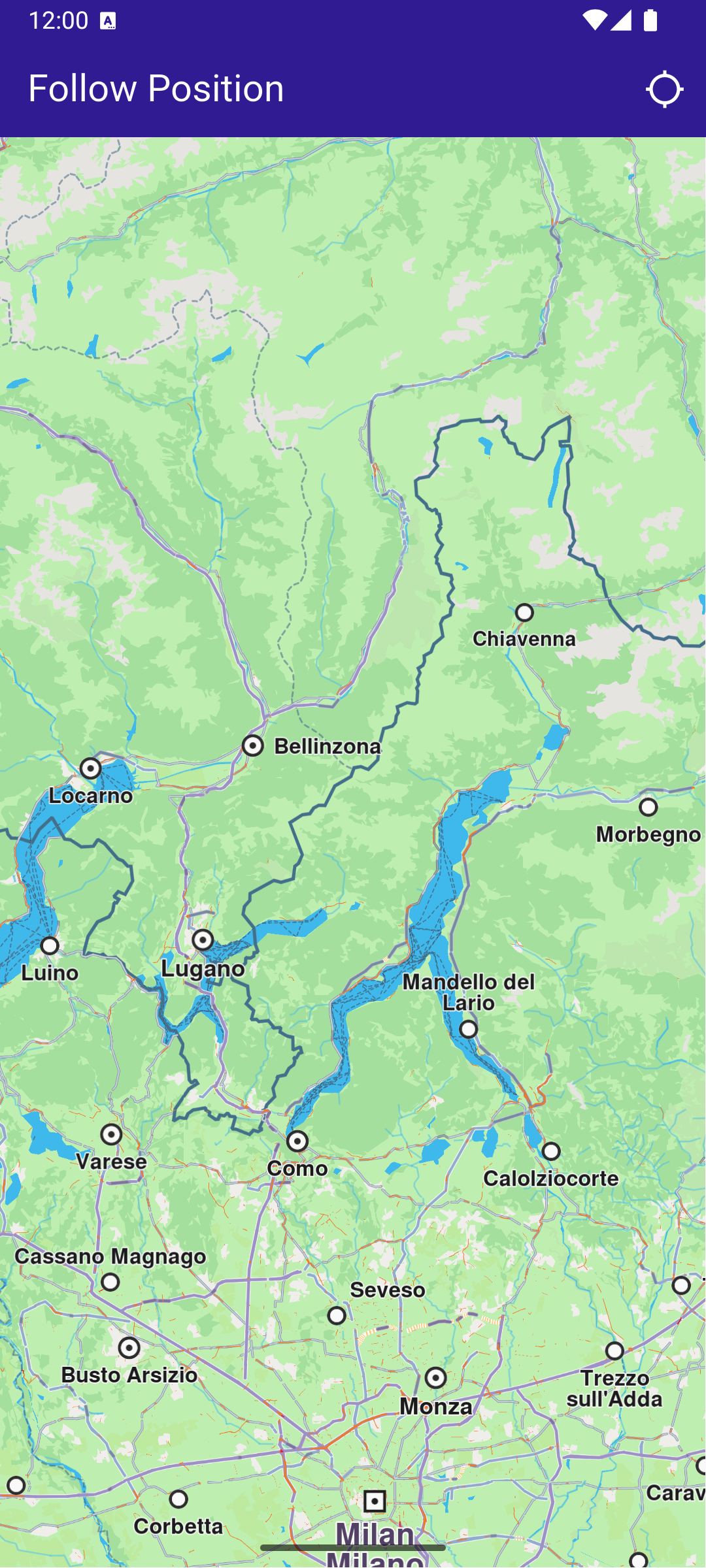
**Initial map view**
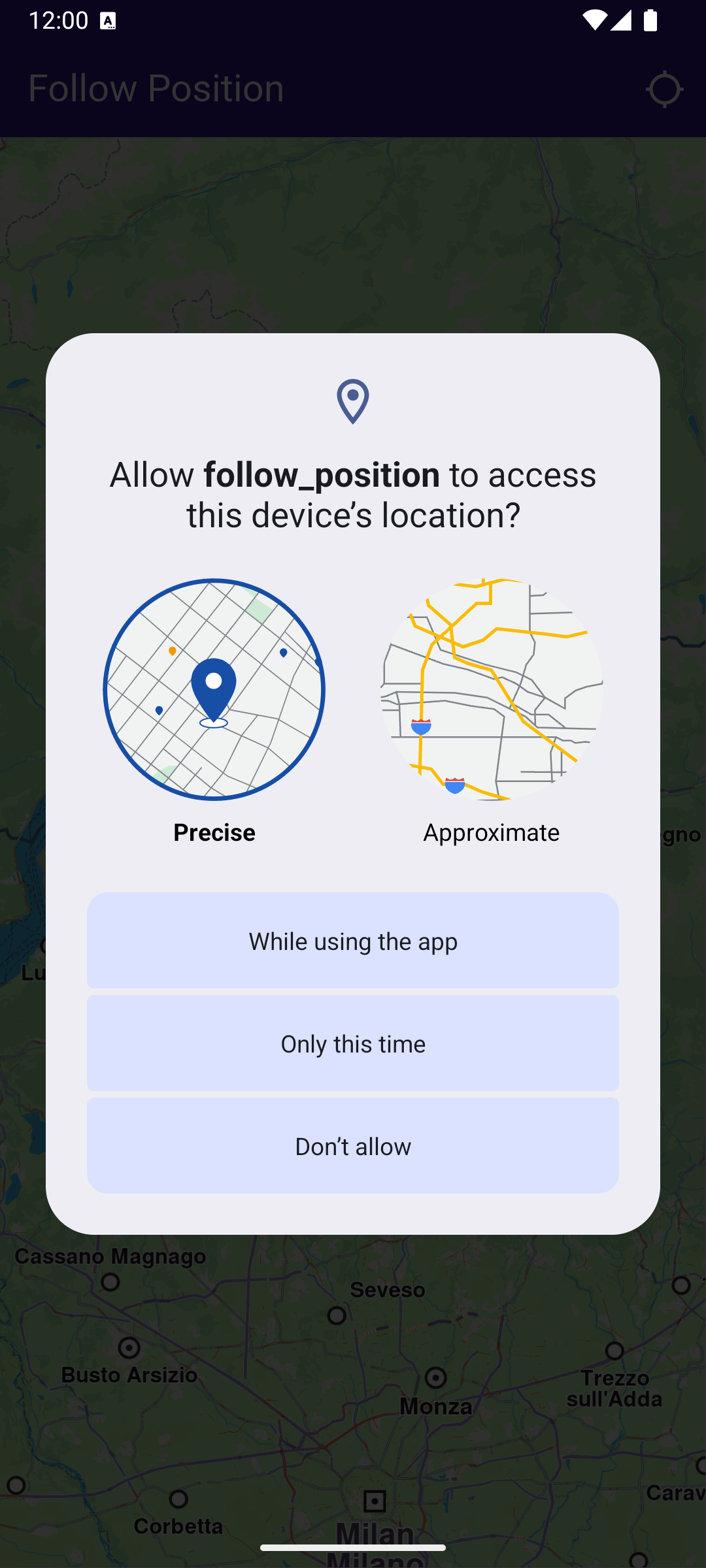
**Location permission dialog**
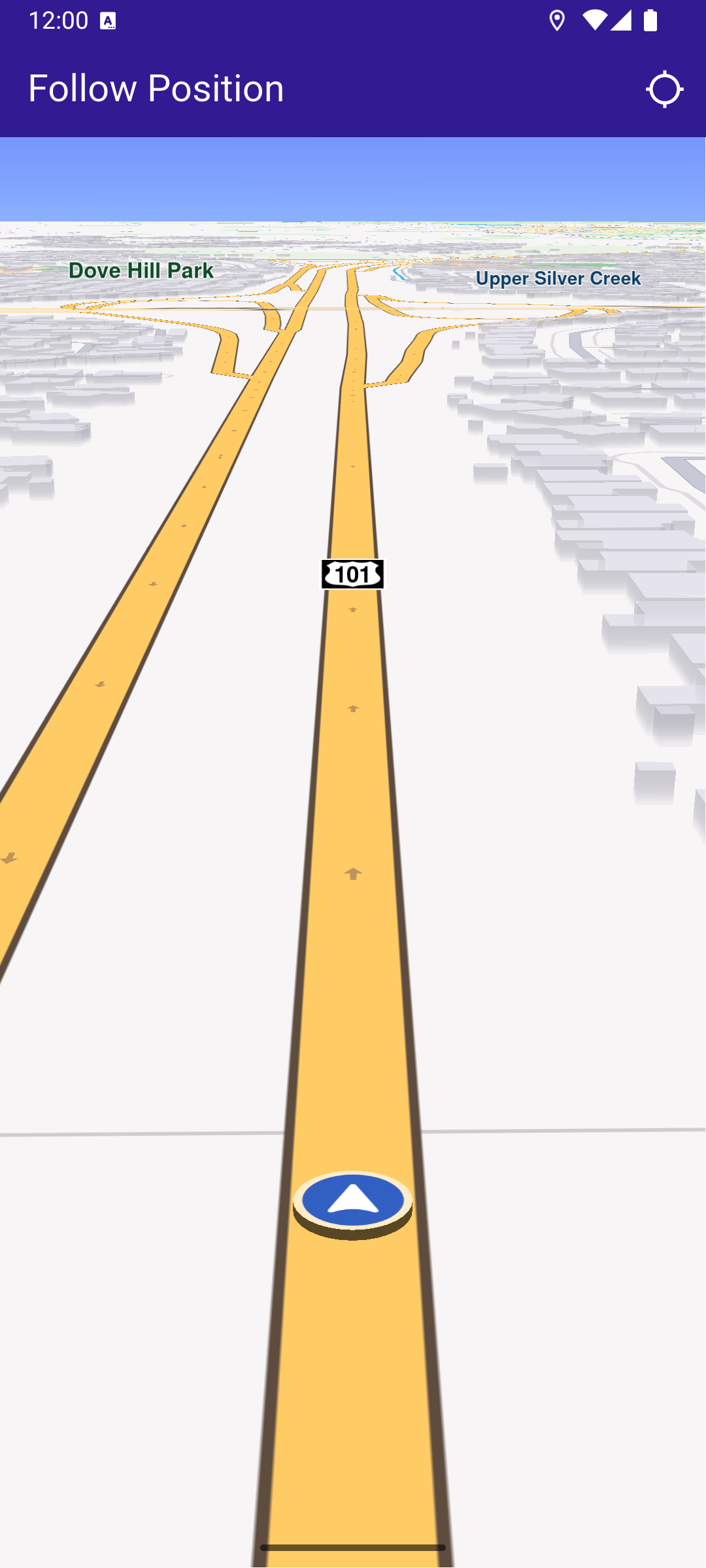
**Camera following current position**
### UI and Map Integration[](#ui-and-map-integration "Direct link to UI and Map Integration")
main.dart[View on Github](https://github.com/magiclane/magiclane-maps-sdk-examples-for-flutter/tree/main/follow_position/lib/main.dart?ref_type=heads#L18)
```dart
class MyApp extends StatelessWidget {
const MyApp({super.key});
@override
Widget build(BuildContext context) {
return const MaterialApp(
title: 'Follow Position',
debugShowCheckedModeBanner: false,
home: MyHomePage(),
);
}
}
class MyHomePage extends StatefulWidget {
const MyHomePage({super.key});
@override
State createState() => _MyHomePageState();
}
class _MyHomePageState extends State {
late GemMapController _mapController;
PermissionStatus _locationPermissionStatus = PermissionStatus.denied;
bool _hasLiveDataSource = false;
@override
void dispose() {
GemKit.release();
super.dispose();
}
@override
Widget build(BuildContext context) {
return Scaffold(
appBar: AppBar(
backgroundColor: Colors.deepPurple[900],
title: const Text(
'Follow Position',
style: TextStyle(color: Colors.white),
),
actions: [
IconButton(
onPressed: _onFollowPositionButtonPressed,
icon: const Icon(
Icons.location_searching_sharp,
color: Colors.white,
),
),
],
),
body: GemMap(
key: ValueKey("GemMap"),
onMapCreated: _onMapCreated,
appAuthorization: projectApiToken,
),
);
}
```
This code sets up the app’s user interface, including a map and a button to follow the device’s position.
### Handling Location Permissions and Following Position[](#handling-location-permissions-and-following-position "Direct link to Handling Location Permissions and Following Position")
main.dart[View on Github](https://github.com/magiclane/magiclane-maps-sdk-examples-for-flutter/tree/main/follow_position/lib/main.dart?ref_type=heads#L77)
```dart
// The callback for when map is ready to use.
void _onMapCreated(GemMapController controller) async {
// Save controller for further usage.
_mapController = controller;
}
void _onFollowPositionButtonPressed() async {
if (kIsWeb) {
// On web platform permission are handled differently than other platforms.
// The SDK handles the request of permission for location.
final locationPermssionWeb =
await PositionService.requestLocationPermission();
if (locationPermssionWeb == true) {
_locationPermissionStatus = PermissionStatus.granted;
} else {
_locationPermissionStatus = PermissionStatus.denied;
}
} else {
// For Android & iOS platforms, permission_handler package is used to ask for permissions.
_locationPermissionStatus = await Permission.locationWhenInUse.request();
}
if (_locationPermissionStatus == PermissionStatus.granted) {
// After the permission was granted, we can set the live data source (in most cases the GPS).
// The data source should be set only once, otherwise we'll get -5 error.
if (!_hasLiveDataSource) {
PositionService.setLiveDataSource();
_hasLiveDataSource = true;
}
// Optionally, we can set an animation
final animation = GemAnimation(type: AnimationType.linear);
// Calling the start following position SDK method.
_mapController.startFollowingPosition(animation: animation);
setState(() {});
}
}
}
```
This code handles the process of requesting location permissions, setting the GPS as the live data source, and starting the map’s follow position mode.
### Displaying Position Information[](#displaying-position-information "Direct link to Displaying Position Information")
When the “Follow Position” button is pressed, the \_onFollowPositionButtonPressed() callback is triggered. It requests location permission if it hasn’t been granted already, and sets the location data source to the device’s GPS sensor. Once the permission is granted and the data source is set, the map will follow the device’s location, centering the camera on the current position. The follow position feature is disabled if the user interacts with the map, such as by panning, until the button is pressed again.
Required Permissions
To ensure this example functions correctly, the necessary permissions must be added to the project's Android and iOS configuration files:
* Android
* iOS
Add the following code to the `android/app/src/main/AndroidManifest.xml` file, within the `` block:
```
```
This example uses the [Permission Handler](https://pub.dev/packages/permission_handler) package. Be sure to follow the [setup guide](https://pub.dev/packages/permission_handler#setup).
Add the following to `ios/Runner/Info.plist` inside the ``:
```
NSLocationWhenInUseUsageDescription
Location is needed for map localization and navigation
```
This example uses the [Permission Handler](https://pub.dev/packages/permission_handler) package. Follow the [official setup instructions](https://pub.dev/packages/permission_handler#setup). Add this to your `ios/Podfile`:
```
post_install do |installer|
installer.pods_project.targets.each do |target|
flutter_additional_ios_build_settings(target)
target.build_configurations.each do |config|
config.build_settings['GCC_PREPROCESSOR_DEFINITIONS'] ||= [
'$(inherited)',
'PERMISSION_LOCATION=1',
]
end
end
end
```