Styling
The appearance of the map can be tailored by applying different styles. You can either download a predefined map style using the ContentStore class, which offers a variety of ready-to-use styles, or create a custom style using Magic Lane Map Studio which you can download and configure. In this guide, we’ll explore both methods in detail.
Apply predefined styles
To apply a predefined map style, it must first be downloaded, as it is not loaded into memory by default. As mentioned earlier, this can be achieved using the ContentStore class. To begin, we’ll retrieve a list of all available styles for preview purposes and then proceed to download the ones we wish to use.
Here’s how you can get previews of the available map styles, represented as a List<ContentStoreItem>, with the following code:
void getStyles()
{
// In YourProgressListenerImpl write a bool IsFinished function that returns true
// after notifyComplete was received.
auto listener = StrongPointerFactory<YourProgressListenerImpl>();

auto err = ContentStore().asyncGetStoreContentList( EContentType::CT_ViewStyleLowRes, listener );

// Wait until the operation completes or timeout after 5000 milliseconds.
WAIT_UNTIL( std::bind( &YourProgressListenerImpl::IsFinished, listener  ), 5000 );

auto items = ContentStore().getStoreContentList( EContentType::CT_ViewStyleLowRes );

// If items.second is true it means the list is locally cached,
// hence asyncGetStoreContentList was successful.
if( items.second )
{
    // Do what you intend to do with the items
    for( auto item : items.first )
    {
        auto name = item.getName();
        auto id = item.getId();
    }
}
}
Method asyncGetStoreContentList can be used to obtain other content such as car models, road maps, tts voices and more.
There are two types of preview styles available: EContentType::CT_ViewStyleHighRes and EContentType::CT_ViewStyleLowRes.
-
EContentType::CT_ViewStyleHighResis designed for obtaining styles optimized for high-resolution displays, such as those on mobile devices. -
EContentType::CT_ViewStyleLowResis intended for styles suited to low-resolution displays, such as desktop monitors.
In the parameters of the getStoreContentList method, two values are provided:
List<ContentStoreItem>that contains the items retrieved from the content store, such as map styles in this case. If a previousasyncGetStoreContentListcompletes with error, this list will be empty.- boolean value that specifies whether the content store item (e.g., the map style) is already available in cache memory (and thus doesn't require downloading) or if it needs to be downloaded. If the operation failed, this value will be false.
A ContentStoreItem has the following attributes/methods:
| Attribute/Methods | Explanation |
|---|---|
| getName | Gets the name of the associated product. |
| getId | Get the unique id of the item in the content store. |
| getChapterName | Gets the product chapter name translated to interface language. |
| getCountryCodes | Gets the country code (ISO 3166-1 alpha-3) list of the product as text. |
| getLanguage | Gets the full language code for the product. |
| getType | Gets the type of the product as a [EContentType] value. |
| getFileName | Gets the full path to the content data file when available. |
| getClientVersion | Gets the client version of the content. |
| getTotalSize | Get the size of the content in bytes. |
| getAvailableSize | Gets the available size of the content in bytes. |
| isCompleted | Checks if the item is completed downloaded. |
| getStatus | Gets current item status. |
| pauseDownload | Pause a previous download operation. |
| cancelDownload | Cancel a previous download operation. |
| getDownloadProgress | Get current download progress. |
| canDeleteContent | Check if associated content can be deleted. |
| deleteContent | Delete the associated content |
| isImagePreviewAvailable | Check if there is an image preview available on the client. |
| getImagePreview | Get the preview. The user is responsible to check if the image is valid. |
| getContentParameters | Get additional parameters for the content. |
| getUpdateItem | Get corresponding update item. |
| isUpdatable | Check if item is updatable, i.e. it has a newer version available. |
| getUpdateSize | Get update size (if an update is available for this item). |
| getUpdateVersion | Get update version (if an update is available for this item). |
| asyncDownload | Asynchronous start/resume the download of the content store product content. |
Keep in mind that certain attributes may not apply to specific types of ContentStoreItem. For instance, the countryCodes attribute will not provide meaningful data for a EContentType::CT_ViewStyleLowRes, as styles are not associated with any particular country.
Downloading a map style is done by calling ContentStoreItem::asyncDownload() as shown below:
ContentStoreItem style;

// In YourProgressListenerImpl write a bool IsFinished function that returns true
// after notifyComplete was received.
auto listener = StrongPointerFactory<YourProgressListenerImpl>();

style.asyncDownload(listener);

// Wait until the operation completes or timeout after 5000 milliseconds.
WAIT_UNTIL( std::bind( &YourProgressListenerImpl::IsFinished, listener  ), 5000 );

// You can track the progress by checking the value received on YourProgressListenerImpl::notifyProgress
Now, all that is left to do is applying the downloaded style by using mapView>preferences().setMapStyle(style) called with the item:
ContentStoreItem style; // previously downloaded
mapView>preferences().setMapStyle(style);
Map styles can be set by using MapViewPreferences::setMapStyleByPath() or MapViewPreferences.setMapStyleById().
MapViewPreferences:setMapStyleByPath()takes as parameter theContentStoreItem's path which can be obtained by callingContentStoreItem::getFileName().MapViewPreferences::setMapStyleById()takes as parameter the unique id of theContentStoreItem, obtained by callingContentStoreItem::getId()
mapView>preferences().setMapStyleByPath(currentStyle.getFileName());
mapView>preferences().setMapStyleById(currentStyle.getId());
Apply custom styles
A custom map style can be created in Magic Lane Map Studio. By following the guide you'll end up with a .style file. This file will be loaded into application and applied as a style.
Loading the style into memory is done with a simple:
String path = "/on/device/path/to/custom/style/Custom1.style";

mapView>preferences().setMapStyleByPath(path);
A smooth transition can be enabled by passing the smoothTransition parameter of setMapStyleByPath as true.
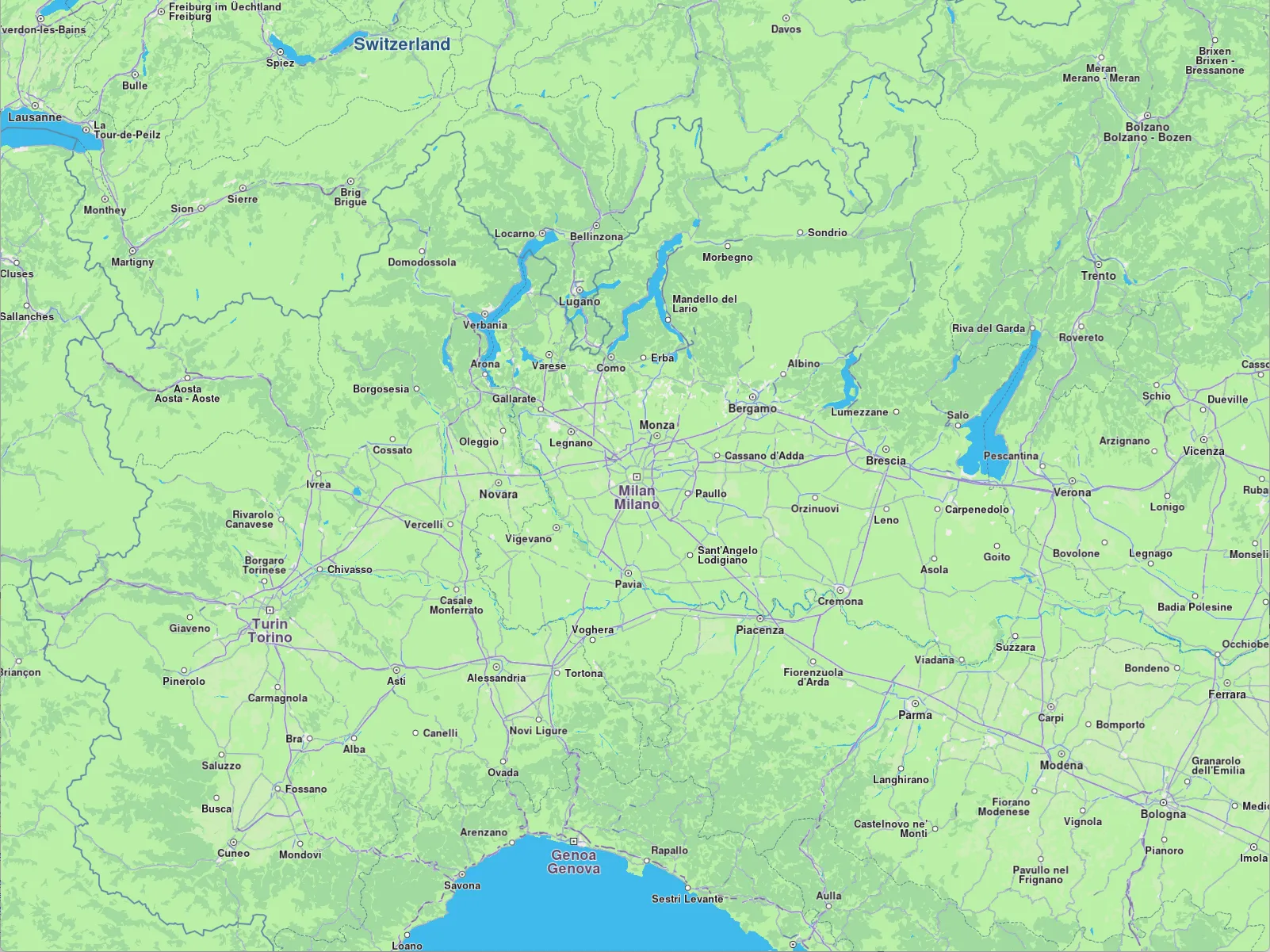
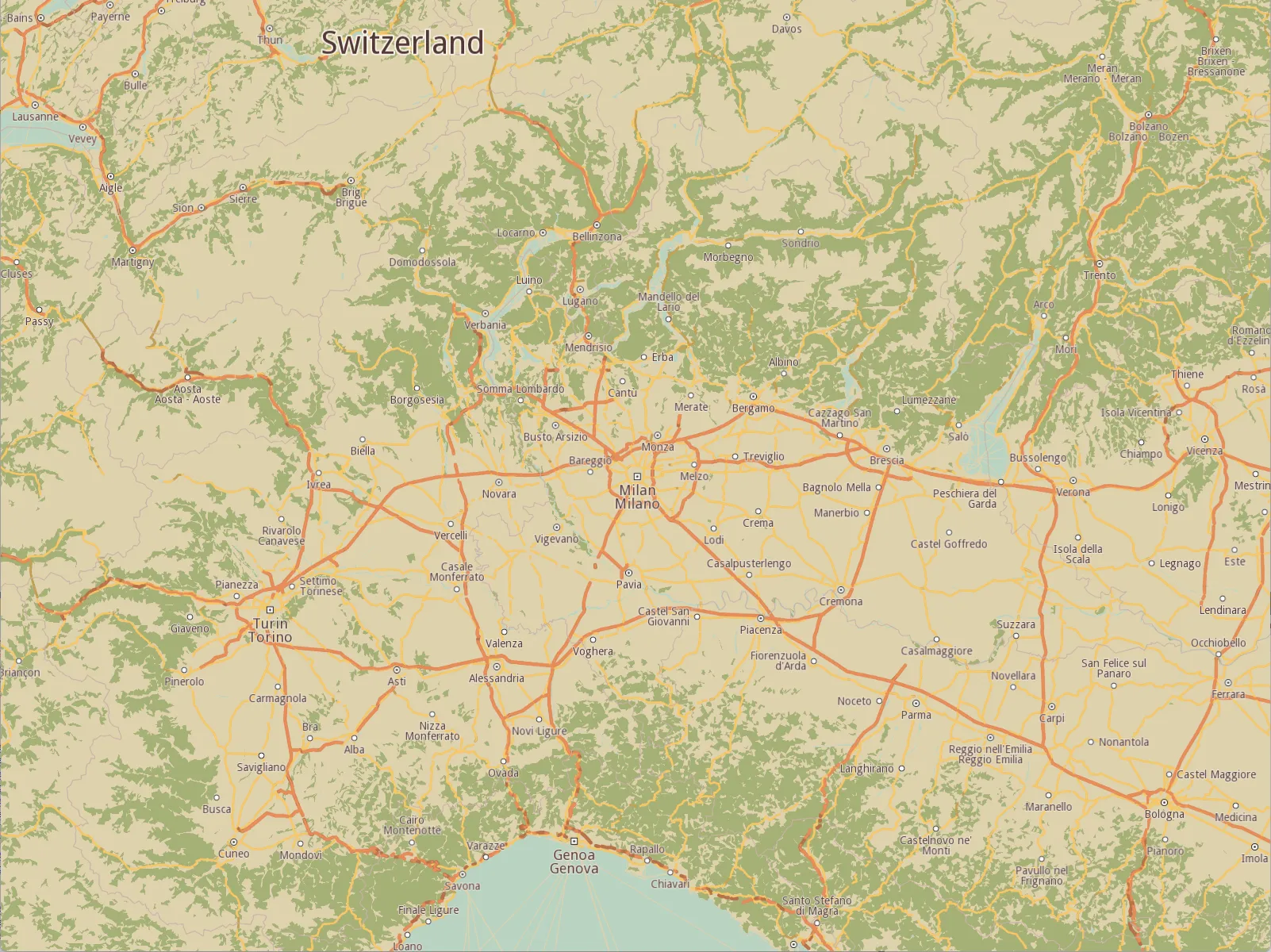
Get notified about style changes
The user can be notified when the style changes by implementing onSetMapStyle method from IMapViewListener which is passed on the creation of the MapView:
// Replace listener with your implementation of IMapViewListener that handles `onSetMapStyle`.
static StrongPointer<MapView> produce(OpenGLContext context, MapViewListener listener = MapViewListener())
The onSetMapStyle callback provides the following parameters:
id: The id of the stylestylePath: The path to the.stylefileviaApi: A boolean indicating if the style was set via API or not