Add Optimization with Set Matrices
The example covers the following features:
- Adding an optimization with custom matrices.
- Defining orders with various fields (e.g., time windows, packages, weights).
- Setting up a single vehicle with specific constraints.
- Displaying the optimized solution on a map.
In this optimization, the time and distance matrices are explicitly set by the user, allowing for custom routing calculations.
When you run the example application:
- An optimization is created and saved.
- The optimized solution is returned and displayed on the map.
Create Customers and Orders
Each order must have a customer associated with it. You can either:
- Create a new customer and assign it to the order.
- Use an existing customer (refer to the Get Customer).
Initializing and Adding Customers
- Initialize a
ProgressListenerandvrp::Service. - Create twelve
vrp::Customerobjects and set the desired fields, and add them to the database. - Call the
addCustomer()method from thevrp::Serviceusing thevrp::CustomerandProgressListenerand wait for the operation to be done.
Initializing and Adding Orders
- Create a
vrp::OrderListand add orders to it. Each order must have a customer associated with it. - Create twelve
vrp::Orderobjects and associate one customer for each, set the desired fields, and add them to the database. - Call the
addOrder()method from thevrp::Serviceusing thevrp::OrderandProgressListenerand wait for the operation to be done.
Configure Optimization Parameters
Configuration Parameters define key settings that influence the behavior of the route optimization process. These settings determine aspects such as optimization goals, search time limits, and flexibility in handling orders.
- Create a
vrp::ConfigurationParametersobject and set the desired parameters. - Set the distance unit and the matrices build type to
MBT_Setto indicate that custom matrices will be used.
Create the Vehicle and Define Vehicle Constraints
Vehicle constraints define the limitations and requirements applied to a vehicle during the route optimization process. Ensure that the vehicle operates within its capabilities, such as time windows, capacity, distance, and revenue.
Initializing and Adding the Vehicle
- Create a
vrp::Vehicleobject and set the desired fields. - Call the
addVehicle()method from thevrp::Serviceusing thevrp::VehicleandProgressListenerand wait for the operation to be done.
Define Vehicle Constraints
- Create a
vrp::VehicleConstraintsobject for the vehicle. - Add these constraints to a
vrp::VehicleConstraintsList.
Create the Departure
Departures define the starting points for vehicle routes. These locations serve as the origin of a route and can impact optimization by influencing travel distance and time.
Initializing Departure
- Create a
vrp::Departureobject for the vehicle's starting point.
Create the Optimization
An optimization represents a set of orders, vehicles, constraints, and other parameters that define a routing problem.
- Create a
vrp::Optimizationobject. - Assign the
OrderList,ConfigurationParameters,VehicleList,VehicleConstraintsList, andDepartureto the optimization. - Set the custom distance and time matrices.
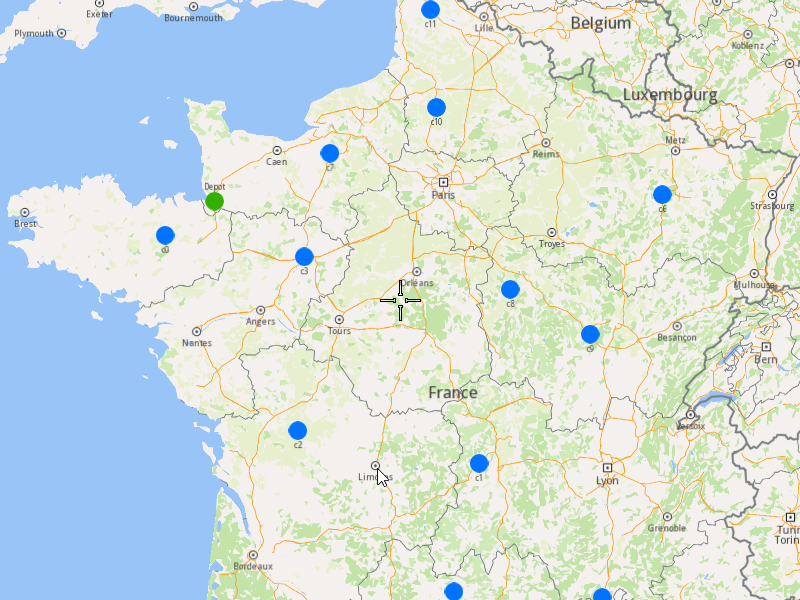
Displaying Orders on the Map
Once the orders have been added, we can display them on the map.
Initialize Map Components
- Create a
MapServiceListener,OpenGLContext, andMapView.
Highlight Orders and Departures
- Create a
LandmarkListandCoordinatesListusing theOrderListandDeparture. - Instruct the
MapViewto highlight the landmarks (orders and departure). - For better visibility, create a
PolygonGeographicAreafrom theCoordinatesList, and center theMapViewon this area.
Run the Optimization
- Call the
addOptimization()method fromvrp::Service, passing theOptimizationobject and theProgressListener. - After the operation is finished, a solution for optimization will be generated. To view the solution, you need to call the
getSolutionmethod from the optimization, which will return avrp::RouteListcontaining the optimization results.
Display Routes on the Map
Once the optimization is complete and a solution has been found, we can display the solution on the map.
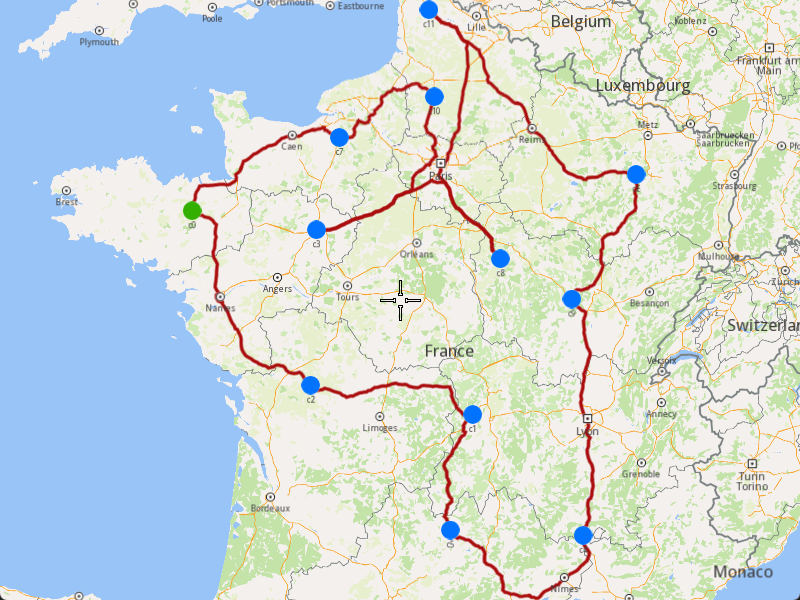
- Ensure that the operation was done, and a solution was found.
- Create a
MarkerCollectionof typePolylinefor the route. - Add the route shape to the
MarkerCollection. - Set the
MarkerCollectionin the map view preferences. - After highlighting on the map, center the screen over the route.