Get started with Navigation
The Maps SDK for Android provides developers with comprehensive tools to build a robust turn-by-turn navigation system. This functionality enables applications to track the current device location relative to a predefined route and deliver real-time navigational guidance.
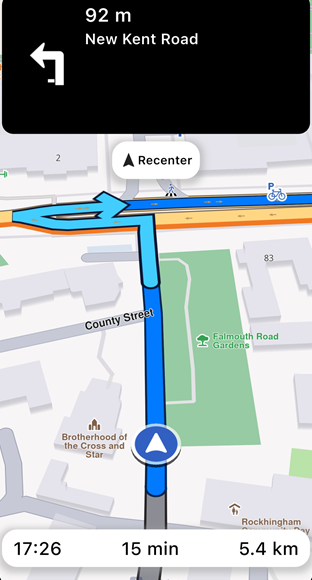
Key Features:
- Turn-by-Turn Directions: Provides detailed route instructions based on the device's current location, ensuring accurate navigation.
- Live Guidance: Navigation instructions can be delivered as text and integrated with a Text-to-Speech (TTS) system for voice-based guidance.
- Warning Alerts: A versatile alert system that notifies users of conditions such as speed limits, traffic reports, and other important events along the route.
- Offline Functionality: Essential navigation features remain operational offline, provided that map data has been pre-downloaded or cached.
The turn-by-turn navigation system relies on continuous acquisition of device data, including location, speed, and heading. These data points are matched against the mapped route and used to generate accurate guidance for the user. Instructions are dynamically updated as the user progresses along the route.
In the event that the user deviates from the planned route, the system will notify them of their off-track distance and provide the option for route recalculations or updates. Additionally, the system can dynamically adjust the route based on real-time traffic conditions, offering more efficient and faster alternatives to optimize navigation.
Additionally, developers can leverage a built-in location simulator to test navigation functionalities during the app development phase.
How does it work?
To enable navigation, the first step is to compute a valid, navigable route (note that non-navigable routes, such as range routes, are not supported).
The SDK offers two methods for navigating a route:
- Navigation: This method relies on the position data provided by the
PositionServiceto guide the user along the route. - Simulation: This method does not require user-provided position data. Instead, it simulates the navigation instructions that would be delivered to the user, allowing developers to test and preview the experience without needing an actual position.
If we are in navigation mode, the position is provided by PositionService. It can use:
- Real GPS Data: When
PositionService.setLiveDataSourceis called, the service will use real-time GPS data to provide position updates. This requires the appropriate application permissions. Additionally, the application must programmatically request these permissions from the user. - Custom Position Data: In this mode, a custom data source can be configured to supply position updates. No permissions are required in this case, as the positions are provided through the custom source rather than the device's GPS. If you want to use a custom position take a look at Custom positioning.
Currently, only one of navigation and simulation can be active at a time, regardless of the number of maps present within the application.
Starting a navigation
Given that a route has been computed, the simplest way to navigate it is by implementing the following code:
- Kotlin
- Java
import com.magiclane.sdk.routesandnavigation.NavigationService
import com.magiclane.sdk.routesandnavigation.NavigationListener
import com.magiclane.sdk.routesandnavigation.NavigationInstruction
import com.magiclane.sdk.core.ProgressListener
import com.magiclane.sdk.core.ErrorCode
import com.magiclane.sdk.core.GemError
import com.magiclane.sdk.places.Landmark

class MainActivity : AppCompatActivity() {
    private val navigationService = NavigationService()

    private val navigationListener = NavigationListener.create(
        onNavigationInstructionUpdated = { instruction ->
            // Handle navigation instruction updates
            val instructionText = instruction.nextTurnInstruction
            // Update UI with instruction
        },

        onDestinationReached = { destination ->
            // Handle destination reached
        },

        onNavigationError = { error ->
            // Handle navigation error
            when (error) {
                GemError.NoError -> {
                    // Success
                }
                GemError.Cancel -> {
                    // Navigation was cancelled
                }
                GemError.WaypointAccess -> {
                    // Waypoint couldn't be reached
                }
                else -> {
                    // Other error occurred
                    val errorMessage = GemError.getMessage(error, this@MainActivity)
                    // Handle error appropriately
                }
            }
        }
    )

    private val progressListener = ProgressListener.create(
        onStarted = {
            // Show progress indicator
        },
        onCompleted = { _, _ ->
            // Hide progress indicator
        }
    )

    private fun startNavigation() {
        val error = navigationService.startNavigation(
            route,
            navigationListener,
            progressListener
        )

        // [Optional] Set the camera to follow position.
        // Usually we want this when in navigation mode
        mapView.followPosition()
    }

    // At any moment, we can cancel the navigation
    private fun cancelNavigation() {
        navigationService.cancelNavigation(navigationListener)
    }
}
import com.magiclane.sdk.routesandnavigation.NavigationService;
import com.magiclane.sdk.routesandnavigation.NavigationListener;
import com.magiclane.sdk.routesandnavigation.NavigationInstruction;
import com.magiclane.sdk.core.ProgressListener;
import com.magiclane.sdk.core.ErrorCode;
import com.magiclane.sdk.core.GemError;
import com.magiclane.sdk.places.Landmark;

public class MainActivity extends AppCompatActivity {
    private final NavigationService navigationService = new NavigationService();

    private final NavigationListener navigationListener = NavigationListener.create(
        /* onNavigationInstructionUpdated */ (instruction) -> {
            // Handle navigation instruction updates
            String instructionText = instruction.getNextTurnInstruction();
            // Update UI with instruction
        },

        /* onDestinationReached */ (destination) -> {
            // Handle destination reached
        },

        /* onNavigationError */ (error) -> {
            // Handle navigation error
            if (error == GemError.NoError) {
                // Success
            } else if (error == GemError.Cancel) {
                // Navigation was cancelled
            } else if (error == GemError.WaypointAccess) {
                // Waypoint couldn't be reached
            } else {
                // Other error occurred
                String errorMessage = GemError.getMessage(error, MainActivity.this);
                // Handle error appropriately
            }
        }
    );

    private final ProgressListener progressListener = ProgressListener.create(
        /* onStarted */ () -> {
            // Show progress indicator
        },
        /* onCompleted */ (result, error) -> {
            // Hide progress indicator
        }
    );

    private void startNavigation() {
        int error = navigationService.startNavigation(
            route,
            navigationListener,
            progressListener
        );

        // [Optional] Set the camera to follow position.
        // Usually we want this when in navigation mode
        mapView.followPosition();
    }

    // At any moment, we can cancel the navigation
    private void cancelNavigation() {
        navigationService.cancelNavigation(navigationListener);
    }
}
The NavigationService.startNavigation method returns GemError.NoError on success. Error details will be delivered through the onNavigationError callback function of the NavigationListener.
We declared a NavigationListener that handles the main navigation events:
- a navigation error (you can see a detailed table below).
- destination is reached.
- a new instruction is available.
The error provided by the callback function can have the following values:
| Value | Significance |
|---|---|
GemError.NoError | successfully completed |
GemError.Cancel | cancelled by the user |
GemError.WaypointAccess | couldn't be found with the current preferences |
GemError.ConnectionRequired | if allowOnlineCalculation = false in the routing preferences and the calculation can't be done on the client side due to missing data |
GemError.Expired | calculation can't be done on client side due to missing necessary data and the client world map data version is no longer supported by the online routing service |
GemError.RouteTooLong | routing was executed on the online service and the operation took too much time to complete (usually more than 1 min, depending on the server overload state) |
GemError.Invalidated | the offline map data changed ( offline map downloaded, erased, updated ) during the calculation |
GemError.NoMemory | routing engine couldn't allocate the necessary memory for the calculation |
The navigation can be stopped at any moment or it will be stopped when we reach the destination.
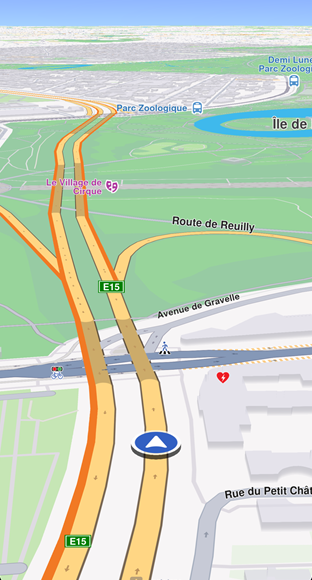
Typically (optional), before starting navigation, we instruct the map to begin following the user's position.
More information about the followPosition method and related customization options can be found inside the Show your location on the map guide.
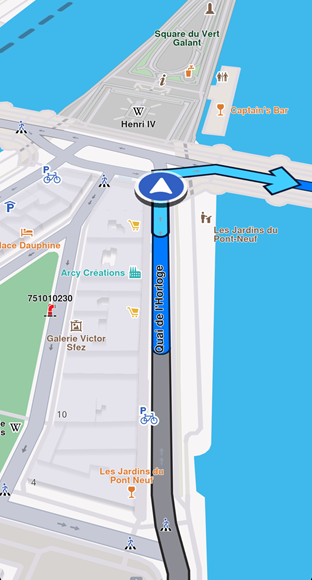
To enhance navigation clarity, the route is displayed on a map. This also includes turn-by-turn navigation arrows that disappear once the user has passed them. More about presenting routes here.
Navigating on said route will change color of parsed route portion with traveledInnerColor parameter of RouteRenderSettings.
Starting a simulation
To start a simulation, you can use the following approach:
- Kotlin
- Java
class MainActivity : AppCompatActivity() {
    private val navigationService = NavigationService()

    private val simulationListener = NavigationListener.create(
        onNavigationInstructionUpdated = { instruction ->
            // Handle simulation instruction updates
            val instructionText = instruction.nextTurnInstruction
            // Update UI with instruction
        }
    )

    private val progressListener = ProgressListener.create(
        onStarted = {
            // Show progress indicator
        },
        onCompleted = { _, _ ->
            // Hide progress indicator
        }
    )

    private fun startSimulation() {
        // Add route to map preferences to display it
        mapView.presentRoute(route)

        val error = navigationService.startSimulation(
            route,
            simulationListener,
            progressListener,
            speedMultiplier = 2.0f
        )

        // [Optional] Set the camera to follow position.
        // Usually we want this when in navigation mode
        mapView.followPosition()
    }

    // At any moment, we can cancel the simulation
    private fun cancelSimulation() {
        navigationService.cancelNavigation(simulationListener)
    }
}
public class MainActivity extends AppCompatActivity {
    private final NavigationService navigationService = new NavigationService();

    private final NavigationListener simulationListener = NavigationListener.create(
        /* onNavigationInstructionUpdated */ (instruction) -> {
            // Handle simulation instruction updates
            String instructionText = instruction.getNextTurnInstruction();
            // Update UI with instruction
        }
    );

    private final ProgressListener progressListener = ProgressListener.create(
        /* onStarted */ () -> {
            // Show progress indicator
        },
        /* onCompleted */ (result, error) -> {
            // Hide progress indicator
        }
    );

    private void startSimulation() {
        // Add route to map preferences to display it
        mapView.presentRoute(route);

        int error = navigationService.startSimulation(
            route,
            simulationListener,
            progressListener,
            2.0f // speedMultiplier
        );

        // [Optional] Set the camera to follow position.
        // Usually we want this when in navigation mode
        mapView.followPosition();
    }

    // At any moment, we can cancel the simulation
    private void cancelSimulation() {
        navigationService.cancelNavigation(simulationListener);
    }
}
When simulating we can specify a speedMultiplier to set the simulation speed (1.0 is default and corresponds to the maximum speed limit for each road segment). See navigationService.simulationMinSpeedMultiplier and navigationService.simulationMaxSpeedMultiplier for the range of allowed values.
Listen for navigation events
A wide range of navigation-related events can be monitored.
In the previous examples, we demonstrated handling the onNavigationInstructionUpdated event.
Additionally, it is possible to listen for and handle numerous other events:
- Kotlin
- Java
private val navigationListener = NavigationListener.create(
    onNavigationInstructionUpdated = { instruction ->
        // Handle navigation instruction updates
    },

    onNavigationStarted = {
        // Handle navigation started
    },

    onNavigationSound = { sound ->
        // Handle TTS instructions
    },

    onWaypointReached = { landmark ->
        // Handle waypoint reached
    },

    onDestinationReached = { landmark ->
        // Handle destination reached
    },

    onRouteUpdated = { route ->
        // Handle route updates
    },

    onBetterRouteDetected = { route, travelTime, delay, timeGain ->
        // Handle better route detection
    },

    onBetterRouteRejected = { error ->
        // Handle better route rejection
    },

    onBetterRouteInvalidated = {
        // Handle better route invalidation
    },

    onNavigationError = { error ->
        // Handle navigation errors
    },

    onNotifyStatusChange = { status ->
        // Handle navigation status changes
    }
)

val error = navigationService.startNavigation(
    route,
    navigationListener,
    progressListener
)
private final NavigationListener navigationListener = NavigationListener.create(
    /* onNavigationInstructionUpdated */ (instruction) -> {
        // Handle navigation instruction updates
    },

    /* onNavigationStarted */ () -> {
        // Handle navigation started
    },

    /* onNavigationSound */ (sound) -> {
        // Handle TTS instructions
    },

    /* onWaypointReached */ (landmark) -> {
        // Handle waypoint reached
    },

    /* onDestinationReached */ (landmark) -> {
        // Handle destination reached
    },

    /* onRouteUpdated */ (route) -> {
        // Handle route updates
    },

    /* onBetterRouteDetected */ (route, travelTime, delay, timeGain) -> {
        // Handle better route detection
    },

    /* onBetterRouteRejected */ (error) -> {
        // Handle better route rejection
    },

    /* onBetterRouteInvalidated */ () -> {
        // Handle better route invalidation
    },

    /* onNavigationError */ (error) -> {
        // Handle navigation errors
    },

    /* onNotifyStatusChange */ (status) -> {
        // Handle navigation status changes
    }
);

int error = navigationService.startNavigation(
    route,
    navigationListener,
    progressListener
);
These events are described in the following table:
| Event | Explanation |
|---|---|
| onNavigationInstructionUpdated(NavigationInstruction instruction) | Triggered when a new navigation instruction is available, providing details about the instruction. This method is called periodically, usually at 1 second, to update the navigation information for the UI. |
| onNavigationStarted() | Called when navigation begins, signaling the start of the route guidance. This method is called when first valid position for navigation arrives. |
| onNavigationSound(ISound sound) | Provides a sound object for a maneuver that can be played through the device's audio system for voice guidance. |
| onWaypointReached(Landmark landmark) | Invoked when a waypoint in the route is reached, including details of the waypoint. This notification is not sent when the destination is reached. |
| onDestinationReached(Landmark landmark) | Called upon reaching the final destination, with information about the destination landmark. This is the moment when the navigation request finished with success. |
| onRouteUpdated(Route route) | Fired when the current route is updated, providing the new route details. |
| onBetterRouteDetected(Route route, Int travelTime, Int delay, Int timeGain) | Triggered when a better alternative route is detected, including the new route and details such as travel time, delays caused by traffic and time gains. The previous better route (if exists) must be considered automatically invalidated. |
| onBetterRouteRejected(ErrorCode error) | Called when a check for better routes fails, with details of the rejection error. Used especially for debugging. |
| onBetterRouteInvalidated() | Indicates that a previously suggested better route is no longer valid. This notification is sent when current position is no more on the previous calculated better route. |
| onNavigationError(ErrorCode error) | Signal that the navigation request finished with error. |
| onNotifyStatusChange(ENavigationStatus status) | Notifies new value of navigation status (Running, WaitingRoute, WaitingGPS, WaitingReturnToRoute). |
Most callbacks from the table provided above can be used for both simulation and navigation. Some specific navigation behaviors like route recalculation do not apply to simulation mode.
Data source based navigation
Navigation typically relies on the current GPS position. However, it is also entirely valid to perform navigation using custom-defined positions.
This can be done by creating a custom data source, setting the position service to the given data source, starting the data source and starting navigation as you would with live data source.
See the custom positioning guide for more information on how to create a custom data source.
Stop navigation/simulation
The cancelNavigation method from the NavigationService class can be used to stop both navigations and simulations, passing the NavigationListener used to start the navigation or simulation. At the moment it is not possible to pause the simulation.
- Kotlin
- Java
// Cancel navigation using the navigation listener
navigationService.cancelNavigation(navigationListener)
// Cancel navigation using the navigation listener
navigationService.cancelNavigation(navigationListener);
After stopping the simulation the data source used in the position service is set back to the previous data source if it exists.
Export Navigation instruction
The exportAs method serializes the current navigation instruction into a DataBuffer.
For now, the only supported format is EPathFileFormat.PackedGeometry.
- Kotlin
- Java
import com.magiclane.sdk.core.EPathFileFormat

// Get current navigation instruction
val instruction = navigationService.getNavigationInstruction(navigationListener)
instruction?.let {
    val dataBuffer = it.exportAs(EPathFileFormat.PackedGeometry)
    // Use the data buffer as needed
}
import com.magiclane.sdk.core.EPathFileFormat;

// Get current navigation instruction
NavigationInstruction instruction = navigationService.getNavigationInstruction(navigationListener);
if (instruction != null) {
    DataBuffer dataBuffer = instruction.exportAs(EPathFileFormat.PackedGeometry);
    // Use the data buffer as needed
}
exportAs only works with EPathFileFormat.PackedGeometry. Passing any other value will return an empty DataBuffer.