Styling
The appearance of the map can be tailored by applying different styles. You can either download a predefined map style using the ContentStore class, which offers a variety of ready-to-use styles, or create a custom style using Magic Lane Map Studio which you can download and configure. In this guide, we'll explore both methods in detail.
Apply predefined styles
To apply a predefined map style, it must first be downloaded, as it is not loaded into memory by default. As mentioned earlier, this can be achieved using the ContentStore class. To begin, we'll retrieve a list of all available styles for preview purposes and then proceed to download the ones we wish to use.
Here's how you can get previews of the available map styles, represented as a List<ContentStoreItem>, with the following code:
- Kotlin
- Java
fun getStyles() {
    val contentStore = ContentStore()
    val (storeContentList, onCompleted) = contentStore.asyncGetStoreContentList(
        EContentType.ViewStyleLowRes,
        onCompleted = { items, error, hint ->
            if (error == ErrorCode.NoError && items.isNotEmpty()) {
                for (item in items) {
                    stylesList.add(item)
                }
                // Clear any previous messages
            }
        }
    )
}
void getStyles() {
    ContentStore contentStore = new ContentStore();
    contentStore.asyncGetStoreContentList(
        EContentType.ViewStyleLowRes,
        (items, error, hint) -> {
            if (error == ErrorCode.NoError && !items.isEmpty()) {
                for (ContentStoreItem item : items) {
                    stylesList.add(item);
                }
                // Clear any previous messages
            }
        }
    );
}
Method asyncGetStoreContentList can be used to obtain other content such as car models, road maps, tts voices and more.
There are two types of preview styles available: EContentType.ViewStyleHighRes and EContentType.ViewStyleLowRes.
-
EContentType.ViewStyleHighResis designed for obtaining styles optimized for high-resolution displays, such as those on mobile devices. -
EContentType.ViewStyleLowResis intended for styles suited to low-resolution displays, such as desktop monitors.
In the onCompleted parameter of the asyncGetStoreContentList method, several values are provided:
ErrorCodeobject that indicates whether any errors occurred during the operation.List<ContentStoreItem>that contains the items retrieved from the content store, such as map styles in this case. If the error code is notErrorCode.NoError, this list will be empty.- boolean value that specifies whether the content store item (e.g., the map style) is already available in cache memory (and thus doesn't require downloading) or if it needs to be downloaded. If the operation failed, this value will be false.
ContentStoreItem
A ContentStoreItem has the following attributes/methods:
| Attribute/Methods | Explanation |
|---|---|
| name | Gets the name of the associated product. |
| id | Get the unique id of the item in the content store. |
| chapterName | Gets the product chapter name translated to interface language. |
| countryCodes | Gets the country code (ISO 3166-1 alpha-3) list of the product as text. |
| language | Gets the full language code for the product. |
| type | Gets the type of the product as a [ContentType] value. |
| fileName | Gets the full path to the content data file when available. |
| clientVersion | Gets the client version of the content. |
| totalSize | Get the size of the content in bytes. |
| availableSize | Gets the available size of the content in bytes. |
| isCompleted | Checks if the item is completed downloaded. |
| status | Gets current item status. |
| pauseDownload() | Pause a previous download operation. |
| cancelDownload() | Cancel a previous download operation. |
| downloadProgress() | Get current download progress. |
| canDeleteContent() | Check if associated content can be deleted. |
| deleteContent() | Delete the associated content |
| isImagePreviewAvailable() | Check if there is an image preview available on the client. |
| imgPreview | Get the preview. The user is responsible to check if the image is valid. |
| contentParameters | Get additional parameters for the content. |
| updateItem | Get corresponding update item. |
| isUpdatable | Check if item is updatable, i.e. it has a newer version available. |
| updateSize | Get update size (if an update is available for this item). |
| updateVersion | Get update version (if an update is available for this item). |
| asyncDownload() | Asynchronous start/resume the download of the content store product content. |
Keep in mind that certain attributes may not apply to specific types of ContentStoreItem. For instance, the countryCodes attribute will not provide meaningful data for a EContentType.ViewStyleLowRes, as styles are not associated with any particular country.
Downloading a map style is done by calling ContentStoreItem.asyncDownload() as shown below:
- Kotlin
- Java
private suspend fun downloadStyle(style: ContentStoreItem): Boolean {
    isDownloadingStyle = true

    return suspendCoroutine { continuation ->
        style.asyncDownload({ error ->
            if (error != ErrorCode.NoError) {
                // An error was encountered during download
                isDownloadingStyle = false
                continuation.resume(false)
                return@asyncDownload
            }
            // Download was successful
            isDownloadingStyle = false
            continuation.resume(true)
        }, onProgress = { progress ->
            // Gets called every time download progresses with a value between [0, 100]
            Log.d("StyleDownload", "progress: $progress")
        }, allowChargedNetworks = true)
    }
}
private void downloadStyle(ContentStoreItem style, DownloadCallback callback) {
    isDownloadingStyle = true;

    style.asyncDownload(error -> {
        if (error != ErrorCode.NoError) {
            // An error was encountered during download
            isDownloadingStyle = false;
            callback.onResult(false);
            return;
        }
        // Download was successful
        isDownloadingStyle = false;
        callback.onResult(true);
    }, progress -> {
        // Gets called every time download progresses with a value between [0, 100]
        Log.d("StyleDownload", "progress: " + progress);
    }, true); // allowChargedNetworks
}
Now, all that is left to do is applying the downloaded style by using MapViewPreferences.setMapStyleByPath(path) called with the filename, which contains the path:
- Kotlin
- Java
// Get MapView from GemSurfaceView
val gemSurfaceView = findViewById<GemSurfaceView>(R.id.gem_surface)
val mapView = gemSurfaceView.mapView!!

val filename = currentStyle.fileName
mapView?.preferences?.setMapStyleByPath(filename)
// Get MapView from GemSurfaceView
GemSurfaceView gemSurfaceView = findViewById(R.id.gem_surface);
MapView mapView = gemSurfaceView.getMapView();

String filename = currentStyle.getFileName();
if (mapView != null && mapView.getPreferences() != null) {
    mapView.getPreferences().setMapStyleByPath(filename);
}
To wrap things up, this is the code that incorporates all steps:
- Kotlin
- Java
if (stylesList.isEmpty()) {
    showMessage("The map styles are loading.")
    getStyles()
    return
}

val indexOfNextStyle = if (indexOfCurrentStyle >= stylesList.size - 1) {
    0
} else {
    indexOfCurrentStyle + 1
}
val currentStyle = stylesList[indexOfNextStyle]

if (currentStyle.isCompleted == false) {
    val didDownloadSuccessfully = downloadStyle(currentStyle)
    if (!didDownloadSuccessfully) return
}

indexOfCurrentStyle = indexOfNextStyle

val filename = currentStyle.fileName
mapView?.preferences?.setMapStyleByPath(filename)
if (stylesList.isEmpty()) {
    showMessage("The map styles are loading.");
    getStyles();
    return;
}

int indexOfNextStyle;
if (indexOfCurrentStyle >= stylesList.size() - 1) {
    indexOfNextStyle = 0;
} else {
    indexOfNextStyle = indexOfCurrentStyle + 1;
}
ContentStoreItem currentStyle = stylesList.get(indexOfNextStyle);

if (!currentStyle.isCompleted()) {
    downloadStyle(currentStyle, didDownloadSuccessfully -> {
        if (!didDownloadSuccessfully) return;

        indexOfCurrentStyle = indexOfNextStyle;

        String filename = currentStyle.getFileName();
        if (mapView != null && mapView.getPreferences() != null) {
            mapView.getPreferences().setMapStyleByPath(filename);
        }
    });
    return;
}

indexOfCurrentStyle = indexOfNextStyle;

String filename = currentStyle.getFileName();
if (mapView != null && mapView.getPreferences() != null) {
    mapView.getPreferences().setMapStyleByPath(filename);
}
Map styles can be set by using MapViewPreferences.setMapStyleByContentStoreItem() or MapViewPreferences.setMapStyleById().
MapViewPreferences.setMapStyleByContentStoreItem()takes as parameter theContentStoreItemwhich needs to be of typeEContentType.ViewStyleHighResorEContentType.ViewStyleLowResMapViewPreferences.setMapStyleById()takes as parameter the unique id of theContentStoreItem, obtained by callingContentStoreItem.id
- Kotlin
- Java
mapView?.preferences?.setMapStyleByContentStoreItem(currentStyle)
mapView?.preferences?.setMapStyleById(currentStyle.id)
if (mapView != null && mapView.getPreferences() != null) {
    mapView.getPreferences().setMapStyleByContentStoreItem(currentStyle);
    mapView.getPreferences().setMapStyleById(currentStyle.getId());
}
Apply custom styles
A custom map style can be created in Magic Lane Map Studio. By following the guide you'll end up with a .style file. This file will be loaded into application and applied as a style.
We need to create an assets directory in the Android project (typically under src/main/assets), where the .style file will be placed.
Loading the style into memory is done with the following code:
- Kotlin
- Java
// Method to load style and return it as bytes
private fun loadStyle(): ByteArray {
    // Load style from assets directory
    val inputStream = assets.open("Basic_1_Oldtime-1_21_656.style")
    return inputStream.readBytes()
}
// Method to load style and return it as bytes
private byte[] loadStyle() throws IOException {
    // Load style from assets directory
    InputStream inputStream = getAssets().open("Basic_1_Oldtime-1_21_656.style");
    ByteArrayOutputStream buffer = new ByteArrayOutputStream();
    byte[] data = new byte[1024];
    int bytesRead;
    while ((bytesRead = inputStream.read(data)) != -1) {
        buffer.write(data, 0, bytesRead);
    }
    return buffer.toByteArray();
}
Once the map style bytes are obtained, the style can be set by using MapViewPreferences.setMapStyleByDataBuffer(styleData):
- Kotlin
- Java
// Get MapView from GemSurfaceView
val gemSurfaceView = findViewById<GemSurfaceView>(R.id.gem_surface)
val mapView = gemSurfaceView.mapView!!

val styleData = loadStyle()
val dataBuffer = DataBuffer(styleData)

mapView?.preferences?.setMapStyleByDataBuffer(dataBuffer, smoothTransition = true)
// Get MapView from GemSurfaceView
GemSurfaceView gemSurfaceView = findViewById(R.id.gem_surface);
MapView mapView = gemSurfaceView.getMapView();

byte[] styleData = loadStyle();
DataBuffer dataBuffer = new DataBuffer(styleData);

if (mapView != null && mapView.getPreferences() != null) {
    mapView.getPreferences().setMapStyleByDataBuffer(dataBuffer, true); // smoothTransition
}
A smooth transition can be enabled by passing the smoothTransition parameter of setMapStyleByDataBuffer as true.
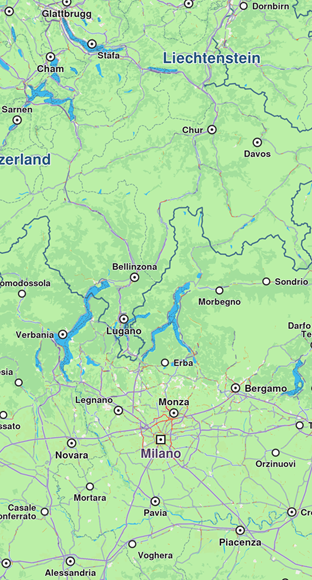
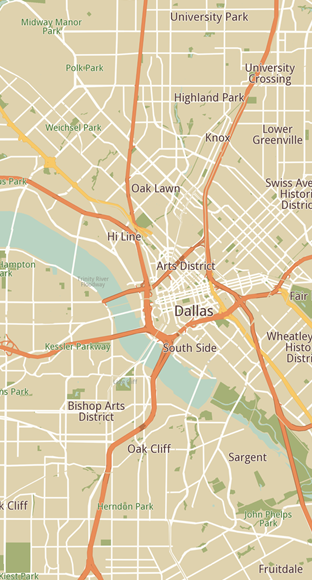
In order to have a map style already applied when creating a GemSurfaceView, you can set the style immediately after the map view is created in the onDefaultMapViewCreated callback:
- Kotlin
- Java
gemSurfaceView.onDefaultMapViewCreated = { defaultMapView ->
    val styleData = loadStyle()
    val dataBuffer = DataBuffer(styleData)
    defaultMapView.preferences?.setMapStyleByDataBuffer(dataBuffer, smoothTransition = false)
}
gemSurfaceView.setOnDefaultMapViewCreated(defaultMapView -> {
    byte[] styleData = loadStyle();
    DataBuffer dataBuffer = new DataBuffer(styleData);
    if (defaultMapView.getPreferences() != null) {
        defaultMapView.getPreferences().setMapStyleByDataBuffer(dataBuffer, false); // smoothTransition
    }
});
Get notified about style changes
The user can be notified when the style changes by providing a callback using the onMapStyleChanged property from the MapView:
- Kotlin
- Java
// Get MapView from GemSurfaceView
val gemSurfaceView = findViewById<GemSurfaceView>(R.id.gem_surface)
val mapView = gemSurfaceView.mapView!!

mapView?.onMapStyleChanged = { styleId, stylePath ->
    Log.d("MapStyle", "The style with id $styleId and path $stylePath has been set.")
}
// Get MapView from GemSurfaceView
GemSurfaceView gemSurfaceView = findViewById(R.id.gem_surface);
MapView mapView = gemSurfaceView.getMapView();

if (mapView != null) {
    mapView.setOnMapStyleChanged((styleId, stylePath) -> {
        Log.d("MapStyle", "The style with id " + styleId + " and path " + stylePath + " has been set.");
    });
}
The callback provides the following parameters:
styleId: The id of the stylestylePath: The path to the.stylefile