Create your first app
This guide describes the steps to create a new Android application that uses the Maps SDK for Android. You will create a simple application that displays a map.
This tutorial has 4 parts:
- Create and use an API key
- Create an Android project
- Integrate the Maps SDK for Android
- Implement the application code
Prerequisites
- You have Android Studio installed.
- You have a basic understanding of Android development and Kotlin programming language.
Create and use an API key
Follow our step-by-step guide to sign up for a free account, create a project, generate your API key and start building your Android solution.
If the API key is not configured, some features will be restricted, and a watermark will appear on the map. Functionality such as map downloads, updates, and other features may be unavailable or may not function as expected. Please ensure the API token is set correctly. Ensure the API key is stored securely and protected against unauthorized access or exposure.
The key must be put in the AndroidManifest.xml file, inside the <application> tag. Replace <token> with your actual API key token.
<meta-data
    android:name="com.magiclane.sdk.token"
    android:value="<token>"/>
Create an Android project
-
Open Android Studio and create a new project by selecting
File>New>New Project.... -
For Android Views project structure:
Select the
No Activitytemplate and clickNext.For Jetpack Compose project structure:
Select the
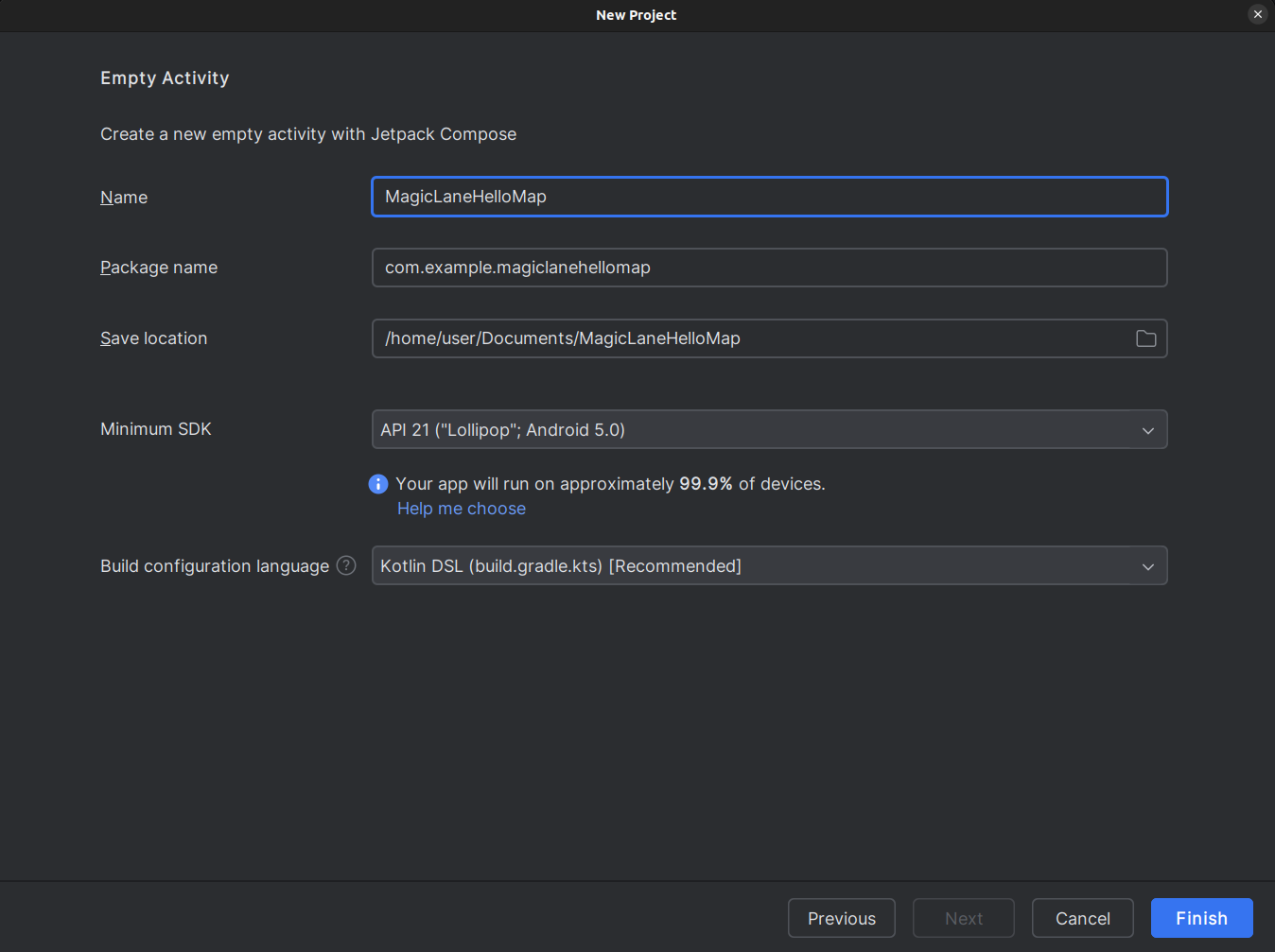
Empty Activitytemplate and clickNext. -
Enter a name for your application, such as
MagicLaneHelloMap. -
Set the package name to
com.example.magiclanehellomap. -
Choose a save location, and select
Kotlinas the language. -
Set the minimum API level to
API 21: Android 5.0 (Lollipop)or higher. -
Click
Finishto create the project.
Integrate the Maps SDK for Android
There are 2 ways to integrate the SDK:
- via Maven dependency
- via an .aar downloaded file
See the Integrate the SDK guide to add the SDK to your project.
Implement the application code
Let's create a simple app that initializes the SDK engine and displays a map.
For Android Views project structure
Create a new empty Activity named MainActivity.kt. Right click on the package name from the Project window then select New > Activity > Empty Views Activity. Replace its content with the following code:
- Kotlin
- Java
package com.example.magiclanehellomap

import android.os.Bundle
import android.widget.Toast
import androidx.activity.enableEdgeToEdge
import androidx.appcompat.app.AppCompatActivity
import androidx.core.view.ViewCompat
import androidx.core.view.WindowInsetsCompat
import com.magiclane.sdk.core.GemSdk
import com.magiclane.sdk.core.SdkSettings

class MainActivity : AppCompatActivity() {

    override fun onCreate(savedInstanceState: Bundle?) {
        super.onCreate(savedInstanceState)
        enableEdgeToEdge()
        setContentView(R.layout.activity_main)
        ViewCompat.setOnApplyWindowInsetsListener(findViewById(R.id.main)) { v, insets ->
            val systemBars = insets.getInsets(WindowInsetsCompat.Type.systemBars())
            v.setPadding(systemBars.left, systemBars.top, systemBars.right, systemBars.bottom)
            insets
        }
        SdkSettings.onApiTokenRejected = {
            Toast.makeText(this, "TOKEN REJECTED", Toast.LENGTH_LONG).show()
        }

        if (!GemSdk.initSdkWithDefaults(this)) {
            // The SDK initialization was not completed.
            finish()
        }
    }

    override fun onDestroy() {
        super.onDestroy()

        // Release the SDK.
        GemSdk.release()
    }
}
package com.example.magiclanehellomap;

import android.os.Bundle;
import android.widget.Toast;
import androidx.activity.EdgeToEdge;
import androidx.appcompat.app.AppCompatActivity;
import androidx.core.view.ViewCompat;
import androidx.core.view.WindowInsetsCompat;
import com.magiclane.sdk.core.GemSdk;
import com.magiclane.sdk.core.SdkSettings;

public class MainActivity extends AppCompatActivity {

    @Override
    protected void onCreate(Bundle savedInstanceState) {
        super.onCreate(savedInstanceState);
        EdgeToEdge.enable(this);
        setContentView(R.layout.activity_main);
        ViewCompat.setOnApplyWindowInsetsListener(findViewById(R.id.main), (v, insets) -> {
            WindowInsetsCompat.Type.InsetsType systemBars = WindowInsetsCompat.Type.systemBars();
            v.setPadding(
                insets.getInsets(systemBars).left,
                insets.getInsets(systemBars).top,
                insets.getInsets(systemBars).right,
                insets.getInsets(systemBars).bottom
            );
            return insets;
        });
        SdkSettings.setOnApiTokenRejected(() -> {
            Toast.makeText(this, "TOKEN REJECTED", Toast.LENGTH_LONG).show();
        });

        if (!GemSdk.initSdkWithDefaults(this)) {
            // The SDK initialization was not completed.
            finish();
        }
    }

    @Override
    protected void onDestroy() {
        super.onDestroy();

        // Release the SDK.
        GemSdk.release();
    }
}
In the above code, we initialize the SDK engine with default parameters using GemSdk.initSdkWithDefaults(this). We also set up a callback to handle the case where the API token is rejected. Finally, we release the SDK in the onDestroy method.
Replace the content of R.layout.activity_main with the following layout file res/layout/activity_main.xml:
<?xml version="1.0" encoding="utf-8"?>
<androidx.constraintlayout.widget.ConstraintLayout xmlns:android="http://schemas.android.com/apk/res/android"
    android:id="@+id/main"
    android:layout_width="match_parent"
    android:layout_height="match_parent">

    <com.magiclane.sdk.core.GemSurfaceView
        android:id="@+id/gem_surface"
        android:layout_width="match_parent"
        android:layout_height="match_parent" />

</androidx.constraintlayout.widget.ConstraintLayout>
In the above layout, we added a GemSurfaceView which is the view that will display the map.
GemSurfaceView will initialize the SDK engine with default parameters if it is not already initialized.
In the AndroidManifest.xml you need to make the MainActivity the default activity in the application like this:
<activity android:name=".MainActivity" android:exported="true">
    <intent-filter>
        <action android:name="android.intent.action.MAIN" />
        <category android:name="android.intent.category.LAUNCHER" />
    </intent-filter>
</activity>
For Jetpack Compose project structure
When you created the project using the Empty Activity template, a MainActivity.kt file was automatically created for you. Replace its content with the following code:
- Kotlin
- Java
package com.example.magiclanehellomap

import android.os.Bundle
import androidx.activity.ComponentActivity
import androidx.activity.compose.setContent
import androidx.activity.enableEdgeToEdge
import androidx.compose.foundation.layout.fillMaxSize
import androidx.compose.foundation.layout.padding
import androidx.compose.material3.Scaffold
import androidx.compose.runtime.Composable
import androidx.compose.ui.Modifier
import androidx.compose.ui.viewinterop.AndroidView
import com.example.magiclanehellomap.ui.theme.MagicLaneHelloMapTheme
import com.magiclane.sdk.core.GemSdk
import com.magiclane.sdk.core.GemSurfaceView

class MainActivity : ComponentActivity() {
    override fun onCreate(savedInstanceState: Bundle?) {
        super.onCreate(savedInstanceState)
        enableEdgeToEdge()
        setContent {
            MagicLaneHelloMapTheme {
                Scaffold(modifier = Modifier.fillMaxSize()) { innerPadding ->
                    GEMMap(Modifier.padding(innerPadding))
                }
            }
        }
        if (!GemSdk.initSdkWithDefaults(this)) finish()
    }

    override fun onDestroy() {
        super.onDestroy()
        GemSdk.release()
    }
}
@Composable
fun GEMMap(modifier: Modifier = Modifier) {
    AndroidView(modifier = modifier, factory = { context -> GemSurfaceView(context) })
}
package com.example.magiclanehellomap;

import android.os.Bundle;
import androidx.activity.ComponentActivity;
import androidx.activity.EdgeToEdge;
import com.magiclane.sdk.core.GemSdk;
import com.magiclane.sdk.core.GemSurfaceView;

// Note: Jetpack Compose is Kotlin-first. For Java, use the Android Views
// approach with GemSurfaceView in an XML layout instead.
// This example shows the Activity setup only.
public class MainActivity extends ComponentActivity {
    @Override
    protected void onCreate(Bundle savedInstanceState) {
        super.onCreate(savedInstanceState);
        EdgeToEdge.enable(this);
        // For Java, use setContentView with an XML layout containing GemSurfaceView
        setContentView(R.layout.activity_main);
        if (!GemSdk.initSdkWithDefaults(this)) finish();
    }

    @Override
    protected void onDestroy() {
        super.onDestroy();
        GemSdk.release();
    }
}
The Composable function named GEMMap will display the map using GemComposeView.
We initialize the SDK engine with default parameters and release the SDK in the onDestroy method.
Final steps
Add necessary permissions and run the app
Make sure you have the necessary permissions declared in you AndroidManifest file and internet connection to load the map tiles!
Add these network permissions to your AndroidManifest.xml file before the <application> tag in order to access the network:
<uses-permission android:name="android.permission.ACCESS_NETWORK_STATE" />
<uses-permission android:name="android.permission.INTERNET" />
For more information on this topic see how to declare permissions in Android and how to connect to the network.
Run the app on an emulator or a physical device. You should see a map displayed on the screen with a watermark text. In order to get rid of it, you must also use an API key.
What's next?
Check out our sample apps to get a better hands on understanding of our SDK. Go to the Get Started With Sample Apps guide or explore more features in the Guides next section.