Overlays
An Overlay is an additional map layer, either default or user-defined, with data stored on Magic Lane servers, accessible in online and offline modes, with few exceptions.
In order to define overlay data you can use the Magic Lane Map Studio. It allows uploading data regarding the POIs and their corresponding categories and binary information (via GeoJSON format). An Overlay can have multiple associated categories and subcategories. A single item from an overlay is called an overlay item.
If the corresponding map region has been downloaded locally, overlays will not be available in offline mode unless they are downloaded as well. Refer to the Downloading overlays guide for more details.
Most overlay features require a GemMap widget and a style containing the overlay to be applied.
OverlayCategory
The OverlayCategory class represents hierarchical data related to overlay categories.
OverlayCategory structure
| Method | Description | Type |
|---|---|---|
uid | Unique ID of the category within the overlay. | Int |
name | Name of the category. | String? |
image | Image associated with the category. | Image? |
overlayUid | Parent overlay UID. | Int |
hasSubcategories() | Checks if the category has subcategories. | Boolean |
subcategories | Gets the subcategories of the category. | ArrayList<OverlayCategory>? |
Usage
The OverlayCategory class provides the category uid, which can be utilized in various search functionalities to filter results. Additionally, the uid can be used to filter and manage overlay items that trigger alerts within the AlarmService.
OverlayInfo
OverlayInfo is the class that contains information about an overlay.
OverlayInfo structure
| Method | Description | Type |
|---|---|---|
uid | Unique identifier for the overlay. | Int |
name | Name of the overlay. | String? |
categories | List of categories associated with the overlay. | ArrayList<OverlayCategory>? |
image | Image associated with the overlay. | Image? |
getCategory(id: Int) | Gets the overlay category by its ID. | OverlayCategory? |
hasCategories(id: Int) | Checks if a category has subcategories. | Boolean |
Usage
The primary function of the OverlayInfo class is to provide the categories within an overlay. It also provides the uid of the overlay which can be used to filter the results of search and also can be used to toggle the visibility of the overlay on the map. Other fields can be displayed on the UI.
OverlayItem
An OverlayItem represents a single item within an overlay. It contains specific information about that item but also about the overlay it is part of.
OverlayItem structure
| Method | Description | Type |
|---|---|---|
uid | The unique ID of the item within the overlay. | Int |
categoryId | This item's category ID. | Int |
image | This item's image. | Image? |
overlayInfo | The parent overlay information. | OverlayInfo |
coordinates | This item's coordinates. | Coordinates |
overlayUid | The parent overlay UID. | Int |
getPreviewData() | Returns a ParameterList with OverlayItem-specific data. | ParameterList |
getPreviewData(previewFormat: EPreviewDataType) | Returns a string with OverlayItem-specific data based on the specified preview format. | String |
getPreviewUrl() | Returns the preview URL, which can be opened in a web browser to present more details about this item. | String |
hasPreviewExtendedData() | Checks if this type of OverlayItem has preview extended data (dynamic data that needs to be downloaded). | Boolean |
getPreviewExtendedData(paramList: GemList<Parameter>, progressListener: () -> Unit) | Asynchronously retrieves OverlayItem preview extended data as a parameter list. A progress listener is mandatory. | Unit |
cancelGetPreviewExtendedData() | Cancels an asynchronous retrieval of OverlayItem preview extended data. | Unit |
assign(overlayItem: OverlayItem) | Assigns the properties of another OverlayItem to this one. | Unit |
Usage
OverlayItems can be selected from the map or be provided by the AlarmService on approach. Other fields and information can be displayed on the UI.
Classification
ECommonOverlayIds is an enumeration that contains overlay IDs of the predefined overlays. You can access the overlay's ID by using the value property.
ECommonOverlayIds structure
| Overlay Name | Description |
|---|---|
Safety | Overlay for safety-related information. |
SocialLabels | Overlay for social labels, including user-generated tags or annotations on the map. These are yet to be implemented. |
SocialReports | Overlay for social reports, such as user-submitted incidents or events. |
PublicTransport | Overlay for public transport information, including routes, stops, and schedules. |
You can define your own overlay data at Magic Lane Map Studio.
Safety overlay items examples:
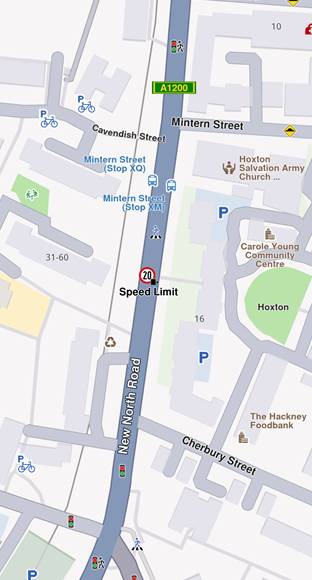
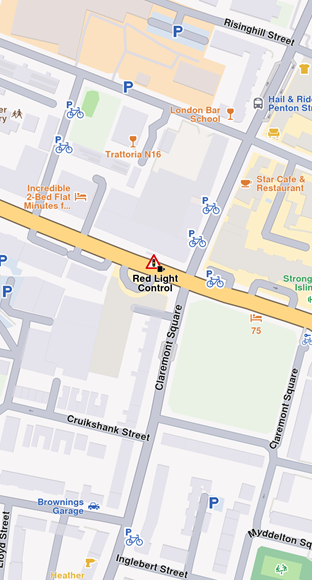
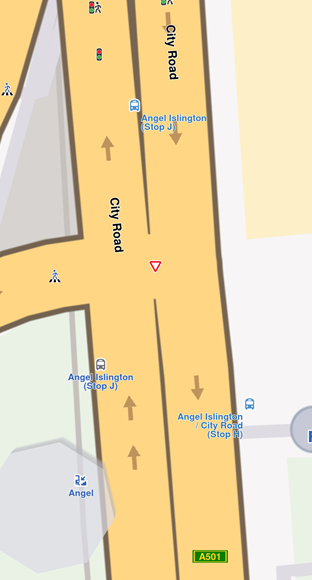
Public Transport overlay items example:
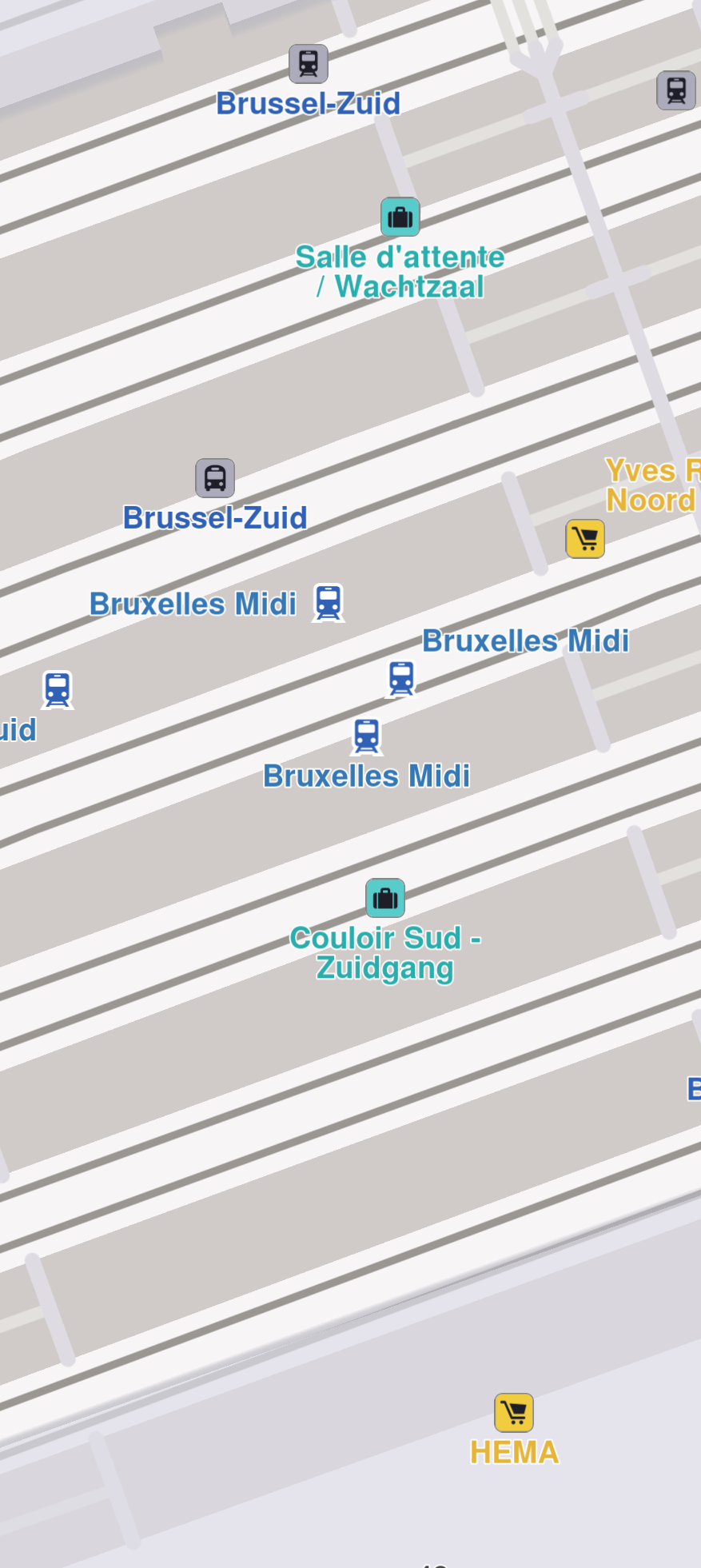
Social reports overlay items examples:
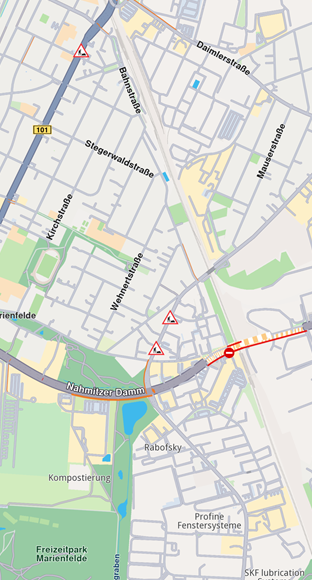
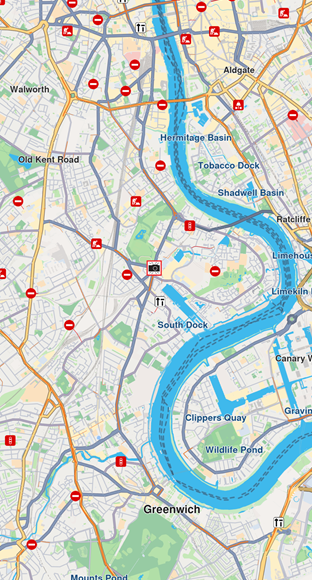
Interaction with overlays
OverlayService
The OverlayService is a key component for managing overlays in the Maps SDK. It provides methods to retrieve, enable, disable, and manage overlay data, both online and offline.
Retrieving overlay info with OverlayService
You can retrieve the list of all available overlays for the current map style using the getAvailableOverlays(onCompleted: (errorCode: Int, hint: String?) -> Unit) method from the OverlayService. This method returns a Pair<ArrayList<OverlayInfo>?, Boolean>?. The list of OverlayInfo objects represents the available overlays, and the Boolean indicates that some information is not available and will be downloaded when network is available. If not all overlay information is available onboard, a notification will be sent when it will be downloaded via a call to the lambda provided as a parameter to the getAvailableOverlays() method.
- Kotlin
- Java
val (availableOverlaysList, isDataAvailable) = service.getAvailableOverlays(onCompleted = { errorCode, hint ->
    if (GemError.isError(errorCode)) {
        // handle error
    } else {
        //handle data
    }
}) ?: Pair(null, null)
if (isDataAvailable == null) {
    //handle unexpected error
}
Pair<ArrayList<OverlayInfo>, Boolean> result = service.getAvailableOverlays((errorCode, hint) -> {
    if (GemError.isError(errorCode)) {
        // handle error
    } else {
        //handle data
    }
});
ArrayList<OverlayInfo> availableOverlaysList = result != null ? result.first : null;
Boolean isDataAvailable = result != null ? result.second : null;
if (isDataAvailable == null) {
    //handle unexpected error
}
To get overlay info for a specific overlay you can use the getOverlayInfo(overlayUid: ECommonOverlayId, onCompleted: (errorCode: Int, hint: String?) -> Unit) method which returns a Pair<OverlayInfo?, Boolean> object. The Boolean indicates that some information is not available and will be downloaded when network is available. If not all overlays info is available onboard a notification will be sent when it will be downloaded via a call to the lambda provided as a parameter to the getOverlayInfo() method.
- Kotlin
- Java
val (overlayInfo, isDataAvailable) = service.getOverlayInfo(overlayUid, onCompleted = { errorCode, hint ->
    if (GemError.isError(errorCode)) {
        // handle error
    } else {
        //handle data
    }
}) ?: Pair(null, null)
if (isDataAvailable == null) {
    //handle unexpected error
}
Pair<OverlayInfo, Boolean> result = service.getOverlayInfo(overlayUid, (errorCode, hint) -> {
    if (GemError.isError(errorCode)) {
        // handle error
    } else {
        //handle data
    }
});
OverlayInfo overlayInfo = result != null ? result.first : null;
Boolean isDataAvailable = result != null ? result.second : null;
if (isDataAvailable == null) {
    //handle unexpected error
}
To get overlay info for a group of specific overlays you can use the getOverlaysInfo( ArrayList<ECommonOverlayId>, onCompleted: (errorCode: Int, hint: String?) -> Unit) method which returns a Pair<OverlayInfo?, Boolean> object. The Boolean indicates that some information is not available and will be downloaded when network is available. If not all overlays info is available onboard a notification will be sent when it will be downloaded via a call to the lambda provided as a parameter to the getOverlayInfo() method.
- Kotlin
- Java
val overlayUids = arrayListOf(ECommonOverlayId.Safety, ECommonOverlayId.PublicTransport)
val (overlaysInfo, isDataAvailable) = service.getOverlaysInfo(overlayUids, onCompleted = { errorCode, hint ->
    if (GemError.isError(errorCode)) {
        // handle error
    } else {
        //handle data
    }
}) ?: Pair(null, null)
if (isDataAvailable == null) {
    //handle unexpected error
}
ArrayList<ECommonOverlayId> overlayUids = new ArrayList<>();
overlayUids.add(ECommonOverlayId.Safety);
overlayUids.add(ECommonOverlayId.PublicTransport);
Pair<ArrayList<OverlayInfo>, Boolean> result = service.getOverlaysInfo(overlayUids, (errorCode, hint) -> {
    if (GemError.isError(errorCode)) {
        // handle error
    } else {
        //handle data
    }
});
ArrayList<OverlayInfo> overlaysInfo = result != null ? result.first : null;
Boolean isDataAvailable = result != null ? result.second : null;
if (isDataAvailable == null) {
    //handle unexpected error
}
Enabling and disabling overlays
You can enable or disable overlays on the map using the enableOverlay(overlayUid: Int, categoryID: Int) method and disableOverlay(overlayUid: Int, categoryID: Int) from the OverlayService.
Check whether an overlay is enabled or disabled using the isOverlayEnabled(overlayUid: Int, categoryID: Int) method.
- Kotlin
- Java
val service = GemSdk.getOverlayService()
val overlayUid = ECommonOverlayId.Safety.value
val categoryID = -1  // Use -1 to refer to the entire overlay, a specific category ID to refer to a category within the overlay
// Enable an overlay
val errorCodeWhileEnabling = service.enableOverlay(overlayUid, categoryID)
// Disable an overlay
val errorCodeWhileDisabling = service.disableOverlay(overlayUid, categoryID)
// Check if an overlay is enabled
val isEnabled = service.isOverlayEnabled(overlayUid, categoryID)
OverlayService service = GemSdk.getOverlayService();
int overlayUid = ECommonOverlayId.Safety.getValue();
int categoryID = -1; // Use -1 to refer to the entire overlay, a specific category ID to refer to a category within the overlay
// Enable an overlay
int errorCodeWhileEnabling = service.enableOverlay(overlayUid, categoryID);
// Disable an overlay
int errorCodeWhileDisabling = service.disableOverlay(overlayUid, categoryID);
// Check if an overlay is enabled
boolean isEnabled = service.isOverlayEnabled(overlayUid, categoryID);
Retrieving overlay data offline
The offline data grabber downloads an overlay covering dataset for every new downloaded road map content. The offline data is automatically grabbed immediately after a road map content download finishes and is stored in the SDK's permanent cache.
To enable or disable the overlay data grabber, use the following methods from the OverlayService: enableOverlayOfflineDataGrabber(overlayUid: Int) and disableOverlayOfflineDataGrabber(overlayUid: Int). You can check if the offline data grabber is enabled using the isOfflineDataGrabberEnabled(overlayUid: Int) method.
- Kotlin
- Java
val service = OverlayService()
val isEnabled =  service.isOverlayOfflineDataGrabberEnabled(overlayId)
val errorCodeWhileEnabling = service.enableOverlayOfflineDataGrabber(overlayId)
val errorCodeWhileDisabling = service.disableOverlayOfflineDataGrabber(overlayId)
OverlayService service = new OverlayService();
boolean isEnabled = service.isOverlayOfflineDataGrabberEnabled(overlayId);
int errorCodeWhileEnabling = service.enableOverlayOfflineDataGrabber(overlayId);
int errorCodeWhileDisabling = service.disableOverlayOfflineDataGrabber(overlayId);
Avoid confusing the uid of OverlayInfo, OverlayCategory, and OverlayItem, as they each serve distinct purposes.
Selecting overlay items
Overlay items are selectable. When a user taps or clicks, you can identify specific overlay items programmatically (e.g., through the function cursorSelectionOverlayItems()). Please refer to the Map Selection Functionality guide for more details.
Searching overlay items
Overlays are searchable in multiple ways, typically by setting the appropriate properties in the search preferences during a regular search. More details can be found within the Get started with Search guide.
Calculating route with overlay items
Overlay items are not designed for route calculation and navigation.
Create a new landmark using the overlay item's relevant coordinates and a representative name, then utilize this object for routing purposes.
Displaying overlay item information
Overlay items can contain additional information that can be displayed to the user. This information can be accessed using the getPreviewData(previewFormat: EPreviewDataType) or getPreviewData() and getPreviewUrl() methods from the OverlayItem class.
The getPreviewData(previewFormat: EPreviewDataType) method returns a string with overlay item-specific data based on the specified preview format, while getPreviewData() gets the same data as a ParameterList .The getPreviewUrl() method returns a URL that can be opened in a web browser to present more details about the item.
Here is an example of how to display overlay item information:
- Kotlin
- Java
overlayItem.getPreviewData()?.let { parameters ->
  var imageBitmap = ImageBitmap(1, 1)

  overlayItem.image?.let { image ->
      GemUtilImages.asBitmap(
          img = image,
          width = (overlayImageSize * (image.aspectRatio!!.width / image.aspectRatio!!.height)).toInt(),
          height = overlayImageSize
      )?.let { bmp ->
          imageBitmap = bmp.asImageBitmap()
      }
  }
  for (parameter in parameters) {
      when (parameter.name) {
          "speedValue" -> titleText = parameter.value as String
          "speedUnit" -> descriptionText = parameter.value as String
          // other parameters...
      }
  }
}
ParameterList parameters = overlayItem.getPreviewData();
if (parameters != null) {
    ImageBitmap imageBitmap = new ImageBitmap(1, 1);

    Image image = overlayItem.getImage();
    if (image != null) {
        Bitmap bmp = GemUtilImages.asBitmap(
            image,
            (int) (overlayImageSize * (image.getAspectRatio().getWidth() / image.getAspectRatio().getHeight())),
            overlayImageSize
        );
        if (bmp != null) {
            imageBitmap = bmp; // Convert as needed for your UI framework
        }
    }
    for (Parameter parameter : parameters) {
        switch (parameter.getName()) {
            case "speedValue":
                titleText = (String) parameter.getValue();
                break;
            case "speedUnit":
                descriptionText = (String) parameter.getValue();
                break;
            // other parameters...
        }
    }
}
The previewData returned is not available if the parent map tile is disposed.
Please get the preview data before further interactions with the map.
Get notifications when approaching overlay items
Alarms can be configured to notify users when they approach specific overlay items from selected overlays. See the Landmarks and overlay alarms guide for more details about implementing this feature.
Highlight overlay items on the map
You can't directly highlight overlay items on the map, but you can create a Landmark filled with relevant information and an image to represent the overlay item on the map.
- Kotlin
- Java
 fun highlightPlace(coordinates: Coordinates, image: Image, mapView: MapView) {
    val landmark = Landmark()
    landmark.coordinates = coordinates
    landmark.image = image

    mapView.centerOnCoordinates(coordinates)

    val displaySettings = HighlightRenderSettings()
    displaySettings.setOptions(EHighlightOptions.ShowLandmark.value or EHighlightOptions.Overlap.value)

    mapView.activateHighlightLandmarks(landmark, displaySettings)
 }
void highlightPlace(Coordinates coordinates, Image image, MapView mapView) {
    Landmark landmark = new Landmark();
    landmark.setCoordinates(coordinates);
    landmark.setImage(image);

    mapView.centerOnCoordinates(coordinates);

    HighlightRenderSettings displaySettings = new HighlightRenderSettings();
    displaySettings.setOptions(EHighlightOptions.ShowLandmark.getValue() | EHighlightOptions.Overlap.getValue());

    mapView.activateHighlightLandmarks(landmark, displaySettings);
}