
Set TTS Language

Last updated: June 19, 2026 | 4 minutes read

This example lists the available text-to-speech (TTS) voice languages, lets the user pick one, and plays a sample spoken phrase in the selected language. It is a good illustration that the SDK's sound and TTS services can be used without a map - there is no GemSurfaceView here; the SDK is initialized directly and only the sound APIs are used.

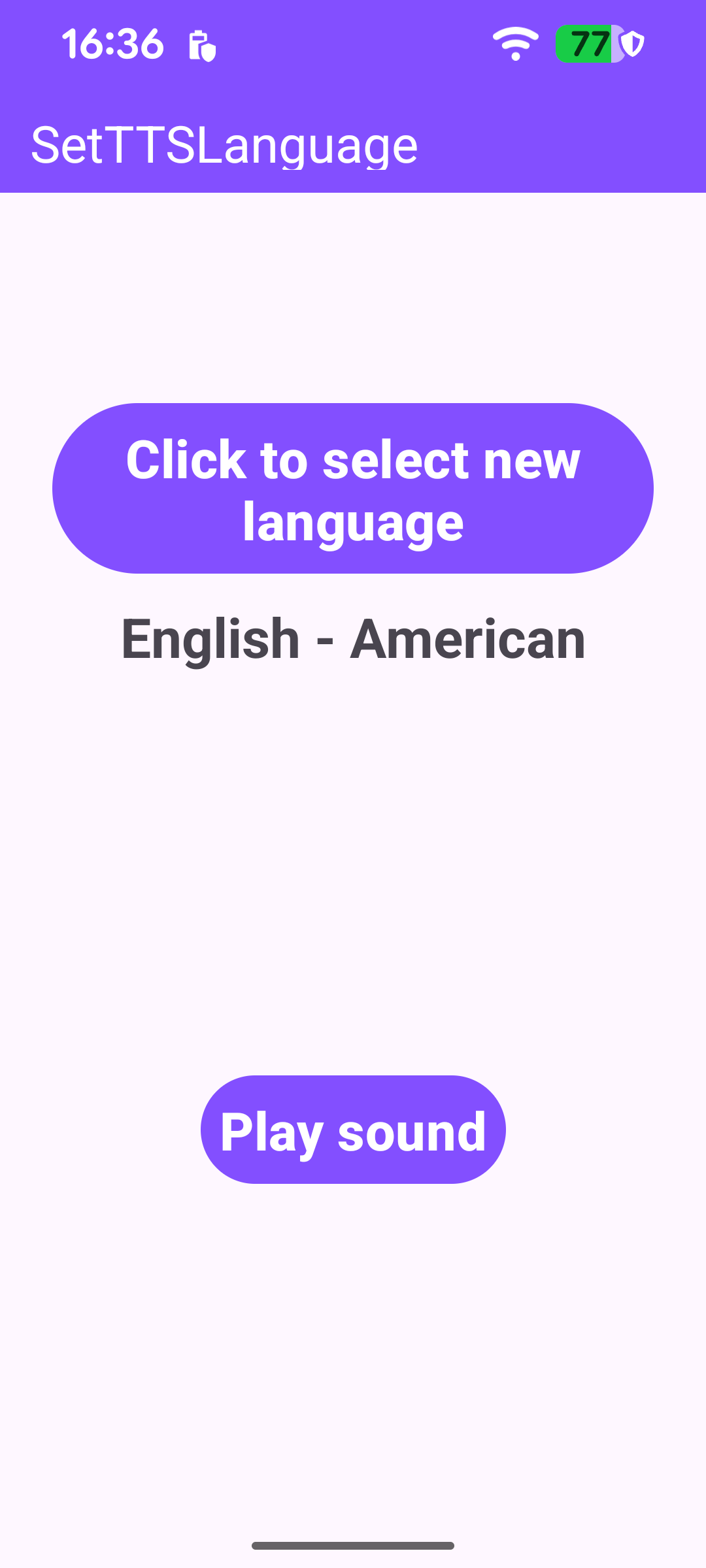
Initial TTS language
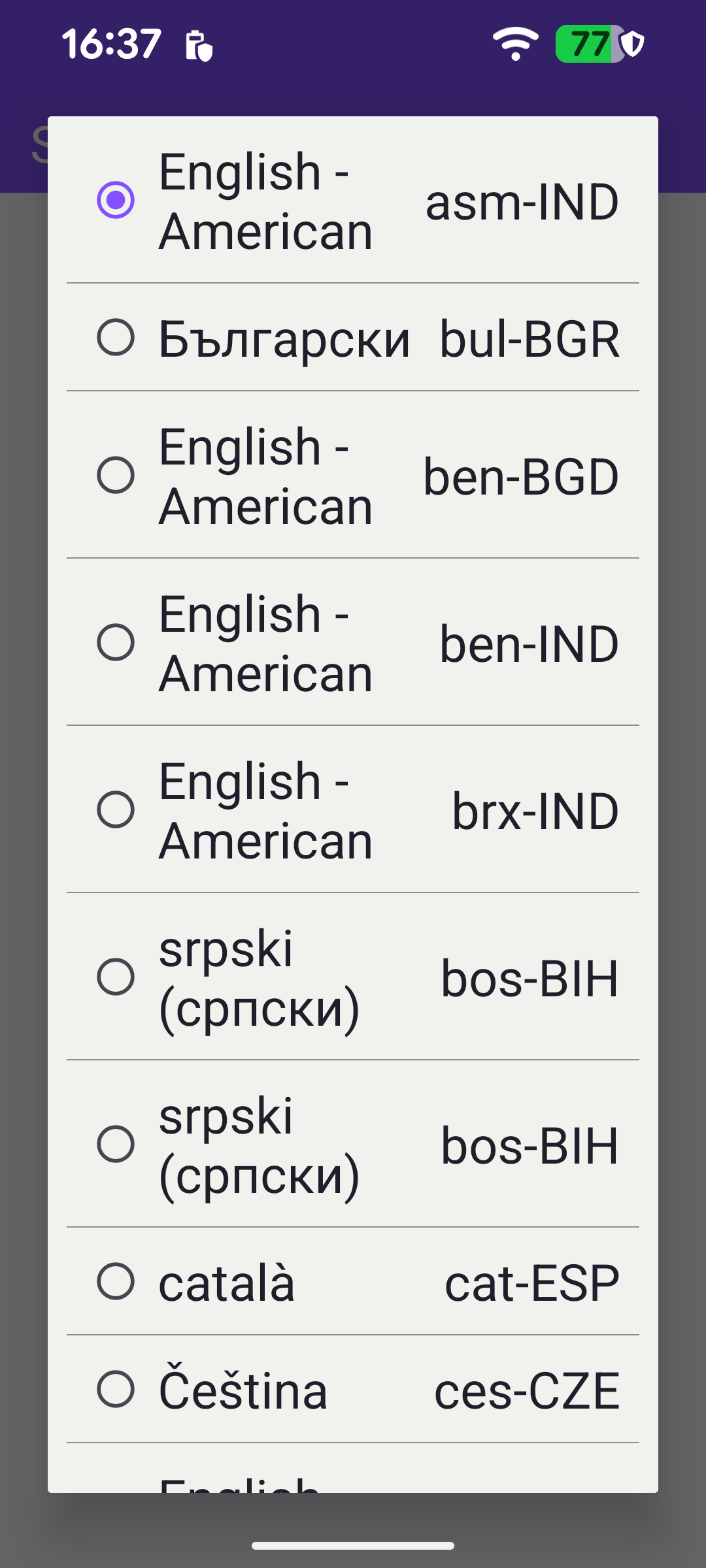
Available TTS languages

Initializing the SDK and the TTS player

Because there is no map view to initialize the SDK for us, GemSdk.initSdkWithDefaults is called explicitly - this step is mandatory when using the SDK without a map. The TTS player initializes asynchronously, so the activity implements ITTSPlayerInitializationListener and registers it before initialization, ensuring no callback is missed if the player initializes synchronously. If the player is already initialized by the time setup finishes, the languages are loaded right away.

MainActivity.ktView on Github
// Listeners must be registered before initSdkWithDefaults so no callbacks are missed
// if they fire synchronously during initialization.
registerSdkListeners()

// This step of initialization is mandatory if you want to use the SDK without a map.
val sdkInitError = GemSdk.initSdkWithDefaults(this)
if (sdkInitError != GemError.NoError) {
showDialog(
getString(
R.string.sdk_initialization_failed,
SdkCall.runSynced { GemError.getMessage(sdkInitError, this) },
),
) { finish() }
} else {
if (SdkCall.runSynced { SoundPlayingService.ttsPlayerIsInitialized } == true) {
loadTTSLanguages()
}
}

registerSdkListeners adds the TTS initialization listener, which covers the case where the player becomes ready after the SDK but before loadTTSLanguages is called.

MainActivity.ktView on Github
private fun registerSdkListeners() {
// Covers the case where TTS initializes after the SDK but before loadTTSLanguages is called.
SoundUtils.addTTSPlayerInitializationListener(this)

SdkSettings.onApiTokenRejected = {
runOnAliveUi {
showDialog(getString(R.string.token_rejected_message))
}
}
}

override fun onTTSPlayerInitialized() {
loadTTSLanguages()
}

override fun onTTSPlayerInitializationFailed() {
runOnAliveUi {
showDialog(getString(R.string.tts_player_initialization_failed))
}
}

Loading the available languages

Once the TTS player is ready, loadTTSLanguages reads the full list of supported voice languages with SoundPlayingService.getTTSLanguages(). Each entry is a TTSLanguage carrying a display name and an ISO code.

MainActivity.ktView on Github
private fun loadTTSLanguages() {
EspressoIdlingResource.increment()
SdkCall.execute {
ttsLanguages = SoundPlayingService.getTTSLanguages()
}

runOnUiThread { onTTSLanguagesLoaded() }
}

When the list is available, the first language (index 0) is shown as the current selection and applied immediately with setTTSLanguage, so playback works even before the user picks anything. The selection button and the play button are then revealed.

MainActivity.ktView on Github
private fun onTTSLanguagesLoaded() {
binding.apply {
if (ttsLanguages.isNotEmpty()) {
languageValue.text = ttsLanguages[selectedLanguageIndex].name
// Apply the default language immediately so playback works before the user makes a selection.
SoundPlayingService.setTTSLanguage(ttsLanguages[selectedLanguageIndex].code)
languageContainer.isVisible = true
playButton.isVisible = true
} else {
showDialog(getString(R.string.no_tts_languages_available))
}
progressBar.isVisible = false
EspressoIdlingResource.decrement()
}
}

Choosing a language

Tapping the Click to select new language button opens a dialog whose RecyclerView lists every TTSLanguage, backed by a CustomAdapter. The currently selected entry is shown with a checked radio button.

MainActivity.ktView on Github
private fun onLanguageButtonClicked() {
EspressoIdlingResource.increment()
val builder = AlertDialog.Builder(this)

val dialogListBinding = DialogListBinding.inflate(layoutInflater)
dialogListBinding.listView.apply {
layoutManager = LinearLayoutManager(this@MainActivity)
// ... divider, background and padding setup
}

val adapter = CustomAdapter(selectedLanguageIndex, ttsLanguages)
dialogListBinding.listView.adapter = adapter

builder.setView(dialogListBinding.root)

val dialog = builder.create()
dialog.setOnShowListener { EspressoIdlingResource.decrement() }
dialog.show()
// Pass the dialog reference so each item click can dismiss it.
adapter.dialog = dialog
}

Each row shows the language name and its code. Tapping a row applies that language with SoundPlayingService.setTTSLanguage(code), updates the displayed selection, and dismisses the dialog.

MainActivity.ktView on Github
fun bind(position: Int) {
itemBinding.radioButton.isChecked = position == selectedIndex
itemBinding.text.text = dataSet[position].name
itemBinding.statusText.text = dataSet[position].code

itemBinding.root.setOnClickListener {
selectedLanguageIndex = position
SoundPlayingService.setTTSLanguage(dataSet[position].code)
binding.languageValue.text = dataSet[position].name
dialog?.dismiss()
}
}

Playing a sample phrase

The Play sound button speaks a built-in, localized navigation phrase - "mind your speed" - in the currently selected language. GemUtil.getTTSString(EStringIds.eStrMindYourSpeed) returns the text for that phrase, and SoundPlayingService.playText synthesizes it through the TTS player.
MainActivity.ktView on Github
binding.playButton.setOnClickListener {
SdkCall.execute {
SoundPlayingService.playText(
GemUtil.getTTSString(EStringIds.eStrMindYourSpeed),
object : SoundPlayingListener() {
override fun notifyComplete(errorCode: Int, hint: String) {
EspressoIdlingResource.increment()
super.notifyComplete(errorCode, hint)
}
},
SoundPlayingPreferences(),
)
}
}