Routing On Map
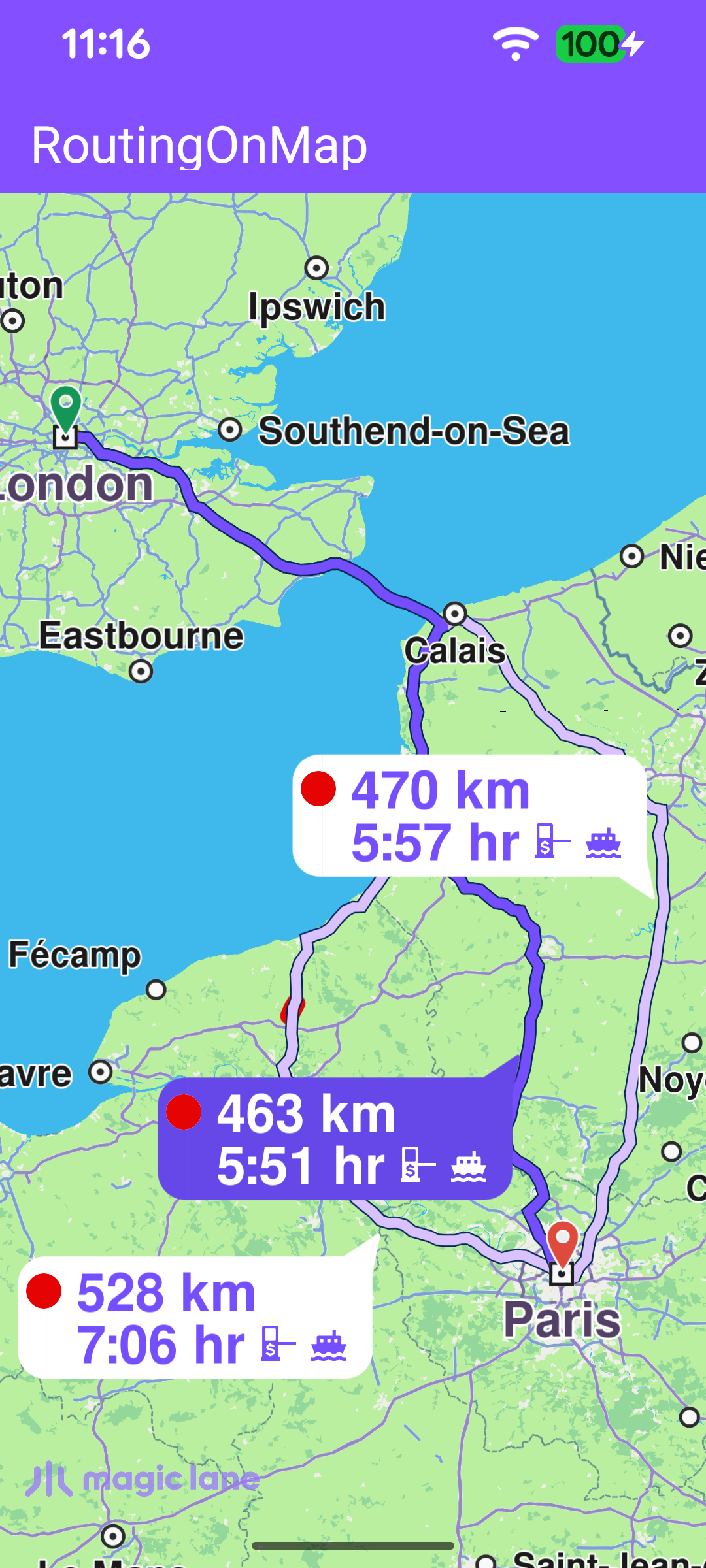
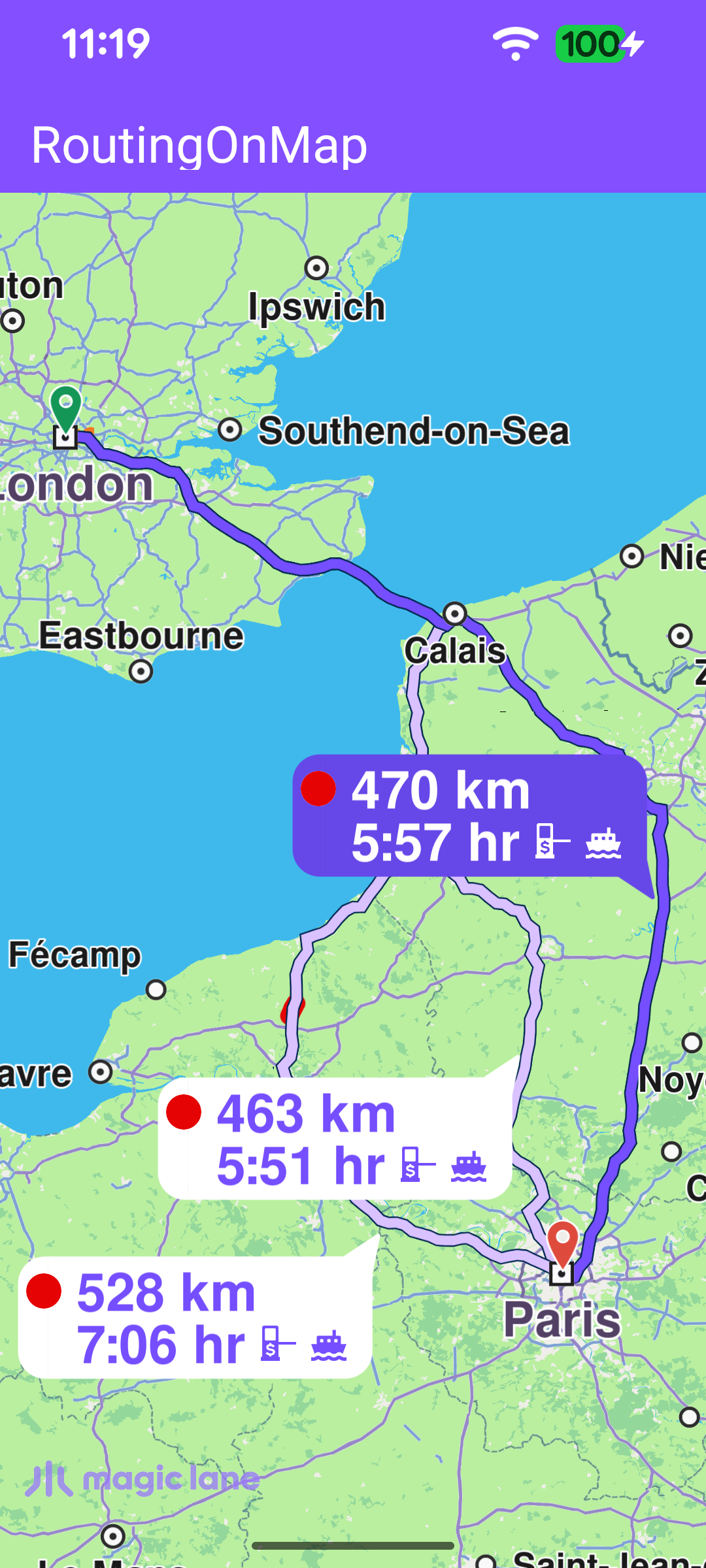
This example shows how to render an interactive map, compute a route between two points and present the resulting routes on the map. When more than one route is available, every alternative is drawn with a label bubble showing its distance and estimated travel time; tapping an alternative promotes it to the main route and re-centers the map on the whole route collection.
The example keeps the RoutingService inside MainActivity. In a production MVVM app the service would usually live in the repository layer and be consumed by a ViewModel, but for the scope of this example an activity keeps the flow easy to follow.
Routing Service
MainActivity retains a single RoutingService instance. Its onStarted and onCompleted callbacks drive the UI: onStarted shows the progress bar, and onCompleted hides it and then dispatches on the error code - presenting the routes on success, ignoring a cancellation, and surfacing a dialog for any other error. Because the callbacks may arrive after the activity has gone away, the UI work is routed through runOnAliveUi, which posts to the main thread only while the activity is still alive.
Calculating the route
Routing needs the worldwide road map to be available, so the calculation is started from the SdkSettings.onWorldwideRoadMapSupportStatus listener once the map data reports EOffboardListenerStatus.UpToDate. The listener clears itself after the first successful fire so the route is computed only once, and it also installs the map touch handler at the same point.
In calculateRoute() two Landmark instances are defined - one for the departure point and one for the destination. A route needs at least two waypoints, but it may contain more if you want the route to pass through additional intermediate points.
The first waypoint in the list is the departure point and the last is the destination; each Landmark holds a name together with its latitude and longitude in degrees. In this example the route departs from London and arrives in Paris.
The waypoint list is then passed to the routingService to calculate the route. calculateRoute returns synchronously an error code indicating whether the calculation could be started. When it starts successfully the result is delivered later through the service's onCompleted callback; but when it fails to start, that callback never fires - so this case is handled here directly by hiding the progress bar and showing an error dialog.
Presenting the routes
When the calculation completes successfully, onRoutesReady stores the returned routes and presents them on the map with presentRoutes. Passing displayBubble = true draws the distance/time label on each route, while the Animation makes the camera move smoothly. The edgeAreaInsets keep the route collection inside the free screen area, clear of the toolbar, the system bars and any display cutout, so no part of a route is hidden behind system UI.
Selecting an alternative route
setupTouchHandler registers a map touch listener. When the user taps the map, the touch point is forwarded to the map view as the cursor position, and cursorSelectionRoutes returns the routes drawn under that point. If the tap lands on a route, the first one is promoted to mainRoute and the map re-centers on the full route list with centerOnRoutes - using the same animation and a viewRc rectangle that keeps the routes within the visible, system-UI-free area.