Android Auto Navigation
This example brings full turn-by-turn navigation to the Android Auto car head unit. The SDK renders the map directly onto the car display surface, and the app drives the car experience through the Android car-app (Jetpack for Cars) library: a main menu, destination selection (map pick, history or points of interest), a route-preview screen with alternatives, and an active-navigation screen built on the system NavigationTemplate. While the car app is in the foreground the SDK keeps the OS NavigationManager trip up to date; when it is backgrounded the next-turn data is pushed out as a car notification instead.
The car app service and session
Android Auto talks to the app through a CarAppService. The Service subclass exposes a Session whose root screen is the main menu, and validates the connecting host. The SDK is initialized once the session is created, and a GemGlSurfaceAdapter is built to bridge the SDK map renderer to the car's drawing surface. As soon as the default map view is ready the camera enters follow mode, and follow-mode enter/exit events are forwarded to whichever GemScreen is on top so it can swap its action buttons (re-centre vs. report, while navigating).
The car host owns the actual drawing surface and reports its lifecycle through a SurfaceCallback. Each callback is delegated straight to the GemGlSurfaceAdapter - the surface (wrapped in a GemSurfaceContainerAdapter) plus the scroll, fling, scale and visible-area events - so the SDK can render and respond to gestures on the car screen exactly as it would on a phone.
Choosing a destination from the car menu
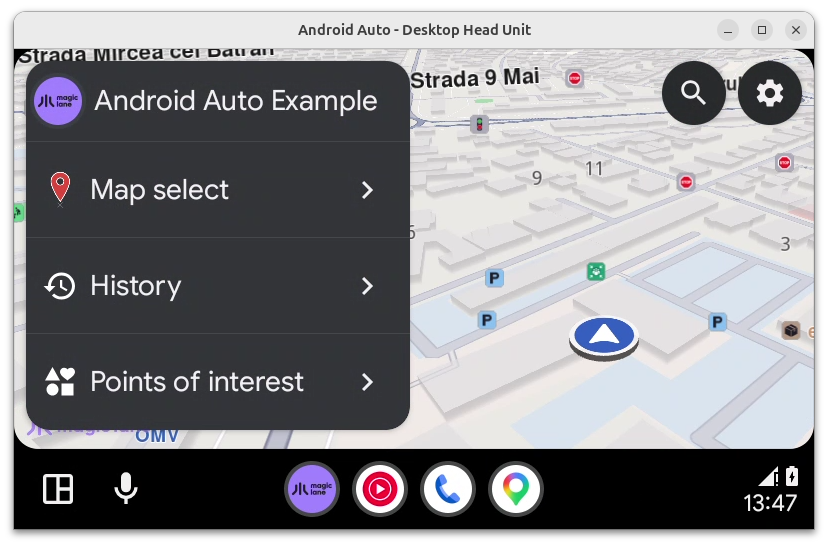
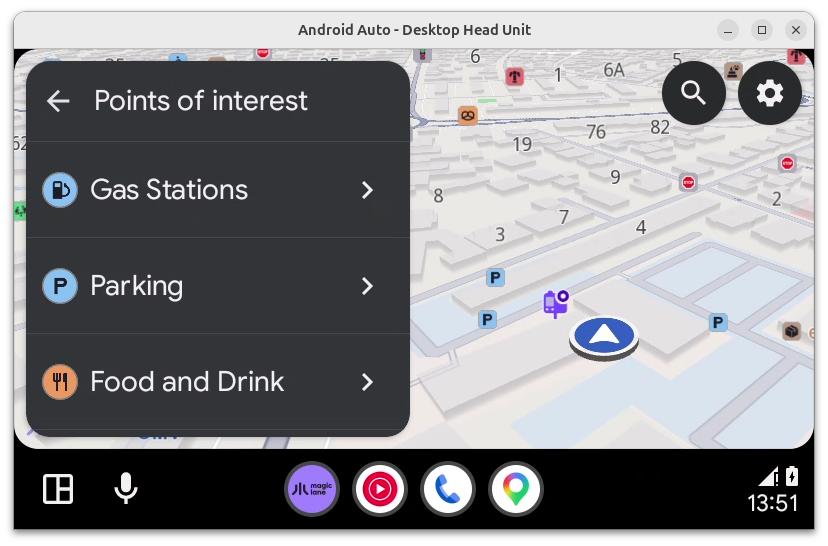
The root screen is a list template built by MainMenuController. It offers Map select, History and Points of interest as browsable rows, plus search and settings actions in the header strip, and requests the location permissions the first time it is shown. Each row pushes a dedicated controller; all of them ultimately resolve a destination Landmark and hand it to the route preview.
Previewing the route alternatives
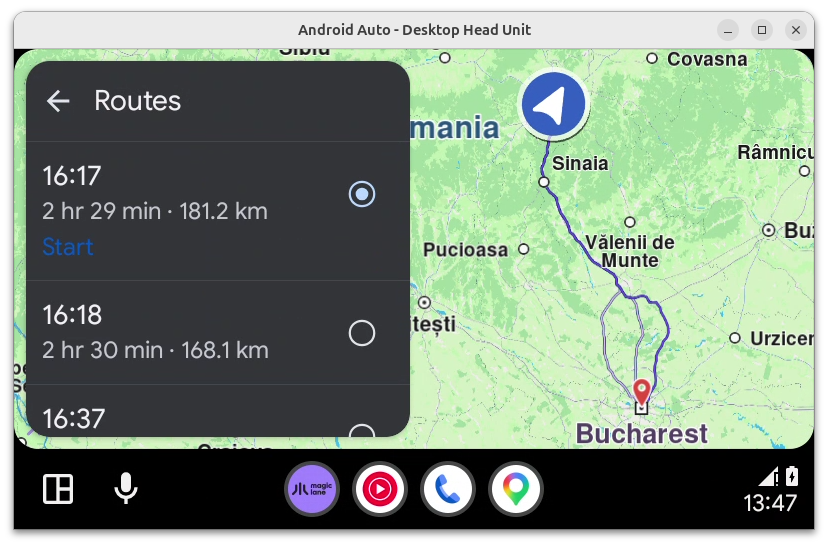
Once a destination is picked, RoutesPreviewController calculates the route(s) from the current position with the shared RoutingInstance, and shows them in a route-preview template. The car screen viewport is inset so the whole route fits inside the visible panel area, and the currently selected alternative is highlighted with presentRoutes. Tapping a row selects it; tapping the already-selected row (or the Start action) begins navigation.
Starting navigation along the chosen route
Selecting Start pushes a NavigationController, which (after confirming the location permissions) starts navigation on the chosen Route through the shared NavigationInstance. The instance cancels any navigation in progress, remembers the current route, saves the trip to history, and calls startNavigationWithRoute on the SDK NavigationService. It also fans navigation events out to every registered listener - the car Service is one of them.
Keeping the car screen and the OS in sync
The car Service registers a NavigationListener. When a new instruction arrives it rebuilds a CarNavigationData snapshot (next-turn icon, lane image, distances, ETA) and pushes the resulting trip into the OS NavigationManager with updateTrip, so Android Auto keeps its own navigation state current. If the car screen is paused - the app is in the background on the Android Auto head unit - it posts a navigation notification instead, and otherwise it refreshes the active NavigationScreen.
Rendering the navigation template
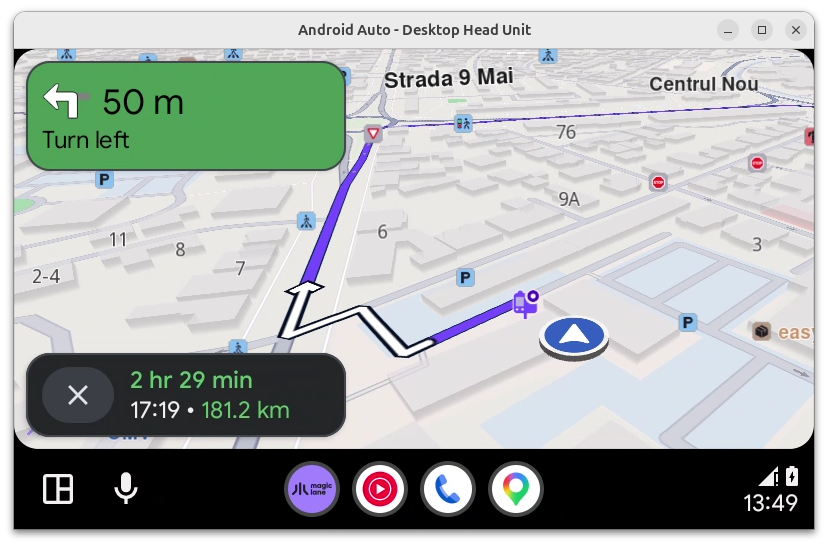
The active-navigation screen is a NavigationScreen built on the car NavigationTemplate. On every invalidate it reads the latest CarNavigationData to fill the routing info (next-turn maneuver, road name and lane guidance) and the destination travel estimate (remaining distance, remaining time and ETA), and rebuilds the two action strips - the top-right strip and the map side strip - that let the driver re-centre the map, report an event or stop the trip.