
Search Compose

Last updated: June 16, 2026 | 7 minutes read

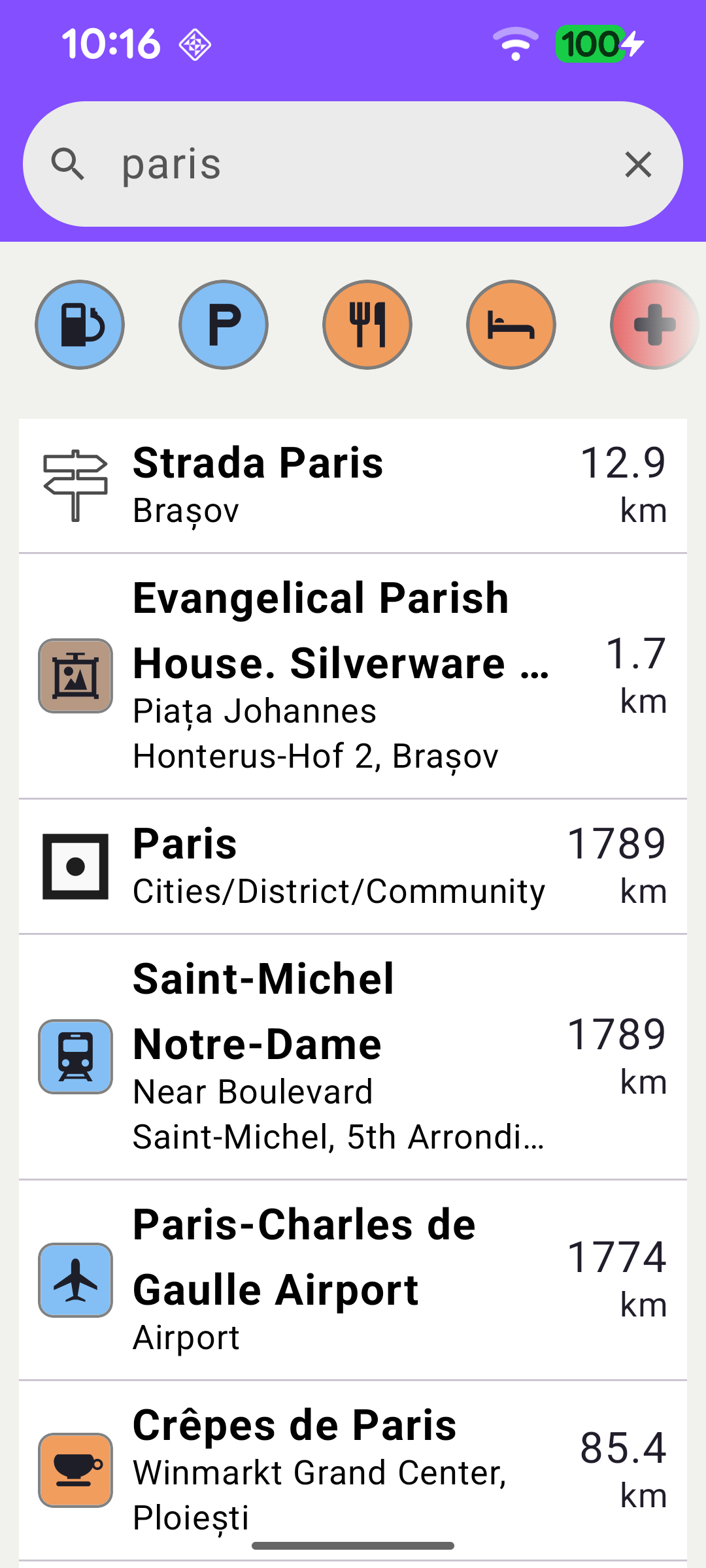
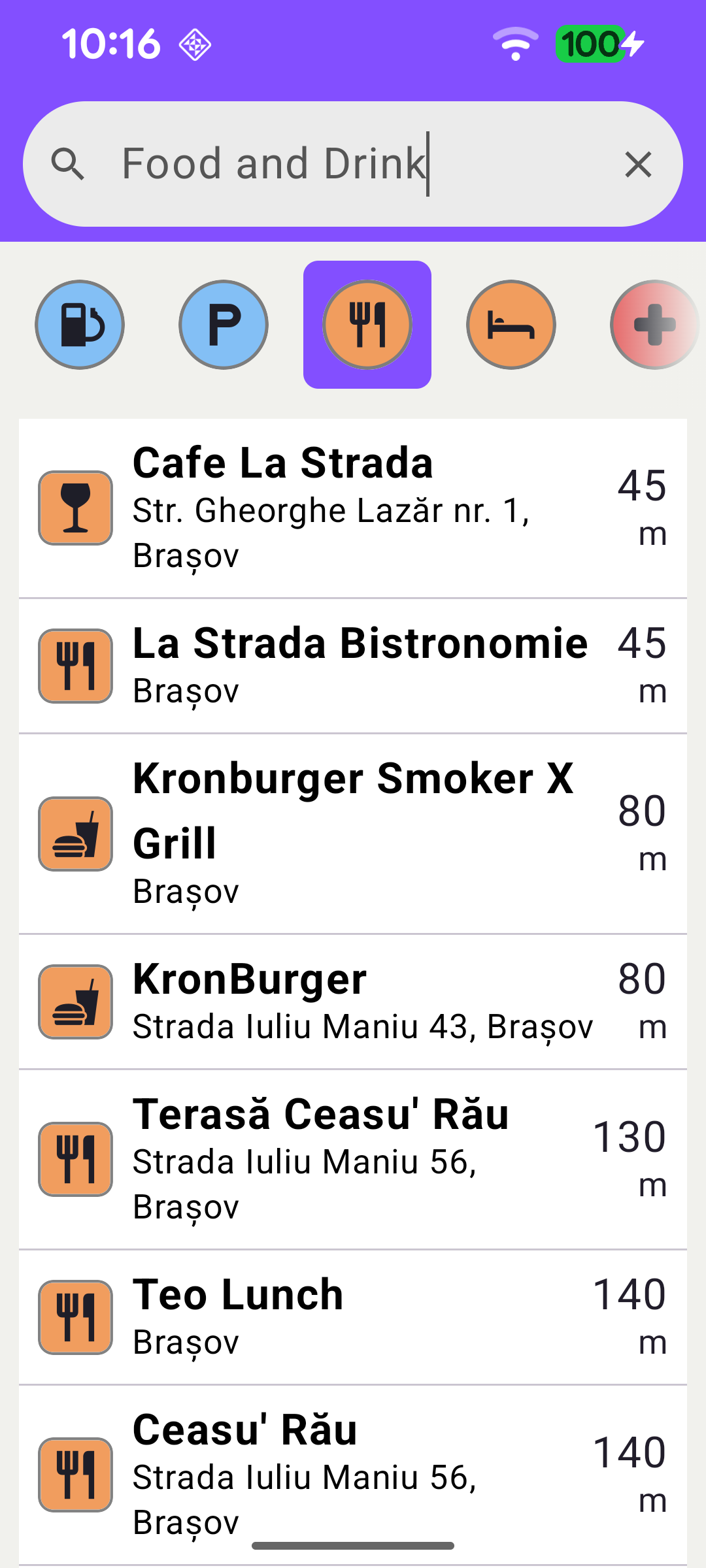
This example is the Jetpack Compose counterpart of the Search example: it demonstrates the same two complementary ways to find places and present them in a list, but builds the entire UI declaratively with Compose instead of XML layouts and views. The user can run a free text search by typing a query (search-as-you-type), or run a POI category search by tapping one of the category chips above the list. Each result shows the place name, a short description and its distance from a reference point - the user's current location when available, or the center of London otherwise.

The example follows an MVVM structure: MainActivity is a thin layer that sets up the SDK lifecycle and hosts the SearchScreen composable, while SearchViewModel holds the search state and logic so it survives configuration changes. The state is exposed as Compose mutableStateOf properties that the SearchScreen reads directly, so the UI recomposes automatically whenever the state changes.

Free text search by typing a query
POI category search by tapping a chip

Search Service and View Model

SearchViewModel retains a single SearchService instance and exposes the screen state as Compose state: the result list, the available POI categories, the currently selected category and an isSearching flag that drives the progress bar. Results are modelled as a small SearchItem data class holding only the information shown in the list.

SearchViewModel.ktView on Github
// Represents a single search result displayed in the list.
data class SearchItem(
val image: Bitmap? = null,
val name: String = "",
val description: String = "",
val distance: String = "",
val unit: String = "",
)

// Represents a POI category chip in the horizontal bar.
data class CategoryItem(
val name: String,
val icon: Bitmap?,
val landmarkStoreId: Int,
val categoryId: Int,
)

private val searchService = SearchService()

// Compose state, read directly by the SearchScreen composable.
var results by mutableStateOf(emptyList<SearchItem>())
private set
var categories by mutableStateOf(emptyList<CategoryItem>())
private set

// Index of the selected category chip, or NO_CATEGORY when none is selected.
var selectedCategory by mutableIntStateOf(NO_CATEGORY)
private set

// True while a search coroutine is running (used to drive the progress bar).
var isSearching by mutableStateOf(false)
private set

The SearchBar composable reports every keystroke through its onQueryChange callback, which forwards the text to viewModel.search(...).

SearchScreen.ktView on Github
SearchBar(
query = viewModel.currentFilter,
onQueryChange = { viewModel.search(it) },
enabled = viewModel.isSdkReady,
modifier = Modifier
.fillMaxWidth()
.windowInsetsPadding(WindowInsets.safeDrawing.only(WindowInsetsSides.Horizontal))
.padding(horizontal = 12.dp, vertical = 8.dp),
)

In the view model, search() debounces rapid keystrokes and cancels any in-flight search before starting a new one. It then calls searchService.searchByFilter(textFilter, reference, onCompleted). The reference point is the current GPS position (falling back to a fixed location in London when none is available); it is used to compute each result's distance and influences the relevance ordering of the results. Address search is enabled and any category filter left over from a previous category search is cleared, so a text query matches both addresses and POIs.

SearchViewModel.ktView on Github
fun search(filter: String) {
selectedCategory = NO_CATEGORY
currentFilter = filter

cancelSearch()

// Only skip when the filter is blank AND no category is active.
if (filter.isBlank()) {
results = emptyList()
isSearching = false
searchText = filter
return
}

filter.trim()
if (searchText == filter) {
return
}

searchText = filter

isSearching = true
EspressoIdlingResource.increment()
searchJob = viewModelScope.launch(Dispatchers.IO) {
delay(SEARCH_DEBOUNCE_MS)

Util.postOnMain {
SdkCall.postAsync {
if (!searchService.preferences.searchAddressesEnabled) {
searchService.preferences.removeAllCategoryFilters()
searchService.preferences.searchAddressesEnabled = true
}

setSearchReferencePoint()

isSearchingOnSdk = true

searchService.searchByFilter(
textFilter = filter,
reference = reference,
onCompleted = { landmarks, errorCode, _ ->
isSearchingOnSdk = false
if (errorCode == GemError.Cancel) return@searchByFilter
SdkCall.execute {
val items = buildSearchItems(landmarks)
viewModelScope.launch(Dispatchers.Main) {
results = items
isSearching = false
}
}
EspressoIdlingResource.decrement()
},
)
}
}
}
}

Loading POI Categories

Once the map data is ready, the activity calls viewModel.onSdkReady(), which in turn loads the categories. The generic POI categories are read from GenericCategories().categories and mapped to CategoryItems (name, icon and the store/category ids needed to filter the search). The list is published on the categories state and rendered as the horizontal chip bar.

SearchViewModel.ktView on Github
fun loadCategories() {
if (categoriesLoaded) return
categoriesLoaded = true
viewModelScope.launch(Dispatchers.IO) {
val items = SdkCall.execute {
GenericCategories().categories?.mapNotNull { cat ->
CategoryItem(
name = cat.name ?: return@mapNotNull null,
icon = cat.image?.asBitmap(iconSize, iconSize),
landmarkStoreId = cat.landmarkStoreId,
categoryId = cat.id,
)
} ?: emptyList()
} ?: emptyList()
withContext(Dispatchers.Main) {
categories = items
}
}
}

Tapping a chip calls selectCategory(index). Instead of a text query, the search is constrained to the chosen category: address search is disabled, the category filter is applied to the search preferences with landmarkStores?.addStoreCategoryId(...), and the places are retrieved with searchService.searchAroundPosition(reference, onCompleted). The selected chip name is also written back into the search field (via currentFilter) so the UI reflects the active category.

SearchViewModel.ktView on Github
fun selectCategory(index: Int) {
if (selectedCategory == index) return
selectedCategory = index

searchText = ""
cancelSearch()

currentFilter = categories.getOrNull(index)?.name ?: ""

// Apply the category filter on the search preferences.
SdkCall.postAsync {
searchService.preferences.removeAllCategoryFilters()
searchService.preferences.searchAddressesEnabled = false
setSearchReferencePoint()

categories.getOrNull(index)?.let { cat ->
searchService.preferences.landmarkStores?.addStoreCategoryId(cat.landmarkStoreId, cat.categoryId)

isSearching = true
isSearchingOnSdk = true

searchService.searchAroundPosition(
reference = reference,
onCompleted = { landmarks, errorCode, _ ->
if (errorCode != GemError.Cancel) {
SdkCall.execute {
val items = buildSearchItems(landmarks)
viewModelScope.launch(Dispatchers.Main) {
results = items
isSearching = false
}
}
EspressoIdlingResource.decrement()
}
},
)
}
}
}

Displaying the Results

Both search paths complete by mapping the returned Landmarks into SearchItems. For each landmark the distance to the reference point is computed with landmark.coordinates?.getDistance(reference) and formatted into a value/unit pair, while the icon, name and description are taken from the landmark itself.

SearchViewModel.ktView on Github
private fun buildSearchItems(landmarks: ArrayList<Landmark>): List<SearchItem> {
return landmarks.map { landmark ->
val meters = reference?.let { landmark.coordinates?.getDistance(it)?.toInt() ?: 0 } ?: 0
val dist = GemUtil.getDistText(meters, EUnitSystem.Metric, true)
SearchItem(
image = landmark.imageAsBitmap(imageSize),
name = landmark.name.toString(),
description = GemUtil.getLandmarkDescription(landmark, true),
distance = dist.first,
unit = dist.second,
)
}
}

Because the view model exposes its state as Compose state, the SearchScreen simply reads viewModel.results and recomposes the list whenever it changes - there is no observer to wire up. The "no results" message is shown when a search returns nothing - that is, when the list is empty and there is an active query or selected category (so it does not appear when the search field is simply empty). The isSearching flag drives the linear progress indicator, and the categories / selectedCategory state keep the chip bar in sync.
SearchScreen.ktView on Github
Box(modifier = Modifier.fillMaxSize()) {
if (viewModel.isSdkReady) {
val hasActiveSearch = viewModel.currentFilter.isNotBlank() ||
viewModel.selectedCategory != SearchViewModel.NO_CATEGORY

if (viewModel.results.isEmpty() && hasActiveSearch && !viewModel.isSearching) {
Text(
text = stringResource(R.string.no_results),
style = MaterialTheme.typography.bodyLarge,
color = MaterialTheme.colorScheme.onBackground,
modifier = Modifier.padding(16.dp),
)
} else {
SearchResultsList(items = viewModel.results)
}
}
}