Map Selection

Last updated: June 19, 2026 | 7 minutes read

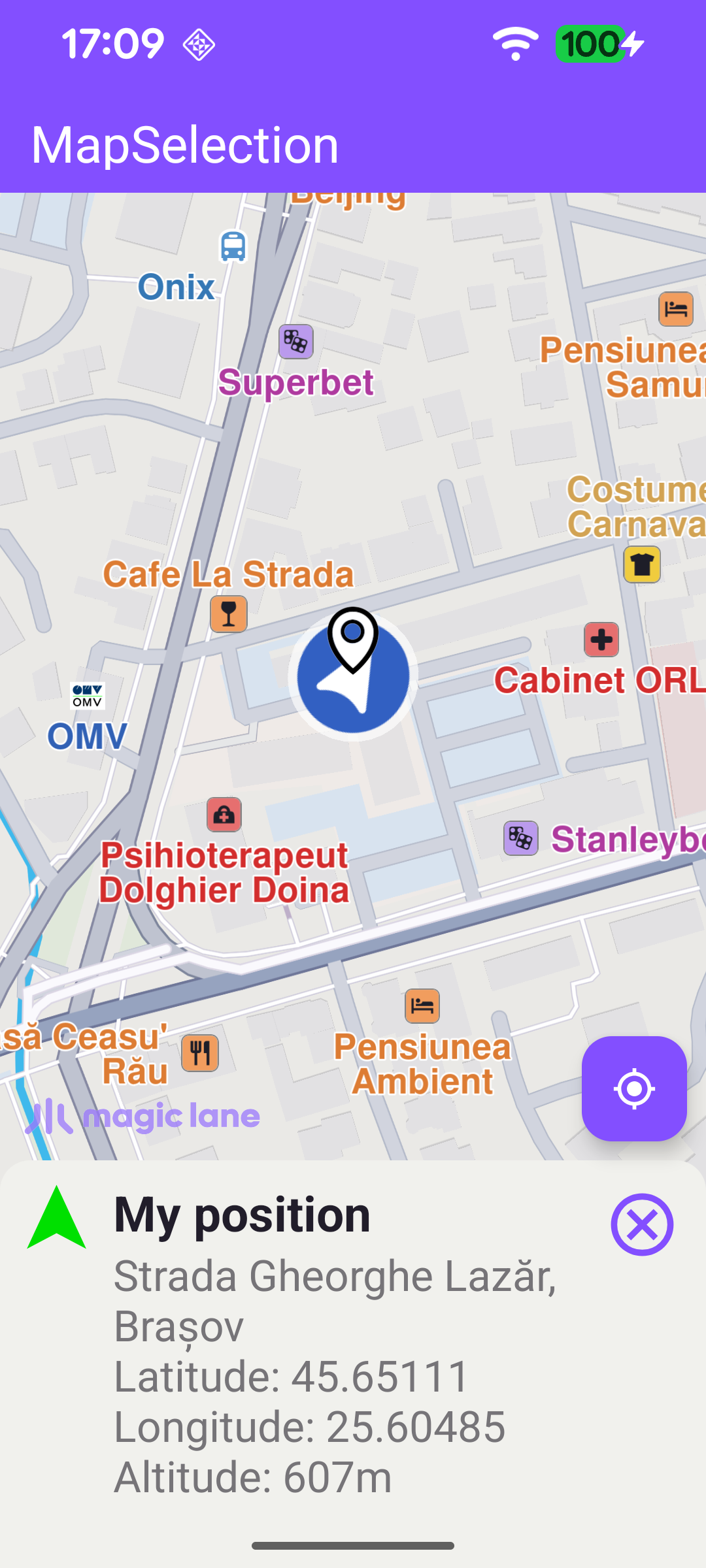
This example demonstrates how to select different elements on the map by tapping them and show the relevant details for each. A demo route from London to Paris is computed at startup, and the user can tap a route, the current-position marker, a POI (either a simple point POI or one with a geographic contour), a speed camera or a traffic event. Tapping inspects whatever is under the cursor and reacts accordingly: it centers on the selection and shows a details panel, or opens a web preview for elements that have one. The map is fully 3D and interactive, supporting pan, pinch-zoom, rotate and tilt.
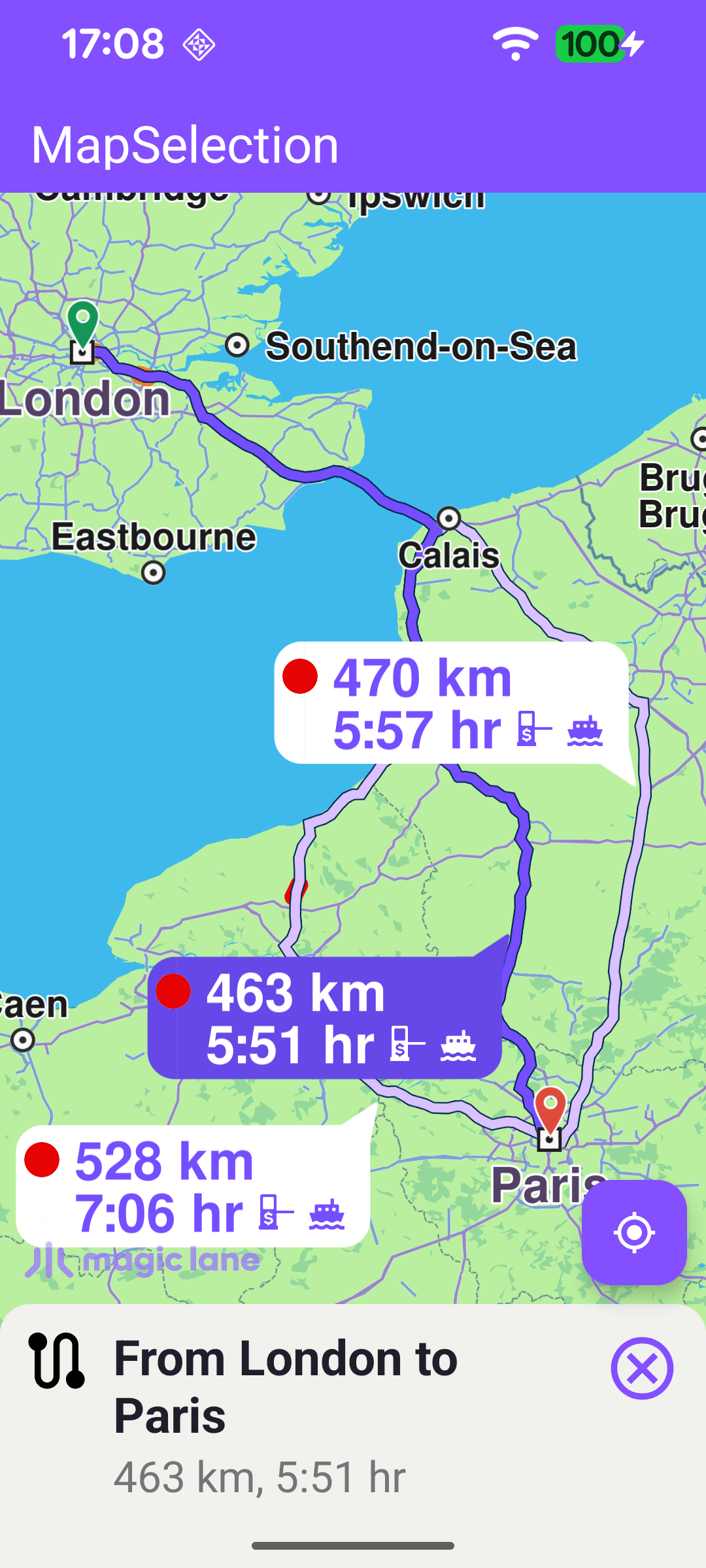
Route selection
My position selection
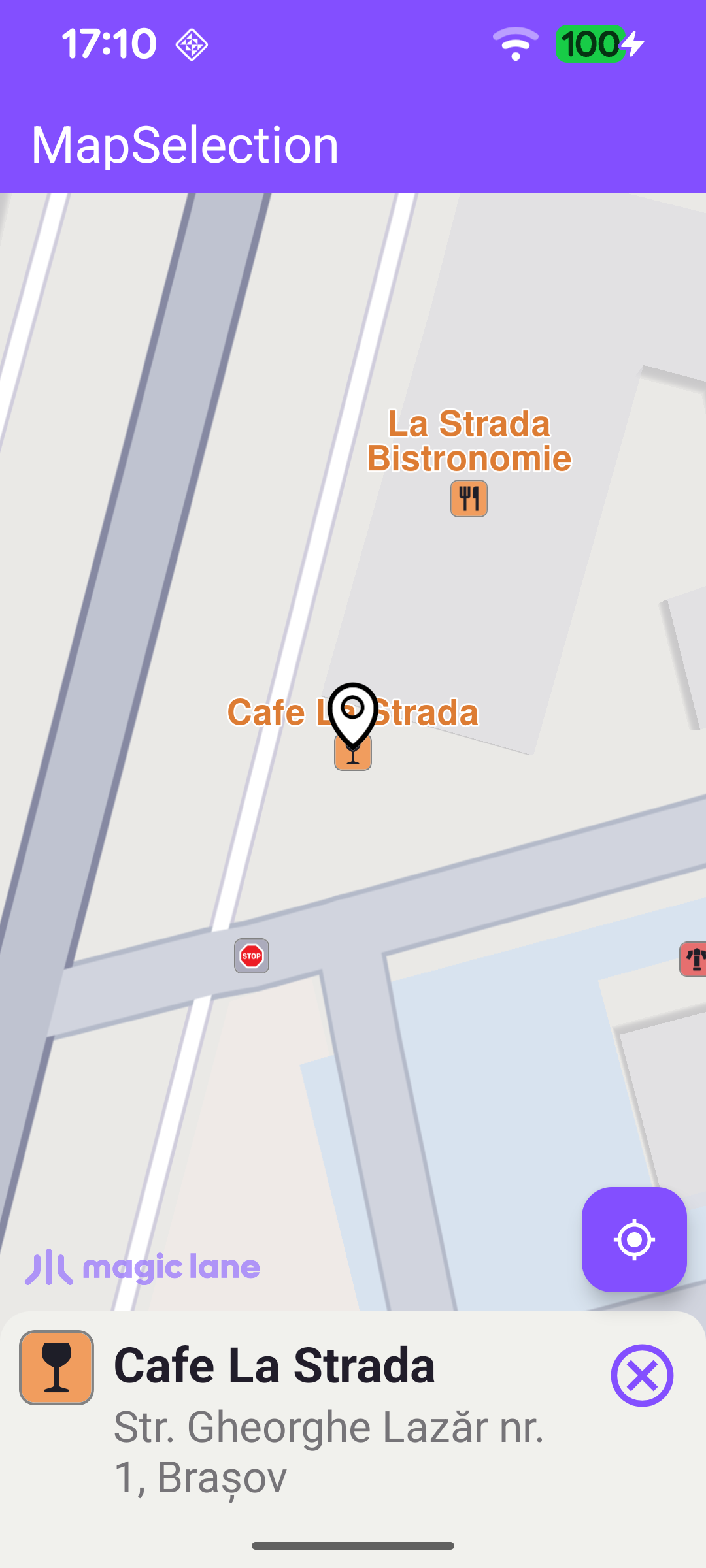
Simple POI selection

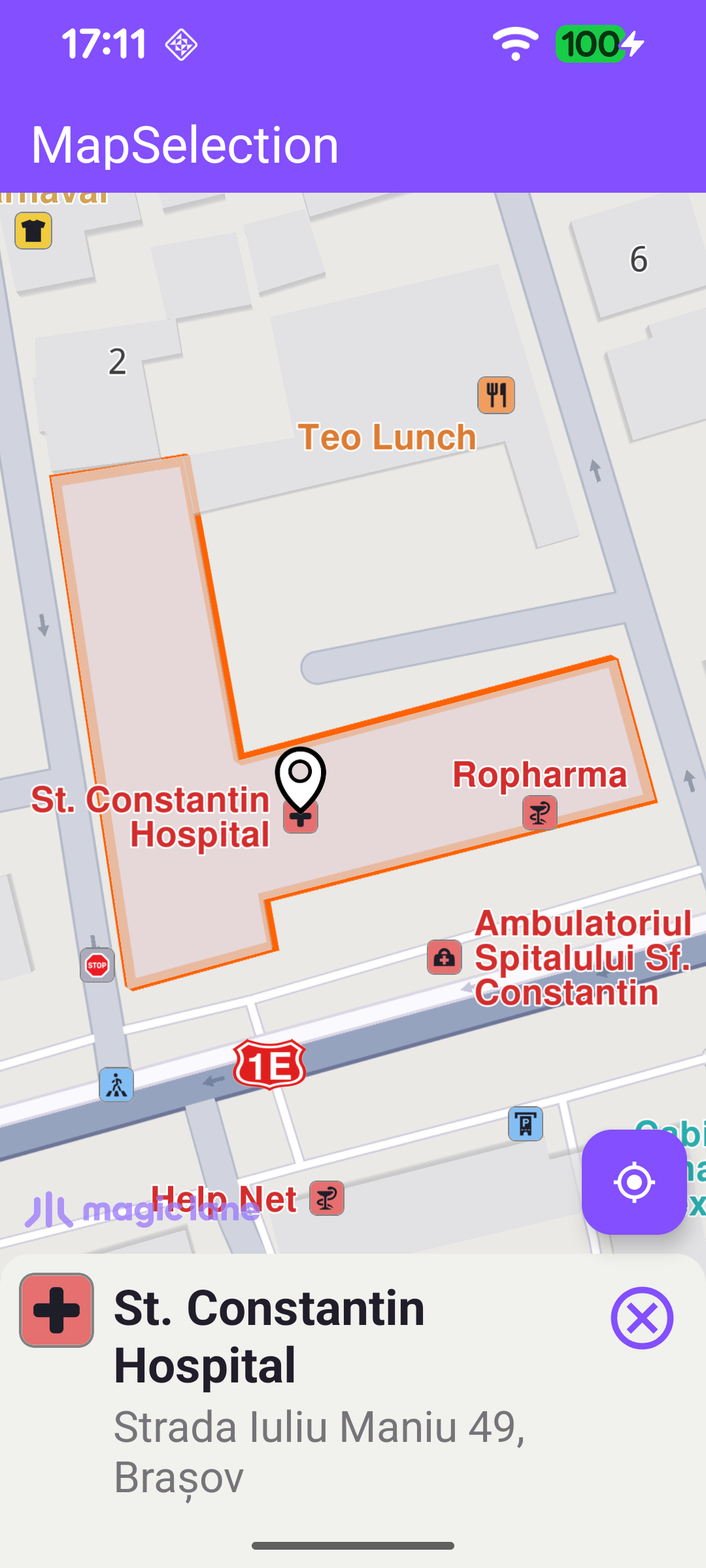
Contour POI selection
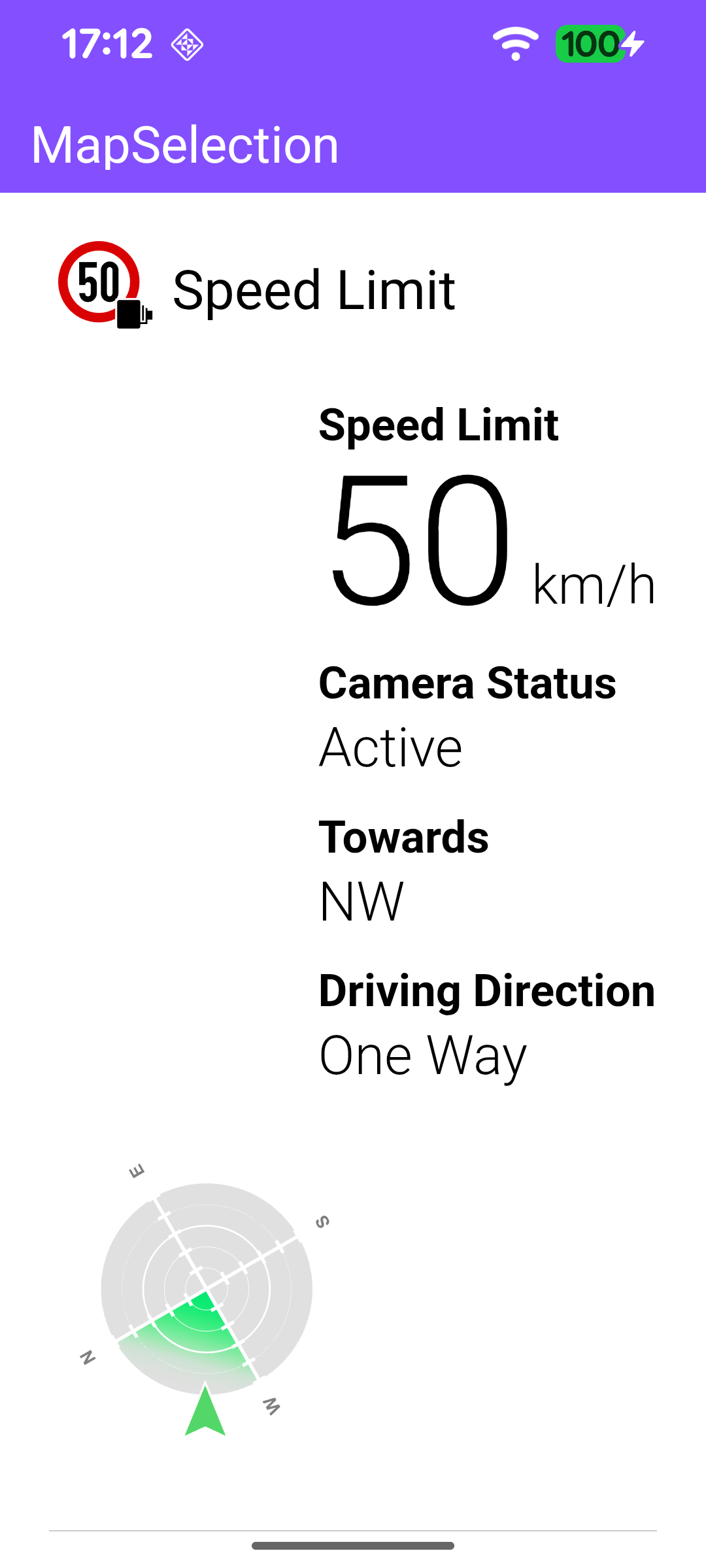
Speed camera selection
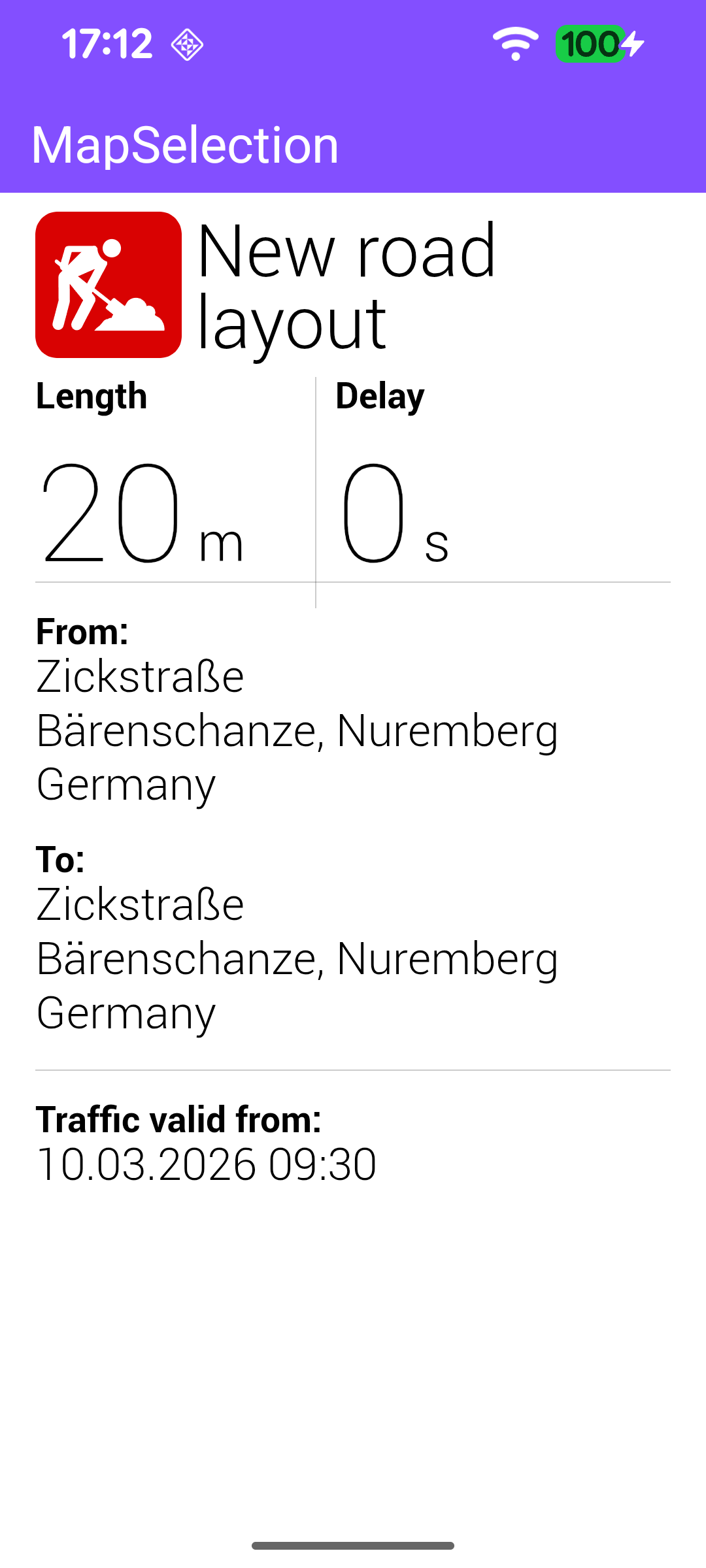
Traffic event selection

Computing the Demo Route

So that routes are available to select, a route is computed once the worldwide road map is ready. Two Landmark waypoints (London as the departure, Paris as the destination) are passed to the RoutingService. calculateRoute returns an error code immediately: if it is not GemError.NoError the computation never started - so onCompleted will not fire - and the error is reported directly here.

MainActivity.ktView on Github
private fun calculateRoute() = SdkCall.execute {
val waypoints = arrayListOf(
Landmark("London", 51.5073204, -0.1276475),
Landmark("Paris", 48.8566932, 2.3514616),
)

val error = routingService.calculateRoute(waypoints)
if (error != GemError.NoError) {
// The computation never started, so onCompleted won't fire: report the error and
// release the idling resource that onCreate incremented for this route request.
val message = GemError.getMessage(error, this)
runOnAliveUi {
showDialog(getString(R.string.routing_service_error, message))
}
EspressoIdlingResource.decrement()
}
}

When the routing completes without error, the computed routes are displayed on the map, the first route is selected, and the details of the selected route are shown.

MainActivity.ktView on Github
private val routingService = RoutingService(
onStarted = {
binding.progressBar.visibility = View.VISIBLE
},

onCompleted = { routes, errorCode, _ ->
binding.progressBar.visibility = View.GONE

when (errorCode) {
GemError.NoError -> {
routesList = routes

SdkCall.execute {
if (routes.isNotEmpty()) {
selectRoute(routes[0])
}
}
}
else -> {
// There was a problem computing the route.
val message = SdkCall.runSynced { GemError.getMessage(errorCode, this) }
showDialog(getString(R.string.routing_service_error, message))
}
}
EspressoIdlingResource.decrement()
},
)

Selecting Elements on Tap

The heart of the example is the map's onTouch handler. After setting cursorScreenPosition so the cursor selection APIs are accurate, it inspects the map in priority order and stops at the first match:

  1. A route (cursorSelectionRoutes) - make it the main route and center on it.
  2. The current-position marker (cursorSelectionSceneObject, matched against the default position tracker) - show "My position" details and highlight it.
  3. A traffic event (cursorSelectionTrafficEvents) - open its preview page in the web view.
  4. A landmark or overlay (cursorSelectionLandmarks / cursorSelectionOverlayItems) - safety overlays such as speed cameras open their own preview page; any other landmark or overlay is turned into a Landmark, whose details are shown and which is highlighted on the map.
MainActivity.ktView on Github
mapView.onTouch = { xy ->
SdkCall.execute {
// Tell the map view where the touch event happened.
mapView.cursorScreenPosition = xy

// 1. A route was tapped: make it the main route and center on it.
val routes = mapView.cursorSelectionRoutes
if (!routes.isNullOrEmpty()) {
selectRoute(routes[0], false)
return@execute
}

// 2. The current-position marker was tapped: show "My position" details.
val myPosition = mapView.cursorSelectionSceneObject
if ((myPosition != null) && isSameMapScene(
myPosition,
MapSceneObject.getDefPositionTracker().first!!,
)
) {
myPosition.coordinates?.let {
val description = getLandmarkDescription(mapView, it, true)

val landmark = Landmark("", it)
showLocationDetails(
ContextCompat.getDrawable(
this,
R.drawable.ic_current_location_arrow,
)?.toBitmap(imageSize, imageSize),
getString(R.string.my_position),
description,
onViewCreated = { highlightLandmarkOnMap(landmark) },
onViewClosed = { deactivateHighlights() },
)

return@execute
}
}

// 3. A traffic event was tapped: open its preview page in the web view.
val trafficEvents = mapView.cursorSelectionTrafficEvents
if (!trafficEvents.isNullOrEmpty()) {
openWebActivity(trafficEvents[0].previewUrl.toString())
return@execute
}

// 4. A landmark or map overlay was tapped.
var landmark: Landmark? = null

val landmarks = mapView.cursorSelectionLandmarks
if (!landmarks.isNullOrEmpty()) {
landmark = landmarks[0]
} else {
val overlays = mapView.cursorSelectionOverlayItems
if (!overlays.isNullOrEmpty()) {
val overlay = overlays[0]

if (overlay.overlayInfo?.uid == ECommonOverlayId.Safety.value) {
// Safety overlays (e.g. speed cameras) have their own preview page.
openWebActivity(overlay.getPreviewUrl(Size()).toString())
} else {
overlay.coordinates?.let {
val name = when {
!overlay.name.isNullOrEmpty() -> overlay.name!!
!overlay.overlayInfo?.name.isNullOrEmpty() -> overlay.overlayInfo?.name!!
else -> getString(R.string.unknown)
}

landmark = Landmark(
name = name,
latitude = it.latitude,
longitude = it.longitude,
).apply {
image = overlay.image
description = getLandmarkDescription(mapView, it)
}
}
}
}
}

landmark?.let { selected ->
val details = GemUtil.pairFormatLandmarkDetails(selected, true)
showLocationDetails(
selected.image?.asBitmap(imageSize, imageSize),
details.first,
details.second,
onViewCreated = { highlightLandmarkOnMap(selected) },
onViewClosed = { deactivateHighlights() },
)
}
}
}

Selecting a Route

selectRoute shows the route's details panel (summary, distance and time) and sets it as the main route to highlight it. Depending on the presentRoutes flag it either presents all alternative routes together (so they all fit in the visible area) or simply centers on the existing routes - both framed into the free map area left by the toolbar, system bars and details panel.

MainActivity.ktView on Github
private fun selectRoute(route: Route, presentRoutes: Boolean = true) {
gemSurfaceView.mapView?.apply {
route.apply {
showLocationDetails(
ContextCompat.getDrawable(
this@MainActivity,
if (isDarkThemeOn()) R.drawable.ic_baseline_route_24_night else R.drawable.ic_baseline_route_24,
)?.toBitmap(imageSize, imageSize),
"From London to Paris",
"${route.getRtd()}, ${route.getRtt()}",
onViewCreated = {
deactivateAllHighlights()
if (presentRoutes) {
binding.locationDetailsContainer.post {
val rect = getMapFreeRect(mapFreeSpacePadding())
val edgeAreaInsets = getEdgeAreaInsets(rect)
SdkCall.execute {
gemSurfaceView.mapView?.presentRoutes(
routesList,
displayBubble = true,
animation = Animation(EAnimation.Linear, 900),
edgeAreaInsets = edgeAreaInsets,
)
}
}
} else {
centerOnRoutes(
routesList,
ERouteDisplayMode.Full,
getMapFreeRect(mapFreeSpacePadding()),
Animation(EAnimation.Linear, 900),
)
}
},
onViewClosed = {
deactivateAllHighlights()
},
)
}
preferences?.routes?.mainRoute = route
}
}

Highlighting a Selected Landmark

highlightLandmarkOnMap handles a simple POI and a contour POI differently. After clearing previous highlights and assigning the search-result pin image, it checks for a geographic contour: landmarks that have one (parks, buildings, regions, …) are centered with centerOnRectArea and drawn with their contour, while point landmarks are centered on their coordinate with centerOnCoordinates. Finally the landmark is highlighted with activateHighlightLandmarks.

MainActivity.ktView on Github
private fun highlightLandmarkOnMap(landmark: Landmark) = SdkCall.execute {
binding.gemSurface.mapView?.let { mapView ->
val rect = getMapFreeRect(mapFreeSpacePadding())

mapView.deactivateAllHighlights()

landmark.image = ImageDatabase().getImageById(SdkImages.Core.Search_Results_Pin.value)

val contour = landmark.getContourGeographicArea()
var highlightSettings: HighlightRenderSettings

if ((contour != null) && !contour.isEmpty()) {
mapView.centerOnRectArea(
contour,
zoomLevel = -1,
viewRc = rect,
Animation(EAnimation.Linear, 900),
)

highlightSettings = HighlightRenderSettings(
EHighlightOptions.ShowContour.value or EHighlightOptions.ShowLandmark.value or EHighlightOptions.Overlap.value,
Rgba(255, 98, 0, 255),
0.75,
).also { it.imageSize = 6.0 }
} else {
highlightSettings = HighlightRenderSettings(
EHighlightOptions.ShowLandmark.value or EHighlightOptions.Overlap.value,
).also { it.imageSize = 6.0 }

landmark.coordinates?.let {
mapView.centerOnCoordinates(
it,
-1,
rect.center,
Animation(EAnimation.Linear, 900),
0.0,
0.0,
)
}
}

mapView.activateHighlightLandmarks(landmark, highlightSettings)
}
}

Long Press: Selecting the Closest Street

In addition to single taps, a long press selects the closest street to the press point (cursorSelectionStreets) and shows its details, highlighting it the same way as any other landmark.

MainActivity.ktView on Github
mapView.onLongDown = { xy ->
SdkCall.execute {
mapView.cursorScreenPosition = xy

val streets = mapView.cursorSelectionStreets
if (!streets.isNullOrEmpty()) {
val street = streets[0]
showLocationDetails(
street.image?.asBitmap(imageSize, imageSize),
GemUtil.formatName(street),
GemUtil.getLandmarkDescription(street, true),
onViewCreated = { highlightLandmarkOnMap(street) },
onViewClosed = { deactivateHighlights() },
)
}
}
}