Display Current Street Info
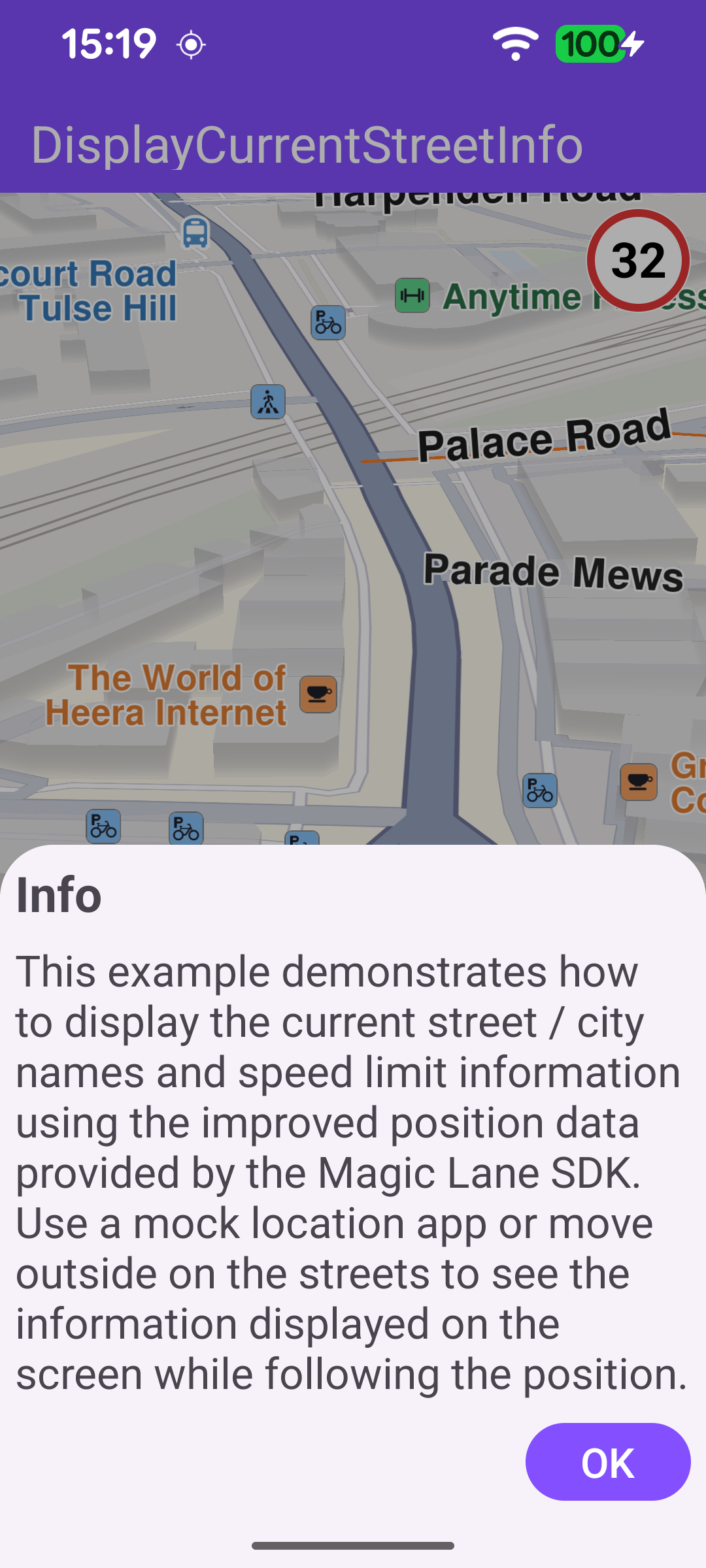
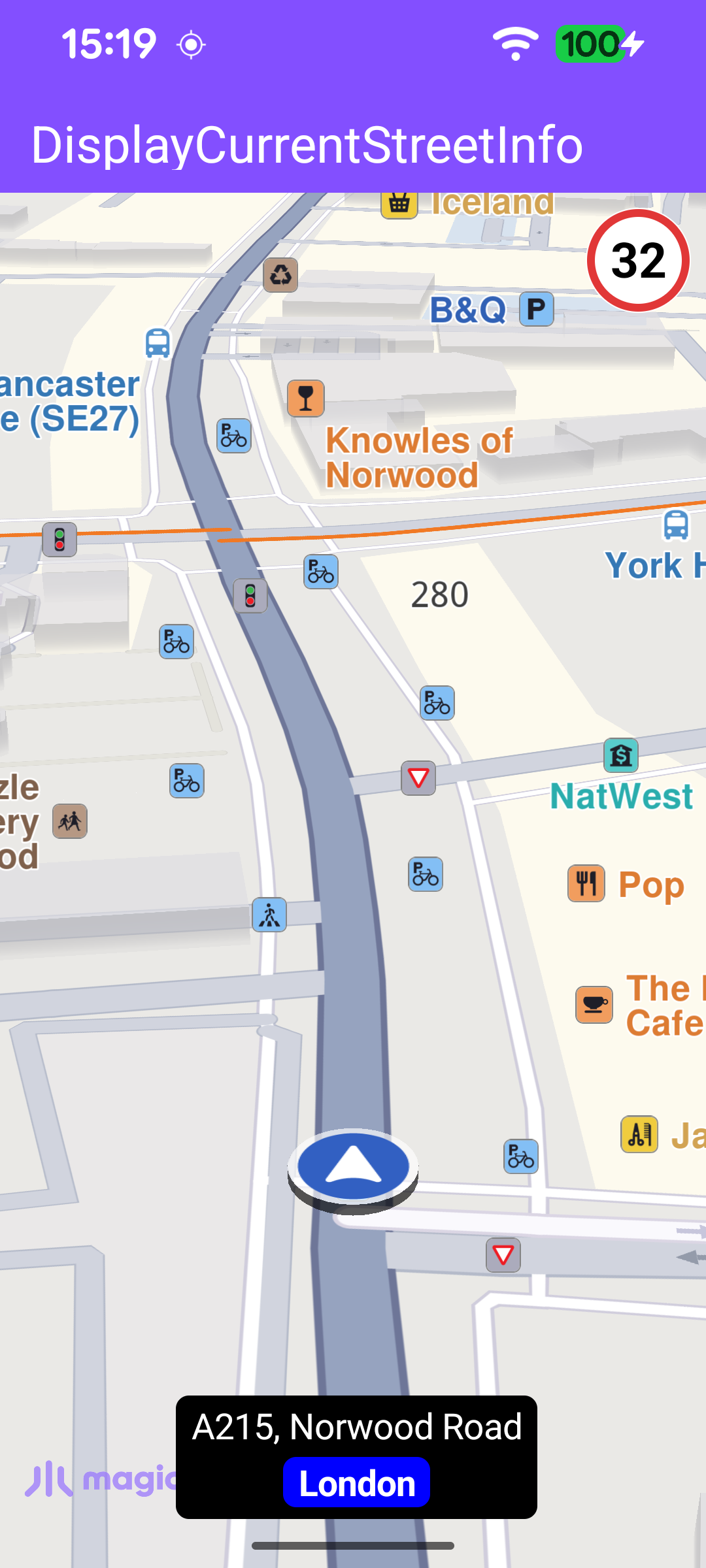
This example demonstrates how to display the current street name, city and speed limit using the improved position data provided by the SDK. On startup, an info dialog explains how to make the information appear: use a mock-location app or physically move along the streets so the position keeps updating. The map follows the current GPS position; as it updates, the street name and city are shown in a panel displayed at the bottom of the screen, and the road speed limit is shown in a speed-limit sign in the top-right corner. When the user pans away from the position, a button appears to recenter the map back onto the current location.
Listening for Position Updates
A DataSourceListener is attached to a live data source for EDataType.ImprovedPosition. Each time new GPS data arrives, the road address (street name and city) and the road speed limit are extracted from an ImprovedPositionData wrapper. The speed limit is converted from m/s to km/h. When no city is reported by the GPS fix, the nearest address is queried as a fallback to provide a "Near <city>" label. The app only displays street info while it is following the current position.
Starting the Position Listener
Once the default map view is created, the map starts following the current position. If location permissions are granted and location services are enabled, a live data source is produced and the listener is registered for improved-position updates.
Updating the Street Info Panel
handleCurrentStreetNameInfo updates the on-screen panel. The street name is shown, the city is shown below it when available, and the speed-limit sign is shown only when a valid speed limit is reported. Longer speed-limit values are rendered at a smaller text size so they fit inside the sign.
Recentering on the Current Position
When the user pans away from the followed position, a button is shown to return to it. Tapping the button re-enables position following.