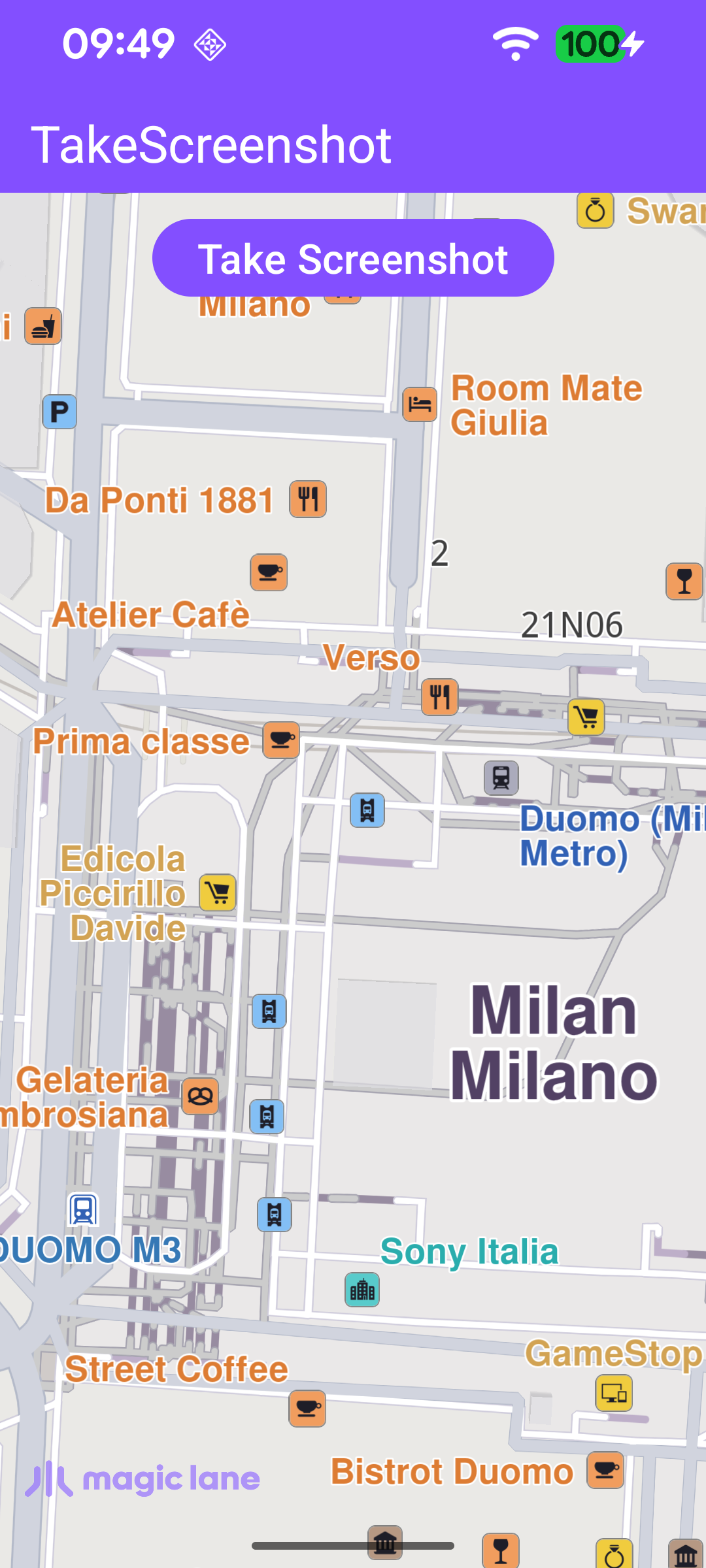
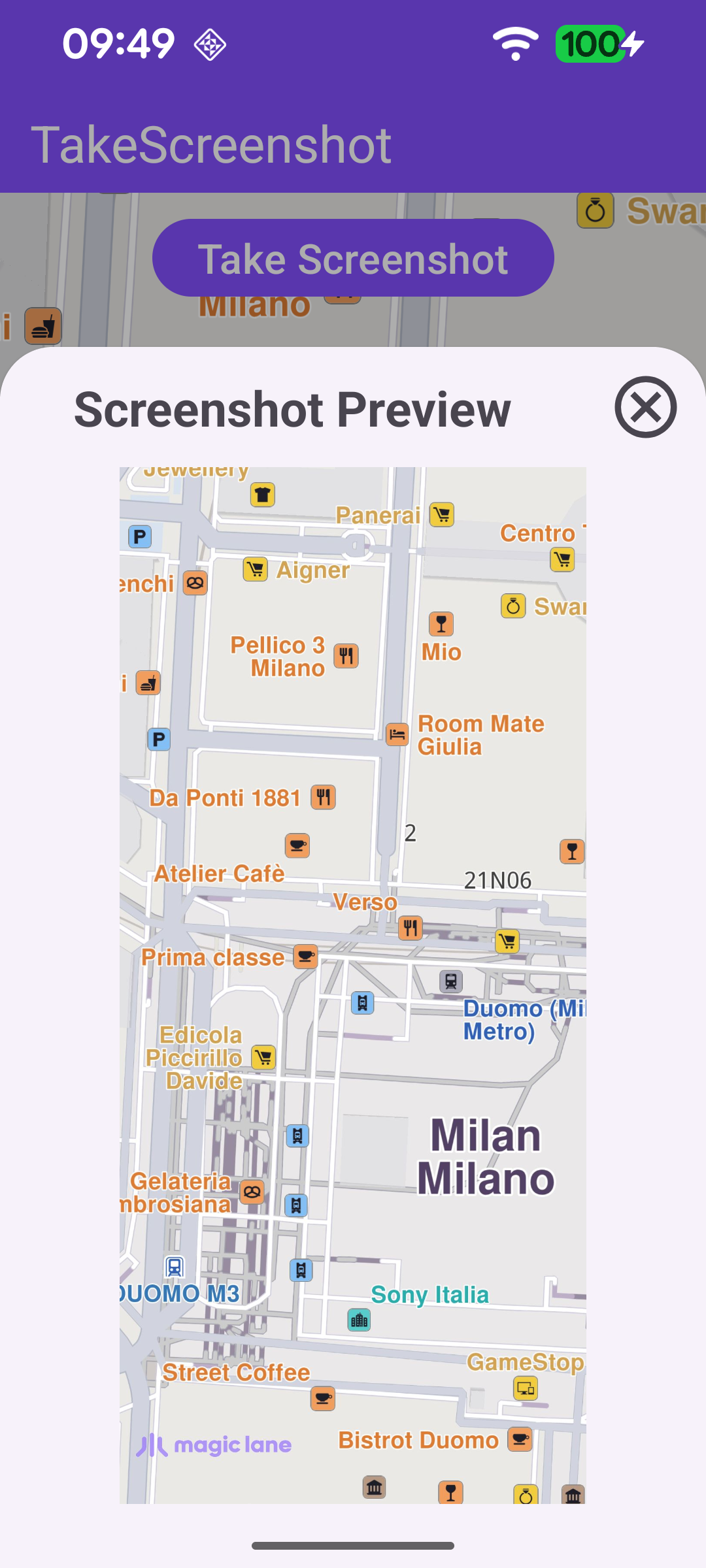
This example demonstrates how to capture a screenshot of the map view and preview it inside the app. The user pans, zooms, rotates or tilts the map to the desired view, taps the Take Screenshot button, and the current map frame is captured and shown in a bottom sheet preview.
MainActivity overrides onCreate, which inflates the view binding, registers the SDK listeners, wires up the Take Screenshot button, and checks for an internet connection.
The screenshot is not captured directly when the button is tapped. Instead, the tap sets a takeScreenshot flag and asks the map surface to render a new frame with gemScreen?.needsRender(). Performing the capture inside the render loop guarantees that the bytes read back match a frame that has actually been drawn.
// Request a new frame; the capture is performed in onDrawFrameCustom.
takeScreenshot =true
SdkCall.runSynced{
binding.gemSurface.gemScreen?.needsRender()
}
}
}
The onDrawFrameCustom listener runs on every rendered frame. When the takeScreenshot flag is set, it clears the flag (so the capture happens only once) and captures the frame that was just drawn.
captureScreenshot() calls mapView.captureAsImage(dataBuffer, Rect()) to render the current map view into a reusable DataBuffer. An empty Rect() captures the whole view; a non-empty rectangle would capture only that region. The captured bytes are then decoded into a Bitmap and scaled to the surface size. The commented-out variant shows how captureAsImage can write the image straight to a file instead.
Once the bitmap is ready, showScreenshotPreview() displays it in an expanded BottomSheetDialog. The sheet is capped at 75% of the screen height so it never covers the whole screen, and its close button dismisses the preview.